![NEW_PlanHub_Logo_Navy.png]](https://knowledgebase.planhub.com/hs-fs/hubfs/Design/PH%20Logos/NEW%202024%20PH%20Logos/NEW_PlanHub_Logo_Navy.png?height=40&name=NEW_PlanHub_Logo_Navy.png)
Prerequisites:
- Have an active planHub Subcontractor account
- Access to the Network > PlanHub Directory tab (To learn more about the PlanHub Directory, view our Knowledge Base article: PlanHub Network Page Guide)
- Access to the Early Stage projects (To learn more about Early Stage, view our Knowledge Base article: What are Early Stage Projects?)
Q: When is the best time to request more information?
A: After thoroughly reviewing the plans, specifications, and addenda, when details are unclear or missing, and you need clarification to accurately scope and price your bid.
Q: What information should I request?
A: You should request additional information that is not included in the current documents and is needed to clarify your scope of work and accurately price your bid.
Sending the Request for Information through the GC's planHub profile:
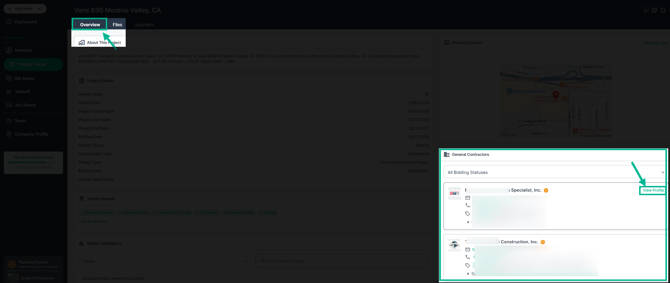
- From the Overview tab in the project page, navigate to the bottom right corner to find the list of general contractors and their contact information.
- Copy the GC contact's email address to reach out using your own email platform, or hover the mouse cursor over their company card and select View Profile to send the request through the GC's planHub profile
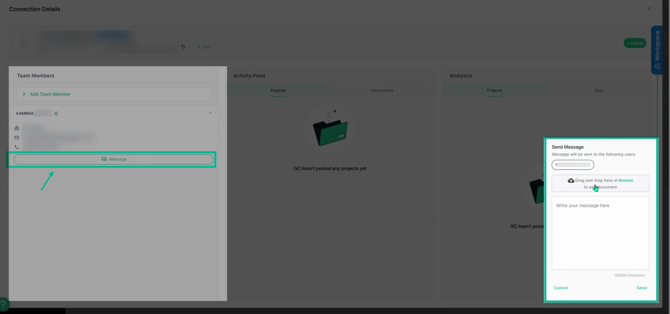
- Once you have landed on the GC's profile page, view the Team Members section on the left side. Choose a contact and click the message bubble. In the message pop up window, browse your computer or drag and drop files to upload. Then, enter your question in the message box. Click Send or Cancel to exit.
Options for Navigating to the GC’s PlanHub profile from the Project Page
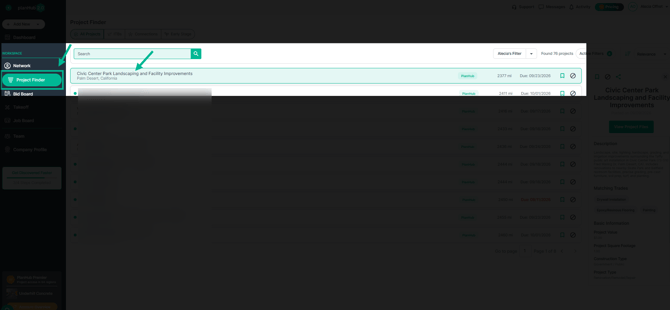
Option 1: Send a request for information through Project Finder
- Select Project Finder in the main panel to view projects.
- Click on the project for which you want to request additional information.
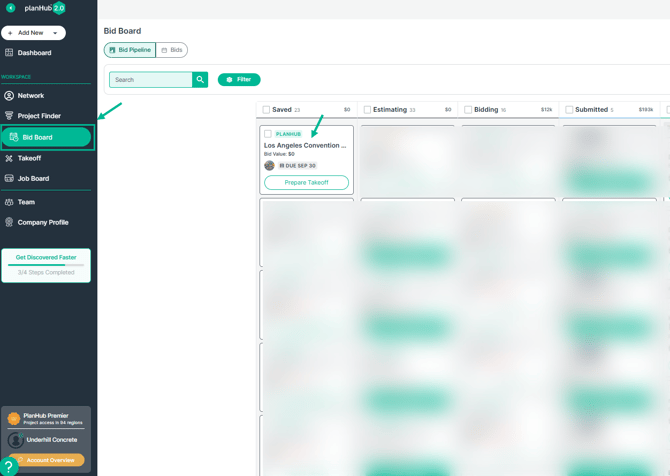
Option 2: Send a request for information from the Bid Board
- Select Bid Board in the main panel to view your saved projects.
- Click on the project for which you want to request additional information.
Option 3: Send a request for information through the Connections Tab
- Select Project Finder, then click on the Connections tab.
- Click on the project for which you want to request additional information.
- Click on the project you want to request more details on.
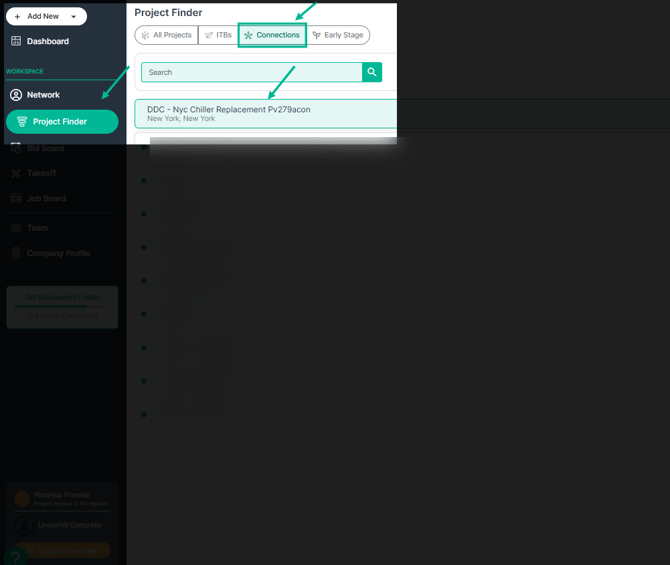
Refer to the: ”Sending the Request for Information through the GCs planHub profile” section above for the remaining steps.
Contacting General Contractors via the Network Add-On feature (Purchase of the Network is required to access the PlanHub Directory)
To learn more about the Network Add-On feature, view our Knowledge Base article: PlanHub Network Page Guide or contact your Account Manager to discuss your options.
Step 1: Click on Network in the main panel to view the list of General Contractors in the PlanHub Directory based on your subscription purchase.
Step 2: Select the PlanHub Directory tab. Then, click on the General Contractor you’d like to request project information from. 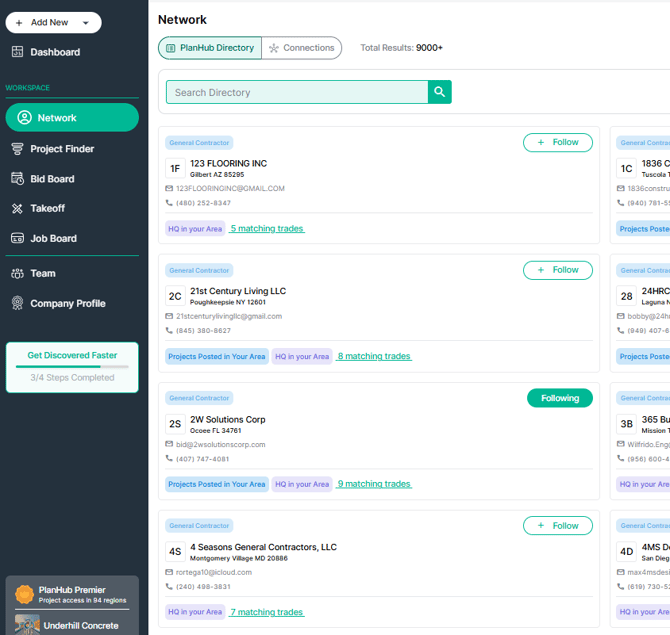
Step 3: In the Team Members section, choose a contact and click the message bubble. In the message window, browse or drag and drop files and enter your question in the message box. Then, click Send or Cancel to exit.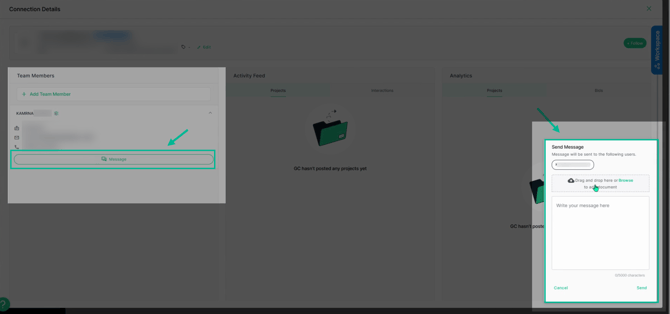
Requesting Project Information from Your Connections
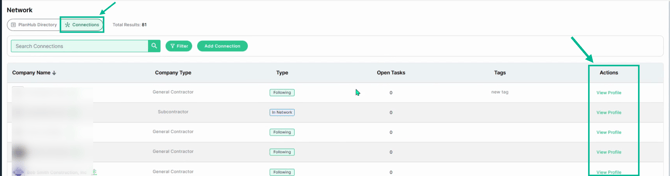
Step 1: From the Network page, click on the Connections tab to view your network of GCs that you are currently following or who have listed you in their network.
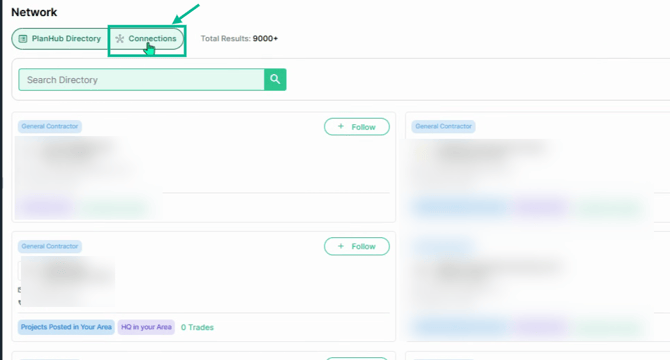
Step 2: View the Actions column for the GC you want to contact and select View Profile.
Step 3: In the Team Members section, choose a contact and click the message bubble. In the message window, browse or drag and drop files and enter your question in the message box. Then, click Send or Cancel to exit. 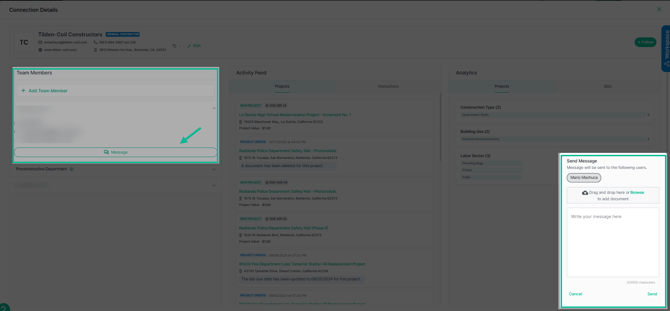
Early Stage Add-on: Project Information Requests (Purchase of the Early Stage Add-On is required to view contacts)
To learn more about the Early Stage Add-On, view our Knowledge Base article: What are Early Stage Projects? or contact your Account Manager to discuss your options.
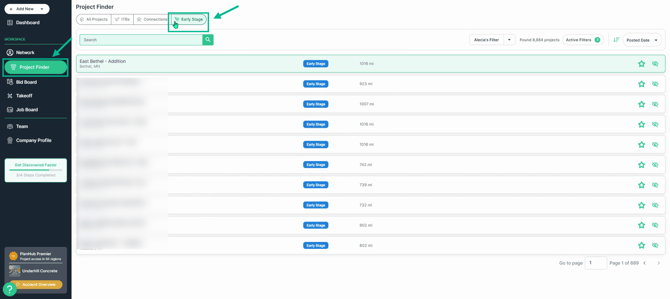
Step 1: Select Project Finder in the main panel, then click the Early Stage tab to view the list of upcoming projects in the planning and budgeting phase.
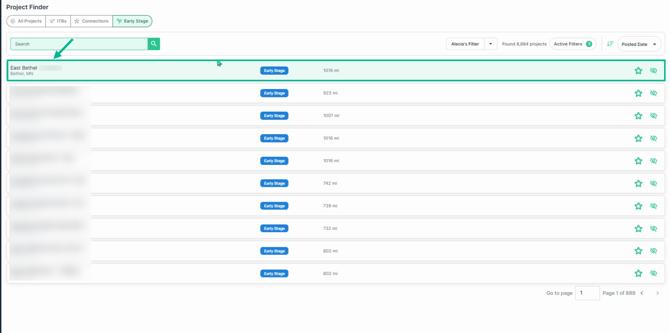
Step 2: Click on the name of the project that you would like to request additional information on.
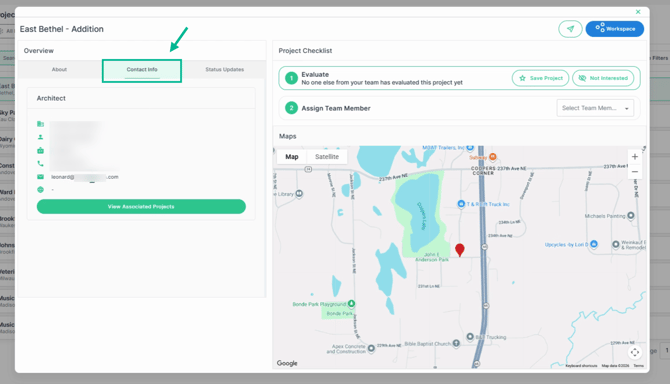
Step 3: Select the Contact Info tab to view the team member’s email address. Copy the email and send your message from your personal or company email.
Tracking Your Messages
After sending requests, monitor responses within PlanHub.
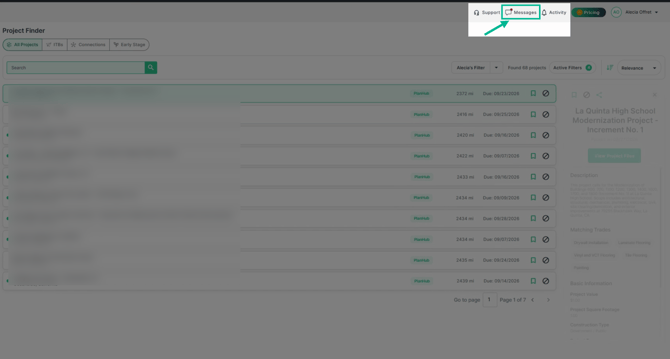
Step 1: Click Messages in the upper right corner.
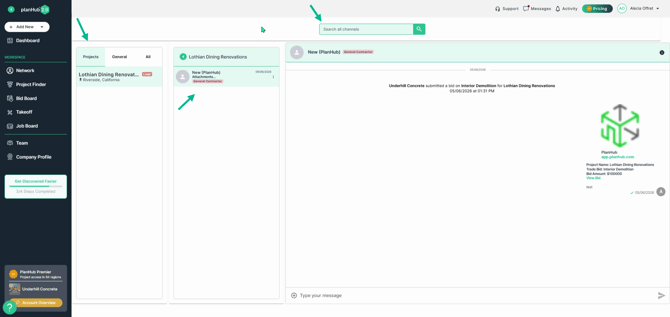
Step 2: Select a tab on the left to review replies connected to your projects or general messages. Select the message to view the message thread or use the keyword search bar at the top to filter messages.
Step 3: If you have integrated your personal or company email, you can receive direct responses to your personal or company email inbox.
Note: If you see a pop-up prompting you for email integration, you can follow the prompt to send emails through PlanHub using your Gmail or Outlook email. For more in-depth instructions on email integration, refer to the Knowledge Base article: Subcontractors | planHub Email Integration Guide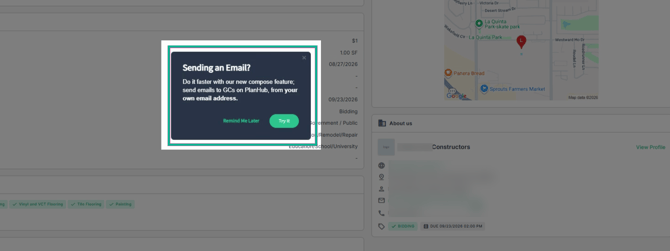
Note: When requesting information, keep your questions specific, concise, and easy for the GC to answer. Rather than sending a general message such as "Can you send more information about the project?", identify exactly what you need.
Being specific helps the GC quickly understand what you need, provide a clear response, and gives you the information needed to accurately scope and price your bid. It also helps avoid assumptions and misunderstandings later in the project.
By sending a request for information directly through PlanHub, you can quickly connect with general contractors, ask questions, and request the information you need to submit a more informed bid.
Troubleshooting
Contact us if you need assistance or to report an issue:
- PlanHub Contact Page: https://planhub.com/contact/
- Customer Facing Support Ticket Link: https://knowledgebase.planhub.com/knowledge/kb-tickets/new
- Customer Success Team: CustomerSuccess@planhub.com