![NEW_PlanHub_Logo_Navy.png]](https://knowledgebase.planhub.com/hs-fs/hubfs/Design/PH%20Logos/NEW%202024%20PH%20Logos/NEW_PlanHub_Logo_Navy.png?height=40&name=NEW_PlanHub_Logo_Navy.png)
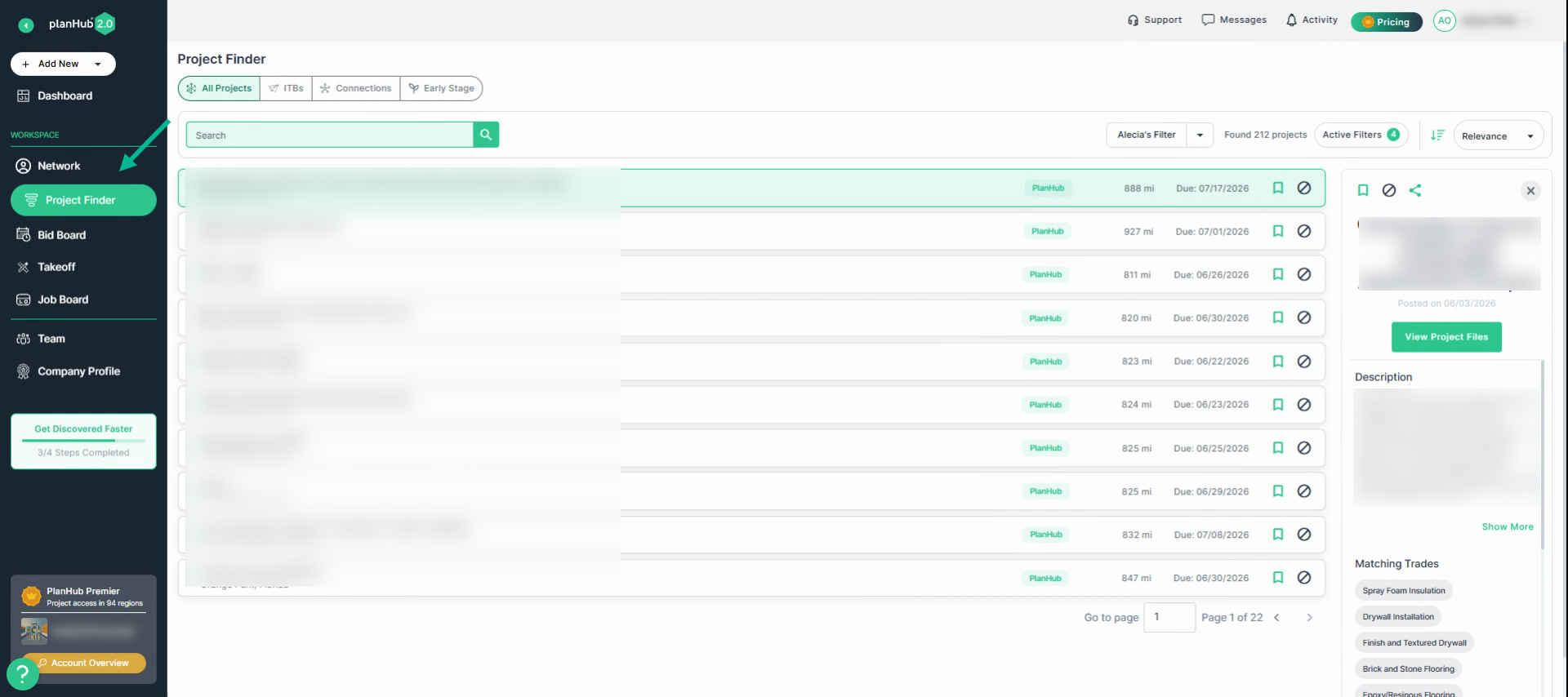
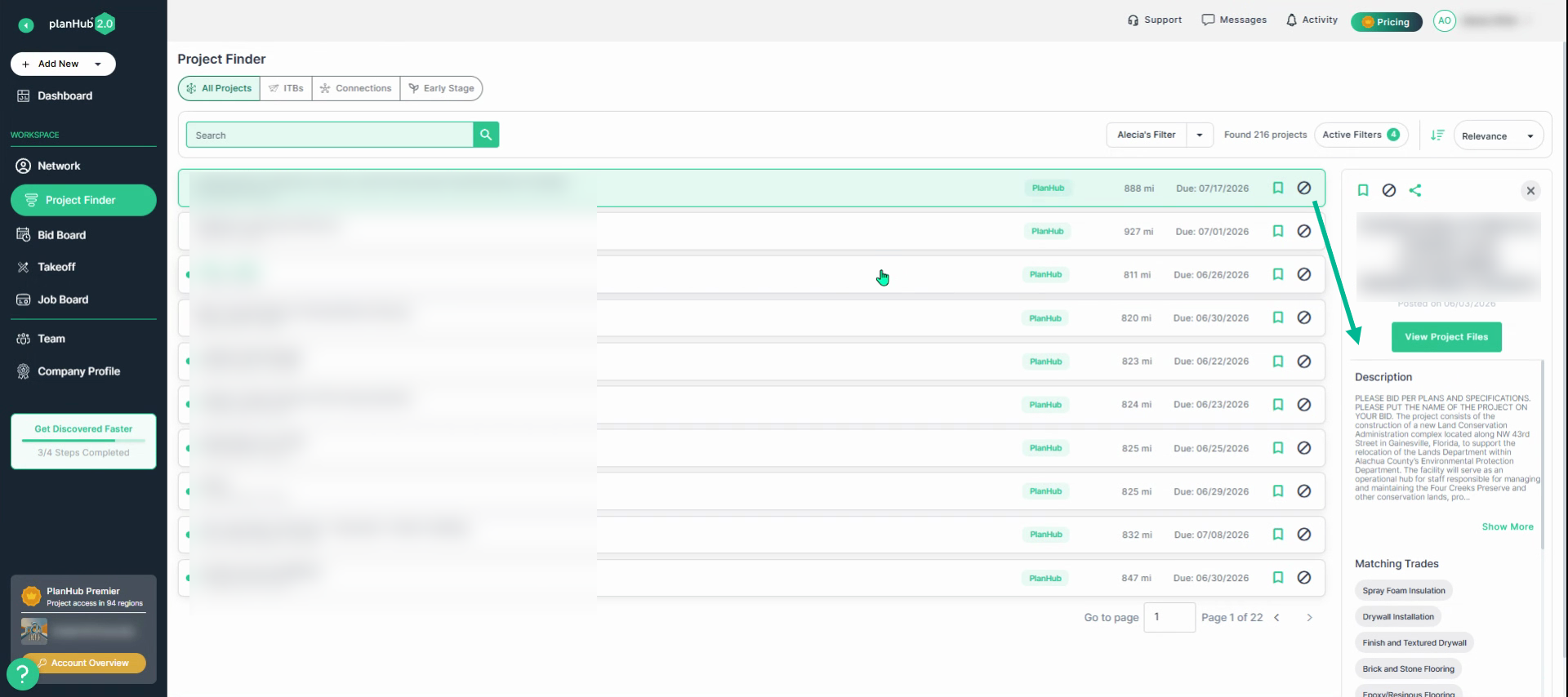
Step 1: Navigate to the Project Finder page from the main panel.
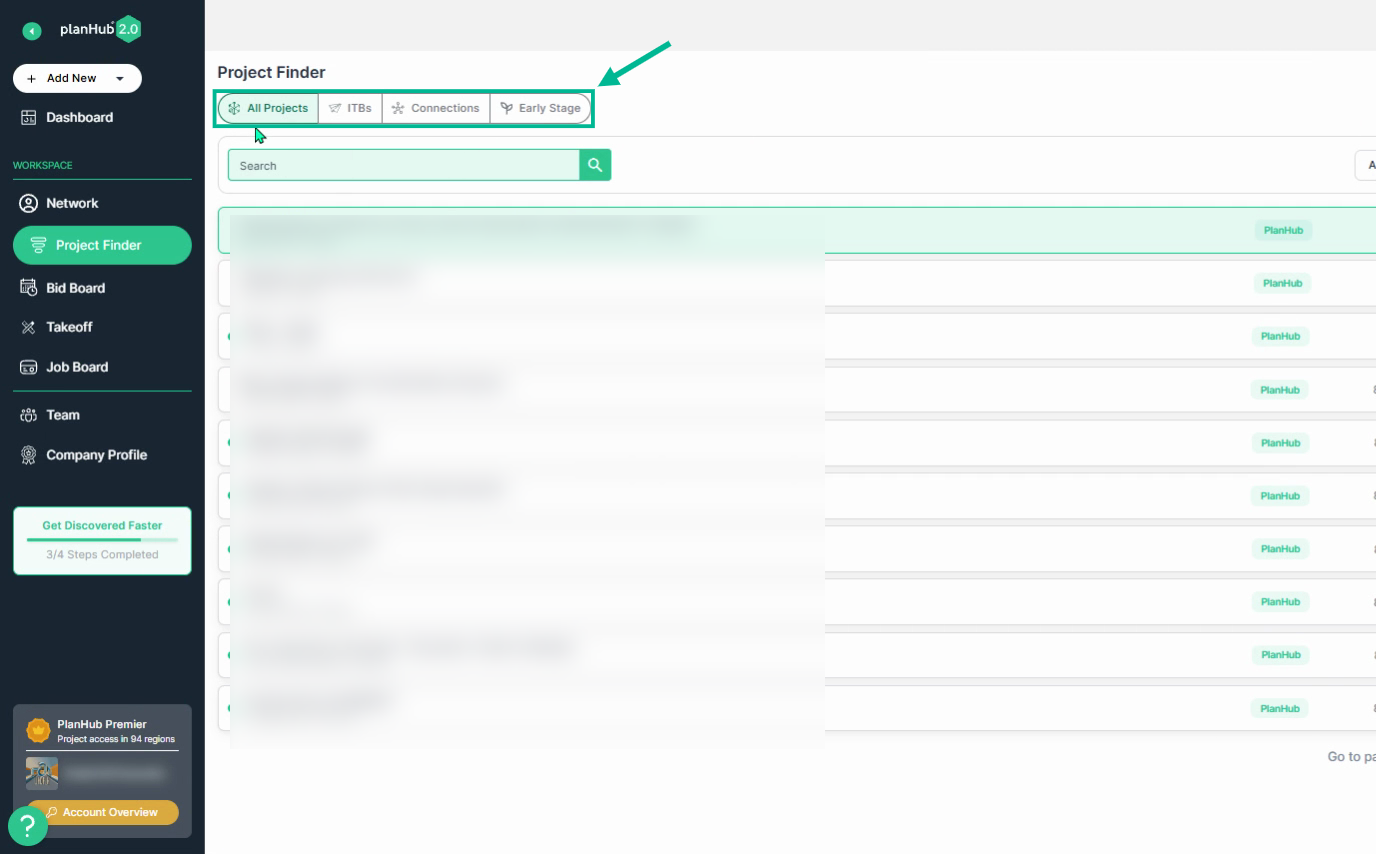
Step 2: Choose from the multiple tabs at the top: All Projects, ITBs, Connections, and if purchased-Early Stage (Add-On feature).
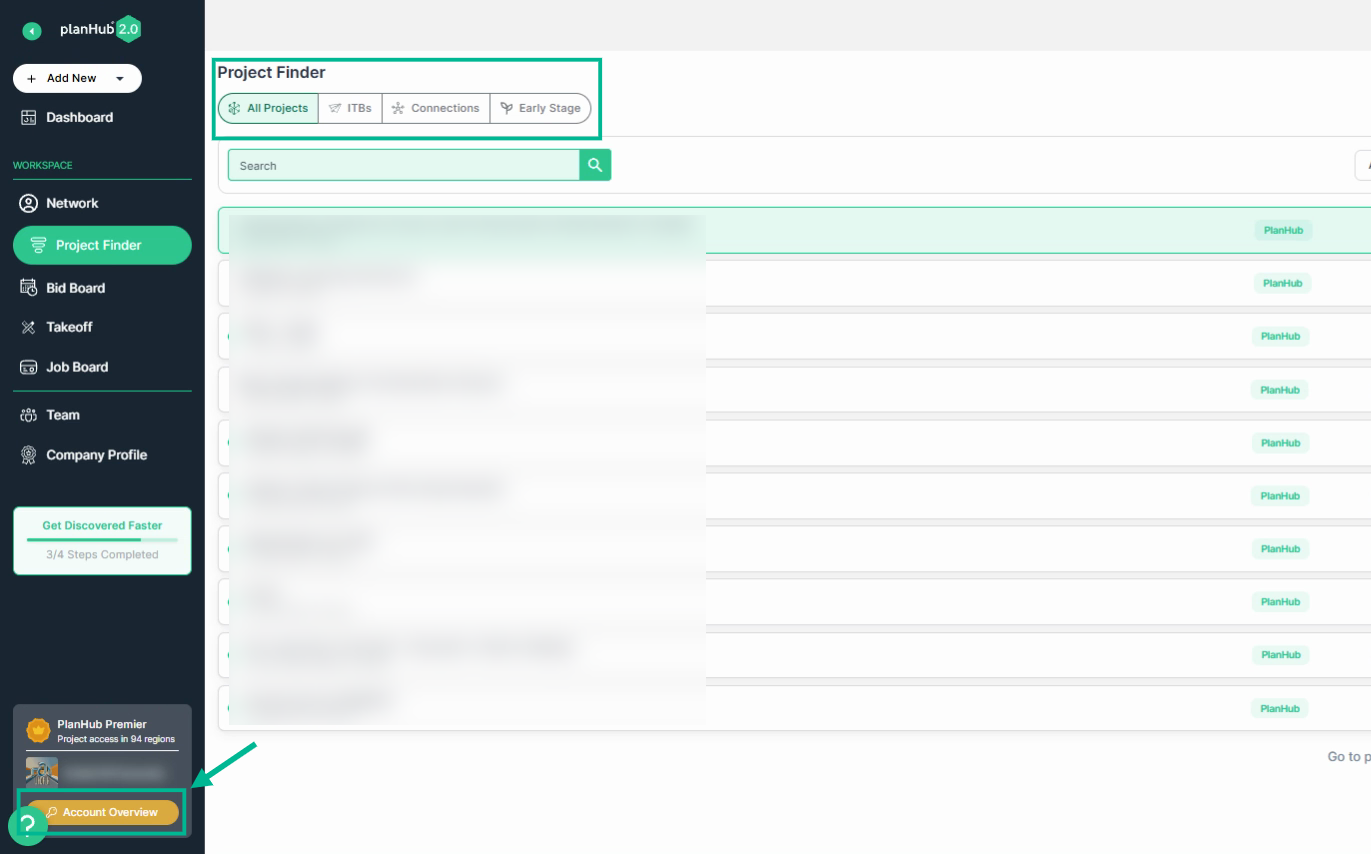
Step 3: Access to the projects within each tab vary based on several factors, including the General Contractors you follow, your notification settings, and your subscription plan. To review your account details, click on the Account Overview button in the lower left corner of the page.
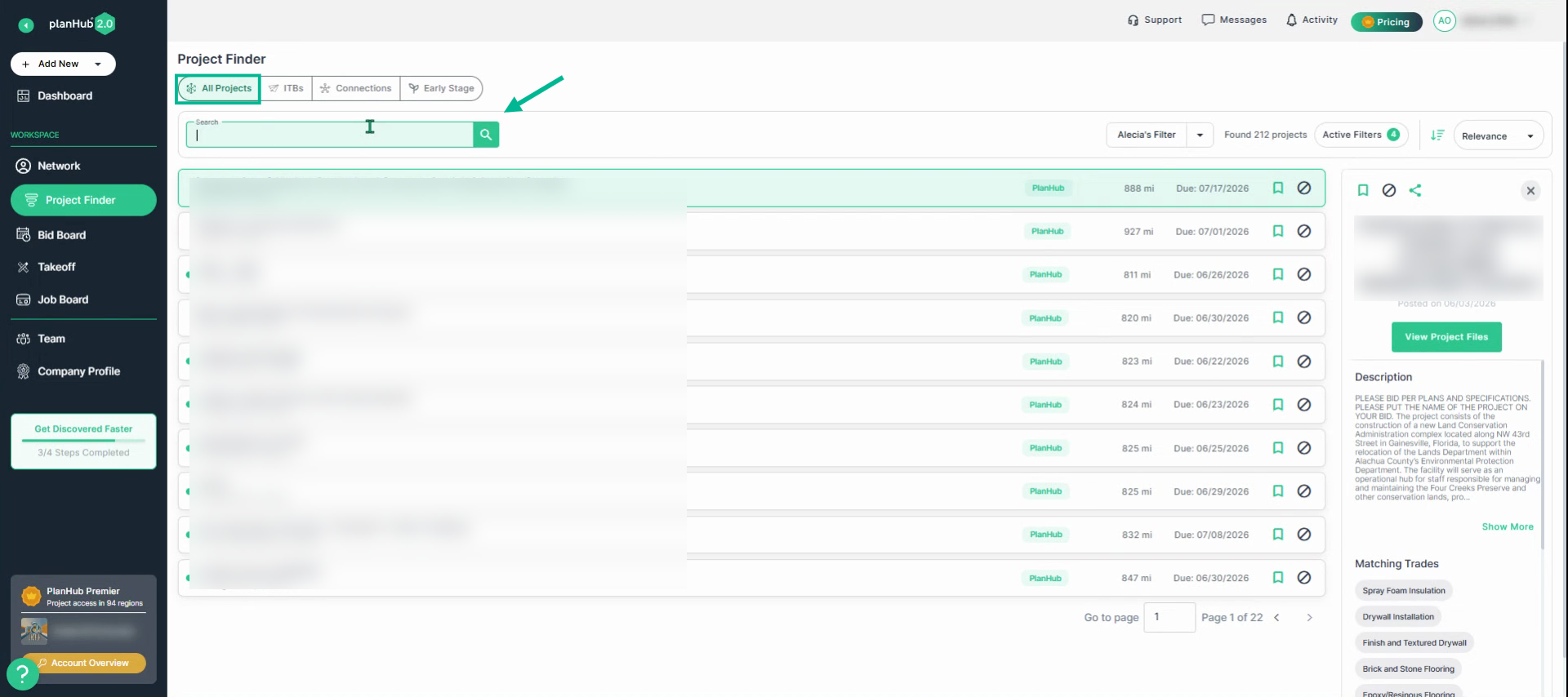
Step 4: Under the All Projects tab, use the Keyword search bar to enter project names, trades, or relevant keywords to narrow results. You can also use it to search for specific product names or any other terms related to what you want to search.
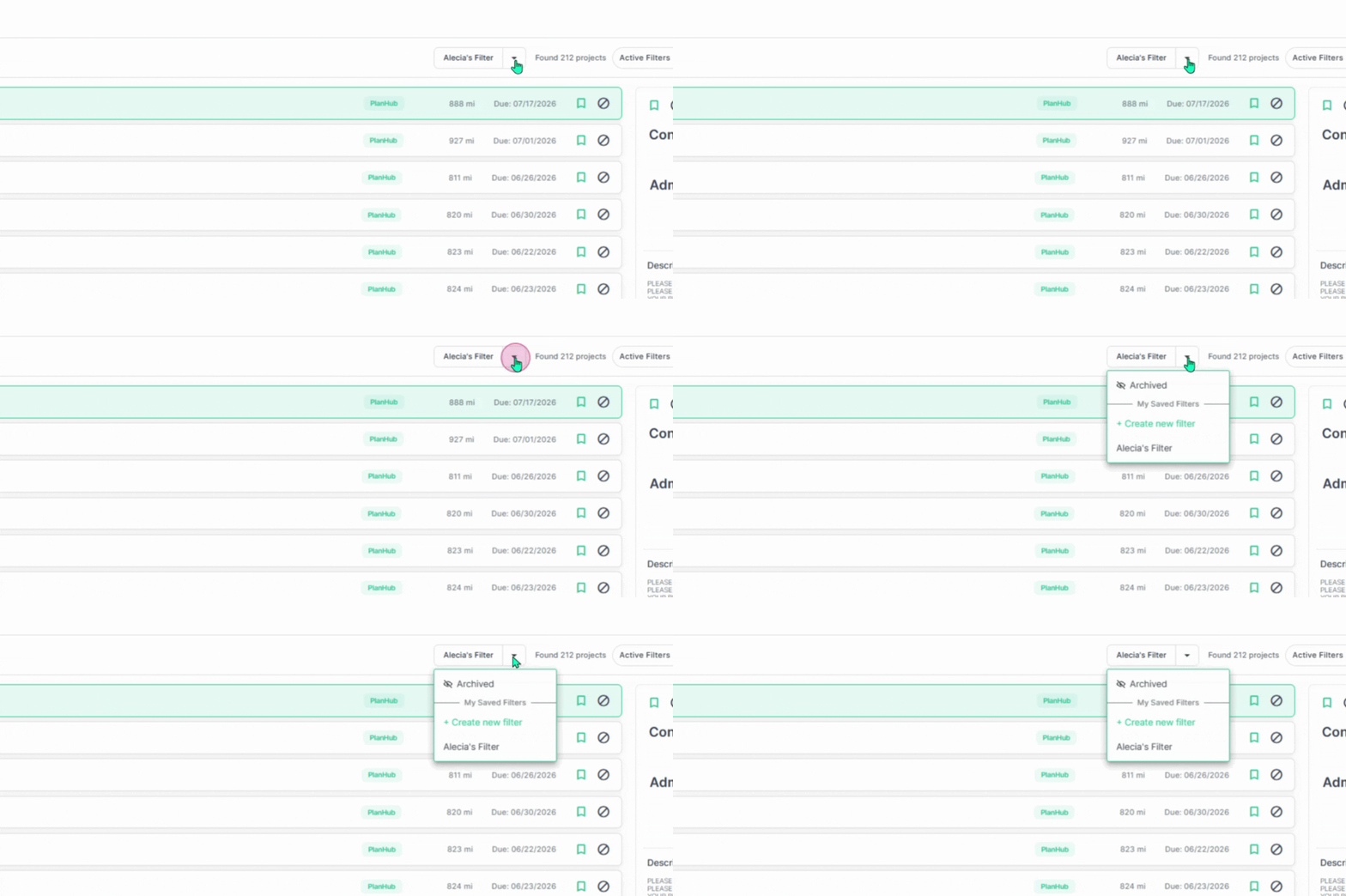
Step 5: Open the named Filters dropdown menu to view your saved filters, create new filters or view the archived projects list.
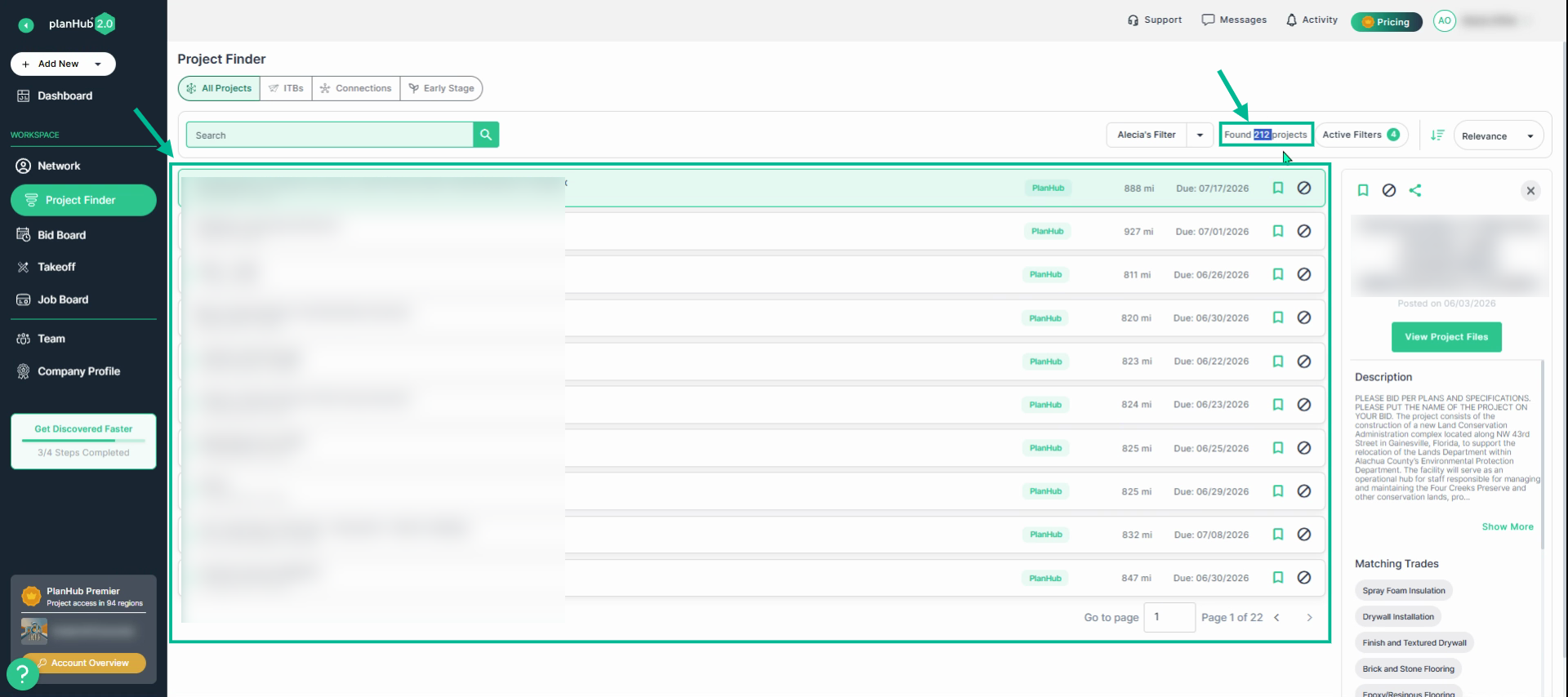
Step 6: View the filtered list of projects that match your keyword search and applied filter criteria, along with the total number of results returned.
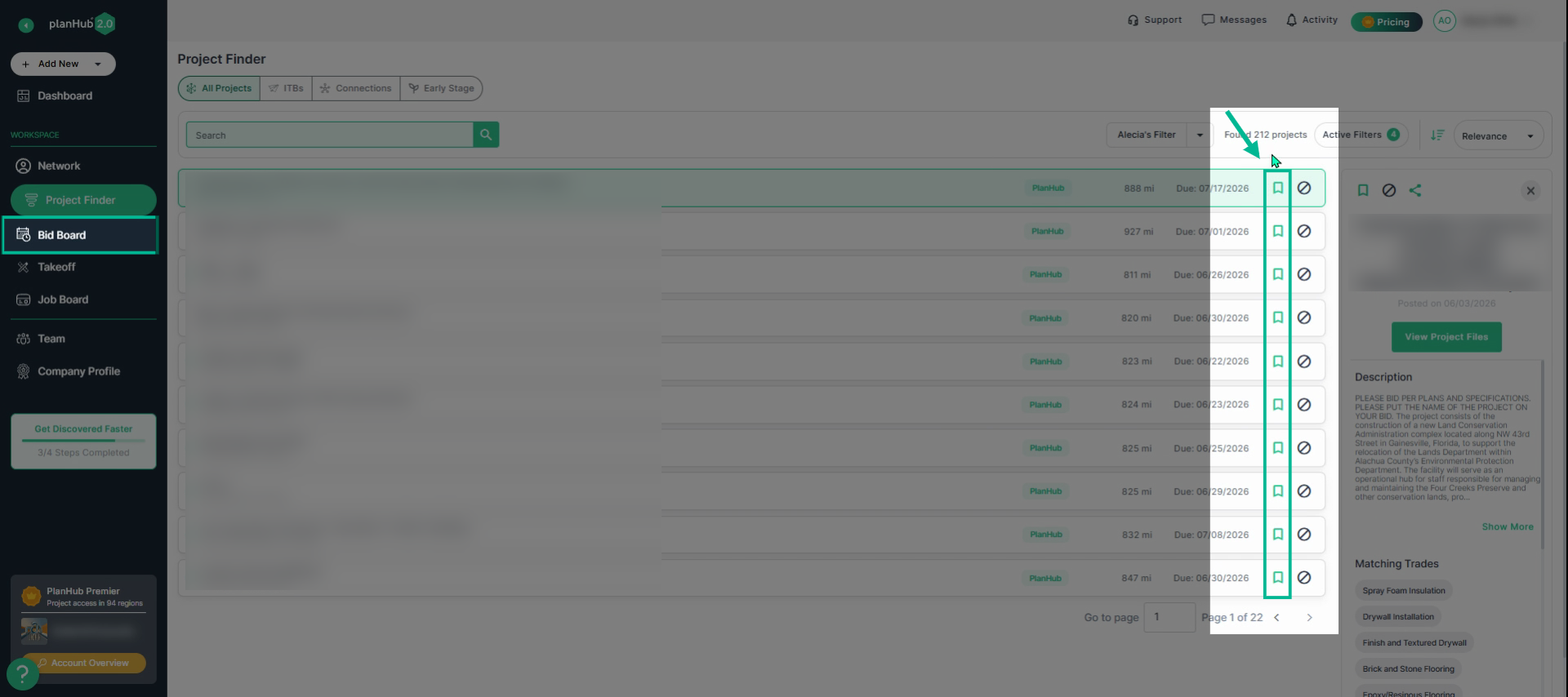
Step 7: Save projects to your Bid Board by clicking the save icon.
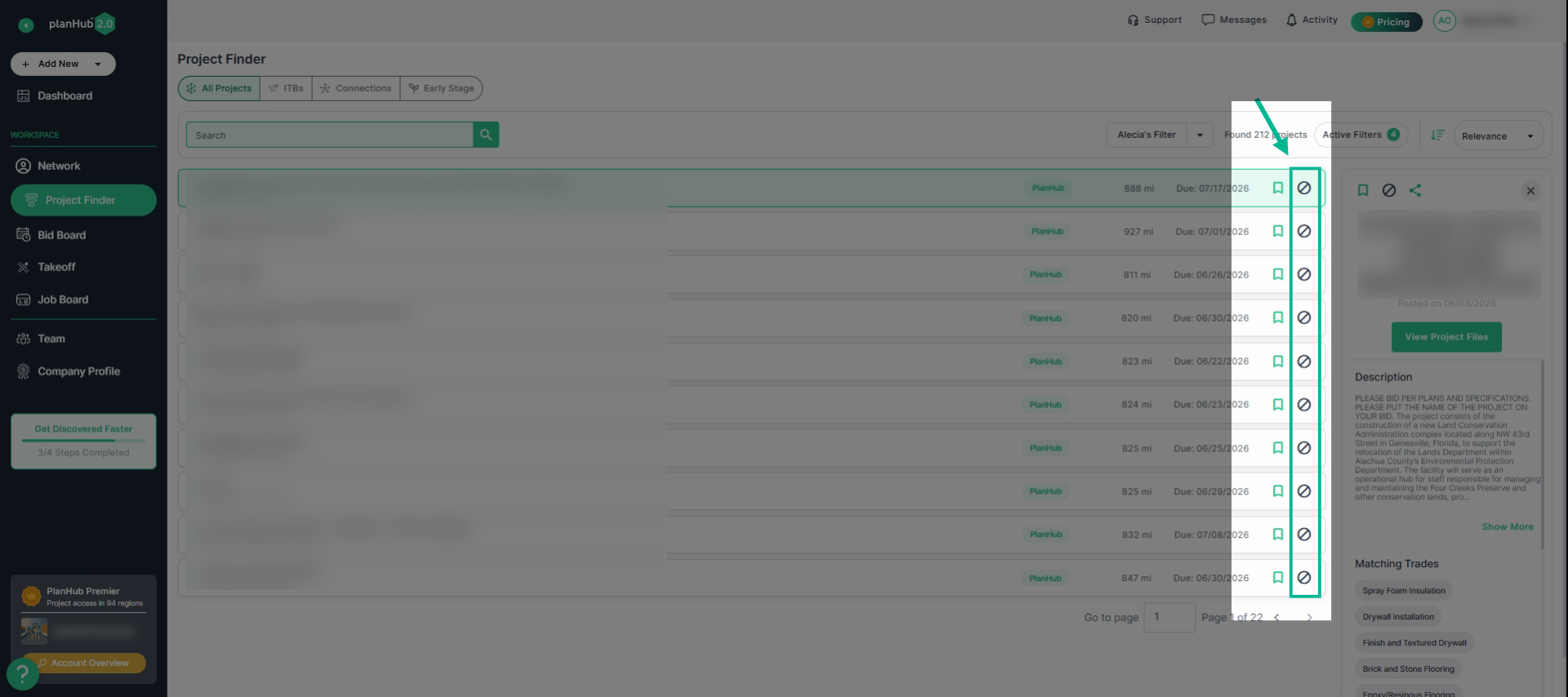
 Alternatively, select the “Not Interested” icon to archive a project and remove it from your active project list. This action also notifies the general contractor that you will not be bidding on that project.
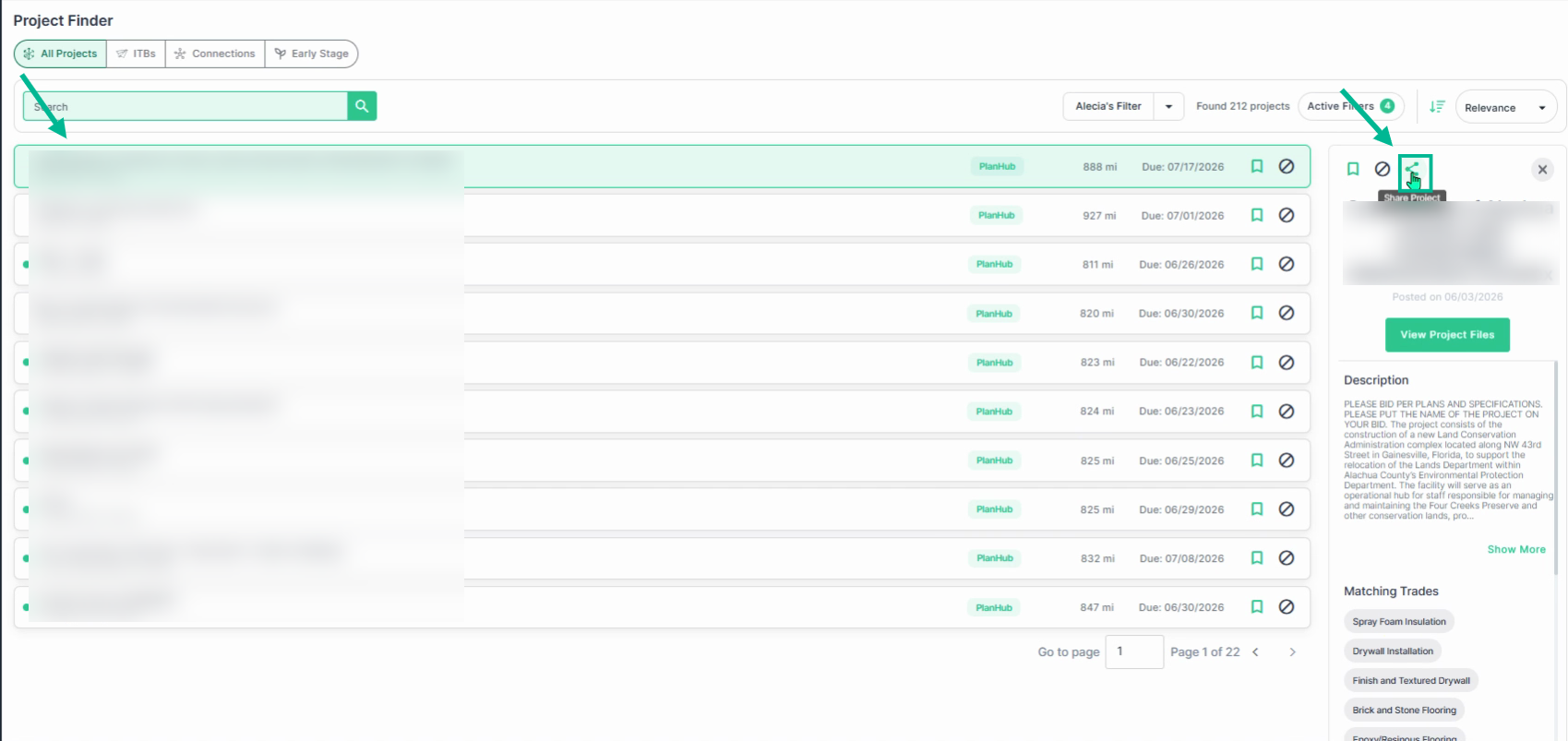
Step 8: To share a project with a team member, select the project then view the details panel on the right, and click the Share option at the top.
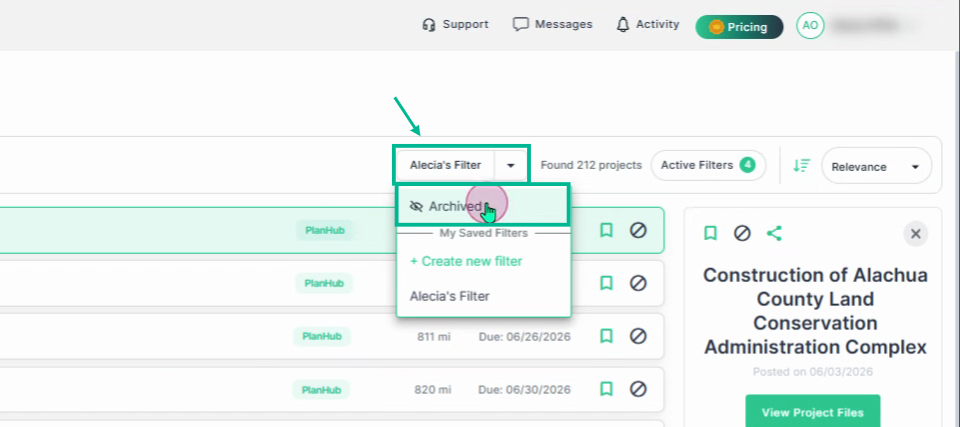
Step 9: To review the archived projects, open the named Filter dropdown menu, click Archived, and view the corresponding project list on the next page.
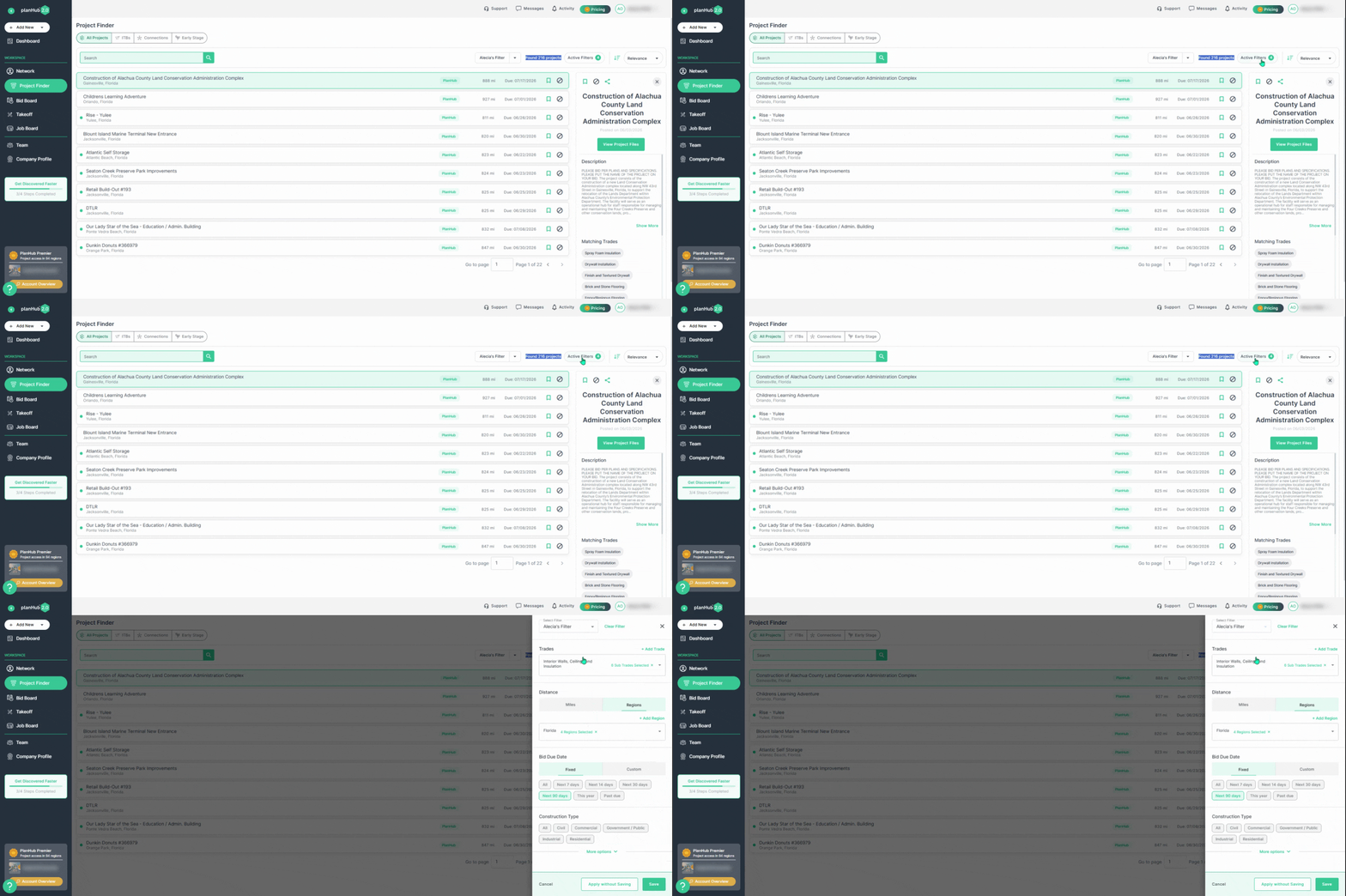
Step 10: Edit, delete, or update active filters by clicking Active Filters. You can also save new filters or apply changes temporarily.
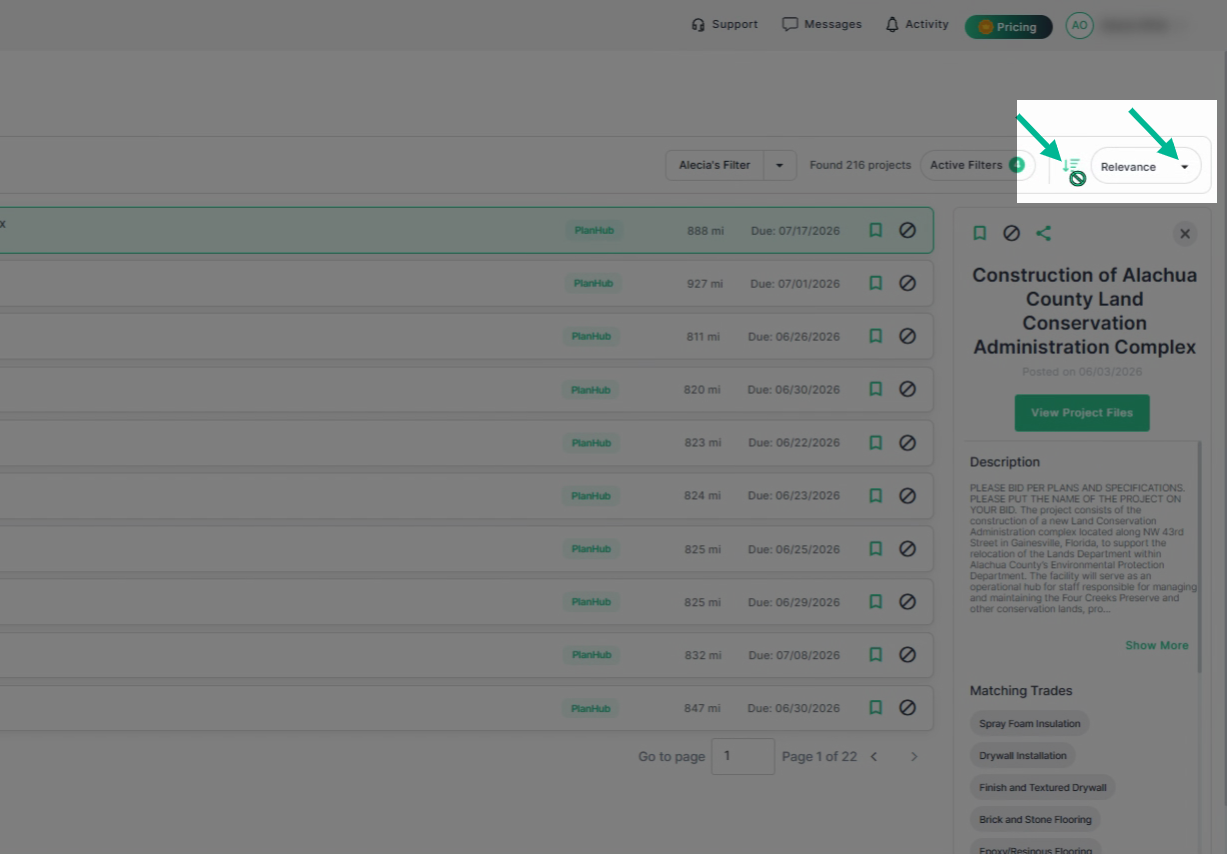
Step 11: Change the sorting order of your project list using the sort icon or dropdown menu for quick organization.
Using the Keyword Search Bar
Step 1: Enter a project name or keyword in the search bar.
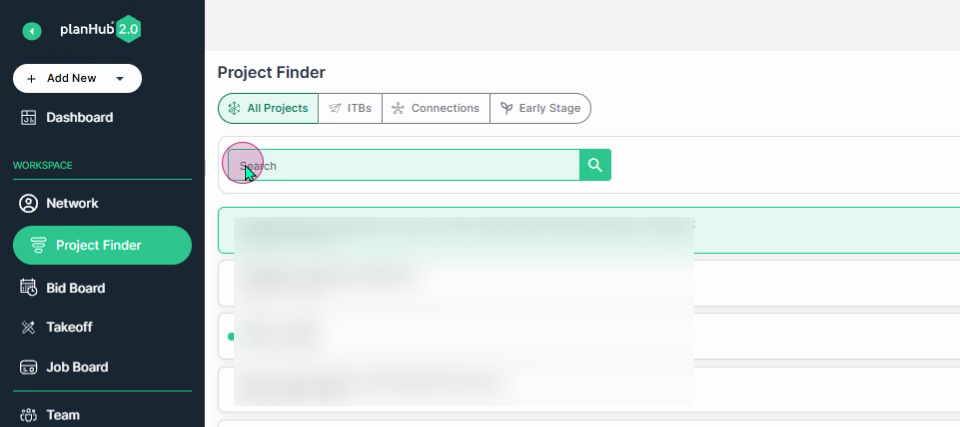
Step 2: View the search results, showing matching projects and the number of keyword matches within documents.
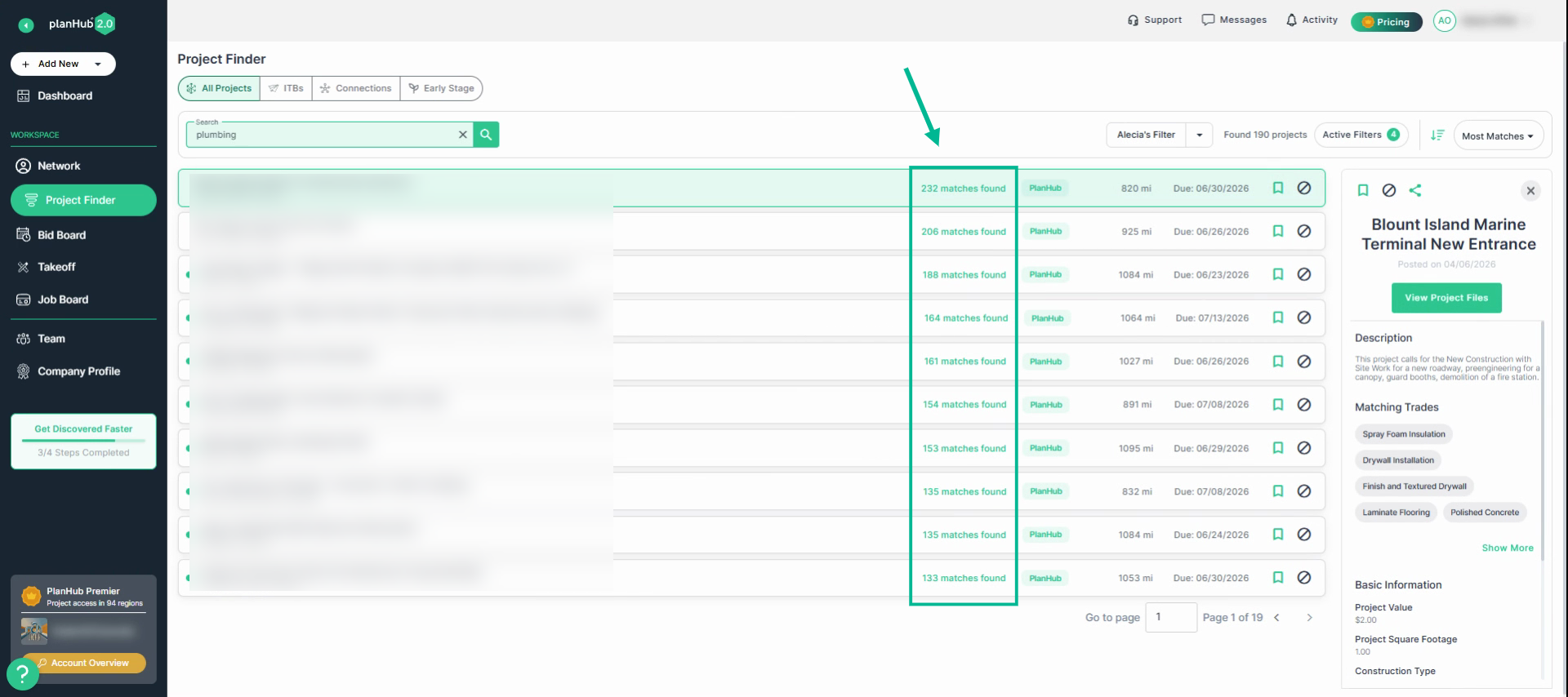
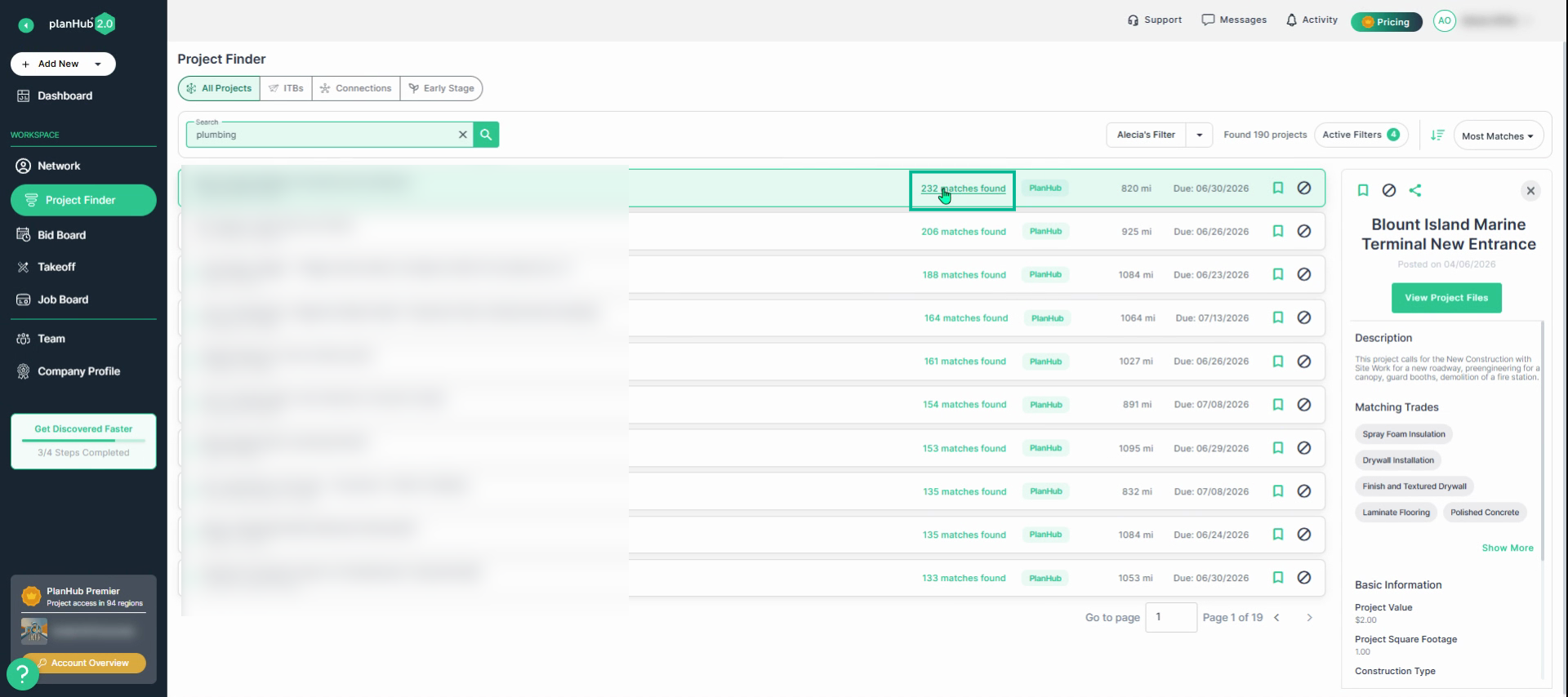
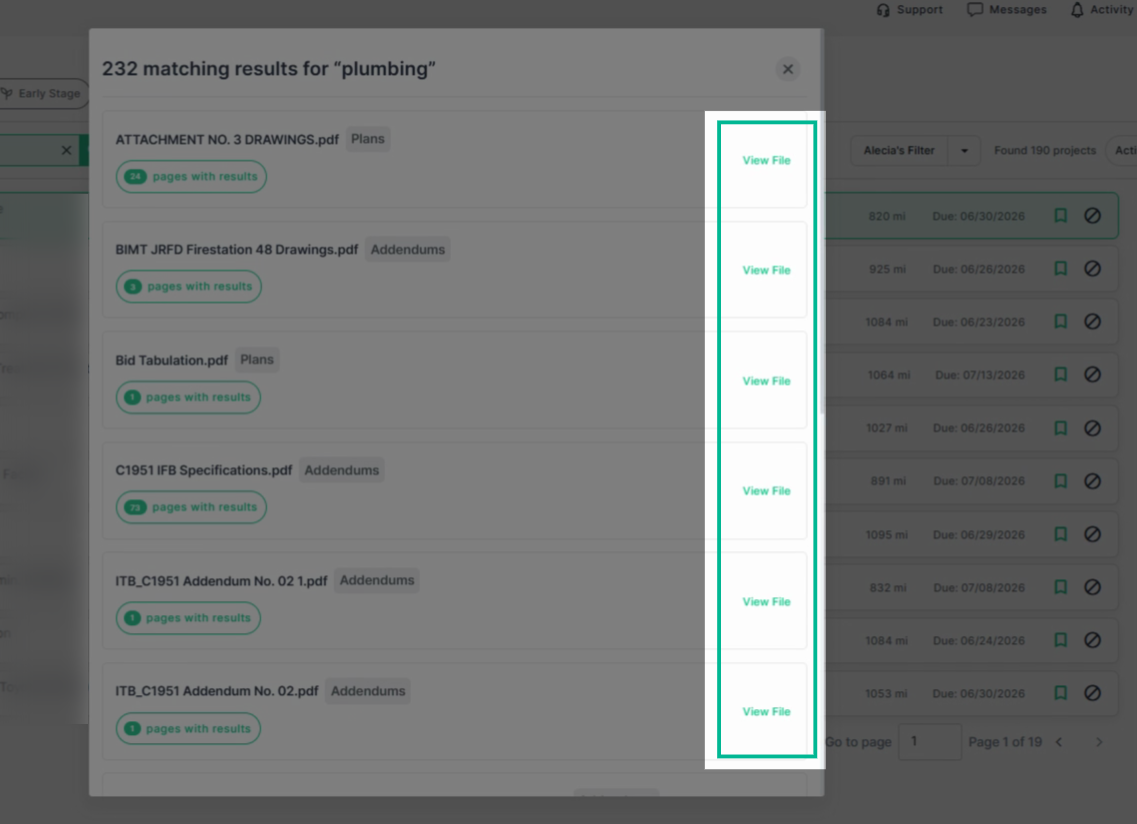
Step 3: Click the number of matches found link to view how many times your keyword appears in each plan document for that project.
Step 4: Click View File to preview the document and see the pages containing the highlighted keywords.
Using the ITBs Tab
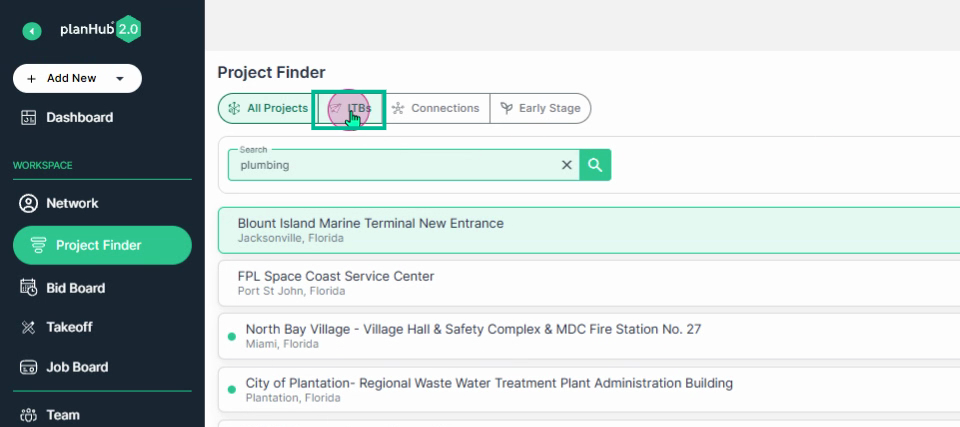
Step 1: Click on the ITBs tab to view Invitations to Bid sent to your associated email account.
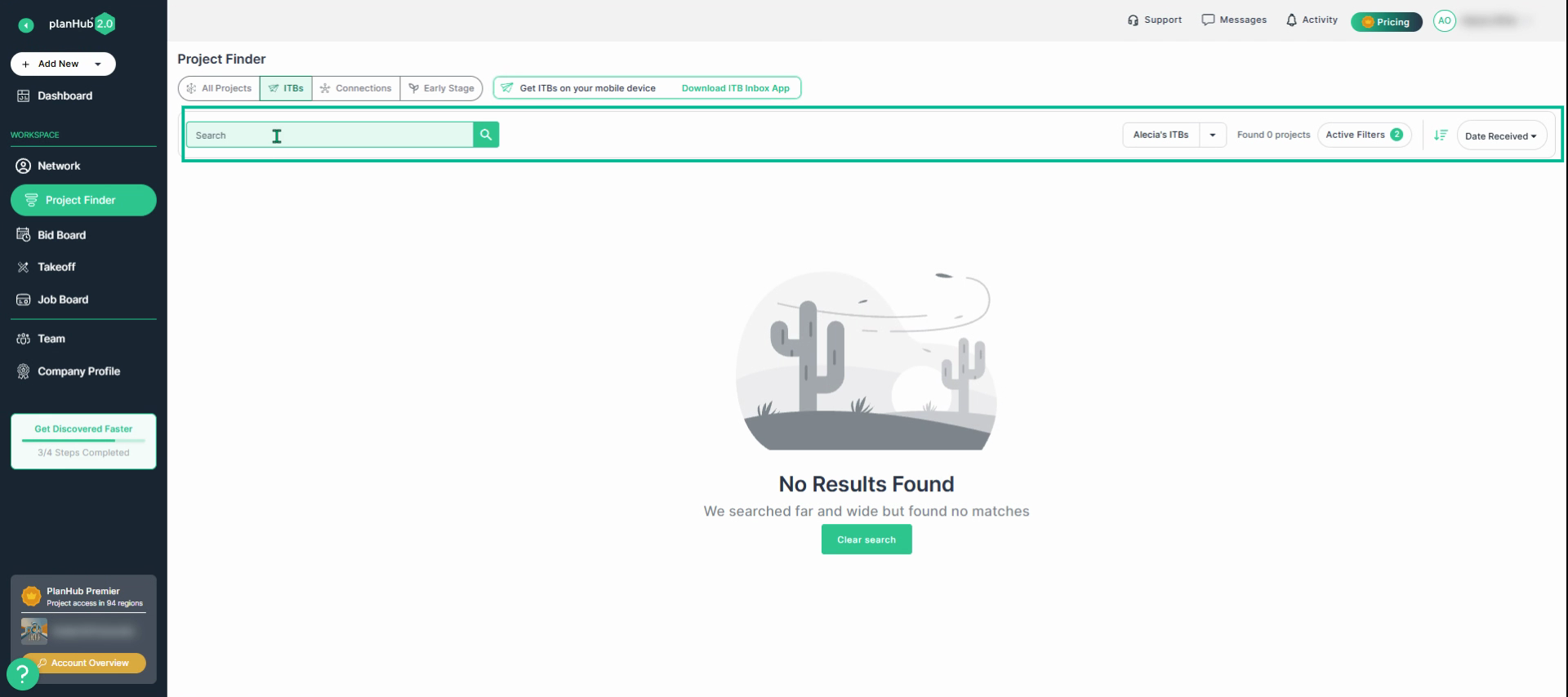
Step 2: Use the keyword search bar and filters in the top row to refine which ITBs display. (example herein is a demo account and has no emails)
Using the Connections Tab
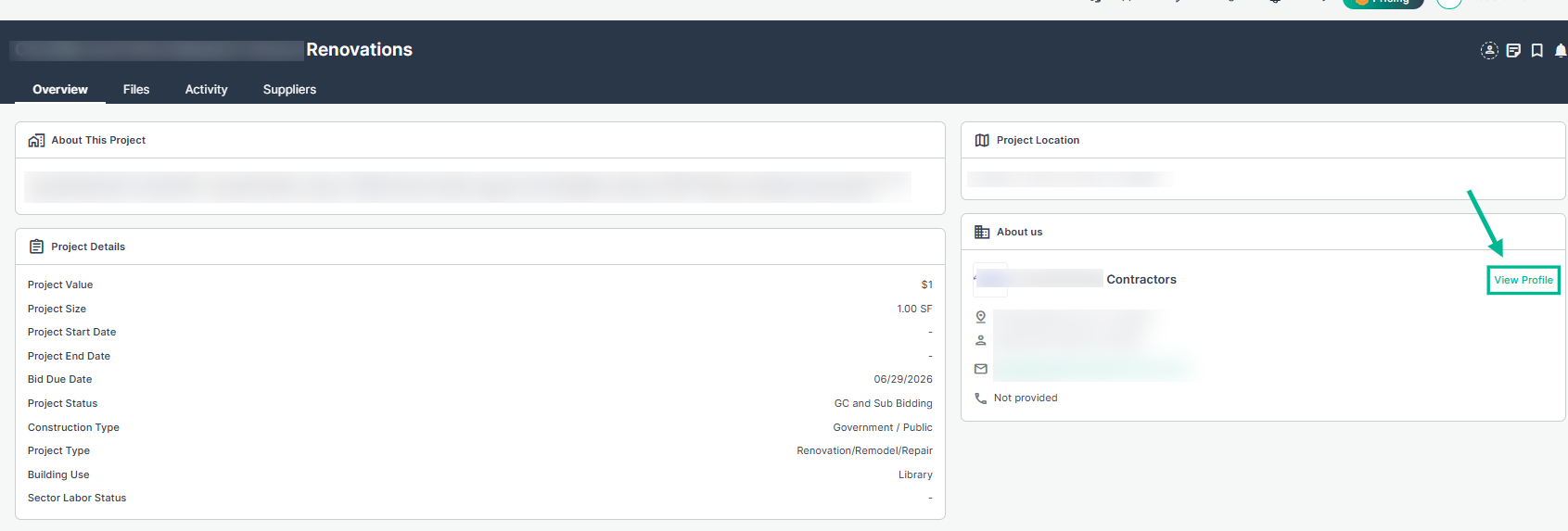
Step 1: Open the Connections tab to see projects posted by general contractors you are following. To follow a GC, select a project, then select to "view profile" on the GC card then click on "follow" in the upper right corner in the popup window to follow the GC.
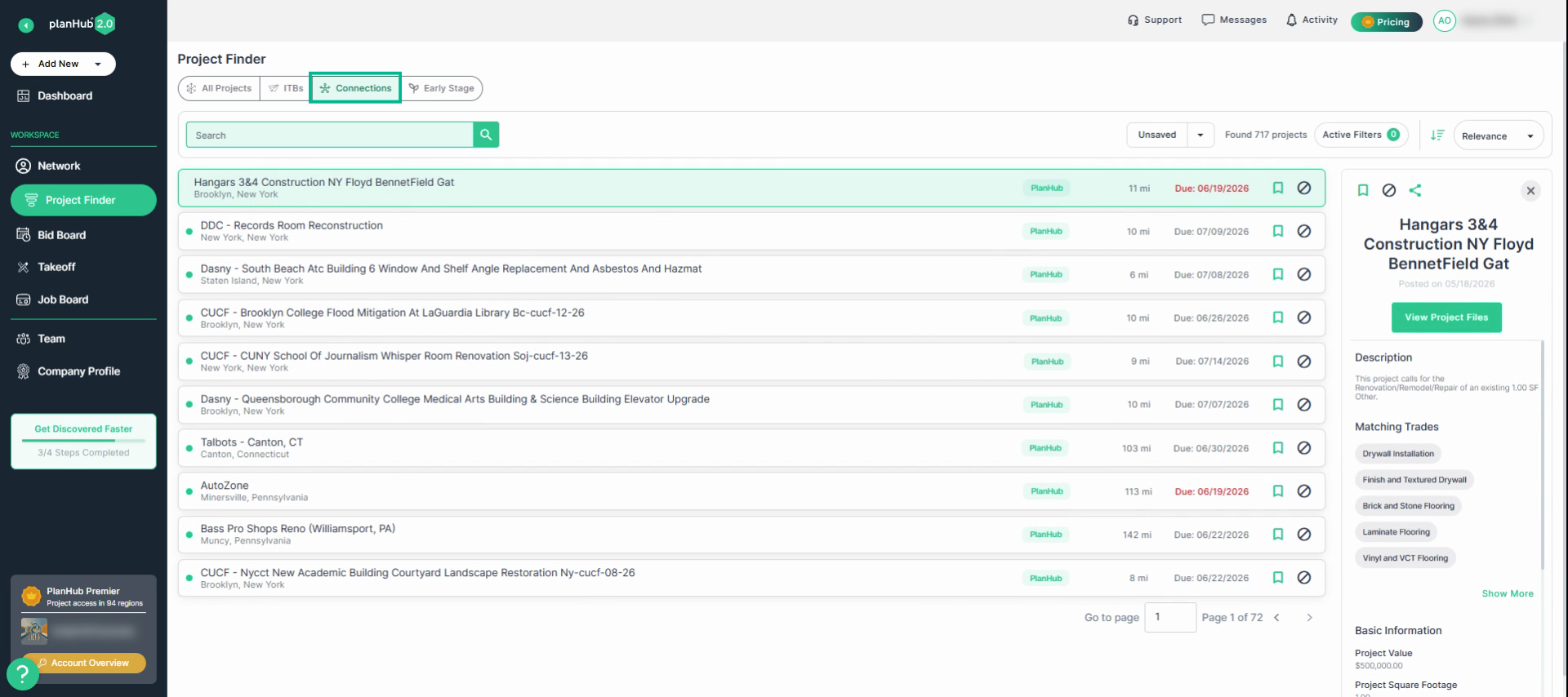
Step 2: Use the keyword search bar and filters dropdown menu and sorting options.
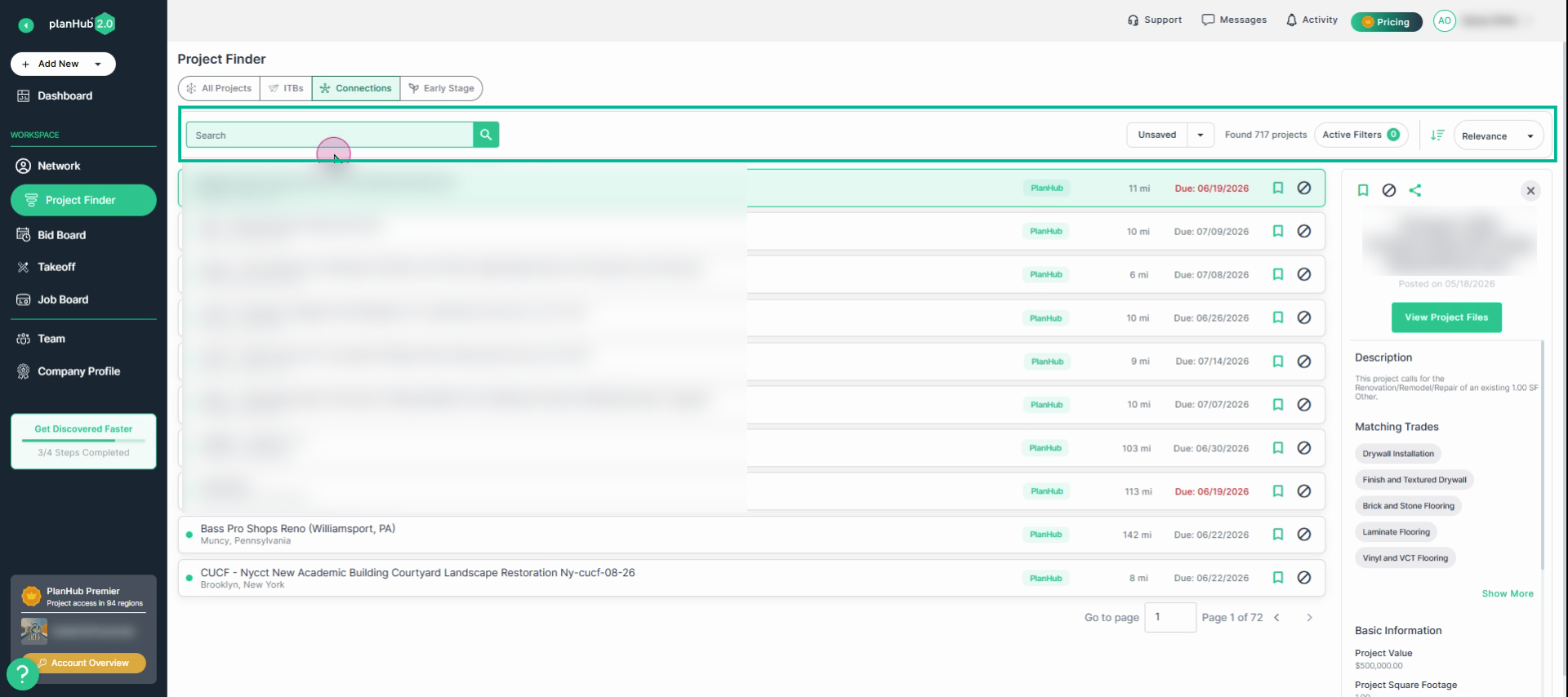
Step 3: In Active Filters, enter a general contractor’s name or set additional filters. Save to update or apply changes to the current filter as needed.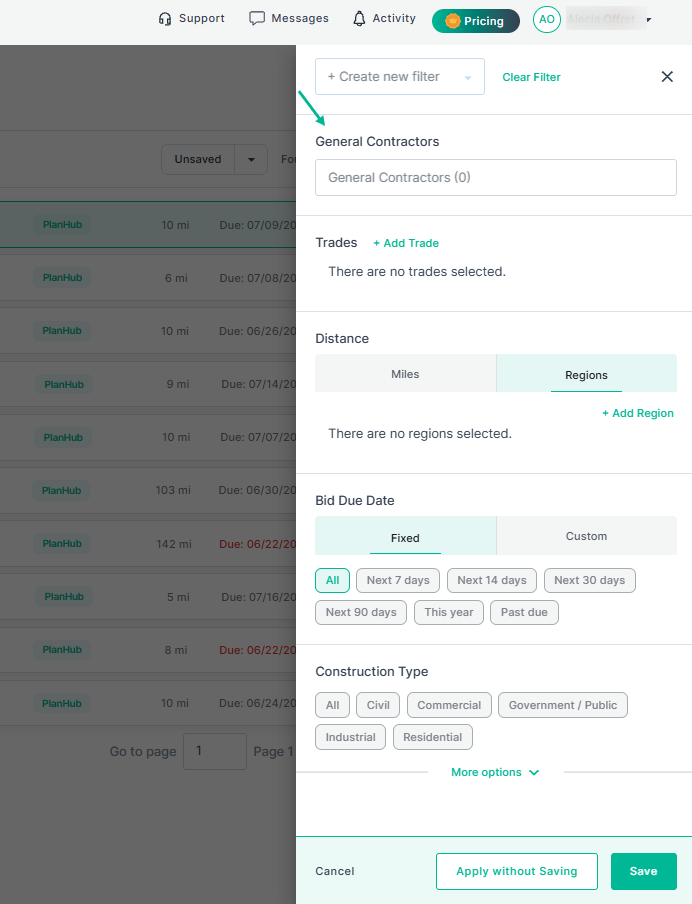
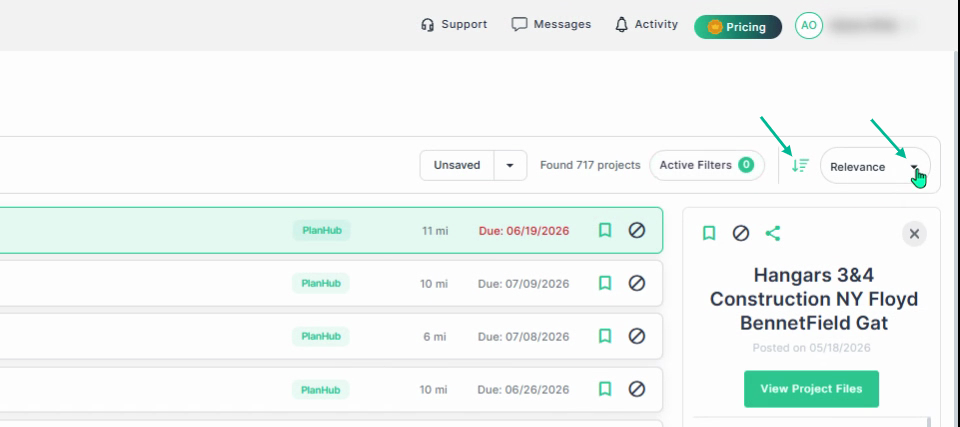
Step 4: Sort your list using the arrow icon or the dropdown menu.
Early Stage Projects Tab (Add-On Feature)
If you have purchased the Early Stage add-on feature, you can access the Early Stage tab for valuable insights on upcoming projects in the preplanning and budgeting phase! To learn more about the Early Stage Add-On Feature, view the Knowledge Base article: What are Early Stage Projects? then contact your Account Manager!
Step 1: Click the Early Stage tab to access projects in the preplanning and budget phase.
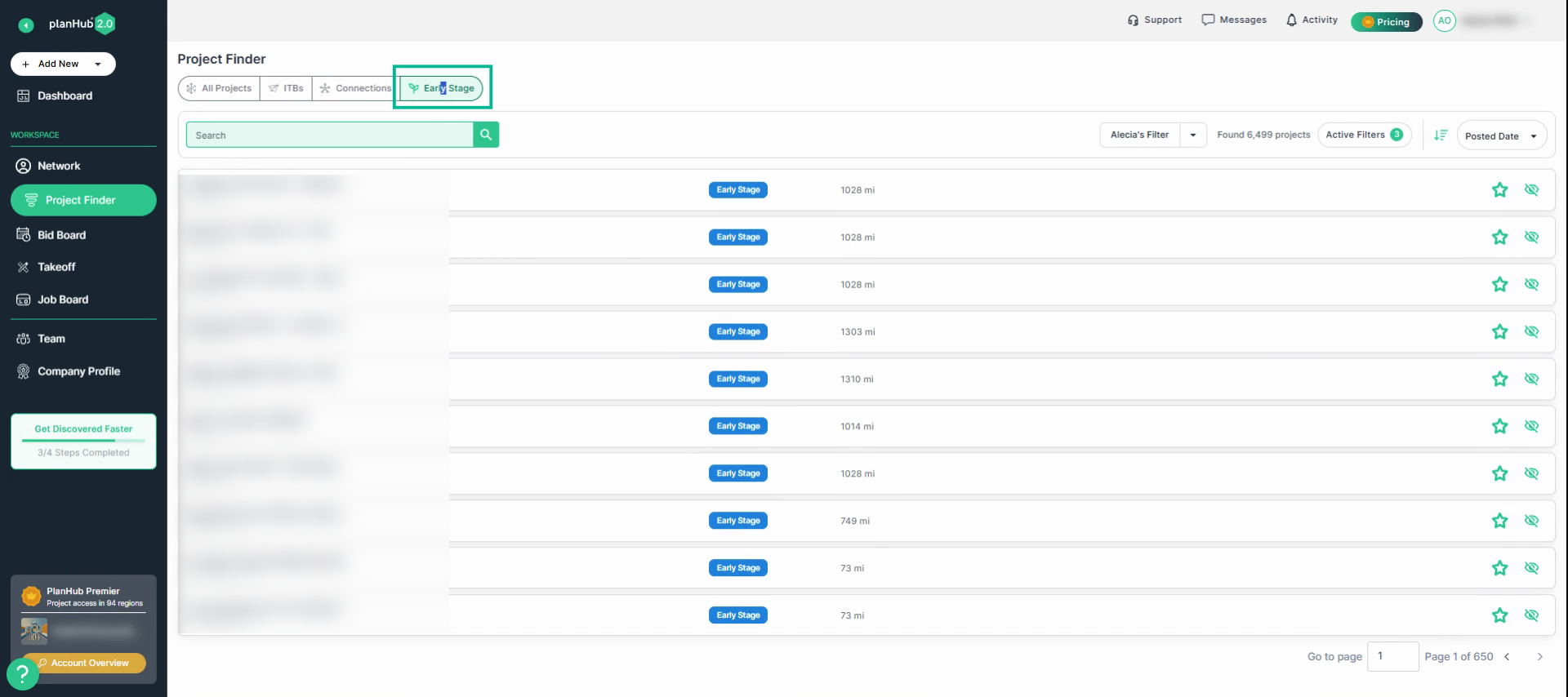
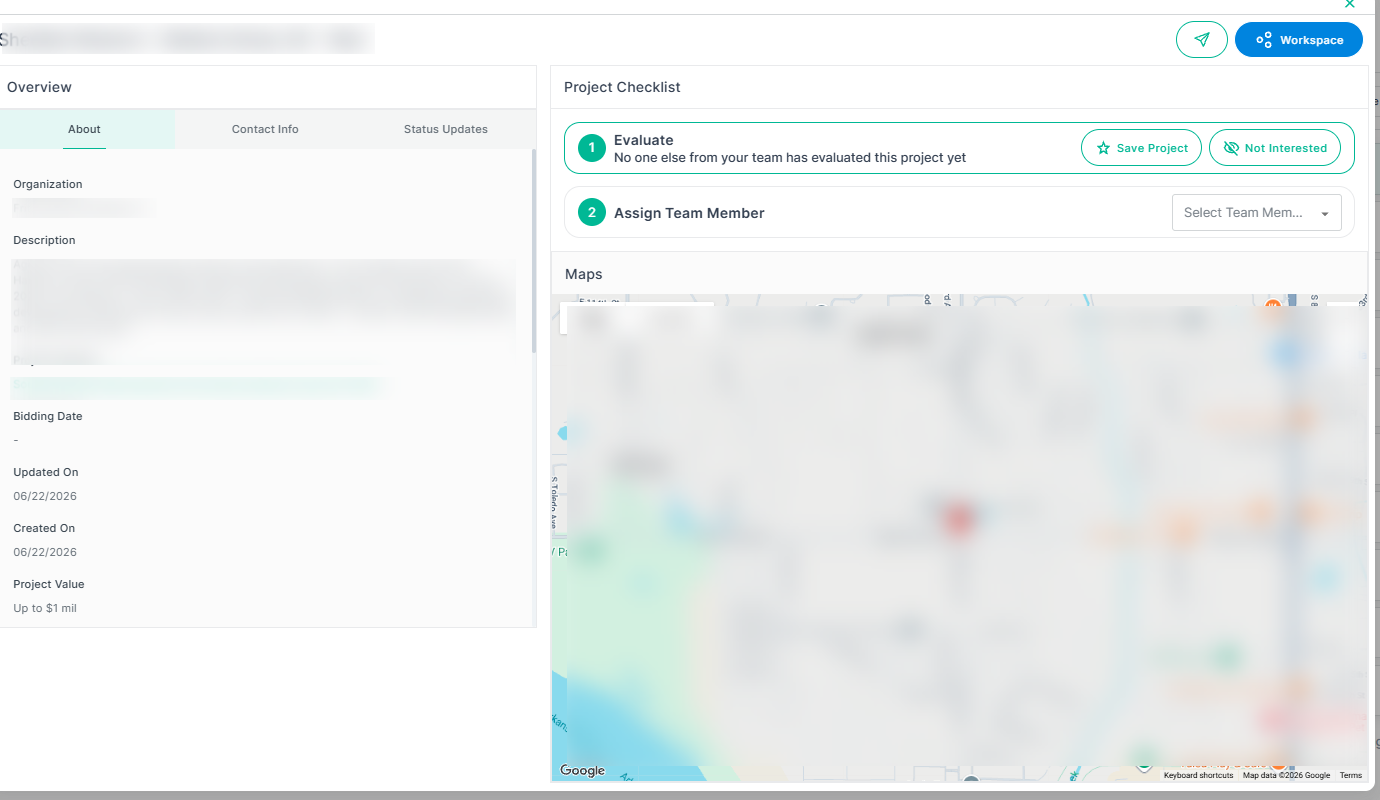
Step 2: Select a project to view details about the project, contact information for the project and assign follow up tasks to Team Members to track upcoming projects!
Viewing Brief Project Details for All Projects
Step 1: Select any project in the list to display a brief summary and details of each project in the window on the right side.
Learning how to navigate the Project Finder page is essential for identifying, selecting, tracking, and managing the right projects for you and your team to bid on.
Troubleshooting
Contact us if you need assistance or to report an issue:
- PlanHub Contact Page: https://planhub.com/contact/
- Customer Facing Support Ticket Link: https://knowledgebase.planhub.com/knowledge/kb-tickets/new
- Customer Success Team: CustomerSuccess@planhub.com