---
title: Roofing - A Quick Takeoff How To
description: This tutorial will guide you through the process of measuring a floor surface area and a linear foot measurement for a transition strip using the Area and Linear tools.
---
[Skip to content](https://knowledgebase.planhub.com/knowledge/roofing-a-quick-takeoff-how-to-0#main-content)
English
Show submenu for translations
[Submit a Ticket](https://knowledgebase.planhub.com/knowledge/kb-tickets/new?hsLang=en)
![NEW\_PlanHub\_Logo\_Navy.png\]](https://knowledgebase.planhub.com/hs-fs/hubfs/Design/PH%20Logos/NEW%202024%20PH%20Logos/NEW_PlanHub_Logo_Navy.png?height=40&name=NEW_PlanHub_Logo_Navy.png)
- [Have an Issue? Submit a Ticket](https://knowledgebase.planhub.com/knowledge/kb-tickets/new)
Open main navigation
Close main navigation
- [Have an Issue? Submit a Ticket](https://knowledgebase.planhub.com/knowledge/kb-tickets/new)
- English
Show submenu for translations
- [Submit a Ticket](https://knowledgebase.planhub.com/knowledge/kb-tickets/new)
What can we help you with?
- There are no suggestions because the search field is empty.
1. [Knowledge Base](https://knowledgebase.planhub.com/knowledge?hsLang=en)
2. [Takeoff & Estimation](https://knowledgebase.planhub.com/knowledge/takeoff-estimation?hsLang=en)
3. [Trade-Specific Takeoffs](https://knowledgebase.planhub.com/knowledge/takeoff-estimation?hsLang=en#trade-specific-takeoffs)
# Roofing - A Quick Takeoff How To
## This tutorial will guide you through the process of measuring a roof and parapet walls using slope and wall area tools.
In this tutorial, you'll learn how to perform a roofing takeoff using Planthub's takeoff solution. This tool allows you to quickly and accurately measure all the necessary areas for your roofing project.
****
**[Prerequisites:](https://knowledgebase.planhub.com/knowledge/how-to-set-a-scale-in-the-takeoff-tool?hsLang=en)**[You need a subscription or trial that includes Takeoff to measure plans, export a plan into TakeOff, and set the scale. Then you can begin measuring.](https://knowledgebase.planhub.com/knowledge/how-to-set-a-scale-in-the-takeoff-tool?hsLang=en)
****
[How to Set A Scale](https://knowledgebase.planhub.com/knowledge/how-to-set-the-scale-in-planhub-takeoff?hsLang=en)
****
[How to Begin a Takeoff In PlanHub](https://knowledgebase.planhub.com/knowledge/how-to-start-a-takeoff-from-project-in-planhub?hs_preview=CWKDPlzZ-199248611159&hsLang=en)
In this tutorial, you'll learn how to perform a roofing takeoff using Planthub's takeoff solution. This tool allows you to quickly and accurately measure all the necessary areas for your roofing project.
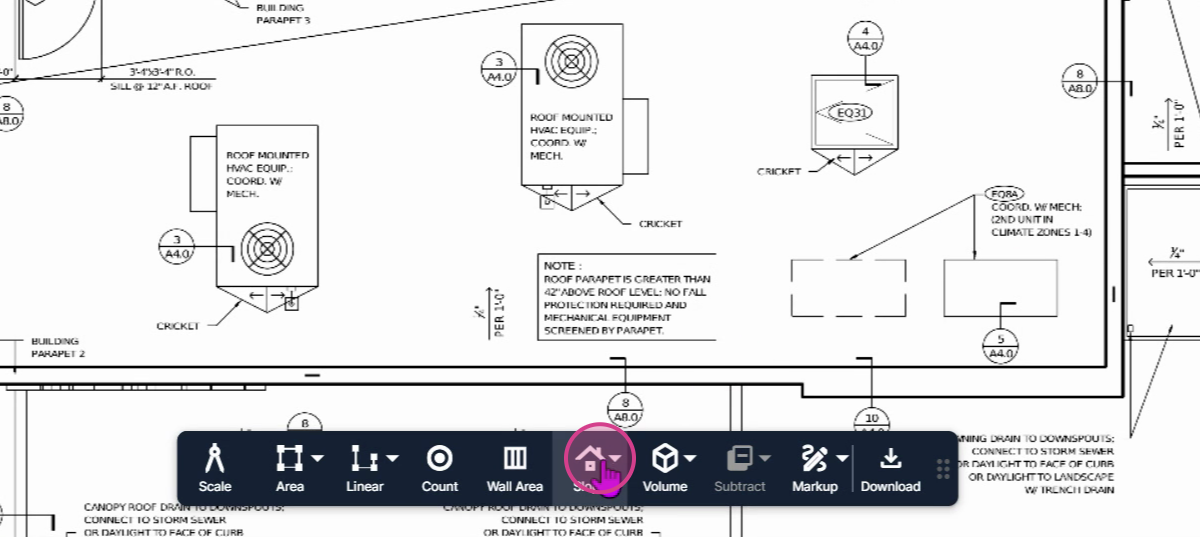
**Step 1:** Start by measuring the main roof area. Ensure the scale is already set on the page, then click to launch the **Slope Tool**.
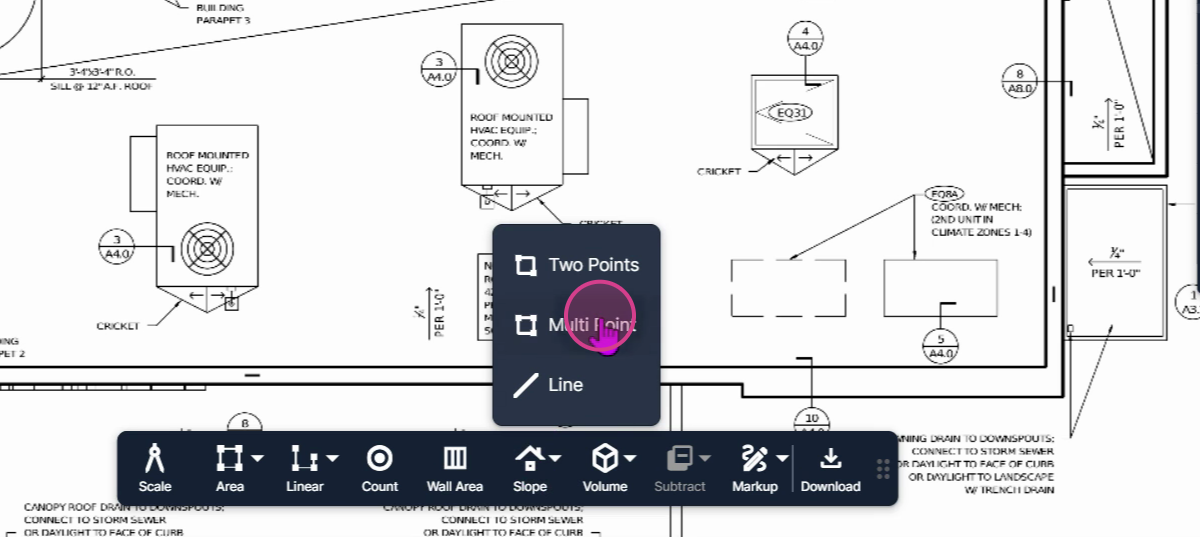
**Step 2:** Next, select **Multipoint**. This allows you to outline any shape and measure the space within.
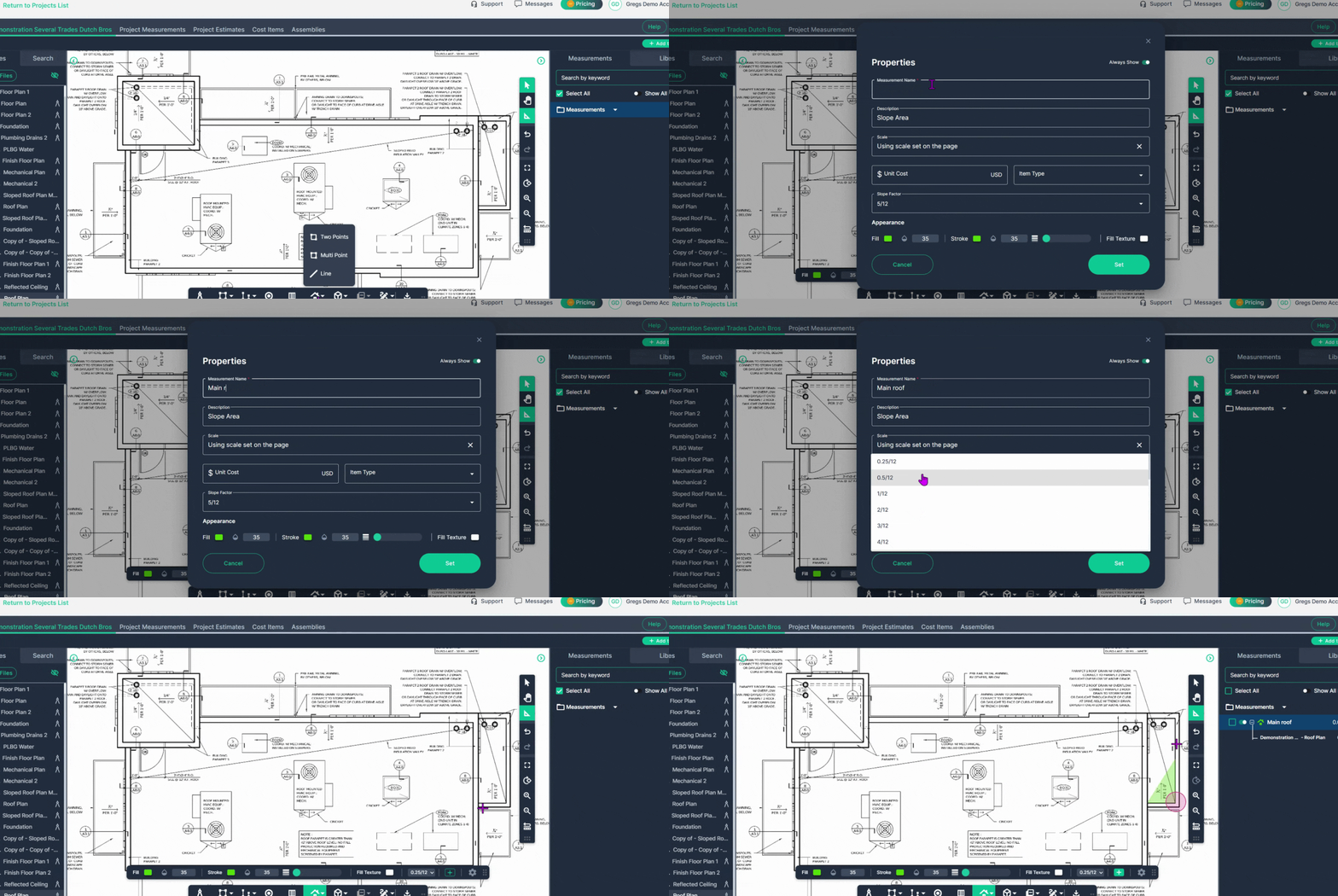
**Step 3:** Title your measurement and select a slope factor that matches what's printed on the page.
Click **Set** to engage the Slope measuring tool.
**Step 4:** Begin mapping the areas on the roof with the same slope factor and material installation. Do this by clicking on each corner of an area, which will outline the area. Measure every roof section as indicated on the blueprints with the same slope factor and material installation under this measurement.
- Left-click on a corner to begin measuring.
- Left-click at each corner to change direction/create a corner (outlining the area).
- Double left-click to end the measurement.
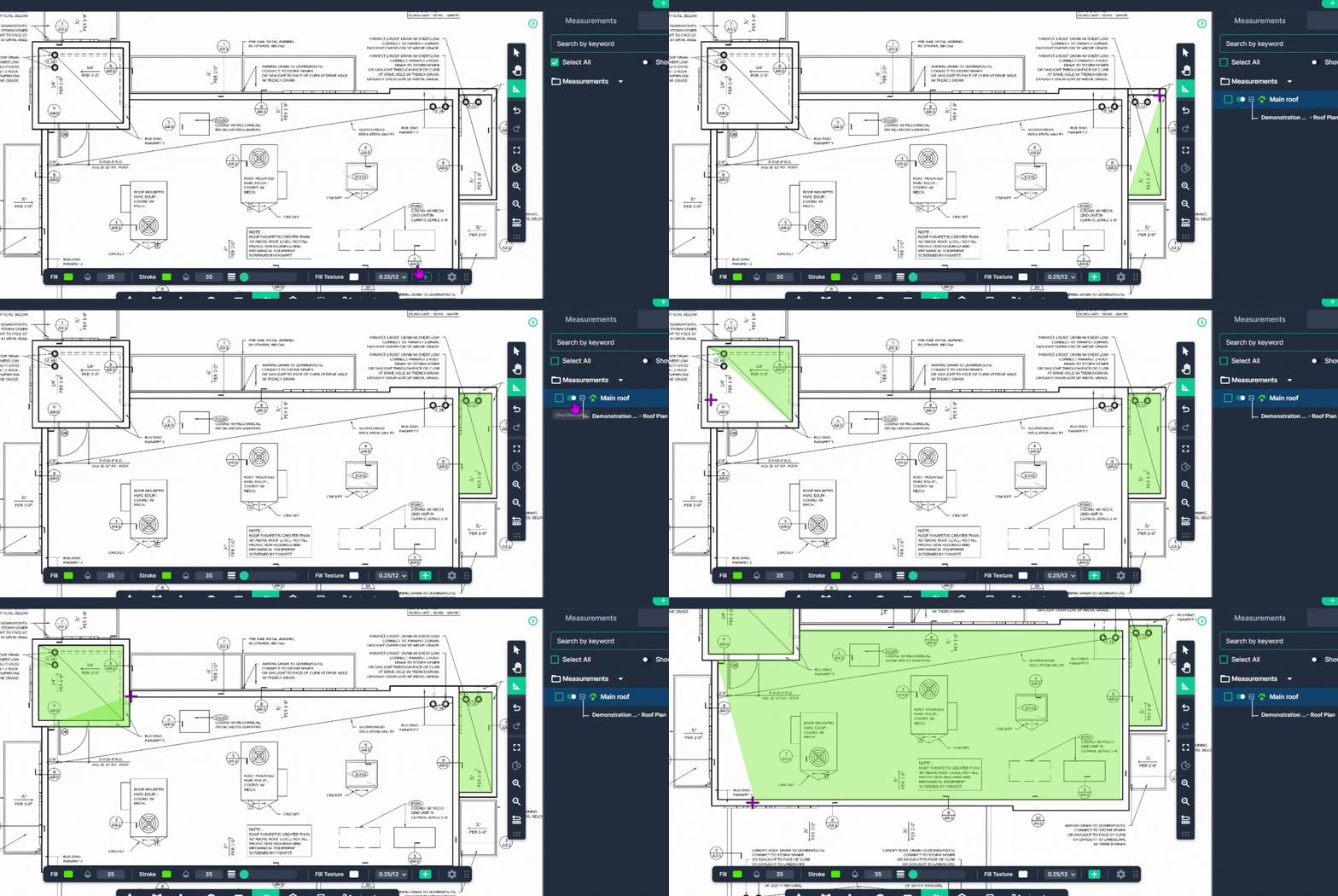
**Step 5:** After measuring one area, click the **Continue** switch in your measurement panel on the left. This lets you move right into the next space and add to the measurement (achieve one total) for all the measured areas.
- Move to the next segment and left-click to begin, then left-click along the perimeter or on each corner to change direction and outline the next area.
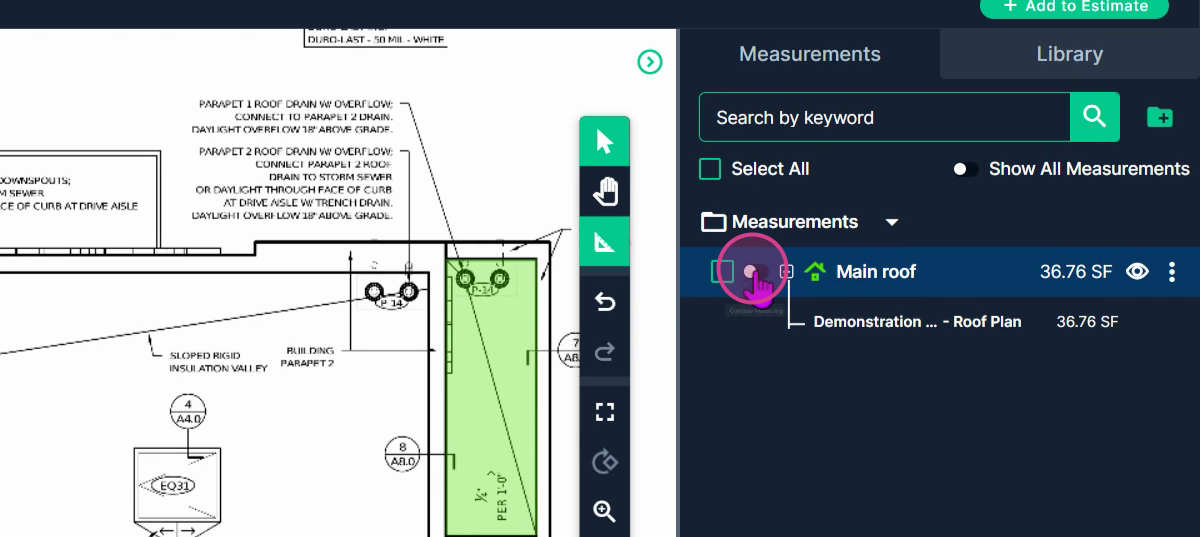
Move to the next area on the plan that is part of this roof's measurement (segment) and left-click to begin, then left-click along the perimeter or on each corner to change direction and outline the next area.
Double left-click to finish the measurement of a segment.
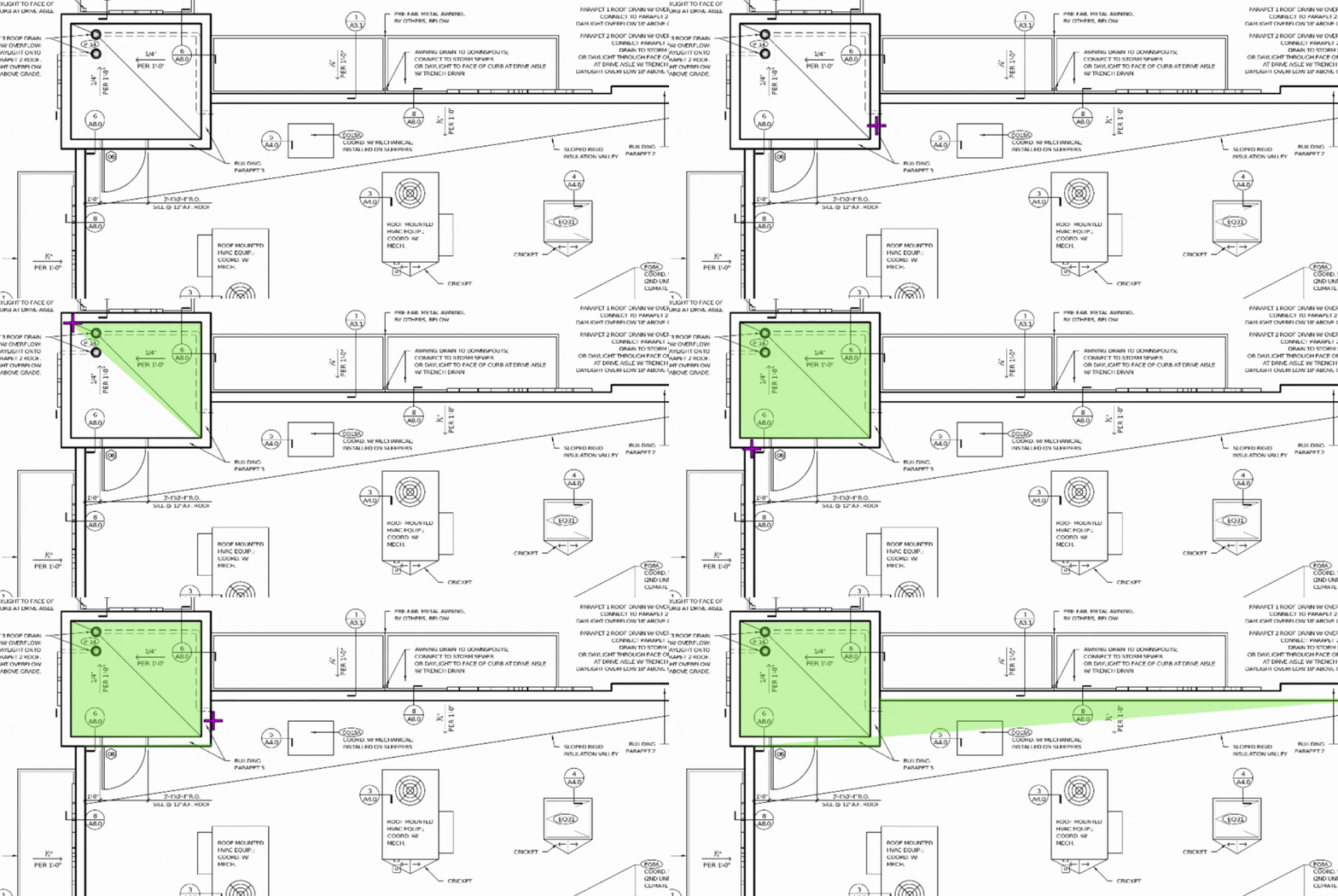
When you're in "continue measurement" mode, the tool stays active so you can begin measuring a new section.
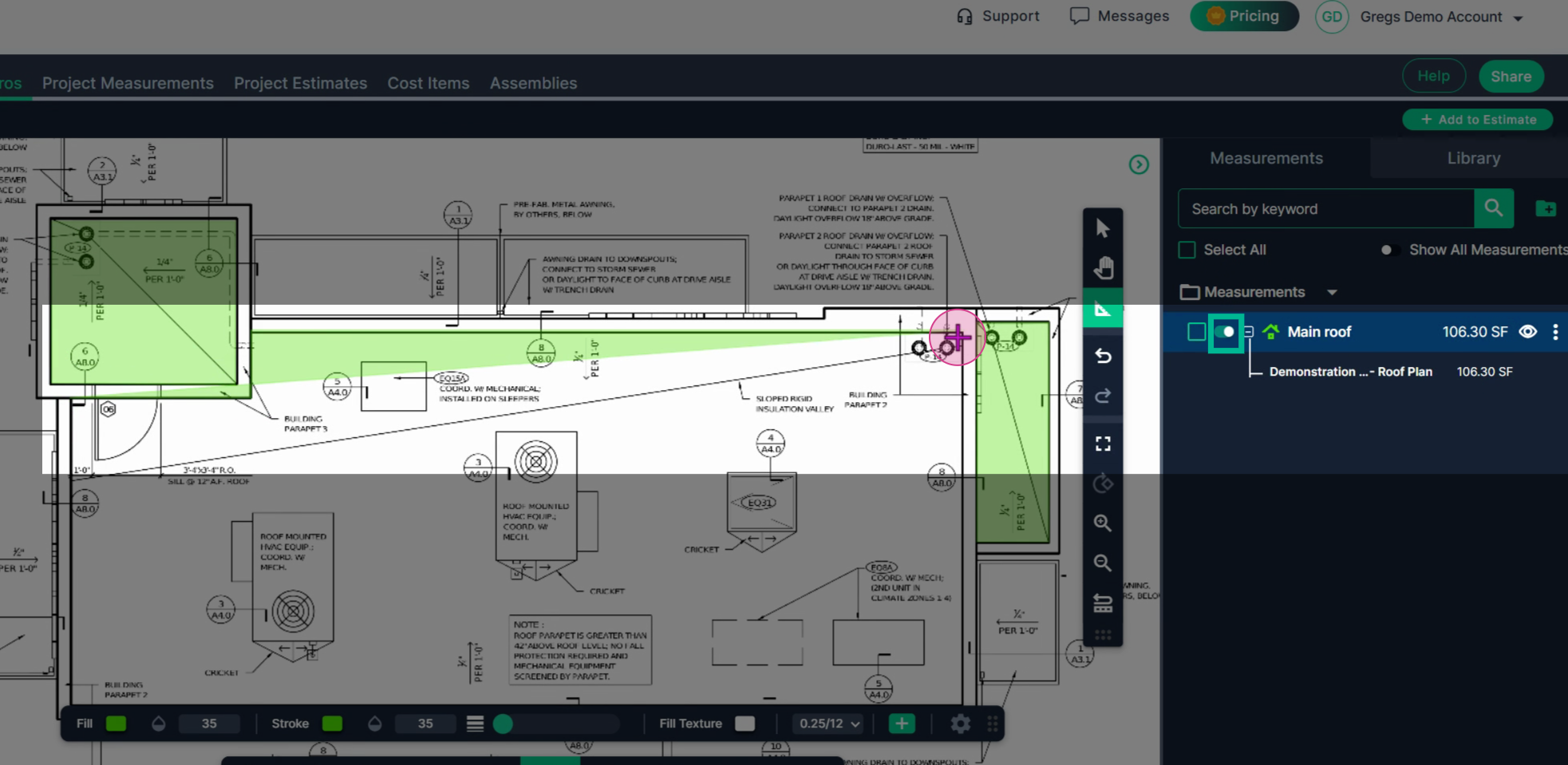
**Step 6:** If you need to see more of the page while measuring, right-click and hold while moving your mouse to pan your page.
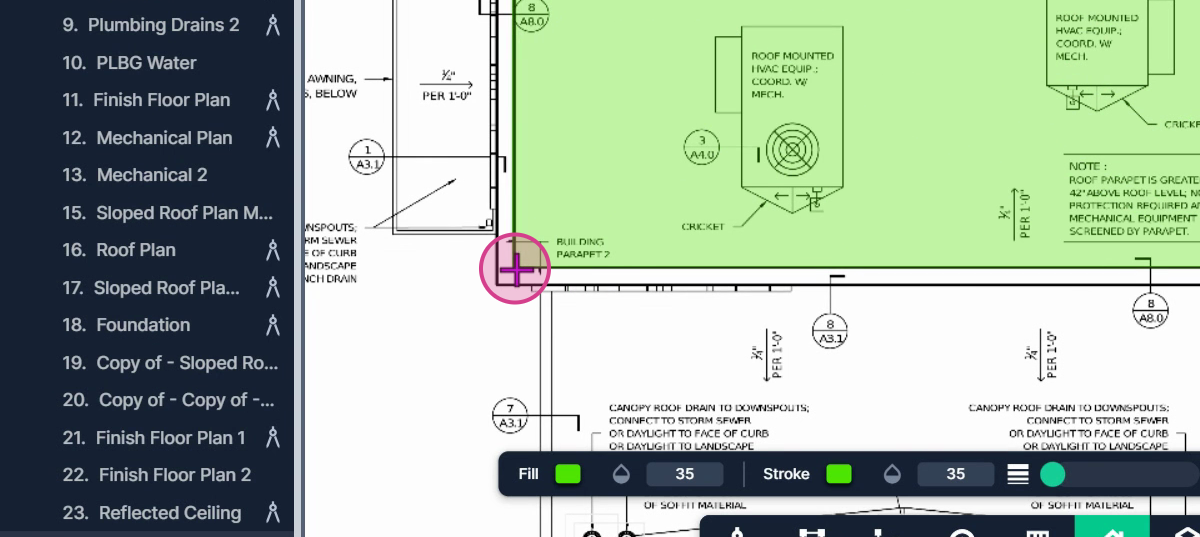
**Step 7:** Next, measure the cricket area. Turn off the slope tool you're using and start a new slope tool, also multipoint, titled **Crickets**. Set the slope factor to the one called for by the plans.
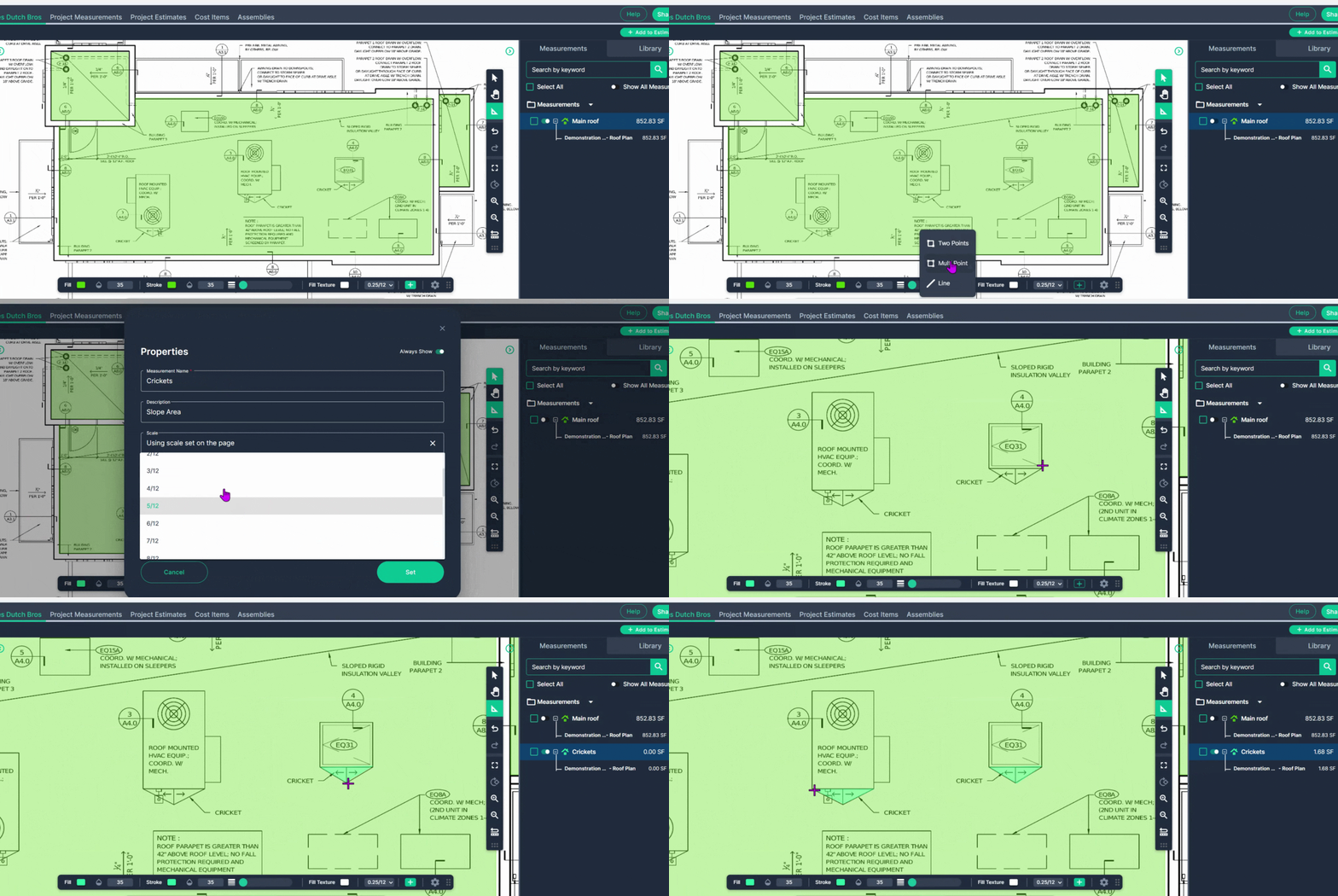
**Step 8:** All Area, Slope, and Line measurements can be achieved with a left click to begin, a left click to turn corners, and a double left click to finish if the measurement changes directions.
When finished, click the switch on the measurement result to turn the tool off.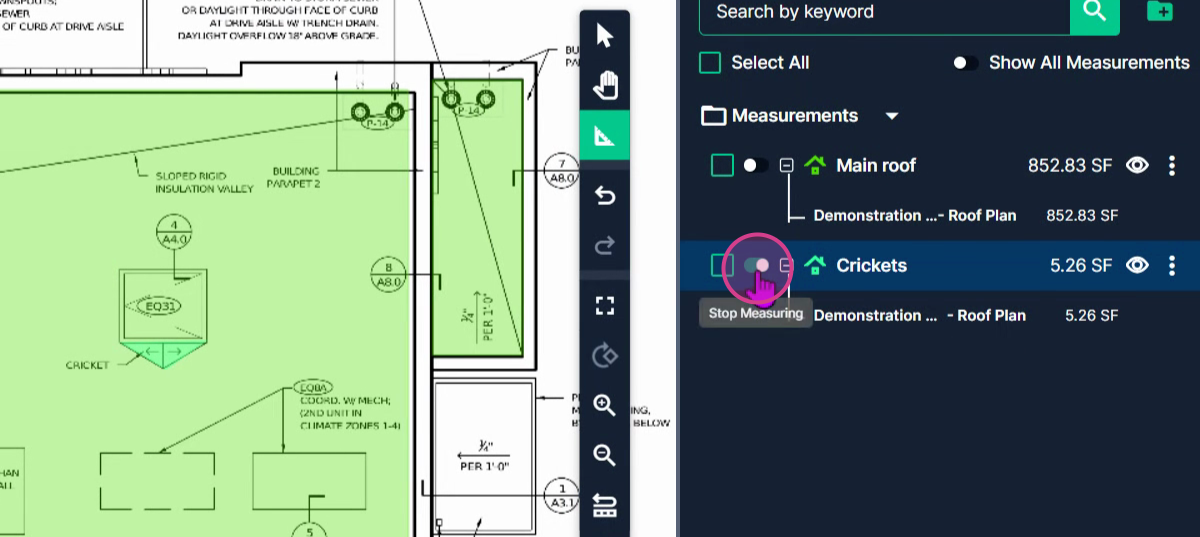
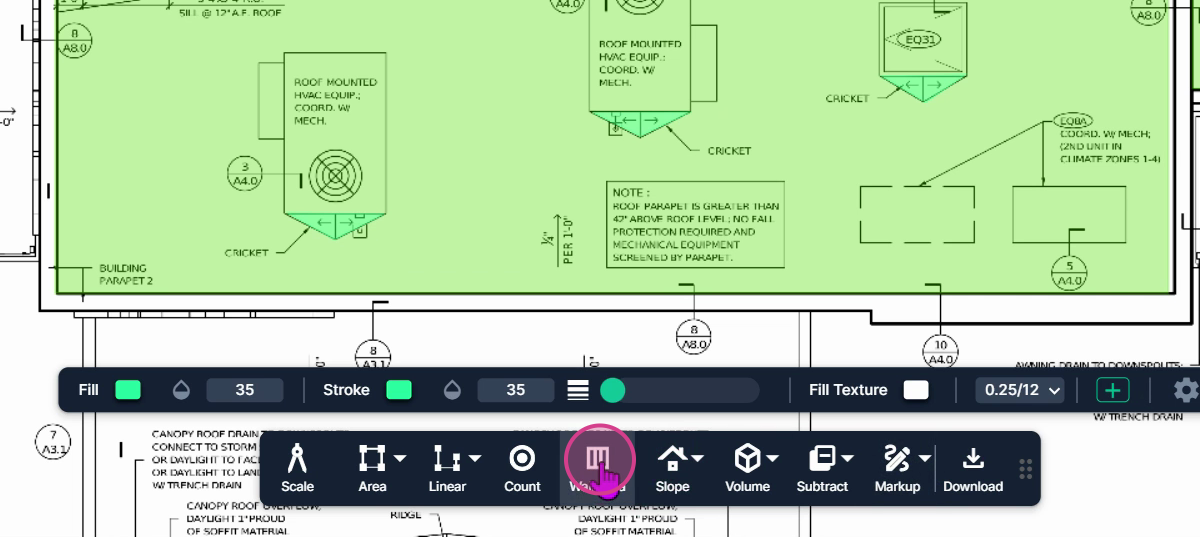
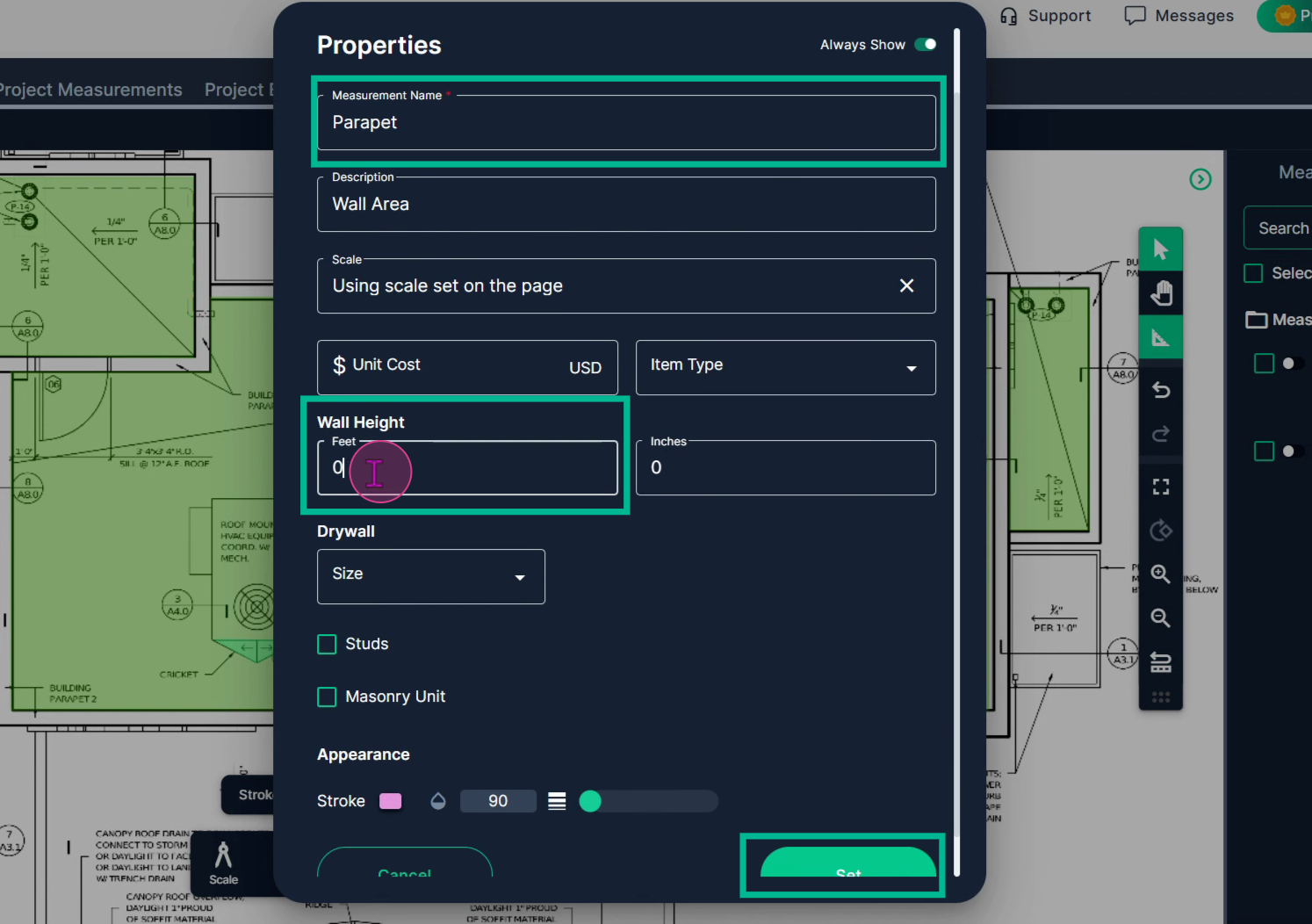
**Step 9:** Measure the parapet area for the amount of roofing system that will go on the inside (and wrap up and over the parapet, is required) of that wall.
- Click the **Wall Area Tool**.
- Example: simply call it **Parapet** or **6x100 TPO Parapet**
- Name your measurement.
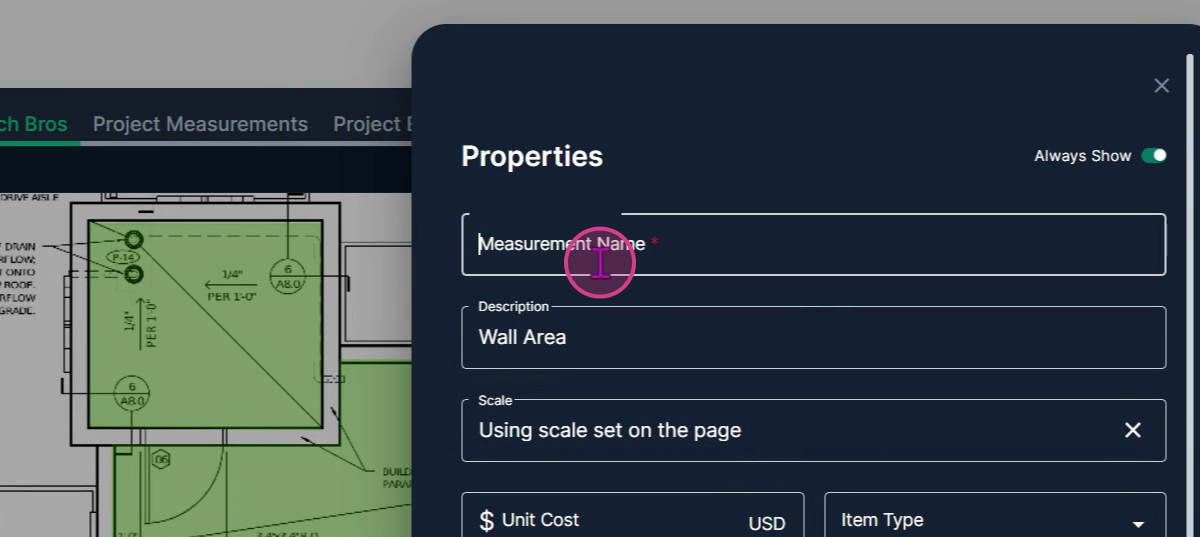
**Step 10:** Set the wall height to the total measurement to ensure you have enough material to go over the top of the parapet and down the other side.
- Example: 4 ft parapet + 1 ft wide + 1ft down the other side= 6 foot Wall Height
Click **Set** to engage the tool.
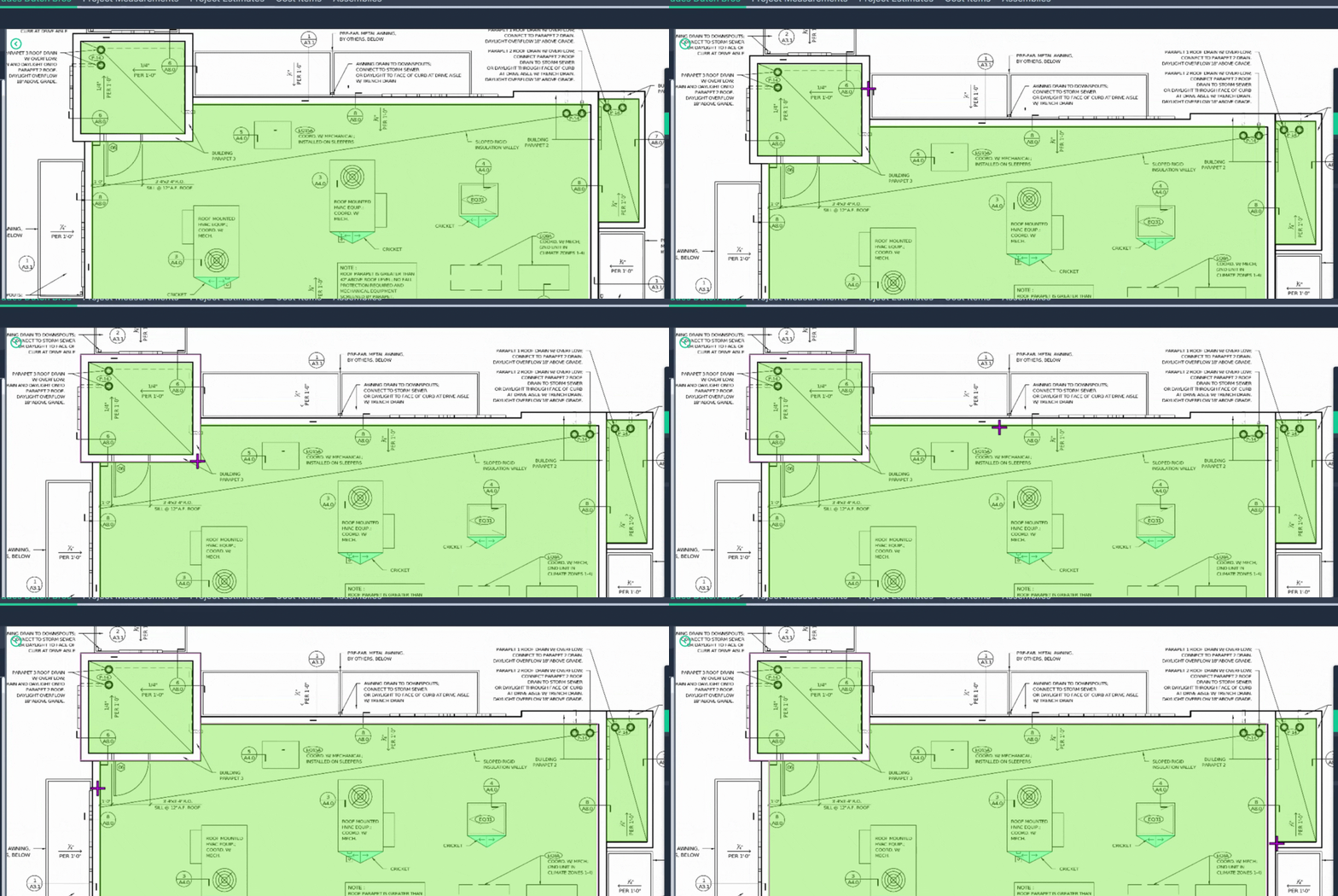
**Step 11:** Begin measuring at any point along the parapet with a left click.
Left click at every corner to change direction, and double click when you finish with this section.
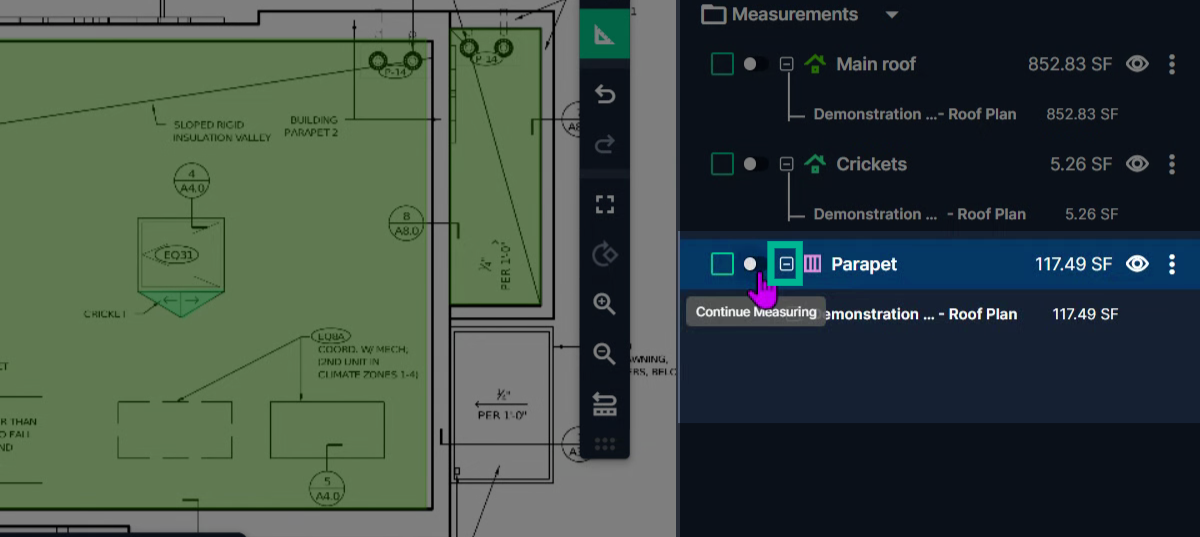
**Step 12:** Turn the tool back on with the **Continue** switch and begin measuring the next section. Left-click along the parapet wall on each corner until you're back to the point where you started. Double-click to finish there.
- To view the running length and the square feet, expand the measurement
**Step 13:** Count your roof drains. Start a count tool by clicking **Count** on the toolbar and title the measurement **Drains**. You can also select a shape if you want to customize your measurement. Click **Set**.
- Hover above every roof drain, including the overflows, and click one time on each object. The computer keeps a total for you on the right side of the page.
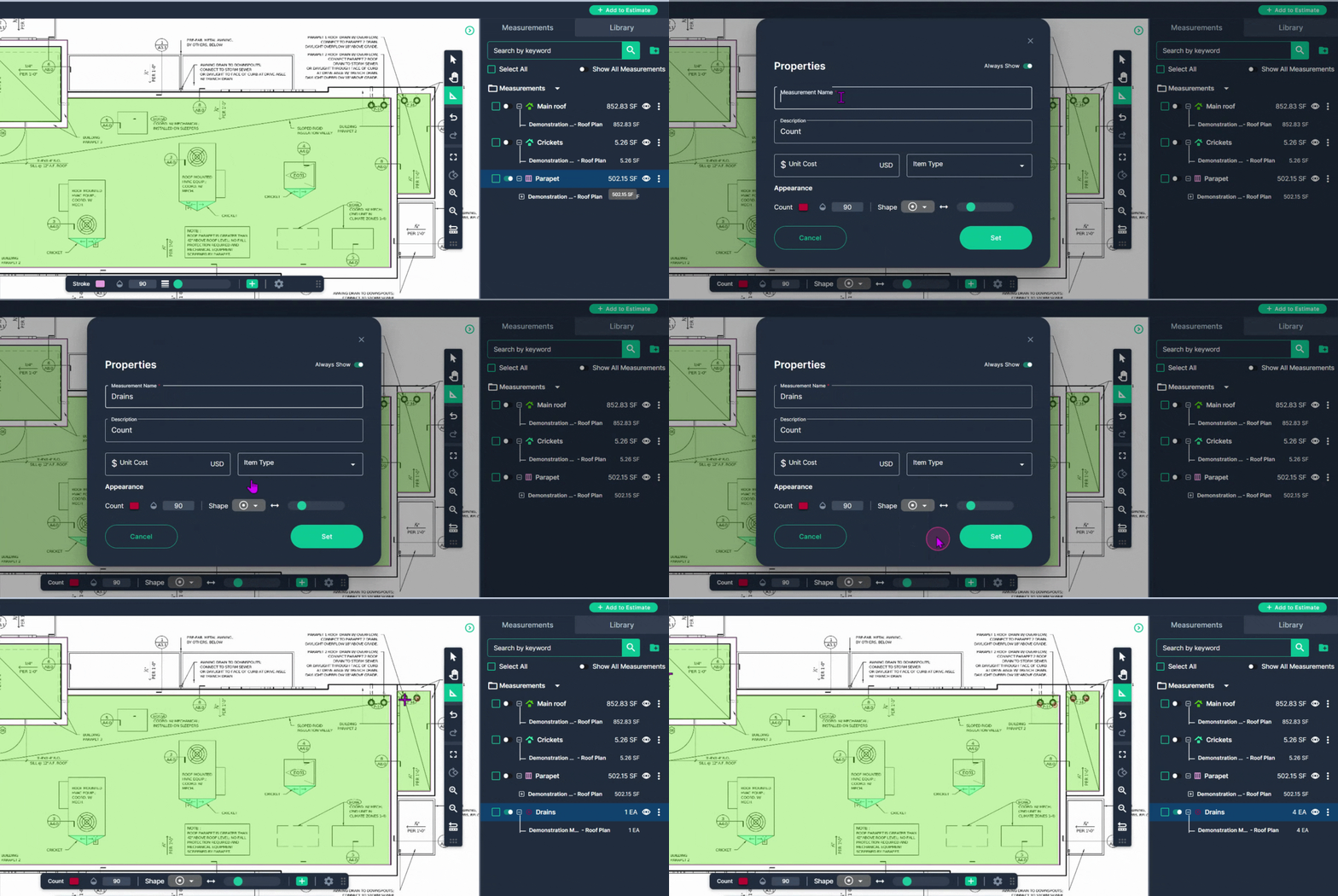
By following these steps, you'll have the measurements you need for your roofing takeoff.
---
### **Next Steps**
Once you have completed taking all your measurements, you can:
- Download the measurements in a table from the Project Measurements page
- **[How To Download Project Measurements From Takeoff](https://knowledgebase.planhub.com/knowledge/how-to-download-project-measurements-from-takeoff-?hsLang=en)**
- Add a legend and download the PNG of your takeoff page
- **[Using Legend Markup in Takeoff](https://knowledgebase.planhub.com/knowledge/legend-markup-in-takeoff?hsLang=en)**
- If you have purchased the Estimation add-on tool, send measurements into the Project Estimate page or push them into an Assembly you have built.
- **[Estimation - Exporting a Measurement from TakeOff to Estimation](https://knowledgebase.planhub.com/knowledge/send-a-measurement-from-takeoff-to-estimation?hsLang=en)**
- **[Estimation | How to Create an Assembly](https://knowledgebase.planhub.com/knowledge/estimation-how-to-create-an-assembly?hsLang=en)**
- Share your Takeoff with anyone using the Share button in the upper right-hand corner.
- **[Share Your Projects, Reports, and Estimates in Takeoff](https://knowledgebase.planhub.com/knowledge/share-takeoff-projects?hsLang=en)**
---
### **Troubleshooting**
Contact us if you need assistance or to report an issue:
- PlanHub Contact Page: [https://planhub.com/contact/](https://planhub.com/contact/)
- Customer Facing Support Ticket Link: [https://knowledgebase.planhub.com/knowledge/kb-tickets/new](https://knowledgebase.planhub.com/knowledge/kb-tickets/new?hsLang=en)
- Schedule a **Free** 1-on-1 Takeoff Training: [https://meetings.hubspot.com/zac-low/takeoff-and-estimation](https://meetings.hubspot.com/zac-low/takeoff-and-estimation?__hstc=143611818.21027487ab2569aa780deedad7b3e510.1767116760760.1778608051685.1778612775772.256&__hssc=143611818.3.1778612775772&__hsfp=9a20deea0f29d5f2adc379a49644adc2)
- [General Contractor](https://knowledgebase.planhub.com/knowledge/general-contractor?hsLang=en#main-content)
- [Overview](https://knowledgebase.planhub.com/knowledge/general-contractor?hsLang=en#overview)
- [Projects](https://knowledgebase.planhub.com/knowledge/general-contractor?hsLang=en#projects)
- [Networking](https://knowledgebase.planhub.com/knowledge/general-contractor?hsLang=en#networking)
- [Subcontractors](https://knowledgebase.planhub.com/knowledge/subcontractors?hsLang=en#main-content)
- [Overview](https://knowledgebase.planhub.com/knowledge/subcontractors?hsLang=en#overview)
- [Projects](https://knowledgebase.planhub.com/knowledge/subcontractors?hsLang=en#projects)
- [Bid Board & Tracking](https://knowledgebase.planhub.com/knowledge/subcontractors?hsLang=en#bid-board-tracking)
- [Networking](https://knowledgebase.planhub.com/knowledge/subcontractors?hsLang=en#networking)
- [Takeoff & Estimation](https://knowledgebase.planhub.com/knowledge/subcontractors?hsLang=en#takeoff-estimation)
- [Manage Your Team](https://knowledgebase.planhub.com/knowledge/subcontractors?hsLang=en#manage-your-team)
- [Account & Settings](https://knowledgebase.planhub.com/knowledge/subcontractors?hsLang=en#account-settings)
- [Job Board](https://knowledgebase.planhub.com/knowledge/subcontractors?hsLang=en#job-board)
- [Request for Information](https://knowledgebase.planhub.com/knowledge/subcontractors?hsLang=en#request-for-information)
- [AI](https://knowledgebase.planhub.com/knowledge/subcontractors?hsLang=en#ai)
- [Supplier](https://knowledgebase.planhub.com/knowledge/supplier?hsLang=en#main-content)
- [Overview](https://knowledgebase.planhub.com/knowledge/supplier?hsLang=en#overview)
- [Projects and Leads](https://knowledgebase.planhub.com/knowledge/supplier?hsLang=en#projects-and-leads)
- [Bidding & Estimating](https://knowledgebase.planhub.com/knowledge/supplier?hsLang=en#bidding-estimating)
- [Networking](https://knowledgebase.planhub.com/knowledge/supplier?hsLang=en#networking)
- [Account & Settings](https://knowledgebase.planhub.com/knowledge/supplier?hsLang=en#account-settings)
- [Takeoff & Estimation](https://knowledgebase.planhub.com/knowledge/takeoff-estimation?hsLang=en#main-content)
- [Getting Started](https://knowledgebase.planhub.com/knowledge/takeoff-estimation?hsLang=en#getting-started)
- [Takeoff Tools & Measurements](https://knowledgebase.planhub.com/knowledge/takeoff-estimation?hsLang=en#takeoff-tools-measurements)
- [Trade-Specific Takeoffs](https://knowledgebase.planhub.com/knowledge/takeoff-estimation?hsLang=en#trade-specific-takeoffs)
- [Estimating](https://knowledgebase.planhub.com/knowledge/takeoff-estimation?hsLang=en#estimating)
- [Managing & Sharing Your Work](https://knowledgebase.planhub.com/knowledge/takeoff-estimation?hsLang=en#managing-sharing-your-work)
- [Account & Billing](https://knowledgebase.planhub.com/knowledge/account-billing?hsLang=en#main-content)
- [Account & Billing](https://knowledgebase.planhub.com/knowledge/account-billing?hsLang=en#account-billing)
- [Account Closure](https://knowledgebase.planhub.com/knowledge/account-billing?hsLang=en#account-closure)
- [Troubleshooting](https://knowledgebase.planhub.com/knowledge/troubleshooting?hsLang=en)
- [About PlanHub](https://knowledgebase.planhub.com/knowledge/about-planhub?hsLang=en)
- [New General Contractor Experience](https://knowledgebase.planhub.com/knowledge/new-general-contractor-experience?hsLang=en#main-content)
- [Overview](https://knowledgebase.planhub.com/knowledge/new-general-contractor-experience?hsLang=en#overview)
- [Projects](https://knowledgebase.planhub.com/knowledge/new-general-contractor-experience?hsLang=en#projects)
- [Networking](https://knowledgebase.planhub.com/knowledge/new-general-contractor-experience?hsLang=en#networking)
- [Takeoff & Estimation](https://knowledgebase.planhub.com/knowledge/new-general-contractor-experience?hsLang=en#takeoff-estimation)
- [Account & Settings](https://knowledgebase.planhub.com/knowledge/new-general-contractor-experience?hsLang=en#account-settings)
- [Manage Your Team](https://knowledgebase.planhub.com/knowledge/new-general-contractor-experience?hsLang=en#manage-your-team)
- [Submit Feedback](https://knowledgebase.planhub.com/knowledge/submit-feedback?hsLang=en#main-content)
- [Feedback](https://knowledgebase.planhub.com/knowledge/submit-feedback?hsLang=en#feedback)
- [Have an Issue? Submit a Ticket](https://knowledgebase.planhub.com/knowledge/kb-tickets/new)
[](http://planhub.com)
[Knowledge Base Home](https://knowledgebase.planhub.com/knowledge?hsLang=en)
[Submit a Ticket](https://knowledgebase.planhub.com/knowledge/kb-tickets/new?hsLang=en)
Copyright © 2026, ©2026 PlanHub, Inc. All rights reserved