---
title: Insulation - A Quick Takeoff How To
description: Planhub's Takeoff measuring tools make it quick and easy to measure walls and ceilings for insulation.
---
[Skip to content](https://knowledgebase.planhub.com/knowledge/insulation-a-quick-takeoff-how-to#main-content)
English
Show submenu for translations
[Submit a Ticket](https://knowledgebase.planhub.com/knowledge/kb-tickets/new?hsLang=en)
![NEW\_PlanHub\_Logo\_Navy.png\]](https://knowledgebase.planhub.com/hs-fs/hubfs/Design/PH%20Logos/NEW%202024%20PH%20Logos/NEW_PlanHub_Logo_Navy.png?height=40&name=NEW_PlanHub_Logo_Navy.png)
- [Have an Issue? Submit a Ticket](https://knowledgebase.planhub.com/knowledge/kb-tickets/new)
Open main navigation
Close main navigation
- [Have an Issue? Submit a Ticket](https://knowledgebase.planhub.com/knowledge/kb-tickets/new)
- English
Show submenu for translations
- [Submit a Ticket](https://knowledgebase.planhub.com/knowledge/kb-tickets/new)
What can we help you with?
- There are no suggestions because the search field is empty.
1. [Knowledge Base](https://knowledgebase.planhub.com/knowledge?hsLang=en)
2. [Takeoff & Estimation](https://knowledgebase.planhub.com/knowledge/takeoff-estimation?hsLang=en)
3. [Trade-Specific Takeoffs](https://knowledgebase.planhub.com/knowledge/takeoff-estimation?hsLang=en#trade-specific-takeoffs)
# Insulation - A Quick Takeoff How To
## Planhub's Takeoff measuring tools make it quick and easy to measure walls and ceilings for insulation.
---
Prerequisites: You need a subscription or trial that includes Takeoff to measure plans, export a plan into TakeOff, and set the scale. Then you can begin measuring.
[How to Set A Scale](https://knowledgebase.planhub.com/knowledge/how-to-set-the-scale-in-planhub-takeoff?hsLang=en)
[How to Begin a Takeoff In PlanHub](https://knowledgebase.planhub.com/knowledge/how-to-start-a-takeoff-from-project-in-planhub?hs_preview=CWKDPlzZ-199248611159&hsLang=en)
---
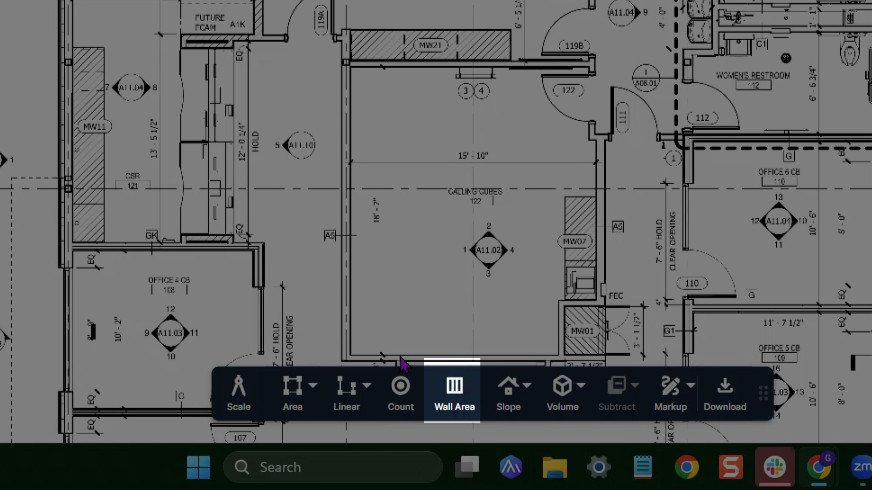
Step 1: Click the **Wall Area** tool from the toolbar.
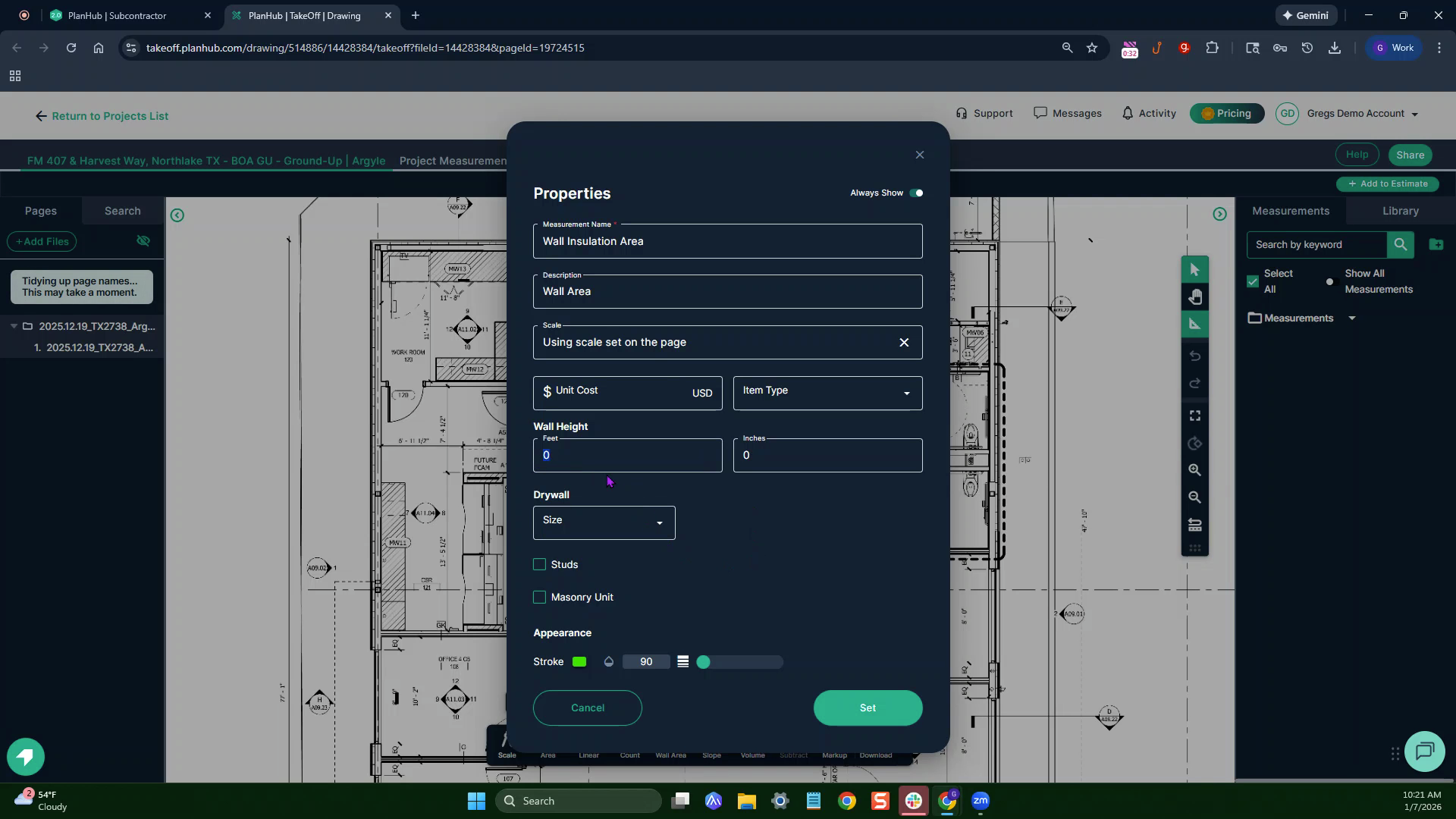
Step 2: **Name** your measurement. Enter the **Wall Height** so the system can calculate square footage based on measured distances. For this plan, set the wall height to 10 feet.
Step 3: Click **Set**.
Step 4: Align your crosshair to the measurement’s starting point and click once to begin. As you move along each wall, the line follows your cursor. Click and drag with the right mouse button to pan the page when needed.
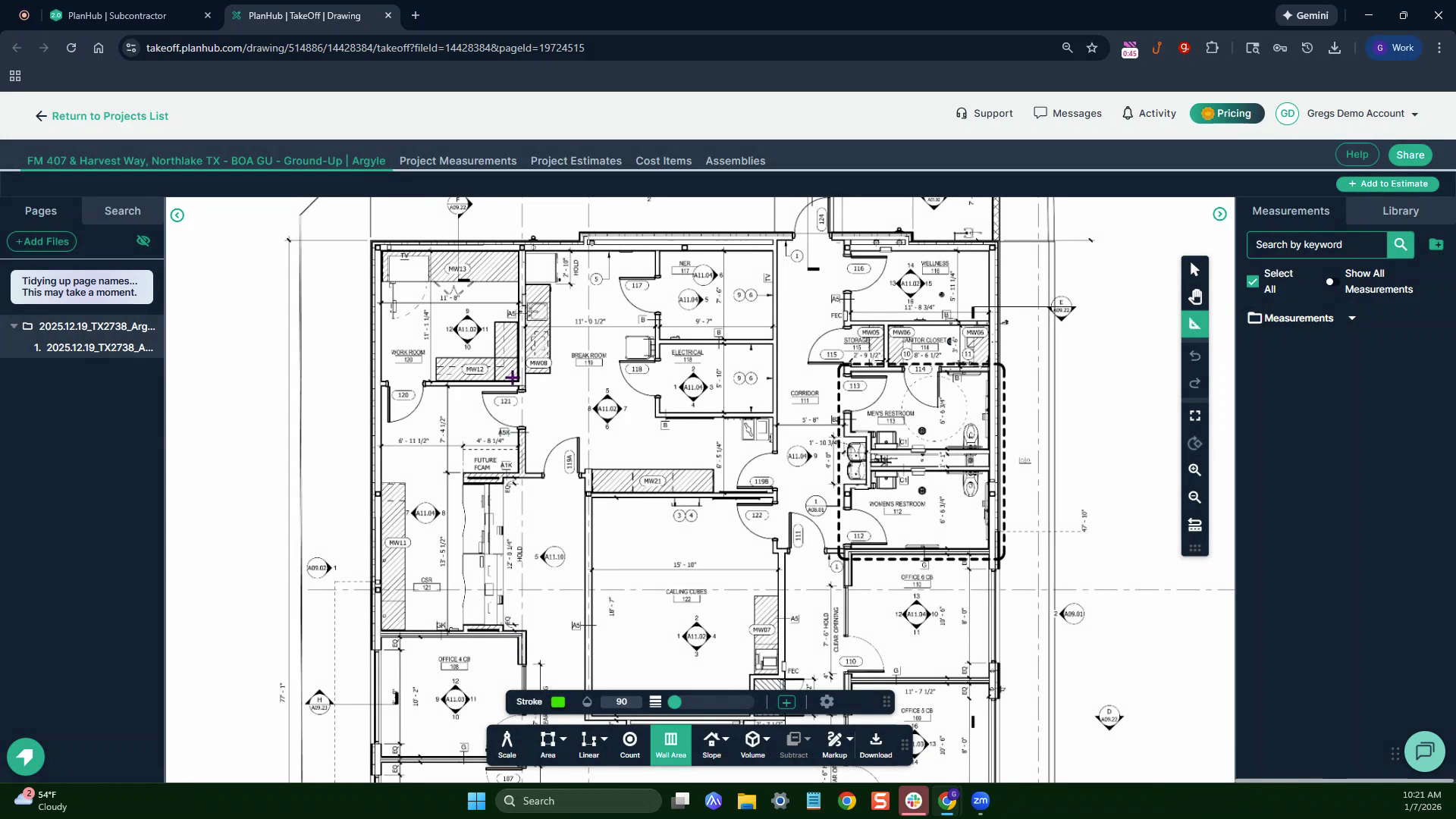
Step 5: Click the left mouse button at every corner to change direction. When you finish outlining a section, double-click to end the measurement.
Step 6: If you need to skip spaces (like over a glass storefront) and keep measuring on the next wall, use the **Continue** switch.

Then left-click to begin a new line, clicking at each corner again. Double-click to finish.
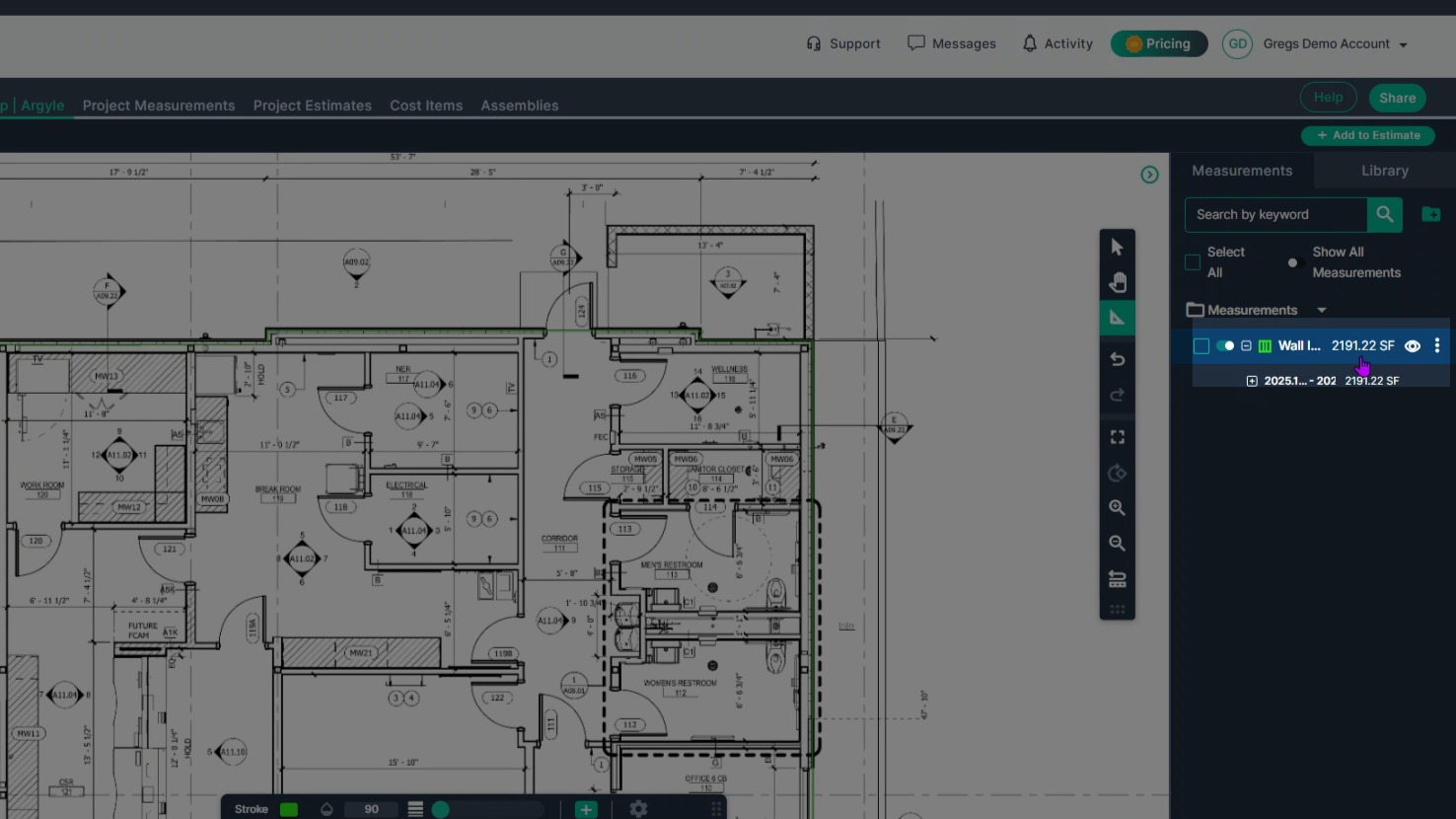
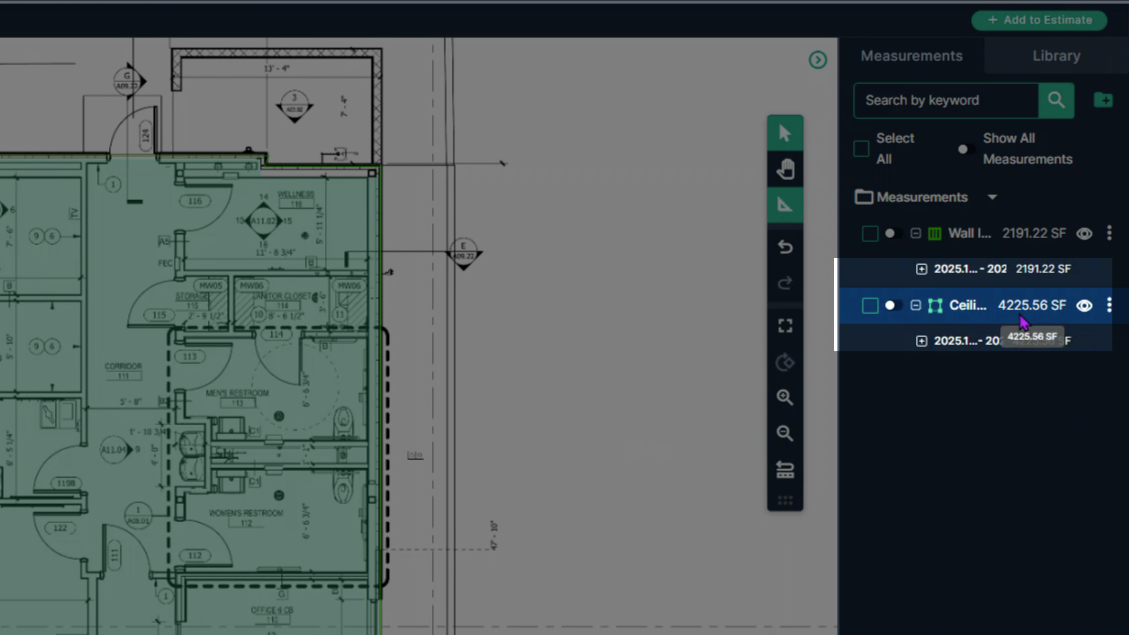
Step 7: Check your results on the right side of the window. The area for wall insulation appears in square feet—here, it’s 2,091.22 square feet.
---
Step 1: Select the **Area** tool for ceilings.
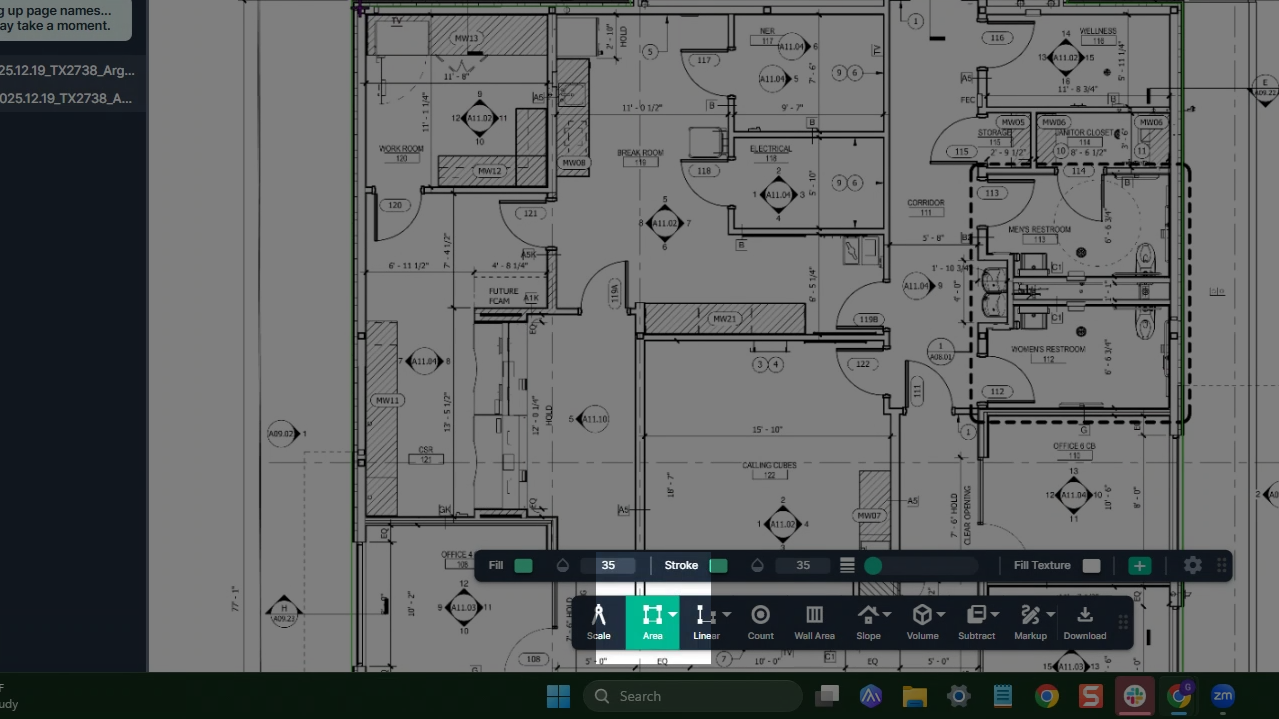
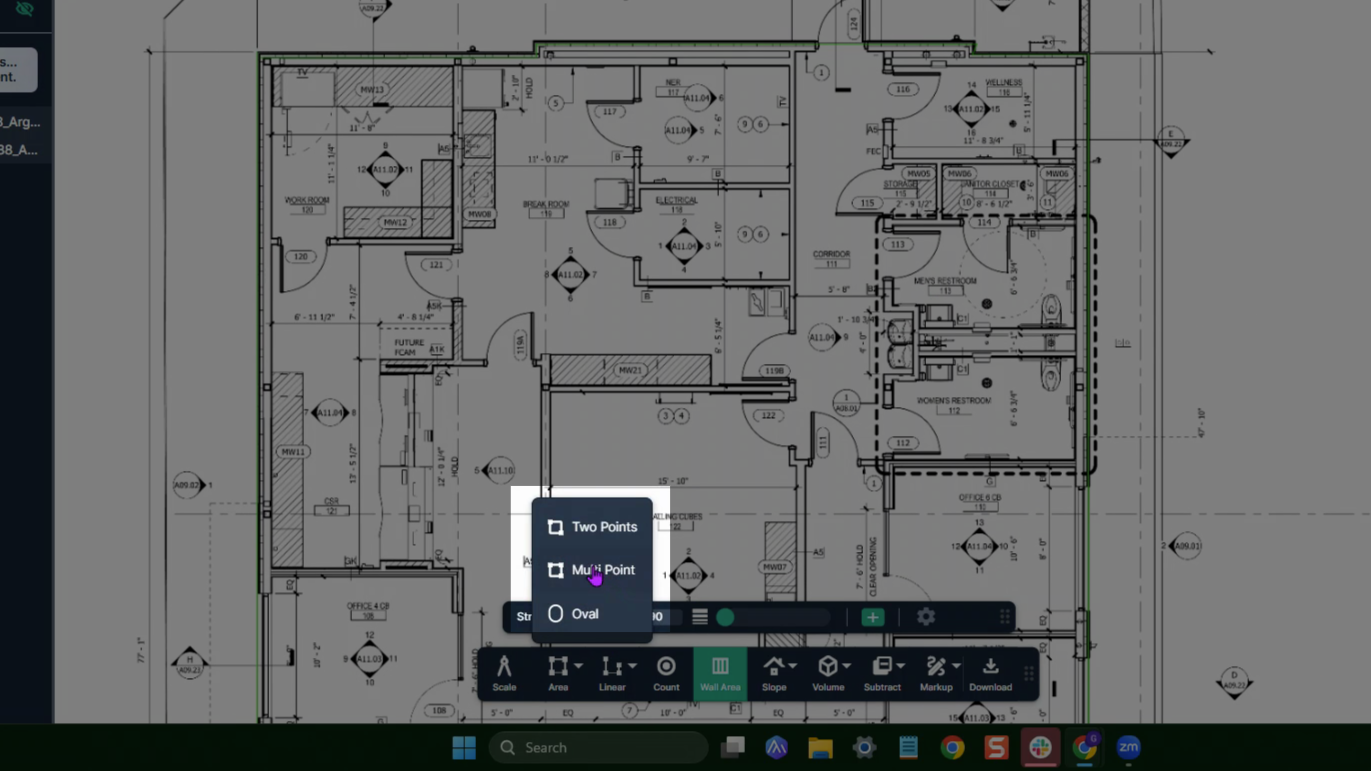
Step 2: Choose **Area**, then **Multi Point** to outline the space you want to measure.
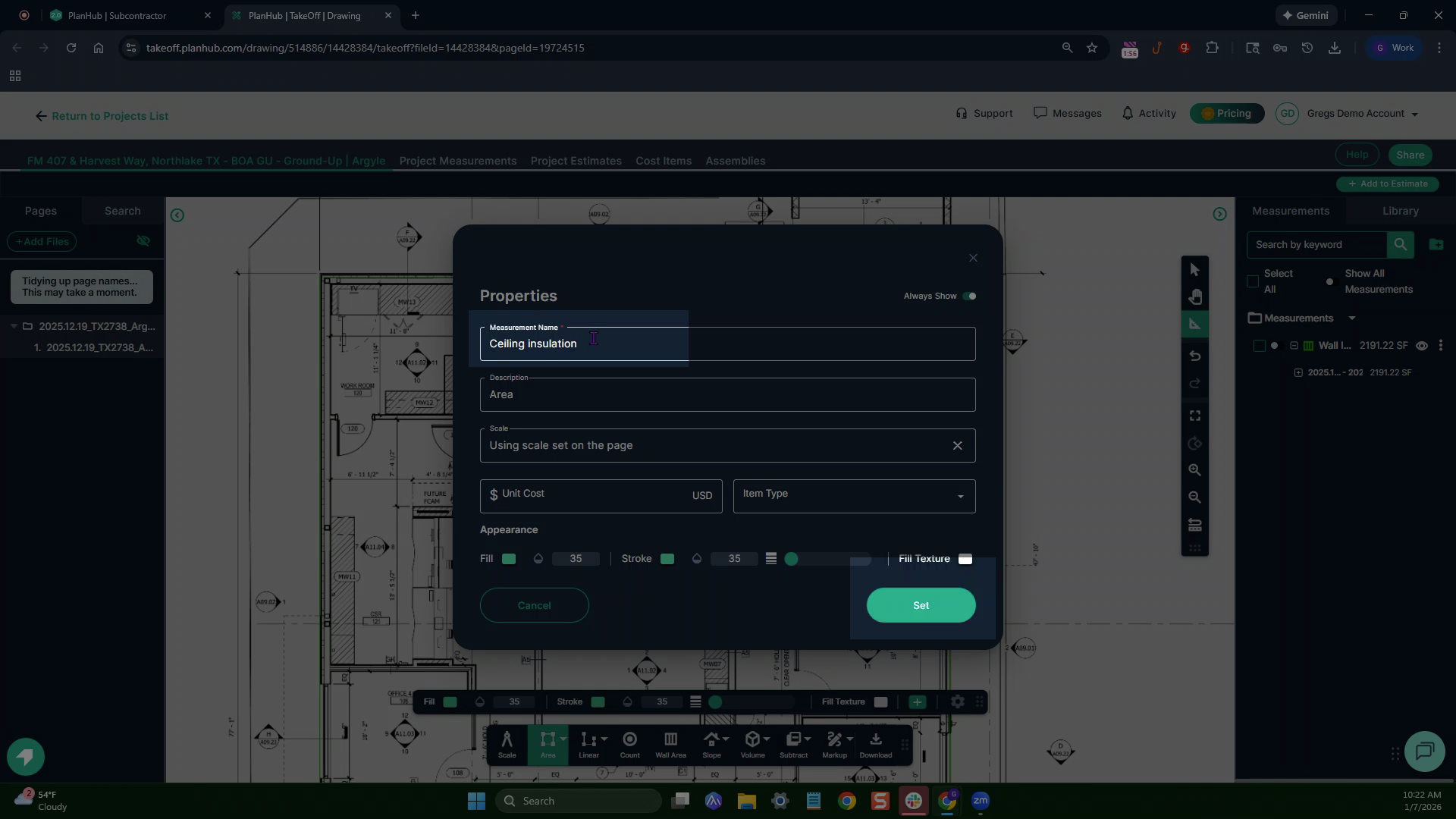
Name this measurement, then click **Set** to begin.
Step 3: Start your outline with a left click. As with walls, click at each corner to change direction.
Step 4: When finished, double-click to complete the outline.
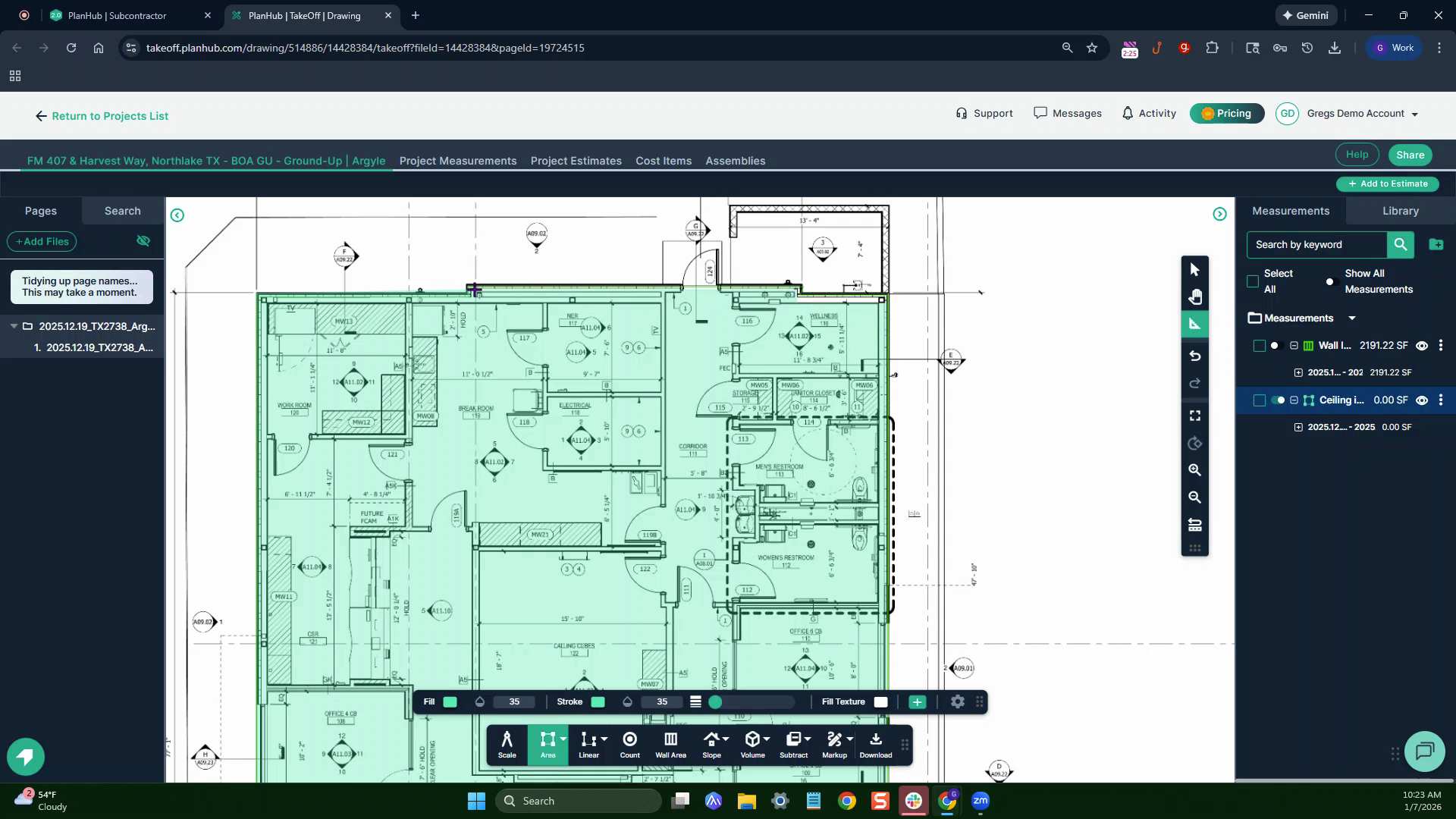
Step 5: View the measured ceiling area on the right—here, it's 4,225.86 square feet.
---
### **Next Steps**
Once you have completed taking all your measurements, you can:
- Download the measurements in a table from the Project Measurements page
- **[How To Download Project Measurements From Takeoff](https://knowledgebase.planhub.com/knowledge/how-to-download-project-measurements-from-takeoff-?hsLang=en)**
- Add a legend and download the PNG of your takeoff page
- **[Using Legend Markup in Takeoff](https://knowledgebase.planhub.com/knowledge/legend-markup-in-takeoff?hsLang=en)**
- If you have purchased the Estimation add-on tool, send measurements into the Project Estimate page or push them into an Assembly you have built.
- **[Estimation - Exporting a Measurement from TakeOff to Estimation](https://knowledgebase.planhub.com/knowledge/send-a-measurement-from-takeoff-to-estimation?hsLang=en)**
- **[Estimation | How to Create an Assembly](https://knowledgebase.planhub.com/knowledge/estimation-how-to-create-an-assembly?hsLang=en)**
- Share your Takeoff with anyone using the Share button in the upper right-hand corner.
- **[Share Your Projects, Reports, and Estimates in Takeoff](https://knowledgebase.planhub.com/knowledge/share-takeoff-projects?hsLang=en)**
---
### **Troubleshooting**
Contact us if you need assistance or to report an issue:
- PlanHub Contact Page: [https://planhub.com/contact/](https://planhub.com/contact/)
- Customer Facing Support Ticket Link: [https://knowledgebase.planhub.com/knowledge/kb-tickets/new](https://knowledgebase.planhub.com/knowledge/kb-tickets/new?hsLang=en)
- Schedule a **Free** 1-on-1 Takeoff Training: [https://meetings.hubspot.com/zac-low/takeoff-and-estimation](https://meetings.hubspot.com/zac-low/takeoff-and-estimation?__hstc=143611818.21027487ab2569aa780deedad7b3e510.1767116760760.1778608051685.1778612775772.256&__hssc=143611818.3.1778612775772&__hsfp=9a20deea0f29d5f2adc379a49644adc2)
- [General Contractor](https://knowledgebase.planhub.com/knowledge/general-contractor?hsLang=en#main-content)
- [Overview](https://knowledgebase.planhub.com/knowledge/general-contractor?hsLang=en#overview)
- [Projects](https://knowledgebase.planhub.com/knowledge/general-contractor?hsLang=en#projects)
- [Networking](https://knowledgebase.planhub.com/knowledge/general-contractor?hsLang=en#networking)
- [Subcontractors](https://knowledgebase.planhub.com/knowledge/subcontractors?hsLang=en#main-content)
- [Overview](https://knowledgebase.planhub.com/knowledge/subcontractors?hsLang=en#overview)
- [Projects](https://knowledgebase.planhub.com/knowledge/subcontractors?hsLang=en#projects)
- [Bid Board & Tracking](https://knowledgebase.planhub.com/knowledge/subcontractors?hsLang=en#bid-board-tracking)
- [Networking](https://knowledgebase.planhub.com/knowledge/subcontractors?hsLang=en#networking)
- [Takeoff & Estimation](https://knowledgebase.planhub.com/knowledge/subcontractors?hsLang=en#takeoff-estimation)
- [Manage Your Team](https://knowledgebase.planhub.com/knowledge/subcontractors?hsLang=en#manage-your-team)
- [Account & Settings](https://knowledgebase.planhub.com/knowledge/subcontractors?hsLang=en#account-settings)
- [Job Board](https://knowledgebase.planhub.com/knowledge/subcontractors?hsLang=en#job-board)
- [Request for Information](https://knowledgebase.planhub.com/knowledge/subcontractors?hsLang=en#request-for-information)
- [Supplier](https://knowledgebase.planhub.com/knowledge/supplier?hsLang=en#main-content)
- [Overview](https://knowledgebase.planhub.com/knowledge/supplier?hsLang=en#overview)
- [Projects and Leads](https://knowledgebase.planhub.com/knowledge/supplier?hsLang=en#projects-and-leads)
- [Bidding & Estimating](https://knowledgebase.planhub.com/knowledge/supplier?hsLang=en#bidding-estimating)
- [Networking](https://knowledgebase.planhub.com/knowledge/supplier?hsLang=en#networking)
- [Account & Settings](https://knowledgebase.planhub.com/knowledge/supplier?hsLang=en#account-settings)
- [Takeoff & Estimation](https://knowledgebase.planhub.com/knowledge/takeoff-estimation?hsLang=en#main-content)
- [Getting Started](https://knowledgebase.planhub.com/knowledge/takeoff-estimation?hsLang=en#getting-started)
- [Takeoff Tools & Measurements](https://knowledgebase.planhub.com/knowledge/takeoff-estimation?hsLang=en#takeoff-tools-measurements)
- [Trade-Specific Takeoffs](https://knowledgebase.planhub.com/knowledge/takeoff-estimation?hsLang=en#trade-specific-takeoffs)
- [Estimating](https://knowledgebase.planhub.com/knowledge/takeoff-estimation?hsLang=en#estimating)
- [Managing & Sharing Your Work](https://knowledgebase.planhub.com/knowledge/takeoff-estimation?hsLang=en#managing-sharing-your-work)
- [Account & Billing](https://knowledgebase.planhub.com/knowledge/account-billing?hsLang=en#main-content)
- [Account & Billing](https://knowledgebase.planhub.com/knowledge/account-billing?hsLang=en#account-billing)
- [Account Closure](https://knowledgebase.planhub.com/knowledge/account-billing?hsLang=en#account-closure)
- [Troubleshooting](https://knowledgebase.planhub.com/knowledge/troubleshooting?hsLang=en)
- [About PlanHub](https://knowledgebase.planhub.com/knowledge/about-planhub?hsLang=en)
- [New General Contractor Experience](https://knowledgebase.planhub.com/knowledge/new-general-contractor-experience?hsLang=en#main-content)
- [Overview](https://knowledgebase.planhub.com/knowledge/new-general-contractor-experience?hsLang=en#overview)
- [Projects](https://knowledgebase.planhub.com/knowledge/new-general-contractor-experience?hsLang=en#projects)
- [Networking](https://knowledgebase.planhub.com/knowledge/new-general-contractor-experience?hsLang=en#networking)
- [Takeoff & Estimation](https://knowledgebase.planhub.com/knowledge/new-general-contractor-experience?hsLang=en#takeoff-estimation)
- [Account & Settings](https://knowledgebase.planhub.com/knowledge/new-general-contractor-experience?hsLang=en#account-settings)
- [Manage Your Team](https://knowledgebase.planhub.com/knowledge/new-general-contractor-experience?hsLang=en#manage-your-team)
- [Submit Feedback](https://knowledgebase.planhub.com/knowledge/submit-feedback?hsLang=en#main-content)
- [Feedback](https://knowledgebase.planhub.com/knowledge/submit-feedback?hsLang=en#feedback)
- [Have an Issue? Submit a Ticket](https://knowledgebase.planhub.com/knowledge/kb-tickets/new)
[](http://planhub.com)
[Knowledge Base Home](https://knowledgebase.planhub.com/knowledge?hsLang=en)
[Submit a Ticket](https://knowledgebase.planhub.com/knowledge/kb-tickets/new?hsLang=en)
Copyright © 2026, ©2026 PlanHub, Inc. All rights reserved