---
title: HVAC - A Quick Takeoff How To
description: HVAC Takeoff, Mechanical Takeoff
---
[Skip to content](https://knowledgebase.planhub.com/knowledge/hvac-a-quick-takeoff-how-to#main-content)
English
Show submenu for translations
[Submit a Ticket](https://knowledgebase.planhub.com/knowledge/kb-tickets/new?hsLang=en)
![NEW\_PlanHub\_Logo\_Navy.png\]](https://knowledgebase.planhub.com/hs-fs/hubfs/Design/PH%20Logos/NEW%202024%20PH%20Logos/NEW_PlanHub_Logo_Navy.png?height=40&name=NEW_PlanHub_Logo_Navy.png)
- [Have an Issue? Submit a Ticket](https://knowledgebase.planhub.com/knowledge/kb-tickets/new)
Open main navigation
Close main navigation
- [Have an Issue? Submit a Ticket](https://knowledgebase.planhub.com/knowledge/kb-tickets/new)
- English
Show submenu for translations
- [Submit a Ticket](https://knowledgebase.planhub.com/knowledge/kb-tickets/new)
What can we help you with?
- There are no suggestions because the search field is empty.
1. [Knowledge Base](https://knowledgebase.planhub.com/knowledge?hsLang=en)
2. [Takeoff & Estimation](https://knowledgebase.planhub.com/knowledge/takeoff-estimation?hsLang=en)
3. [Trade-Specific Takeoffs](https://knowledgebase.planhub.com/knowledge/takeoff-estimation?hsLang=en#trade-specific-takeoffs)
# HVAC - A Quick Takeoff How To
## Step-by-Step Guide: Performing HVAC Ductwork Takeoffs in PlanHub Takeoff Tools
---
Takeoffs are a snap with PlanHub’s Takeoff Tools. Quickly measure and count HVAC ductwork, ensuring precise estimations with clear, visual feedback. This guide walks through setting up your document, measuring duct runs, and counting critical components—using the Linear Segment tool and Count tools—just like demonstrated in the workflow video.
---
**Prerequisites:** You need a subscription or trial that includes Takeoff to measure plans, export a plan into TakeOff, and set the scale. Then you can begin measuring.
[How to Set A Scale](https://knowledgebase.planhub.com/knowledge/how-to-set-the-scale-in-planhub-takeoff?hsLang=en)
[How to Begin a Takeoff In PlanHub](https://knowledgebase.planhub.com/knowledge/how-to-start-a-takeoff-from-project-in-planhub?hs_preview=CWKDPlzZ-199248611159&hsLang=en)
### Introduction
PlanHub’s Takeoff Tools let you accurately measure and count HVAC ductwork right on your digital plans. With tools for measuring straight duct runs and counting fittings, you’ll streamline takeoffs, minimize errors, and make your estimates more reliable.
**Step 1:** Set the **Scale** for your project page. This ensures all measurements are accurate from the start.
**Step 2:** Open the **Linear Segment** tool. Once activated, you’re ready to measure ductwork runs.
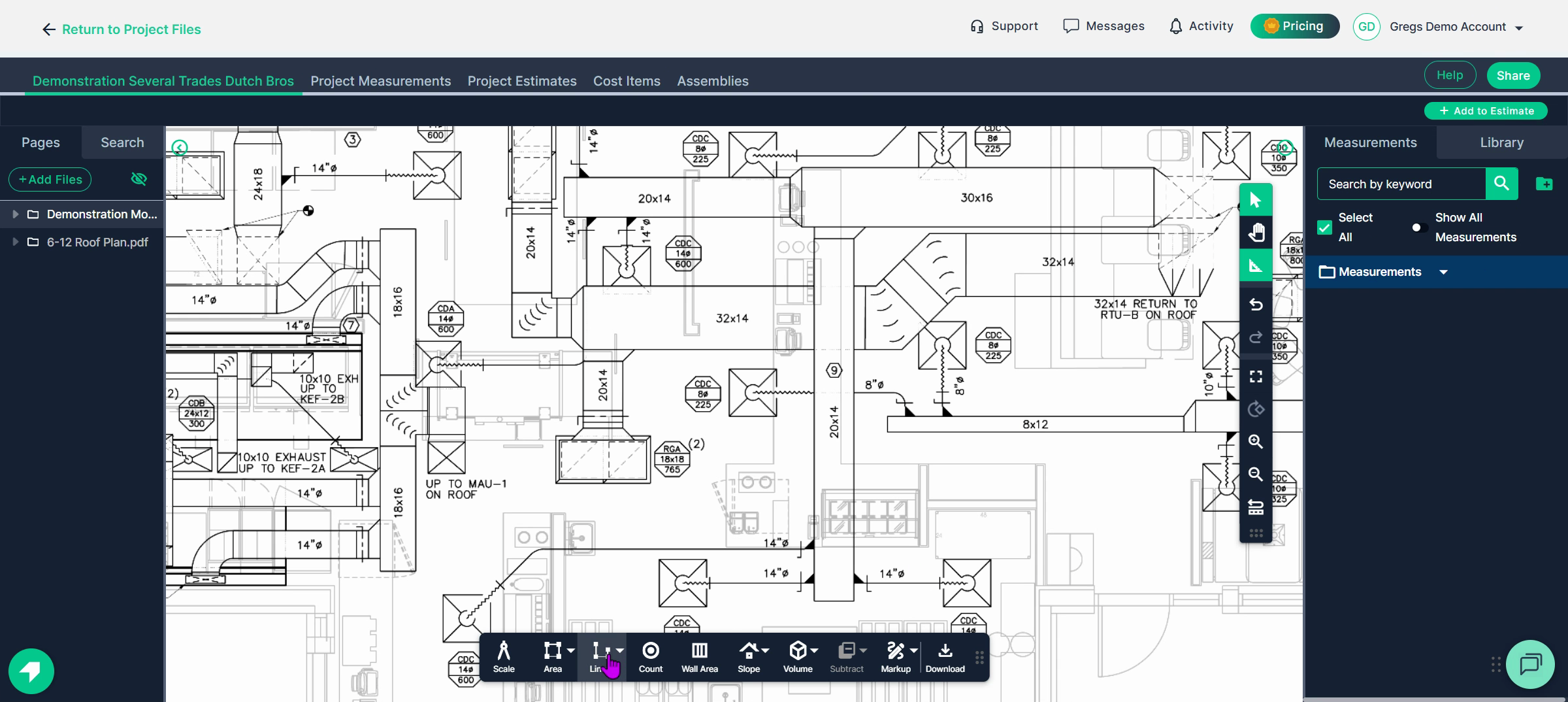
**Step 3:** Choose the duct size to measure. Here, start with a 20x14 rectangular duct. Name the segment accordingly so you can identify it later.
**Step 4:** Pick a **line color** for this ductwork size for visual clarity as you work.
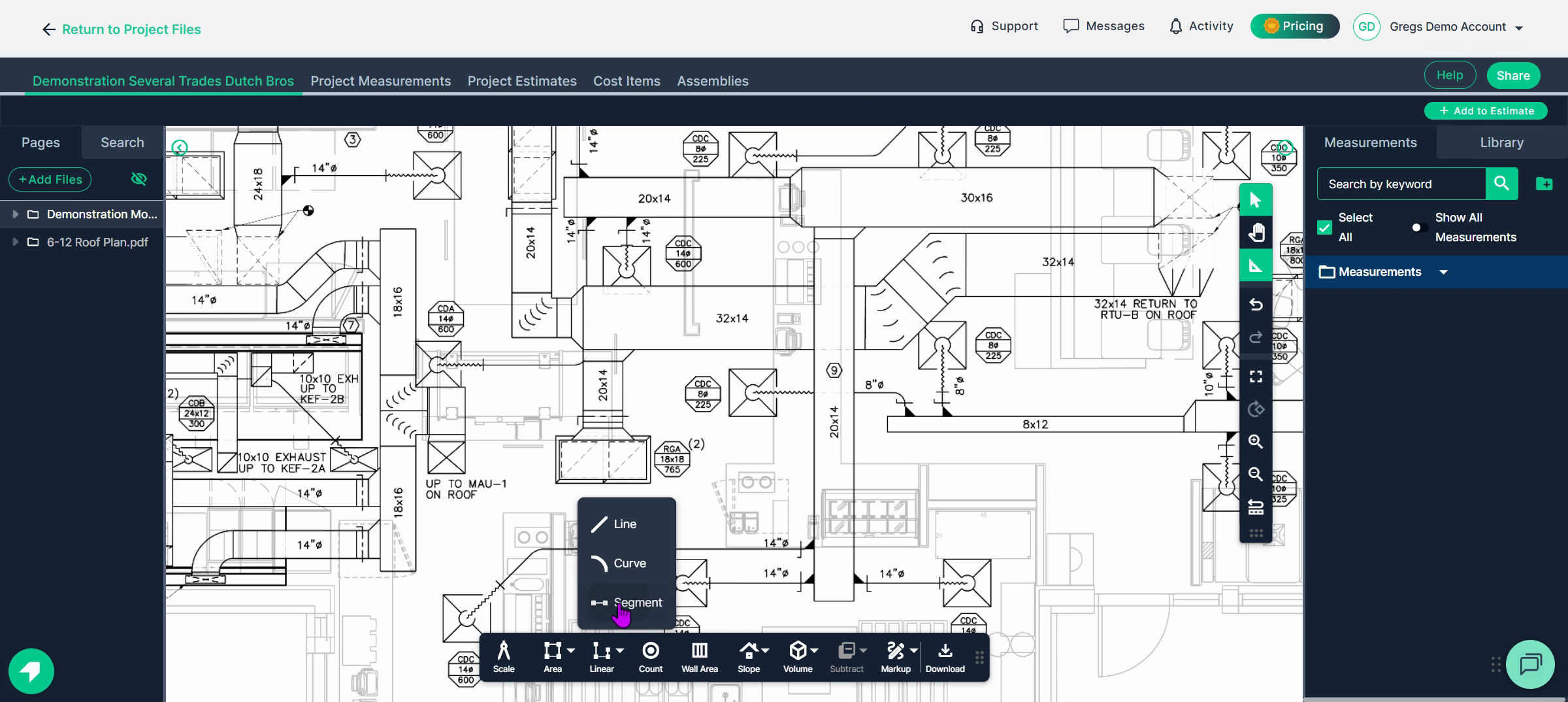
**Step 3:** Choose the duct size to measure. Here, start with a 20x14 rectangular duct. Name the segment accordingly so you can identify it later.
**Step 4:** Pick a **line color** for this ductwork size for visual clarity as you work.
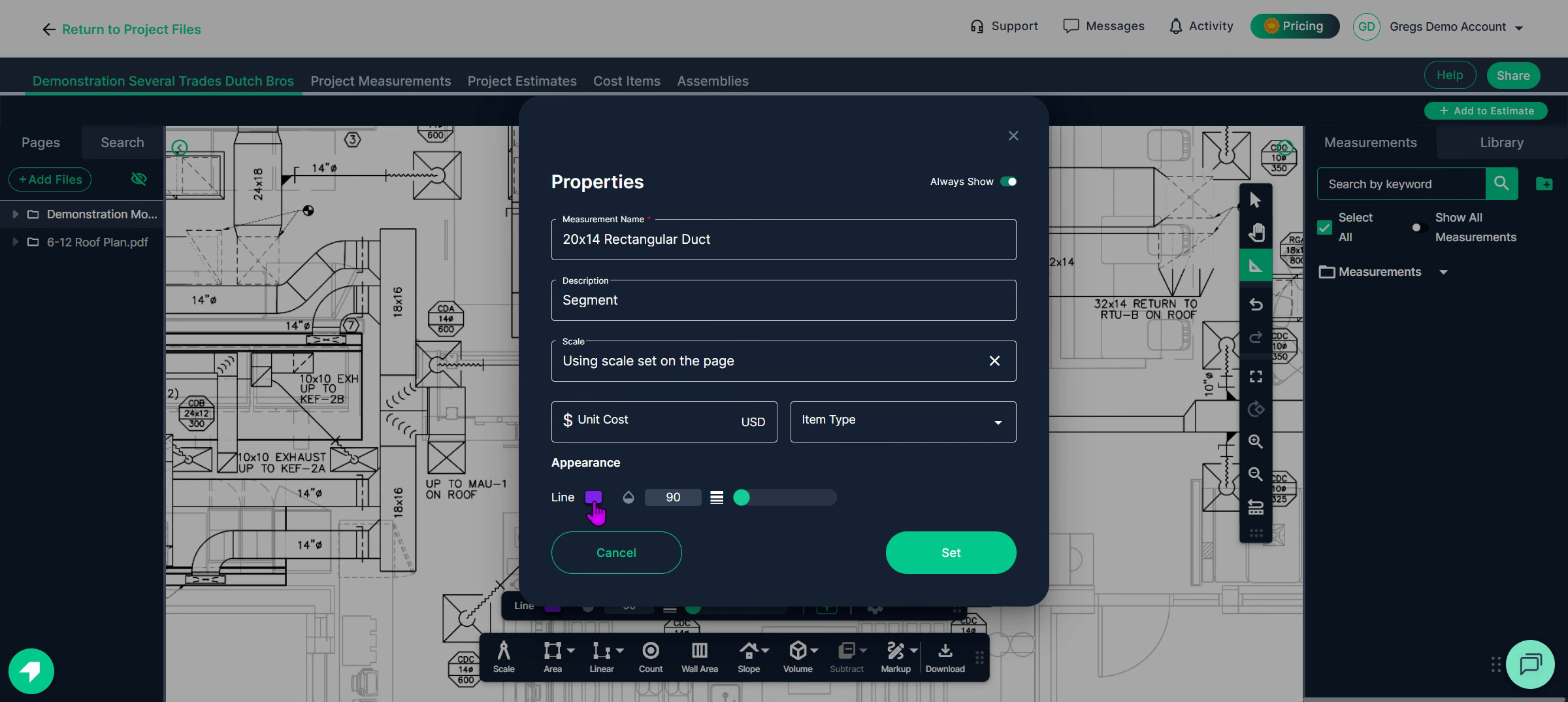

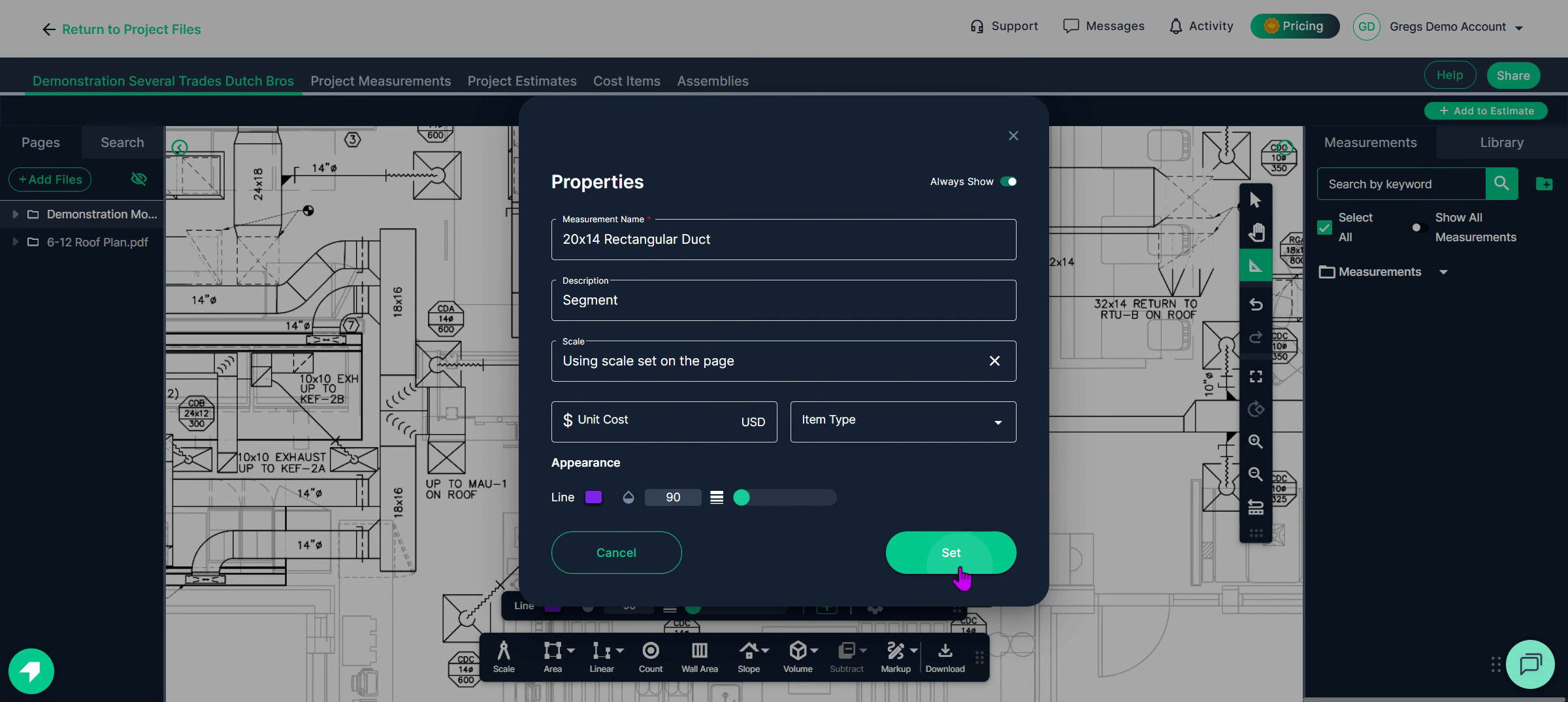
**Step 5:** Click **Set** in the tool settings. The cursor changes to a crosshair, ready for measurement.
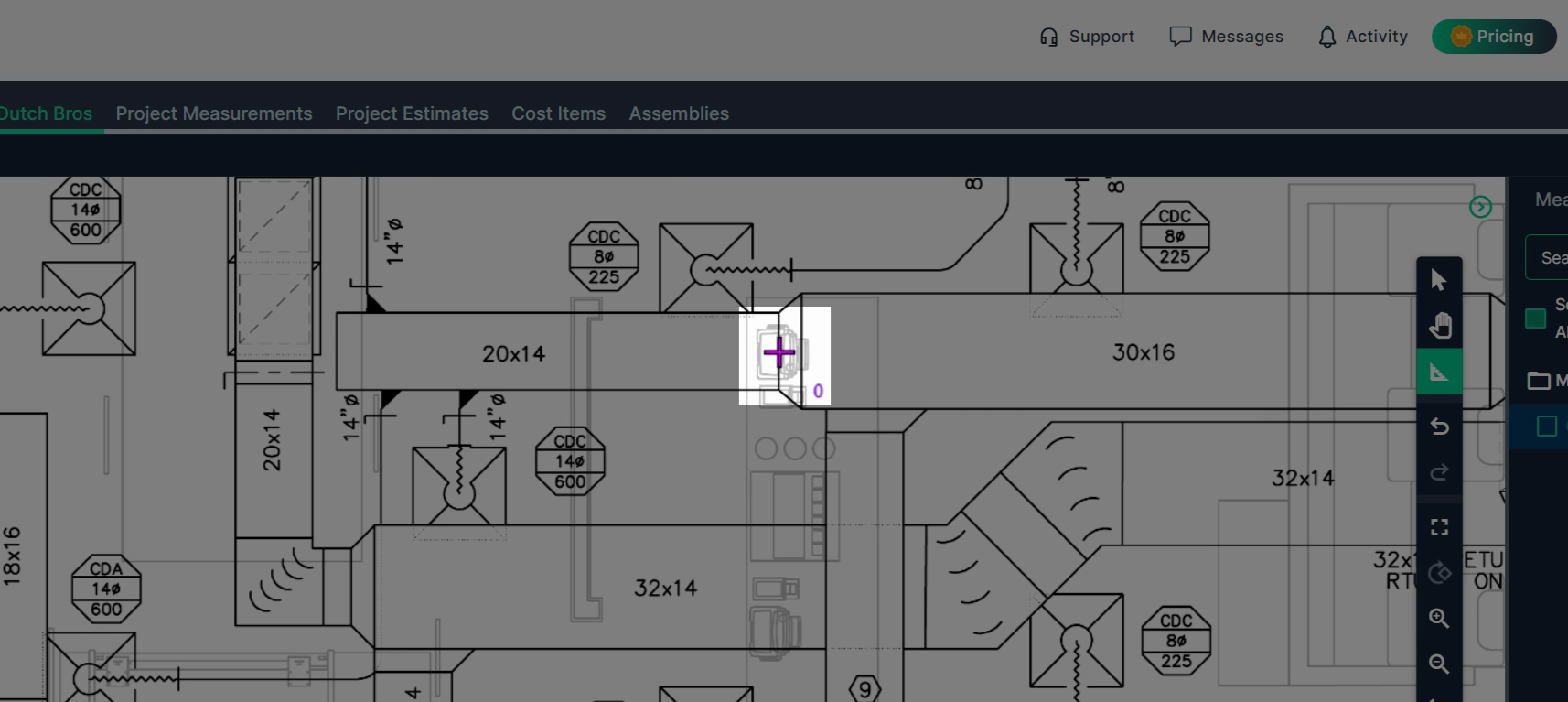
**Step 6:** Click once at the start point of the duct run, the line follows as you move your mouse, then click again at the endpoint.
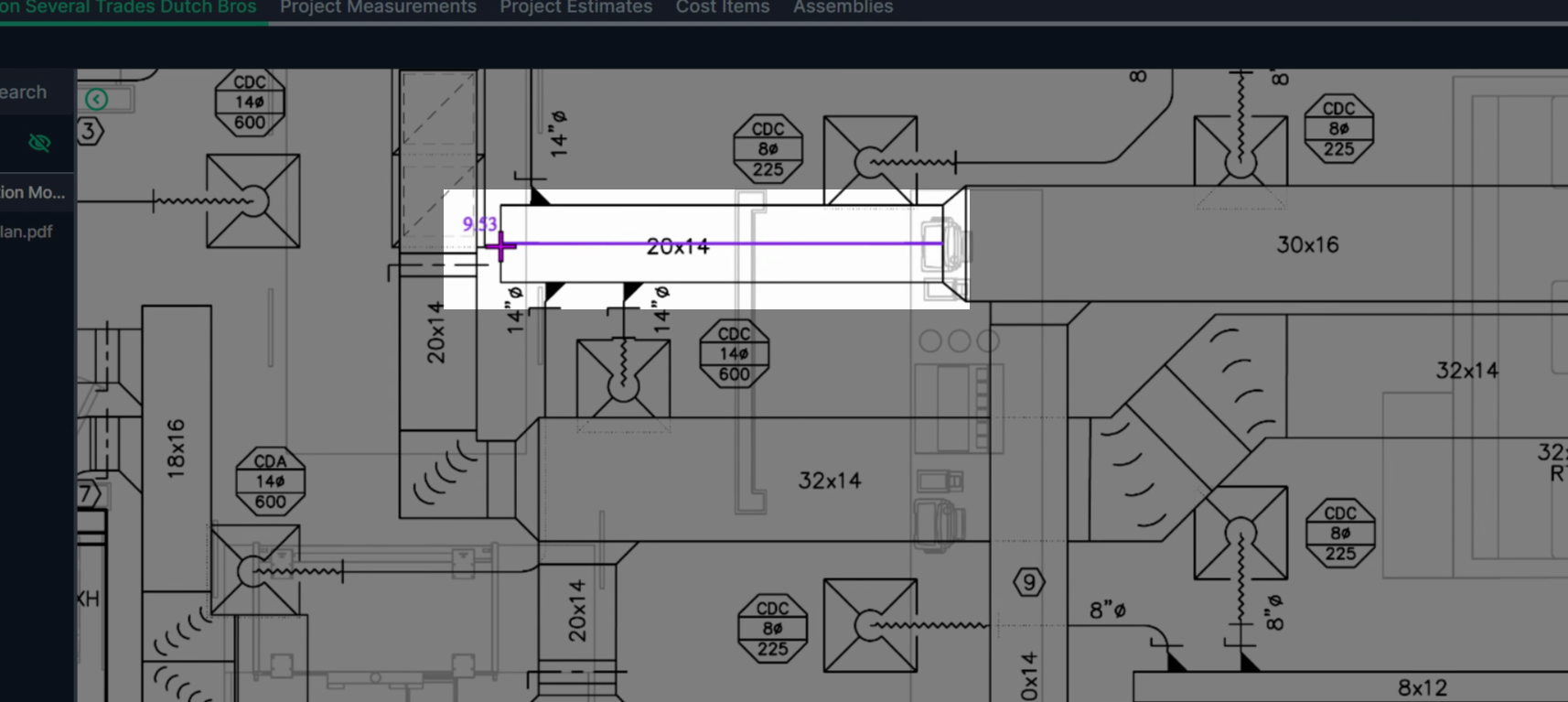
The total measured length appears on the right side of the page.
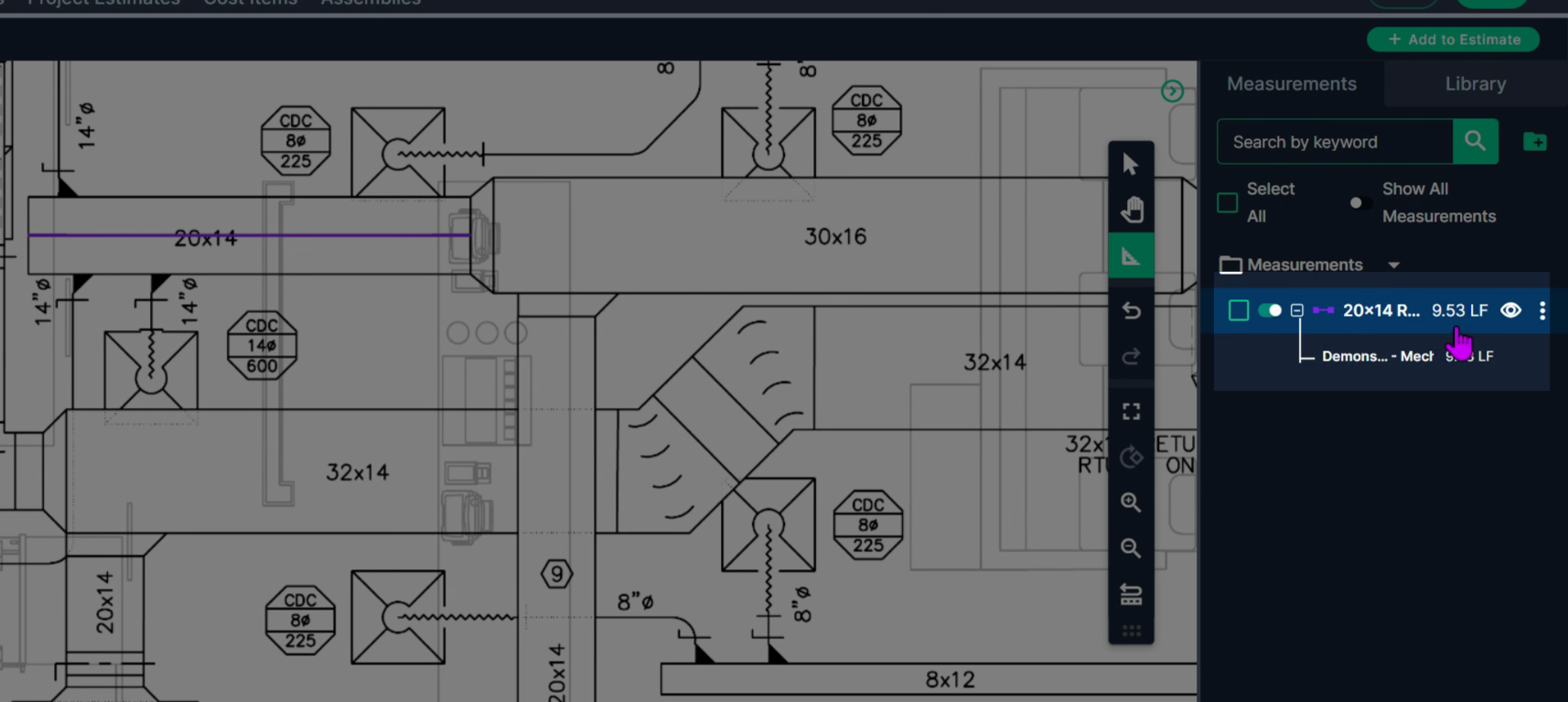
**Step 7:** If you have more duct sections of the same size, repeat the process. Click the tool, measure each new section, and see totals accumulate instantly.
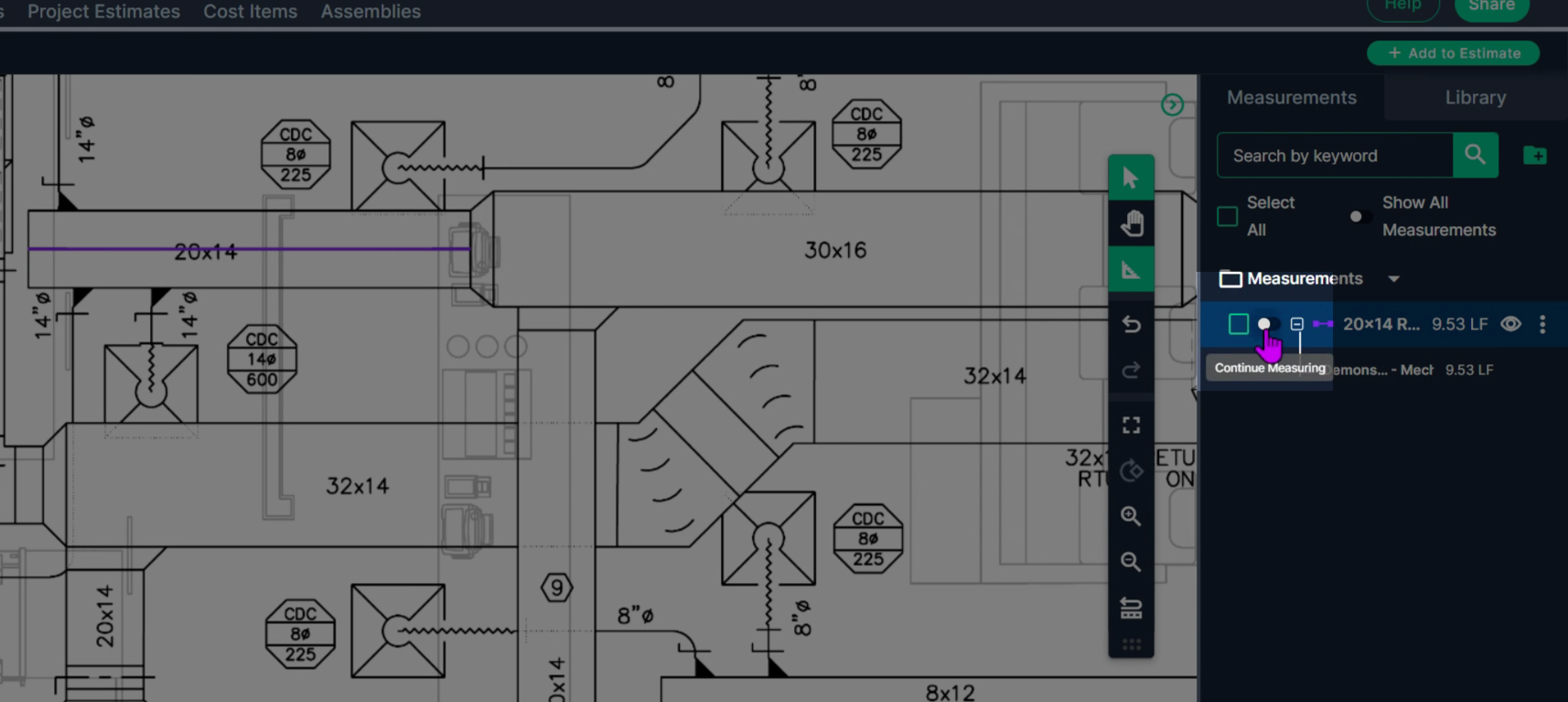
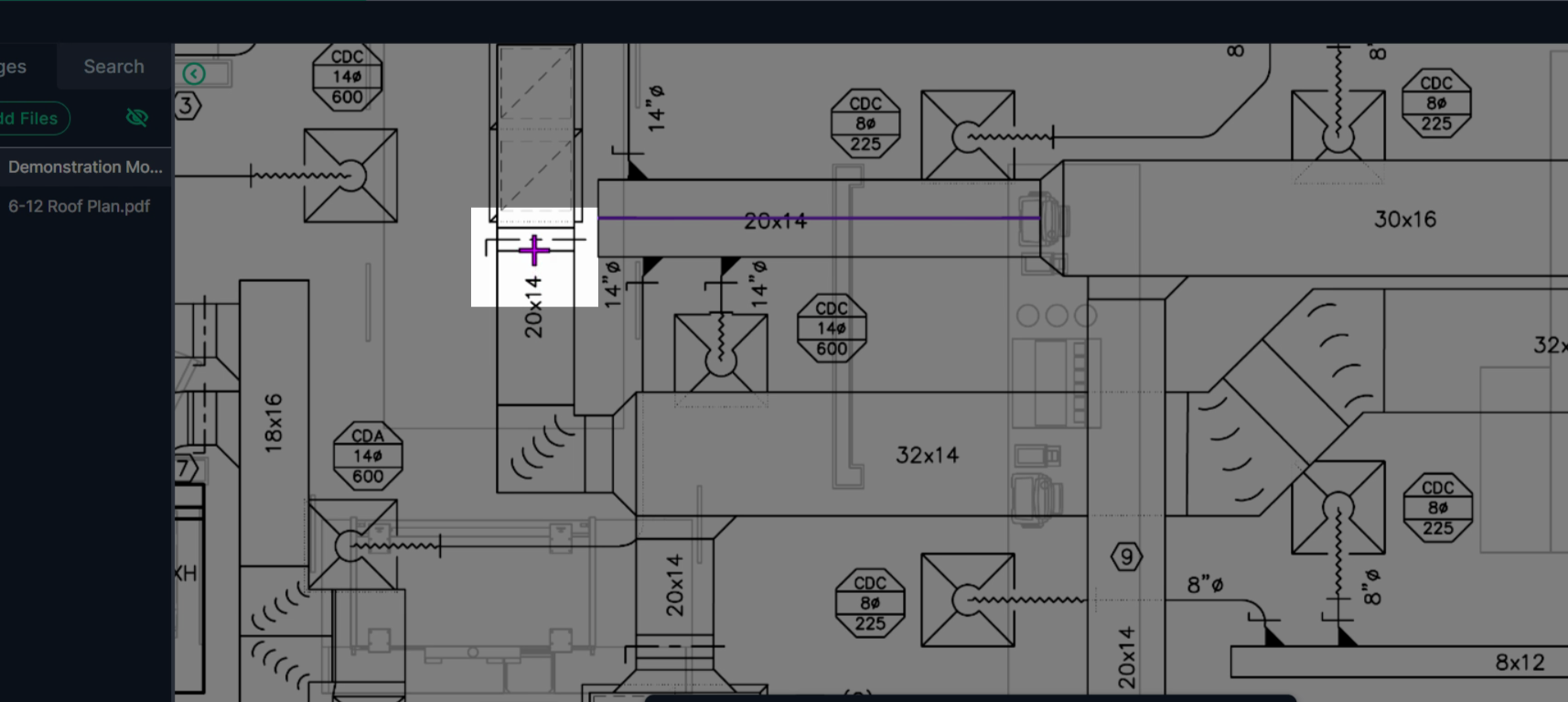
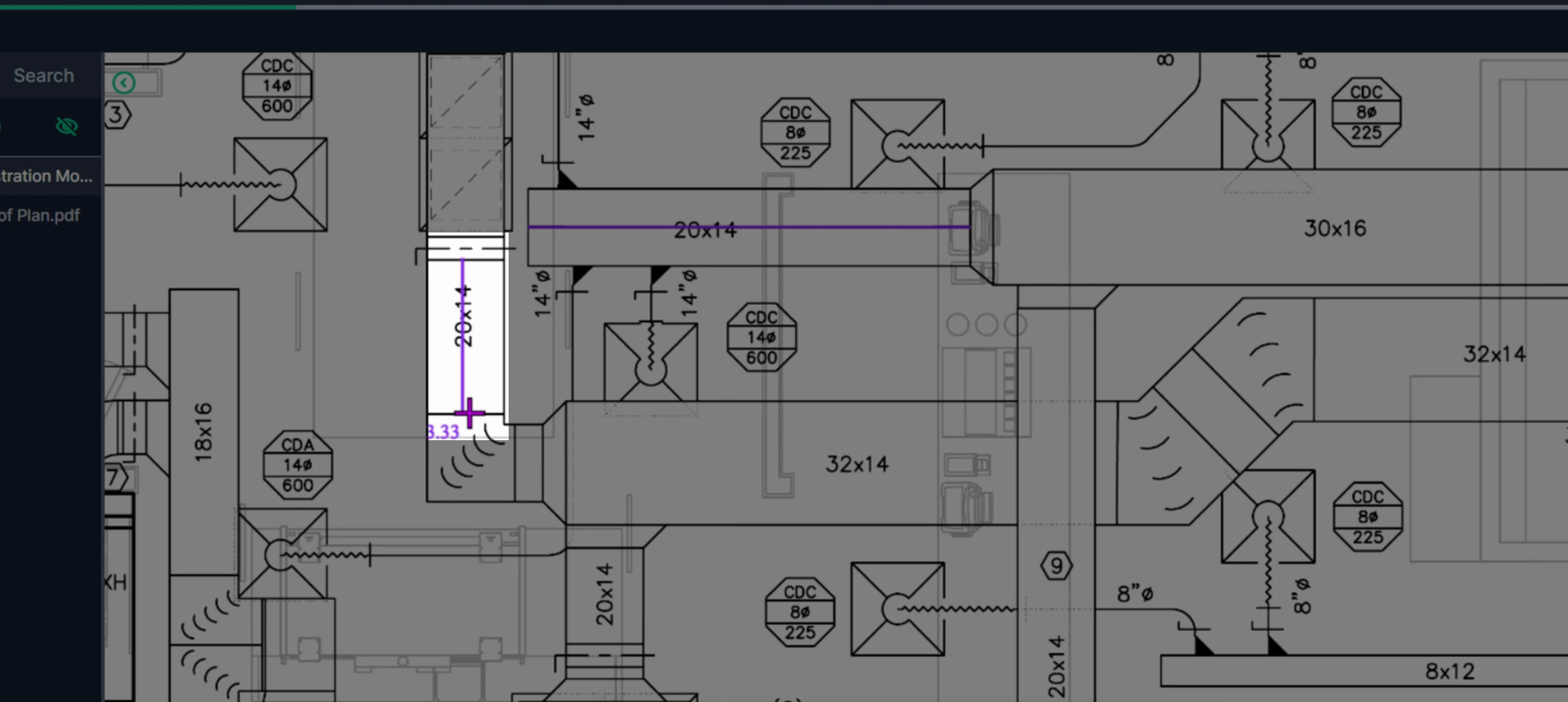
**Step 8:** To measure across multiple areas, zoom or pan your document with your mouse as needed. Right click and drag to pan, use the scroll wheel to Zoom in/out to view the full area.
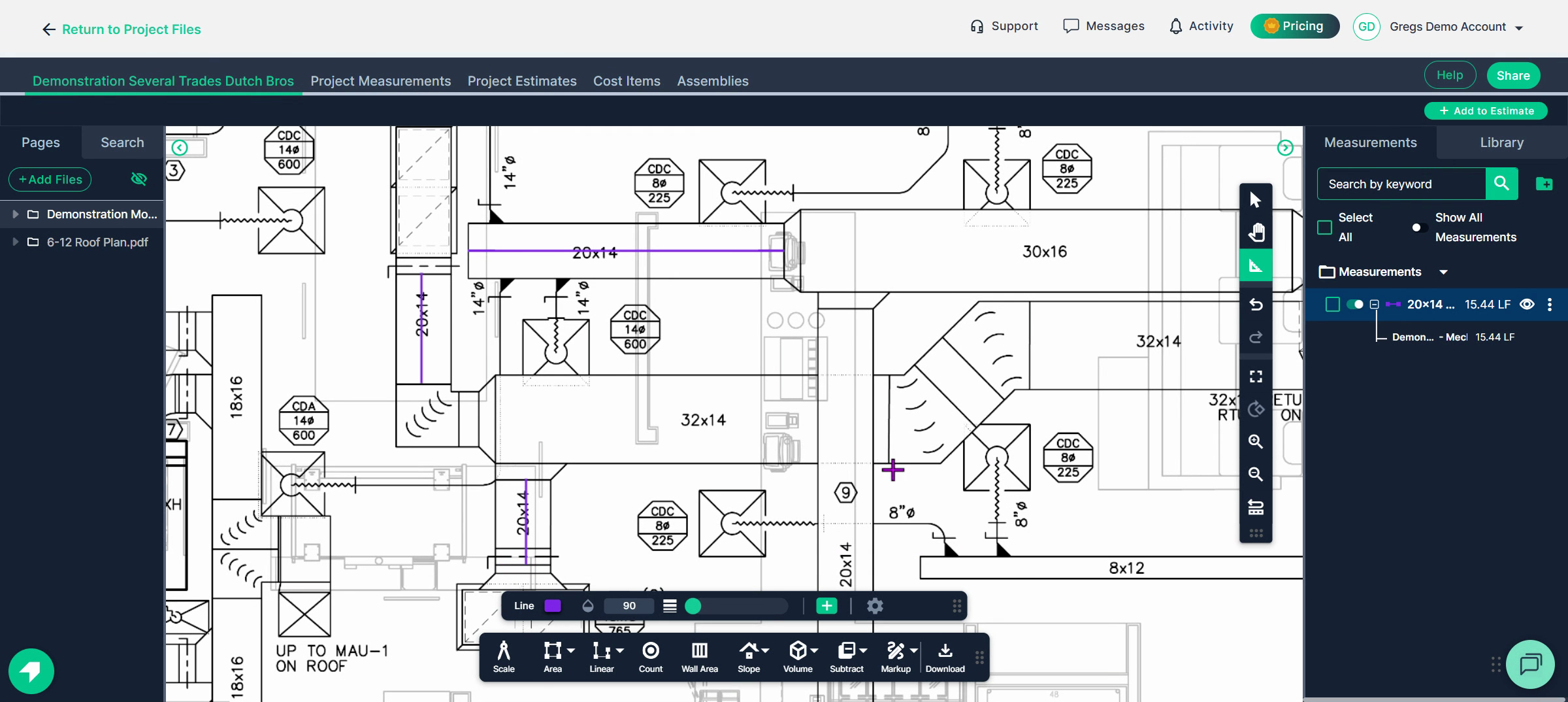
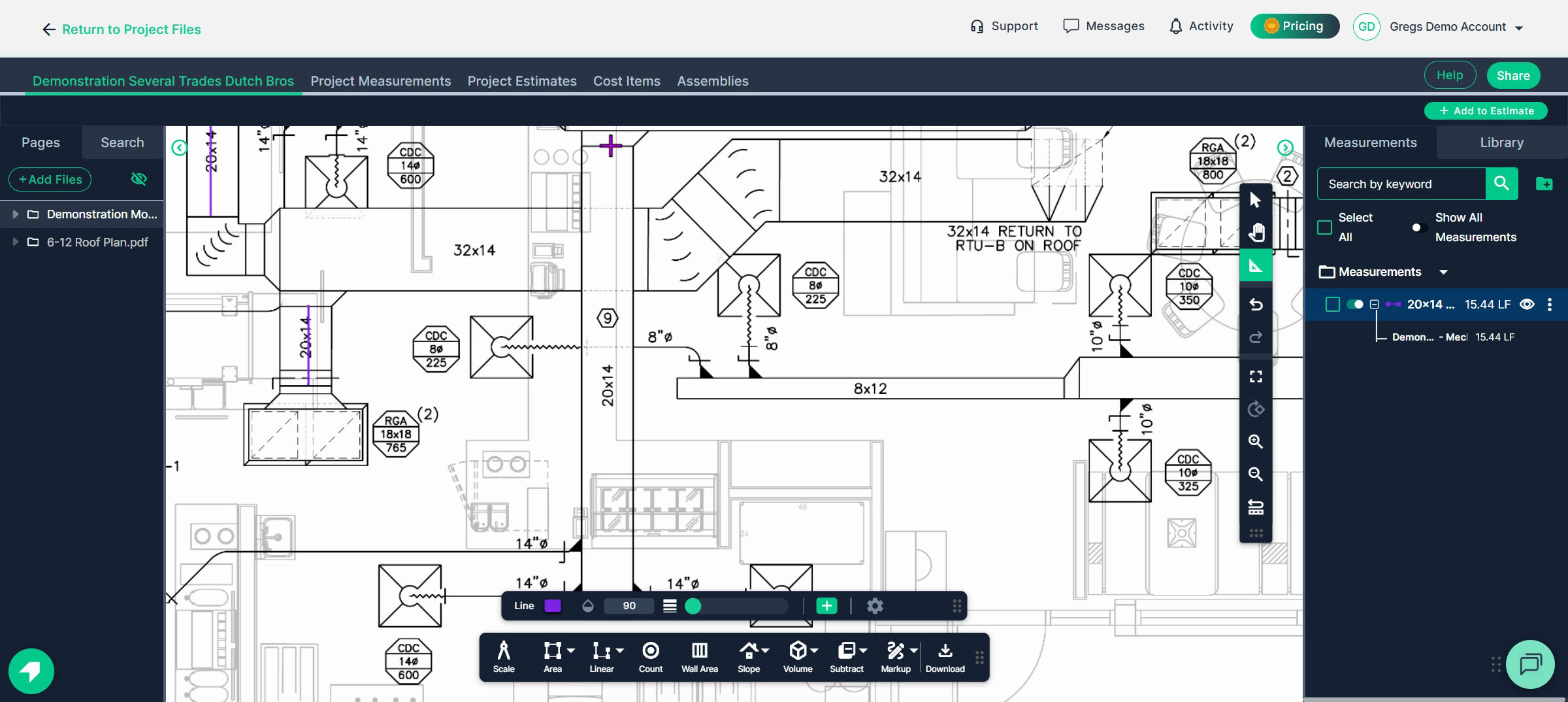
**Step 9:** When finished measuring a specific size, turn off the segment tool using the continue swich.
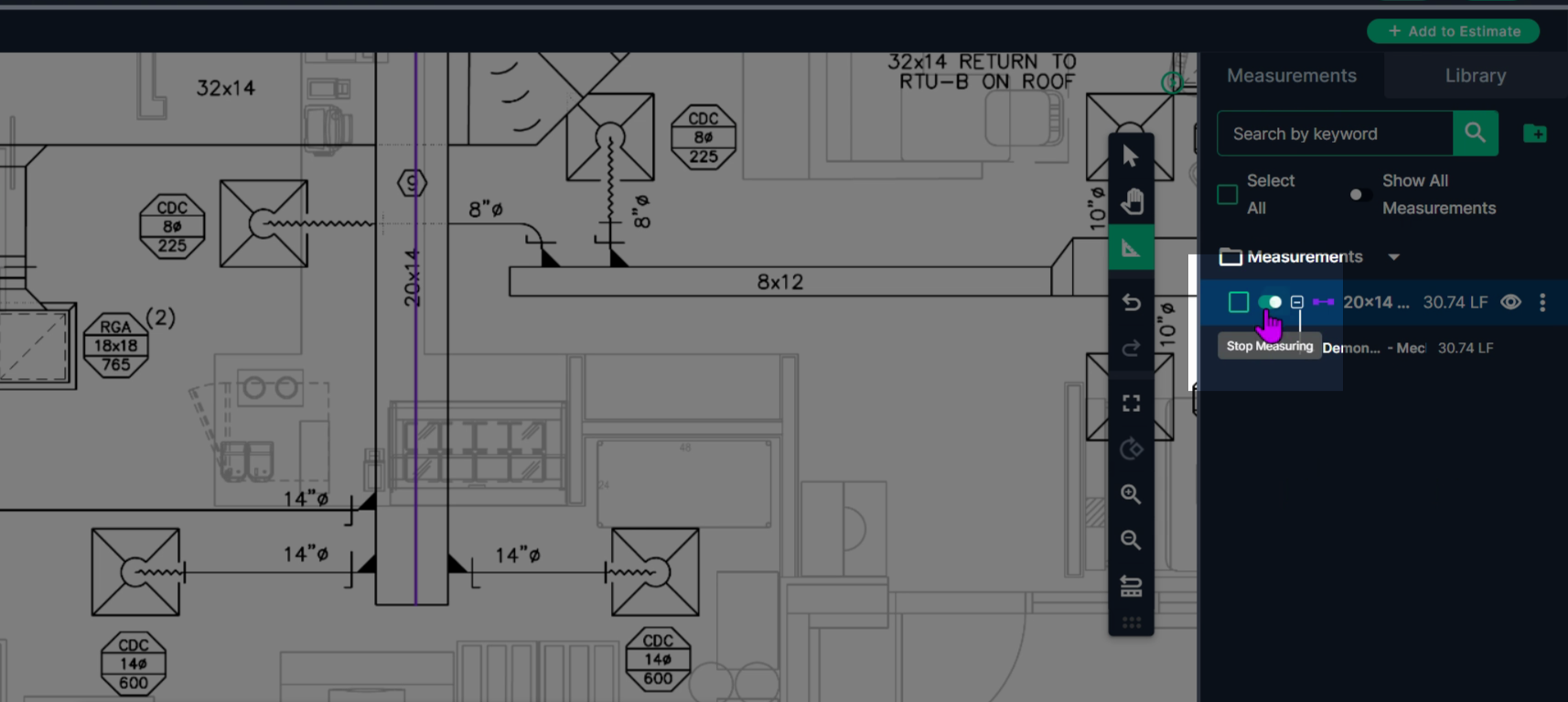
Check your cumulative totals for that result for all measurements on the plan.
---
**Counting Items**
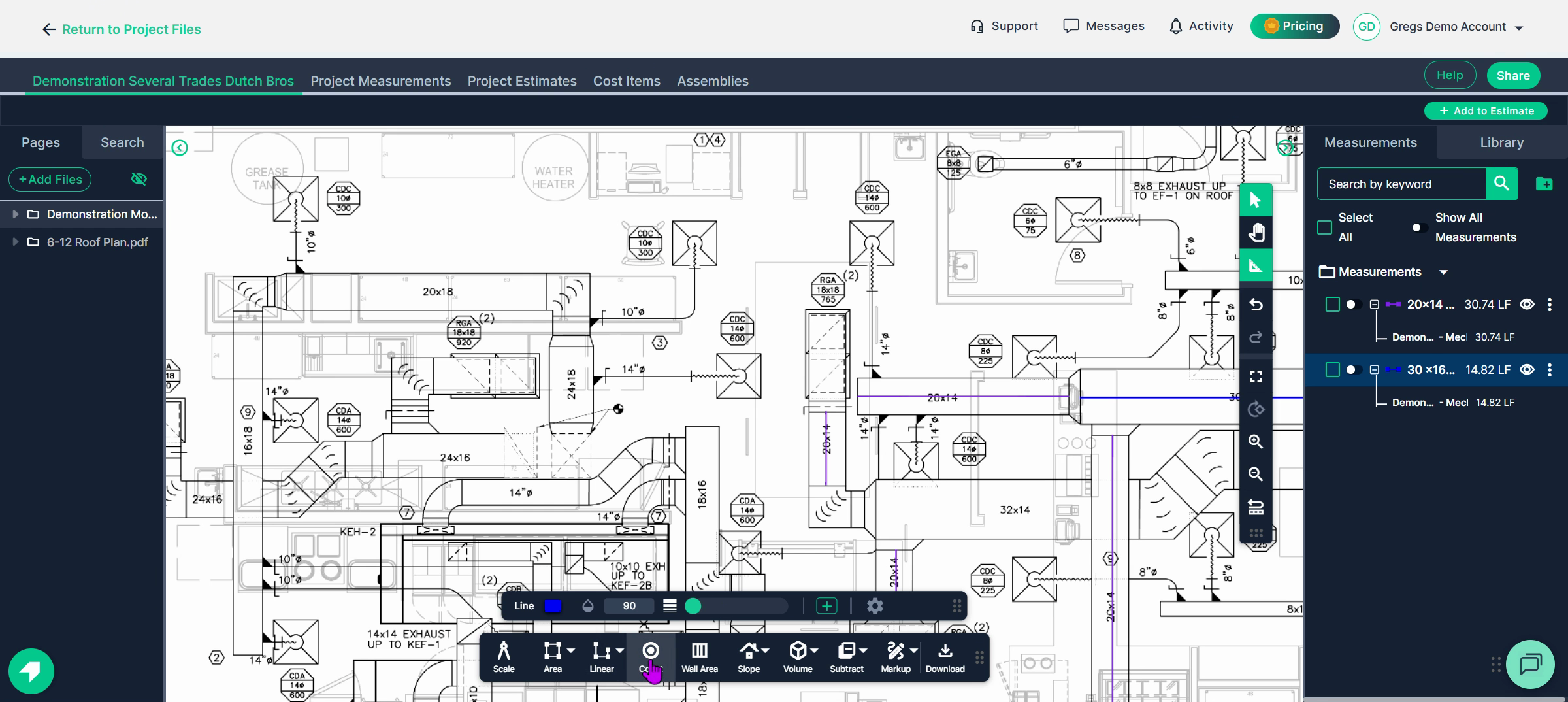
**Step 1:** Use the **Count Tool** to log fittings and terminations—like diffusers, transitions, elbows, collars, and flex runs.
**Step 2:** Click **Count** at the bottom of the toolbar. Then name the tool for each component you’re tallying (e.g., "10 inch Diffuser").
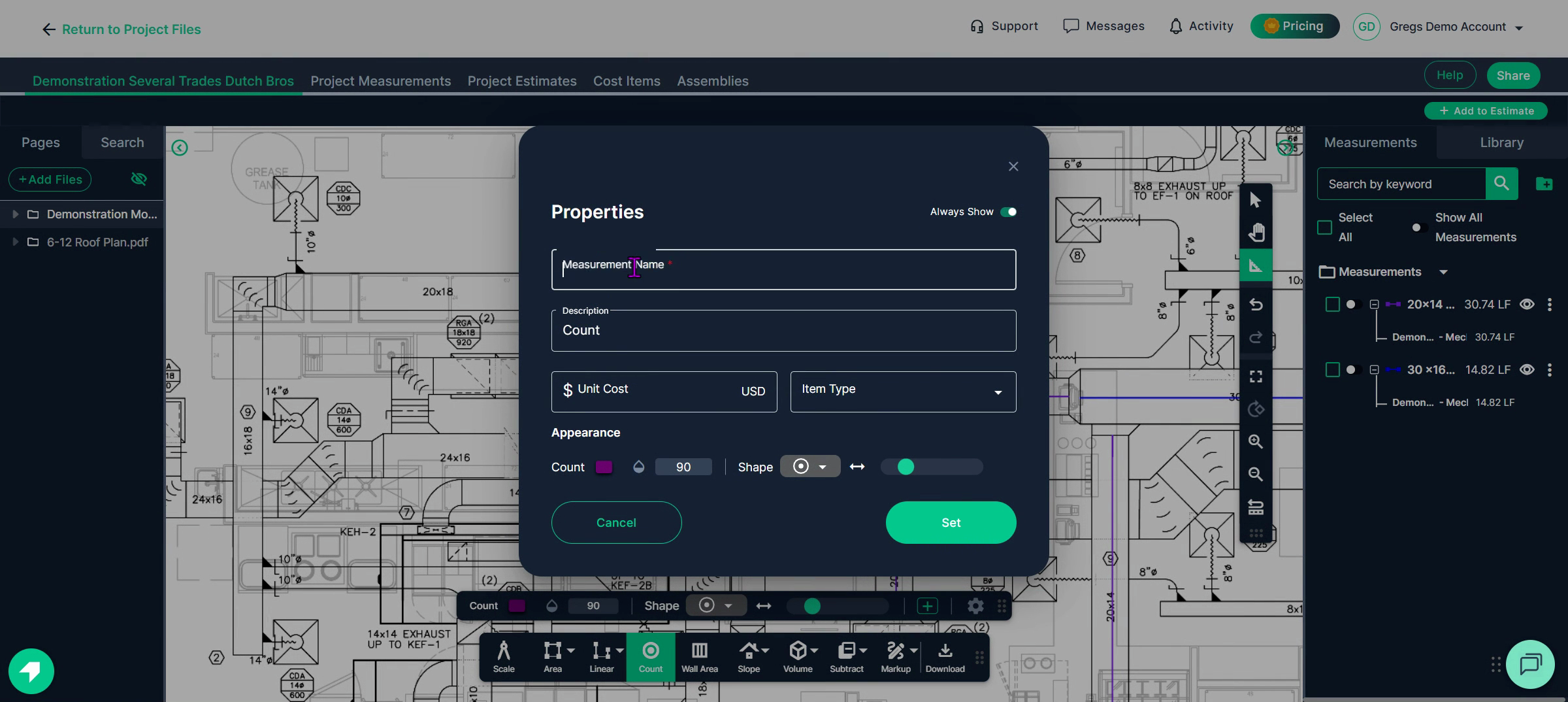
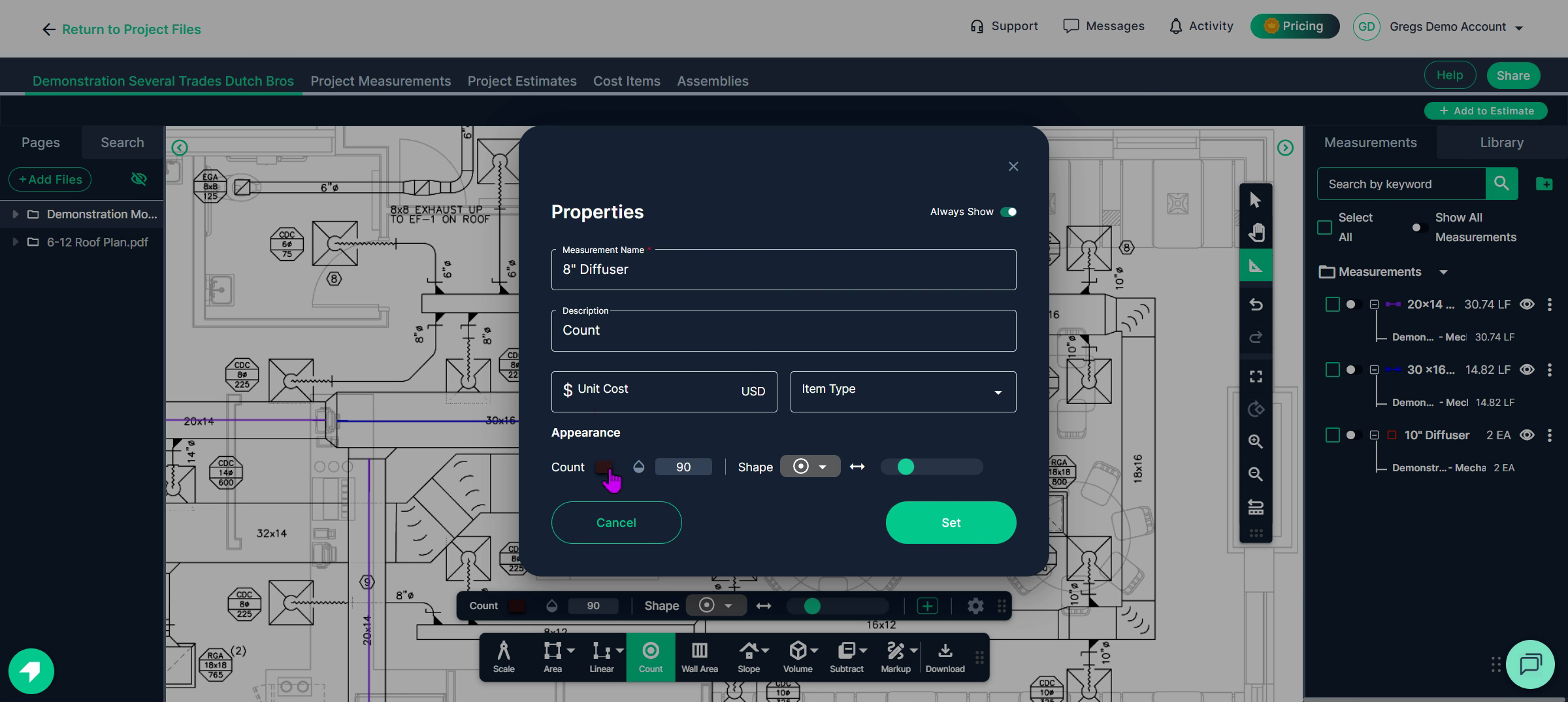
**Step 3:** Pick a color, symbol, and stamp style for clarity and to distinguish items on your plan. Use the menu to scroll and select the correct symbol, then click **Set**.
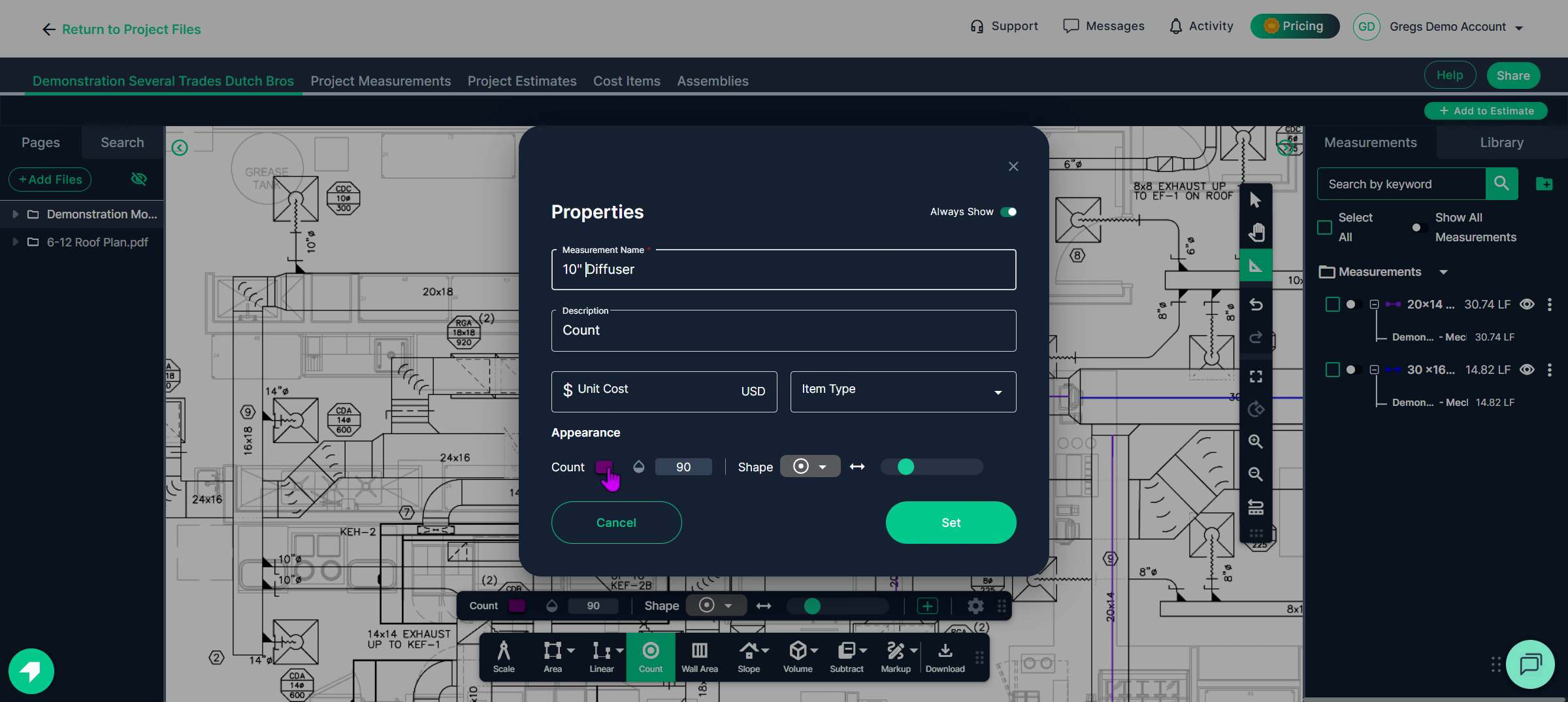
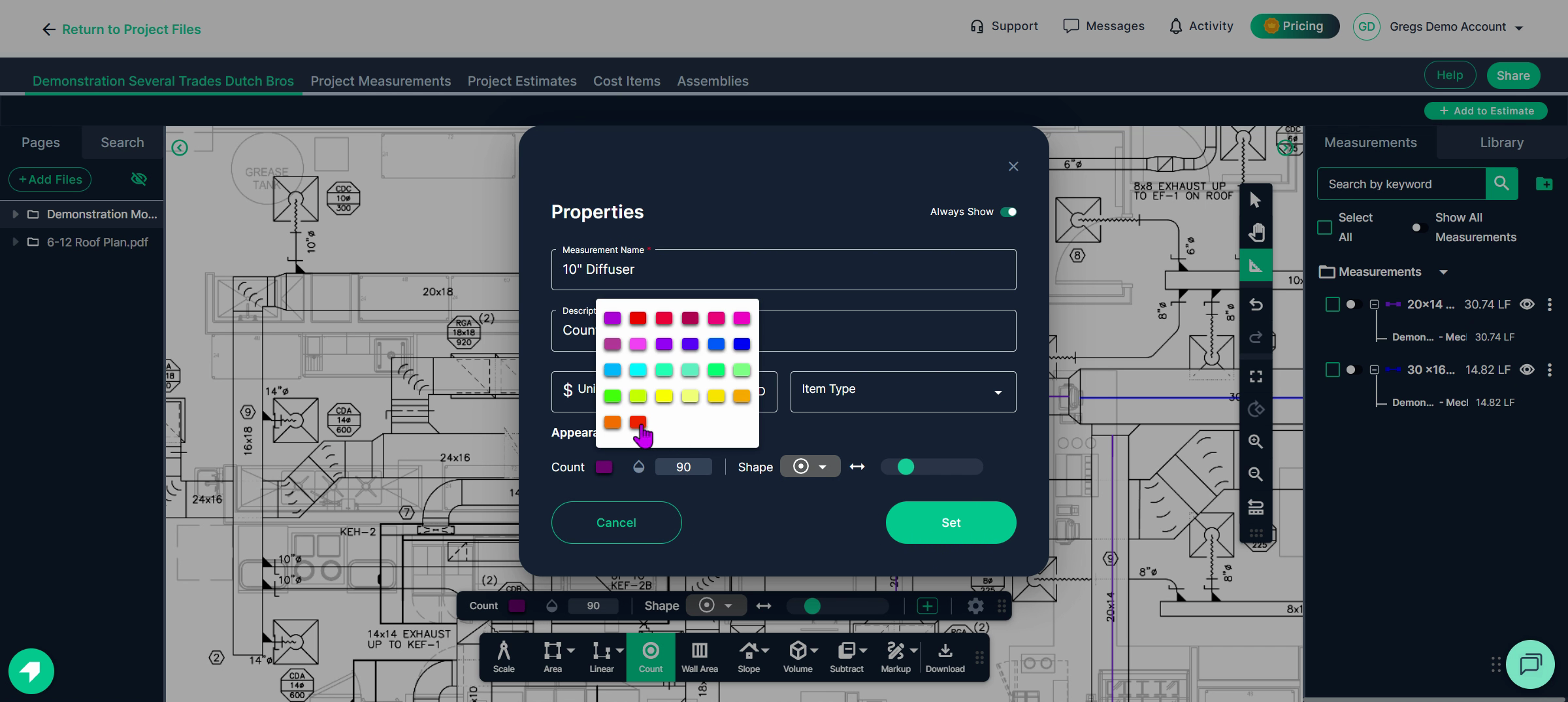
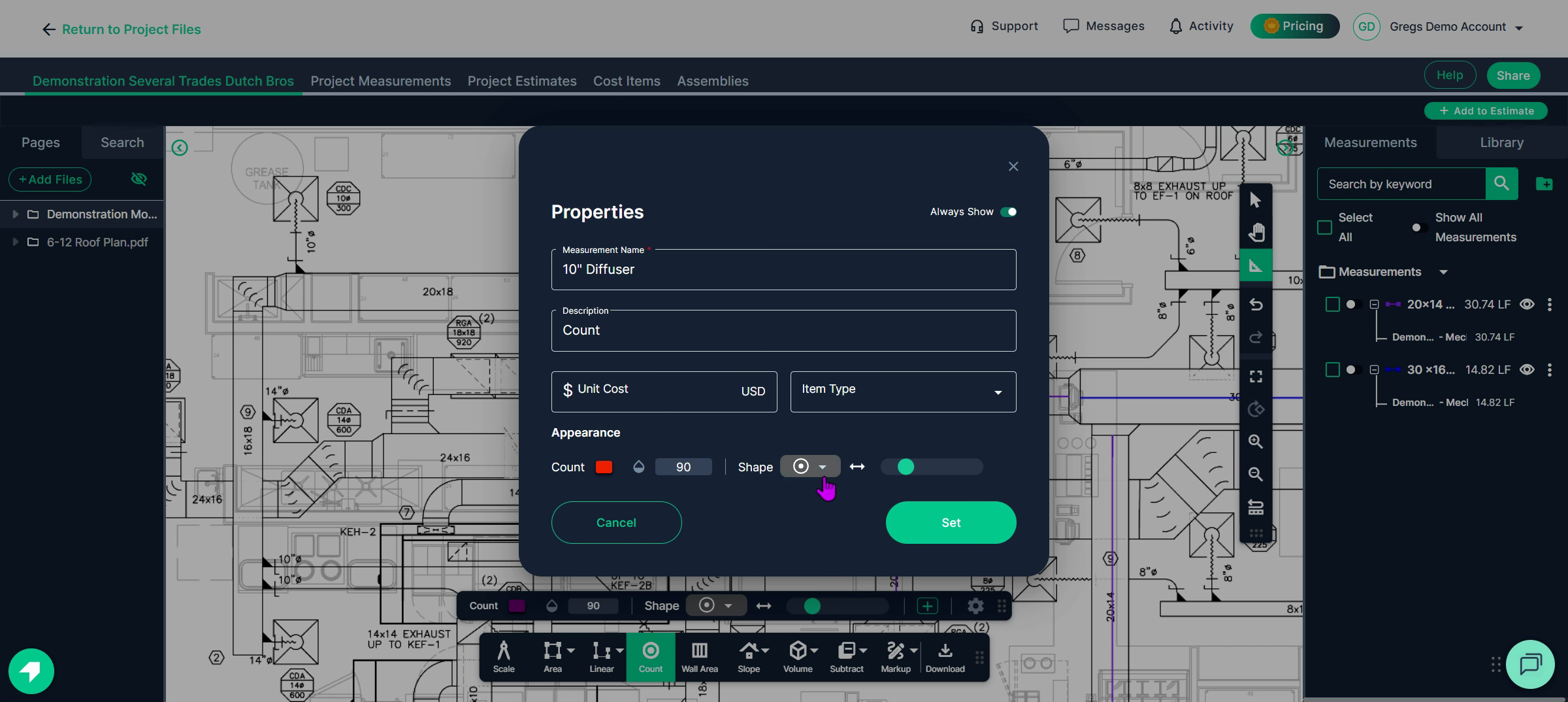
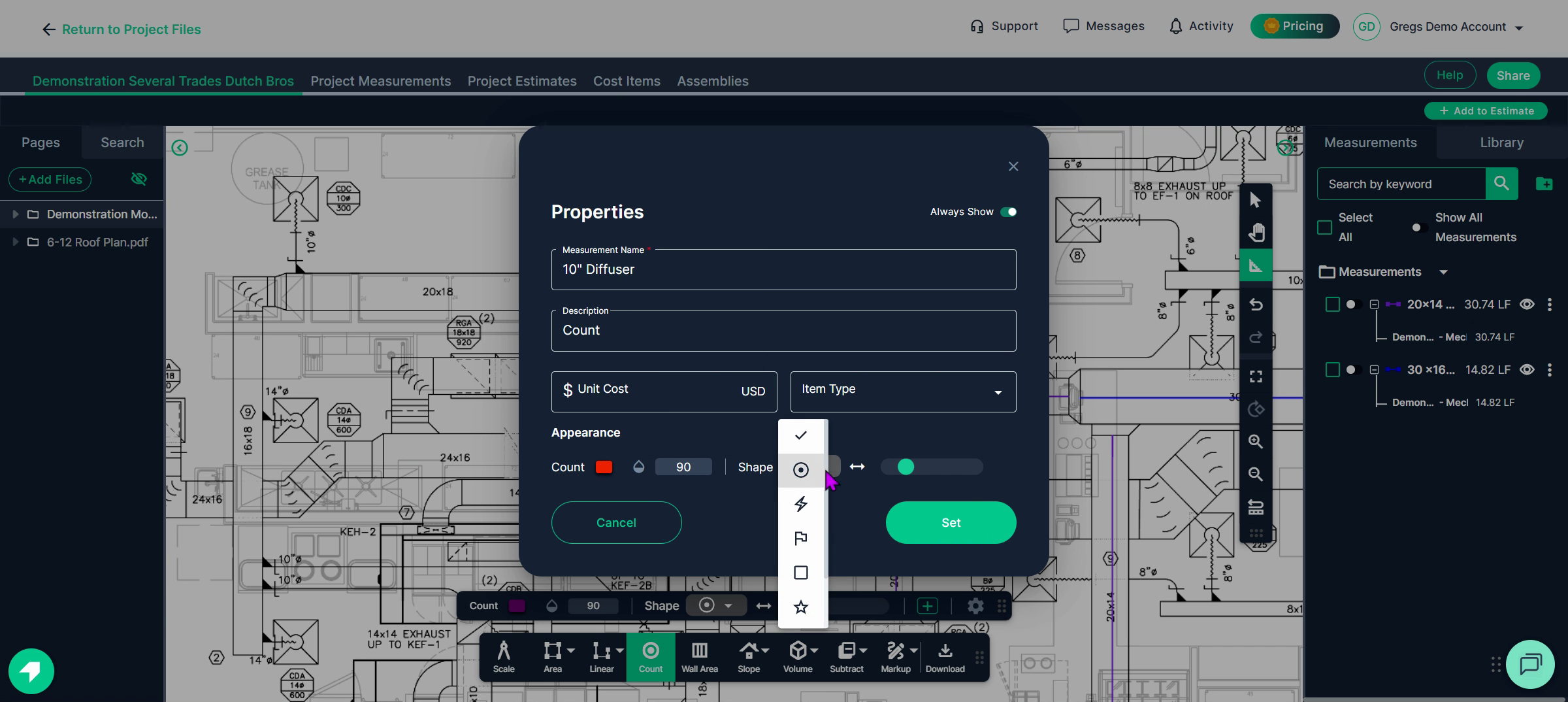
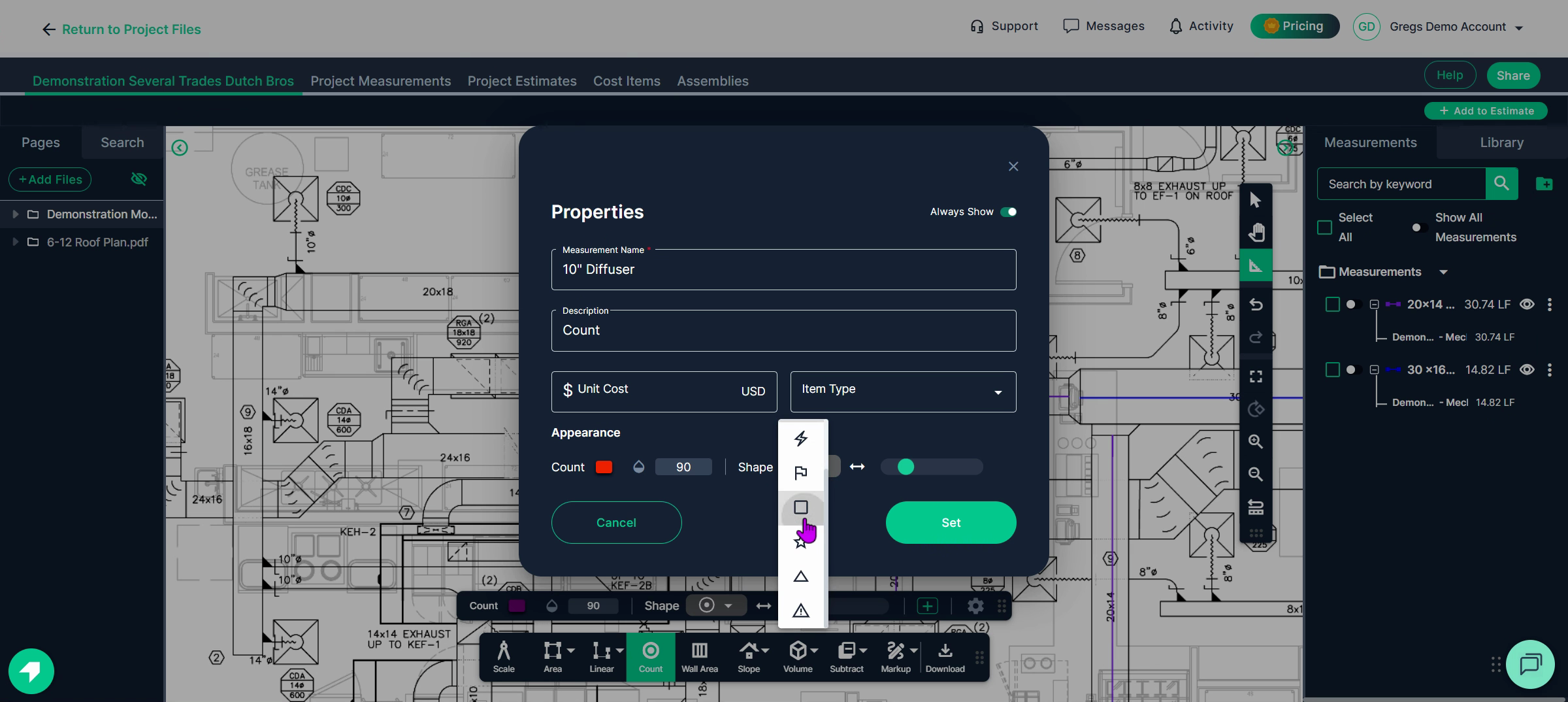
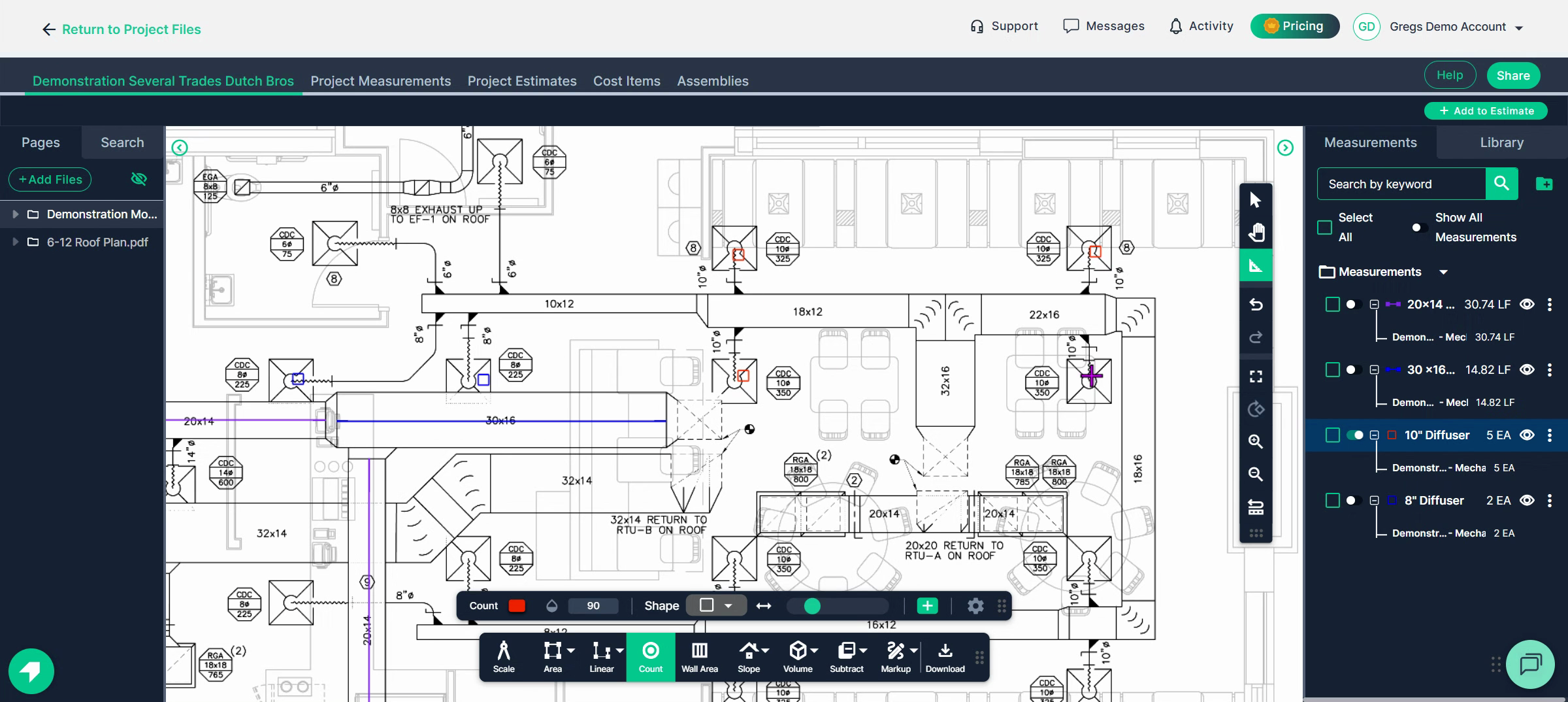
**Step 4:** Click once on every matching component in your digital plan to mark its location. A stamp appears for each click.
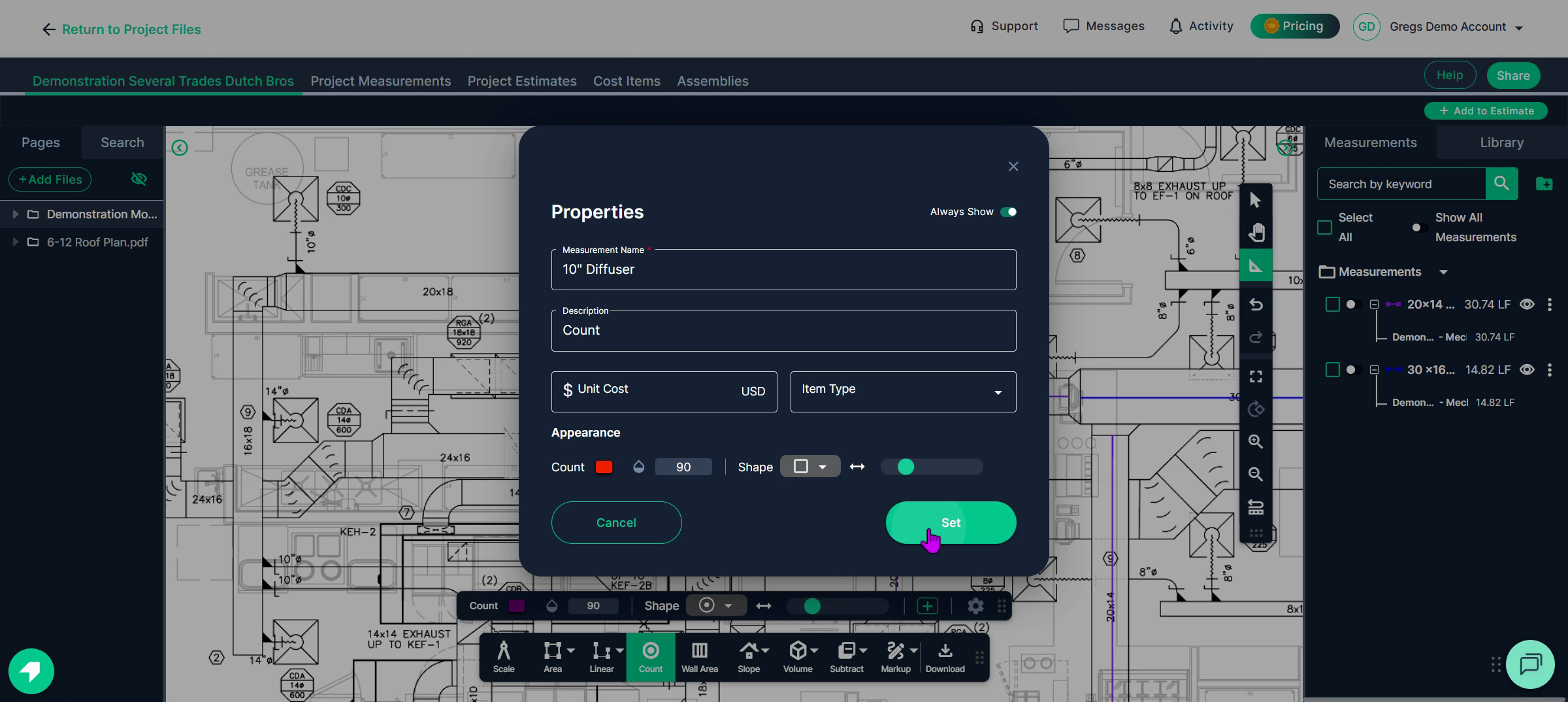
**Step 5:** For other component sizes (for example, 8 inch diffusers), deactivate the current tool if needed, then start a new count.
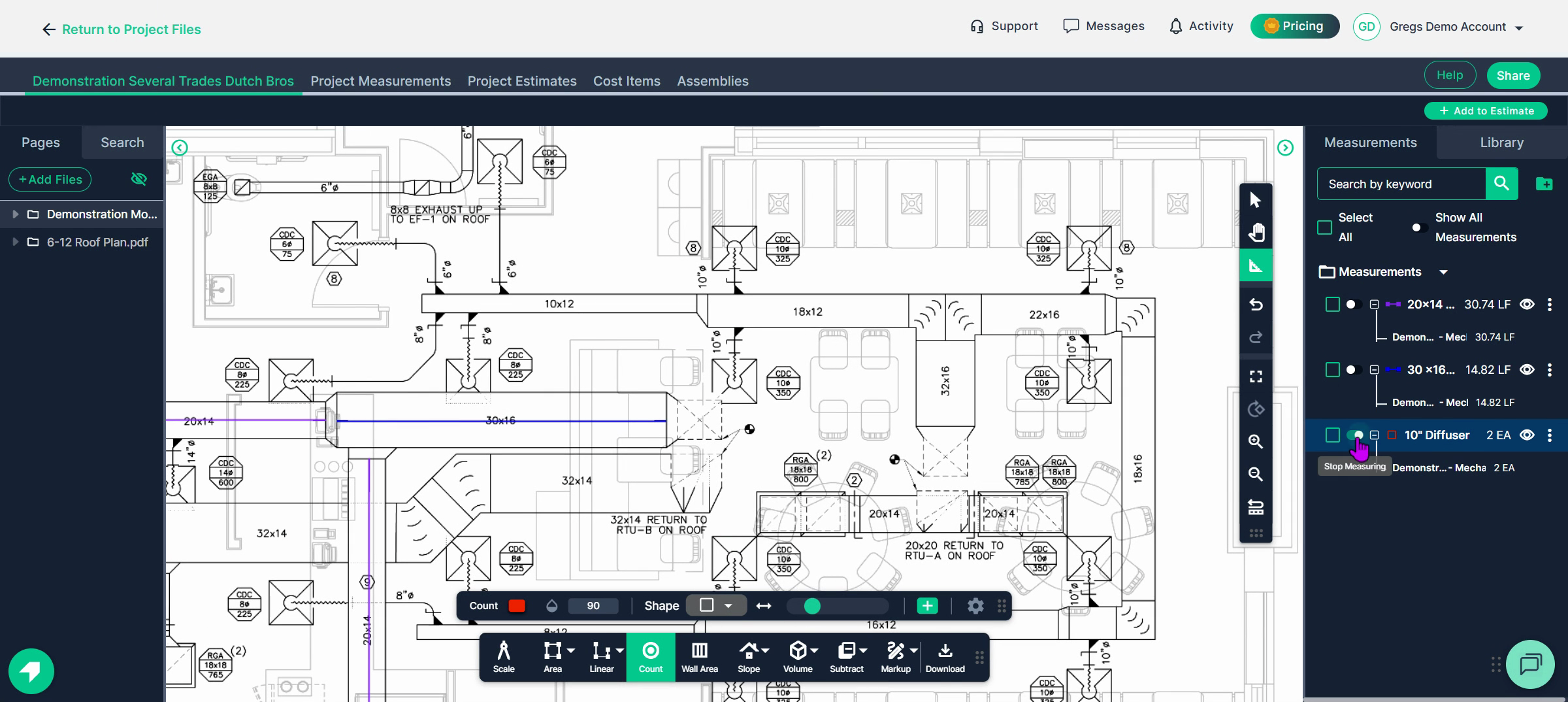
Select **Count** from the tool bar.
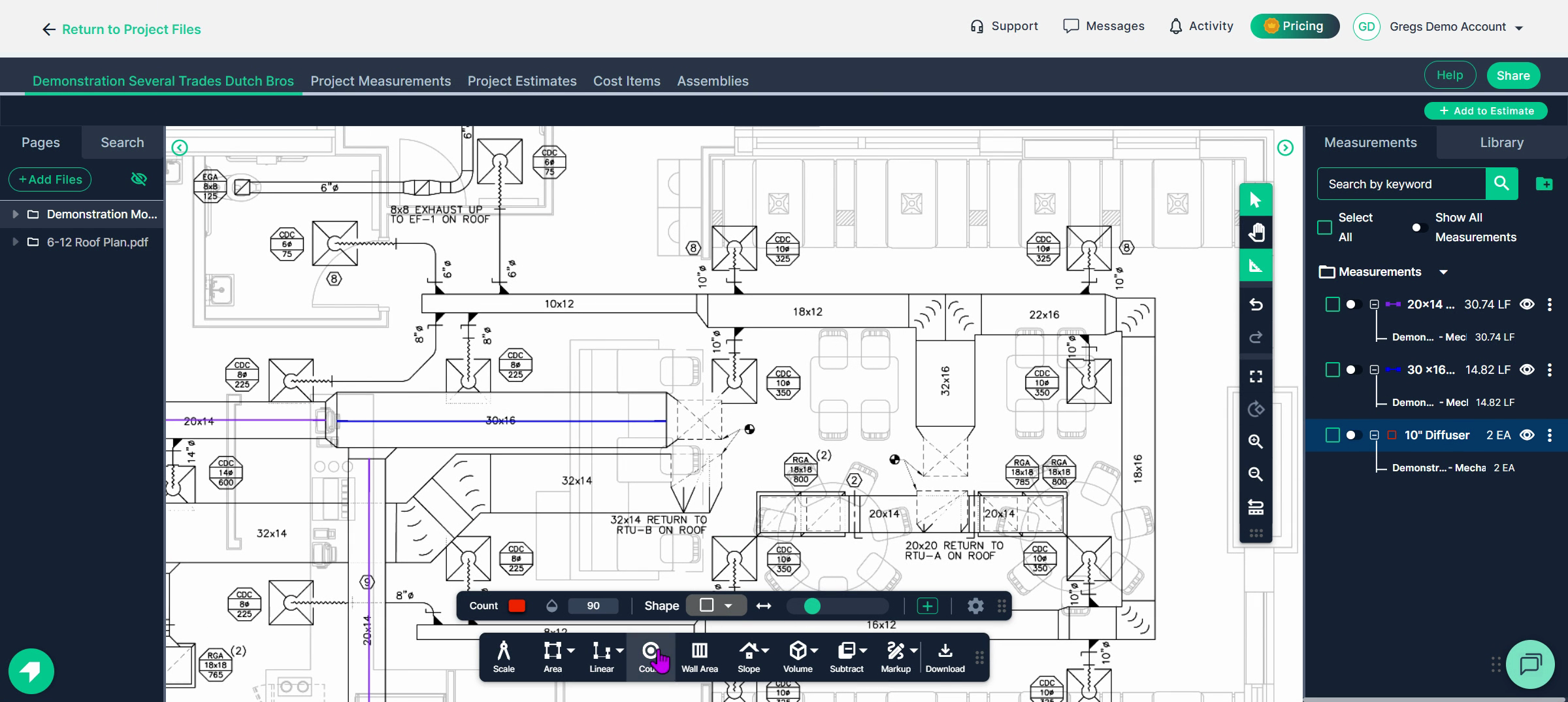
Name the new count.
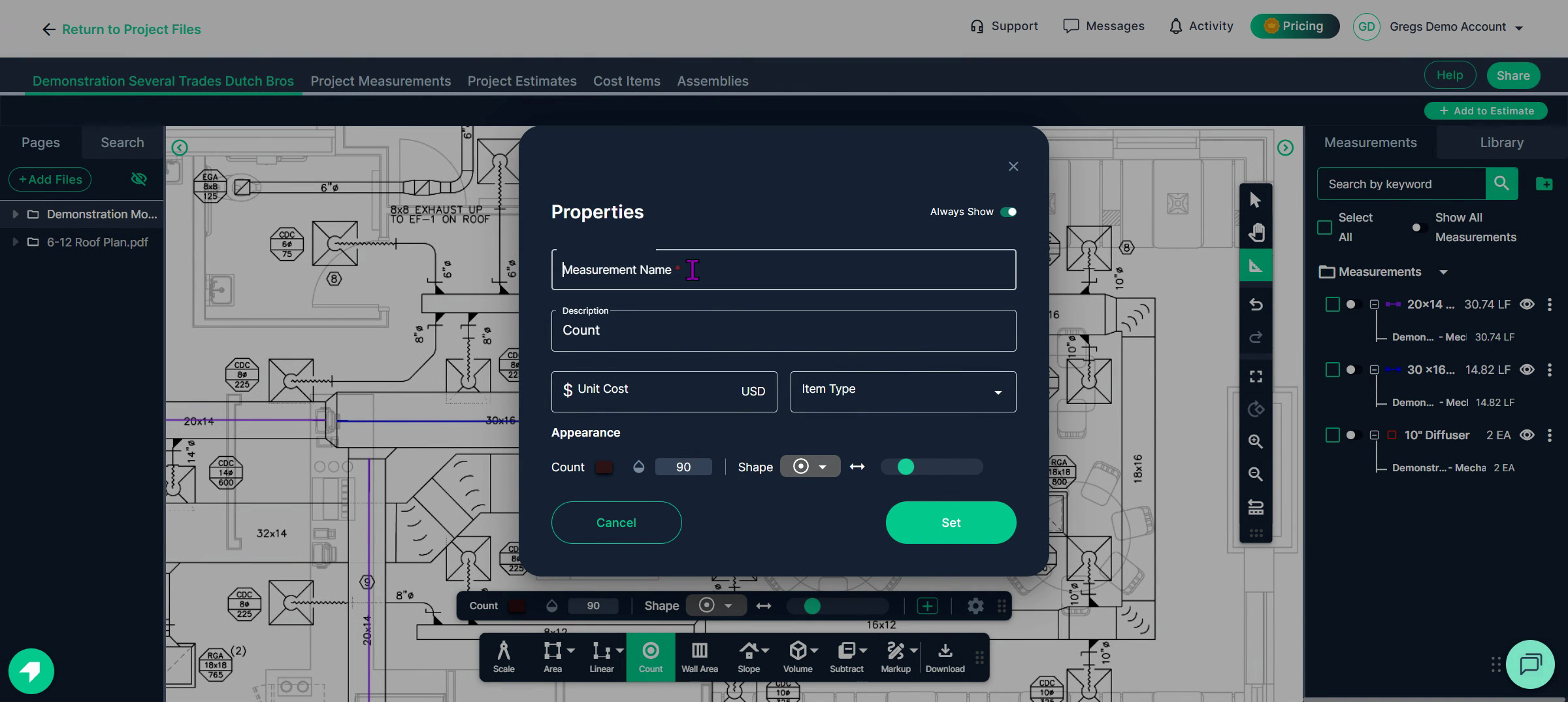
Select a color.
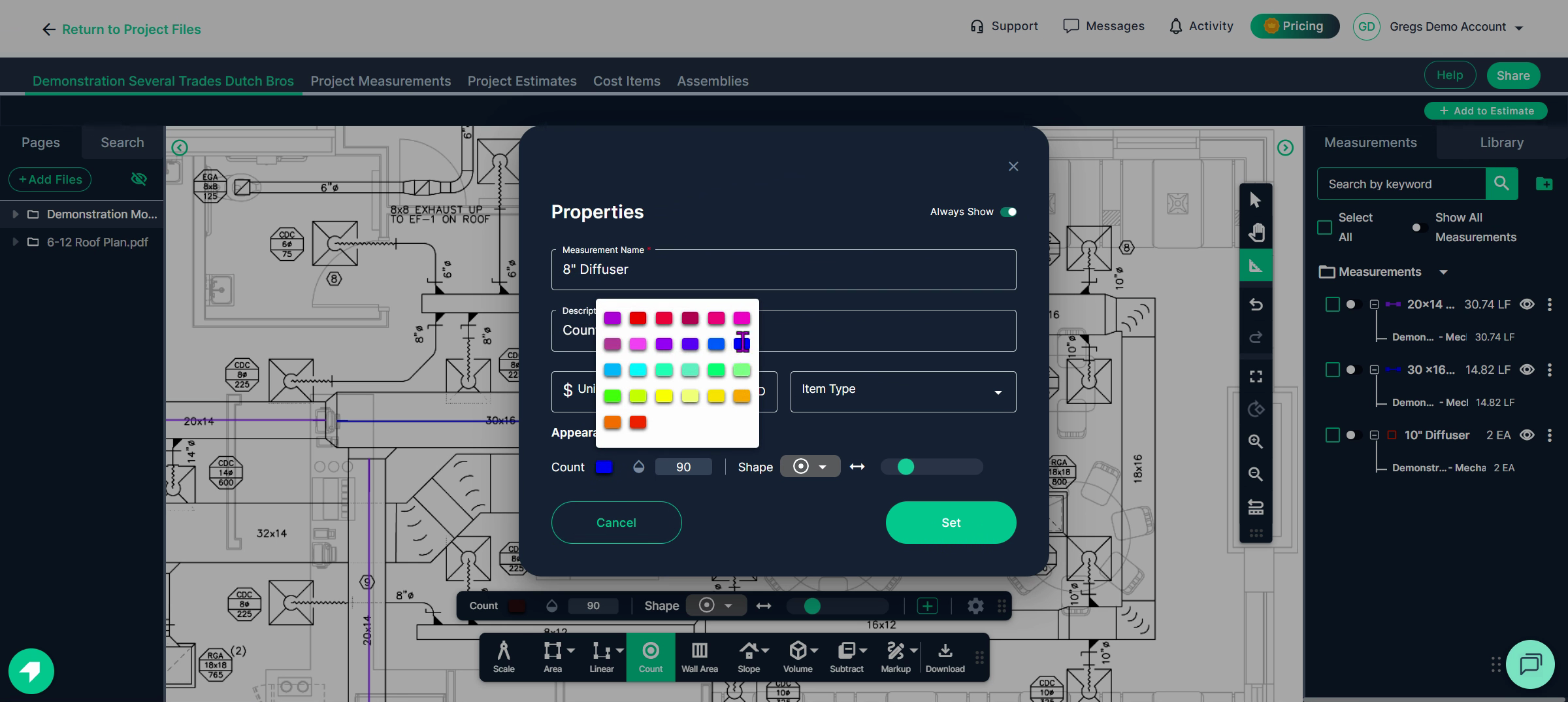
Select a symbol.
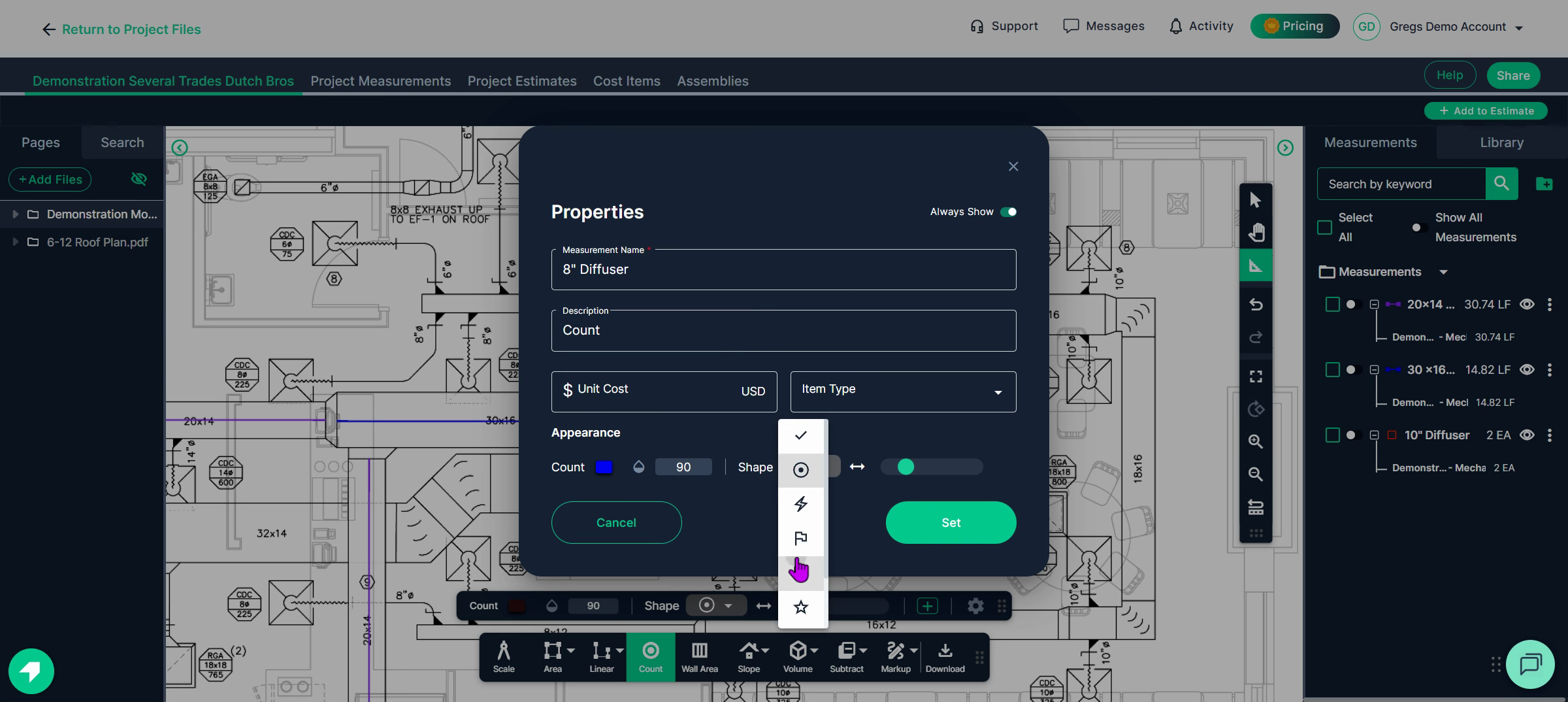
**Step 6:** Click set then click on every instance you locate in the plan.
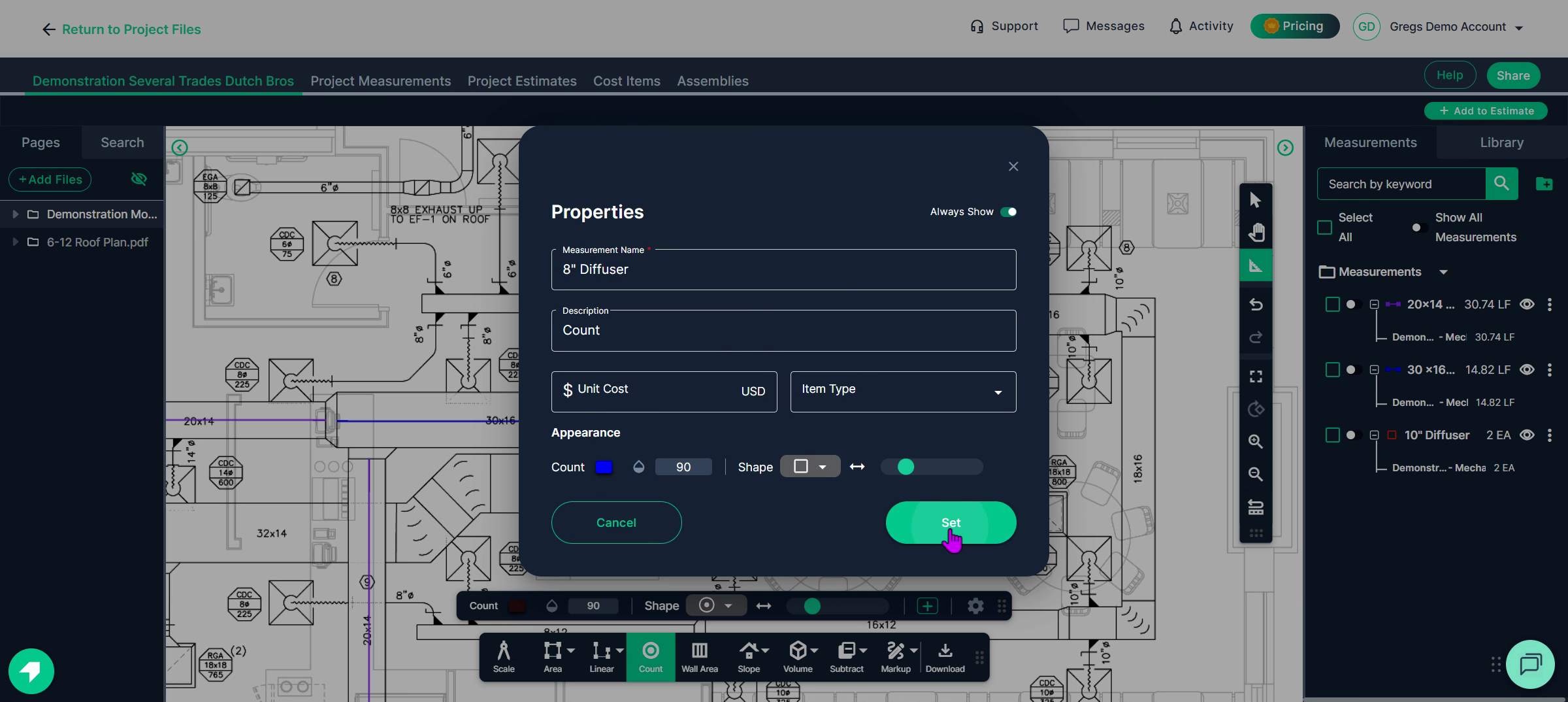
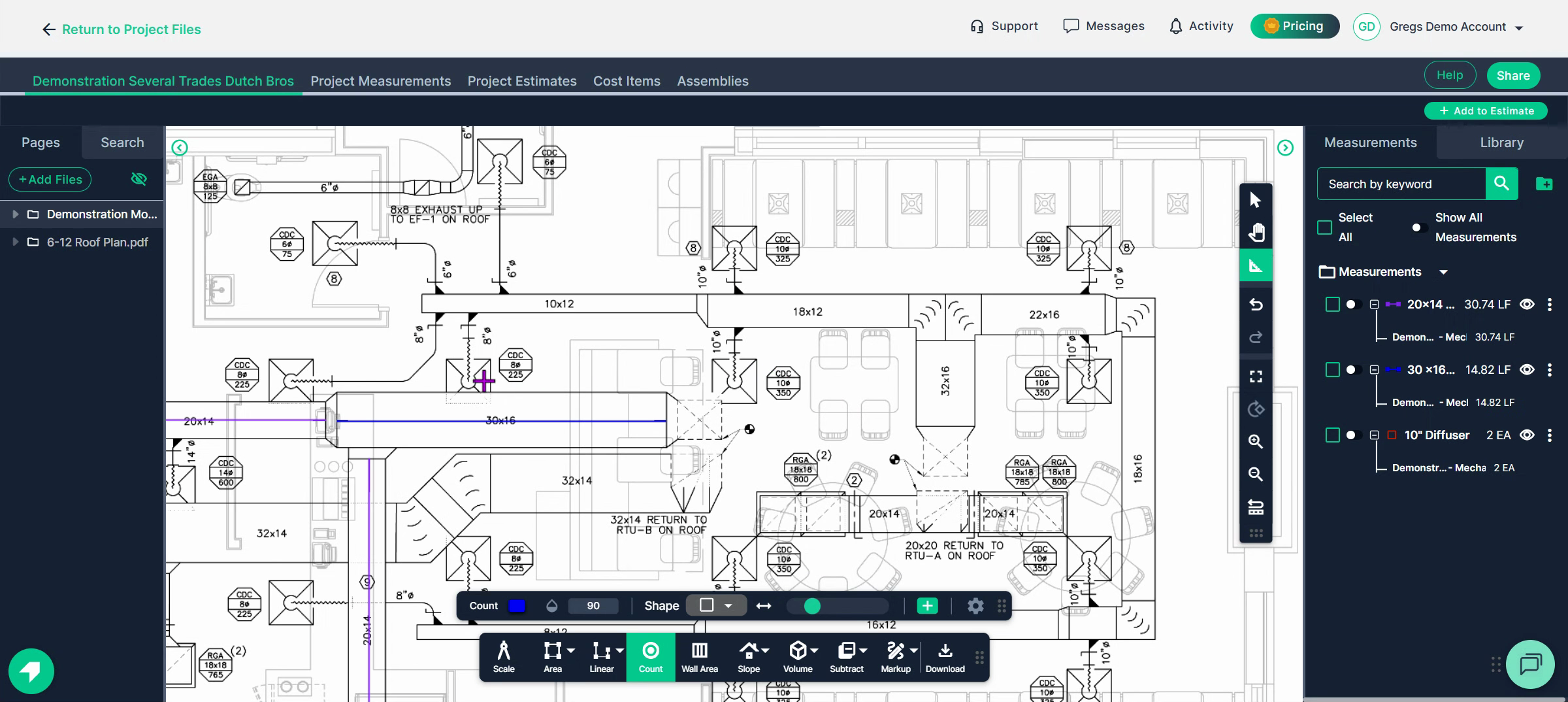
**Step 7:** To revisit or toggle between component counts (for example, switching back to 10 inch diffusers), use the **Continue** switch on the right, then select the relevant count for quick toggling.
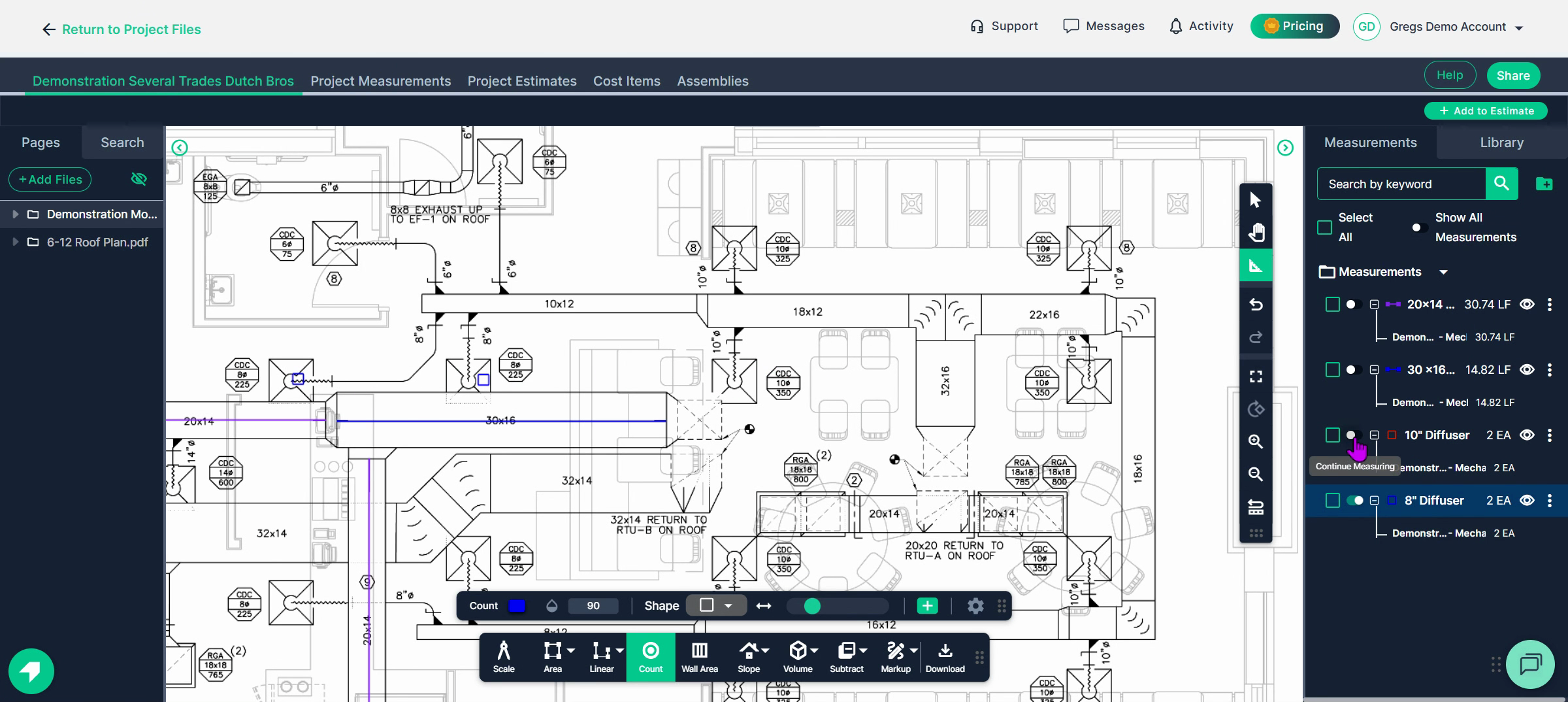
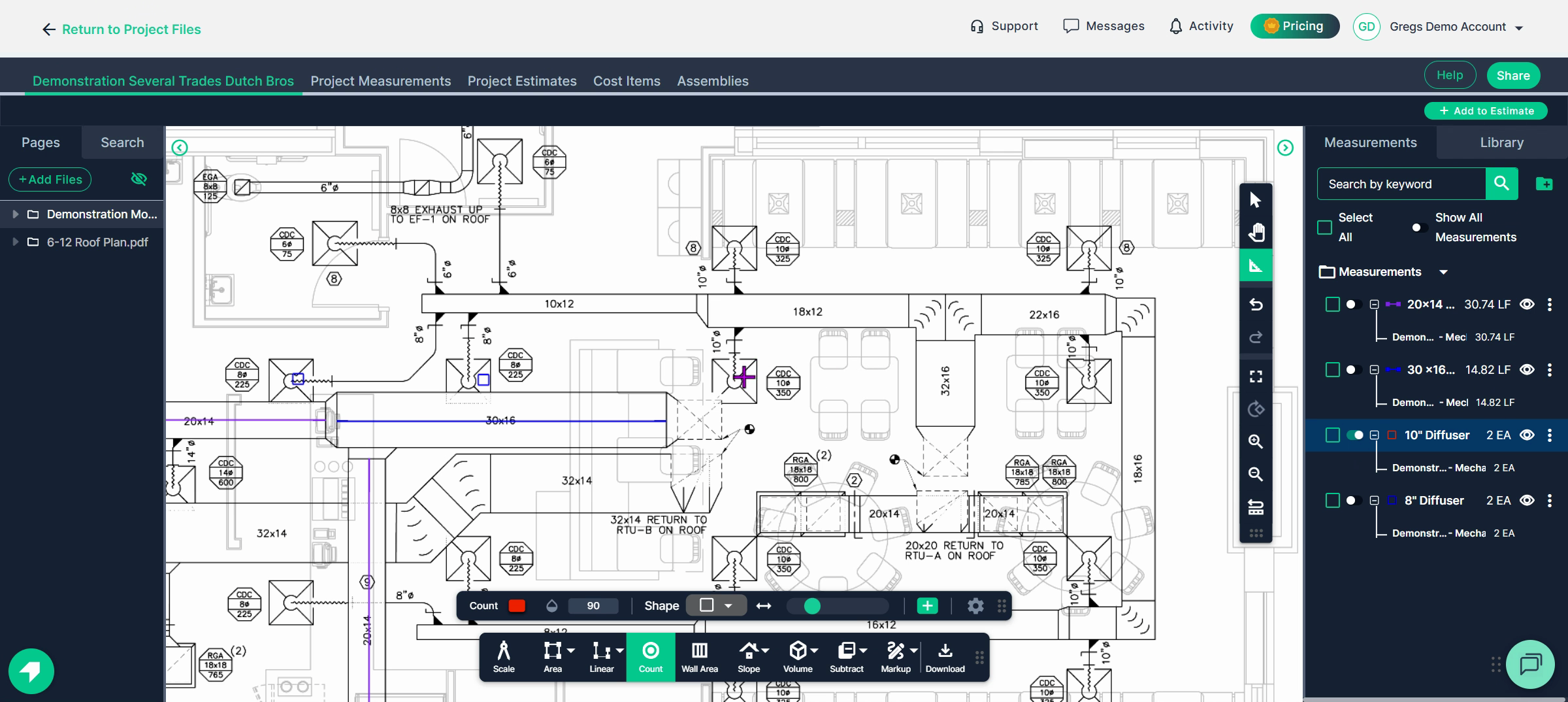
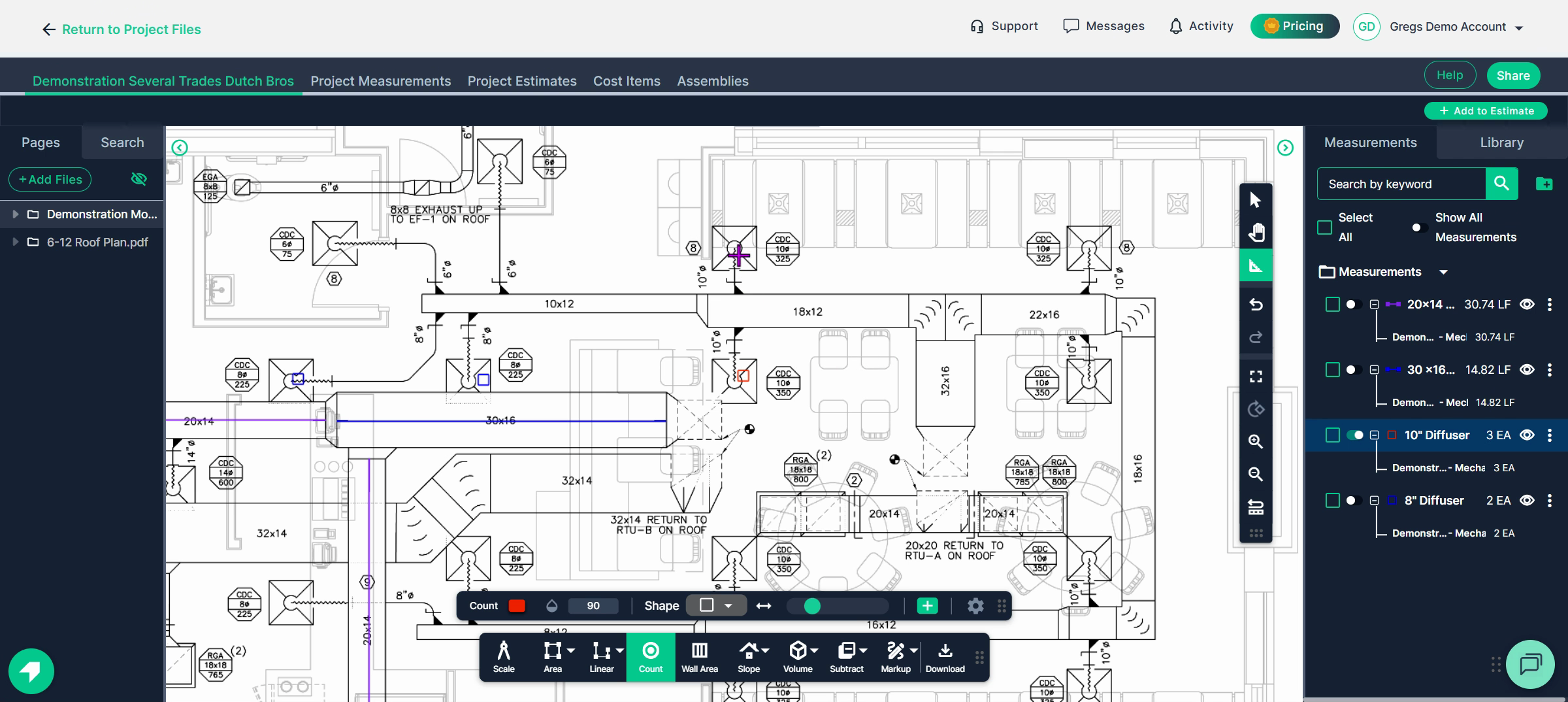
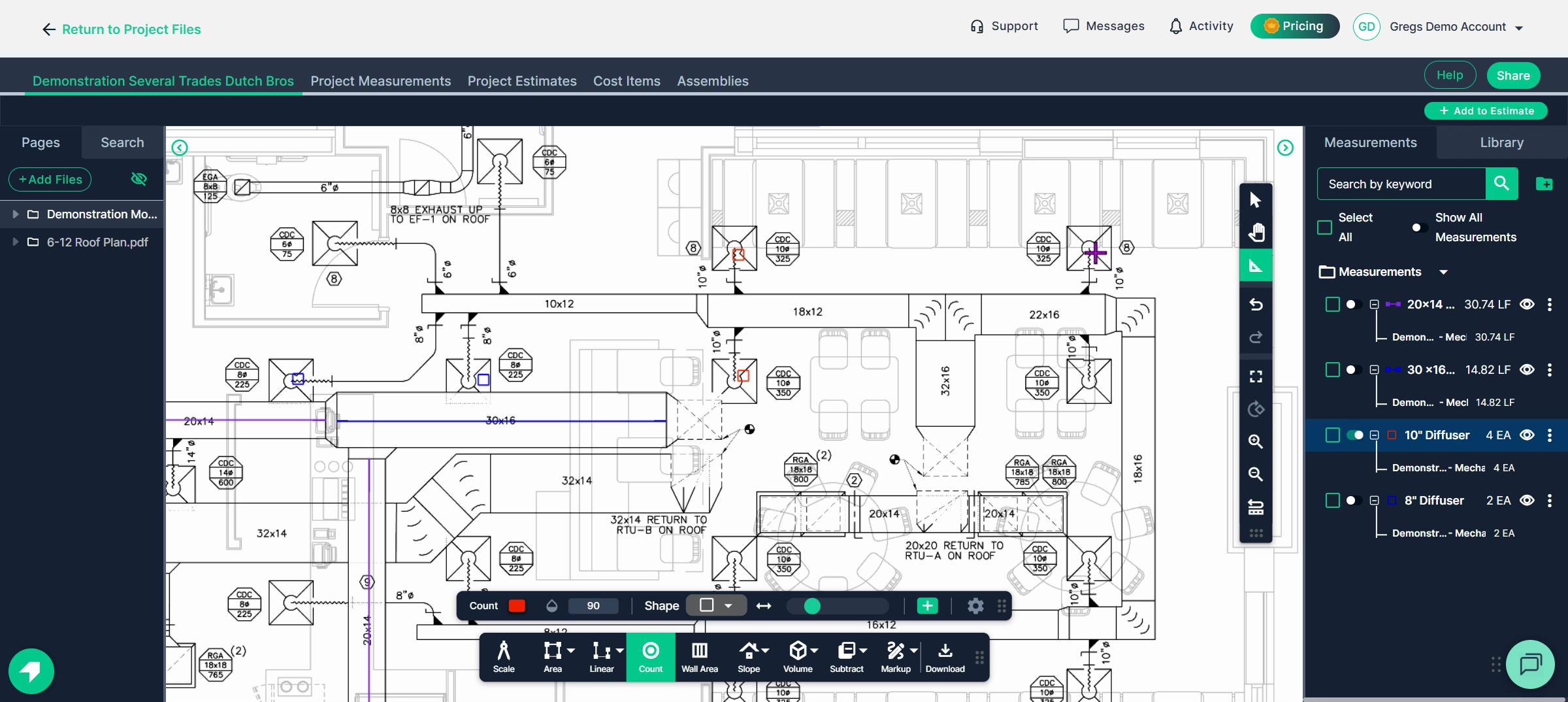
**Step 8:** Work through the plan, marking each instance of every size and type of diffuser, elbow, transition, or any other item needed.
---
### Conclusion
PlanHub’s Takeoff Tools are designed for fast, accurate HVAC ductwork takeoffs. By measuring each run and carefully counting components, you’ll build quick, reliable estimates that help win more work. Try it on your next project for streamlined results!
---
### **Next Steps**
Once you have completed taking all your measurements, you can:
- Download the measurements in a table from the Project Measurements page
- **[How To Download Project Measurements From Takeoff](https://knowledgebase.planhub.com/knowledge/how-to-download-project-measurements-from-takeoff-?hsLang=en)**
- Add a legend and download the PNG of your takeoff page
- **[Using Legend Markup in Takeoff](https://knowledgebase.planhub.com/knowledge/legend-markup-in-takeoff?hsLang=en)**
- If you have purchased the Estimation add-on tool, send measurements into the Project Estimate page or push them into an Assembly you have built.
- **[Estimation - Exporting a Measurement from TakeOff to Estimation](https://knowledgebase.planhub.com/knowledge/send-a-measurement-from-takeoff-to-estimation?hsLang=en)**
- **[Estimation | How to Create an Assembly](https://knowledgebase.planhub.com/knowledge/estimation-how-to-create-an-assembly?hsLang=en)**
- Share your Takeoff with anyone using the Share button in the upper right-hand corner.
- **[Share Your Projects, Reports, and Estimates in Takeoff](https://knowledgebase.planhub.com/knowledge/share-takeoff-projects?hsLang=en)**
---
### **Troubleshooting**
Contact us if you need assistance or to report an issue:
- PlanHub Contact Page: [https://planhub.com/contact/](https://planhub.com/contact/)
- Customer Facing Support Ticket Link: [https://knowledgebase.planhub.com/knowledge/kb-tickets/new](https://knowledgebase.planhub.com/knowledge/kb-tickets/new?hsLang=en)
- Schedule a **Free** 1-on-1 Takeoff Training: [https://meetings.hubspot.com/zac-low/takeoff-and-estimation](https://meetings.hubspot.com/zac-low/takeoff-and-estimation?__hstc=143611818.21027487ab2569aa780deedad7b3e510.1767116760760.1778608051685.1778612775772.256&__hssc=143611818.3.1778612775772&__hsfp=9a20deea0f29d5f2adc379a49644adc2)
- [General Contractor](https://knowledgebase.planhub.com/knowledge/general-contractor?hsLang=en#main-content)
- [Overview](https://knowledgebase.planhub.com/knowledge/general-contractor?hsLang=en#overview)
- [Projects](https://knowledgebase.planhub.com/knowledge/general-contractor?hsLang=en#projects)
- [Networking](https://knowledgebase.planhub.com/knowledge/general-contractor?hsLang=en#networking)
- [Subcontractors](https://knowledgebase.planhub.com/knowledge/subcontractors?hsLang=en#main-content)
- [Overview](https://knowledgebase.planhub.com/knowledge/subcontractors?hsLang=en#overview)
- [Projects](https://knowledgebase.planhub.com/knowledge/subcontractors?hsLang=en#projects)
- [Bid Board & Tracking](https://knowledgebase.planhub.com/knowledge/subcontractors?hsLang=en#bid-board-tracking)
- [Networking](https://knowledgebase.planhub.com/knowledge/subcontractors?hsLang=en#networking)
- [Takeoff & Estimation](https://knowledgebase.planhub.com/knowledge/subcontractors?hsLang=en#takeoff-estimation)
- [Manage Your Team](https://knowledgebase.planhub.com/knowledge/subcontractors?hsLang=en#manage-your-team)
- [Account & Settings](https://knowledgebase.planhub.com/knowledge/subcontractors?hsLang=en#account-settings)
- [Job Board](https://knowledgebase.planhub.com/knowledge/subcontractors?hsLang=en#job-board)
- [Request for Information](https://knowledgebase.planhub.com/knowledge/subcontractors?hsLang=en#request-for-information)
- [AI](https://knowledgebase.planhub.com/knowledge/subcontractors?hsLang=en#ai)
- [Supplier](https://knowledgebase.planhub.com/knowledge/supplier?hsLang=en#main-content)
- [Overview](https://knowledgebase.planhub.com/knowledge/supplier?hsLang=en#overview)
- [Projects and Leads](https://knowledgebase.planhub.com/knowledge/supplier?hsLang=en#projects-and-leads)
- [Bidding & Estimating](https://knowledgebase.planhub.com/knowledge/supplier?hsLang=en#bidding-estimating)
- [Networking](https://knowledgebase.planhub.com/knowledge/supplier?hsLang=en#networking)
- [Account & Settings](https://knowledgebase.planhub.com/knowledge/supplier?hsLang=en#account-settings)
- [Takeoff & Estimation](https://knowledgebase.planhub.com/knowledge/takeoff-estimation?hsLang=en#main-content)
- [Getting Started](https://knowledgebase.planhub.com/knowledge/takeoff-estimation?hsLang=en#getting-started)
- [Takeoff Tools & Measurements](https://knowledgebase.planhub.com/knowledge/takeoff-estimation?hsLang=en#takeoff-tools-measurements)
- [Trade-Specific Takeoffs](https://knowledgebase.planhub.com/knowledge/takeoff-estimation?hsLang=en#trade-specific-takeoffs)
- [Estimating](https://knowledgebase.planhub.com/knowledge/takeoff-estimation?hsLang=en#estimating)
- [Managing & Sharing Your Work](https://knowledgebase.planhub.com/knowledge/takeoff-estimation?hsLang=en#managing-sharing-your-work)
- [Account & Billing](https://knowledgebase.planhub.com/knowledge/account-billing?hsLang=en#main-content)
- [Account & Billing](https://knowledgebase.planhub.com/knowledge/account-billing?hsLang=en#account-billing)
- [Account Closure](https://knowledgebase.planhub.com/knowledge/account-billing?hsLang=en#account-closure)
- [Troubleshooting](https://knowledgebase.planhub.com/knowledge/troubleshooting?hsLang=en)
- [About PlanHub](https://knowledgebase.planhub.com/knowledge/about-planhub?hsLang=en)
- [New General Contractor Experience](https://knowledgebase.planhub.com/knowledge/new-general-contractor-experience?hsLang=en#main-content)
- [Overview](https://knowledgebase.planhub.com/knowledge/new-general-contractor-experience?hsLang=en#overview)
- [Projects](https://knowledgebase.planhub.com/knowledge/new-general-contractor-experience?hsLang=en#projects)
- [Networking](https://knowledgebase.planhub.com/knowledge/new-general-contractor-experience?hsLang=en#networking)
- [Takeoff & Estimation](https://knowledgebase.planhub.com/knowledge/new-general-contractor-experience?hsLang=en#takeoff-estimation)
- [Account & Settings](https://knowledgebase.planhub.com/knowledge/new-general-contractor-experience?hsLang=en#account-settings)
- [Manage Your Team](https://knowledgebase.planhub.com/knowledge/new-general-contractor-experience?hsLang=en#manage-your-team)
- [Submit Feedback](https://knowledgebase.planhub.com/knowledge/submit-feedback?hsLang=en#main-content)
- [Feedback](https://knowledgebase.planhub.com/knowledge/submit-feedback?hsLang=en#feedback)
- [Have an Issue? Submit a Ticket](https://knowledgebase.planhub.com/knowledge/kb-tickets/new)
[](http://planhub.com)
[Knowledge Base Home](https://knowledgebase.planhub.com/knowledge?hsLang=en)
[Submit a Ticket](https://knowledgebase.planhub.com/knowledge/kb-tickets/new?hsLang=en)
Copyright © 2026, ©2026 PlanHub, Inc. All rights reserved