![NEW_PlanHub_Logo_Navy.png]](https://knowledgebase.planhub.com/hs-fs/hubfs/Design/PH%20Logos/NEW%202024%20PH%20Logos/NEW_PlanHub_Logo_Navy.png?height=40&name=NEW_PlanHub_Logo_Navy.png)
Measure sloped linear footage lines in Plan Hub’s Takeoff tool to quickly calculate the true length of gables, hips, valleys, and other angled features from your plans.
Prerequisites: You need a subscription or trial that includes Takeoff to measure plans, export a plan into TakeOff, and set the scale. Then you can begin measuring.
Step 1: Set your scale in the Takeoff workspace using the Scale Tool, ensuring your measurements are accurate.
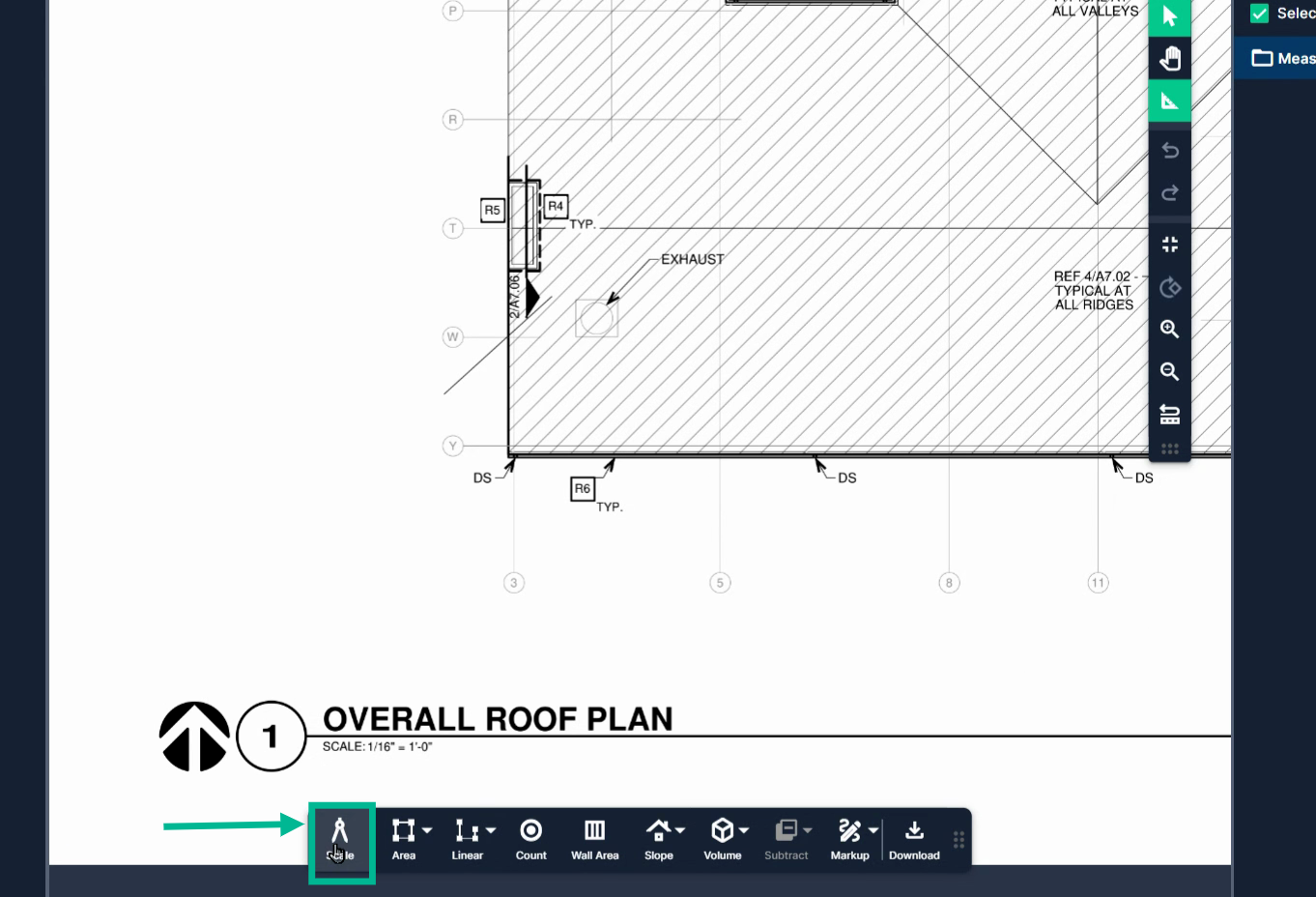
Step 2: Open the Slope Tool in the toolbar at the bottom. Choose the Line option for sloped lines.
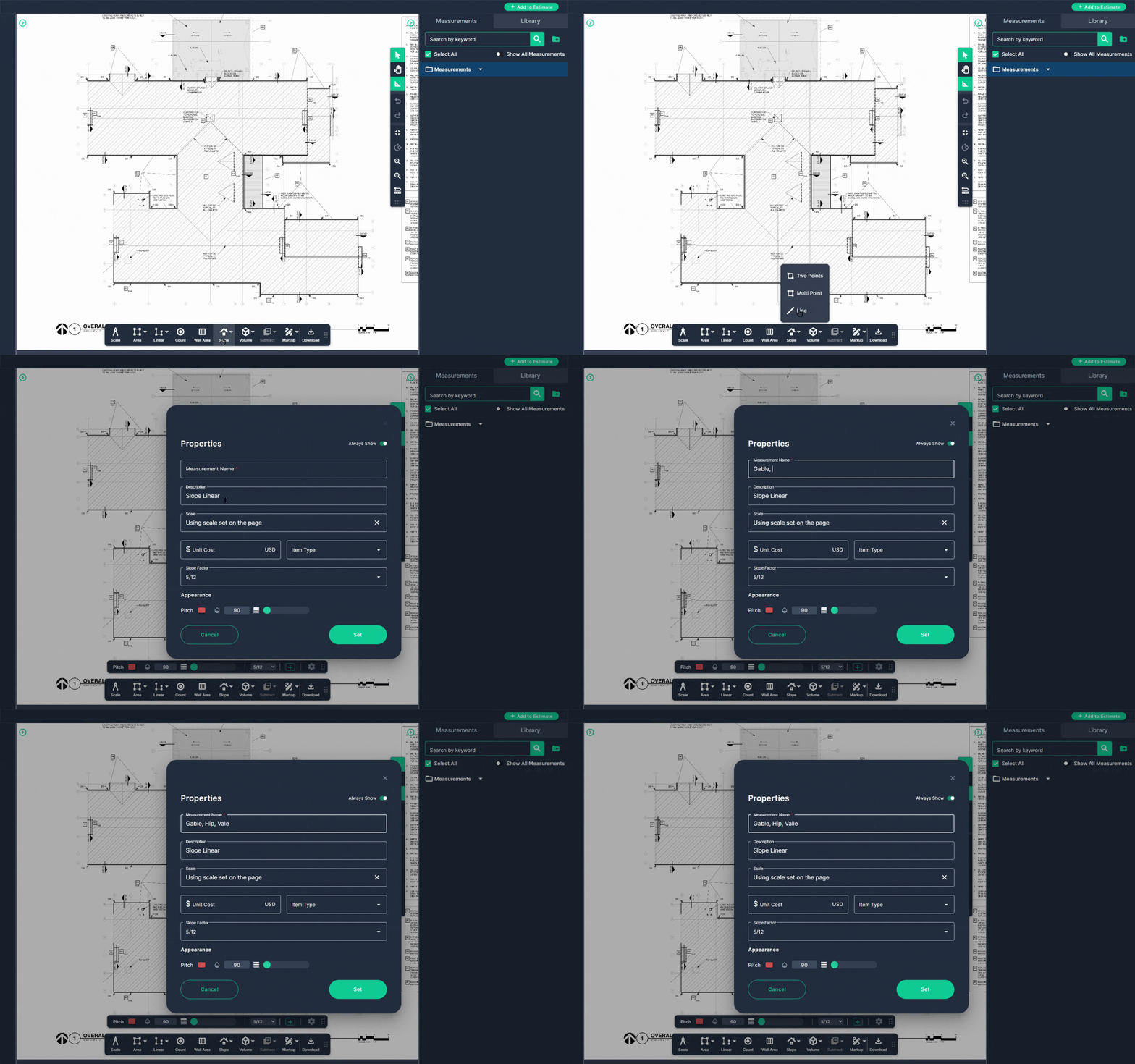
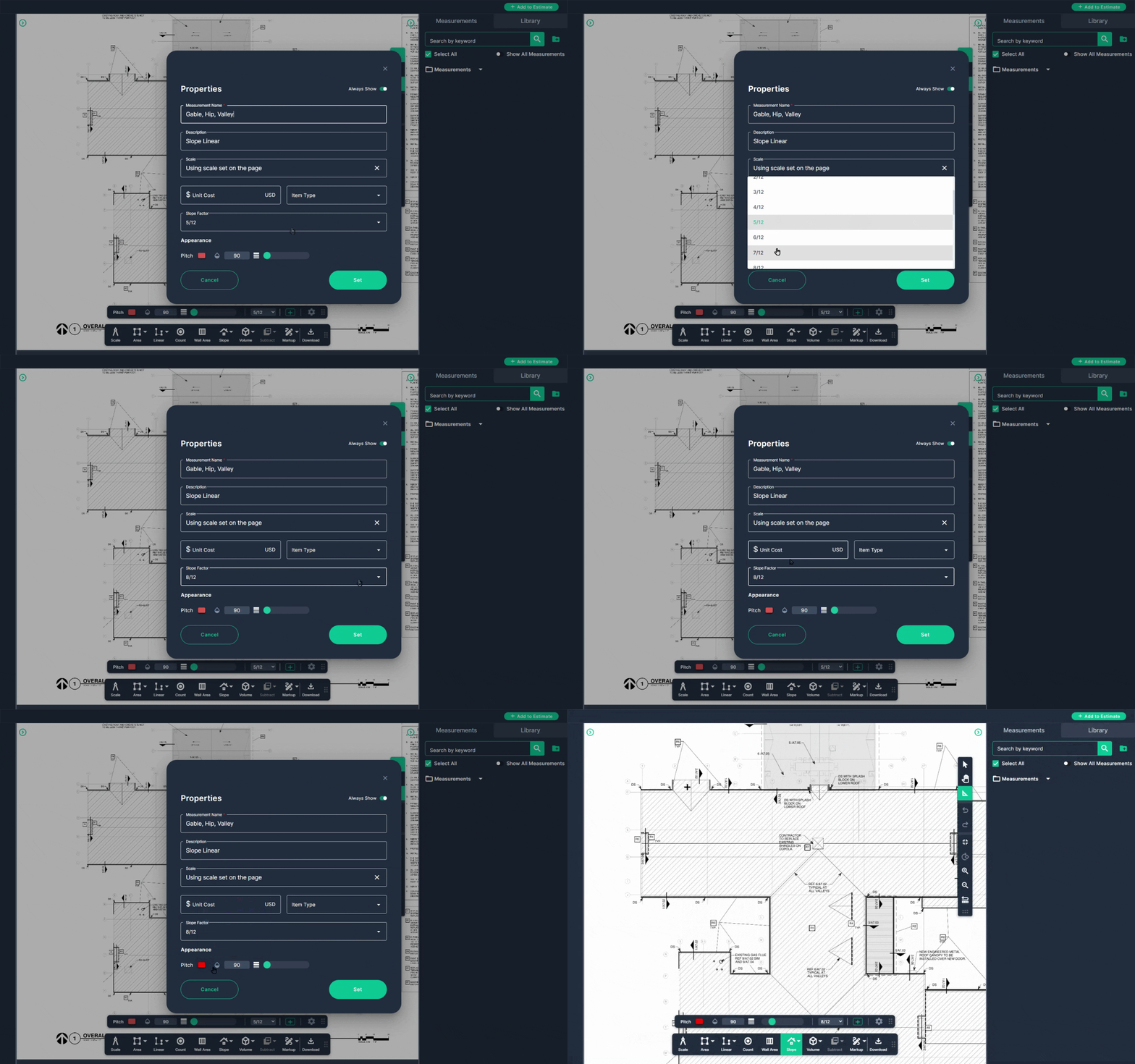
Step 3: Name your measurement (like gable, hip, or valley) and select the correct slope factor that matches your plans. Adjust optional fields or appearance settings if needed, then click Set.
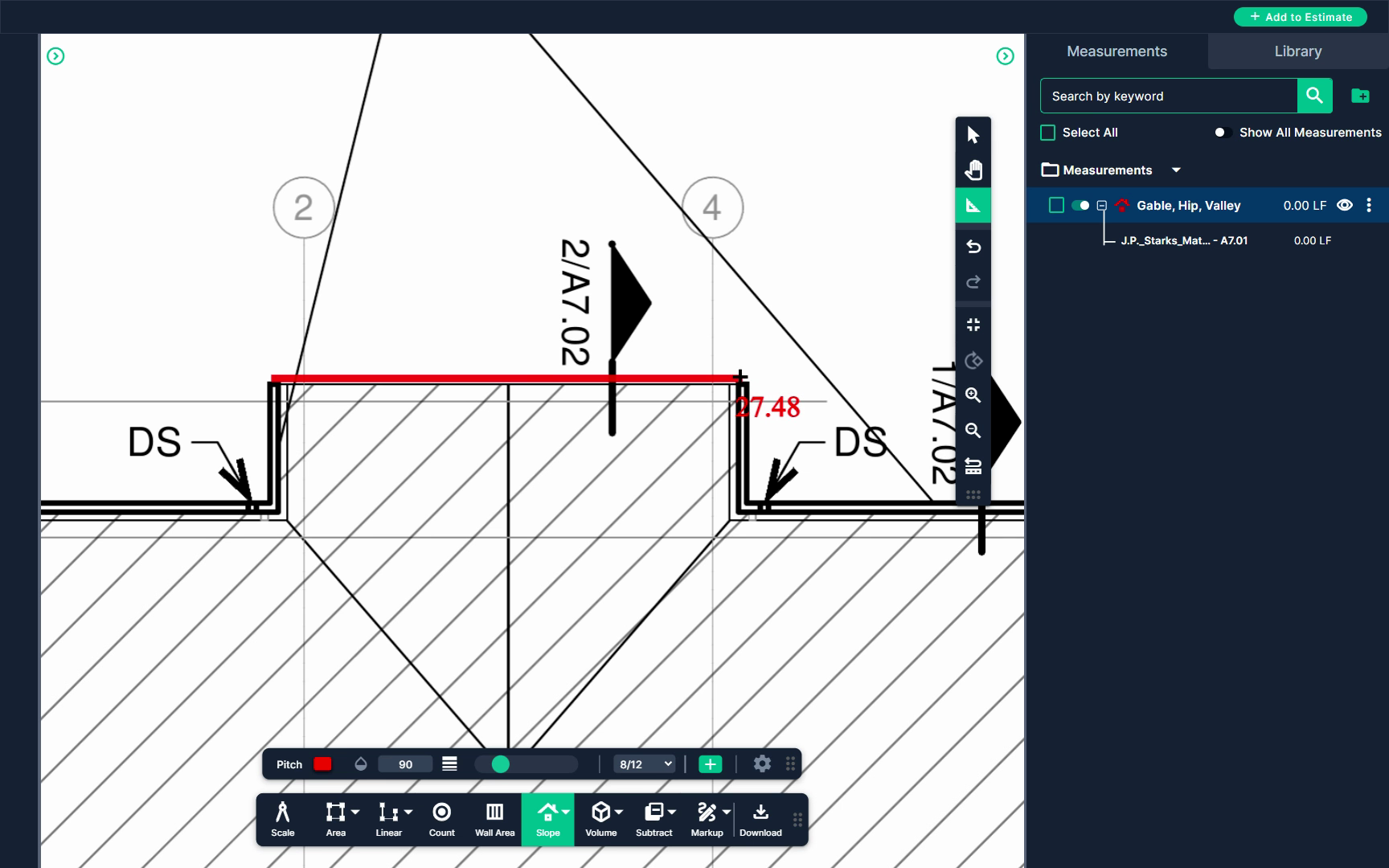
Step 4: Zoom into the starting point of your measurement. Click once to begin, then move your crosshair along the slope to the endpoint or next turn, clicking each time you change direction. Press Enter to finish. Your measurement appears in the results panel.
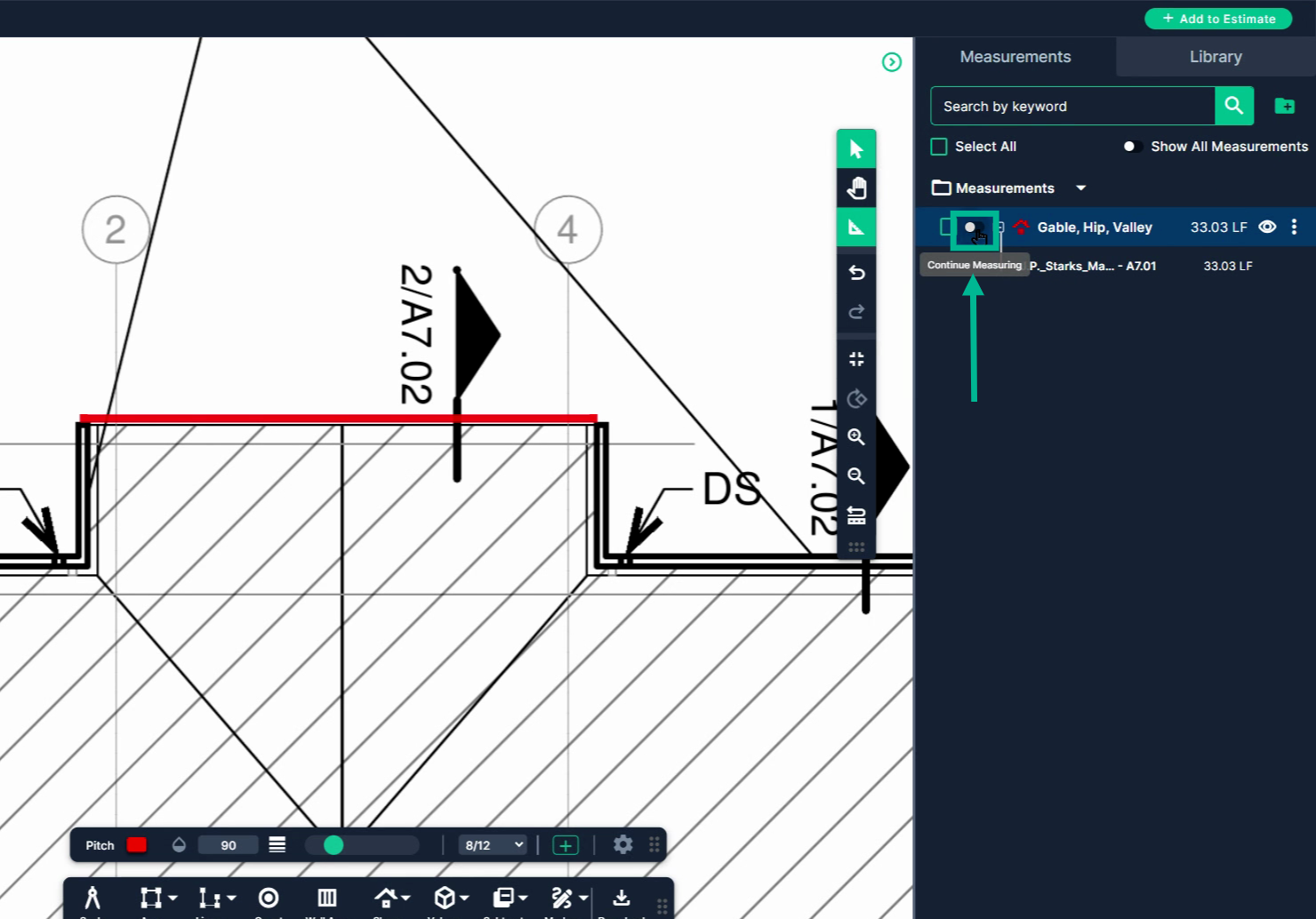
Step 5: For multi-segment combined lengths, use the Continue Measurement option to keep adding new sections. Position your starting point, click to begin, follow the line, and finish with Enter. Each segment adds to your total measurement.
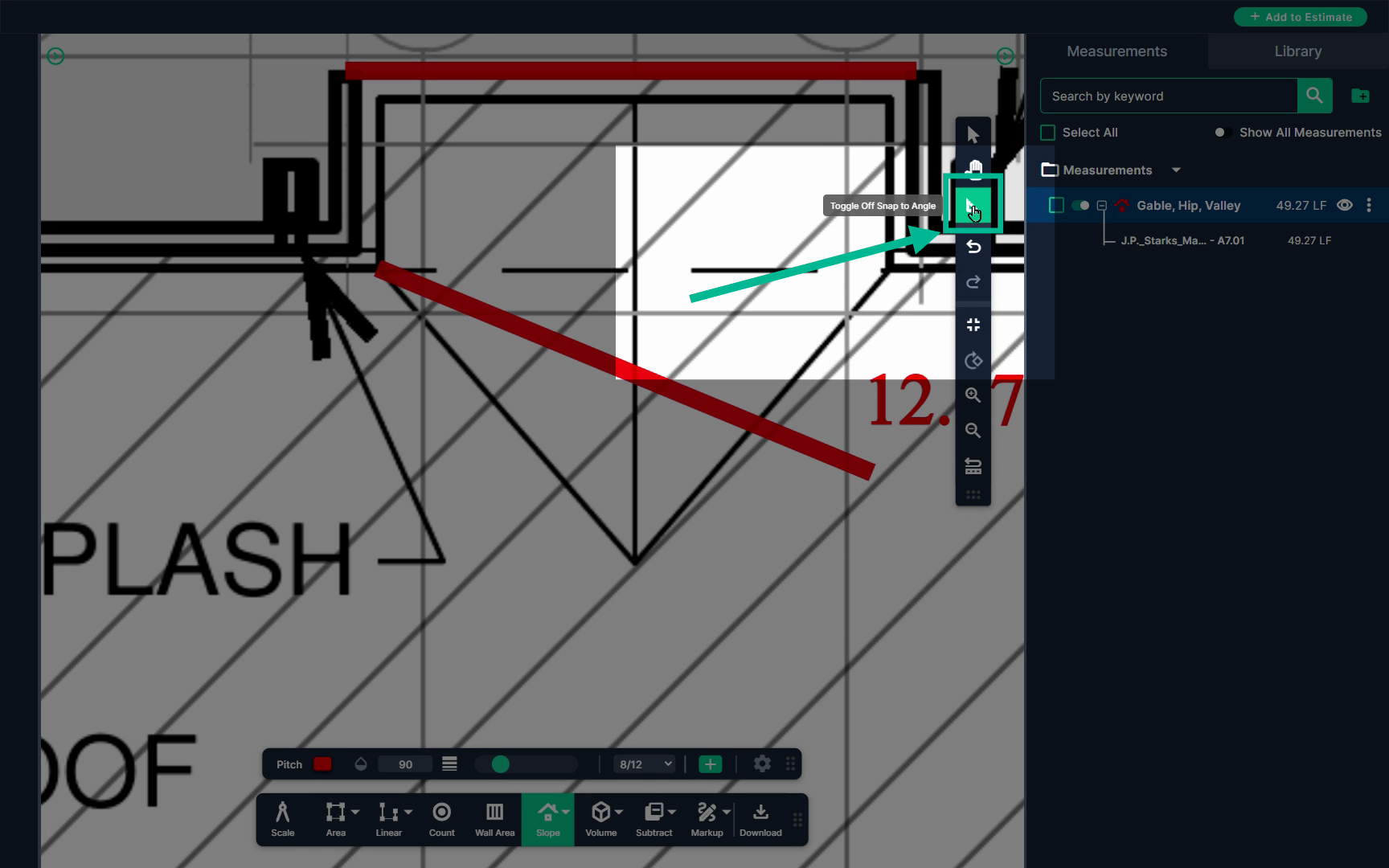
Step 6: For angled turns, turn off Snap-to-angle in the control bar if needed. Click at each corner or change in direction; double-click to terminate or single-click and press Enter to complete the terminate.
Use the Slope Line tool when your plans specify a rise-over-run value for a linear feature. Accurately capturing these measurements ensures your slope calculations reflect the true length, making bidding and takeoff easier and more precise.
Next Steps
Once you have completed taking all your measurements, you can:
- Download the measurements in a table from the Project Measurements page
- How To Download Project Measurements From Takeoff
Add a legend and download the PNG of your takeoff page - Using Legend Markup in Takeoff
If you have purchased the Estimation add-on tool, send measurements into the Project Estimate page or push them into an Assembly you have built. - Estimation - Exporting a Measurement from TakeOff to Estimation
- Estimation | How to Create an Assembly
- Share your Takeoff with anyone using the Share button in the upper right-hand corner.
Troubleshooting
Contact us if you need assistance or to report an issue:
- PlanHub Contact Page: https://planhub.com/contact/
- Customer Facing Support Ticket Link: https://knowledgebase.planhub.com/knowledge/kb-tickets/new
- Schedule a Free 1-on-1 Takeoff Training: https://meetings.hubspot.com/zac-low/takeoff-and-estimation