![NEW_PlanHub_Logo_Navy.png]](https://knowledgebase.planhub.com/hs-fs/hubfs/Design/PH%20Logos/NEW%202024%20PH%20Logos/NEW_PlanHub_Logo_Navy.png?height=40&name=NEW_PlanHub_Logo_Navy.png)
Video Coming Soon
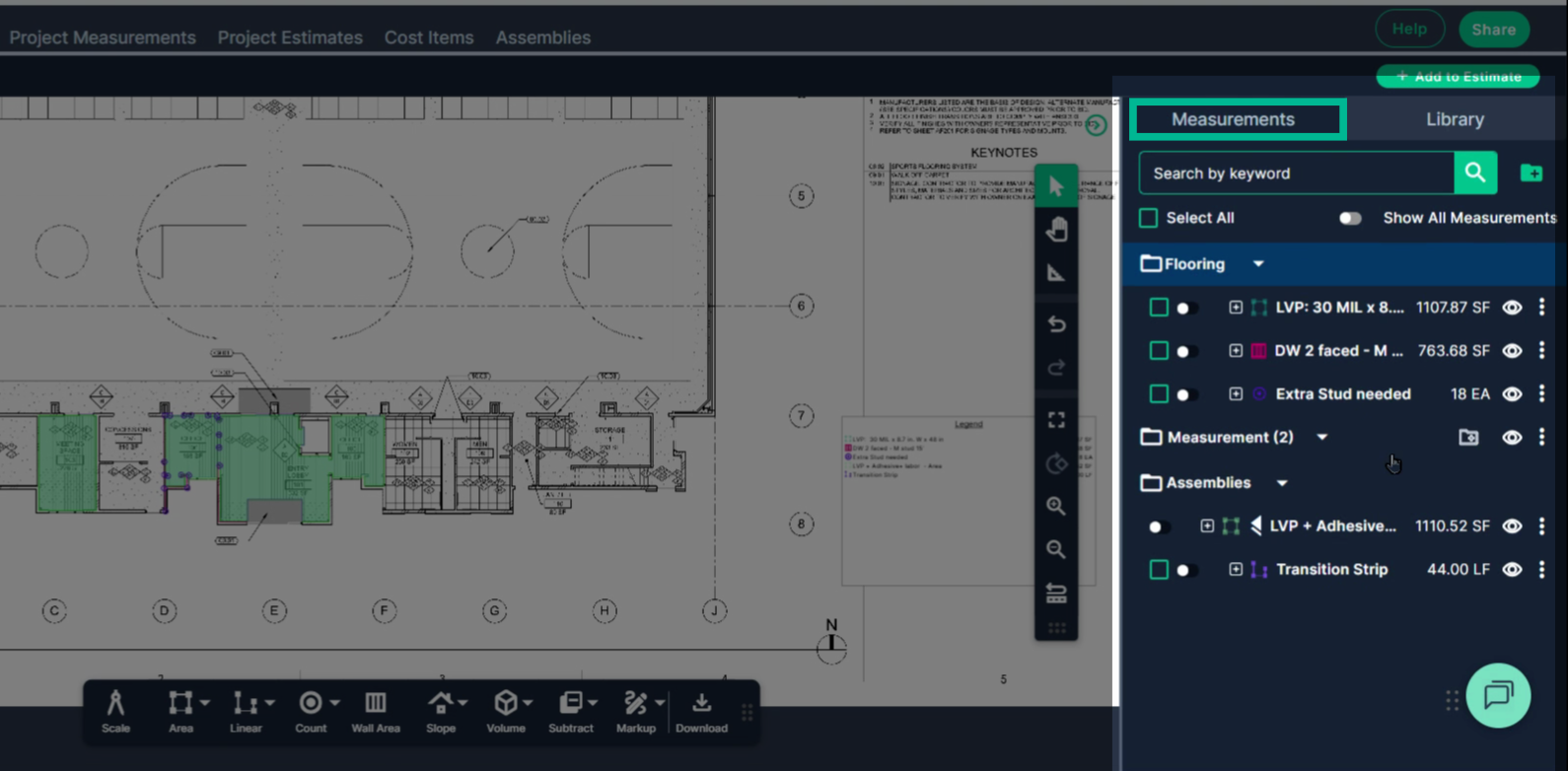
Step 1: Complete your measurements using PlanHub’s takeoff tool.
When finished, review all the measurements listed in the panel on the right. Each entry displays the measurement label and its value.
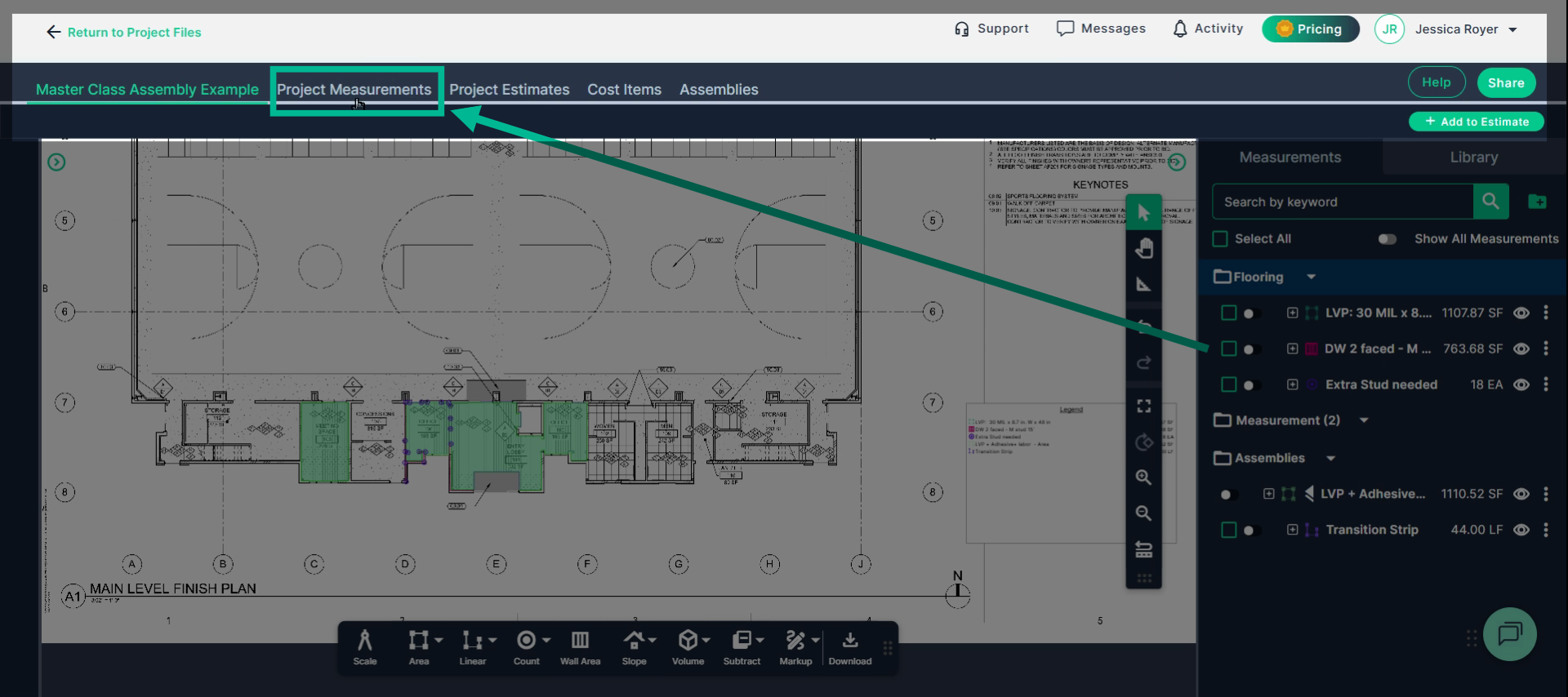
Step 2: Go to the header and select the Project Measurements page to access a summary of all your measurements.
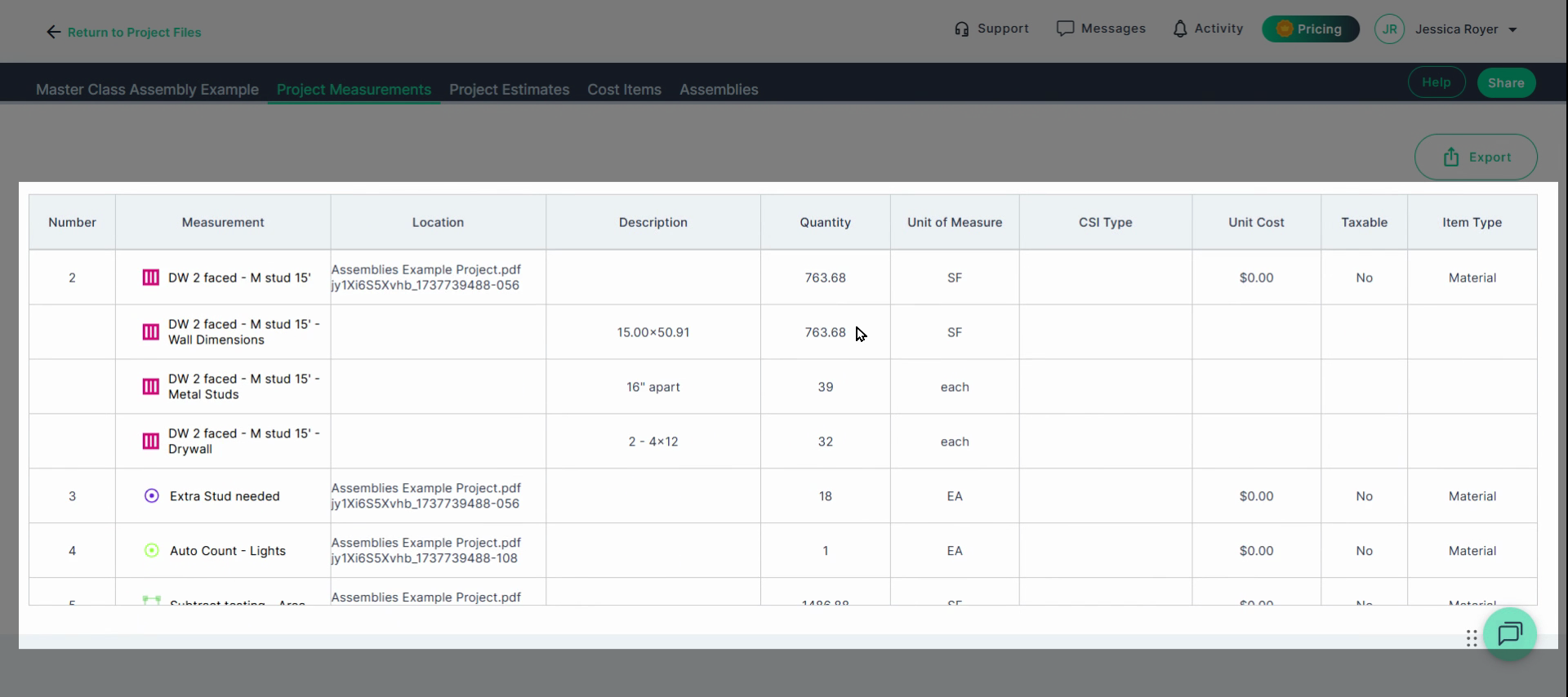
Step 3: On the Project Measurements page, you’ll see a table with the names and values for every measurement you created across the project.
Step 4: Click the Export button in the upper-right corner. This downloads all measurement data as a CSV file directly to your computer.
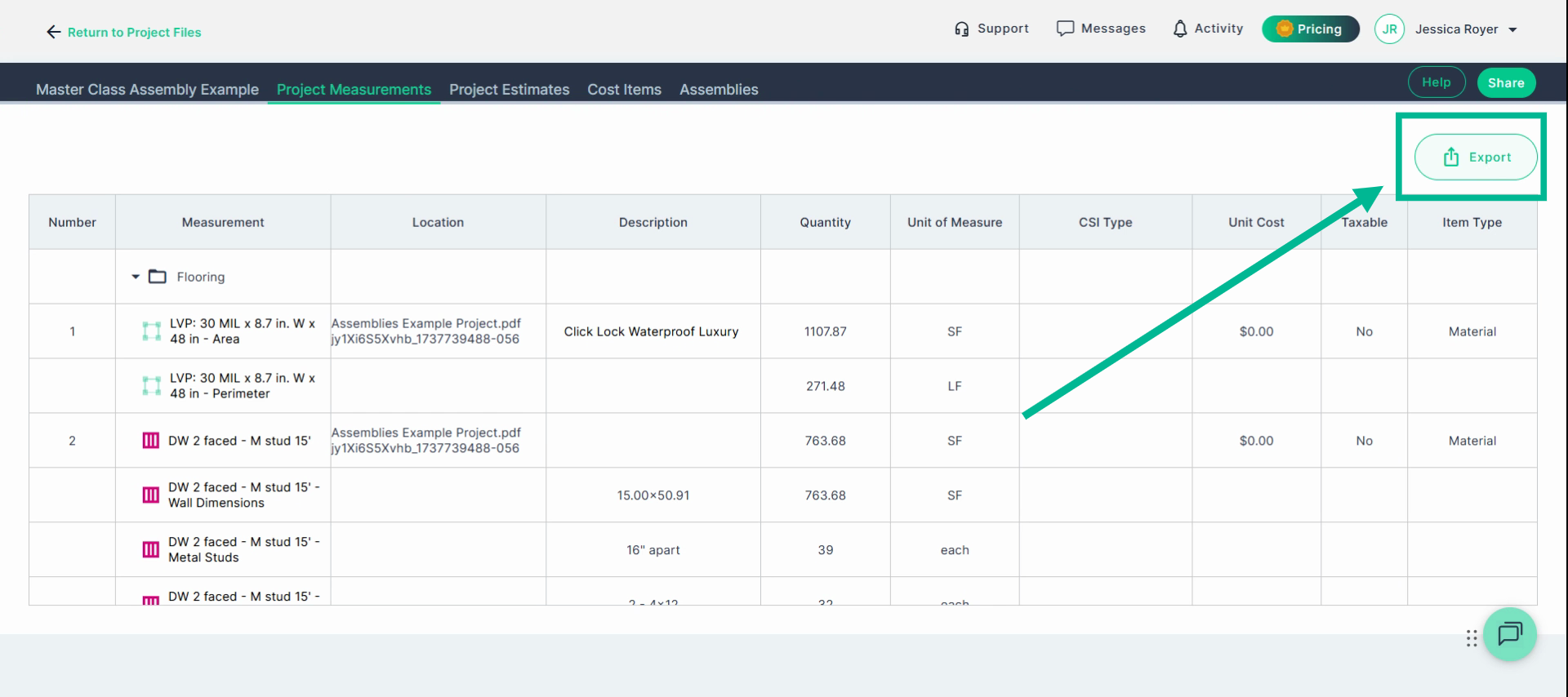
You can now open the CSV file in any tool that supports CSVs, like Excel or Google Sheets. Quickly work with your measurement data outside of PlanHub for seamless estimating and reporting.
Next Steps
Once you have completed taking all your measurements, you can:
-
Add a legend and download the PNG of your takeoff page
-
If you have purchased the Estimation add-on tool, send measurements into the Project Estimate page or push them into an Assembly you have built.
-
Share your Takeoff with anyone using the Share button in the upper right-hand corner.
Troubleshooting
Contact us if you need assistance or to report an issue:
-
PlanHub Contact Page: https://planhub.com/contact/
-
Customer Facing Support Ticket Link: https://knowledgebase.planhub.com/knowledge/kb-tickets/new
-
Schedule a Free 1-on-1 Takeoff Training: https://meetings.hubspot.com/zac-low/takeoff-and-estimation