![NEW_PlanHub_Logo_Navy.png]](https://knowledgebase.planhub.com/hs-fs/hubfs/Design/PH%20Logos/NEW%202024%20PH%20Logos/NEW_PlanHub_Logo_Navy.png?height=40&name=NEW_PlanHub_Logo_Navy.png)
Measuring drywall in PlanHub's Takeoff is simple and efficient. You’ll use two main tools: the Wall Area tool for walls and the Area tool for ceilings.
Prerequisites: You need a subscription or trial that includes Takeoff to measure plans, export a plan into TakeOff, and set the scale. Then you can begin measuring.
How to Begin a Takeoff In PlanHub
Measuring Walls
Step 1: Set up your measurement
- Click Wall Area in the toolbar
- Enter a name for this measurement
- Enter the height of the walls you're going to measure
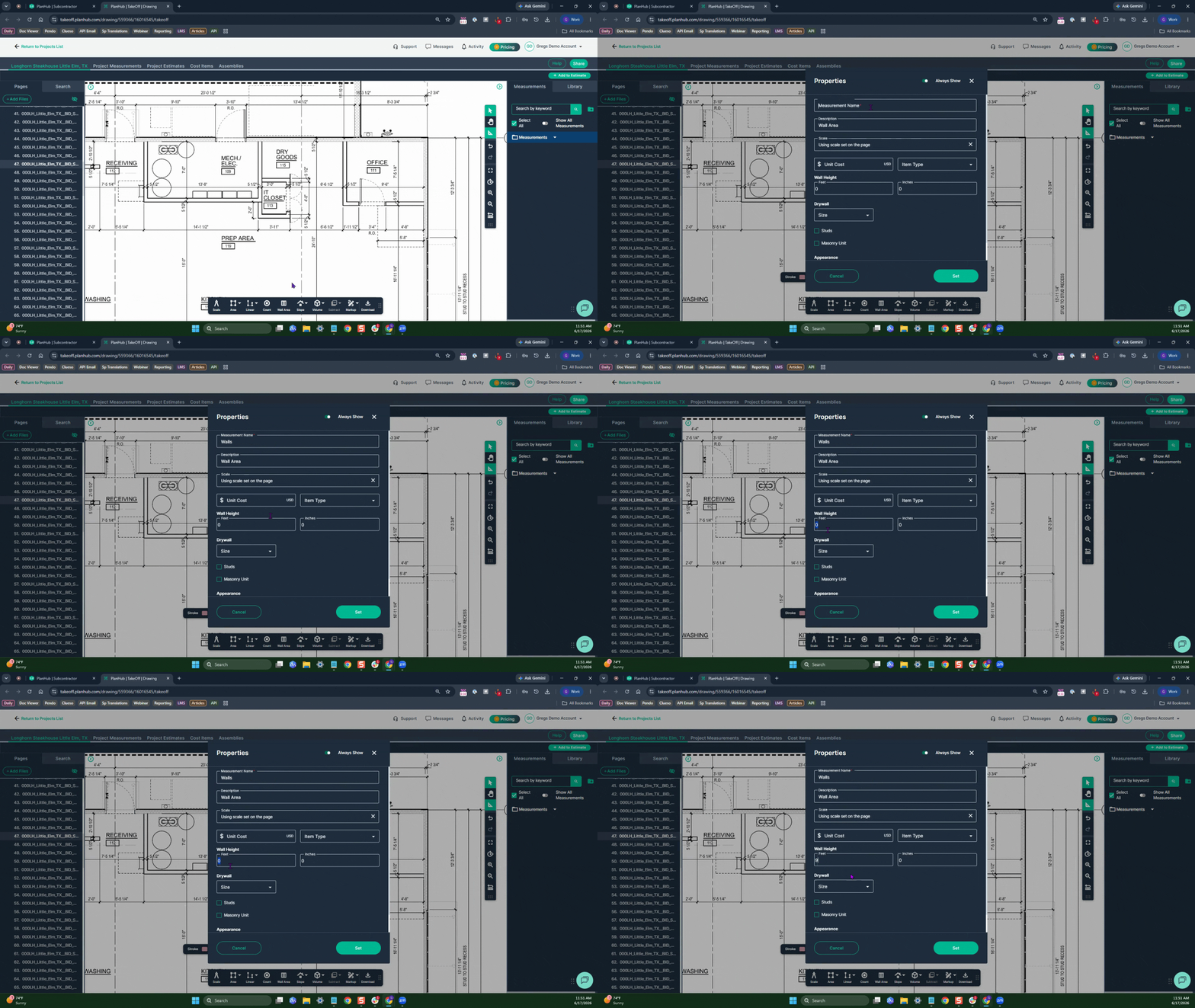
- Select the stock size of drywall sheets you'd like to use
- Enter the number of layers (2 if you're installing drywall onto a 2 sided interior wall)
- Click Set to begin
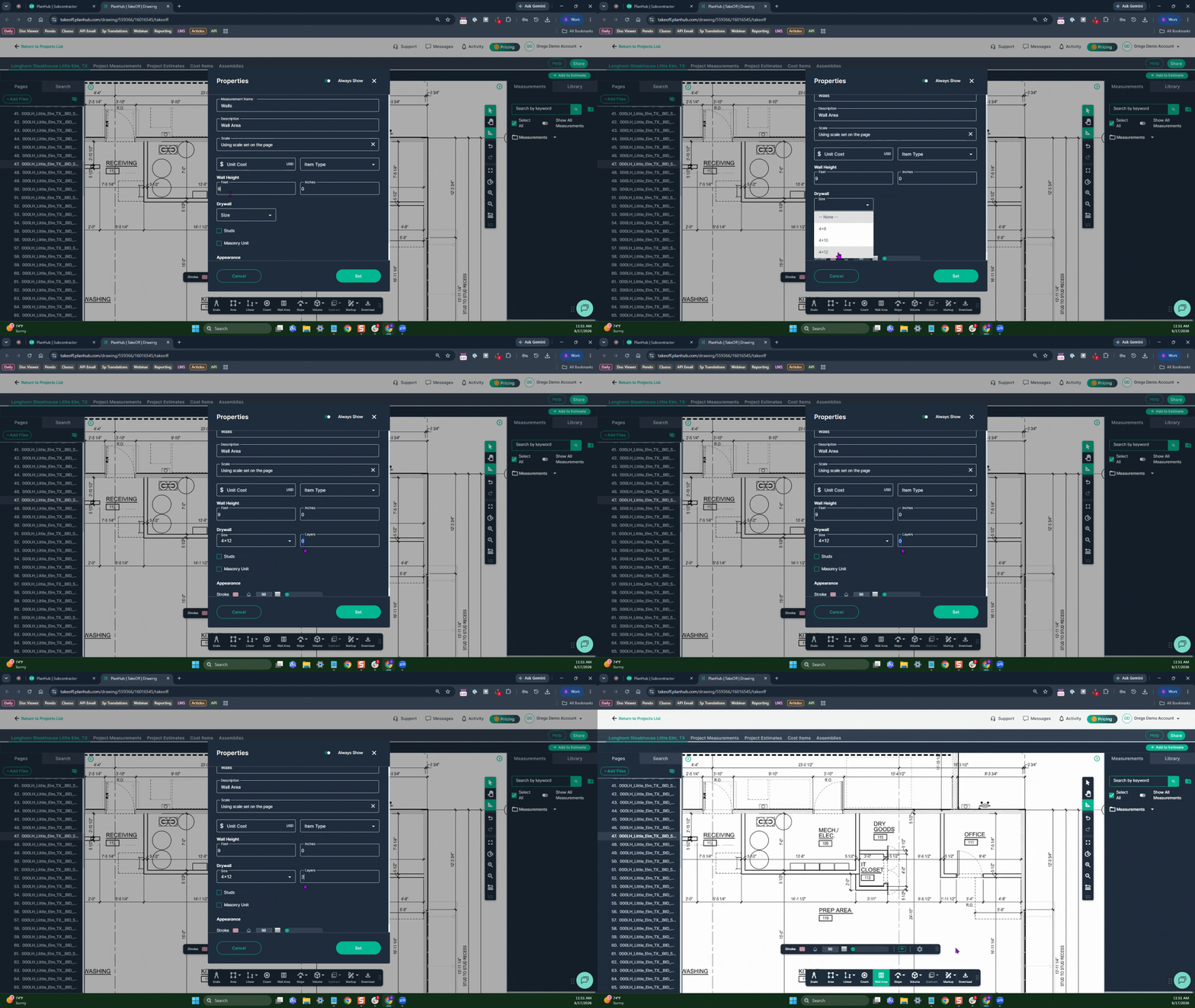
Step2: Begin measuring
- Left Click at the starting point on the page
- Left Click to change directions or turn corners
- Double Left Click to stop measuring
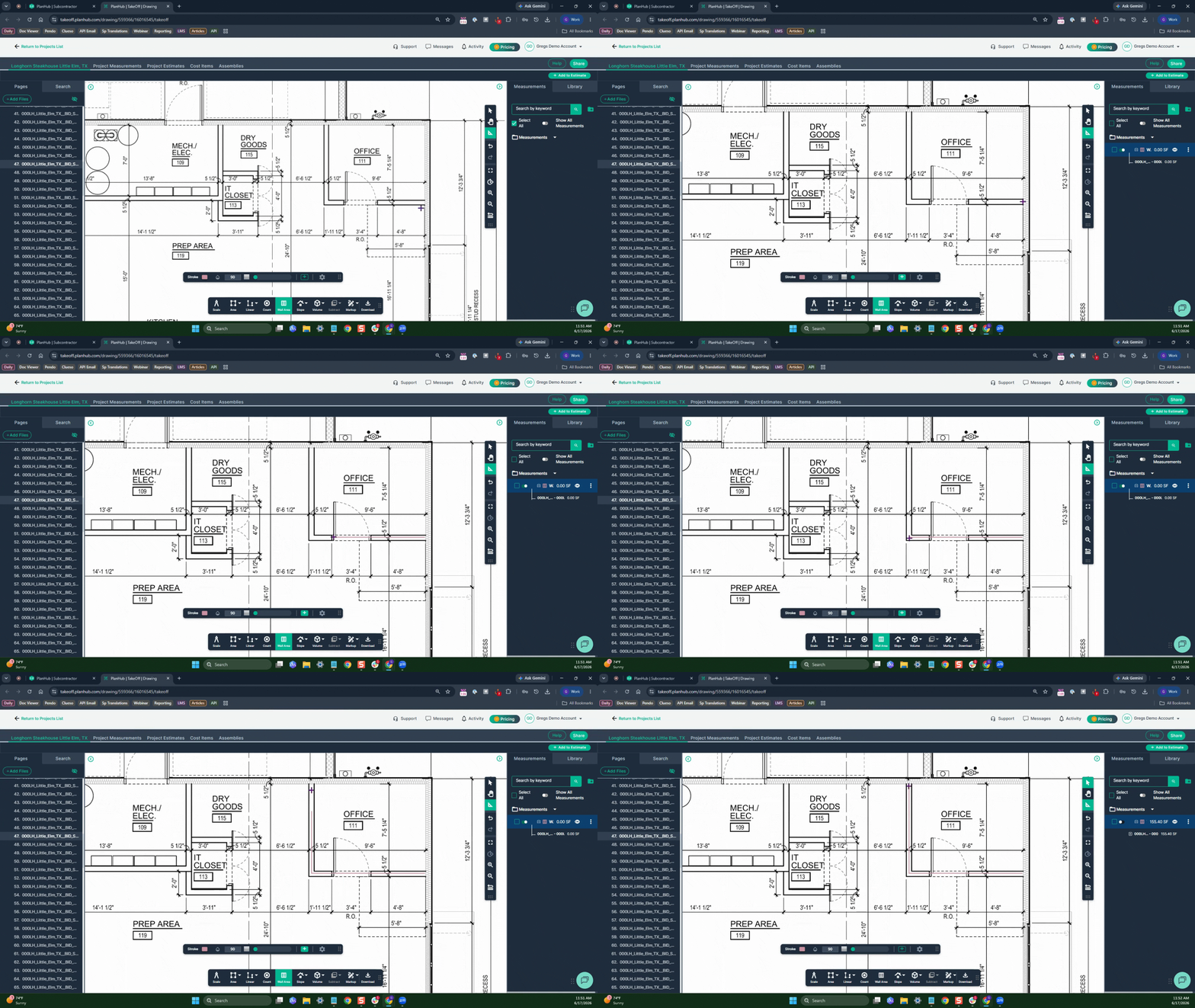
- To add more walls, use the Continue switch.
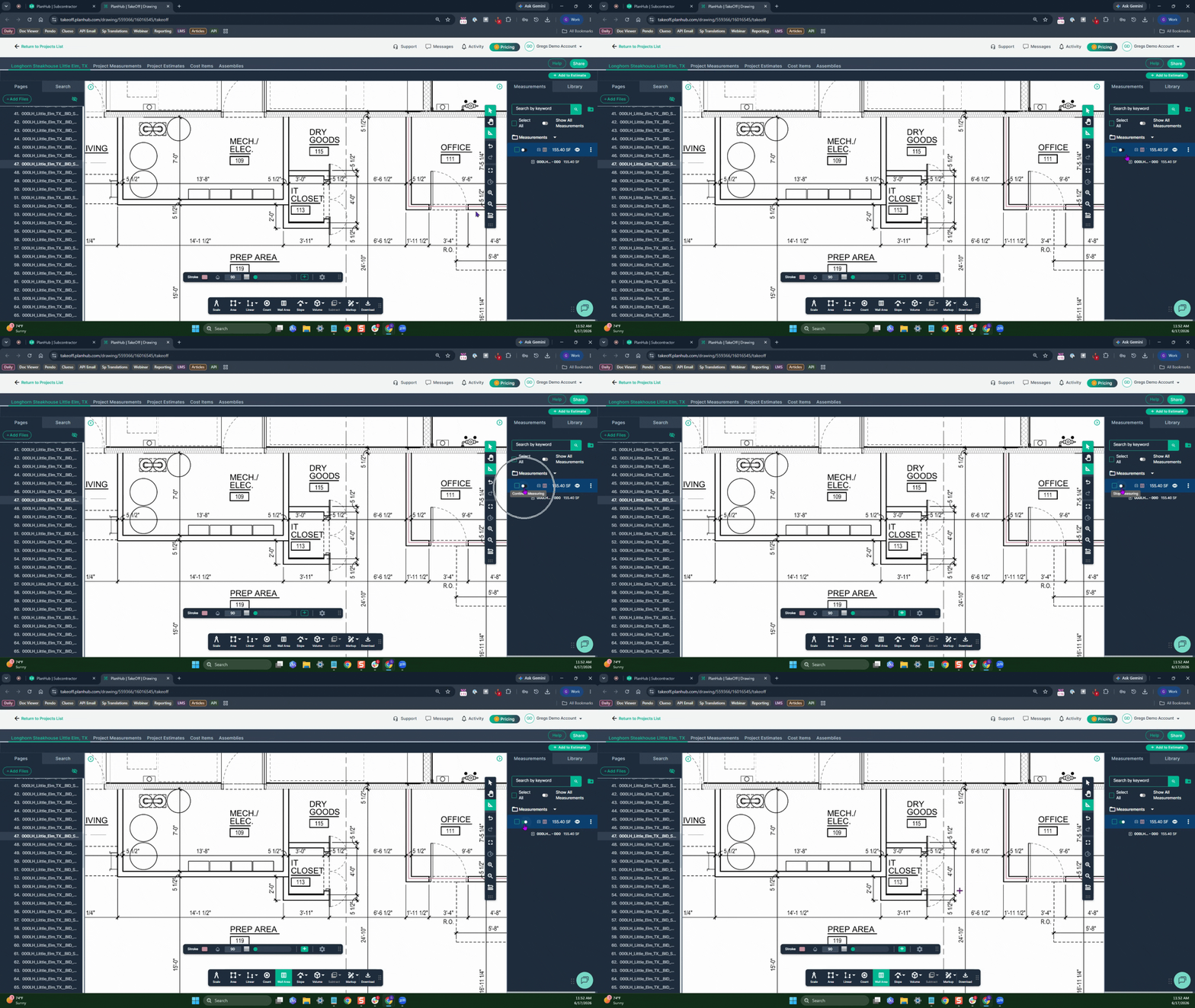
- Repeat the measuring process
- Left click to start,
- Left click to turn, and
- Double left click to finish any additional walls
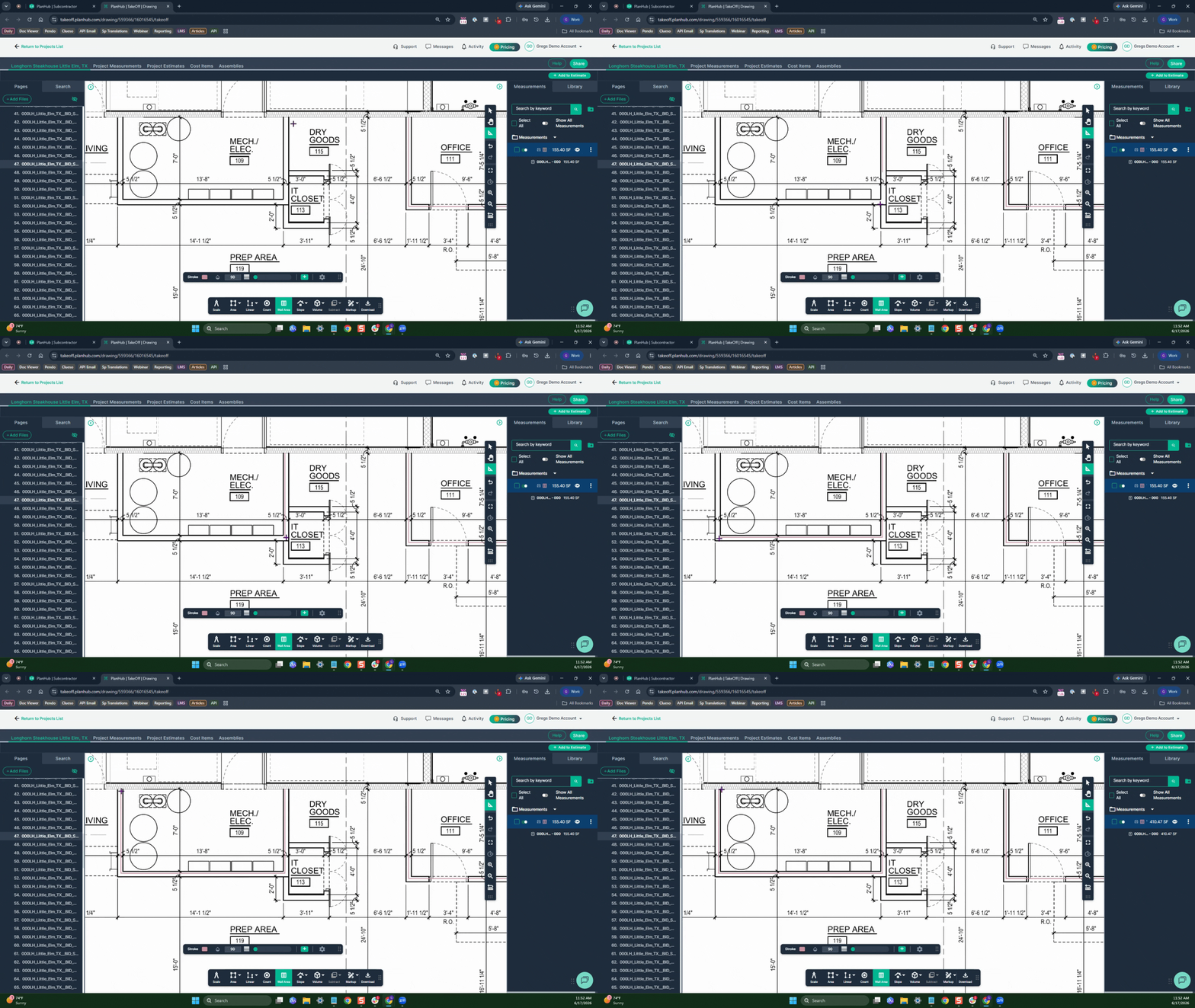
- On the right, in the measurements panel, you’ll see the square footage for one side of the wall you measured.
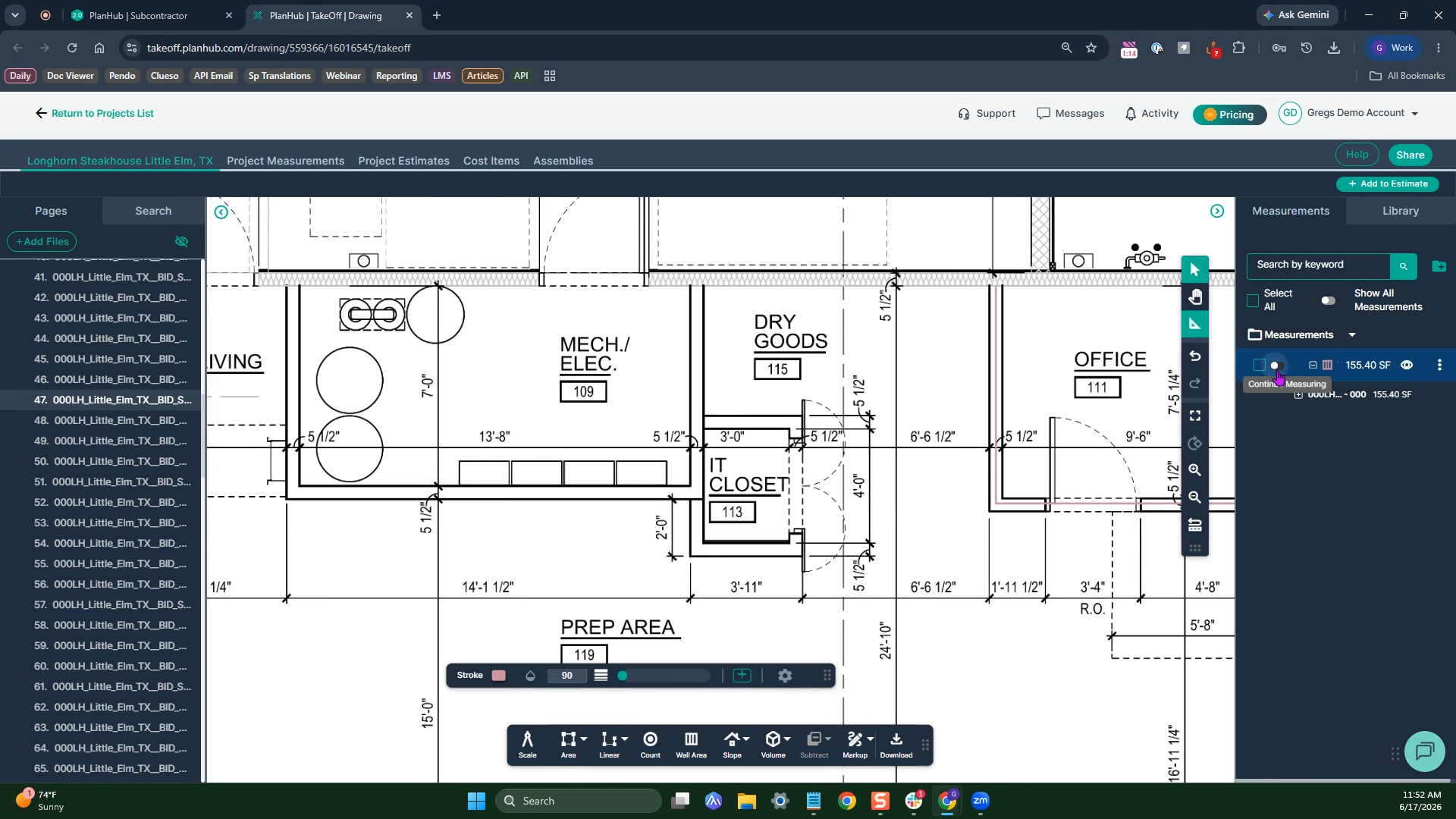
- Expand the details with the plus symbol and you’ll find the exact number of drywall sheets required for your selection
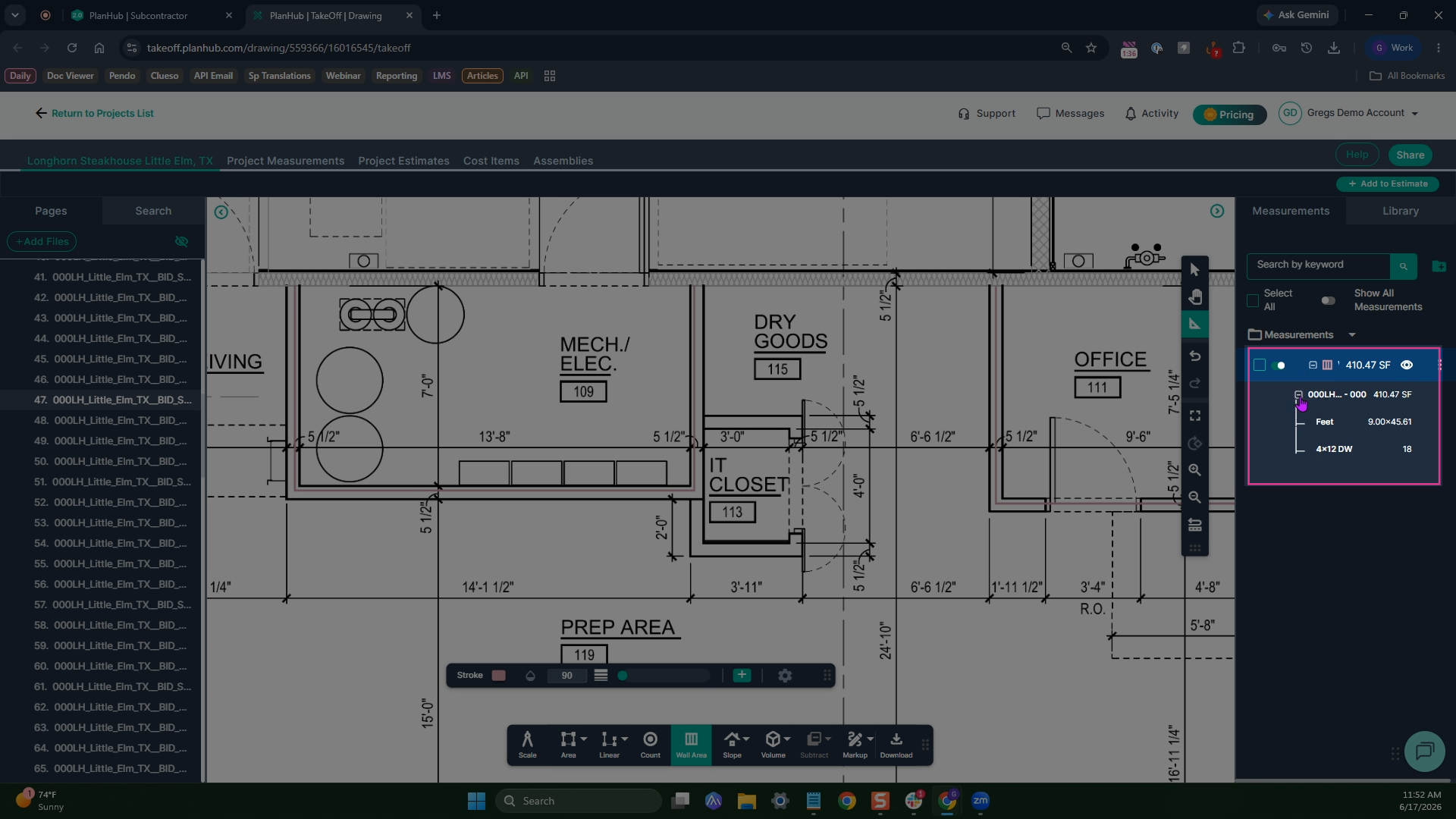
Measuring Ceilings
Step 1: Set up your Area measurement
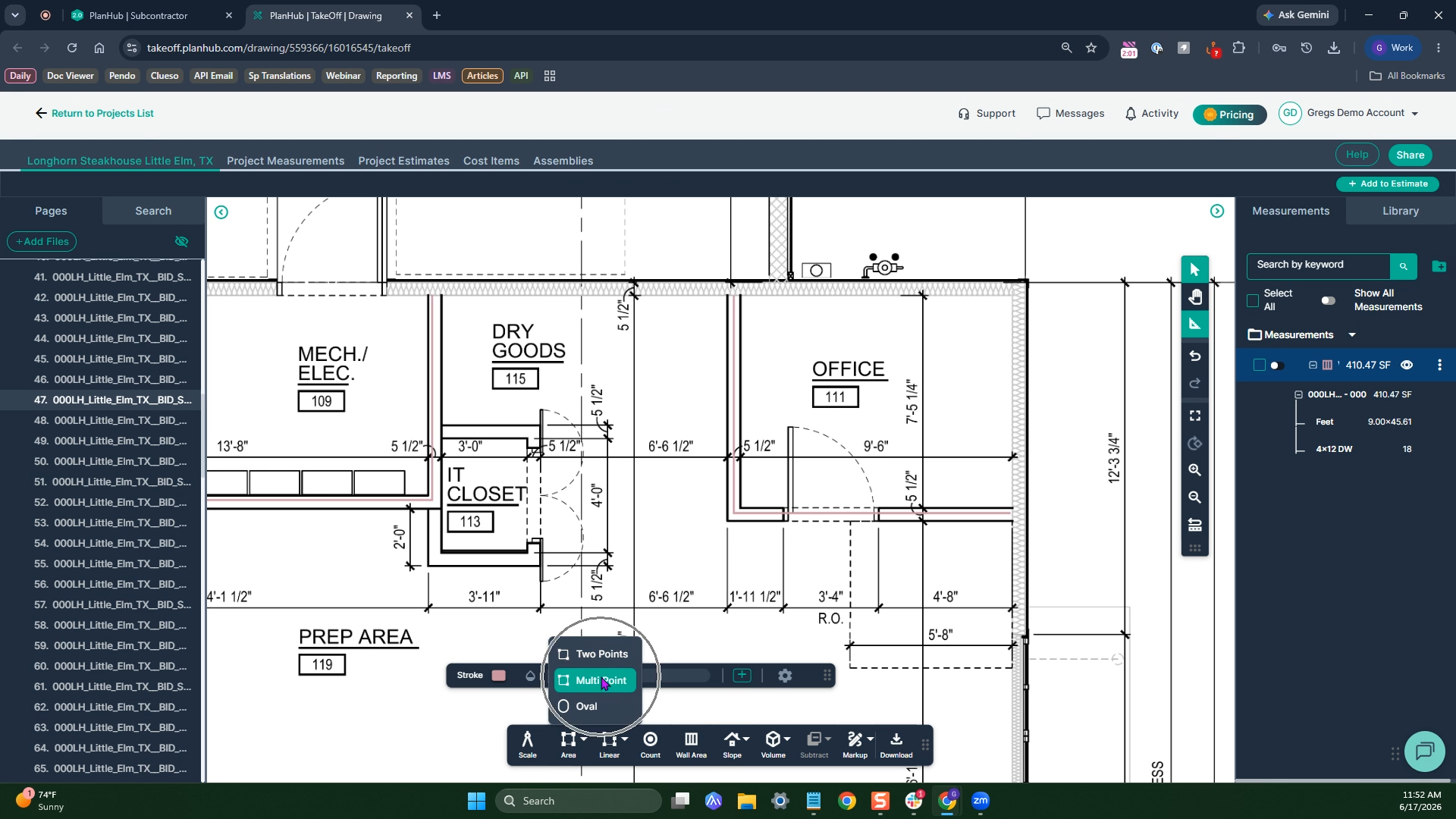
- Click Area in the toolbar
- Select Multipoint
- Or Two Point for any rectangular space
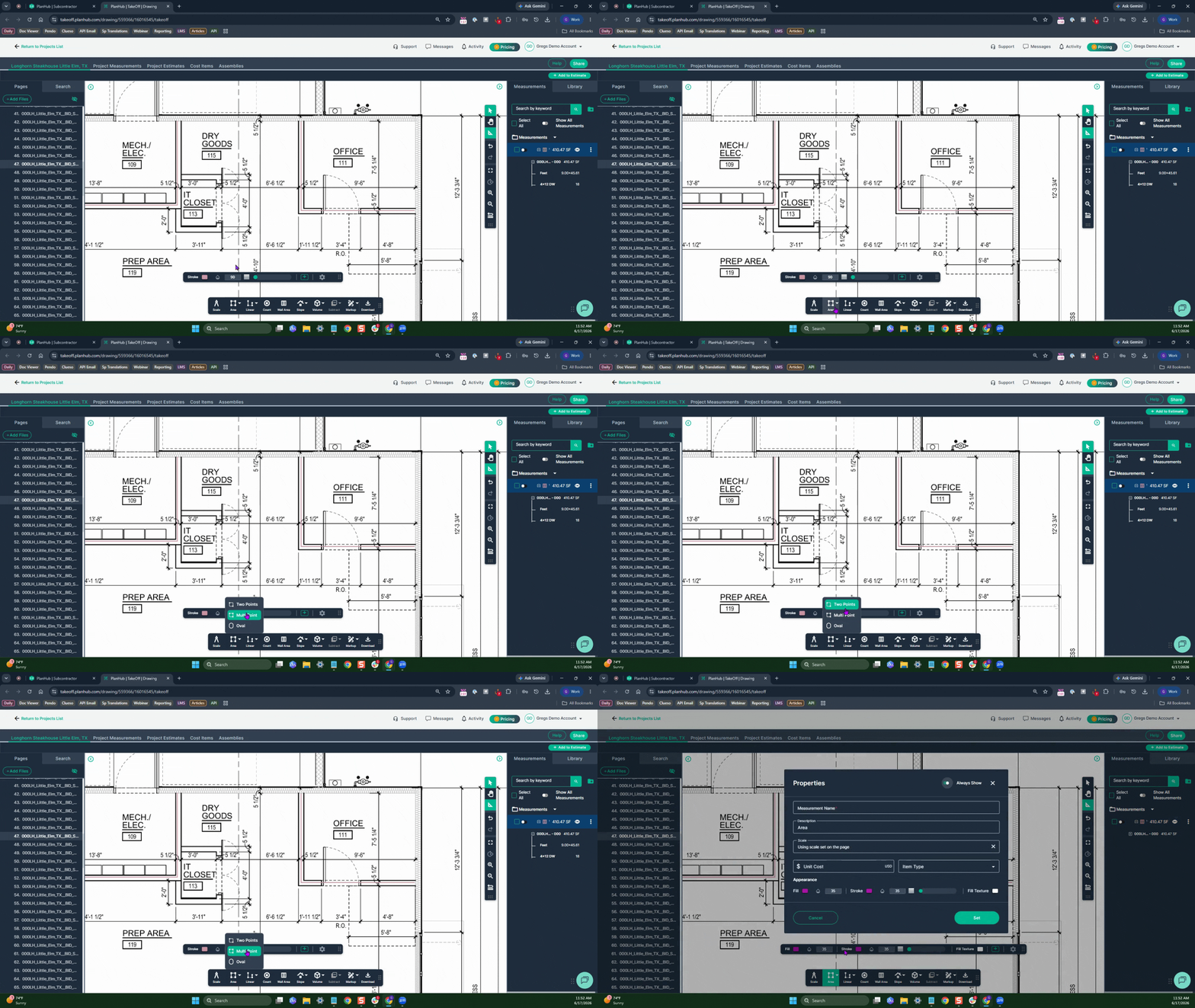
- Name your measurement
- Click set to begin
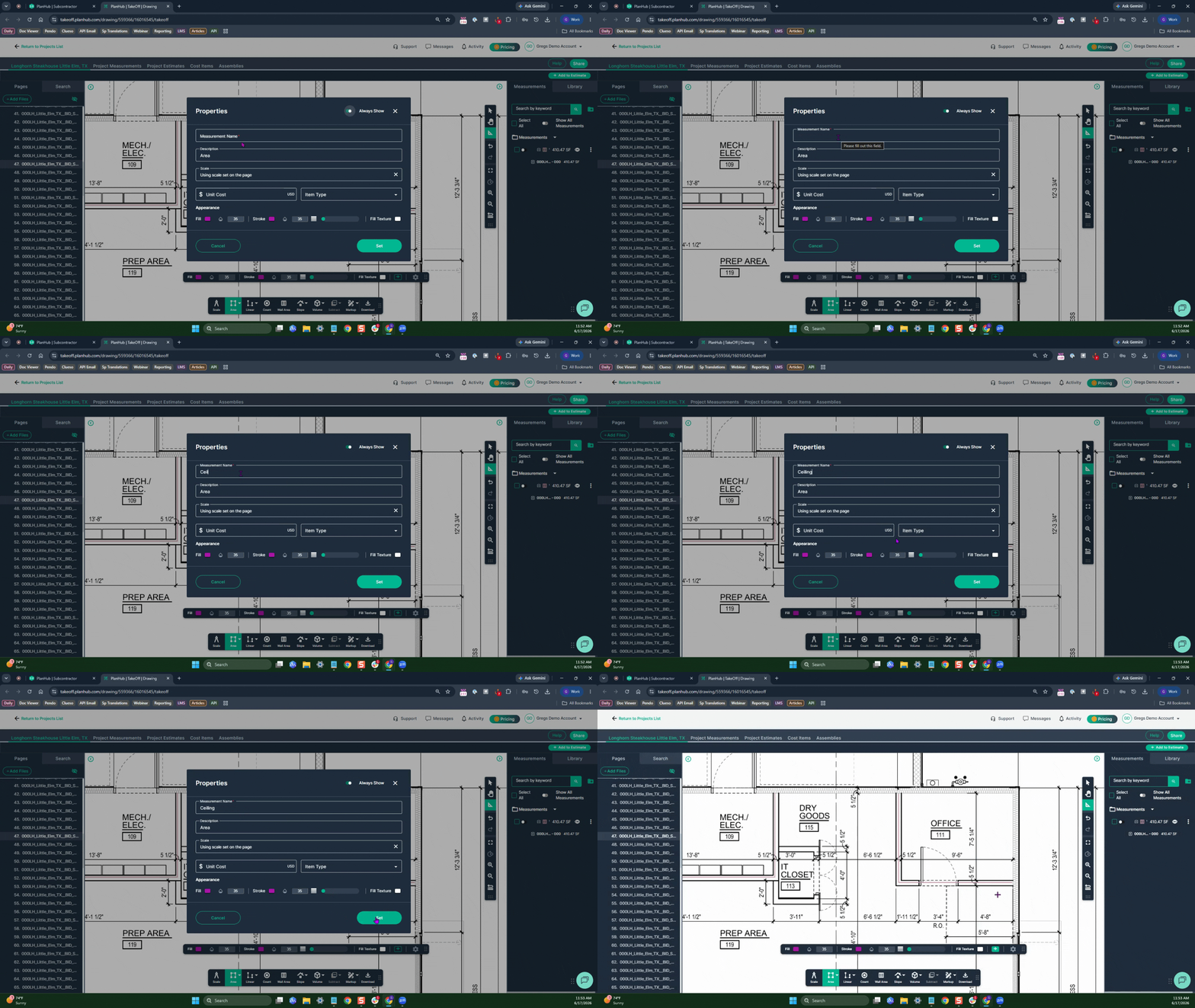
Step 2: Measuring
- Left click at the first point,
- Left click at each corner
- Double left click on your last point to complete the measurement.
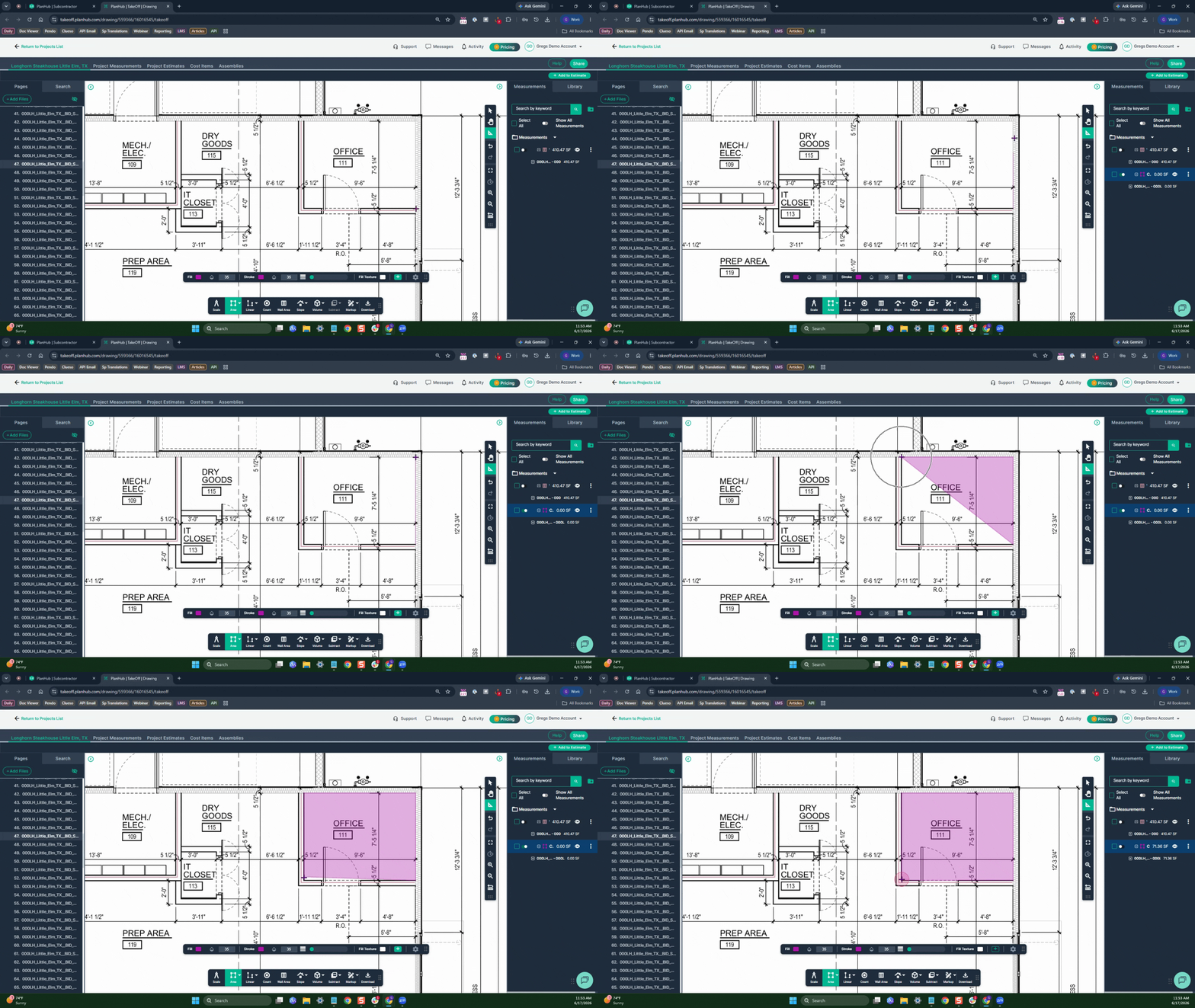
- Your ceiling measurement will appear on the right side of the screen in the Measurements panel
While the area tool gives you the total square footage for the ceiling, you’ll need to calculate the number of drywall sheets separately.
With these steps, you’ll measure efficiently and know exactly what materials are required for your drywall project in PlanHub Takeoff.
Next Steps
Once you have completed taking all your measurements, you can:
- Download the measurements in a table from the Project Measurements page
- How To Download Project Measurements From Takeoff
Add a legend and download the PNG of your takeoff page - Using Legend Markup in Takeoff
If you have purchased the Estimation add-on tool, send measurements into the Project Estimate page or push them into an Assembly you have built. - Estimation - Exporting a Measurement from TakeOff to Estimation
- Estimation | How to Create an Assembly
- How To Download Project Measurements From Takeoff
- Share your Takeoff with anyone using the Share button in the upper right-hand corner.
Troubleshooting
Contact us if you need assistance or to report an issue:
- PlanHub Contact Page: https://planhub.com/contact/
- Customer Facing Support Ticket Link: https://knowledgebase.planhub.com/knowledge/kb-tickets/new
- Schedule a Free 1-on-1 Takeoff Training: https://meetings.hubspot.com/zac-low/takeoff-and-estimation