![NEW_PlanHub_Logo_Navy.png]](https://knowledgebase.planhub.com/hs-fs/hubfs/Design/PH%20Logos/NEW%202024%20PH%20Logos/NEW_PlanHub_Logo_Navy.png?height=40&name=NEW_PlanHub_Logo_Navy.png)
Step 1: Open the Directory from Your PlanHub Account
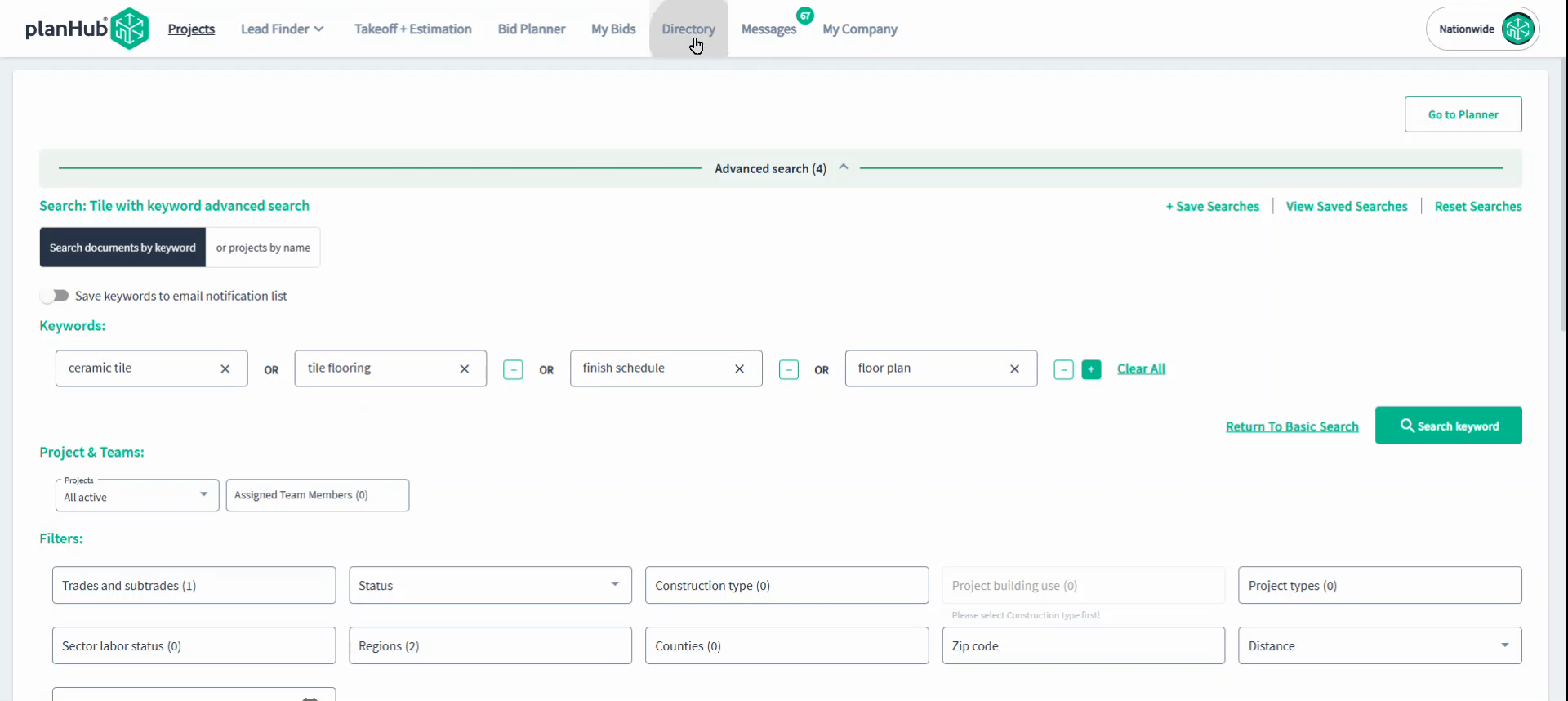
Step 2: Use Search and Filters to Refine Results
Use the Search tools on the left panel to narrow your results.
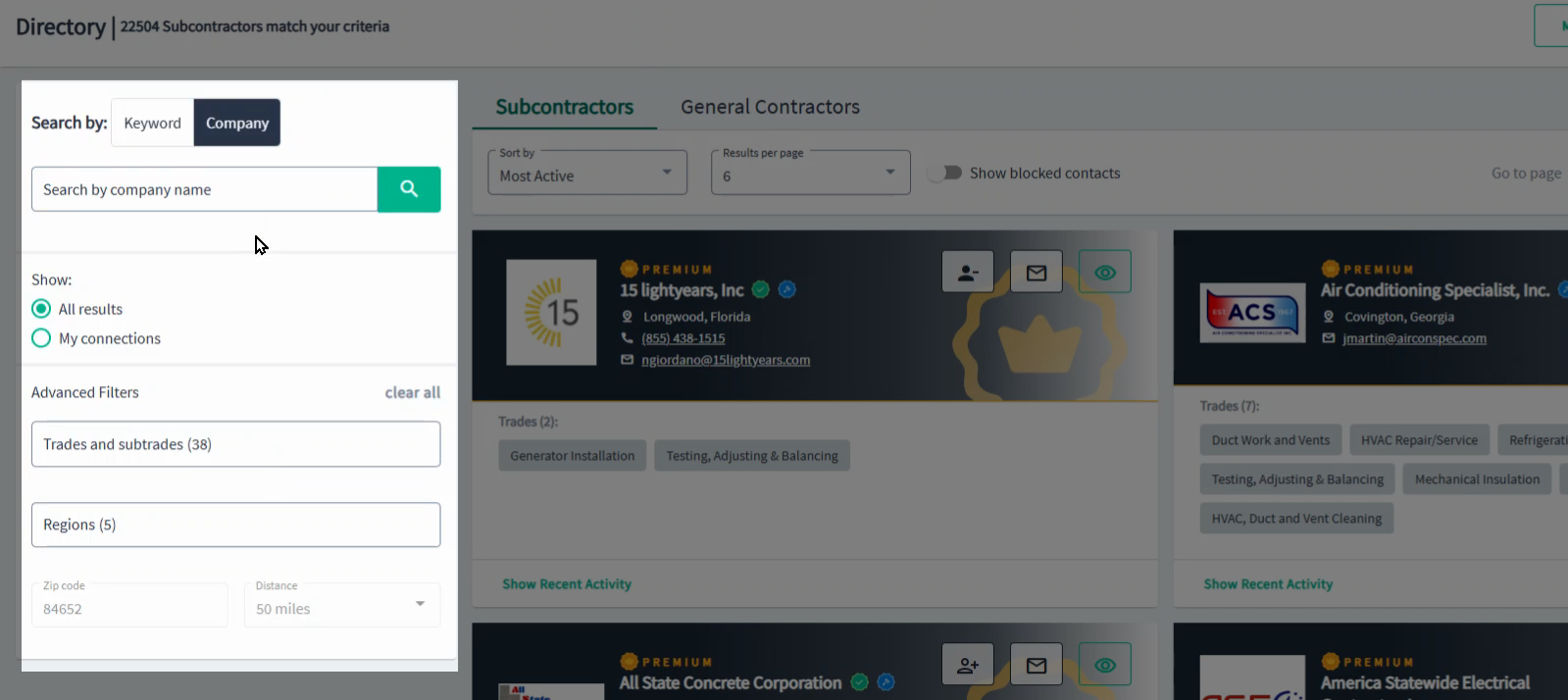
Step 2.1: Location and Trade Filters
You’ll see the Advanced Filters options on the sidebar.
Select relevant criteria—such as trades or location—to filter for companies that install your products (subcontractors) or post projects that need your products (general contractors).
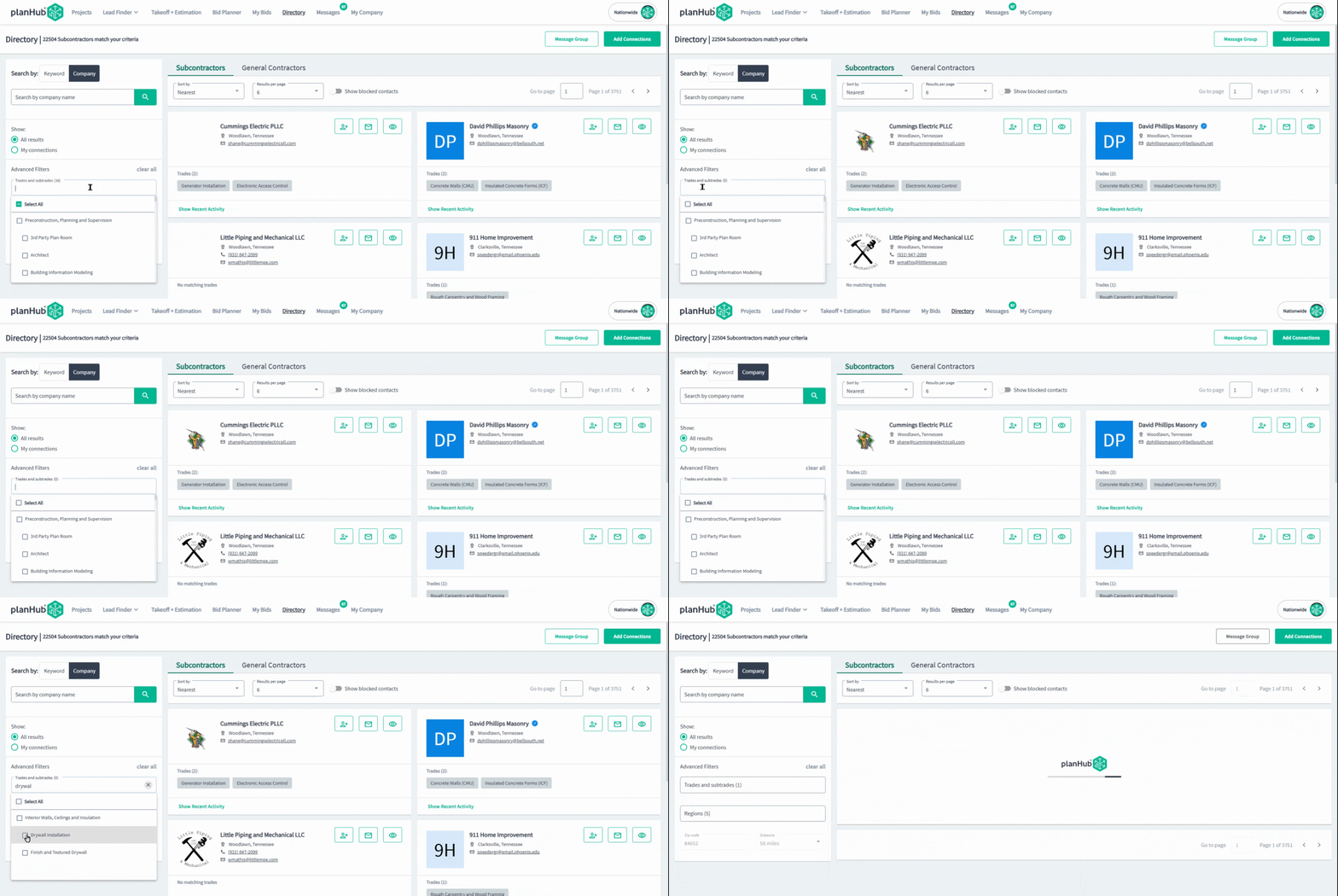 Apply location filters by selecting a region or entering a zip code.
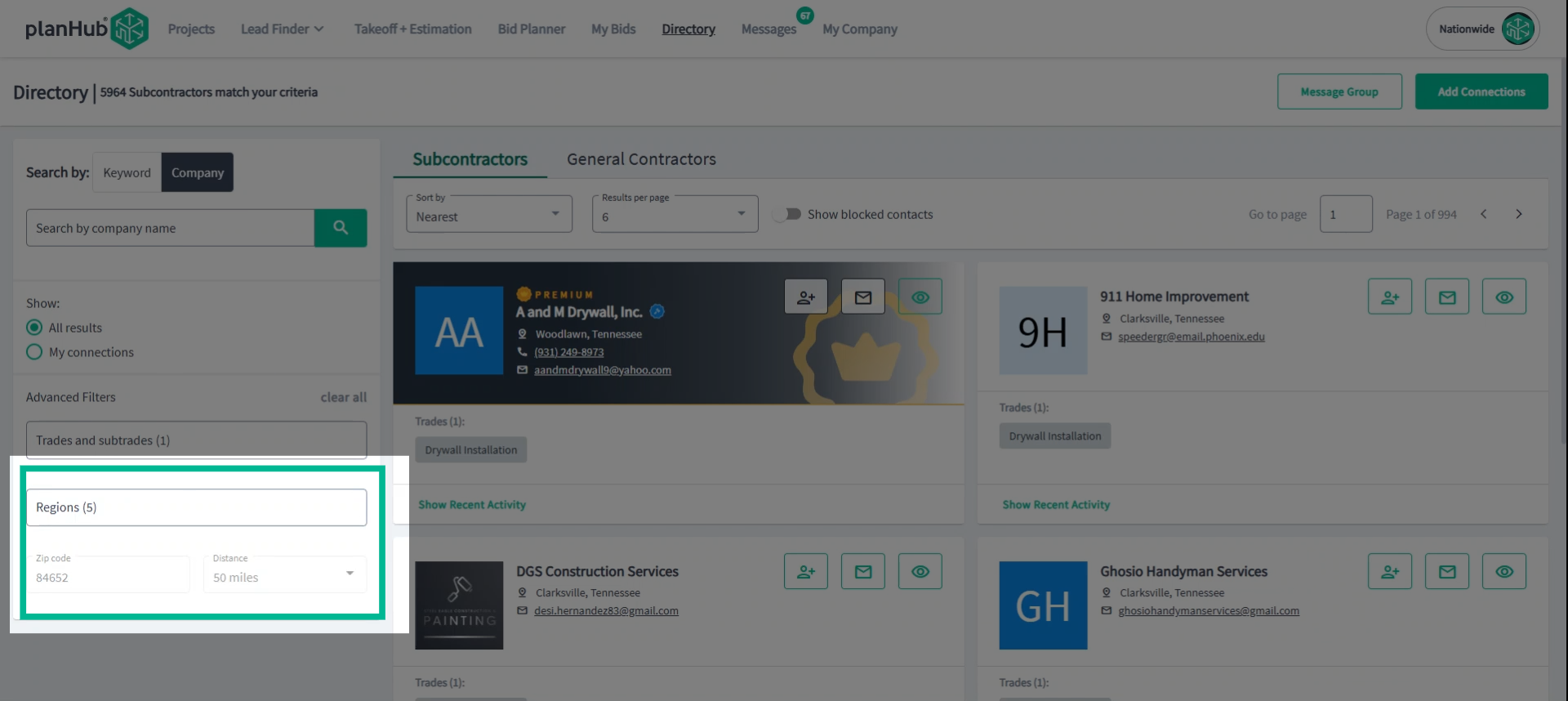
Step 3: Review and Select Company Cards | Subcontractors
Each matching company appears as a company card in the main list. Review the cards to identify promising contacts.
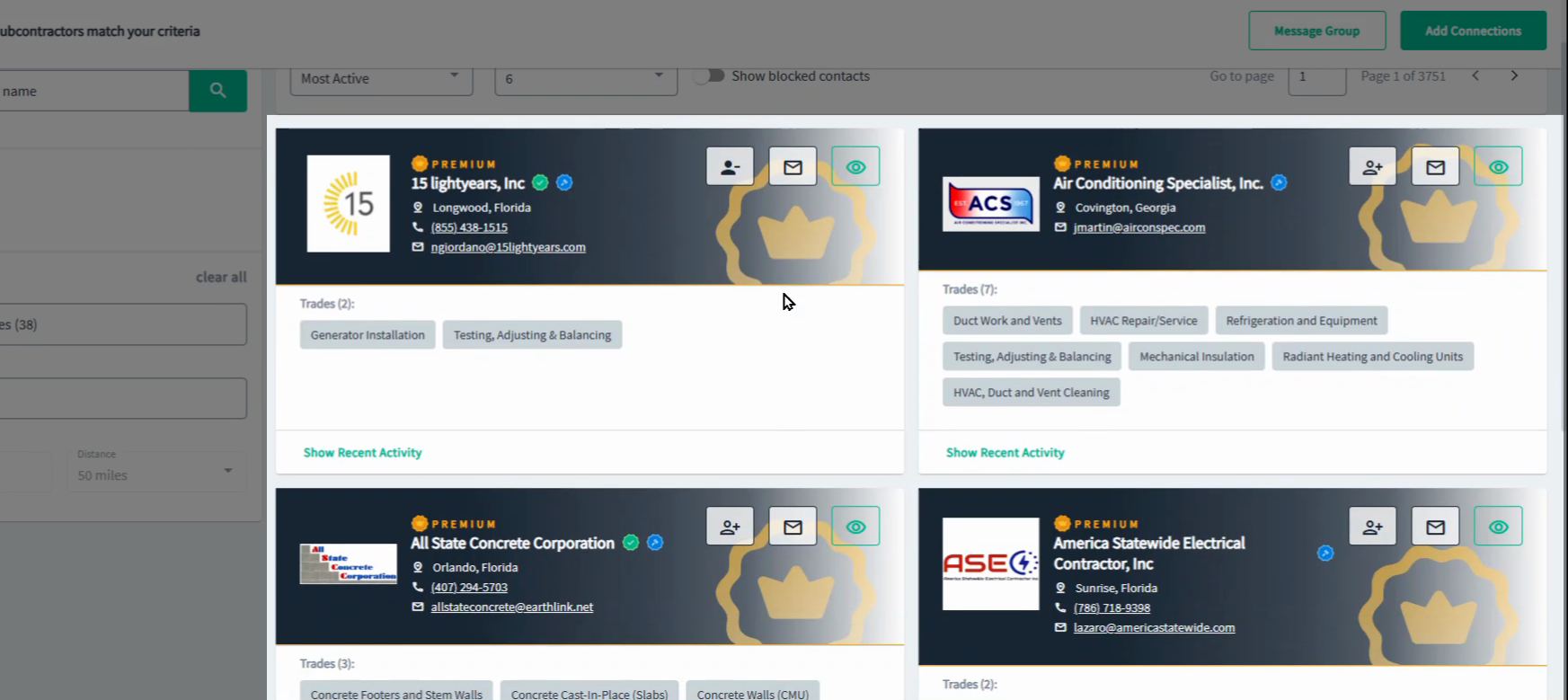
Step 4: Open a Detailed Company Profile
Click on a company name in the list to open its profile in a new tab.
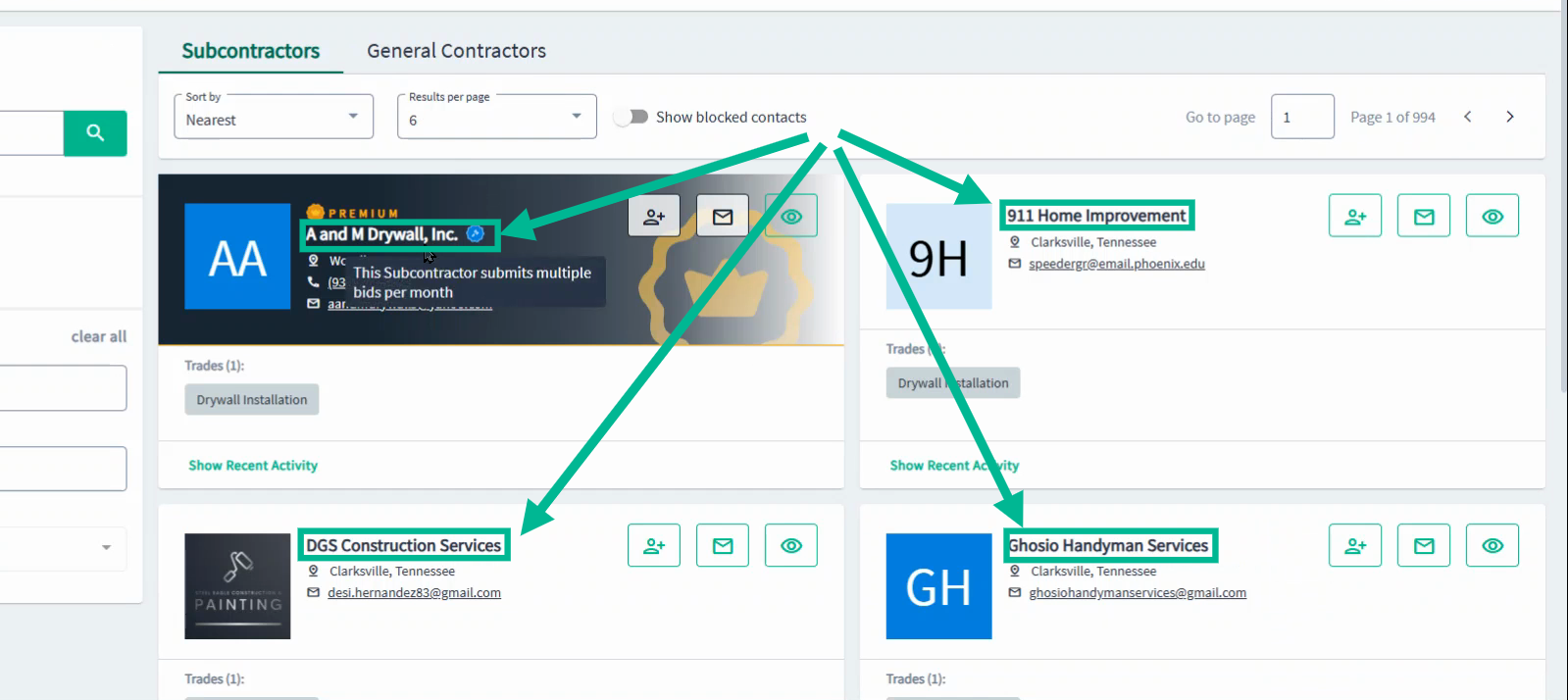
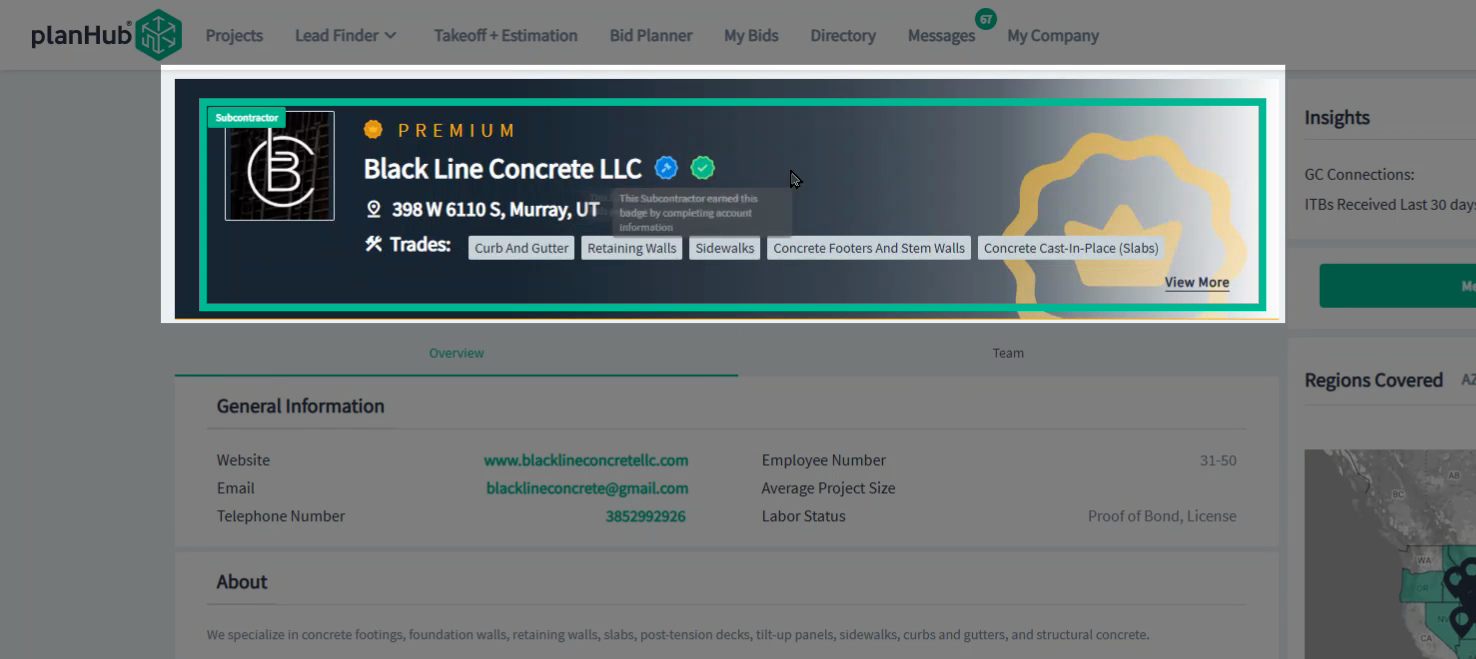
Step 4.1: Profile Banner
The new tab displays the company’s full profile with name and logo, plus a list of the trades the Subcontractor performes.
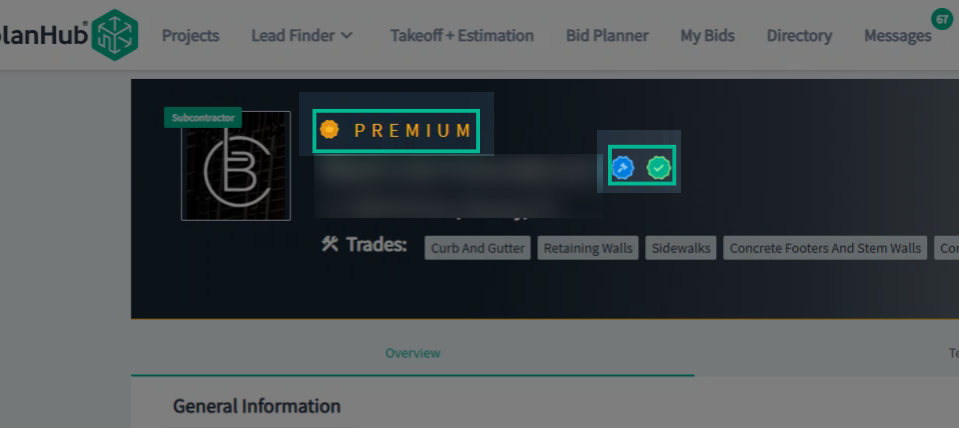
Step 4.2: Interpret Company Badges
Look for badges indicating company engagement:
-
The gold crown badge signals the company has purchased extra PlanHub tools.
-
The blue hammer badge means they bid on at least two projects per month.
-
The green check shows they’ve completed prequalification.
These badges quickly help you spot active and engaged companies.
Step 4.3: Explore Company Details and Teams
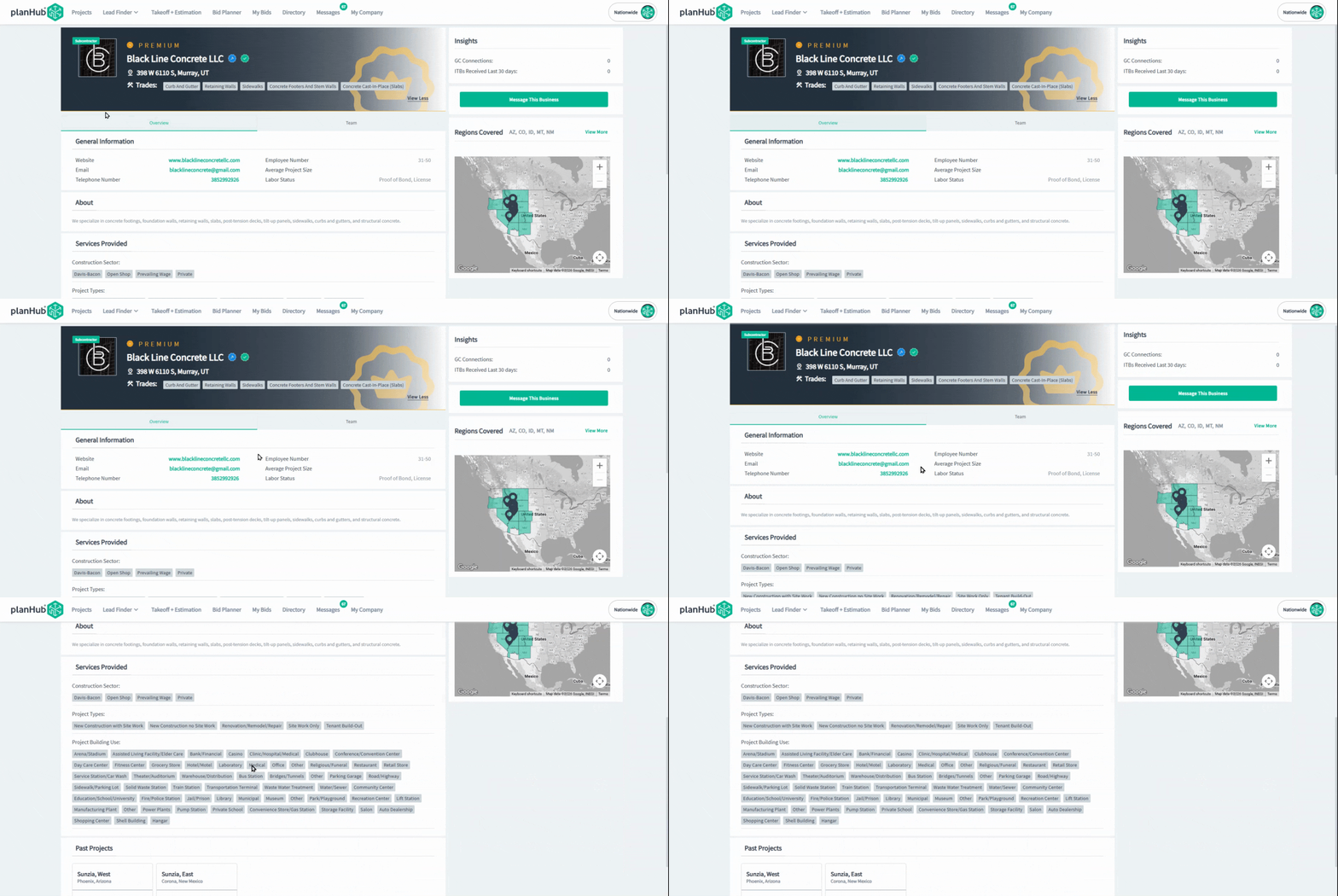
Each profile has an Overview and a Team tab.
-
The Overview tab provides more about the company and its specialties.
-
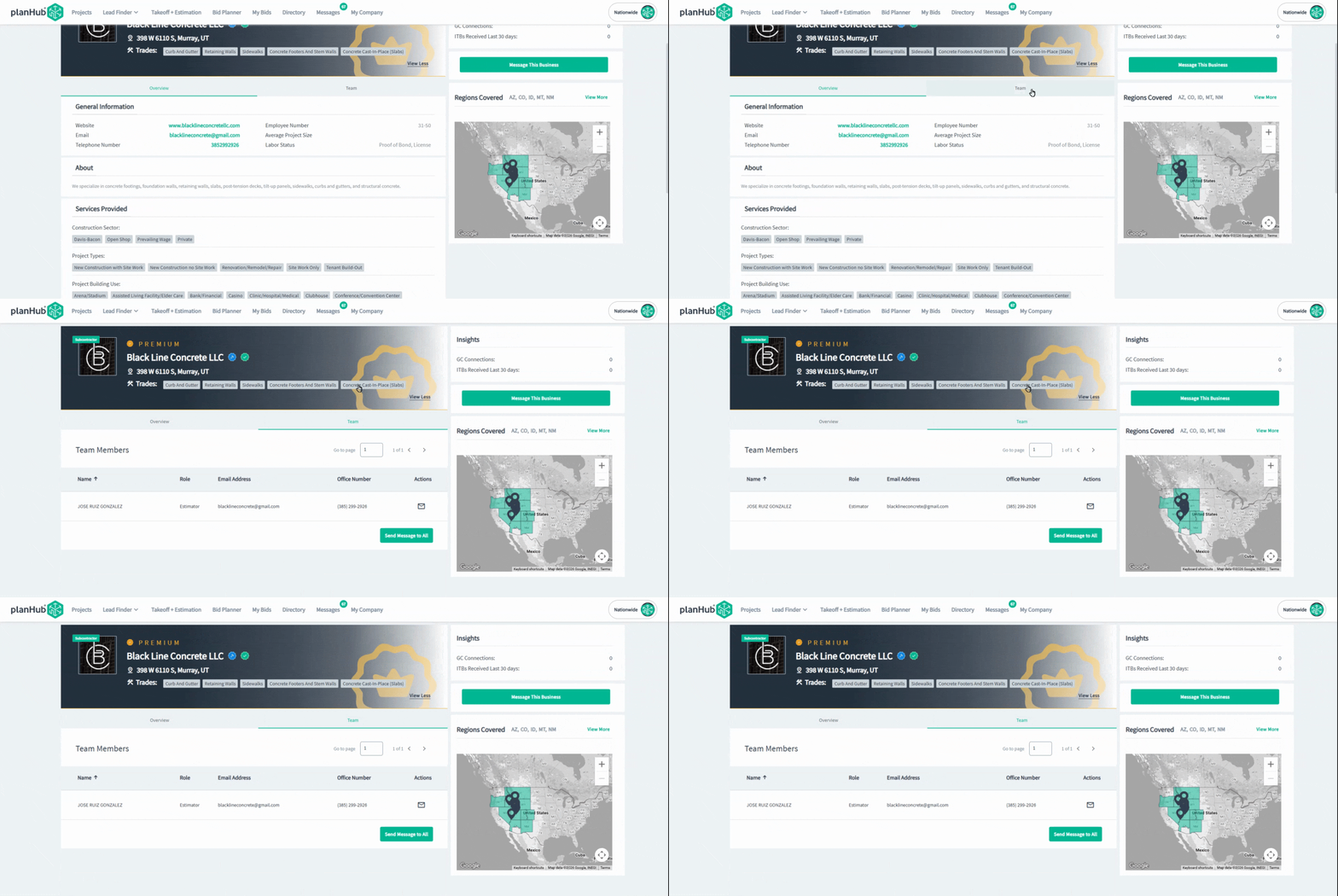
The Team tab lists all registered company contacts, including names, roles, emails, and phone numbers. Use this contact information to reach out and stay connected.
-
You can message these contacts directly. Quickly get in touch with estimators, project managers, or key decision makers using the "Send Message to All" button
-
Step 4.4: View Key Company Insights
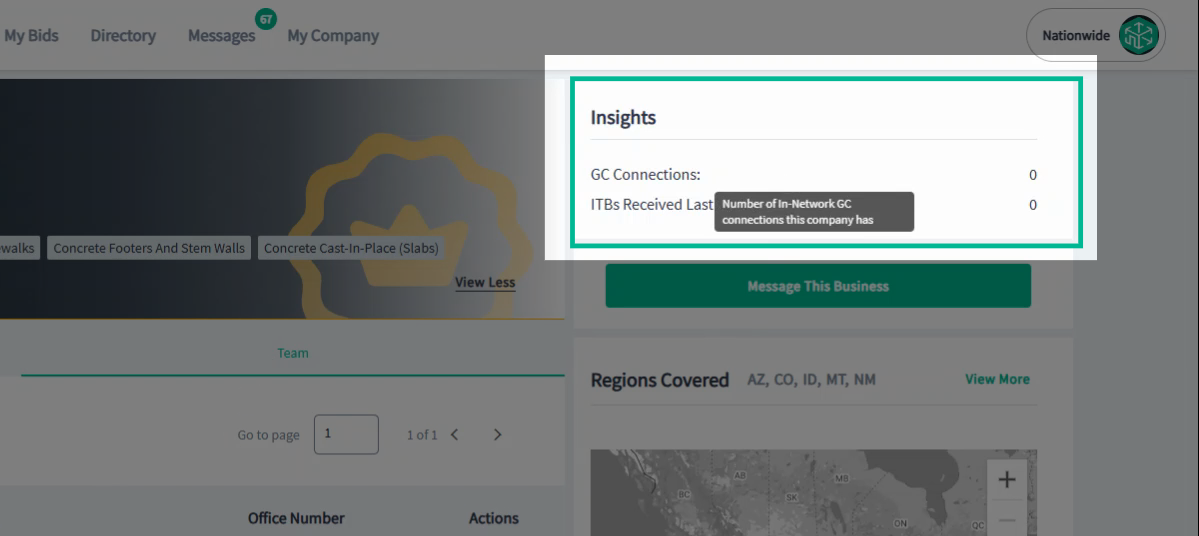
On each profile, you’ll see details about GC connections and invitation-to-bid activity to understand the company’s current involvement in PlanHub.
Step 4.5: Company Service Locations
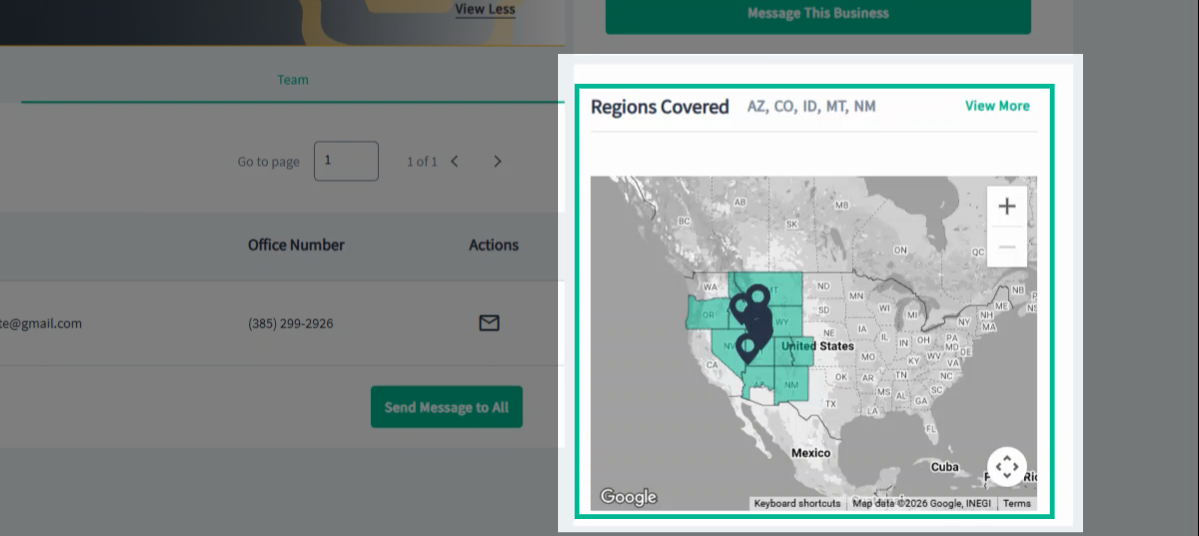
Get insight into what areas this company services using the Regions Covered section and the map.
Step 5: Review and Select Company Cards | General Contractor
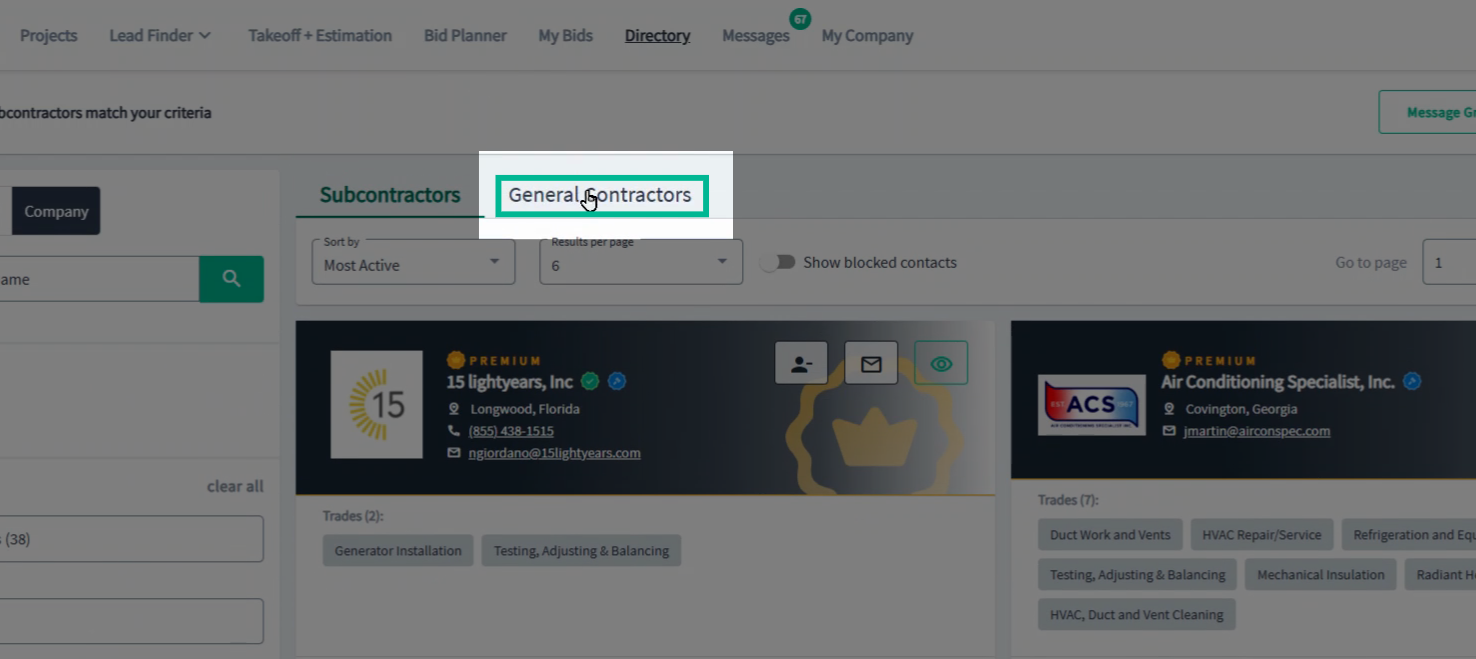
To view general contractors, select the General Contractor tab at the top of the Directory.
Step 5.1: General Contractor Company Cards
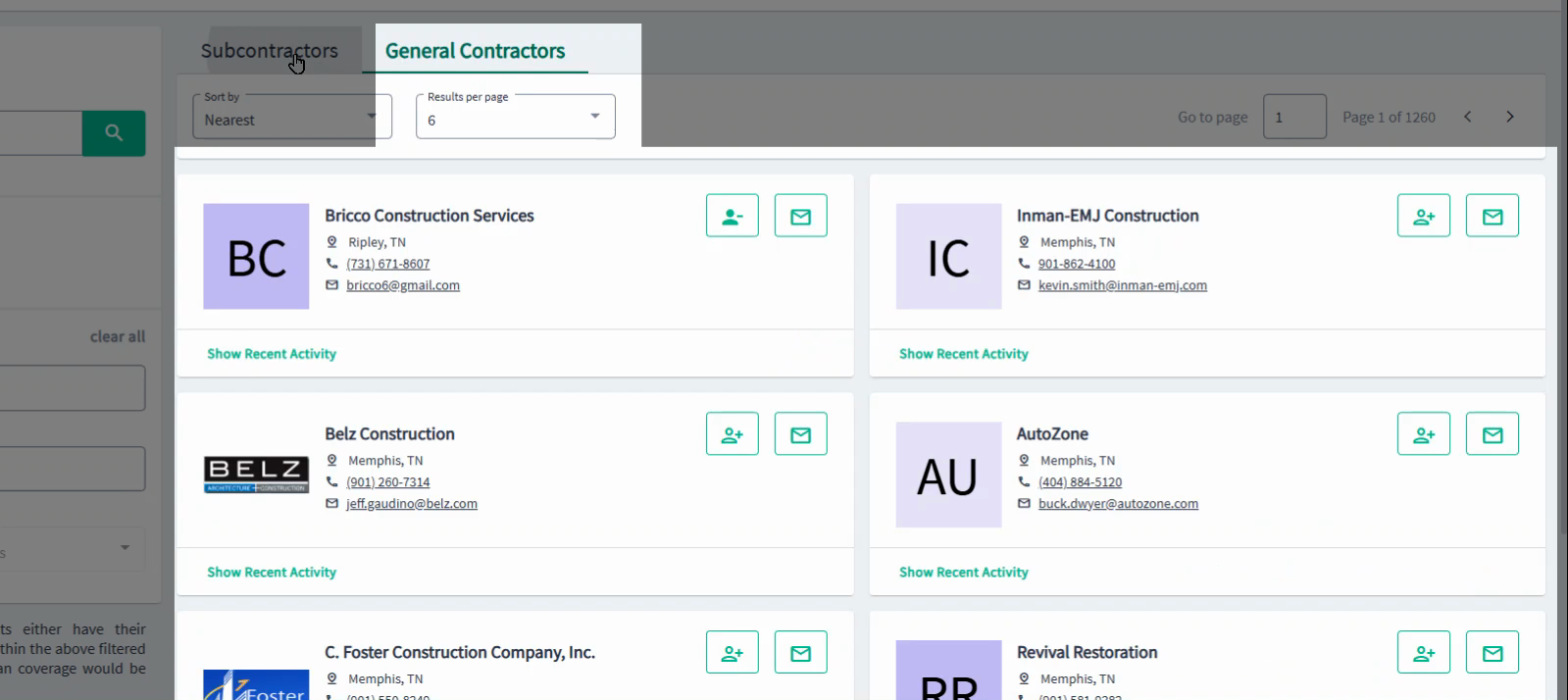
General contractor results display companies with headquarters or active projects in your targeted area. Results are filtered by your subscription plan coverage. Filter GCs by trade or location as needed. Each GC card gives you the name, address, and contact details.
Step 5.2: General Contractor Activity
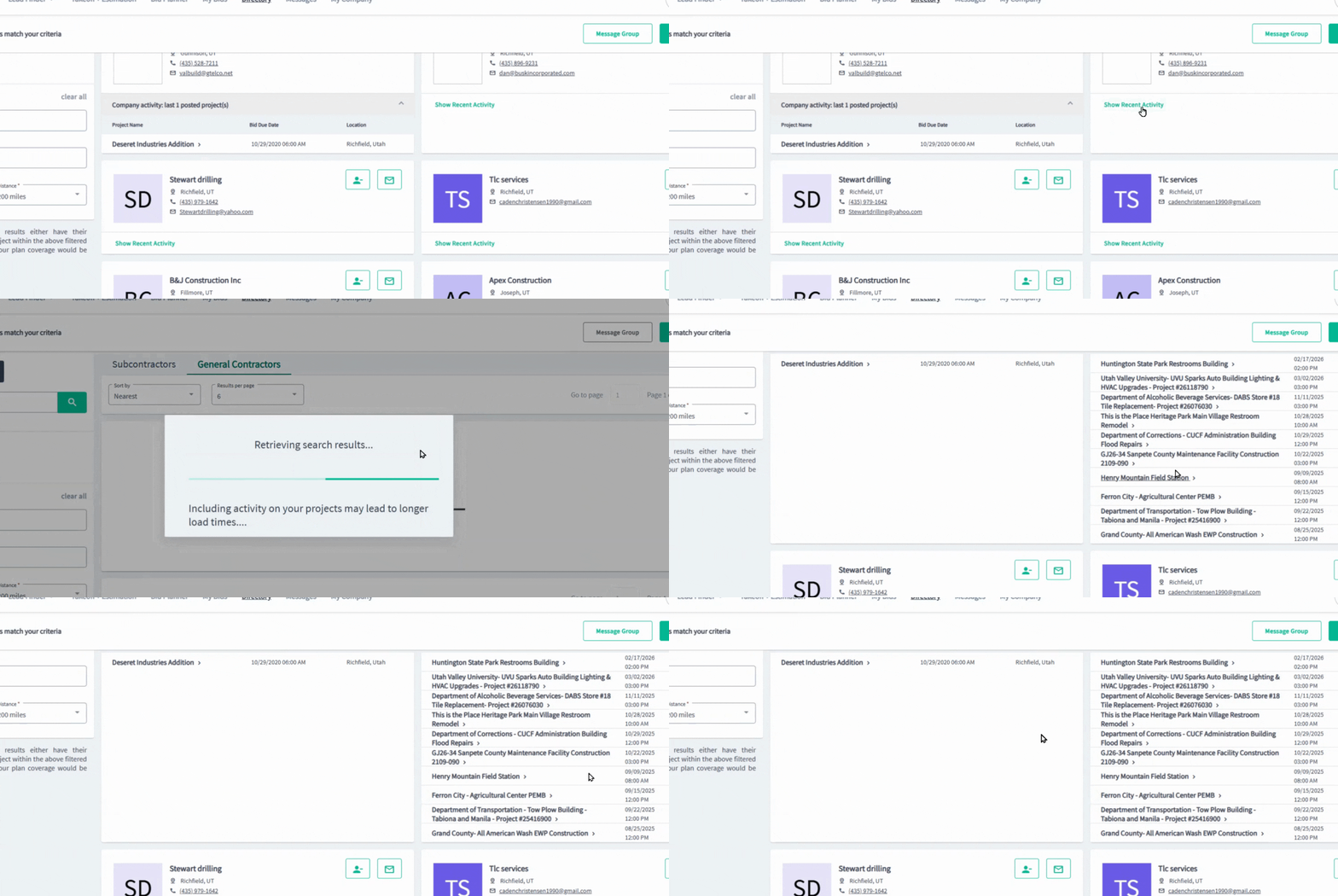
Click Show Recent Activity to see the projects a GC has recently uploaded.
Conclusion
The PlanHub Directory for Pro Plan Suppliers makes it easy to target, research, and connect with both subcontractors and general contractors. Use search and filters to quickly find companies that match your needs, review profiles and badges for key insights, and contact decision makers—all in one organized workflow. This means less time searching and more time building valuable relationships and winning new business.
Troubleshooting:
Contractors that show up in the results either have their headquarters (or) have an active project/been active on a project within the filtered area. However, only those within your plan coverage would be visible to you.
Contact us if you need assistance or to report an issue:
- PlanHub Contact Page: https://planhub.com/contact/
- Customer Facing Support Ticket Link: https://knowledgebase.planhub.com/knowledge/kb-tickets/new
- Customer Success Team: CustomerSuccess@planhub.com