![NEW_PlanHub_Logo_Navy.png]](https://knowledgebase.planhub.com/hs-fs/hubfs/Design/PH%20Logos/NEW%202024%20PH%20Logos/NEW_PlanHub_Logo_Navy.png?height=40&name=NEW_PlanHub_Logo_Navy.png)
Step 1: Open Your Account Settings
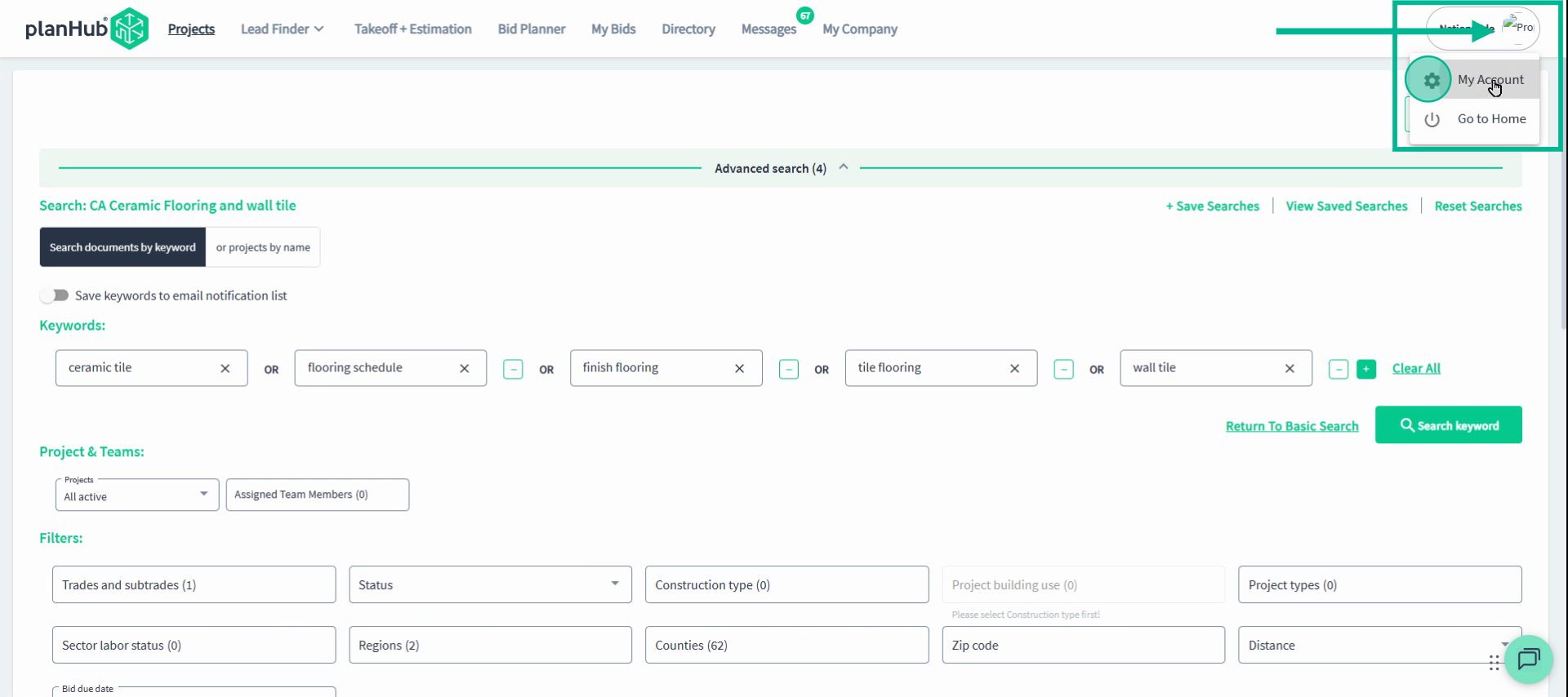
Click your company logo at the upper right. Select My Account from the drop-down menu.
Step 2: Edit Personal Profile Info
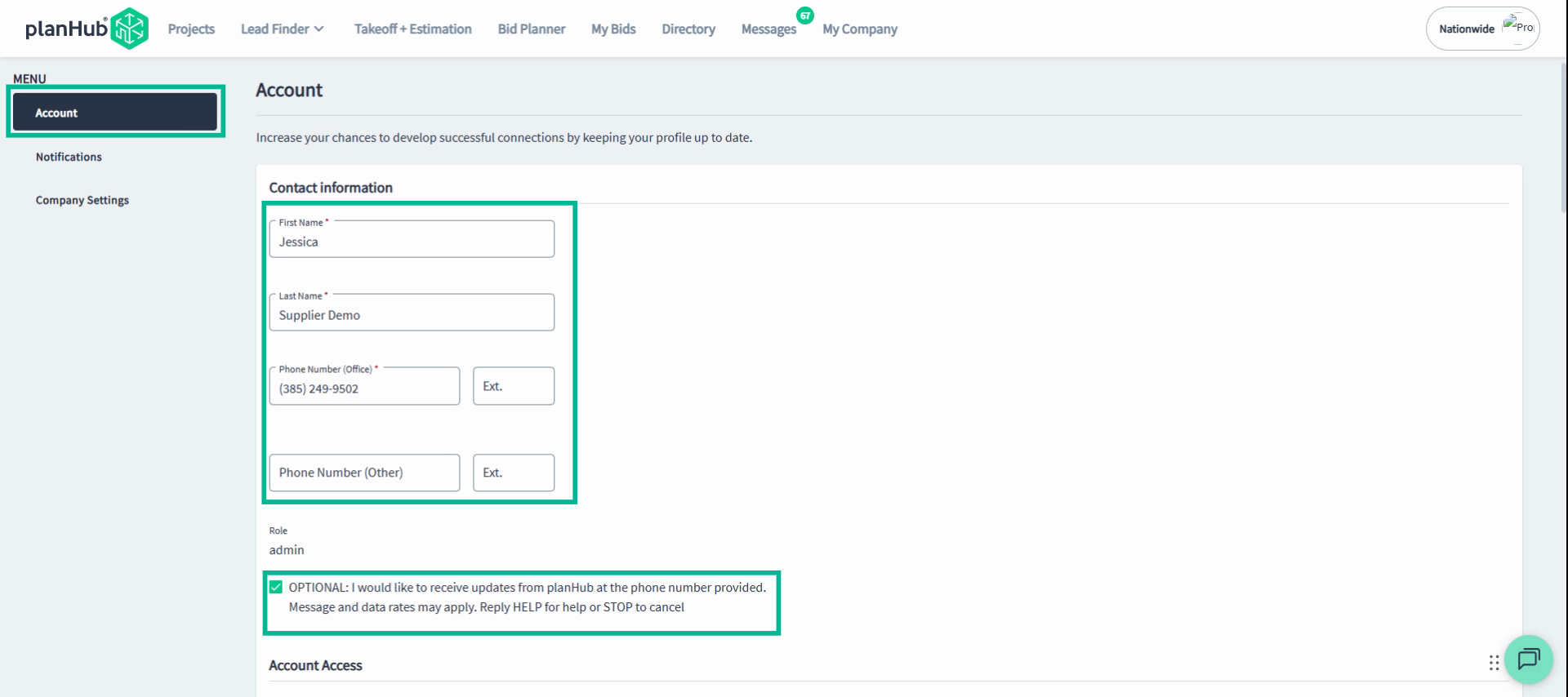
In the Account section, update your first name, last name, phone number, and text message preferences as needed.
Step 3: Adjust Email Notifications
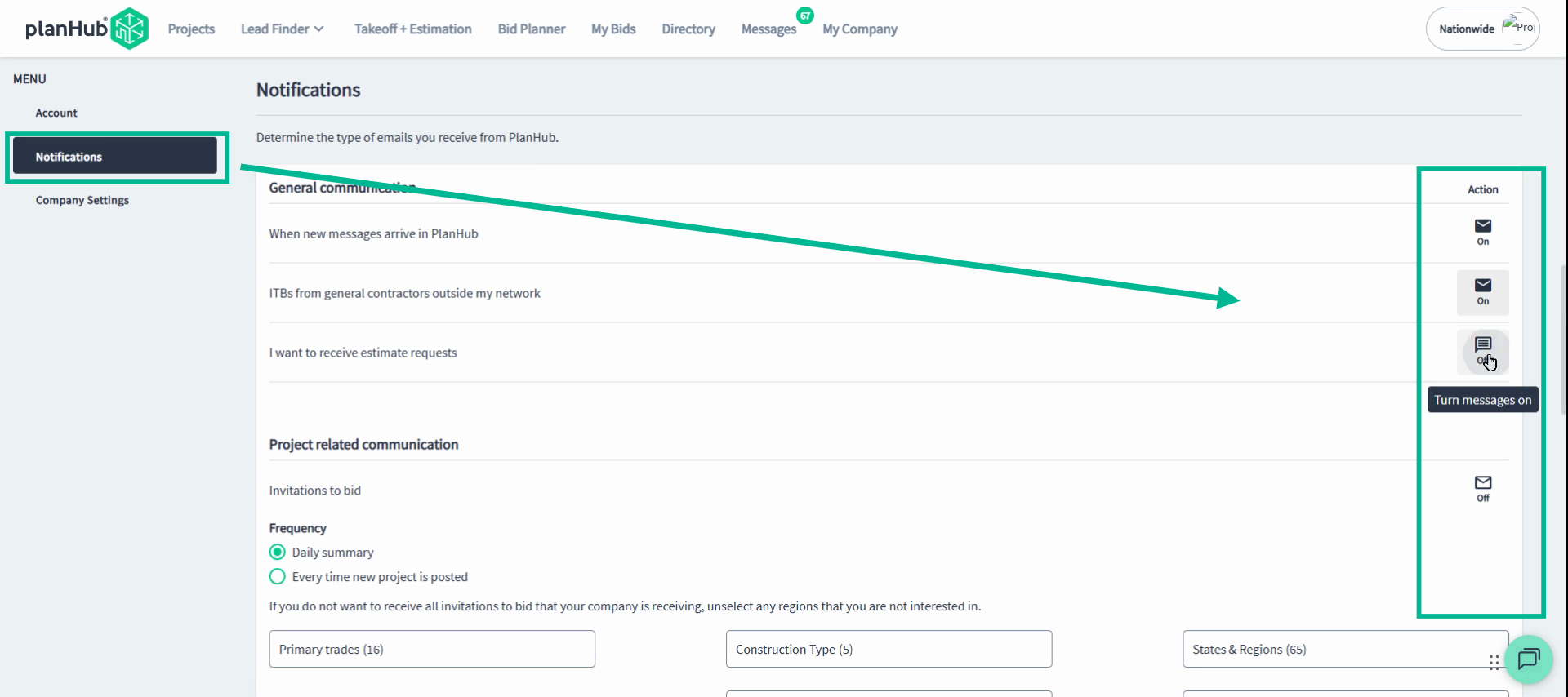
Go to the Notifications section. Use the envelope icon to turn email notifications on or off for different categories.
Step 4: Set Project Related Communications
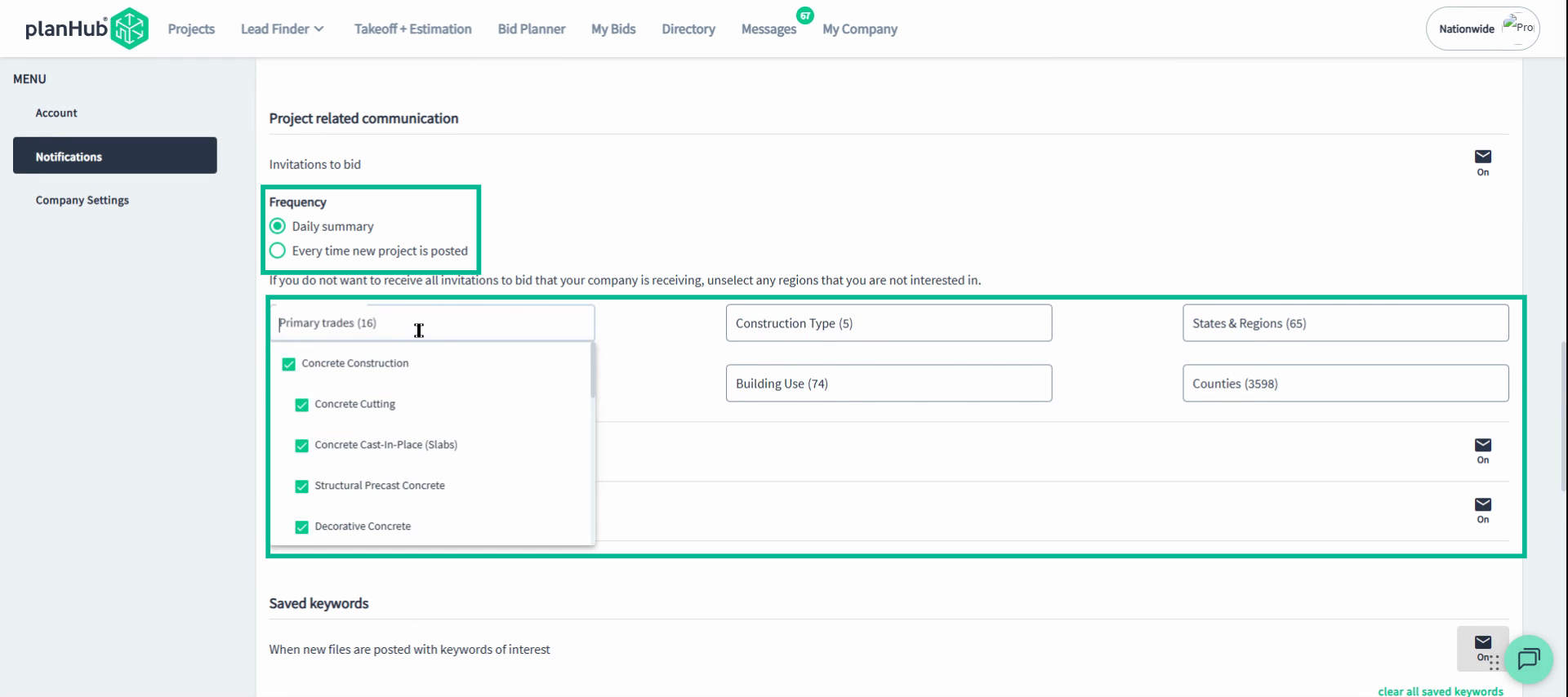
Change how often you get Project Invite emails and filter invites by Trade, Construction Type, States and Regions, Building Use, and Counties.
-
Tip: Options for Trades and Locations depend on what’s set in your company profile. If you need more options, ask your admin to update the company settings.
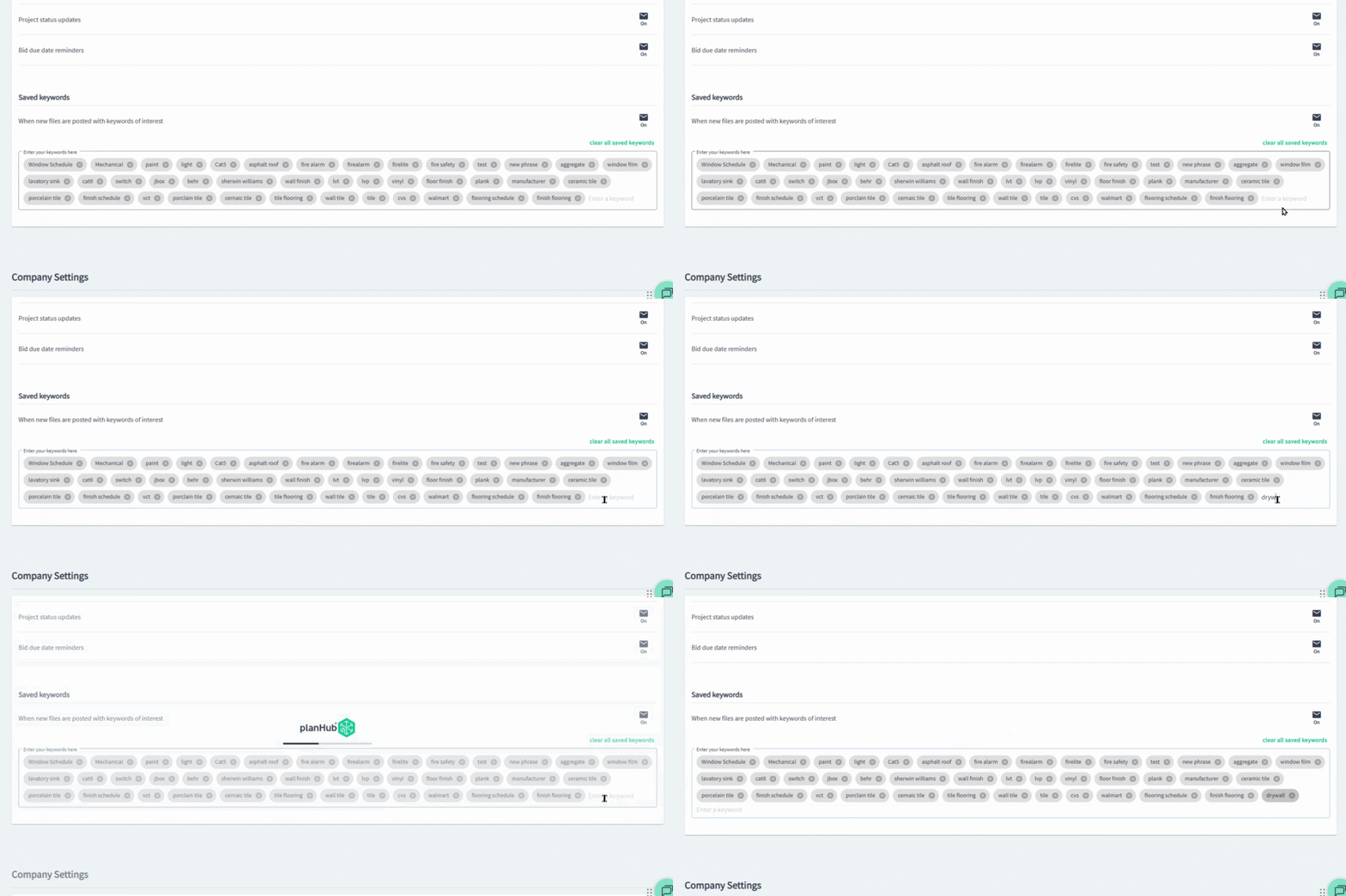
Step 5: Manage Saved Keywords for Bid Invitations
Fine-tune your invite emails by adding keywords. Enter phrases you see on plans or documents that signal relevant projects. Hit Enter to add a phrase, and click X next to any phrase to remove it.
Staying current with your notification settings ensures you never miss a project lead or important message on PlanHub.
Troubleshooting
Contact us if you need assistance or to report an issue:
- PlanHub Contact Page: https://planhub.com/contact/
- Customer Facing Support Ticket Link: https://knowledgebase.planhub.com/knowledge/kb-tickets/new
- Customer Success Team: CustomerSuccess@planhub.com