---
title: Takeoff | Page Navigation and Editing Guide
description: " In this article, you'll learn how to pan, zoom, continue measurements, undo points, adjust angles, and edit measurements in Takeoff. Step 1: Start by panning a page. Right click and hold down the"
---
[Skip to content](https://knowledgebase.planhub.com/knowledge/takeoff-page-navigation-and-editing-guide#main-content)
English
Show submenu for translations
[Submit a Ticket](https://knowledgebase.planhub.com/knowledge/kb-tickets/new?hsLang=en)
![NEW\_PlanHub\_Logo\_Navy.png\]](https://knowledgebase.planhub.com/hs-fs/hubfs/Design/PH%20Logos/NEW%202024%20PH%20Logos/NEW_PlanHub_Logo_Navy.png?height=40&name=NEW_PlanHub_Logo_Navy.png)
- [Have an Issue? Submit a Ticket](https://knowledgebase.planhub.com/knowledge/kb-tickets/new)
Open main navigation
Close main navigation
- [Have an Issue? Submit a Ticket](https://knowledgebase.planhub.com/knowledge/kb-tickets/new)
- English
Show submenu for translations
- [Submit a Ticket](https://knowledgebase.planhub.com/knowledge/kb-tickets/new)
What can we help you with?
- There are no suggestions because the search field is empty.
1. [Knowledge Base](https://knowledgebase.planhub.com/knowledge?hsLang=en)
2. [Takeoff & Estimation](https://knowledgebase.planhub.com/knowledge/takeoff-estimation?hsLang=en)
3. [Takeoff Tools & Measurements](https://knowledgebase.planhub.com/knowledge/takeoff-estimation?hsLang=en#takeoff-tools-measurements)
# Takeoff | Page Navigation and Editing Guide
## PlanHub's Takeoff makes it easy to navigate your drawing pages and manage measurements efficiently.
**Prerequisites:**
- A subscription or trial that includes Takeoff is required to measure plans, export a plan into TakeOff, and set the scale. Then you can begin measuring.
**Here’s how to pan, zoom, and work with measurements so your takeoff process stays smooth.**
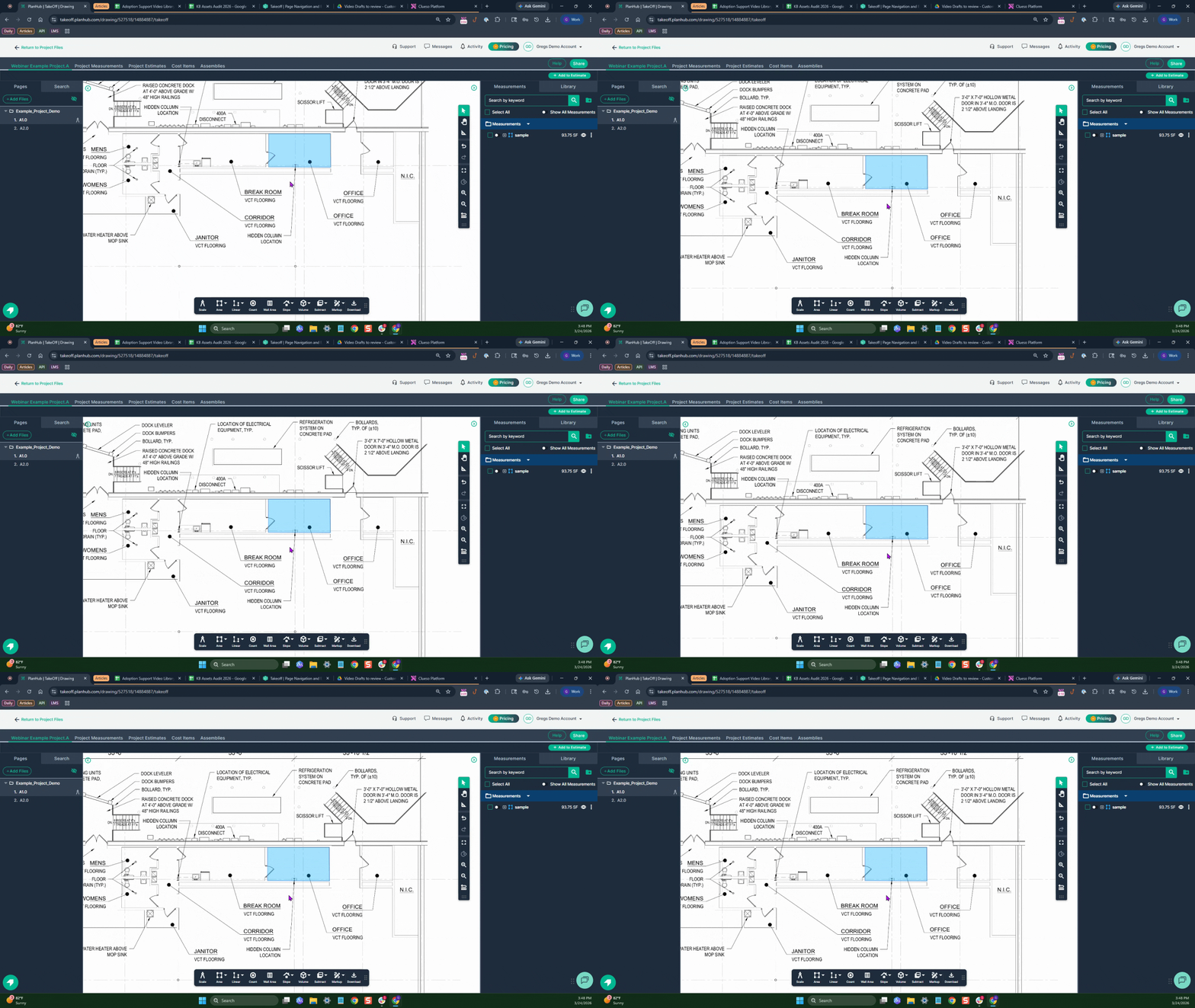
#### **Step 1:** Right-click and hold the right mouse button, then move your mouse to pan the drawing page. The page follows your mouse movement.
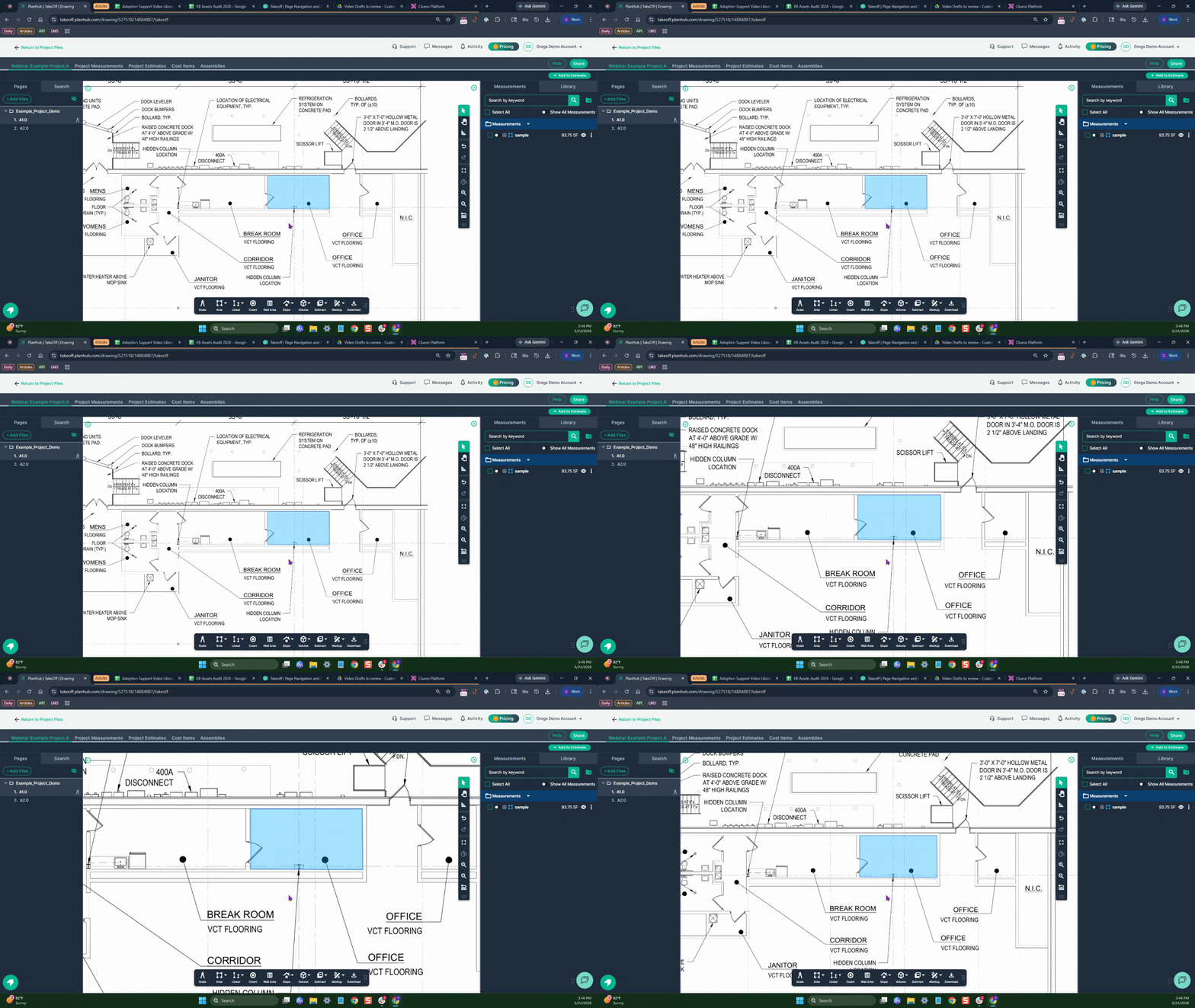
**Step 2:** Roll your mouse wheel forward to zoom in, or roll it backward to zoom out for a wider view.
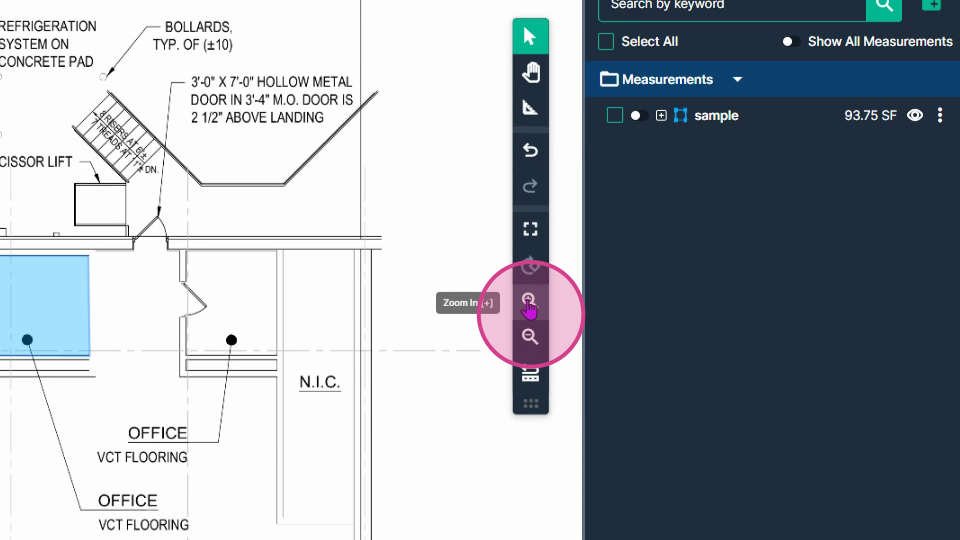
**Step 3:** Use the magnify (+) and demagnify (–) buttons for additional zoom control.
### Continuing a Measurement
Sometimes a measurement needs to extend into a new area. PlanHub's Takeoff offers several simple ways to continue your measurements.
**Step 1:** Right-click the existing measurement, then select **Continue**.
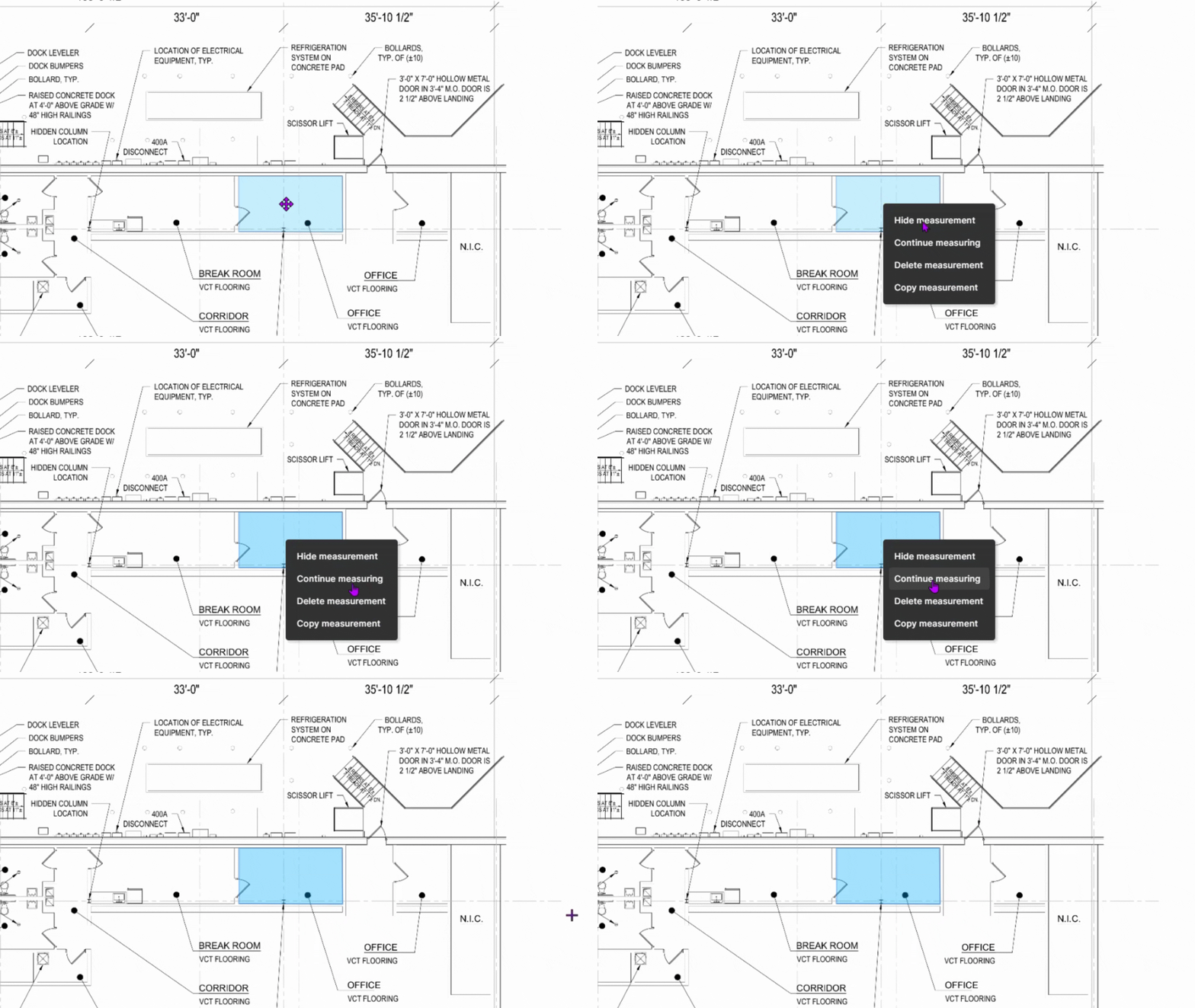
**Step 2:** Use the **Continue** switch on the measurement result by clicking the switch.
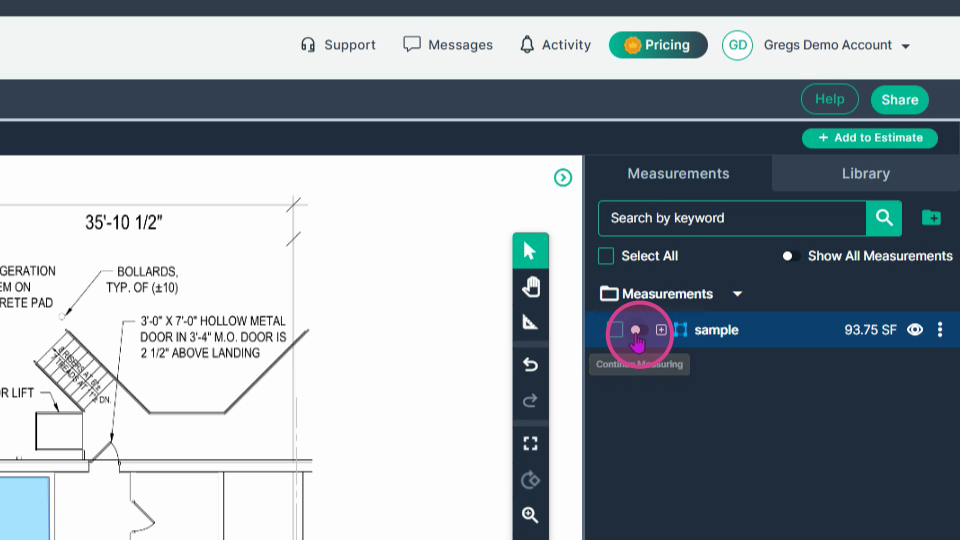
**Step 3:** You can also select the measurement and choose the plus (+) symbol on the appearance bar.
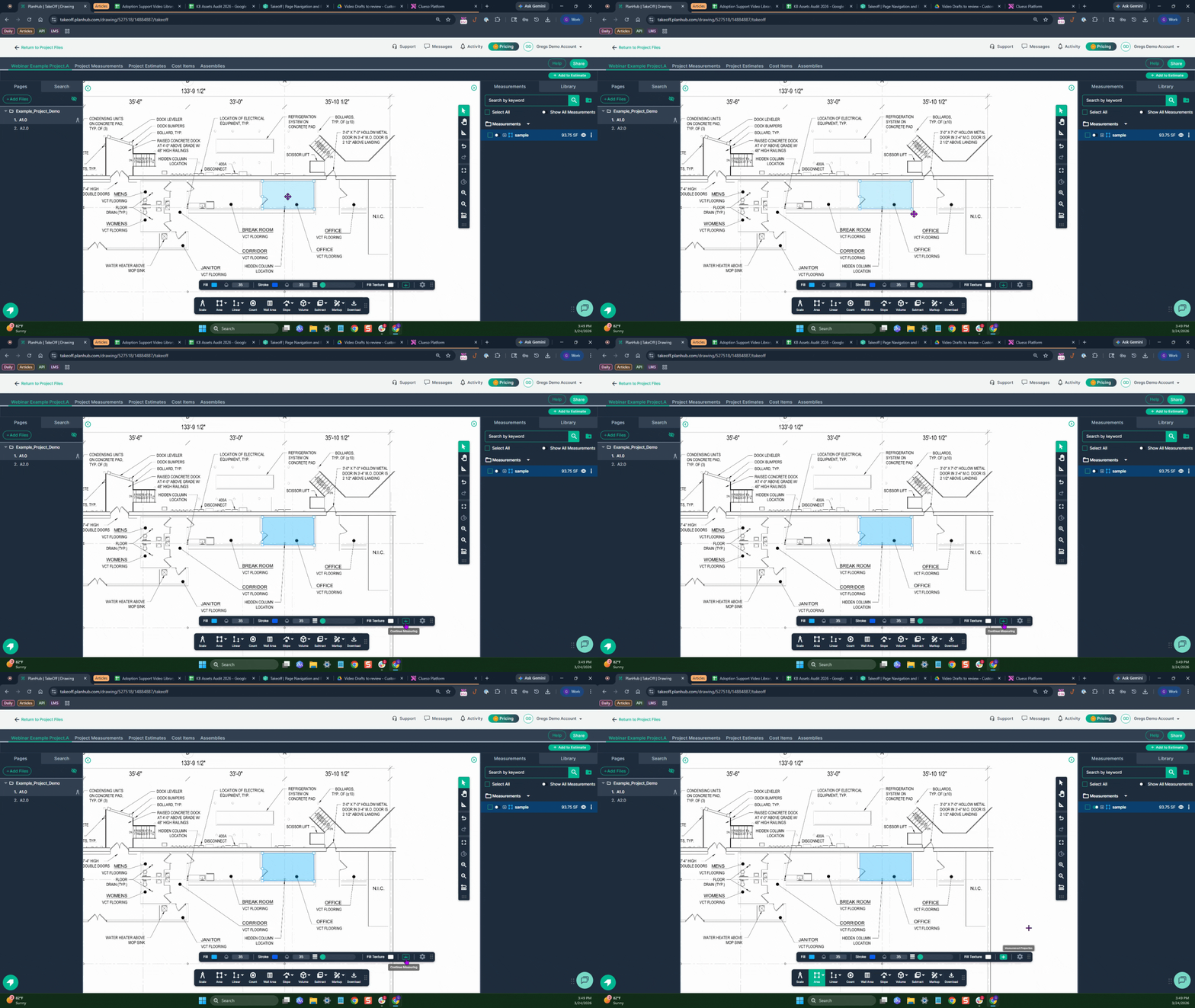
This lets you measure new areas using the same tool, maintaining consistency throughout your project.
---
### Editing Measurements
Adjusting your measurements is straightforward with the editing tools.
**Step 1:** Click the select arrow at the top of the command bar — it turns green when active, then you may select measurements with a click to begin editing.
**Step 2:** Click the measurement you want to edit, the edit points will become visible.
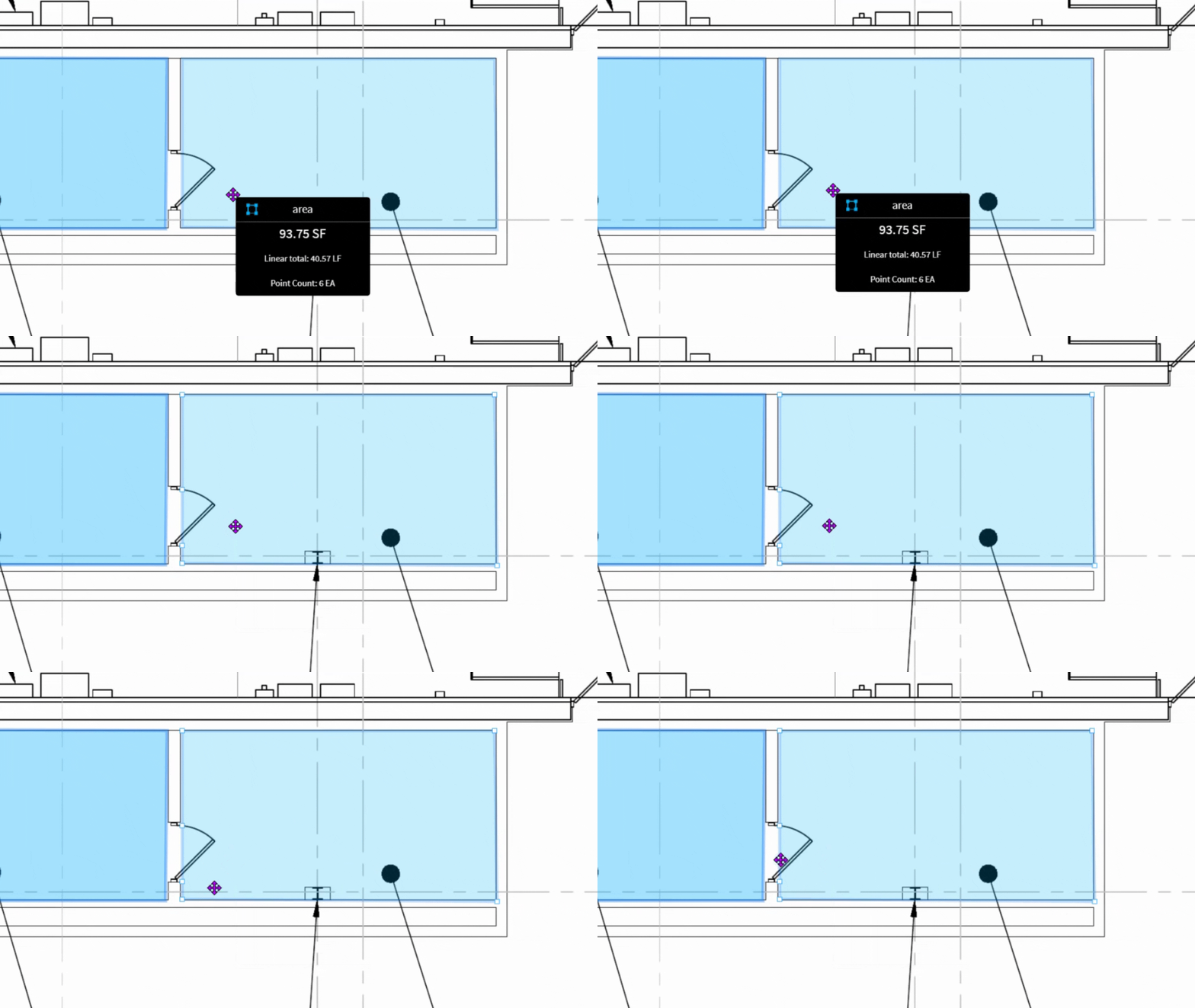
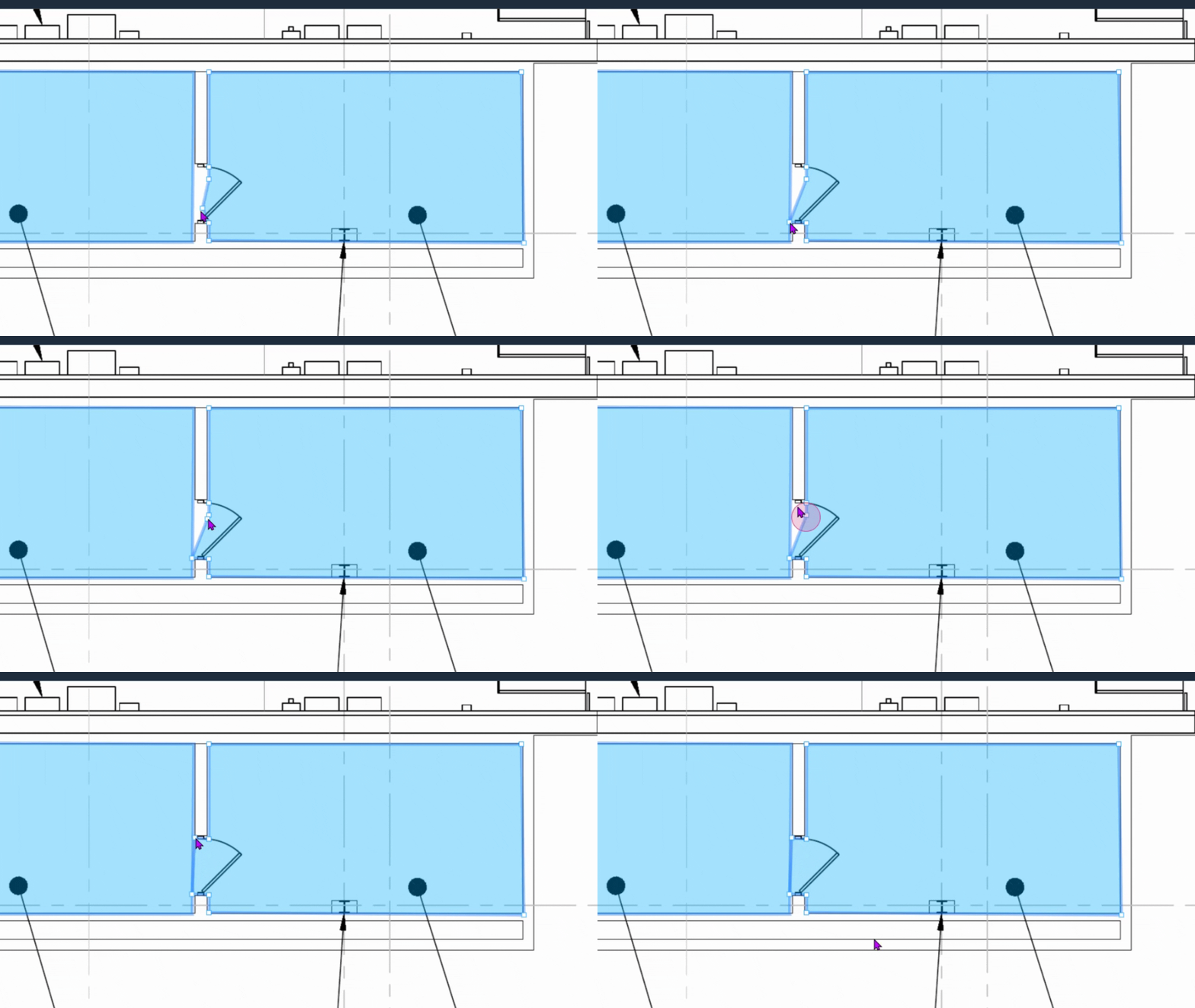
**Step 3:** Double-click where you want to add a new edit point.
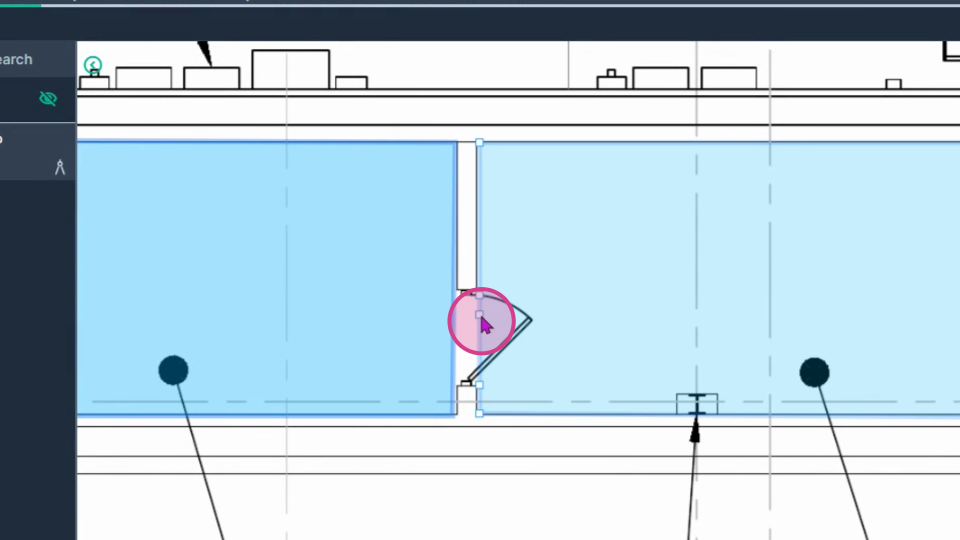
**Step 4:** Click and drag the new point to your desired location, allows fine adjustments such as expanding a measurement to include a doorway threshold.
Fixing Mistakes
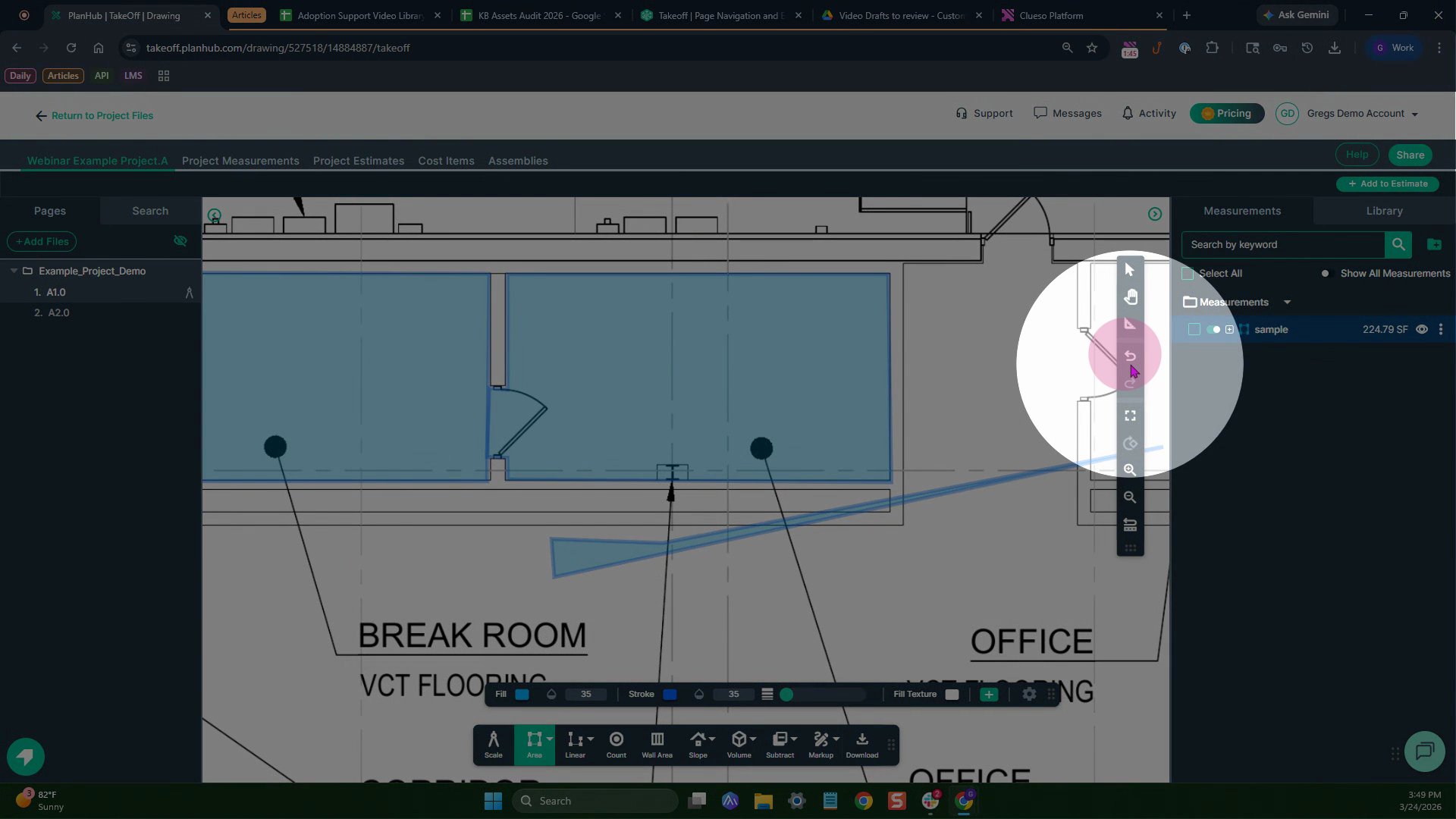
Made an error? Don’t worry — you can undo points as you measure.
**Step 1:** Use the **Undo** button on the command bar to remove points one by one.
Using Snap to Angle
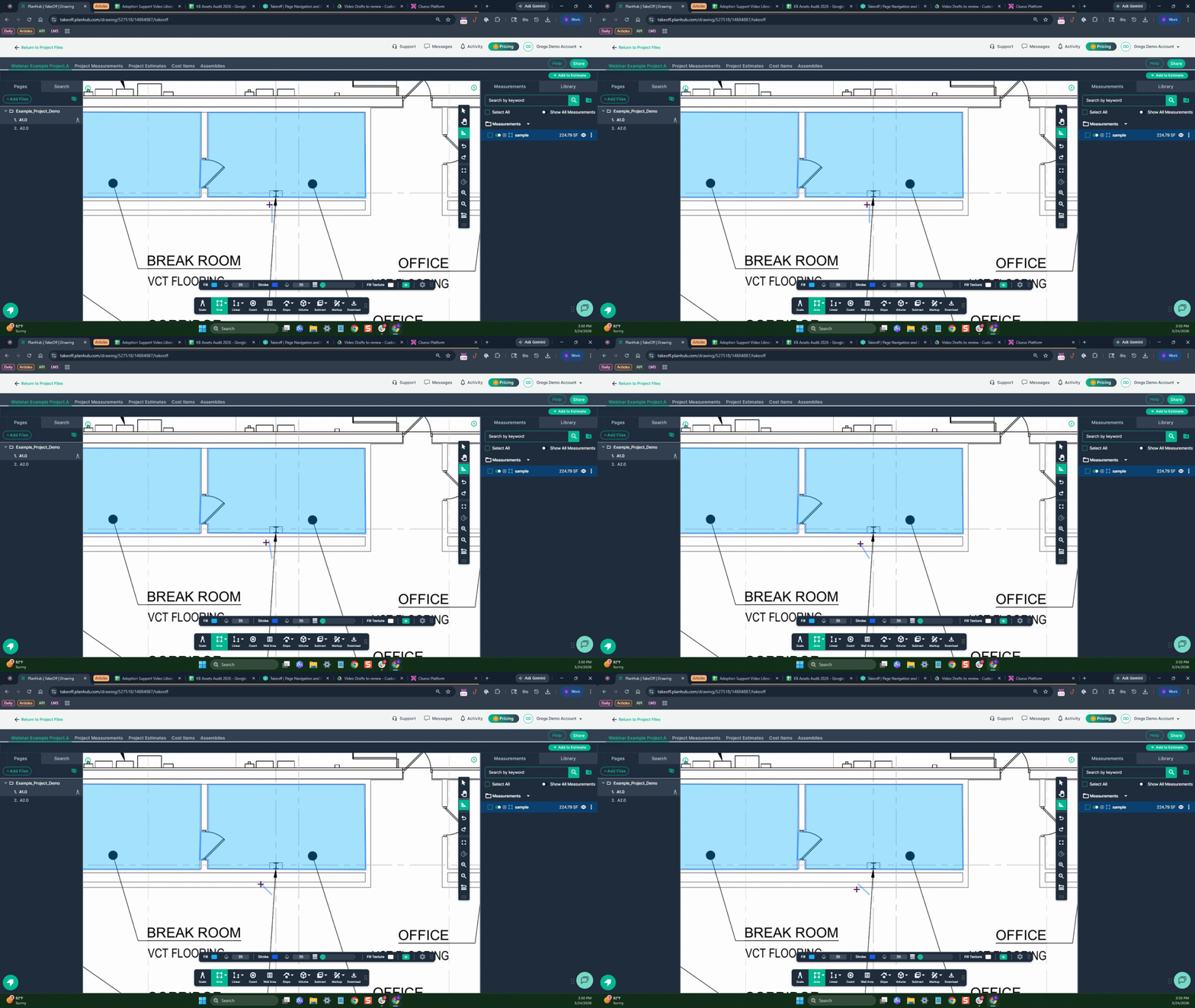
By default, lines snap to 22.5 degrees for clean, precise angles. For more flexibility:
**Step 1:** Hold the space bar to temporarily disable the snap, allowing you to draw lines at any angle.
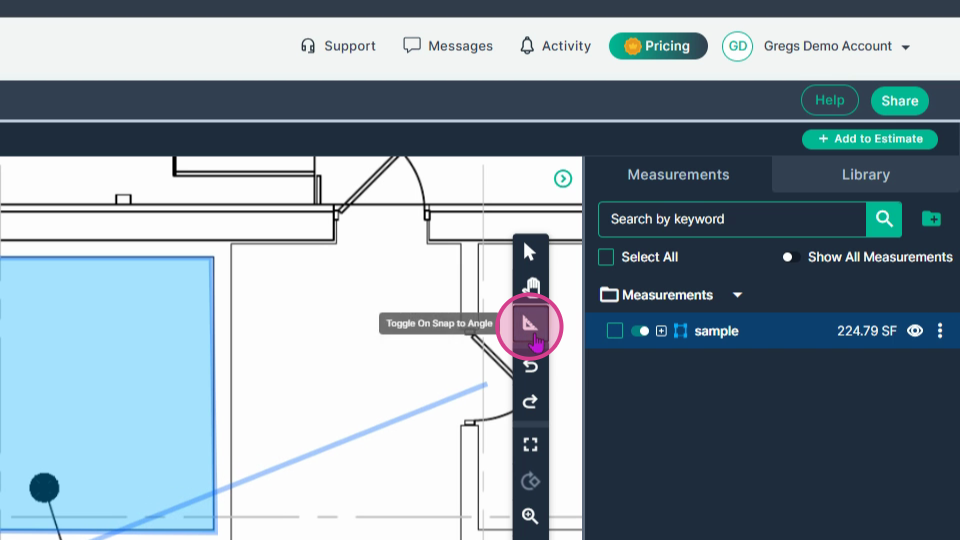
**Step 2:** Click the snap-to-angle switch to turn the feature back on as needed.
Take full control of your drawing and measurement process with these powerful navigation and editing features in Plan Ups Takeoff. Explore each tool for accuracy and speed during your next takeoff session!
**Next Steps**
Once you have completed taking all your measurements, you can:
- Download the measurements in a table from the Project Measurements page
- Share your Takeoff with anyone using the Share button in the upper right-hand corner.
---
### **Troubleshooting**
Contact us if you need assistance or to report an issue:
- PlanHub Contact Page: [https://planhub.com/contact/](https://planhub.com/contact/)
- Customer Facing Support Ticket Link: [https://knowledgebase.planhub.com/knowledge/kb-tickets/new](https://knowledgebase.planhub.com/knowledge/kb-tickets/new?hsLang=en)
- Schedule a **Free** 1-on-1 Takeoff Training: [https://meetings.hubspot.com/zac-low/takeoff-and-estimation](https://meetings.hubspot.com/zac-low/takeoff-and-estimation?__hstc=143611818.21027487ab2569aa780deedad7b3e510.1767116760760.1778608051685.1778612775772.256&__hssc=143611818.3.1778612775772&__hsfp=9a20deea0f29d5f2adc379a49644adc2)
- [General Contractor](https://knowledgebase.planhub.com/knowledge/general-contractor?hsLang=en#main-content)
- [Overview](https://knowledgebase.planhub.com/knowledge/general-contractor?hsLang=en#overview)
- [Projects](https://knowledgebase.planhub.com/knowledge/general-contractor?hsLang=en#projects)
- [Networking](https://knowledgebase.planhub.com/knowledge/general-contractor?hsLang=en#networking)
- [Subcontractors](https://knowledgebase.planhub.com/knowledge/subcontractors?hsLang=en#main-content)
- [Overview](https://knowledgebase.planhub.com/knowledge/subcontractors?hsLang=en#overview)
- [Projects](https://knowledgebase.planhub.com/knowledge/subcontractors?hsLang=en#projects)
- [Bid Board & Tracking](https://knowledgebase.planhub.com/knowledge/subcontractors?hsLang=en#bid-board-tracking)
- [Networking](https://knowledgebase.planhub.com/knowledge/subcontractors?hsLang=en#networking)
- [Takeoff & Estimation](https://knowledgebase.planhub.com/knowledge/subcontractors?hsLang=en#takeoff-estimation)
- [Manage Your Team](https://knowledgebase.planhub.com/knowledge/subcontractors?hsLang=en#manage-your-team)
- [Account & Settings](https://knowledgebase.planhub.com/knowledge/subcontractors?hsLang=en#account-settings)
- [Job Board](https://knowledgebase.planhub.com/knowledge/subcontractors?hsLang=en#job-board)
- [Request for Information](https://knowledgebase.planhub.com/knowledge/subcontractors?hsLang=en#request-for-information)
- [Supplier](https://knowledgebase.planhub.com/knowledge/supplier?hsLang=en#main-content)
- [Overview](https://knowledgebase.planhub.com/knowledge/supplier?hsLang=en#overview)
- [Projects and Leads](https://knowledgebase.planhub.com/knowledge/supplier?hsLang=en#projects-and-leads)
- [Bidding & Estimating](https://knowledgebase.planhub.com/knowledge/supplier?hsLang=en#bidding-estimating)
- [Networking](https://knowledgebase.planhub.com/knowledge/supplier?hsLang=en#networking)
- [Account & Settings](https://knowledgebase.planhub.com/knowledge/supplier?hsLang=en#account-settings)
- [Takeoff & Estimation](https://knowledgebase.planhub.com/knowledge/takeoff-estimation?hsLang=en#main-content)
- [Getting Started](https://knowledgebase.planhub.com/knowledge/takeoff-estimation?hsLang=en#getting-started)
- [Takeoff Tools & Measurements](https://knowledgebase.planhub.com/knowledge/takeoff-estimation?hsLang=en#takeoff-tools-measurements)
- [Trade-Specific Takeoffs](https://knowledgebase.planhub.com/knowledge/takeoff-estimation?hsLang=en#trade-specific-takeoffs)
- [Estimating](https://knowledgebase.planhub.com/knowledge/takeoff-estimation?hsLang=en#estimating)
- [Managing & Sharing Your Work](https://knowledgebase.planhub.com/knowledge/takeoff-estimation?hsLang=en#managing-sharing-your-work)
- [Account & Billing](https://knowledgebase.planhub.com/knowledge/account-billing?hsLang=en#main-content)
- [Account & Billing](https://knowledgebase.planhub.com/knowledge/account-billing?hsLang=en#account-billing)
- [Account Closure](https://knowledgebase.planhub.com/knowledge/account-billing?hsLang=en#account-closure)
- [Troubleshooting](https://knowledgebase.planhub.com/knowledge/troubleshooting?hsLang=en)
- [About PlanHub](https://knowledgebase.planhub.com/knowledge/about-planhub?hsLang=en)
- [New General Contractor Experience](https://knowledgebase.planhub.com/knowledge/new-general-contractor-experience?hsLang=en#main-content)
- [Overview](https://knowledgebase.planhub.com/knowledge/new-general-contractor-experience?hsLang=en#overview)
- [Projects](https://knowledgebase.planhub.com/knowledge/new-general-contractor-experience?hsLang=en#projects)
- [Networking](https://knowledgebase.planhub.com/knowledge/new-general-contractor-experience?hsLang=en#networking)
- [Takeoff & Estimation](https://knowledgebase.planhub.com/knowledge/new-general-contractor-experience?hsLang=en#takeoff-estimation)
- [Account & Settings](https://knowledgebase.planhub.com/knowledge/new-general-contractor-experience?hsLang=en#account-settings)
- [Manage Your Team](https://knowledgebase.planhub.com/knowledge/new-general-contractor-experience?hsLang=en#manage-your-team)
- [Submit Feedback](https://knowledgebase.planhub.com/knowledge/submit-feedback?hsLang=en#main-content)
- [Feedback](https://knowledgebase.planhub.com/knowledge/submit-feedback?hsLang=en#feedback)
- [Have an Issue? Submit a Ticket](https://knowledgebase.planhub.com/knowledge/kb-tickets/new)
[](http://planhub.com)
[Knowledge Base Home](https://knowledgebase.planhub.com/knowledge?hsLang=en)
[Submit a Ticket](https://knowledgebase.planhub.com/knowledge/kb-tickets/new?hsLang=en)
Copyright © 2026, ©2026 PlanHub, Inc. All rights reserved