---
title: Supplier | Keyword Search and Saved Search Alerts
description: supplier, keyword search, advanced search, filters
---
[Skip to content](https://knowledgebase.planhub.com/knowledge/supplier-keyword-search-and-saved-search-alerts#main-content)
English
Show submenu for translations
[Submit a Ticket](https://knowledgebase.planhub.com/knowledge/kb-tickets/new?hsLang=en)
![NEW\_PlanHub\_Logo\_Navy.png\]](https://knowledgebase.planhub.com/hs-fs/hubfs/Design/PH%20Logos/NEW%202024%20PH%20Logos/NEW_PlanHub_Logo_Navy.png?height=40&name=NEW_PlanHub_Logo_Navy.png)
- [Have an Issue? Submit a Ticket](https://knowledgebase.planhub.com/knowledge/kb-tickets/new)
Open main navigation
Close main navigation
- [Have an Issue? Submit a Ticket](https://knowledgebase.planhub.com/knowledge/kb-tickets/new)
- English
Show submenu for translations
- [Submit a Ticket](https://knowledgebase.planhub.com/knowledge/kb-tickets/new)
What can we help you with?
- There are no suggestions because the search field is empty.
1. [Knowledge Base](https://knowledgebase.planhub.com/knowledge?hsLang=en)
2. [Supplier](https://knowledgebase.planhub.com/knowledge/supplier?hsLang=en)
3. [Projects and Leads](https://knowledgebase.planhub.com/knowledge/supplier?hsLang=en#projects-and-leads)
# Supplier | Keyword Search and Saved Search Alerts
## Find the projects that match your saved keywords by mastering planHub’s advanced search features. Below, you will learn how to quickly find, review, and save keyword searches for projects that match your trades.
Supplier | Keyword Search and Saved Search Alerts
Find the projects that match your saved keywords by mastering planHub’s advanced search features. Below, you will learn how to quickly find, review, and save keyword searches for projects that match your trades.
**Step 1:** Navigate to your planHub Supplier Account **Projects** page.
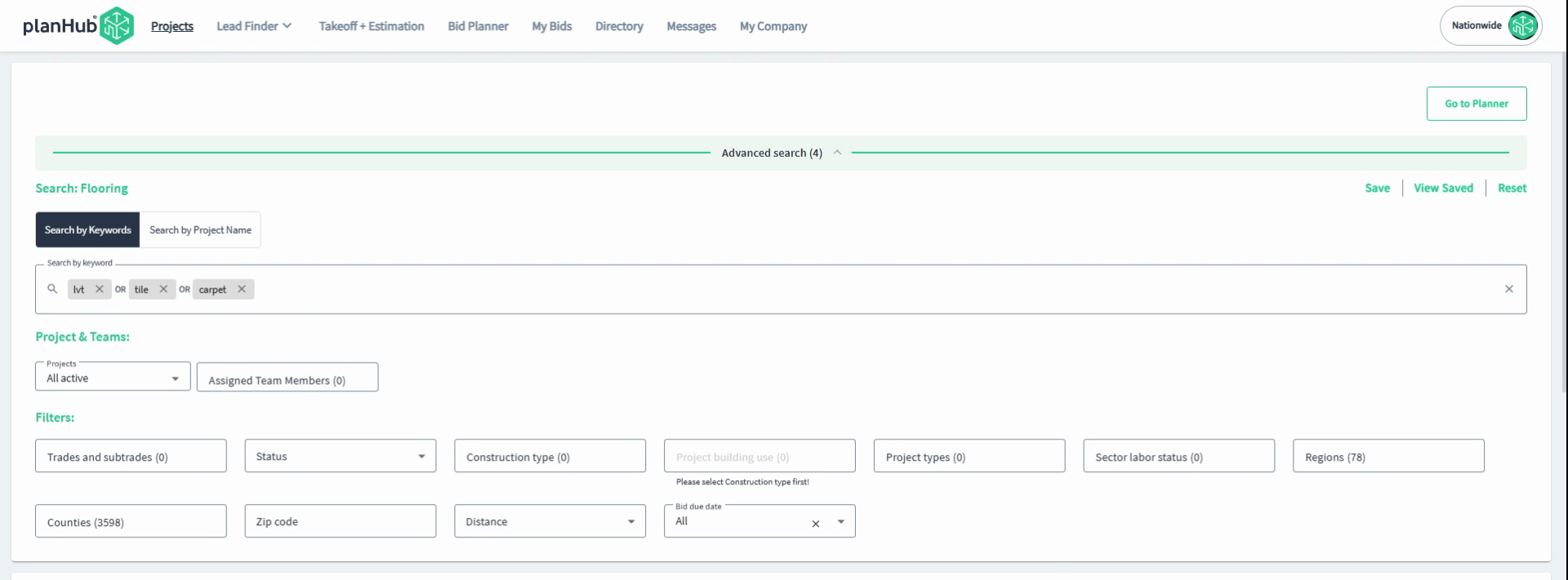
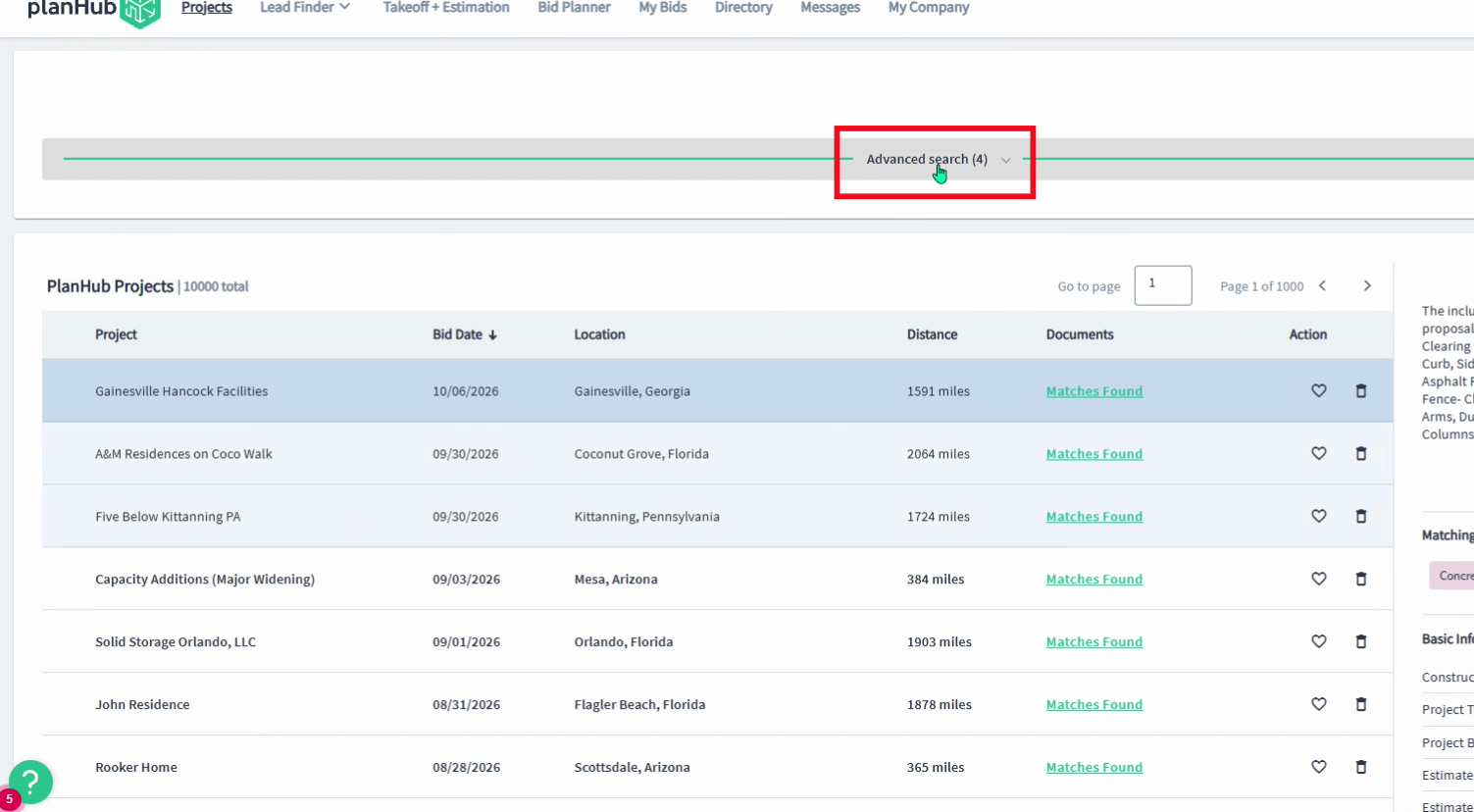
**Step 2:** Click **Advanced Search** in the center of the page to open menu.
**Step 3:** On the left side, select the tab to **Search by Keywords**.

**Step 4:** In the **Keyword Search** bar, type in your preferred keywords. You can enter individual or multi-phrase keywords.
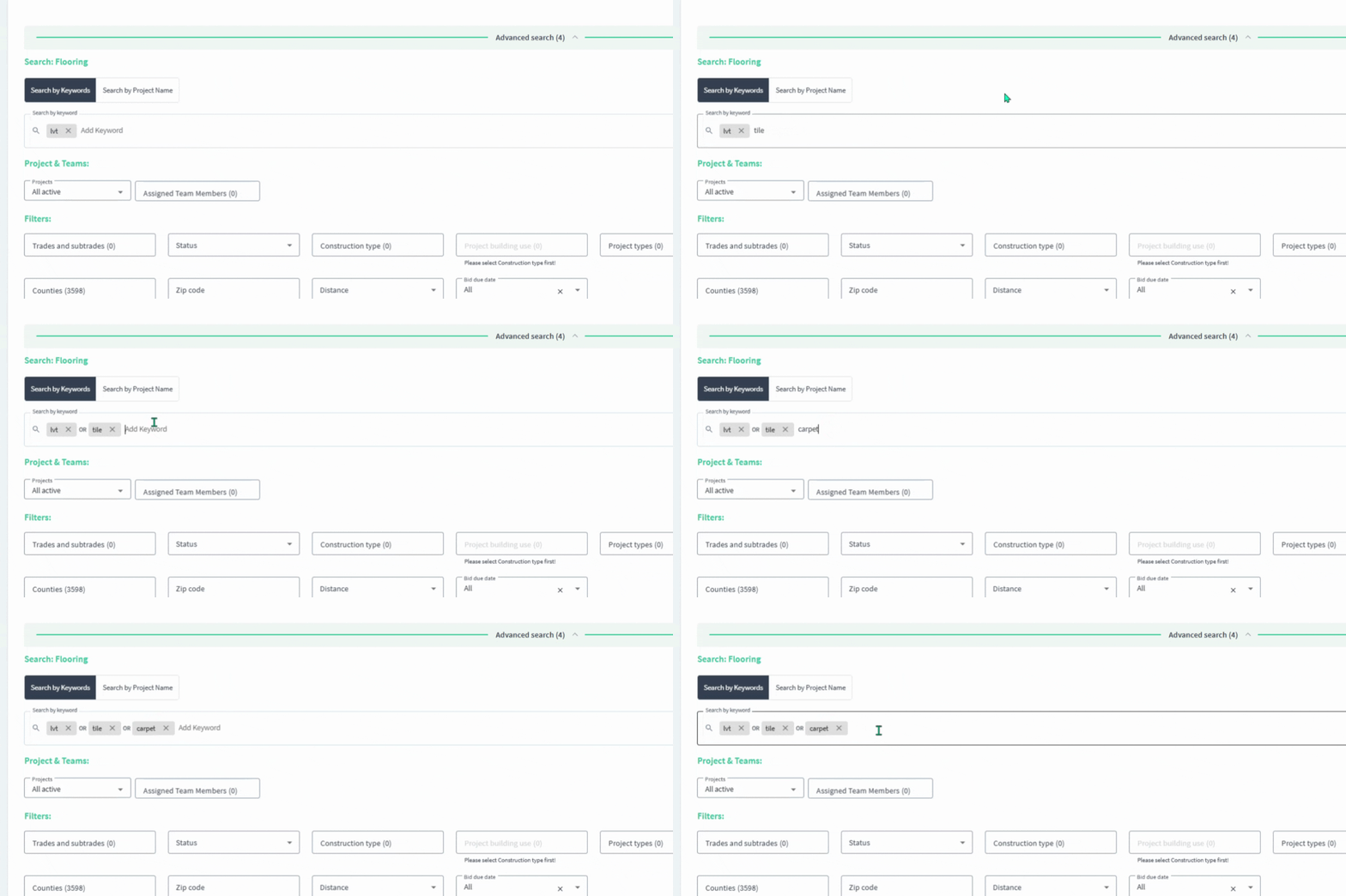
**Step 5:** Once you add a keyword, press **Enter**. The project list results update instantly with matches.
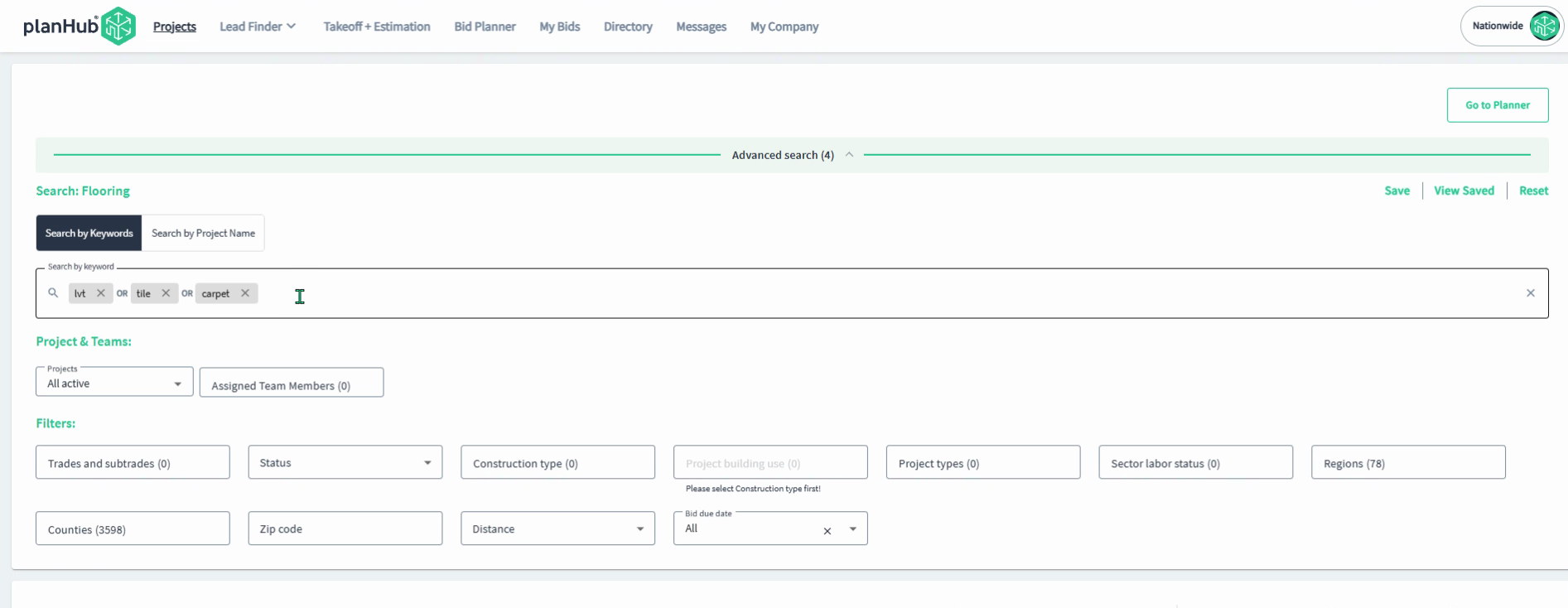
**Step 6:** To save your keyword search, click **Save** in the upper right corner of the Advanced Search.
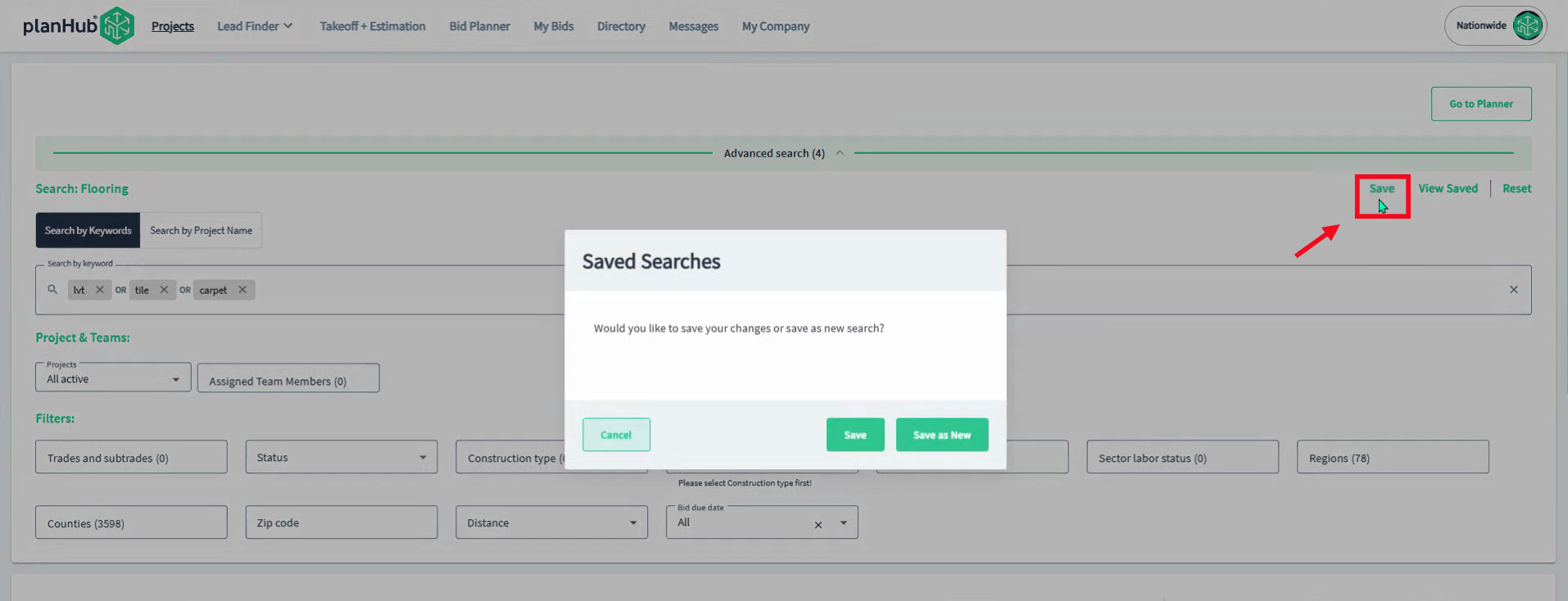
**Step 7:** In the **Saved Searches** window, select **Save as New** to create a new filter, or **Save** to update the current Filter.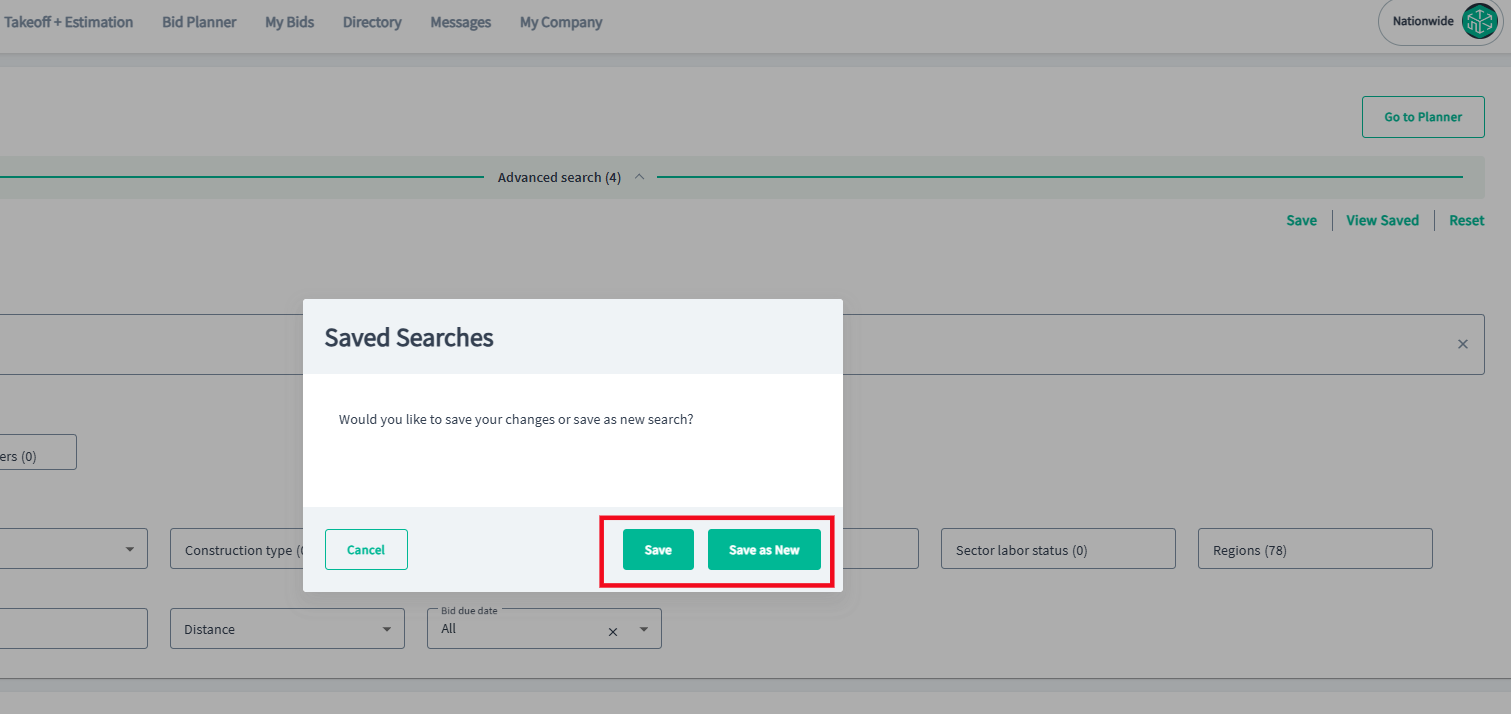
**Step 8:** Toggle **Email Alerts** on to get notified when new projects match your saved keyword search.
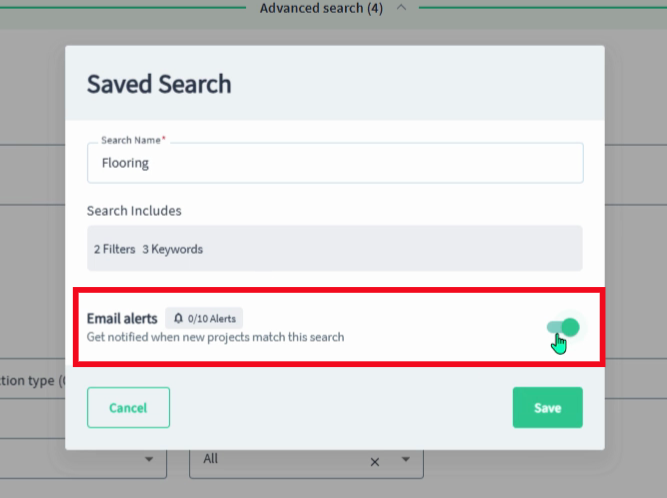
**Step 9:** Click **Save** to store your filter and alert.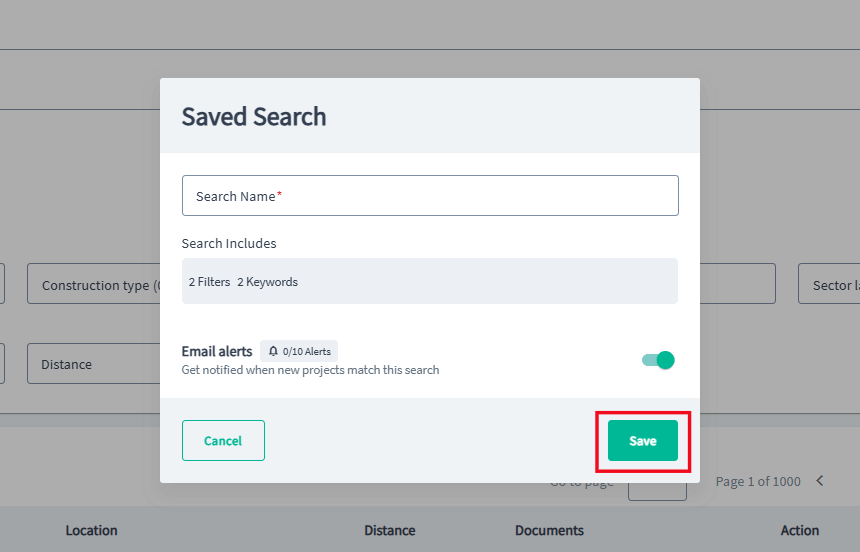
**Step 10:** To review your saved searches, click **View Saved**. This displays your **Manage Saved Searches** menu, where you can manage alerts and delete saved keyword searches.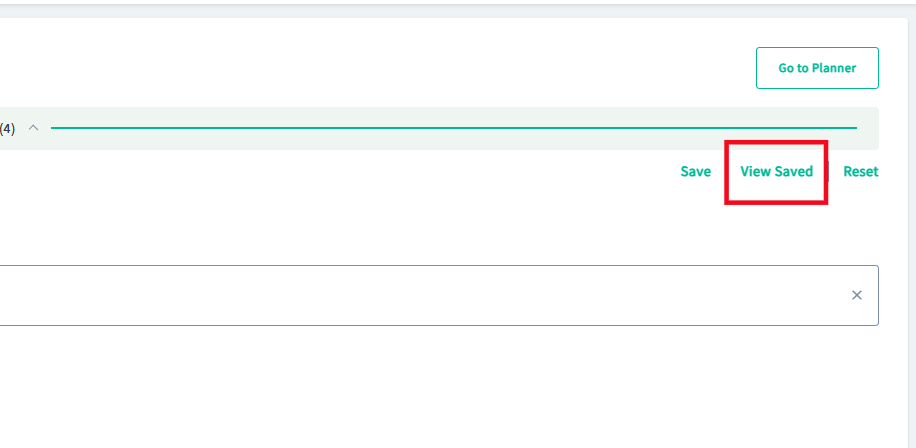
**Step 11:** Click the alert icon to enable or disable email notifications. Click the trash can icon to delete a saved keyword search.
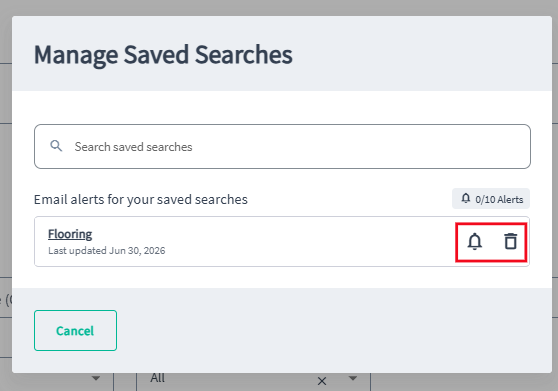
**Step 12:** Save up to ten email alerts for your keyword searches.
**Step 13:** To reset your current search and start over, click **Reset** in the upper right corner. This clears the keyword field.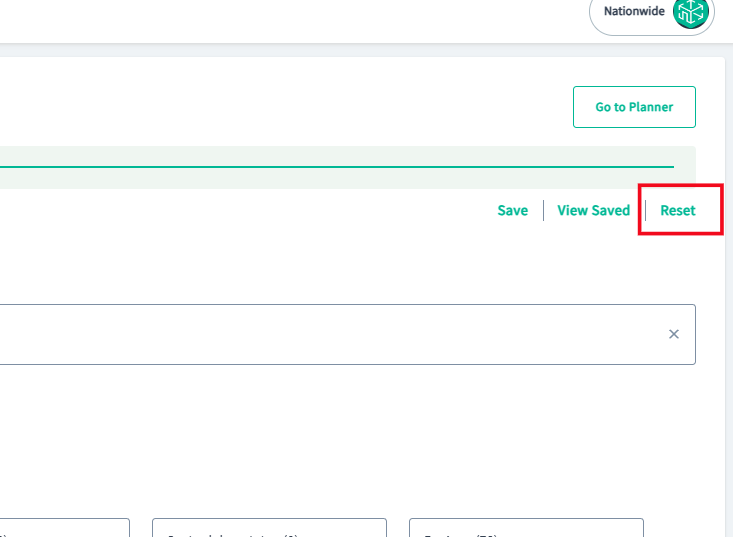
**Step 14:** As you enter or modify keywords, the project list updates automatically. To see keyword matches in a project, click **Matches Found** under the **Documents** column.
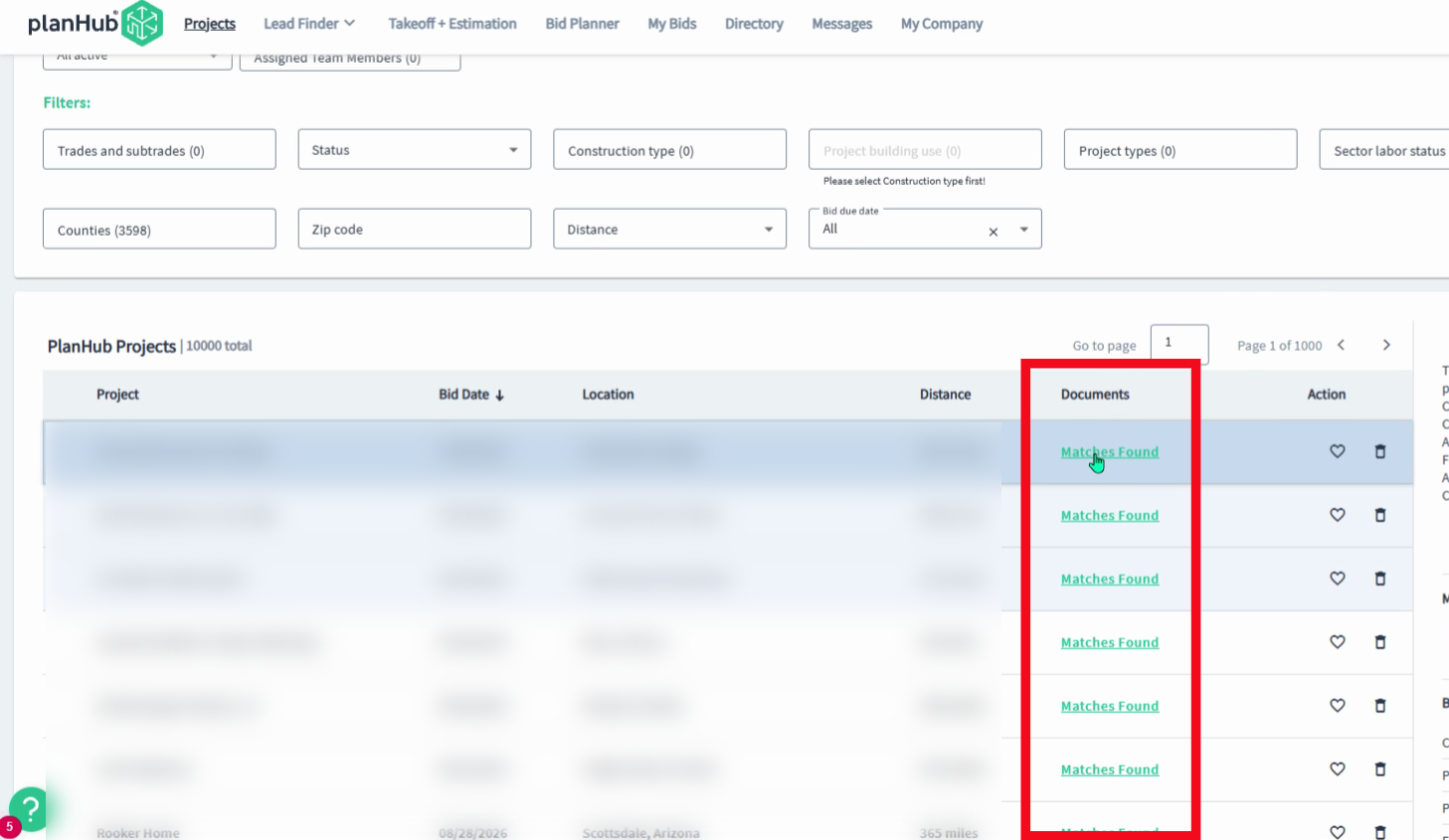
**Step 15:** In the pop up window, view how many times each keyword appears within each document. Use the magnifying glass to view the document, or the down arrow to download it.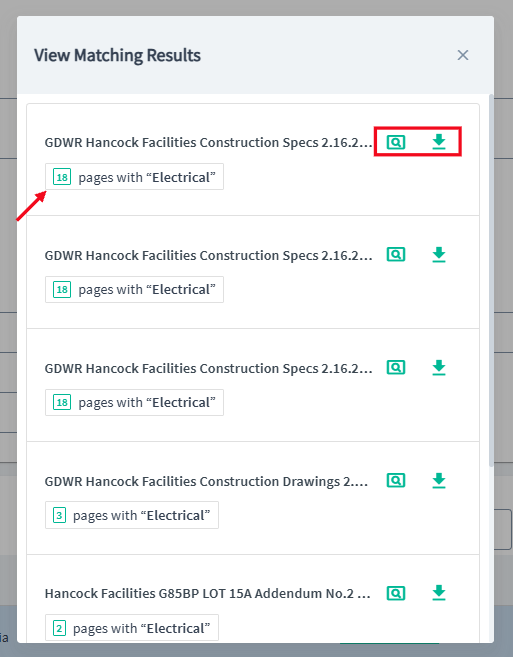
---
### Using Additional Filters and Search Options
PlanHub’s advanced search isn’t limited to keywords. Tailor your search with filters for teams, project status, and location.
**Project & Teams:**
**Step 1:** Use the **Projects** dropdown to view projects in the **saved, archived,** or **removed** projects lists.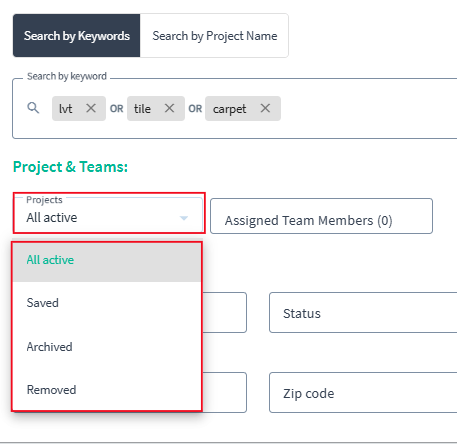
**Step 2:** View the list of projects assigned to your team members. Scroll through the list and select the team member whose projects you would like to review.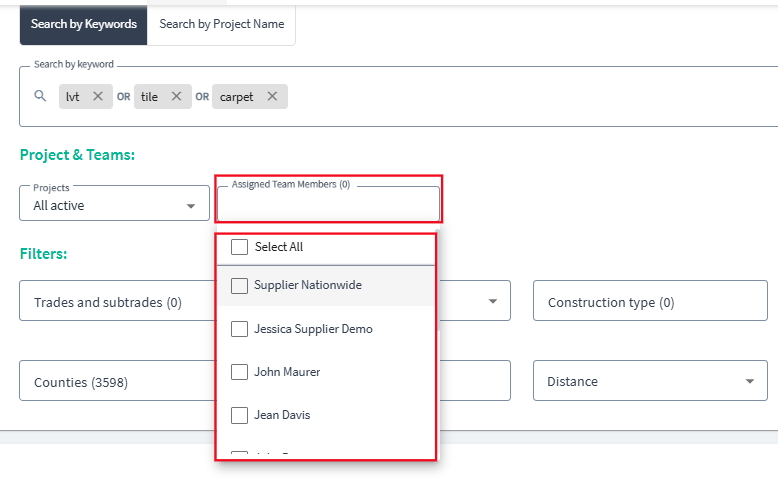
**Step 3:** In the **Filters** section, filter projects by **Trades** and **Subtrades** to narrow down to your specialty.
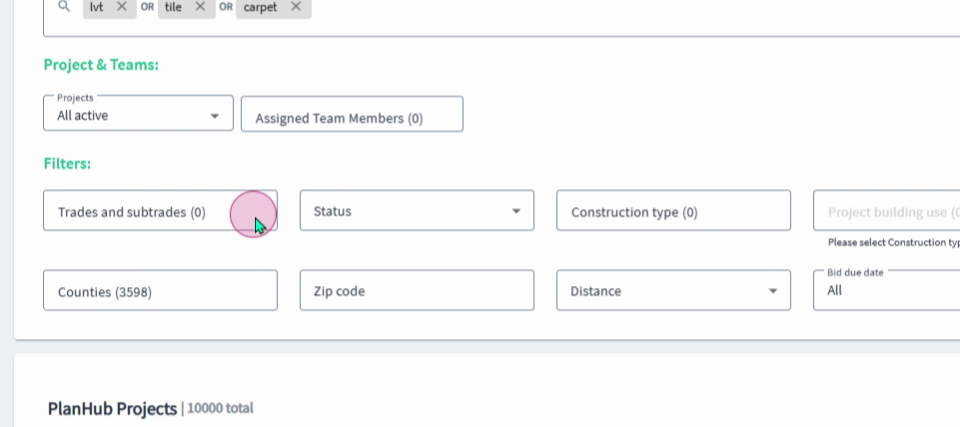
**Step 4:** Apply filters for **Status**, **Construction Type**, **Project Building Use**, **Project Types**, **Labor Status**, and more, depending on what matters most for your search.
**Step 5:** Narrow your search by **Region**, **County**, **ZIP Code** and **Distance**, based on your subscription plan.
**Step 6:** Filter by **Bid Due Date** or set a **Custom** due date range.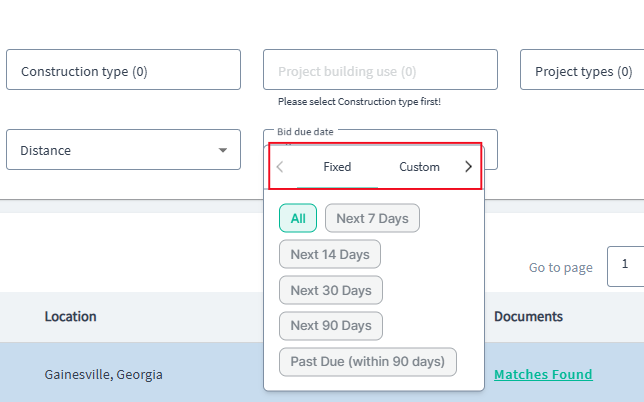
**Step 7:** To **search by** **Project Name**, enter the project name in the search bar, then view the results in the project list.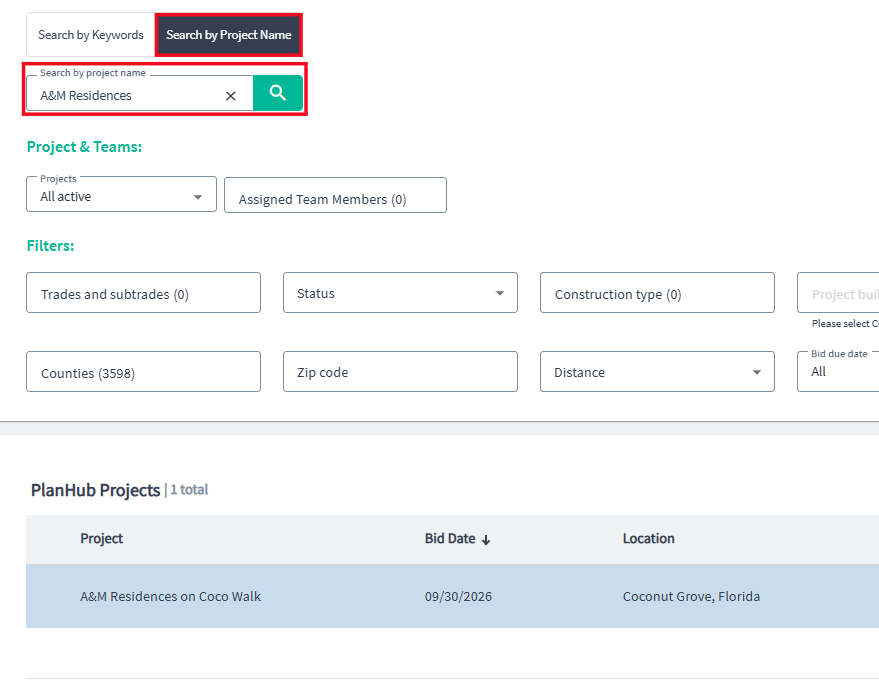
**Step 8:** Use the **Projects** dropdown to view projects in the **saved, archived,** or **removed** projects lists.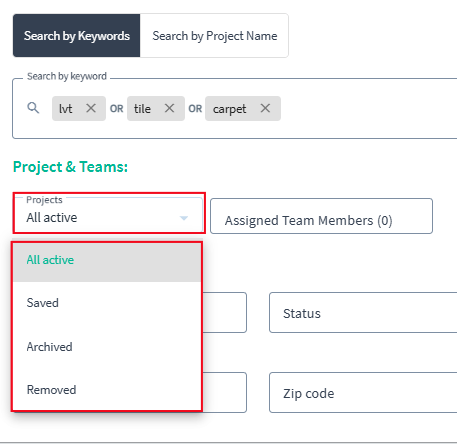
**Step 9:** View the list of projects assigned to your team members. Scroll through the list and select the team member whose projects you would like to review.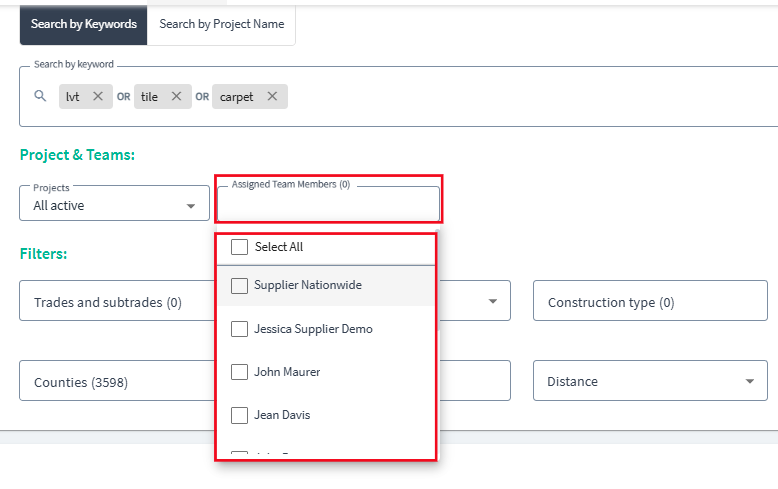
**Step 10:** In the **Filters** section, filter projects by **Trades** and **Subtrades** to narrow down to your specialty.

**Step 11:** Apply filters for **Status**, **Construction Type**, **Project Building Use**, **Project Types**, **Labor Status**, and more, depending on what matters most for your search.
**Step 12:** Narrow your search by **Region**, **County**, **ZIP Code** and **Distance**, based on your subscription plan.
**Step 13:** Filter by **Bid Due Date** or set a **Custom** due date range.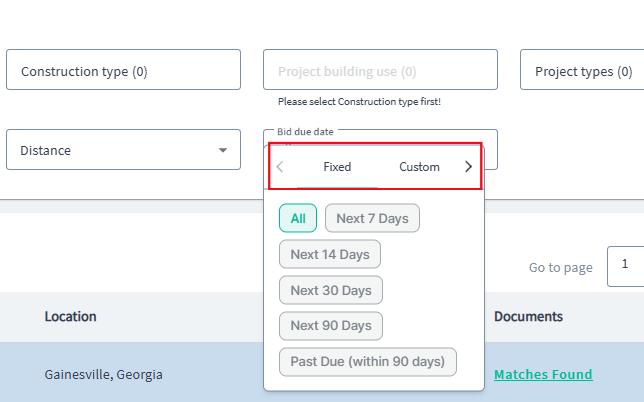
---
With advanced search and filtering tools, you can quickly find the projects that best match your business needs. Save your keyword searches and enable alerts to stay informed on new opportunities as they become available. You can combine keyword and attribute filters for more precise results, then review or update your saved searches at any time.
- [General Contractor](https://knowledgebase.planhub.com/knowledge/general-contractor?hsLang=en#main-content)
- [Overview](https://knowledgebase.planhub.com/knowledge/general-contractor?hsLang=en#overview)
- [Projects](https://knowledgebase.planhub.com/knowledge/general-contractor?hsLang=en#projects)
- [Networking](https://knowledgebase.planhub.com/knowledge/general-contractor?hsLang=en#networking)
- [Subcontractors](https://knowledgebase.planhub.com/knowledge/subcontractors?hsLang=en#main-content)
- [Overview](https://knowledgebase.planhub.com/knowledge/subcontractors?hsLang=en#overview)
- [Projects](https://knowledgebase.planhub.com/knowledge/subcontractors?hsLang=en#projects)
- [Bid Board & Tracking](https://knowledgebase.planhub.com/knowledge/subcontractors?hsLang=en#bid-board-tracking)
- [Networking](https://knowledgebase.planhub.com/knowledge/subcontractors?hsLang=en#networking)
- [Takeoff & Estimation](https://knowledgebase.planhub.com/knowledge/subcontractors?hsLang=en#takeoff-estimation)
- [Manage Your Team](https://knowledgebase.planhub.com/knowledge/subcontractors?hsLang=en#manage-your-team)
- [Account & Settings](https://knowledgebase.planhub.com/knowledge/subcontractors?hsLang=en#account-settings)
- [Job Board](https://knowledgebase.planhub.com/knowledge/subcontractors?hsLang=en#job-board)
- [Request for Information](https://knowledgebase.planhub.com/knowledge/subcontractors?hsLang=en#request-for-information)
- [Supplier](https://knowledgebase.planhub.com/knowledge/supplier?hsLang=en#main-content)
- [Overview](https://knowledgebase.planhub.com/knowledge/supplier?hsLang=en#overview)
- [Projects and Leads](https://knowledgebase.planhub.com/knowledge/supplier?hsLang=en#projects-and-leads)
- [Bidding & Estimating](https://knowledgebase.planhub.com/knowledge/supplier?hsLang=en#bidding-estimating)
- [Networking](https://knowledgebase.planhub.com/knowledge/supplier?hsLang=en#networking)
- [Account & Settings](https://knowledgebase.planhub.com/knowledge/supplier?hsLang=en#account-settings)
- [Takeoff & Estimation](https://knowledgebase.planhub.com/knowledge/takeoff-estimation?hsLang=en#main-content)
- [Getting Started](https://knowledgebase.planhub.com/knowledge/takeoff-estimation?hsLang=en#getting-started)
- [Takeoff Tools & Measurements](https://knowledgebase.planhub.com/knowledge/takeoff-estimation?hsLang=en#takeoff-tools-measurements)
- [Trade-Specific Takeoffs](https://knowledgebase.planhub.com/knowledge/takeoff-estimation?hsLang=en#trade-specific-takeoffs)
- [Estimating](https://knowledgebase.planhub.com/knowledge/takeoff-estimation?hsLang=en#estimating)
- [Managing & Sharing Your Work](https://knowledgebase.planhub.com/knowledge/takeoff-estimation?hsLang=en#managing-sharing-your-work)
- [Account & Billing](https://knowledgebase.planhub.com/knowledge/account-billing?hsLang=en#main-content)
- [Account & Billing](https://knowledgebase.planhub.com/knowledge/account-billing?hsLang=en#account-billing)
- [Account Closure](https://knowledgebase.planhub.com/knowledge/account-billing?hsLang=en#account-closure)
- [Troubleshooting](https://knowledgebase.planhub.com/knowledge/troubleshooting?hsLang=en)
- [About PlanHub](https://knowledgebase.planhub.com/knowledge/about-planhub?hsLang=en)
- [New General Contractor Experience](https://knowledgebase.planhub.com/knowledge/new-general-contractor-experience?hsLang=en#main-content)
- [Overview](https://knowledgebase.planhub.com/knowledge/new-general-contractor-experience?hsLang=en#overview)
- [Projects](https://knowledgebase.planhub.com/knowledge/new-general-contractor-experience?hsLang=en#projects)
- [Networking](https://knowledgebase.planhub.com/knowledge/new-general-contractor-experience?hsLang=en#networking)
- [Takeoff & Estimation](https://knowledgebase.planhub.com/knowledge/new-general-contractor-experience?hsLang=en#takeoff-estimation)
- [Account & Settings](https://knowledgebase.planhub.com/knowledge/new-general-contractor-experience?hsLang=en#account-settings)
- [Manage Your Team](https://knowledgebase.planhub.com/knowledge/new-general-contractor-experience?hsLang=en#manage-your-team)
- [Submit Feedback](https://knowledgebase.planhub.com/knowledge/submit-feedback?hsLang=en#main-content)
- [Feedback](https://knowledgebase.planhub.com/knowledge/submit-feedback?hsLang=en#feedback)
- [Have an Issue? Submit a Ticket](https://knowledgebase.planhub.com/knowledge/kb-tickets/new)
[](http://planhub.com)
[Knowledge Base Home](https://knowledgebase.planhub.com/knowledge?hsLang=en)
[Submit a Ticket](https://knowledgebase.planhub.com/knowledge/kb-tickets/new?hsLang=en)
Copyright © 2026, ©2026 PlanHub, Inc. All rights reserved