![NEW_PlanHub_Logo_Navy.png]](https://knowledgebase.planhub.com/hs-fs/hubfs/Design/PH%20Logos/NEW%202024%20PH%20Logos/NEW_PlanHub_Logo_Navy.png?height=40&name=NEW_PlanHub_Logo_Navy.png)
Step 1: Log into your Subcontractor planHub account.
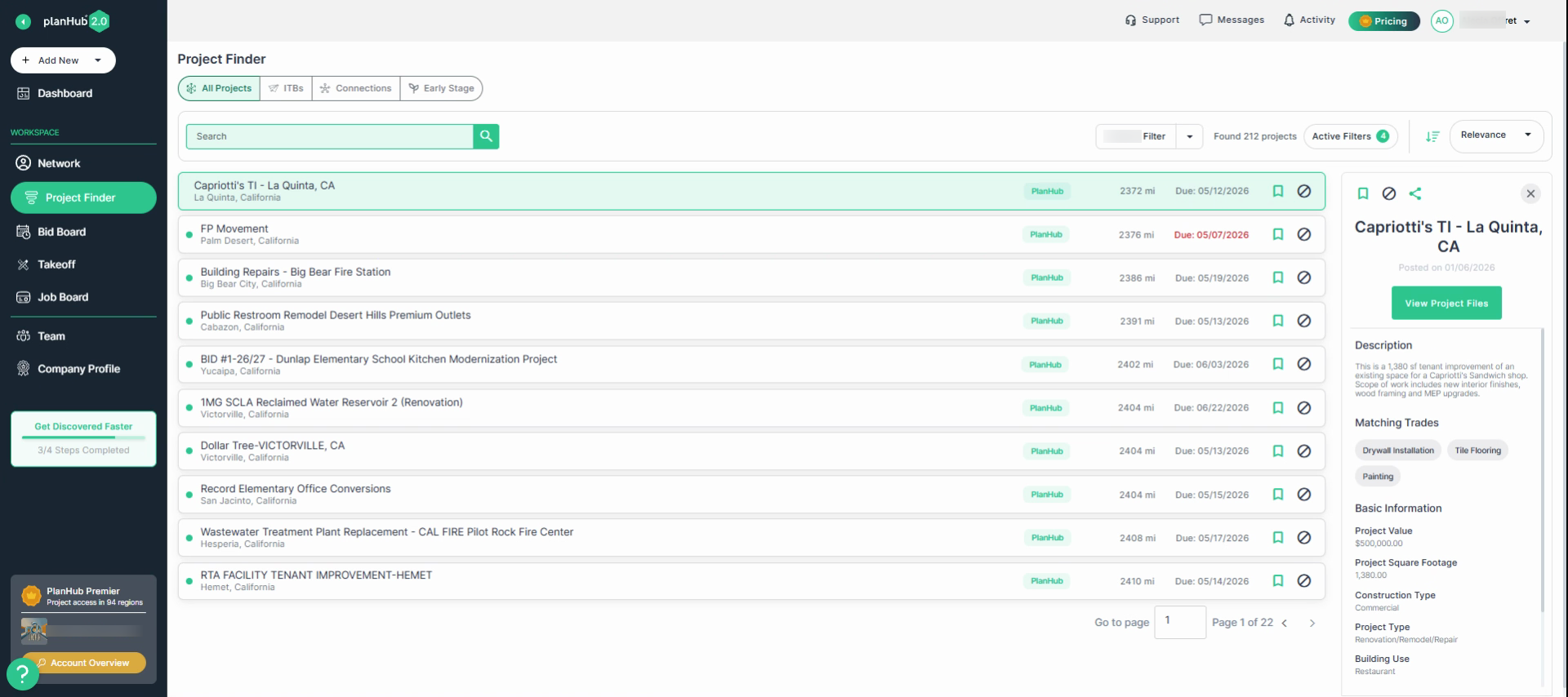
Step 2: Navigate to the upper right corner.
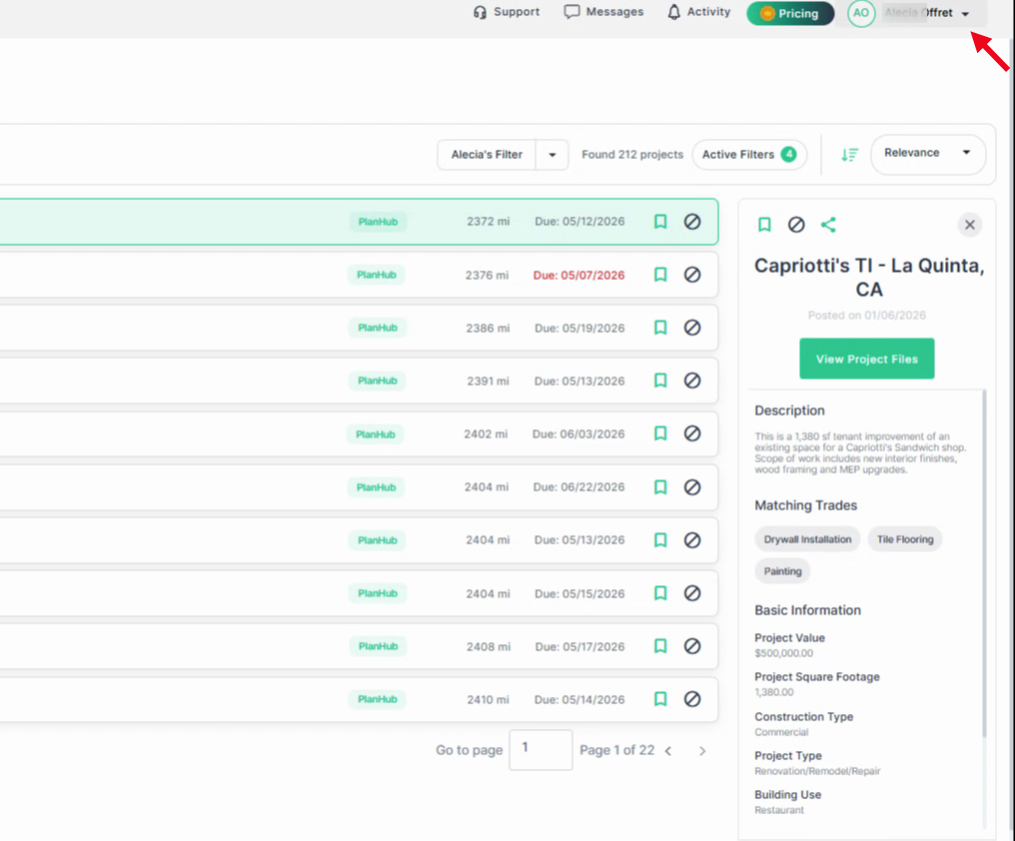
Step 3: Click the down arrow to open the dropdown menu.
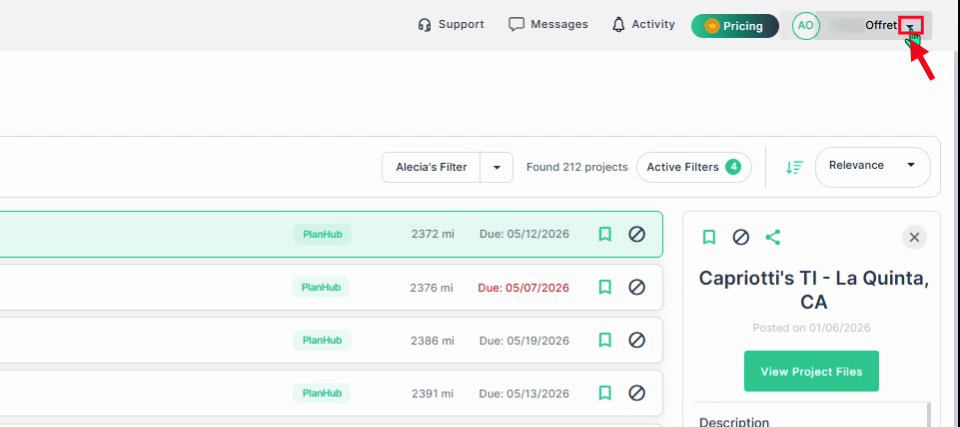
Step 4: Select My Account in the dropdown menu.
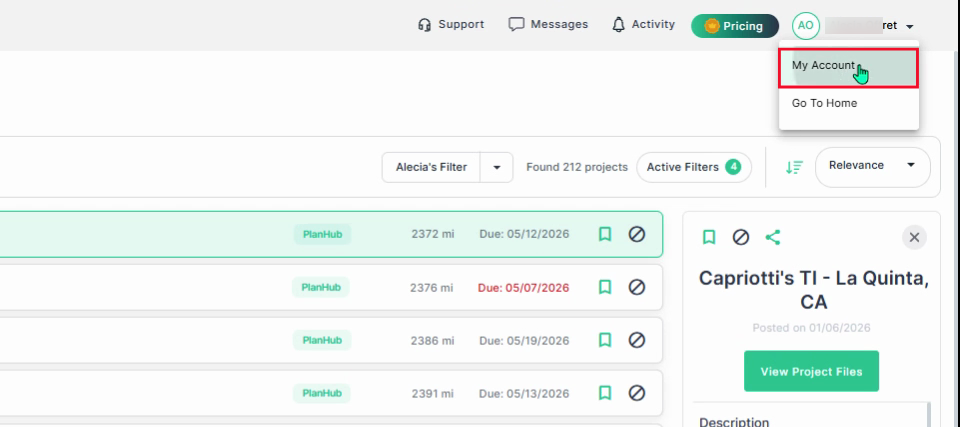
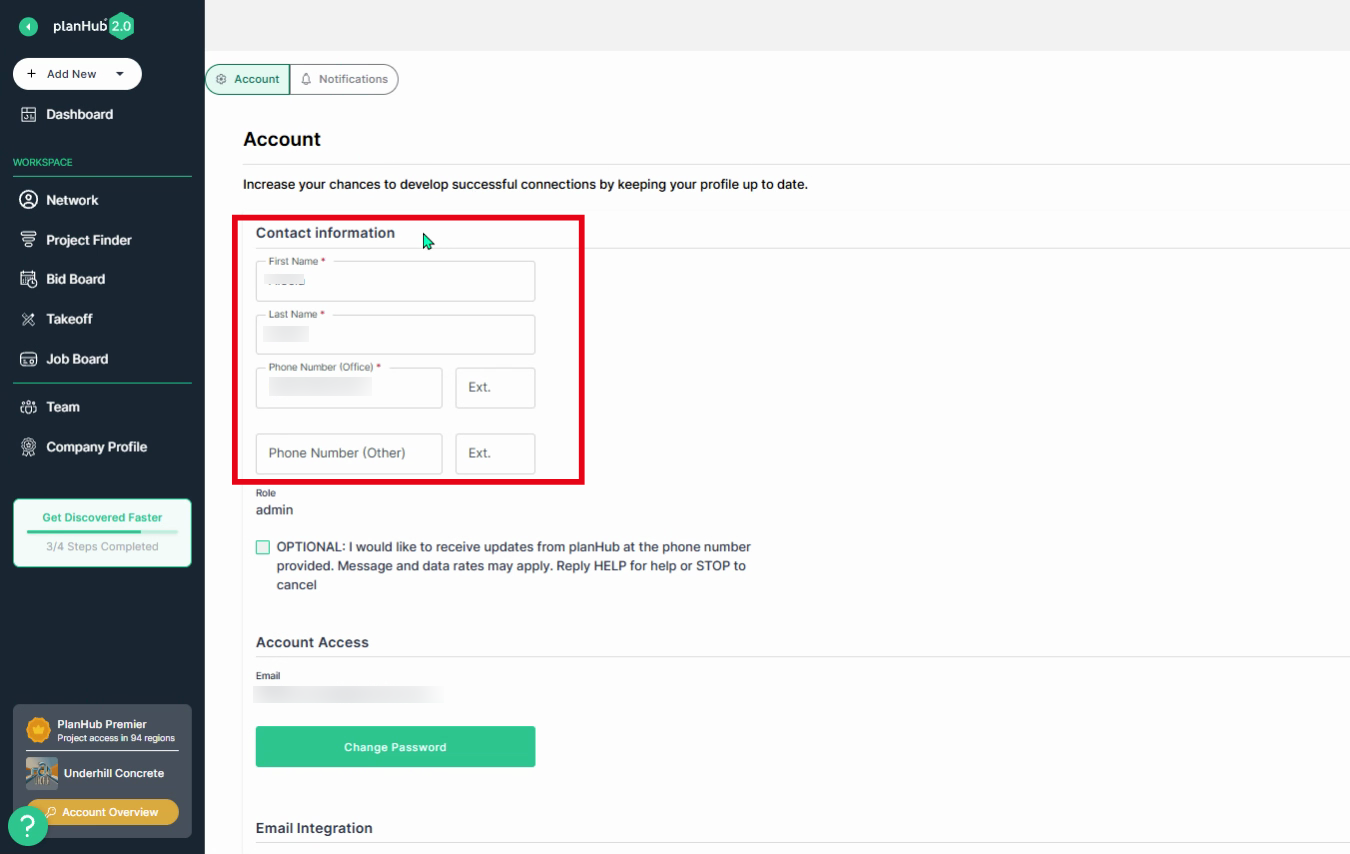
Step 5: In the Account section, review your contact information and update as needed. This information is visible to general contractors.
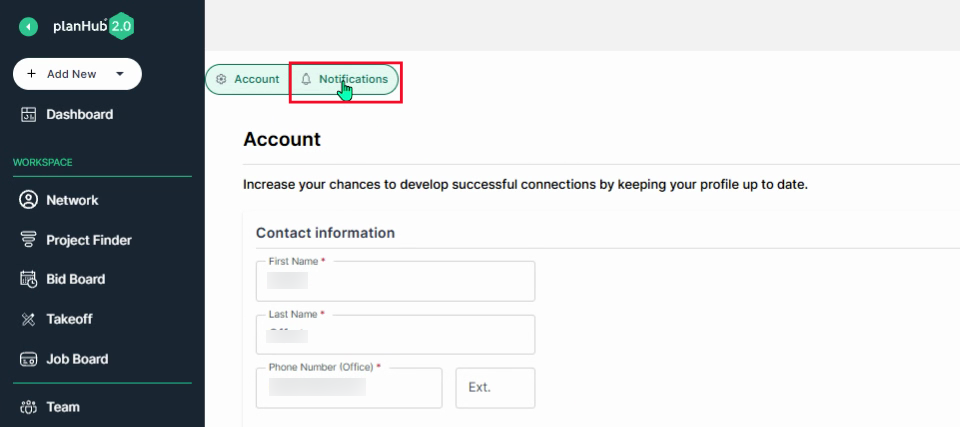
Step 6: Click the Notifications tab to manage your email notification settings.
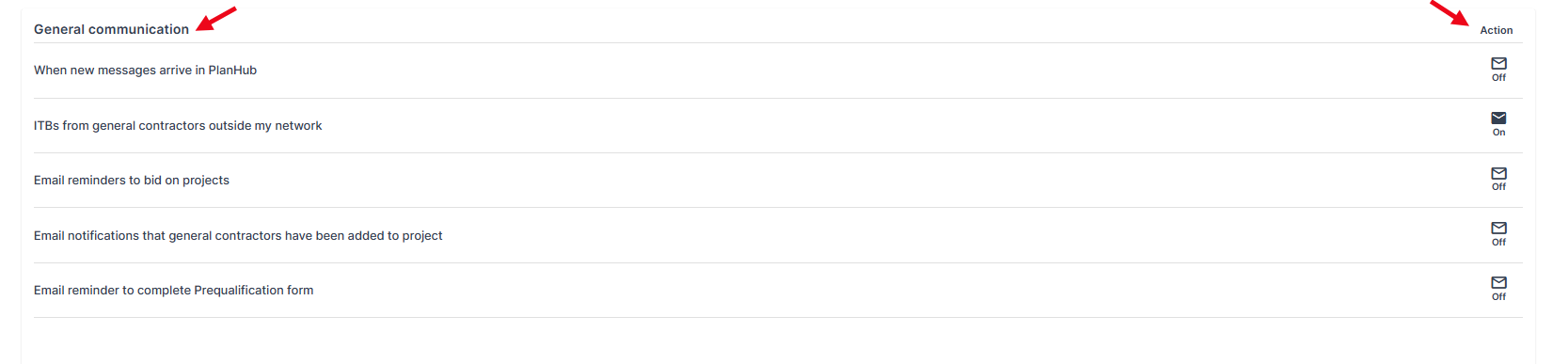
Step 7: In the General Communication section, you can adjust the notification settings. Use the toggles in the Action column, on the right side, to turn off or on the email notifications.
- When new messages arrive in planHub: Turn this on if you would like to receive an email when a GC sends you a message.
- ITBs from general contractors outside my network: Turning this option off will exclude GCs who do not have you on their personal "in-network" list from sending you project invitations. This will limit the amount of ITBs you receive. We recommend leaving this notification on so that you can receive ITBs from all GCs posting projects with matching trades and regions.
- Email reminders to bid on projects: This is the standard option that determines whether you want to receive an email when you are invited to bid on a project.
- Email notifications that general contractors have been added to project: This determines whether you want to receive email updates when a general contractor has been added to a project.
- Email reminder to complete Prequalification form: "You will earn a "badge" when this form is complete. This notifications sends you a reminder to complete your prequalification form. GCs will see you at the top of their directory and you will earn a badge.
Step 8: In the Project Related Communication section, view the frequency options.
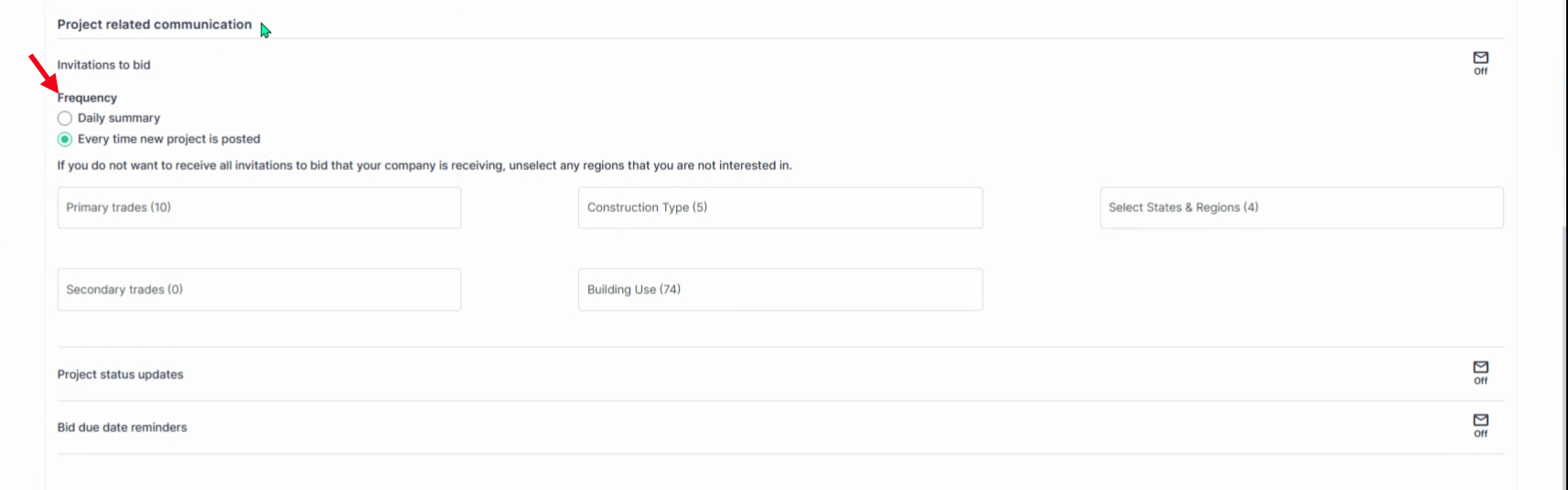
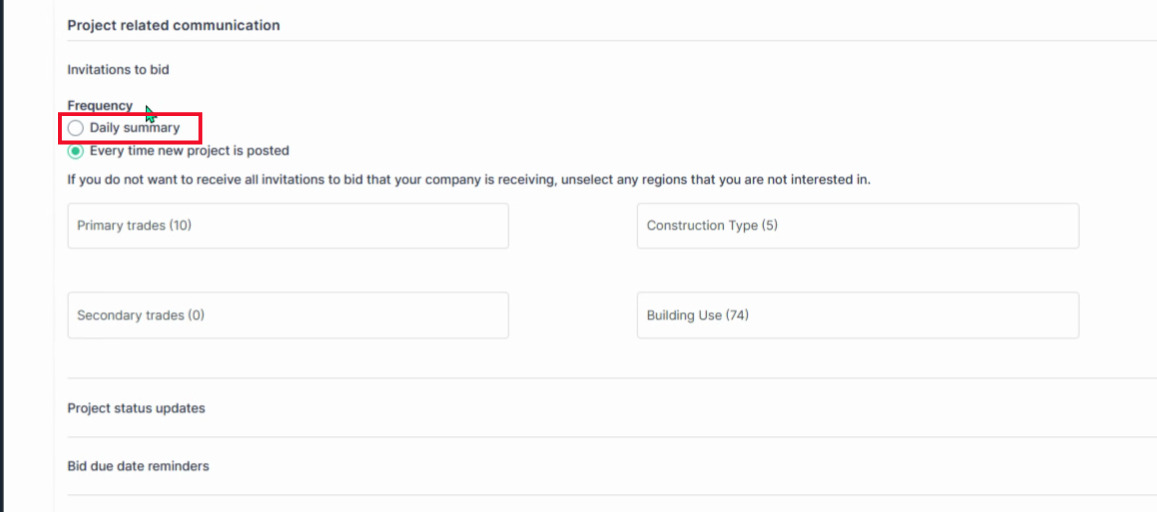
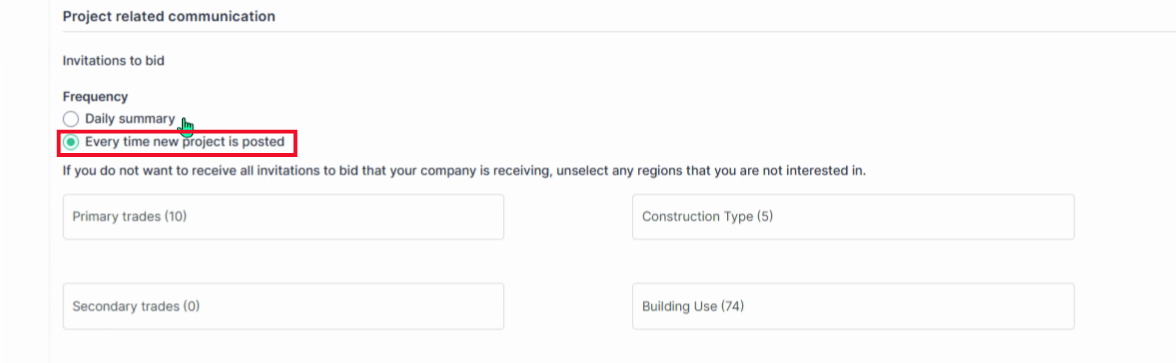
Step 9: Select your preferred frequency to receive invitations to bid:
- Daily Summary — One email, per day, with a summary list of ITBs.
- Every time a new project is posted — Receive individual emails for each new project, posted daily, that match your trades and regions.
-
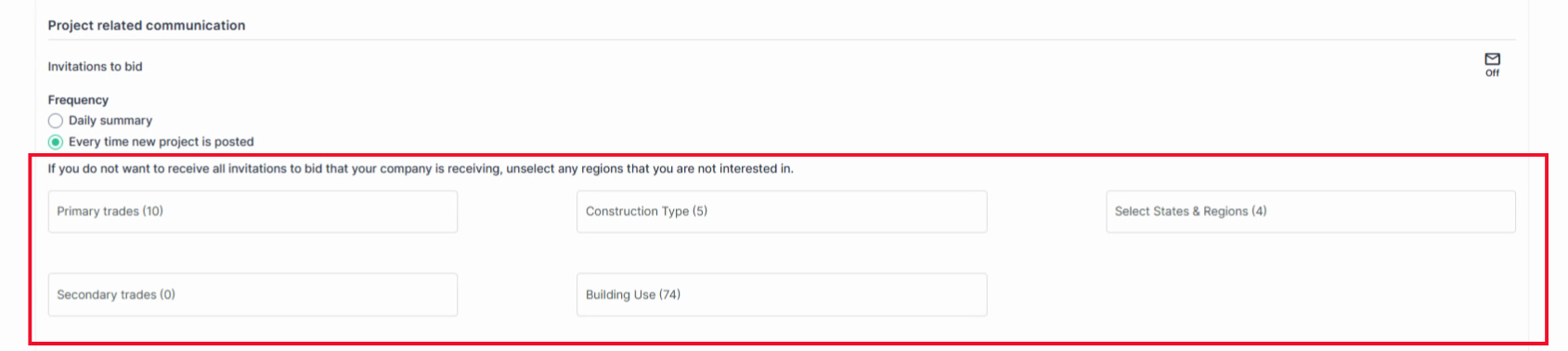
If you do not want to receive all invitations to bid that your company is receiving, you can unselect any regions and trades that you are not interested in.
Step 10: Use the filters to set your preferences for:
- Primary Trades
- Construction Type
- States and Regions
- Secondary Trades
- Building Use
These filters ensure you receive only relevant project notifications.
Step 11: Confirm that email notifications are toggled to the "on" position to ensure you receive invitations to bid.
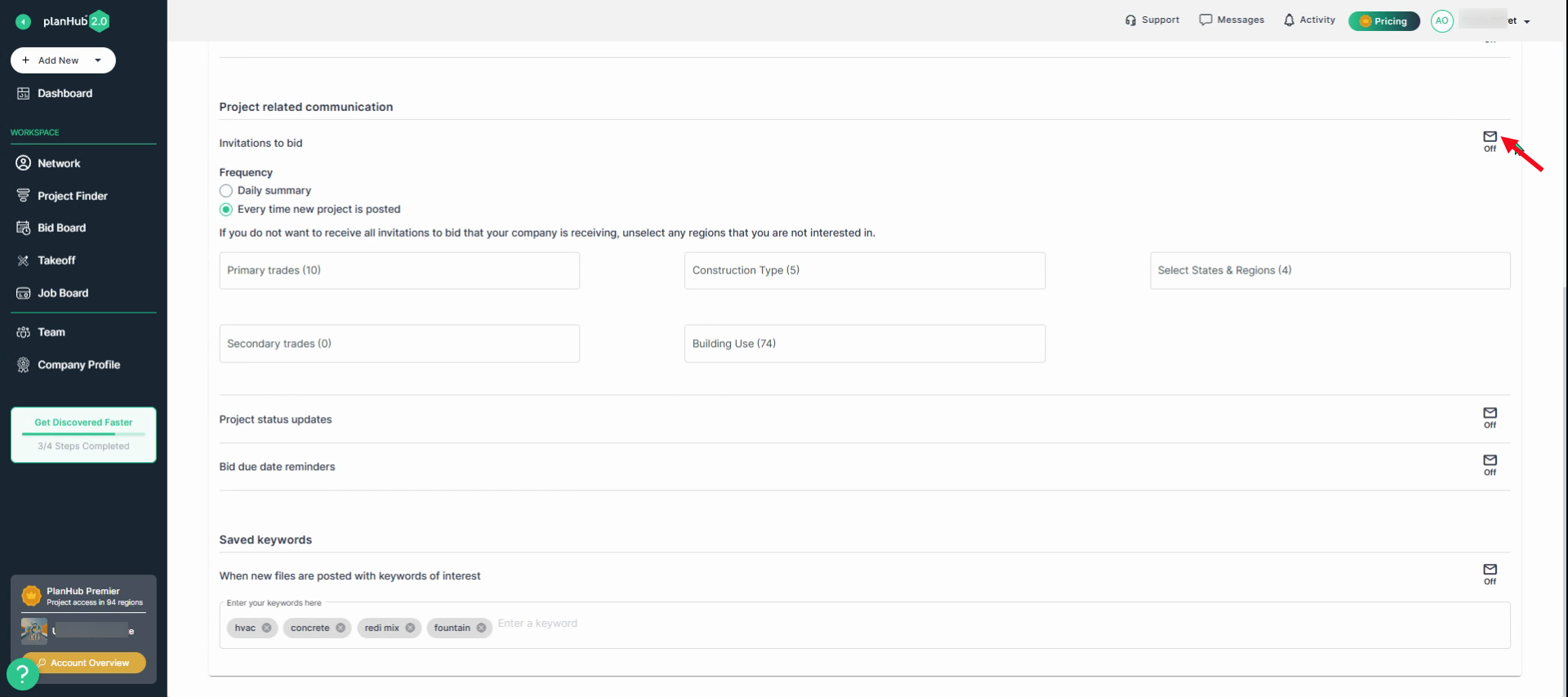
Step 12: Toggle the button on/off to receive updates such as project status updates and bid due date reminders.
- Project status updates: Get emails for project status changes.
- Bid due date reminders: Enable emails about approaching project due dates.

Step 13: In the Saved Keywords section, enter keywords related to your trades and interests. You’ll get notified by email when new projects files containing these keywords are posted in your area. Managing your email notifications in planHub helps you stay focused on the most relevant information. If you need additional assistance, view the Knowledge Base article titled: How to Contact PlanHub Customer Support.
Troubleshooting
Contact us if you need assistance or to report an issue:
- PlanHub Contact Page: https://planhub.com/contact/
- Customer Facing Support Ticket Link: https://knowledgebase.planhub.com/knowledge/kb-tickets/new