![NEW_PlanHub_Logo_Navy.png]](https://knowledgebase.planhub.com/hs-fs/hubfs/Design/PH%20Logos/NEW%202024%20PH%20Logos/NEW_PlanHub_Logo_Navy.png?height=40&name=NEW_PlanHub_Logo_Navy.png)
Welcome to PlanHub!
Get Started Faster with Free, One-on-One Onboarding!
Want a little extra guidance? Schedule a free, one-on-one onboarding session with a PlanHub Customer Success Manager! We'll help you set up your account, customize your project searches, and show you how to quickly find opportunities that match your business.
Schedule Your Free Onboarding Session: https://meetings.hubspot.com/bjohnson50/csm-customer-service-rr
Prefer to get started on your own? Follow the steps below to set up your account at your own pace.
In this first onboarding guide, you'll learn how to:
- Confirm your administrator access.
- Update your company profile and align your regions with your subscription.
- Invite team members to collaborate.
- Customize your notification preferences.
- Create and save Project Finder filters to find relevant projects.
Step 1: Confirm Your Admin Access
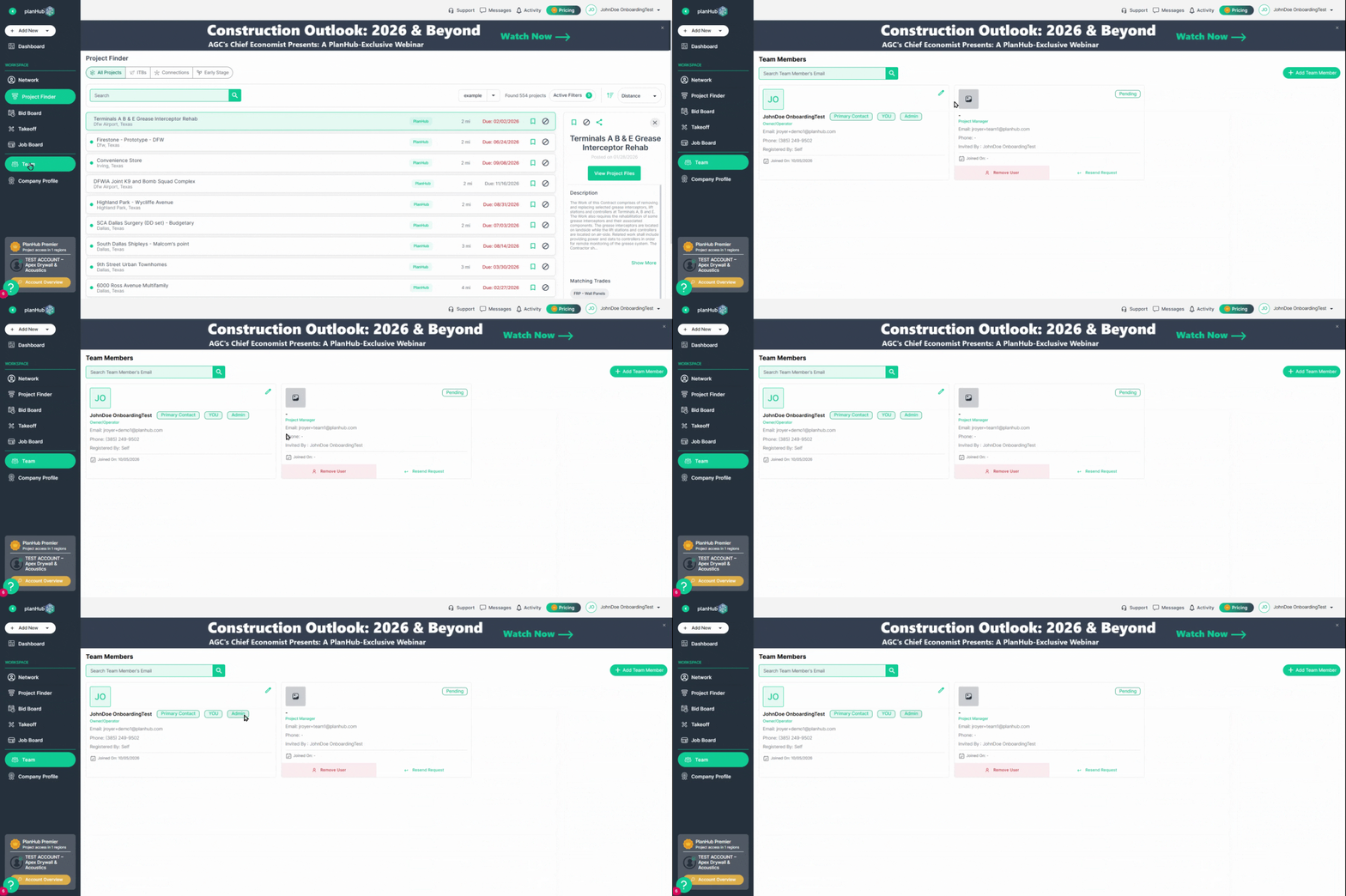
Before getting started, check whether you have administrator access to your company's PlanHub account.
Administrators can update company profile settings, invite team members, and manage account access.
- Log in to your PlanHub account.
- Select Team or Invite your Team from the navigation bar.
- Review your assigned role to confirm you have Admin access.
Don't have Admin access? Contact your company's account administrator to request the appropriate permissions. If you need additional assistance, reach out to PlanHub Customer Success.
Step 2: Set Up Your Company Profile
Your public company profile helps general contractors learn and trust your business, the services you provide, and the areas you serve.
Review Your Subscription Regions
First, confirm which regions are included in your PlanHub subscription.
- Select Account Overview from the navigation bar.
- Review the regions or mileage included in your subscription.
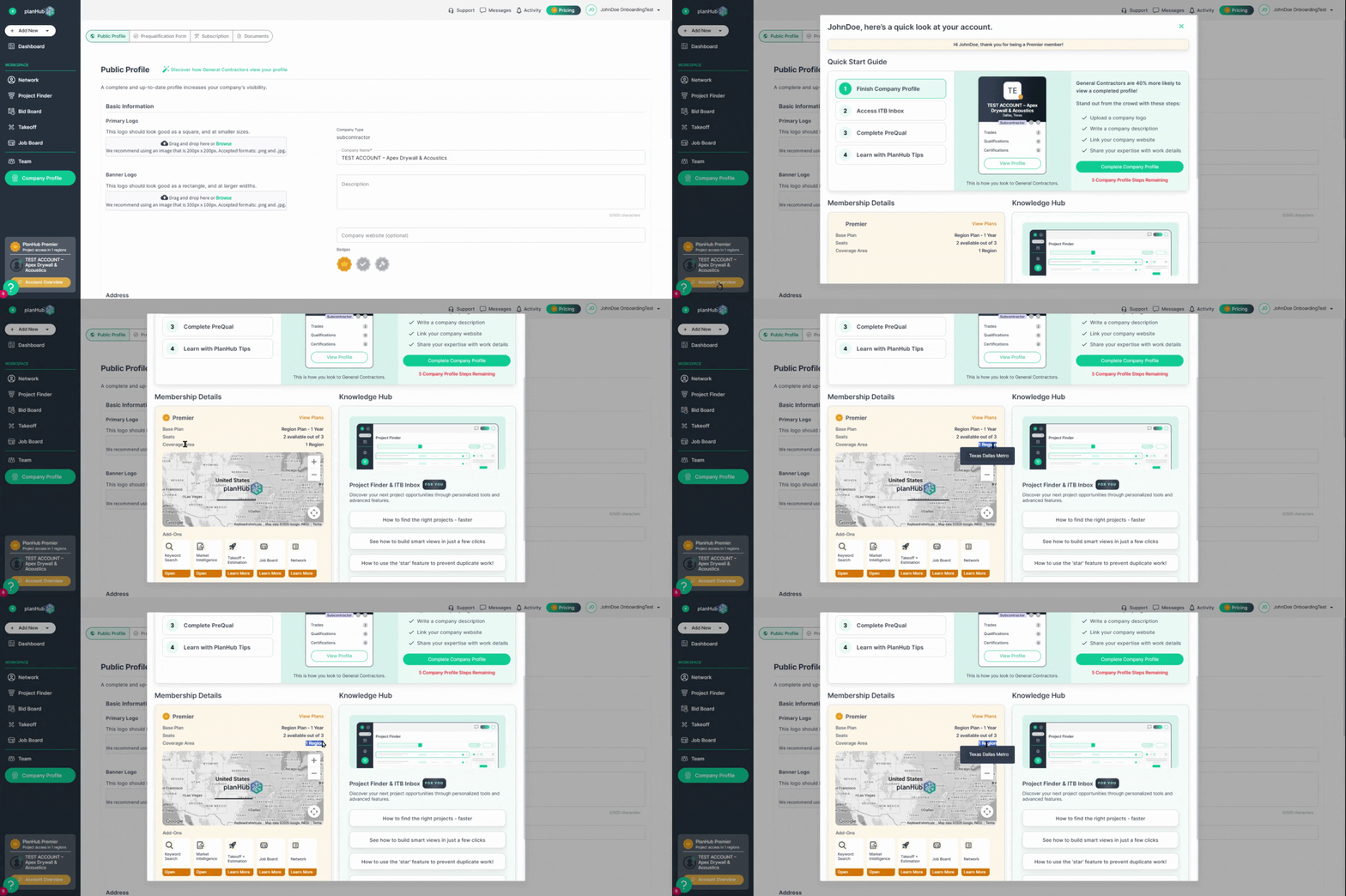
- Take note of your purchased coverage so you can align your company profile settings. Navigate to your Company Profile page and scroll to the Trades and Regions section of your profile. You should align your regional sections with the access you have through your subscription plan.
- Tip: Choose regions included in your purchased subscription for best results.
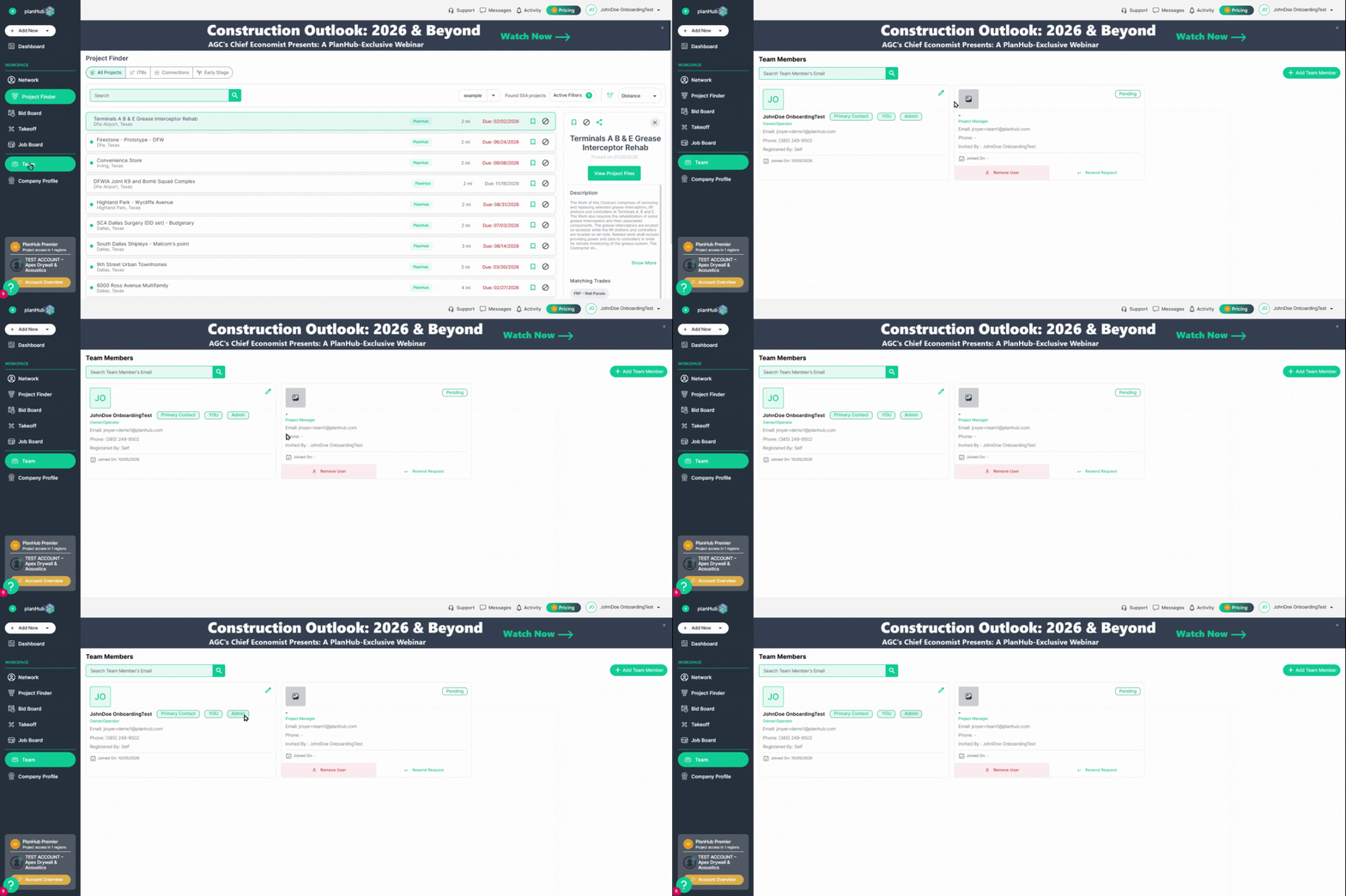
- Complete your public company information, including;
- Business name
- Logo
- Detailed description and project history
- Address
- Business Profile
Why this matters: An accurate company profile helps general contractors understand your capabilities and identify your company for relevant bidding opportunities.
Step 3: Invite Your Team
PlanHub allows your team to collaborate on projects, manage opportunities, and stay informed.
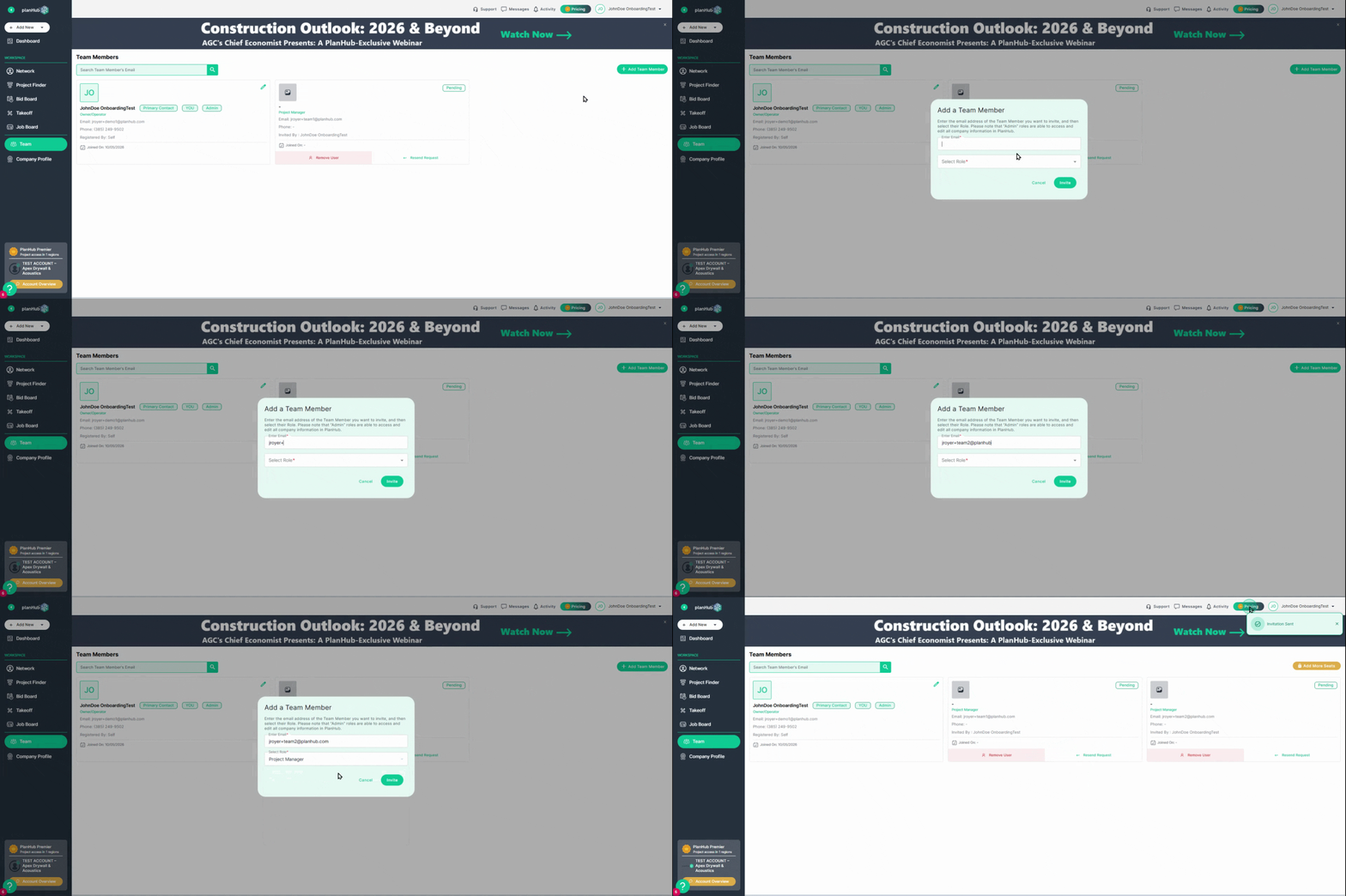
- Select Team or Invite your Team from the navigation bar.
- Review your existing team members.
- Invite additional users who need access to PlanHub.
- Assign the appropriate roles and available seats.
Why this matters: Inviting your team helps ensure the right people can access project information, review opportunities, and respond to invitations without relying on a single account user.
Step 4: Customize Your Notification Preferences
Notifications help you stay informed about bidding opportunities and important project activity.
Each user can manage their own notification preferences based on their responsibilities.
- Open your Notification Settings by clicking on your name in the upper-right-hand corner and selecting My Account.
- Select the Notification tab
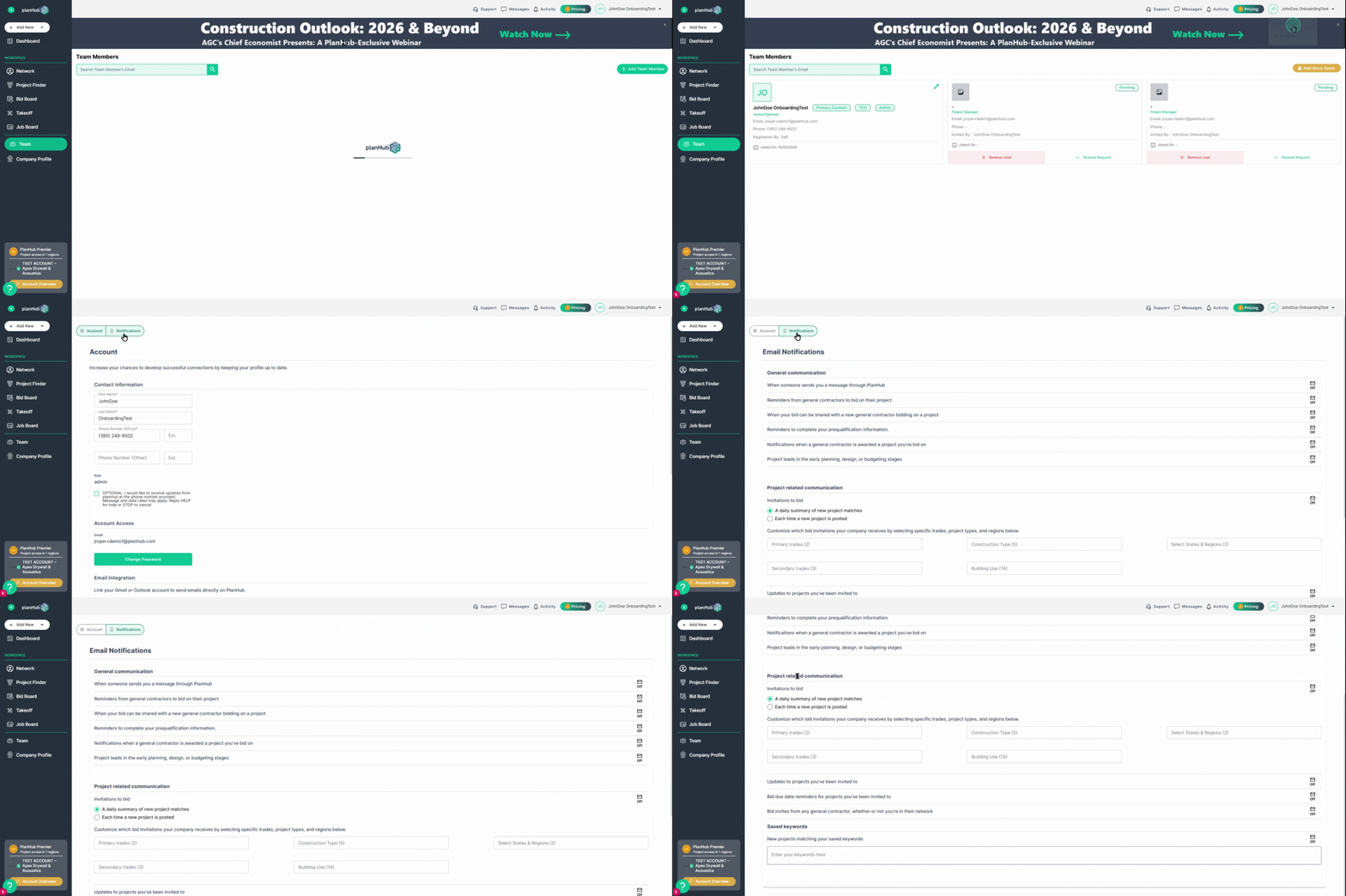
- Select the Notification tab
- Review the available notification types and ensure that your notifications are turned ON to receive emails regarding project invites, messages, and project updates appropriate to your role.
- Under Project Related Communications, select your preferred notification frequency
- Filter your project invites based on Trades, Construction Type, Project Location, and Building Use.
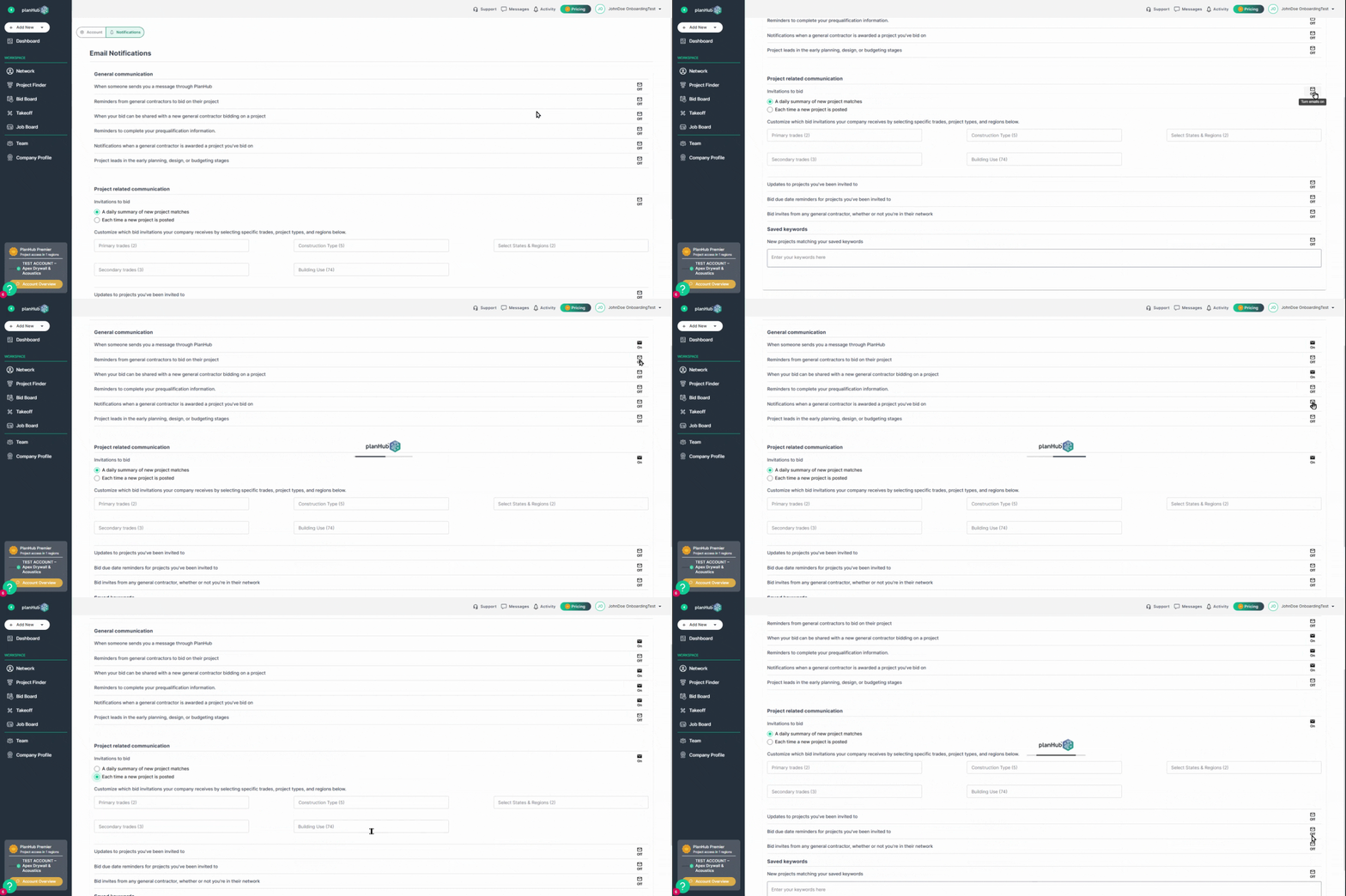
Why this matters: Personalized notifications help you stay informed about relevant activity without receiving unnecessary updates.
Tip: Email Notification settings are user-specific. Encourage each team member to review their own notification preferences.
- Direct, targeted notifications keep your team working efficiently and reacting quickly to new invitations.
Step 5: Create and Save Project Finder Filters
Now that your company profile is set up, it's time to start finding projects!
Project Finder helps you discover available bidding opportunities based on criteria that match the work your company wants to pursue.
Create Your First Search Filter
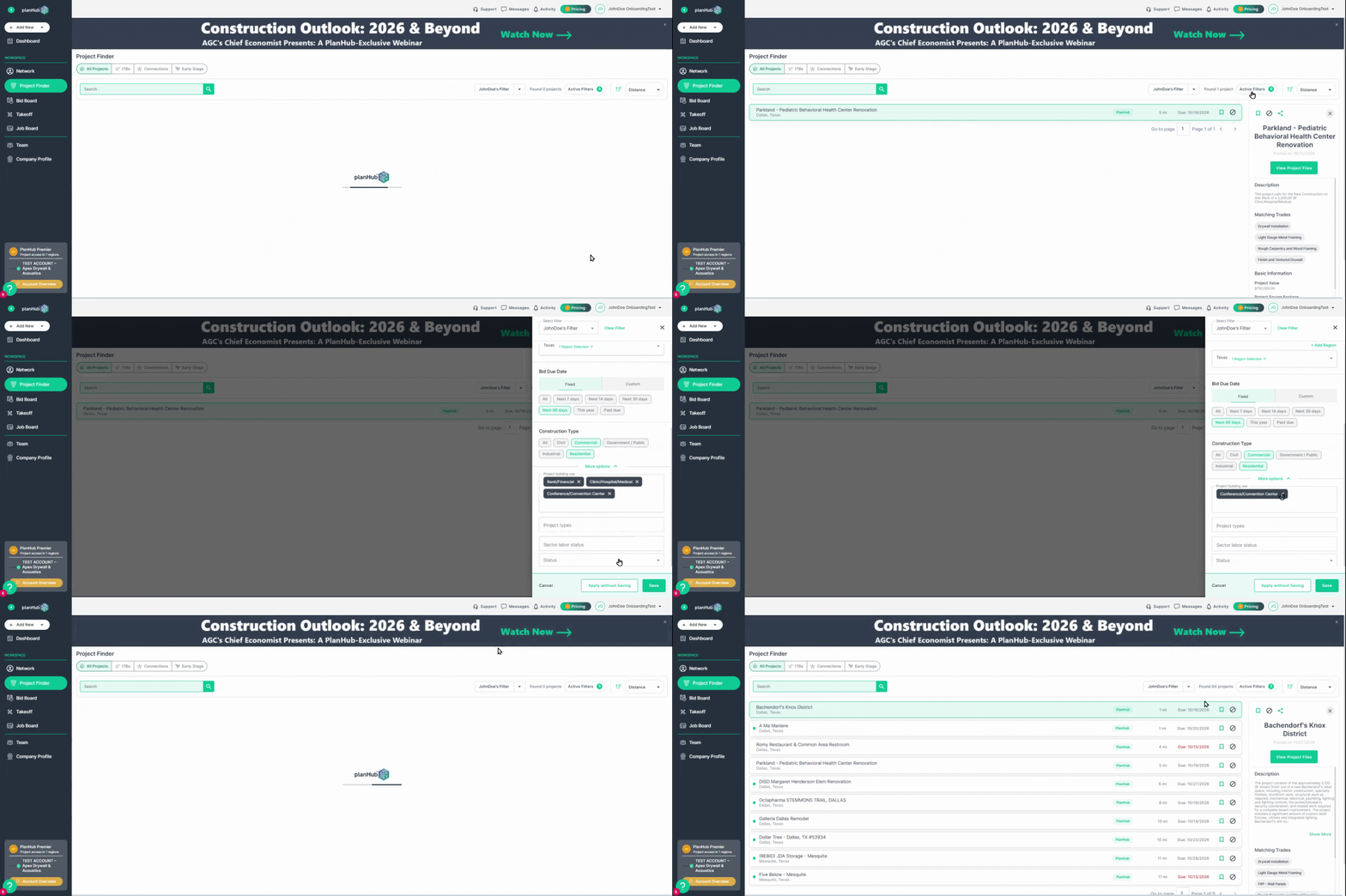
- Open Project Finder from the navigation bar.
- Select Active Filters to review your search criteria.
- Choose filters that align with your business, such as trades, locations, and bid dates.
- Review the resulting project list.
- Adjust your selections until you're seeing projects that match your business needs. To view results before saving, select Apply Without Saving at the bottom of the Filter bar.
- Save your filter set with a recognizable name so you can use it again.
- Project Finder Saved Filters are user-specific. Encourage teammates to create their own filter sets for personalized results.
Find the Right Balance
Filters narrow your project results based on the criteria you select.
Too many filters can limit your results and potentially hide relevant opportunities. Too few filters may return more projects than you want to review.
Experiment with your filters until you find the right balance of relevant opportunities and manageable results.
Tip: Filters are based on the GC selections when they posted the project. If your trade is not required on every project based on local code and you are not seeing enough results, take a step back and clear out the trade filters. It is possible you are needed by the GC and forgot to select your trade. The Keyword search bar is a great way to find projects you might be missing because of trade selections.
You're Ready to Start Finding Projects!
Before moving on, make sure you've completed these first steps:
- Confirmed your administrator access.
- Reviewed your subscription coverage.
- Updated your company profile, trades, and regions.
- Invited the team members who need access.
- Customized your notification preferences.
- Created and saved your first Project Finder filter.
With these steps complete, you're ready to start exploring relevant bidding opportunities in PlanHub.
Next up: Learn how to review project details and identify opportunities worth pursuing in the next part of your onboarding journey