---
title: Project Finder | Find The Best Projects To Bid
description: Find the right projects to bid on using PlanHub’s Project Finder. In this tutorial, you’ll see how to filter, search, and review projects efficiently.
---
[Skip to content](https://knowledgebase.planhub.com/knowledge/project-finder-all-projects-tab-find-the-best-projects-to-bid#main-content)
English
Show submenu for translations
[Submit a Ticket](https://knowledgebase.planhub.com/knowledge/kb-tickets/new?hsLang=en)
![NEW\_PlanHub\_Logo\_Navy.png\]](https://knowledgebase.planhub.com/hs-fs/hubfs/Design/PH%20Logos/NEW%202024%20PH%20Logos/NEW_PlanHub_Logo_Navy.png?height=40&name=NEW_PlanHub_Logo_Navy.png)
- [Have an Issue? Submit a Ticket](https://knowledgebase.planhub.com/knowledge/kb-tickets/new)
Open main navigation
Close main navigation
- [Have an Issue? Submit a Ticket](https://knowledgebase.planhub.com/knowledge/kb-tickets/new)
- English
Show submenu for translations
- [Submit a Ticket](https://knowledgebase.planhub.com/knowledge/kb-tickets/new)
What can we help you with?
- There are no suggestions because the search field is empty.
1. [Knowledge Base](https://knowledgebase.planhub.com/knowledge?hsLang=en)
2. [Subcontractors](https://knowledgebase.planhub.com/knowledge/subcontractors?hsLang=en)
3. [Projects](https://knowledgebase.planhub.com/knowledge/subcontractors?hsLang=en#projects)
# Project Finder | Find The Best Projects To Bid
## Learn how the Project Finder's All Projects Tab in PlanHub helps subcontractors like you quickly search and filter projects — so you can find the best ones to bid on.
---
### **Step 1: Go to Project Finder in your Subcontractor account.**
Navigate to**[PlanHub](https://planhub.com/)**and **[log in](https://access.planhub.com/signin)** to your Subcontractor account. Head to the **[Project Finder](https://subcontractor.planhub.com/leads/list)** to see projects posted by general contractors that are accepting bids.
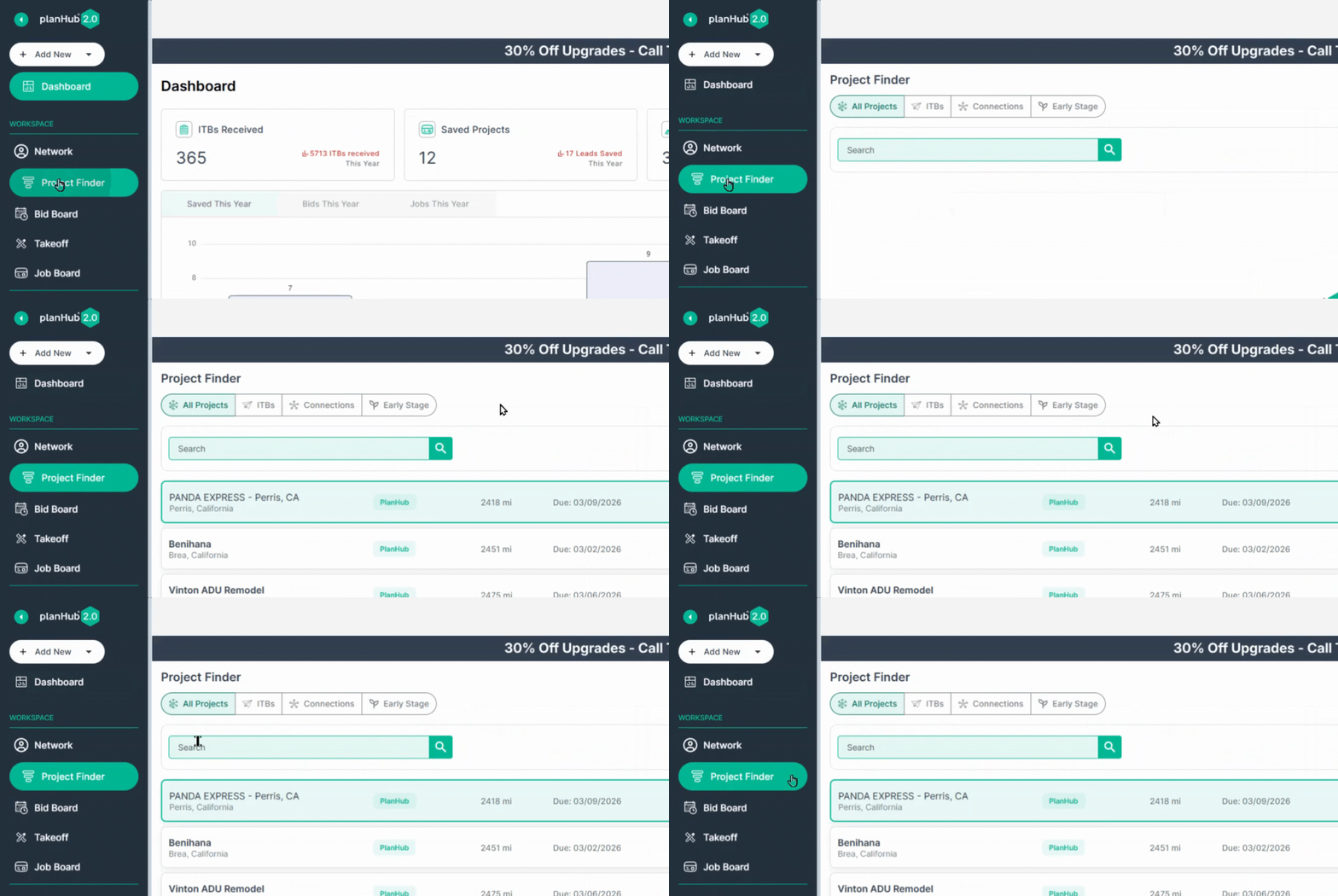
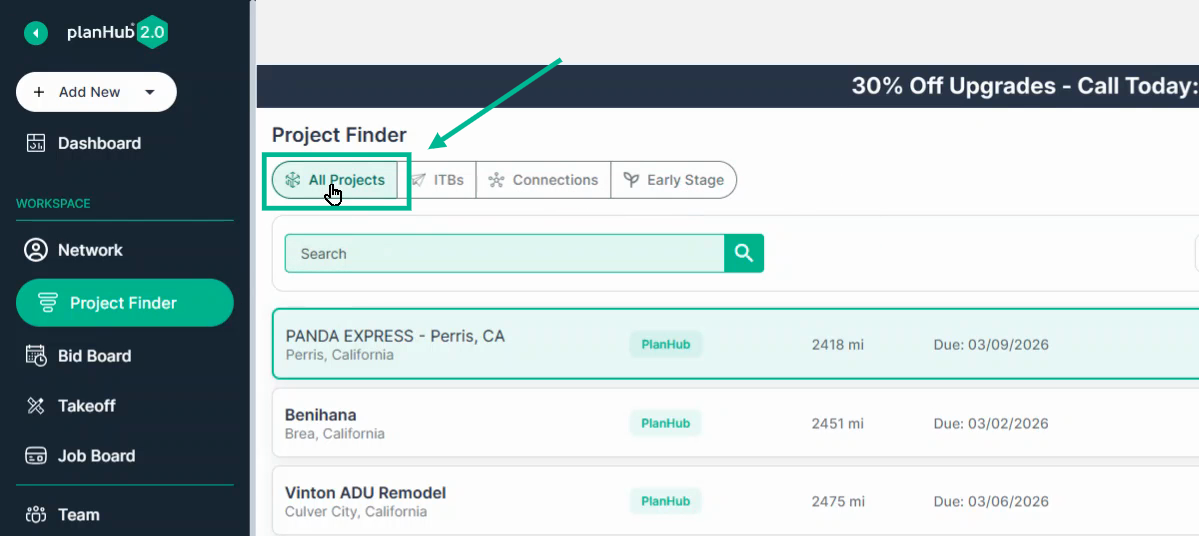
### **Step 2: Open the All Projects Tab.**
You’ll land on the Project Finder. There are a few different tabs — start in the **All Projects** tab. Here, you can explore a list of all projects posted by General Contractors and access powerful search and filter options.
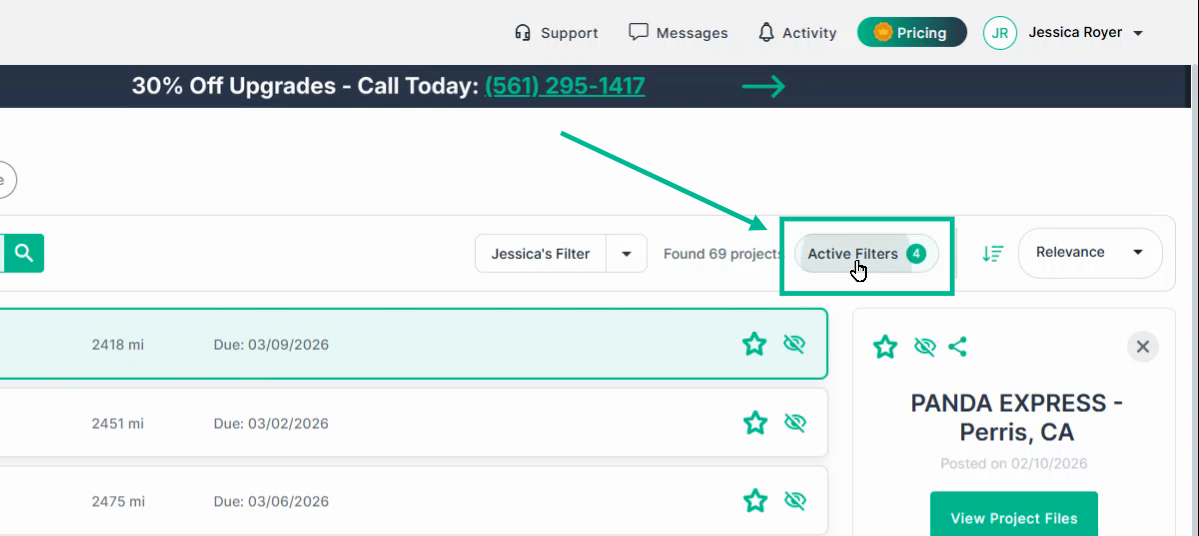
### **Step 3: Check Active Filters and Project List.**
#### You’ll see a project list filtered according to any filters that are already applied.
Click **Active Filters** to review or make changes to your current filters.
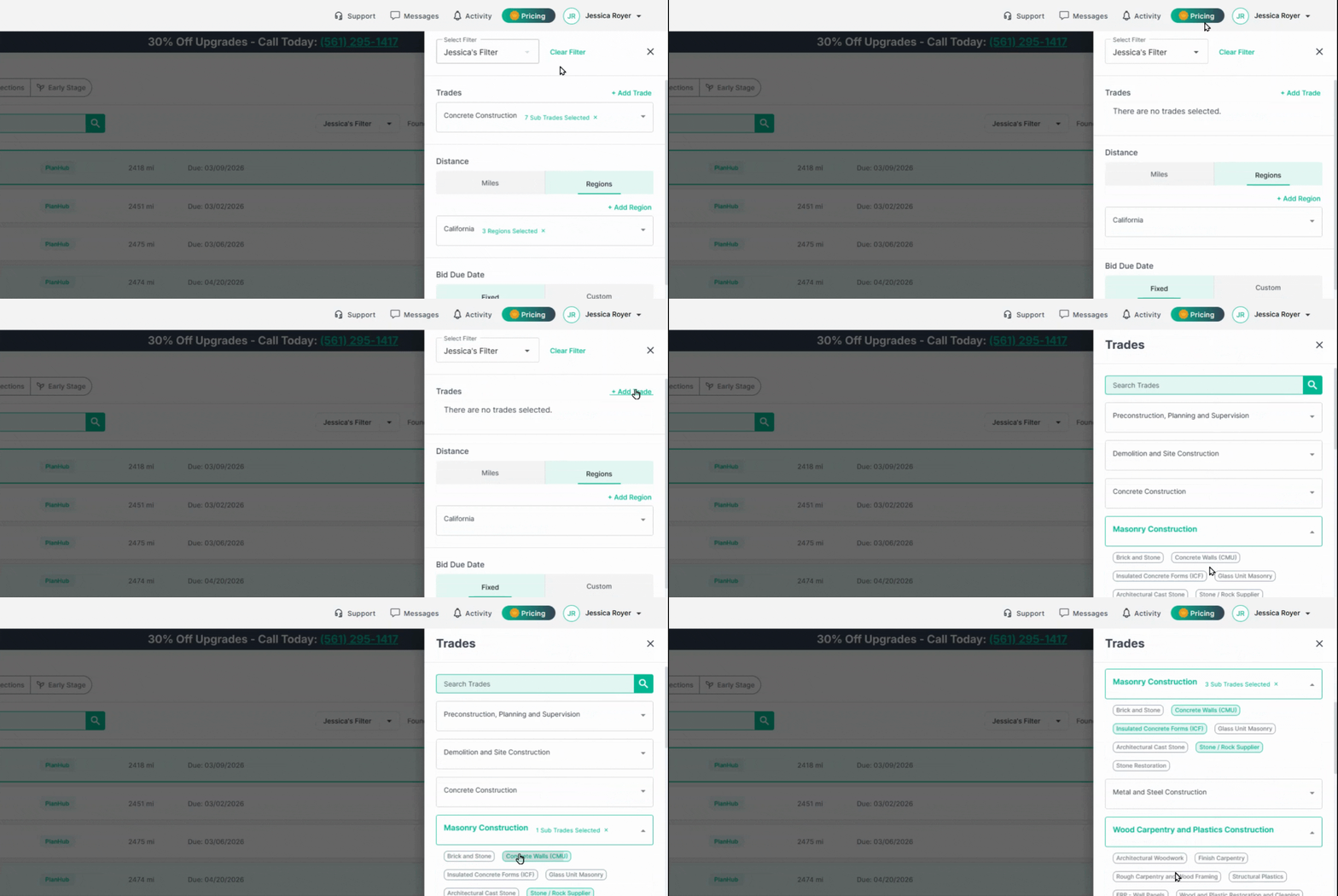
### **Step 4: Edit or Reset Filters.**
Make adjustments to any active filter, or clear and start fresh.
If no filter is applied to a particular section, such as Trades, Status, or Bid Due Date, we will show all projects that are not filtered out.
#### \*\*Tip: The more filters you apply, typically the fewer projects you will see in the list.
#### **4.1: Filter by Trades**
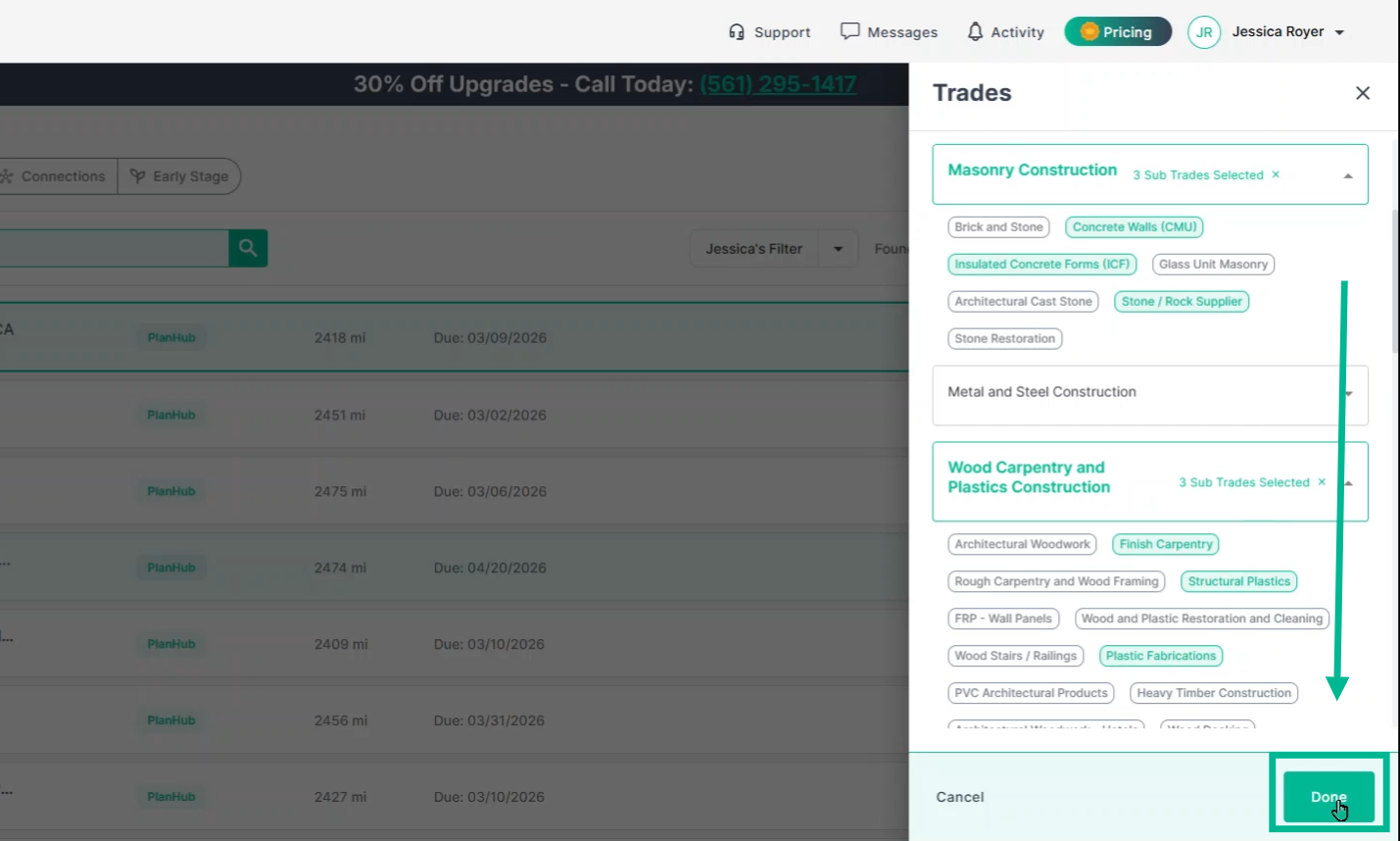
To update the trades filter, open it, select or deselect trades, then click **Done** to apply changes.
#### **4.2: Filter by Distance.**
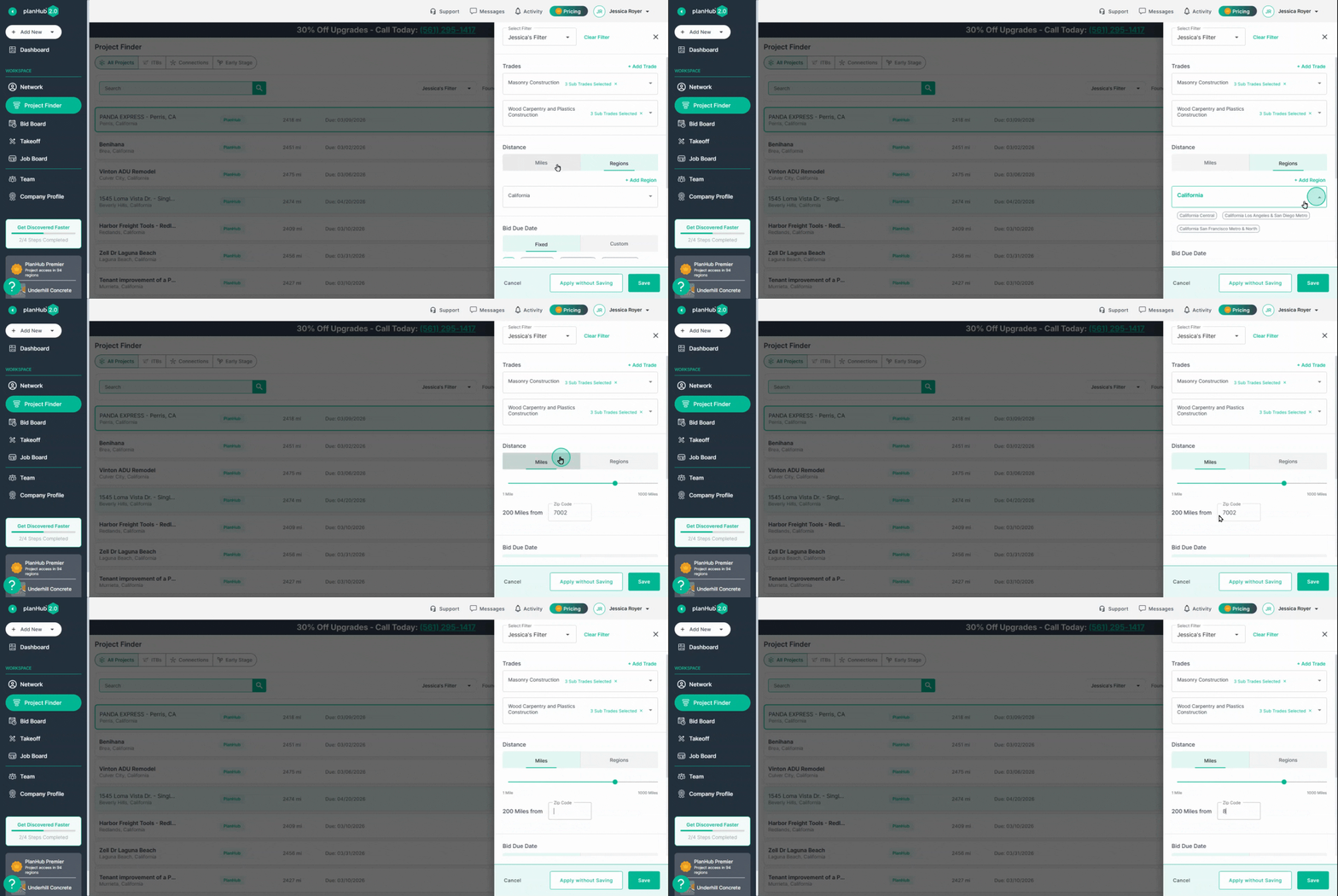
Use the **Distance** filter to narrow projects by **Regions** or set a specific **Mileage** radius from your zip code.
Adjust the radius distance using the mileage slider bar when using the Miles option.
#### **4.3: Filter by Bid Due Dates.**
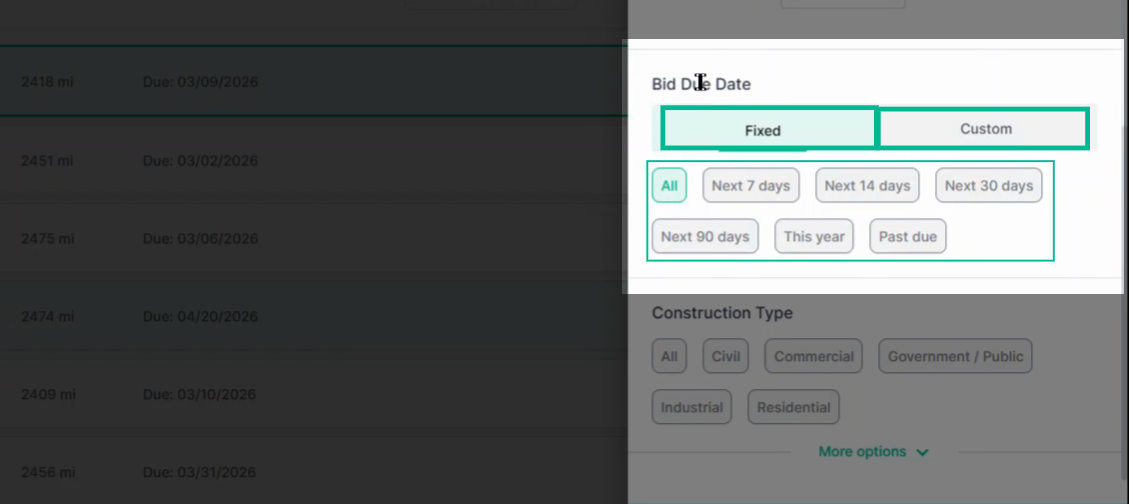
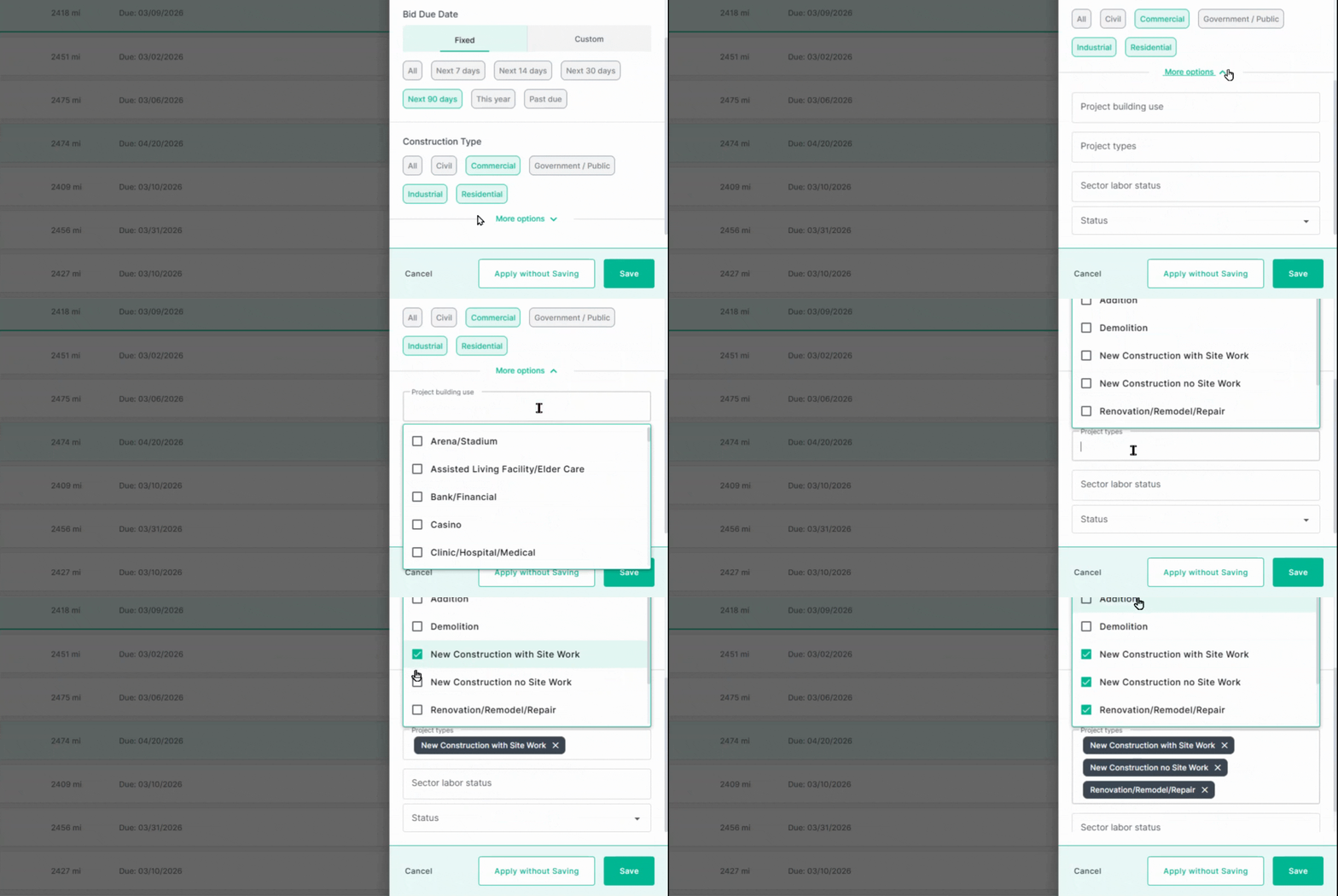
Refine your search using the bid due date filter. Choose a rolling time frame—like the next 7, 14, 30, or 90 days—or select all projects due this year or even past due. For extra precision, use the custom date range option.
#### **4.4: Filter by Construction Type.**
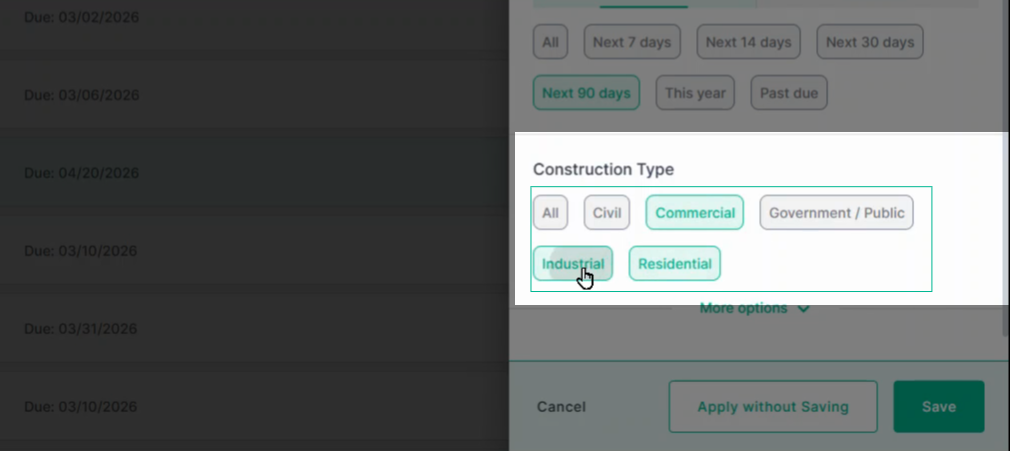
Pick only those construction types that match your expertise.
For example, if you don’t work in the public sector, select just **Commercial**, **Residential**, and **Industrial** types.
#### **4.5: Apply Additional Filters.**
Expand **More options** to filter by building use, project types (like new construction, renovation, demolition, or addition), or labor sector status.
You can also filter projects by their posting status—such as **GC-awarded/Sub bidding** (meaning the general contractor is awarded and accepting bids, or negotiating), or the more common **GC and Sub Bidding** (where both groups are actively bidding the job).
These can further refine the project list based on your business needs and target markets.
#### **4.6: Save or Update Filter Set.**
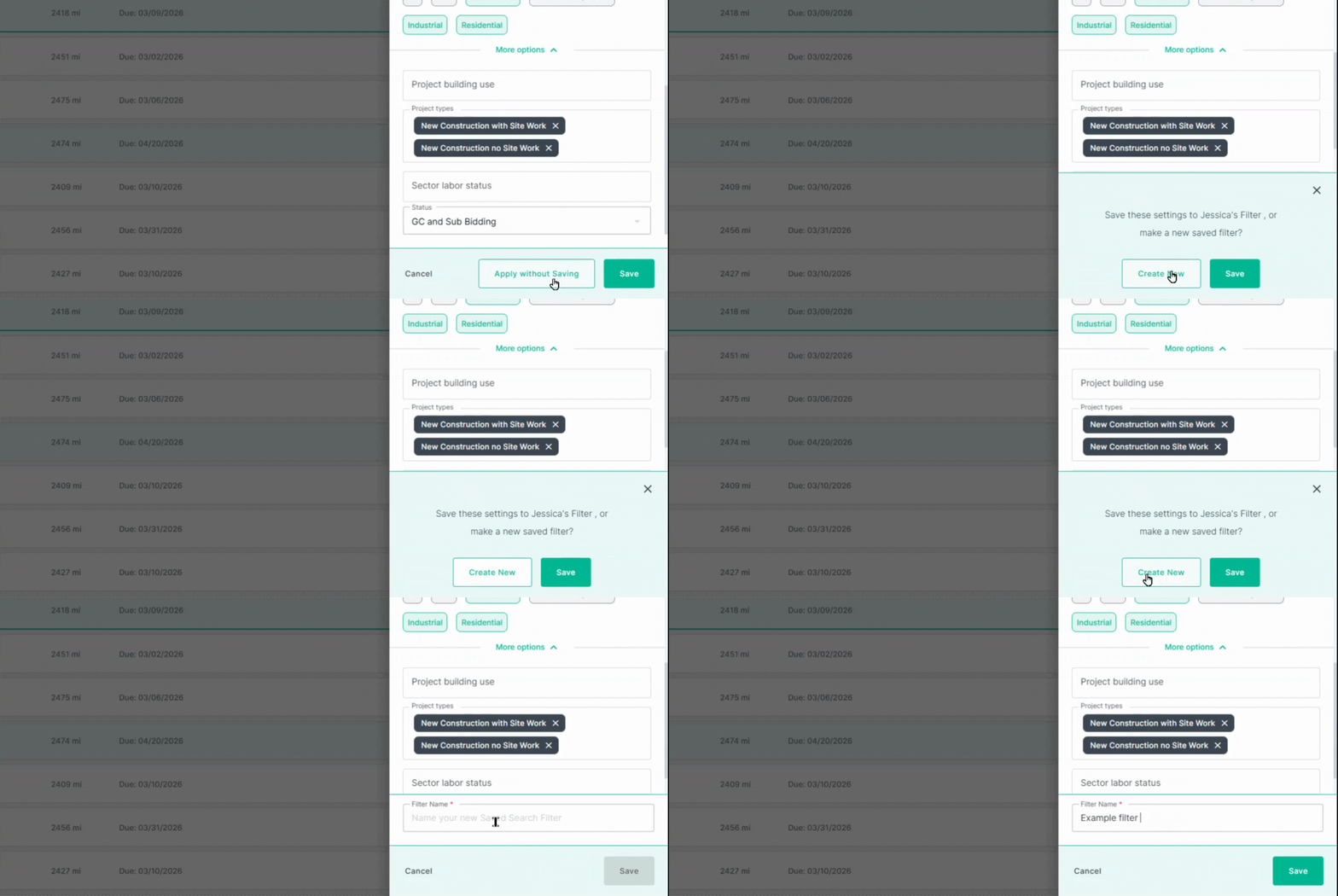
#### Once your filters are set, click **Save**. Choose to **Apply without Saving** to see the results before you save, **Save as new** to create a new filter, or just **Save,** which will update the existing filter.
**Step 5: Access Saved Filters.**
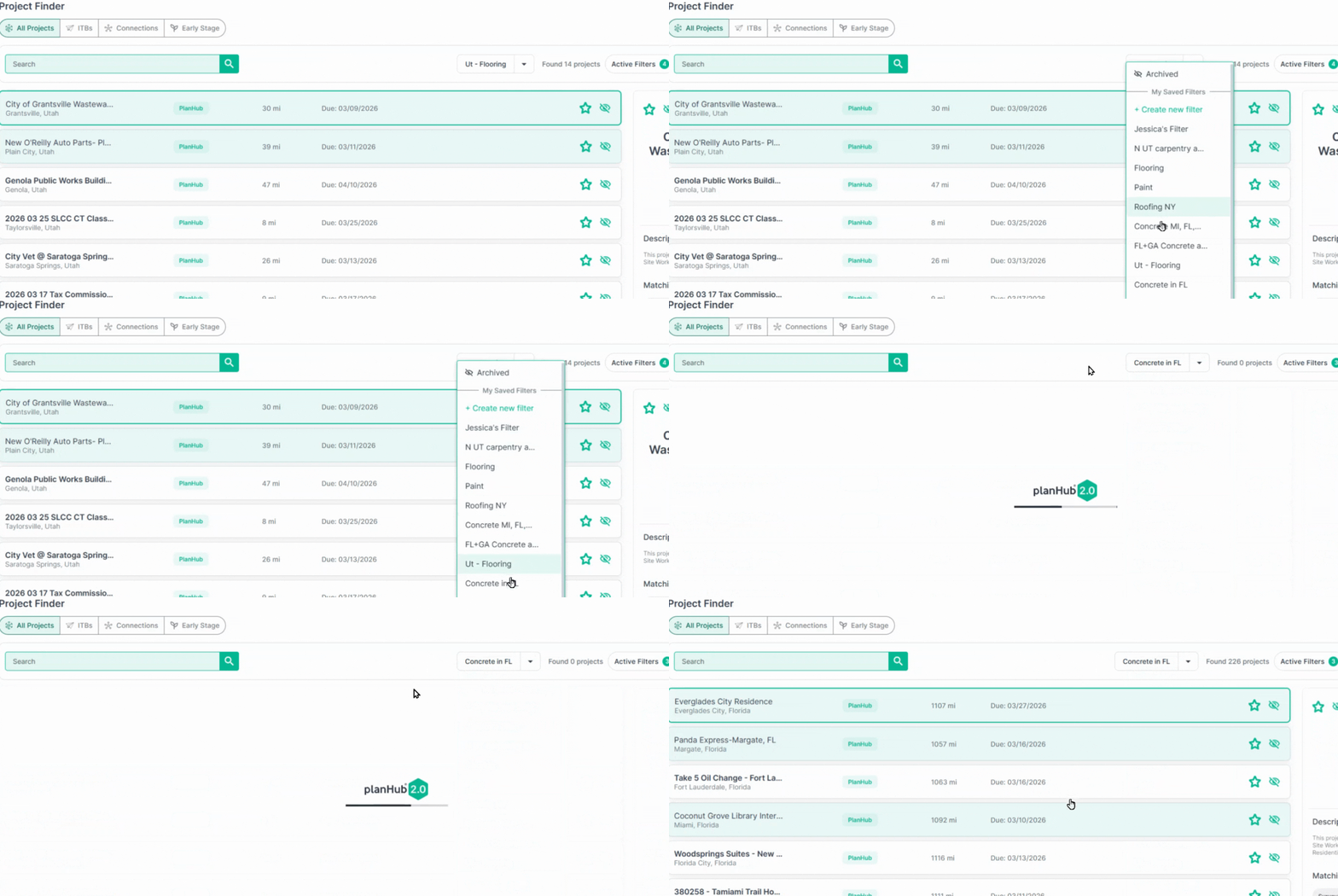
Quickly switch between saved filters using the filter dropdown. This instantly updates your project list to match your selected Saved Filter.
**Step 6: Review Filtered Project Results.**
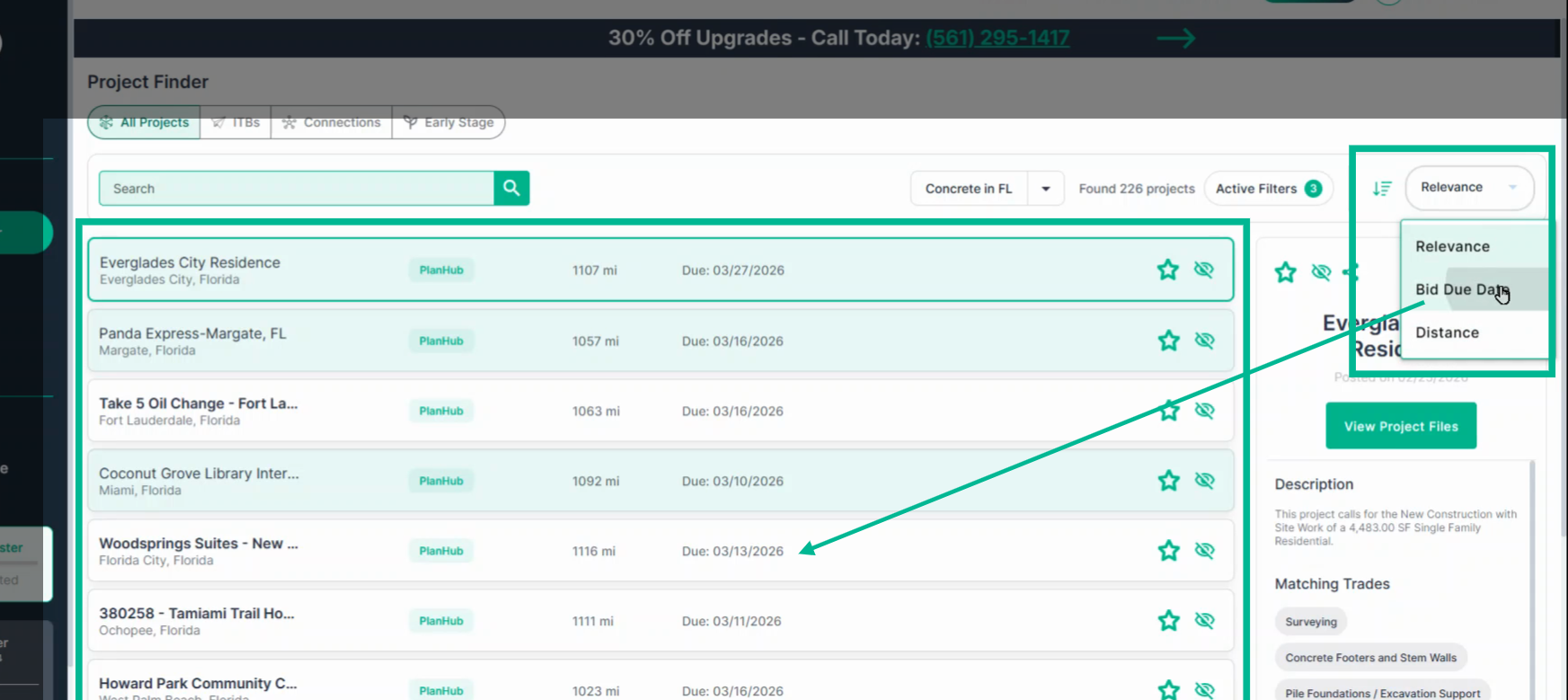
Below your Search and Filters tool Bar you will see projects matching any filters in place.
If needed, click the **Sort** menu to reorder results by Relevance, Bid Due Date, or Distance.
Change the sort direction to adjust the project list order.
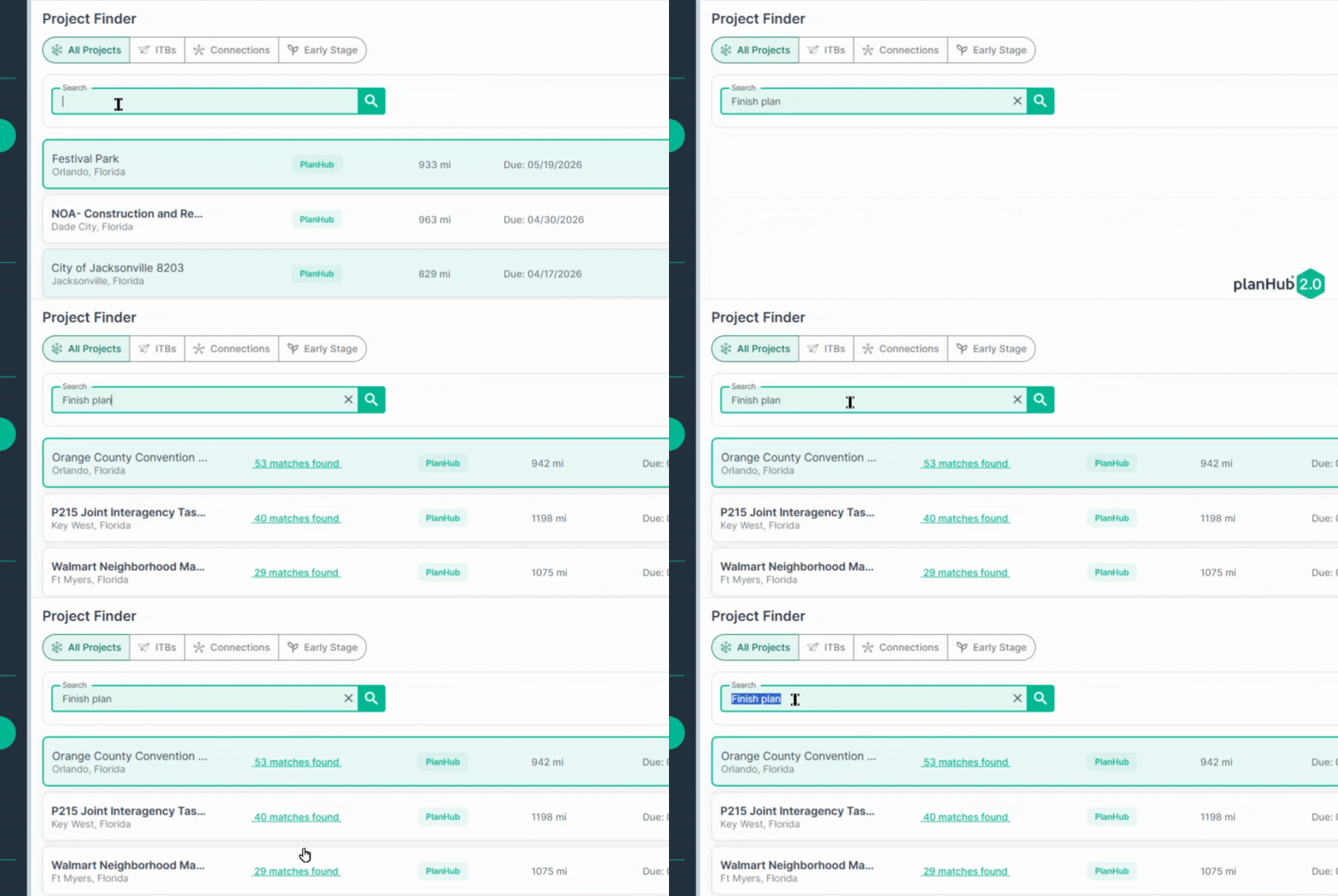
**Step 7: Use Search for Keywords in Project Files.**
Use the **Search** barf tool to find projects with specific products, plan page names, or schedules—these might be essential to your trade. The keyword search scans project names and attached files for your chosen phrases.
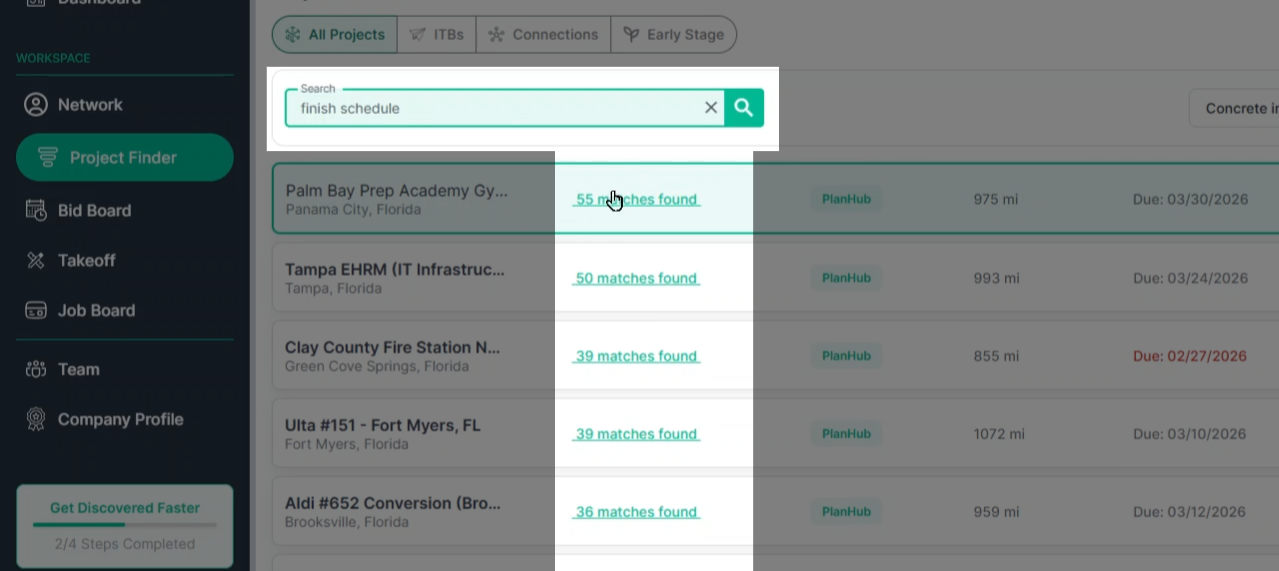
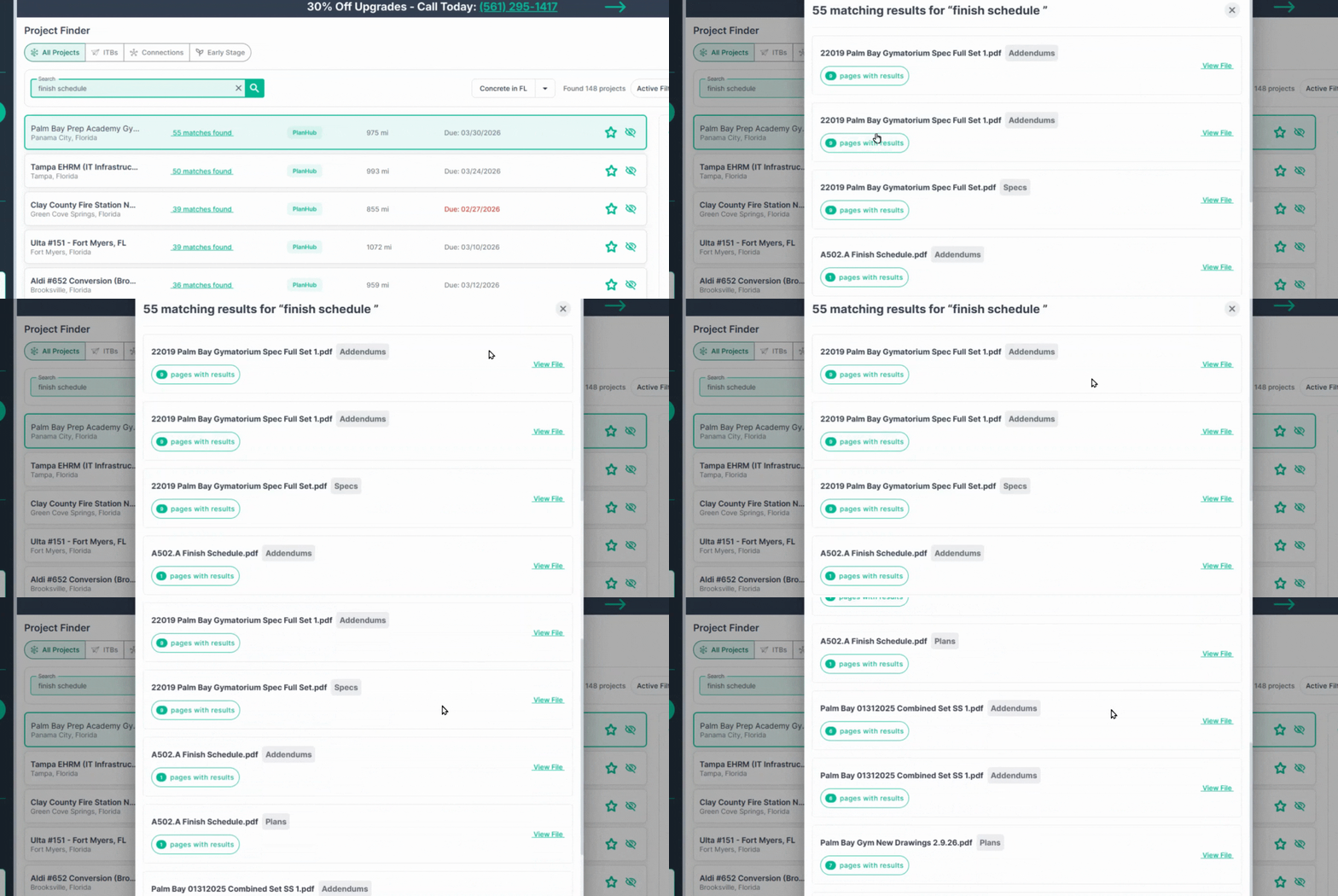
**Step 7.1: Review Search Matches.**
After searching, click the number of matches in each project to see where your phrase appears. A pop-up lists all places the word/phrase was found; select a file to preview the relevant document right from this window.
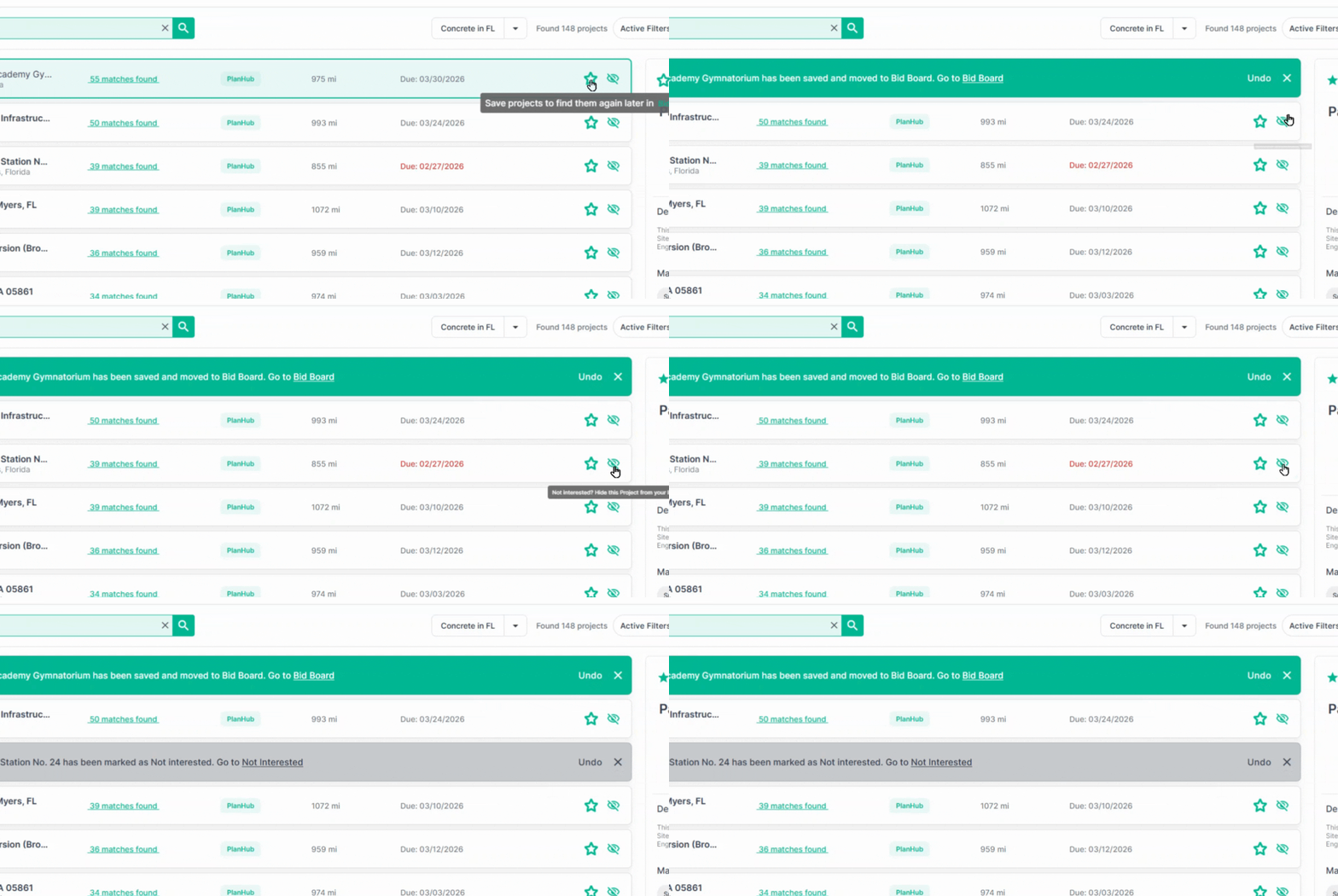
**Step 8: Mark Projects as Saved or Not Interested.**
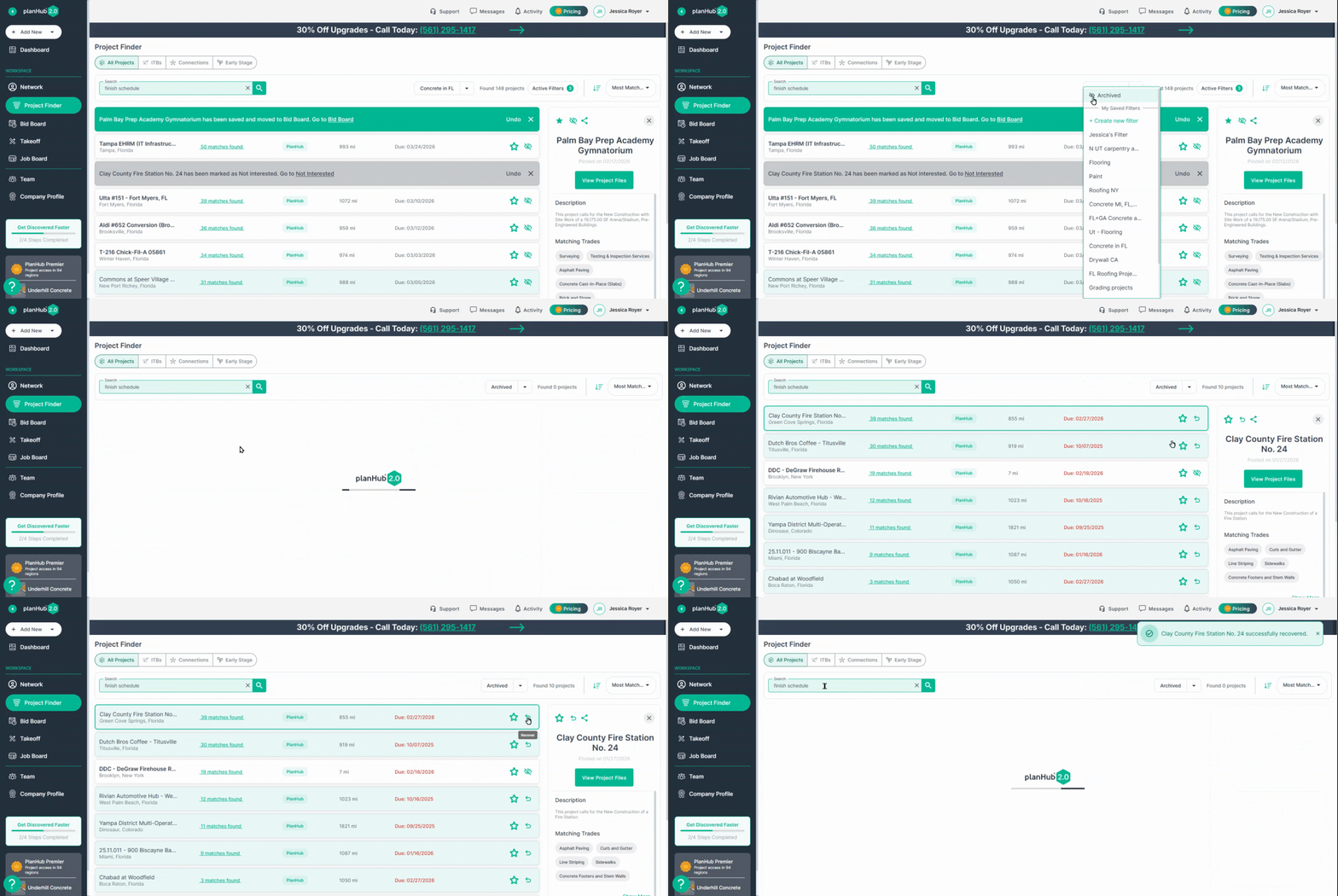
Click the star icon to **Save** projects you’re interested in, or mark others as **Not Interested** to remove them from your list.
**Step 8.1: Recover Archived Projects**
If you change your mind, access the **Archived Projects** filter and use the recover icon to bring a project back.
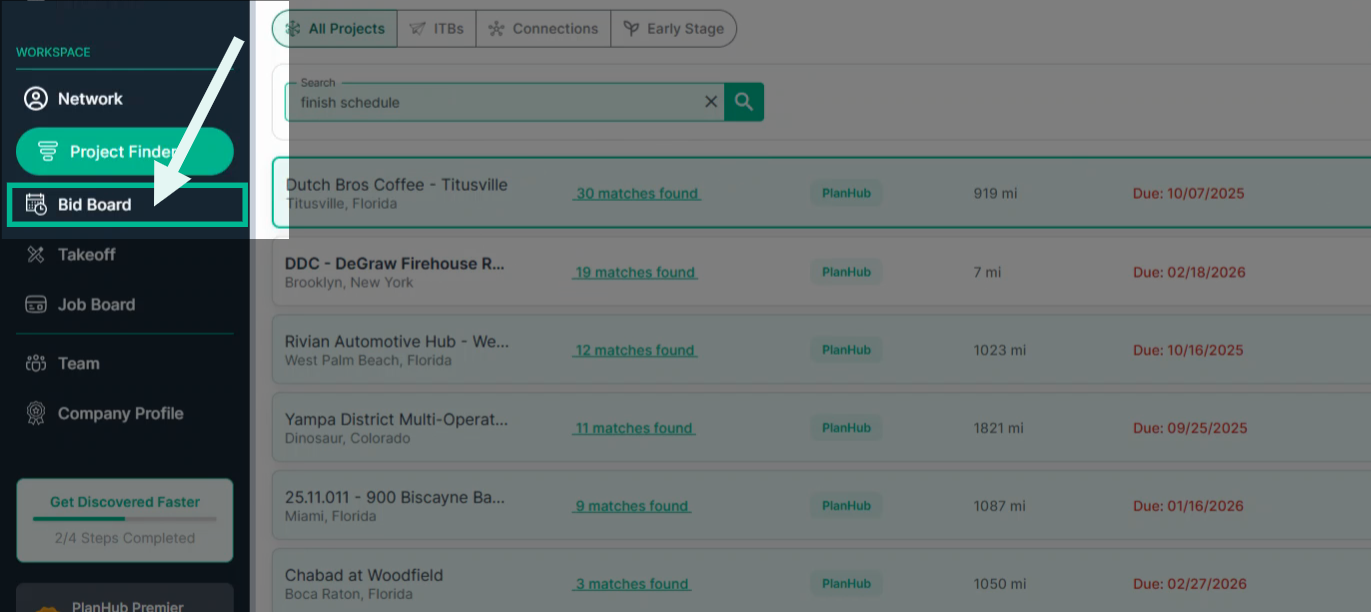
#### **Step 8.2: Saved Projects Go To Your [Bid Board.](https://subcontractor.planhub.com/bid-management/bid-board)**
Saved projects are added to your company’s [**Bid Board**](https://subcontractor.planhub.com/bid-management/bid-board), helping your whole team stay on top of key opportunities.
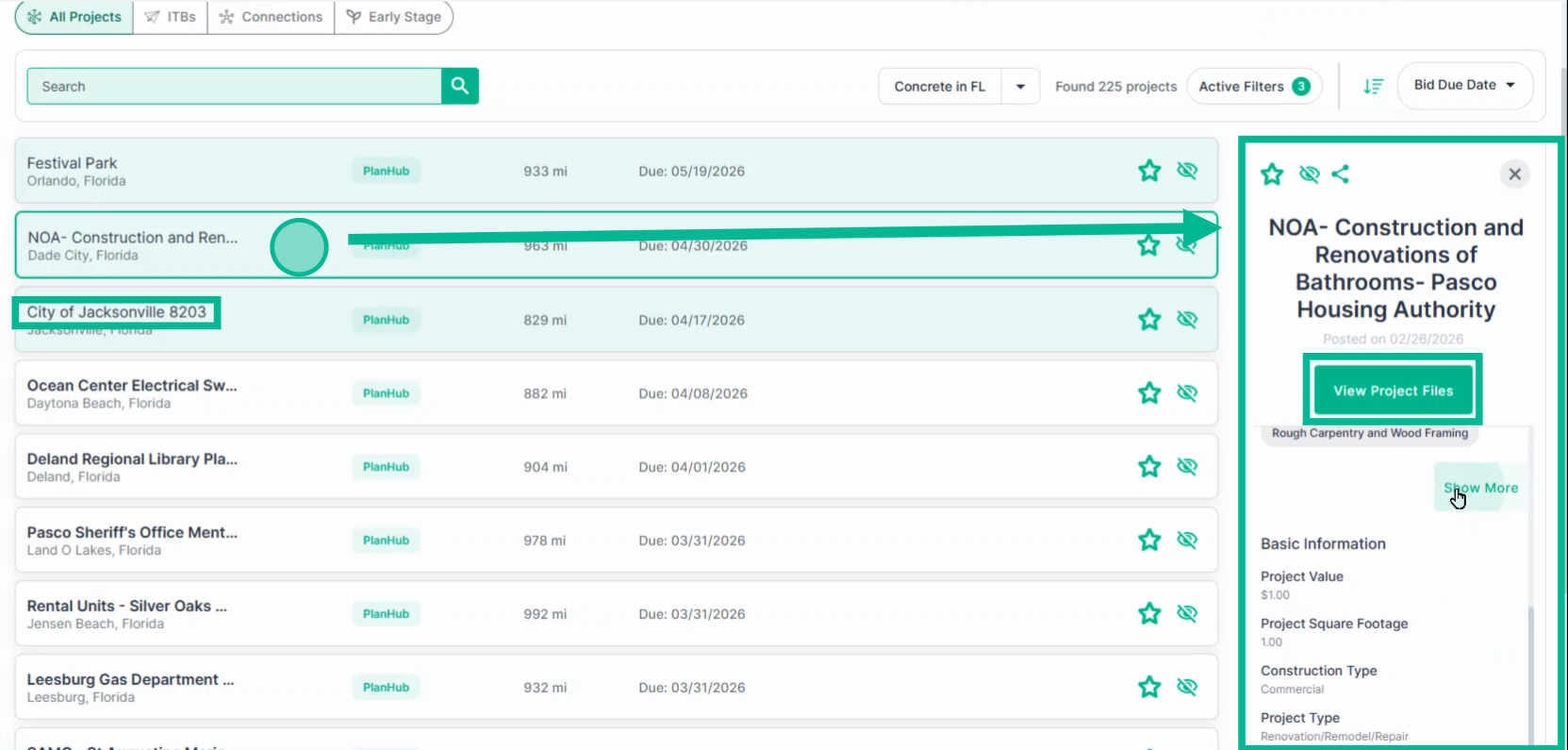
### **Step 9: Preview and Explore Project Details.**
Click a project line item to preview basic details to the right.
Select **View Project Files** for more information, or click the project name to jump into the **Project Details Page** to start your research, review files, and connect with general contractors.
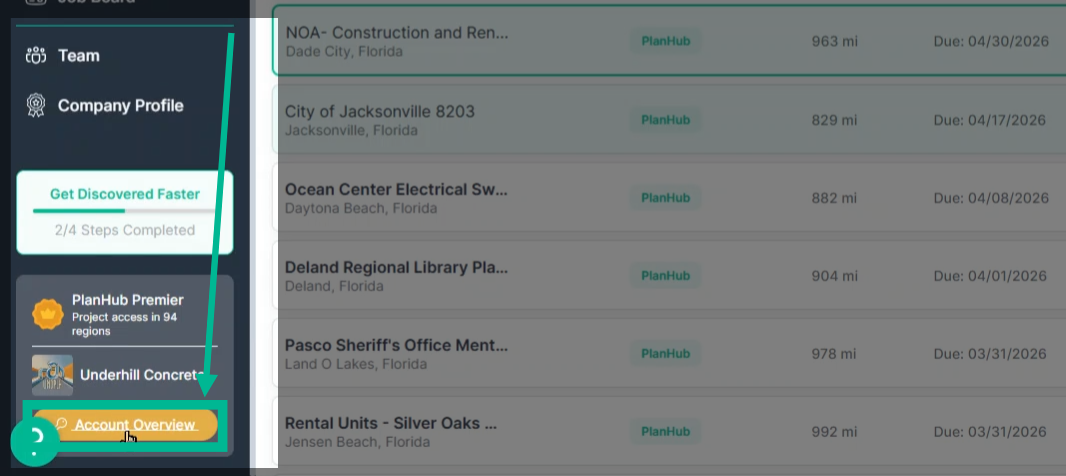
### **Troubleshooting: Project is Locked. Check Your Plan Access.**
If you can’t access a certain project, your access level may be limited. See your plan at the bottom right under **Account Overview**.
PlanHub’s Project Finder ensures you never miss the best-fit projects for your business. The powerful filters and search tools make it fast and easy to keep your pipeline organized and focus on the projects that matter most.
Log in today and start winning more jobs!
**Troubleshooting**
Contact us if you need assistance or to report an issue:
- PlanHub Contact Page: https://planhub.com/contact/
- Customer Facing Support Ticket Link: https://knowledgebase.planhub.com/knowledge/kb-tickets/new
- Customer Success Team: CustomerSuccess@planhub.com
- [General Contractor](https://knowledgebase.planhub.com/knowledge/general-contractor?hsLang=en#main-content)
- [Overview](https://knowledgebase.planhub.com/knowledge/general-contractor?hsLang=en#overview)
- [Projects](https://knowledgebase.planhub.com/knowledge/general-contractor?hsLang=en#projects)
- [Networking](https://knowledgebase.planhub.com/knowledge/general-contractor?hsLang=en#networking)
- [Subcontractors](https://knowledgebase.planhub.com/knowledge/subcontractors?hsLang=en#main-content)
- [Overview](https://knowledgebase.planhub.com/knowledge/subcontractors?hsLang=en#overview)
- [Projects](https://knowledgebase.planhub.com/knowledge/subcontractors?hsLang=en#projects)
- [Bid Board & Tracking](https://knowledgebase.planhub.com/knowledge/subcontractors?hsLang=en#bid-board-tracking)
- [Networking](https://knowledgebase.planhub.com/knowledge/subcontractors?hsLang=en#networking)
- [Takeoff & Estimation](https://knowledgebase.planhub.com/knowledge/subcontractors?hsLang=en#takeoff-estimation)
- [Manage Your Team](https://knowledgebase.planhub.com/knowledge/subcontractors?hsLang=en#manage-your-team)
- [Account & Settings](https://knowledgebase.planhub.com/knowledge/subcontractors?hsLang=en#account-settings)
- [Job Board](https://knowledgebase.planhub.com/knowledge/subcontractors?hsLang=en#job-board)
- [Request for Information](https://knowledgebase.planhub.com/knowledge/subcontractors?hsLang=en#request-for-information)
- [AI](https://knowledgebase.planhub.com/knowledge/subcontractors?hsLang=en#ai)
- [Supplier](https://knowledgebase.planhub.com/knowledge/supplier?hsLang=en#main-content)
- [Overview](https://knowledgebase.planhub.com/knowledge/supplier?hsLang=en#overview)
- [Projects and Leads](https://knowledgebase.planhub.com/knowledge/supplier?hsLang=en#projects-and-leads)
- [Bidding & Estimating](https://knowledgebase.planhub.com/knowledge/supplier?hsLang=en#bidding-estimating)
- [Networking](https://knowledgebase.planhub.com/knowledge/supplier?hsLang=en#networking)
- [Account & Settings](https://knowledgebase.planhub.com/knowledge/supplier?hsLang=en#account-settings)
- [Takeoff & Estimation](https://knowledgebase.planhub.com/knowledge/takeoff-estimation?hsLang=en#main-content)
- [Getting Started](https://knowledgebase.planhub.com/knowledge/takeoff-estimation?hsLang=en#getting-started)
- [Takeoff Tools & Measurements](https://knowledgebase.planhub.com/knowledge/takeoff-estimation?hsLang=en#takeoff-tools-measurements)
- [Trade-Specific Takeoffs](https://knowledgebase.planhub.com/knowledge/takeoff-estimation?hsLang=en#trade-specific-takeoffs)
- [Estimating](https://knowledgebase.planhub.com/knowledge/takeoff-estimation?hsLang=en#estimating)
- [Managing & Sharing Your Work](https://knowledgebase.planhub.com/knowledge/takeoff-estimation?hsLang=en#managing-sharing-your-work)
- [Account & Billing](https://knowledgebase.planhub.com/knowledge/account-billing?hsLang=en#main-content)
- [Account & Billing](https://knowledgebase.planhub.com/knowledge/account-billing?hsLang=en#account-billing)
- [Account Closure](https://knowledgebase.planhub.com/knowledge/account-billing?hsLang=en#account-closure)
- [Troubleshooting](https://knowledgebase.planhub.com/knowledge/troubleshooting?hsLang=en)
- [About PlanHub](https://knowledgebase.planhub.com/knowledge/about-planhub?hsLang=en)
- [New General Contractor Experience](https://knowledgebase.planhub.com/knowledge/new-general-contractor-experience?hsLang=en#main-content)
- [Overview](https://knowledgebase.planhub.com/knowledge/new-general-contractor-experience?hsLang=en#overview)
- [Projects](https://knowledgebase.planhub.com/knowledge/new-general-contractor-experience?hsLang=en#projects)
- [Networking](https://knowledgebase.planhub.com/knowledge/new-general-contractor-experience?hsLang=en#networking)
- [Takeoff & Estimation](https://knowledgebase.planhub.com/knowledge/new-general-contractor-experience?hsLang=en#takeoff-estimation)
- [Account & Settings](https://knowledgebase.planhub.com/knowledge/new-general-contractor-experience?hsLang=en#account-settings)
- [Manage Your Team](https://knowledgebase.planhub.com/knowledge/new-general-contractor-experience?hsLang=en#manage-your-team)
- [Submit Feedback](https://knowledgebase.planhub.com/knowledge/submit-feedback?hsLang=en#main-content)
- [Feedback](https://knowledgebase.planhub.com/knowledge/submit-feedback?hsLang=en#feedback)
- [Have an Issue? Submit a Ticket](https://knowledgebase.planhub.com/knowledge/kb-tickets/new)
[](http://planhub.com)
[Knowledge Base Home](https://knowledgebase.planhub.com/knowledge?hsLang=en)
[Submit a Ticket](https://knowledgebase.planhub.com/knowledge/kb-tickets/new?hsLang=en)
Copyright © 2026, ©2026 PlanHub, Inc. All rights reserved