![NEW_PlanHub_Logo_Navy.png]](https://knowledgebase.planhub.com/hs-fs/hubfs/Design/PH%20Logos/NEW%202024%20PH%20Logos/NEW_PlanHub_Logo_Navy.png?height=40&name=NEW_PlanHub_Logo_Navy.png)
Step 1: Log into your supplier account
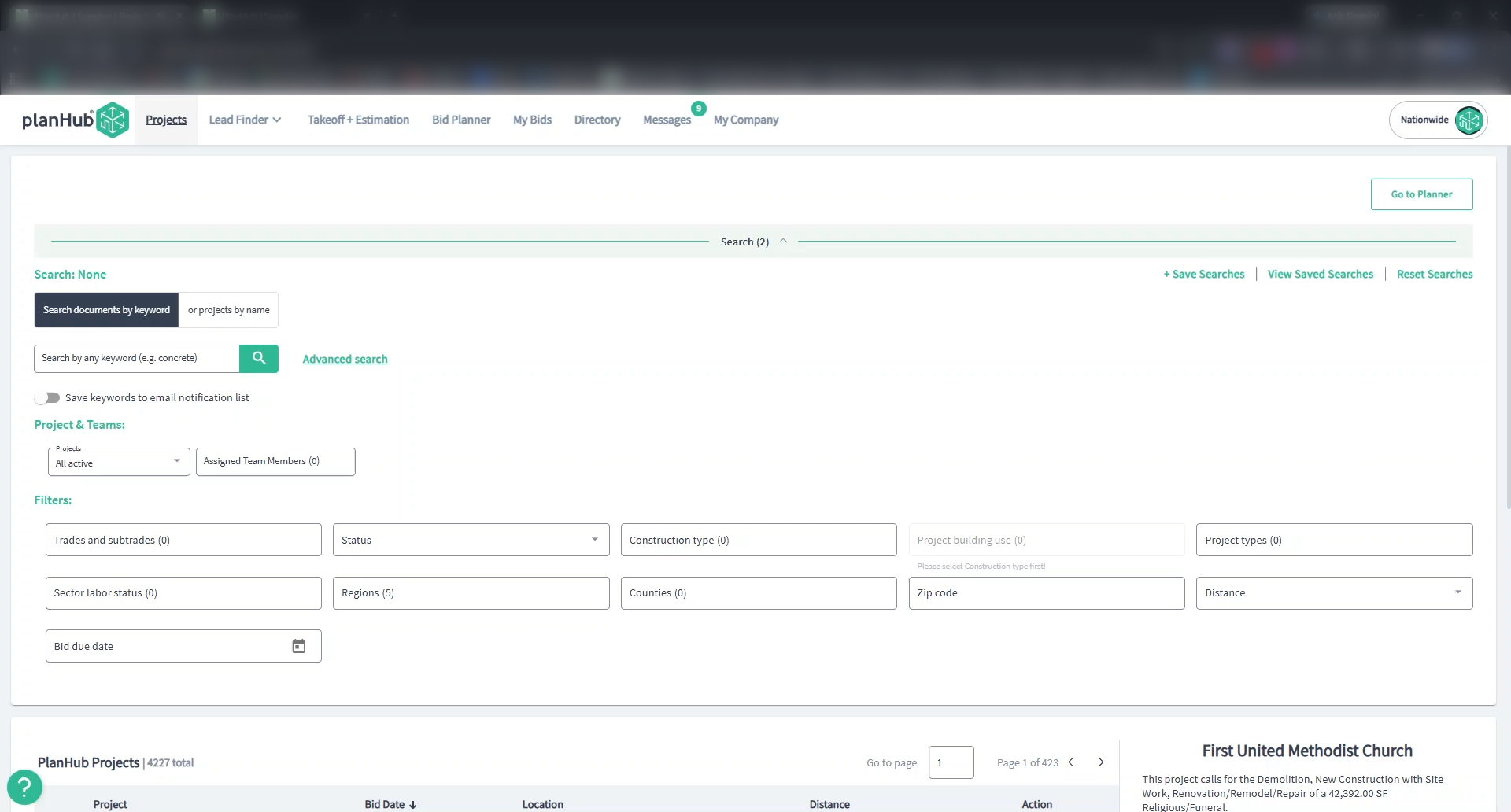
Step 2: To get to the Projects page, click Projects in the main navigation bar at the top of the web page.
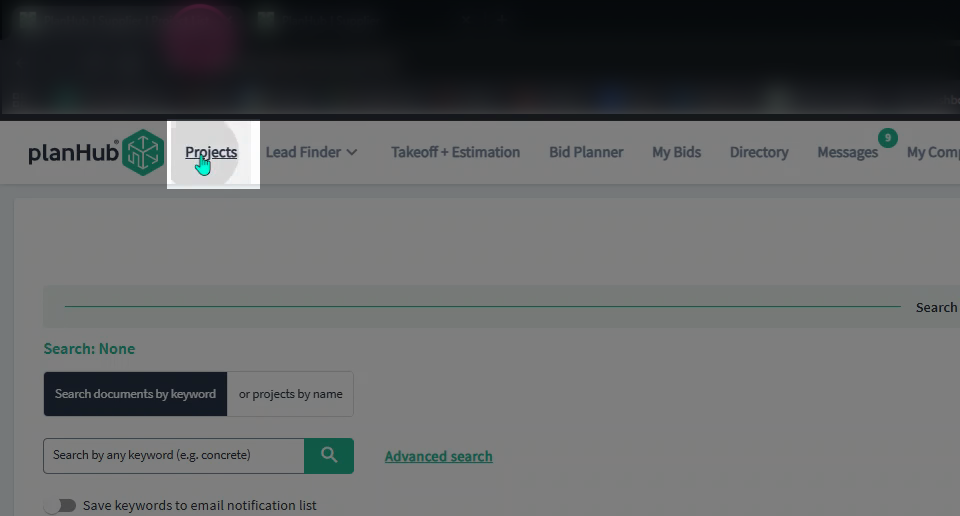
Step 3: Next, begin searching for projects that match your interests by using the keyword search bar and the available filters.
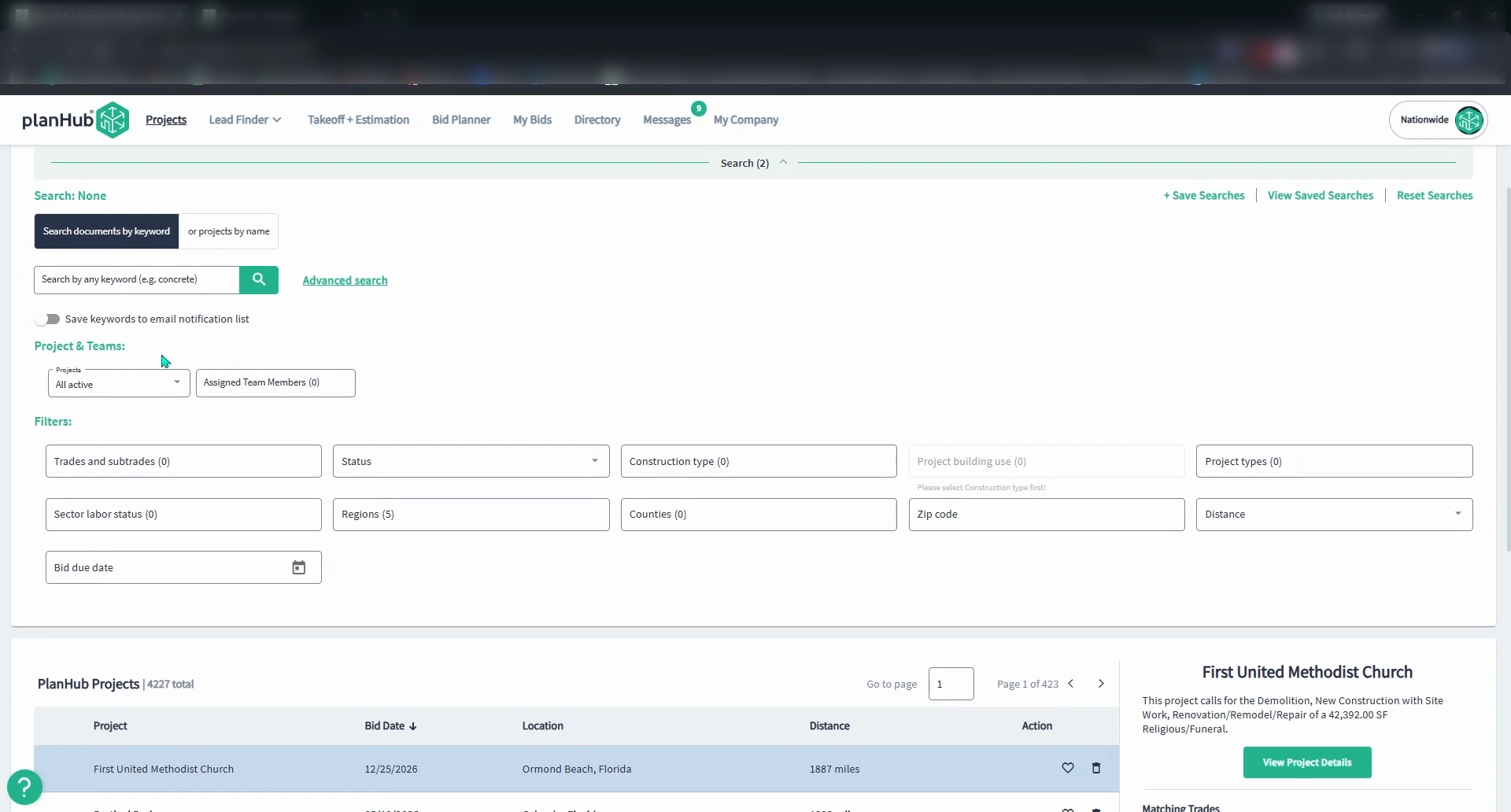
Step 4: Enter keywords relevant to your products or trade (like a product name or specialty).
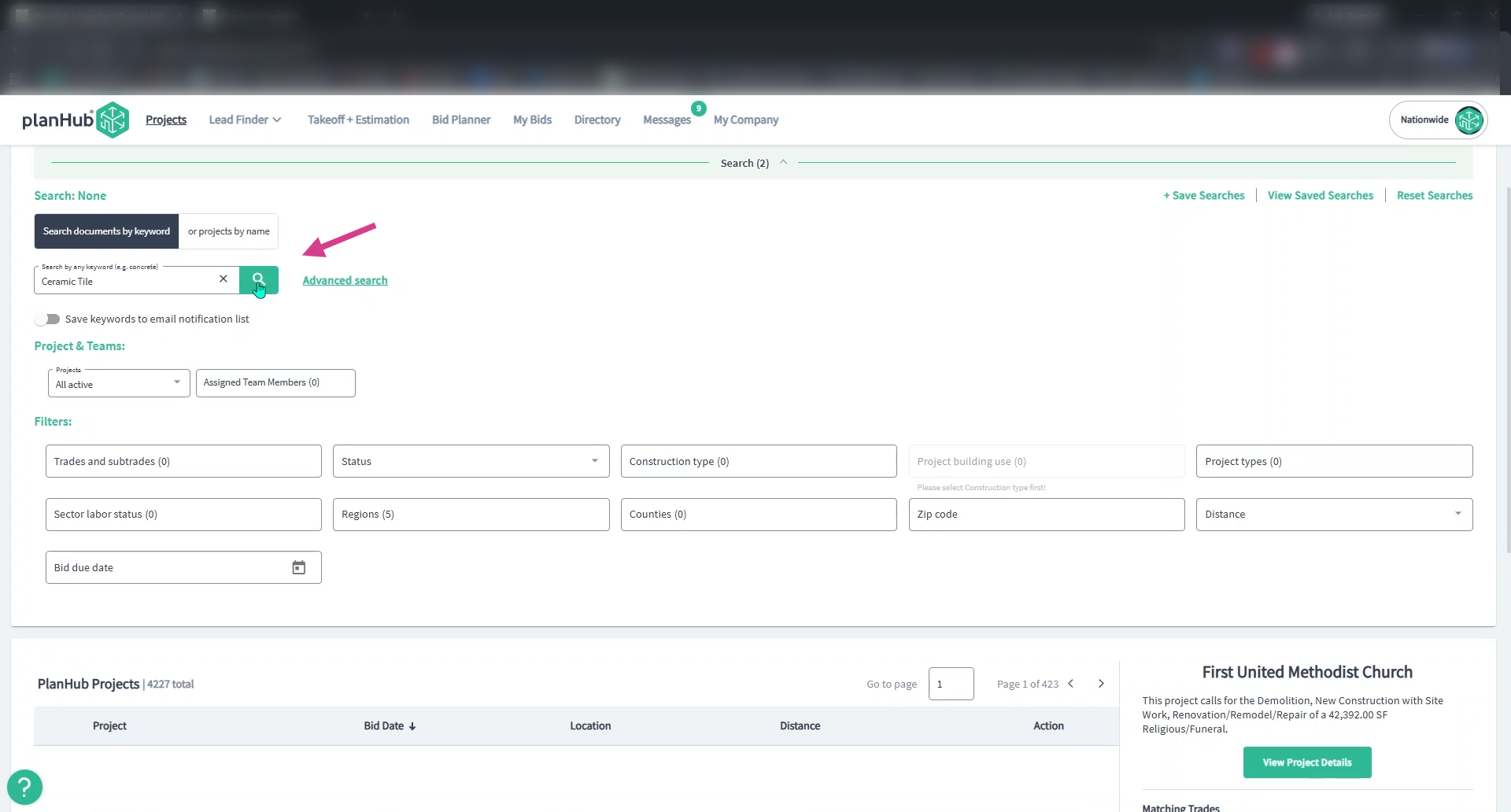
Step 5: Press Enter or click the magnifying glass icon to run your search.
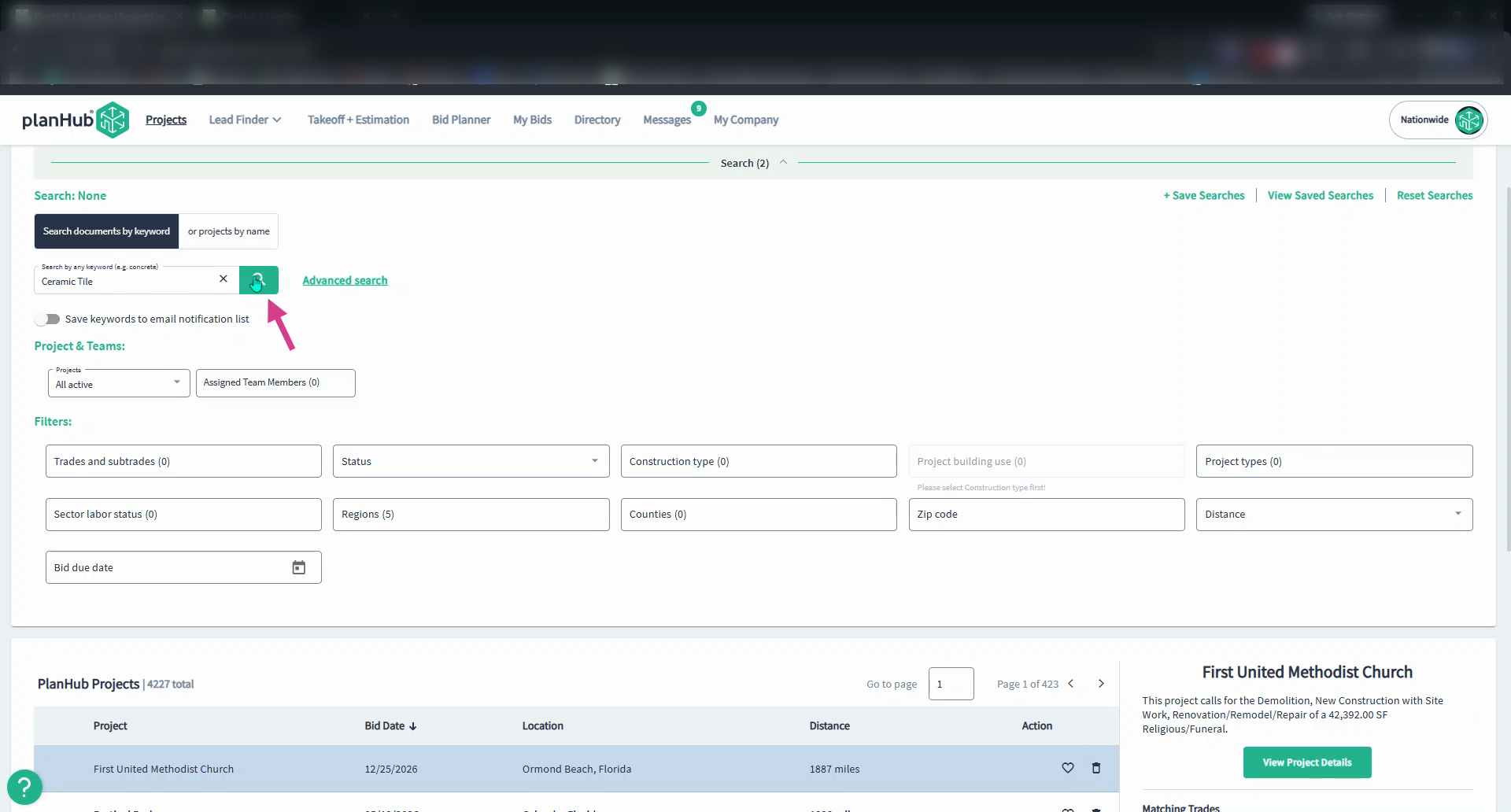
Step 6: Review the list of projects and related documents that match your search.
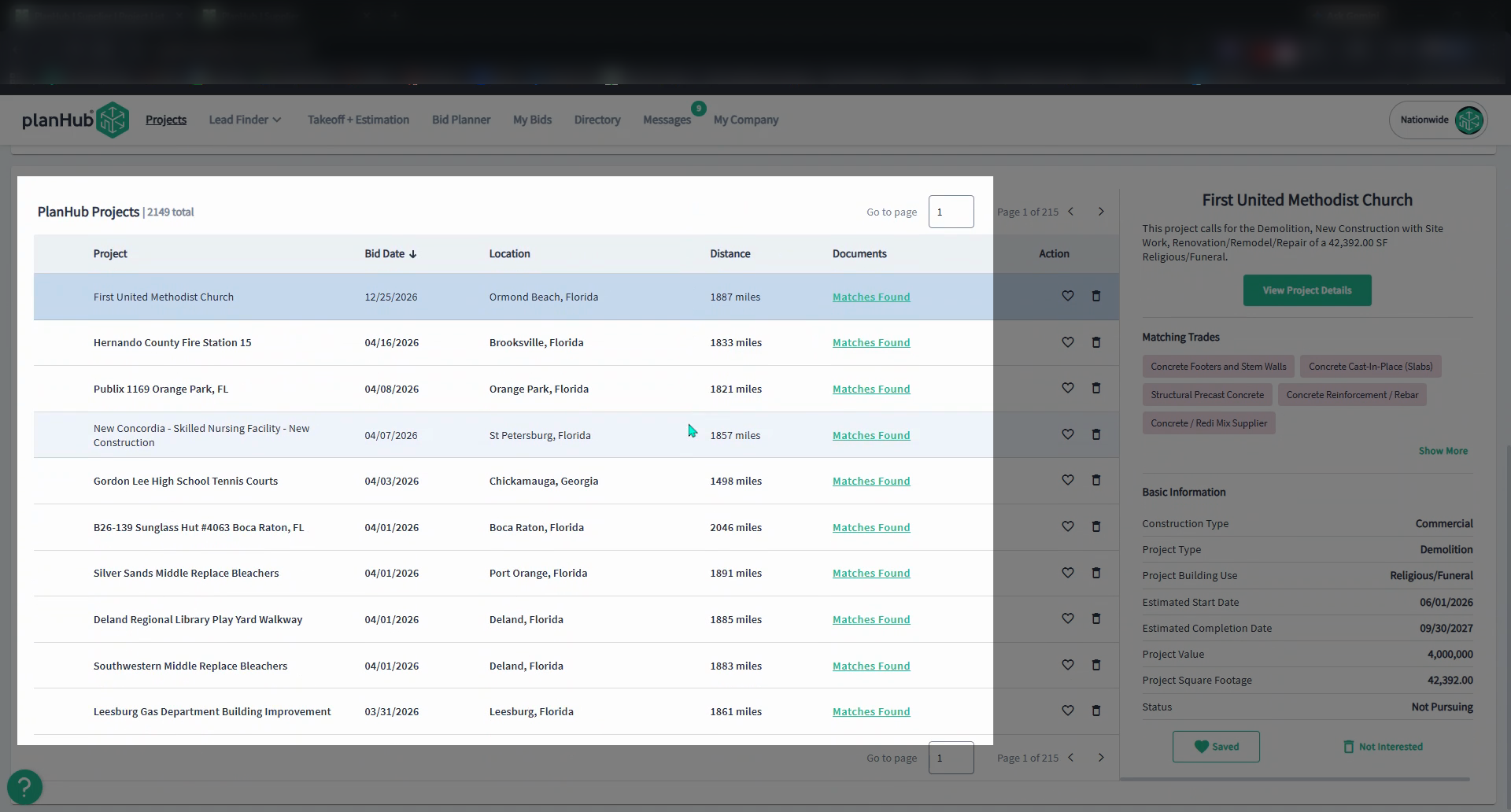
Step 7: Check the Documents column for phrases like “matches found.” Click this to review the related files.
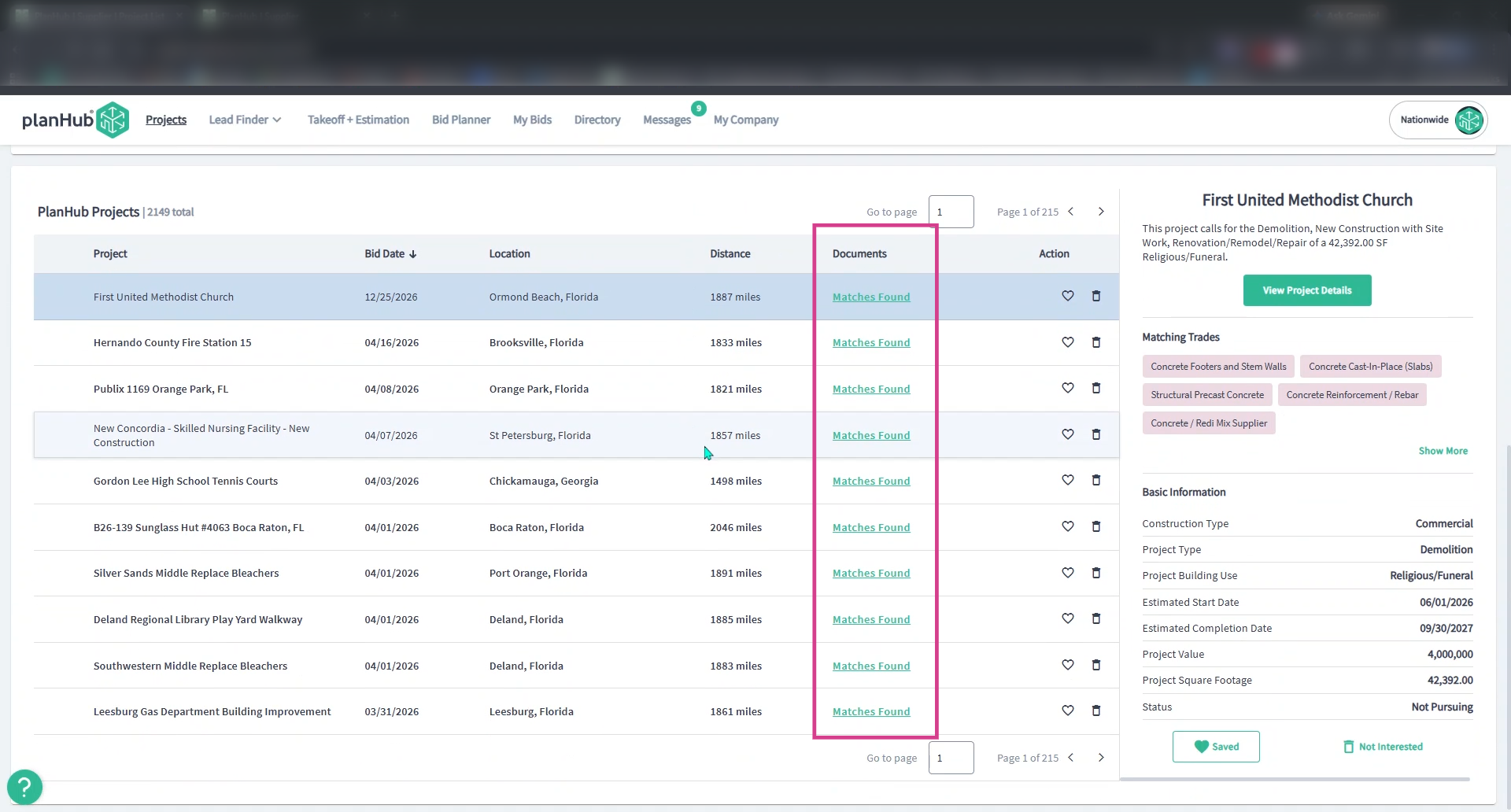
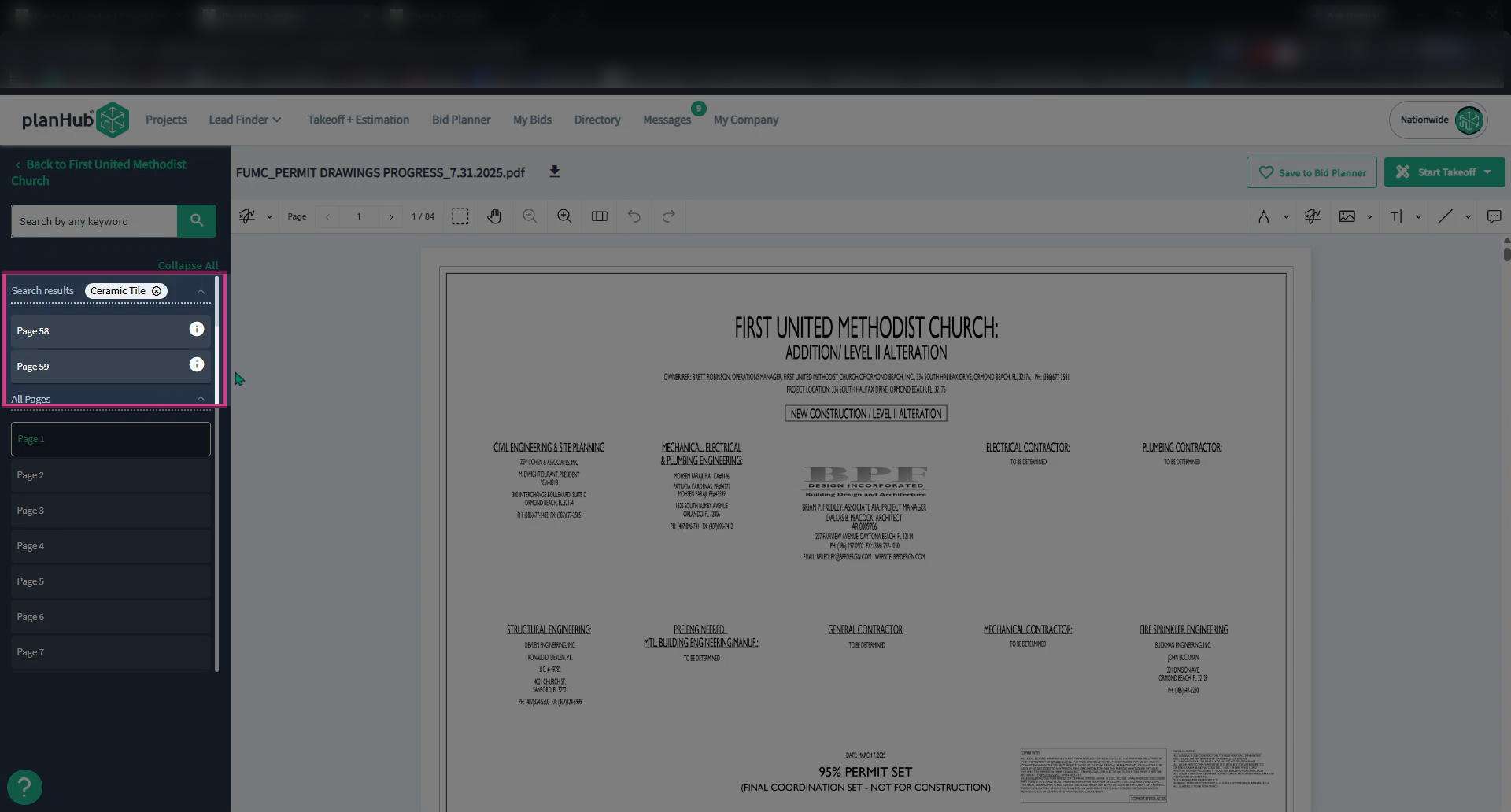
Step 8: A pop-up window will appear displaying the matching results. From there, click the file viewer magnifying glass icon to open the files.
Step 9: View the panel on the left to see all pages containing your keywords, along with the number of keyword appearances or the lowercase “i” info icon indicating that the keywords were found on those pages but are not highlighted.
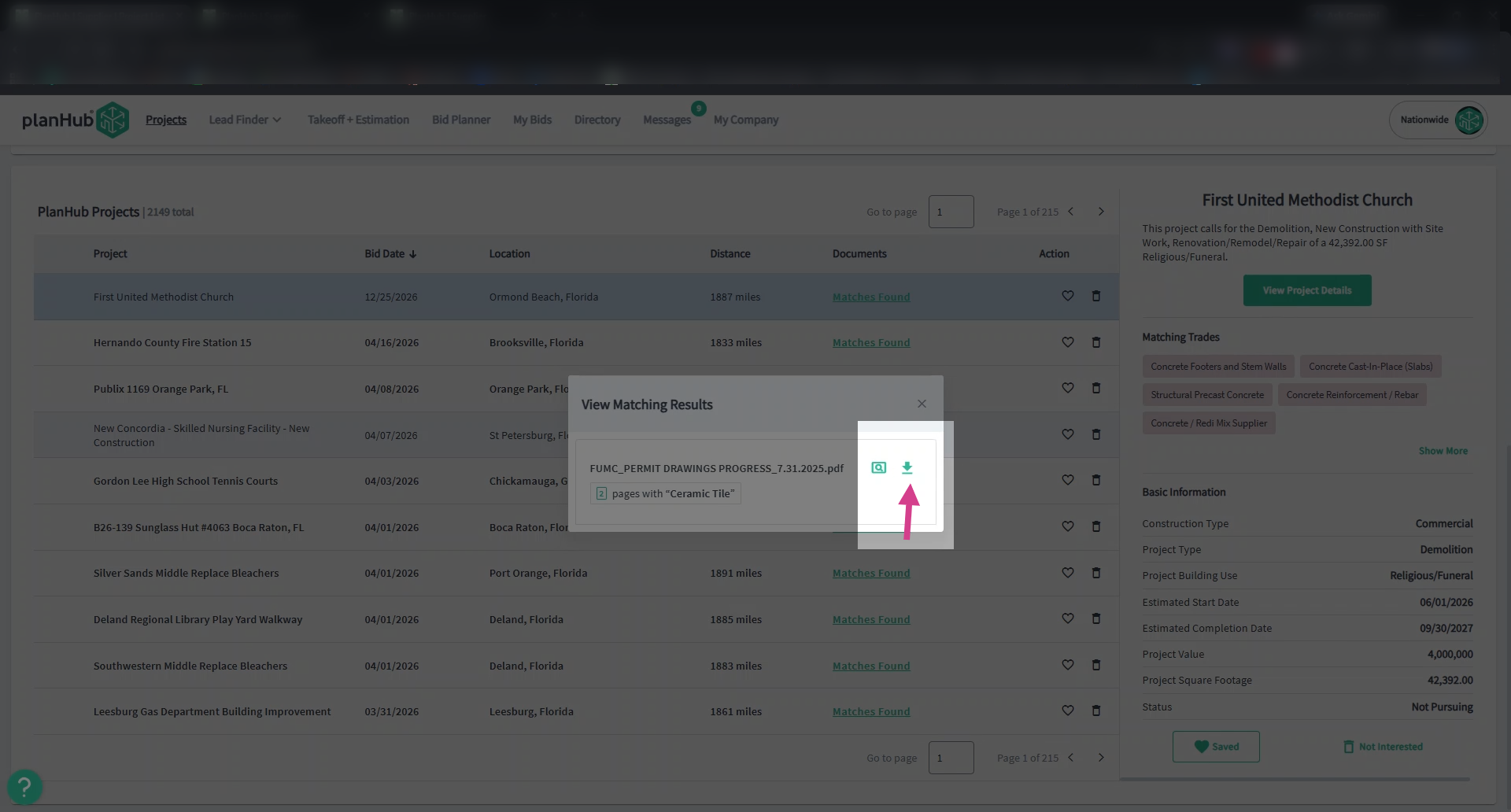
Step 10: Return to the projects page and download files by clicking the down arrow icon.
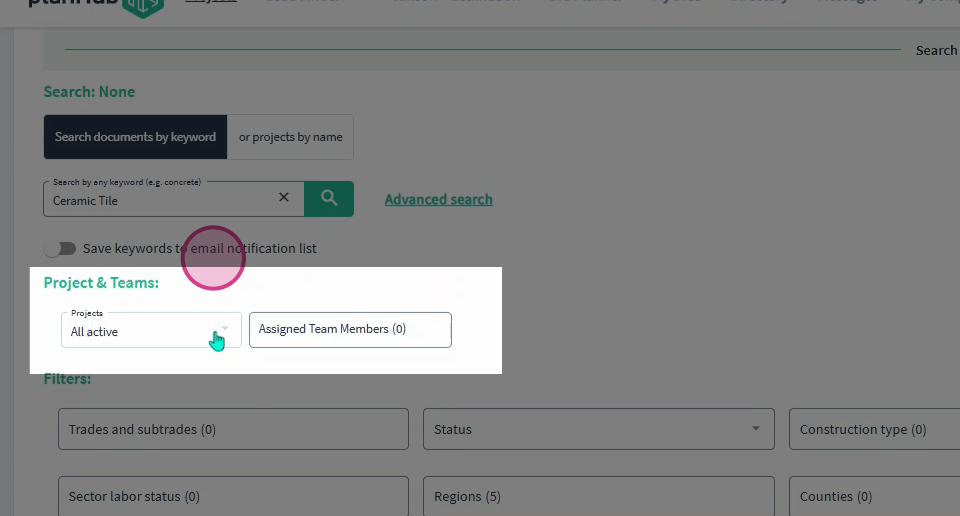
Step 11: Refine your project list using the available filters, such as project status or assigned team members.
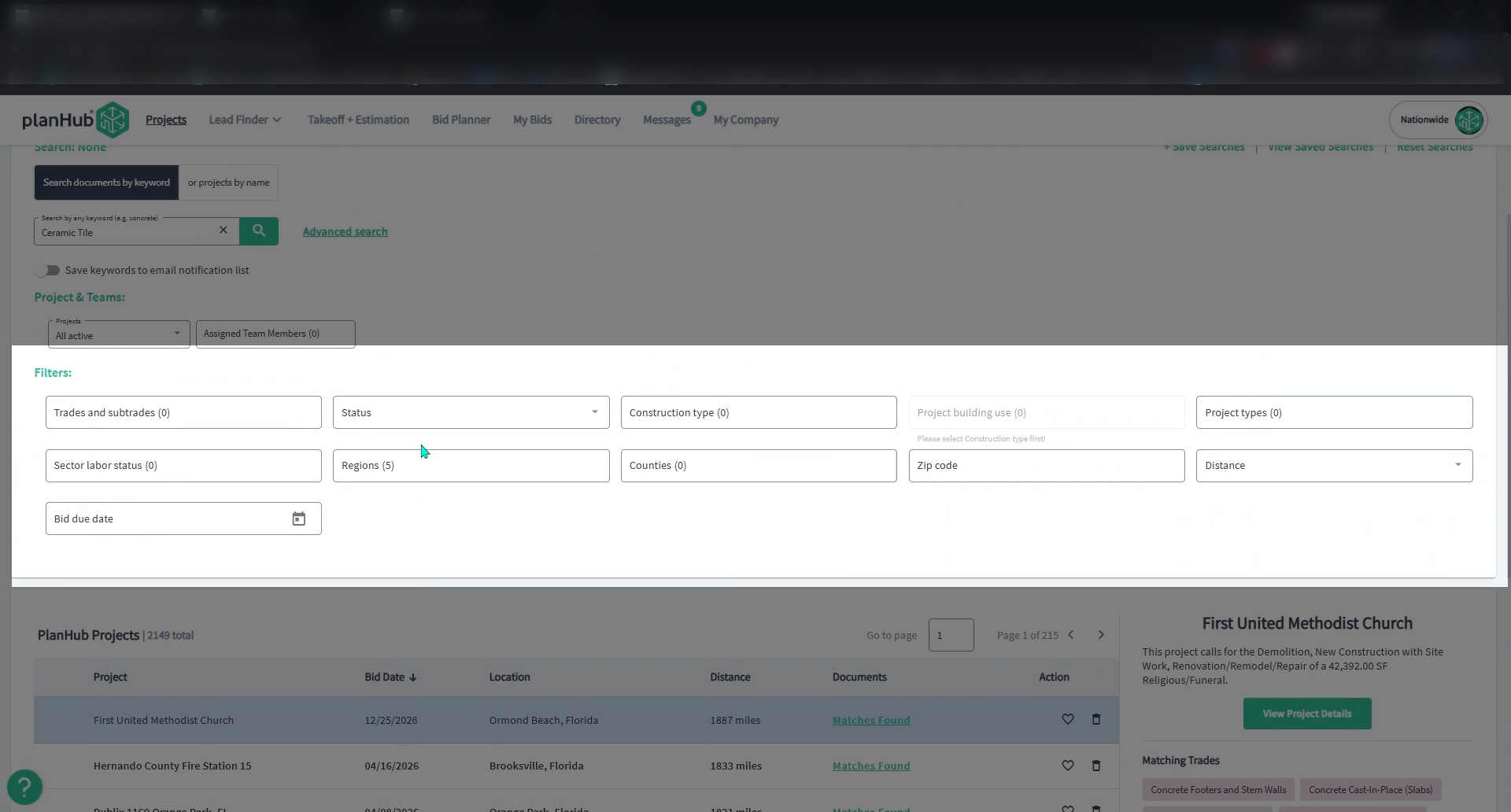
Step 12: Below that, the main Filters offer several options to further refine your search. Select the filters that best align with your interests and your subscription area.
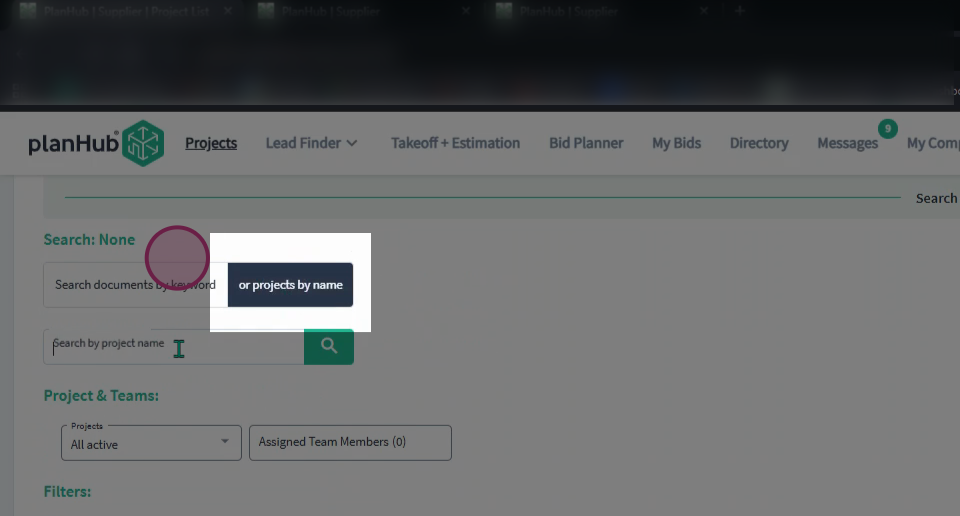
Step 13: To search by project name, choose Projects by Name above the keyword search bar. Enter the project name for a direct match.
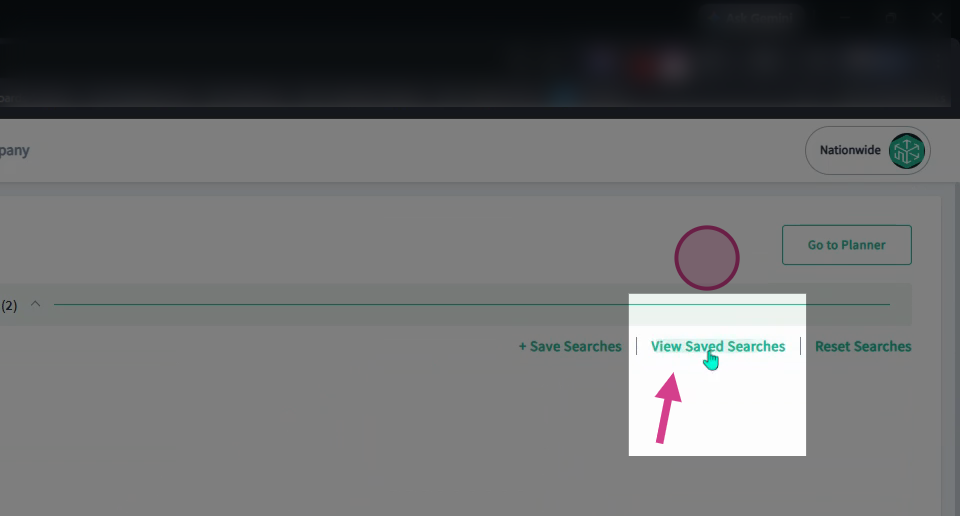
Step 14: Access all your saved search filters by clicking View Saved Searches at the top-right.
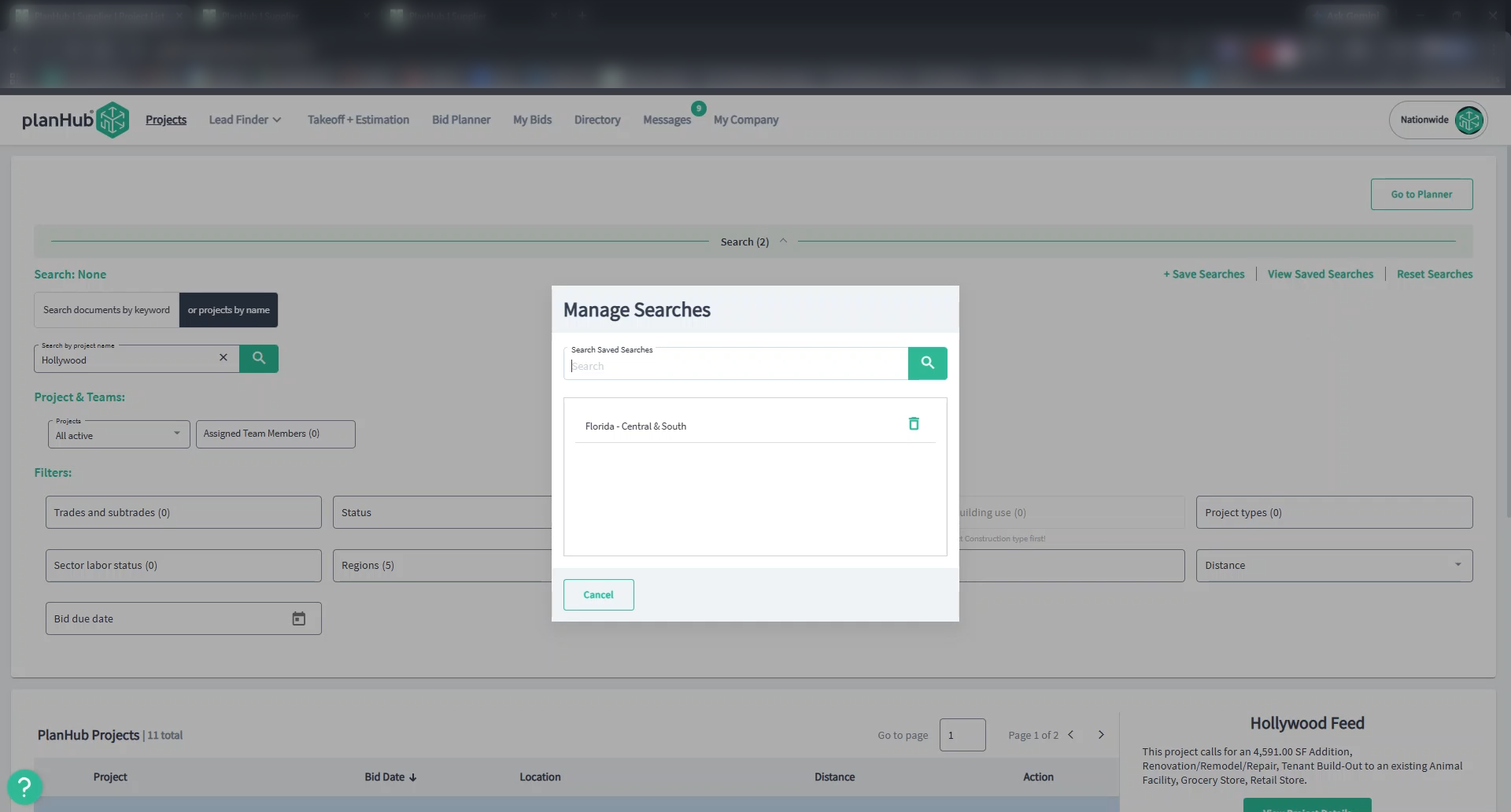
Step 15: In the pop-up window, open a saved search or delete searches that are no longer useful.
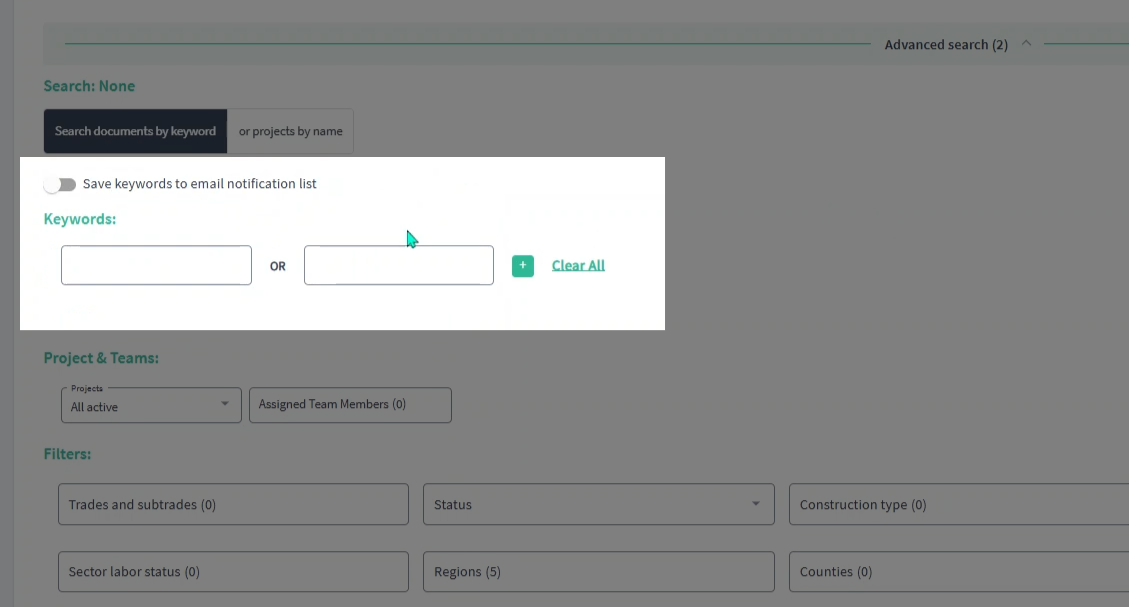
Step 16: Use the Advanced Search option to expand your search.
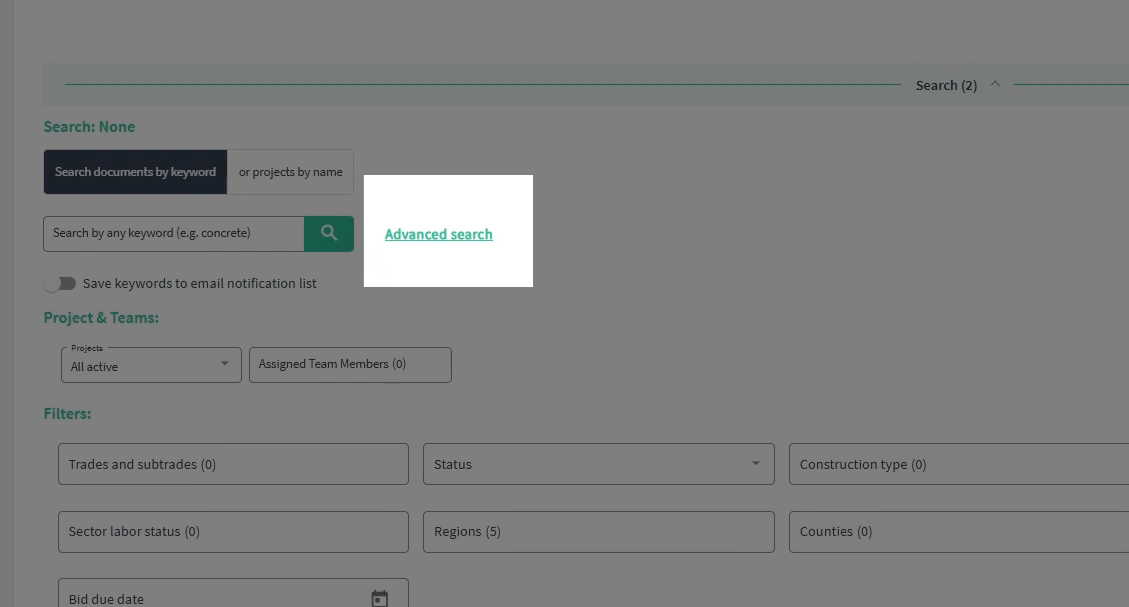
Step 17: You can enter up to 10 keywords at once. Use the plus sign to add more keywords, and toggle on the Save keywords to email notification list option to receive email notifications when they are found in a document.
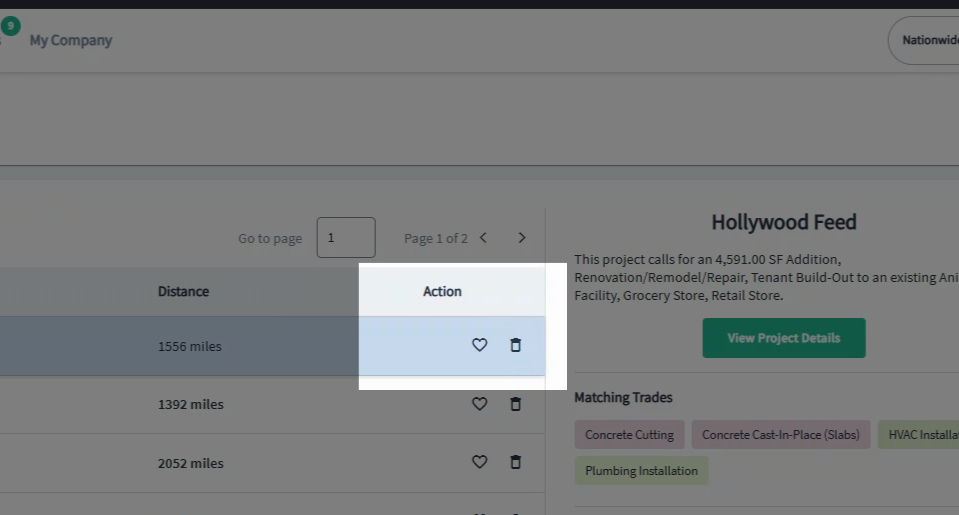
Step 18: Once you’ve found projects that match your criteria, save them to your Bid Planner by clicking the heart icon in the action column. Remove uninterested projects using the trash can icon.
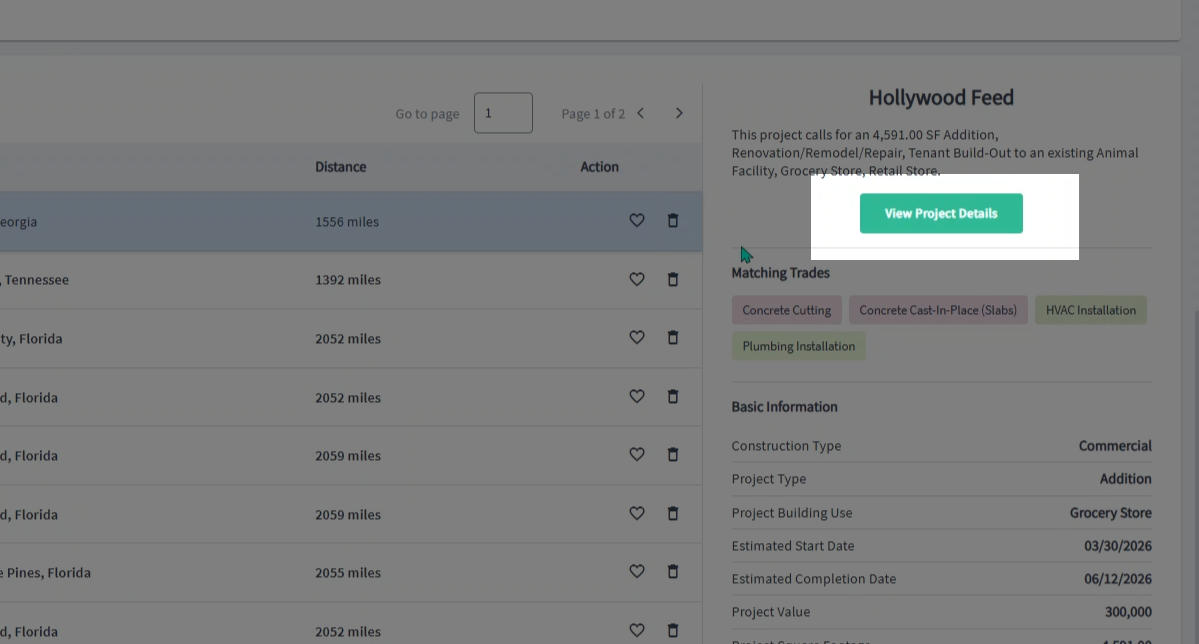
Step 19: When you’re ready to bid, select the project and choose View Project Details in the right column to begin your review.
Leveraging these tools ensures you can connect with the right General Contractors and Subcontractors, streamline your bidding process, and maximize your chances of winning projects that matter most to your business.