![NEW_PlanHub_Logo_Navy.png]](https://knowledgebase.planhub.com/hs-fs/hubfs/Design/PH%20Logos/NEW%202024%20PH%20Logos/NEW_PlanHub_Logo_Navy.png?height=40&name=NEW_PlanHub_Logo_Navy.png)
PlanHub Pro for Suppliers: Connect, Find Leads, and Streamline Bidding
Projects Page Search
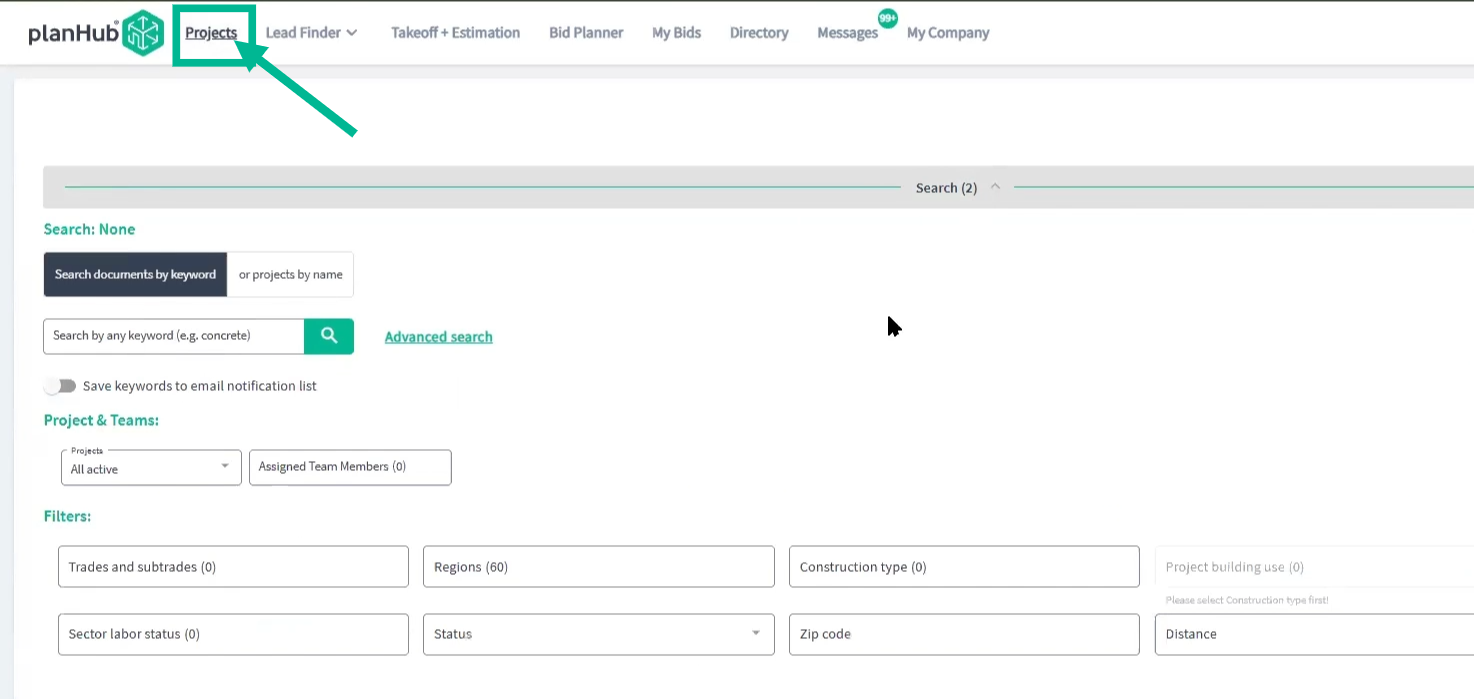
Step 1: Log in to your PlanHub Supplier account and head to your Projects page.
Search and Find Relevant Projects
Step 1: Your filter and search tools are at the top.
Use the keyword search bar to find projects that mention your products, brands, or even competitors.
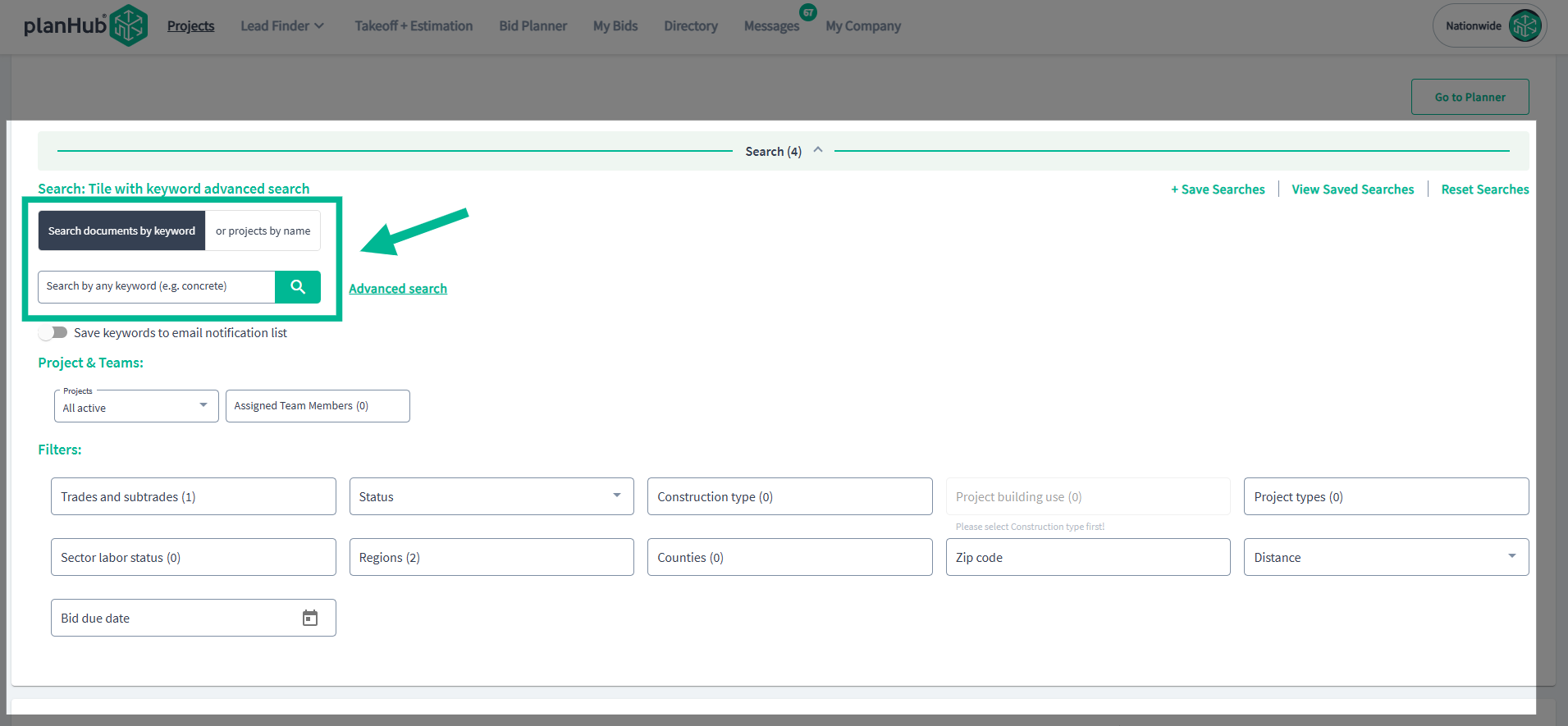
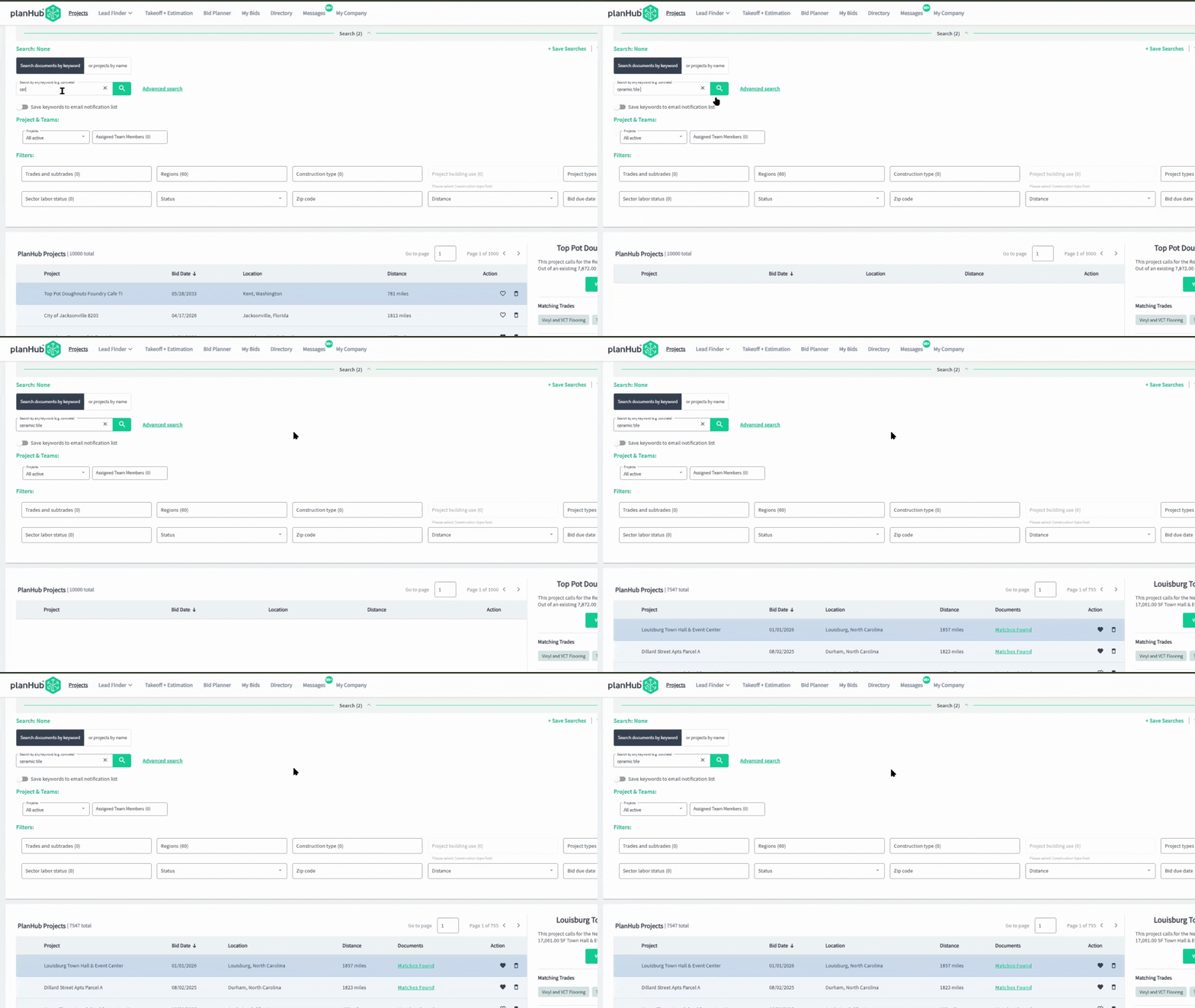
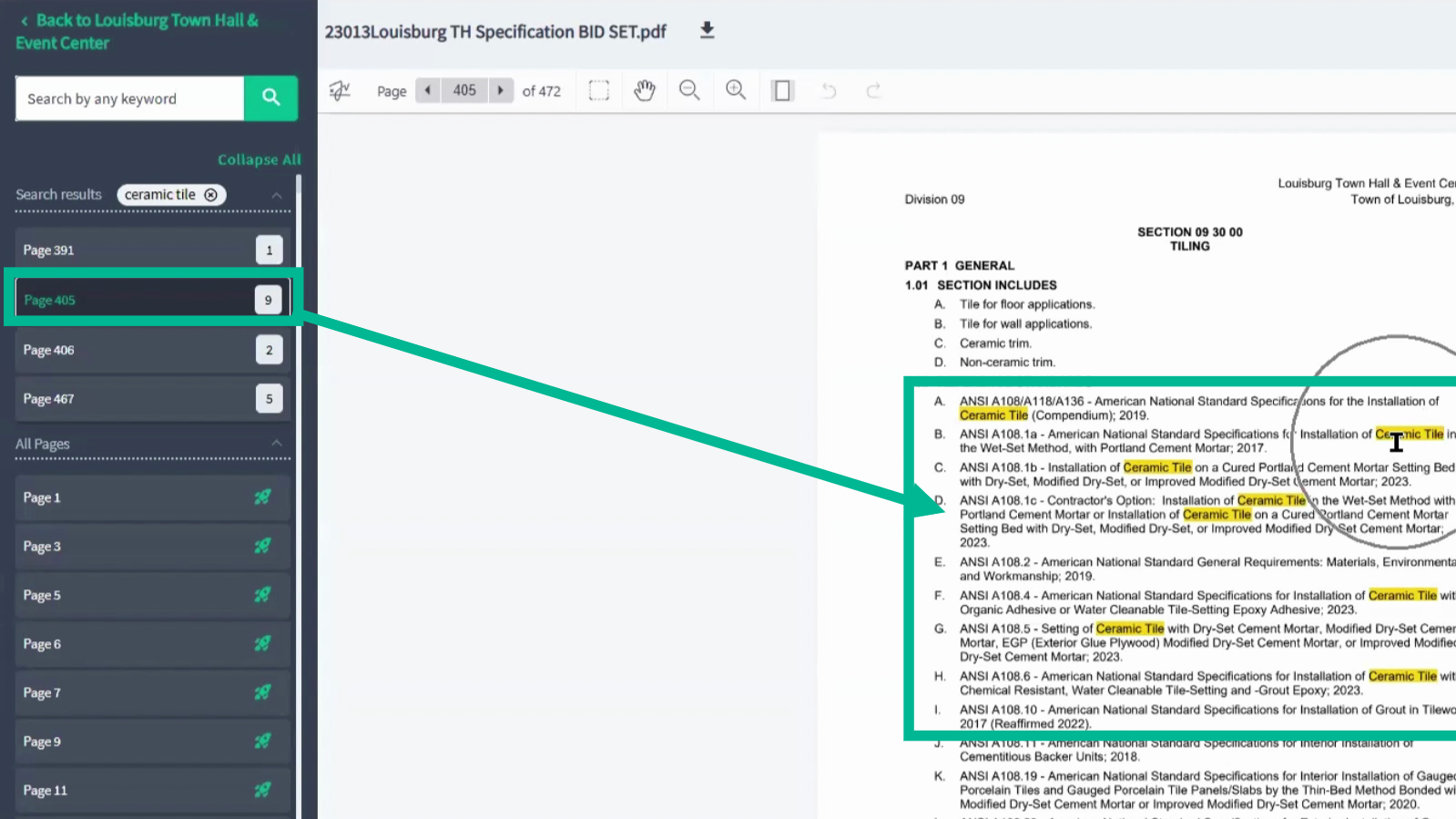
Step 2: Enter a keyword, such as “ceramic tile,” and review the list of matching active projects and documents.
Step 3: Click the highlighted document matches to preview or download relevant plans and specs.
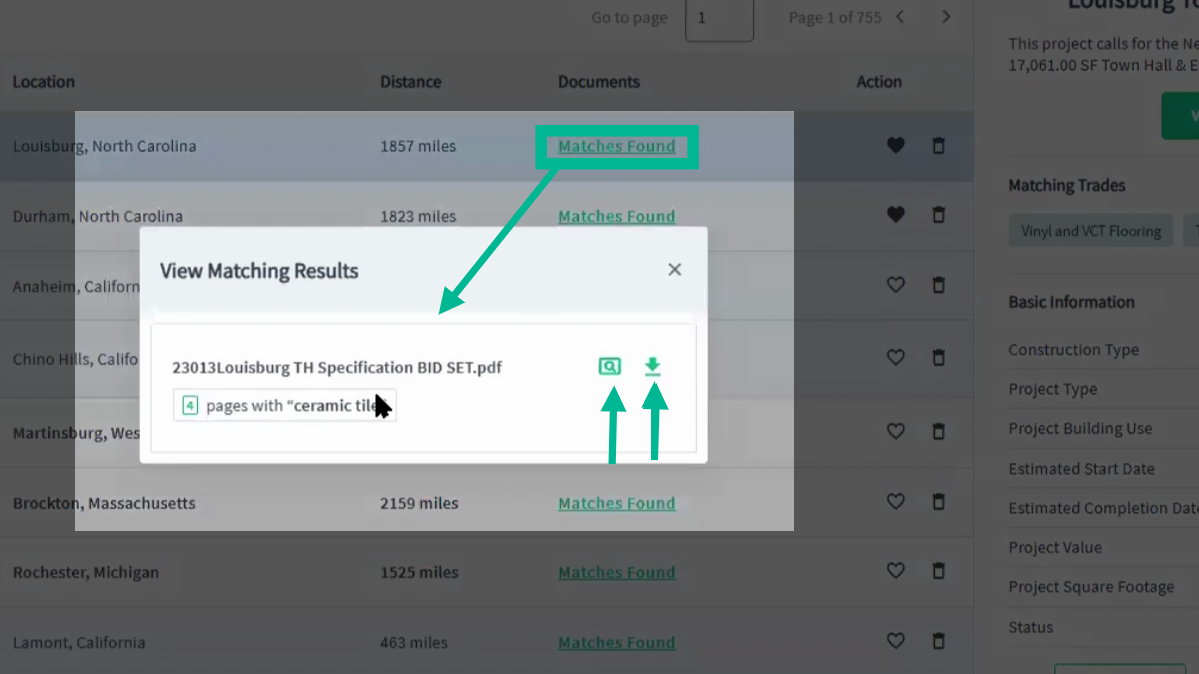
Step 4: Use the File Viewer to jump straight to the relevant keyword mentions inside the file.
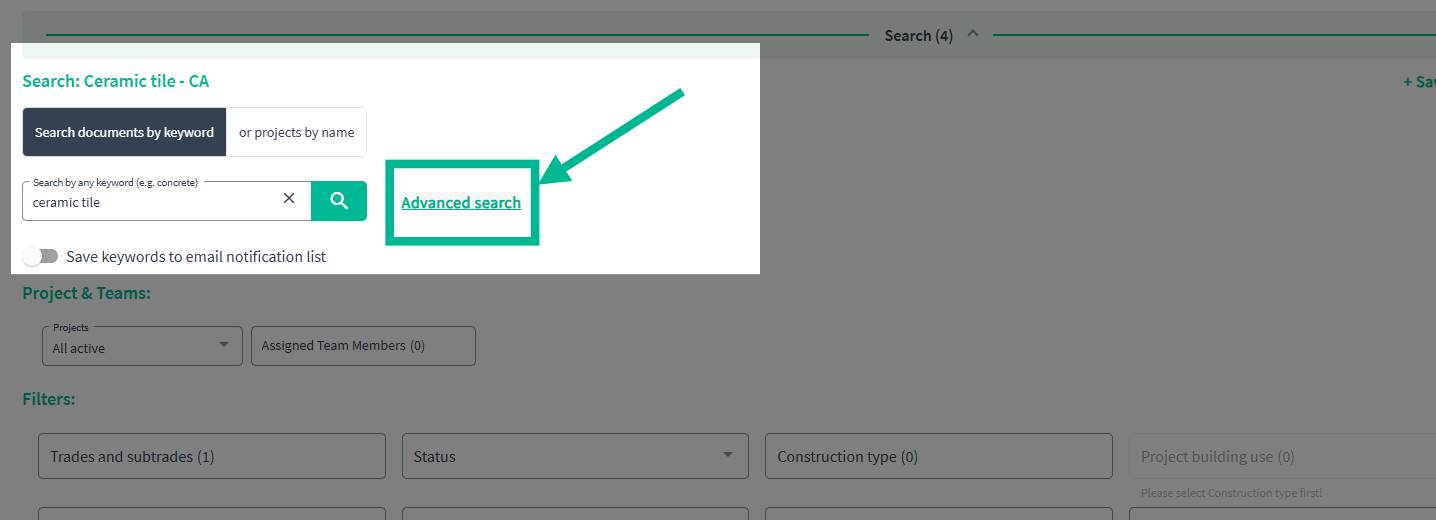
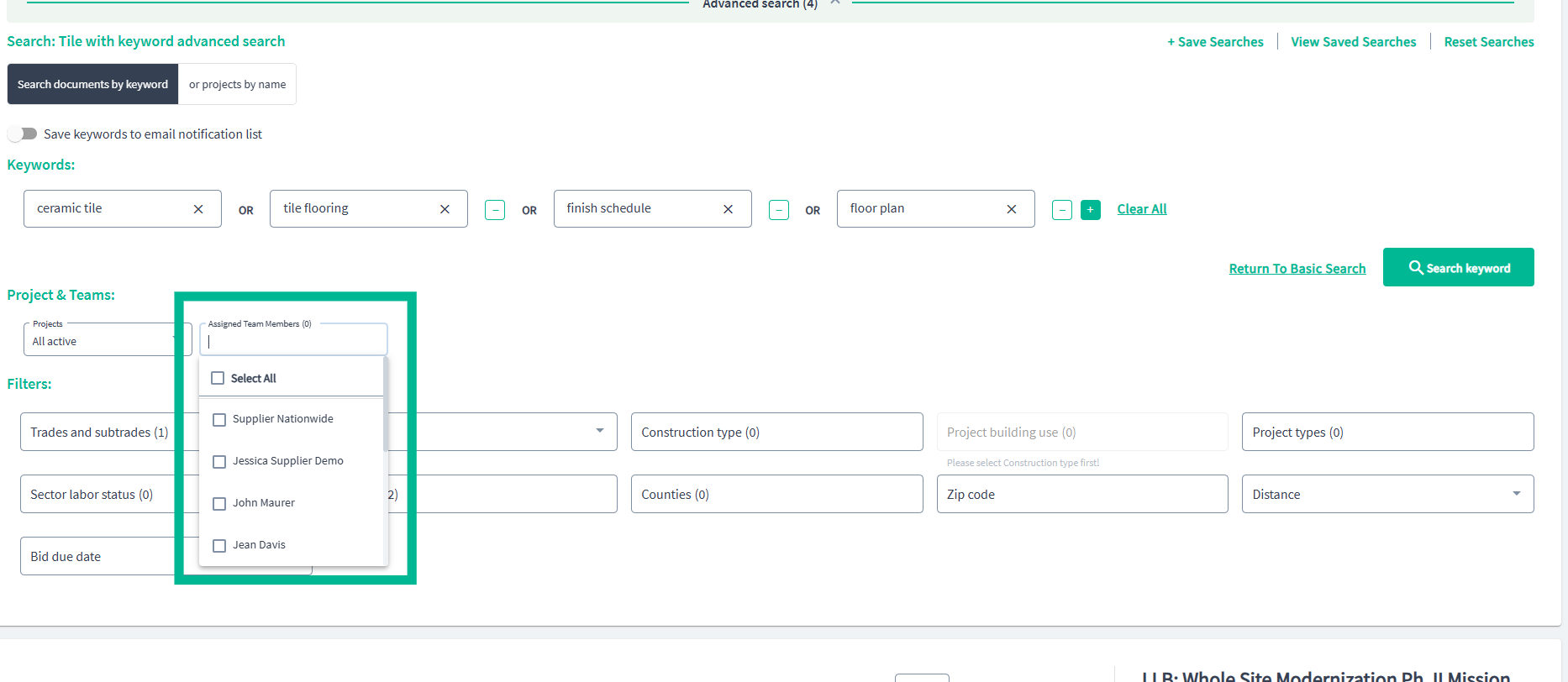
Step 5: To search for more than one keyword at a time, return to the Project page and use Advanced Search to enter up to 10 keywords at once.
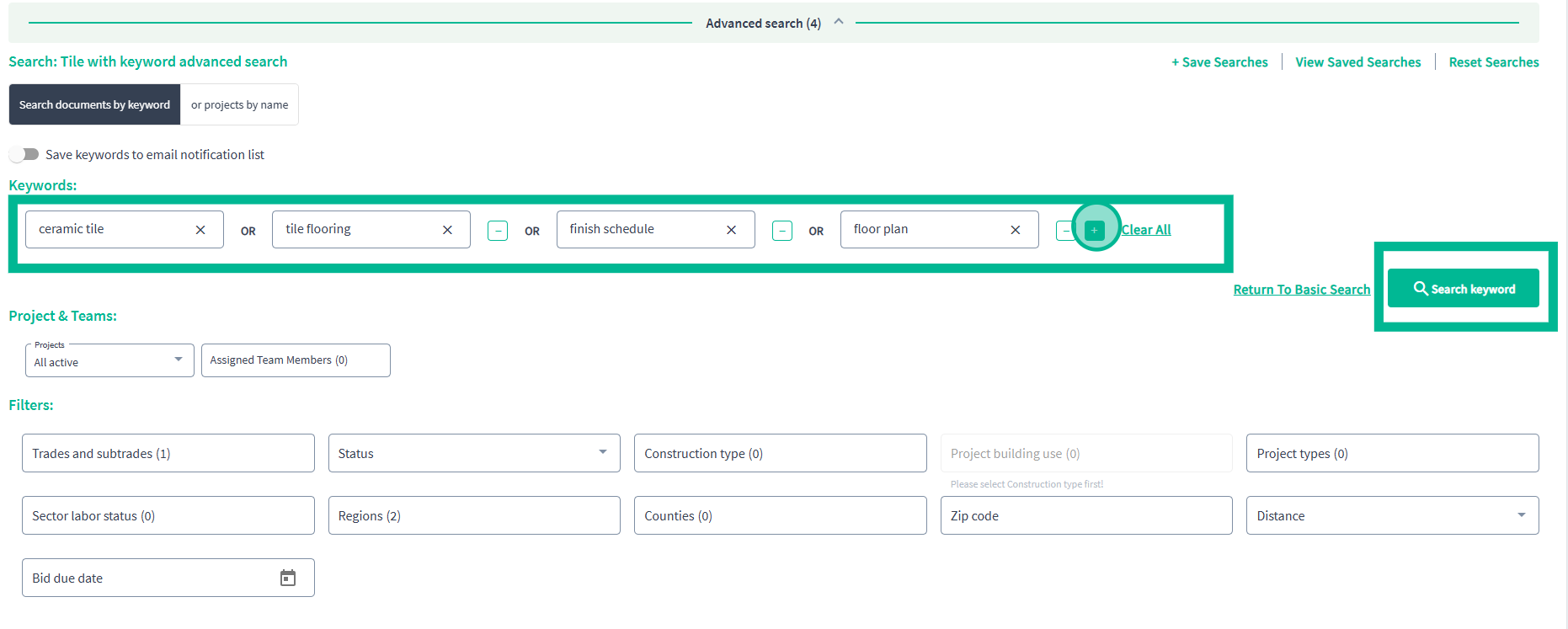
Step 6: Use the Plus sign ("+") to add more terms and click Search Keyword once you have entered up to 10 keywords.
Just like before, click “Matches Found” in your results to see exactly where your keywords appear in project documents.
Step 7: To apply filters based on what the GC posted and indicated they needed, use the Filters to select trades, sub-trades, regions, zip codes, or distances to further refine results.
Tip: Filters limit the Project results based on what the General Contractor selected when they posted the project. 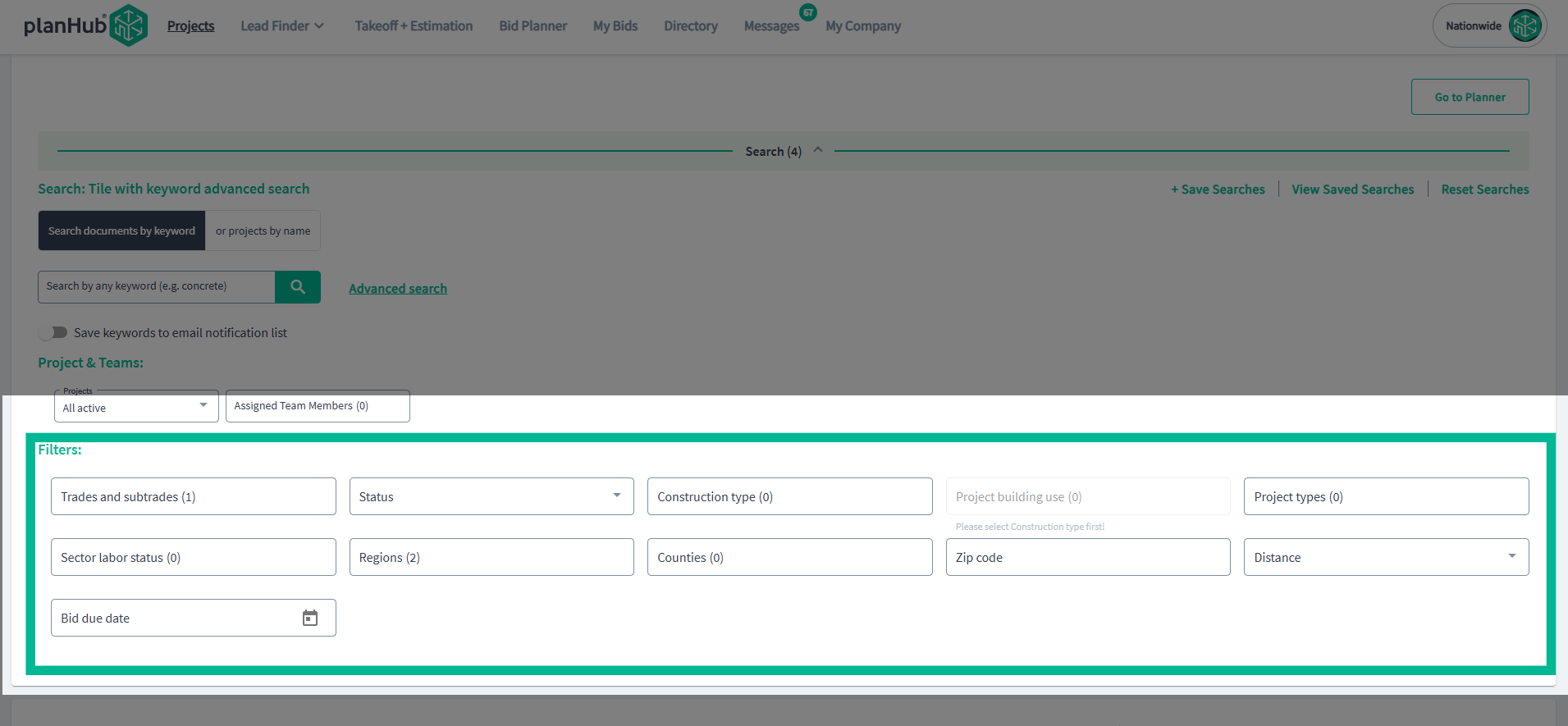
Tips:
-
Filters limit the Project results based on what the General Contractor selected when they posted the project.
-
You can compound your search by applying filters and keyword searches at the same time to find the best project postings for your products.
Manage Searches and Explore More Opportunities
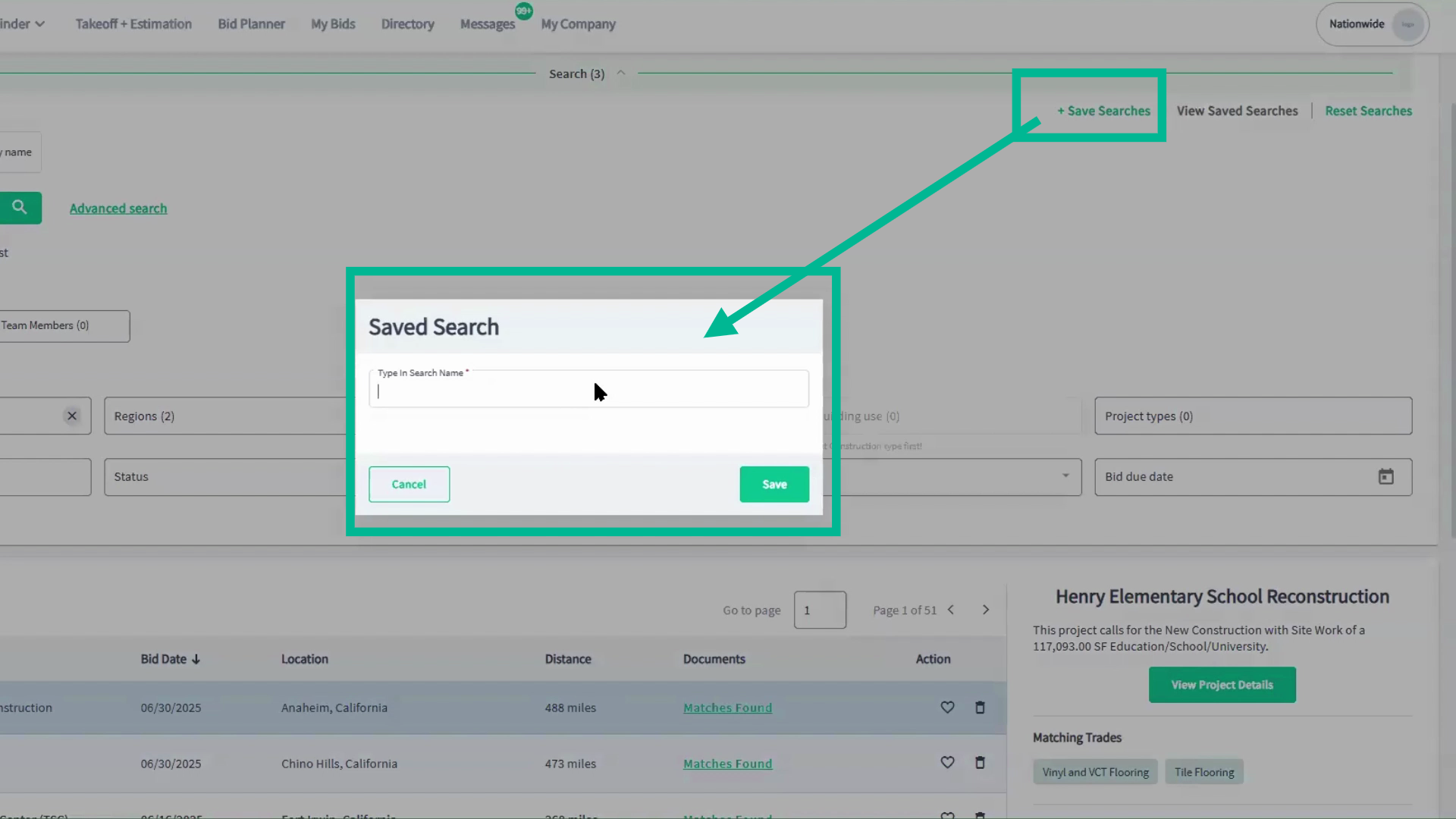
Step 1: Save your favorite searches with Save Searches for easy future access.
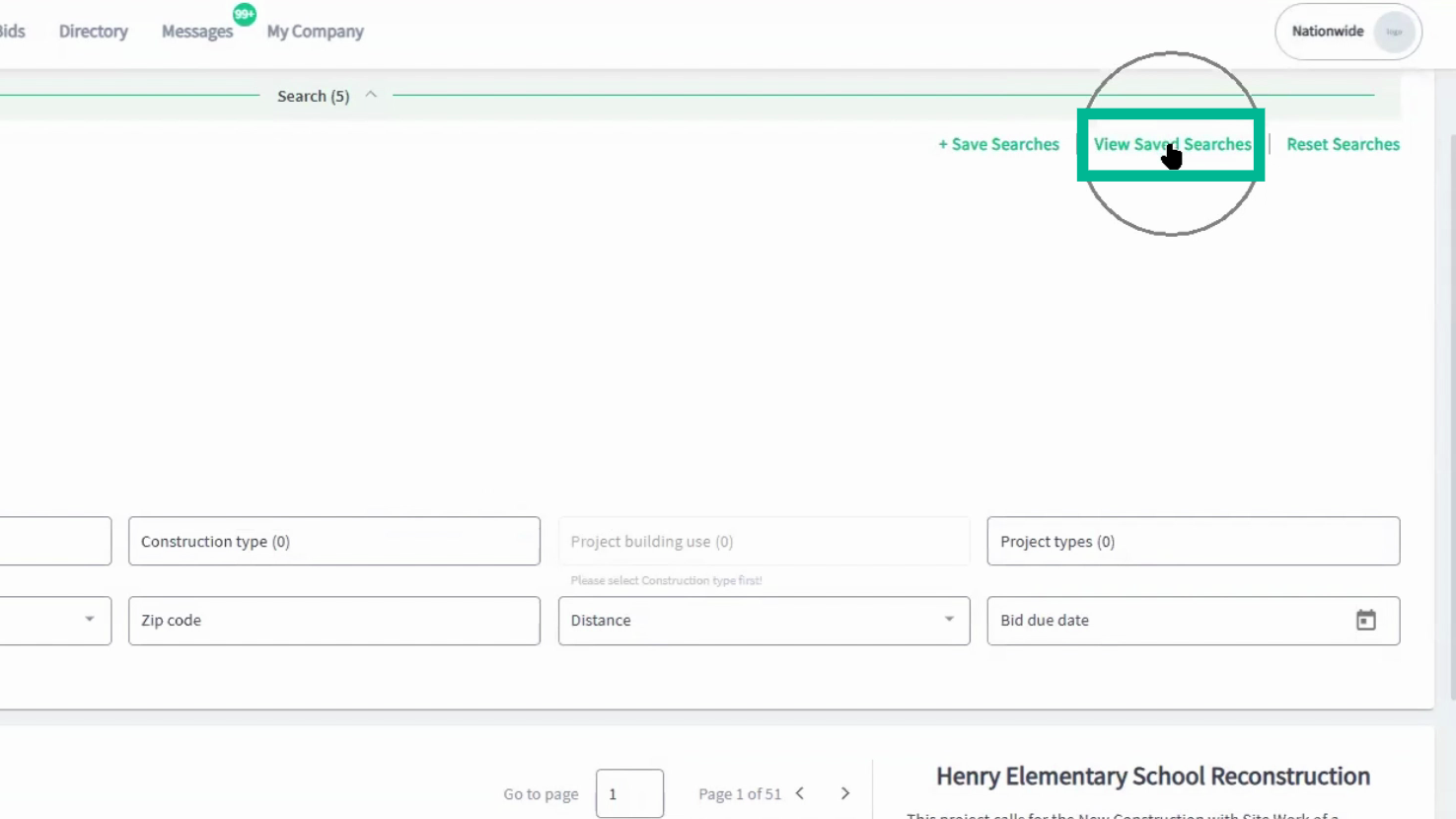
Step 2: View and access your saved search by clicking "View Saved Searches.
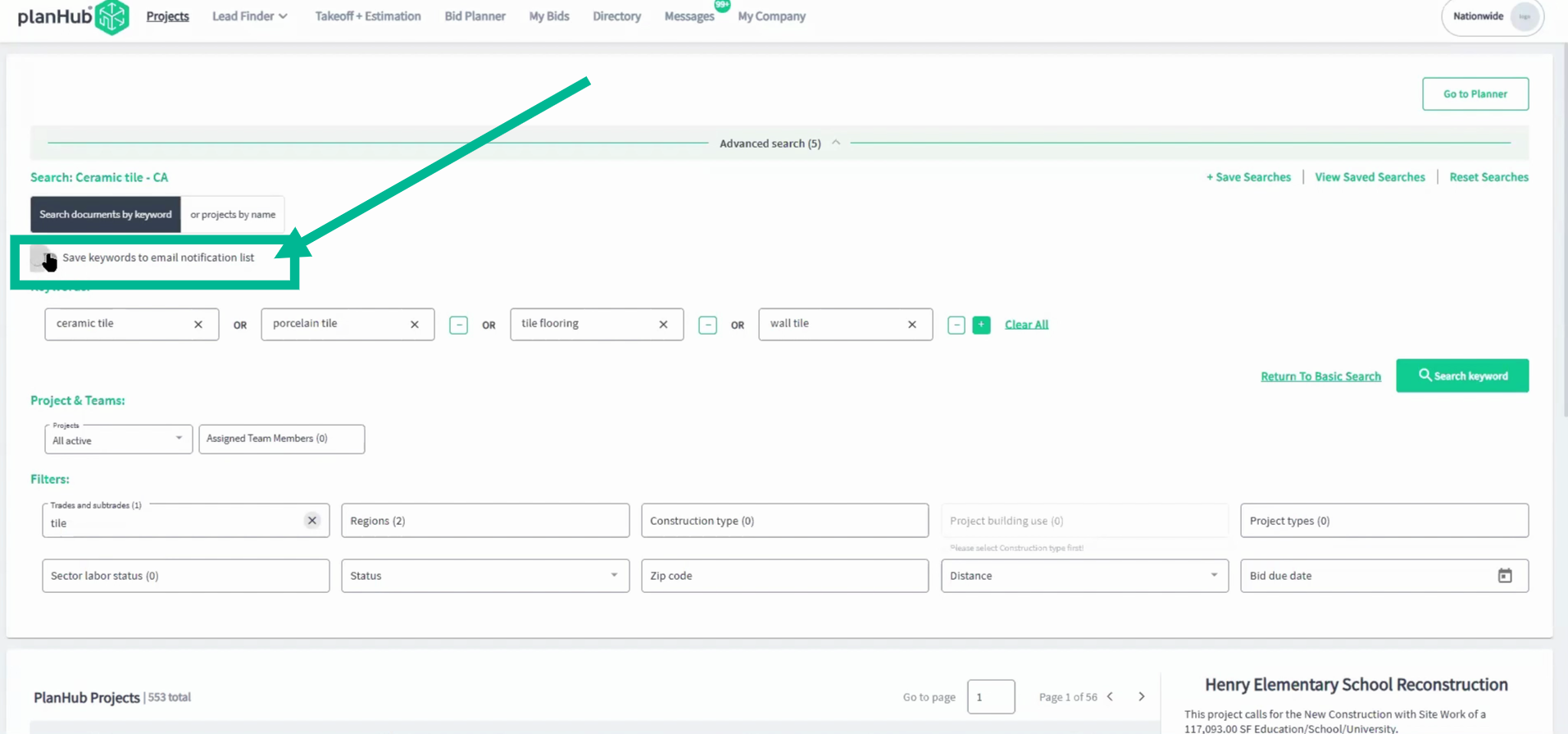
Step 3: Turn on Email notifications for future Hits to get alerted when your keywords appear in new projects you’re invited to.
Step 4: Use the preset Project & Teams filters to quickly view a list of projects that you or your team members have saved or archived. 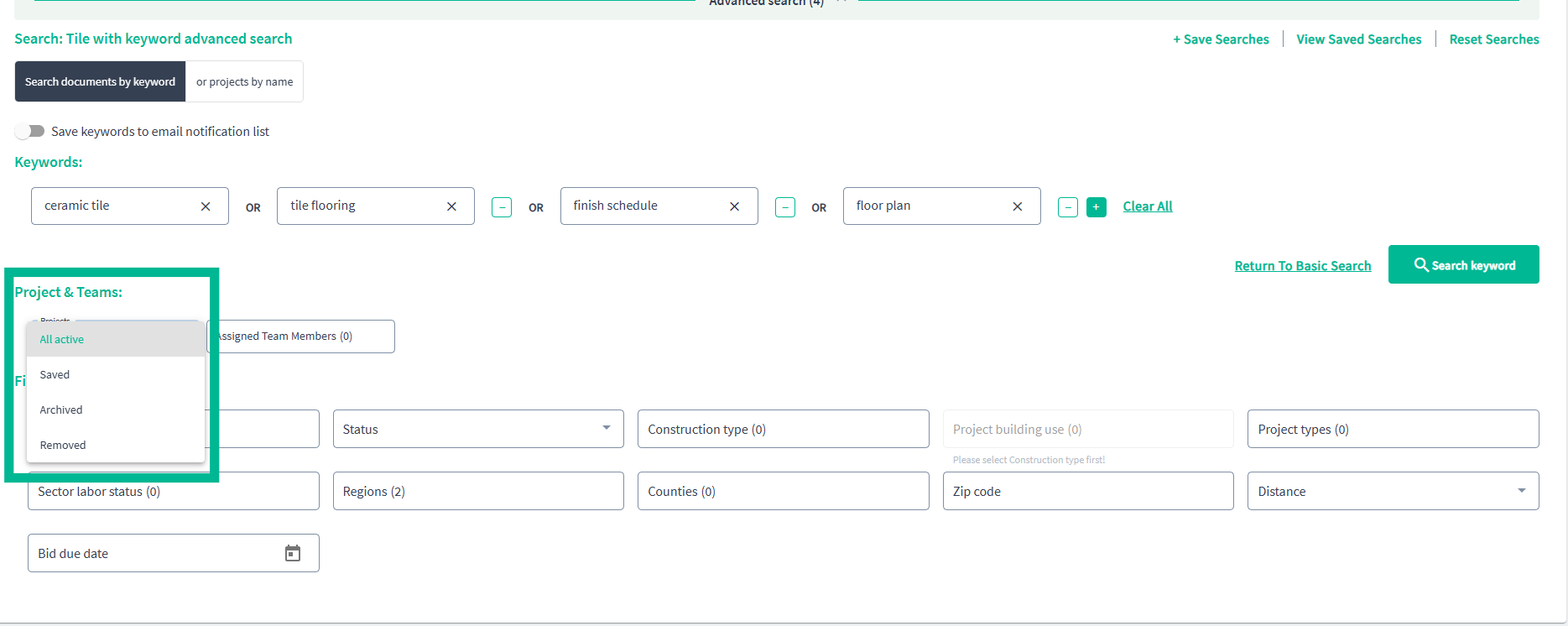
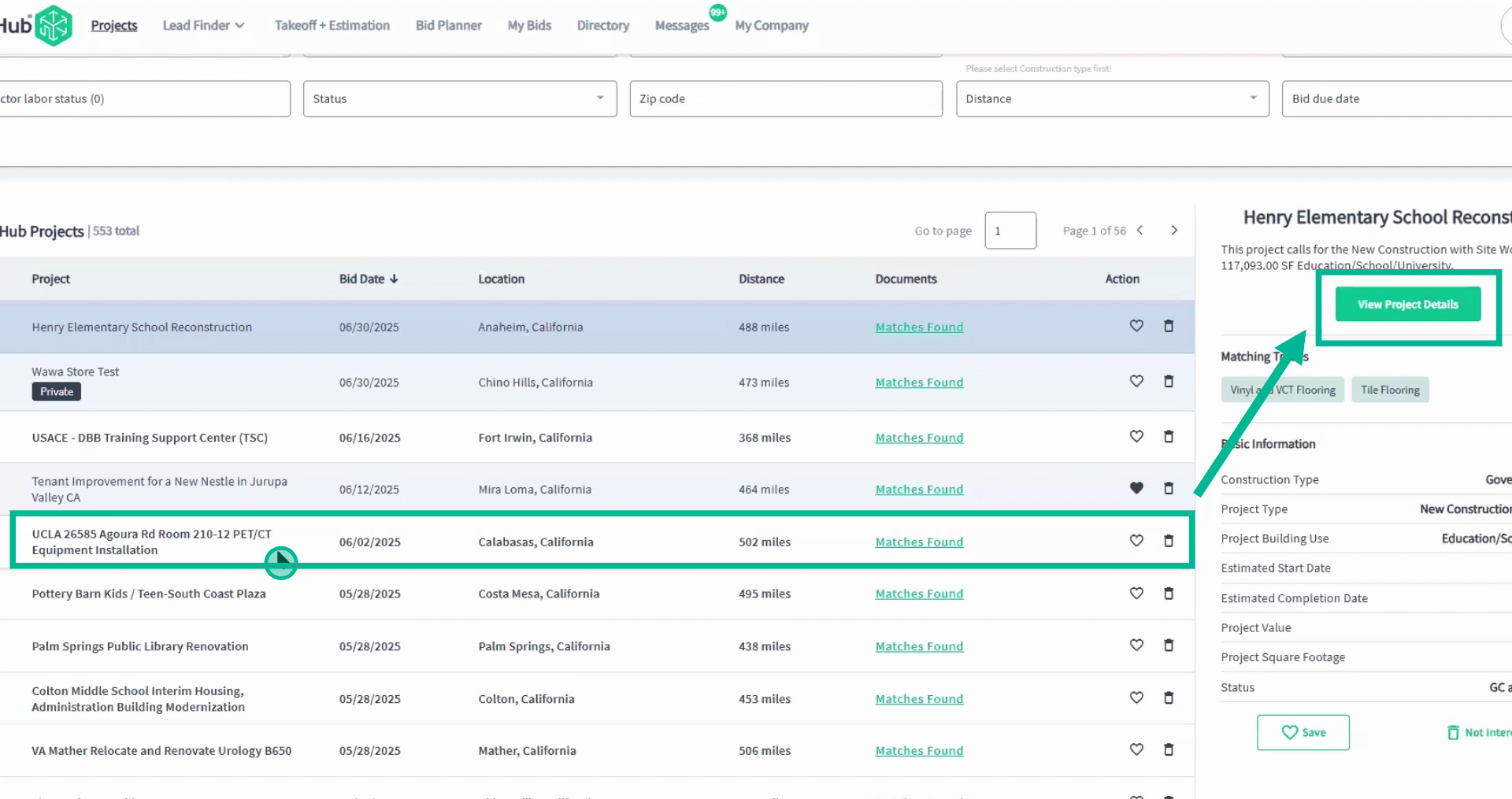
Step 5: When you find a promising opportunity, click the project, then select View Project Details for comprehensive info and documents. This will open the Project Details Page.
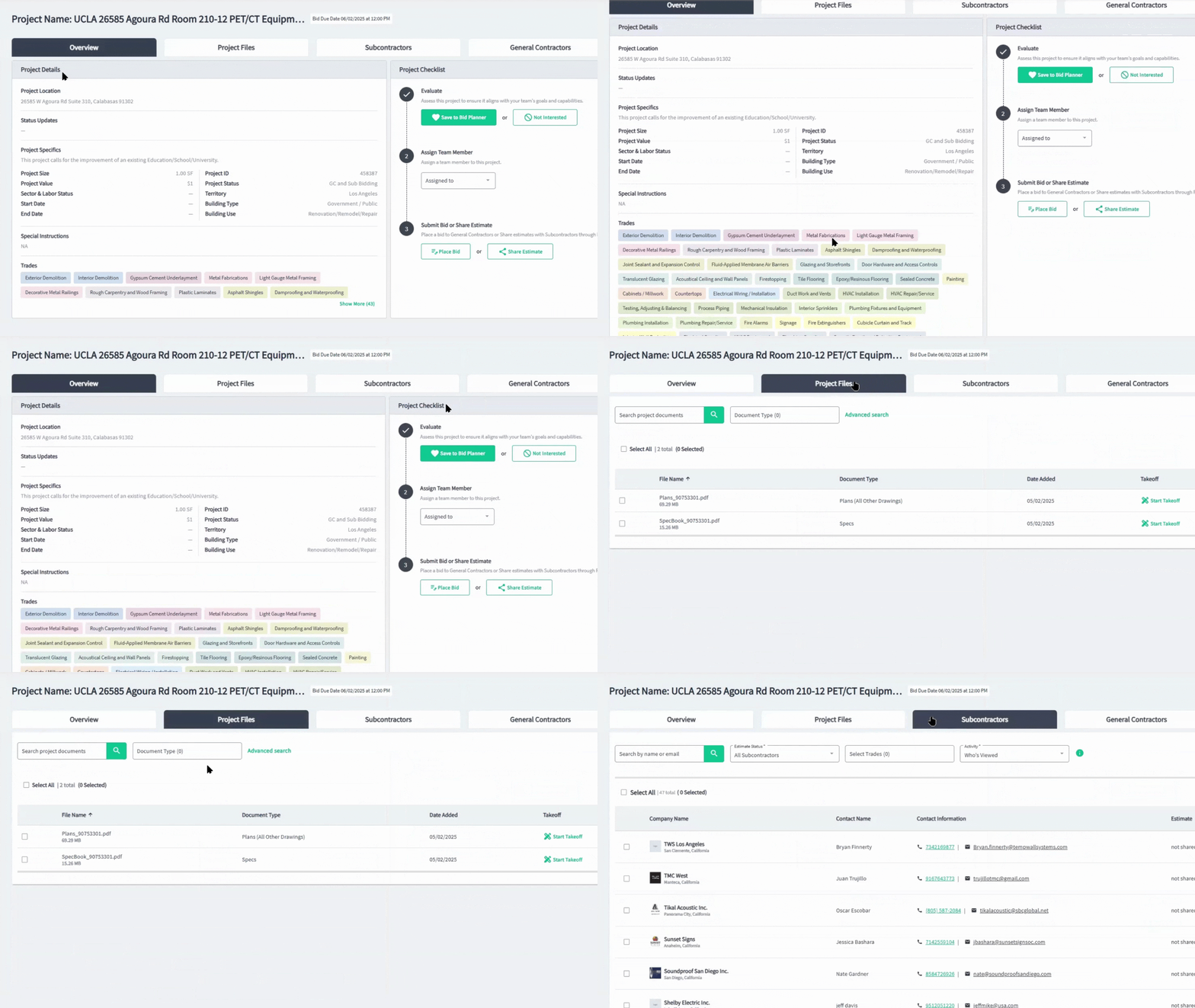
Explore Project Details and Contact Lists
Step 1: Use the Overview and Project Files tabs for details, documents, and in-depth keyword searches (single or multi-keyword).
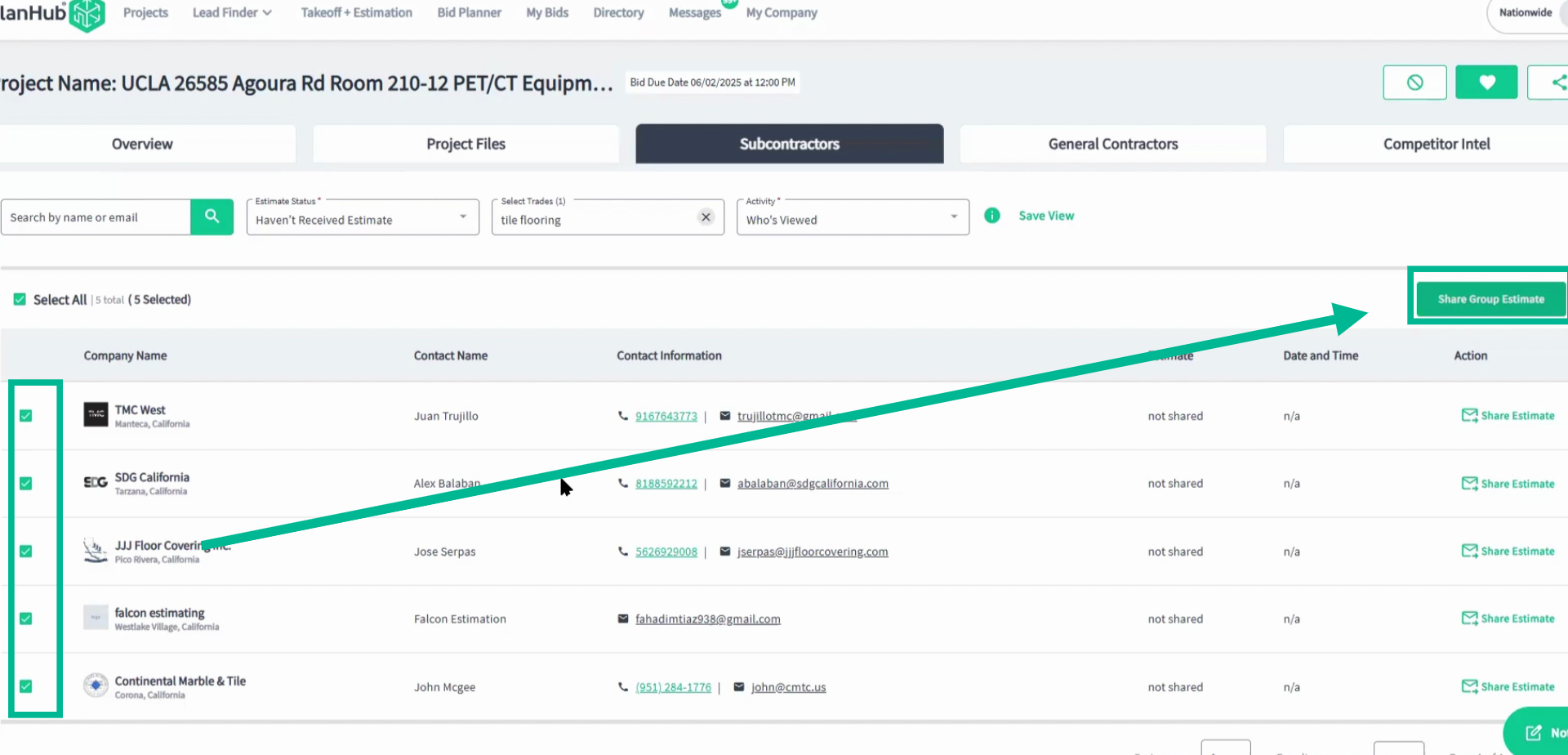
Step 2: On the Subcontractor tab, filter by trade (e.g., Tile Flooring) and activity, then connect, message, or share estimates directly with companies.
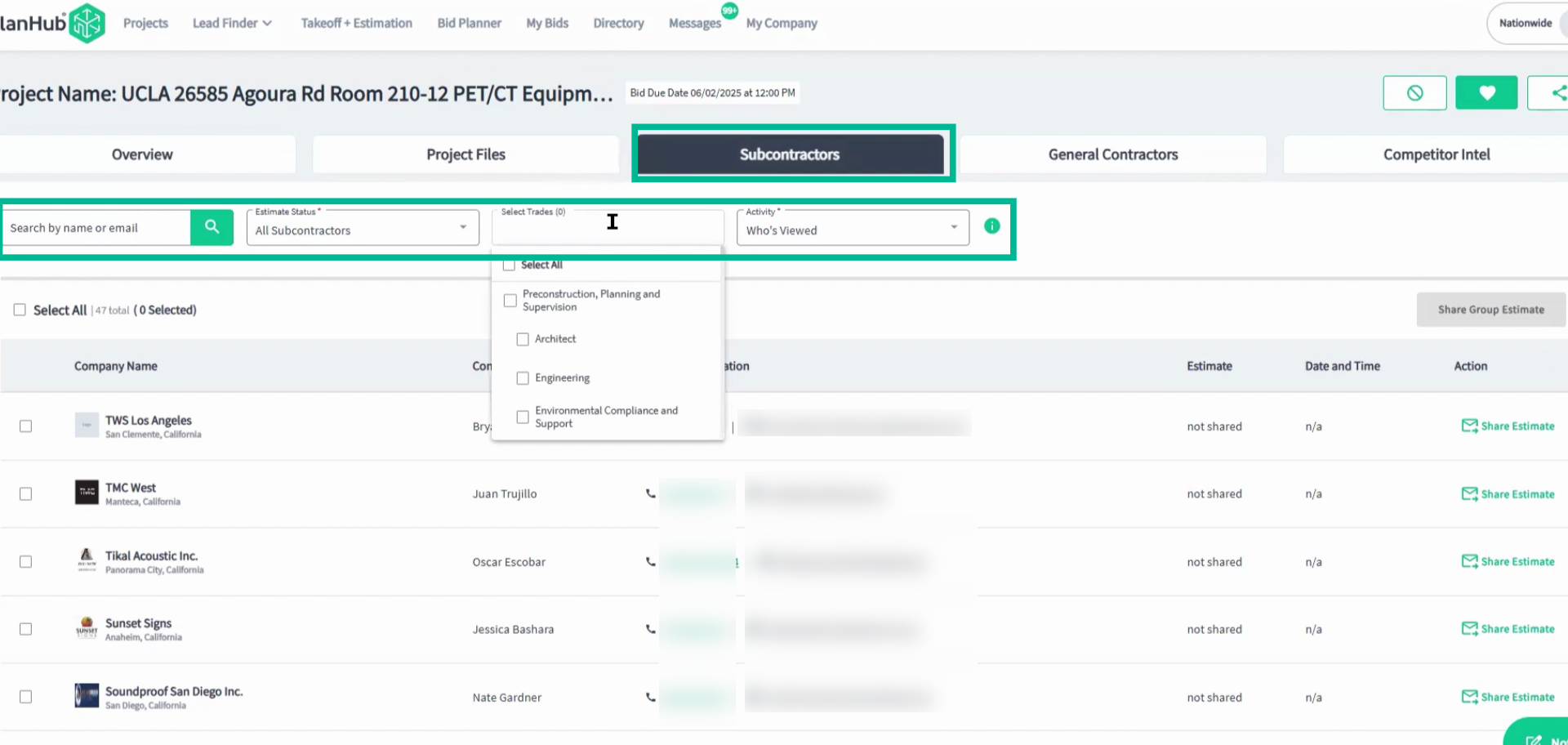
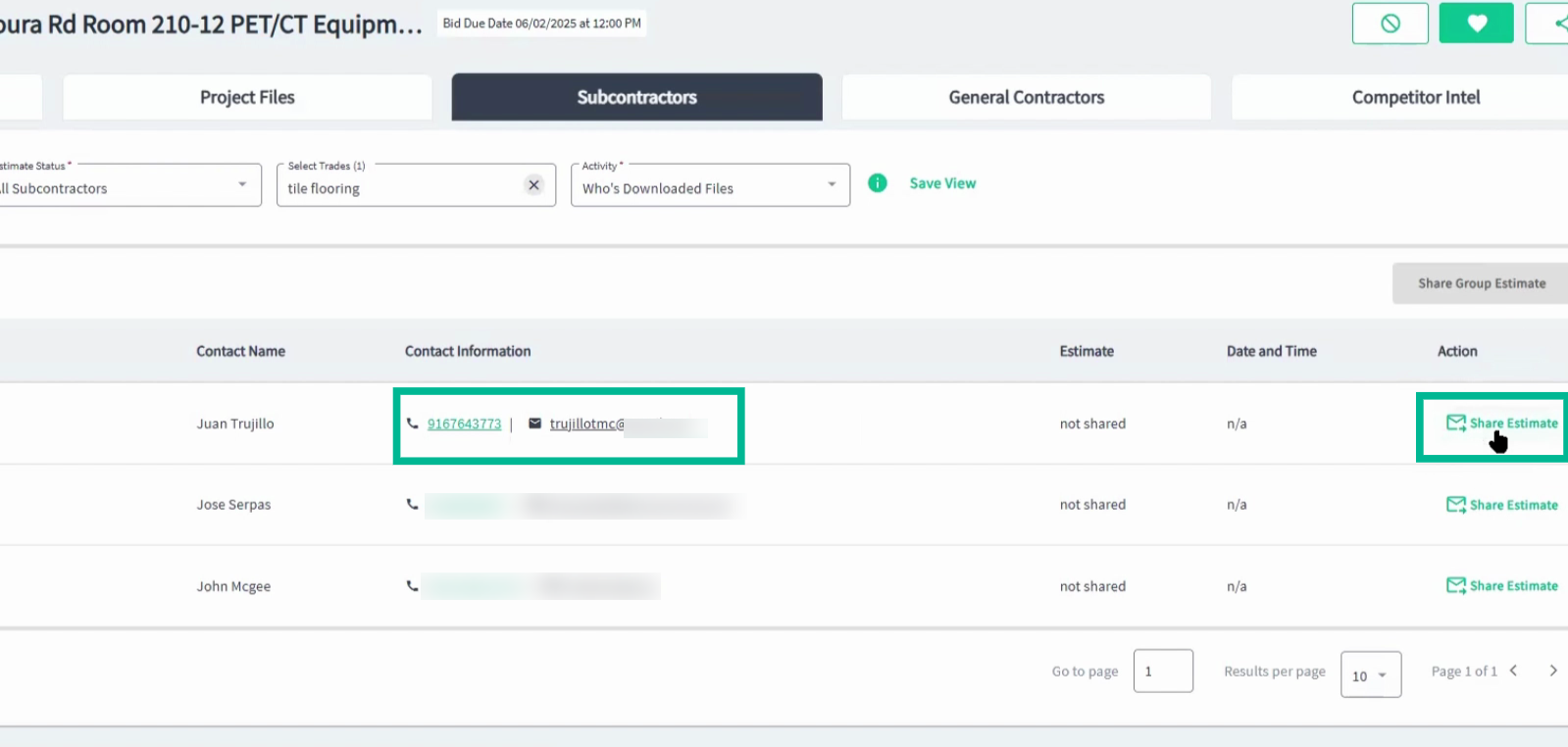
Step 3: Use Share Group Estimate to efficiently send standard quotes to all or a subset of subcontractors, and filter by estimate status as deadlines approach.
Step 4: Shared Estimates within PlanHub can be viewed in the Messages center, categorized by project. This is where you can continue the conversation with Subcontractor contacts in PlanHub.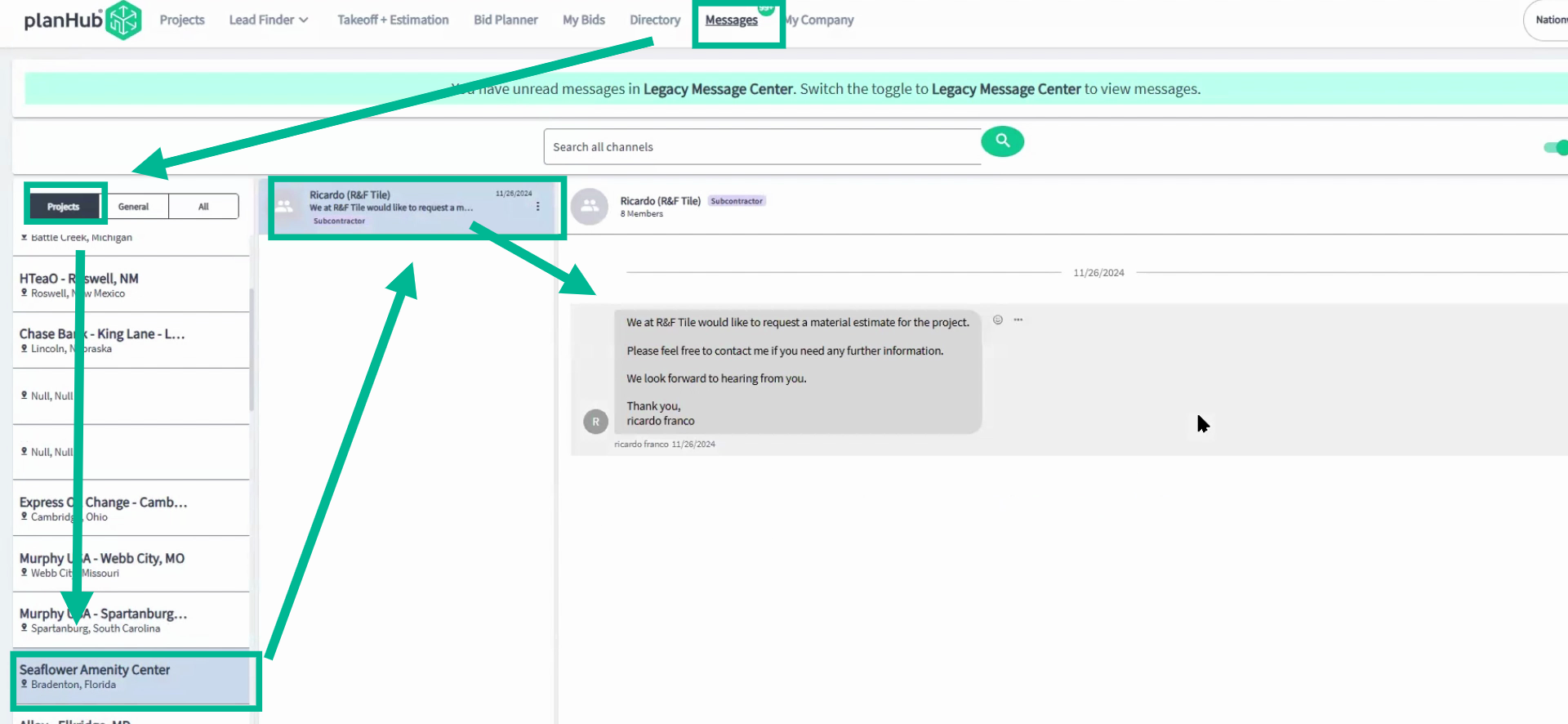
Manage General Contractor Bids and Communications
Step 1: On the General Contractors tab, you can view and message all GCs associated with a project.
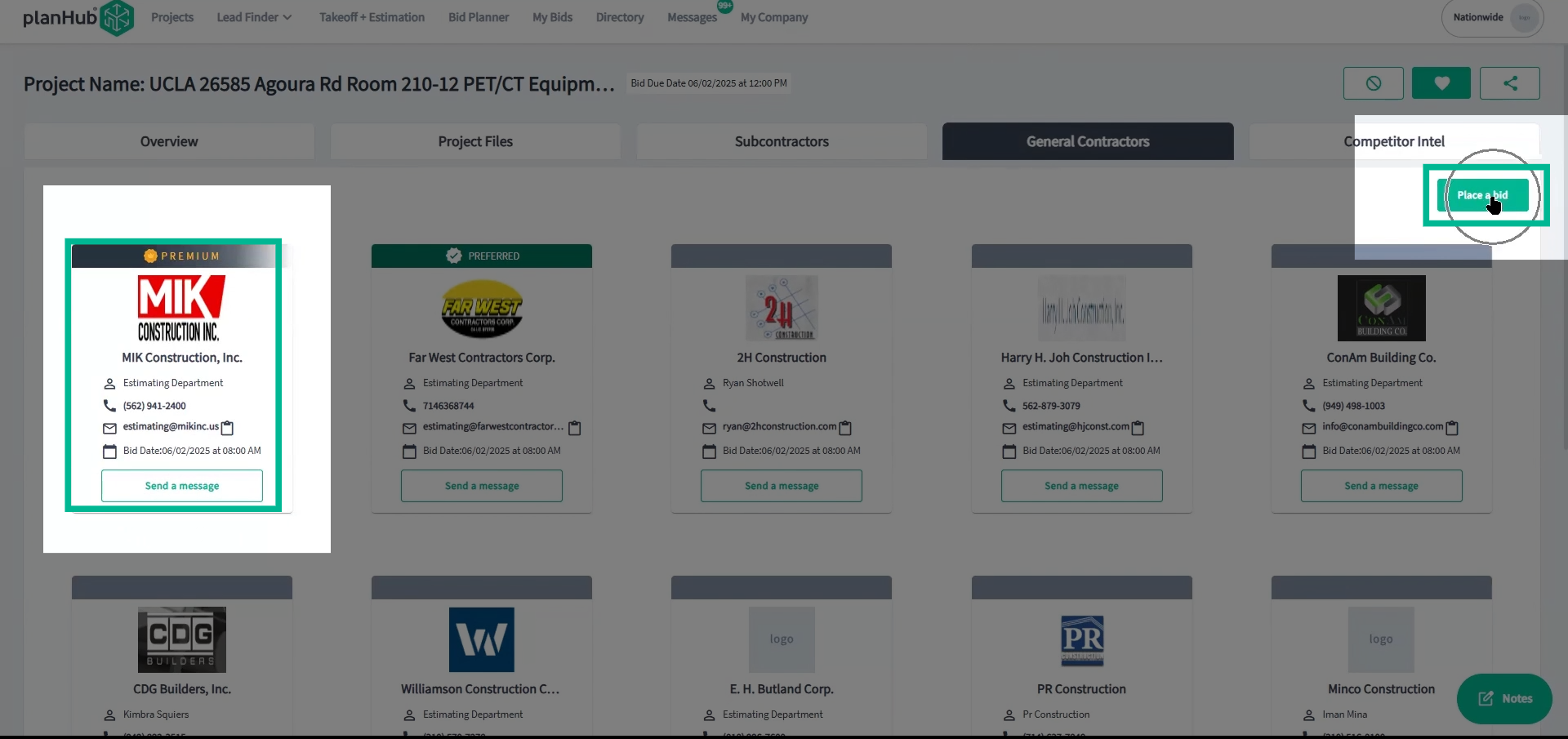
Step 2: Select Place a Bid, select the trade or product you are bidding, enter your base bid amount, choose your recipients, upload your actual bid documents, and control bid automation settings. Once you have completed all required fields, click Place Bid.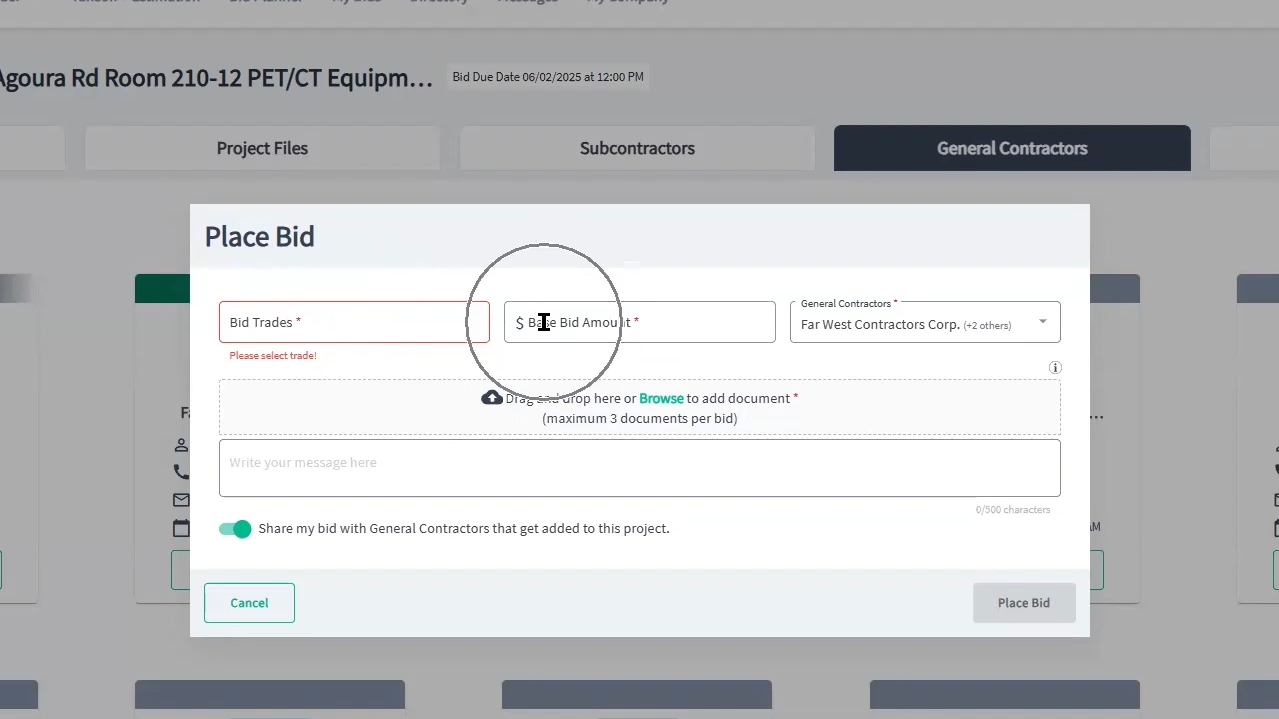
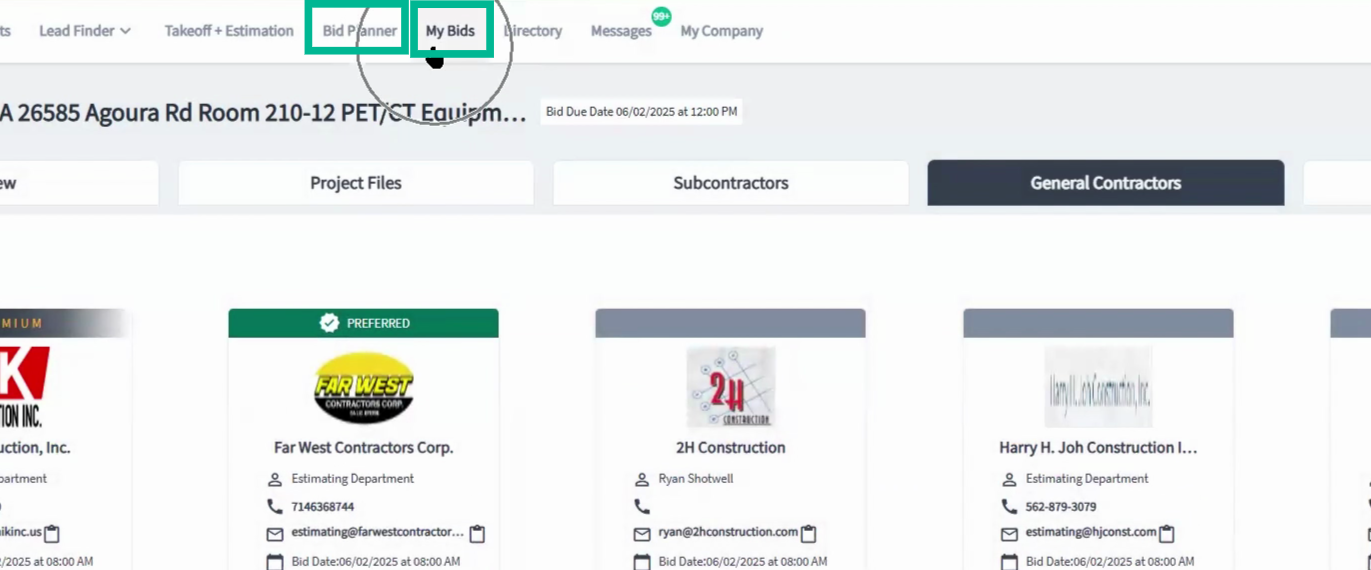
Step 3: Track your bids in My Bids and in your Bid Planner. GCs can follow up via PlanHub or by contacting you directly.
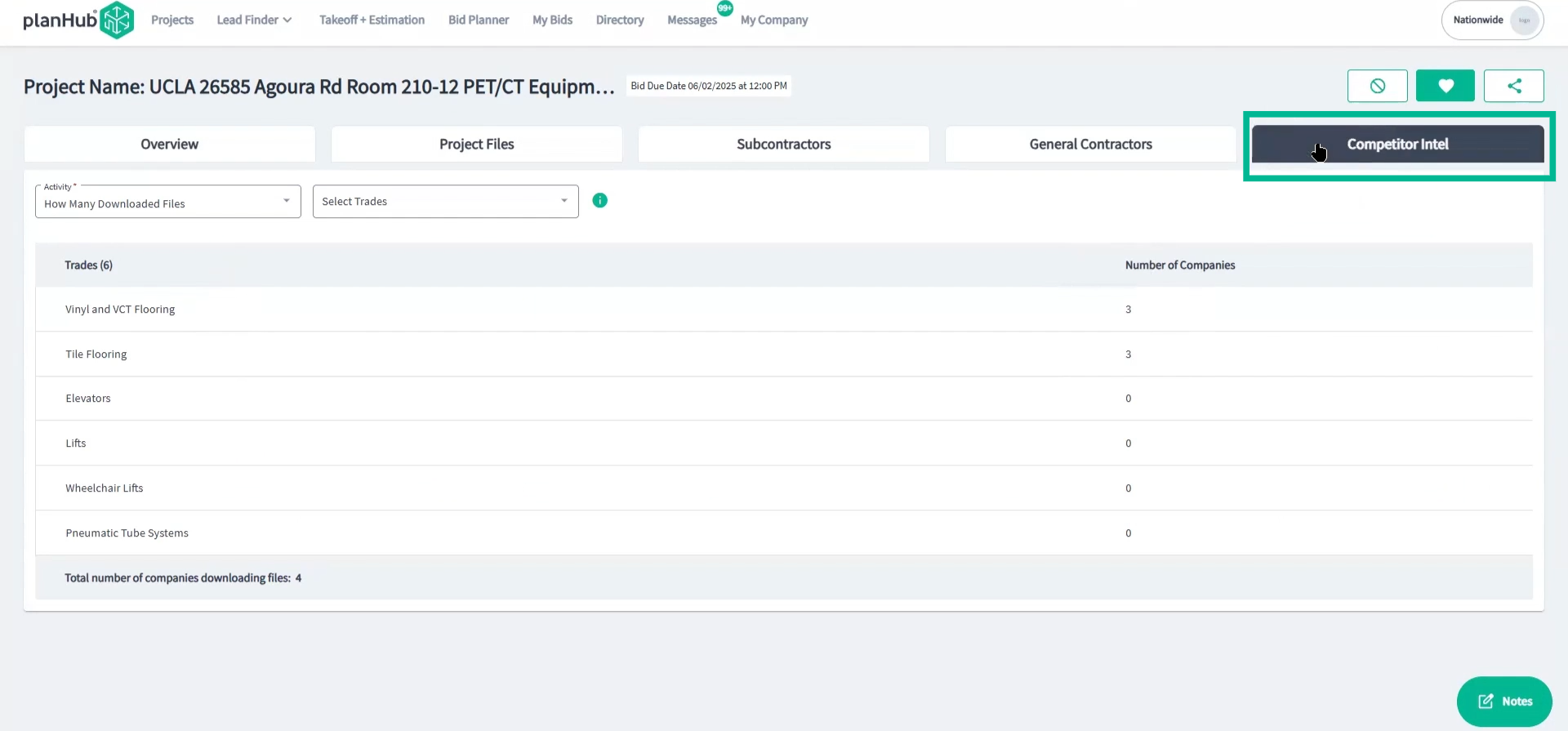
Step 4: Use the Competitor Intel tab to monitor how many suppliers are active in your trade on each project.
Expand Your Network with the Directory
Step 1: Access the Directory to find and connect with new or existing contractors (subcontractors and GCs).
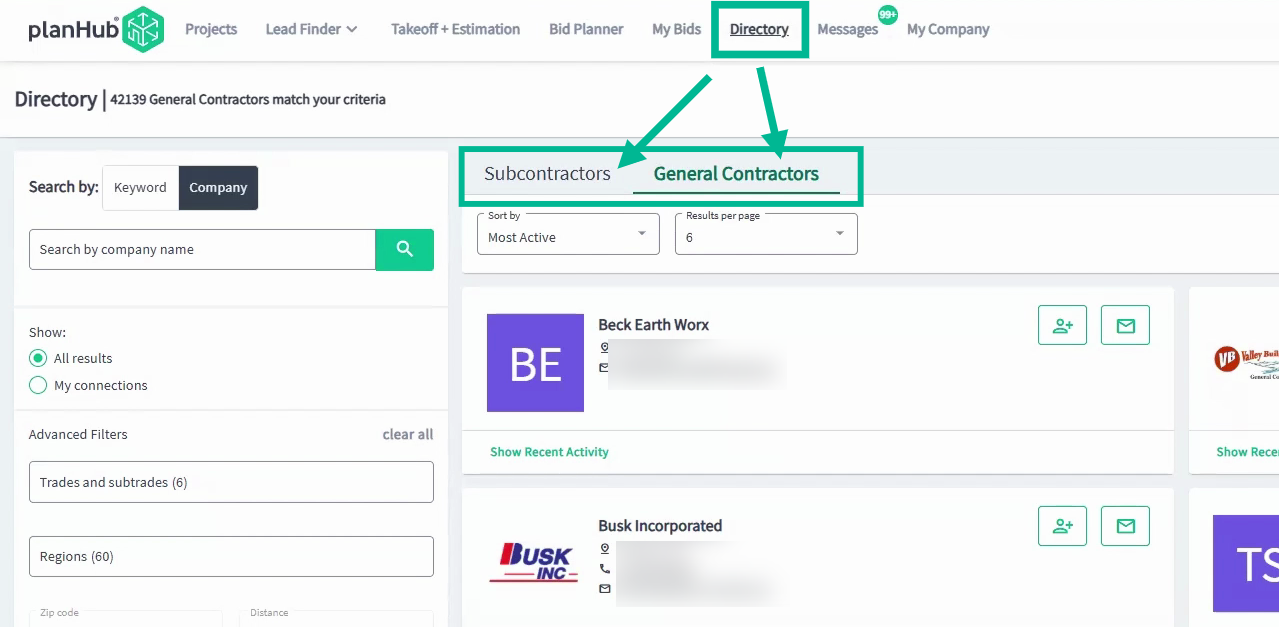
Step 2: Use search filters for trade, location, company name, or your current connections for precise results.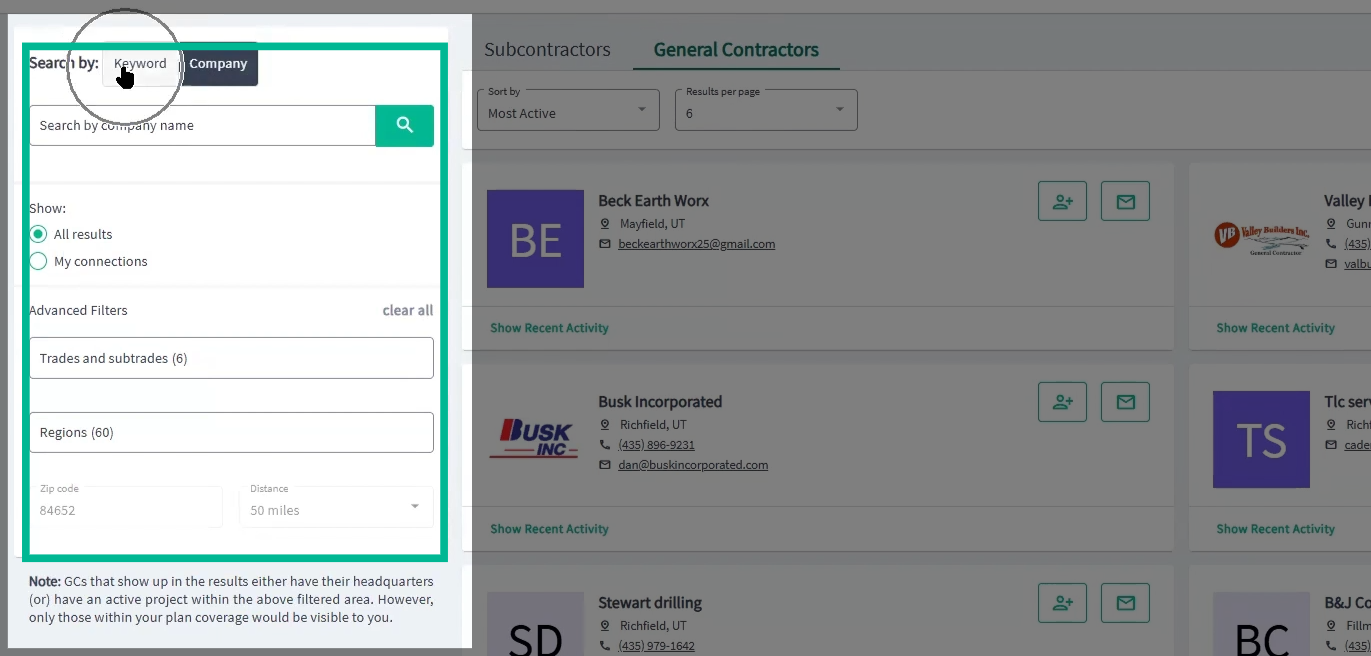
Step 3: View and organize company cards, and send group messages to all contacts on the page.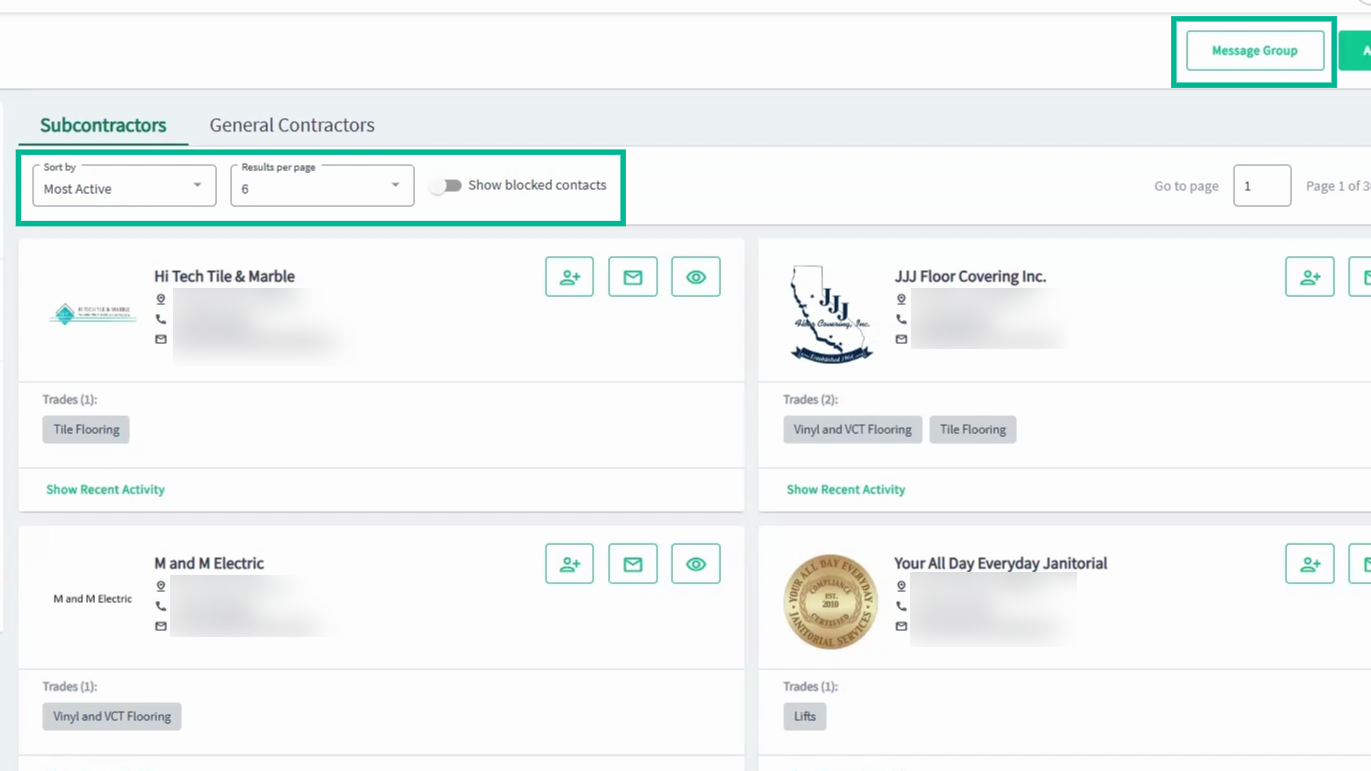
Step 4: Add new connections manually or by uploading contact lists. Invite non-registered contacts that are not part of your company to join PlanHub.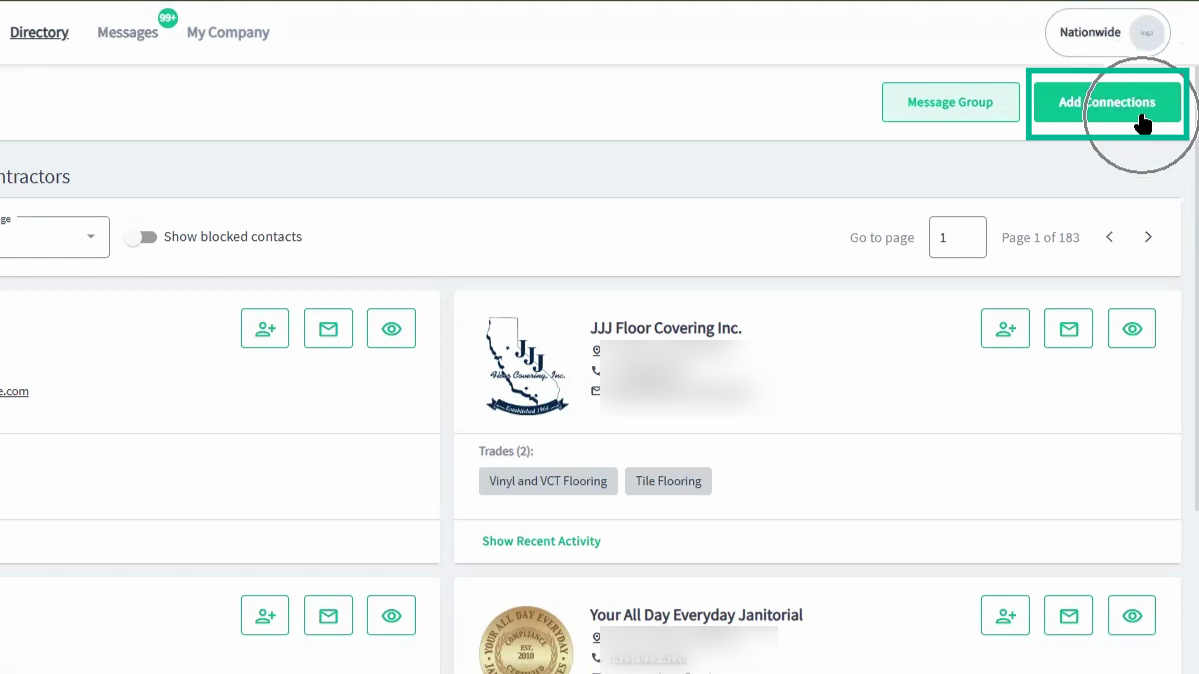
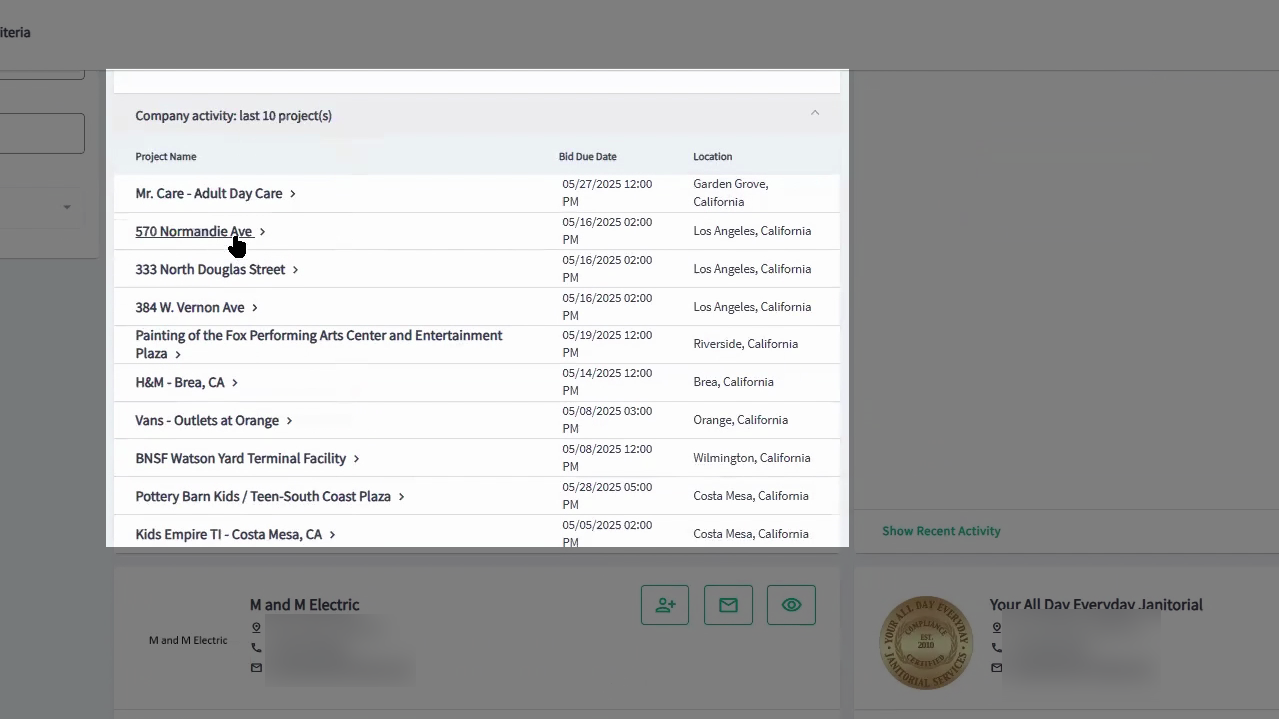
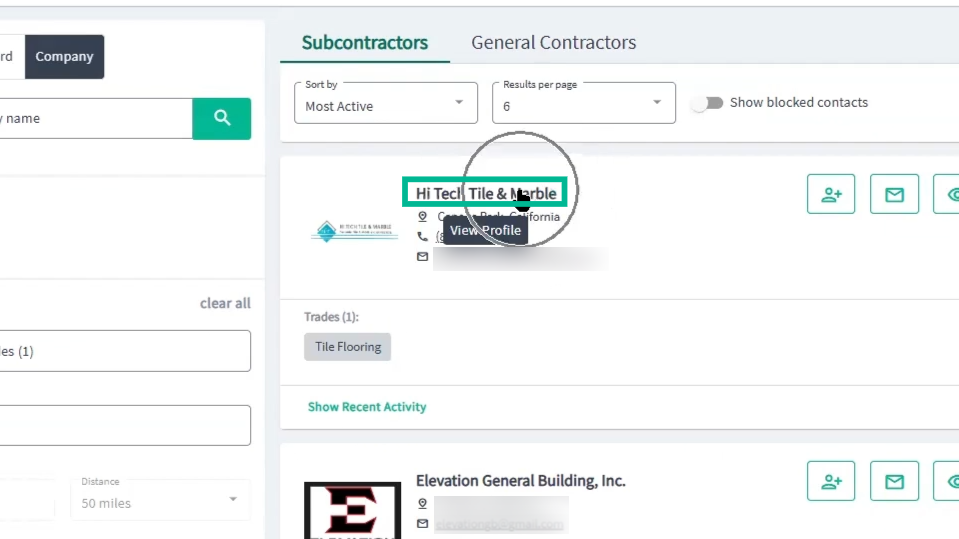
Step 5: Quickly add companies to your network, block unwanted companies, and check their recent activity or view profiles by clicking on the company name.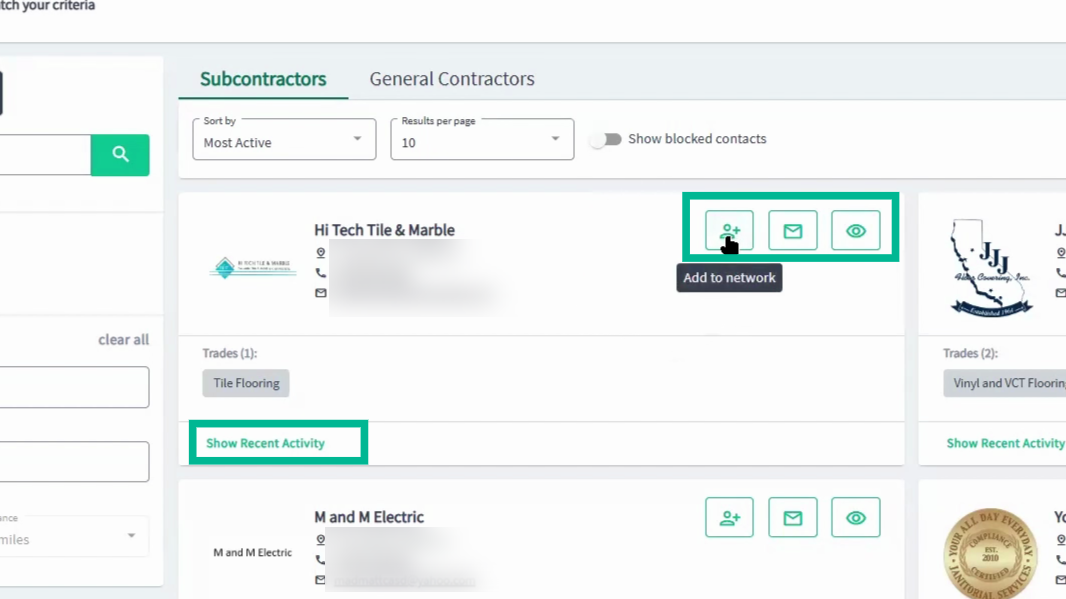
Find Early-Stage Leads with Lead Finder
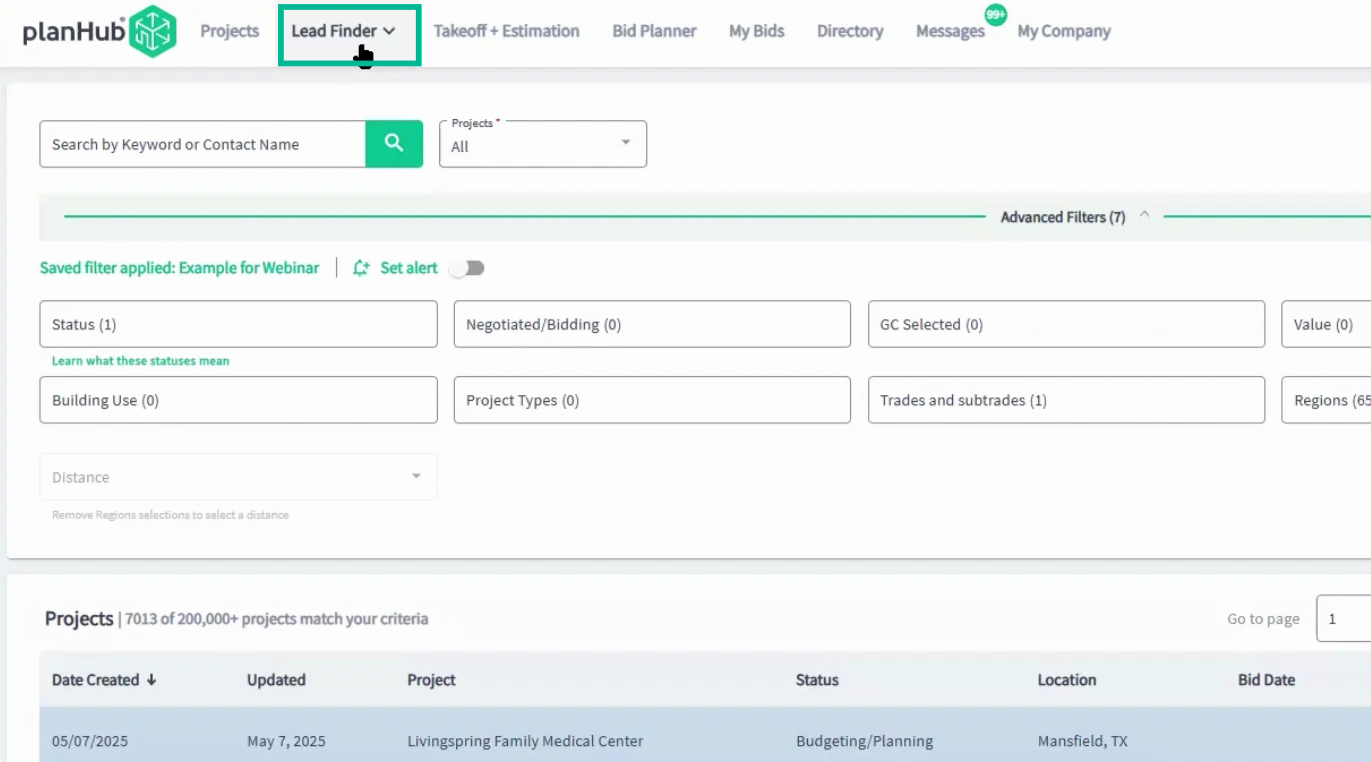
Step 1: Go to the Lead Finder (for Pro users) to discover projects in the drafting stage—ideal for getting your products specified early.
Step 2: Use the Search tool to search for Leads and Contacts, and the Filters to filter by lead information.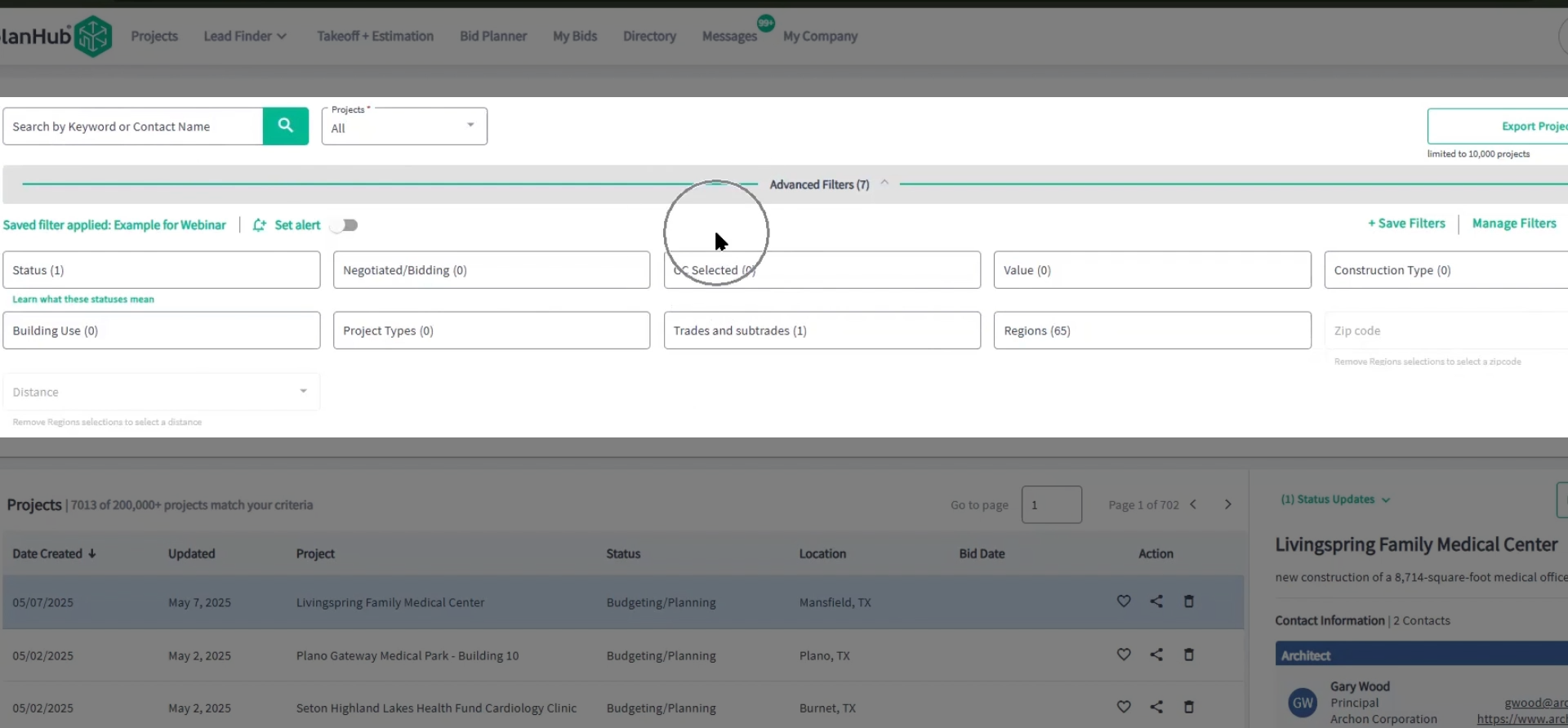
Step 3: View details, contacts, and add notes on each lead for a quick evaluation, and share or save promising leads with your team.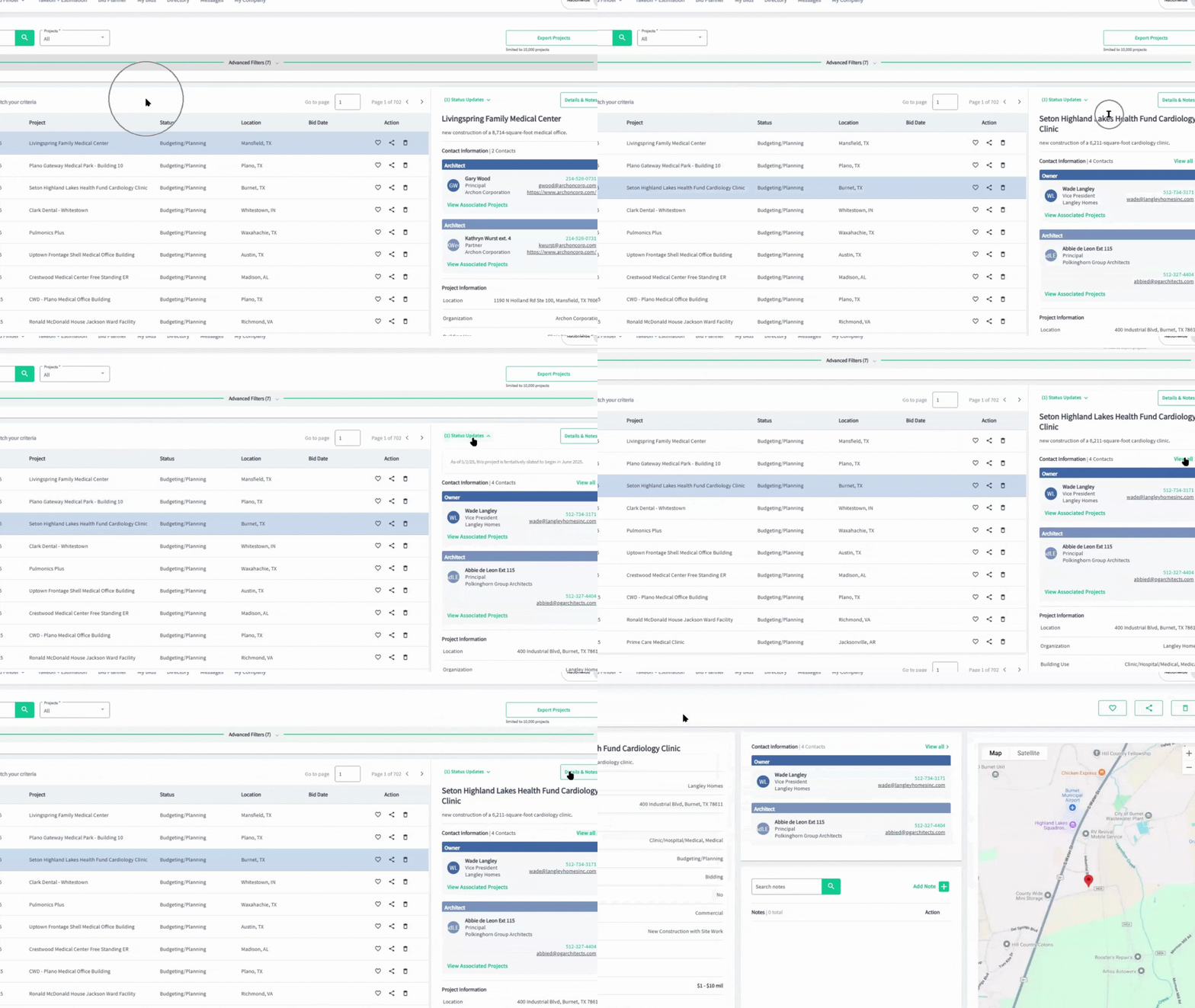
Stay Organized with Bid Planner
Step 1: Access the Bid Planner to manage all your saved projects in one place.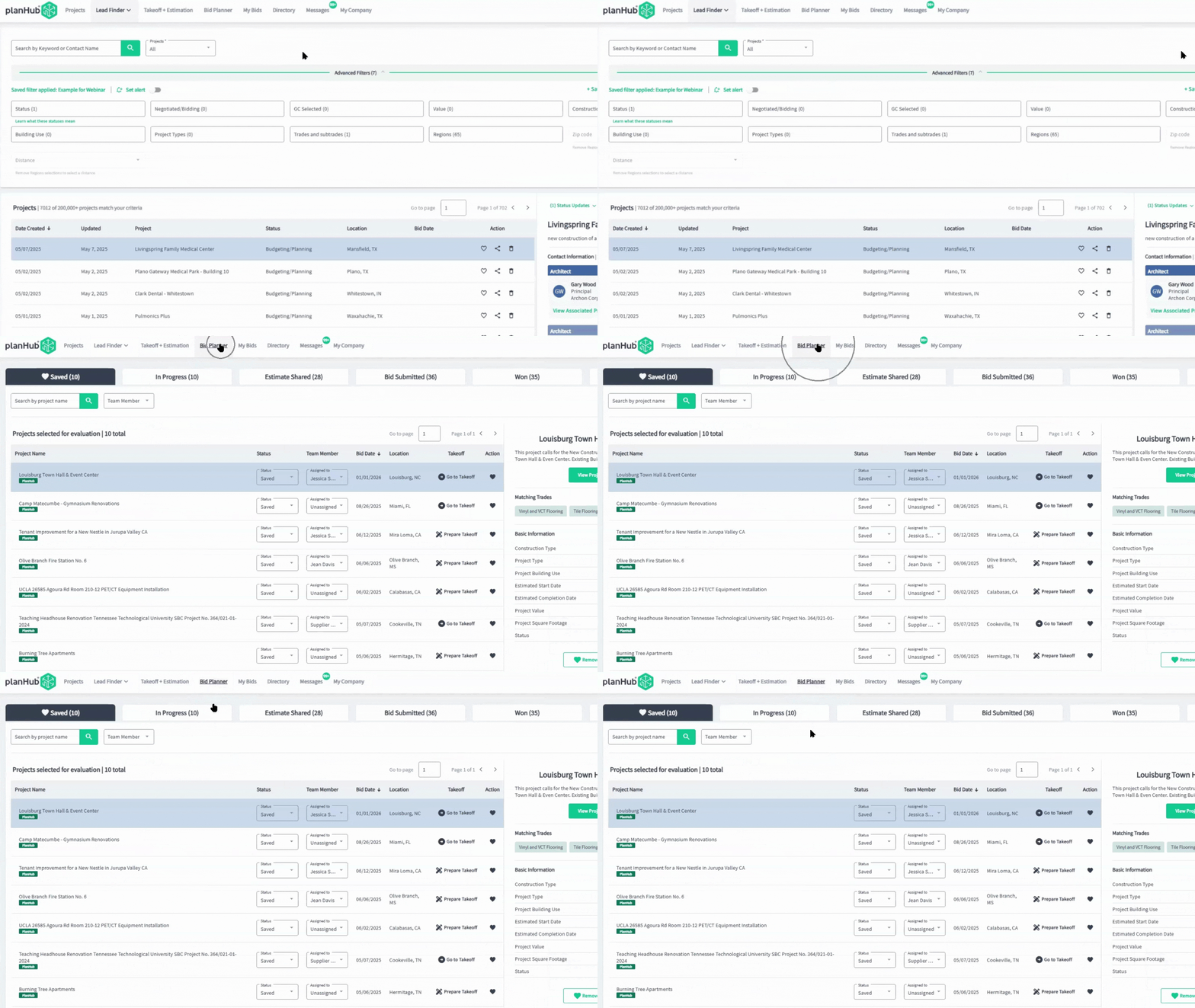
Step 2: Search by project name, assign projects to team members, and update statuses easily.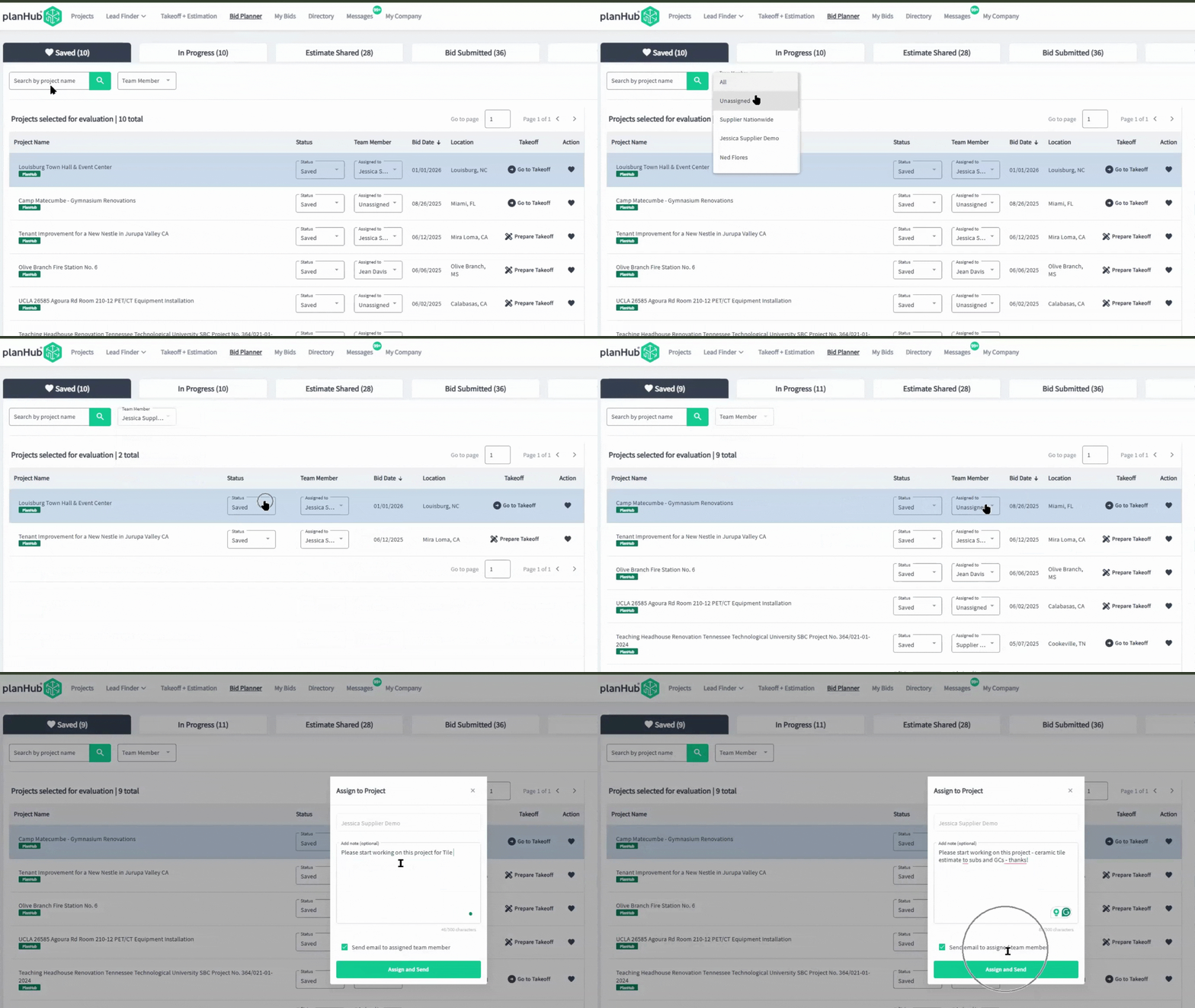
Conclusion & Next Steps:
-
Now that you’ve seen how PlanHub works for suppliers, the next step is to start putting these tools into action.
-
Begin by setting up saved keyword searches for the products you sell so you can quickly find relevant projects. Then use the Directory to build connections with general contractors and subcontractors in your area.
-
Finally, keep track of the opportunities you want to pursue by saving them to your Bid Planner, where your team can stay organized and focused on the projects that matter most.
-
With PlanHub, you can find the right projects, connect with the right contractors, and get your products specified earlier in the process.
Troubleshooting
Contact us if you need assistance or to report an issue:
- PlanHub Contact Page: https://planhub.com/contact/
- Customer Facing Support Ticket Link: https://knowledgebase.planhub.com/knowledge/kb-tickets/new
- Customer Success Team: CustomerSuccess@planhub.com