![NEW_PlanHub_Logo_Navy.png]](https://knowledgebase.planhub.com/hs-fs/hubfs/Design/PH%20Logos/NEW%202024%20PH%20Logos/NEW_PlanHub_Logo_Navy.png?height=40&name=NEW_PlanHub_Logo_Navy.png)
Step 1: Open the project page for your current project and select the Trades & Bidders tab.
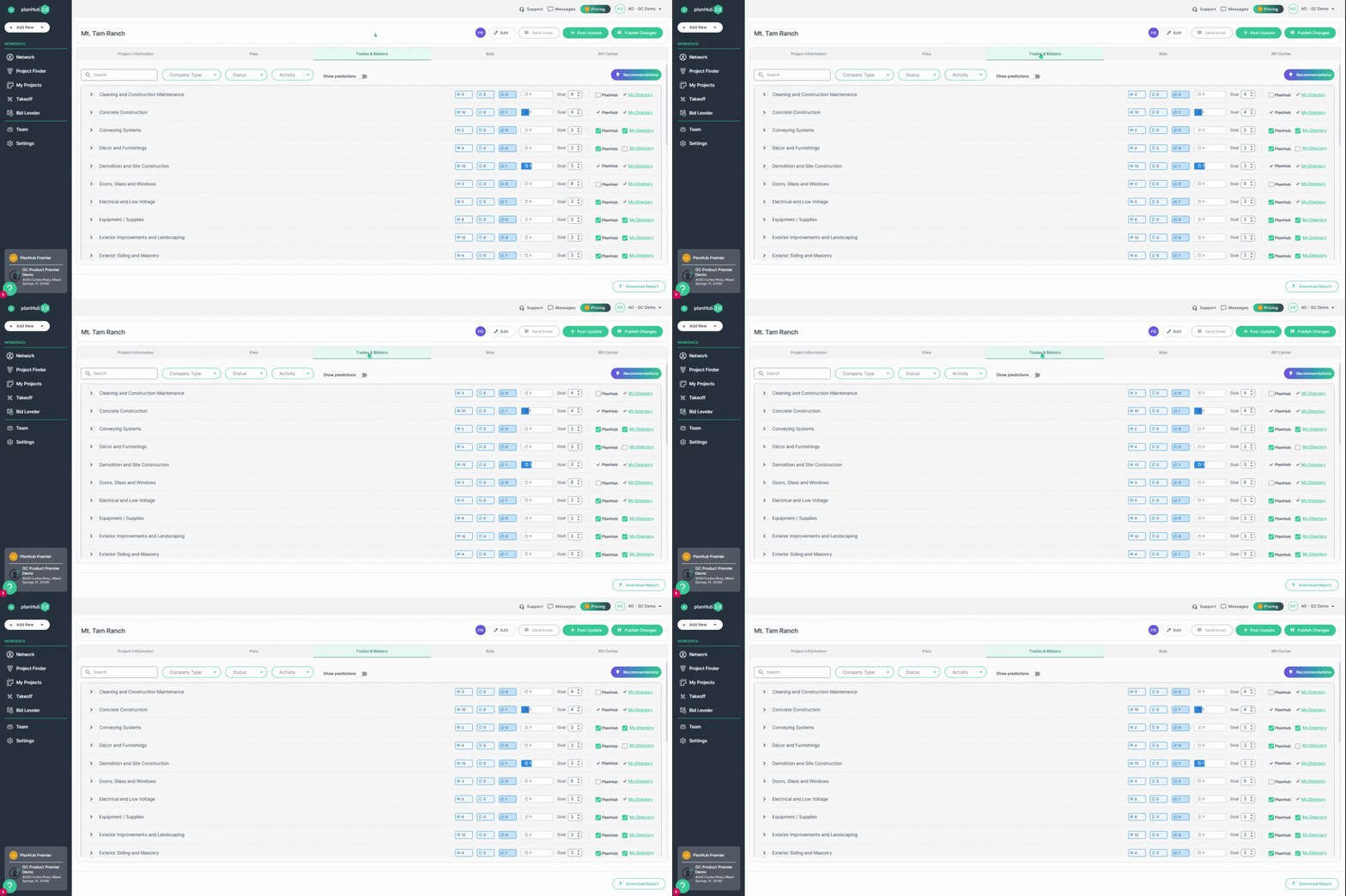
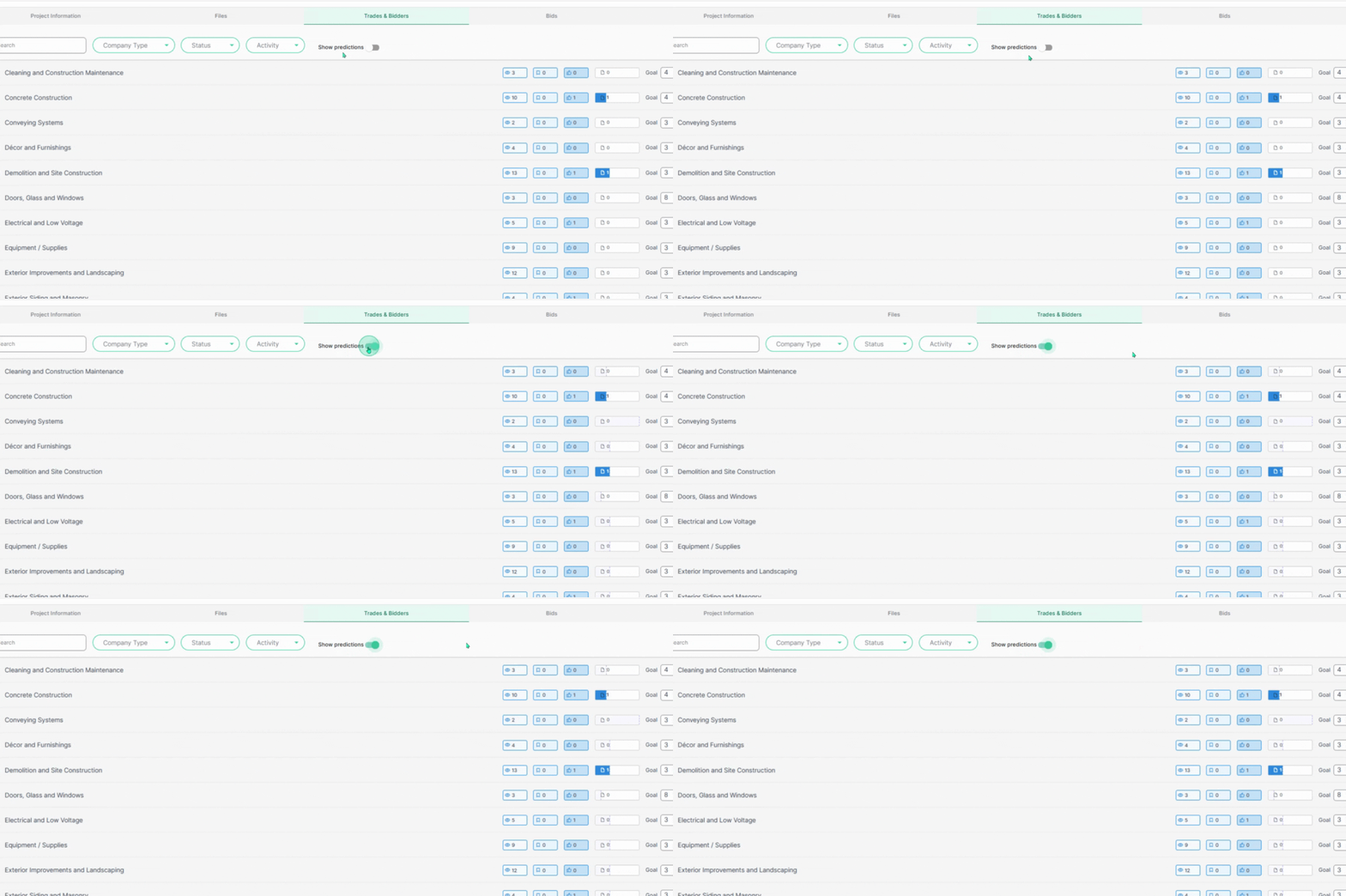
Step 2: Switch on the Show Predictions toggle to display AI predictions for bid coverage in the 4th column.
Step 3: Hover the mouse cursor over the predicted coverage fields to view how many bids are predicted. Compare these predictions to your company’s bid goals to quickly spot trades at risk of falling short.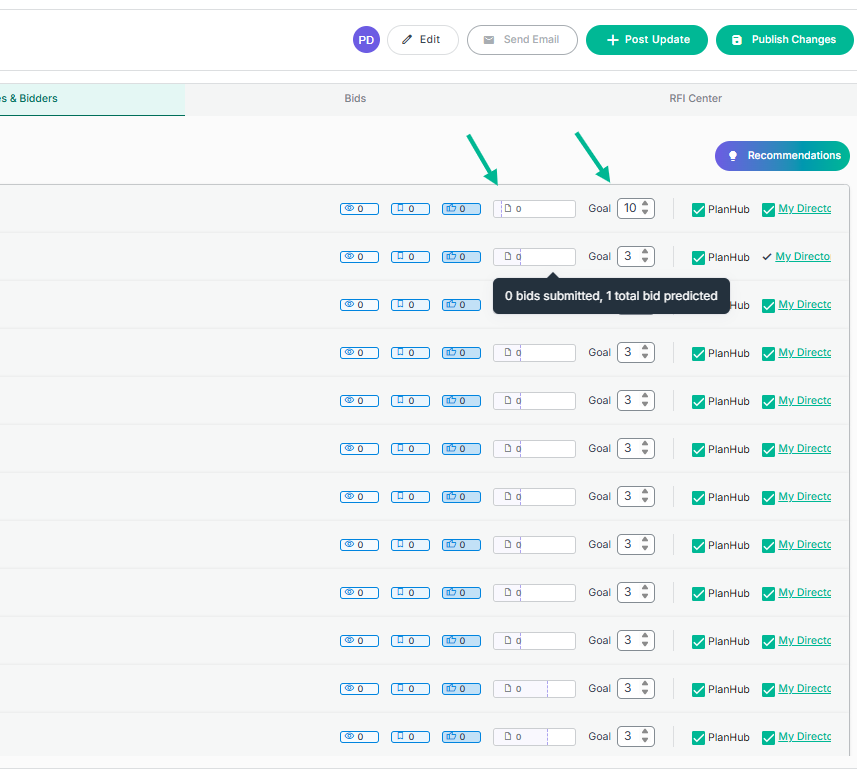
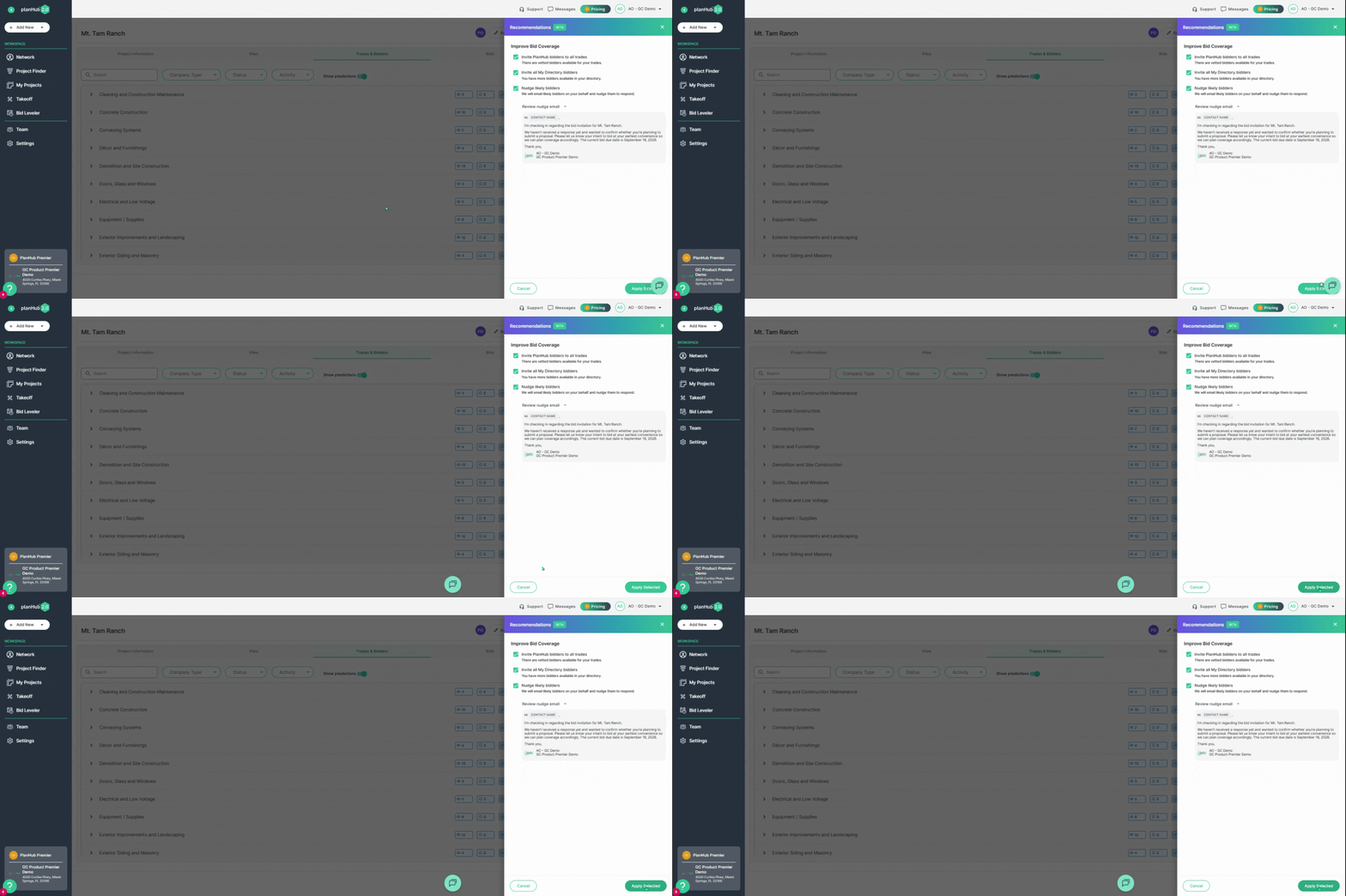
Step 4: Click the Recommendations button to see tailored suggestions for improving bid coverage. 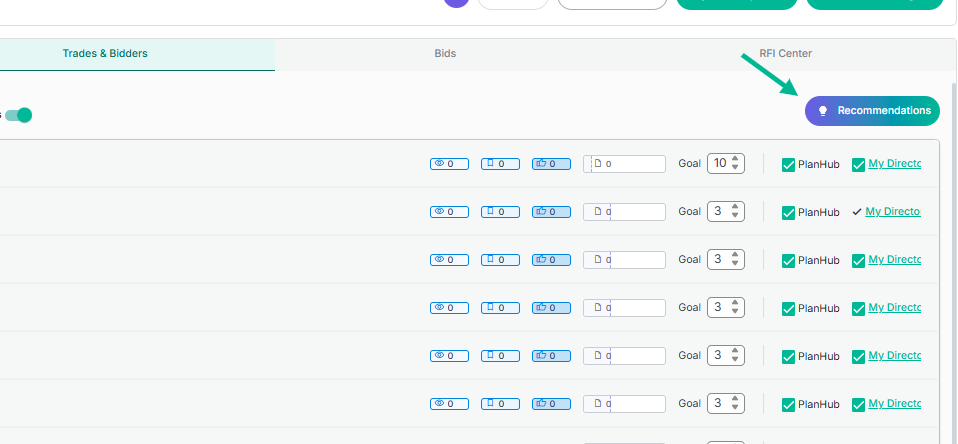
Step 5: AI identifies likely bidders and suggests potential contacts from the PlanHub Directory to help you expand your outreach. Expand Suggested Nudges to preview the AI-generated email before sending it to promising contacts.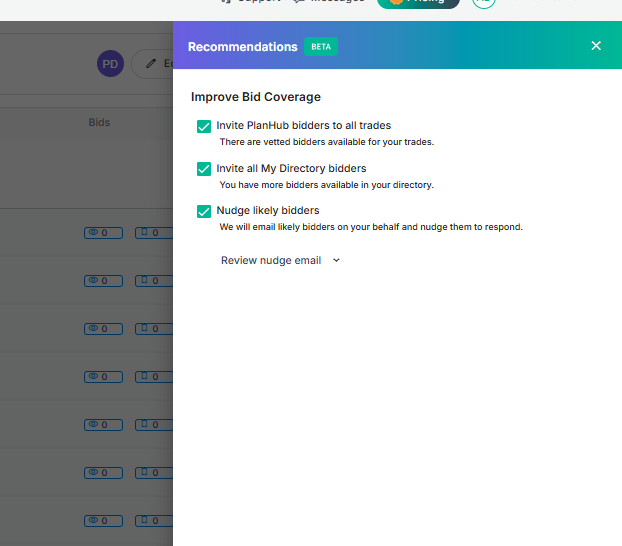
Step 6: After reviewing recommendations and nudges, click Apply Selected to send invitations or reminders to your chosen bidders.
Bringing in Your Contacts with AI-Powered Imports
Step 1: Select Network on the main dashboard navigation panel.
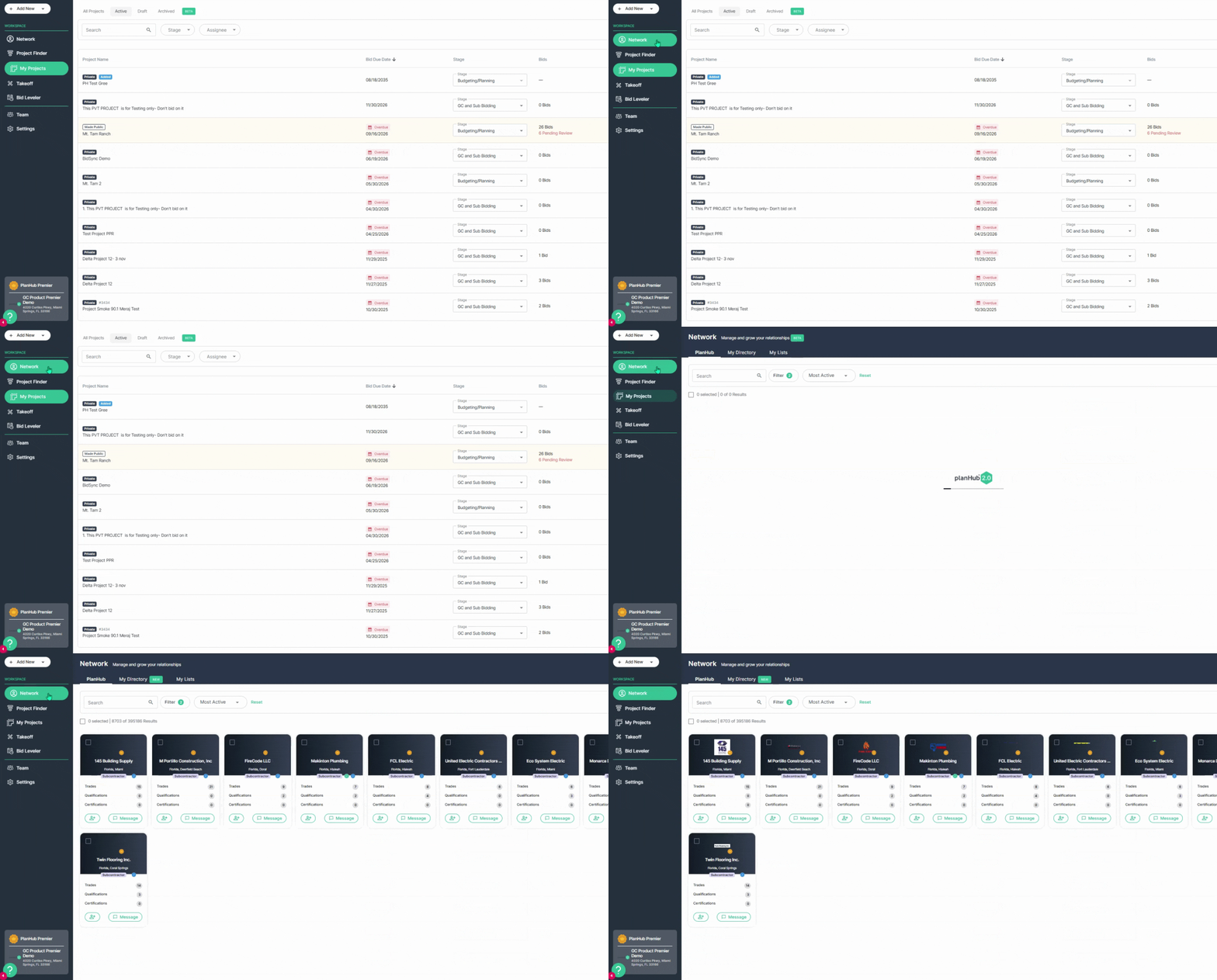
Step 2: Click the My Directory tab at the top.
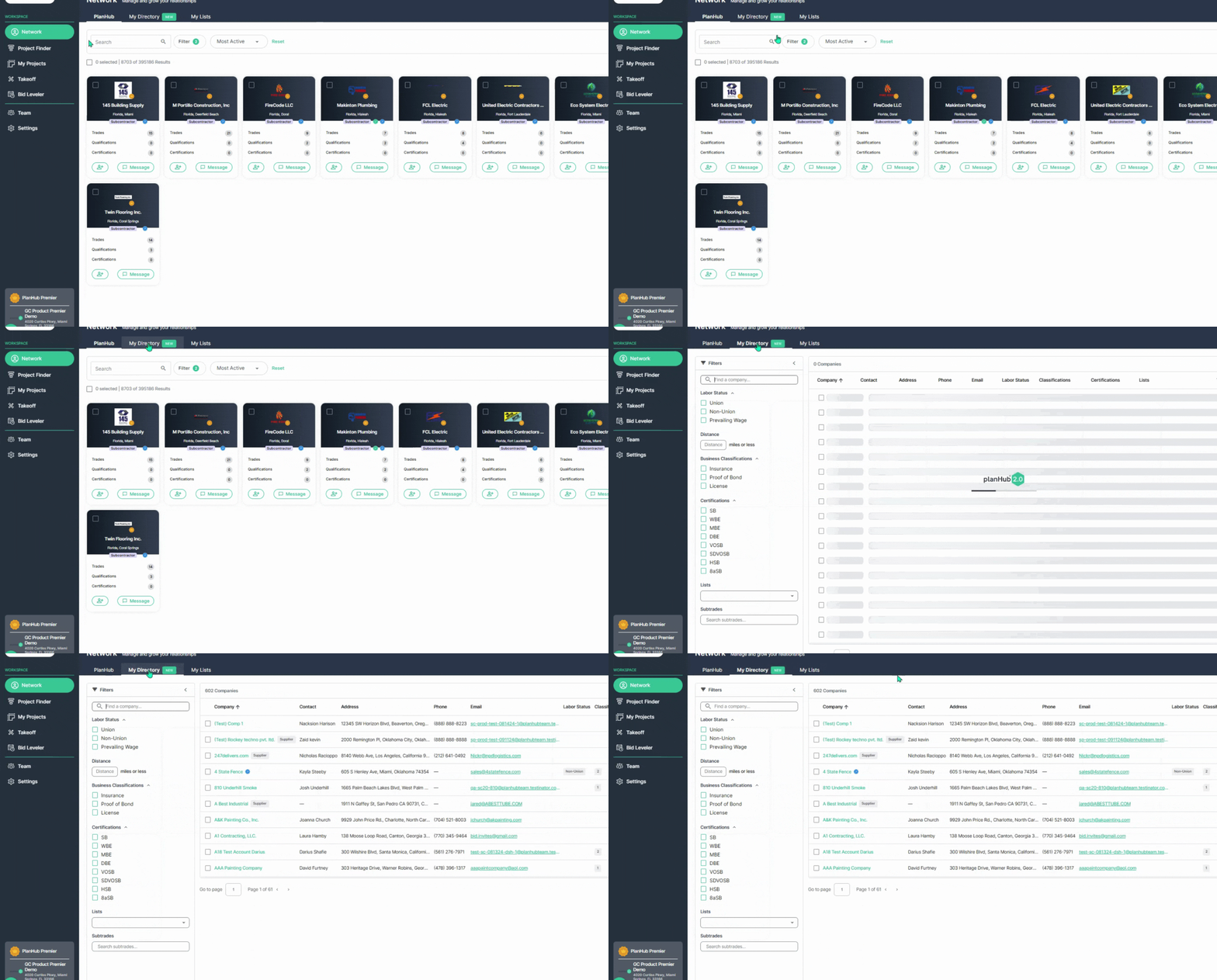
Step 3: Click on the Upload button in the top right corner to begin importing contacts.
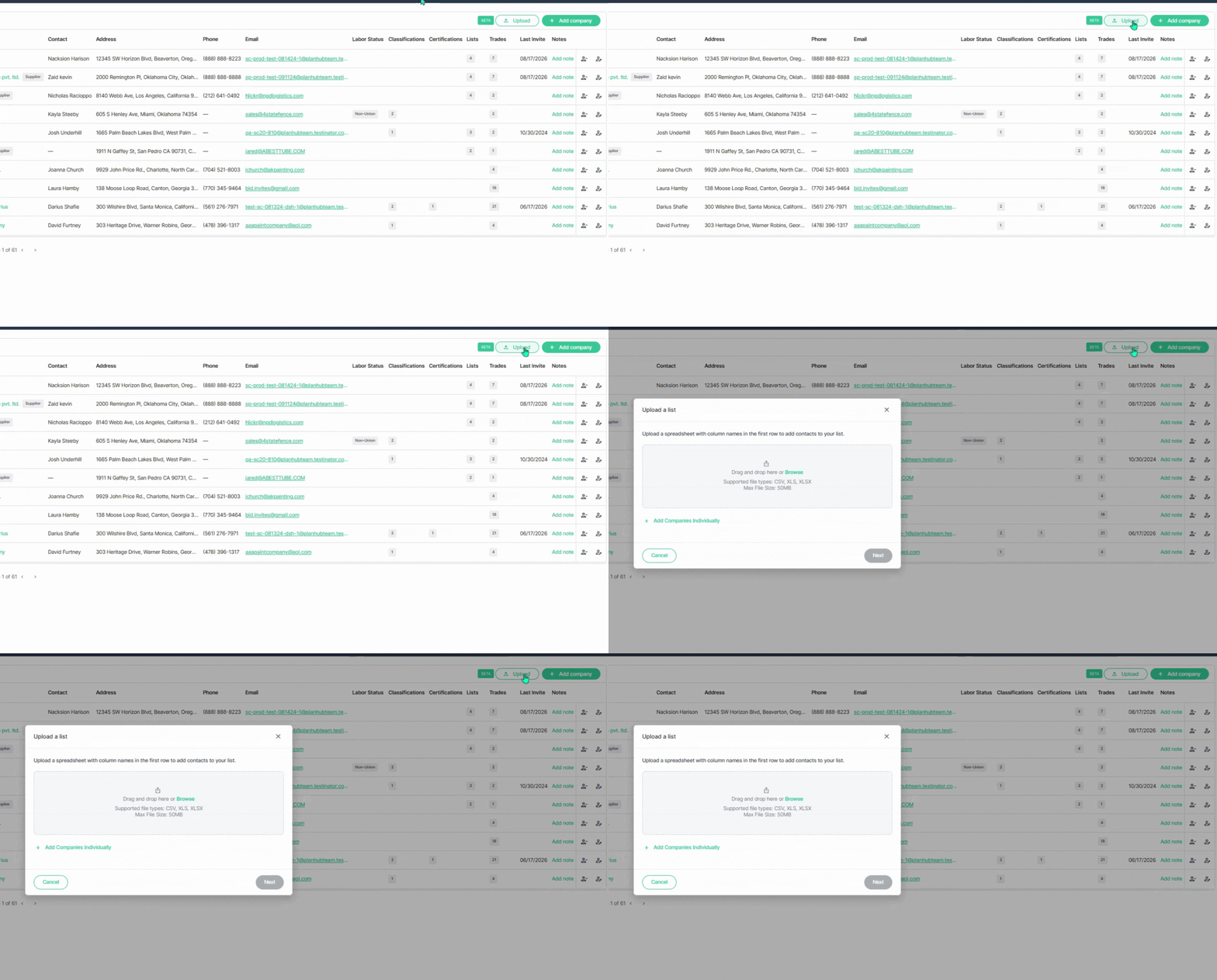
Step 4: Drag and drop your spreadsheet or browse to upload it. PlanHub AI searches all worksheet tabs to extract the contacts details.
Step 5: Click Next once the file loads.
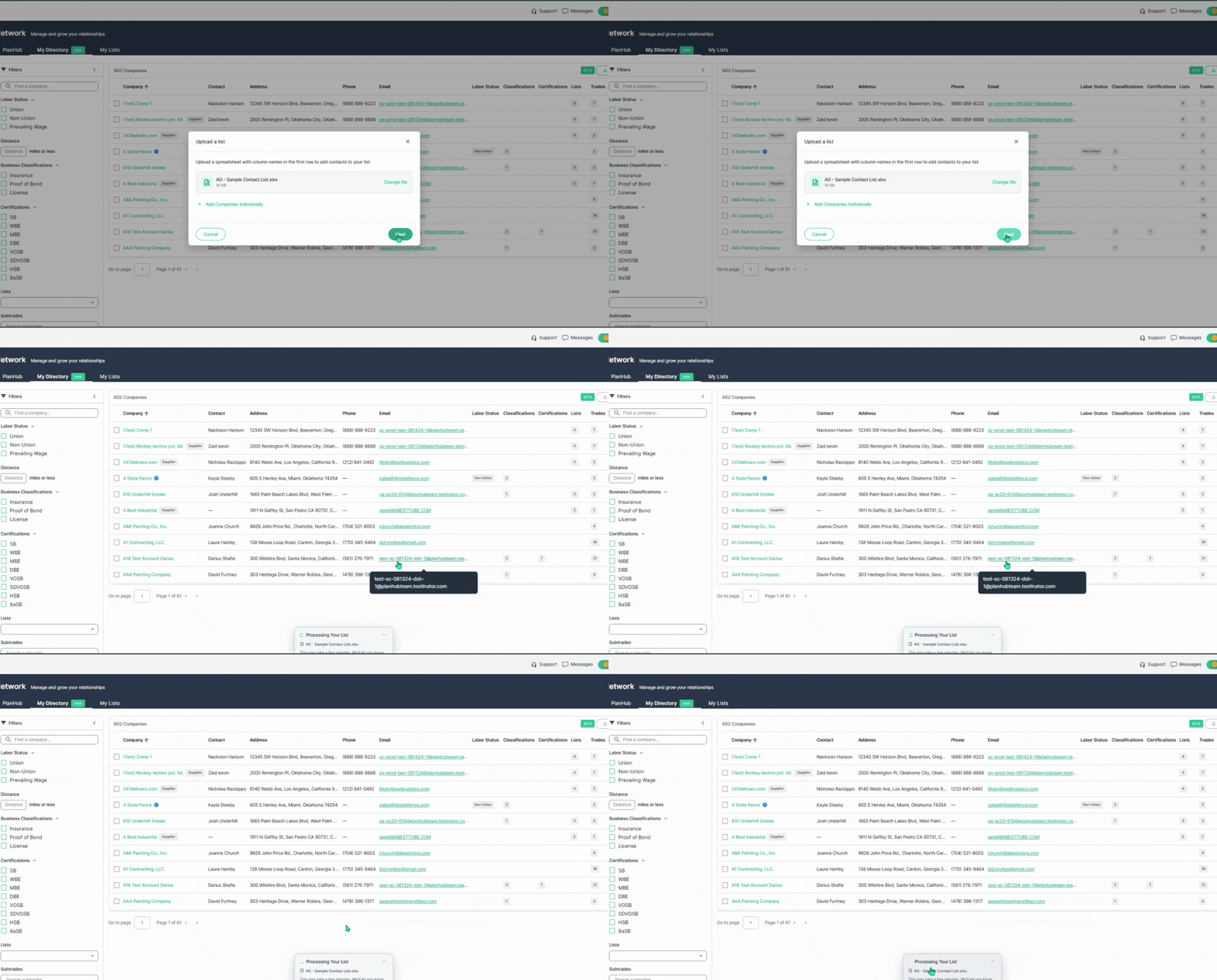
Step 6: When processing’s complete, select Review List to check and organize your imported contacts. The AI automatically skips duplicates and offers to merge or update records as needed.
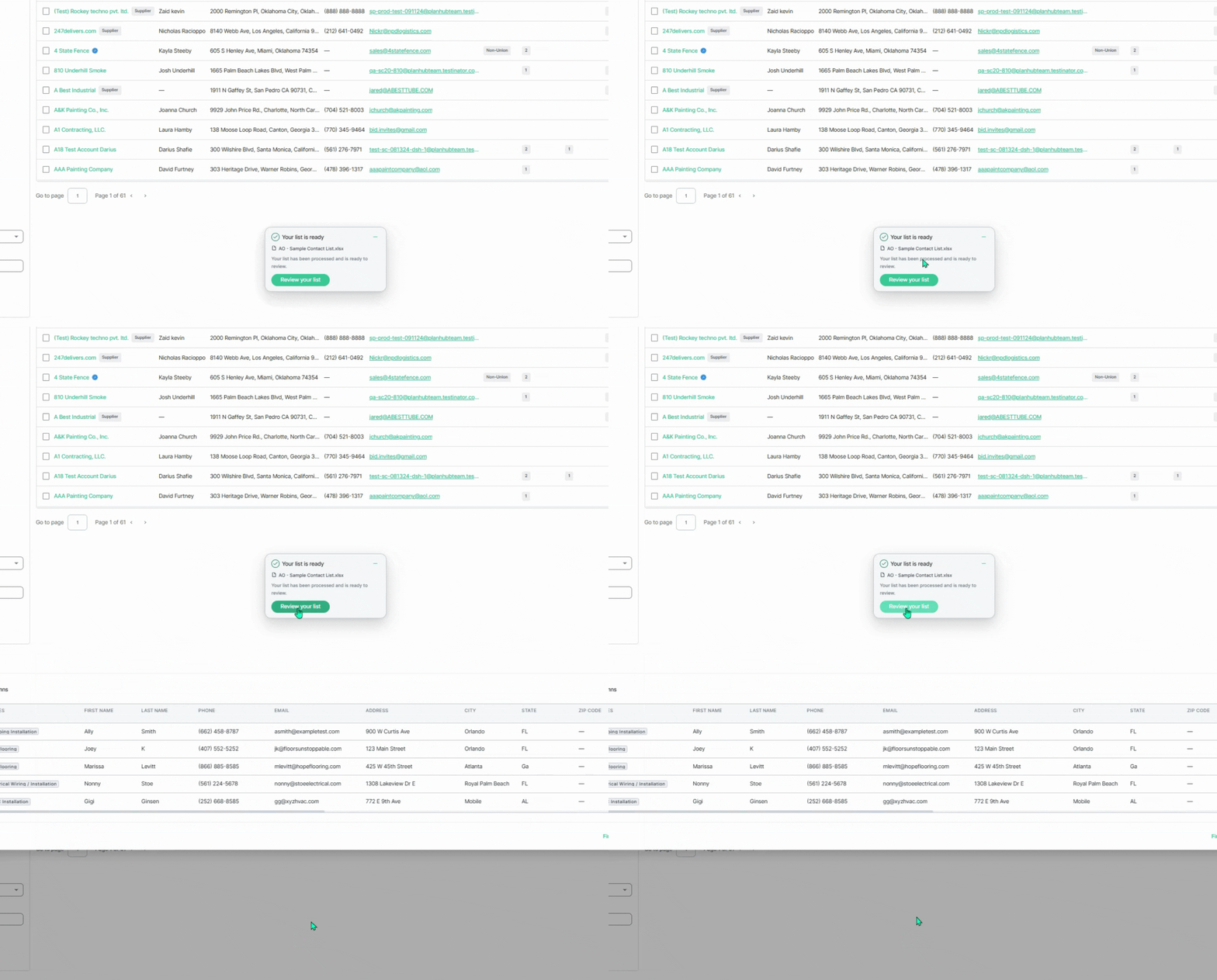
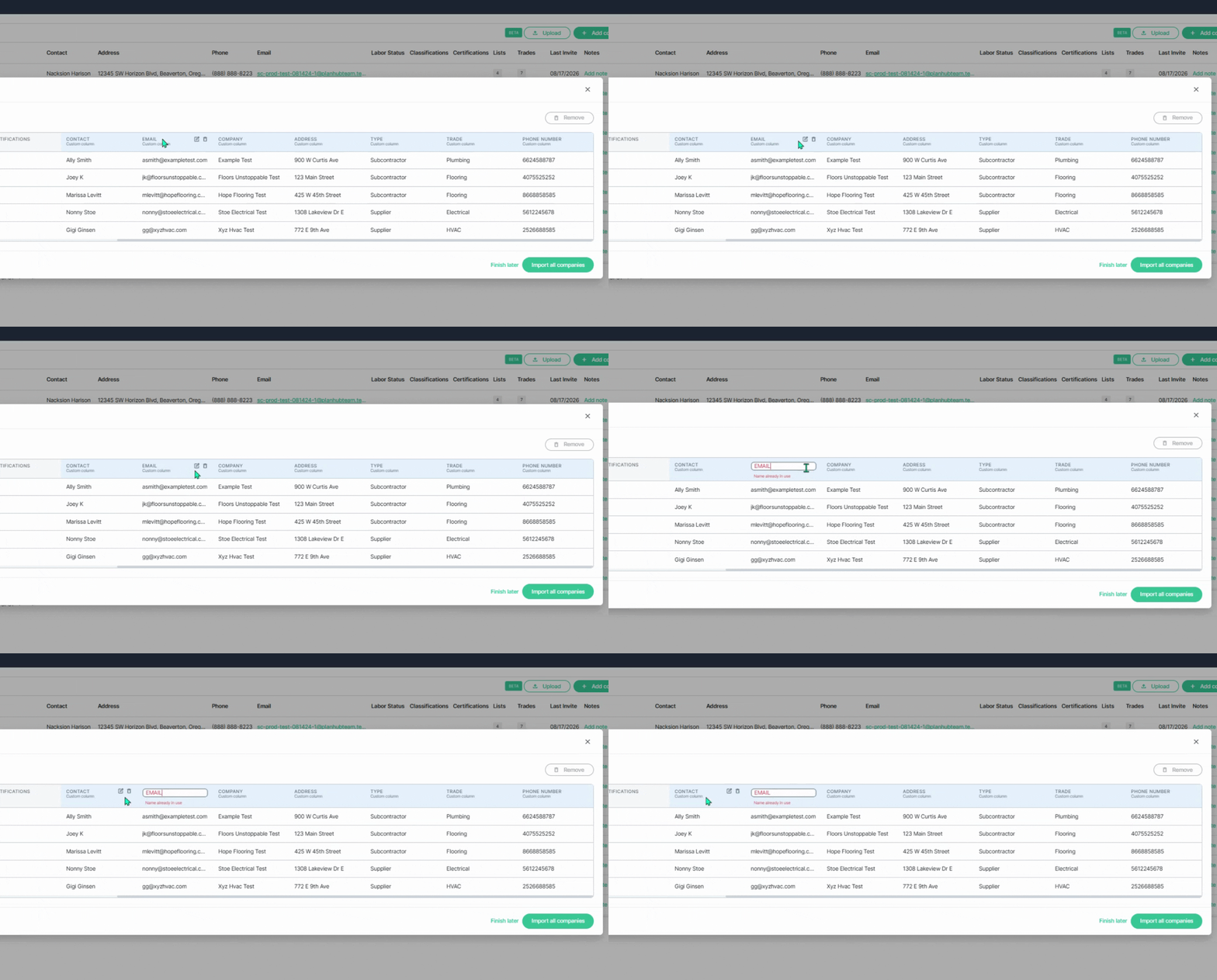
Step 7: Use the bottom slidbar to scroll through columns. Edit or delete headers as needed by hovering over column titles.
Step 8: To remove contacts before importing, add a checkmark to the box next to their company names, then click Remove.
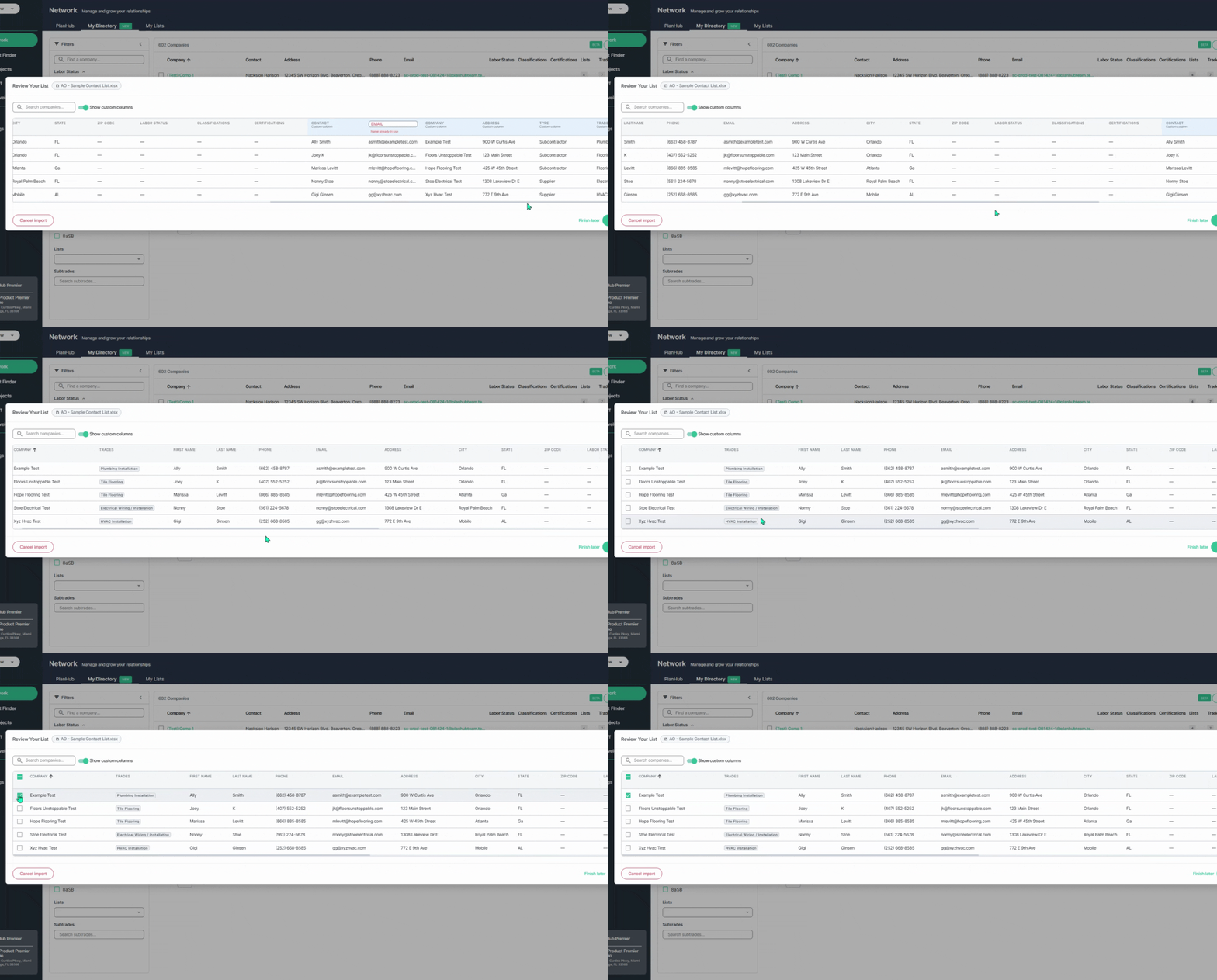
Step 9: Check the boxes next to companies you want to import.
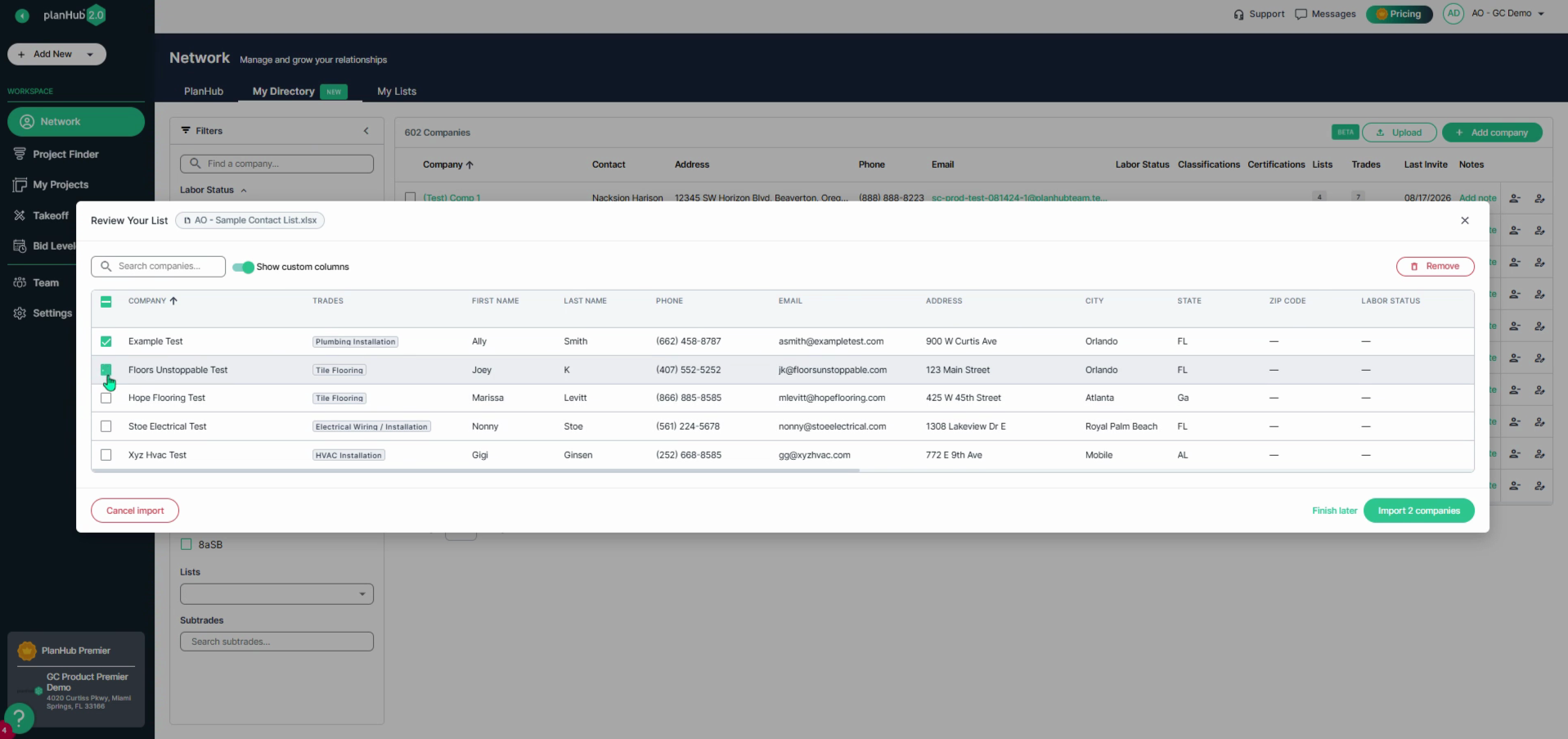
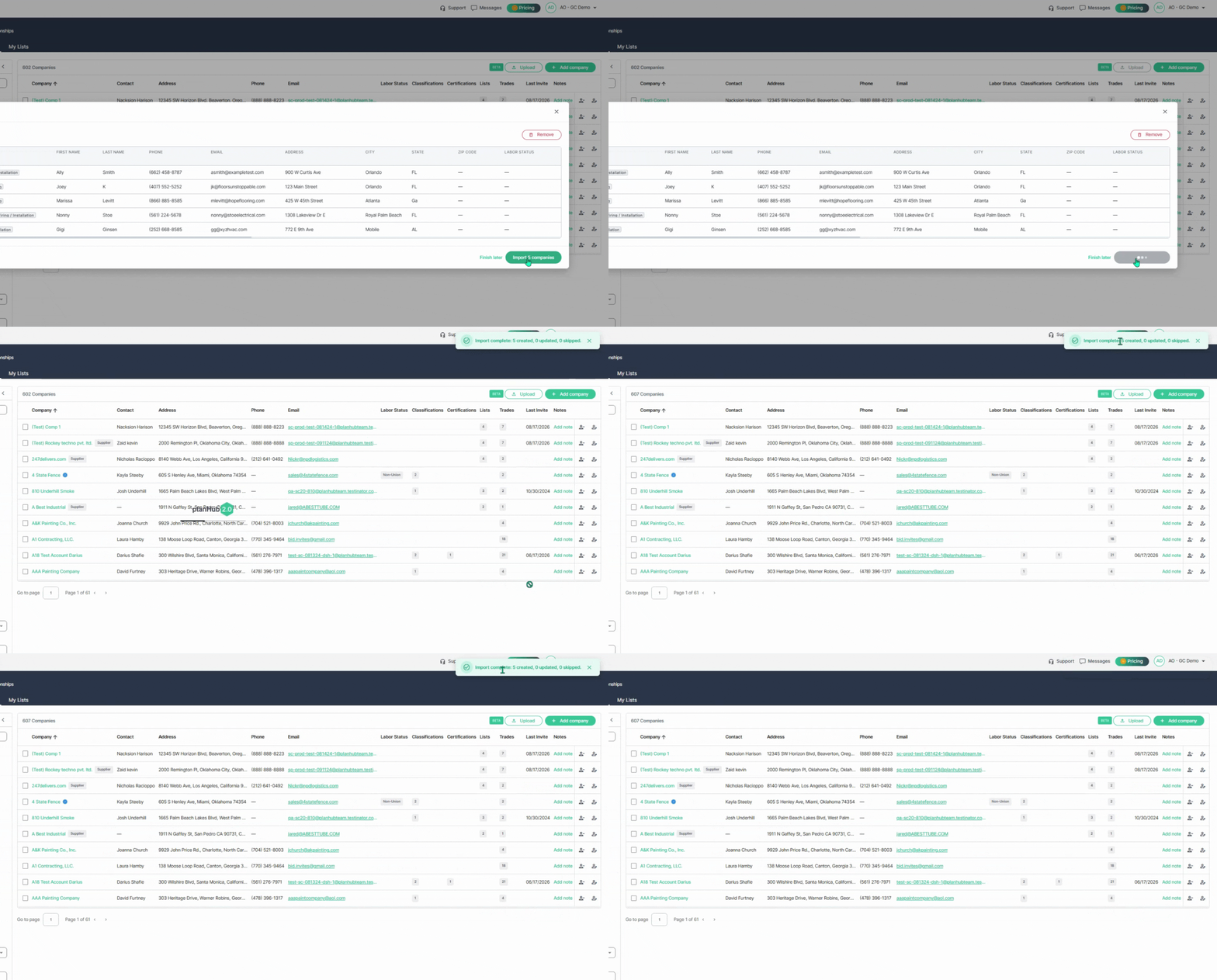
Step 10: Click Import Companies in the bottom right to import the contacts. Once uploaded, a confirmation appears at the top of the page.
Syncing Email Bid Communications with AI Bid Sync
Step 1: To enable Email Integration, select the expand arrow next to your profile in the upper-right corner and choose My Account. Scroll to the bottom of the page to the Email Integration section, then select Connect my Email. Sign up using your professional Outlook or Gmail account, making sure the email address matches your planHub login email.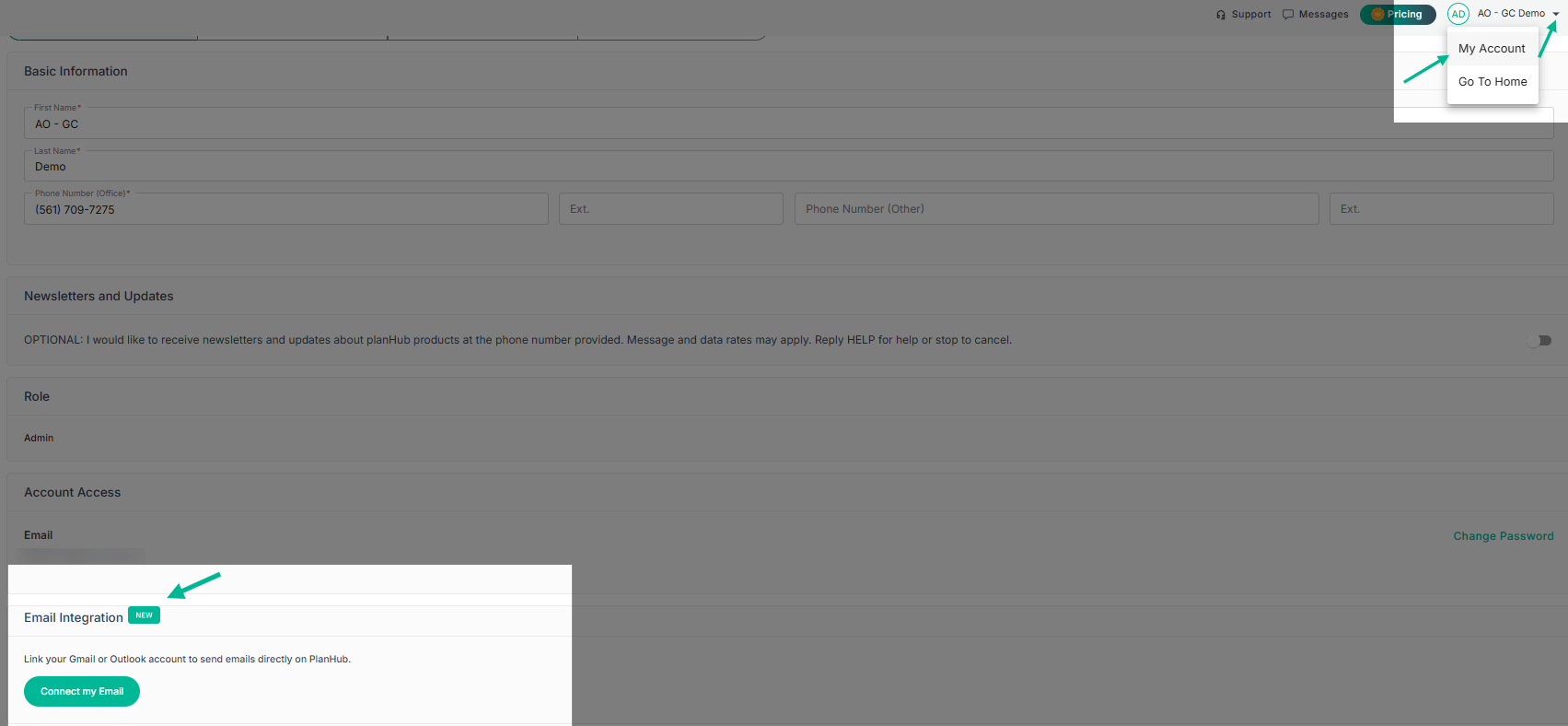
Step 2: PlanHub automatically detects bid status replies from subcontractors and updates the corresponding project statuses for you. You can still manually adjust bid statuses for each project as needed.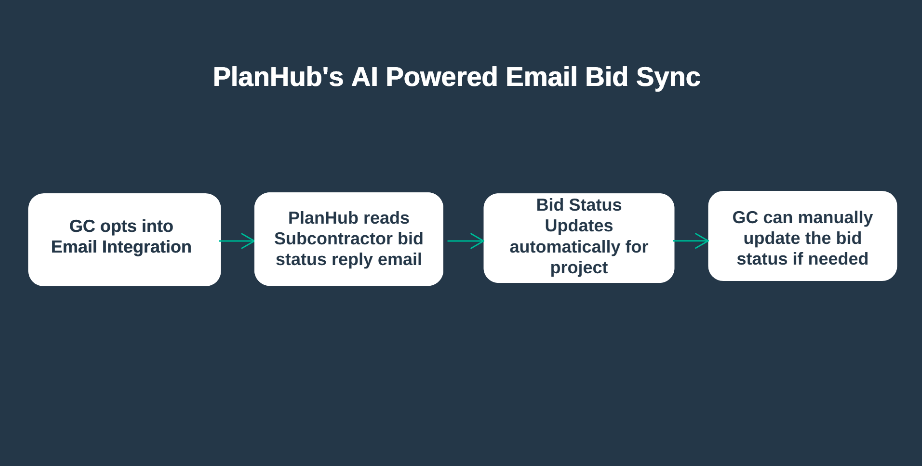
PlanHub’s AI-powered features help your team focus on outreach, organization, and coverage — giving you confidence every step of the way.
Troubleshooting
Contact us if you need assistance or to report an issue:
- PlanHub Contact Page: https://planhub.com/contact/
- Customer Facing Support Ticket Link: https://knowledgebase.planhub.com/knowledge/kb-tickets/new
- Customer Success Team: CustomerSuccess@planhub.com