![NEW_PlanHub_Logo_Navy.png]](https://knowledgebase.planhub.com/hs-fs/hubfs/Design/PH%20Logos/NEW%202024%20PH%20Logos/NEW_PlanHub_Logo_Navy.png?height=40&name=NEW_PlanHub_Logo_Navy.png)
Important Access Note:
-
Your level of access depends on your account's plan. Pro and Premier plans offer unlimited access nationwide. If you’re on Free Essentials, your access increases as you post more projects—so the more you post, the more companies you can connect with.
Step 1: Log in to your PlanHub account and go to the Network page.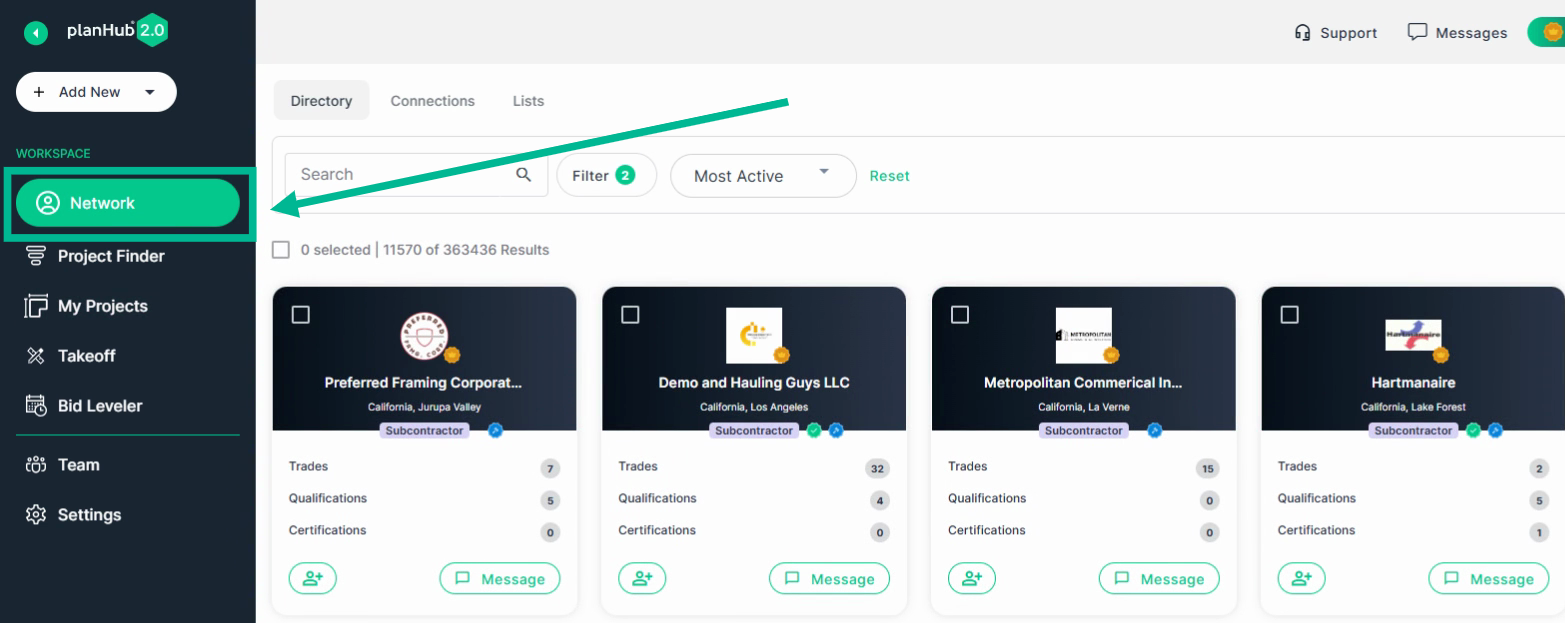
Directory
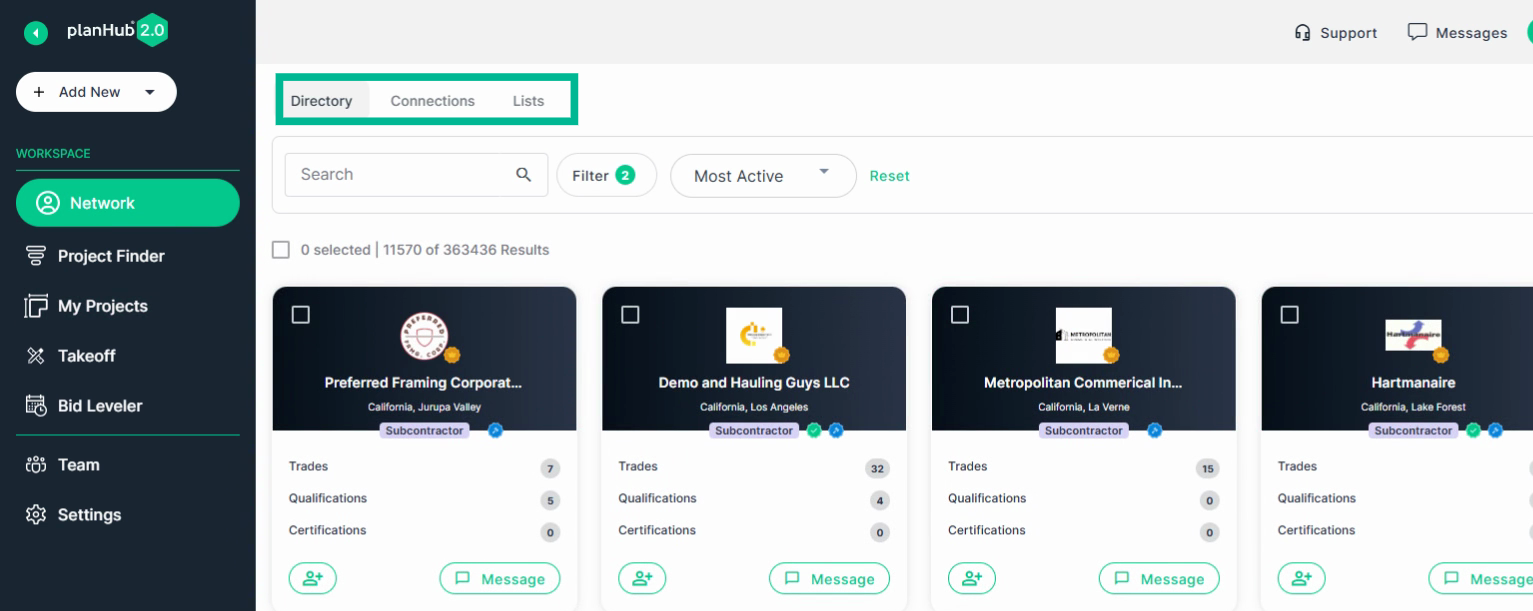
Step 2: At the top of the page, you’ll see three tabs: Directory, Connections, and, if enabled, Lists.
-
Directory: PlanHubs Nationwide Network of Subcontractors and Suppliers
-
Connections: Your company's connections that get free access to your projects when invited.
-
Lists: Available to Pro and Premier Plans. Contains segmented lists of your connections that you can build, edit, and utilize in your project posting process.
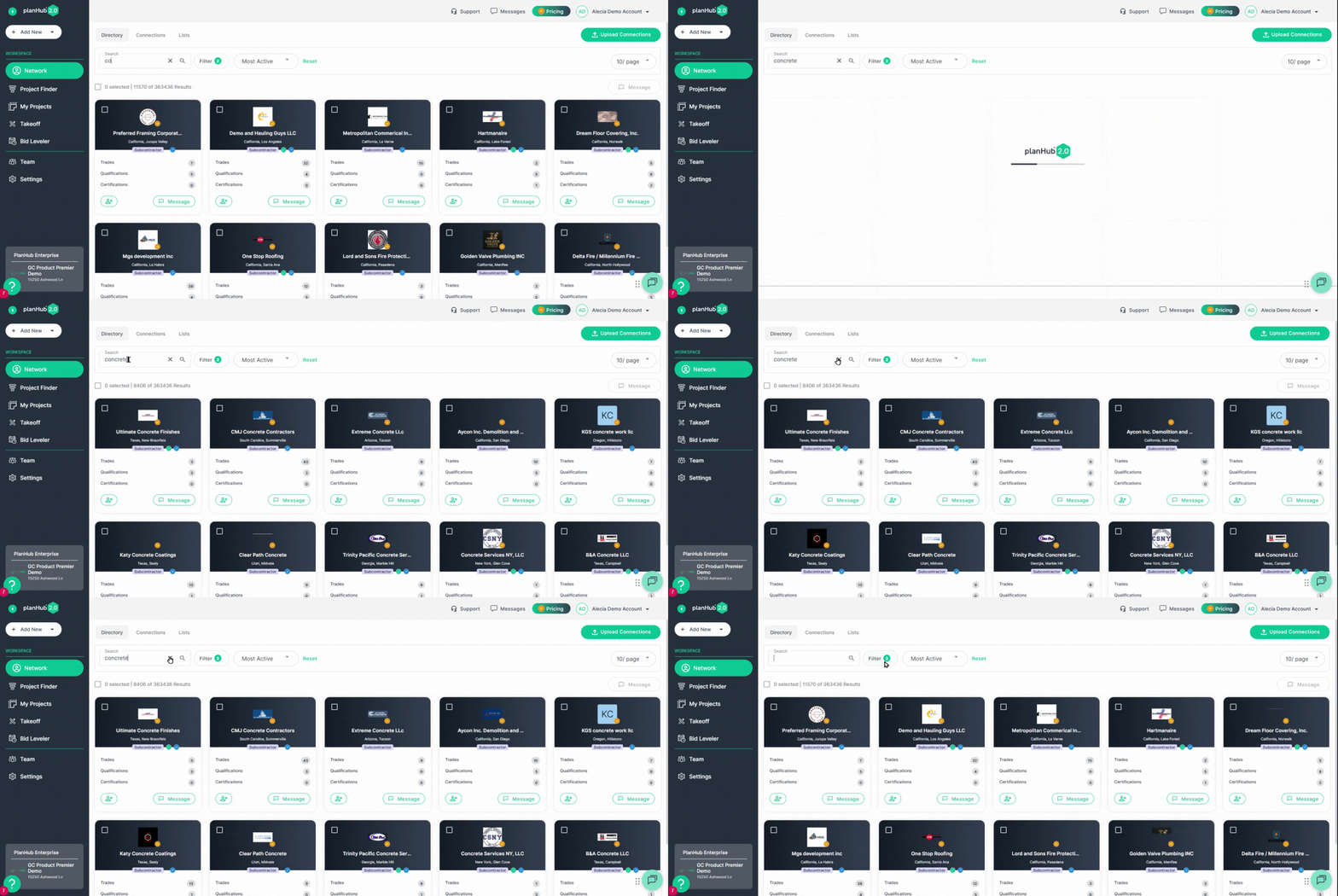
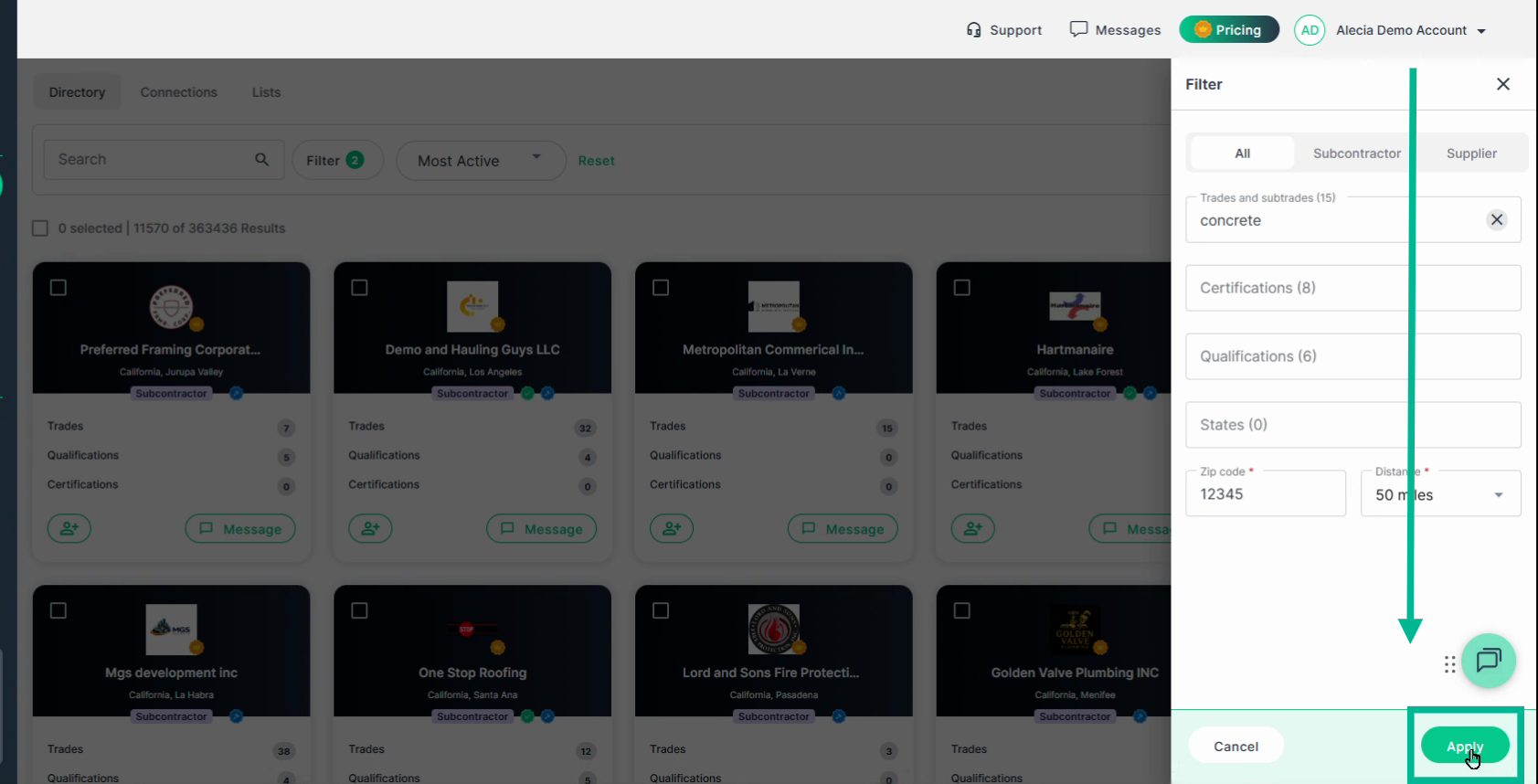
Step 3: Use the Search bar and apply Filters to refine your search by:
-
Company name (Search bar)
-
Company type (subcontractor, supplier, or both).
-
Trades or sub-trades they perform or supply products for.
-
Certifications
-
Qualifications
-
Location by state/region, or distance from a Zip code.
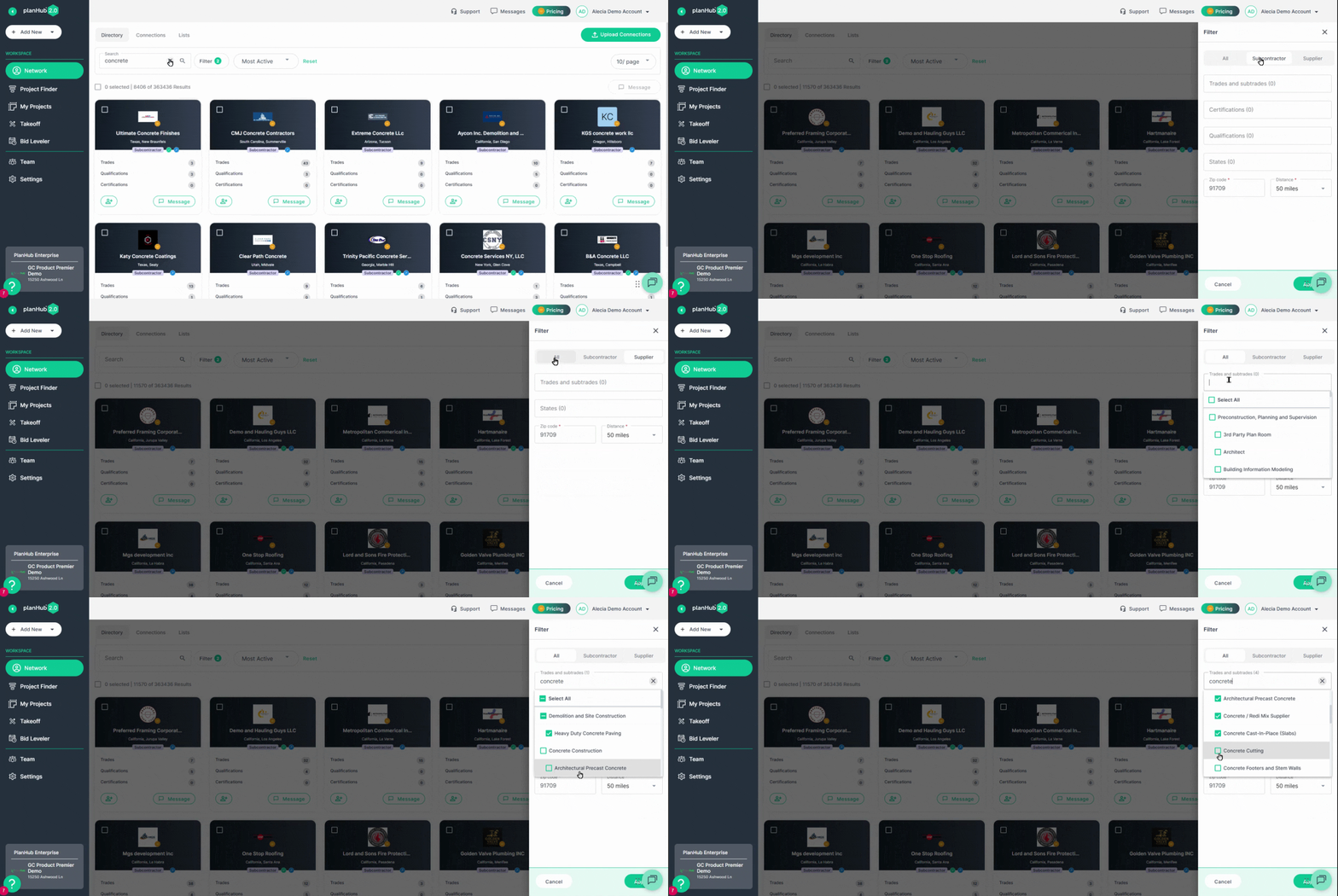
Step 3.1: Click Apply to show companies matching your filters.
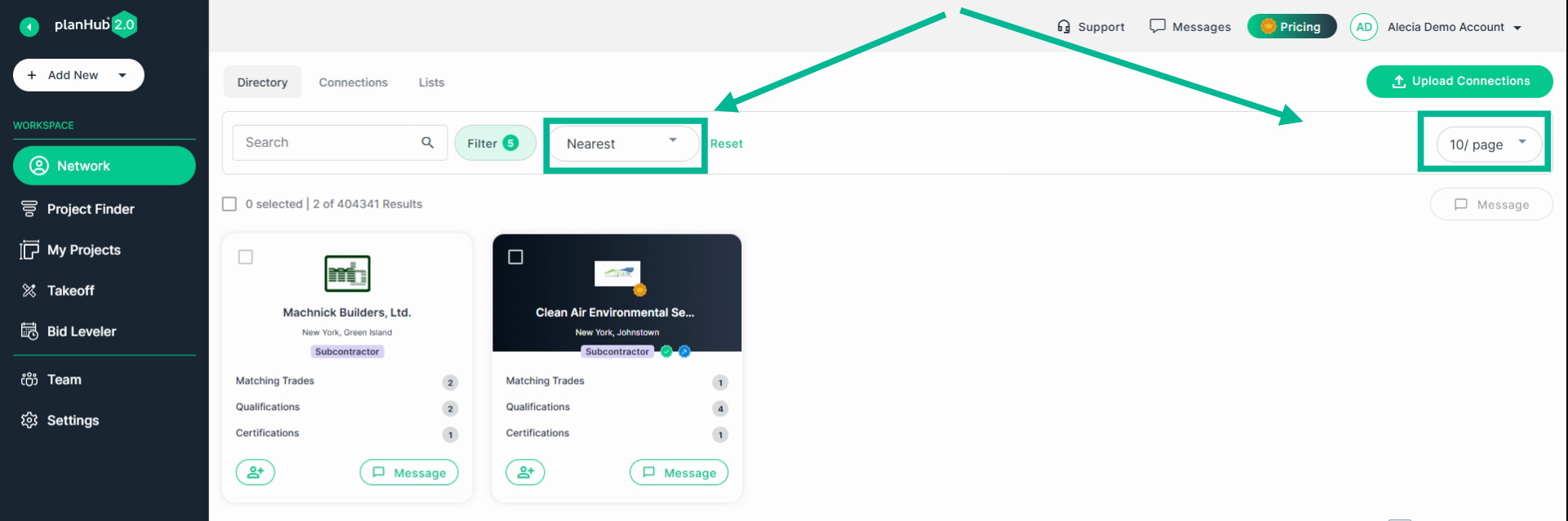
Step 4: Review your search results, and use the Sort and Results per page settings to manage how the view companies.
Connections
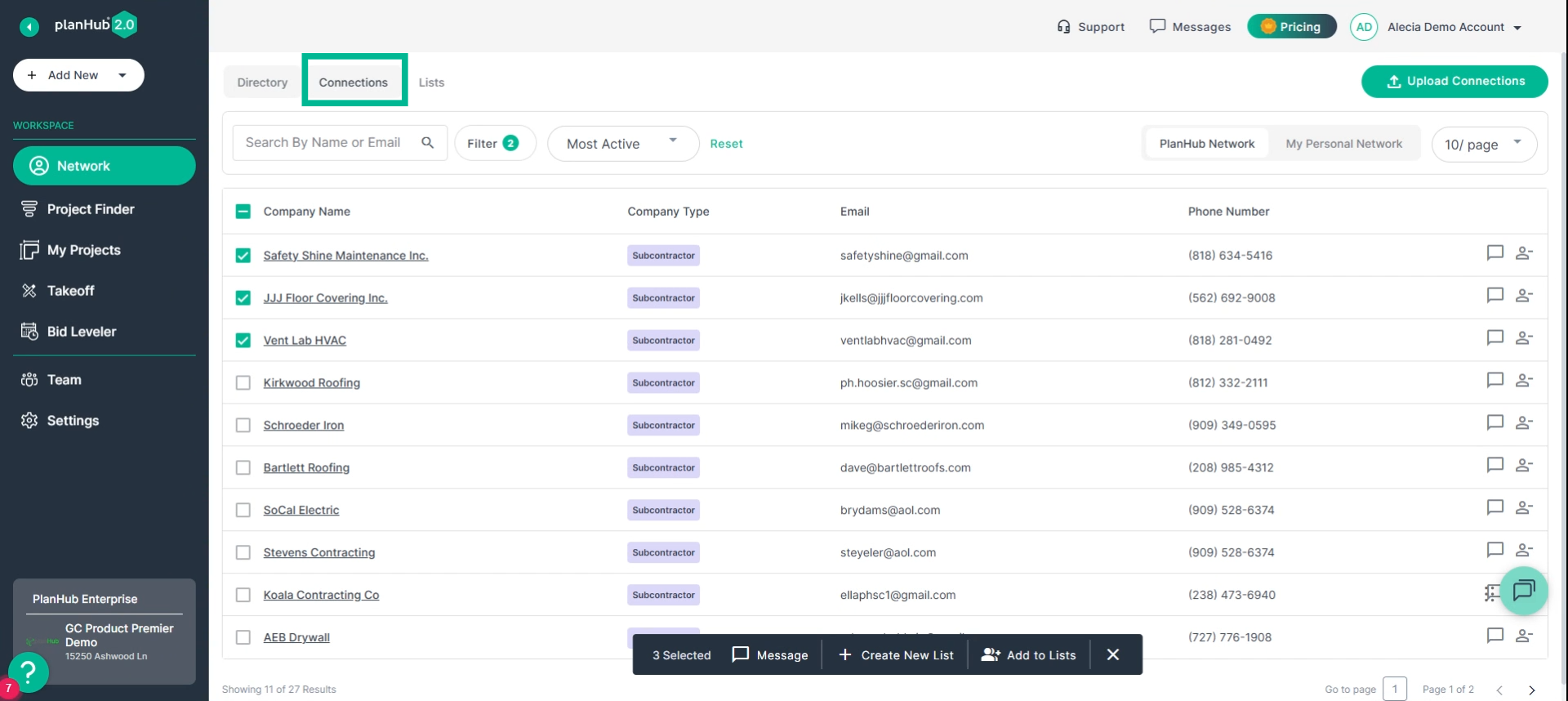
Step 1: Open the Connections tab to view and manage companies you already work with.
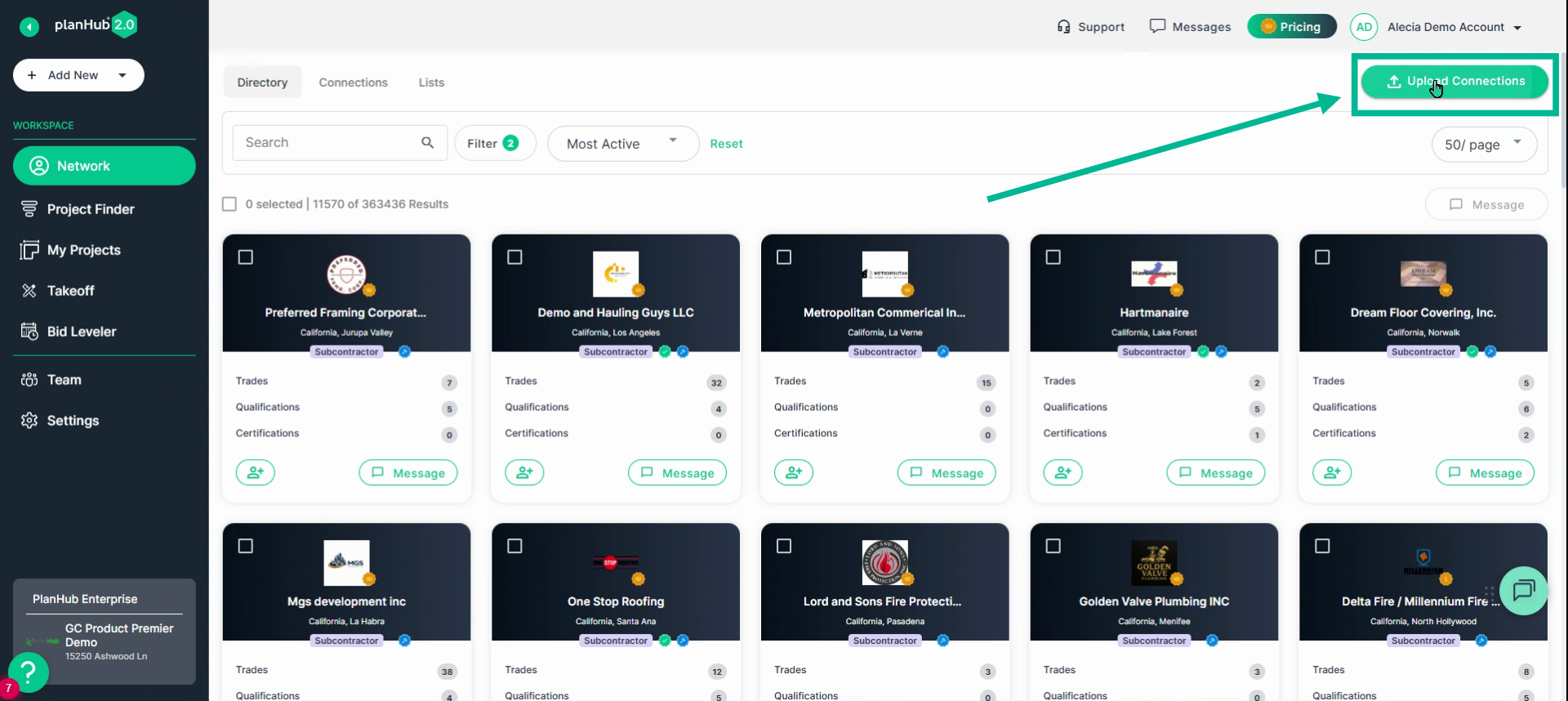
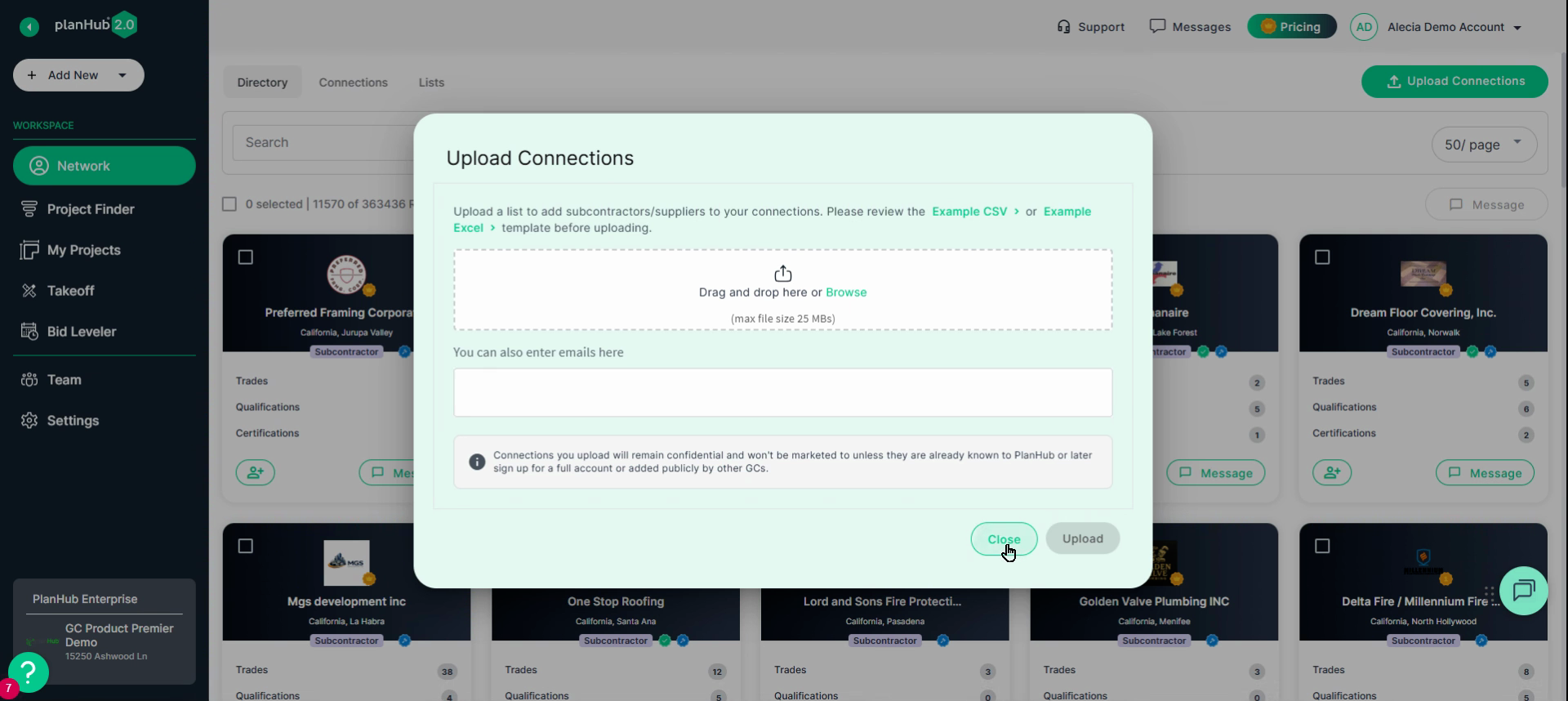
Step 2: Add contacts by clicking Upload Connections. You can upload a CSV or Excel file with email addresses, or manually enter emails one by one. Uploaded contacts are private and get free access when you invite them to bid.
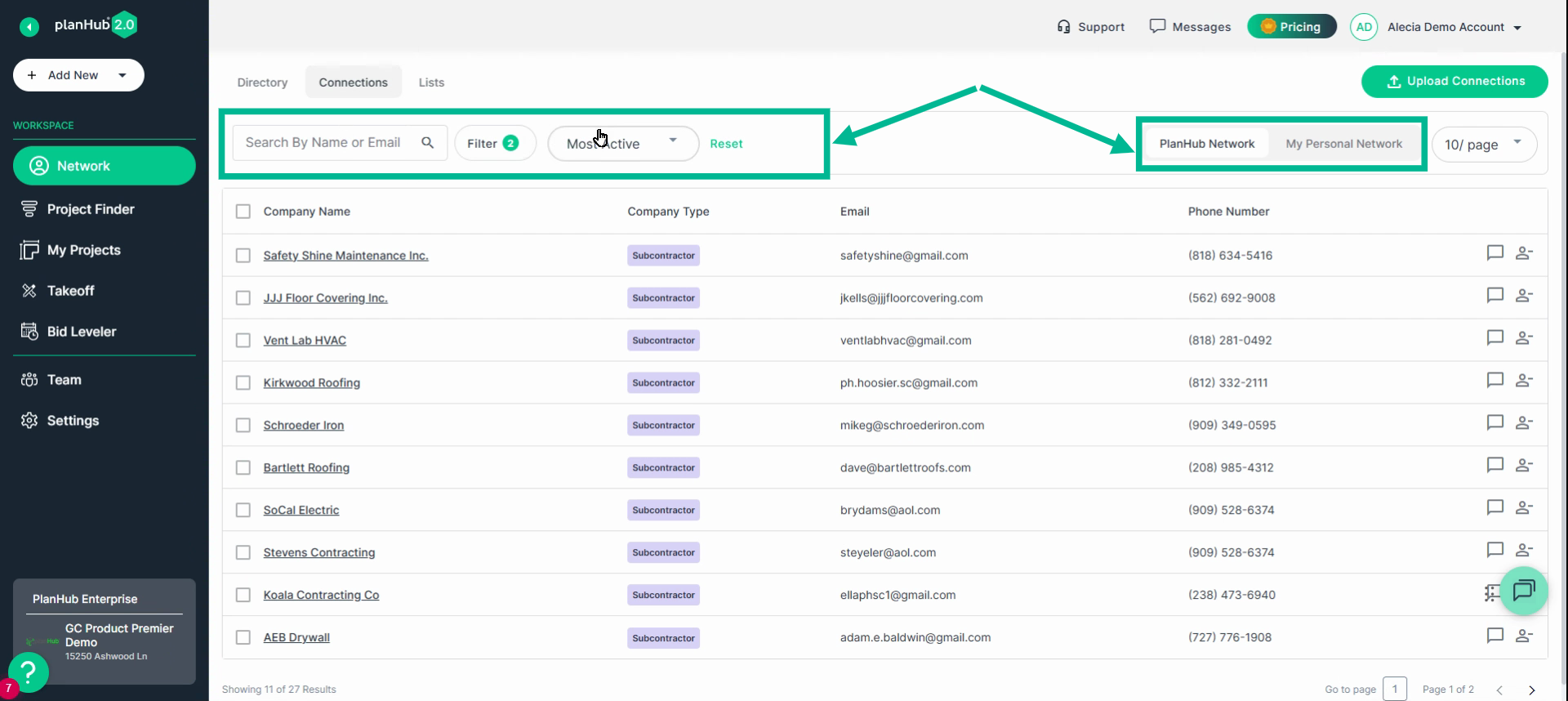
Step 3: Filter and search your Connections just like in the Directory.
You can also filter by whether companies are already in the PlanHub network or exist only in your contacts.
Lists
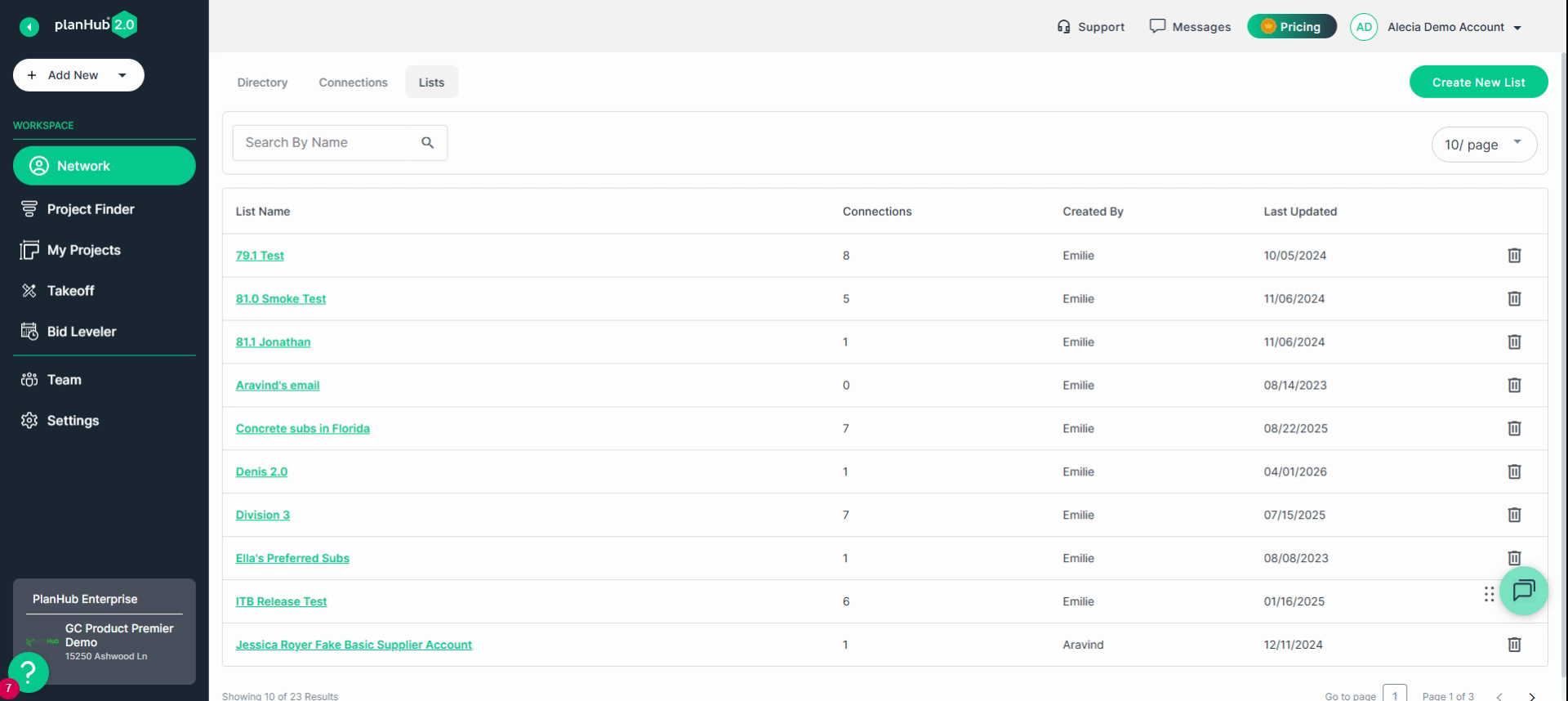
Step 1: If you have private posting access (via Pro or Premier Plan access), use the Lists tab to create custom lists for organizing contacts and controlling project visibility.
Step 2: Click Create New List, add a list name, then upload connections or add contacts from your Connections tab.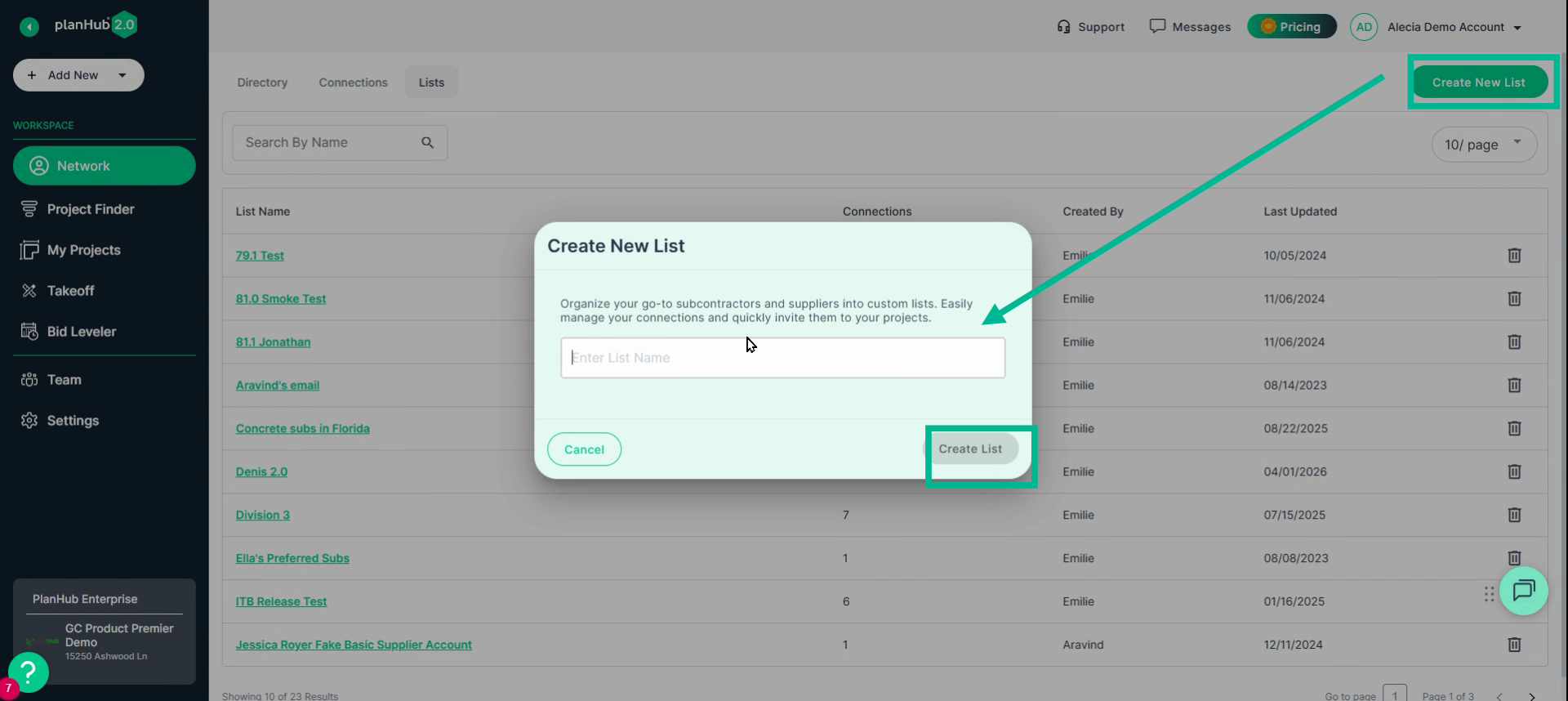
Step 3: Add contacts from your Connections by checking off companies, clicking Add to List, and choosing the appropriate list from the pop-up.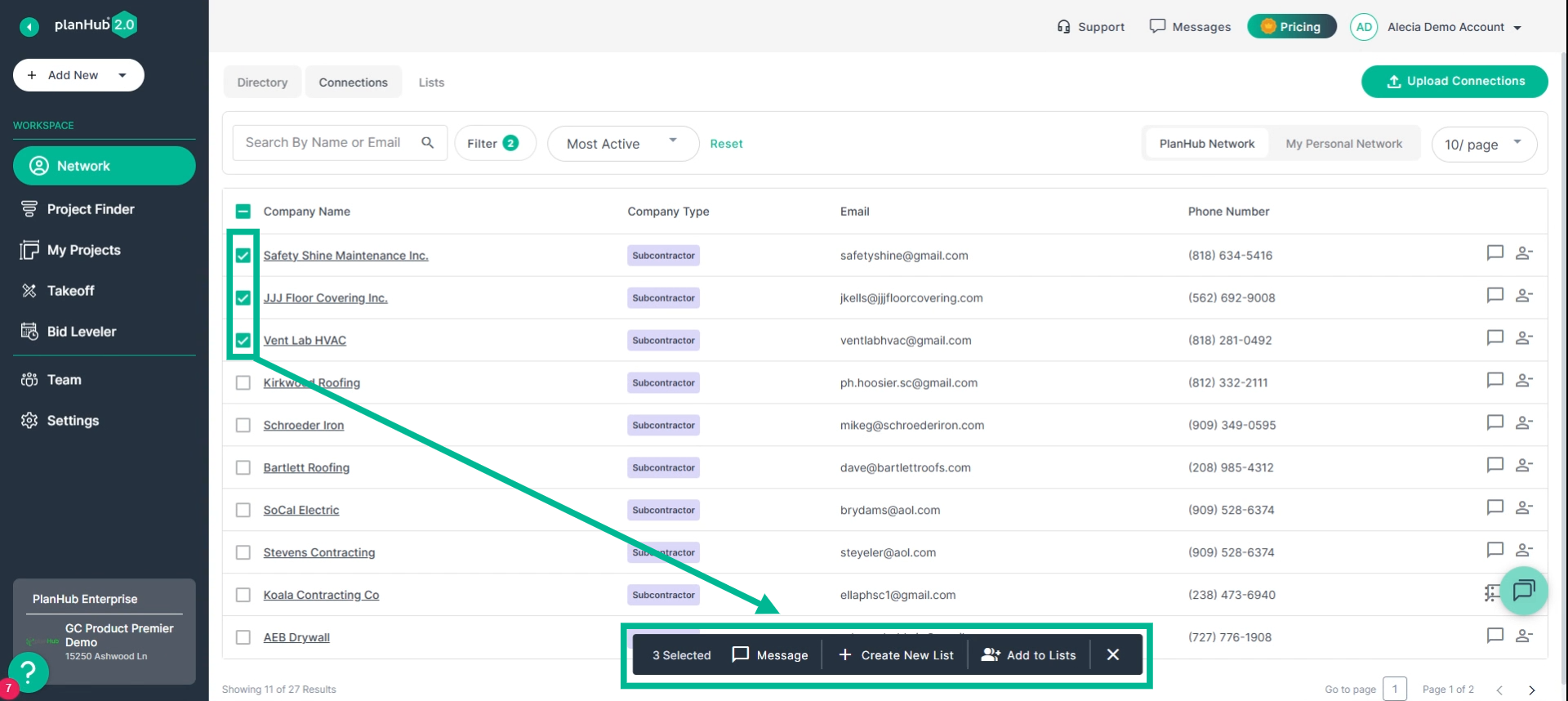
Step 3.1: Then, choose the appropriate list from the pop-up. You can scroll or search for a list by name.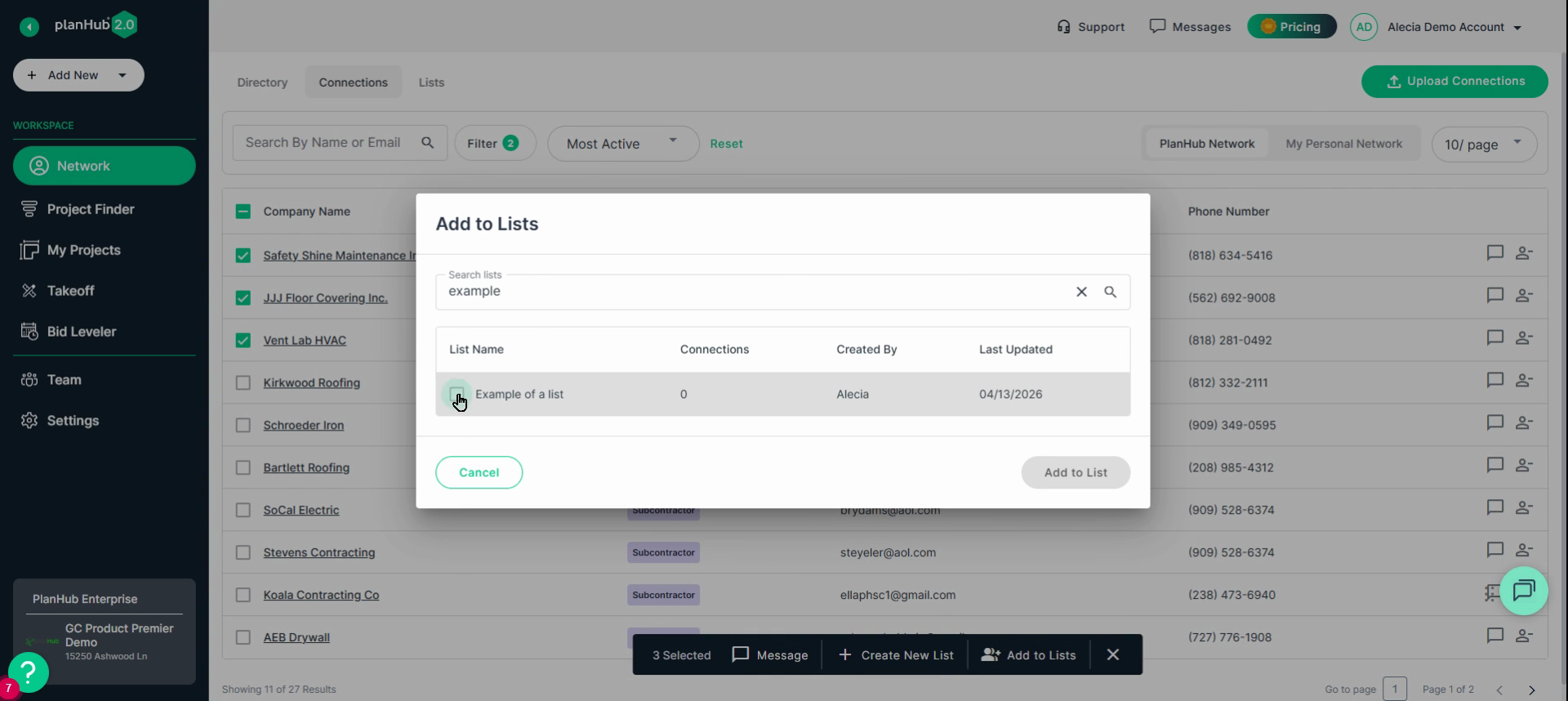
Tip: Use your lists when posting private projects to control exactly who sees the project on PlanHub.
The Network page makes it easy to find new companies, organize your contacts, and quickly create targeted bidder lists. Try out these features to streamline your bidding and build stronger relationships with partners.
Troubleshooting:
-
A company is blurred: Your access to PlaHub's full directory is impacted by your plan level. You can check your Plan in the bottom-left-hand corner of your account.
-
Contact us if you need assistance or to report an issue:
-
PlanHub Contact Page: https://planhub.com/contact/
-
Customer Facing Support Ticket Link: https://knowledgebase.planhub.com/knowledge/kb-tickets/new
-