![NEW_PlanHub_Logo_Navy.png]](https://knowledgebase.planhub.com/hs-fs/hubfs/Design/PH%20Logos/NEW%202024%20PH%20Logos/NEW_PlanHub_Logo_Navy.png?height=40&name=NEW_PlanHub_Logo_Navy.png)
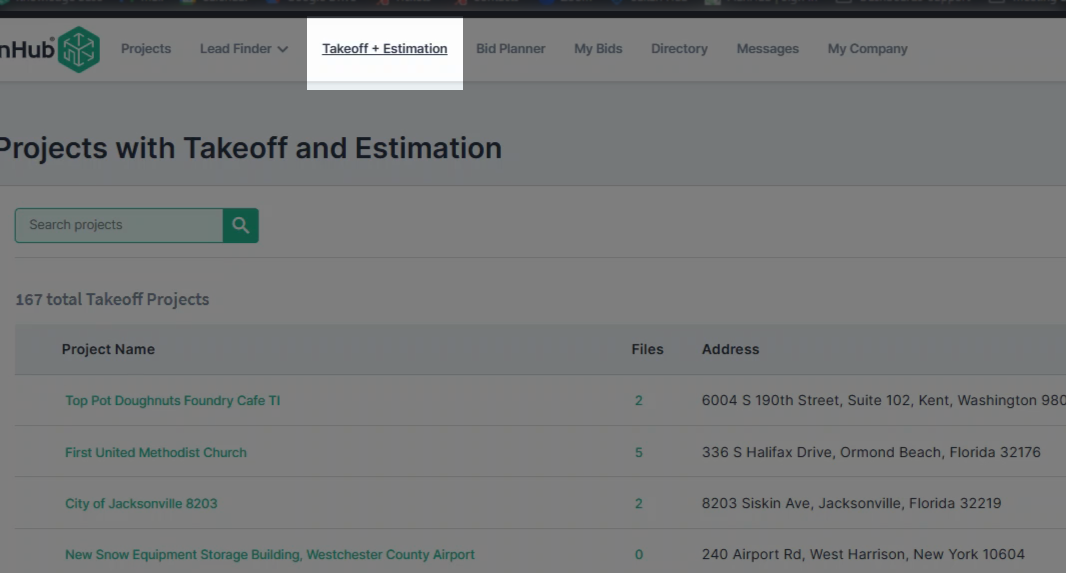
Step 1: Go to the Takeoff + Estimation page located in the main panel at the top of the page.
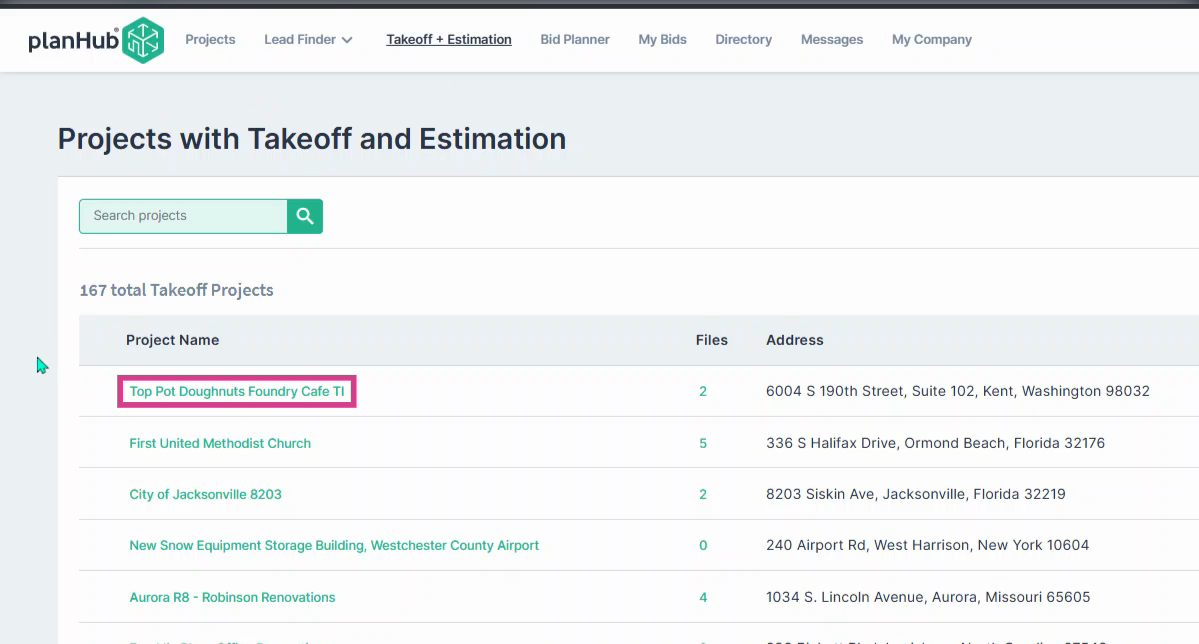
Step 2: Open a project by clicking on the project’s name.
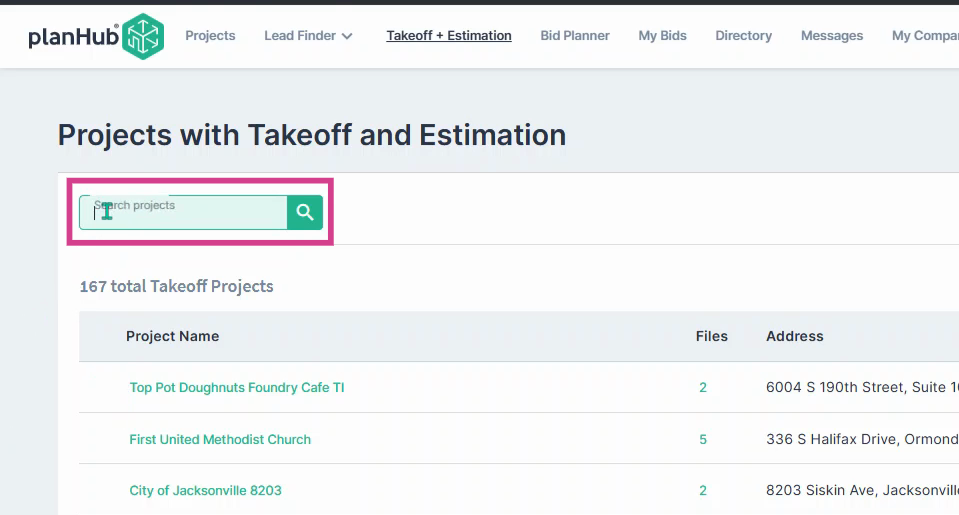
Step 3: Use the keyword Search Bar to quickly find projects by name.
Step 4: Sort projects by clicking arrows next to any column title in the list.
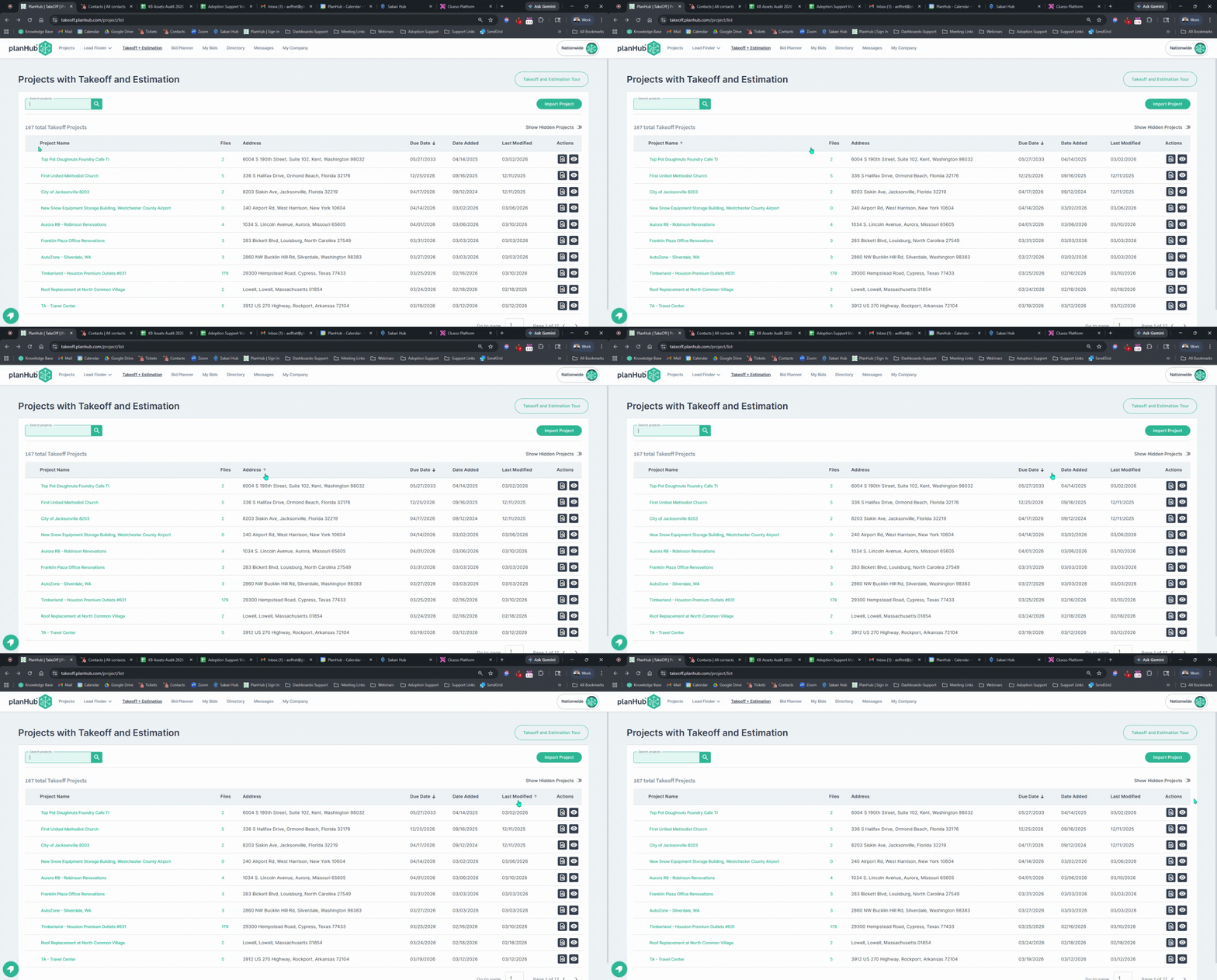
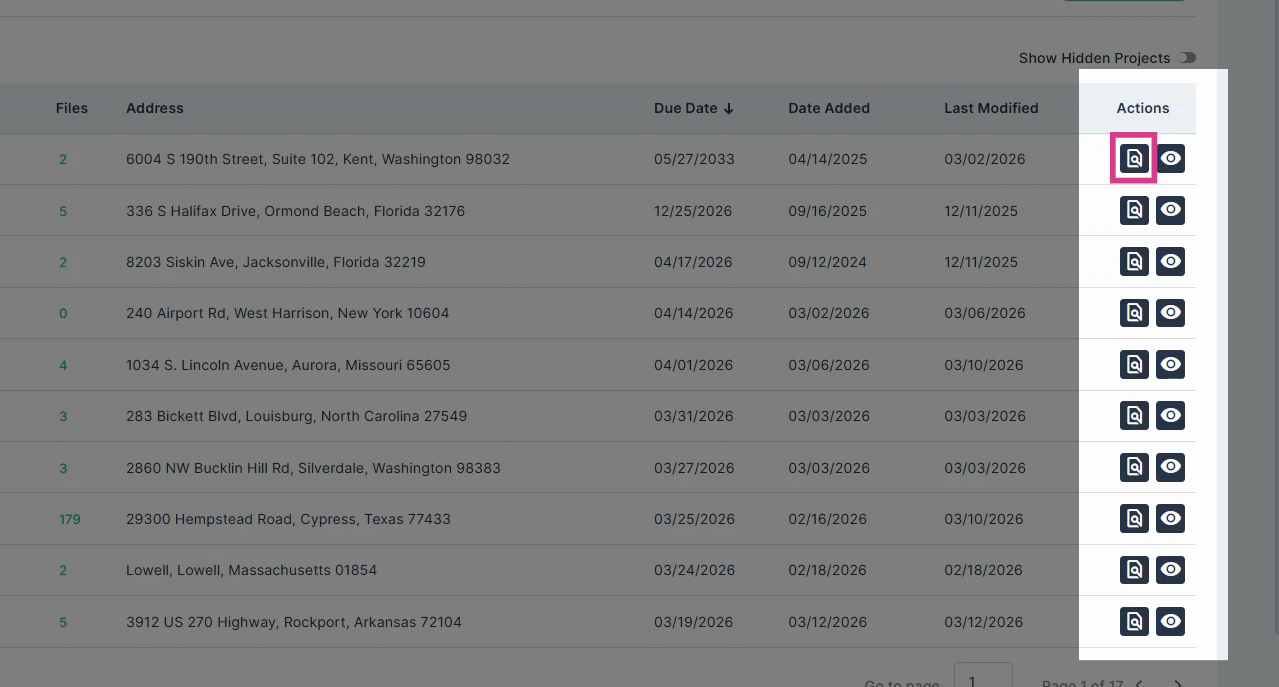
Step 5: In the Actions column, click the magnifying glass icon to see files associated with each project.
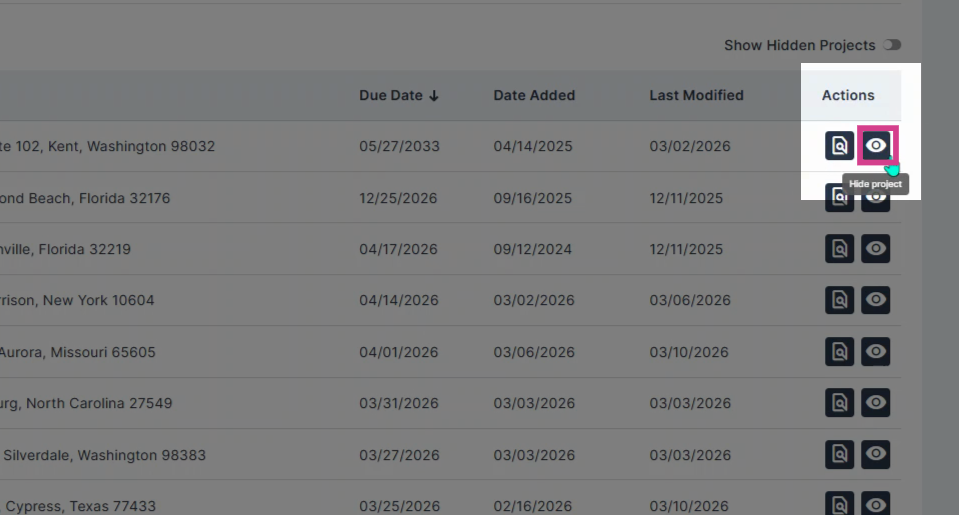
Step 6: Hide a project from the list by clicking the eye icon in the Actions column.
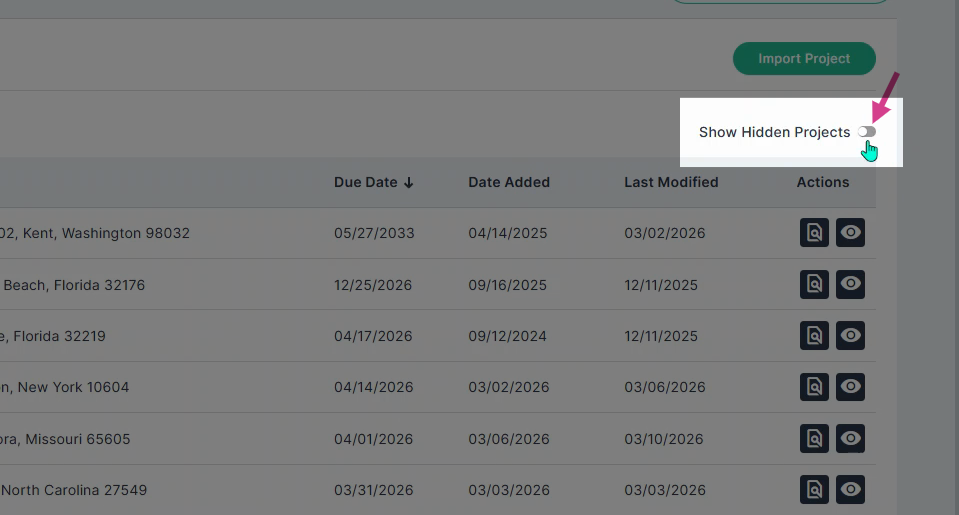
Step 7: To show hidden projects, toggle on the Show Hidden Projects option in the upper right corner above your project list.
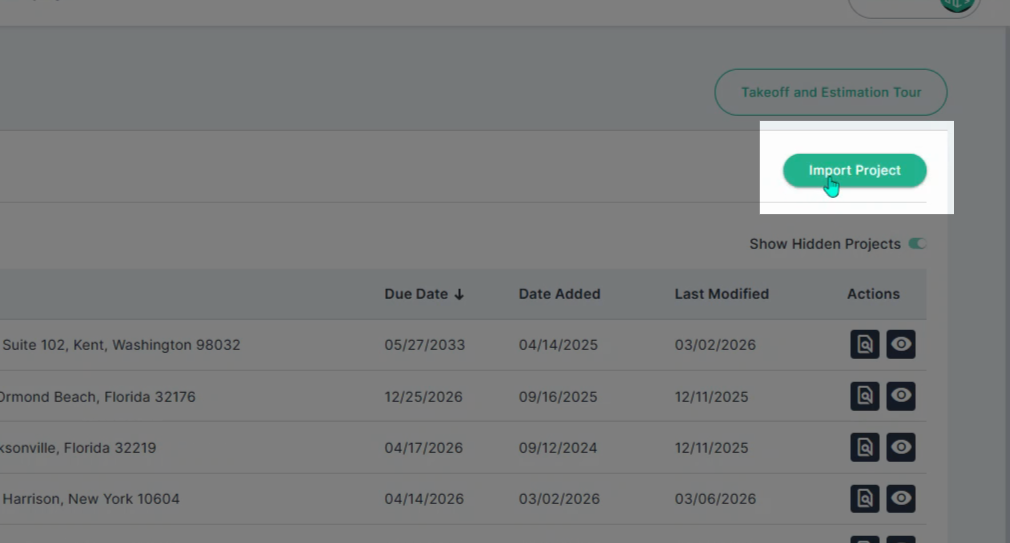
Step 8: Import a new project by selecting Import Project in the top right corner.
With these features, the Takeoff + Estimation page helps you keep your project list organized and accessible. Use search, sorting, and visibility tools to manage large numbers of projects quickly and efficiently.