![NEW_PlanHub_Logo_Navy.png]](https://knowledgebase.planhub.com/hs-fs/hubfs/Design/PH%20Logos/NEW%202024%20PH%20Logos/NEW_PlanHub_Logo_Navy.png?height=40&name=NEW_PlanHub_Logo_Navy.png)
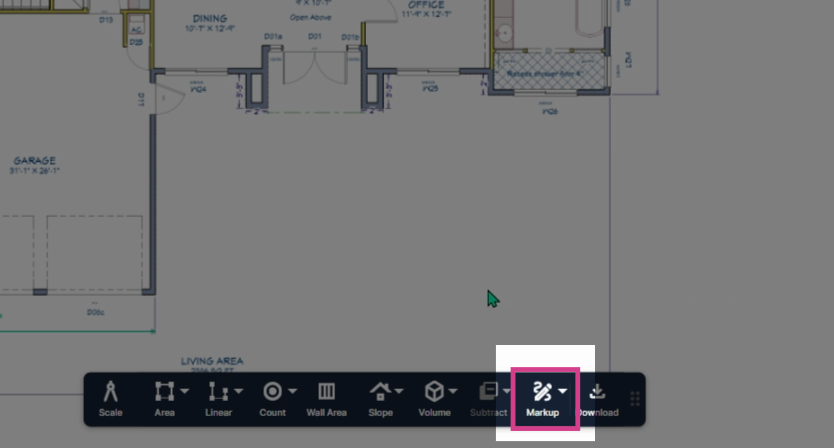
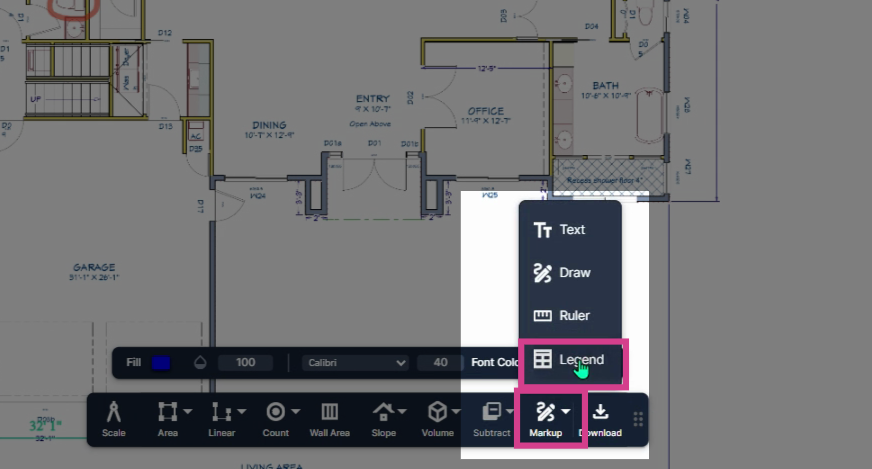
Step 1: Navigate to the toolbar at the bottom of the page and select Markup.
Step 2: In the Markup menu, view the options for the legend, ruler, drawing, and adding text.
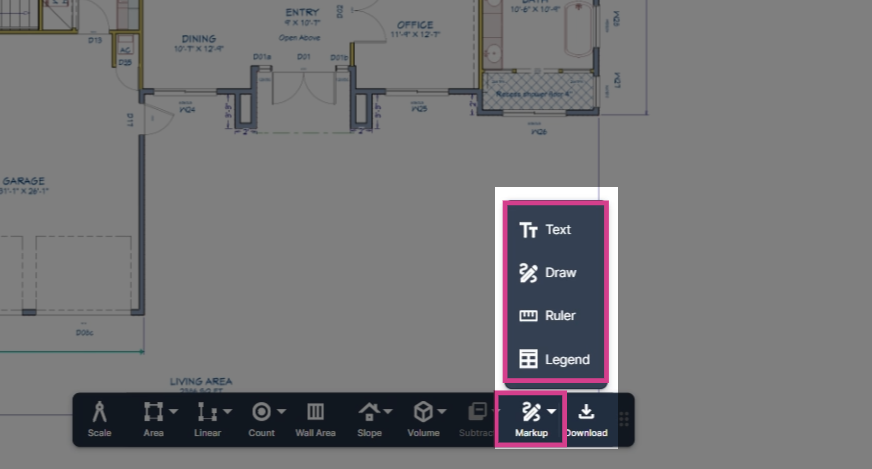
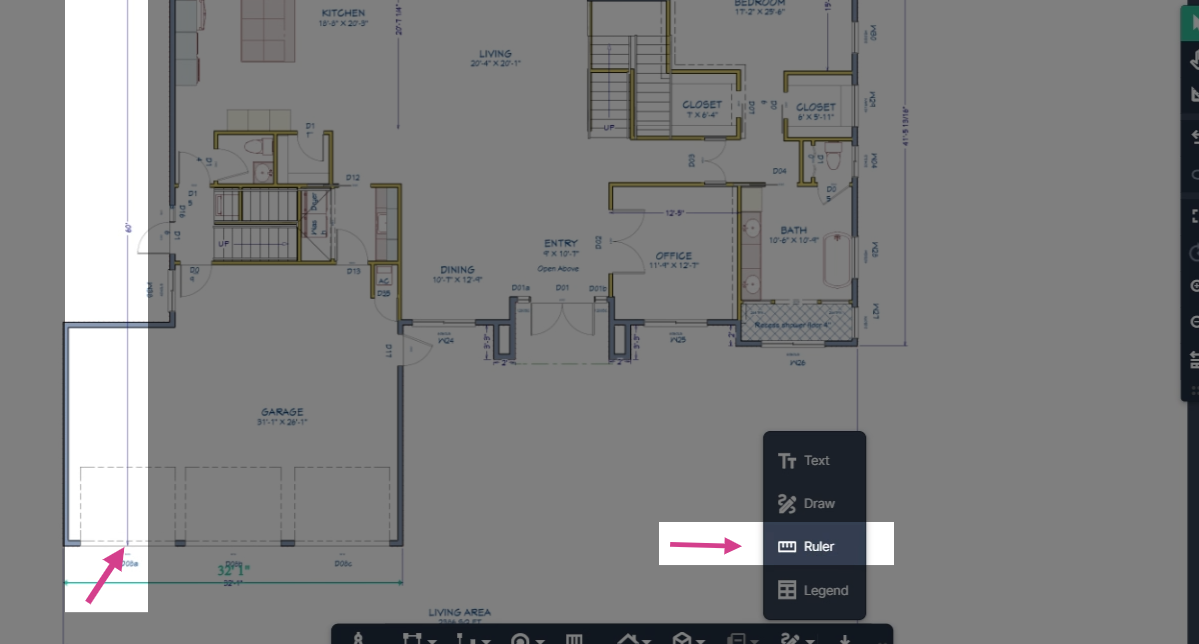
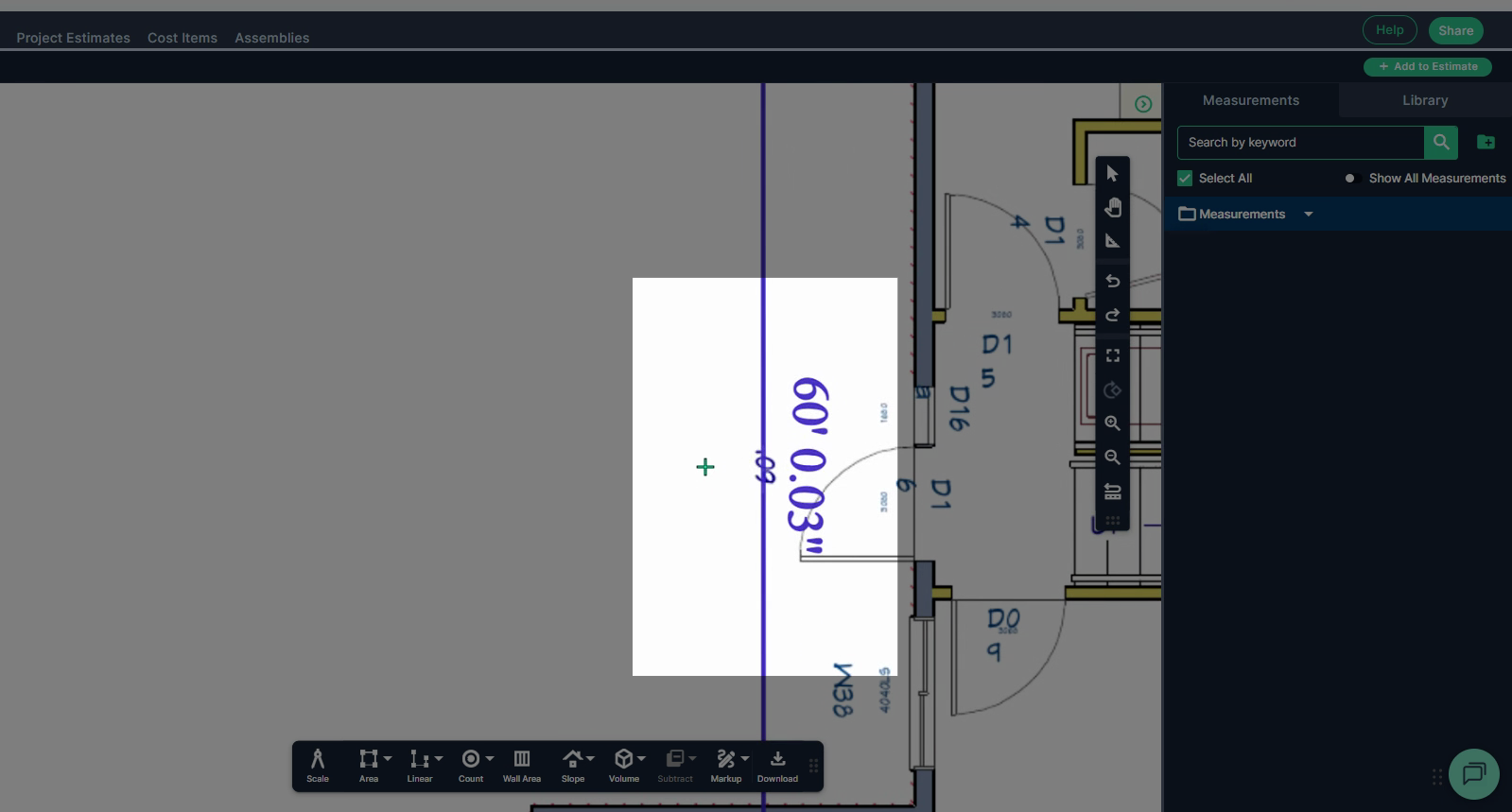
Step 3: To measure with the ruler, click Ruler, then use an existing measurement on your plan to begin.
Step 4: Start at one end of the measurement, left-click to drop the first point and continue the measurement to the opposite end. Right-click and hold the mouse button to pan the page to reposition your view. Left click once on the mouse to stop the measurement.
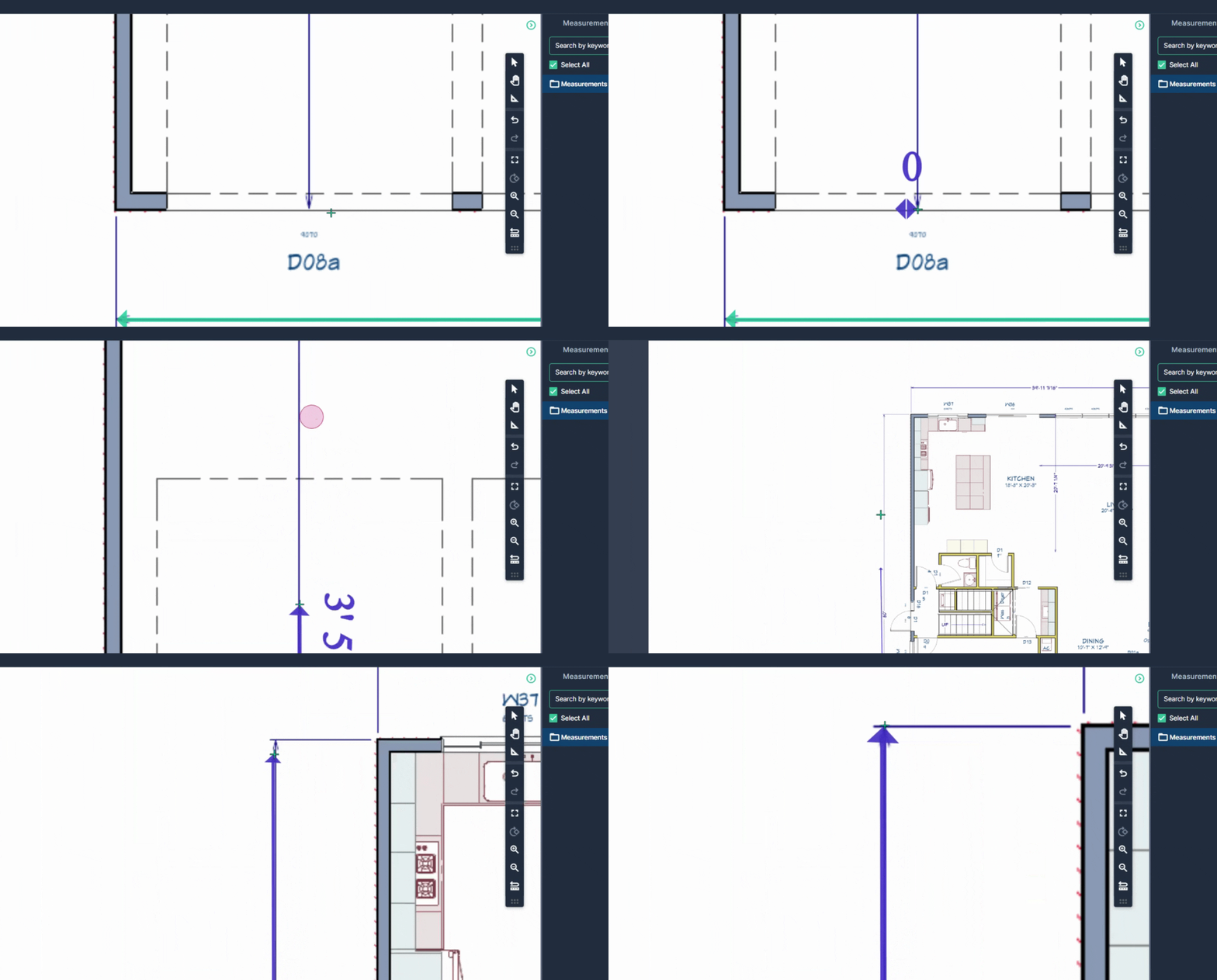
Step 5: Check the ruler measurement to ensure it closely matches the original measurement on the plan sheet.
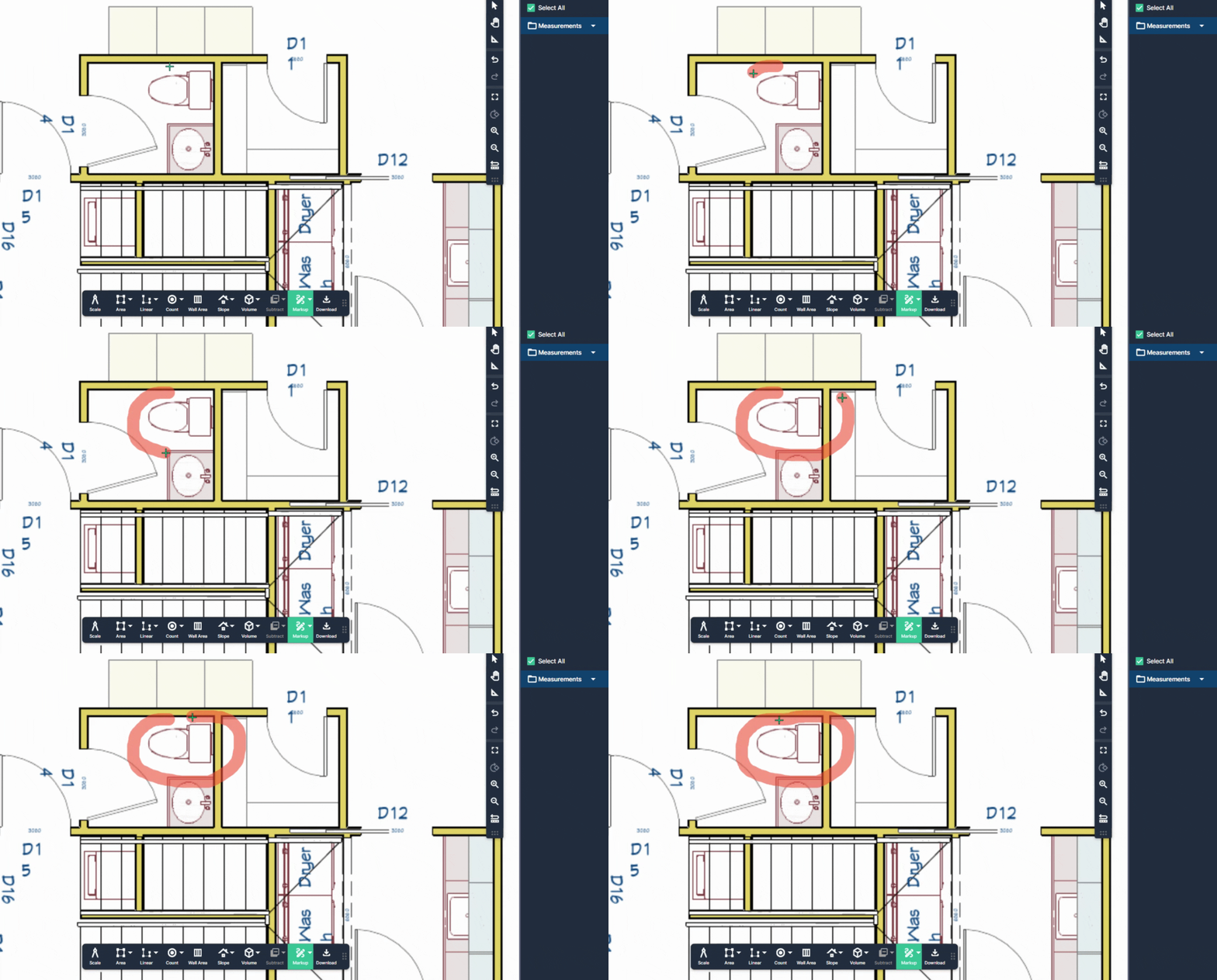
Step 6: To draw, return to the markup tool option, select the Drawing Tool. Click and hold the left mouse button to highlight an area—draw circles, lines, or any shape to call out details.
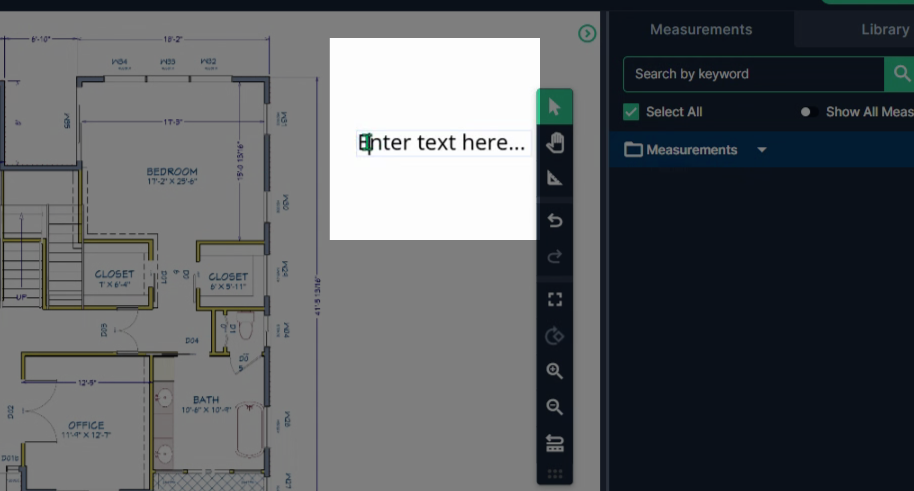
Step 7: For adding text, choose Text from the Markup menu. Click on your sheet where you want the note, then enter your text.
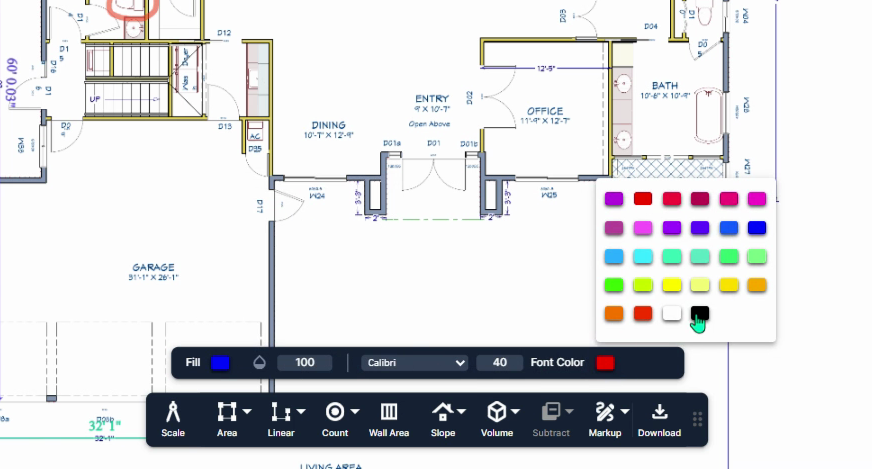
Step 8: Use the Text properties toolbar at the bottom of the page to adjust font color, size, style, and background color.
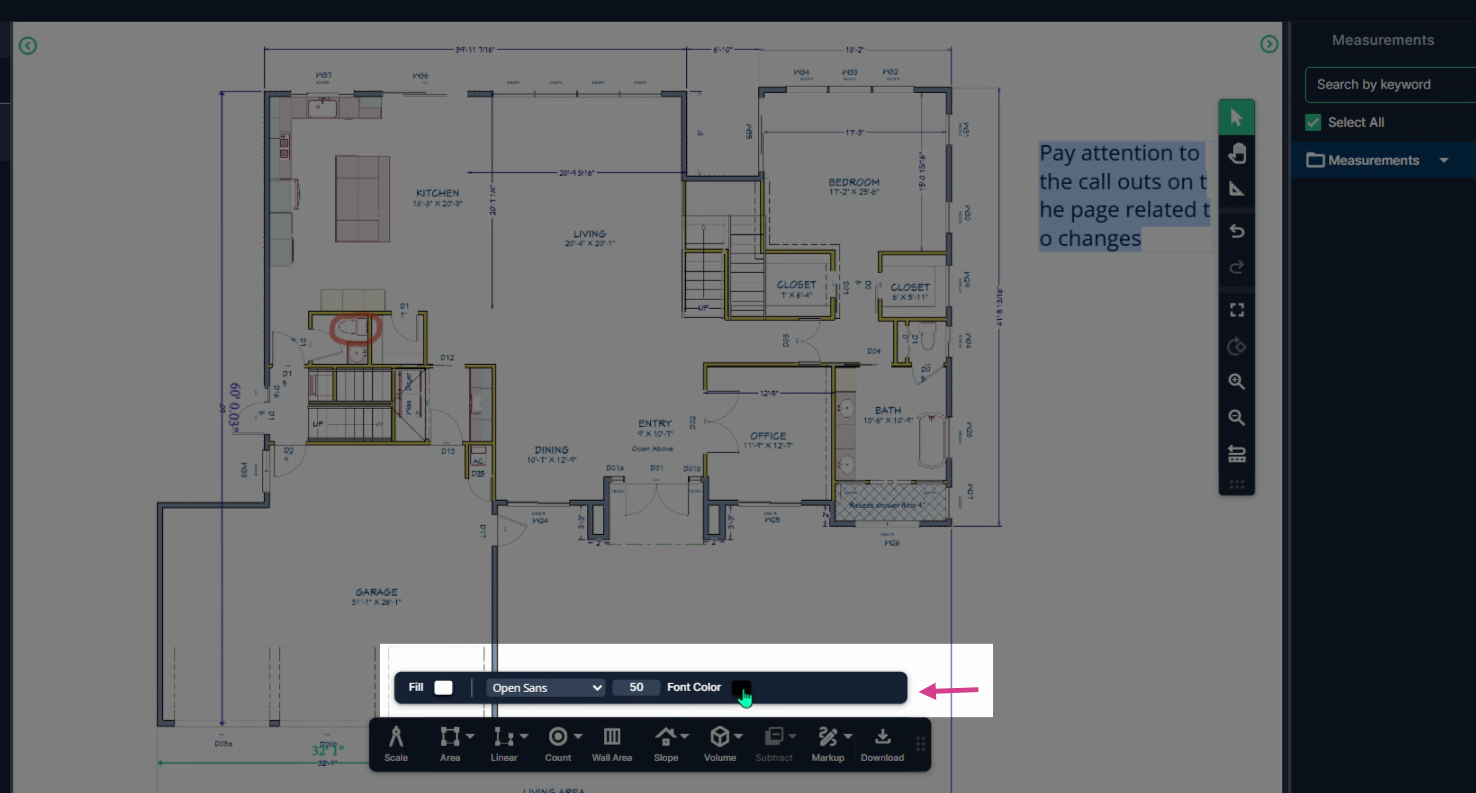
Step 9: Choose the text and background colors to make notes stand out.
Step 10: To add a legend, click Legend from the Markup menu.
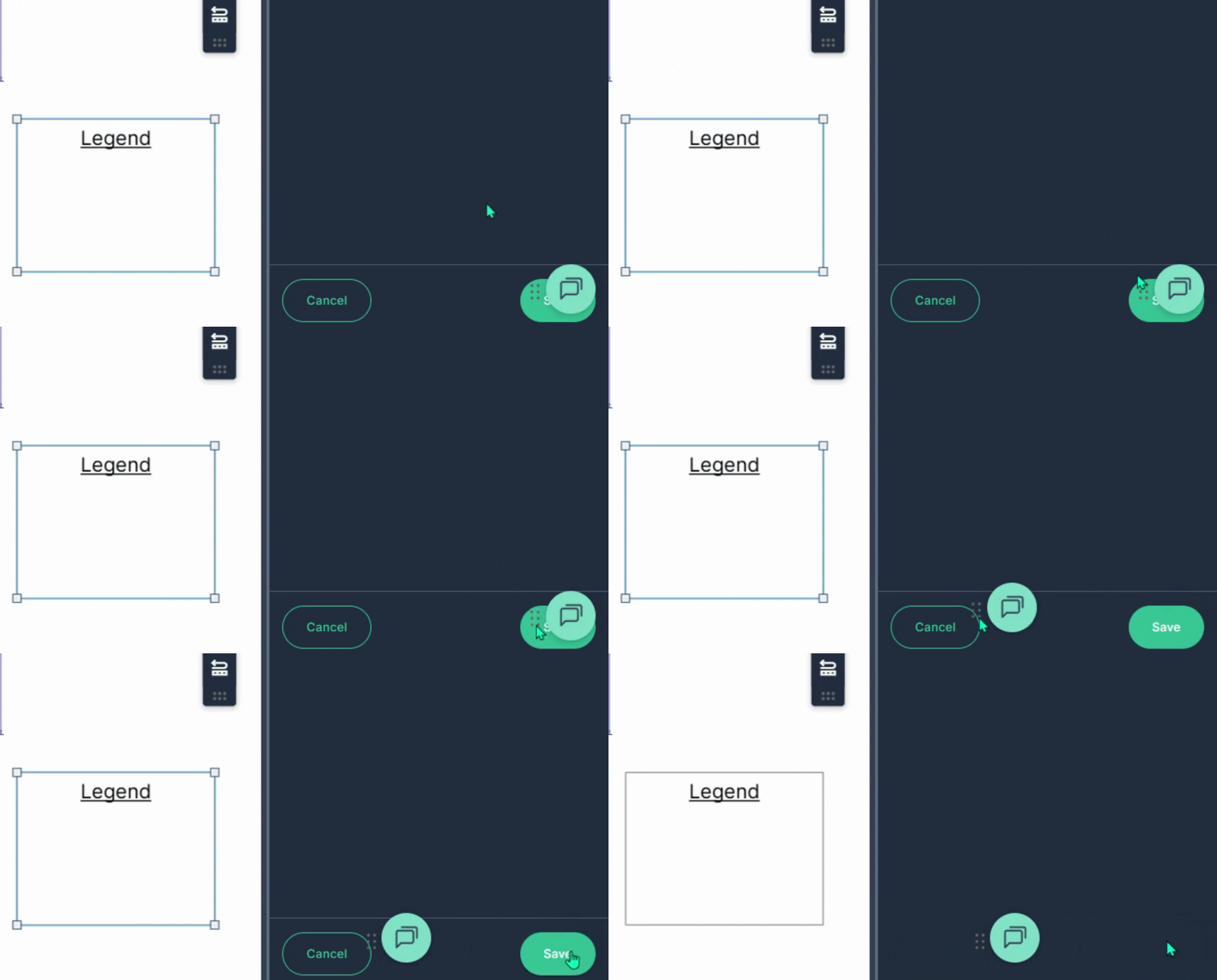
Step 11: Place the legend where needed on the page. Click Save in the bottom right corner to save the legend in place.
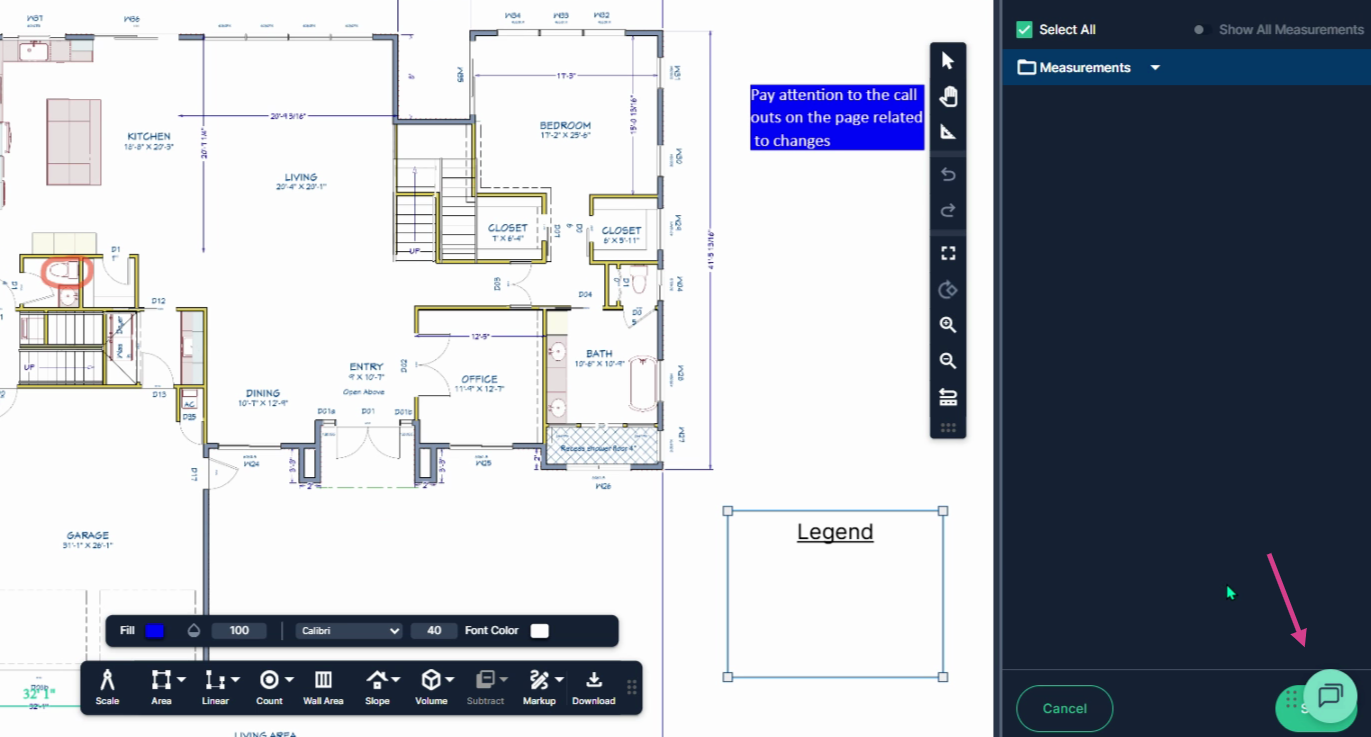
Step 12: Add measurements to the legend by clicking in the box to the left of each measurement in the measurements panel.
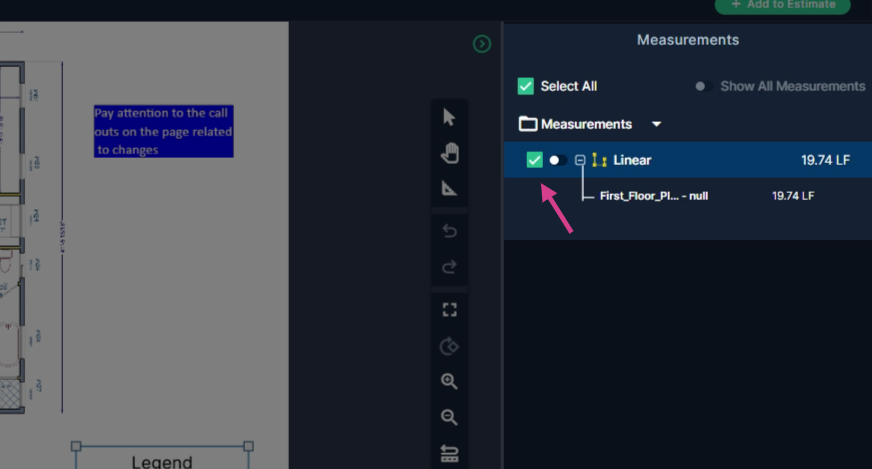
Step 13: Once you have selected the measurements you want to add to the legend, click on the save button in the bottom right corner of the measurements panel to save the measurements in the legend.
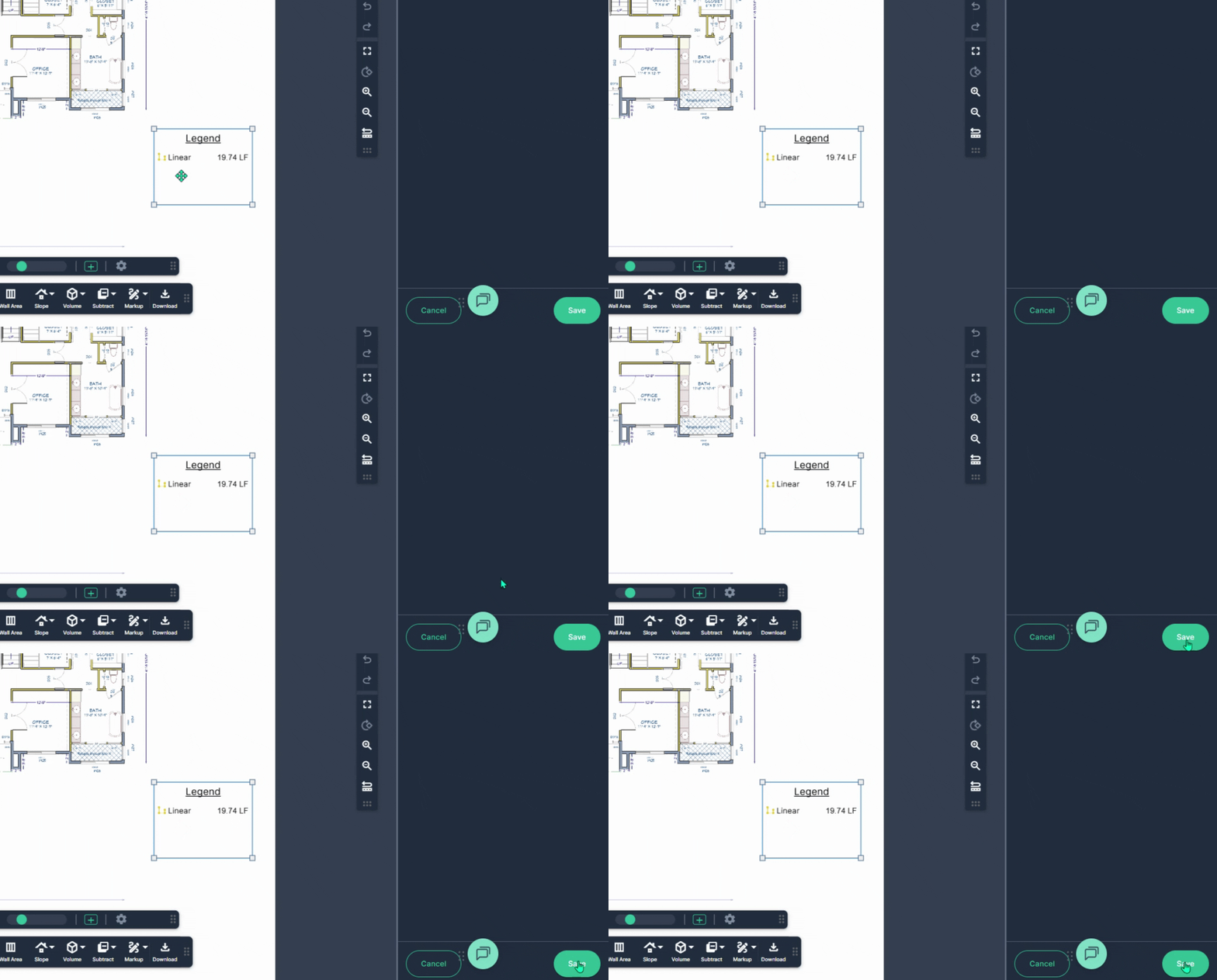
With these markup tools, you can enhance the accuracy and clarity of your takeoffs while clearly communicating key details on your plans.