---
title: How to use the Bid Tracker | Review and Update the Bid Status
description: bid tracking
---
[Skip to content](https://knowledgebase.planhub.com/knowledge/how-to-use-the-bid-tracker-review-and-update-the-bid-status#main-content)
English
Show submenu for translations
[Submit a Ticket](https://knowledgebase.planhub.com/knowledge/kb-tickets/new?hsLang=en)
![NEW\_PlanHub\_Logo\_Navy.png\]](https://knowledgebase.planhub.com/hs-fs/hubfs/Design/PH%20Logos/NEW%202024%20PH%20Logos/NEW_PlanHub_Logo_Navy.png?height=40&name=NEW_PlanHub_Logo_Navy.png)
- [Have an Issue? Submit a Ticket](https://knowledgebase.planhub.com/knowledge/kb-tickets/new)
Open main navigation
Close main navigation
- [Have an Issue? Submit a Ticket](https://knowledgebase.planhub.com/knowledge/kb-tickets/new)
- English
Show submenu for translations
- [Submit a Ticket](https://knowledgebase.planhub.com/knowledge/kb-tickets/new)
What can we help you with?
- There are no suggestions because the search field is empty.
1. [Knowledge Base](https://knowledgebase.planhub.com/knowledge?hsLang=en)
2. [Subcontractors](https://knowledgebase.planhub.com/knowledge/subcontractors?hsLang=en)
3. [Bid Board & Tracking](https://knowledgebase.planhub.com/knowledge/subcontractors?hsLang=en#bid-board-tracking)
# How to use the Bid Tracker | Review and Update the Bid Status
## Stop wondering what happens after you submit a bid. PlanHub’s bid tracking gives you real-time visibility into every stage of your bid, while one-click feedback tools let you connect with general contractors for actionable insights. This tutorial walks you through tracking your bids and using feedback to strengthen your strategy.
#### **Bid Tracking**
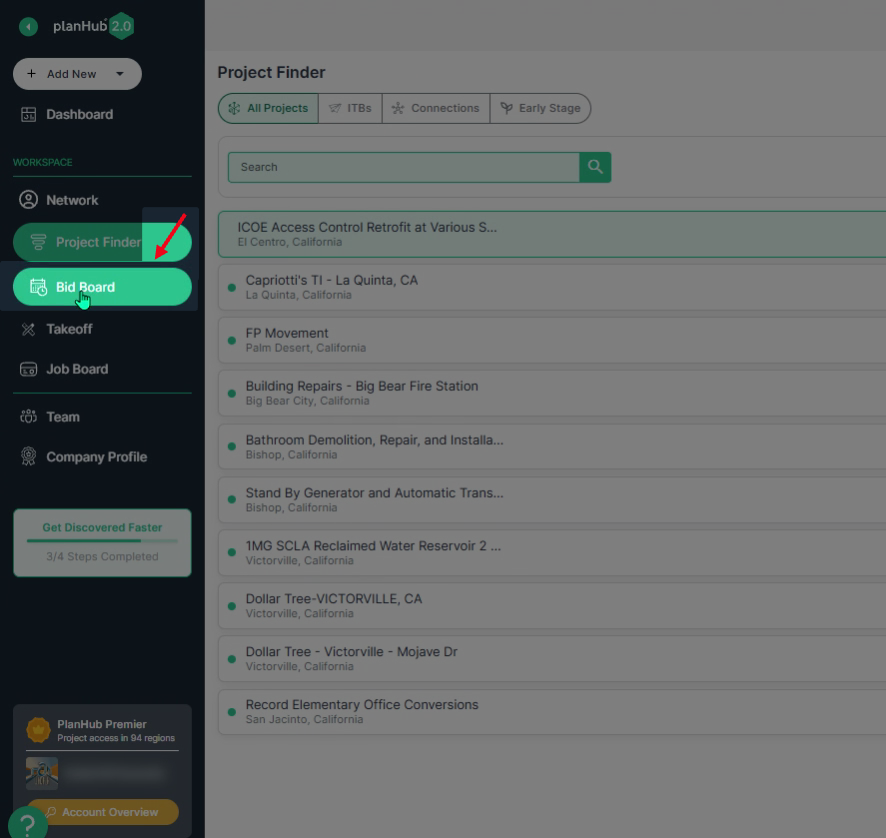
**Step 1:** Navigate to the **Bid Board** option in the main panel.
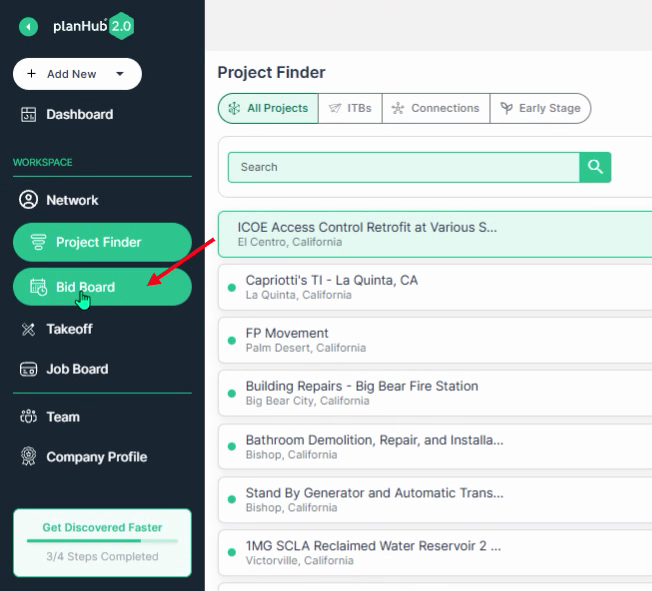
**Step 2:** Click **Bid Board** to open the bid board page.
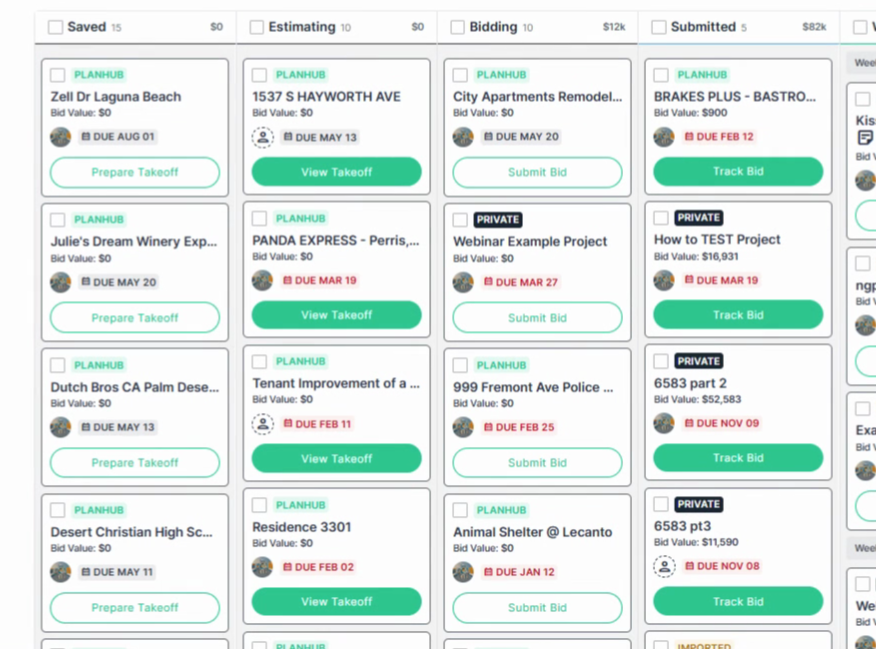
**Step 3:** Locate the project you want to submit a bid on.
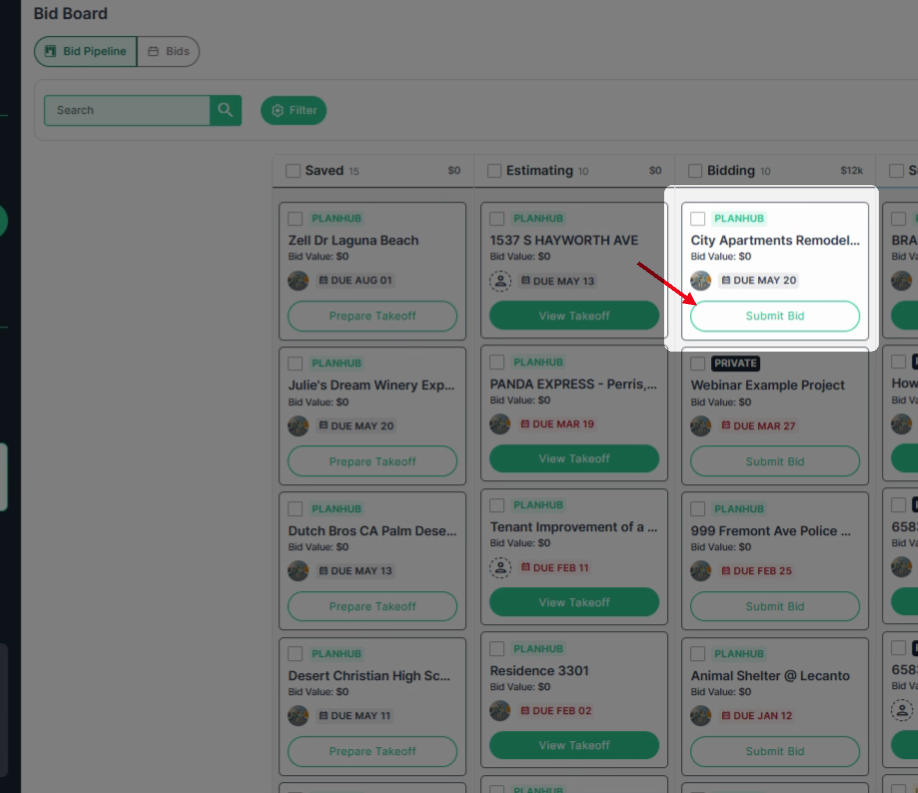
**Step 4:** Click on the "**Submit Bid**" button.
**Step 5:** Attach your proposal and send it directly to the general contractor through planHub. This helps you track your bids, get feedback from GCs and track your company's bid stats.
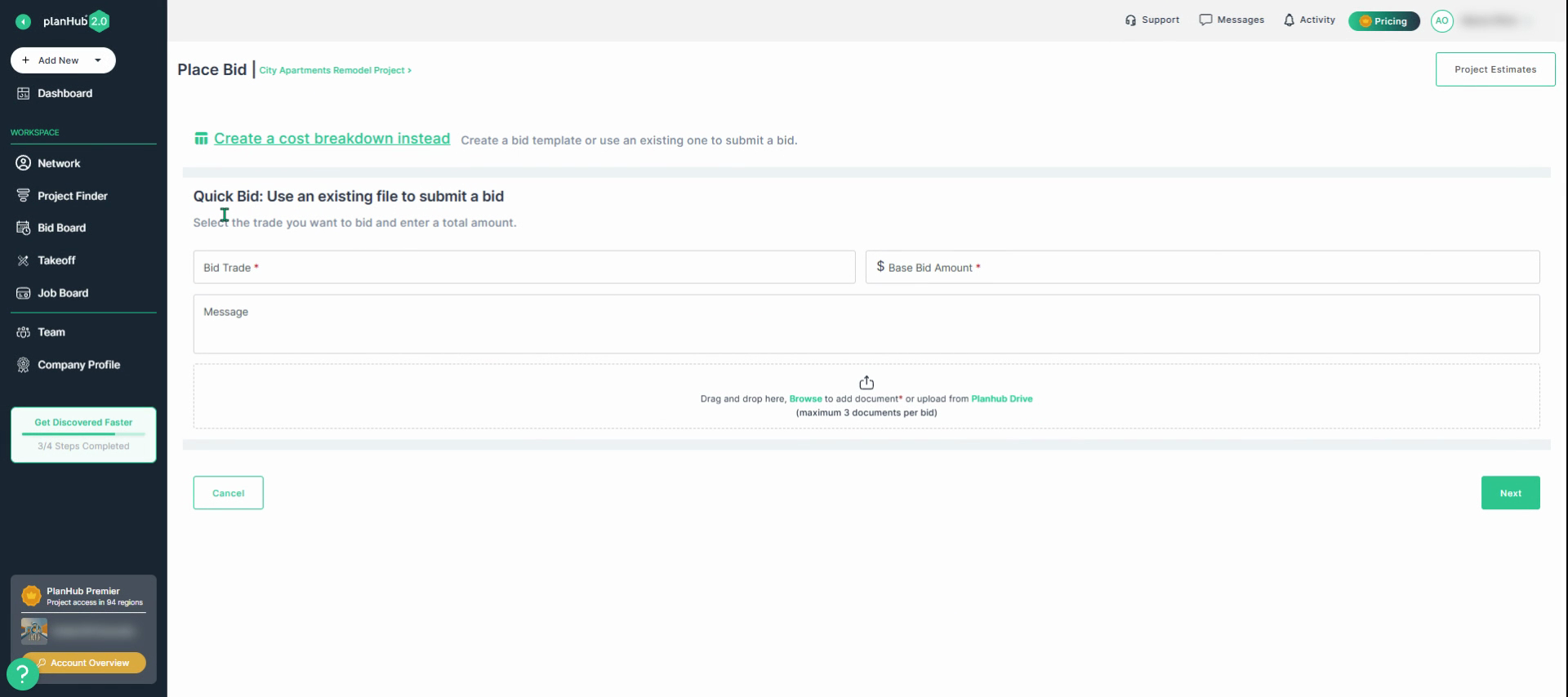
**Step 6:** After you submit your bid on the platform, the **bid tracking** panel activates for that project.
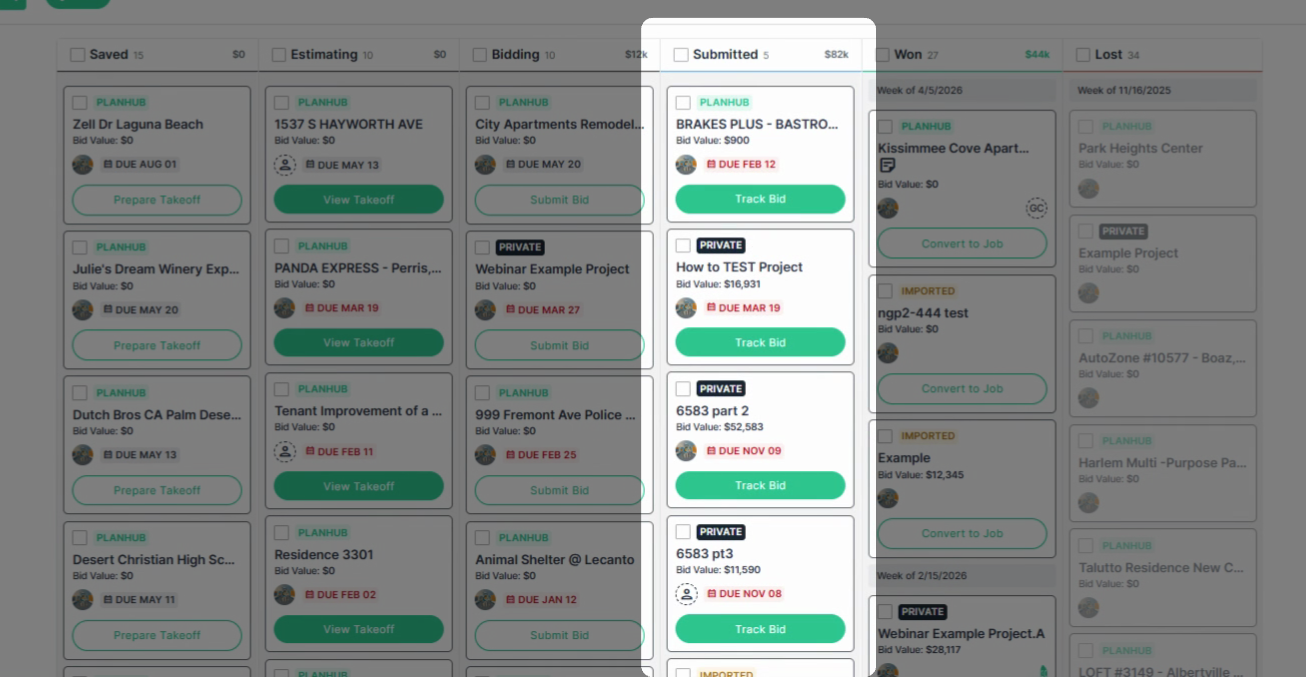
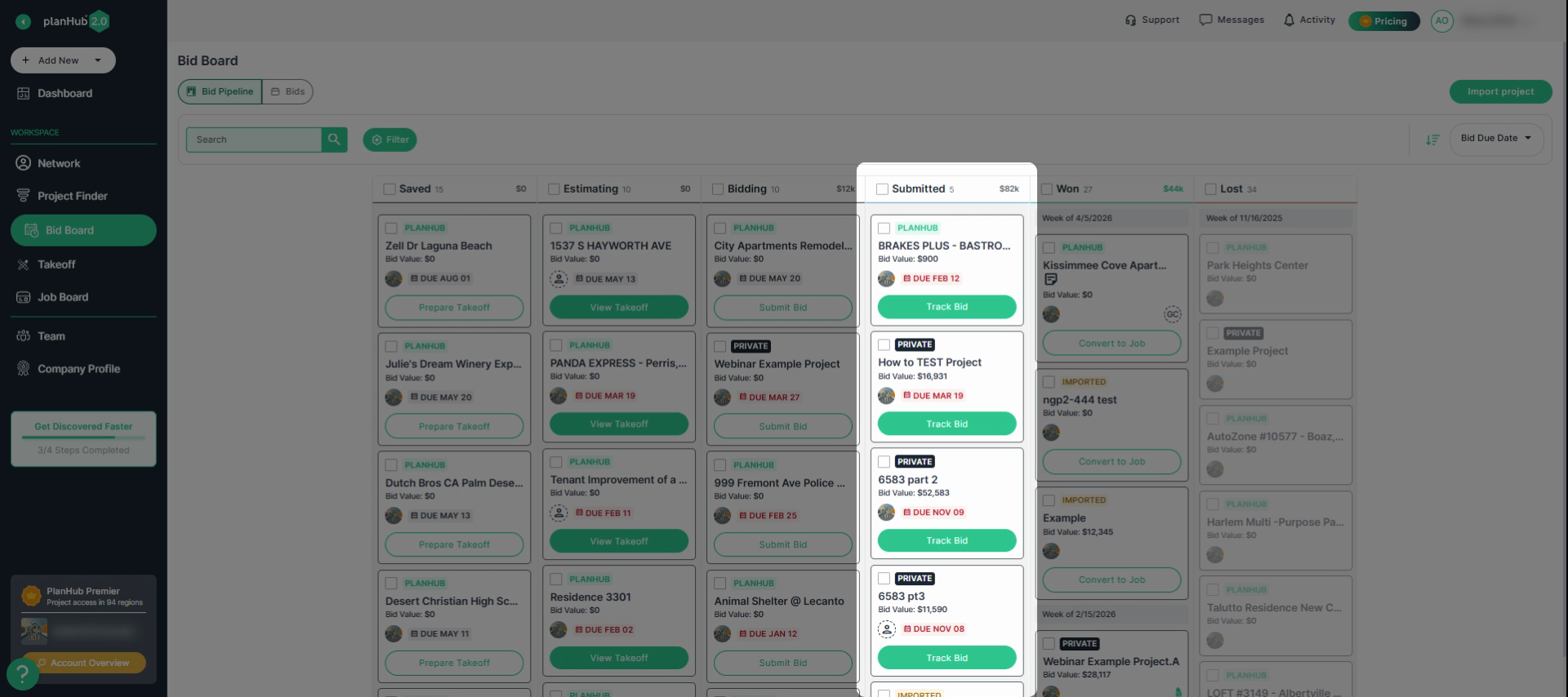
**Step 7:** Choose the project you want to view the status on in the submitted column, then Click "**Track Bid."**
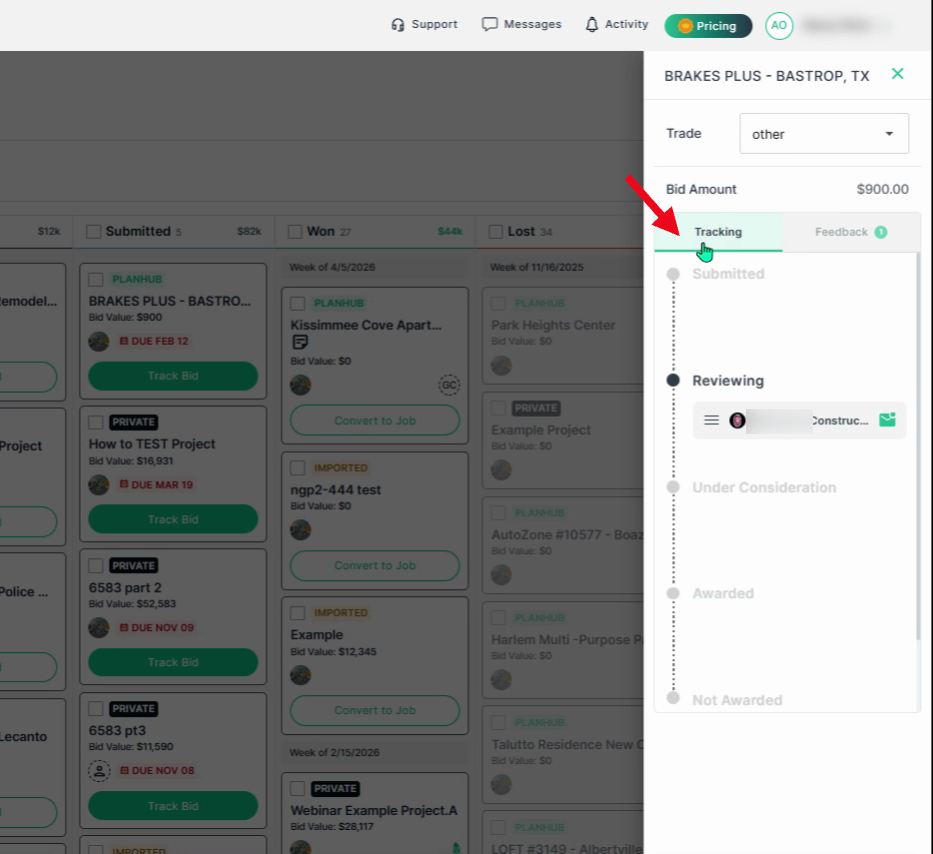
**Step 8:** View the pop-up window showing the project name, trade, bid amount and tracking status.
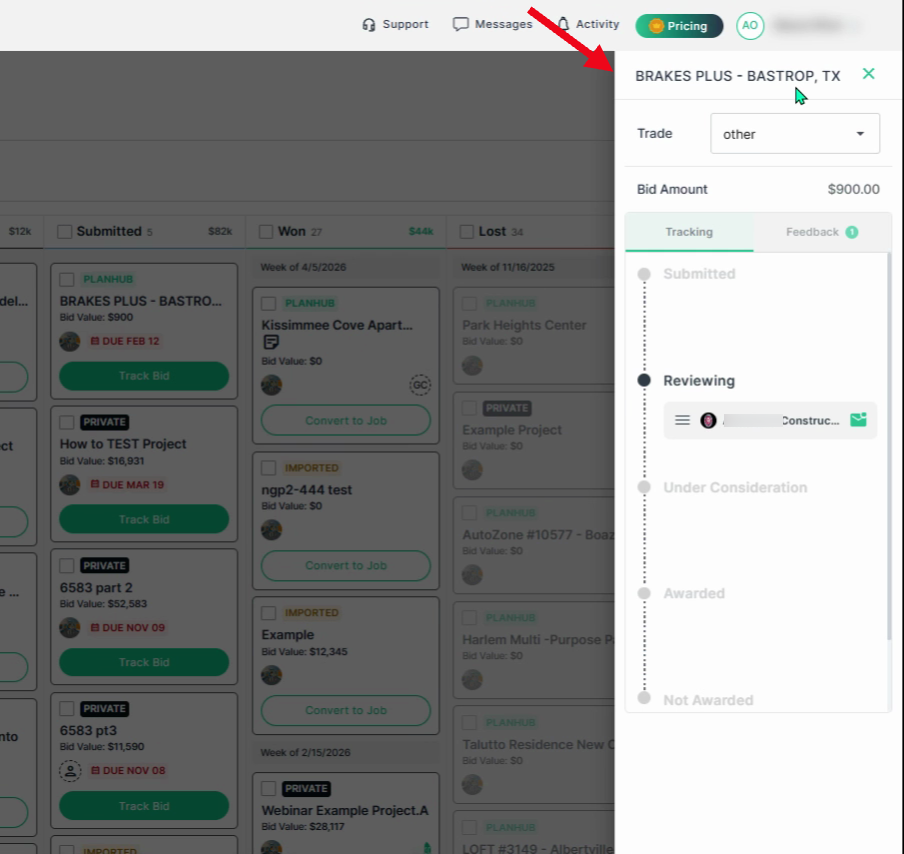
**Step 9:** Review the **Tracking** tab to see which stage your bid is in, such as "Submitted," "Reviewing," "Under Consideration," "Awarded," or "Not Awarded."
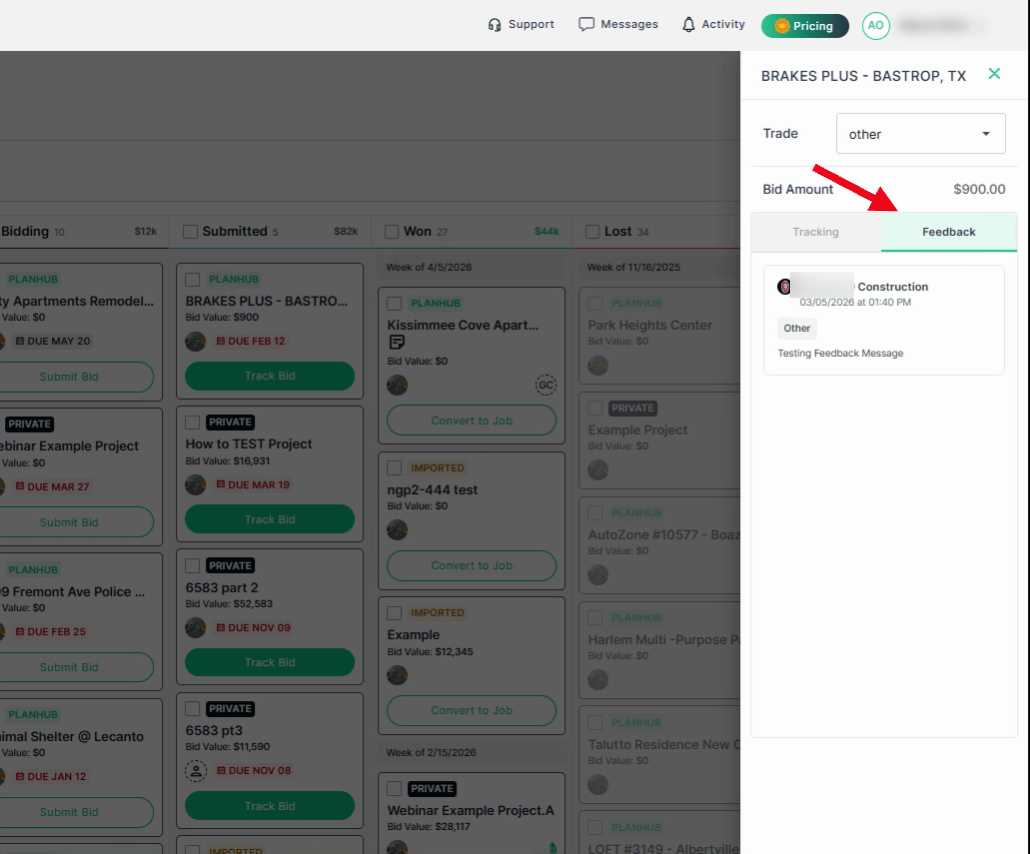
**Step 10:** Switch to the **Feedback** tab to review responses from the general contractor.
Bid status definitions:
- **Submitted**: You submitted your bid.
- **Reviewing**: The GC (general contractor) has viewed your bid.
- **Under Consideration**: The GC is actively considering your bid.
- **Awarded**: The GC awarded you the project.
- **Not Awarded**: The GC has decided against your bid.
---
#### **Checking and Updating Bid Status**
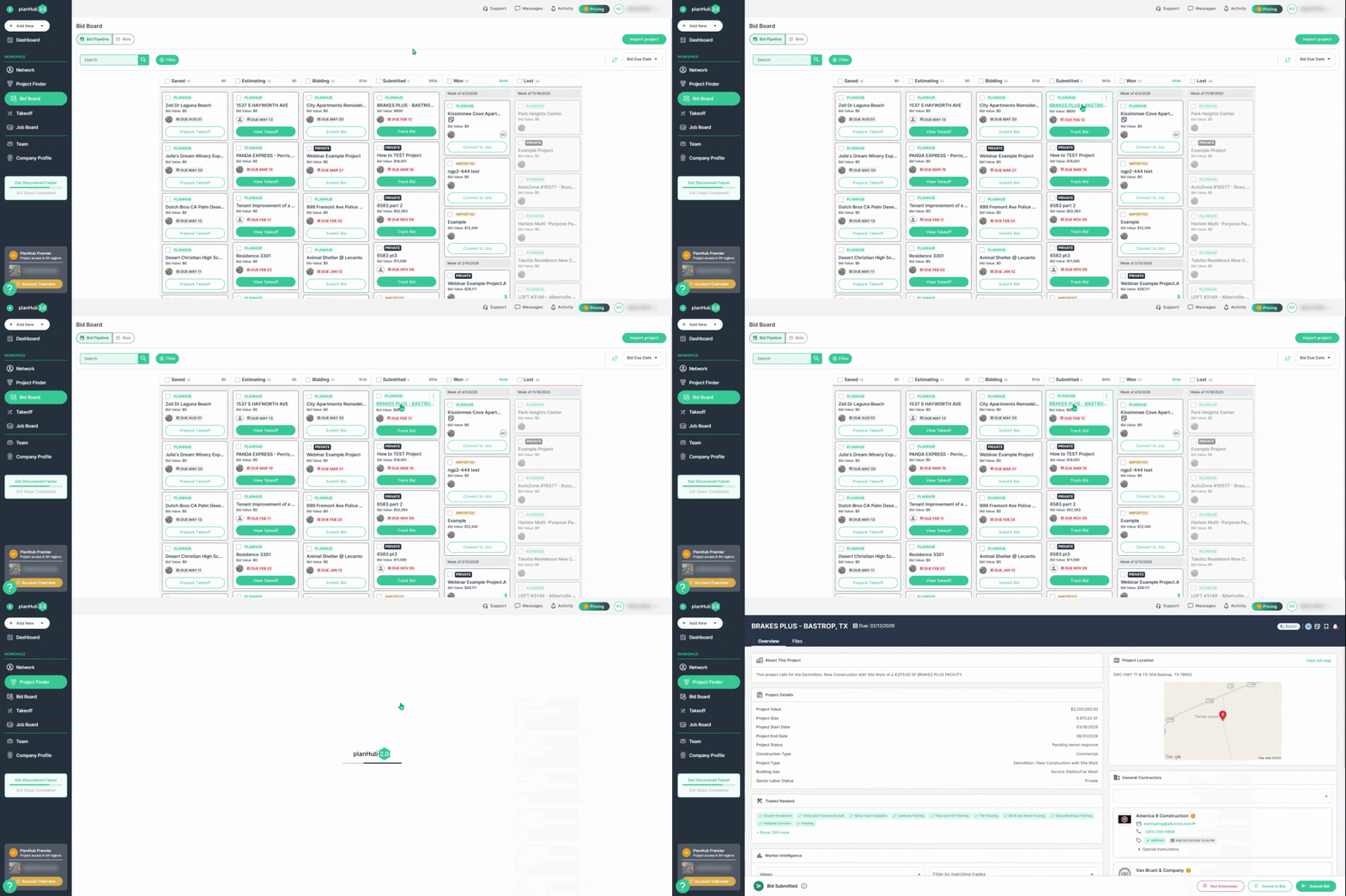
**Step 1:** To check bid status, click on the project name to view the project page.
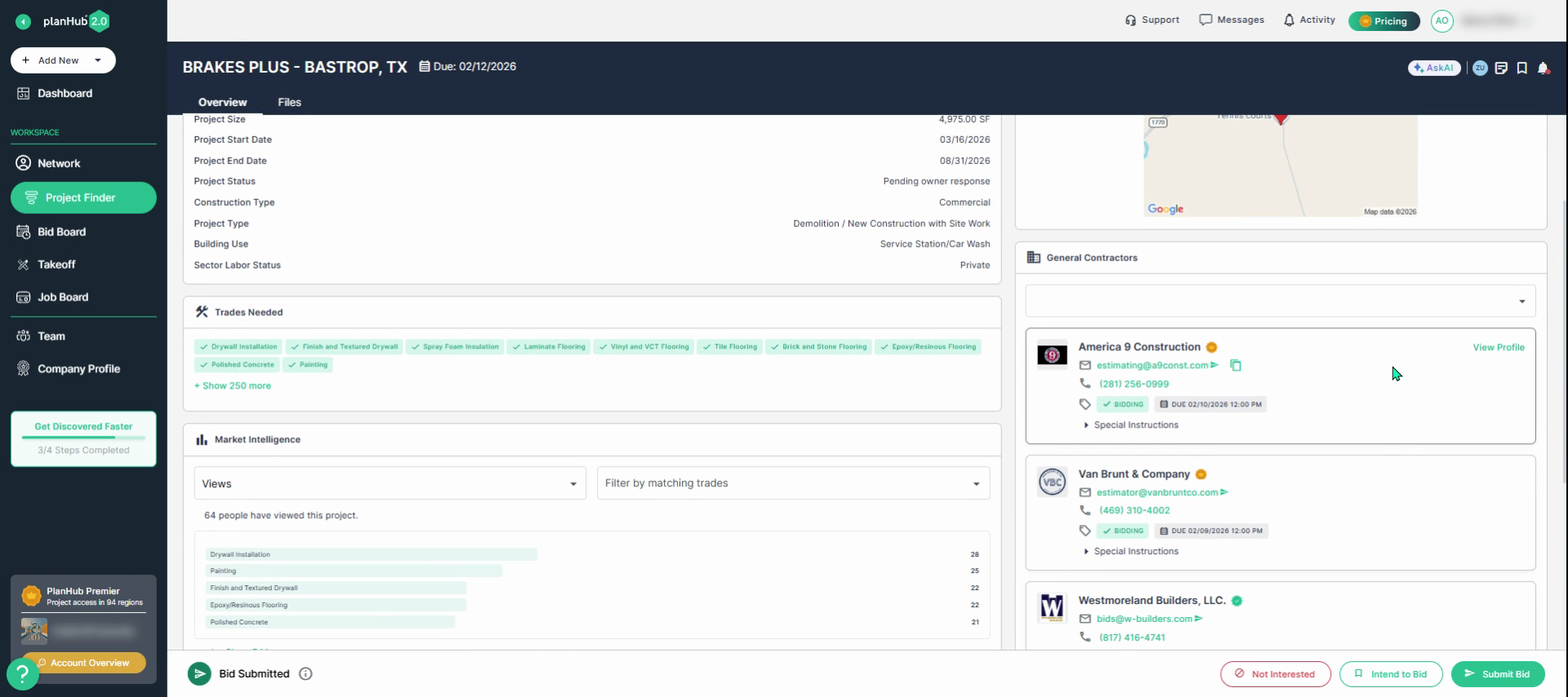
**Step 2:** Navigate to the general contractors section and select **View Profile** for the GC.
**Step 3:** Click the **Bids** tab in the Analytics section.
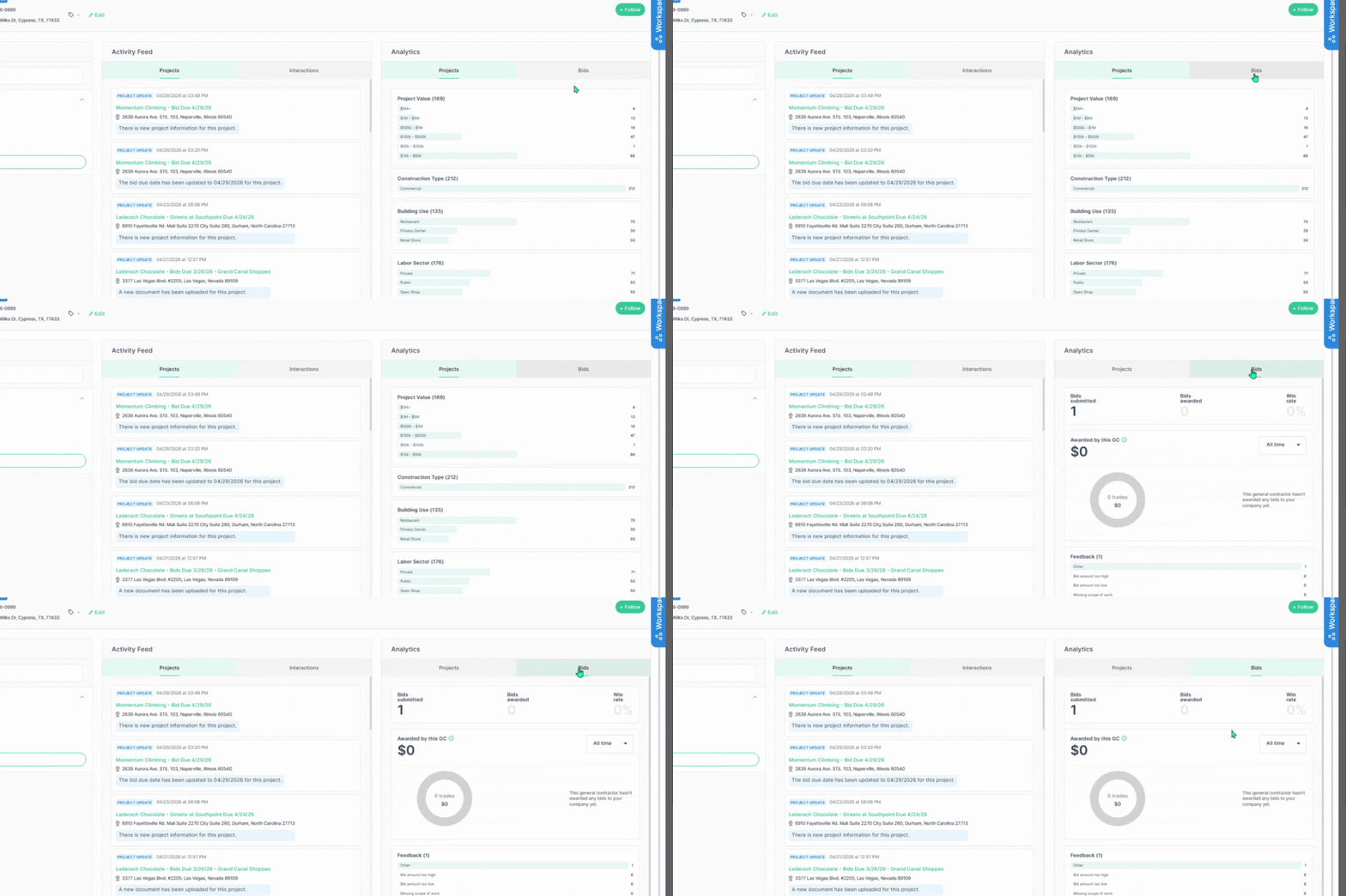
**Step 4:** View the **Awarded by this GC** section to see if you've been awarded projects.
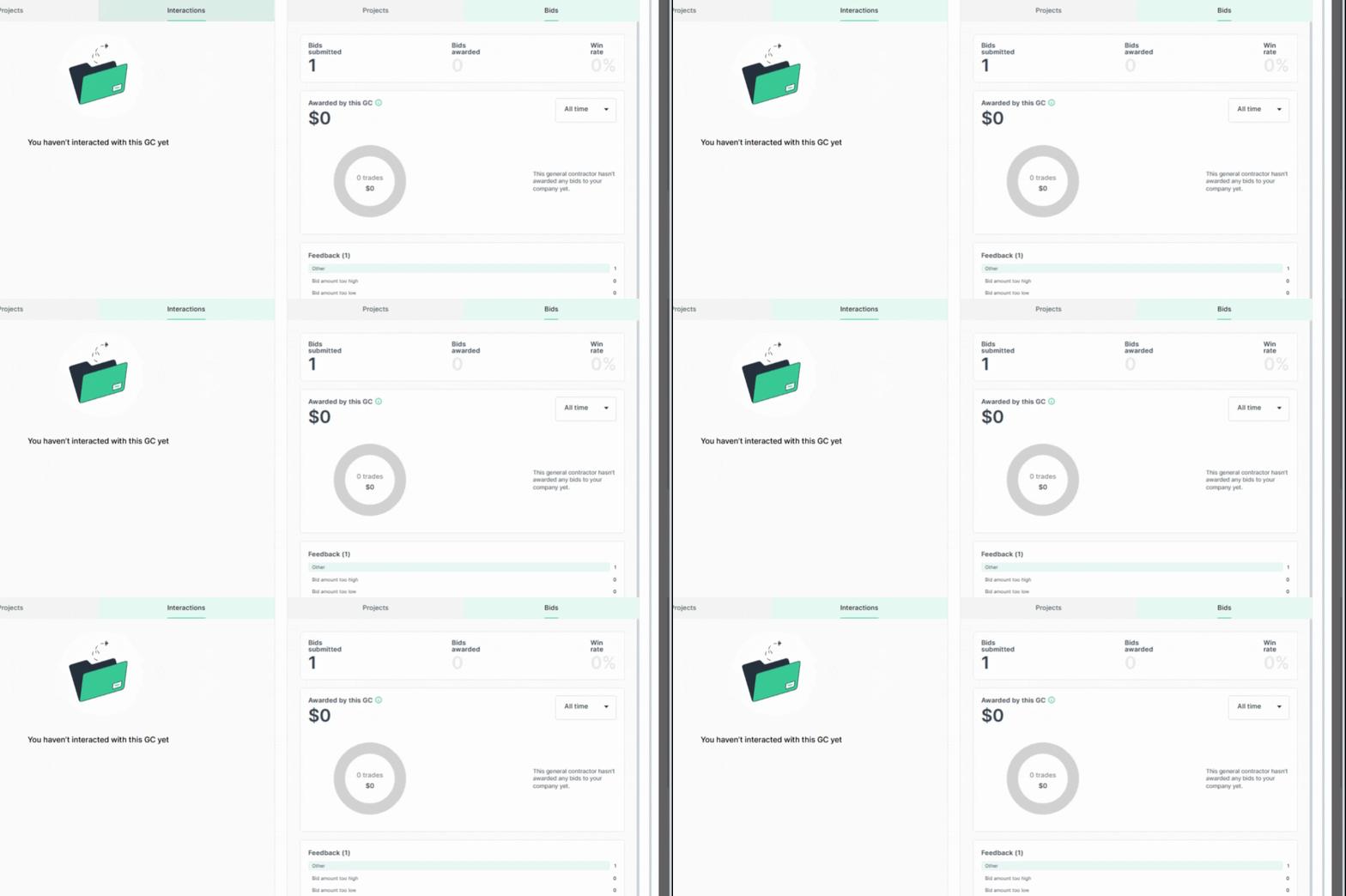
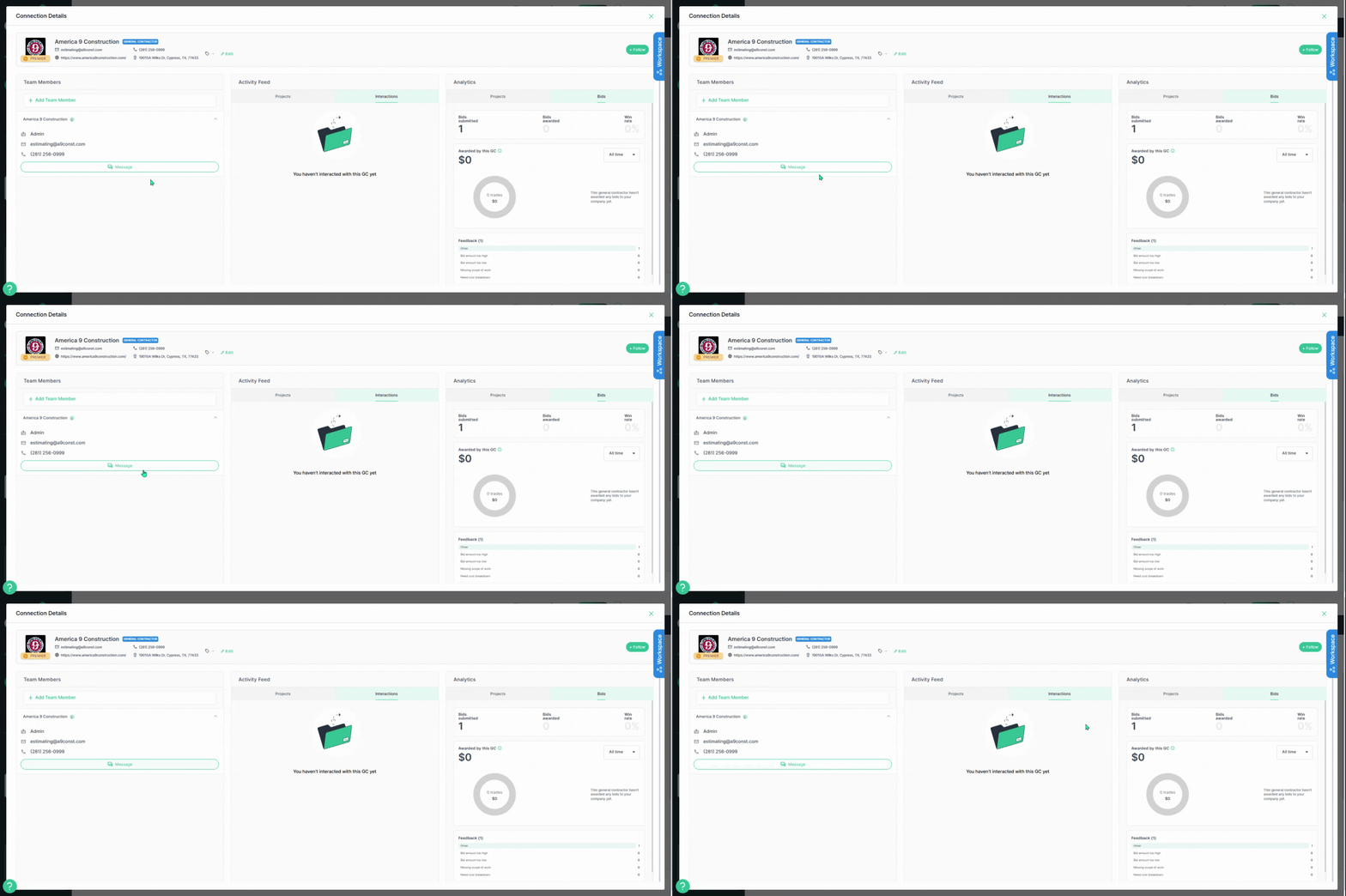
**Step 5:** On the left side, send a message to the GC to request the status.
**Step 6:** If you learn the bid outcome through another method (like a phone call or email), manually update your bid’s status in planHub for accurate stats. To manually update an outcome, select the project from the Bid Board and click **Track Bid**.
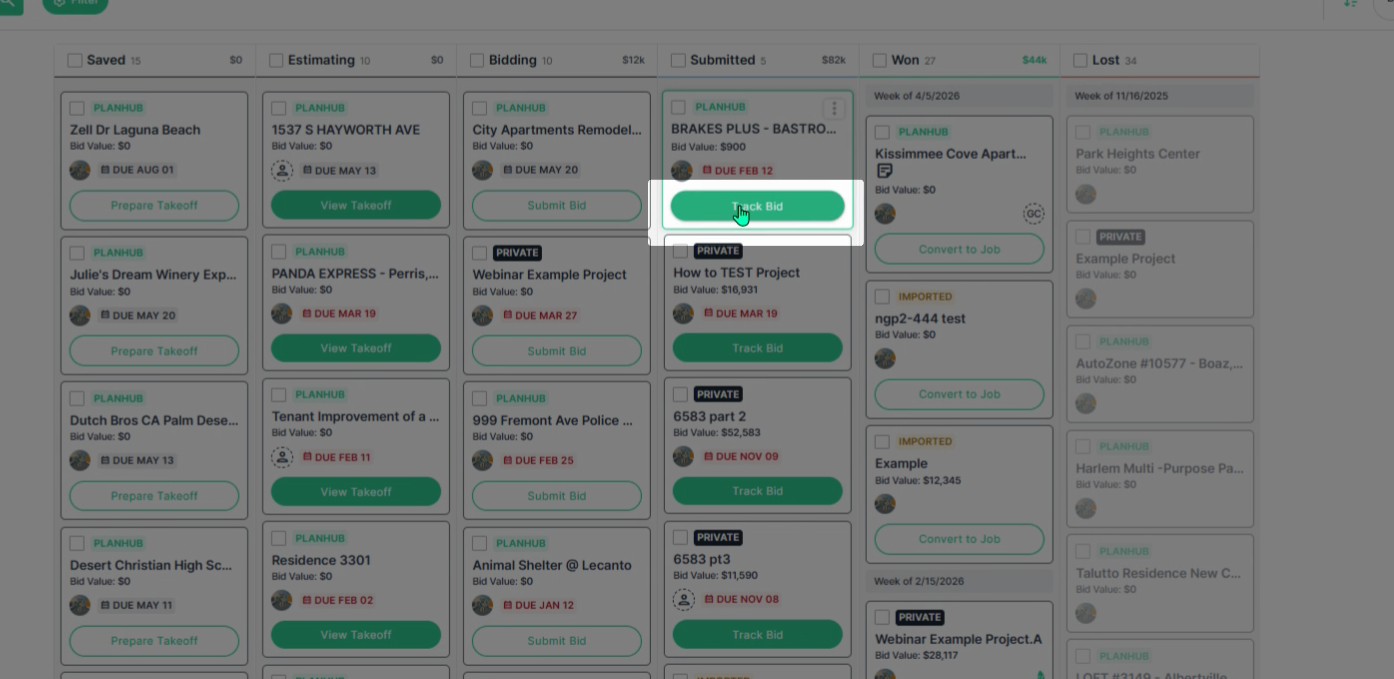
**Step 7:** Left click and hold the mouse button to drag the tab to the correct section.
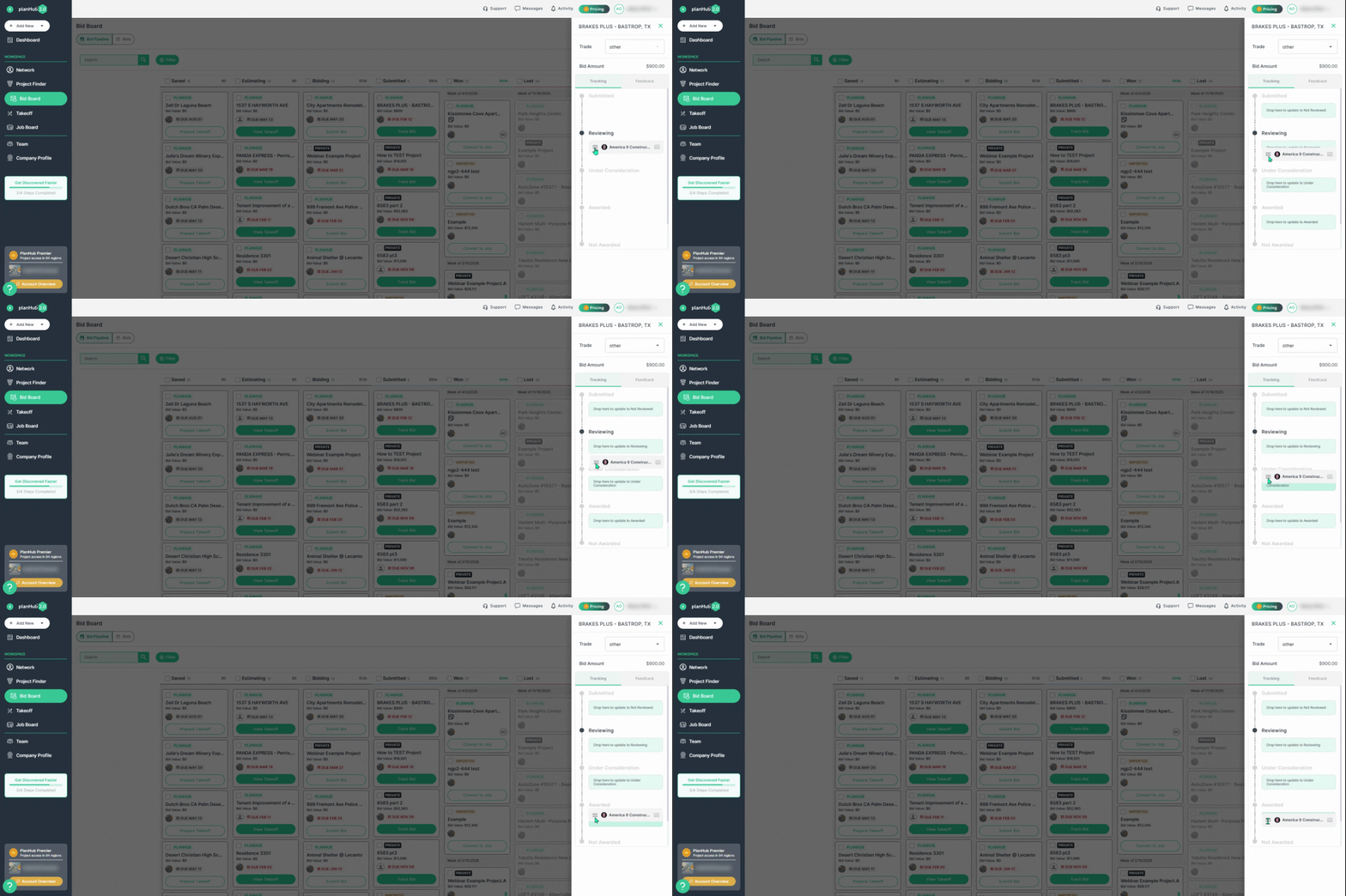
**Step 8:** Marking bid outcomes keeps your board organized and provides more accurate analytics, like win rates.
**Step 9:** View your bid stats by visiting any GC’s profile and viewing the bids tab.
---
#### **Requesting Feedback from a General Contractor**
**Step 1:** In your Bid Board, click on **Track Bid** for a project you've bid on and open the bid tracking panel.
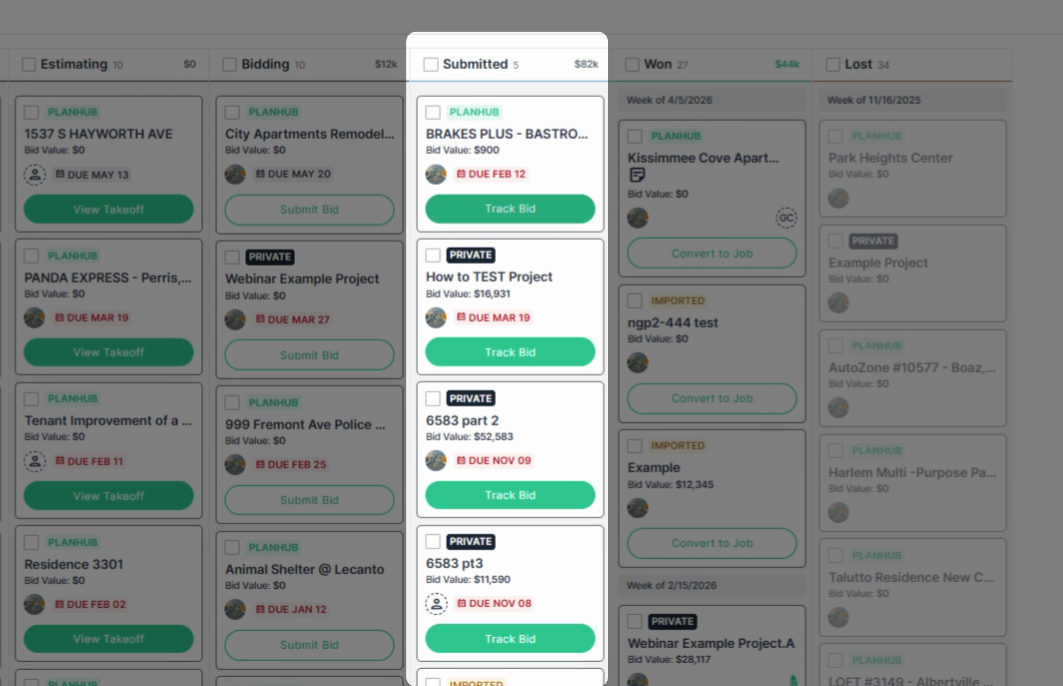
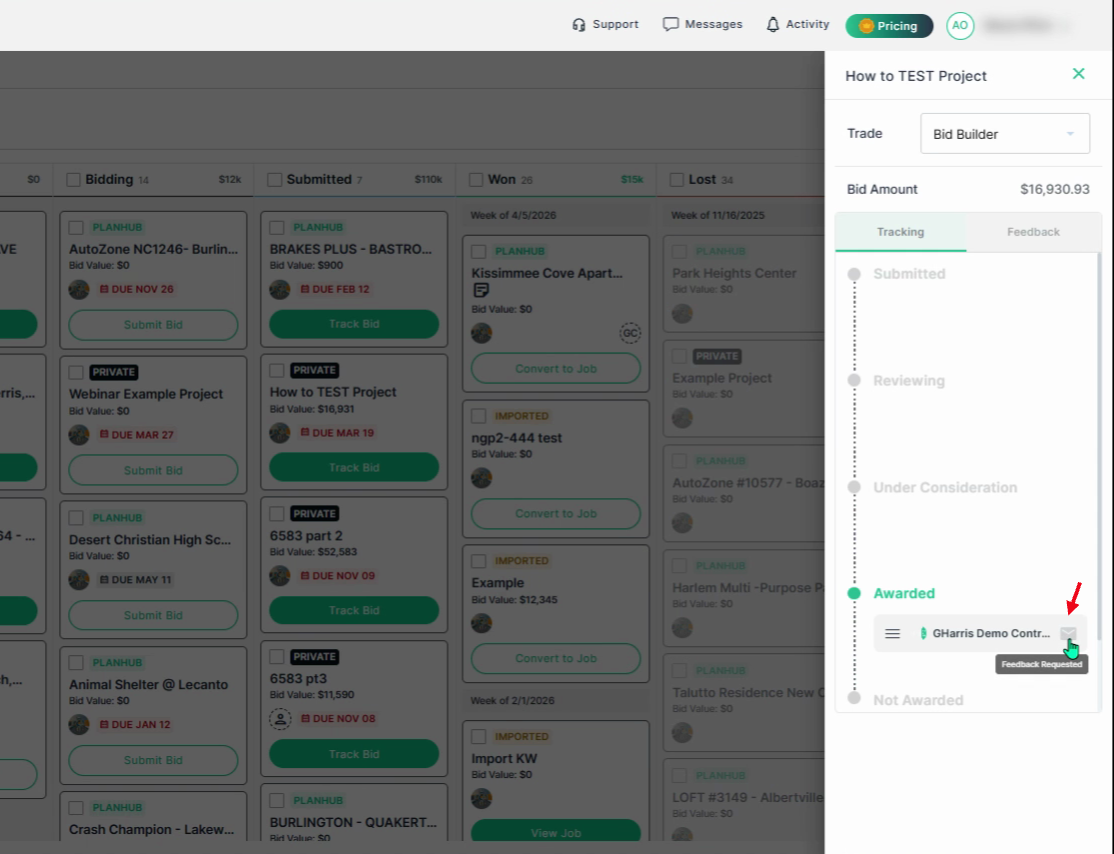
**Step 2:** Click the envelope icon on the right side of the tab to request feedback. The envelope will appear grayed out once feedback has been requested.
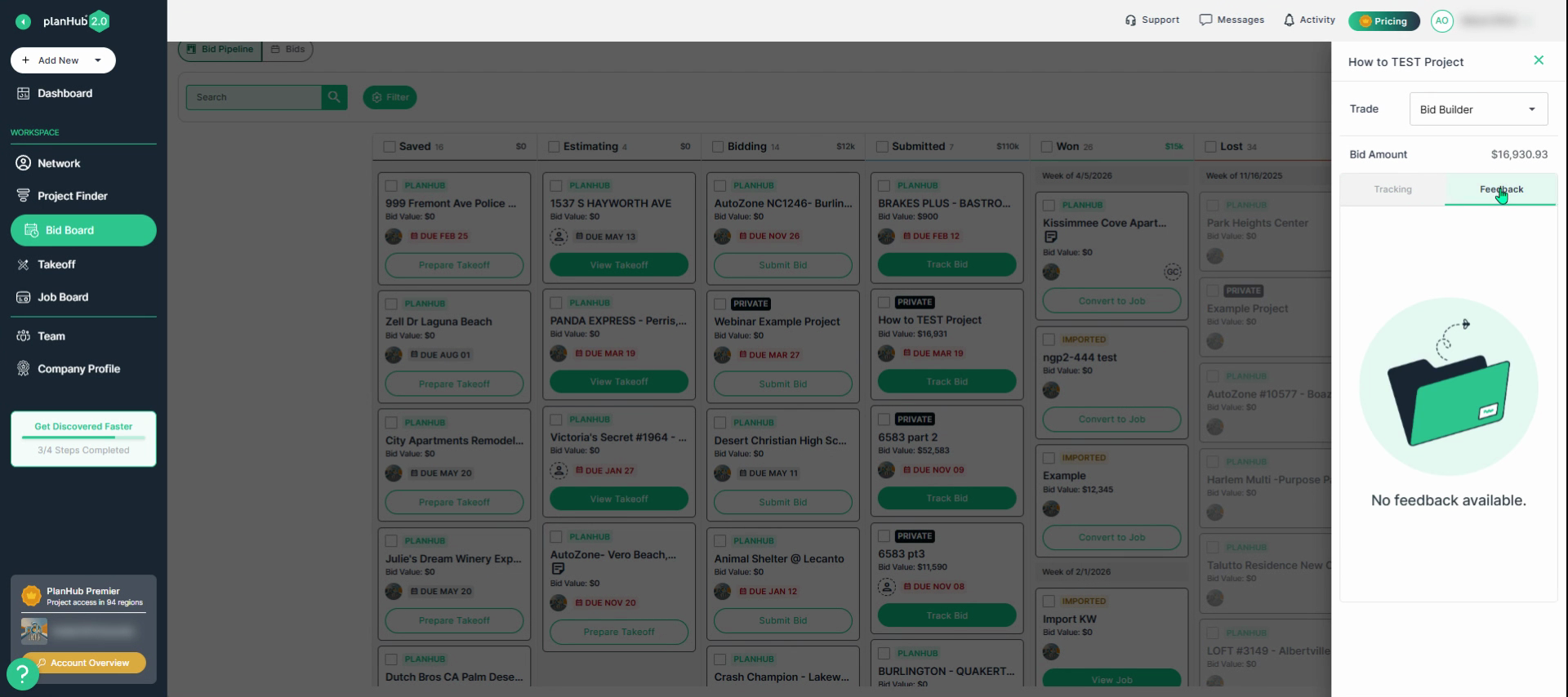
**Step 3:** When the GC replies within planHub, feedback will show immediately within the same panel. Click the **Feedback** tab to review the GCs feedback.
By consistently tracking your bids and updating outcomes, you keep your pipeline accurate and gain clear visibility into your company's performance.
---
### **Troubleshooting**
Contact us if you need assistance or to report an issue:
- PlanHub Contact Page: [https://planhub.com/contact/](https://planhub.com/contact/)
- Customer Facing Support Ticket Link: [https://knowledgebase.planhub.com/knowledge/kb-tickets/new](https://knowledgebase.planhub.com/knowledge/kb-tickets/new?hsLang=en)
- [General Contractor](https://knowledgebase.planhub.com/knowledge/general-contractor?hsLang=en#main-content)
- [Overview](https://knowledgebase.planhub.com/knowledge/general-contractor?hsLang=en#overview)
- [Projects](https://knowledgebase.planhub.com/knowledge/general-contractor?hsLang=en#projects)
- [Networking](https://knowledgebase.planhub.com/knowledge/general-contractor?hsLang=en#networking)
- [Subcontractors](https://knowledgebase.planhub.com/knowledge/subcontractors?hsLang=en#main-content)
- [Overview](https://knowledgebase.planhub.com/knowledge/subcontractors?hsLang=en#overview)
- [Projects](https://knowledgebase.planhub.com/knowledge/subcontractors?hsLang=en#projects)
- [Bid Board & Tracking](https://knowledgebase.planhub.com/knowledge/subcontractors?hsLang=en#bid-board-tracking)
- [Networking](https://knowledgebase.planhub.com/knowledge/subcontractors?hsLang=en#networking)
- [Takeoff & Estimation](https://knowledgebase.planhub.com/knowledge/subcontractors?hsLang=en#takeoff-estimation)
- [Manage Your Team](https://knowledgebase.planhub.com/knowledge/subcontractors?hsLang=en#manage-your-team)
- [Account & Settings](https://knowledgebase.planhub.com/knowledge/subcontractors?hsLang=en#account-settings)
- [Job Board](https://knowledgebase.planhub.com/knowledge/subcontractors?hsLang=en#job-board)
- [Request for Information](https://knowledgebase.planhub.com/knowledge/subcontractors?hsLang=en#request-for-information)
- [Supplier](https://knowledgebase.planhub.com/knowledge/supplier?hsLang=en#main-content)
- [Overview](https://knowledgebase.planhub.com/knowledge/supplier?hsLang=en#overview)
- [Projects and Leads](https://knowledgebase.planhub.com/knowledge/supplier?hsLang=en#projects-and-leads)
- [Bidding & Estimating](https://knowledgebase.planhub.com/knowledge/supplier?hsLang=en#bidding-estimating)
- [Networking](https://knowledgebase.planhub.com/knowledge/supplier?hsLang=en#networking)
- [Account & Settings](https://knowledgebase.planhub.com/knowledge/supplier?hsLang=en#account-settings)
- [Takeoff & Estimation](https://knowledgebase.planhub.com/knowledge/takeoff-estimation?hsLang=en#main-content)
- [Getting Started](https://knowledgebase.planhub.com/knowledge/takeoff-estimation?hsLang=en#getting-started)
- [Takeoff Tools & Measurements](https://knowledgebase.planhub.com/knowledge/takeoff-estimation?hsLang=en#takeoff-tools-measurements)
- [Trade-Specific Takeoffs](https://knowledgebase.planhub.com/knowledge/takeoff-estimation?hsLang=en#trade-specific-takeoffs)
- [Estimating](https://knowledgebase.planhub.com/knowledge/takeoff-estimation?hsLang=en#estimating)
- [Managing & Sharing Your Work](https://knowledgebase.planhub.com/knowledge/takeoff-estimation?hsLang=en#managing-sharing-your-work)
- [Account & Billing](https://knowledgebase.planhub.com/knowledge/account-billing?hsLang=en#main-content)
- [Account & Billing](https://knowledgebase.planhub.com/knowledge/account-billing?hsLang=en#account-billing)
- [Account Closure](https://knowledgebase.planhub.com/knowledge/account-billing?hsLang=en#account-closure)
- [Troubleshooting](https://knowledgebase.planhub.com/knowledge/troubleshooting?hsLang=en)
- [About PlanHub](https://knowledgebase.planhub.com/knowledge/about-planhub?hsLang=en)
- [New General Contractor Experience](https://knowledgebase.planhub.com/knowledge/new-general-contractor-experience?hsLang=en#main-content)
- [Overview](https://knowledgebase.planhub.com/knowledge/new-general-contractor-experience?hsLang=en#overview)
- [Projects](https://knowledgebase.planhub.com/knowledge/new-general-contractor-experience?hsLang=en#projects)
- [Networking](https://knowledgebase.planhub.com/knowledge/new-general-contractor-experience?hsLang=en#networking)
- [Takeoff & Estimation](https://knowledgebase.planhub.com/knowledge/new-general-contractor-experience?hsLang=en#takeoff-estimation)
- [Account & Settings](https://knowledgebase.planhub.com/knowledge/new-general-contractor-experience?hsLang=en#account-settings)
- [Manage Your Team](https://knowledgebase.planhub.com/knowledge/new-general-contractor-experience?hsLang=en#manage-your-team)
- [Submit Feedback](https://knowledgebase.planhub.com/knowledge/submit-feedback?hsLang=en#main-content)
- [Feedback](https://knowledgebase.planhub.com/knowledge/submit-feedback?hsLang=en#feedback)
- [Have an Issue? Submit a Ticket](https://knowledgebase.planhub.com/knowledge/kb-tickets/new)
[](http://planhub.com)
[Knowledge Base Home](https://knowledgebase.planhub.com/knowledge?hsLang=en)
[Submit a Ticket](https://knowledgebase.planhub.com/knowledge/kb-tickets/new?hsLang=en)
Copyright © 2026, ©2026 PlanHub, Inc. All rights reserved