![NEW_PlanHub_Logo_Navy.png]](https://knowledgebase.planhub.com/hs-fs/hubfs/Design/PH%20Logos/NEW%202024%20PH%20Logos/NEW_PlanHub_Logo_Navy.png?height=40&name=NEW_PlanHub_Logo_Navy.png)
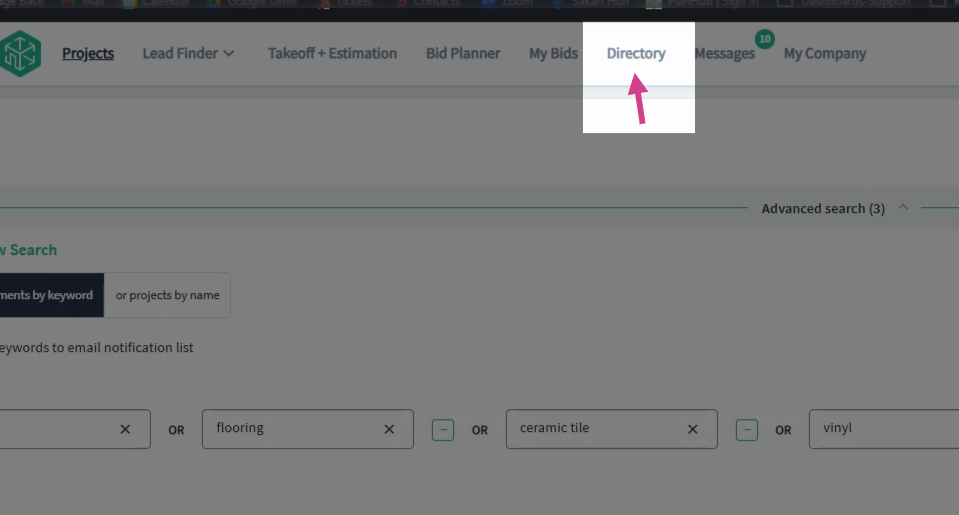
Step 1: Go to the Directory page from the main panel in your supplier account.
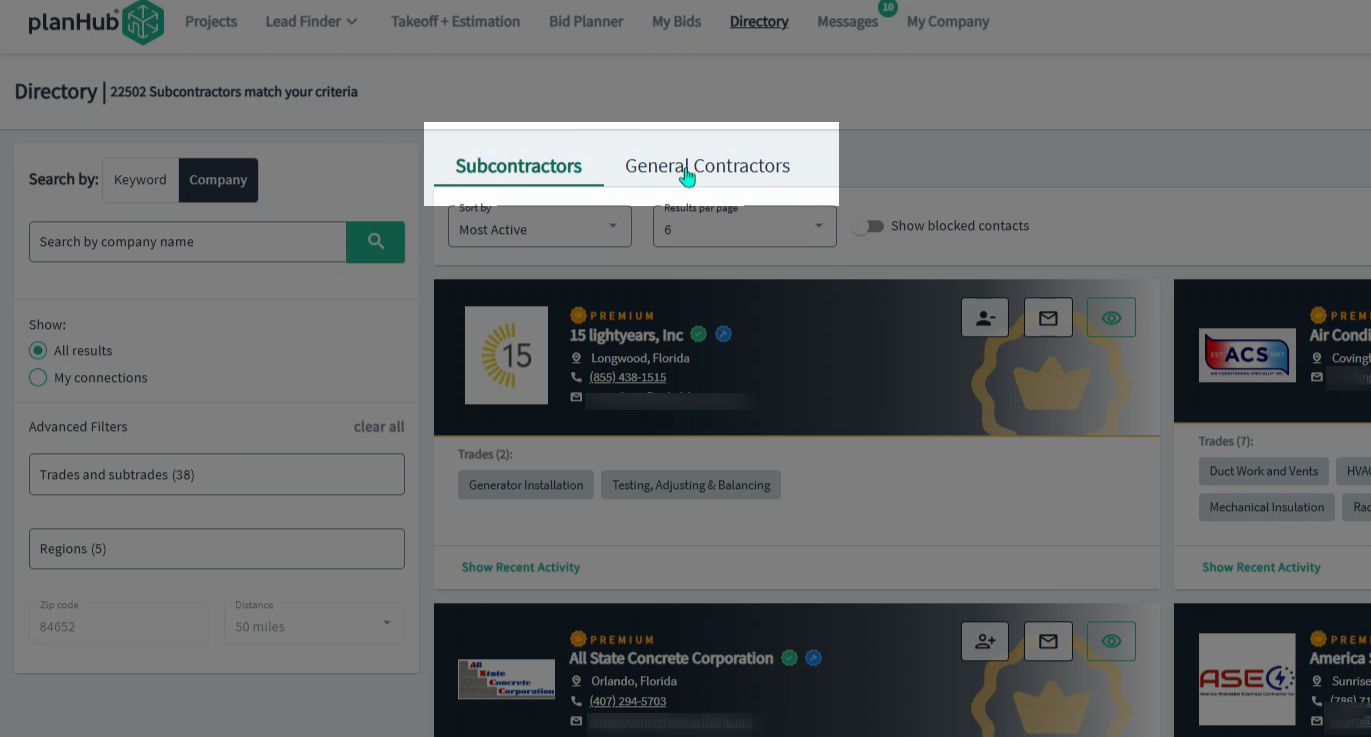
Step 2: Choose the Subcontractors or General Contractors tab to view different types of companies in the directory.
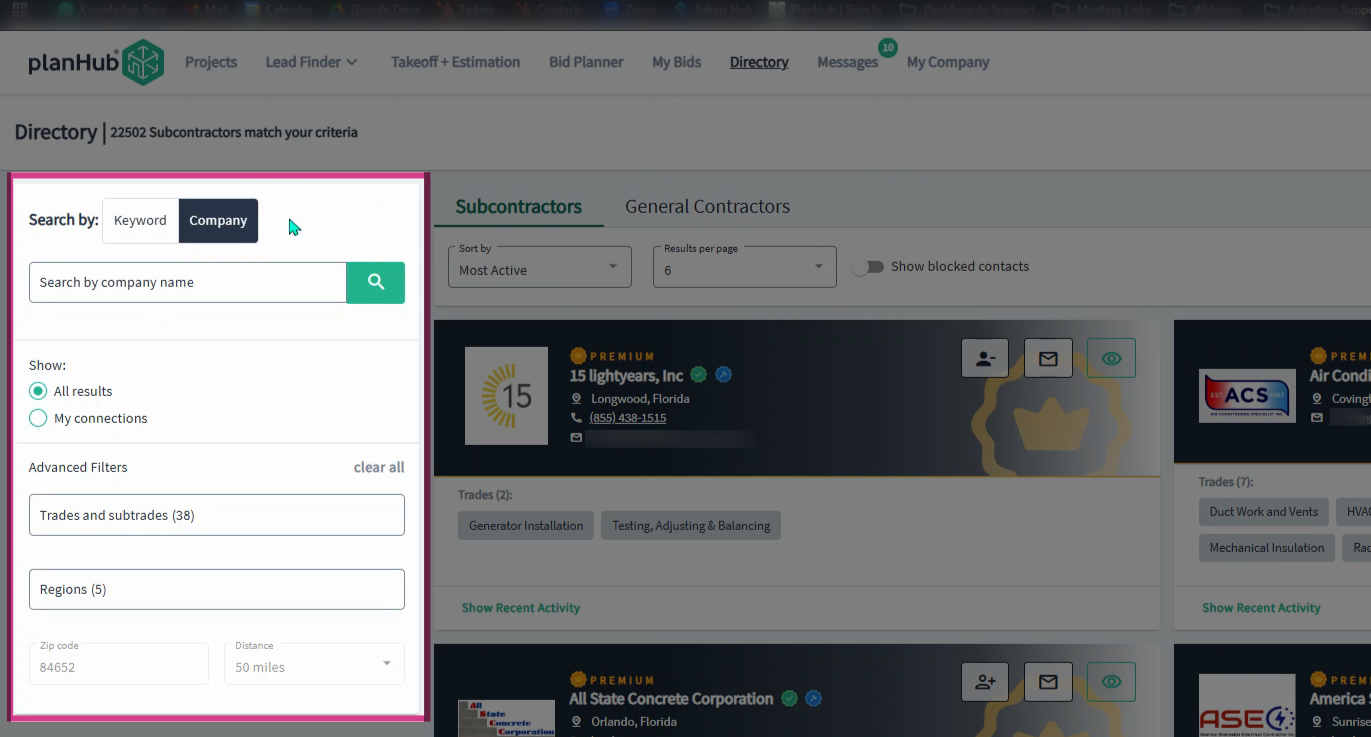
Step 3: Use the "Search by" and filter options on the left side to narrow the results listed.
Step 4: Each company card displays the company name, location, primary contact name, email address, phone number, and logo.
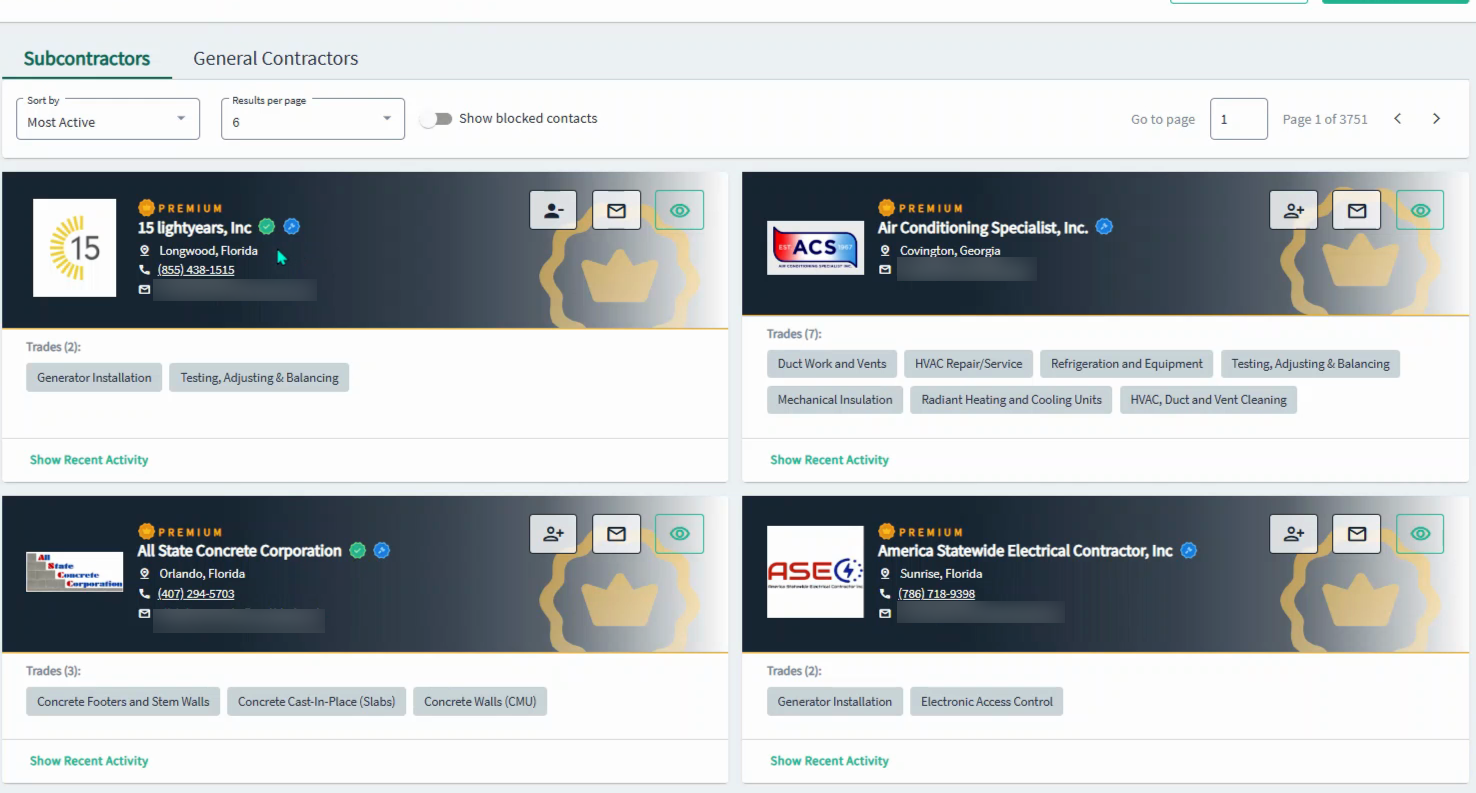
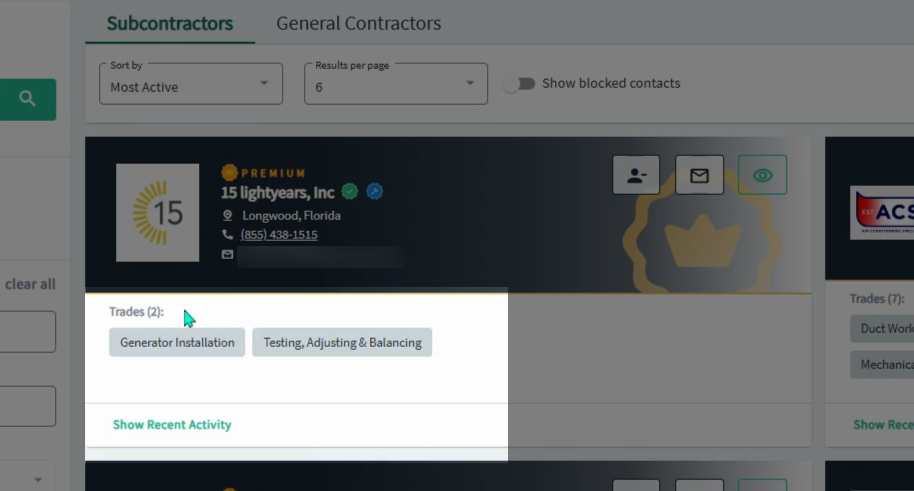
Step 5: See a list of the subcontractor's trades and their recent activity at the bottom of their card.
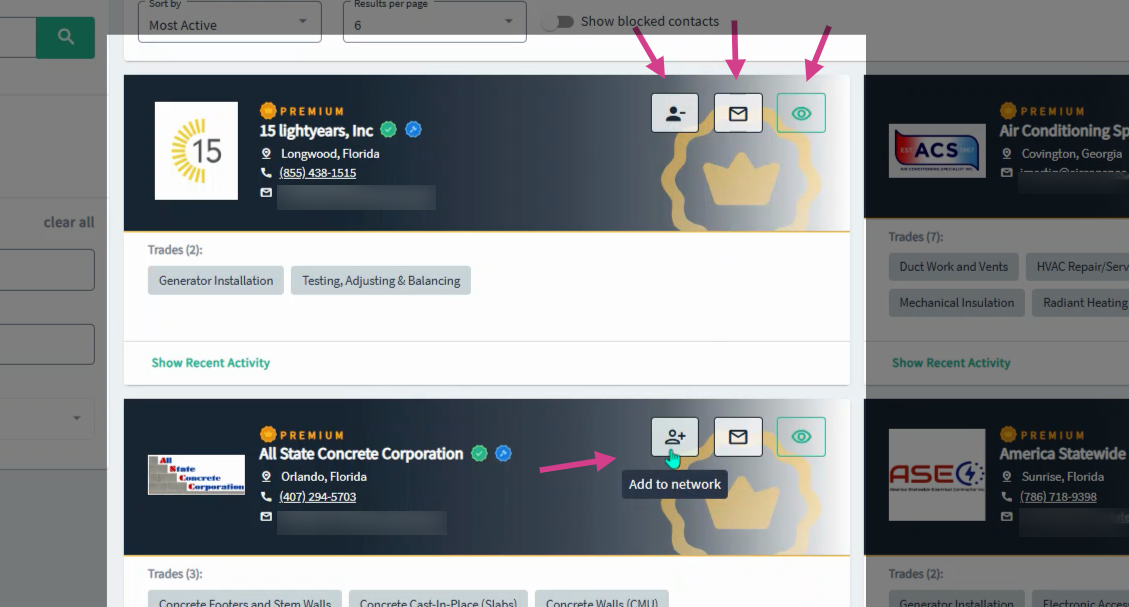
Step 6: In the upper right corner of any card, use these tools:
-
Remove or Add to Network to connect with the company
-
Message to start a conversation
-
Block to prevent the company from receiving your estimates
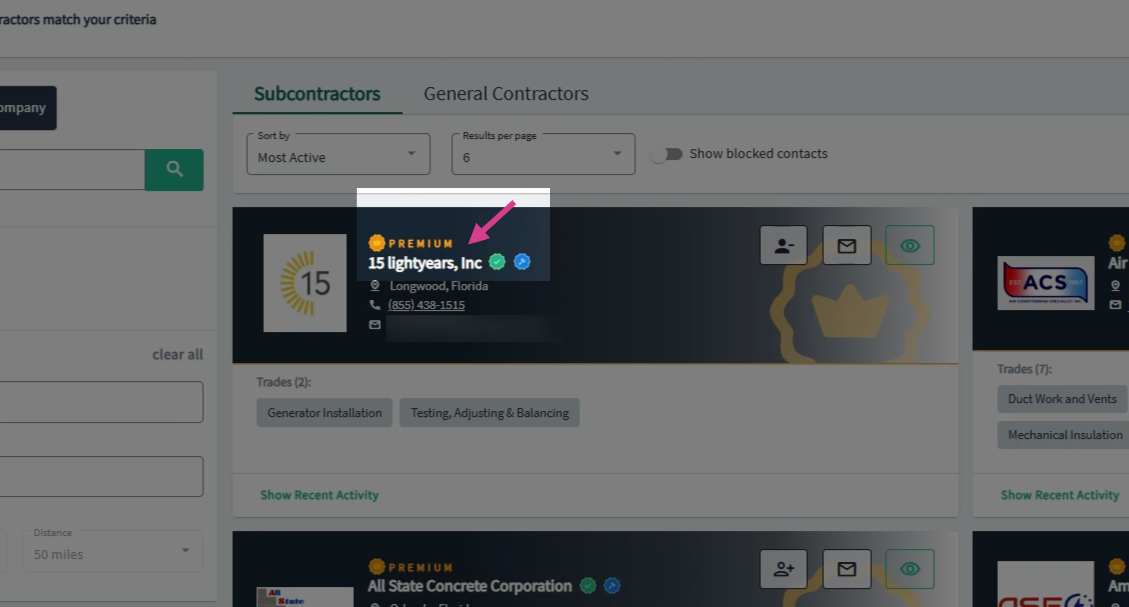
Step 7: Click a company's name on the card to open their full profile and team information.
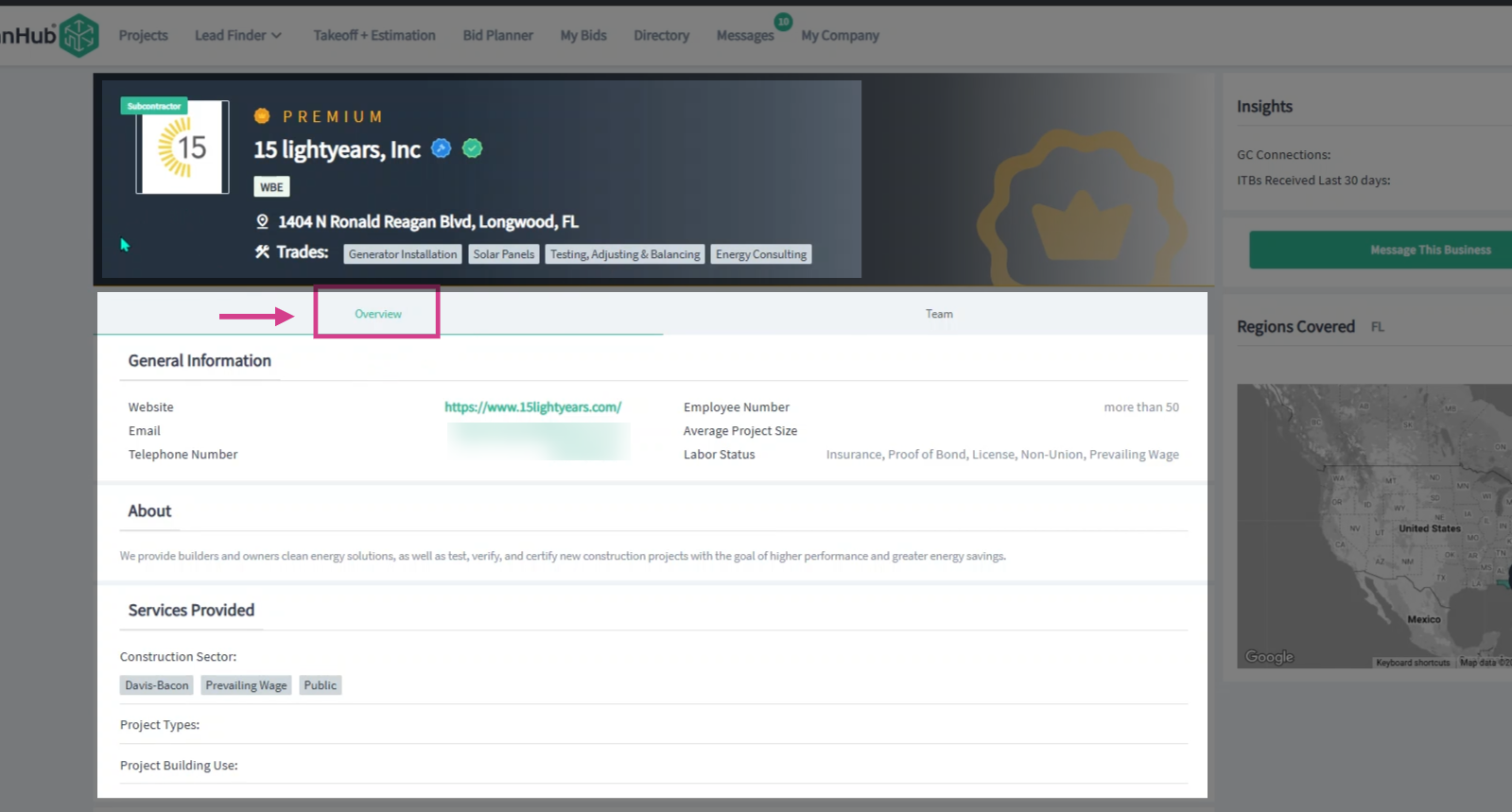
Step 8: In the profile, review:
-
Top section: Company info, location, trade, logo
-
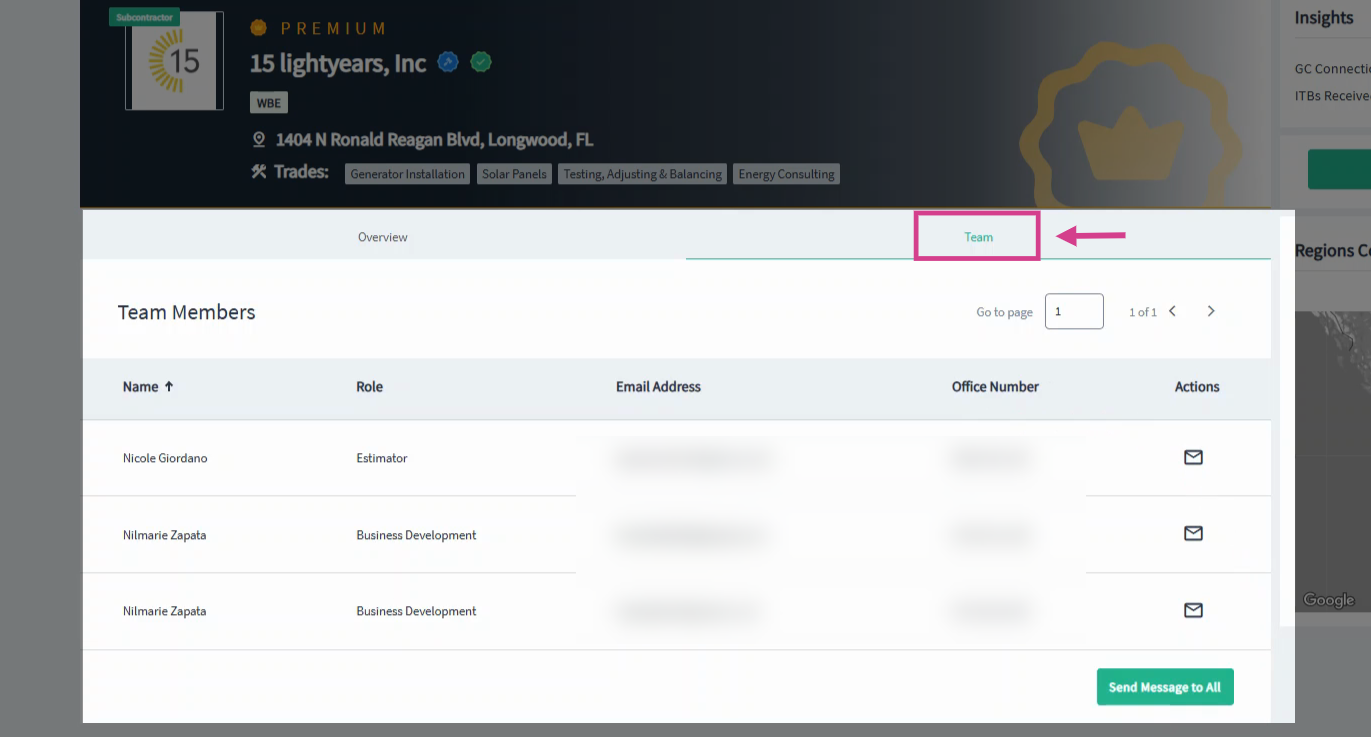
Overview tab: Website, email, phone, employee count, average project size, labor status, company description, and past projects
-
Team tab: Members, their roles and emails, option to message individuals or the whole team
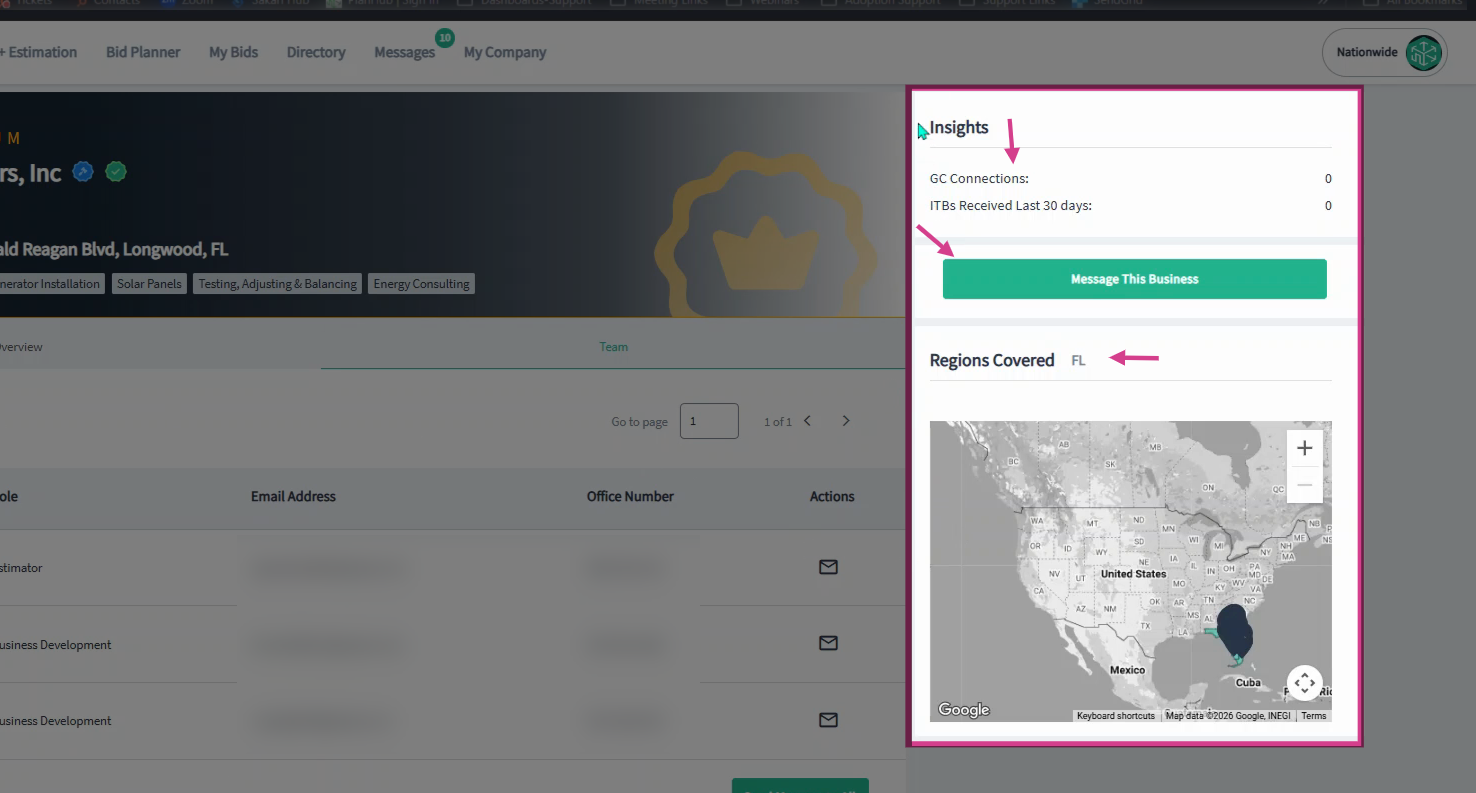
Step 9: Use the Insights panel to see their GC connections count, how many invitations to bid they received over the past 30 days, their coverage regions and an option to send a direct message.
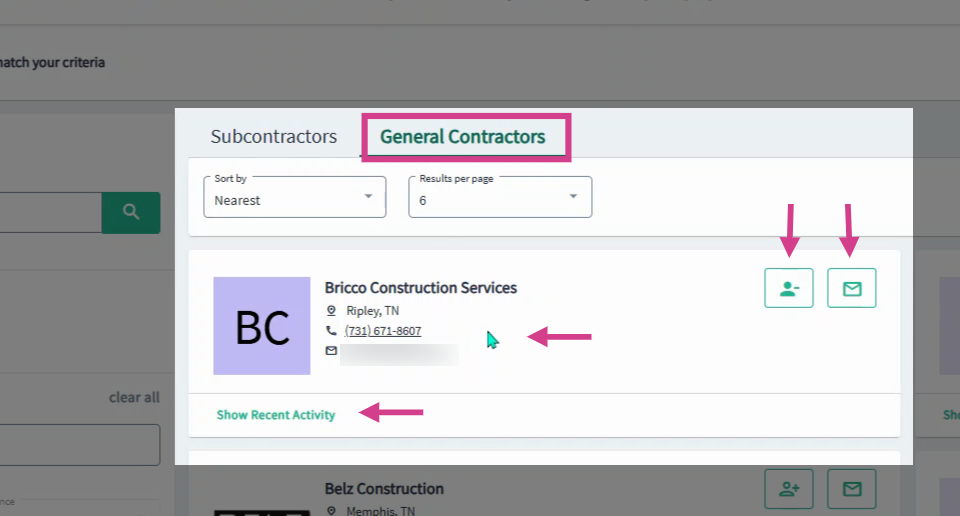
Step 10: When viewing general contractors, company cards display the name, location, phone, email, logo, and recent activity. Connect or message from the top right corner.
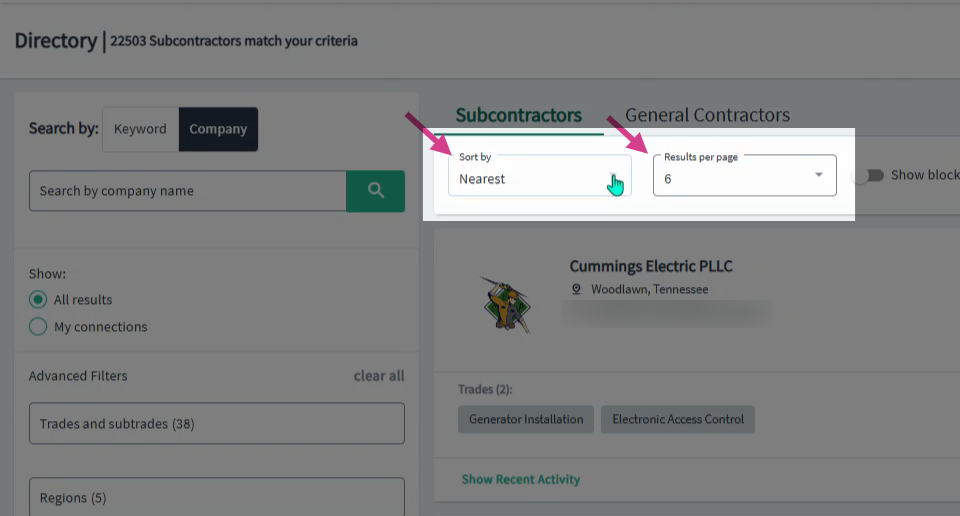
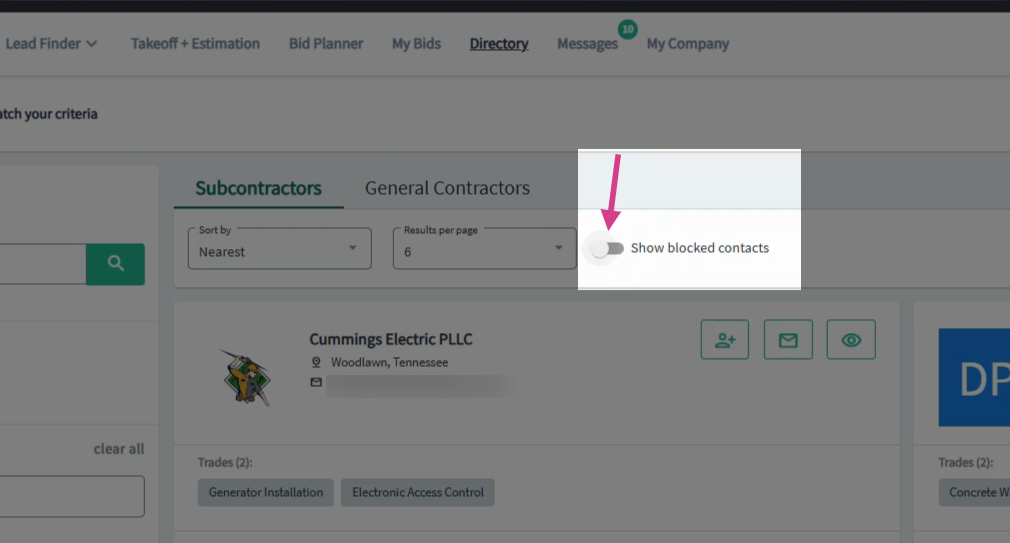
Step 11: Sort cards by proximity or alphabetically using the "Sort-by" drop down menu or adjust results per page using the "Results per page" drop-down menu.
Step 12: If you block a company and want to review the list, click on the Show Blocked Contacts toggle to view blocked contacts.
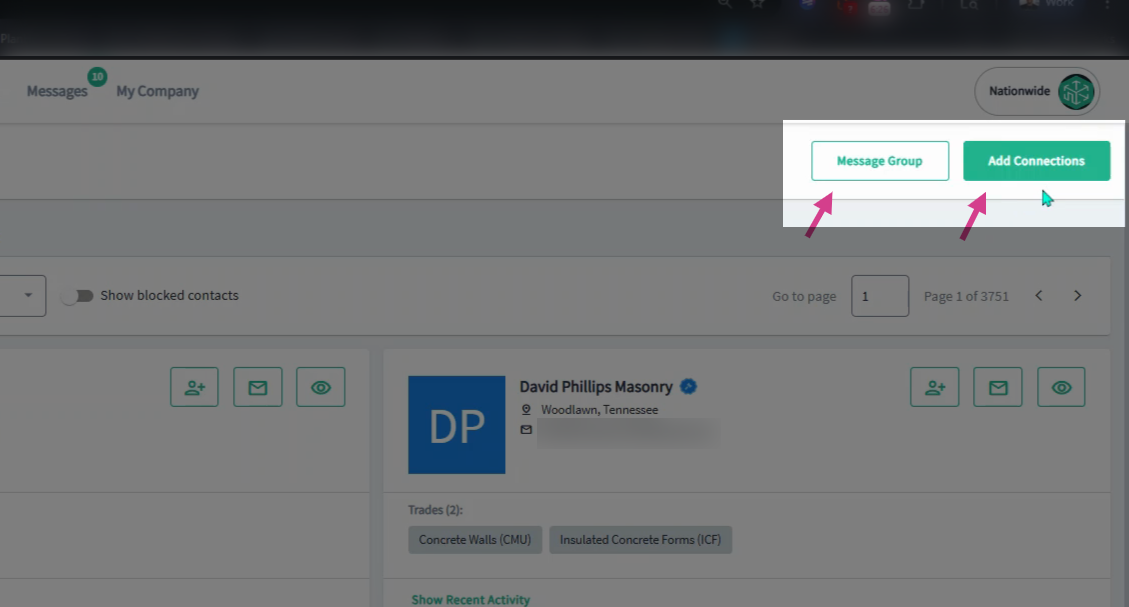
Step 13: Add new contacts or message groups using options in the top right corner. Please refer to our article on "How a Supplier can find Subcontractors and General Contractors in the Directory" to add to your network.
By utilizing search filters, sorting options, and company profiles, you can efficiently access important company details, explore team member information, and communicate directly with the contacts that matter most.
Troubleshooting
Contact us if you need assistance or to report an issue:
- PlanHub Contact Page: https://planhub.com/contact/
- Customer Facing Support Ticket Link: https://knowledgebase.planhub.com/knowledge/kb-tickets/new
- Customer Success Team: CustomerSuccess@planhub.com