![NEW_PlanHub_Logo_Navy.png]](https://knowledgebase.planhub.com/hs-fs/hubfs/Design/PH%20Logos/NEW%202024%20PH%20Logos/NEW_PlanHub_Logo_Navy.png?height=40&name=NEW_PlanHub_Logo_Navy.png)
In some cases, a Customer Support Representative may ask you to capture a screenshot so they can better understand what you’re seeing—such as an error message or a specific section of the website you have a question about.
MacOS
Capture the Entire Screen
Press: Command (⌘) + Shift + 3
- Saves the screenshot automatically to your desktop (or chosen location).
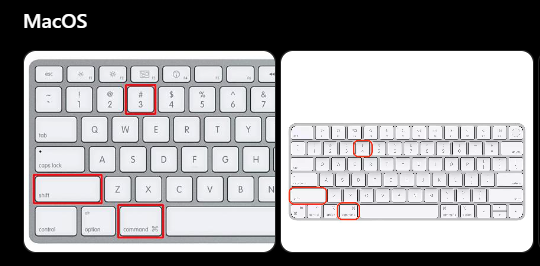
Capture a Selected Area
Press: Command (⌘) + Shift + 4
- Your cursor turns into a crosshair.
- Click and drag to select the area you want to capture.
- Release to take the screenshot.
Capture a Specific Window
Press: Command (⌘) + Shift + 4, then tap the Spacebar
- Your cursor changes to a camera icon.
- Click the window you want to capture.
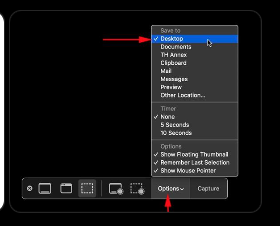
Open the Screenshot Toolbar (More Options)
Press: Command (⌘) + Shift + 5
From here you can:
- Capture full screen, selected window, or selected portion.
- Record your screen.
- Choose where screenshots are saved.
Windows / PC
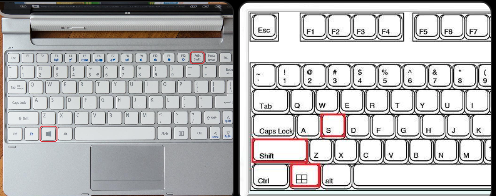
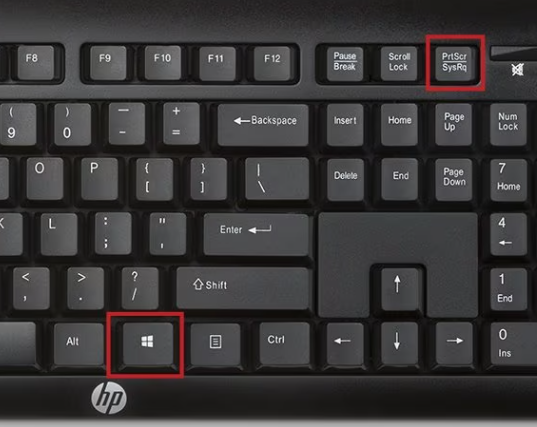
Capture the Entire Screen
Press: Print Scr or PrtSc (Print Screen)
- Copies the screenshot to your clipboard.
- Paste it into an app like Paint, Word, or email with Ctrl + V.
Save Full Screen Automatically
Press: Windows Key + Print Scr or PrtSc (Print Screen)
- Saves directly to: Pictures > Screenshots
Capture a Selected Area
Press: Windows Key + Shift + S
- Opens the Snipping Tool.
- Select the area you want to capture.
- The image copies to your clipboard.
Capture the Active Window Only
Press: Alt + PrtScn (or Print Scr, PrtSc)
- Captures only the window you’re using.
- Paste with Ctrl + V.
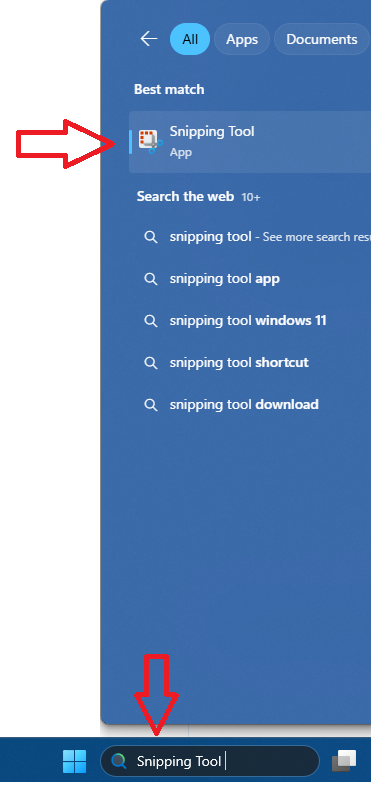
Use the Snipping Tool
Search for Snipping Tool in the Start menu to:
- Capture custom areas
- Annotate screenshots
- Save in different formats
Providing a screenshot is helpful when they need clarification on the area you are referencing or if they are unable to replicate the issue on their end, allowing them to provide faster and more accurate assistance.
If you would like to contact planHub Customer Support, view the Knowledge Base article titled: How to Contact PlanHub Customer Support.
Troubleshooting
Contact us if you need assistance or to report an issue:
- PlanHub Contact Page: https://planhub.com/contact/
- Customer Facing Support Ticket Link: https://knowledgebase.planhub.com/knowledge/kb-tickets/new
- Customer Success Team: CustomerSuccess@planhub.com