![NEW_PlanHub_Logo_Navy.png]](https://knowledgebase.planhub.com/hs-fs/hubfs/Design/PH%20Logos/NEW%202024%20PH%20Logos/NEW_PlanHub_Logo_Navy.png?height=40&name=NEW_PlanHub_Logo_Navy.png)
Getting Started with PlanHub as a Subcontractor
Step 1: Go to the PlanHub Website
Open your browser and head to planhub.com.
Step 2: Start the Registration Process
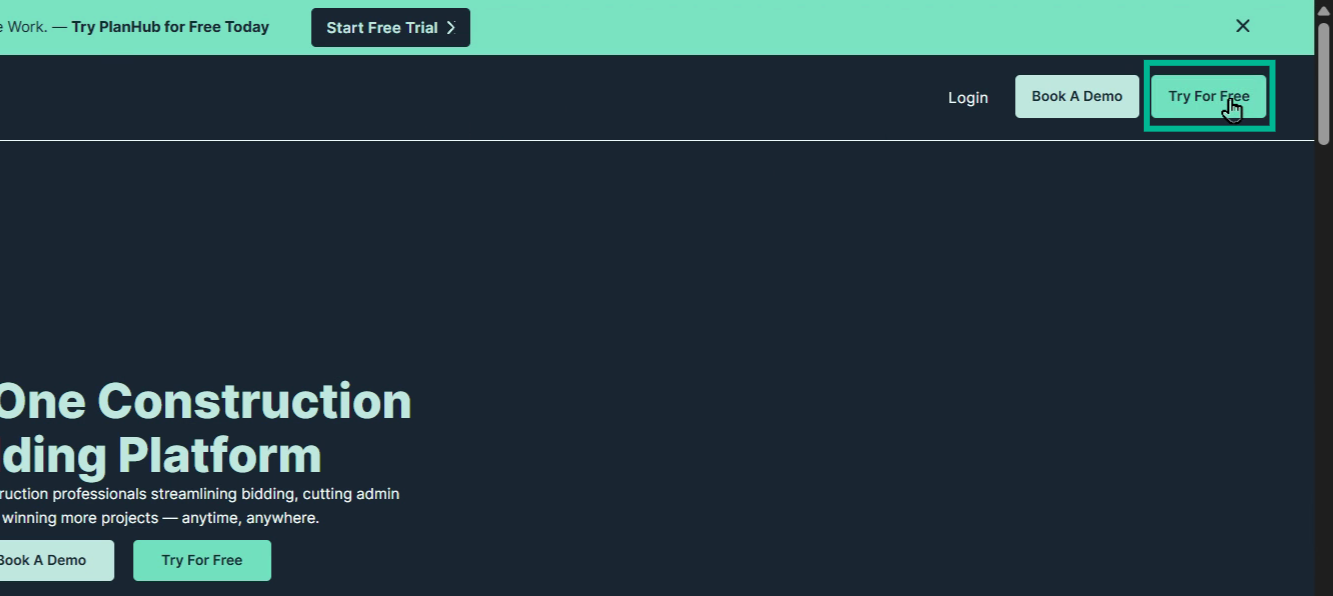
Click Try for free at the top right of the homepage.
Step 3: Enter Your Account Information
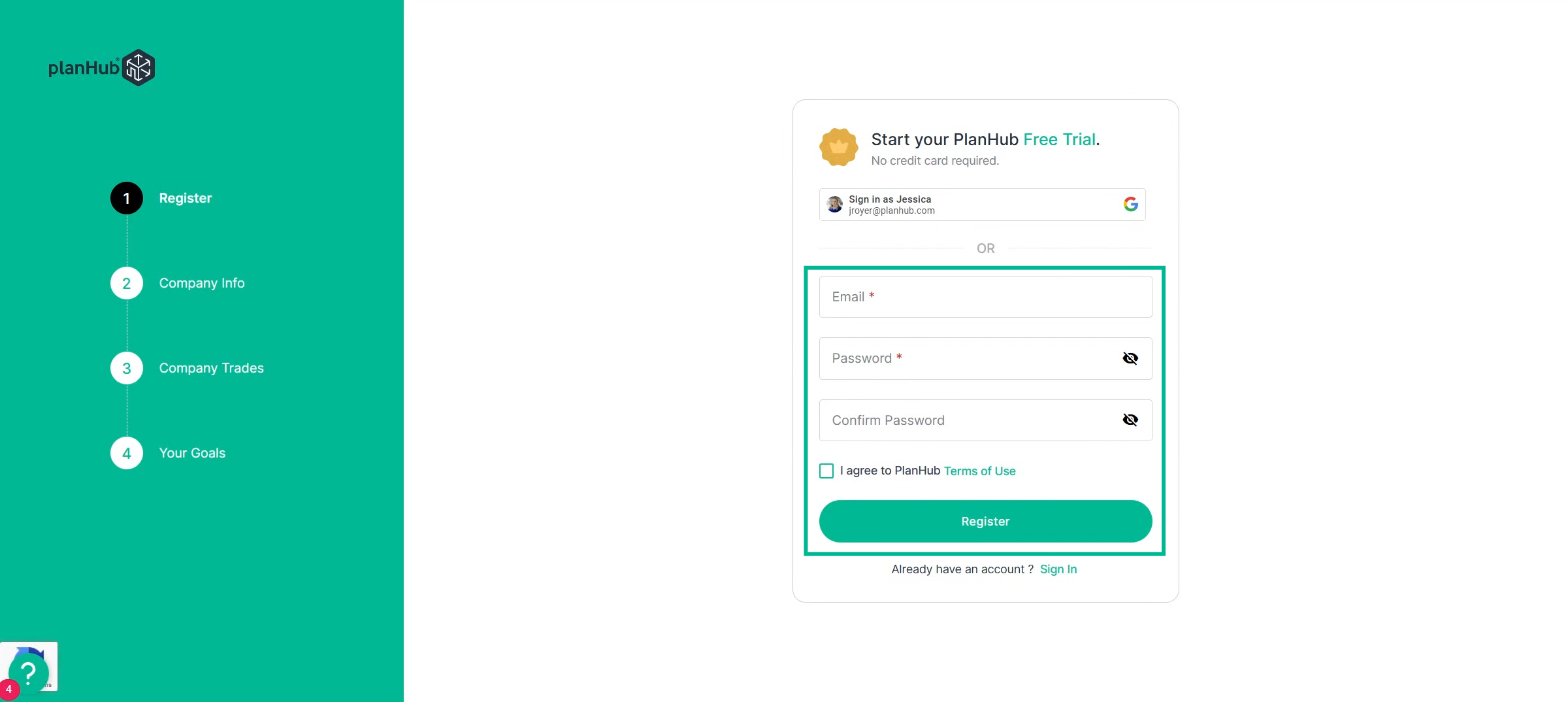
Type in your email address, create and confirm a password for your new account, and agree to the Terms, then click "Register".
Step 4: Fill Out Company Information
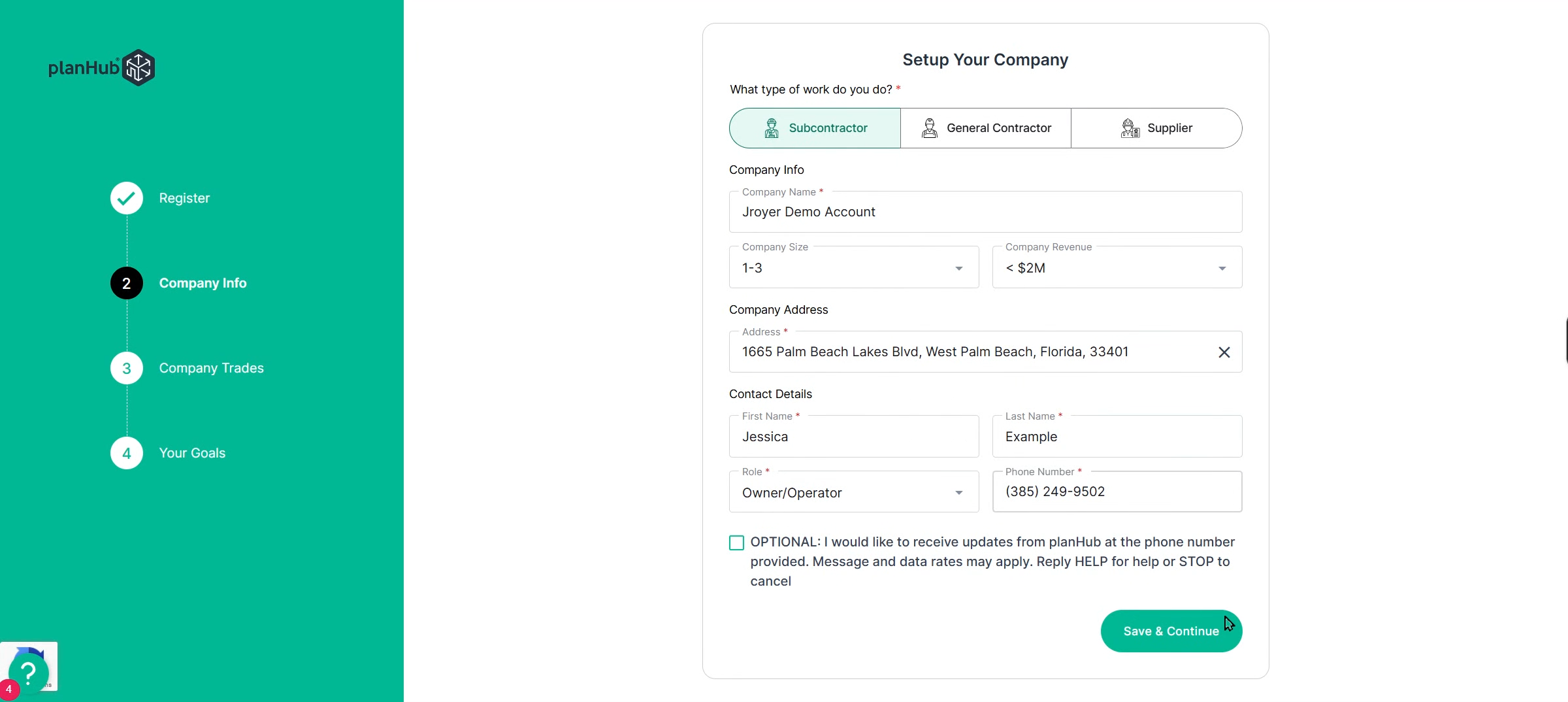
Provide your company details on the next screen.
Step 5: Confirm Your Company or Start a New One
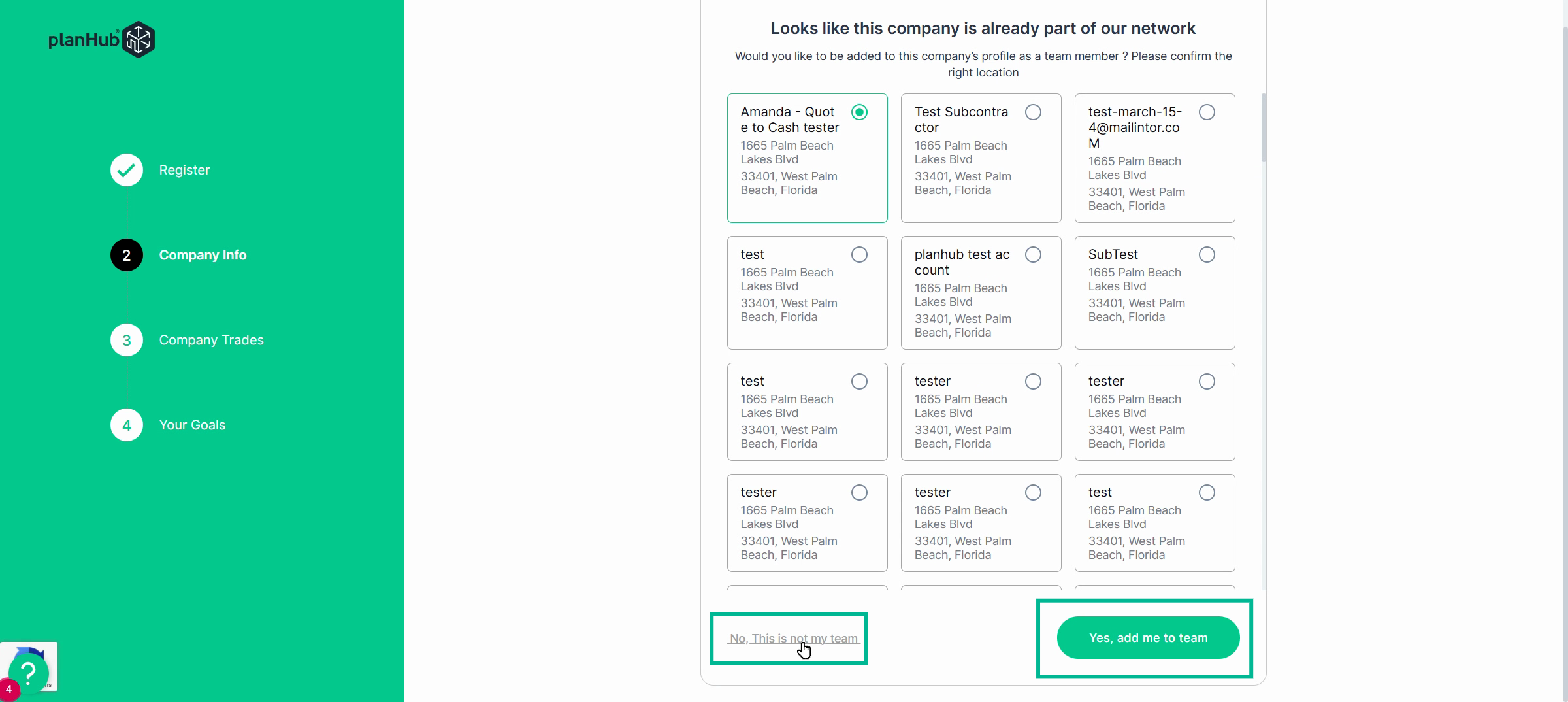
If your information matches an existing company in PlanHub, you'll get a notification.
To join as a team member, confirm the correct company location and click "Yes, add me to team".
If this isn't your company, click "No, this is not my team".
Step 6: Select Your Trades
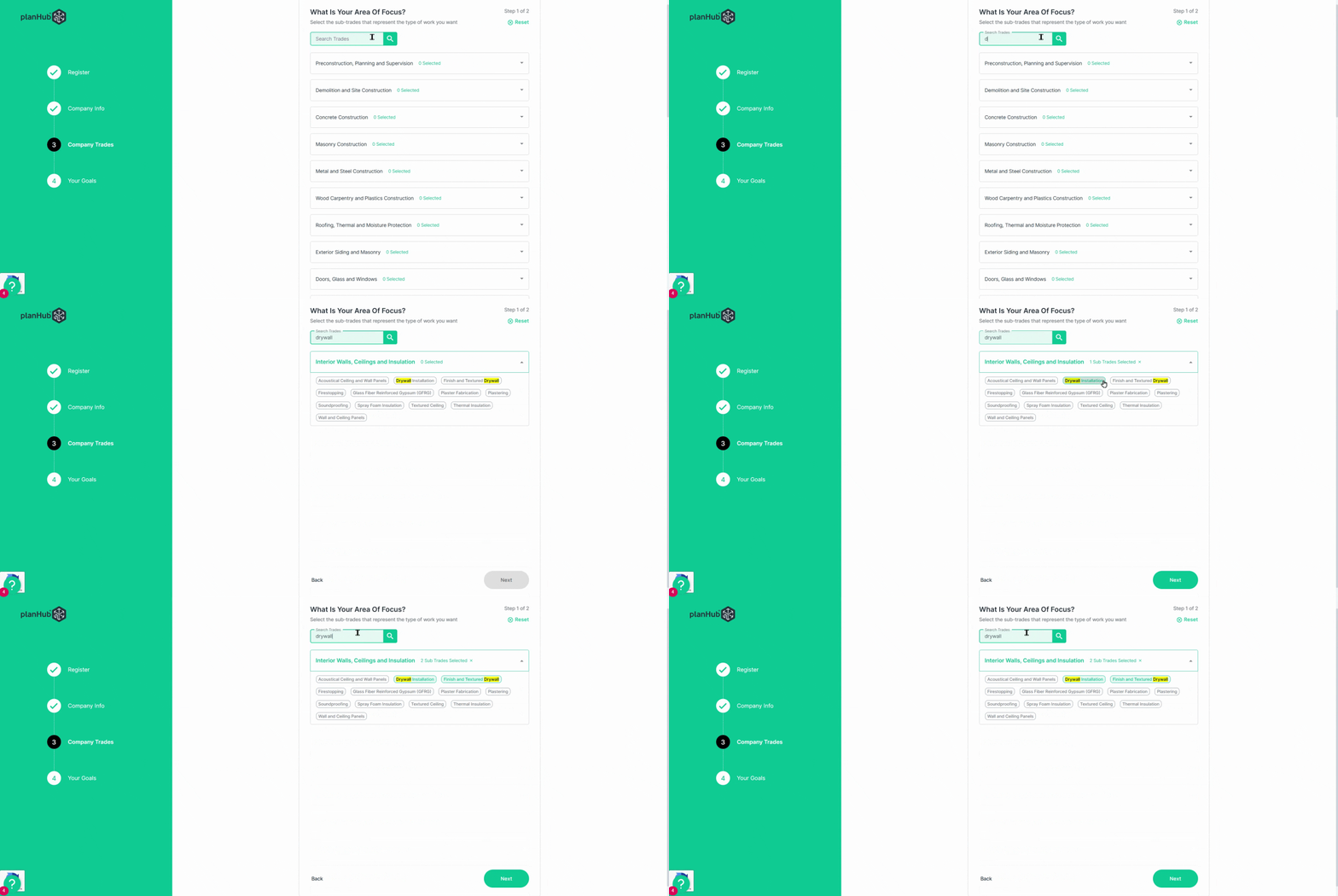
Now, choose your area of focus. Start typing your trade in the search bar and select all trades your company performs.
Once you have selected all your trades, click "Next" to continue.
Step 7: Choose Your Goals
Select the goals that brought you to PlanHub.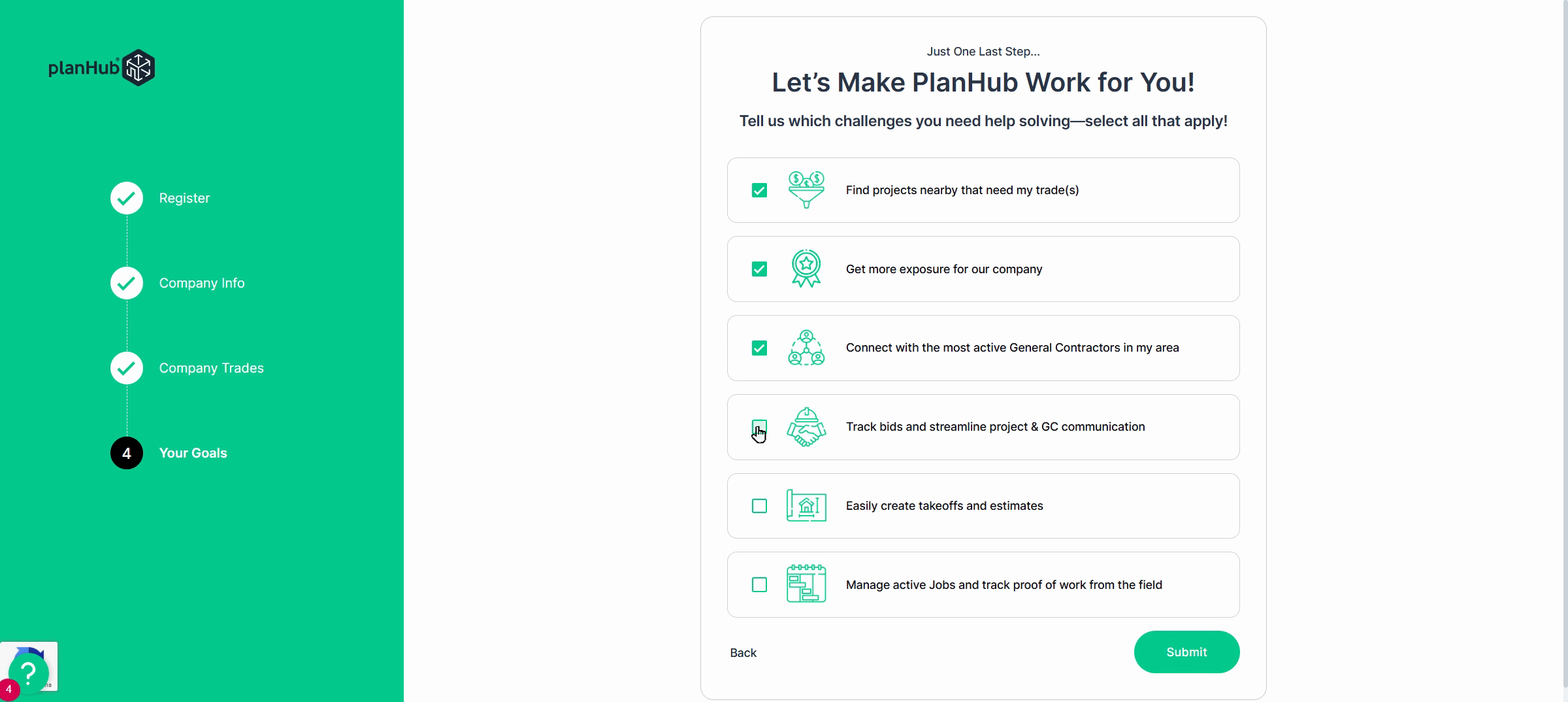
Step 9: Submit
Click Submit to finish setting up your company account.
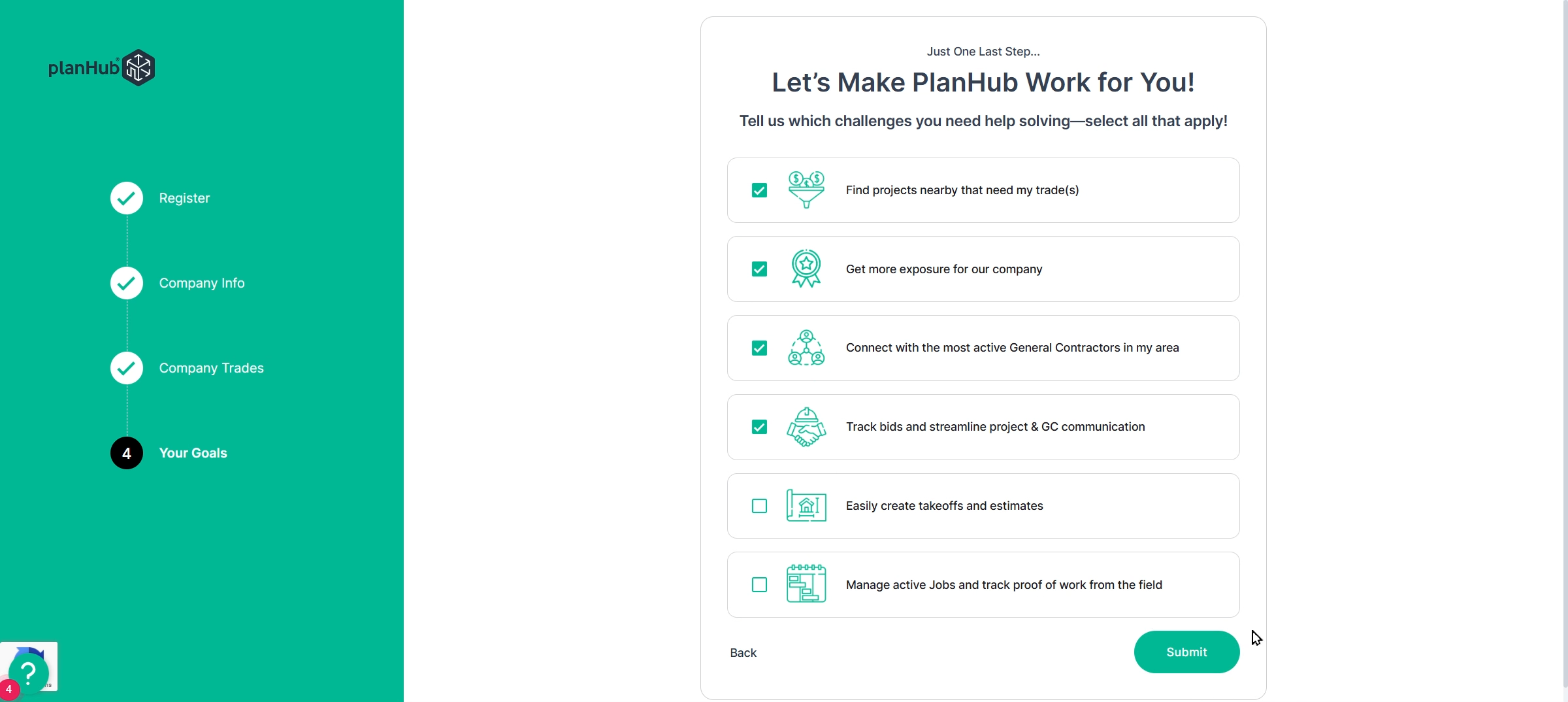
Your PlanHub profile is now ready! You can always update your company info, location, or trades later from your Company Profile page.
Follow the next prompts to start browsing projects and submitting bids.