![NEW_PlanHub_Logo_Navy.png]](https://knowledgebase.planhub.com/hs-fs/hubfs/Design/PH%20Logos/NEW%202024%20PH%20Logos/NEW_PlanHub_Logo_Navy.png?height=40&name=NEW_PlanHub_Logo_Navy.png)
Prerequisites: A subscription or trial that includes Takeoff is required to measure plans, export a plan into TakeOff, and set the scale. Then you can begin measuring.
Getting Started Tip:
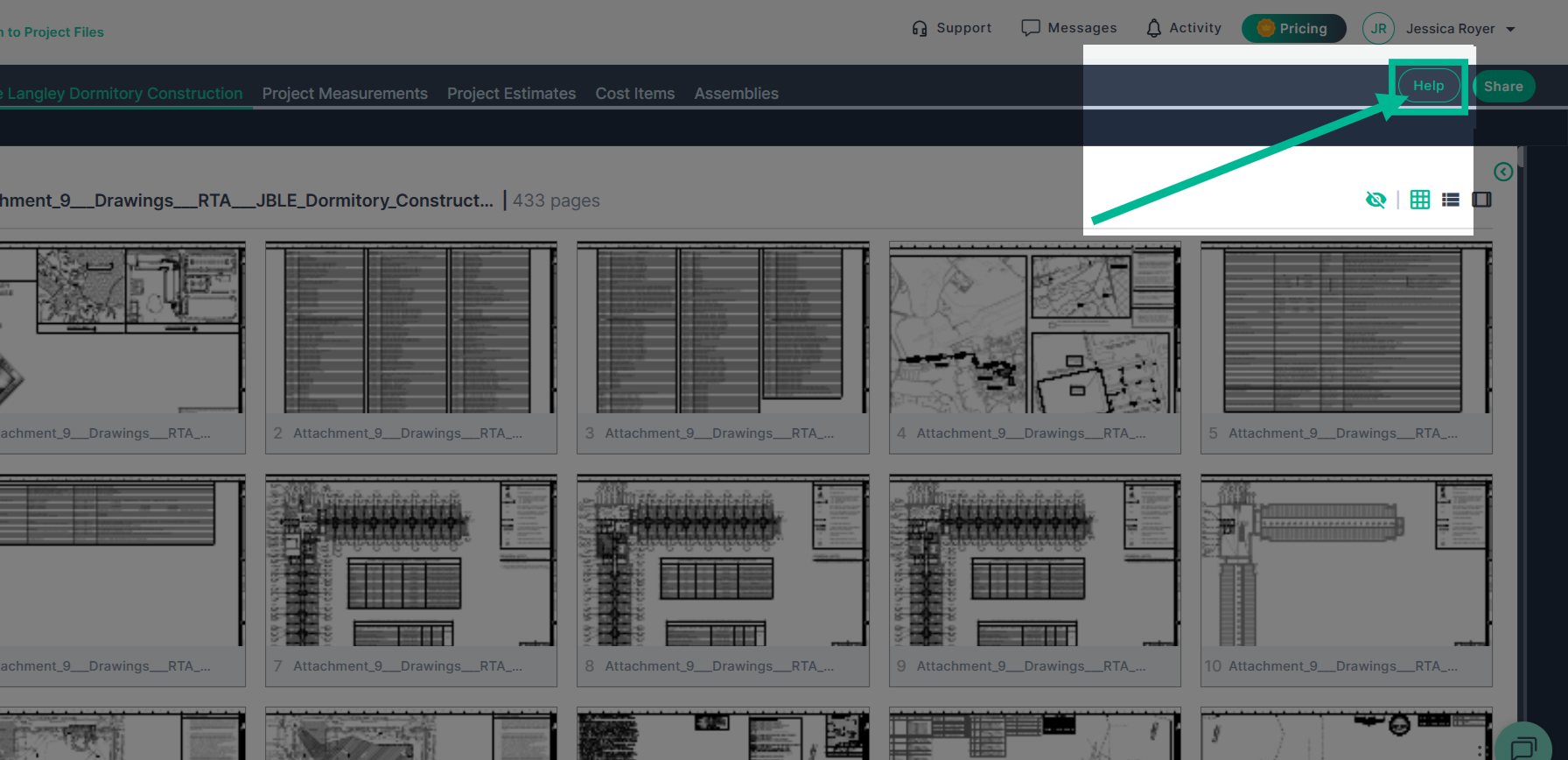
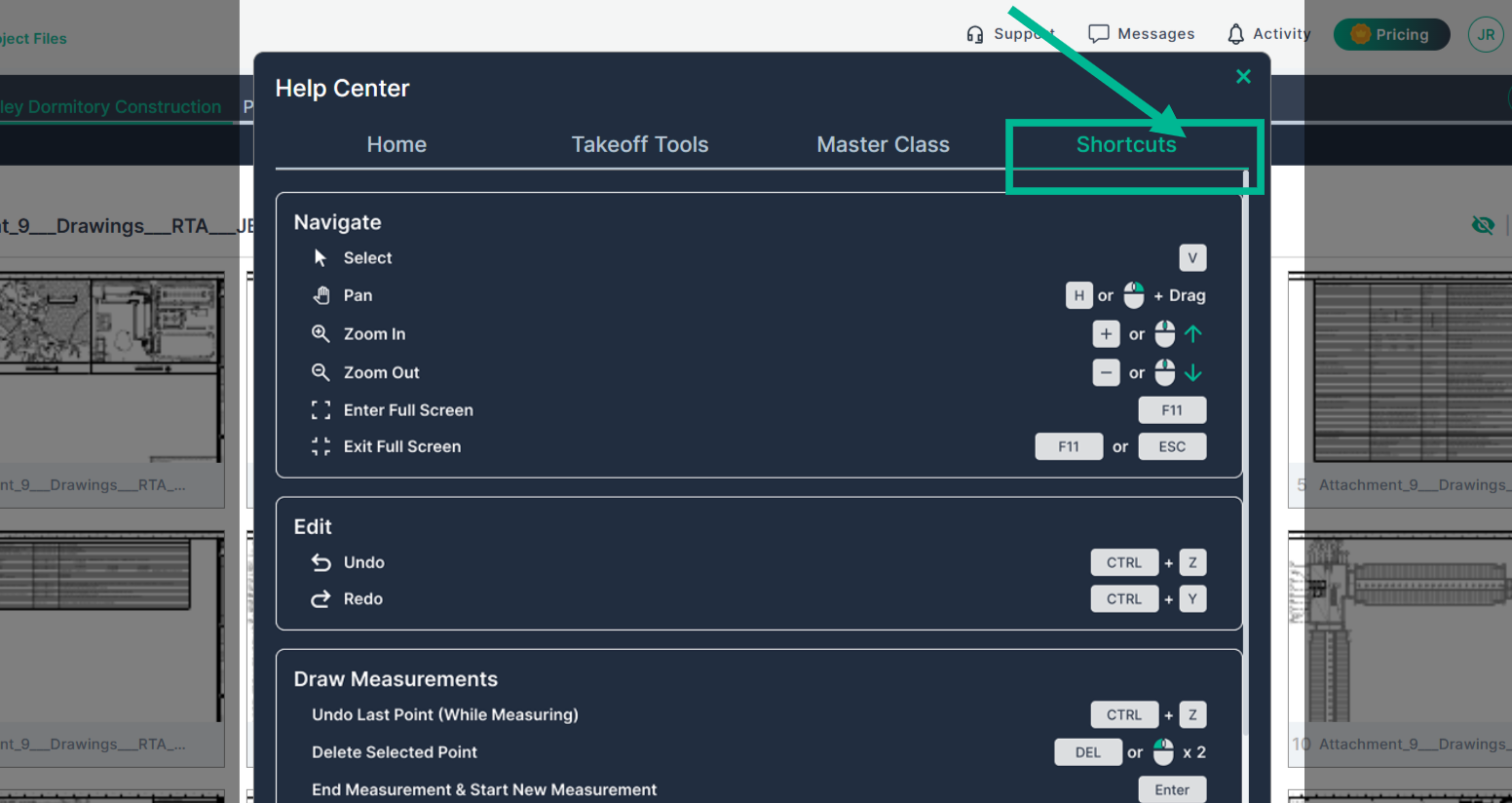
Review the Help Center's Shortcuts inside of Takeoff to learn how to control and navigate a plan page while setting your scale and creating measurements.
Standard
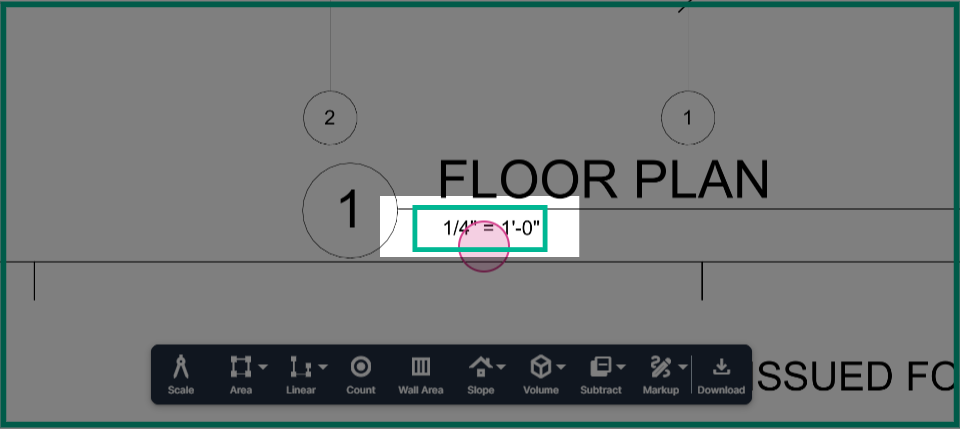
Step 1: Identify the scale printed on the page. In this example, the plan calls for a 1/4 inch equals 1 foot scale.
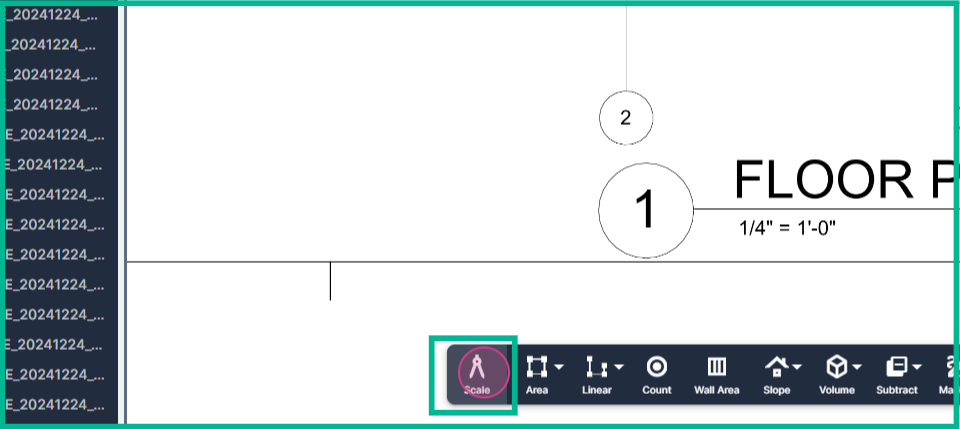
Step 2: Navigate to the toolbar and click the scale button.
Step 3: The selection menu will always open to standard mode with 1/8 of an inch equals 1 foot. This is the most common commercial scale.
If you need a different scale, click the menu to scroll up or down to find the scale you need.
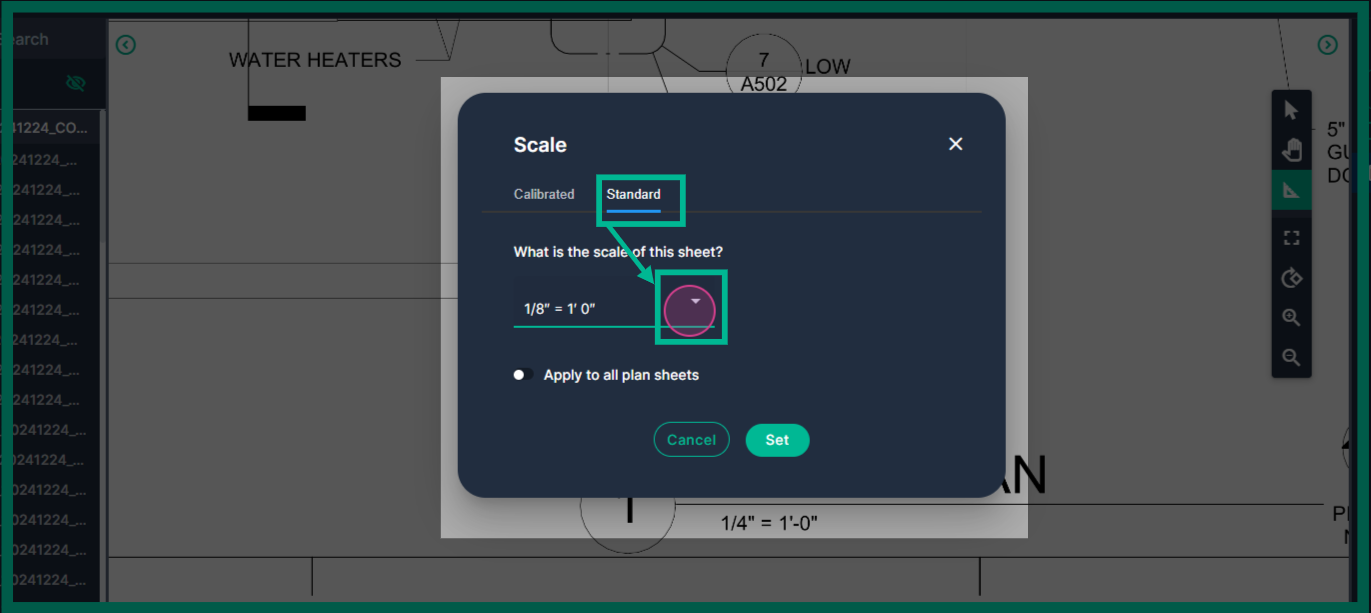
Step 4: Select the scale that aligns with the scale provided for the plan with a left click.
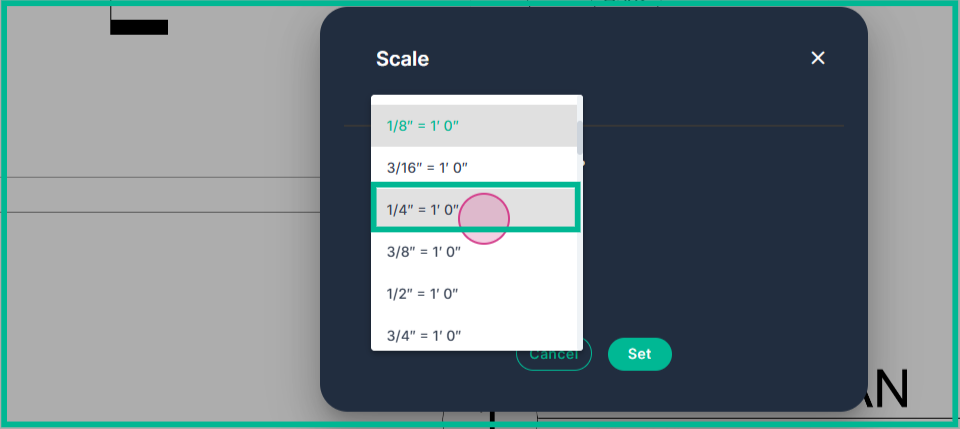
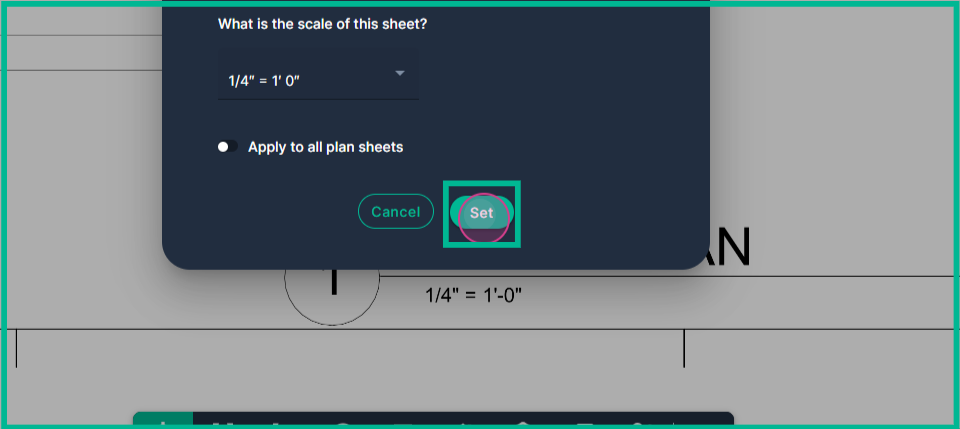
Step 5: Click Set on the box. Your scale is now set for the page.
Verify Scale Accuracy
Some plans are scanned in incorrectly before they reach you or PlanHub, and it is possible that the architect may have made a mistake. Verifying the scale ensures you are taking accurate measurements
Step 1: Verify the accuracy of the scale once you have set the scale and are using the ruler tool.
-
Click the Markup tool, then click Ruler.
-
Use a known measurement to measure with the rule see if it agrees with your scale.
-
Left-click at the beginning point of the measurement, move your cursor to the end of the measurement, and left-click again.
-
If the Ruler measurement reads within 1" of the known measurement from the plans, you can trust that the standard scale and begin measuring for your products using the measurement tools (Area, Linear, Count, Wall Area, Slope, Volume, Subtract).
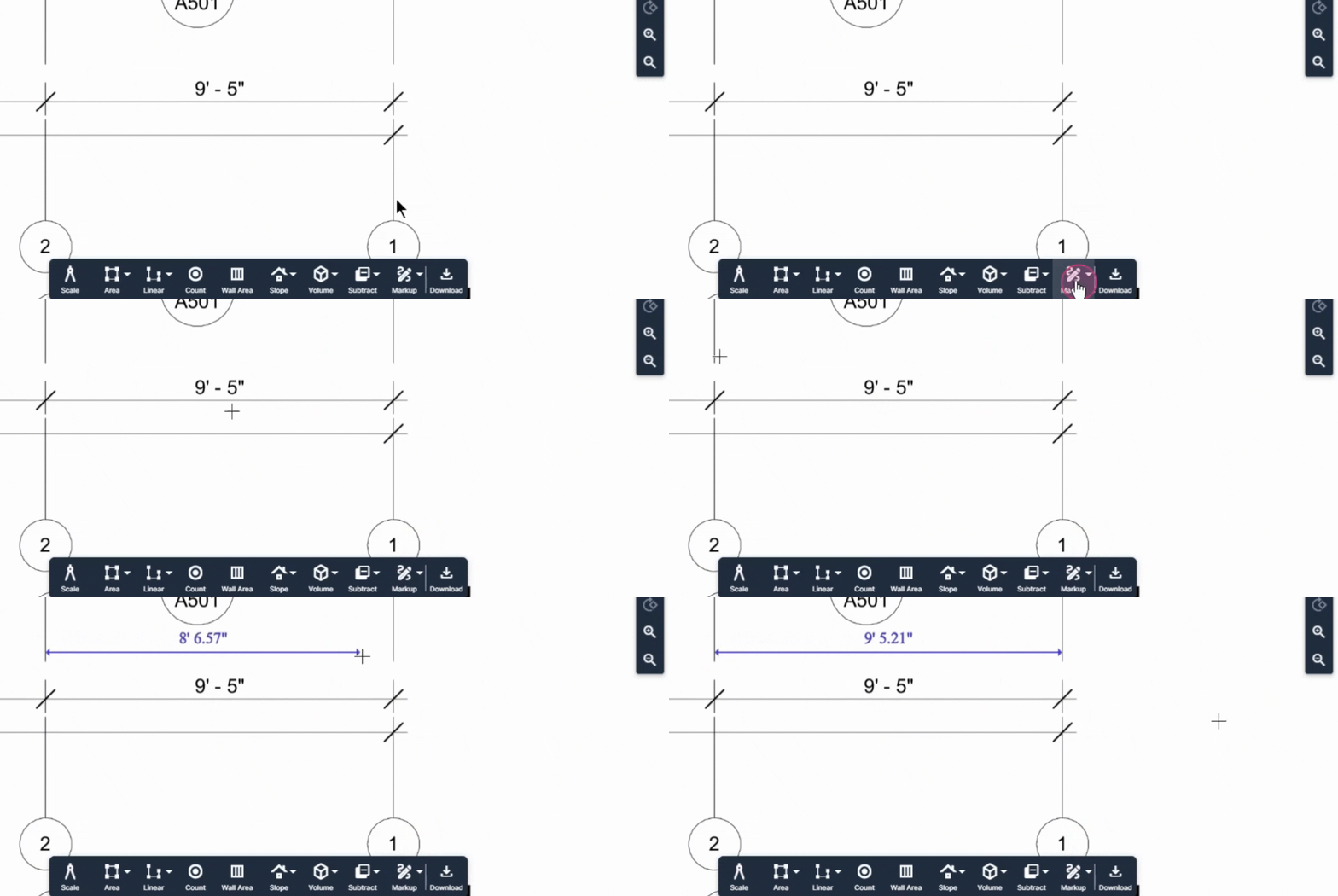
*Tip: Standard man doors are commonly 3' wide openings; however, you should confirm a measurement (even if confirming from another page) before using it for a ruler verification.
Step 2: If the ruler verification measurement reads incorrectly (is more than -/+ 1" off), you will need to adjust to using Calibration for the scale.
Calibrated Scale
Step 1: If the page doesn't have a printed scale, or the scale doesn't match your measurement, you can calibrate your scale.
-
Locate the longest known measurement on the pan/drawing.
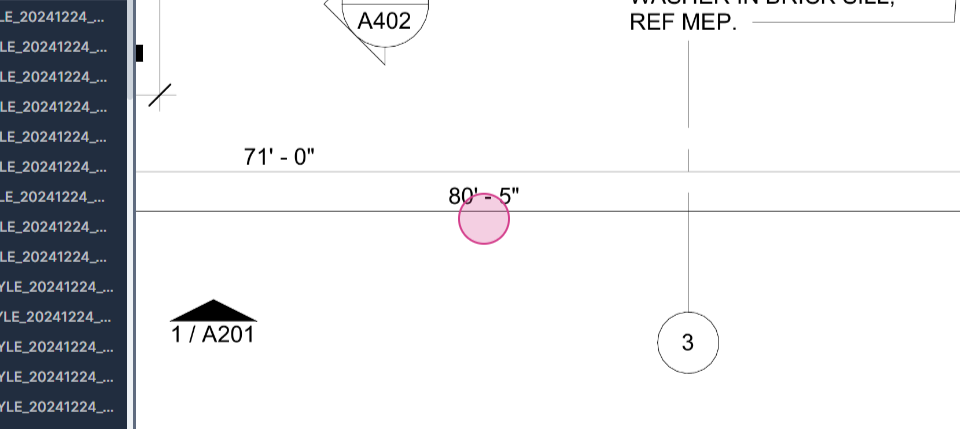
Step 2: Engage the Calibrated scale tool
-
Navigate to the Scale tool in the toolbar at the bottom of your page and click it.
-
Select the Calibrated tab.
-
Enter the length of the line you're going to draw.
-
Click the Set button
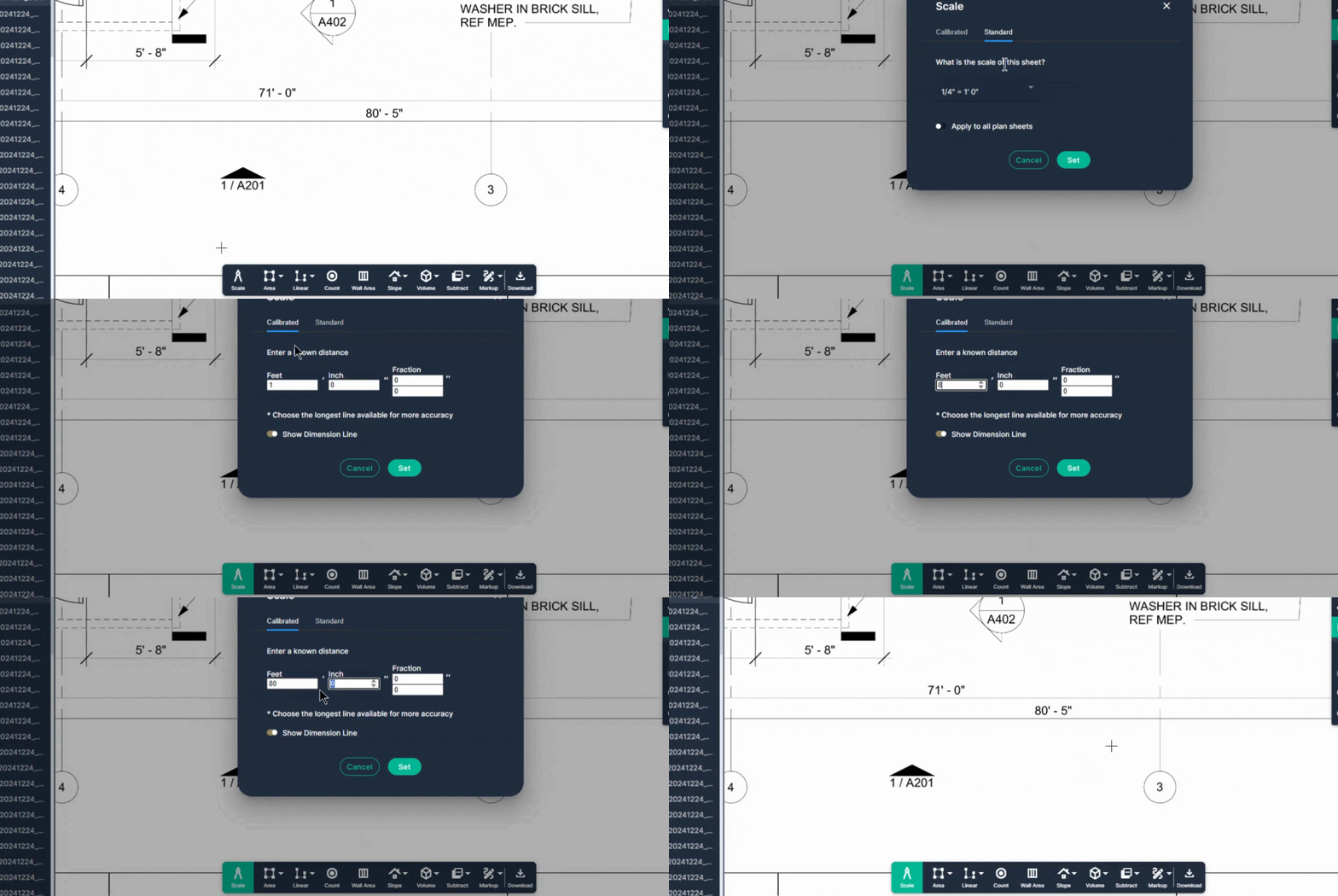
Step 3: Draw the calibration line to set the scale
-
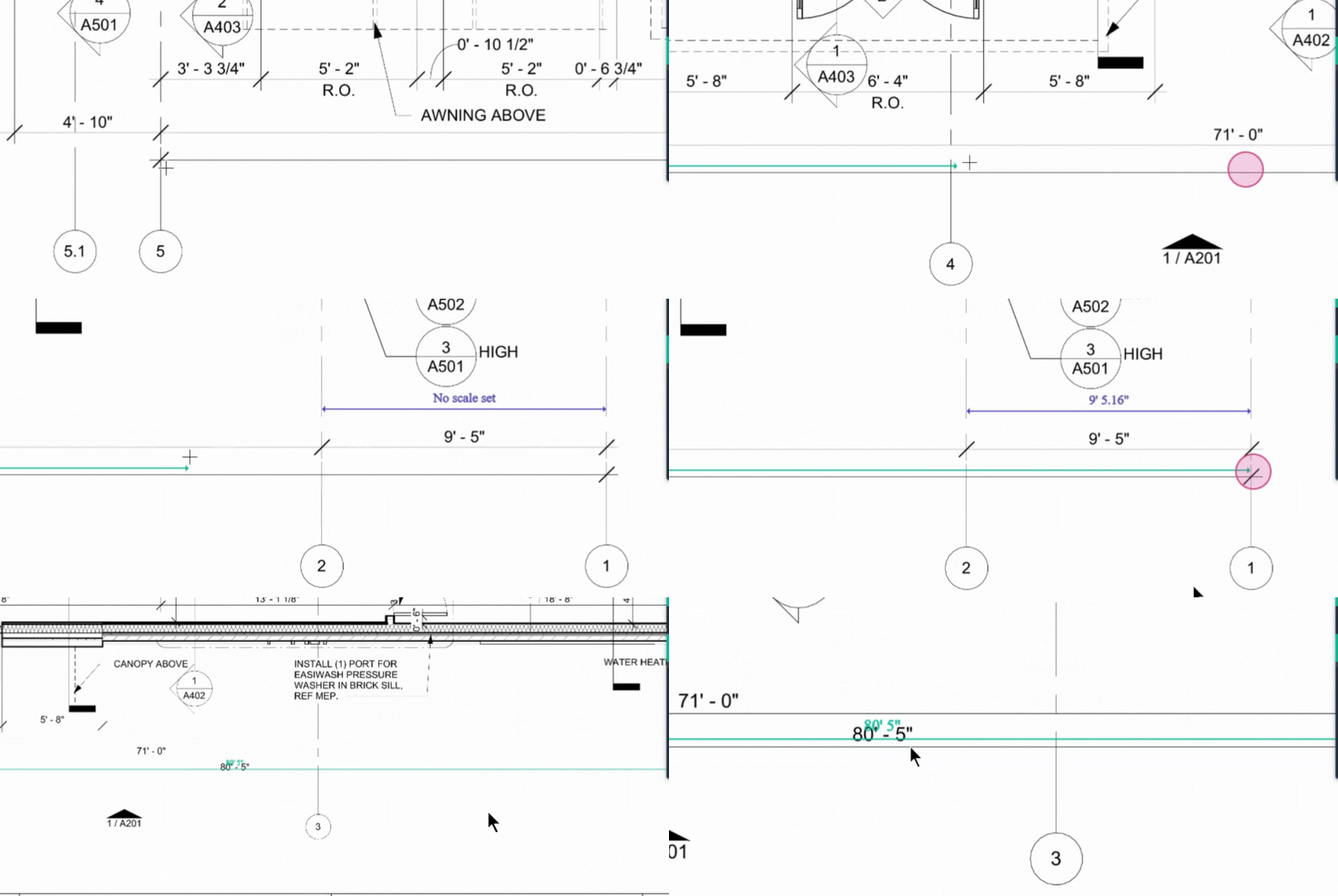
Draw a line to define that length in the system.
-
Left-click at the beginning point of the measurement.
-
The calibration line will follow you as you move your cursor across to the endpoint
-
Tip: If you need to Pan, right-click & hold (grabs the sheet) while dragging your cursor to adjust the area of the drawings you are viewing. Release right-click once you have recentered the sheet.
-
-
Move your cursor to the end of the known measurement, and left-click again.
-
Your page now has a calibrated scale using the known measurement.
Calibrated Scale Verification
Step 1: If you tried Standard first and needed to calibrate, check your verification ruler measurement to verify your calibrated scale's accuracy.
If you were not provided a standard scale, follow the steps for "Verify Scale Accuracy" using the ruler to verify the accuracy of your calibration.
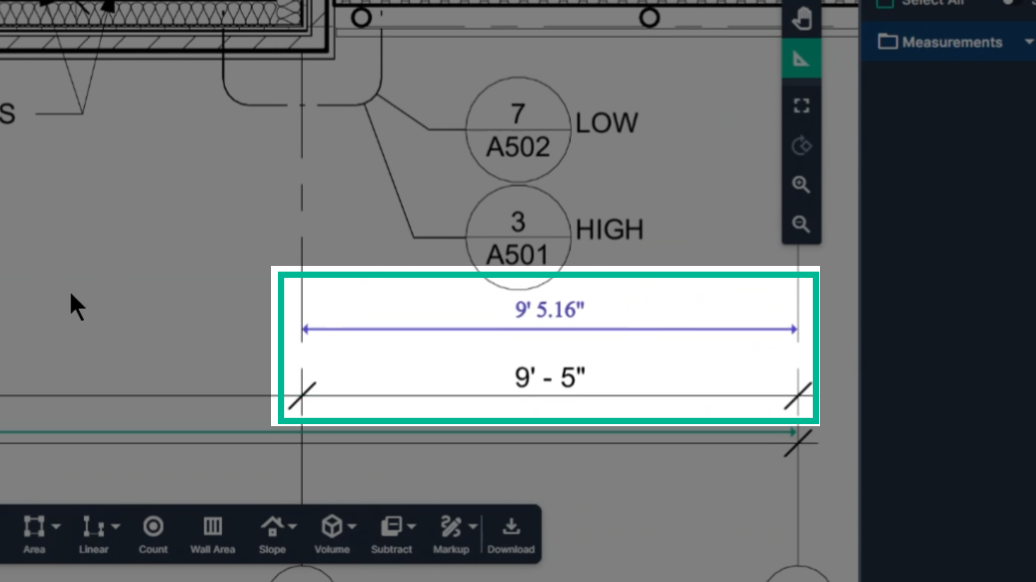
You've now successfully set and verified a scale in PlanHub's takeoff tool.
Next Steps & Tips:
-
Scales can be reset as often as needed on each page.
-
If you forget to set your scale before you take measurements, it will not be able to provide you with a known value (example: area or linear measurement may read as 0 sqft or 0 LF).
-
Do not delete your measurements. Go set your scale using the scale tool in your toolbar, and the measurements output should update accordingly.
-
You may need to refresh after setting the scale.
-
-
It is NOT recommended that you use the "Apply to all plan sheets" toggle when setting your scale, as this may cause you to get bad measurements on other pages if you forget to follow the best practices when you are working on a new page.
Troubleshooting
Contact us if you need assistance or to report an issue:
-
PlanHub Contact Page: https://planhub.com/contact/
-
Customer Facing Support Ticket Link: https://knowledgebase.planhub.com/knowledge/kb-tickets/new
- Schedule a Free 1-on-1 Takeoff Training: https://meetings.hubspot.com/zac-low/takeoff-and-estimation