![NEW_PlanHub_Logo_Navy.png]](https://knowledgebase.planhub.com/hs-fs/hubfs/Design/PH%20Logos/NEW%202024%20PH%20Logos/NEW_PlanHub_Logo_Navy.png?height=40&name=NEW_PlanHub_Logo_Navy.png)
Before You Begin
-
You must have an active PlanHub subcontractor account with Premier Plan access.
PlanHub Email Integration Guide
Stay connected with General Contractors and keep project communication organized using PlanHub’s Email Integration. This feature lets you send and receive messages with GCs directly from your professional email, while automatically tracking conversations within PlanHub. Let’s walk through setting up and using Email Integration on your Premier PlanHub account.
Step 1: Log in and click your username in the upper right-hand corner of PlanHub.
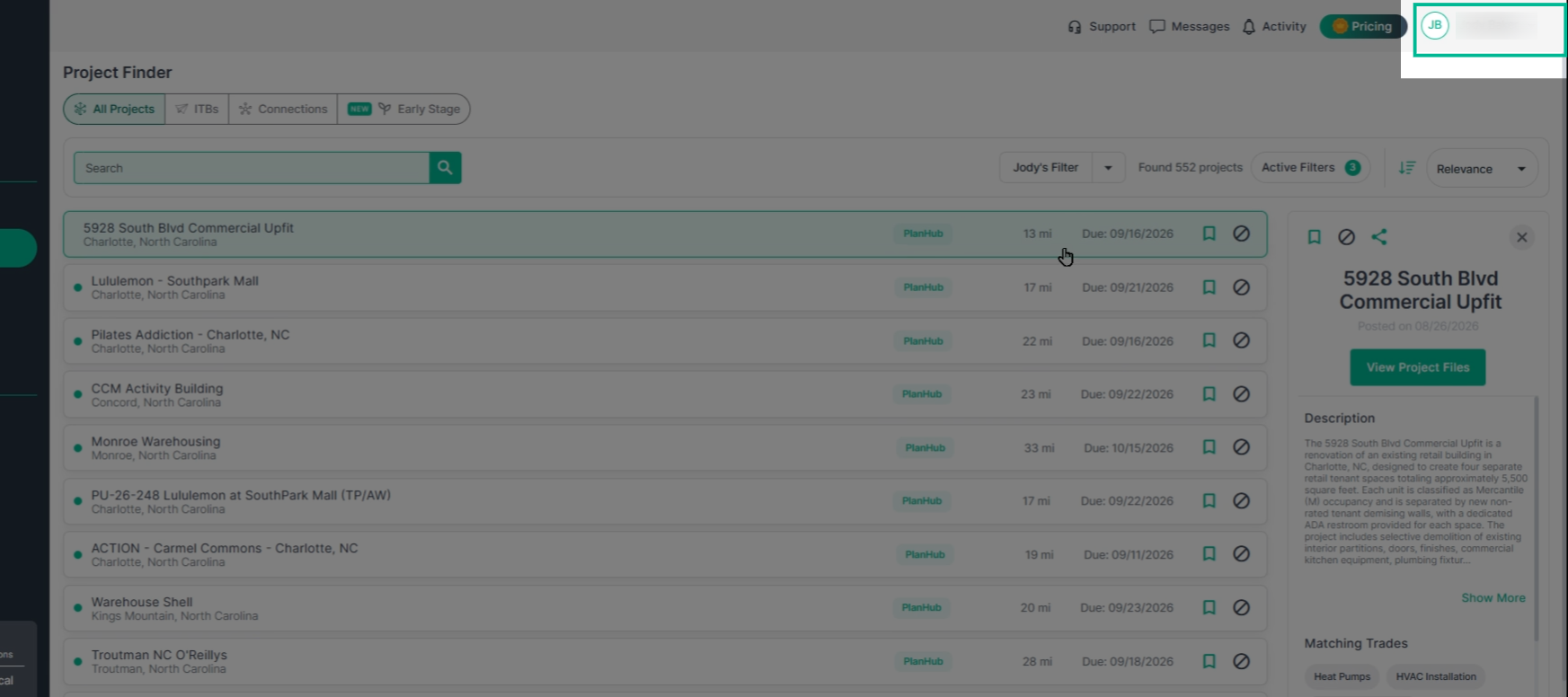
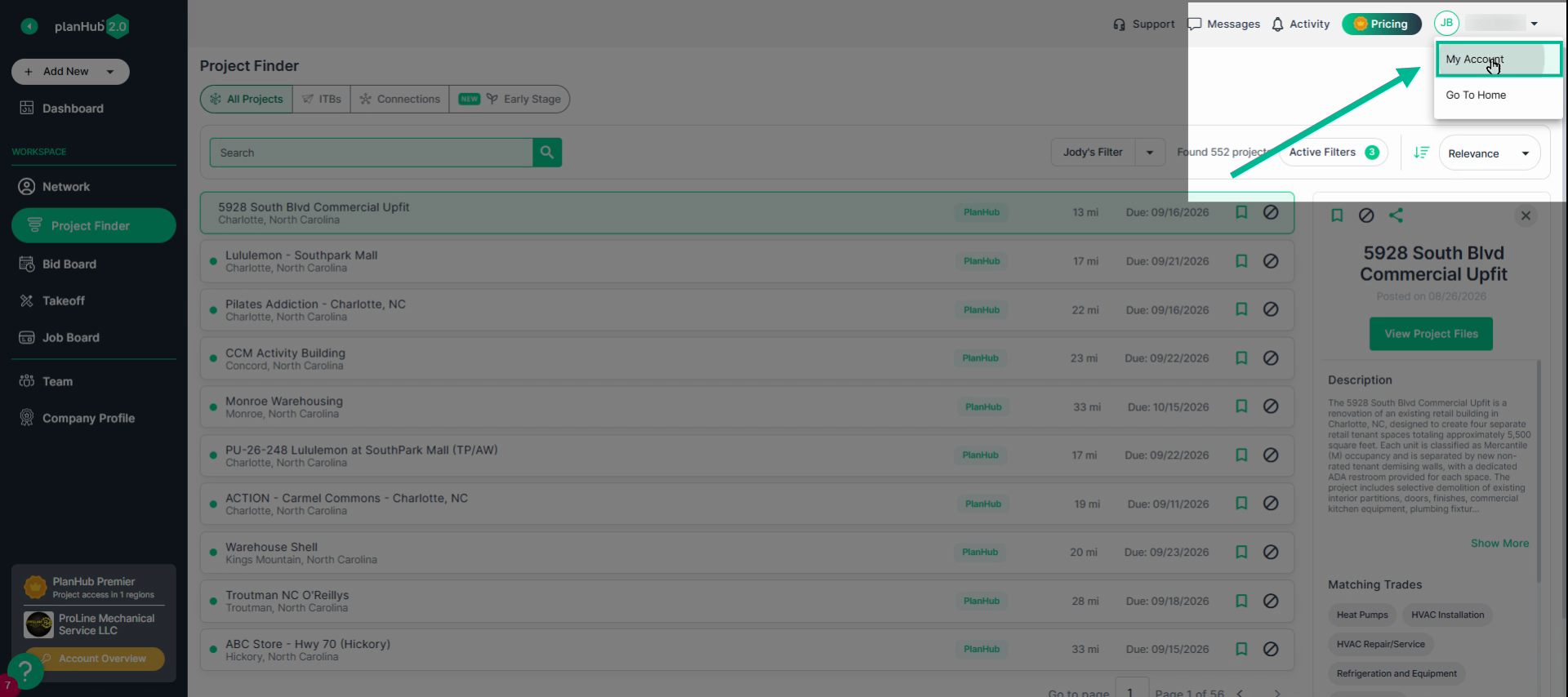
Step 2: In the dropdown, select My Account.
Step 3: Scroll down to the Email Integration section.
Step 4: Click the prompt to connect your email.
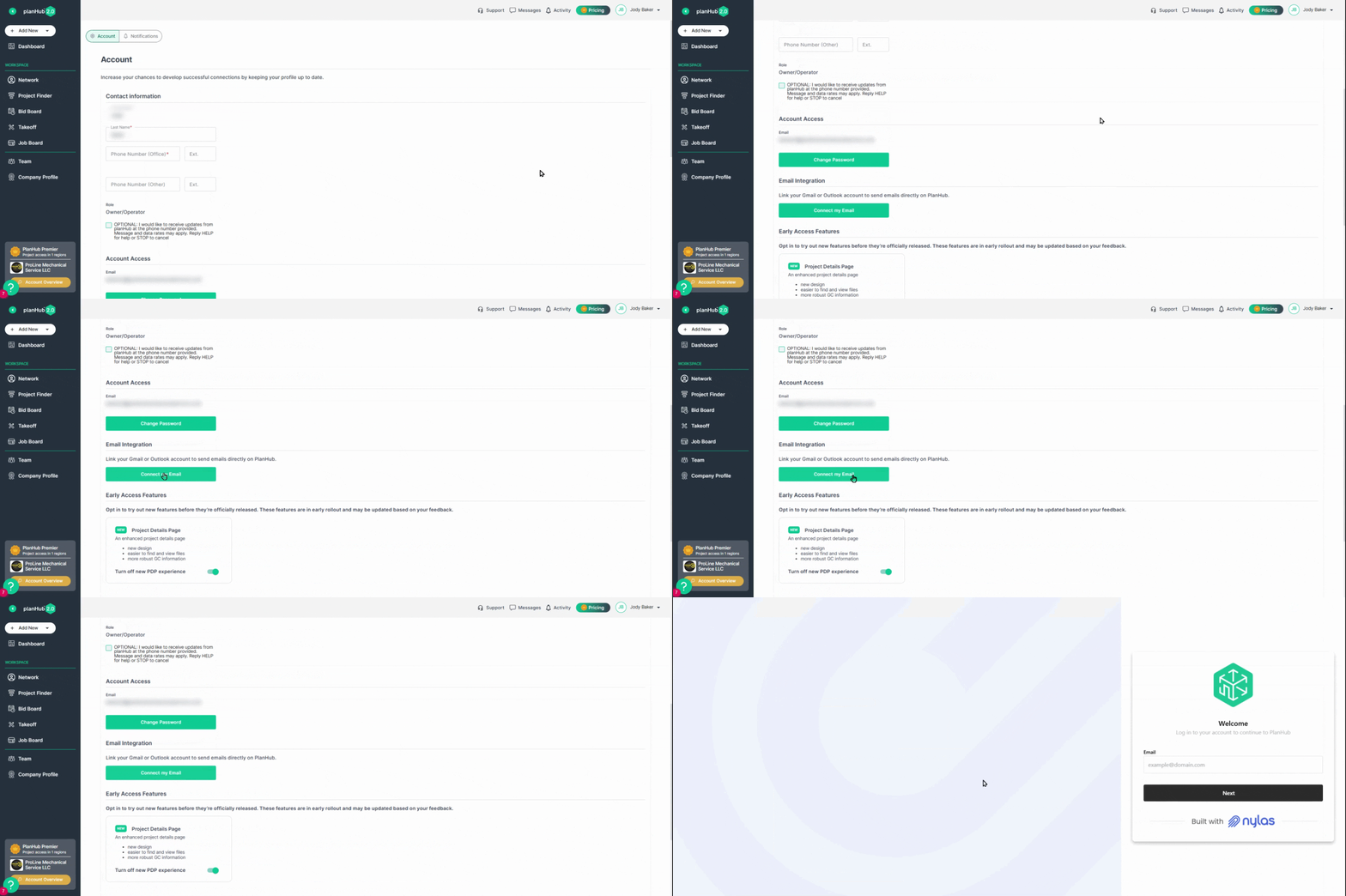
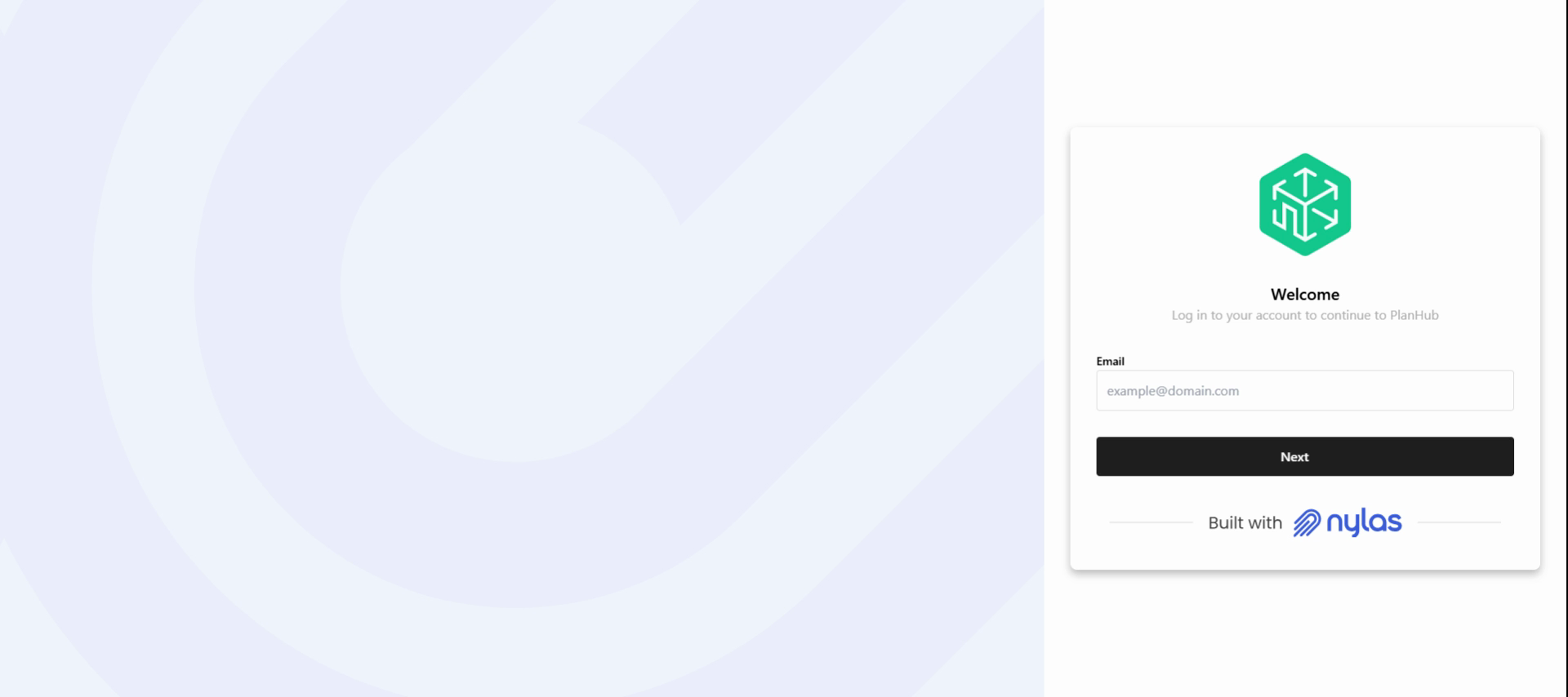
Step 5: Follow the on-screen instructions to log into your professional email account. Make sure the email matches the one on your PlanHub account.
Step 6: Once connected, return to the My Account page to confirm. You’ll see your email address, provider, and connection status in the Email Integration panel.
Step 7: To disconnect your email at any time, click Unlink Account from the same section.
Now you’re ready to communicate with General Contractors from within any project.
Step 1: Open the project you want to work on.
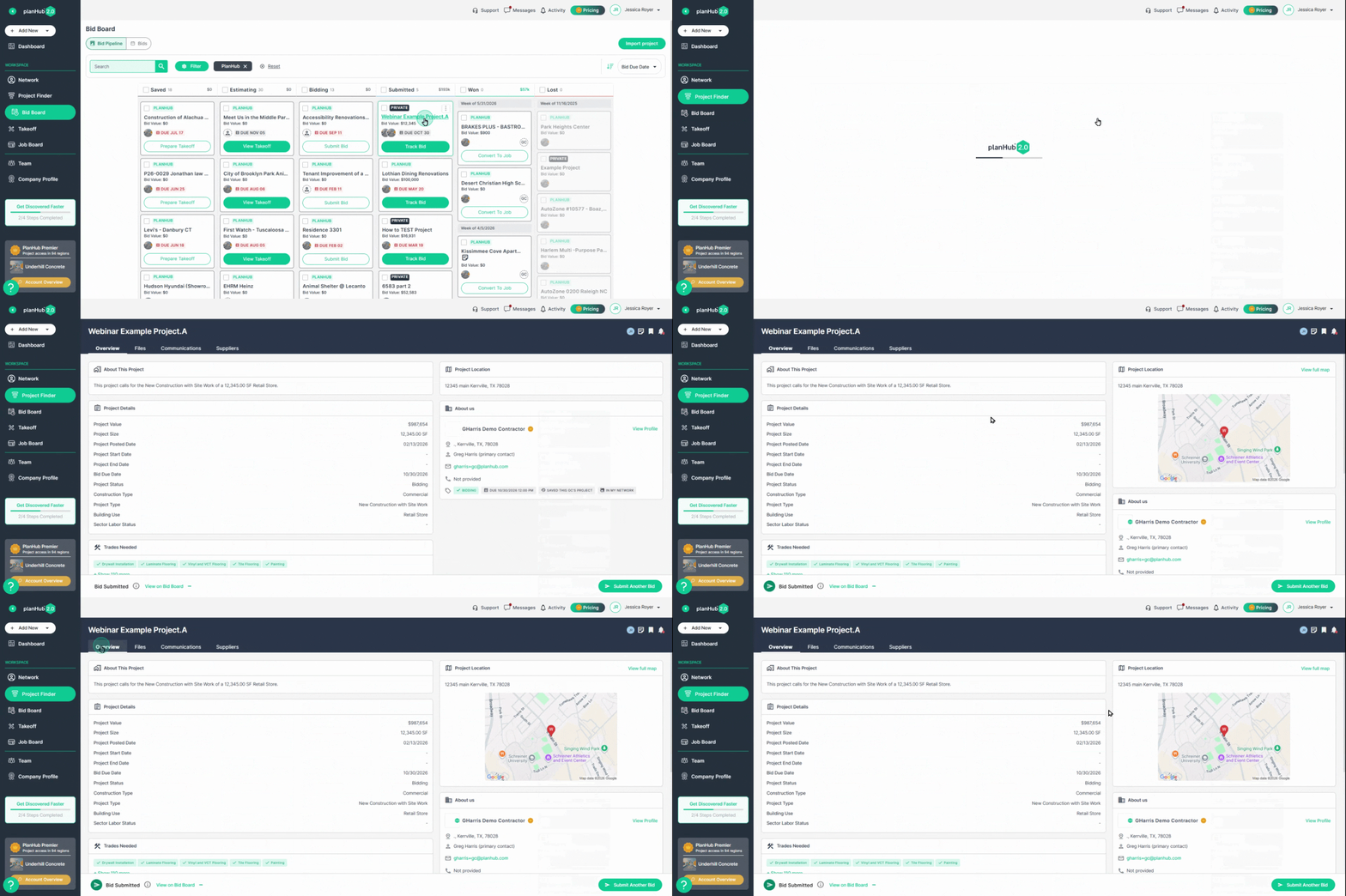
Step 2: Find the General Contractor section and click the email address of the GC you want to contact.
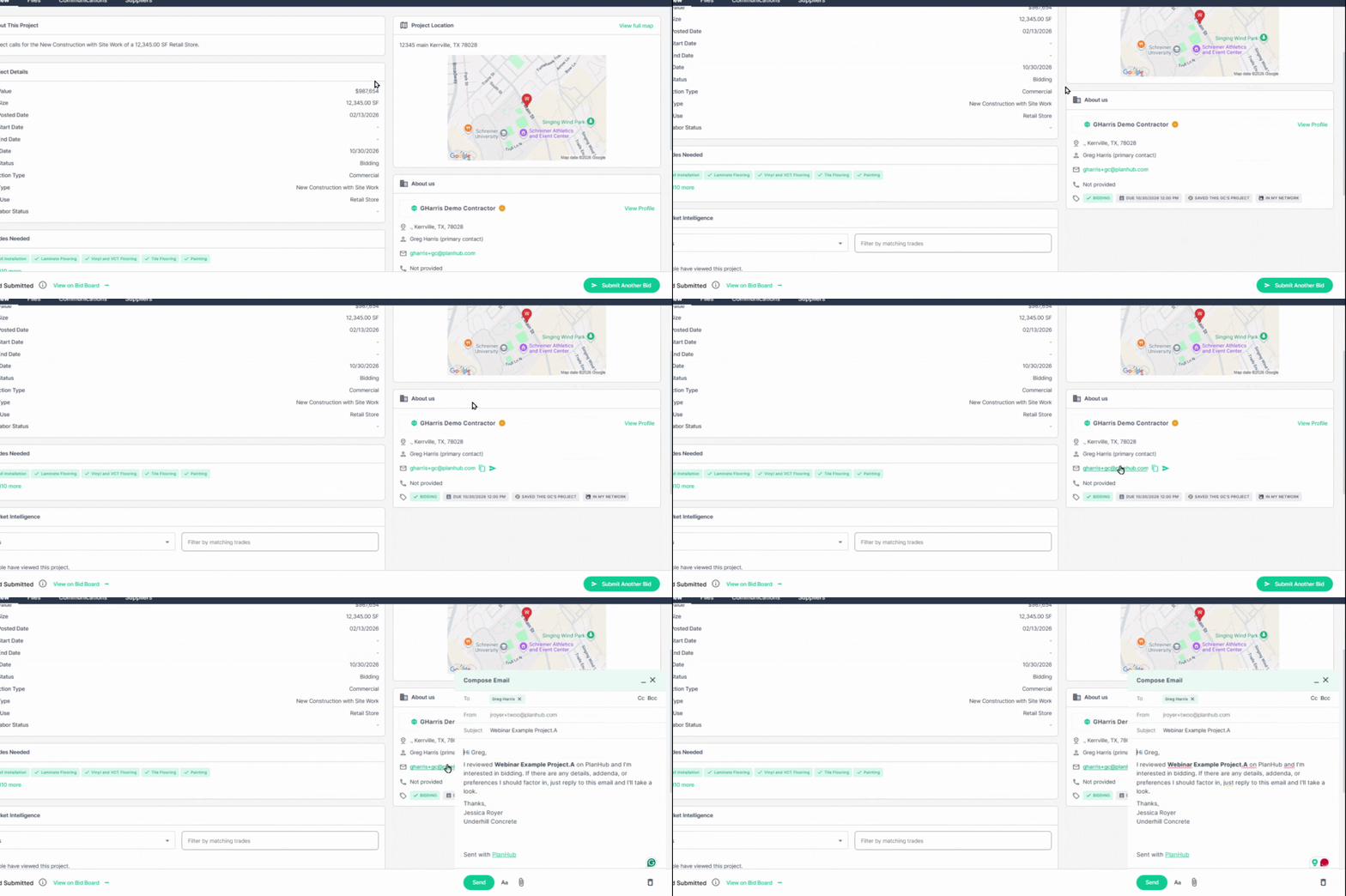
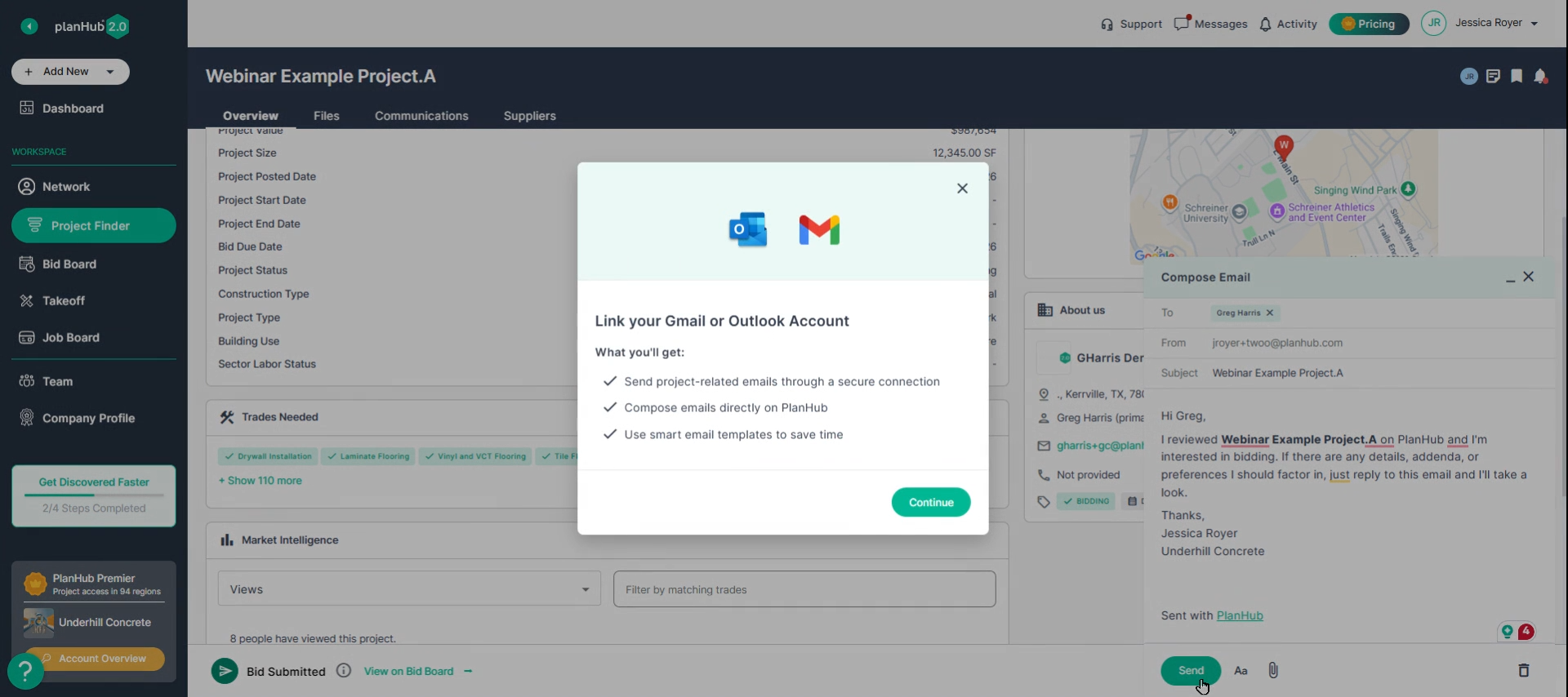
Step 3: If your email isn’t connected, PlanHub will prompt you to reconnect before proceeding.
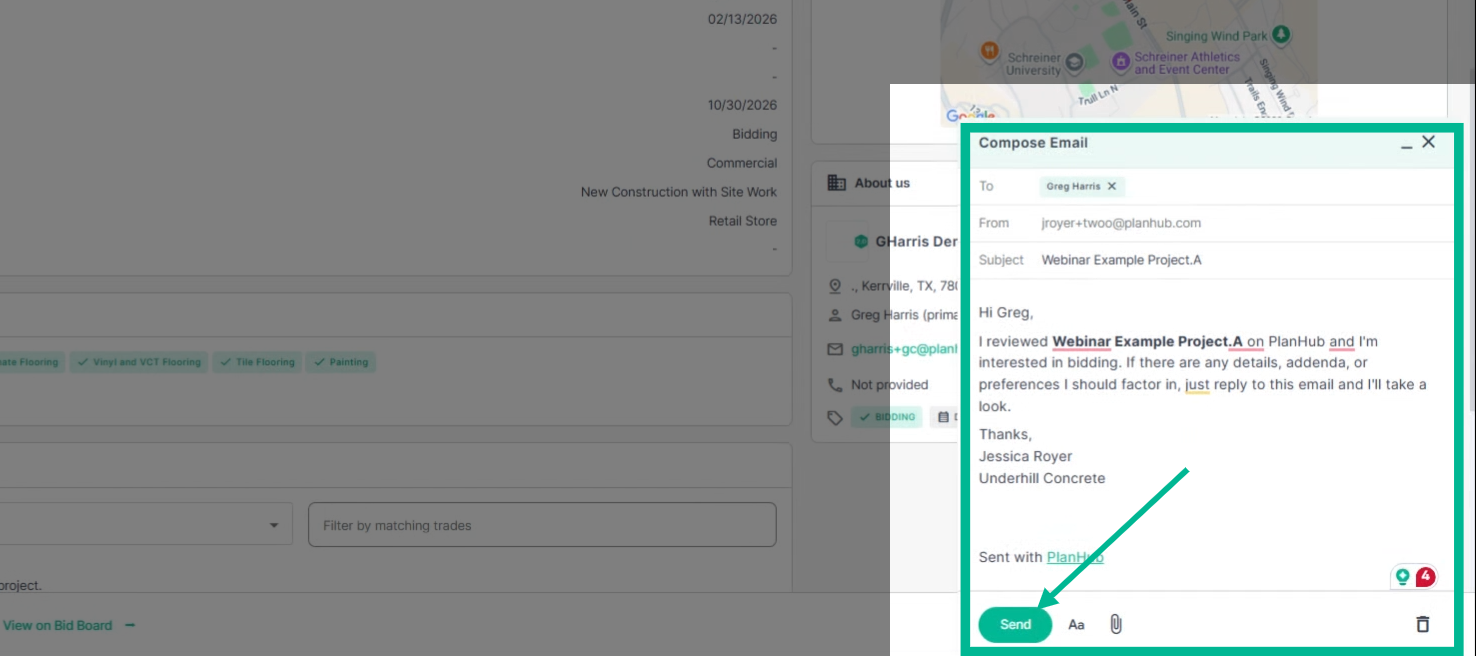
Step 4: Review or update your outgoing message as needed.
Step 5: Click Send to deliver your email to the General Contractor. Your message is now automatically logged in the project’s Communications section for easy tracking.
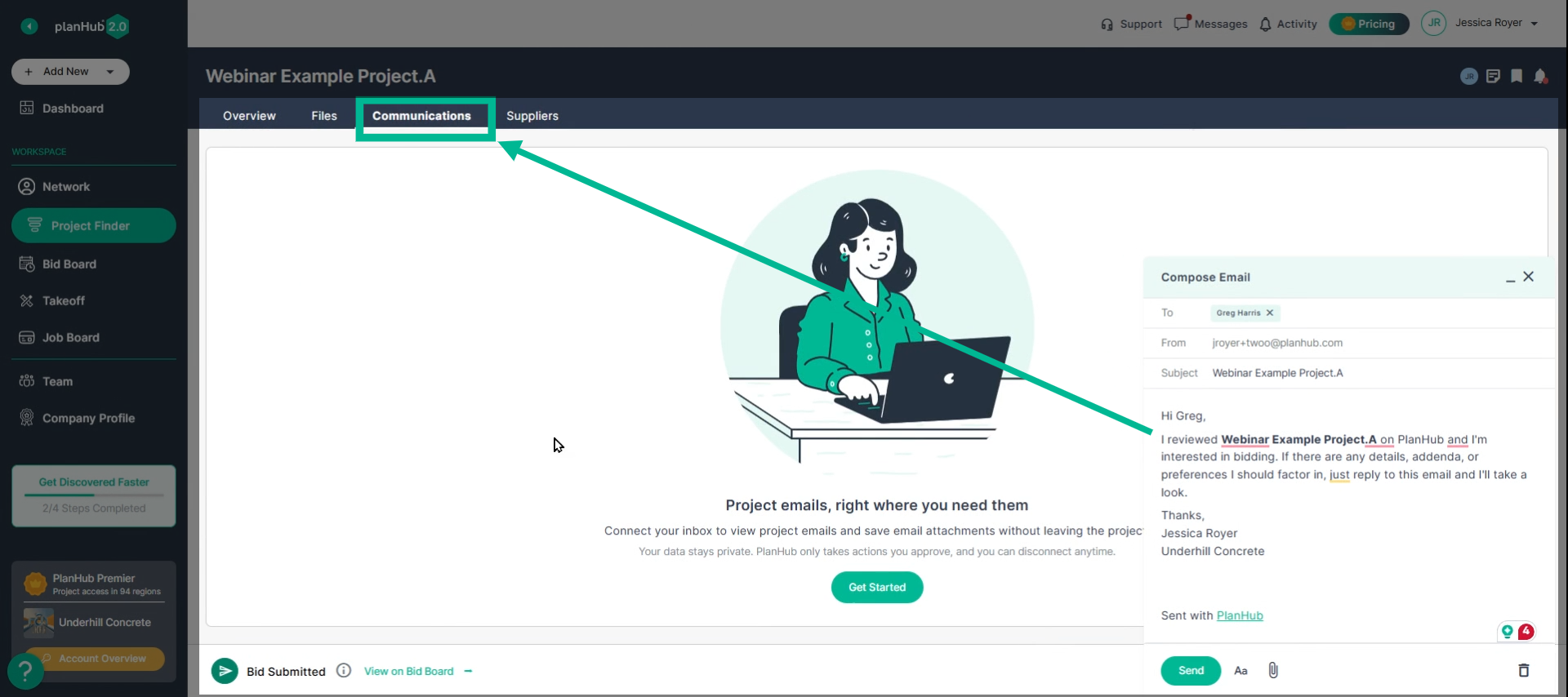
Step 6: Any emails sent—or replies you receive—through PlanHub’s Email Integration show up both in your professional email inbox and in your project’s Communications history.
Communicate more efficiently with GCs, keep project emails together, and stay organized with PlanHub’s Email Integration. Connect your account today to streamline your bidding process and strengthen your business relationships.
Contact us if you need assistance or to report an issue:
- PlanHub Contact Page: https://planhub.com/contact/
- Customer Facing Support Ticket Link: https://knowledgebase.planhub.com/knowledge/kb-tickets/new
- Customer Success Team: CustomerSuccess@planhub.com