![NEW_PlanHub_Logo_Navy.png]](https://knowledgebase.planhub.com/hs-fs/hubfs/Design/PH%20Logos/NEW%202024%20PH%20Logos/NEW_PlanHub_Logo_Navy.png?height=40&name=NEW_PlanHub_Logo_Navy.png)
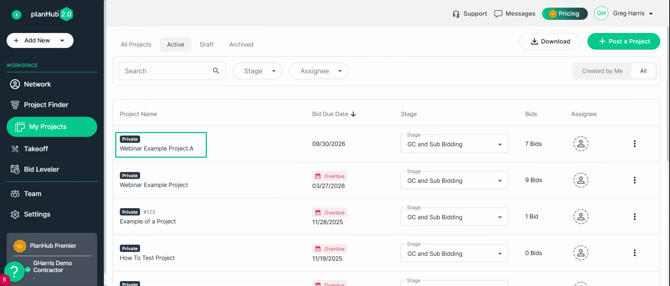
Step 1: Go to the My Projects tab and select the project you want to manage RFIs for.
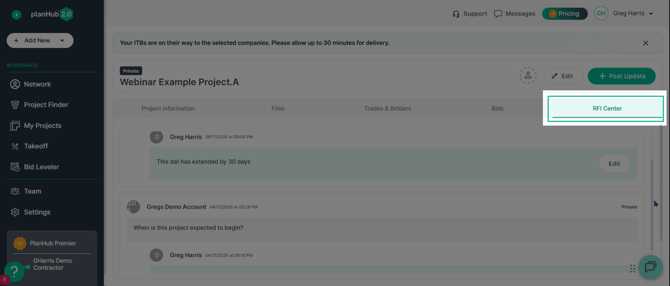
Step 2: Click RFI Center on the right side of the page to open your RFI dashboard.
Step 3: Review the list of all RFIs submitted for your project. 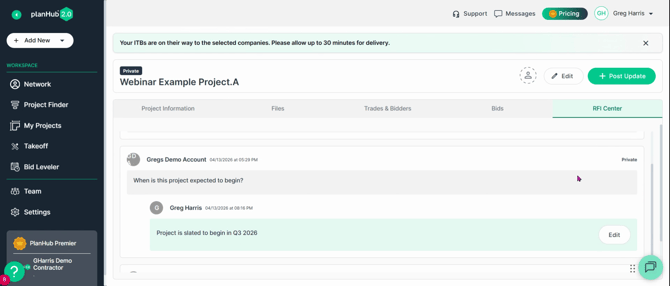
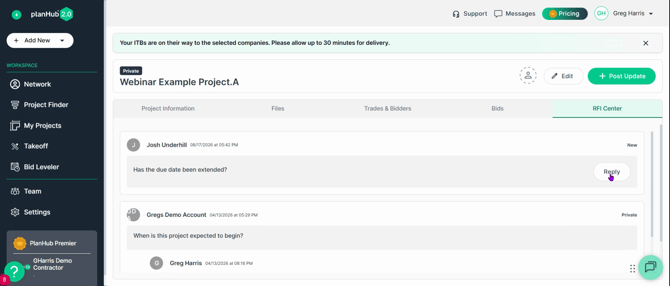
Step 4: To respond, click the Reply button next to the relevant RFI.
Step 5: Choose whether your response should be Public or Private. Type your answer and add any necessary attachments.
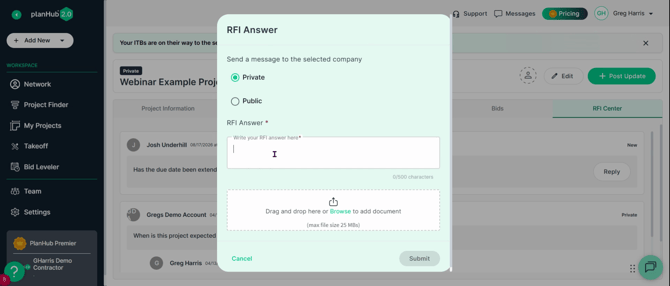
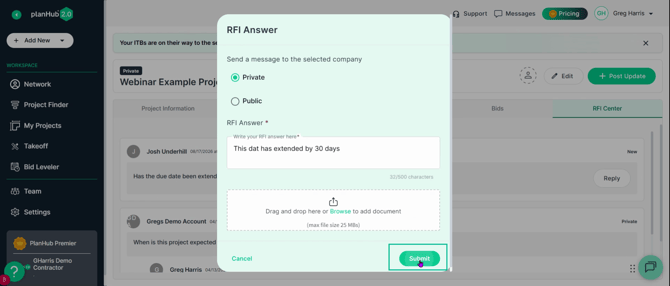
Step 6: Click Submit to send your response.
Step 7: View the log of RFIs you’ve received and replied to, keeping track of all correspondence.
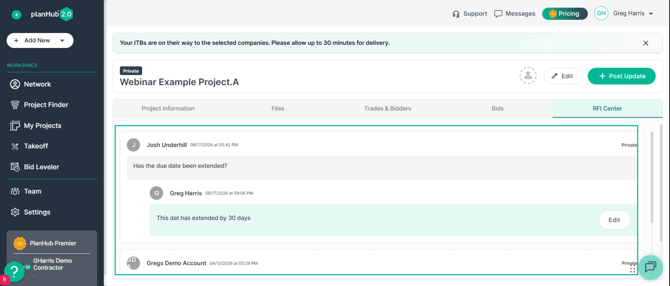
Step 8: Need to make changes? Click the Edit button next to your response, update your message, and submit the changes.

Responding to RFIs quickly within Plano helps keep your projects moving smoothly and ensures everyone gets the information they need. Staying organized in the RFI Center saves you time and reduces miscommunication—helping you deliver projects efficiently.
Troubleshooting
Contact us if you need assistance or to report an issue:
- PlanHub Contact Page: https://planhub.com/contact/
- Customer Facing Support Ticket Link: https://knowledgebase.planhub.com/knowledge/kb-tickets/new