![NEW_PlanHub_Logo_Navy.png]](https://knowledgebase.planhub.com/hs-fs/hubfs/Design/PH%20Logos/NEW%202024%20PH%20Logos/NEW_PlanHub_Logo_Navy.png?height=40&name=NEW_PlanHub_Logo_Navy.png)
Prerequisite: Sign up for your Free General Contractor planHub account. To learn more about creating a GC account, view the Knowledge Base article: How to Create Your General Contractor planHub Account
Step 1: Log into your planHub General Contractor account.
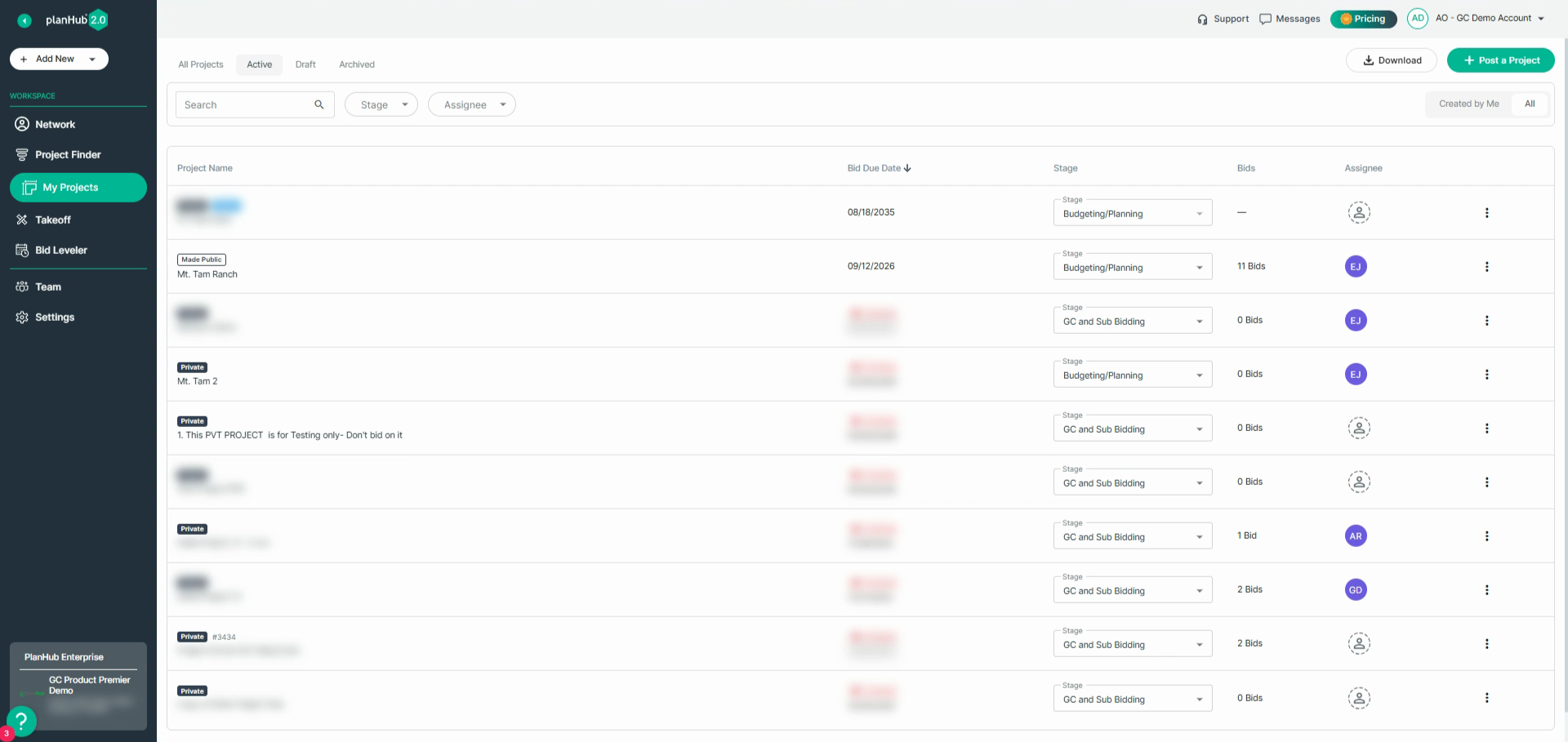
Step 2: Find the question mark icon at the bottom left corner.
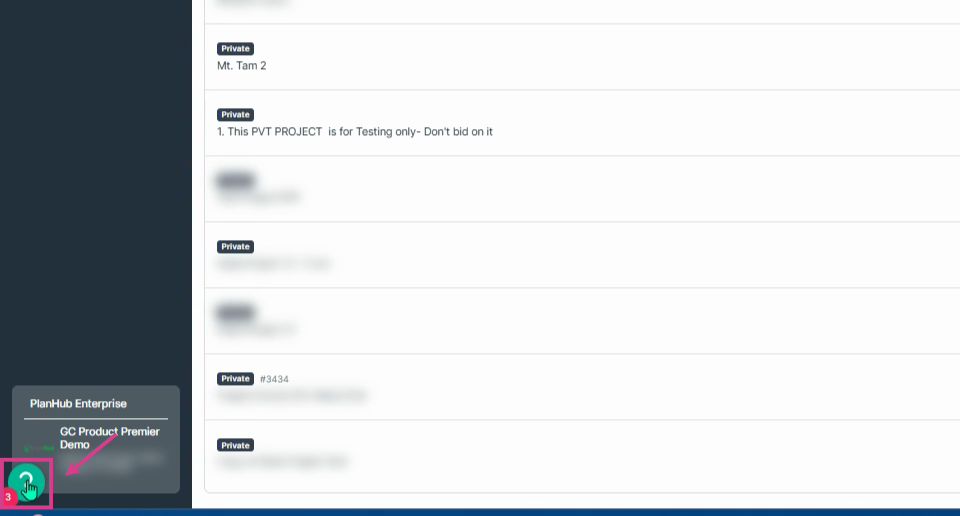
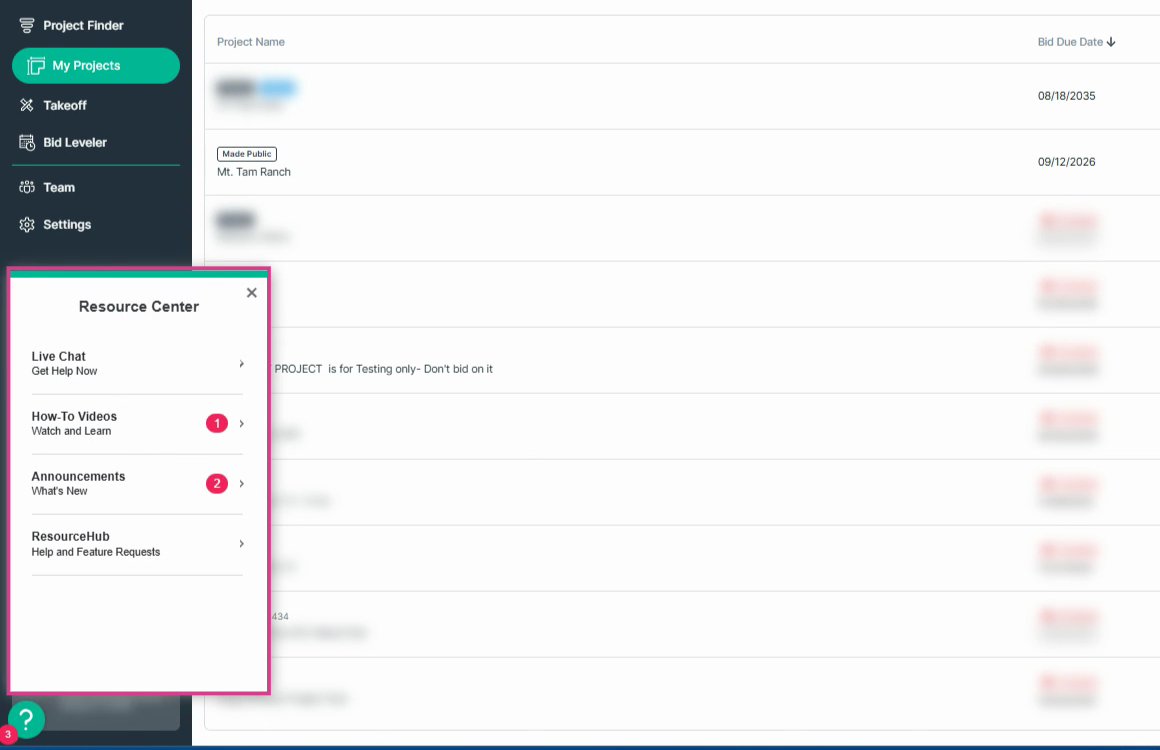
Step 3: Click the question mark to view the Resource Center.
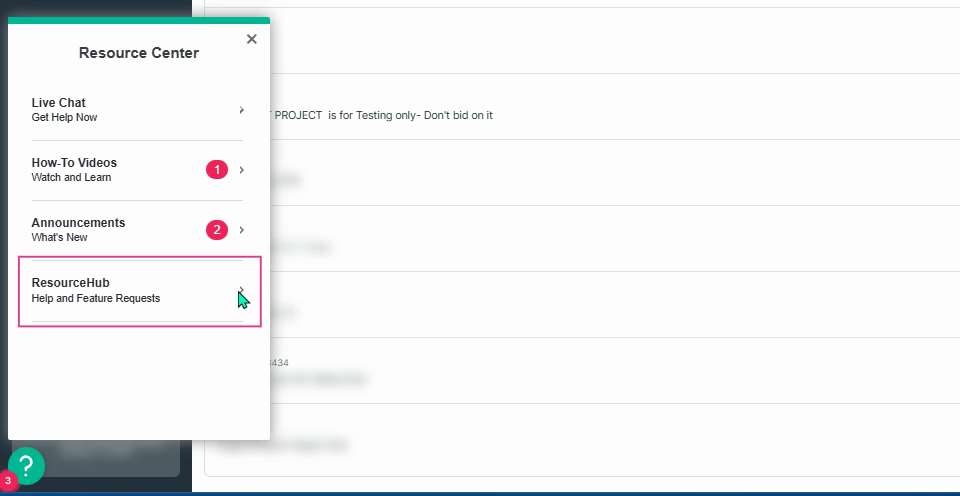
Step 4: Navigate to the ResourceHub and select the right arrow.
Step 5: Select Request a Demo.
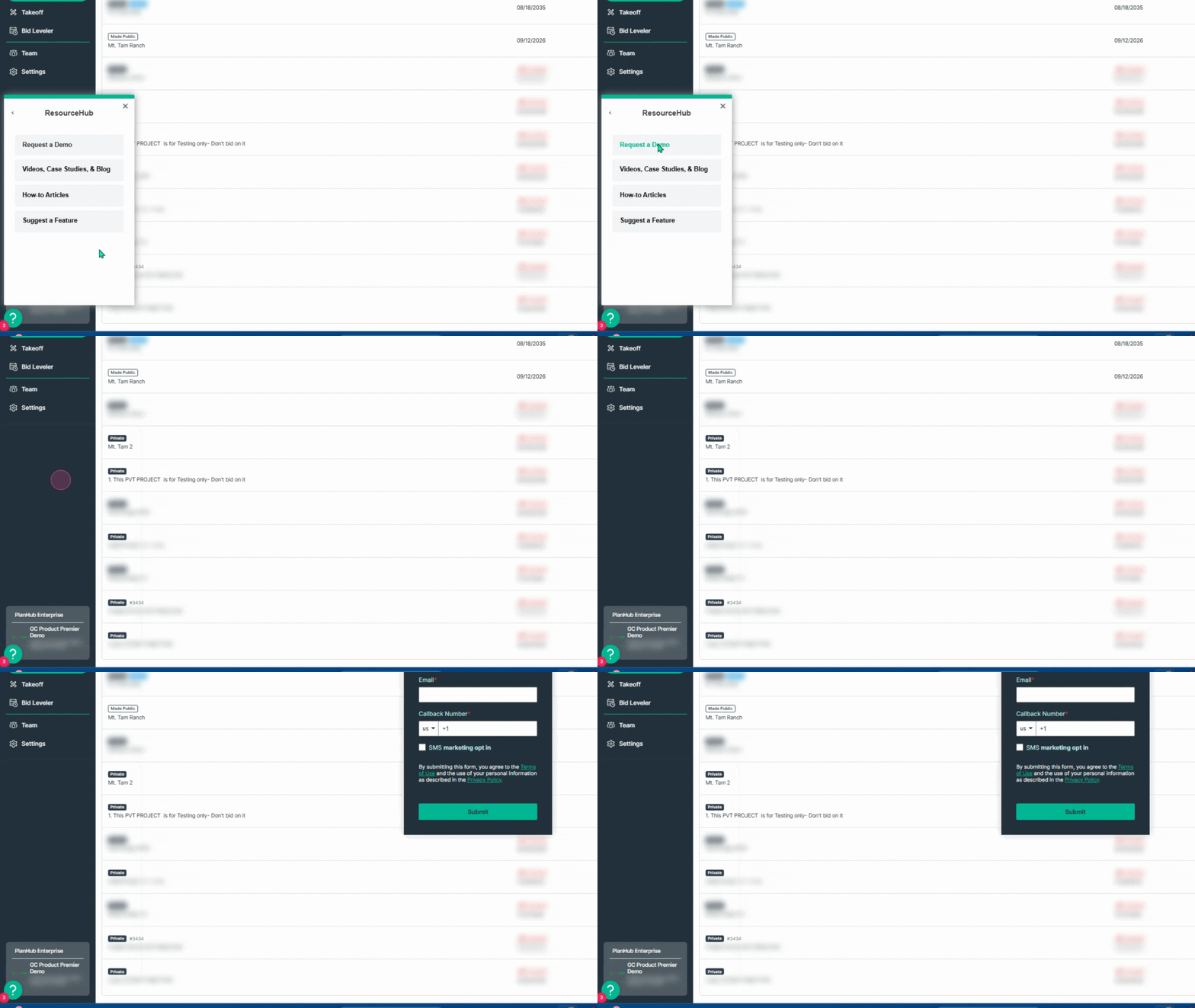
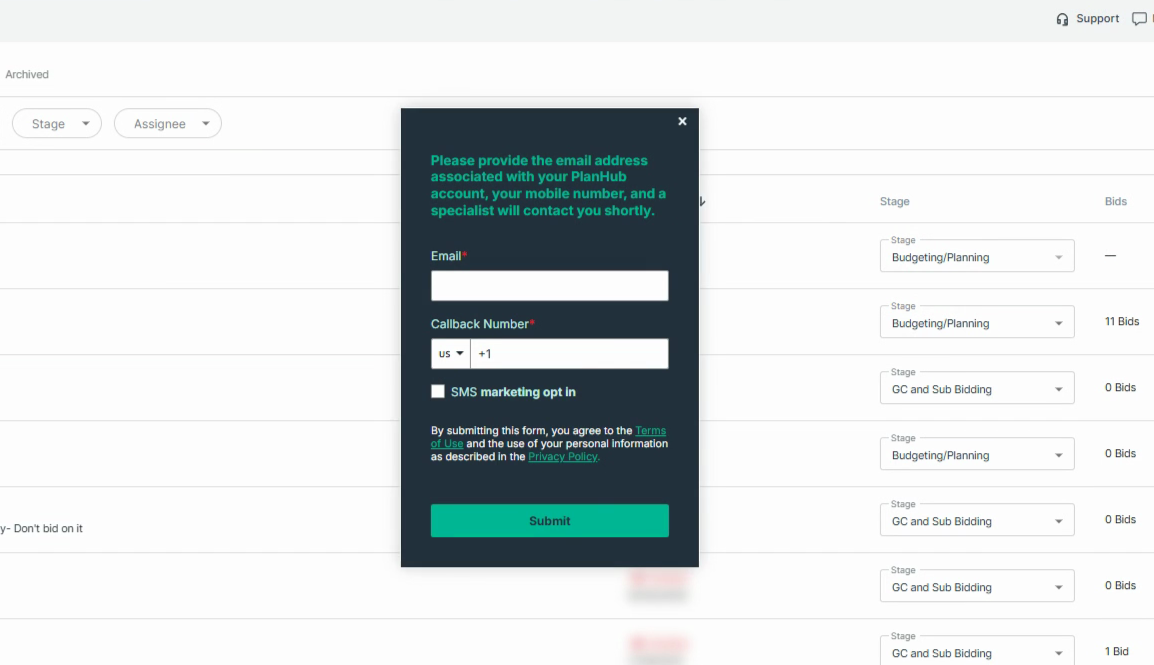
Step 7: Enter the email address linked to your account and your callback number. You can also opt in to receive text messages.
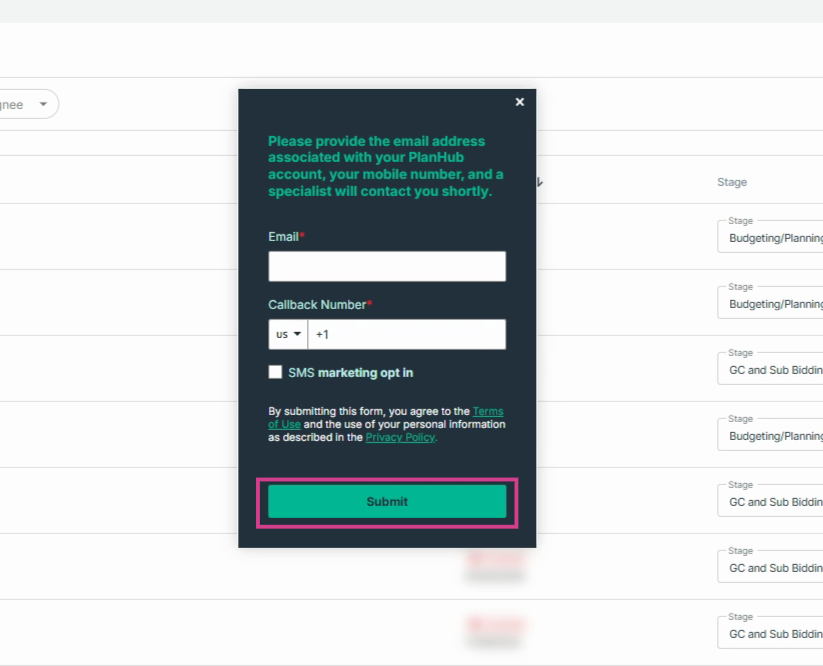
Step 8: Click Submit to send your demo request.
You can also request a demo from the main planHub website.
Step 1: Go to www.planhub.com.
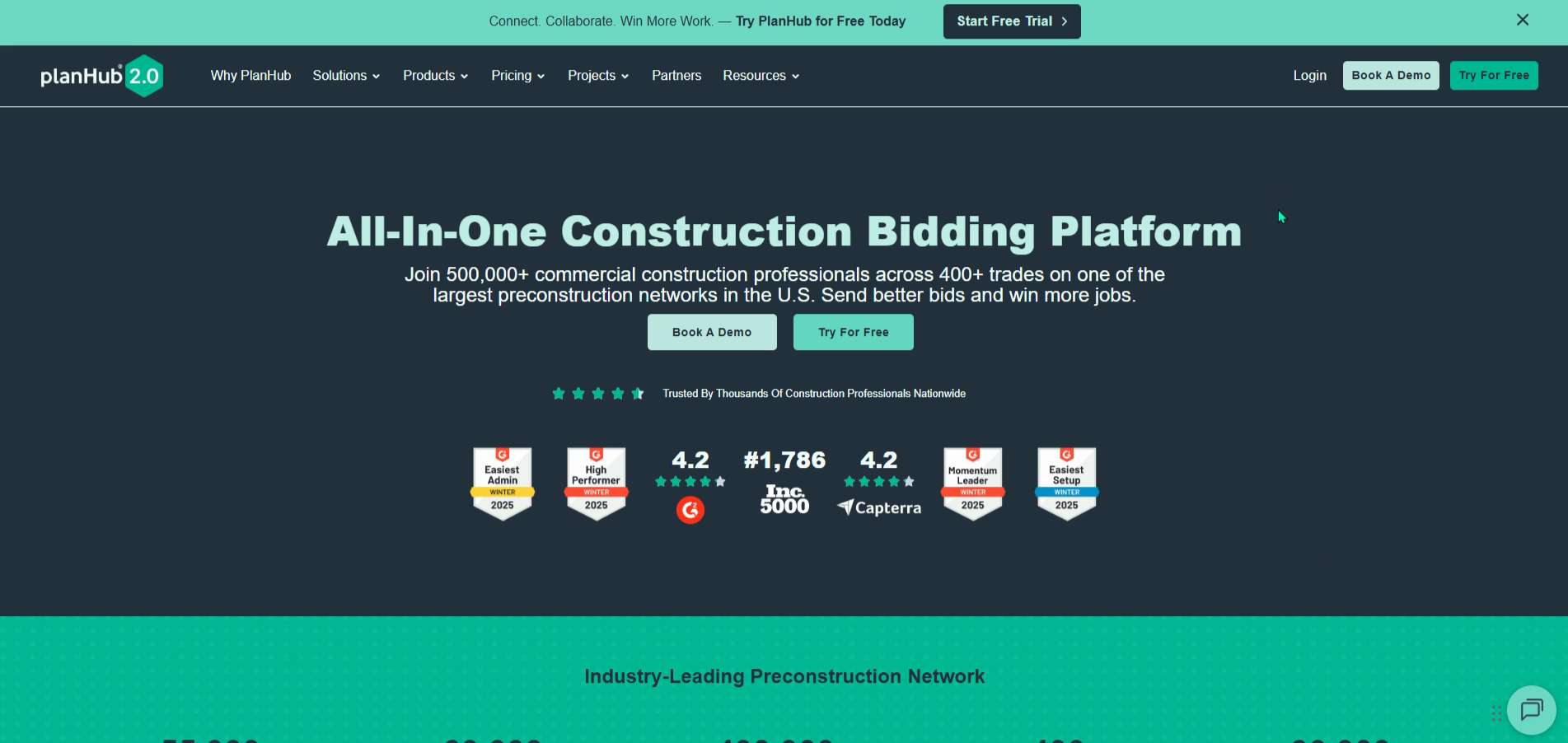
Step 2: Click any Book a Demo button on the site.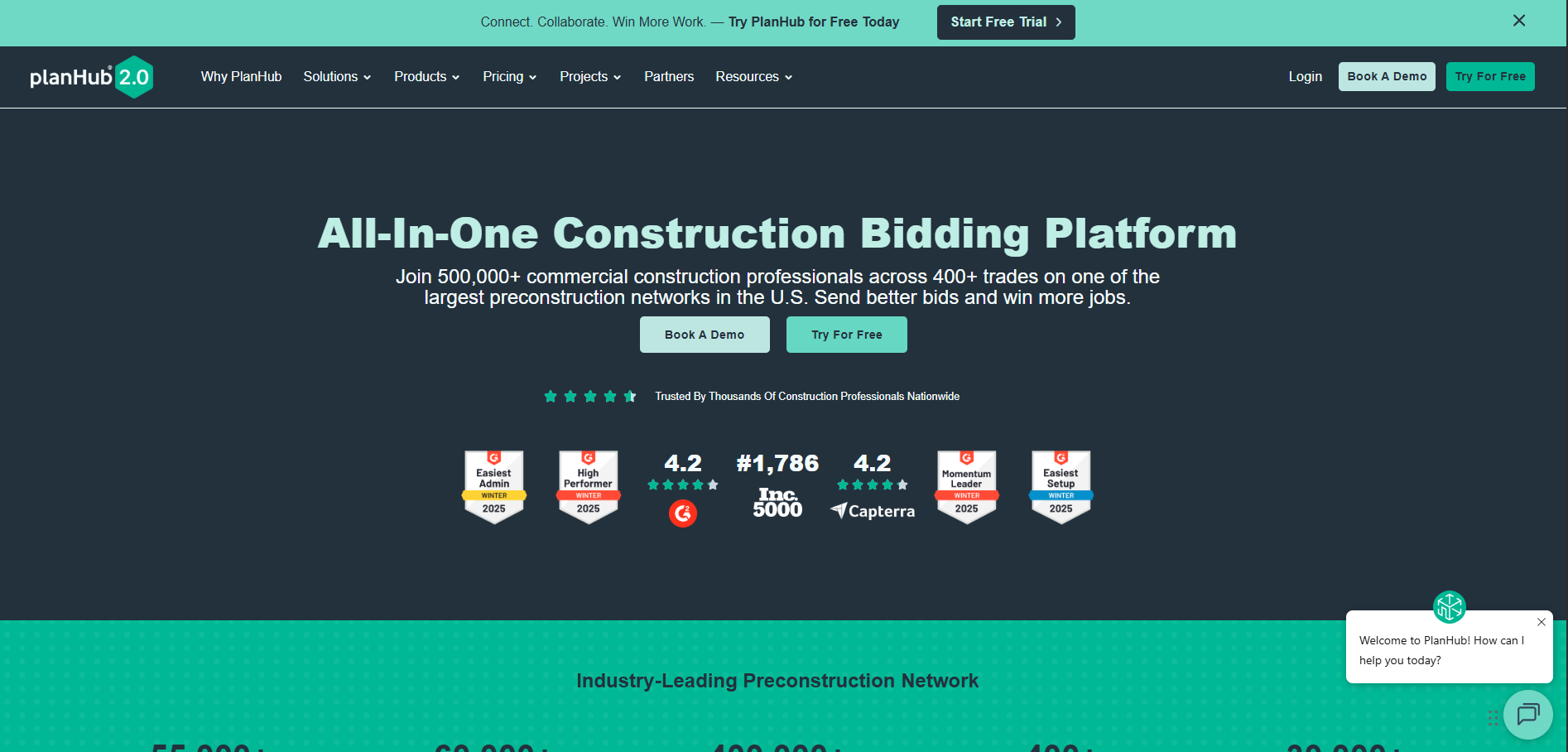
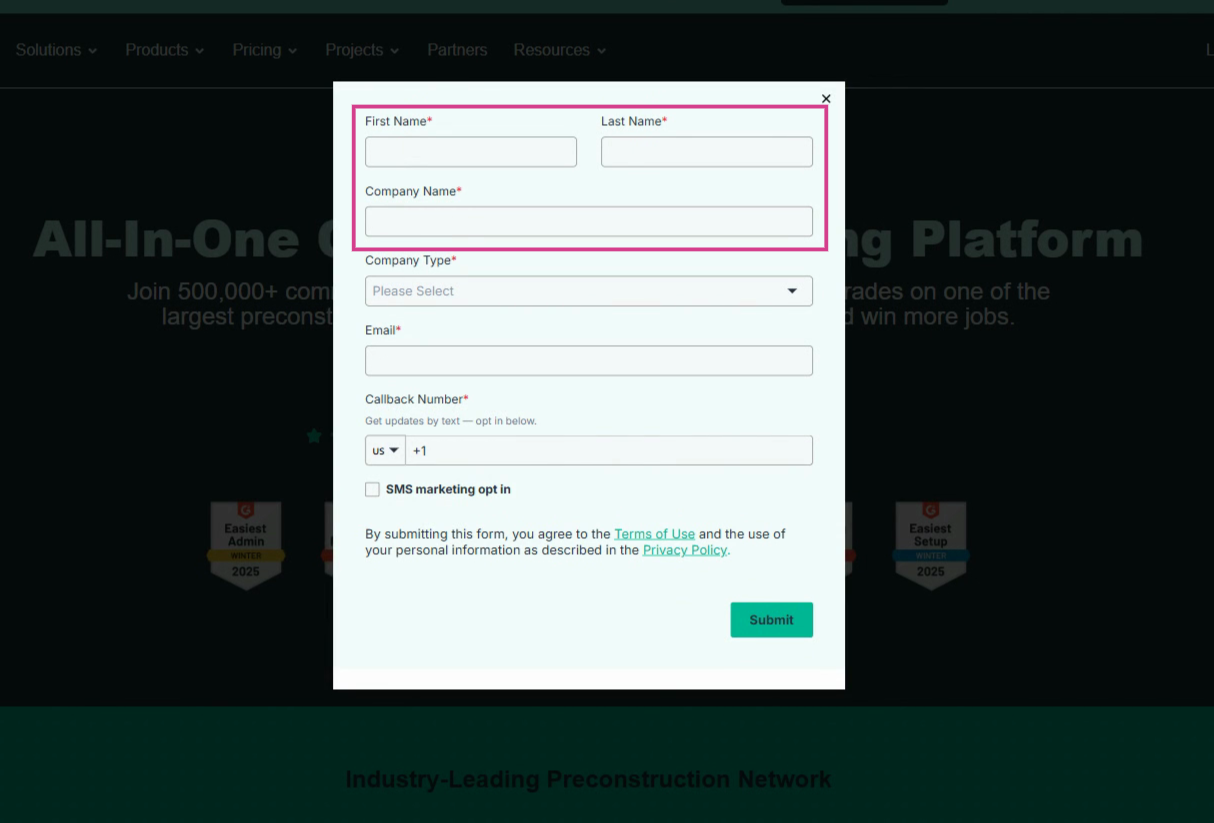
Step 3: Enter your first and last name and your company name.
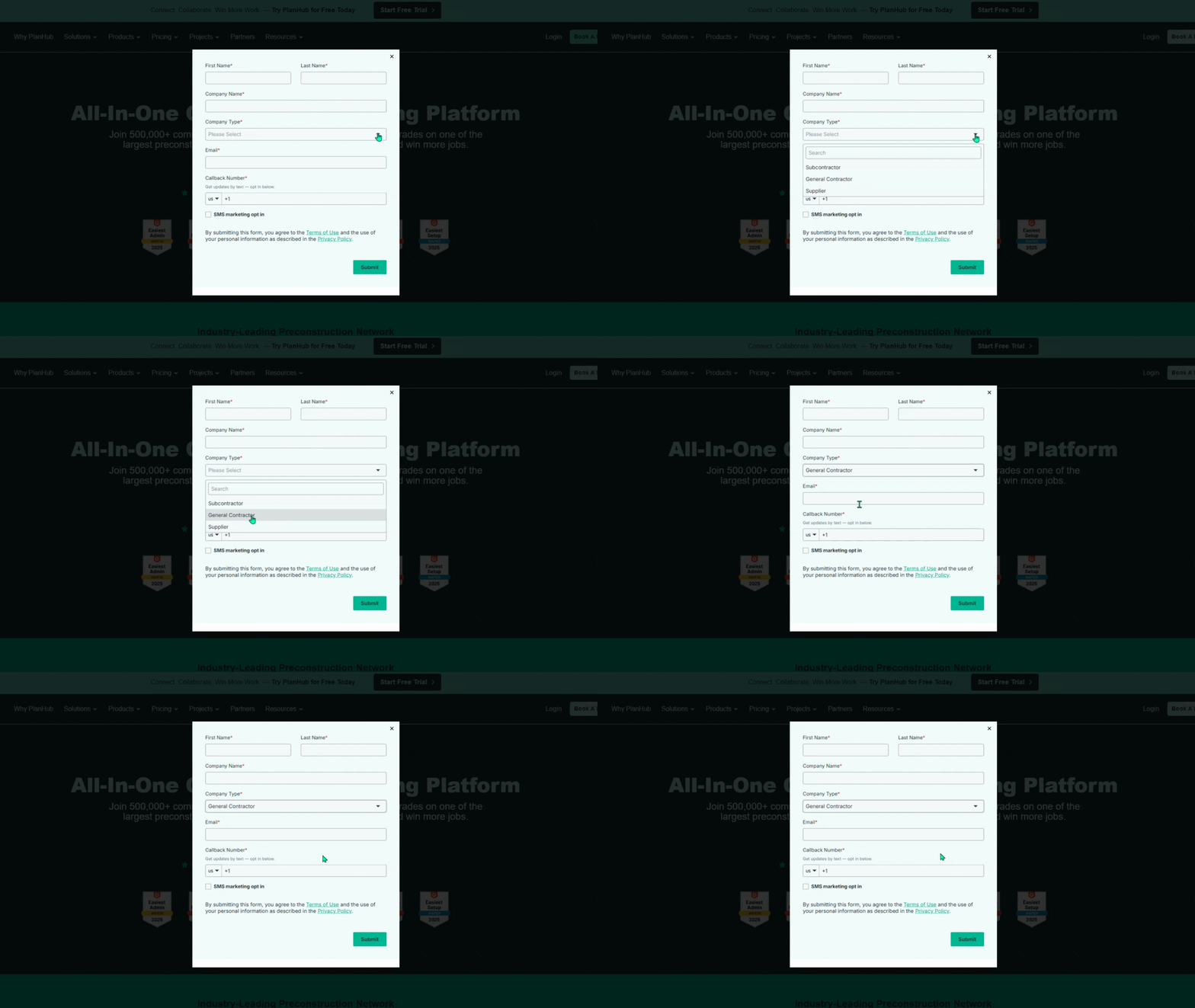
Step 4: Select your Company Type — choose General Contractor.
Step 5: Enter the email linked to your general contractor account and a callback number. You can also opt-in to receive text messages at the phone number provided.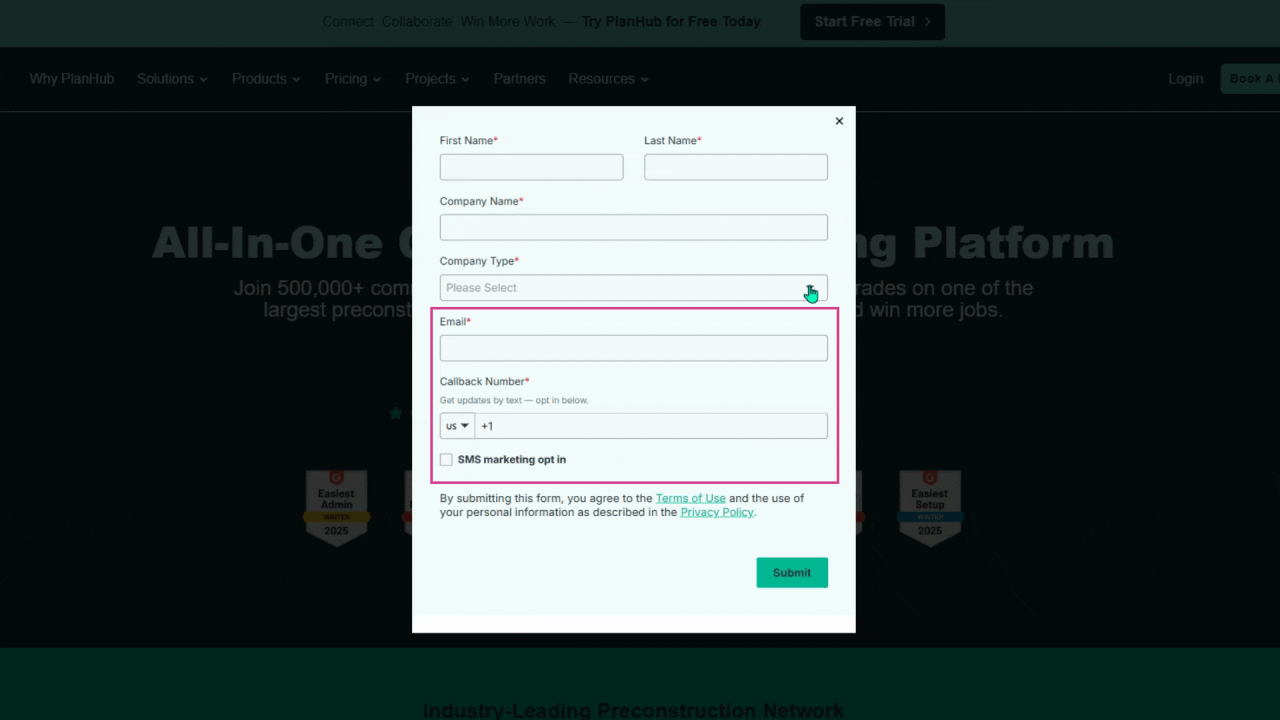
Step 6: Click Submit to send your request.
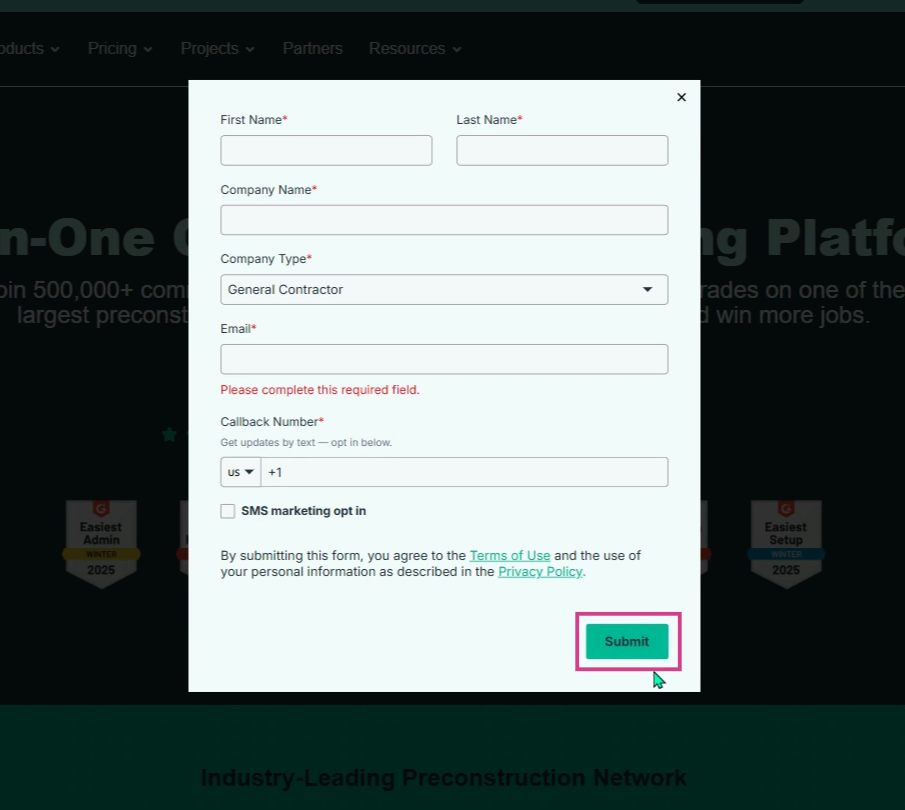
Once you submit the form, a planHub team member will reach out to schedule a meeting.
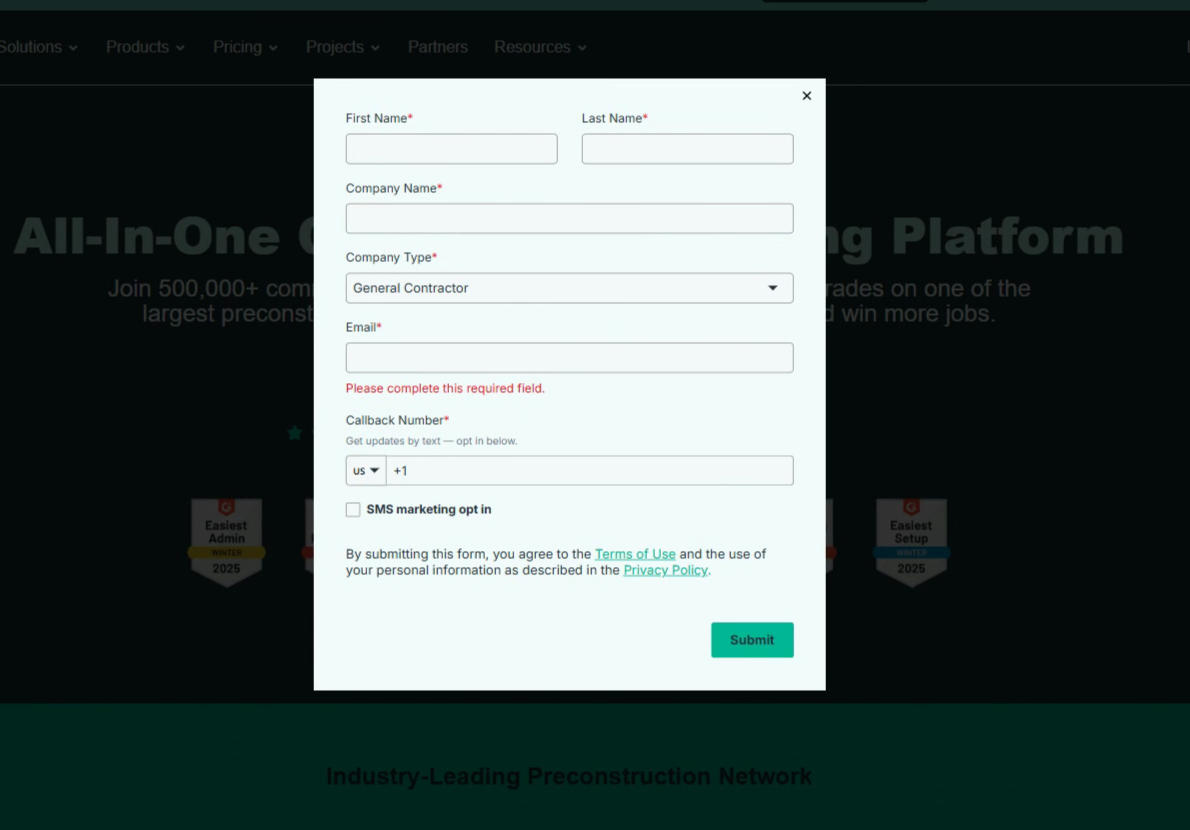
Getting a personalized demo is an easy way to explore features, ask questions, and maximize your planHub experience. Don’t hesitate to request a walkthrough if you want expert, tailored guidance!
Troubleshooting
Contact us if you need assistance or to report an issue:
- PlanHub Contact Page: https://planhub.com/contact/
- Customer Facing Support Ticket Link: https://knowledgebase.planhub.com/knowledge/kb-tickets/new
- Customer Success Team: CustomerSuccess@planhub.com