![NEW_PlanHub_Logo_Navy.png]](https://knowledgebase.planhub.com/hs-fs/hubfs/Design/PH%20Logos/NEW%202024%20PH%20Logos/NEW_PlanHub_Logo_Navy.png?height=40&name=NEW_PlanHub_Logo_Navy.png)
How to Submit Product Feedback and Request Improvements in planHub
At planHub, we value your feedback and are committed to continuously improving our platform. Whether you have an idea for a new feature, a suggestion to enhance an existing tool, or feedback about your experience, there are several ways to share your input with our team.
In this guide, you'll learn how to submit product feedback and enhancement requests so your ideas can help shape future improvements to planHub.
Step 1: Open your web browser and enter planhub.com/contact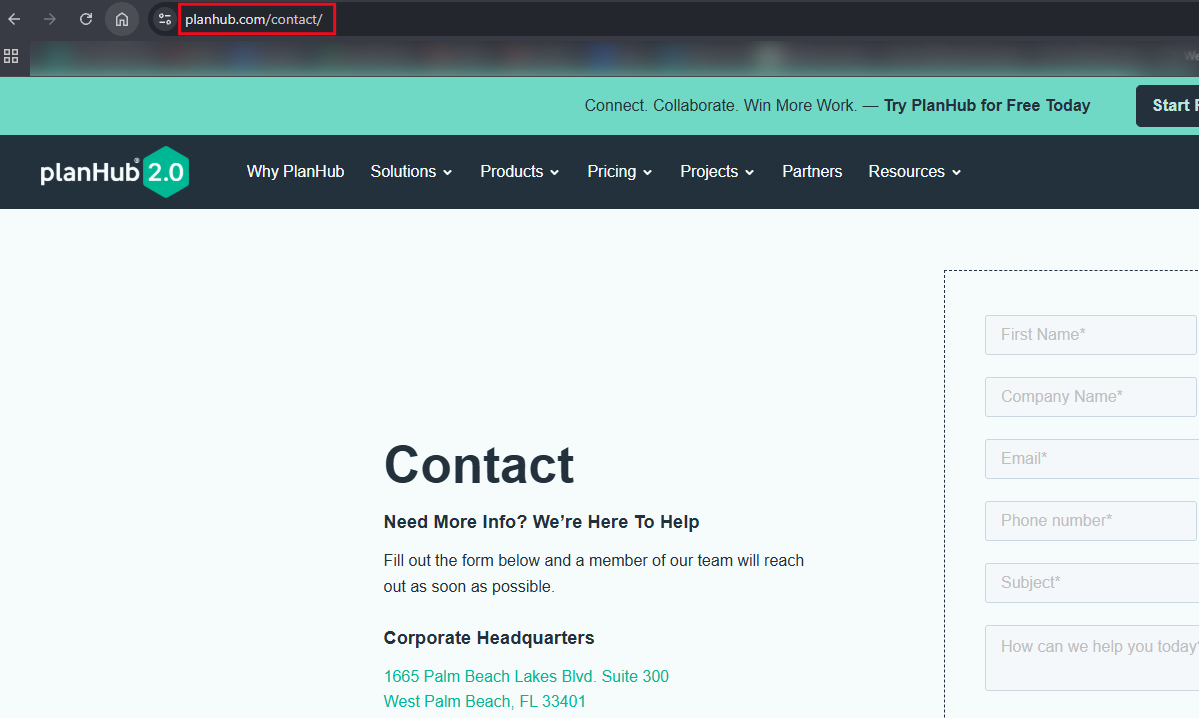
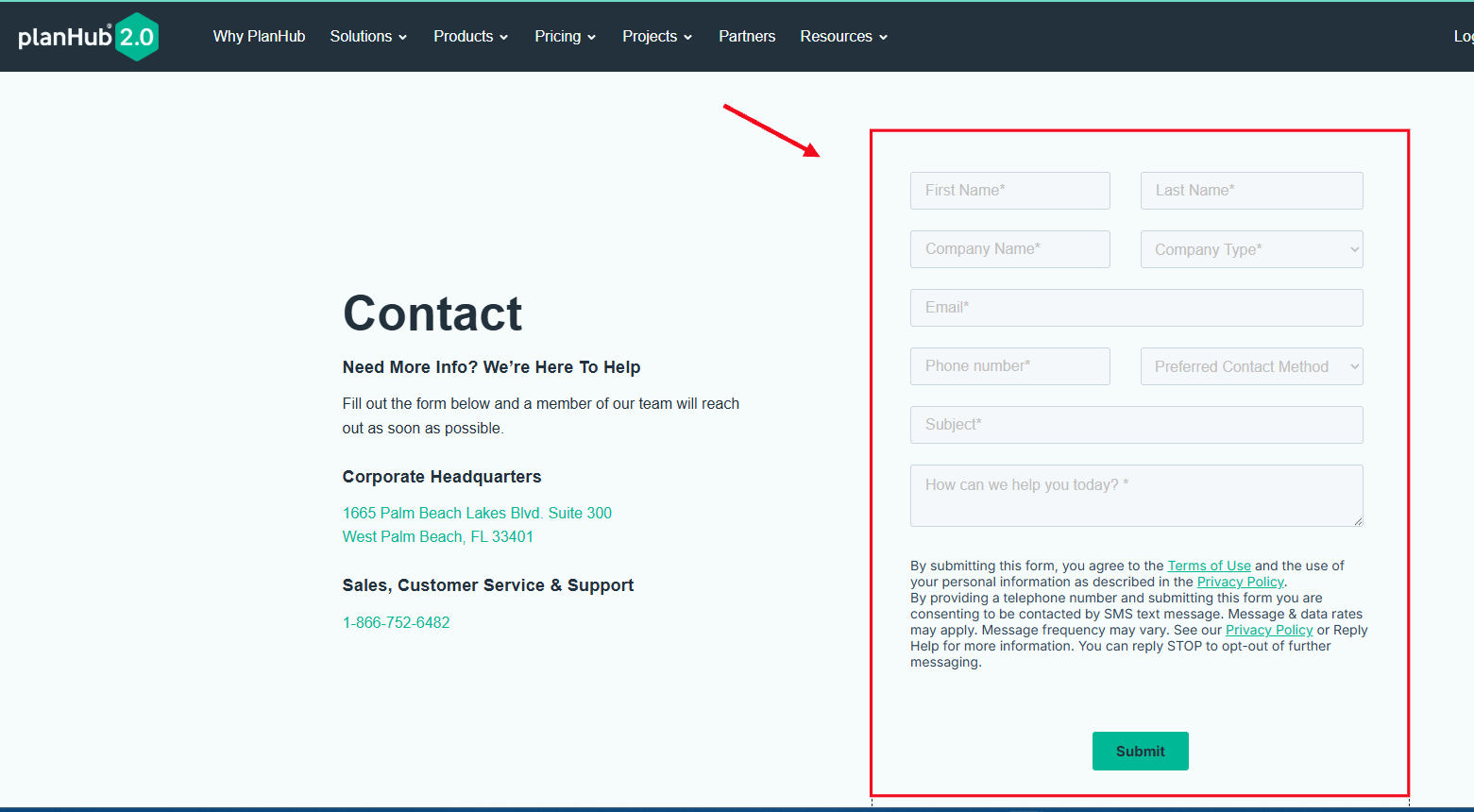
Step 2: Enter your company contact information, the subject line (feature request / Enhancement) and a description of your suggestion. Then click, Submit. If you would like to learn more ways to contact Customer Support, view the Knowledge Base article titled: How to Contact PlanHub Customer Support
Sending Feedback from the Takeoff and Estimation Add-On
If you have purchased the Takeoff and Estimation Add-On feature, you can request improvements or enhancements for Takeoff and Estimation within the Takeoff page.
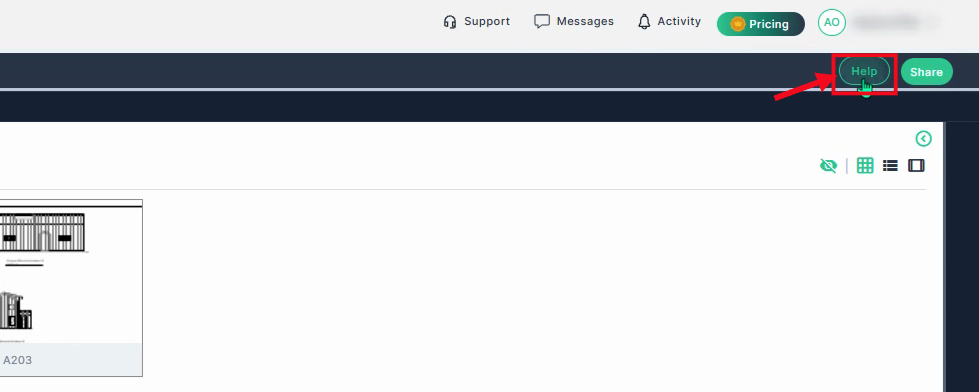
Step 1: In the top right corner, click the Help button.
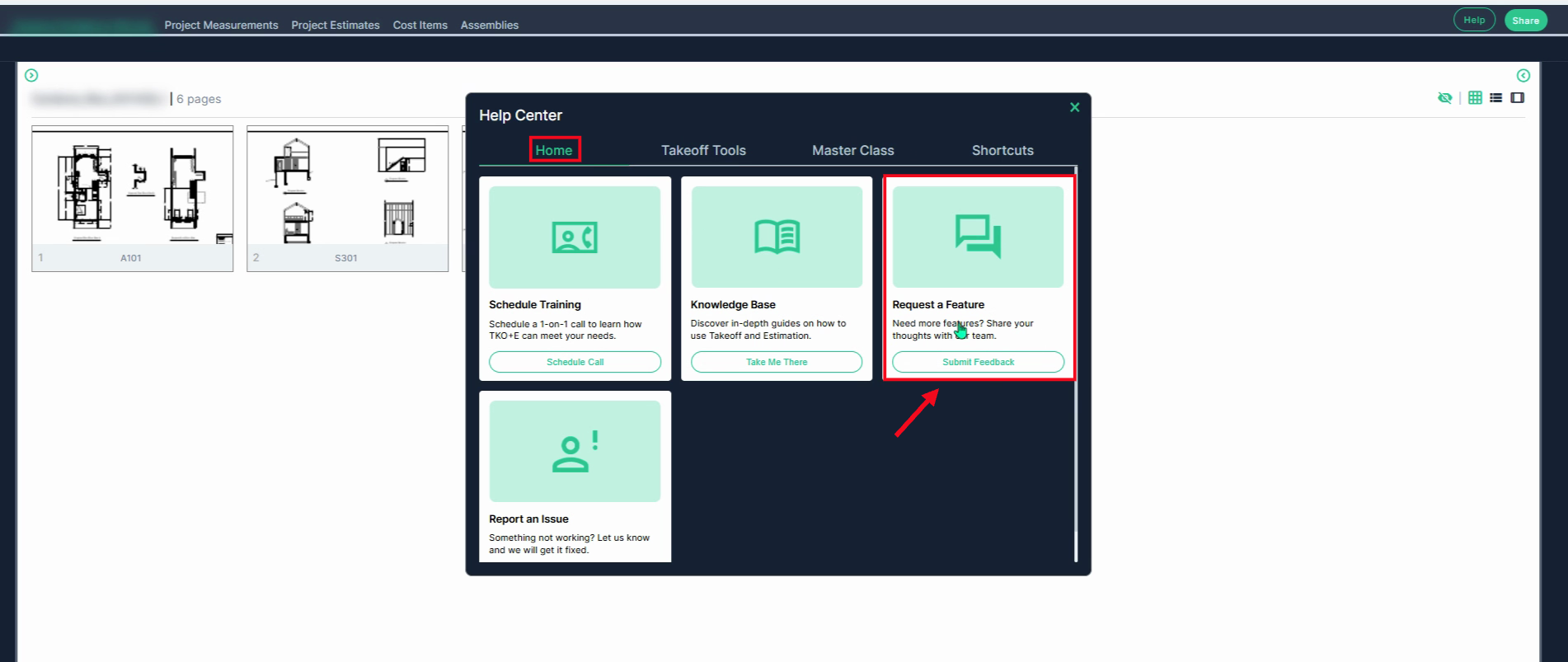
Step 2: Under the Home tab, click Submit Feedback in the Request a Feature box.
Step 3: Use the pop-up window to describe your idea and explain why it matters to you.
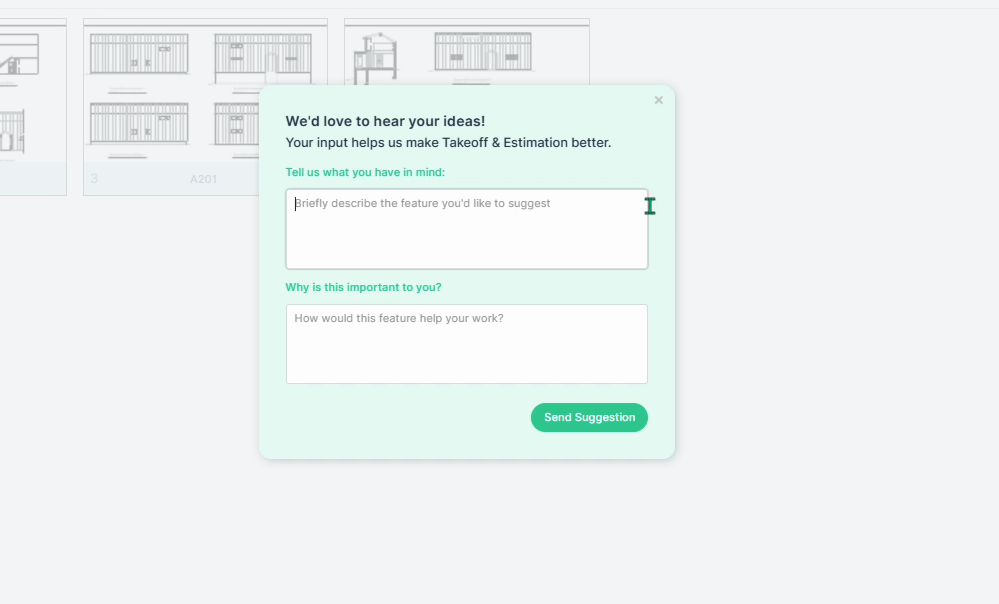
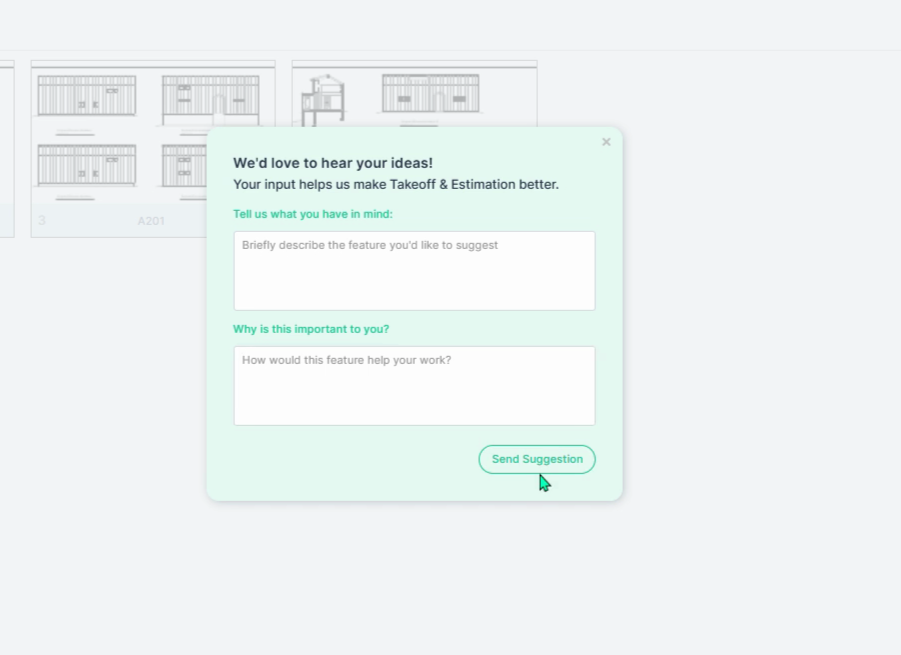
Step 4: Click Send Suggestion when you’re done.
To learn more about the Takeoff Add-On feature, view the Knowledge Base article titled: PlanHub's Takeoff: Measure Faster with More Accuracy
To learn more about the Estimation Add-On feature, view the Knowledge Base article titled: Estimation Overview
Or, contact your Account Manager directly to discuss your options!
Suggesting Features Through the Resource Center
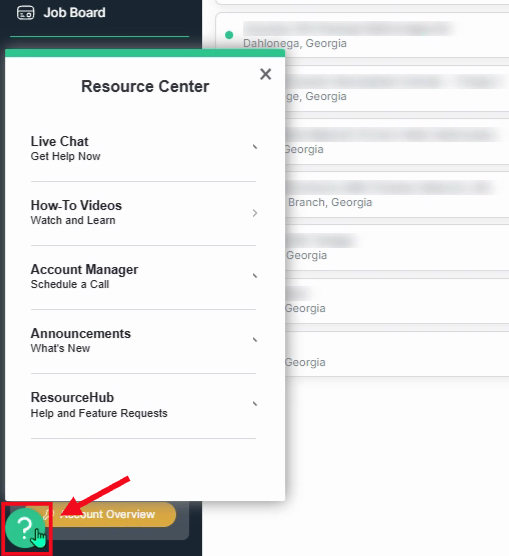
Step 1: In the bottom left corner, click the green bubble with the question mark.
Step 2: Inside the ResourceHub, click the right arrow.
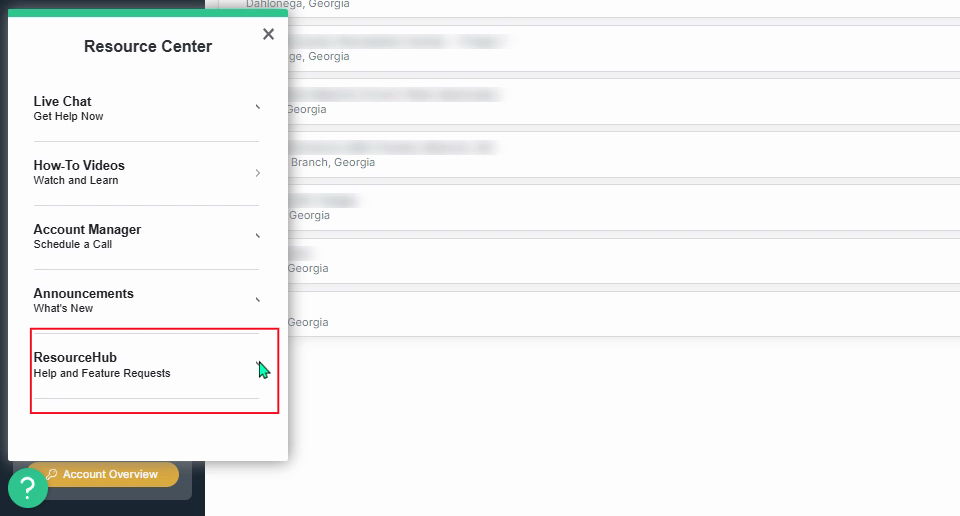
Step 3: At the bottom of the list, select Suggest a Feature.
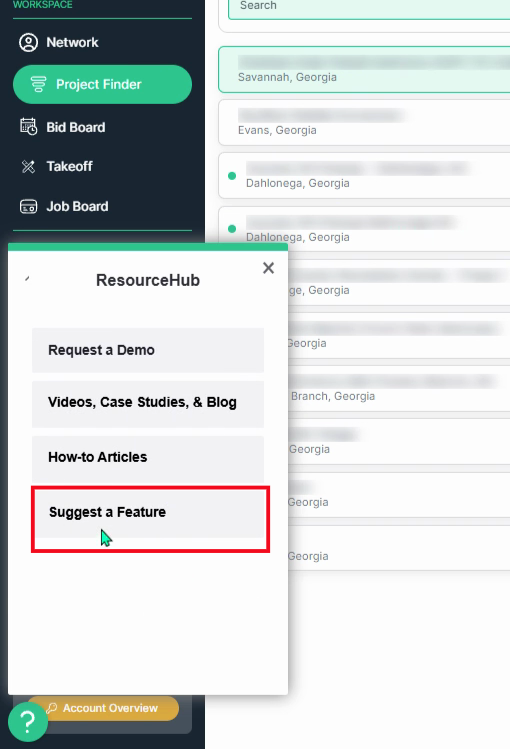
Step 4: Fill out the form to share your suggestions.
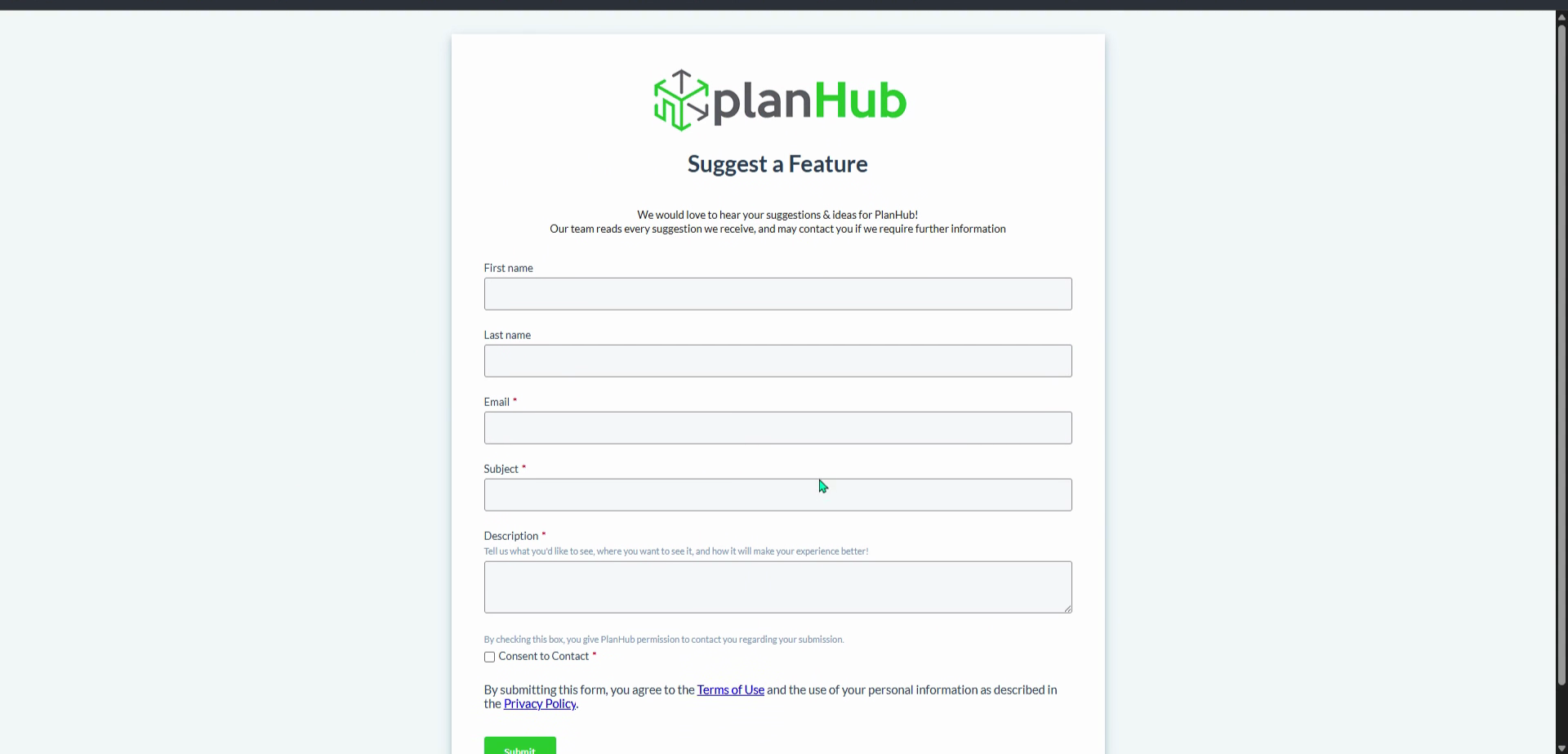
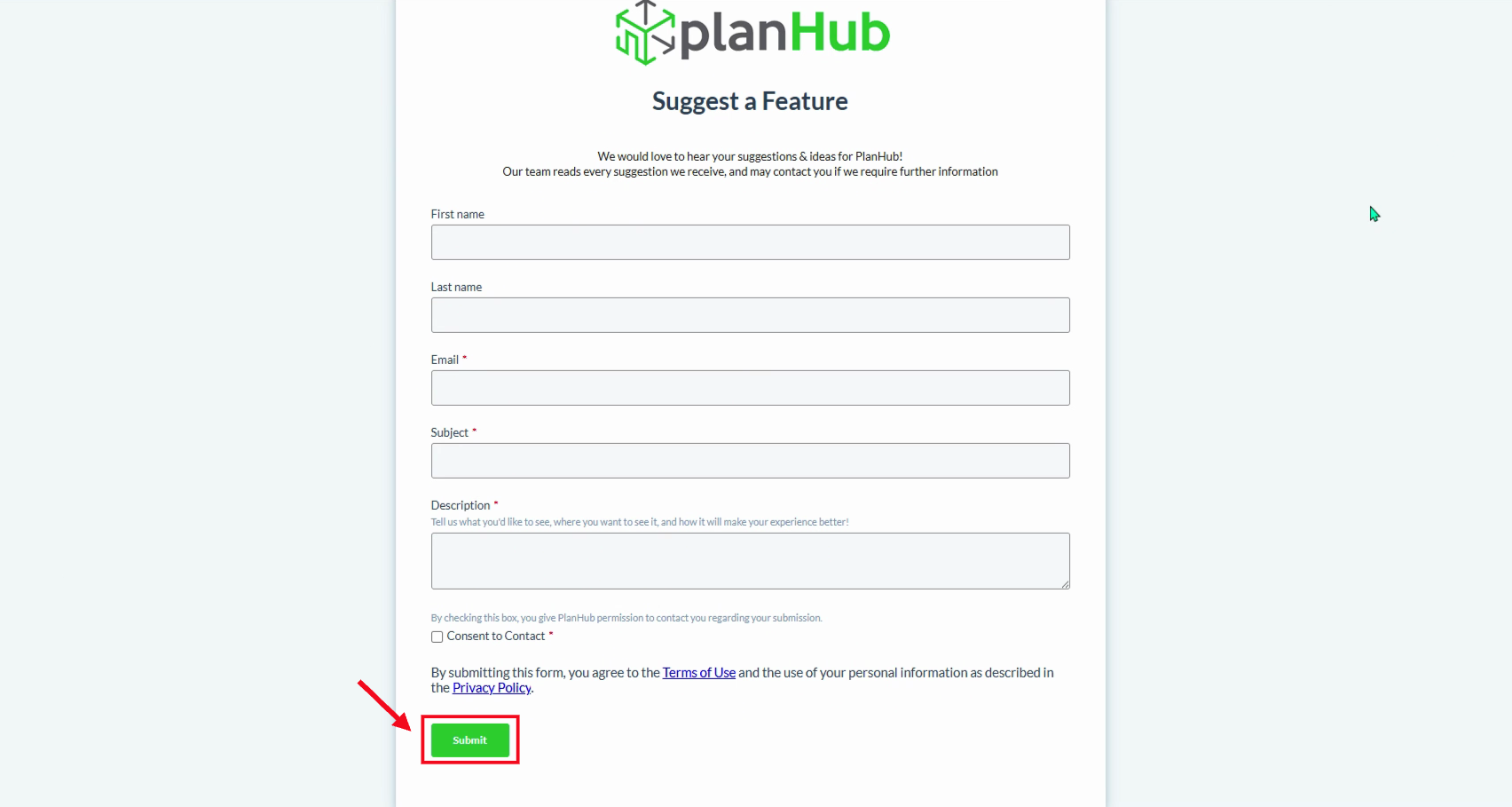
Step 5: Submit your feedback and our team will review it. Every suggestion is read by the planHub team, and someone may follow up with you if more detailed information is needed.
Sharing Feedback via LinkedIn
You can also send feedback straight from your LinkedIn account.
Step 1: Log into LinkedIn and visit the planHub company profile page.
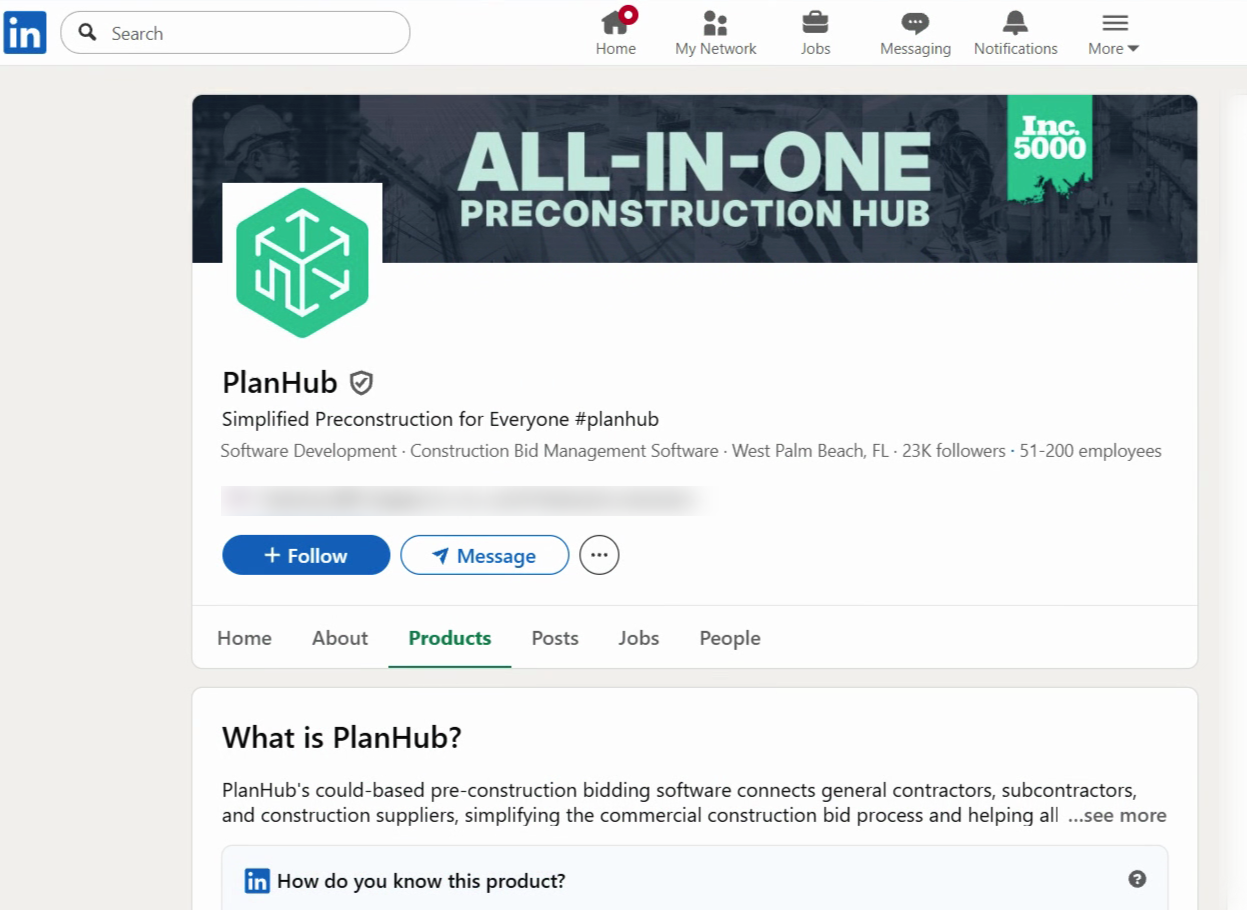
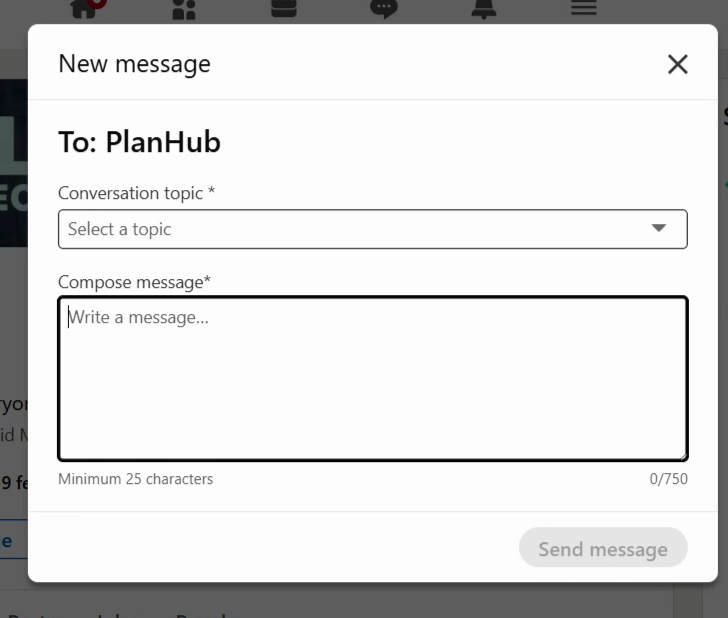
Step 2: Select Message, then, choose your topic from the dropdown menu and enter your feature or enhancement suggestion.
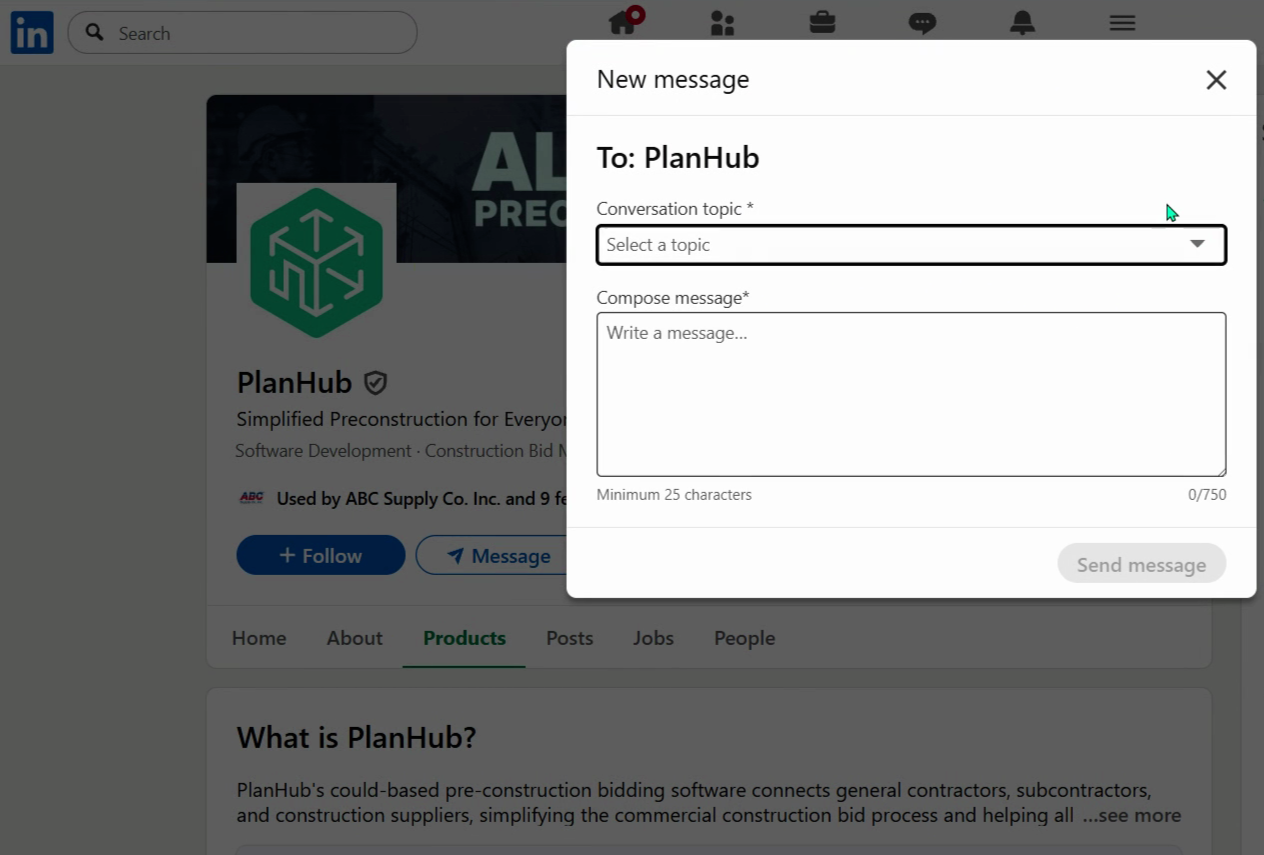
Step 3: Then, type in your suggestion in the message box and click Send Message.
Contact Your planHub Account Manager
Have direct communication with your account manager? Feel free to reach out to them with your feedback—they’ll pass it along to the right team.

Share your feedback and feature suggestions with the planHub team. Every idea helps drive meaningful improvements that help shape future enhancements and improve the platform for all users.