![NEW_PlanHub_Logo_Navy.png]](https://knowledgebase.planhub.com/hs-fs/hubfs/Design/PH%20Logos/NEW%202024%20PH%20Logos/NEW_PlanHub_Logo_Navy.png?height=40&name=NEW_PlanHub_Logo_Navy.png)
Step 1: Go to the Projects page from the main panel at the top.
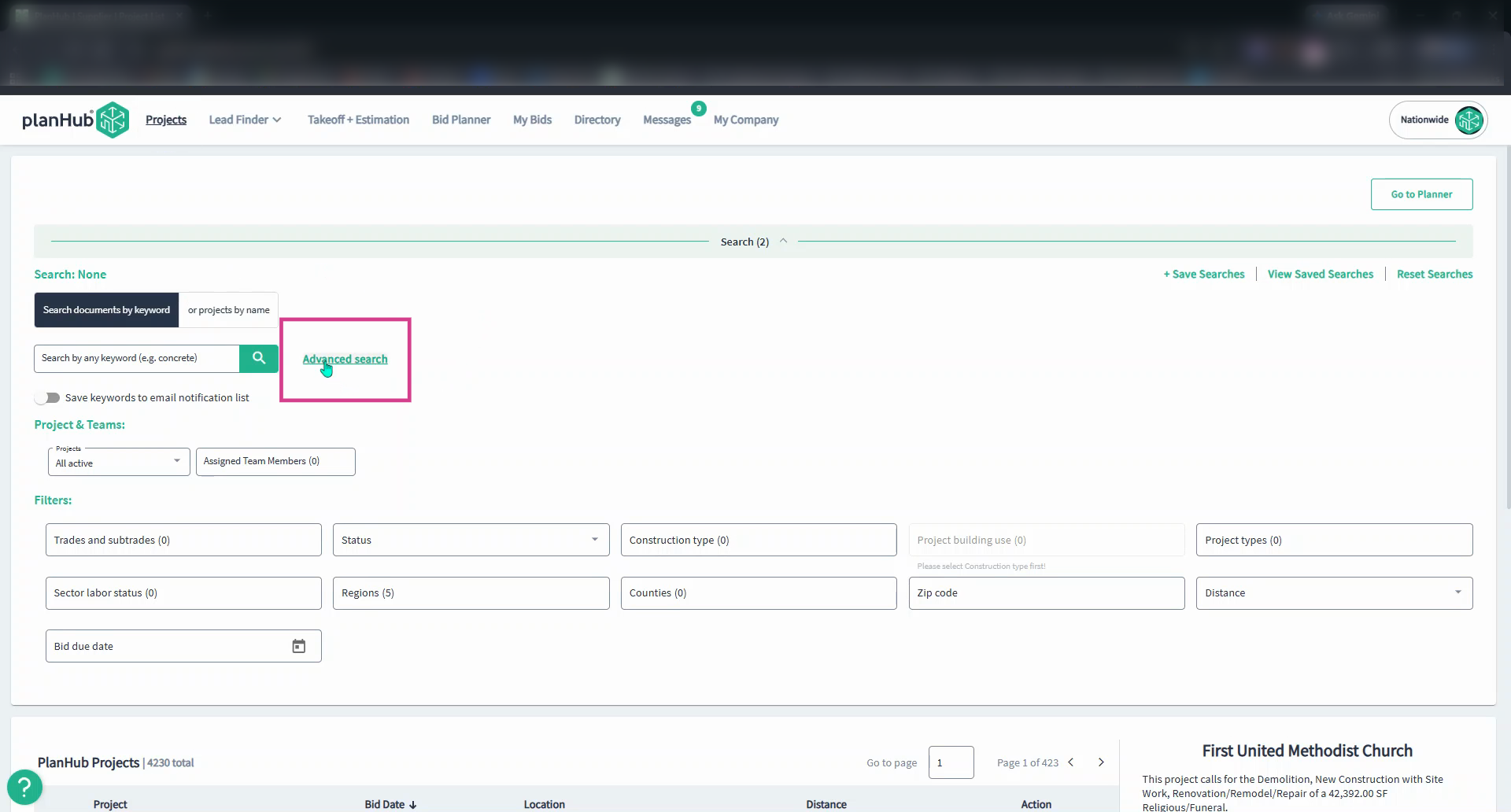
Step 2: Click Advanced Search in the section below.
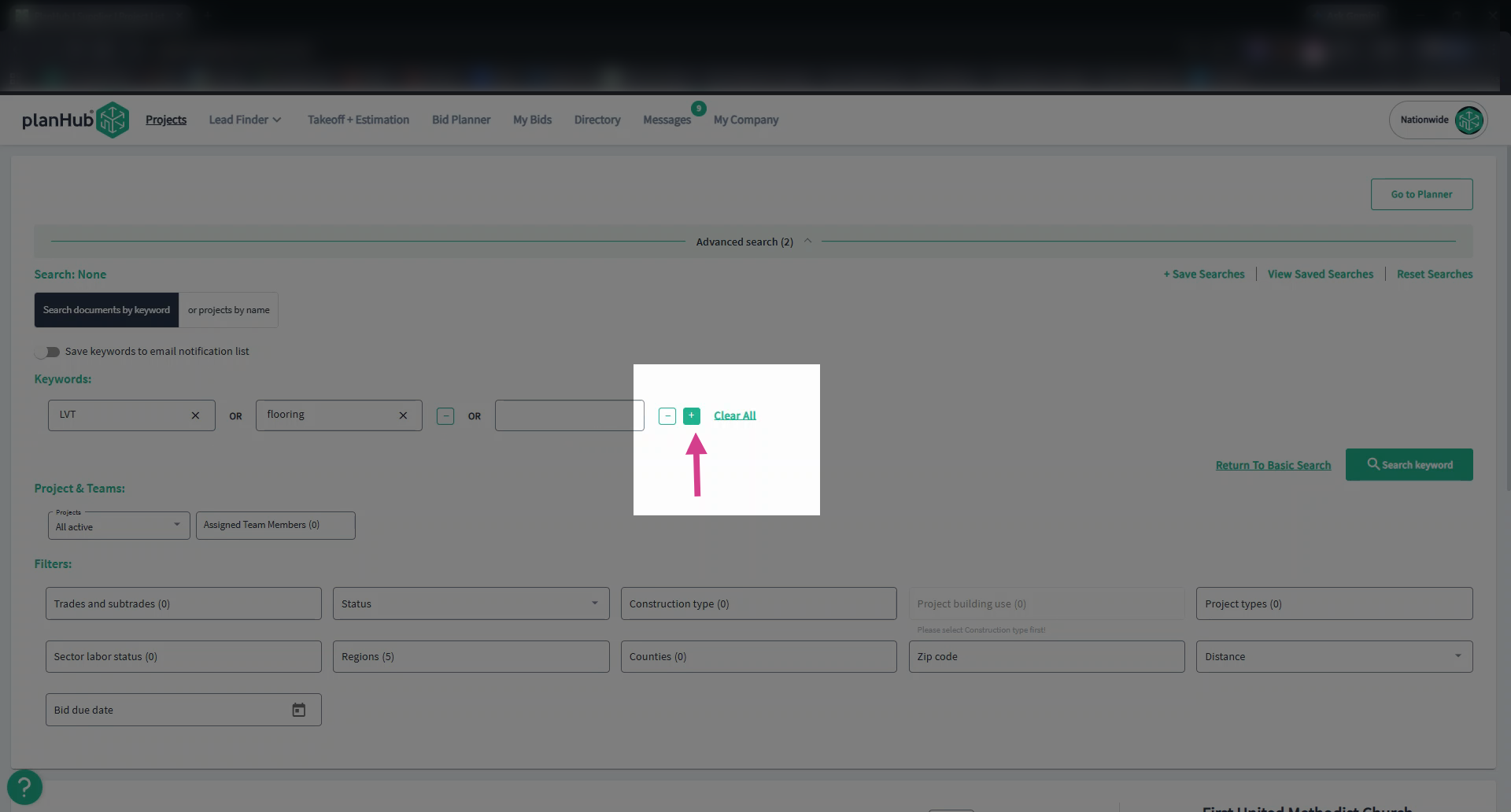
Step 3: In the keyword search box, enter your first keyword or multi-word phrase.
Step 4: Add more keywords or multi-word phrases by clicking the plus sign to open new input boxes (up to ten different keywords or multi-word phrases).
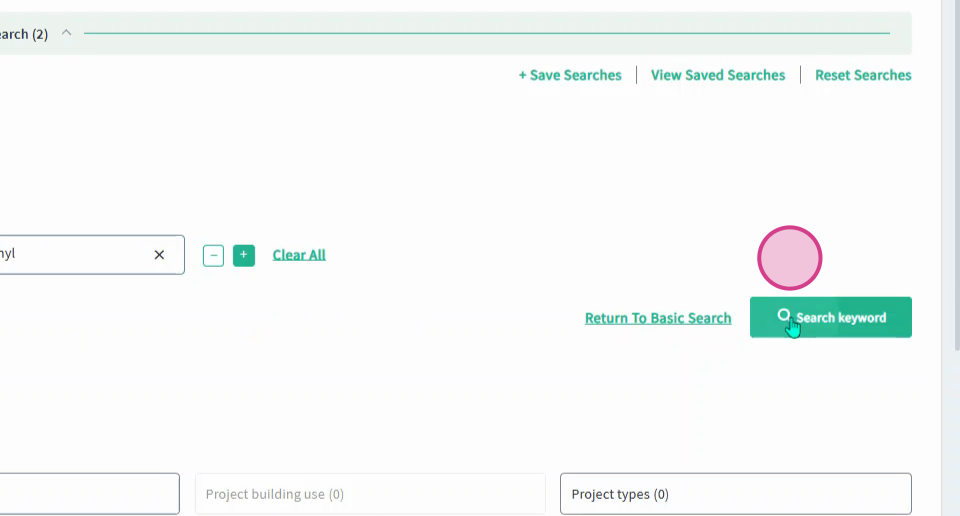
Step 5: When you've entered all keywords, click Search Keyword.
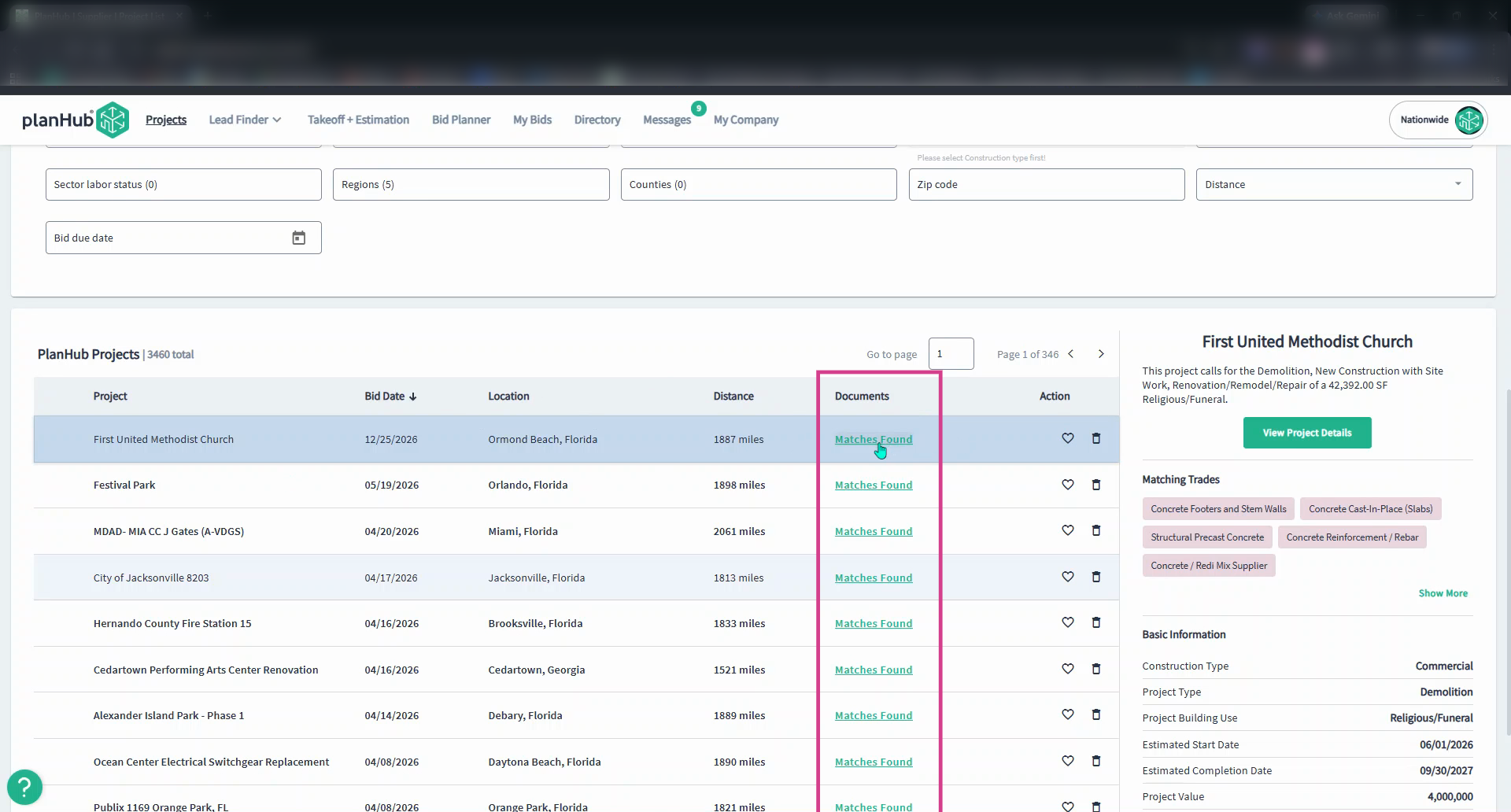
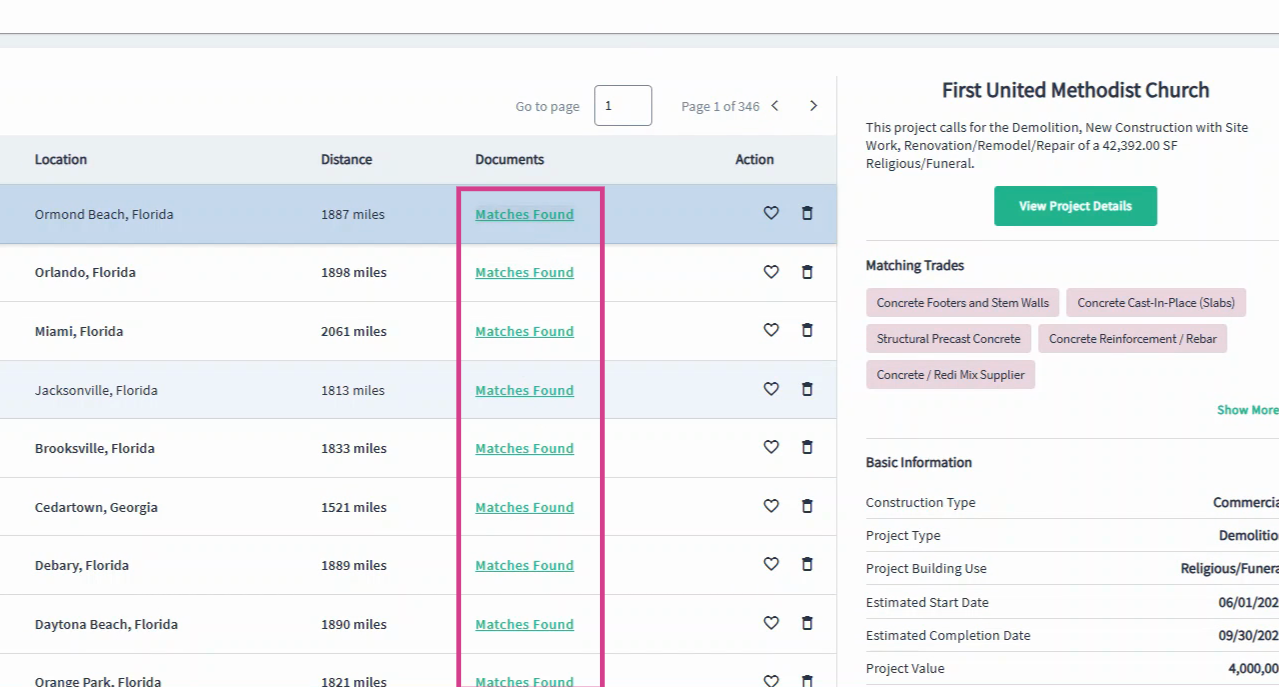
Step 6: Review the list of projects below. The Documents column shows how many matches were found for each project.
Step 7: Click on the matches found link for any project to see the specific keyword matches in the documents.
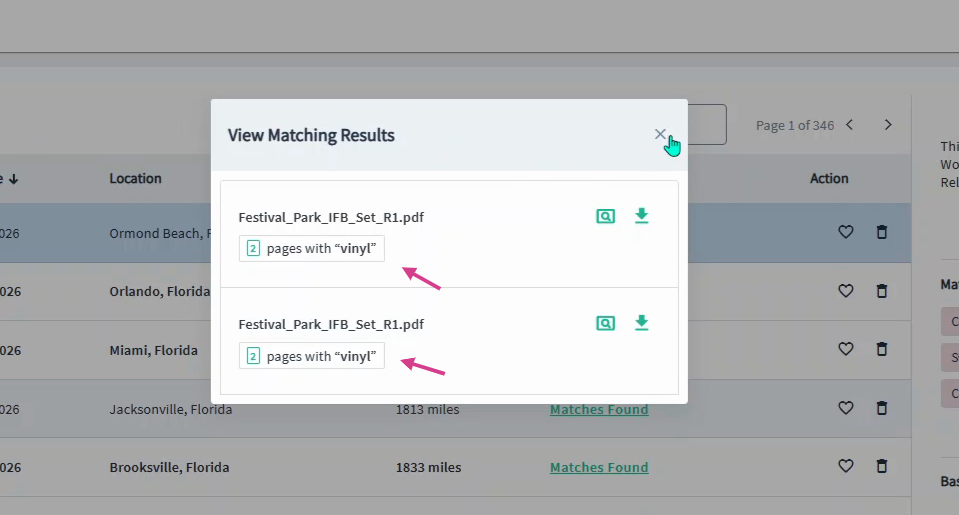
Step 8: In the pop-up window, view the specific words and matches found. Close the window by clicking the X in the top-right corner.
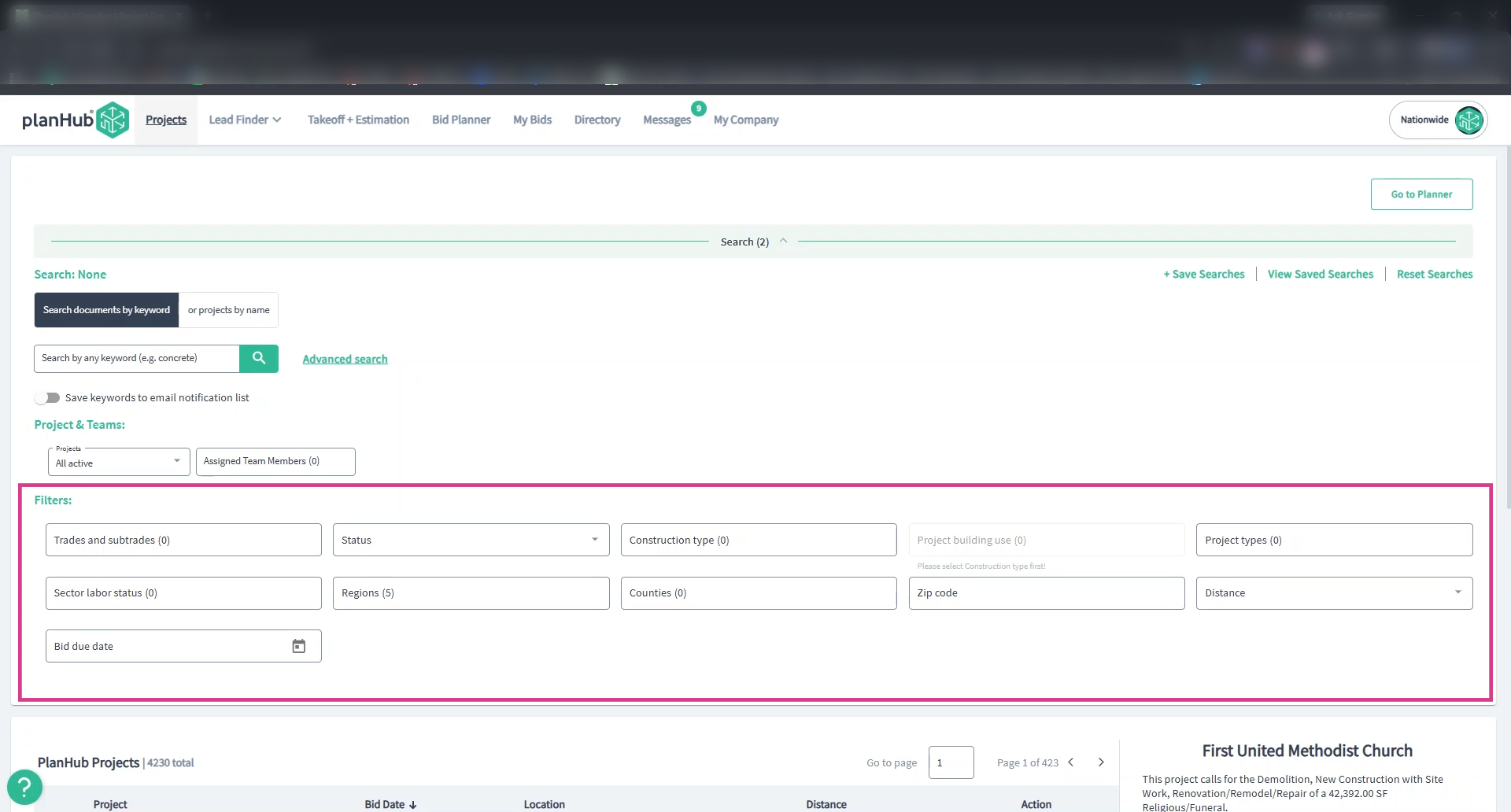
Step 9: Use the filter options in Advanced Search to further refine results by trade, general contractor, or other project details.
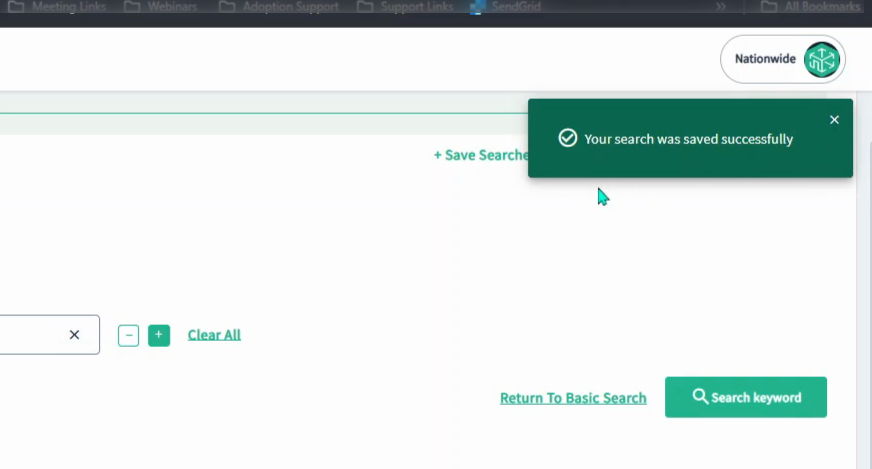
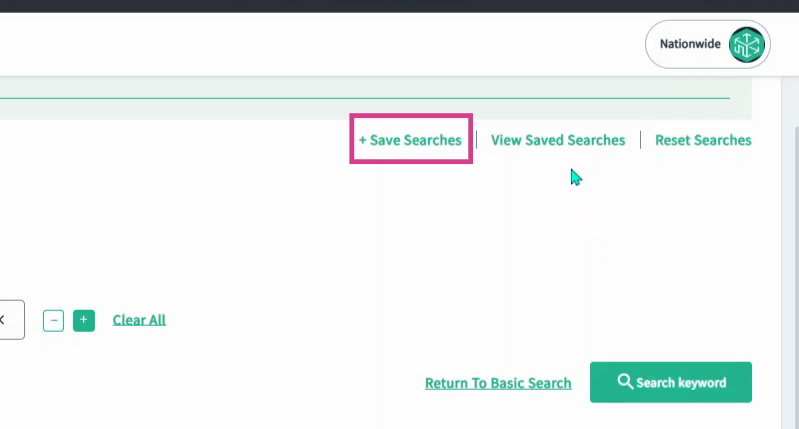
Step 10: Once your search is set up, click Save Searches in the top right corner to save it to your profile.
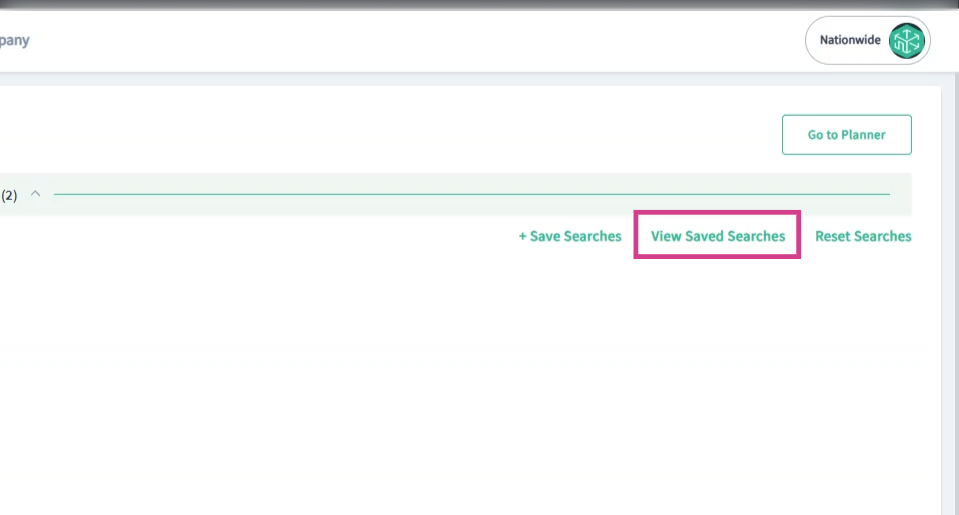
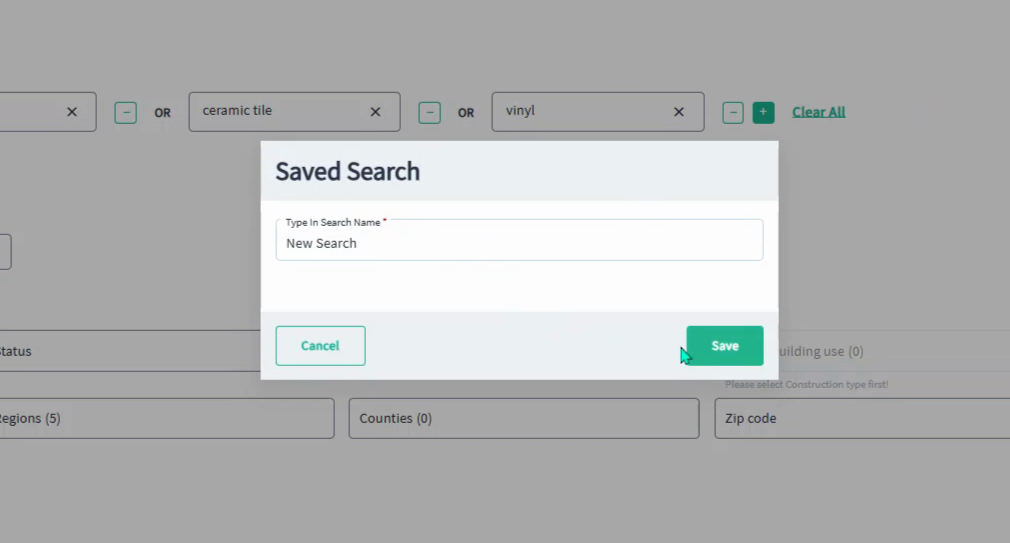
Step 11: Name your search and click Save in the pop-up window.
Step 12: Look for the green pop-up in the top right that confirms your search was saved successfully.
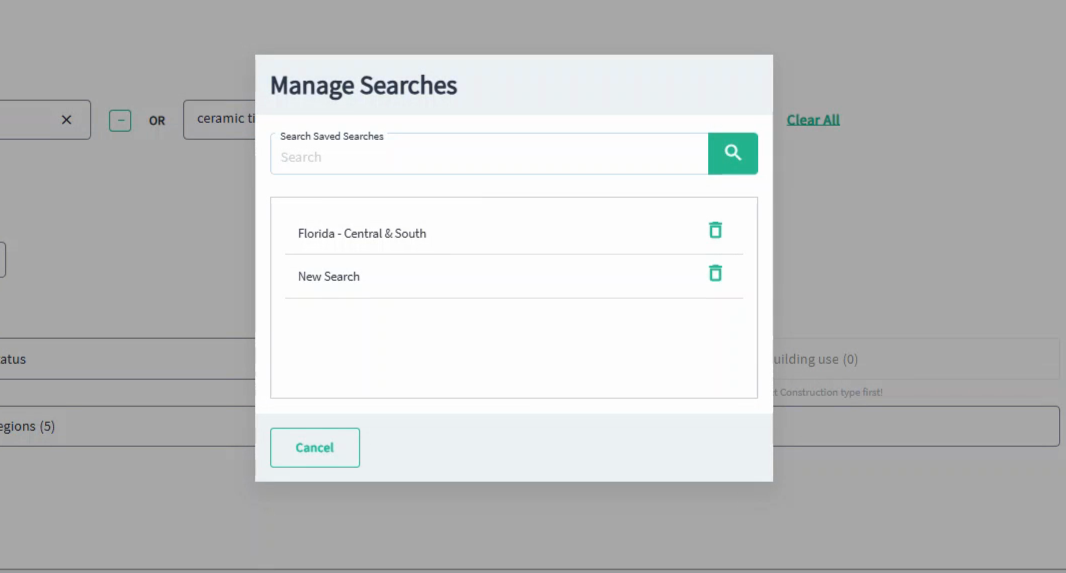
Step 13: To manage saved searches, click View Saved Searches in the top right corner. In the pop-up window, you can select a saved search to view or delete searches that you no longer need.


Step 14: To view files related to matches, click on the matches found link for the desired project.

Step 15: In the pop-up, select the file viewer (magnifying glass icon) to preview the documents.

Step 16: On the left side in the file viewer, if you see numbers to the right of the page numbers, that tells you how many keyword matches per page, if you see the lowercase "i" icon it indicates that the keywords were found on an image but are not highlighted.

Step 17: To search within the file viewer, type a keyword in the search box and click the magnifying glass.

Step 18: Use the annotations tool in the central panel to add notes or markups to the documents.

Step 19: To save the project to your bid planner, click Save to Bid Planner in the top right section.

Step 20: To send the file to takeoff, click Start Takeoff in the top right and choose your page selection.

Step 21: To review project details, click the green project name in the left corner.

Advanced Searching in the Project Files Tab
To search all documents within a single project and search multiple keywords inside project files, follow these steps:
Step 1: Go to the Project Files tab, then click Advanced Search.

Step 2: Enter your keywords and click Search Viewer in the bottom right corner.

Step 3: To clear all keywords, press Clear All.

Step 4: Once the projects load, use the action column and click on the file viewer icon to preview documents.

Saving keyword searches, using the advanced filters, reviewing project matches, and taking action ensures you make the most of every opportunity!
If you need assistance, please contact Customer Support.