![NEW_PlanHub_Logo_Navy.png]](https://knowledgebase.planhub.com/hs-fs/hubfs/Design/PH%20Logos/NEW%202024%20PH%20Logos/NEW_PlanHub_Logo_Navy.png?height=40&name=NEW_PlanHub_Logo_Navy.png)
To access the Network directory showing contact information for general contractors, you will need to have a Subcontractor planHub account and have purchased the Network Directory add-on feature.
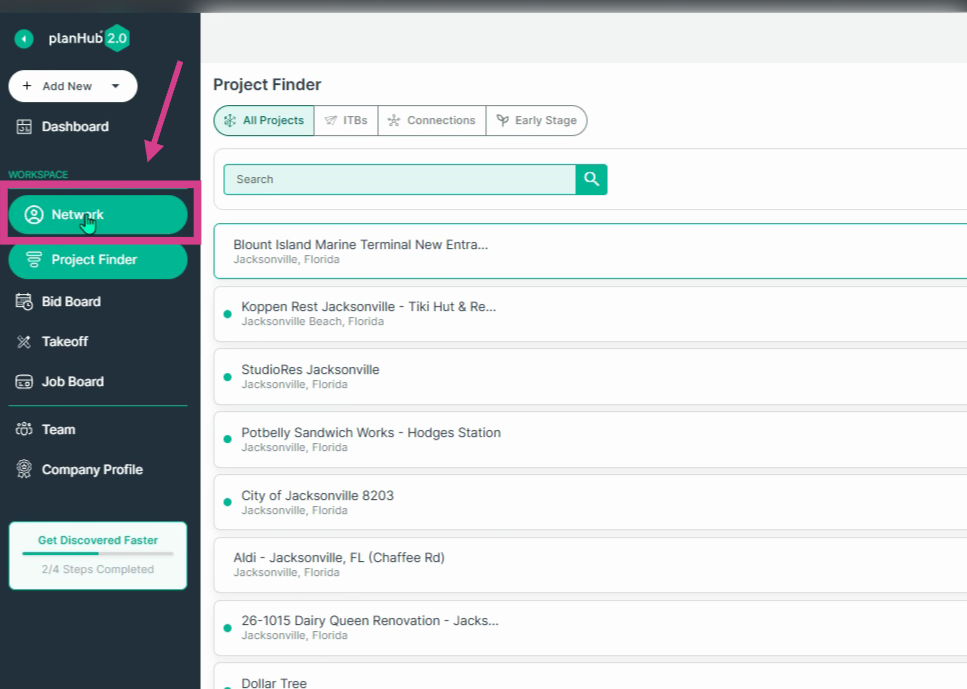
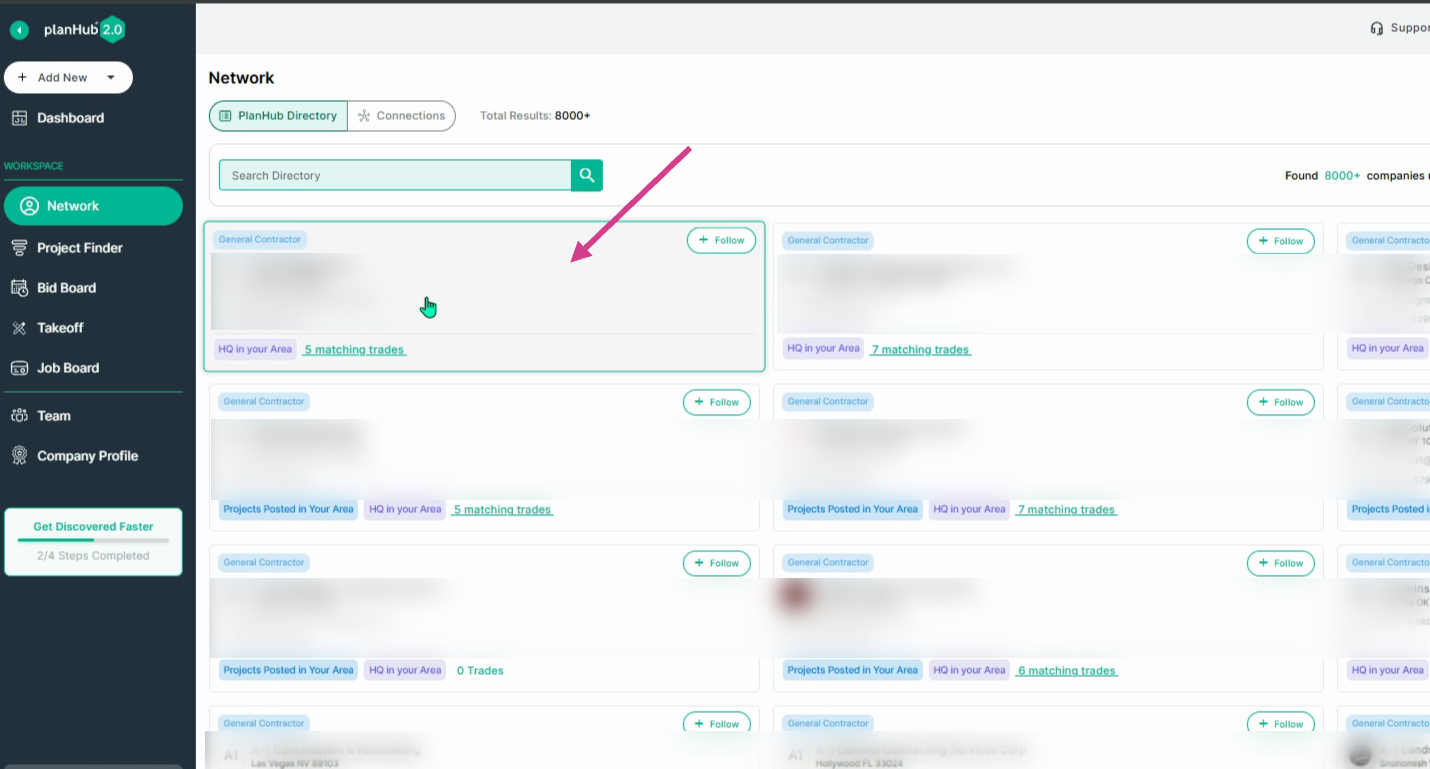
Step 1: Click Network in the main panel on the left side of your screen.
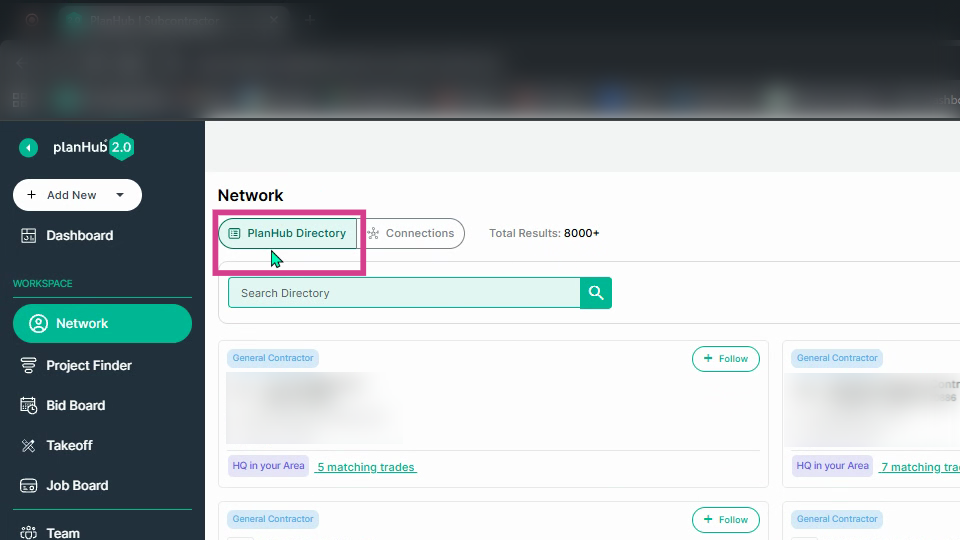
Step 2: View the list of General Contractors contact cards when the PlanHub Directory tab is selected at the top left corner of the Network page.
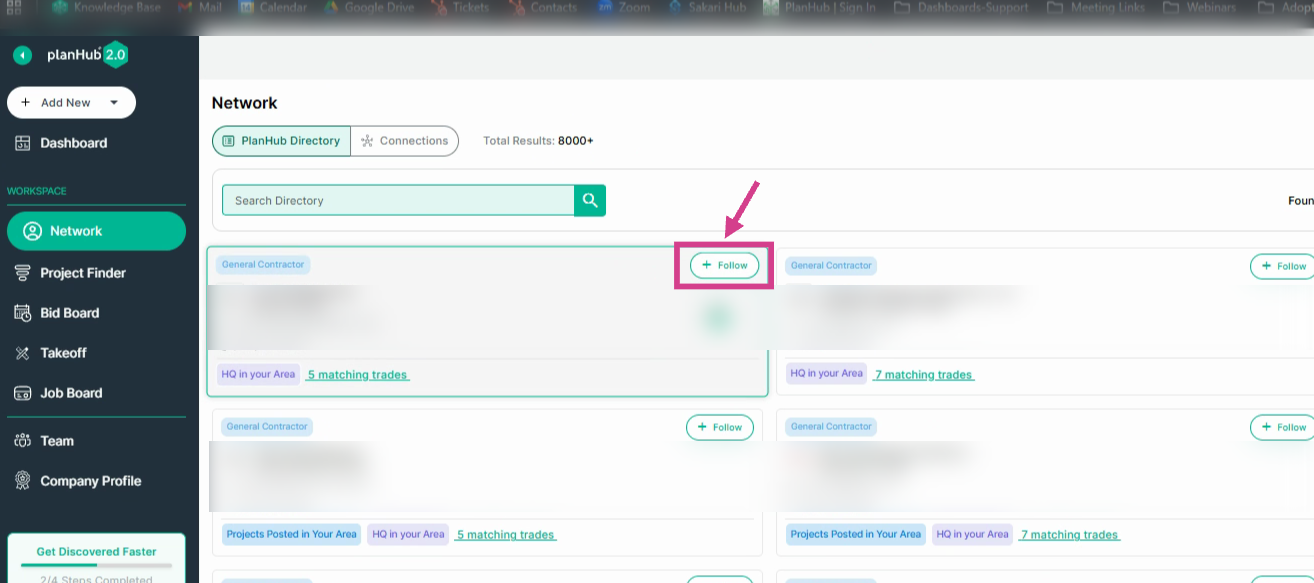
Step 3: To begin building relationships, click Follow on a general contractor’s company card (upper right corner of their contact card). You can follow as many GCs as you prefer.
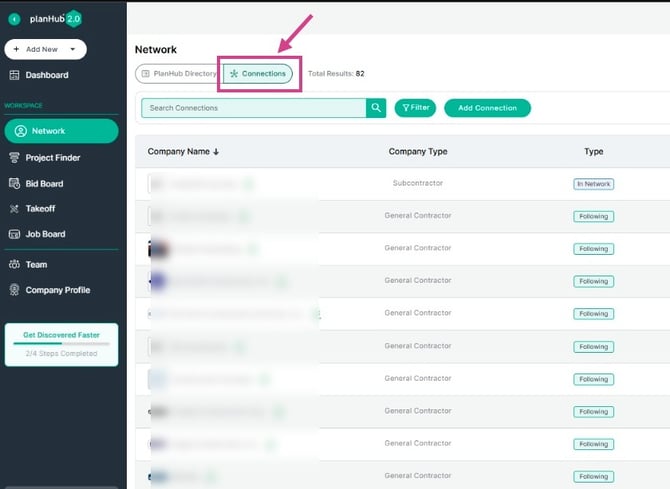
Step 4: View the list of General Contractors you are following and how many you are following by selecting the Connections tab at the top left corner of the Network page.
Step 5: View the Total Results count to see the number of GCs listed in your directory under the planHub Directory tab.
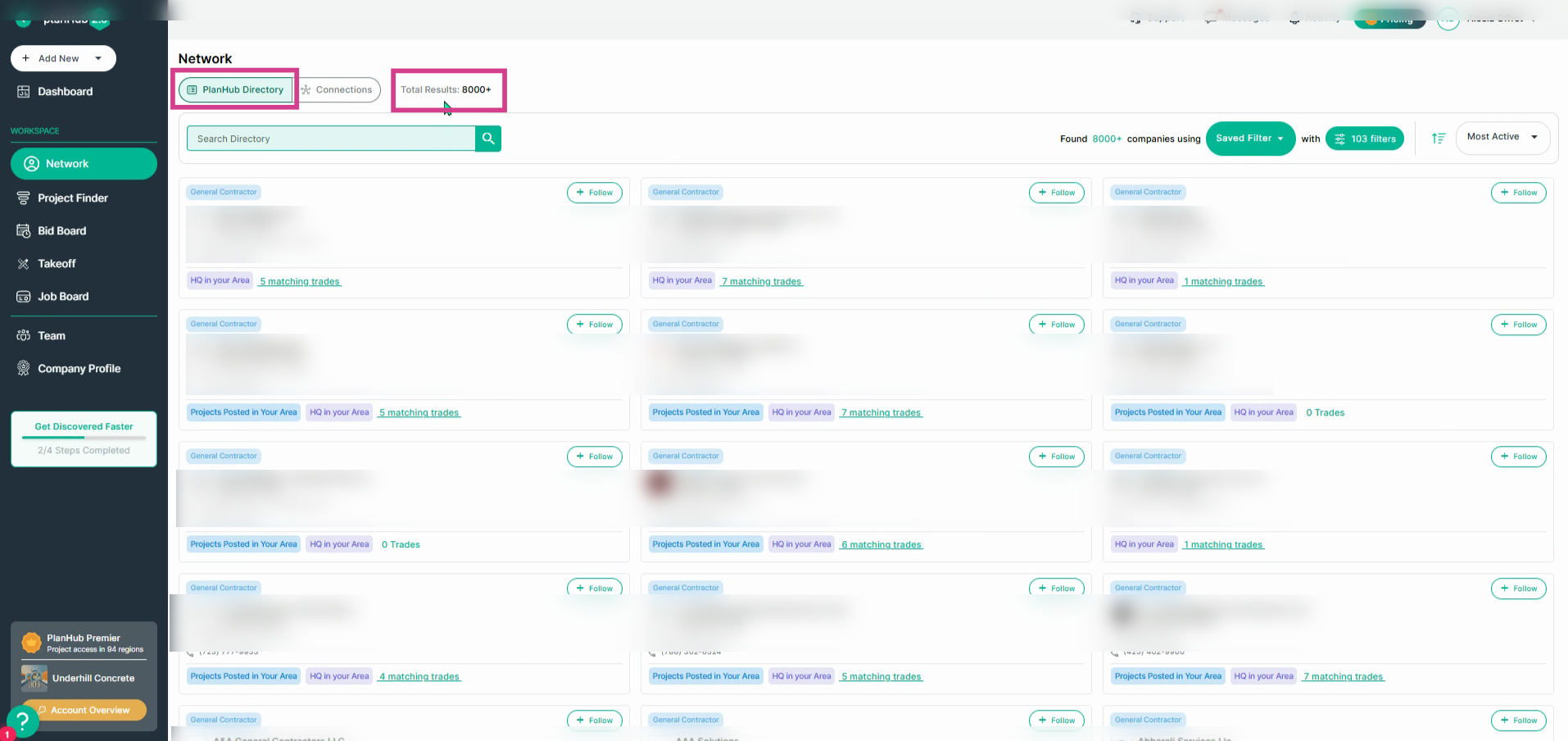
Step 6: If you purchased the Network directory add-on, you will see each General Contractor's company card which shows their company name, location, email address, and phone number.
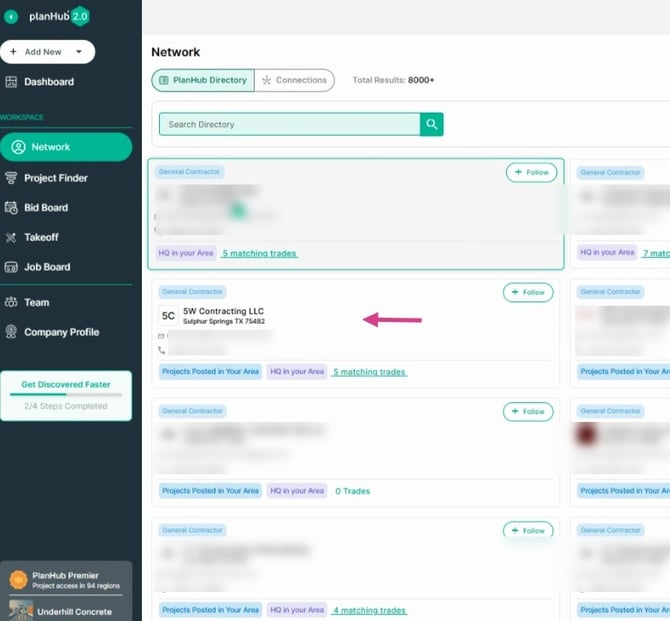
Step 7: View the bottom section of each GC contact card to see why the GC appears in your directory— for example, they are posting projects in your area, are headquartered in your area and posted projects with your matching trades.
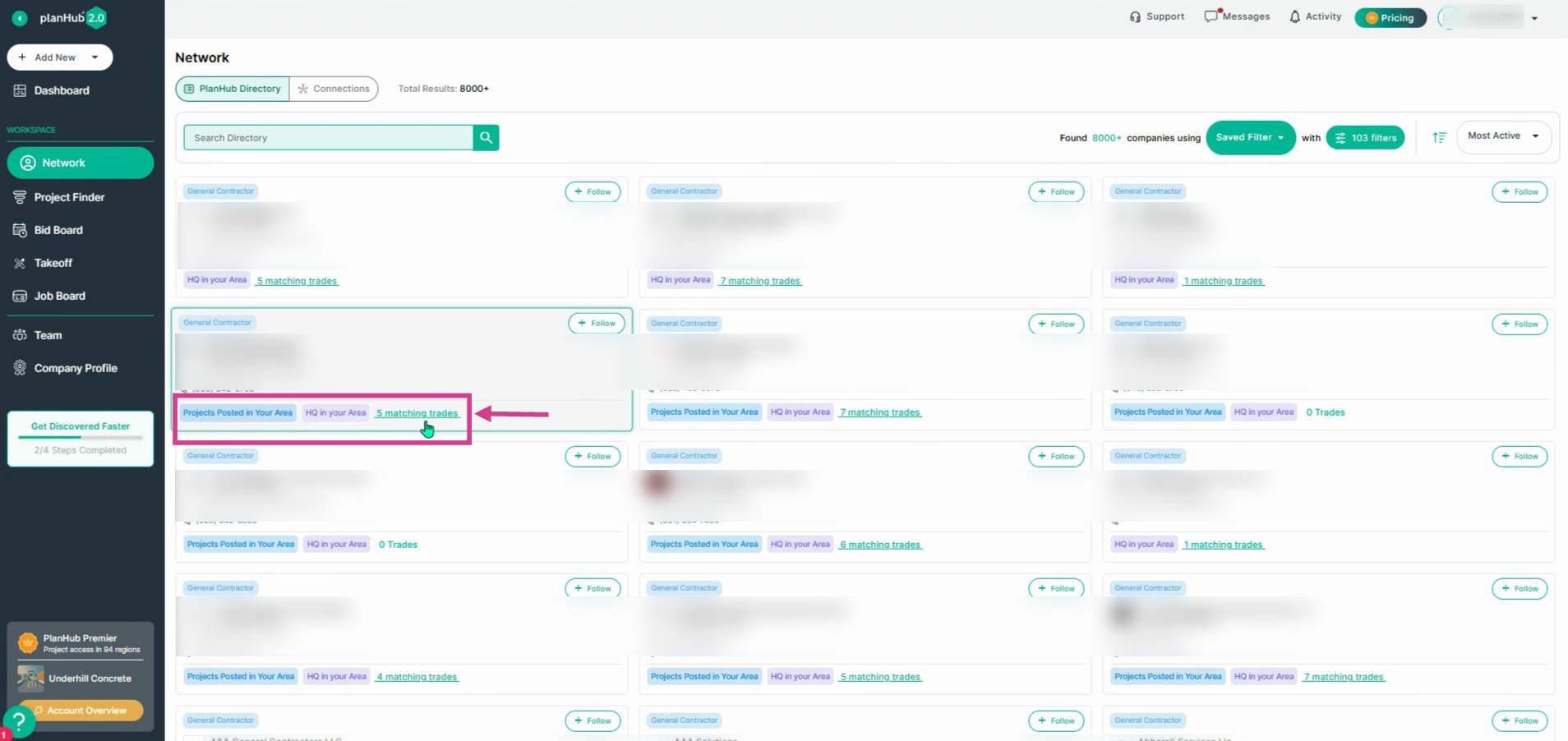
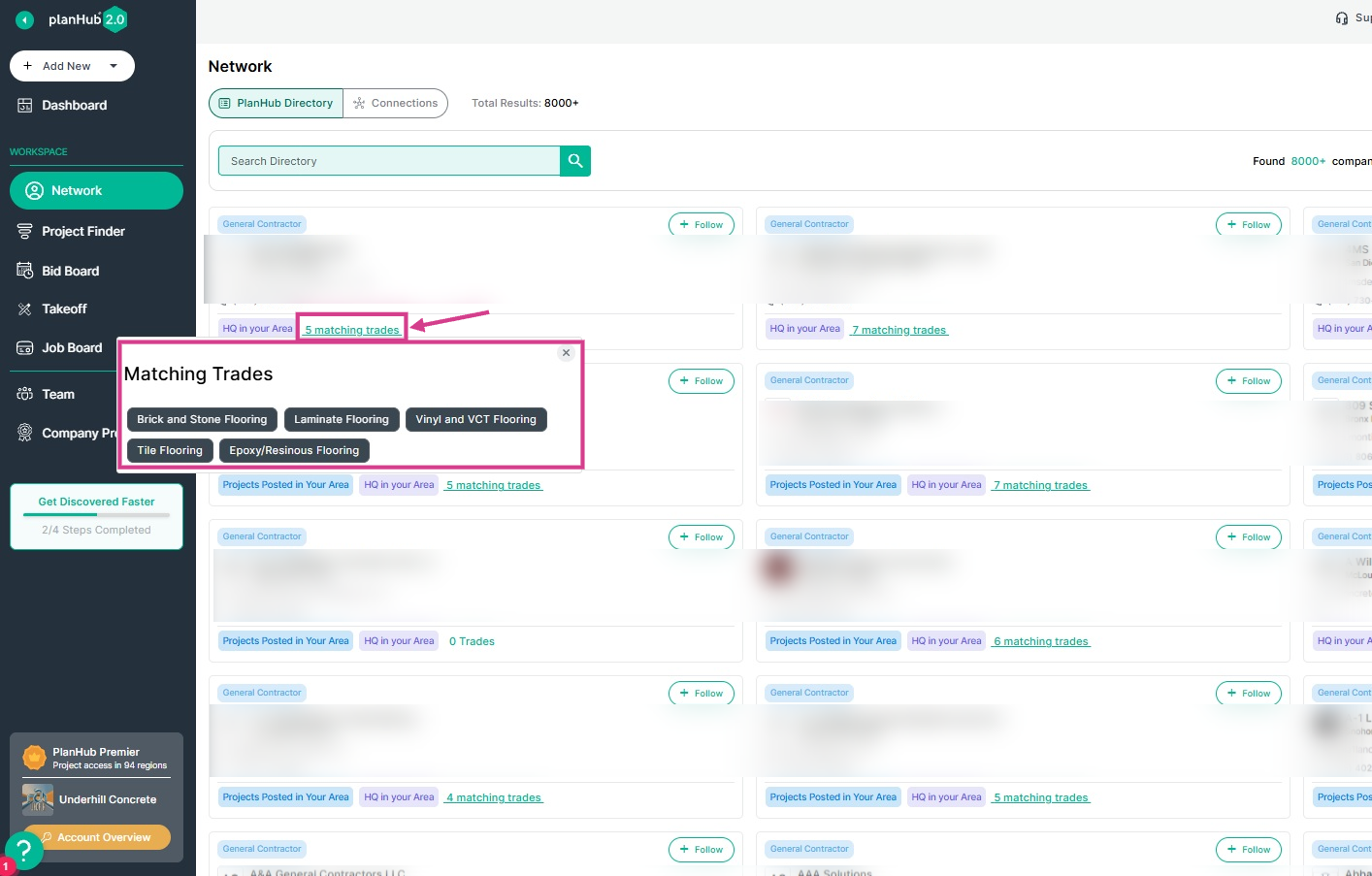
Step 8: Click on the number of Matching Trades to see which trades they’re currently seeking that match your company’s selected trades.
Step 9: Click on a company card to view the company details page.
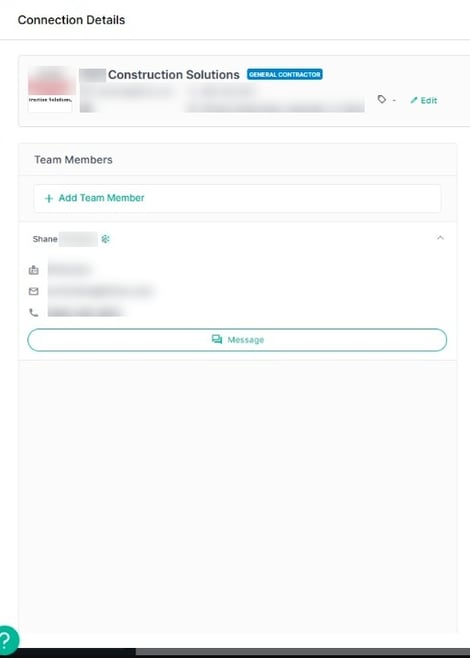
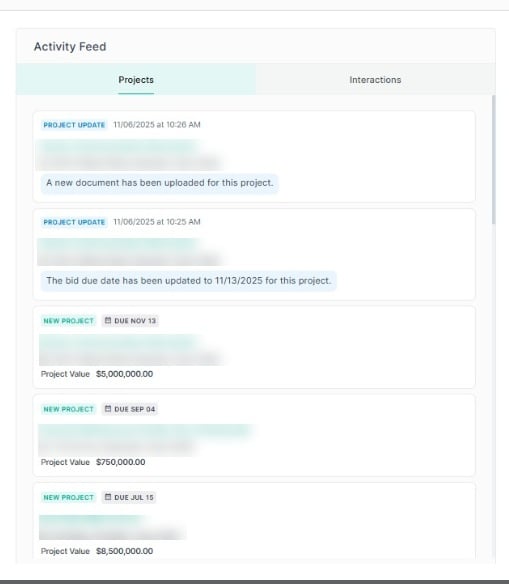
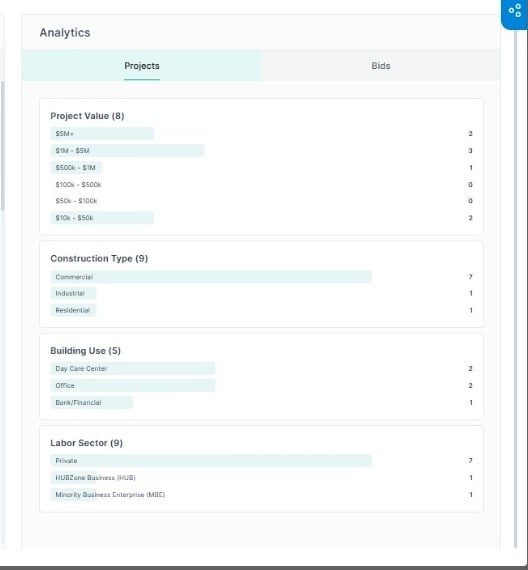
Step 10: On the company card details page, you can view the Connection Details showing the project name, location and the contact team members. In the center, view the Activity Feed to see projects posted by the GC and previous interactions your team has had with the GC. In the Analytics section, switch between the Projects and Bids tabs to view insights such as project value, construction type, building use and bids submitted/awarded, win rates, and feedback.
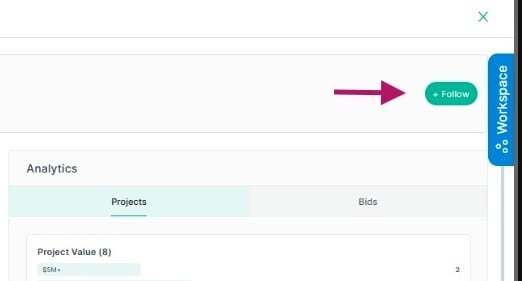
Step 11: If you have not yet selected to follow this general contractor, you’ll also find the Follow option in the upper right corner of the details page.
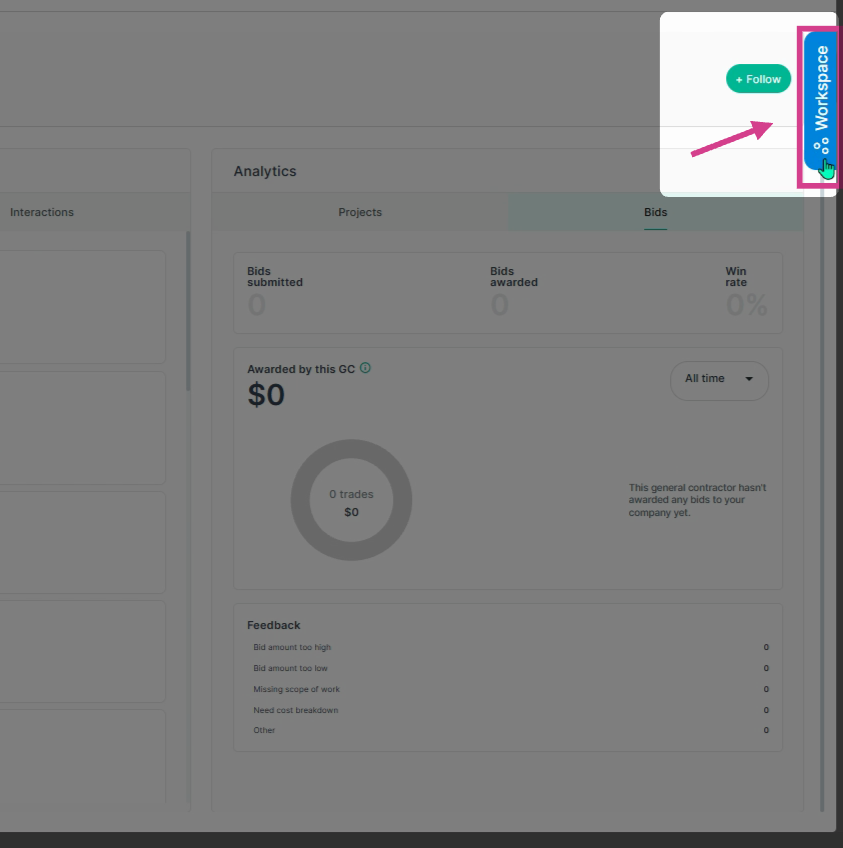
Step 12: Click on the Workspace tab in the upper right corner to view additional actions you can take concerning this general contractor.
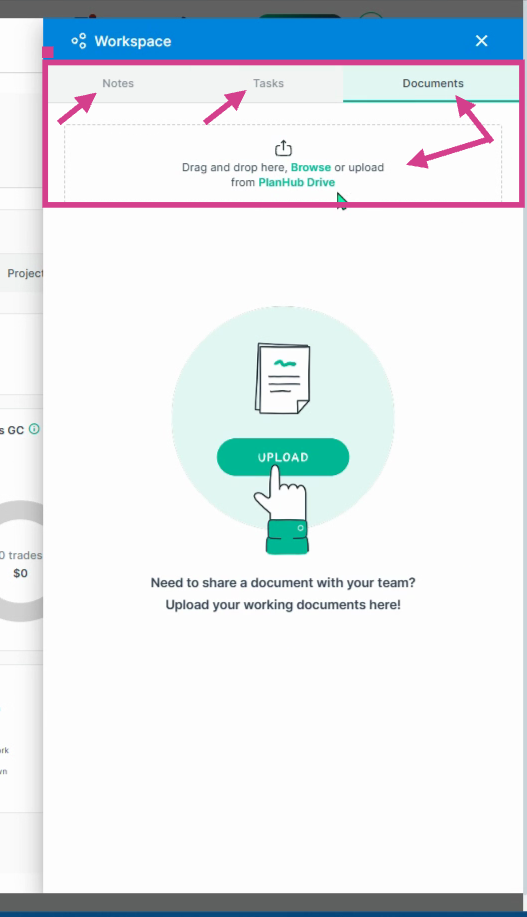
Step 13: In the Workspace, you can add Notes, assign Tasks to team members, and upload Documents to help your team stay organized. You can upload documents directly from your computer or your PlanHub Drive.
Filtering and Searching the Network Directory
Fine-tune your list to match your needs by using filters and the keyword search bar.
Step 1: Use the keyword search bar to find a general contractor by name or by the trade(s) you are searching for within the Network directory. Here, you can view the number of companies found using your keywords.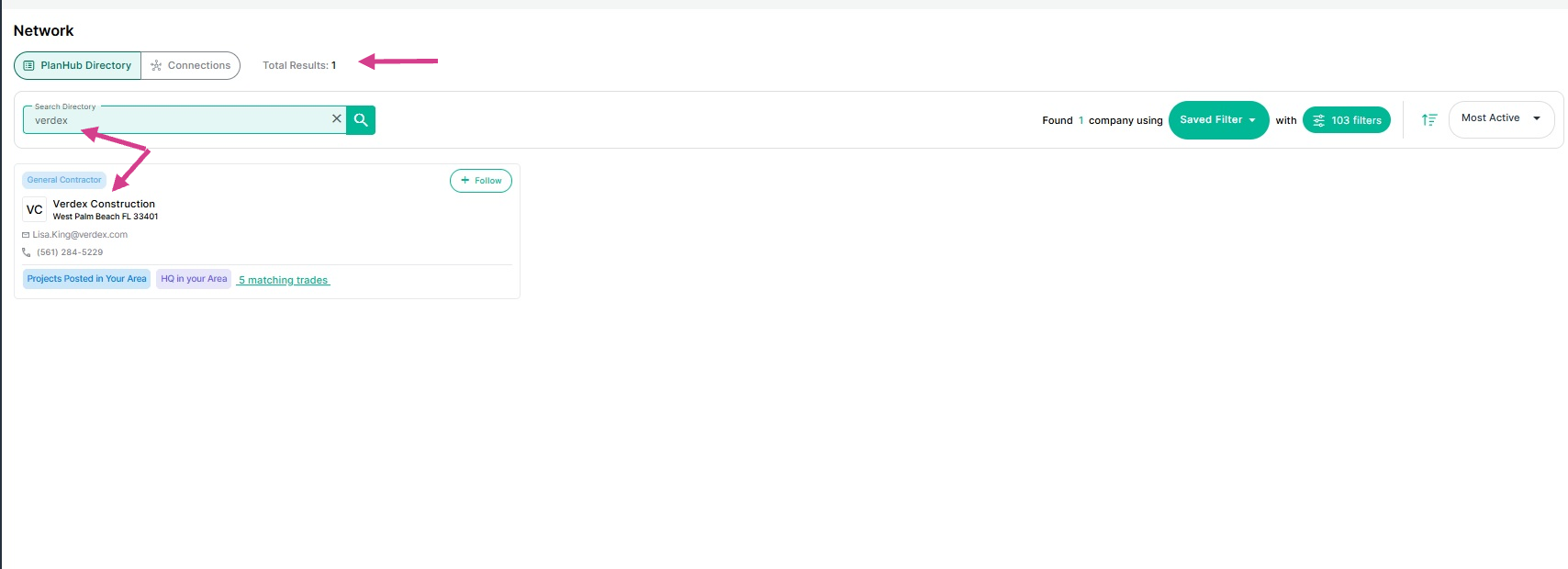
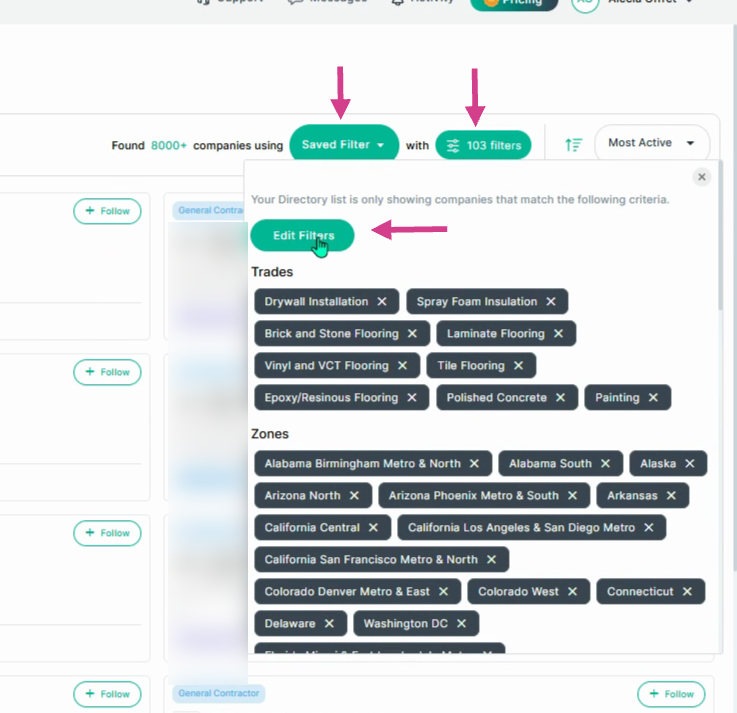
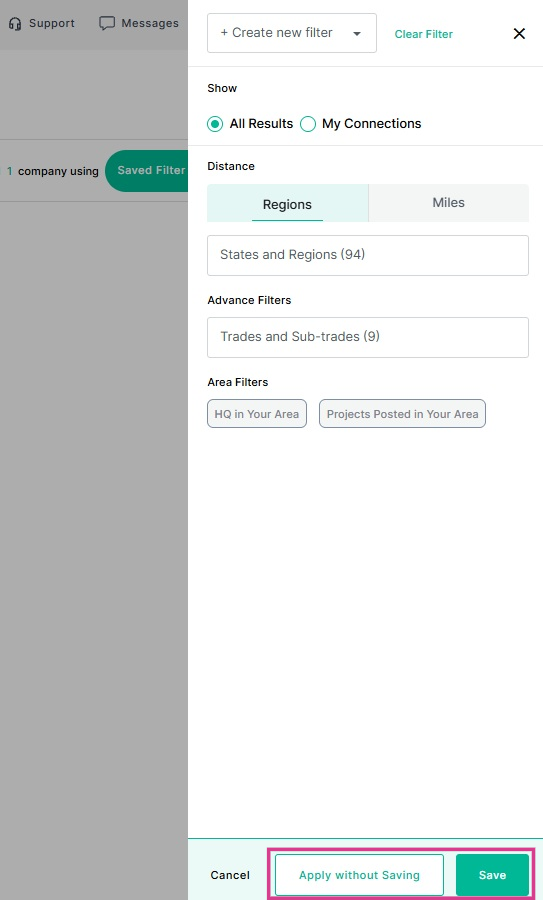
Step 2: Open the Saved Filter dropdown menu to create or select filters. Use the filters drop down menu to add or remove trades, and update your regions. Click Edit Filters to open a new window to create and change filters.
Then click "Apply without Saving" to save your update temporarily or "Save" to update your current selected or new filter.
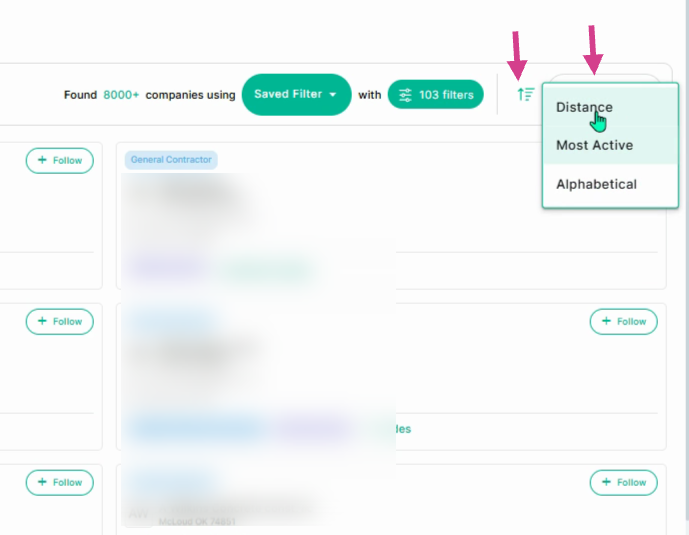
Step 3: Sort the list by ascending/descending order or by Distance, Most Active, or Alphabetically using the dropdown menu.
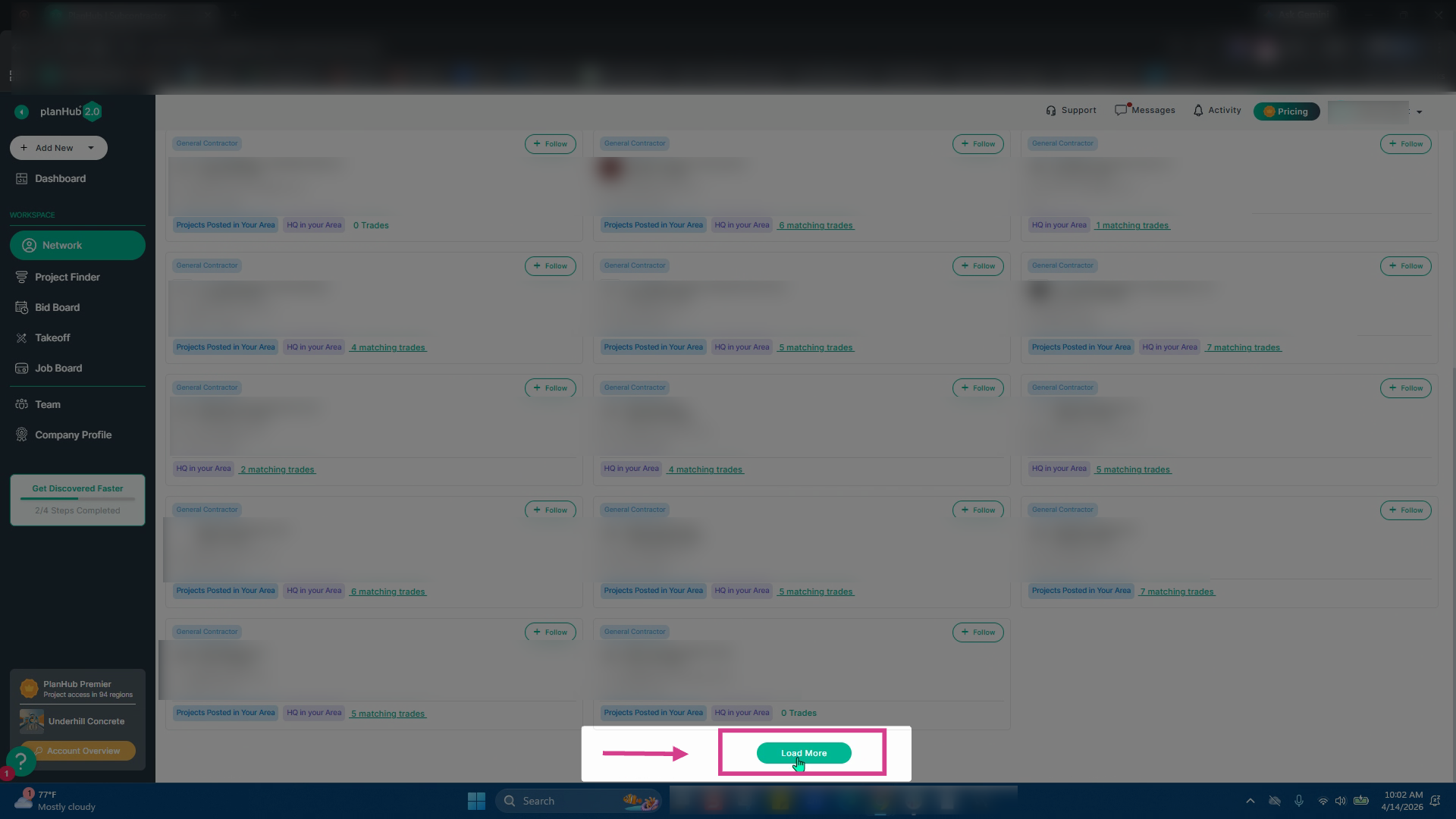
Step 4: At the bottom of the Network directory page, click the Load More button to view more GC contact cards.
Getting Support and Subscription Info:
Step 1: If you have not purchased a subscription and would like to learn more, you can contact our Solutions Specialist team using the contact information below:
Subcontractor Accounts: (561) 295-1417 x100
Supplier Accounts: (561) 872-6710 x110
General Contractor Accounts: (561) 916-3490
Step 2: If you currently have a paid subscription plan, and would like to purchase the Network directory add-on feature, please contact your Account Manager directly or send an email to: customerservicegroup@planhub.com and indicate that you are interested in purchasing the Network directory add-on feature.
Step 3: For general support, contact our Customer Support team by clicking on "Contact" located at the bottom of planHub website's main page or refer to our Knowledge Base article here: "How to Contact PlanHub Customer Support."
Navigating the Network Directory and company cards helps you strategically connect, track, and collaborate with the most relevant general contractors for your business. Familiarize yourself with the tabs, filters, and analytics to get the most from your networking efforts.
Troubleshooting
Contact us if you need assistance or to report an issue:
- PlanHub Contact Page: https://planhub.com/contact/
- Customer Facing Support Ticket Link: https://knowledgebase.planhub.com/knowledge/kb-tickets/new