![NEW_PlanHub_Logo_Navy.png]](https://knowledgebase.planhub.com/hs-fs/hubfs/Design/PH%20Logos/NEW%202024%20PH%20Logos/NEW_PlanHub_Logo_Navy.png?height=40&name=NEW_PlanHub_Logo_Navy.png)
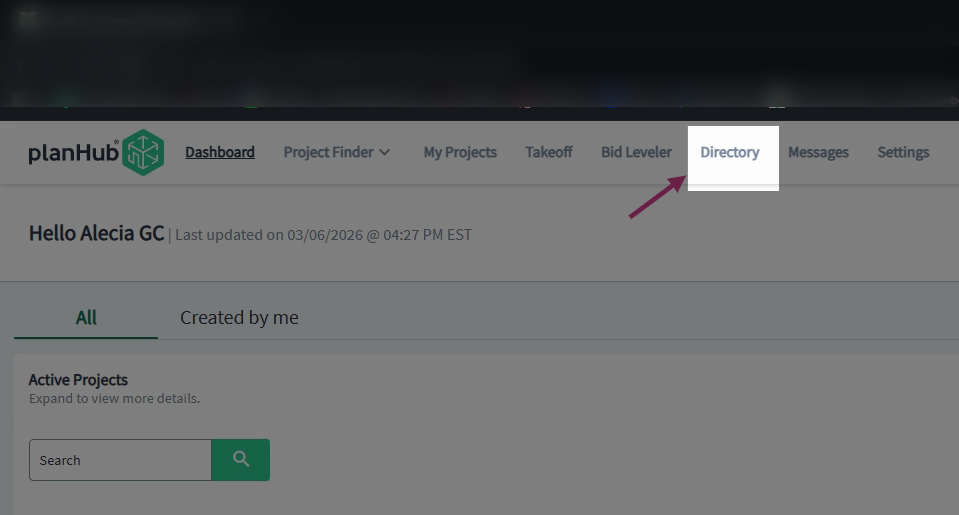
Step 1: Click the Directory tab at the top of your planHub account.
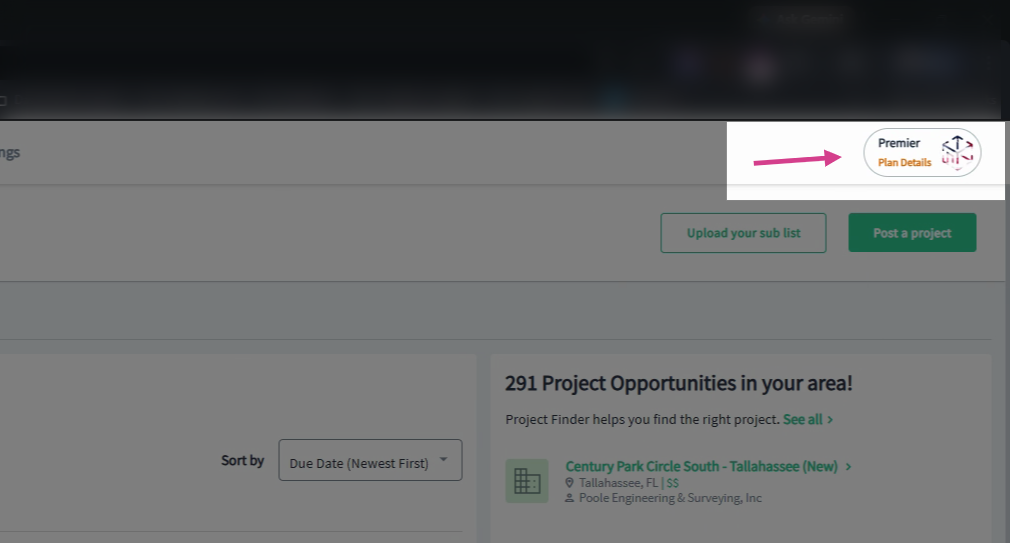
Step 2: View your level of access—Premier, Pro, or Essentials. Premier and Pro users see planHub's entire directory network, however, Essentials users see only their uploaded and saved contacts and have limited directory access.
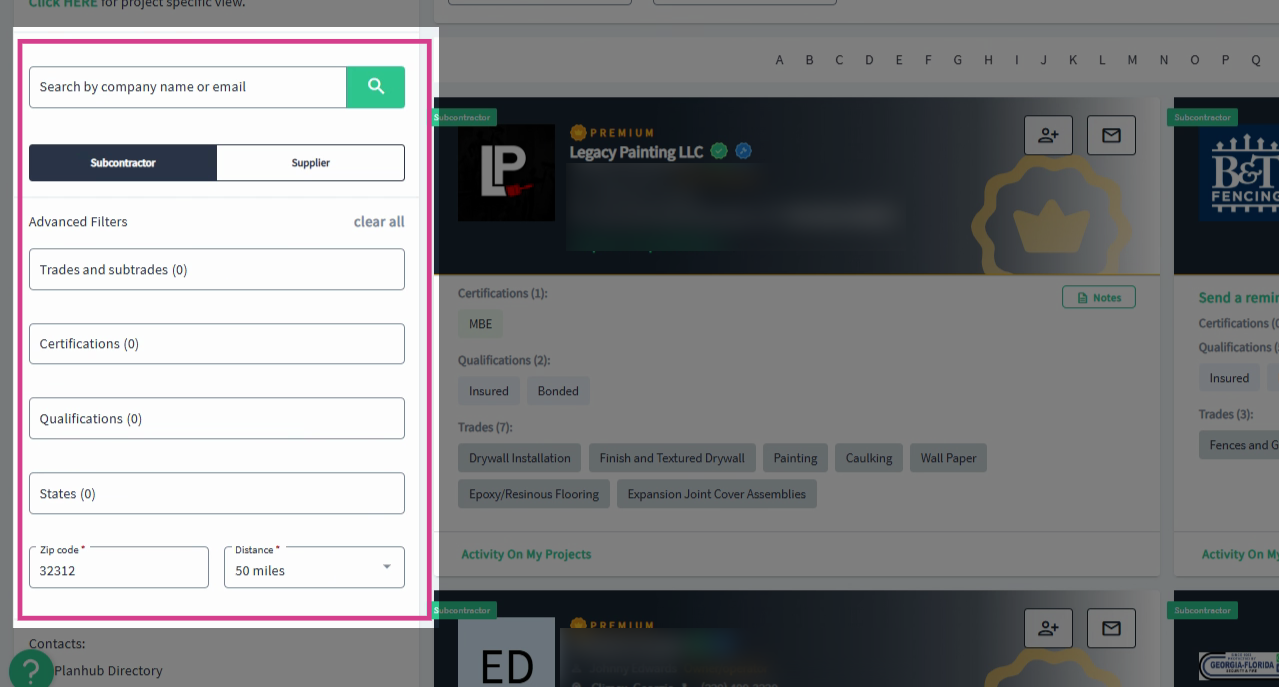
Step 3: Use the search tools on the left side to find subcontractors and suppliers that fit your needs.
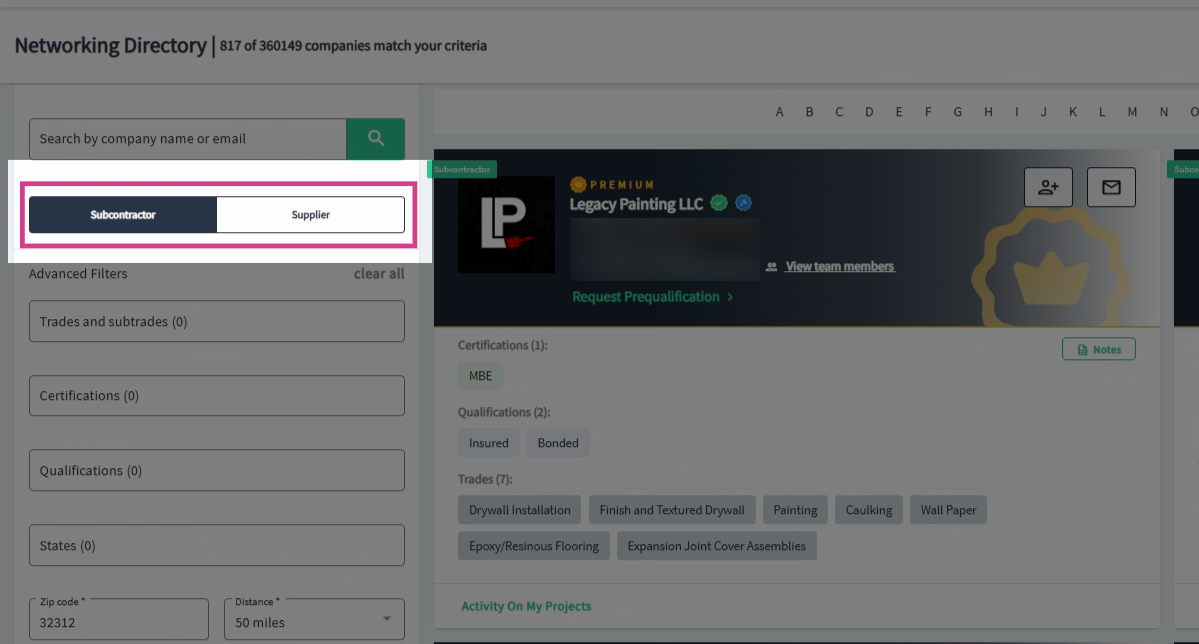
Step 4: Narrow results by clicking the desired user type: Subcontractor or Supplier.
Step 5: Use Advanced Filters to filter by trades and subtrades, certifications, qualifications, or filter by states or by Zip code and distance.
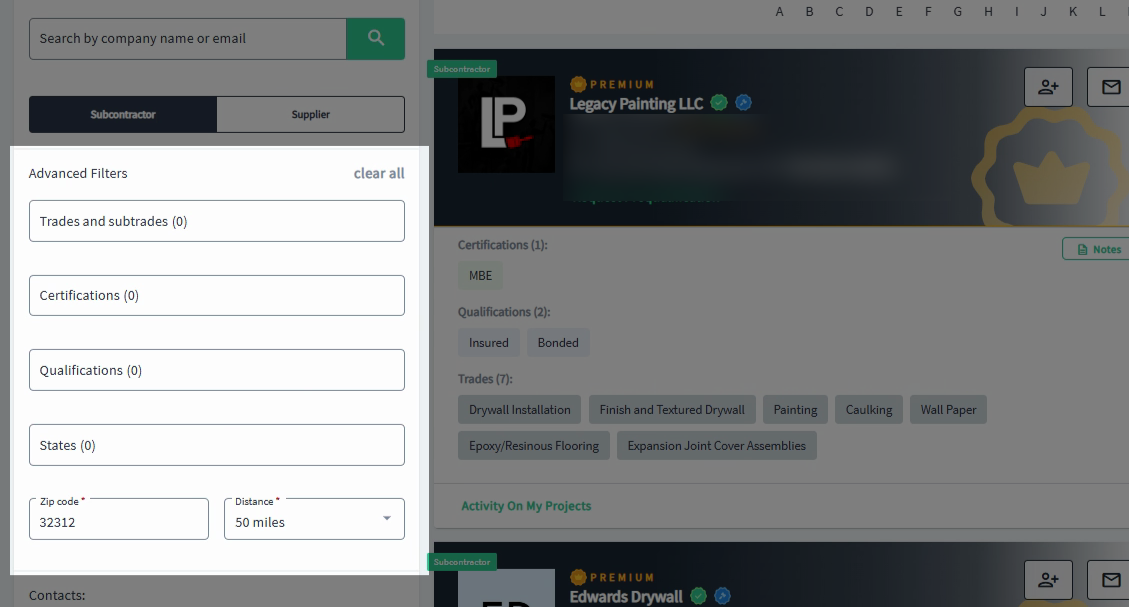
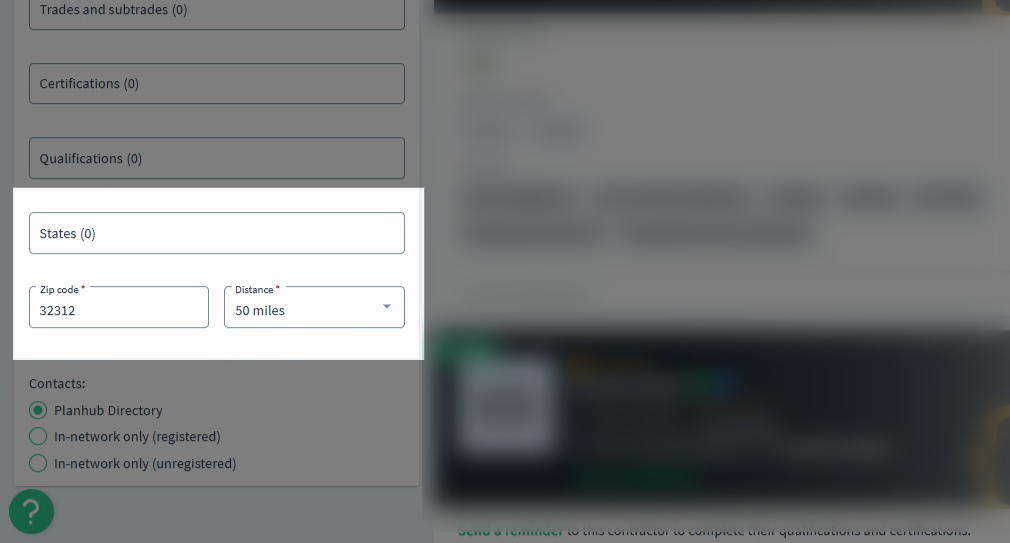
Step 6: When you filter by states, the Zip code and distance options are disabled. Remove selected states to use Zip code and distance options.
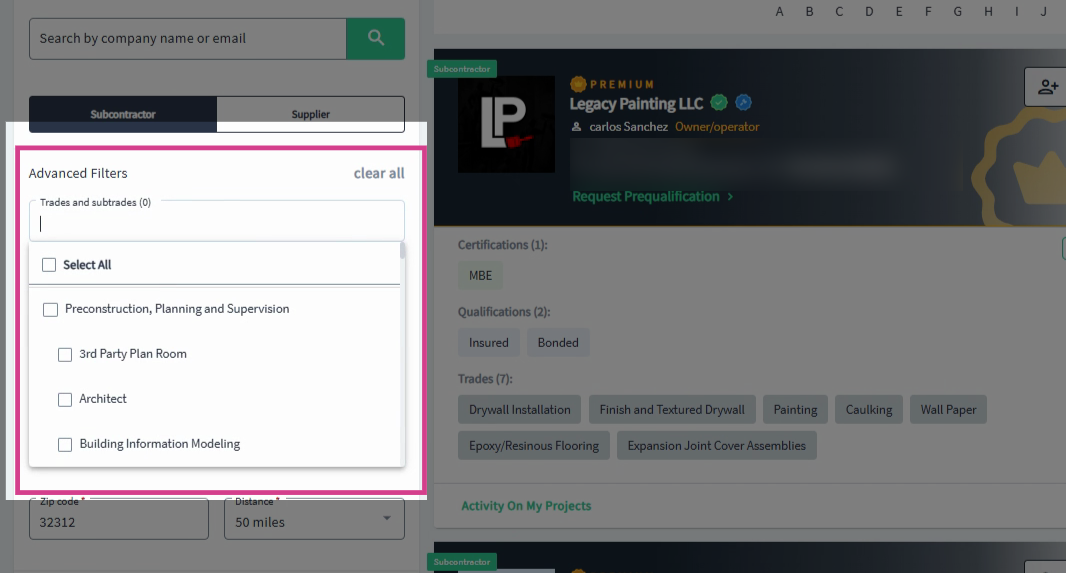
Step 7: Select the trades and subtrades, then, click outside the filter to apply your selections and update the list of contacts.
Step 8: View the count of matching companies at the top left, above the directory.

Step 9: Change the sorting order using the dropdown arrow in the sort-by dropdown menu above the contact cards. Then, choose your preferred option.
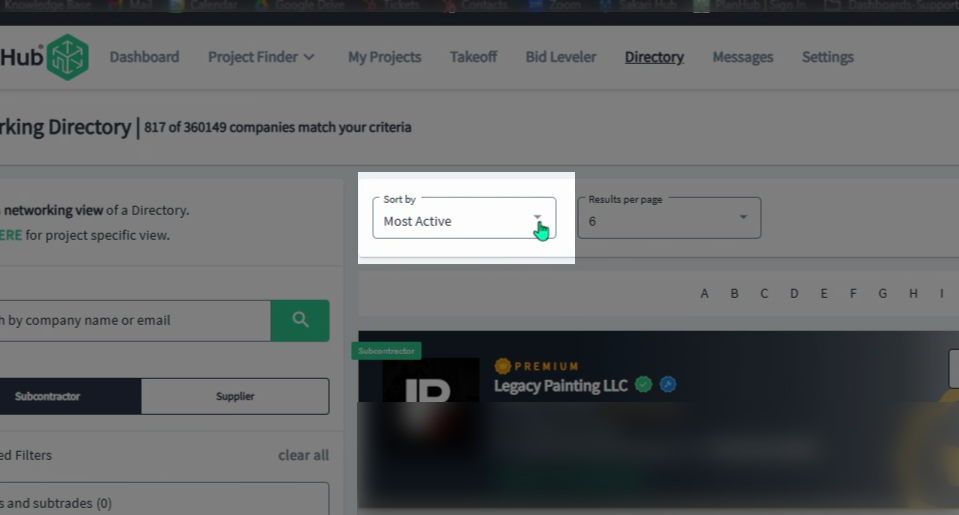
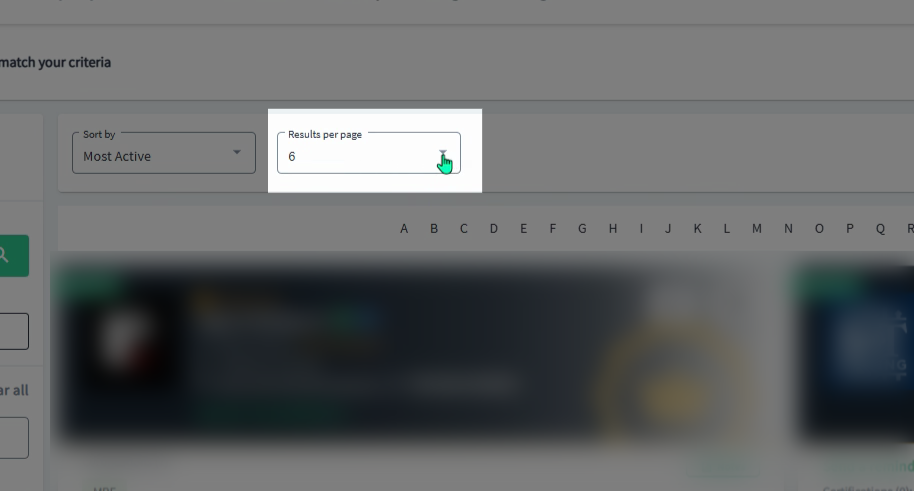
Step 10: Adjust the number of results per page from the results per page dropdown menu.
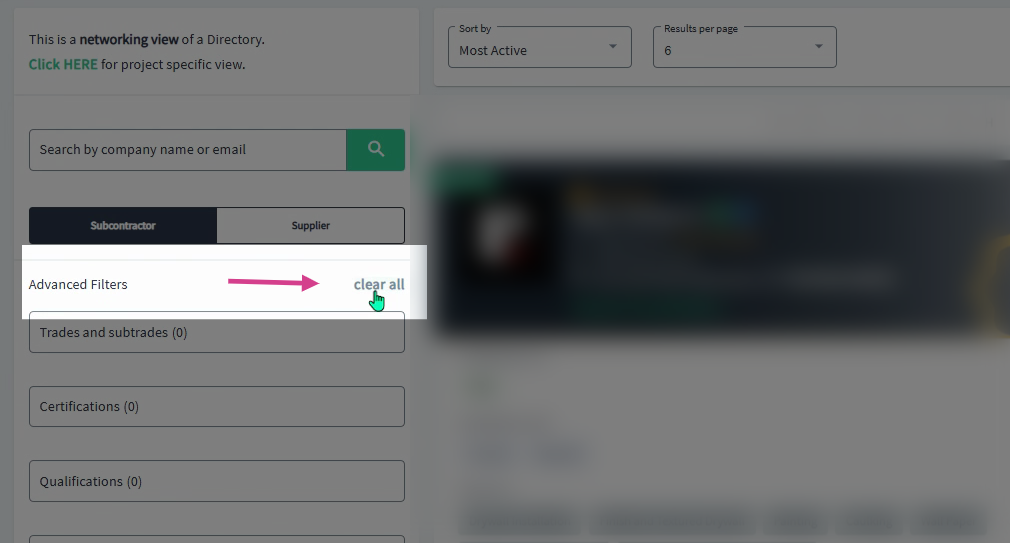
Step 11: Start a new search any time by clicking Clear All in the advanced filters section.
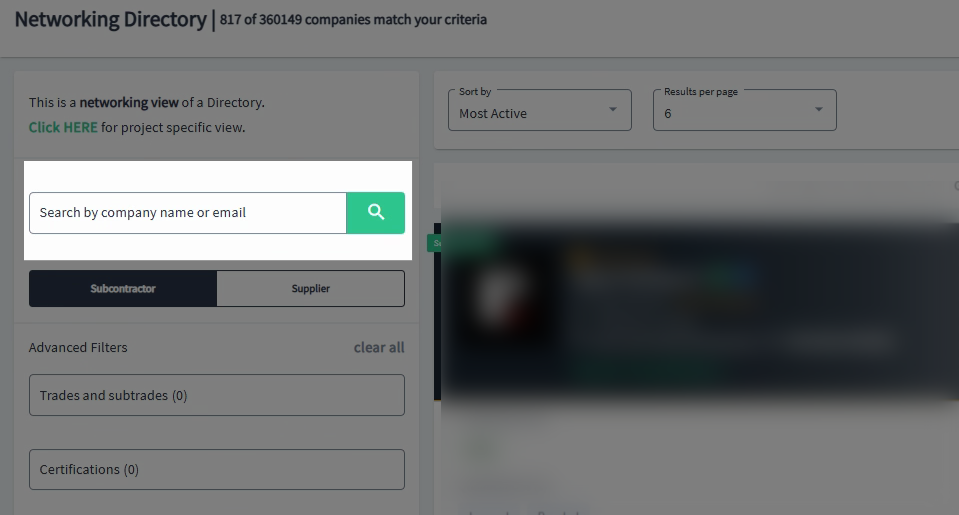
Step 12: To find a specific company or contact, use the search by company name or email bar.
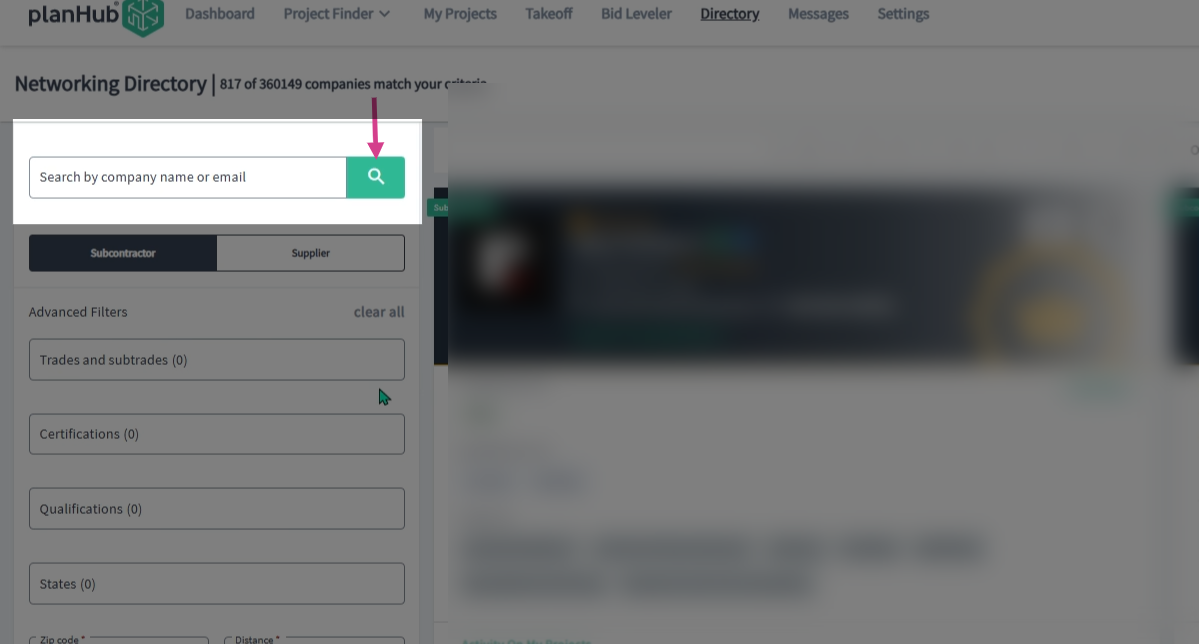
Step 13: Click the magnifying glass or press Enter to begin the search. Clear the field and search again to reset and update the list of contacts.
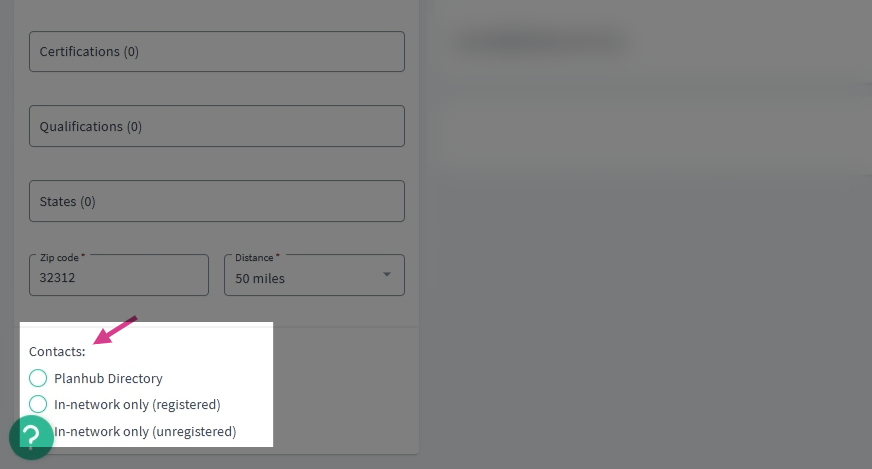
Step 14: Access your contacts at the bottom of the advanced filters section by selecting: "planHub Directory"
- In Network Only (Registered): These are in-network companies that have a registered planHub account under the email address you uploaded.
- In Network Only (Unregistered): These are invited companies that haven’t registered yet under the email address you uploaded.
Note: If Subcontractors or Suppliers have questions about accessing your projects after being sent an invite, please advise them to contact planHub directly for further assistance.
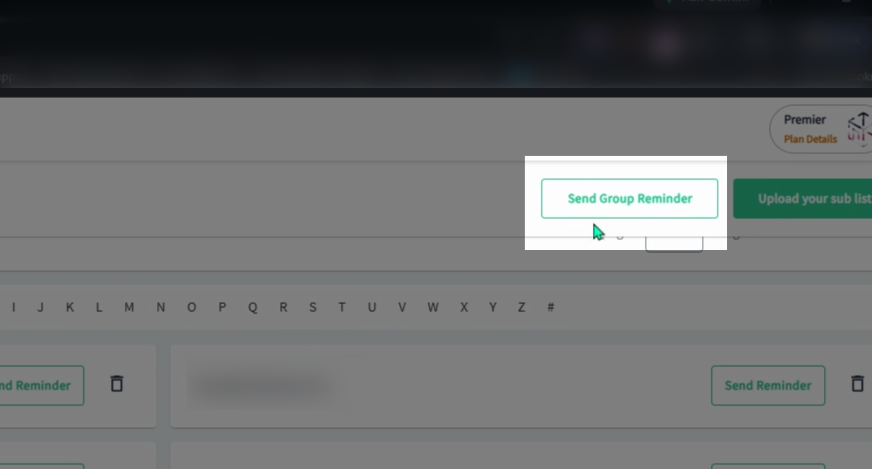
Step 15: Send a bulk reminder email to unregistered contacts by clicking Send Group Reminder in the upper right.
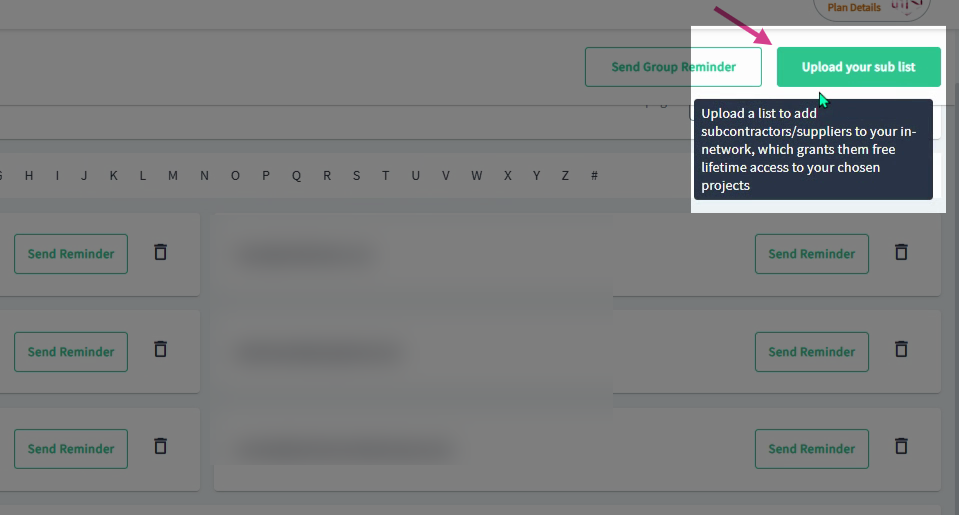
Step 16: Upload a new contact list with the Upload Your Sub List button in the upper right corner. For more details, see the uploading article: "How to Upload your Subcontractor and Supplier Network" to learn how to upload your Sub and Supplier list.
Please see the "GC Networking Directory Company Cards" article to learn more about the company cards listed in the directory.
These Directory features streamline your workflow, expand your network, and help ensure you’re working with the best-fit partners on your projects.