![NEW_PlanHub_Logo_Navy.png]](https://knowledgebase.planhub.com/hs-fs/hubfs/Design/PH%20Logos/NEW%202024%20PH%20Logos/NEW_PlanHub_Logo_Navy.png?height=40&name=NEW_PlanHub_Logo_Navy.png)
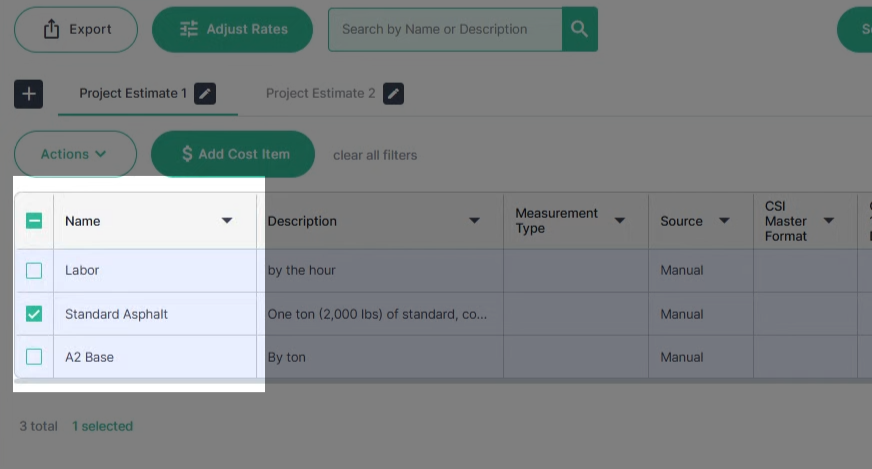
Step 1: Select the cost item you want to manage by clicking the checkbox to the left of the item in the first column.
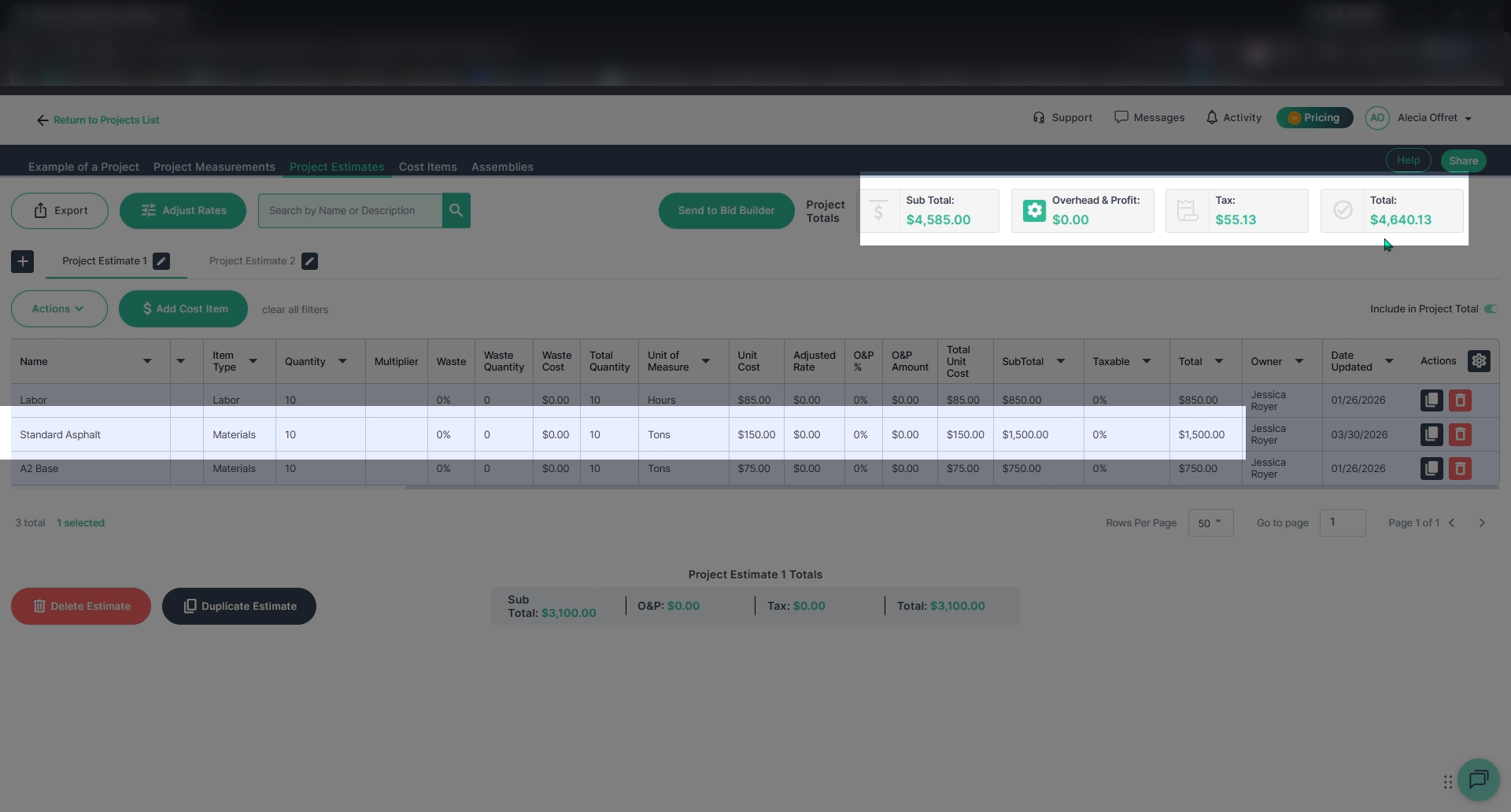
Step 2: Review the line item total in the Total column and check the project totals at the top of the page to see the current sum.
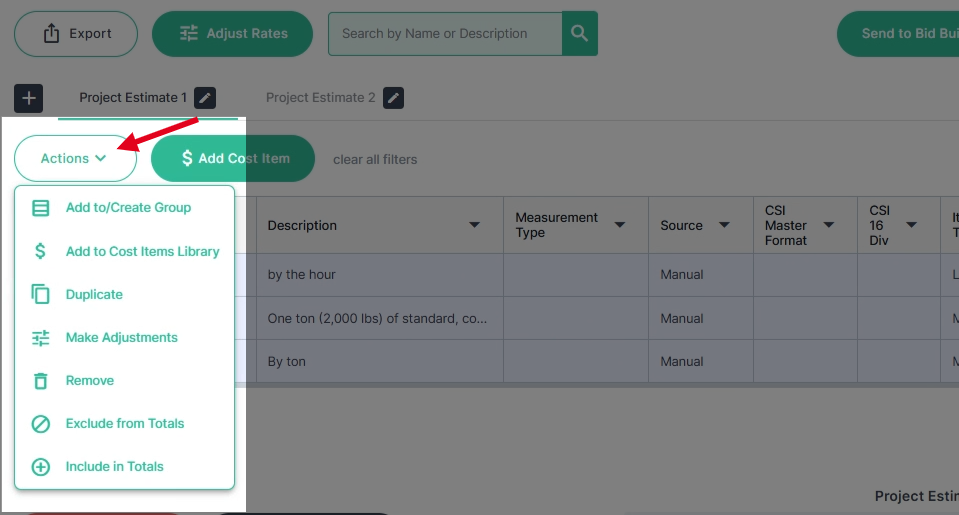
Step 3: Open the Actions menu by clicking the expand icon.
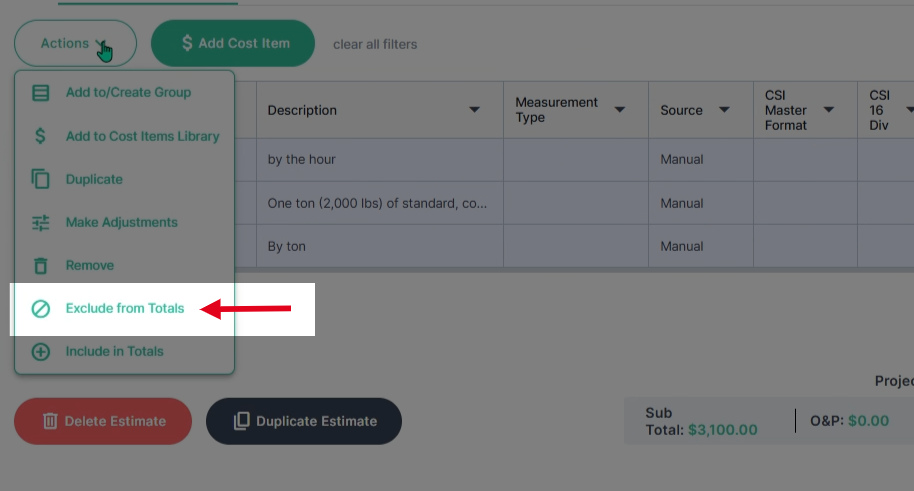
Step 4: Choose the Exclude from Totals option to remove the selected item from the project totals.
Step 5: Notice that the totals at the top have decreased and the total for that cost item is now crossed out in the total column, showing it’s excluded.
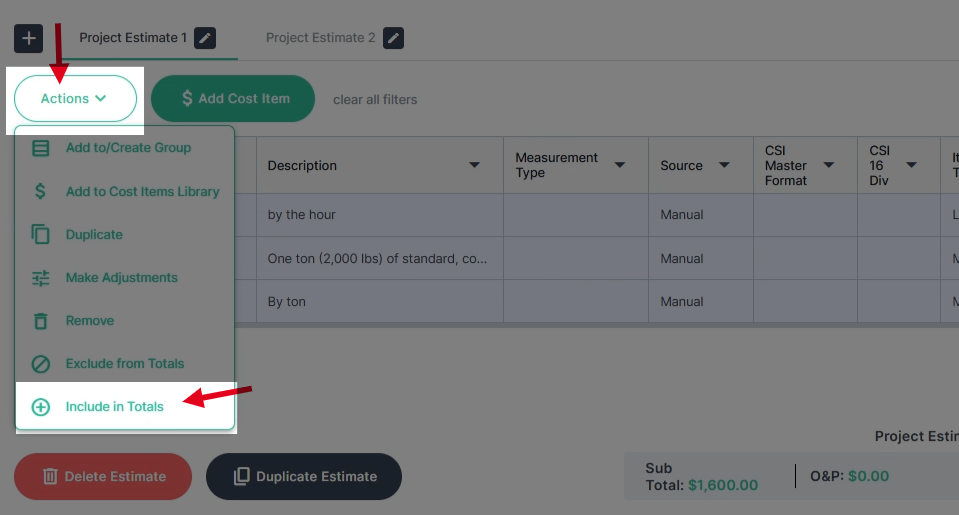
Step 6: To include an excluded item, check the box next to its name, open the Actions menu, and select Include in Totals.
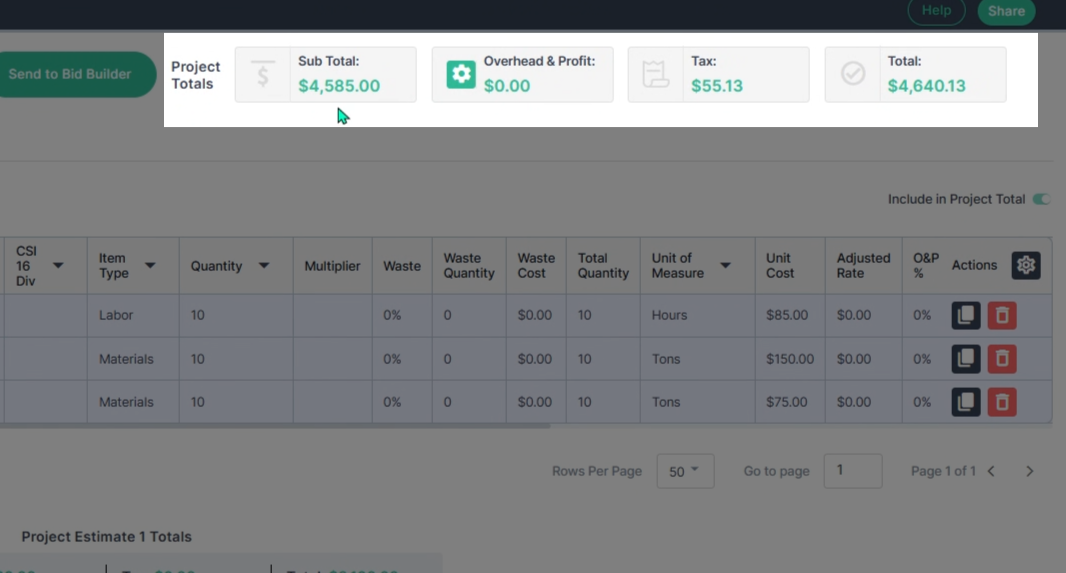
Step 7: View the subtotal and overall project total increase—your cost item is back in the calculations.
Managing Project Estimates in Totals
Step 1: Click to select the estimate you want to exclude from project totals.
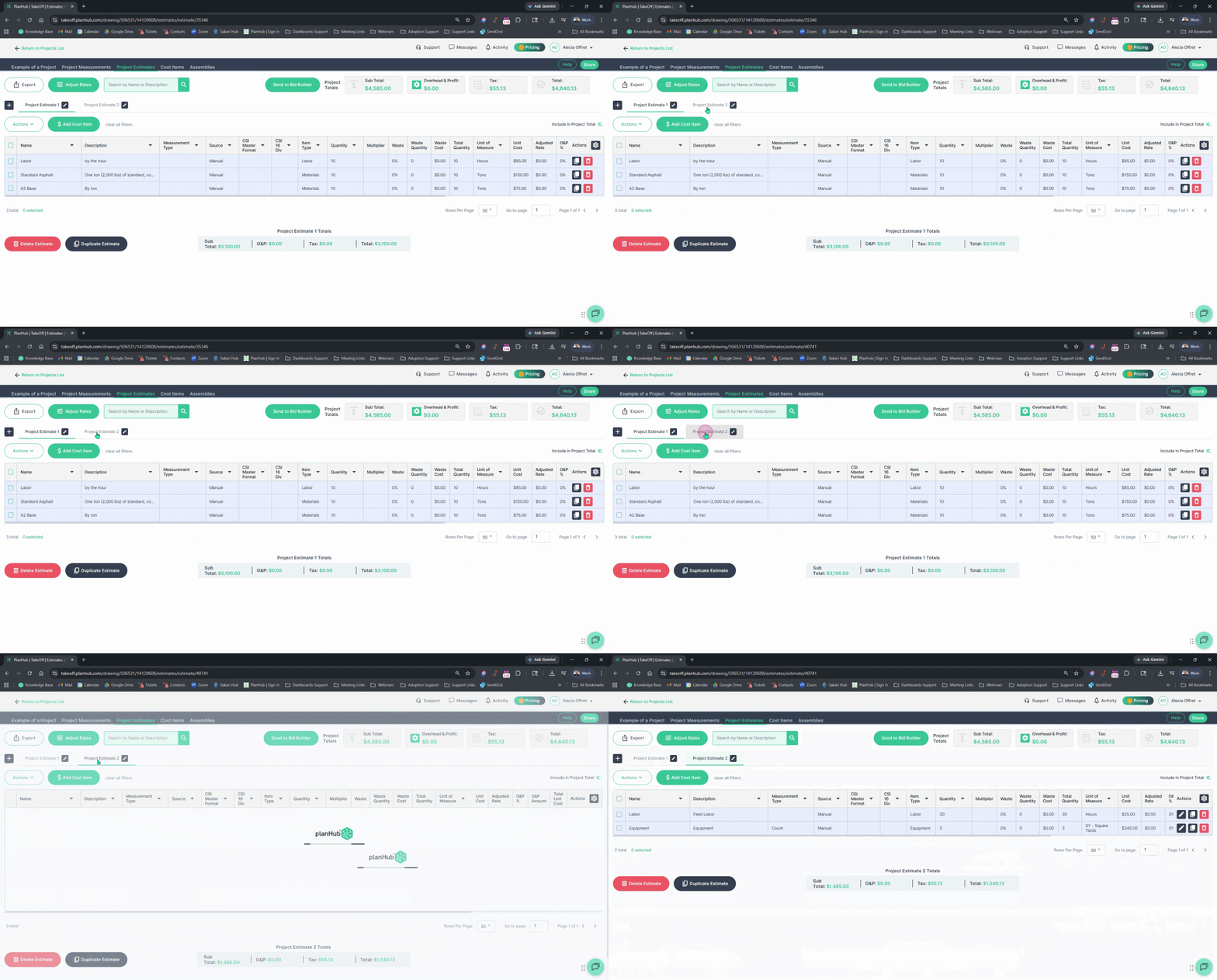
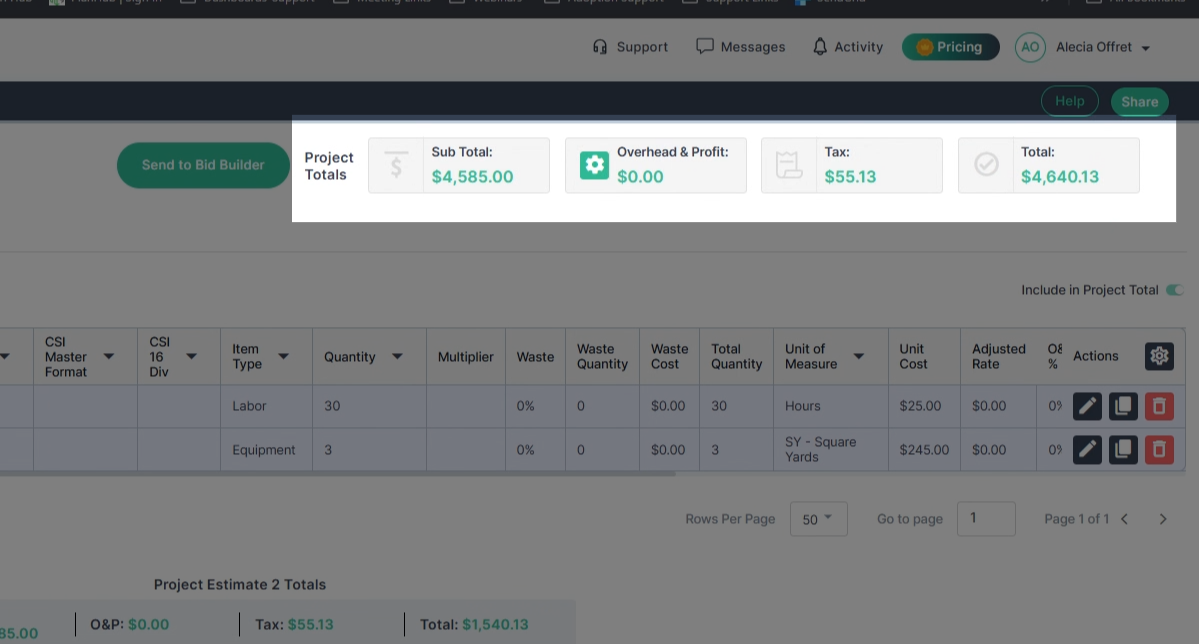
Step 2: Review the current project totals on the right side of the page for reference.
Step 3: Toggle off the Include in Project Totals option on the right side to exclude the estimate.
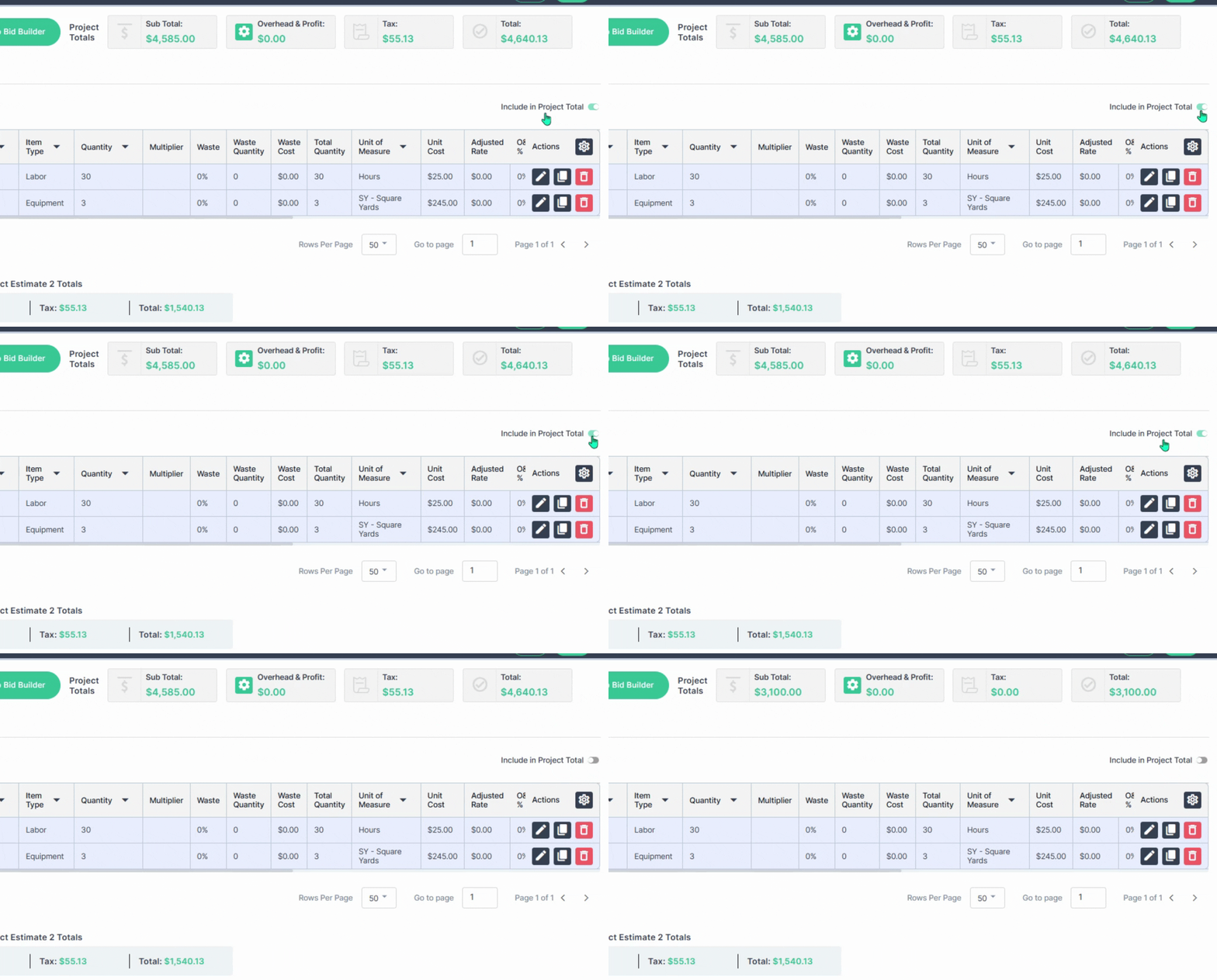
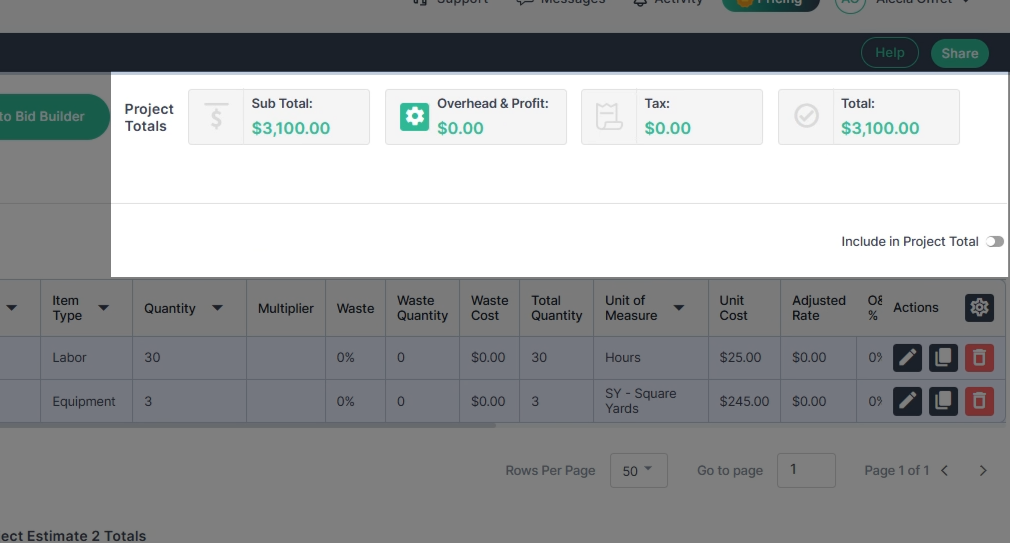
Step 4: See the project totals decrease when project estimate 2 is excluded.
Step 5: To re-include an excluded estimate, toggle on the Include in Project Totals option on the right side.
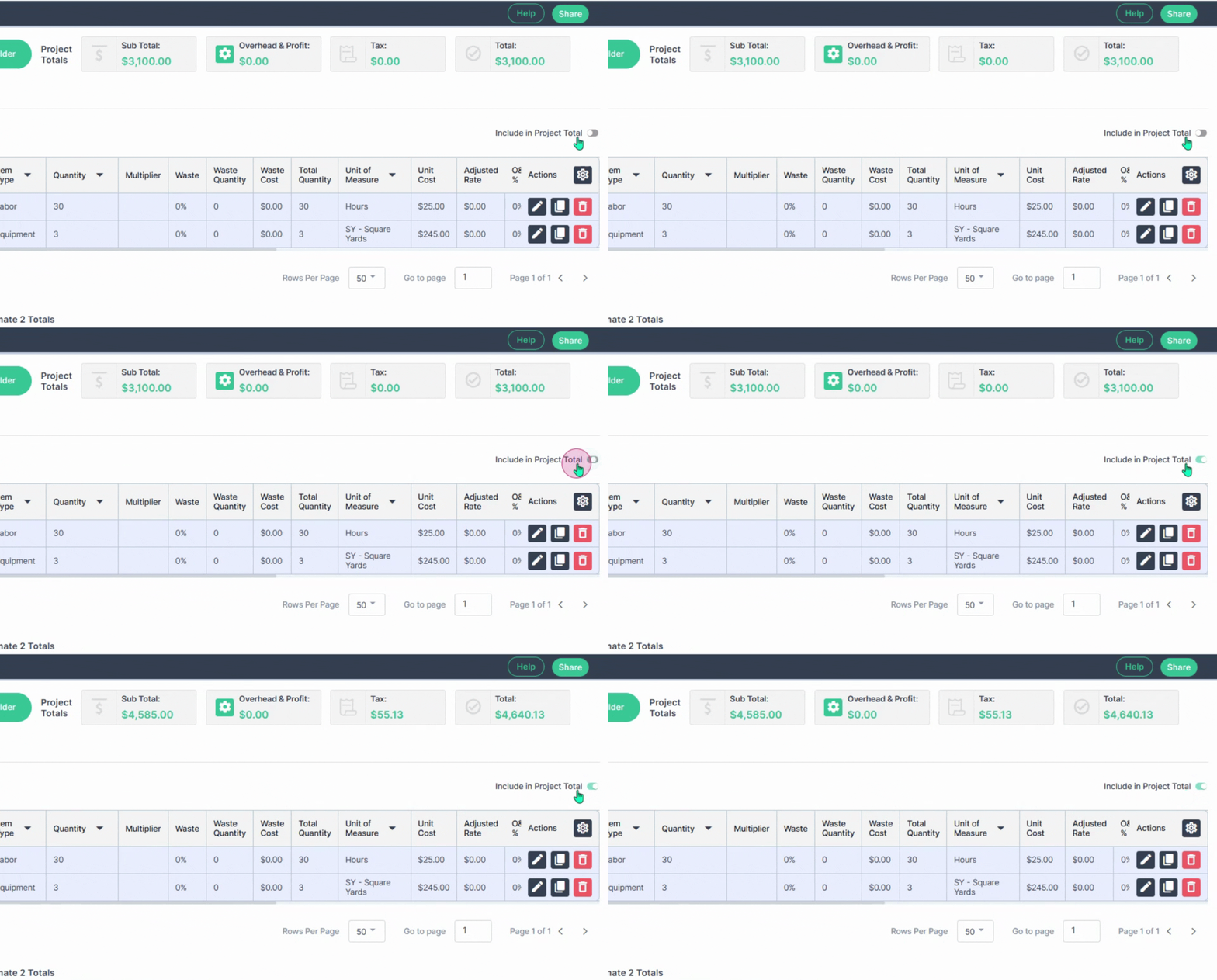
Step 6: Confirm the project totals increase to include the estimate value.
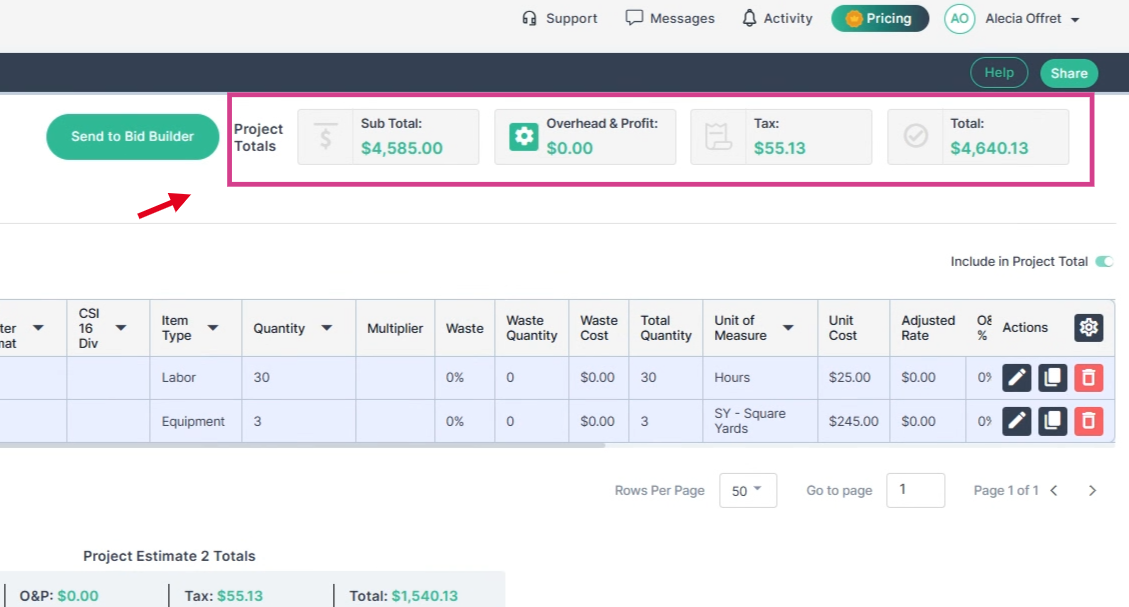
By understanding how to include or exclude cost items and estimates, you can maintain precise control over your project totals, ensuring your calculations reflect what’s needed while creating more accurate, tailored estimates with confidence.