![NEW_PlanHub_Logo_Navy.png]](https://knowledgebase.planhub.com/hs-fs/hubfs/Design/PH%20Logos/NEW%202024%20PH%20Logos/NEW_PlanHub_Logo_Navy.png?height=40&name=NEW_PlanHub_Logo_Navy.png)
VIDEO COMING SOON!
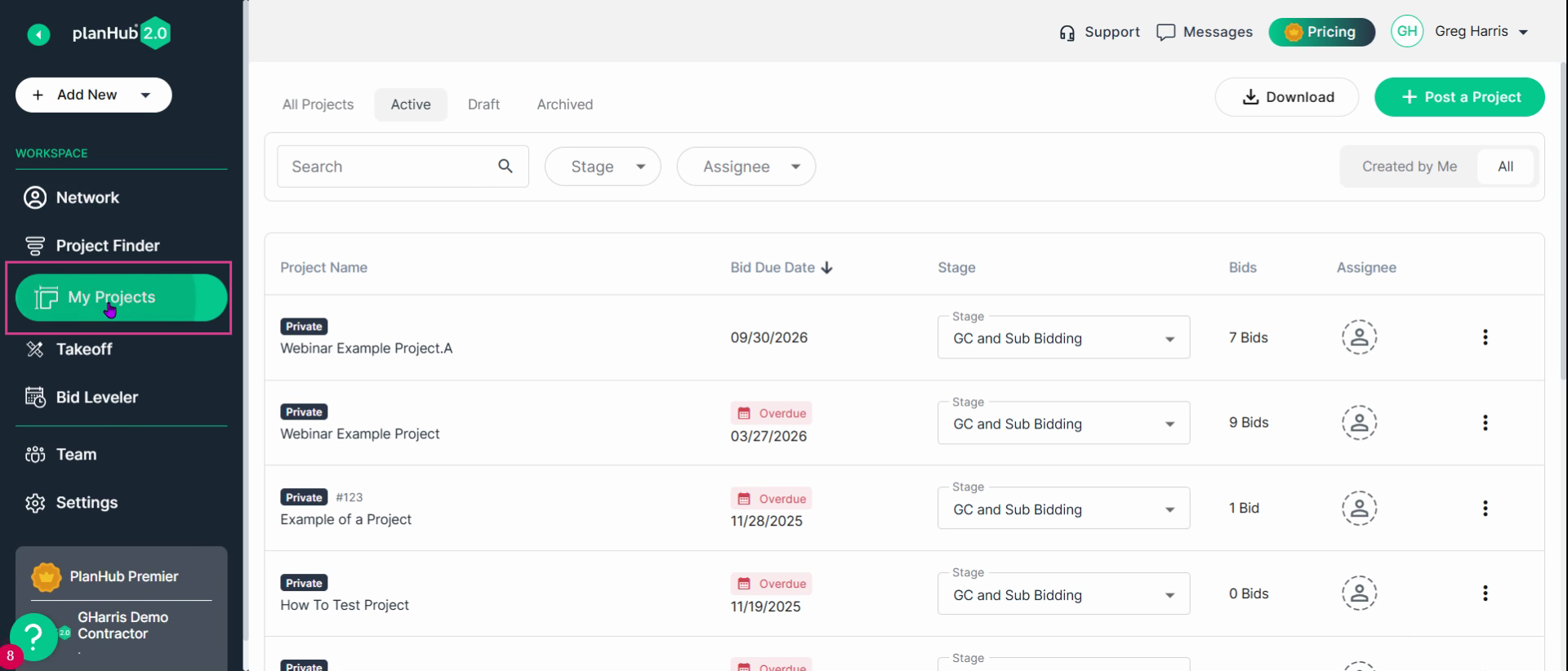
Step 1: Go to your My Projects page.
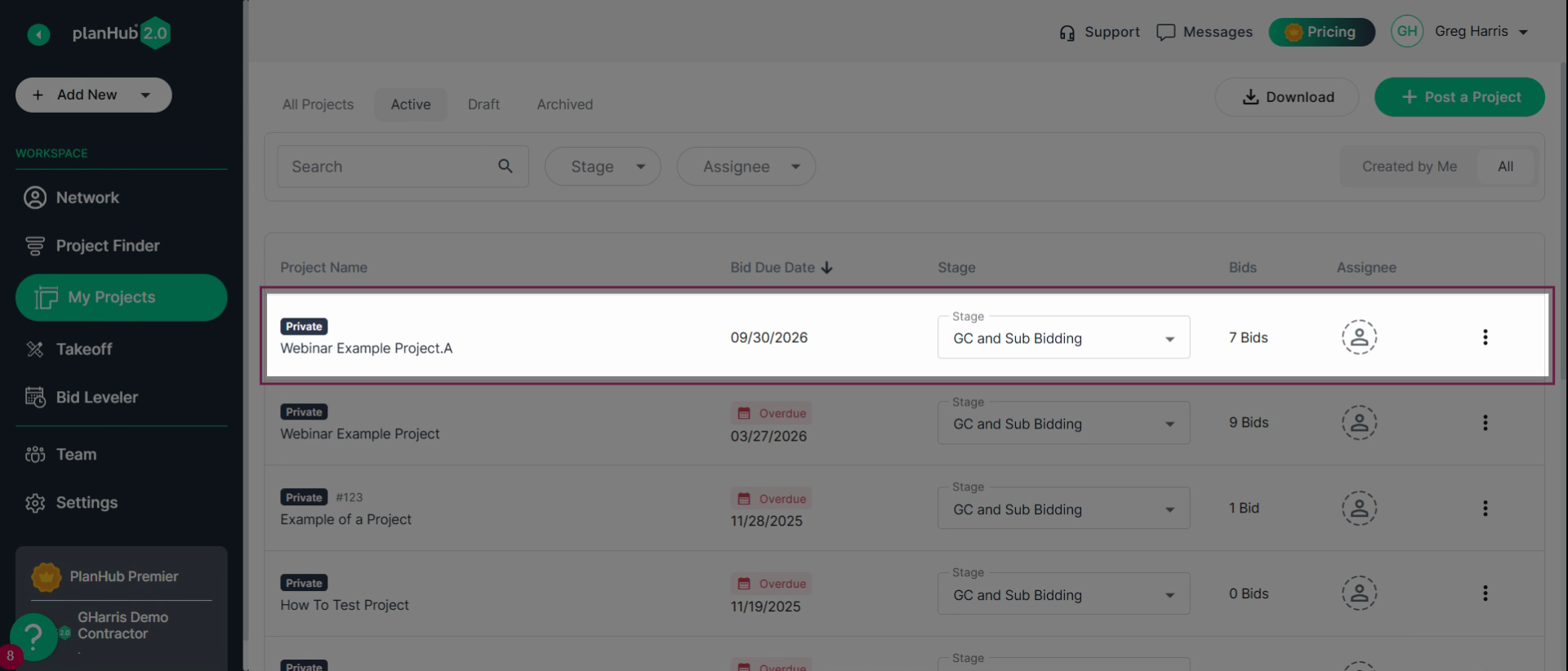
Step 2: Find the project you want to edit.
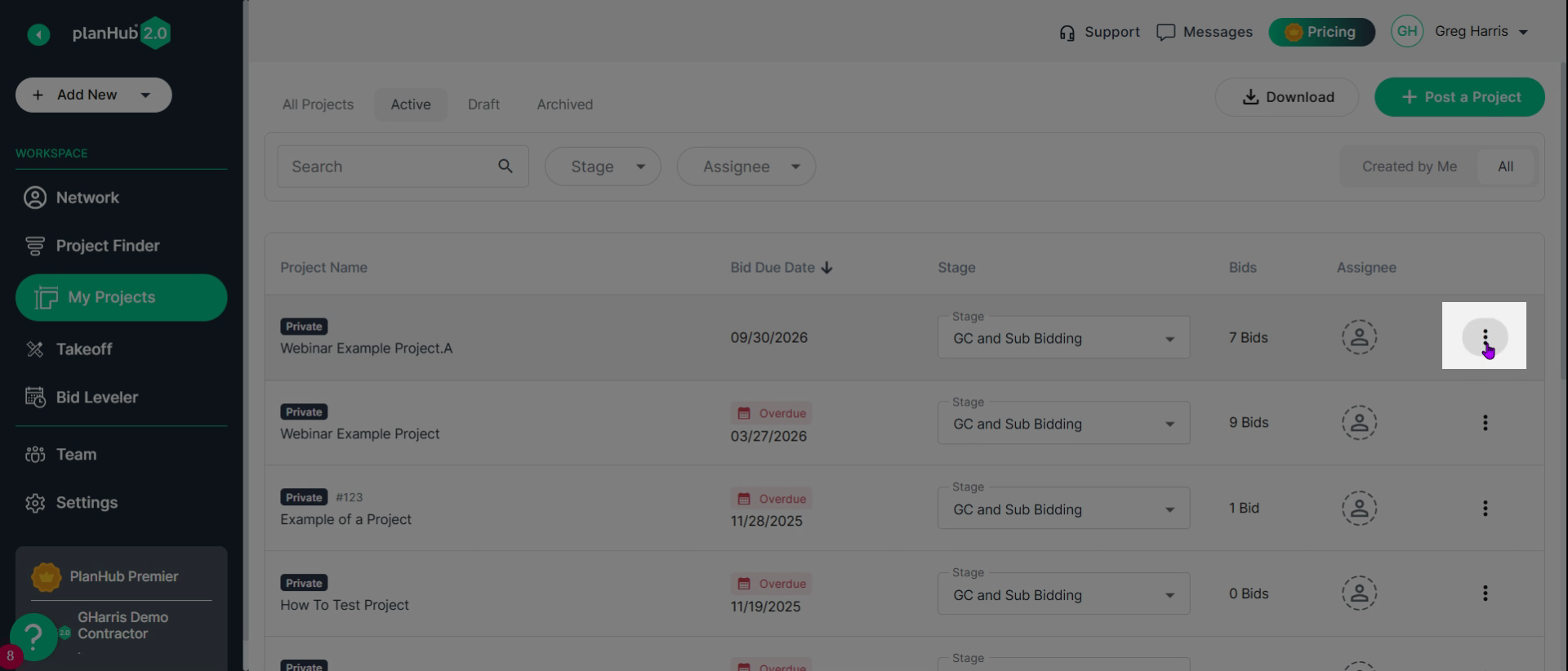
Step 3: On the far right, click the three dots to view more options.
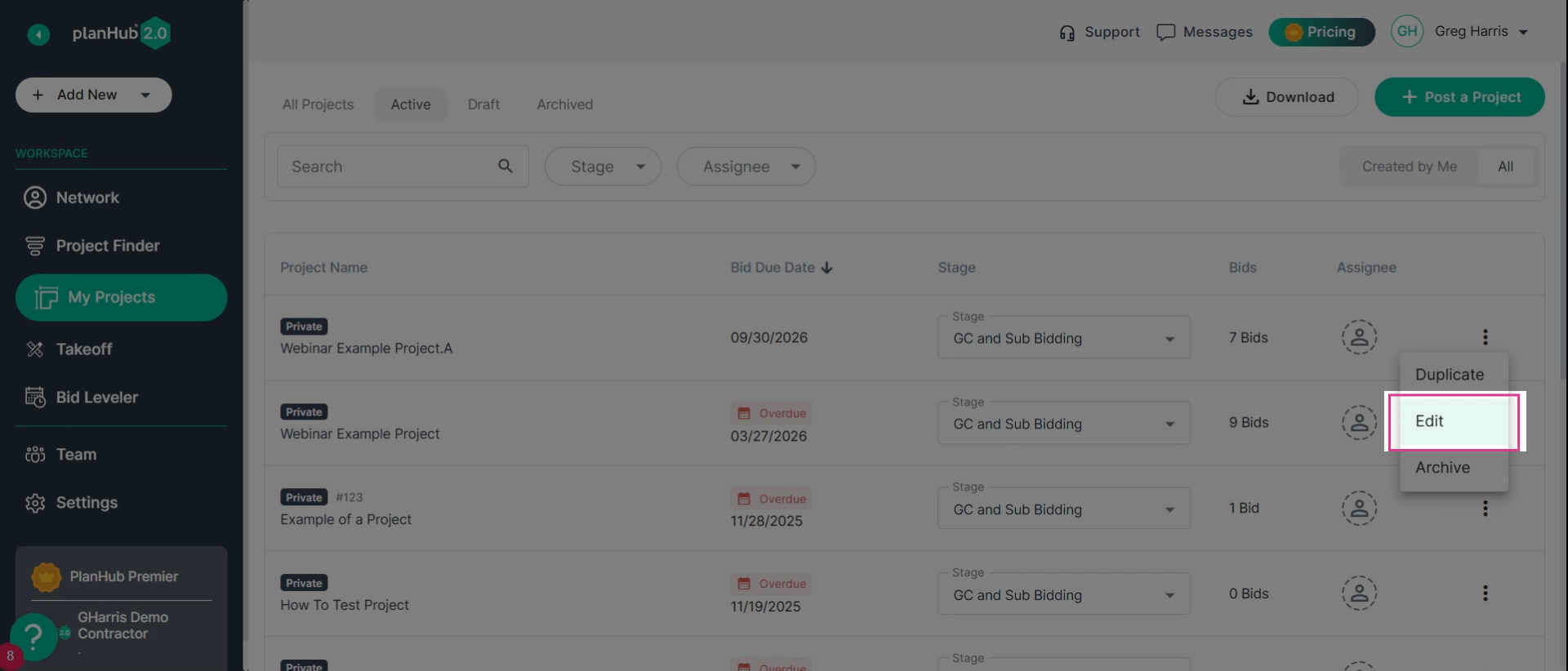
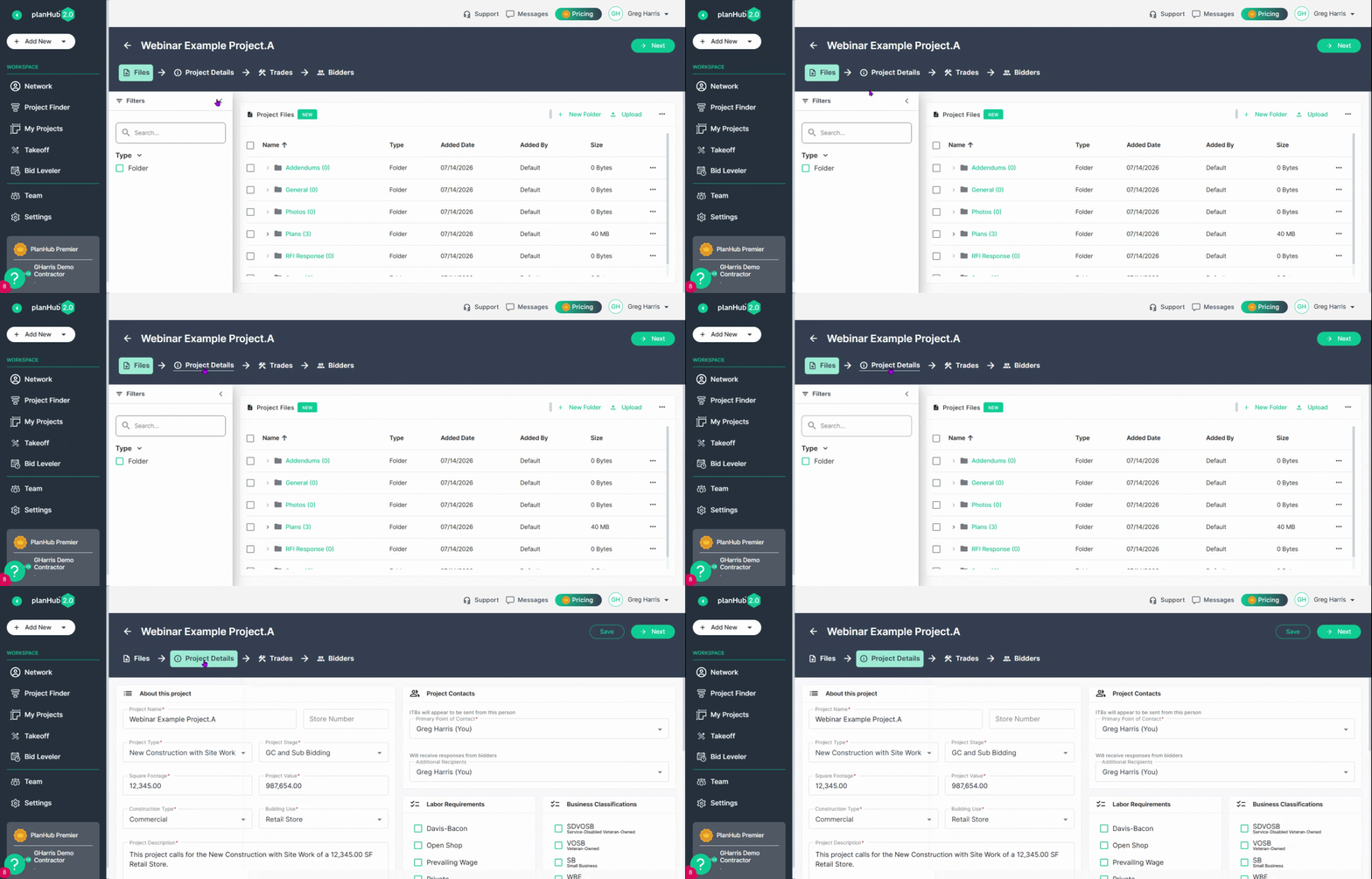
Step 4: Click Edit to open the project page.
Step 5: In the next window, navigate to Project Details.
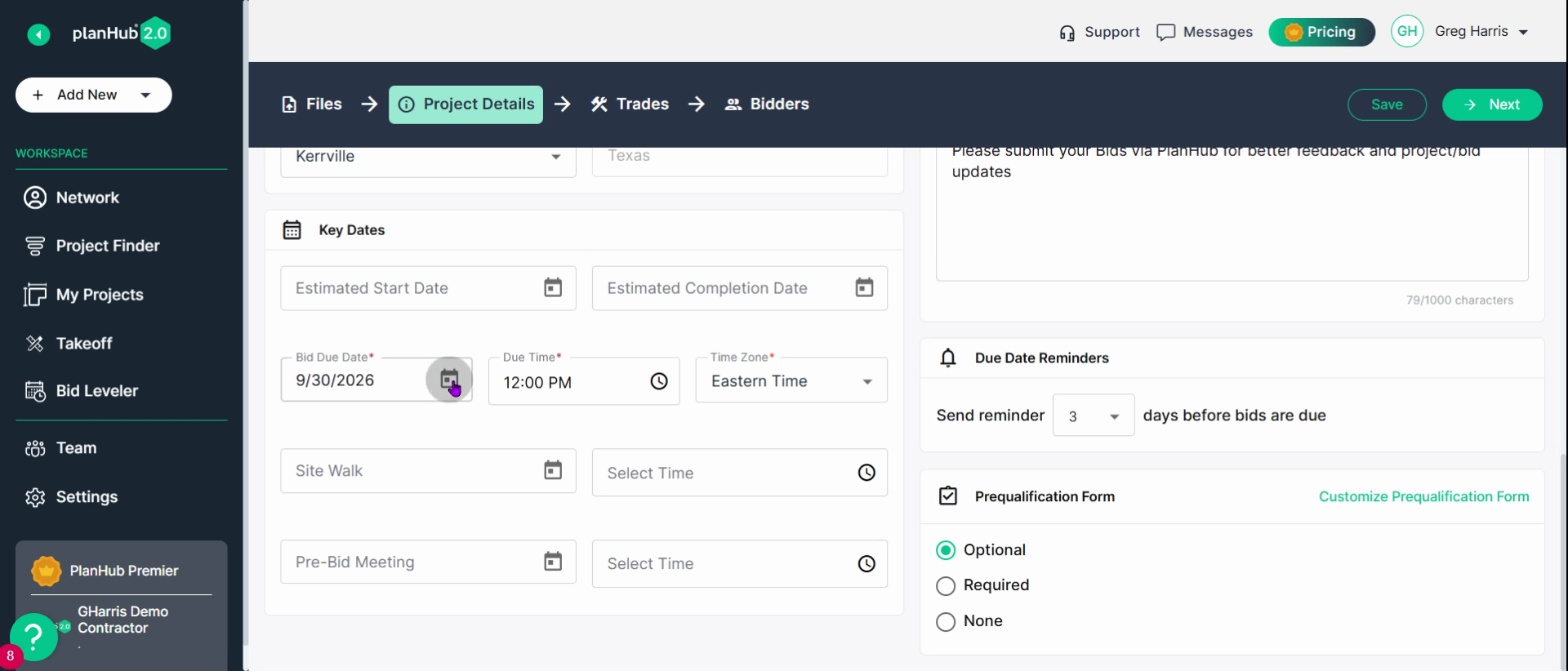
Step 6: Next, scroll to the Key Dates section and click on the Bid Due Date calendar icon. Choose your new due date, due time and Time Zone for your company. Subcontractors and Suppliers will view this information in relation to their time zone.
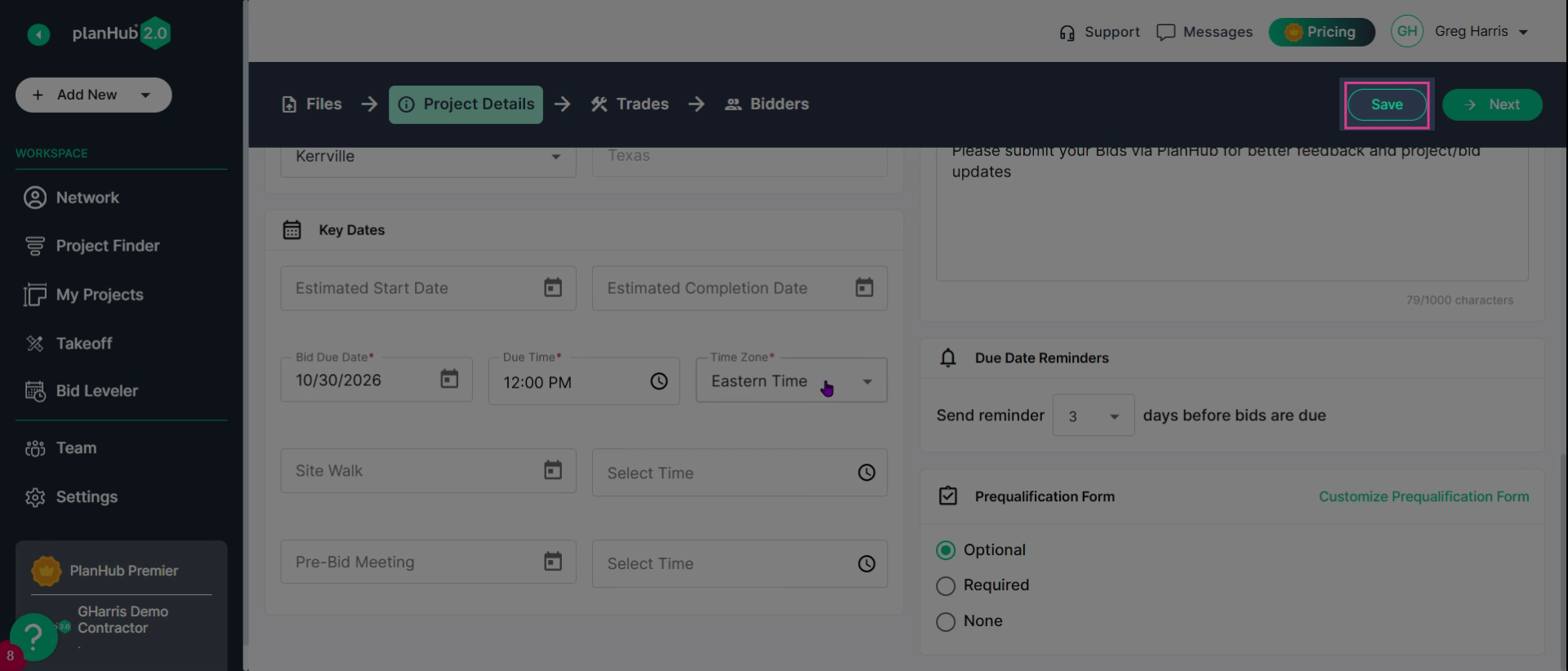
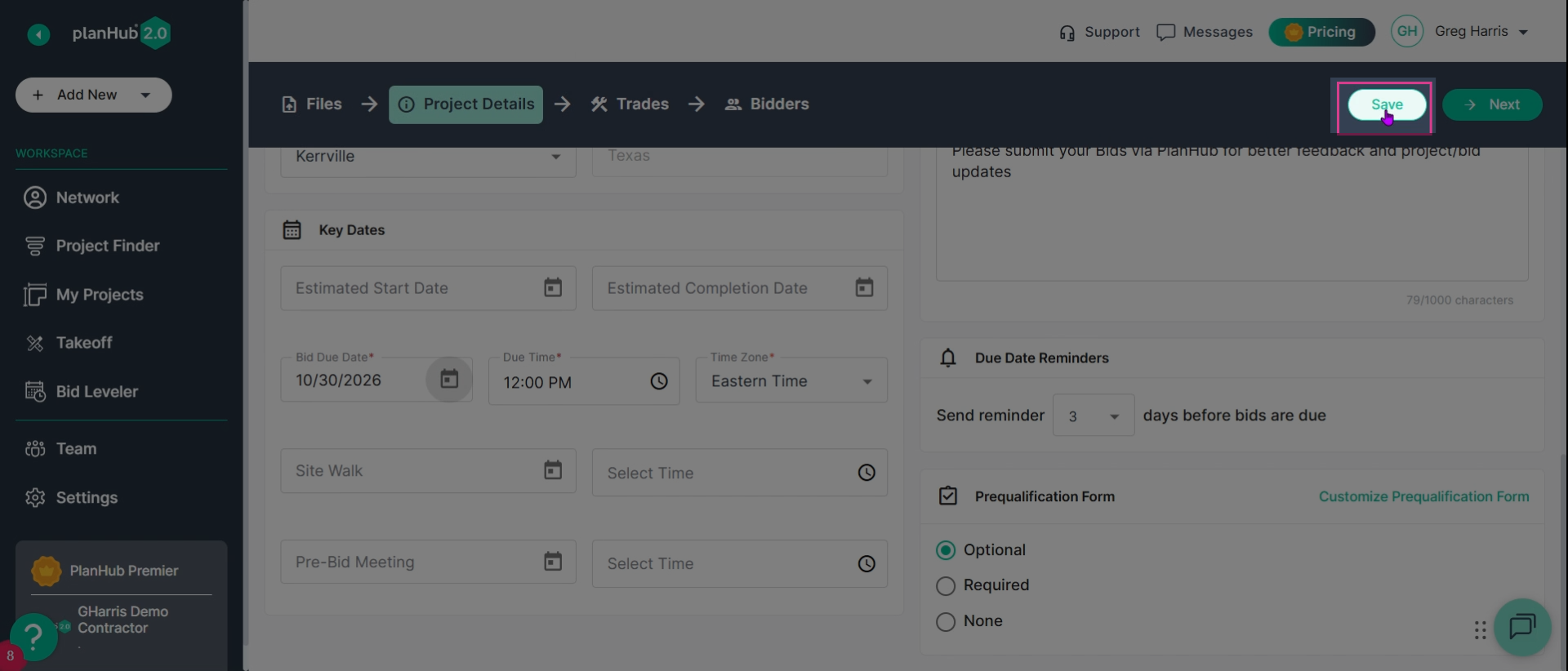
Step 7: In the upper-right corner, click Save to confirm your changes.
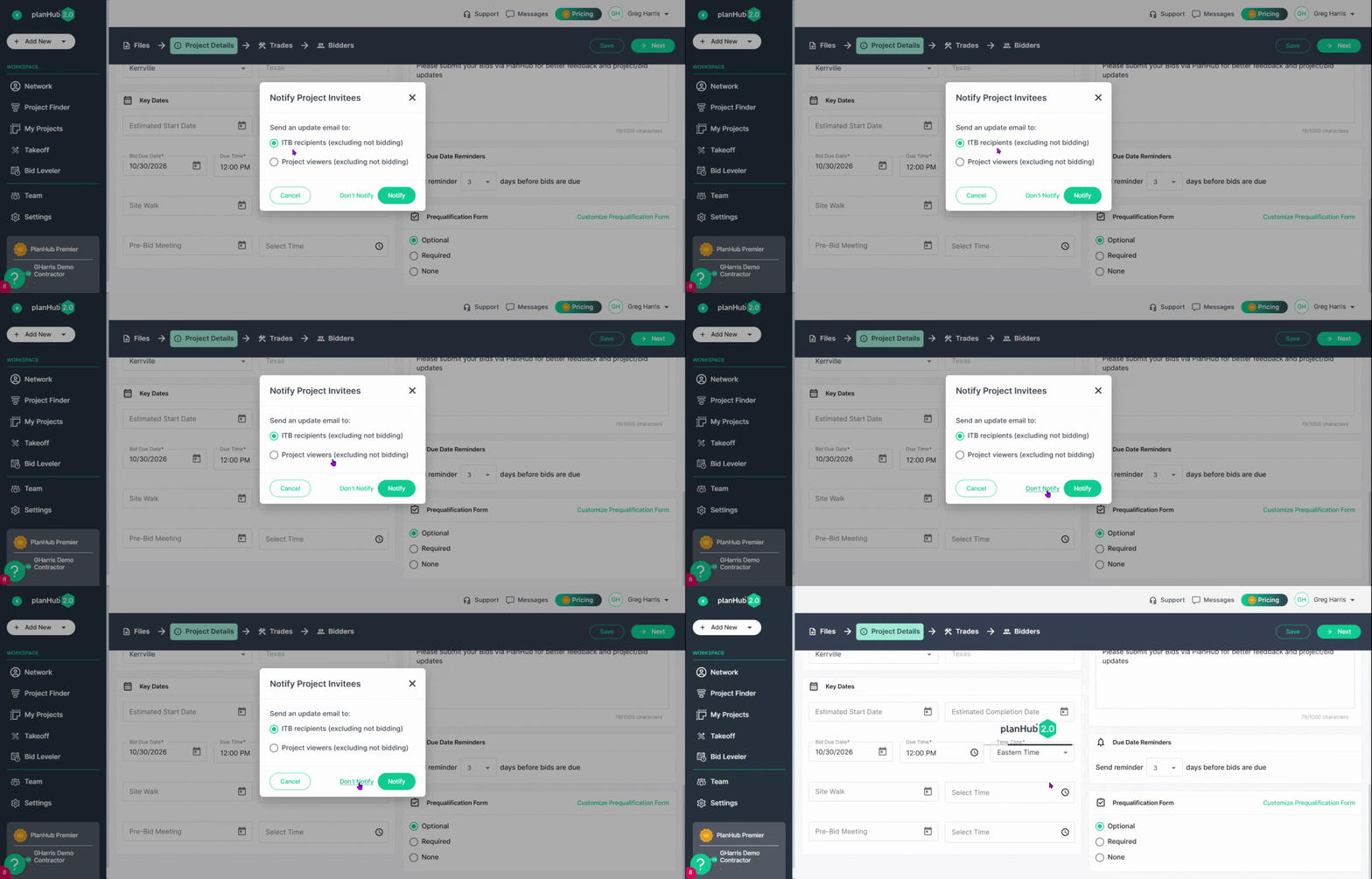
Step 8: Send notifications: select whether to notify all ITB recipients or project viewers, or choose Don't Notify.
Alternative Way to Edit Bid Due Date
Step 1: From your My Projects page, click the name of the project you want to update. Then click edit in the upper right corner.
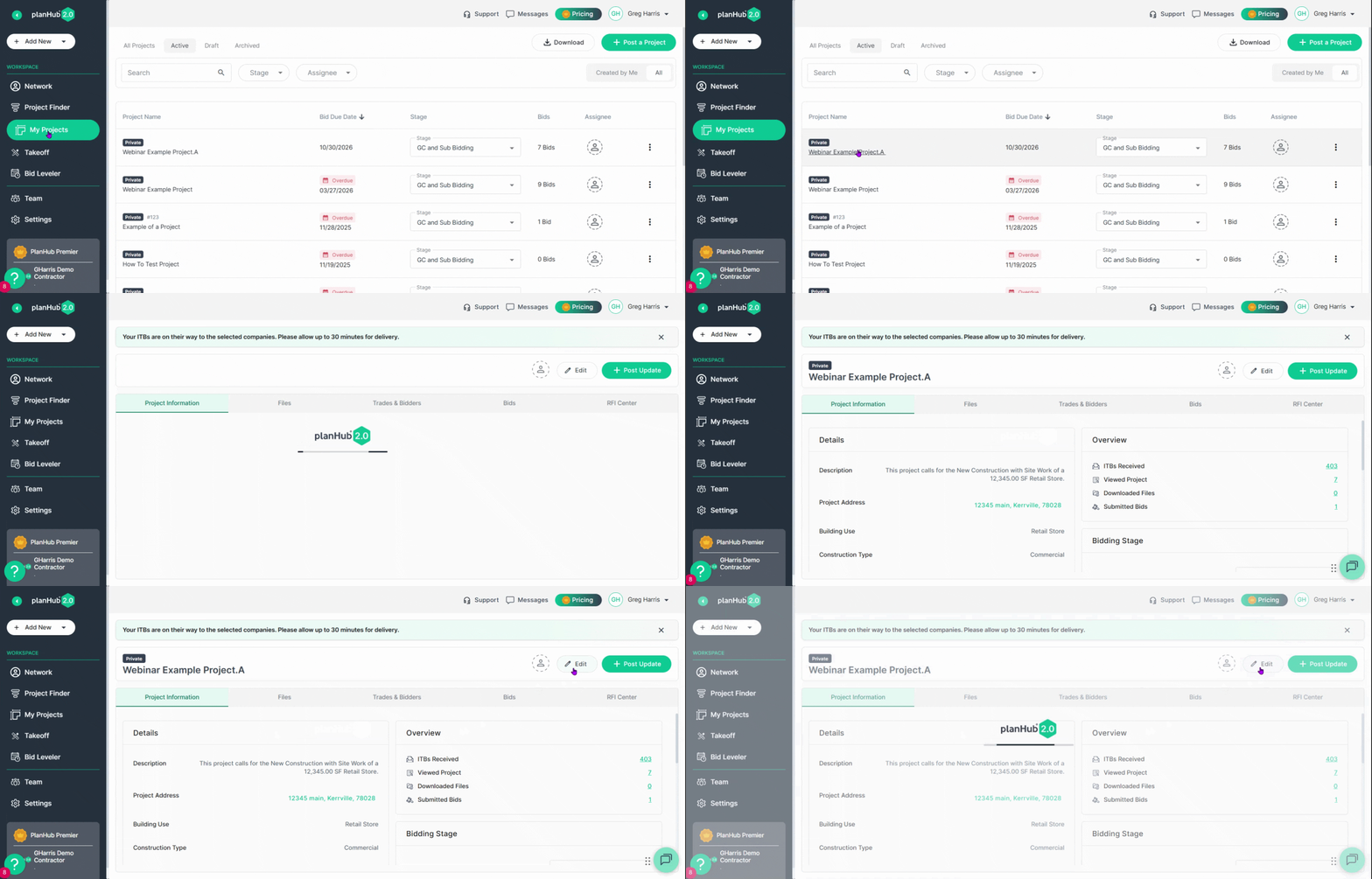
Step 2: Next, click on Project Details, then, scroll to the Key Dates section, and click the calendar for Bid Due Date. Update the bid due date, time and time zone for your company.
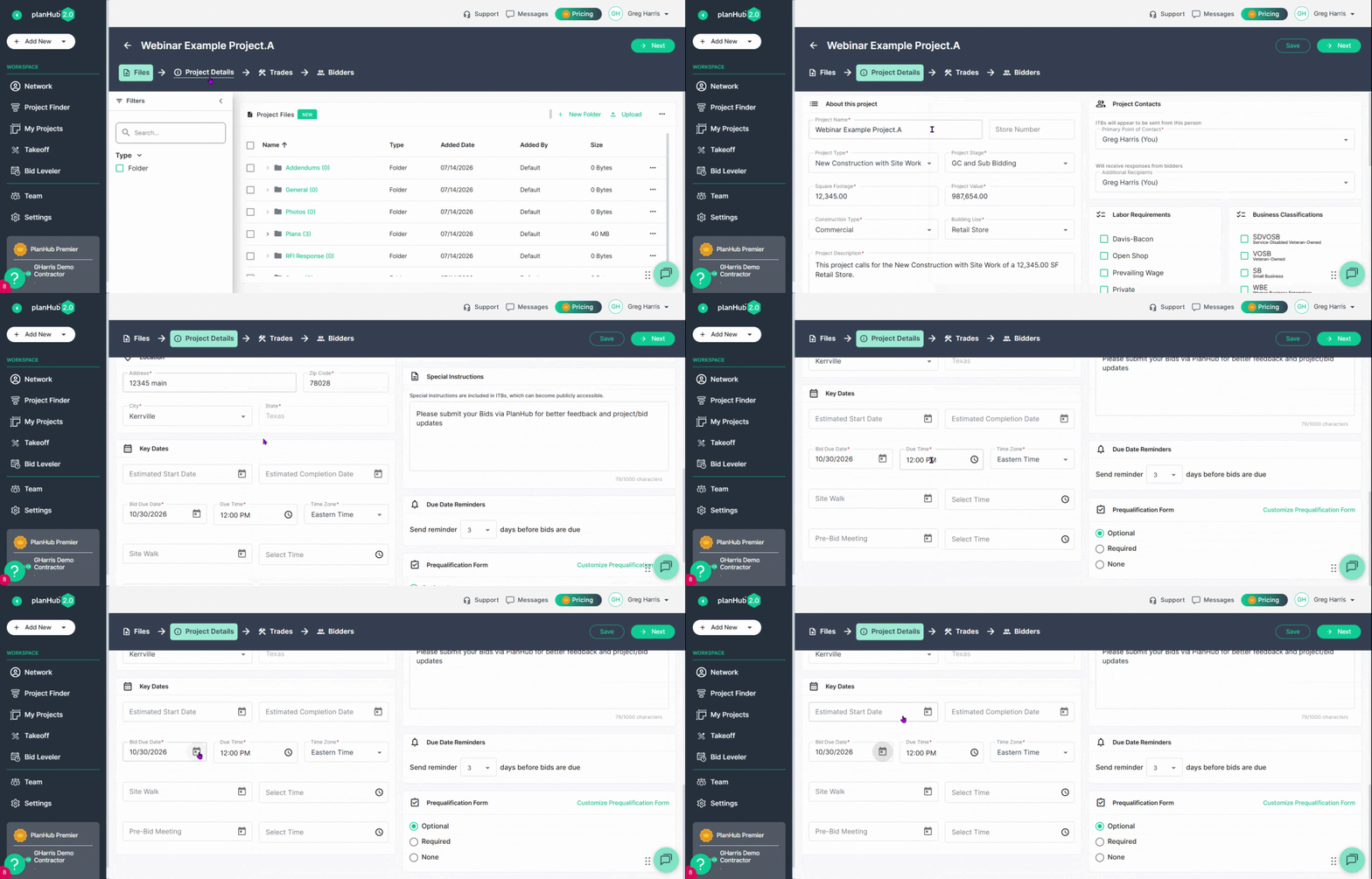
Step 4: Click the Save Button to save your changes.
Staying on top of your bid schedule keeps your contractors and suppliers well informed and your project moving forward. Use these steps each time the bid due date shifts to keep everyone aligned.
Troubleshooting
Contact us if you need assistance or to report an issue:
- PlanHub Contact Page: https://planhub.com/contact/
- Customer Facing Support Ticket Link: https://knowledgebase.planhub.com/knowledge/kb-tickets/new