![NEW_PlanHub_Logo_Navy.png]](https://knowledgebase.planhub.com/hs-fs/hubfs/Design/PH%20Logos/NEW%202024%20PH%20Logos/NEW_PlanHub_Logo_Navy.png?height=40&name=NEW_PlanHub_Logo_Navy.png)
This step-by-step tutorial walks through two ways to duplicate a cost item, plus how to rename the duplicate, matching exactly what's shown on screen.
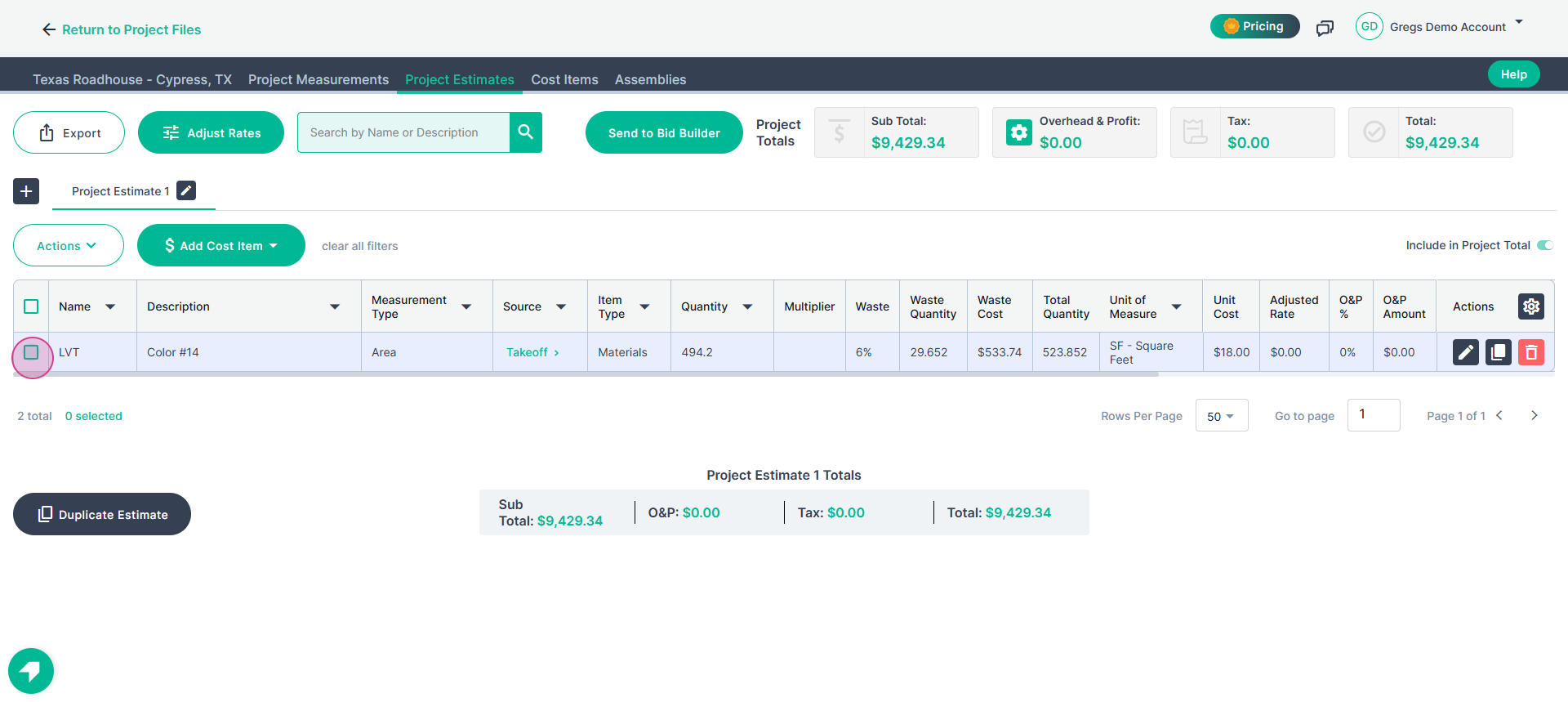
Step 1: Select the cost item you want to duplicate by checking the box next to it.
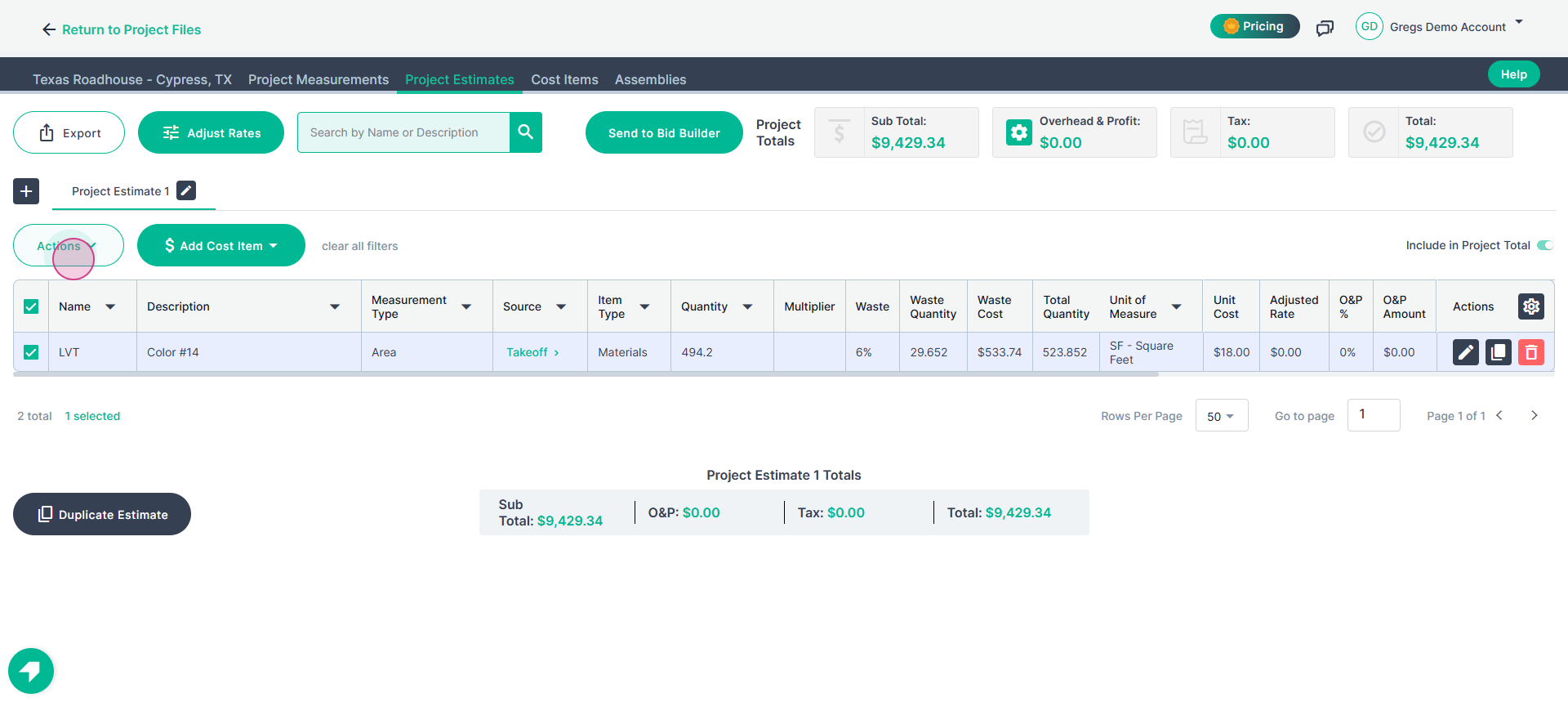
Step 2: Open the Actions menu and click Duplicate to make a copy of the selected cost item.
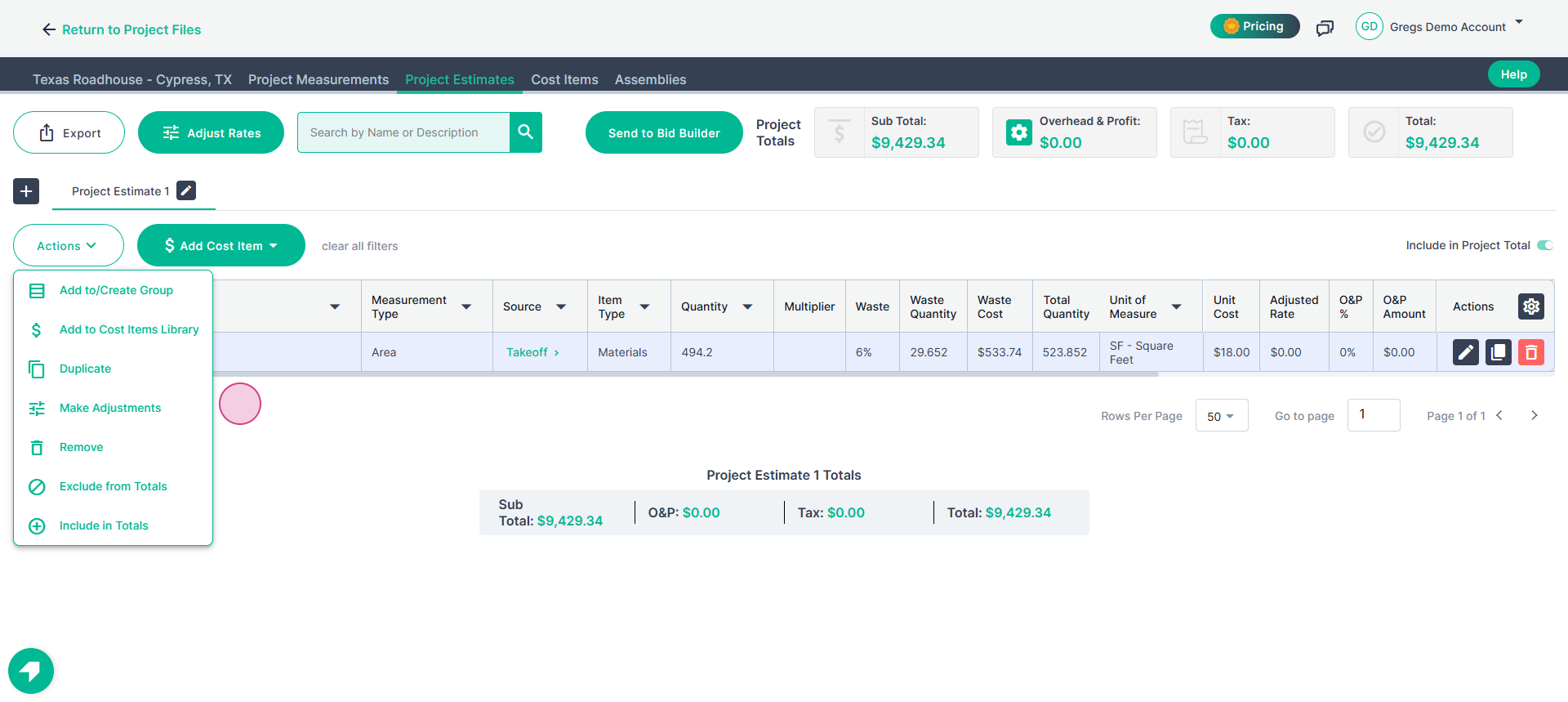
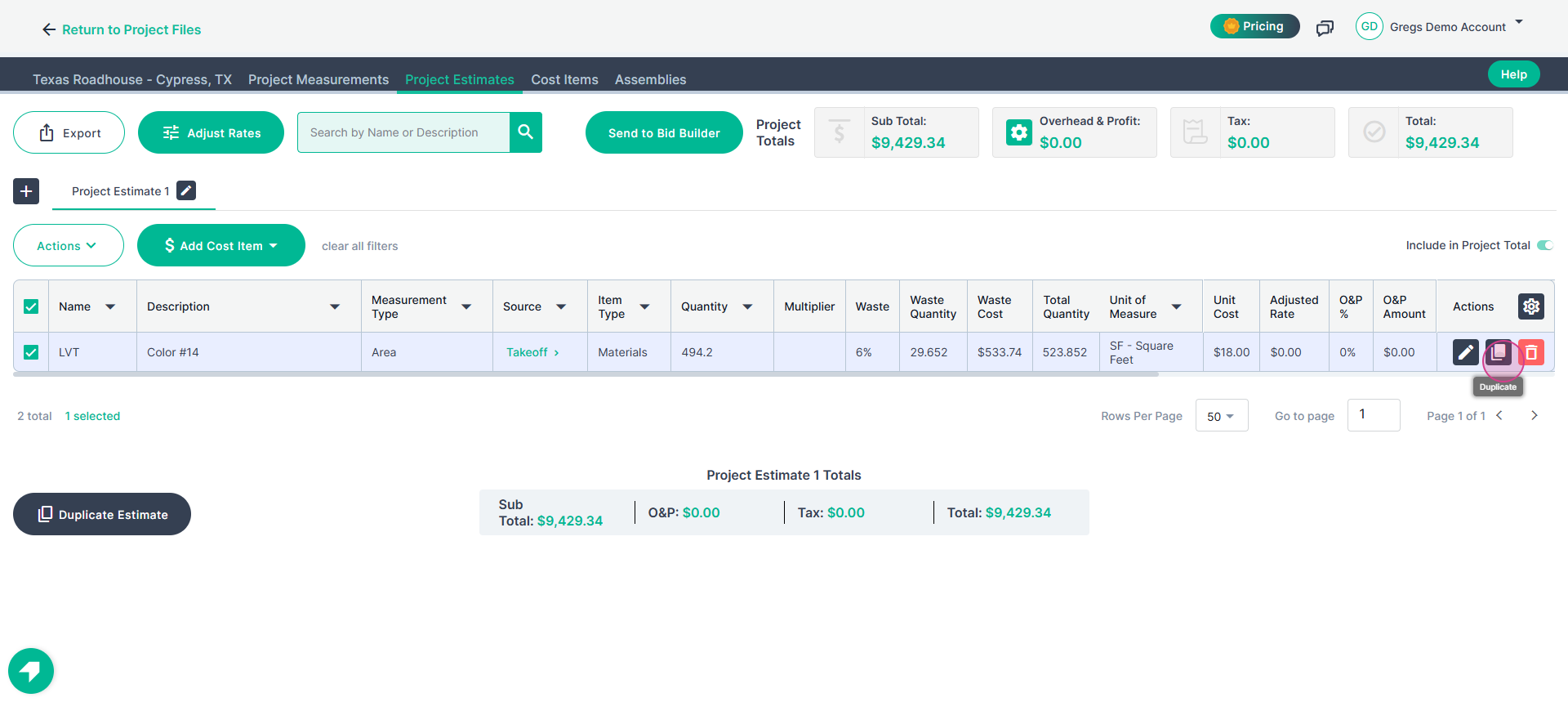
Step 3: Alternatively, use the Duplicate button on the far right of the cost item row to duplicate it directly.
Step 4: After duplicating, a new cost item appears with 'Duplicate' appended to the name.
Step 5: To rename the duplicated cost item, click the pencil icon next to its name.
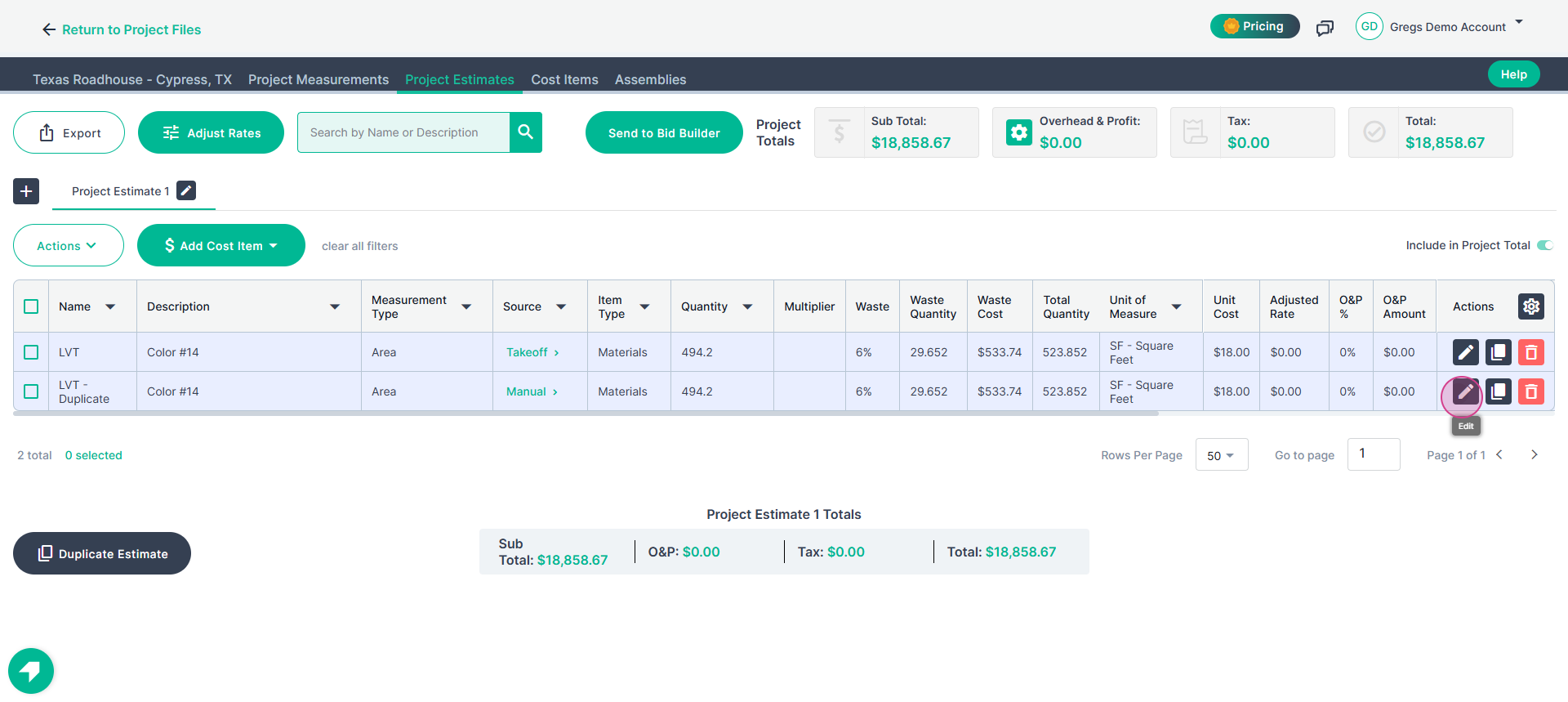
Step 6: Remove 'Duplicate' or enter your preferred custom name, then save.
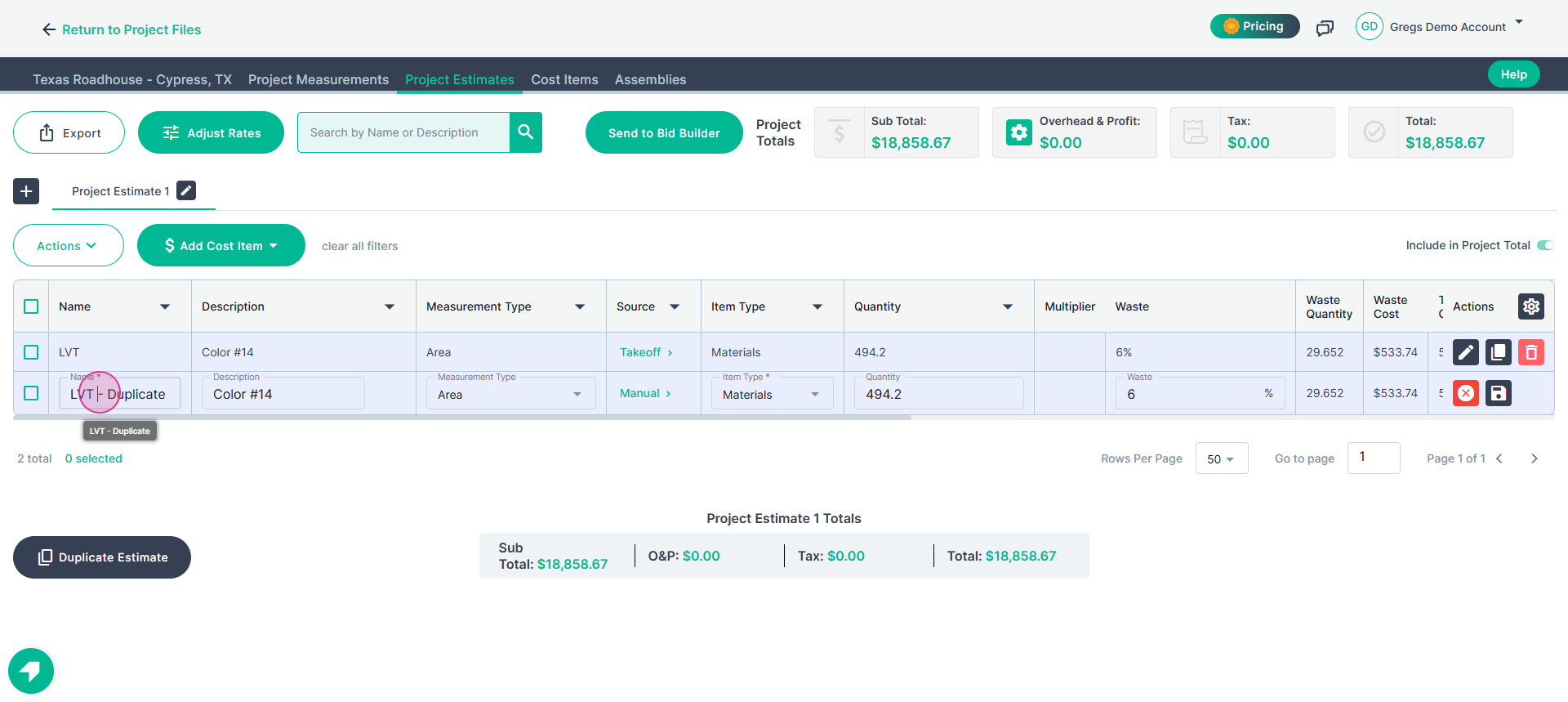
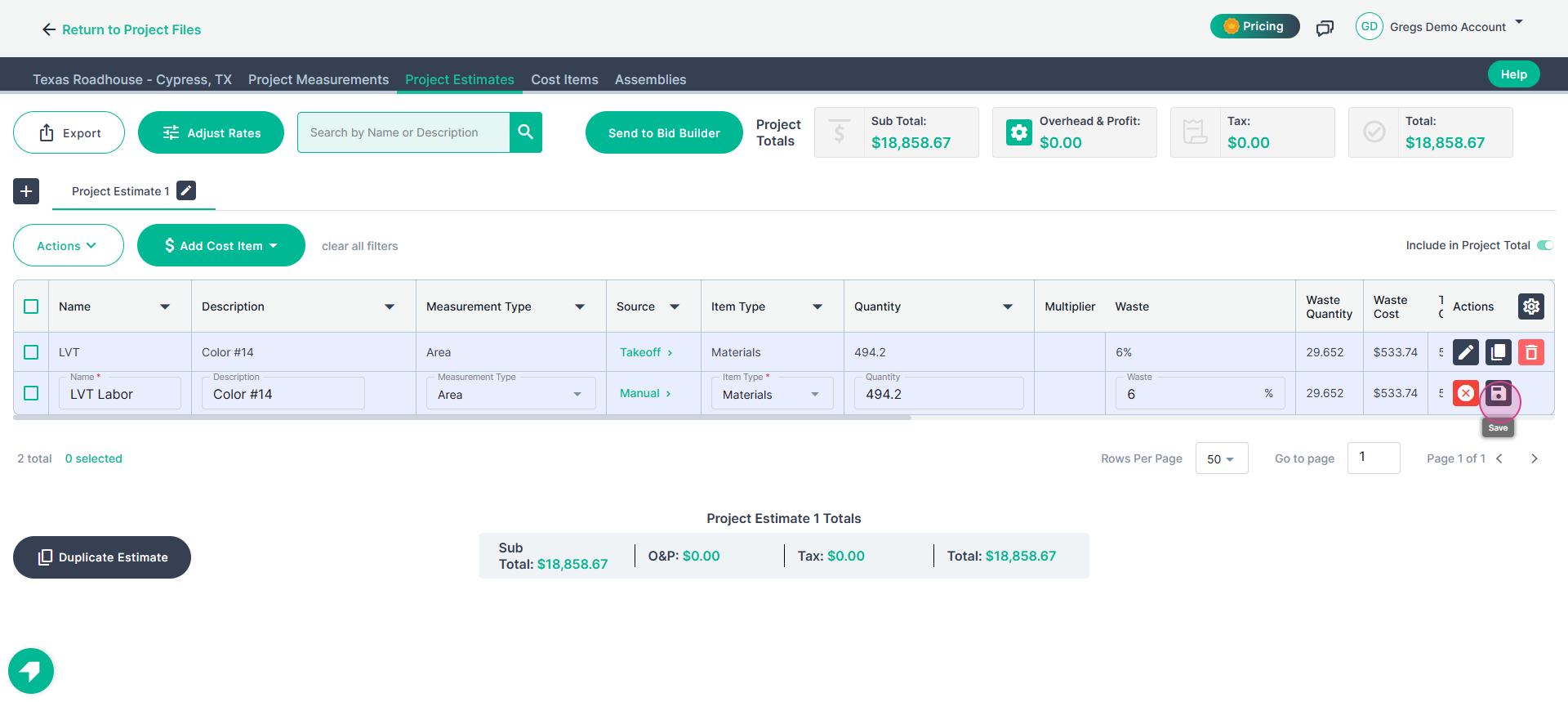
Step 7: In this example, the duplicated cost item is renamed to LVT labor, then saved by clicking the disc icon.
Duplicating cost items in PlanHub is a straightforward way to streamline your estimation process, saving you the hassle of manual data entry for recurring expenses.
By using either the Actions menu for bulk updates or the direct duplicate button for quick individual copies, you can rapidly build out detailed bids.
Remember to use the pencil icon to customize your item names, ensuring your final estimate is organized, professional, and tailored specifically to your project's needs.