![NEW_PlanHub_Logo_Navy.png]](https://knowledgebase.planhub.com/hs-fs/hubfs/Design/PH%20Logos/NEW%202024%20PH%20Logos/NEW_PlanHub_Logo_Navy.png?height=40&name=NEW_PlanHub_Logo_Navy.png)
Step 1: Log in to PlanHub and select the My Projects tab on the left navigation.
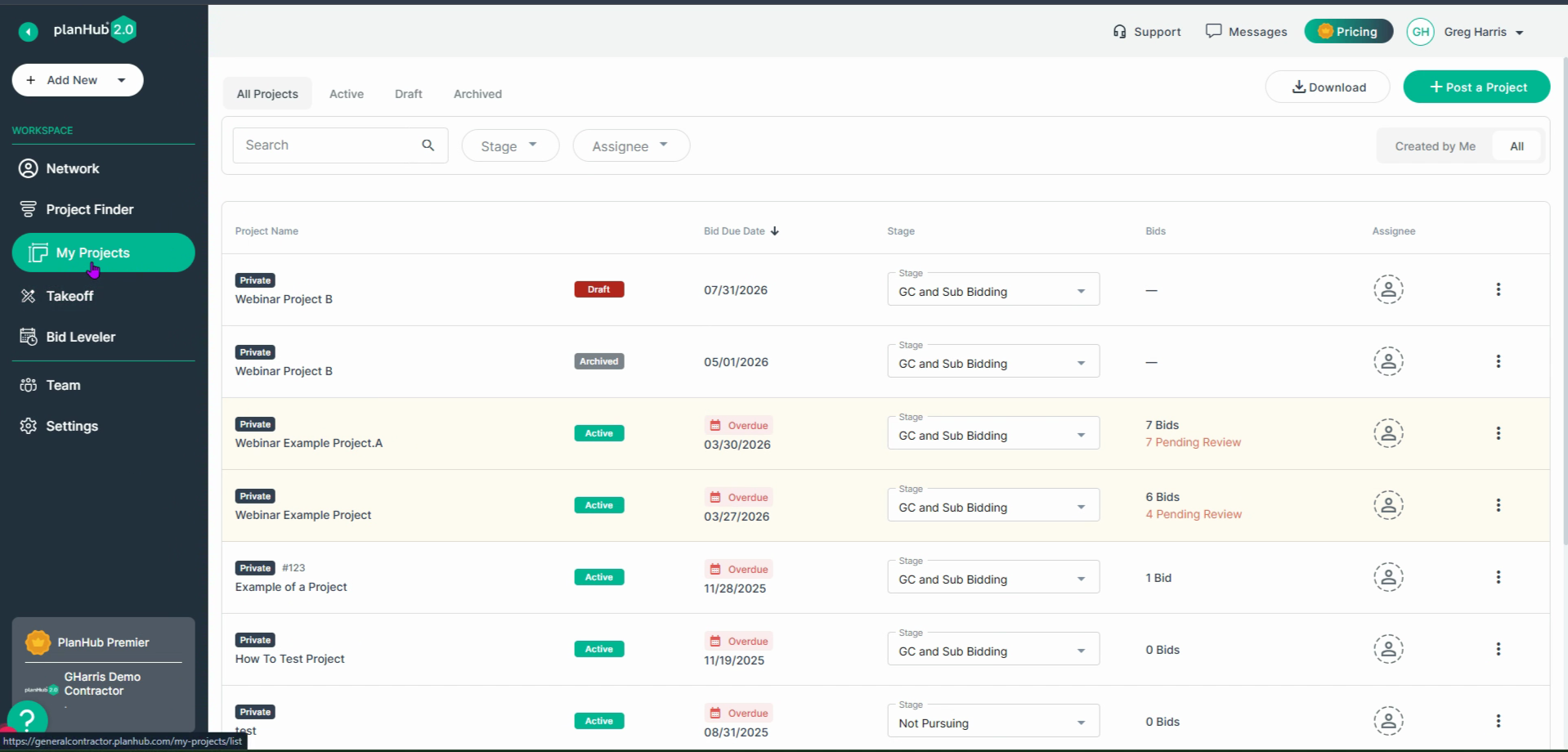
Step 2: Scroll through your list and locate the project you want to archive.
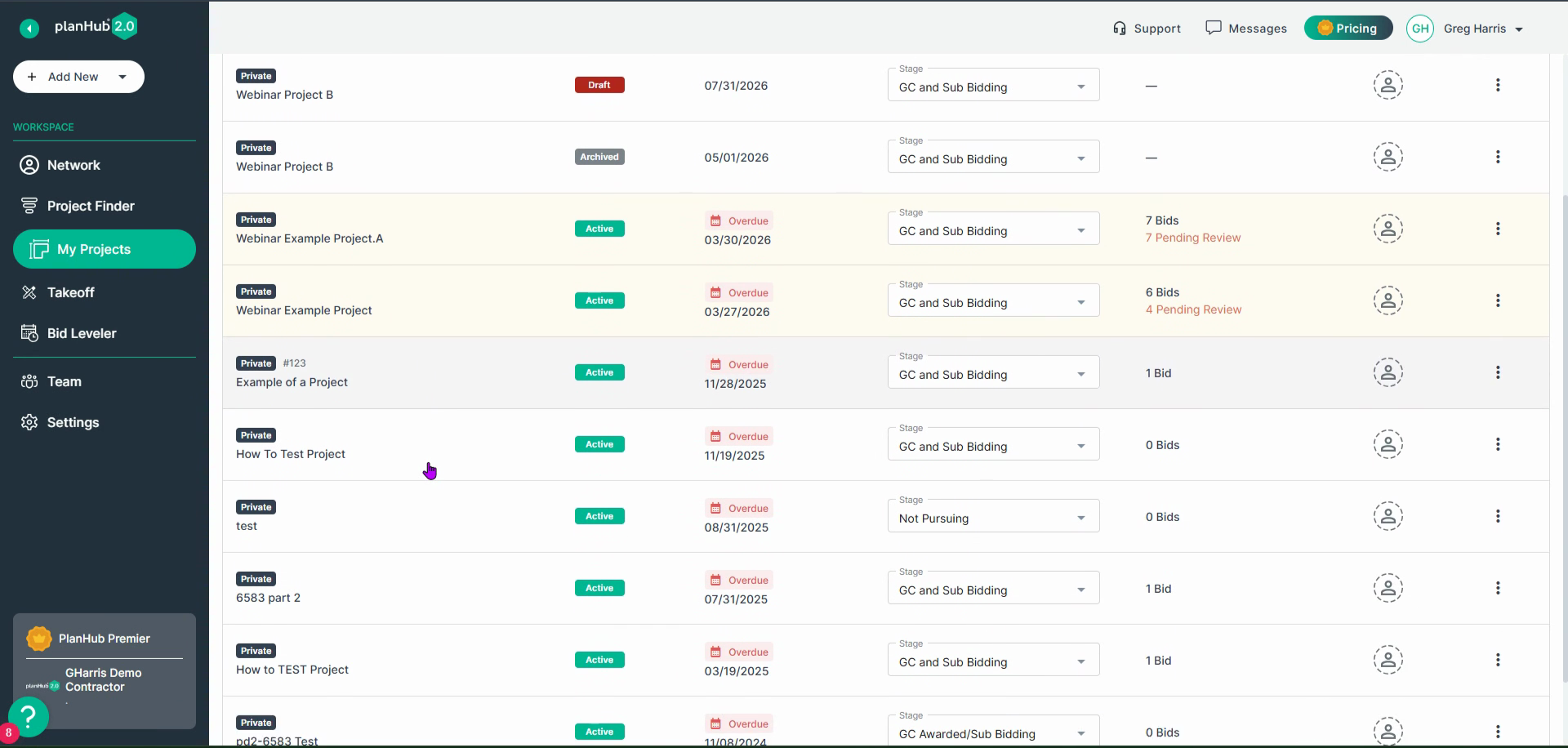
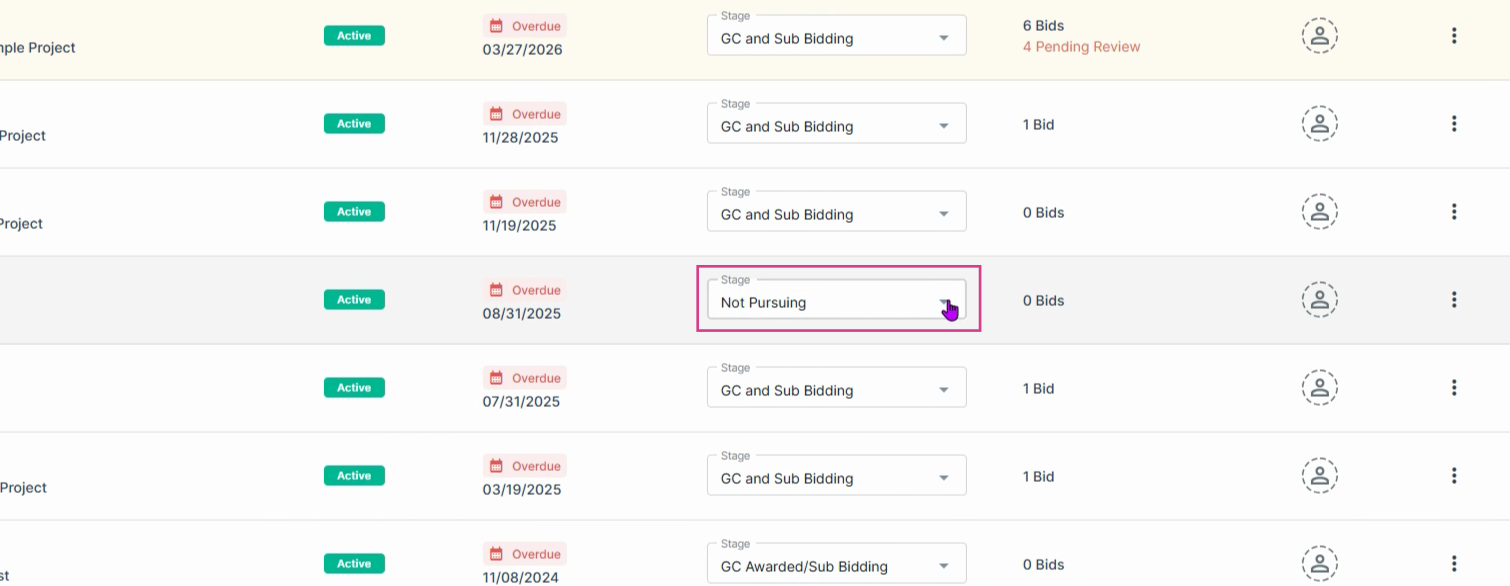
Step 3: Before archiving, update the Stage to reflect your project’s current progress.
Step 4: Move to the right side of the row, click the three dots (⋮) menu, and choose Archive.
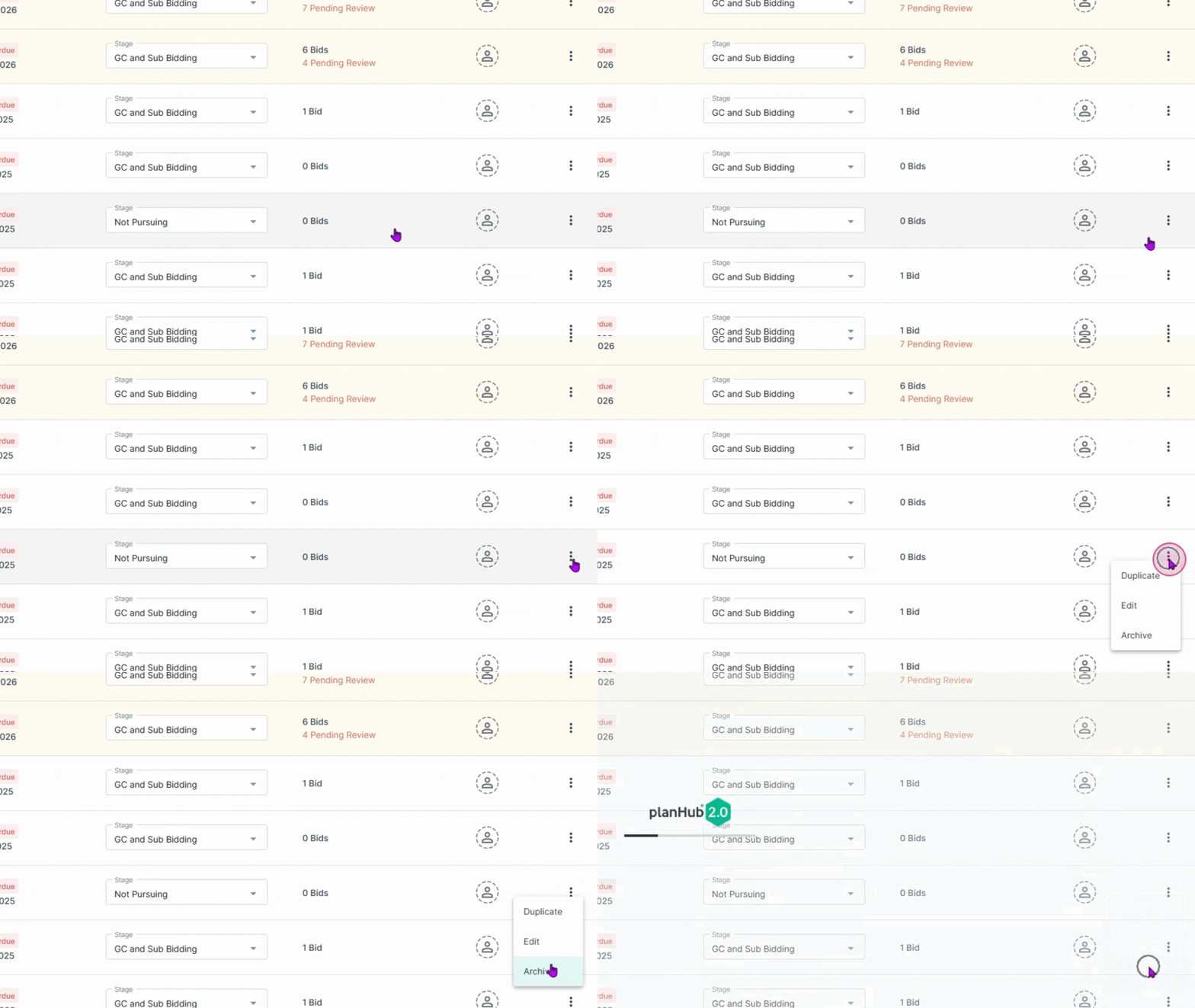
Step 5: Watch for a confirmation banner that your project’s now in the archives.
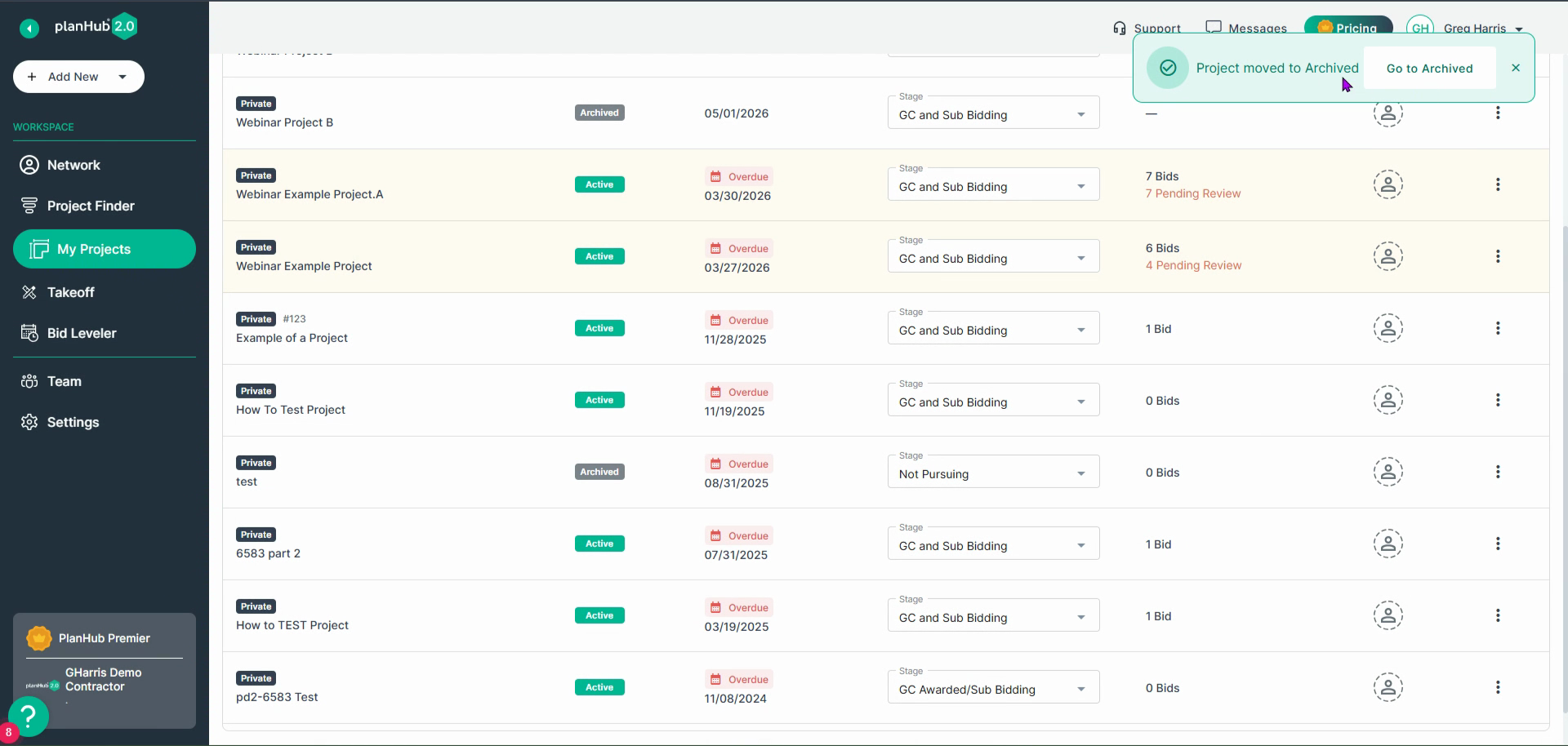
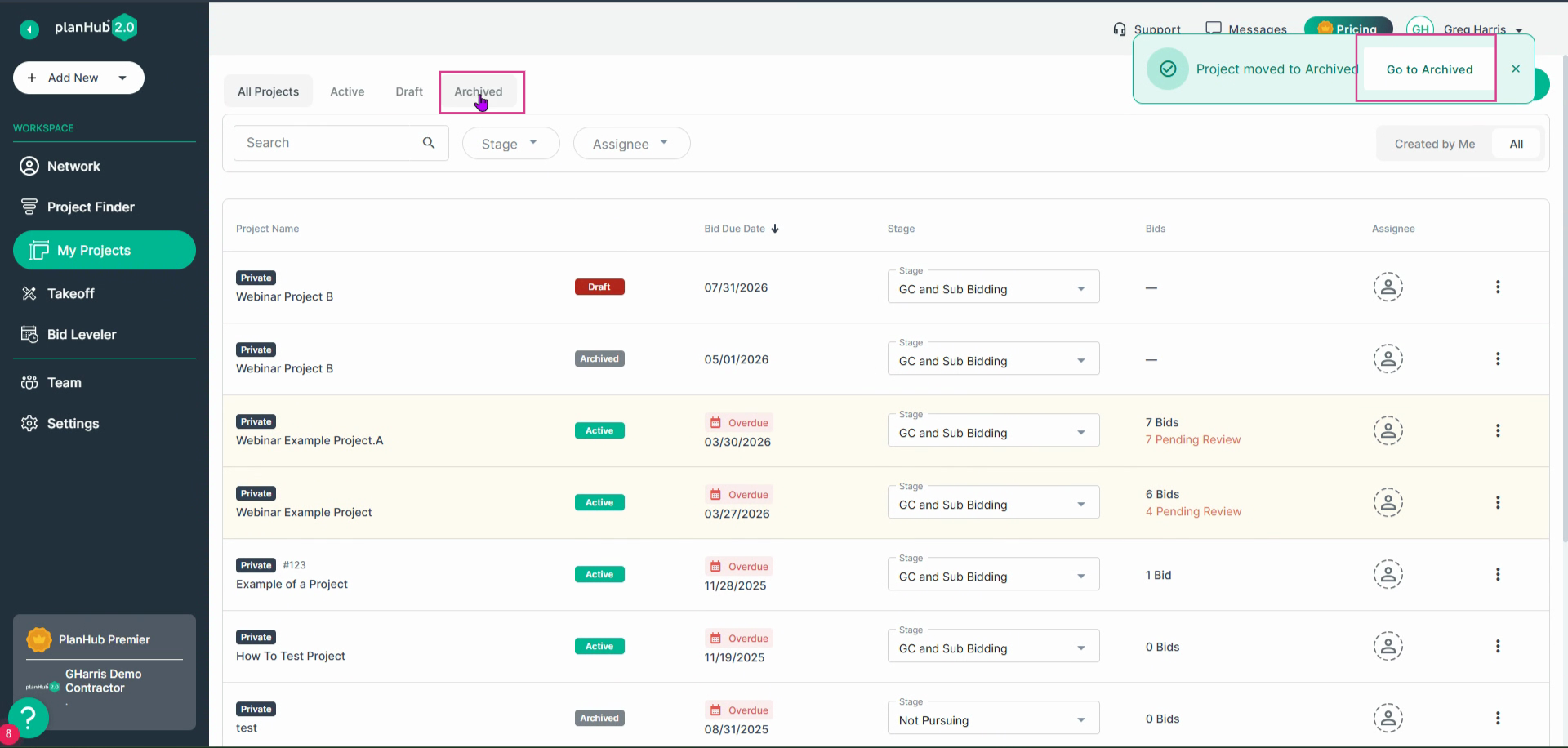
Step 6: Access your archived projects by either clicking the banner or selecting Archived Projects from the top menu.
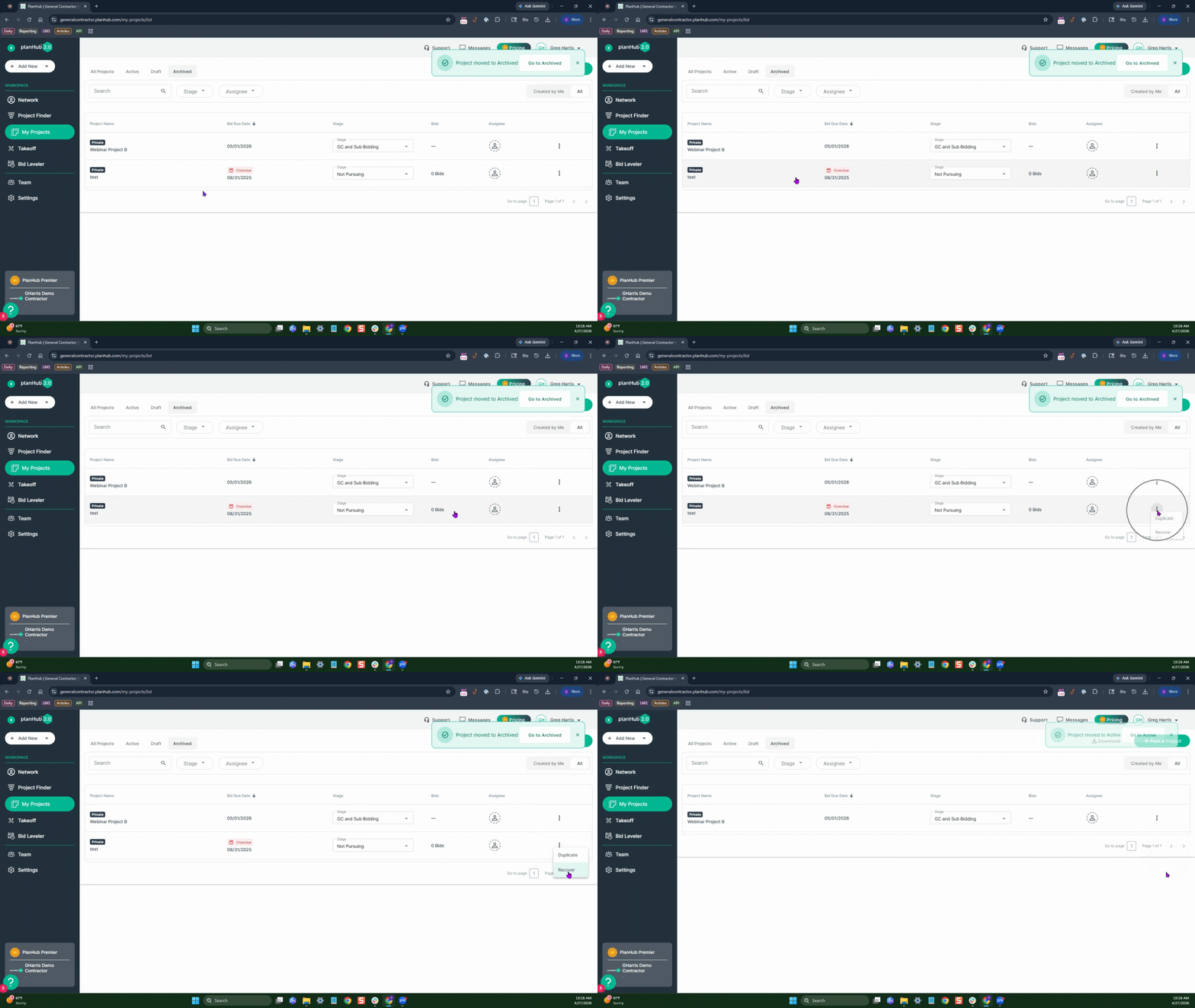
Step 7: To restore a project, find it in the archive list, move right, click the three dots (⋮) menu, and select Recover.
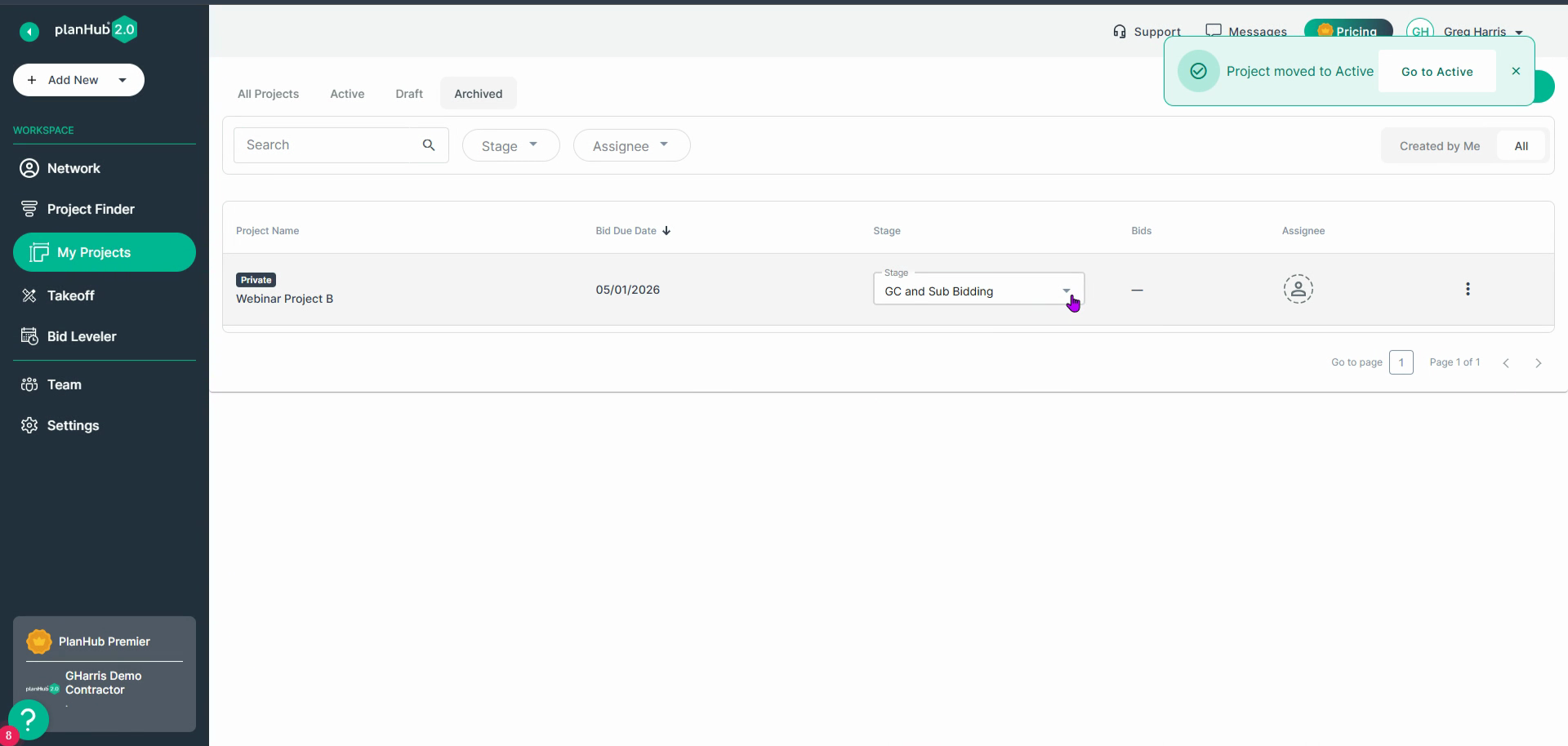
Step 8: Update the Stage field to return your project to an active status.
Archiving keeps your project list tidy, while recovery ensures nothing gets lost. Use these features to stay organized and maintain focus on what’s active.