![NEW_PlanHub_Logo_Navy.png]](https://knowledgebase.planhub.com/hs-fs/hubfs/Design/PH%20Logos/NEW%202024%20PH%20Logos/NEW_PlanHub_Logo_Navy.png?height=40&name=NEW_PlanHub_Logo_Navy.png)
Step 1: Navigate to the main panel at the top of the webpage.
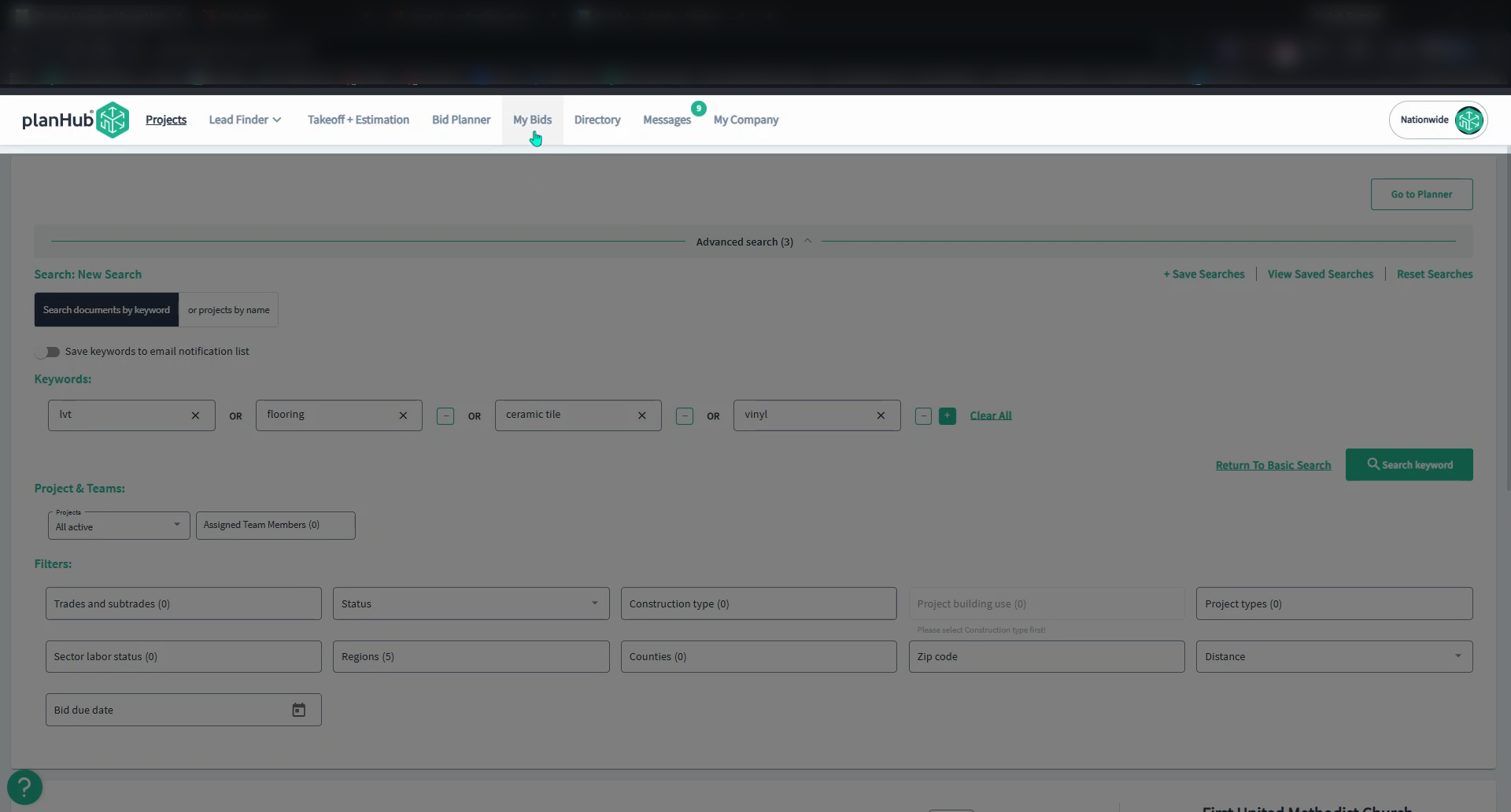
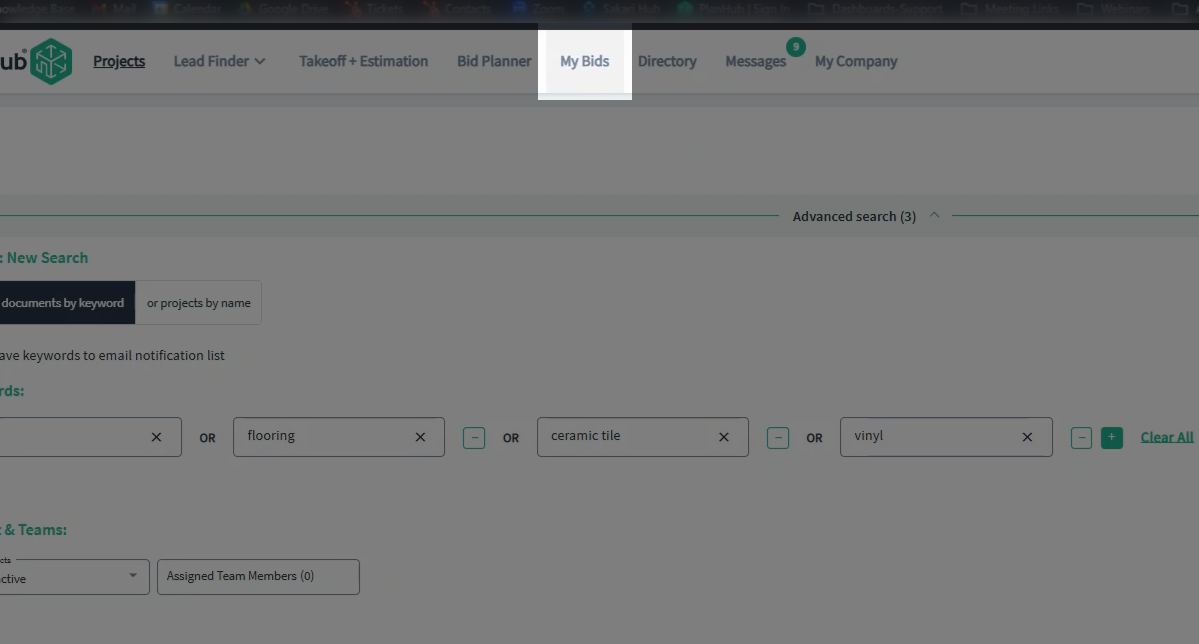
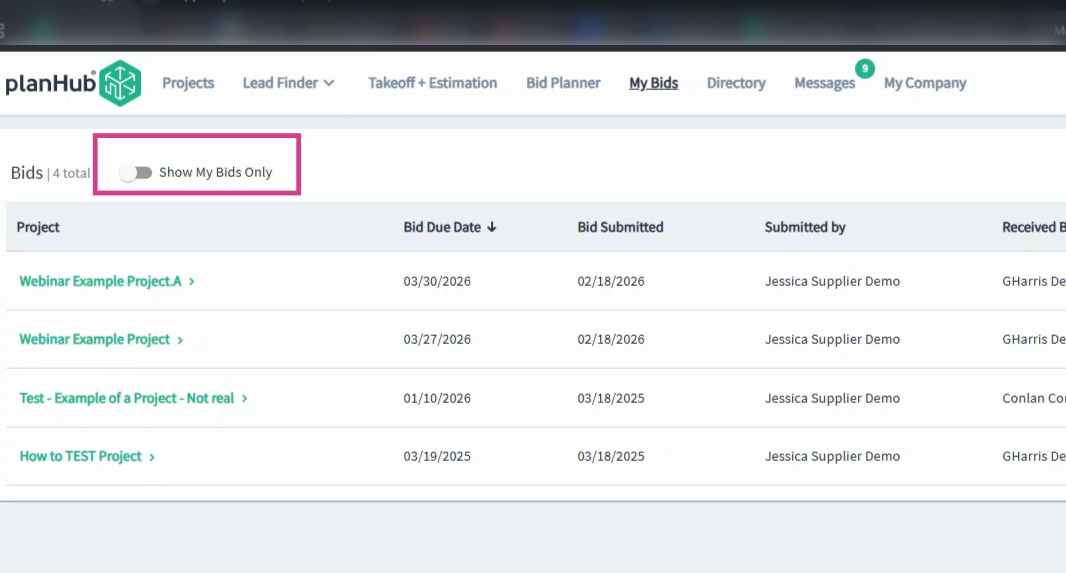
Step 2: Click on the My Bids option to open your list of submitted bids.
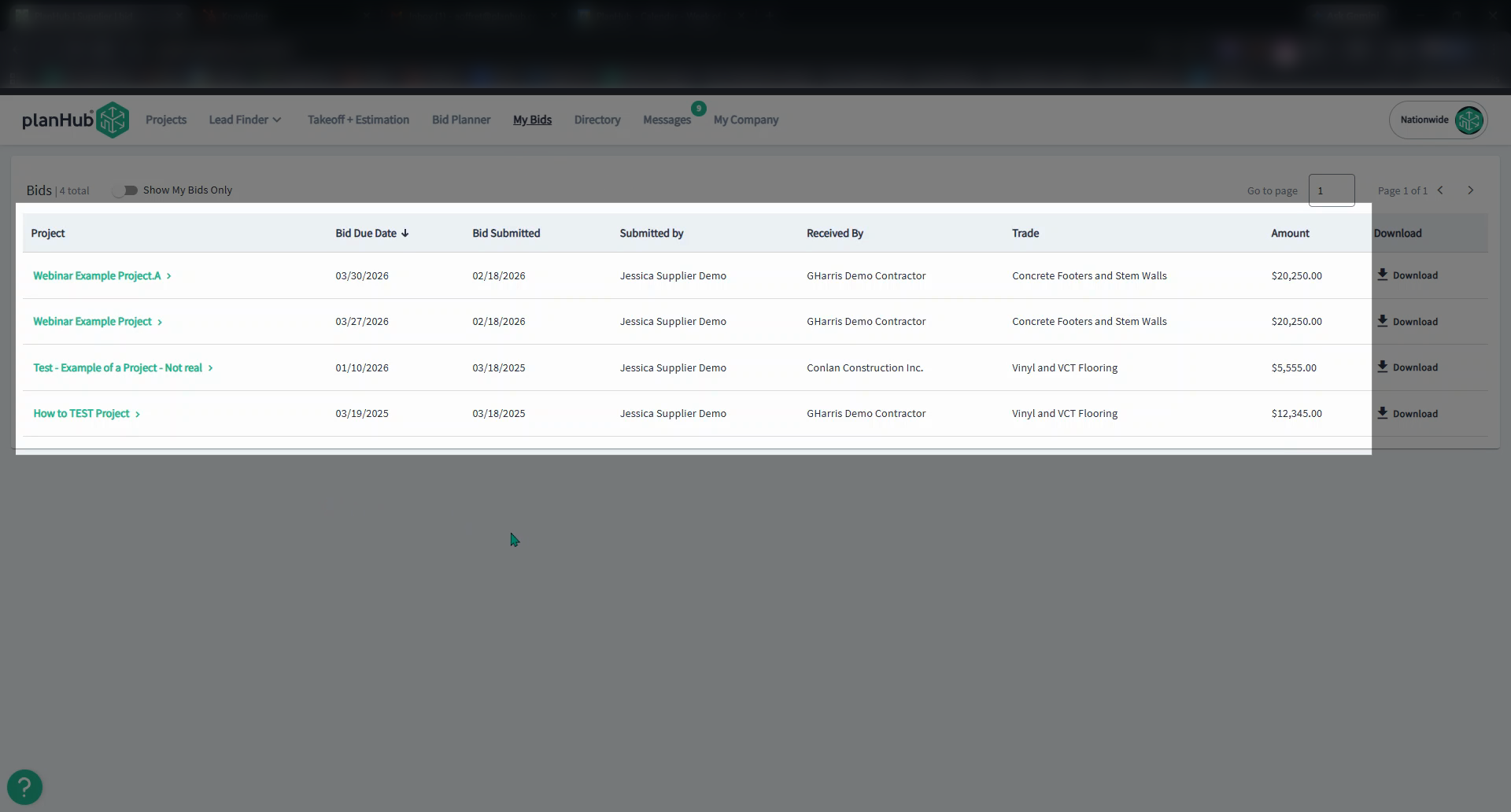
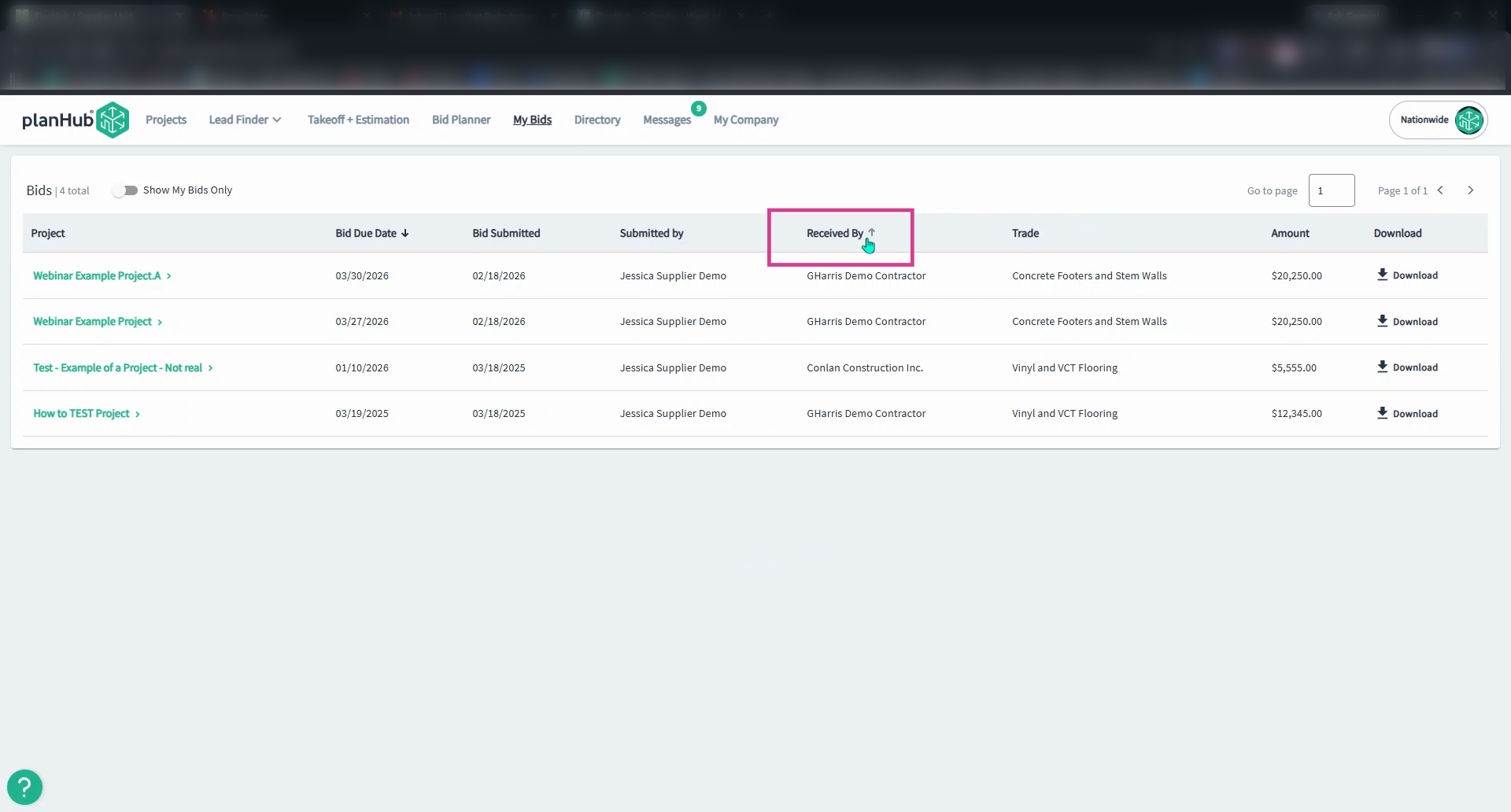
Step 3: Review the list of bids, including the project name, bid due date, submission date, submitter, recipient, relevant trades, and amount.
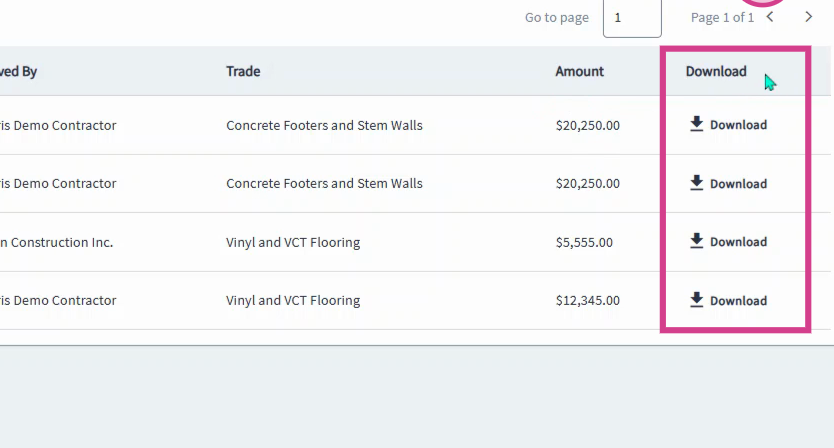
Step 4: At the end of each row, click the Download icon to save a copy of your bid for review.
Step 5: To filter results, use the Show My Bids Only toggle. View only the bids submitted by your user account, or see all bids from users on your account.
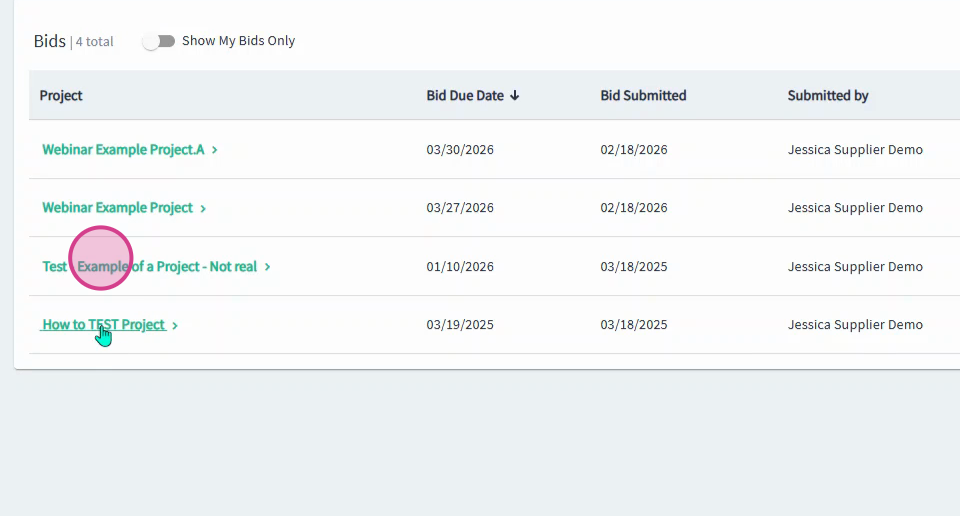
Step 6: Click the project Name to access the project details page.
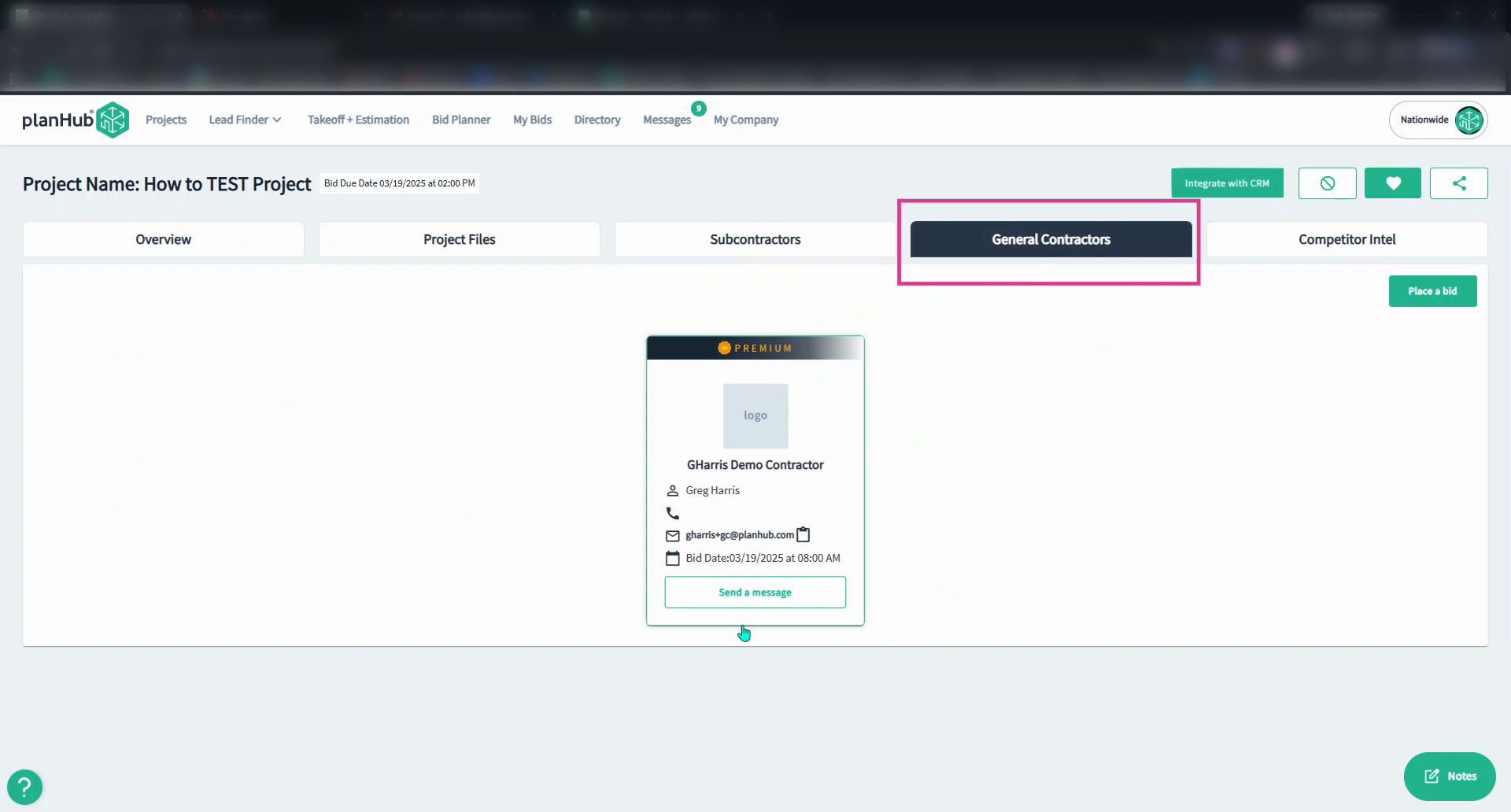
Step 7: On the project details page, select the General Contractors tab to view which general contractors received your bid.
Step 8: Hover over the Received By column to change how your bids list is sorted.
Following up and tracking your bids is essential. The My Bids page gives you everything you need to stay organized and ensure you never miss a project opportunity.
Troubleshooting
Contact us if you need assistance or to report an issue:
- PlanHub Contact Page: https://planhub.com/contact/
- Customer Facing Support Ticket Link: https://knowledgebase.planhub.com/knowledge/kb-tickets/new
- Customer Success Team: CustomerSuccess@planhub.com