---
title: General Contractors | When and How to Provide Bid Feedback to Subcontractors and Suppliers
description: bid feedback, general contractor, GC, notify, communicate
---
[Skip to content](https://knowledgebase.planhub.com/knowledge/general-contractors-when-and-how-to-provide-bid-feedback-to-subcontractors-and-suppliers#main-content)
English
Show submenu for translations
[Submit a Ticket](https://knowledgebase.planhub.com/knowledge/kb-tickets/new?hsLang=en)
![NEW\_PlanHub\_Logo\_Navy.png\]](https://knowledgebase.planhub.com/hs-fs/hubfs/Design/PH%20Logos/NEW%202024%20PH%20Logos/NEW_PlanHub_Logo_Navy.png?height=40&name=NEW_PlanHub_Logo_Navy.png)
- [Have an Issue? Submit a Ticket](https://knowledgebase.planhub.com/knowledge/kb-tickets/new)
Open main navigation
Close main navigation
- [Have an Issue? Submit a Ticket](https://knowledgebase.planhub.com/knowledge/kb-tickets/new)
- English
Show submenu for translations
- [Submit a Ticket](https://knowledgebase.planhub.com/knowledge/kb-tickets/new)
What can we help you with?
- There are no suggestions because the search field is empty.
1. [Knowledge Base](https://knowledgebase.planhub.com/knowledge?hsLang=en)
2. [Submit Feedback](https://knowledgebase.planhub.com/knowledge/submit-feedback?hsLang=en)
3. [Feedback](https://knowledgebase.planhub.com/knowledge/submit-feedback?hsLang=en#feedback)
# General Contractors | When and How to Provide Bid Feedback to Subcontractors and Suppliers
## General Contractors play a critical role in keeping the bidding process clear and moving forward. Providing timely and specific feedback helps subcontractors and suppliers understand where their bids stand, what updates are needed, and ensures everyone is on the same page as the project progresses.
### Prerequisites:
- Have an active PlanHub **General Contractor** account.
Step 1: Log into your General Contractor PlanHub account and select **My Projects** from the main panel. Select the project you want to review from the available list.
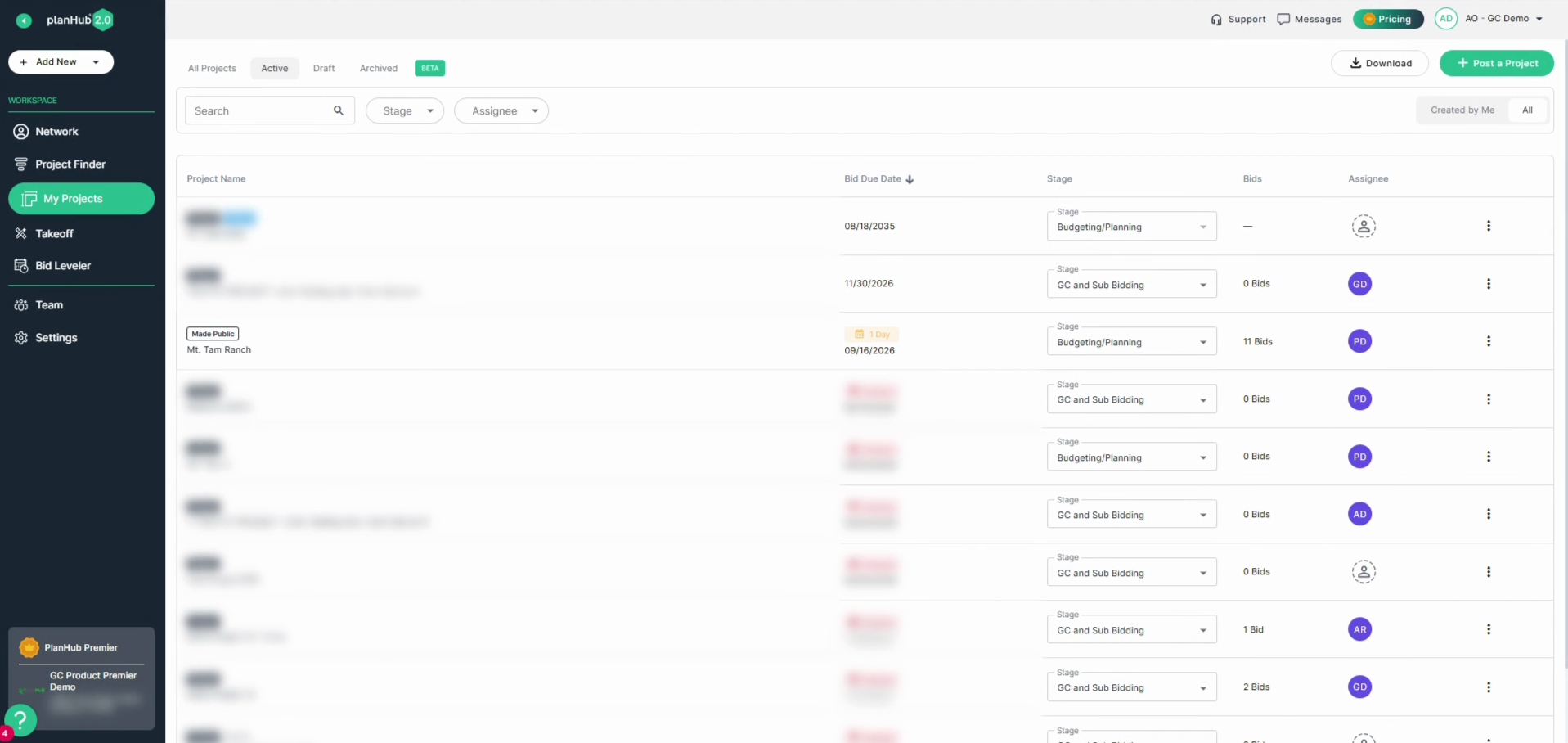
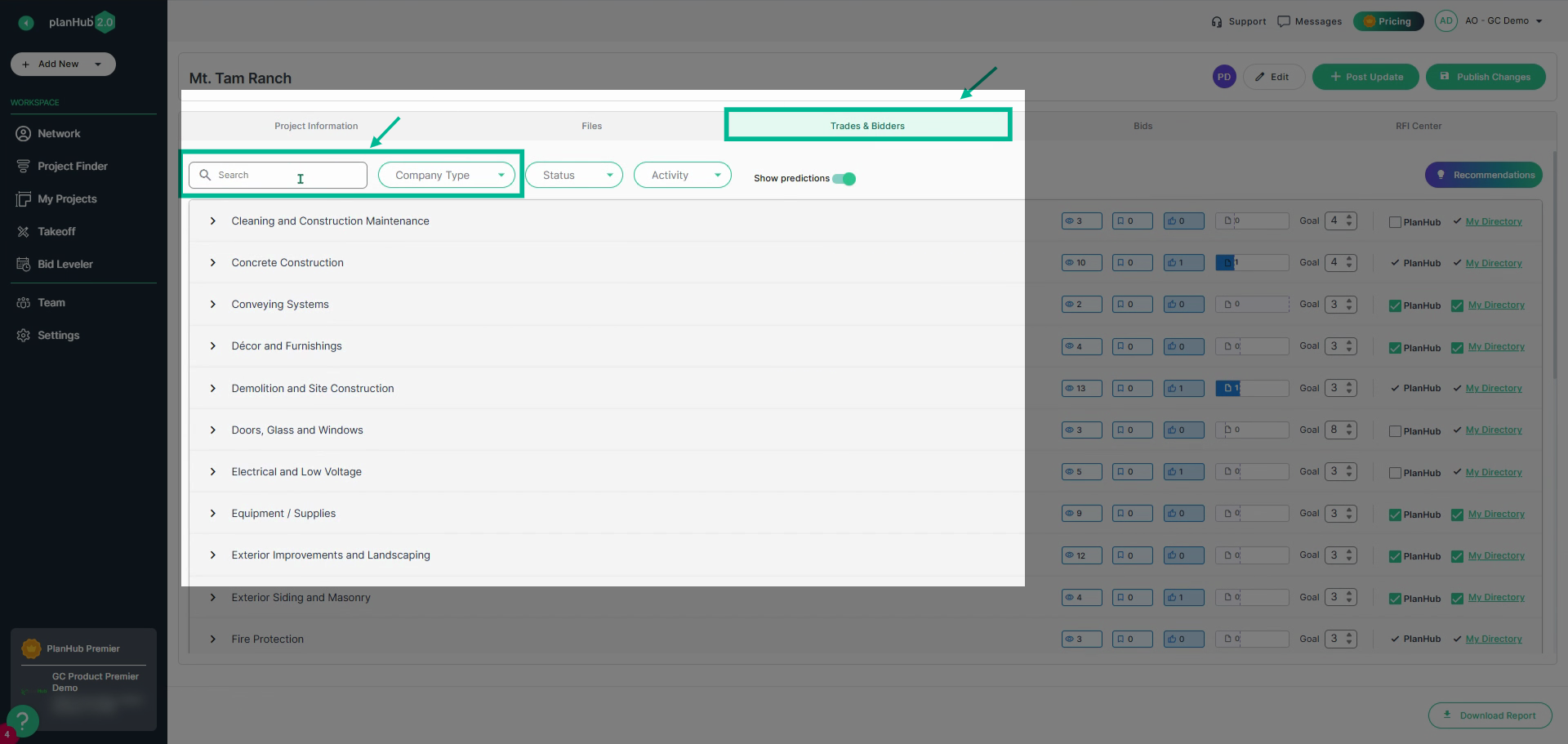
Step 2: **Review Trades and Bidders Information**
Select the **Trades and Bidders** tab. Use the search bar or the **Company Type** filter to narrow your list by subcontractors or suppliers for each trade.
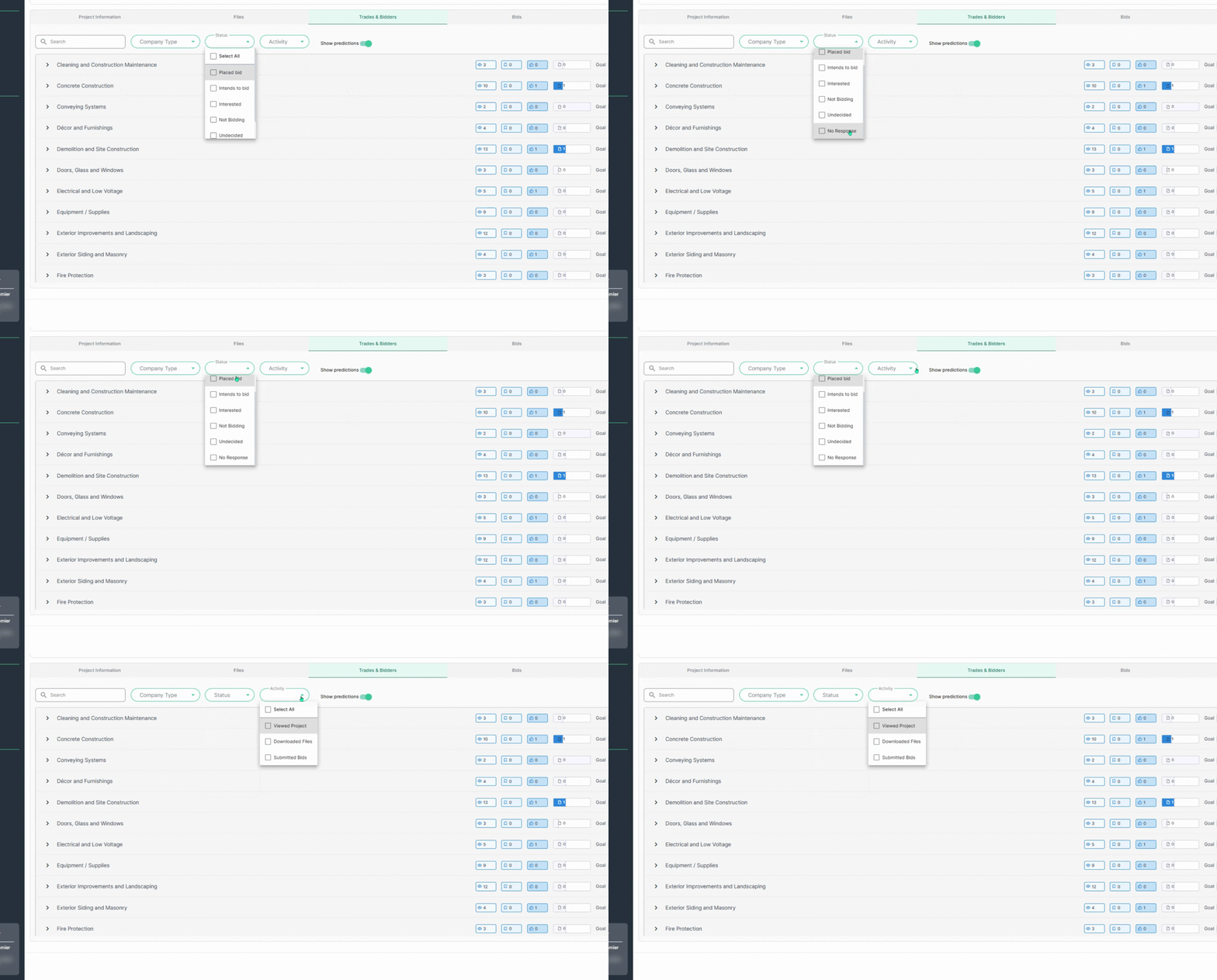
Step 3: **Check Bidding Status and Activity**
Click the **Status** dropdown menu to review the current bidding status for each company by trade.
Use the **Activity** dropdown menu to see details like **Viewed Project**, **Downloaded Files**, or **Submitted Bids**. This gives you insight into who is actively engaging and who may need a follow-up.
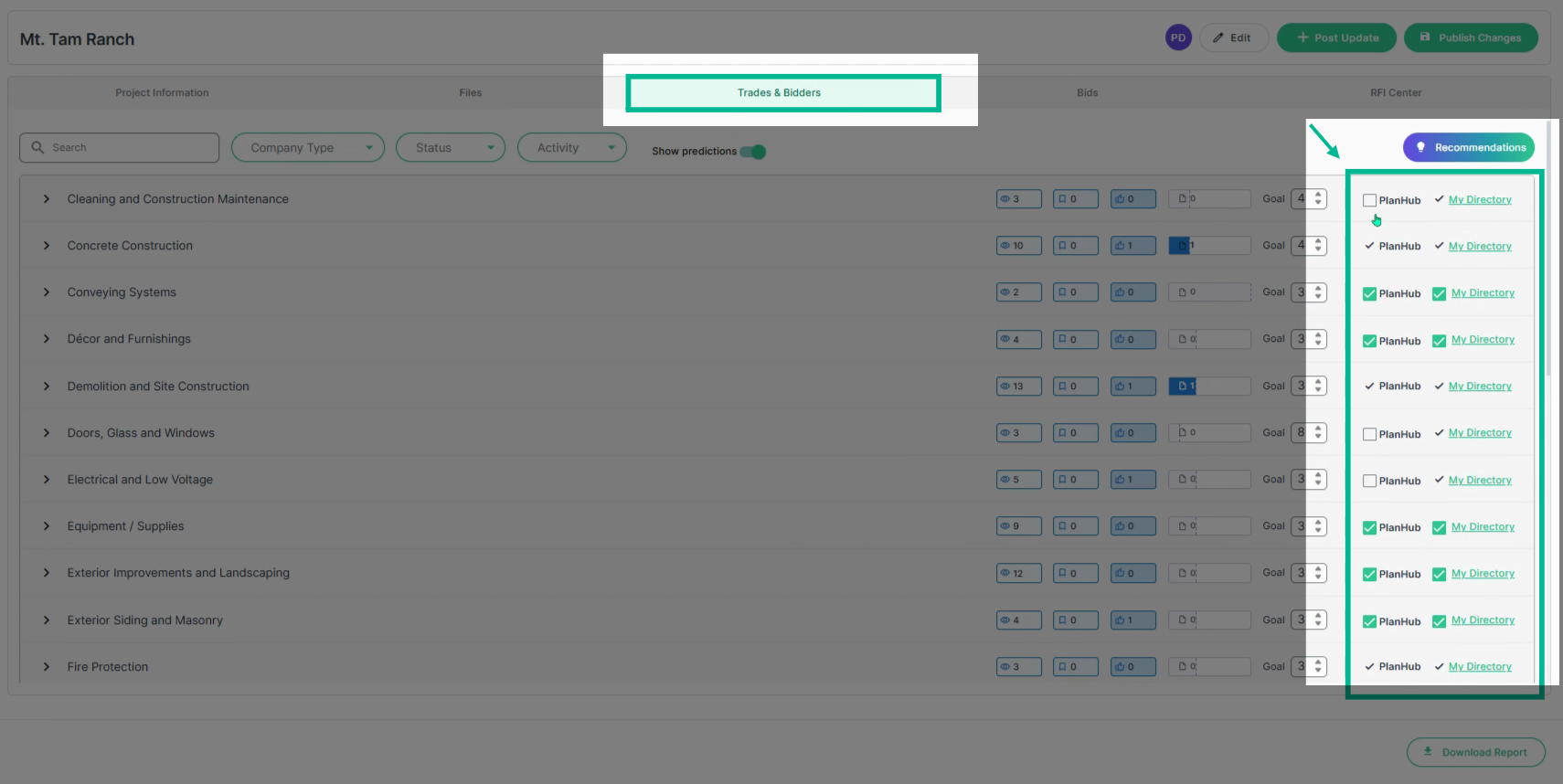
Step 4: **Expand Bidder Pool if Needed**
If you need more coverage, select contacts from your **My Directory** network to search for additional subcontractors or suppliers who did not receive an ITB. If you have purchased access to the PlanHub Network, you can invite more companies directly. To learn more about the **PlanHub Network**, view our Knowledge Base article: [Find Your Bidding Partners with the PlanHub Network](https://knowledgebase.planhub.com/knowledge/find-your-bidding-partners-with-the-planhub-network?hsLang=en)
Step 5: **Track and Update Bid Status**
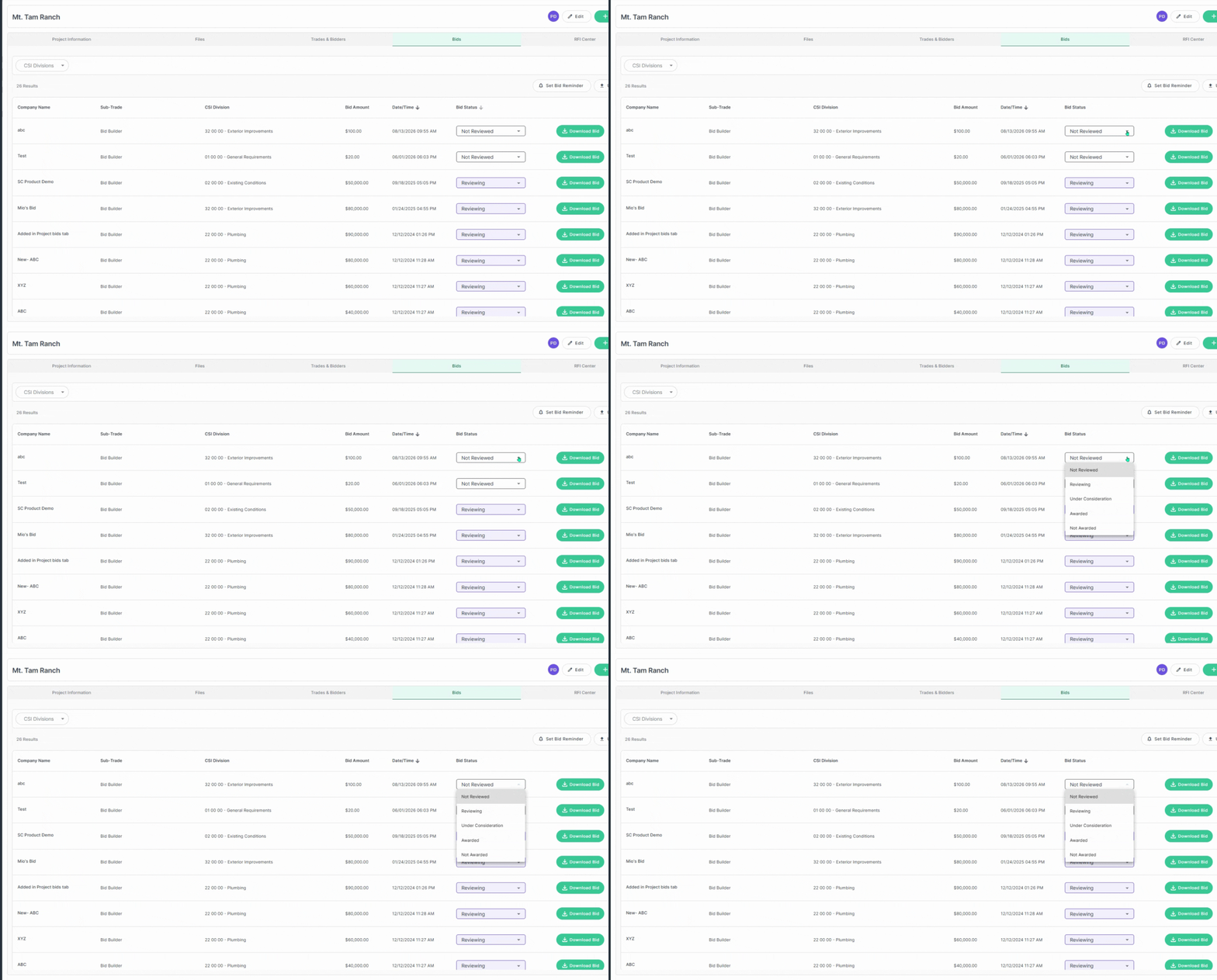
Select the **Bids** tab to monitor incoming bid submissions. As you receive bids, promptly update their status using the **Bid Status** dropdown menu. Keeping everyone informed sets clear expectations.
Step 6: **Review and Clarify Submitted Bids**
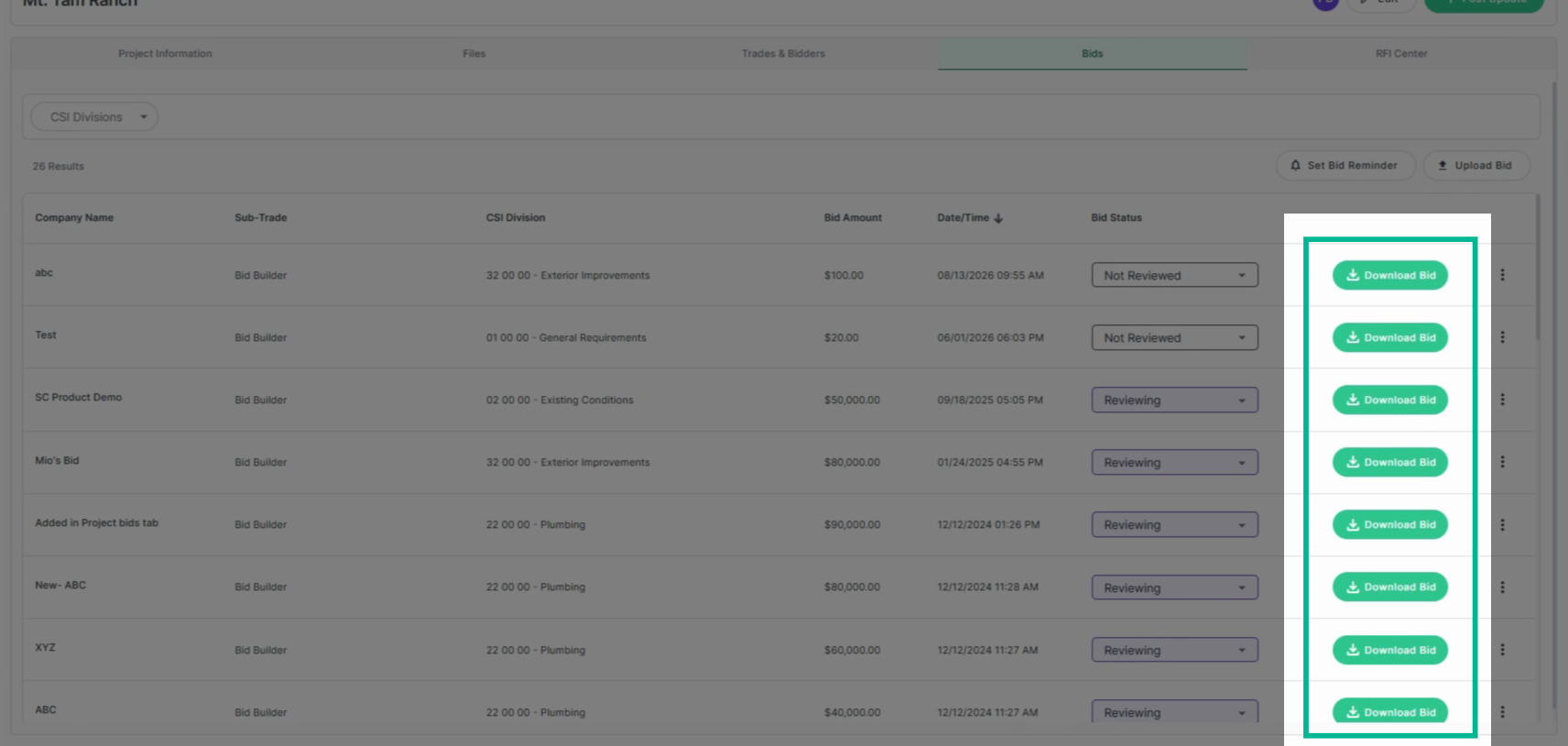
Download submitted bid documents to check for accuracy and completeness. If clarification is needed on pricing, scope, or exclusions, contact the subcontractor or supplier.
Step 7: **Communicate Changes and Updates**
When drawings, specifications, or addenda change, ensure you notify affected bidders. Direct them to review new documents and, if required, edit their bid submission. Click the three-dot action menu to **Edit** the bid. Then, add the new details, and attach relevant documents. Click **Save** to confirm.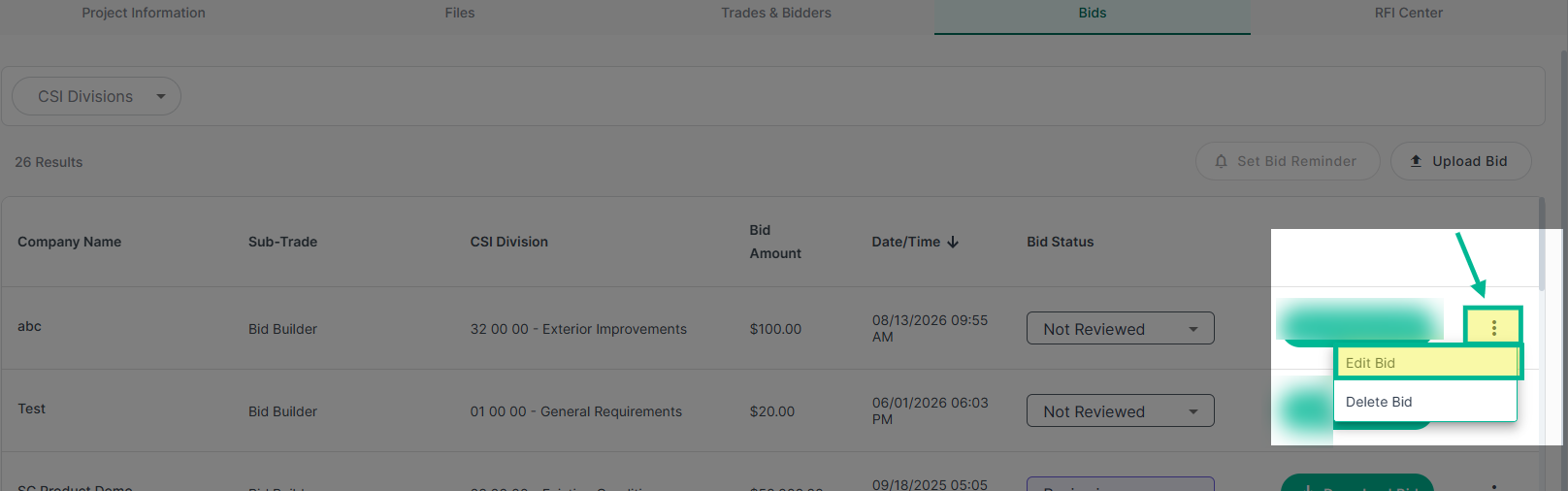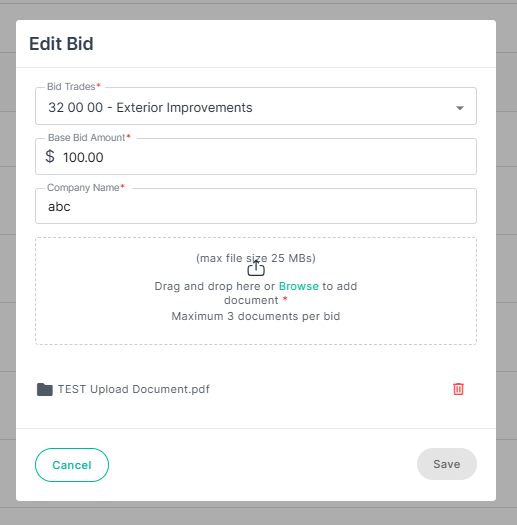
Step 8: **Respond to RFIs Promptly**
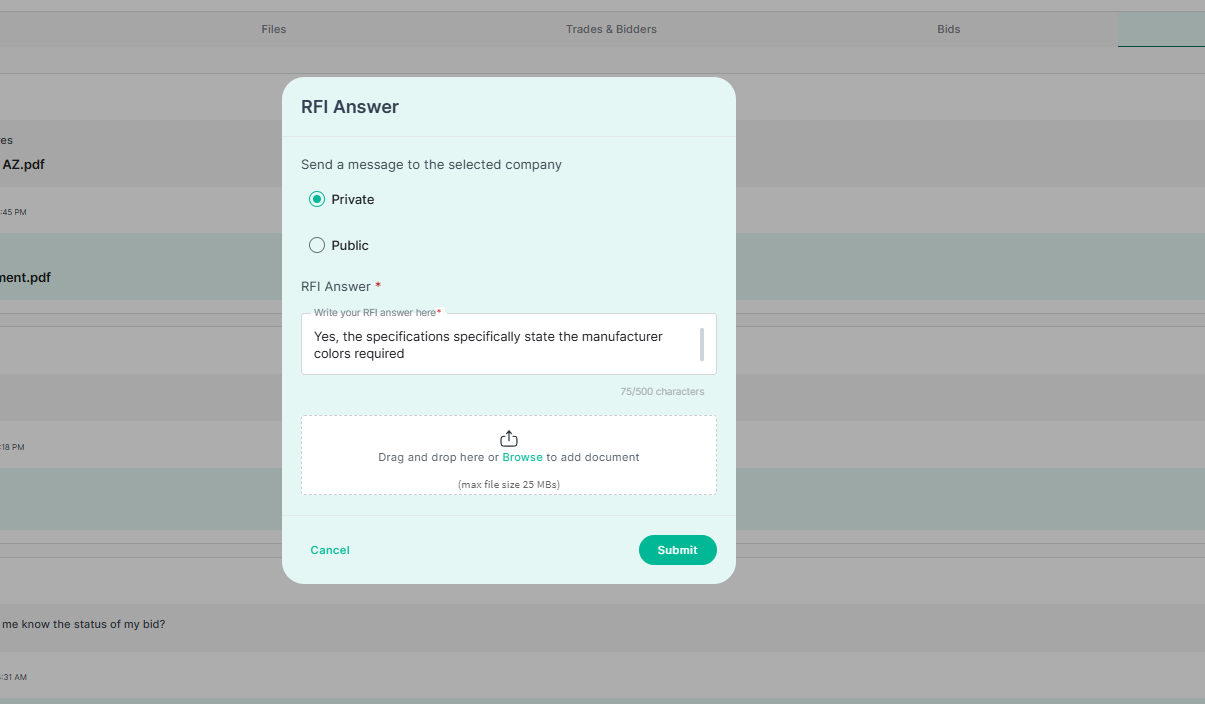
Select the **RFI Center** tab to manage incoming Requests for Information. Choose to reply privately (for individual submitters) or publicly (for all bidders). Attach supporting documents as needed and click **Submit** to send your response.
**Note:** If the RFI affects project scope or pricing, publish a project update to notify all active bidders.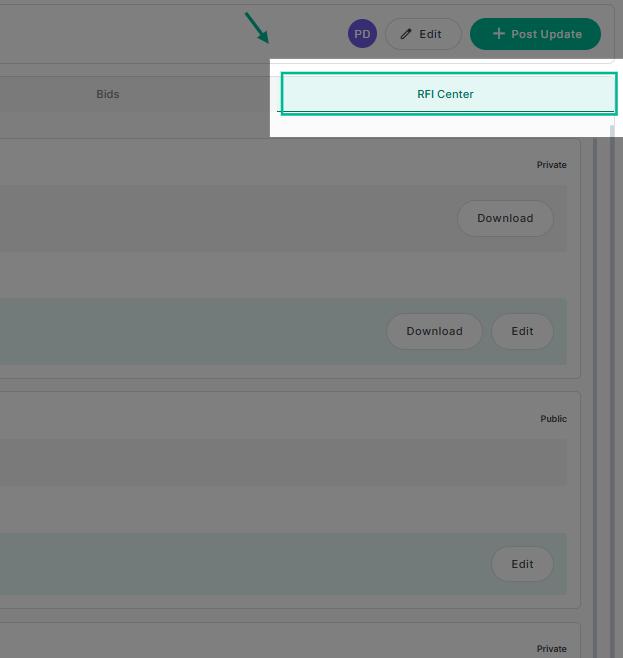
Step 9: **Post Project Updates and Deadline Reminders**
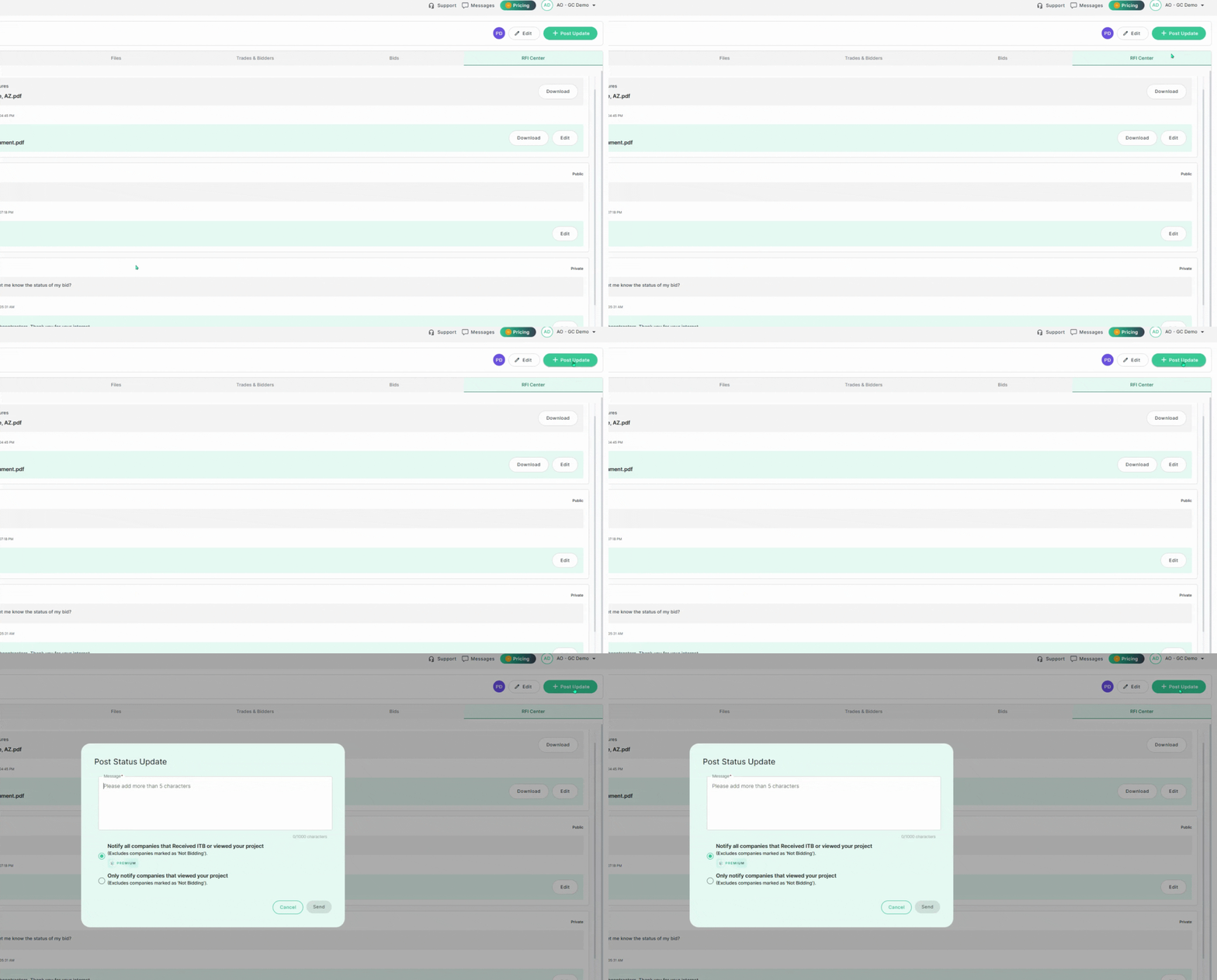
When deadlines approach or when drawings, specifications, or addenda change, ensure you notify all affected bidders using the **Post Update** button. Enter a message about the deadline or changes, decide who to notify (All companies who received ITBs or who viewed the project **or** ONLY those who viewed the project), then click **Send**.
Step 10: **Send Bid Reminders**
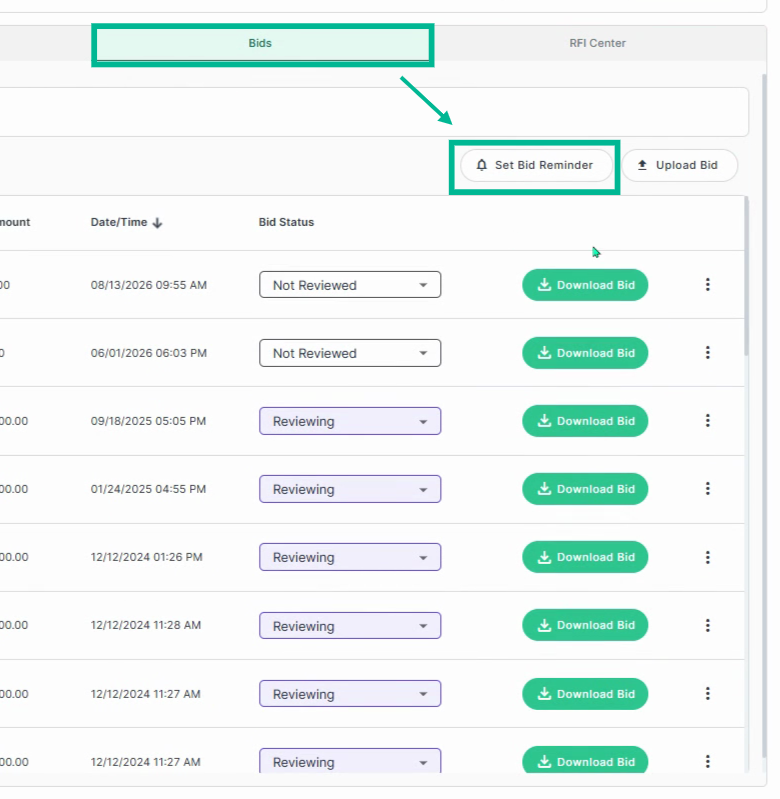
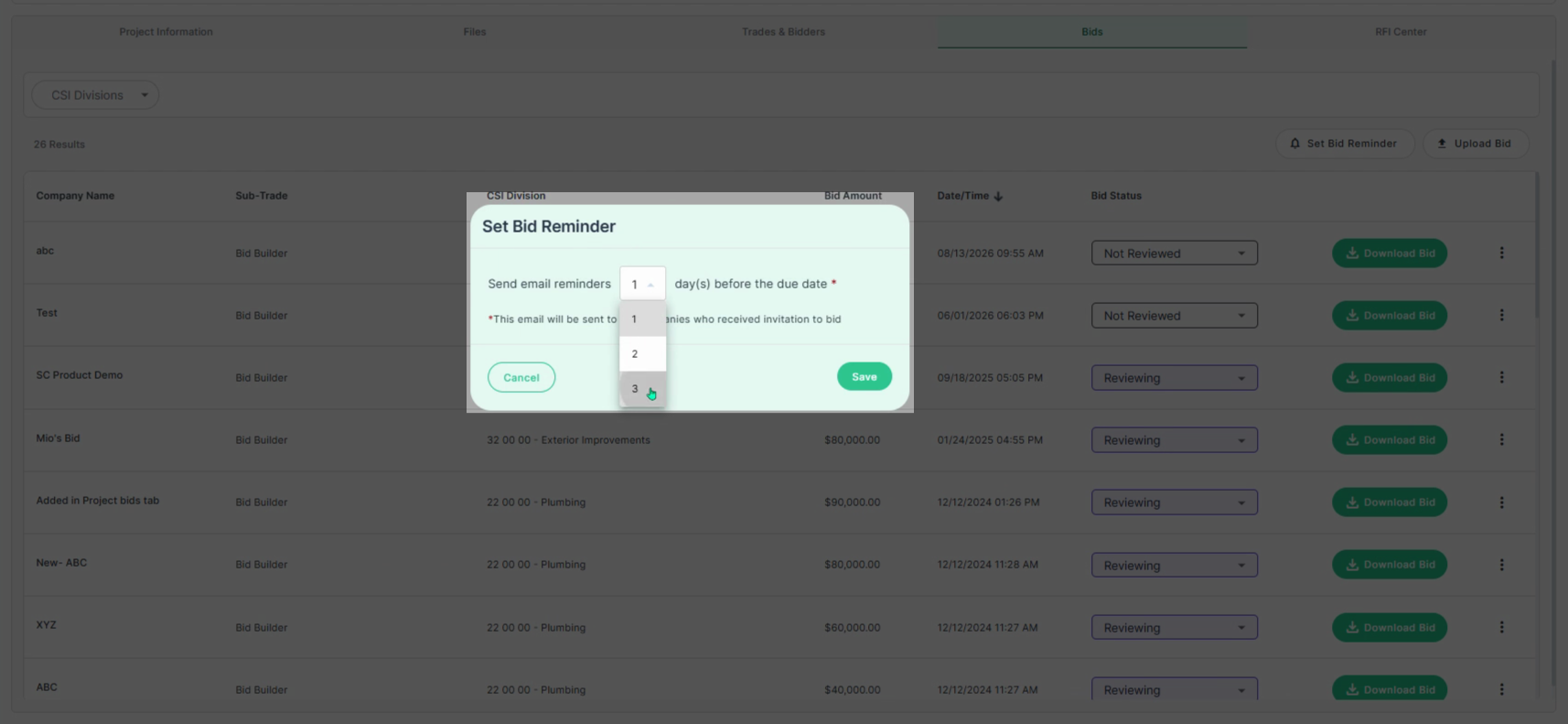
Remind bidders as the deadline nears by using **Set Bid Reminder** in the **Bids** tab. Reminders can be sent up to three days in advance. Choose the time frame and **Save**.
Step 11: **Follow Up Directly as Needed**
If you haven’t heard from bidders who you thought were bidding, reach out directly. You can reach out to them to follow up:
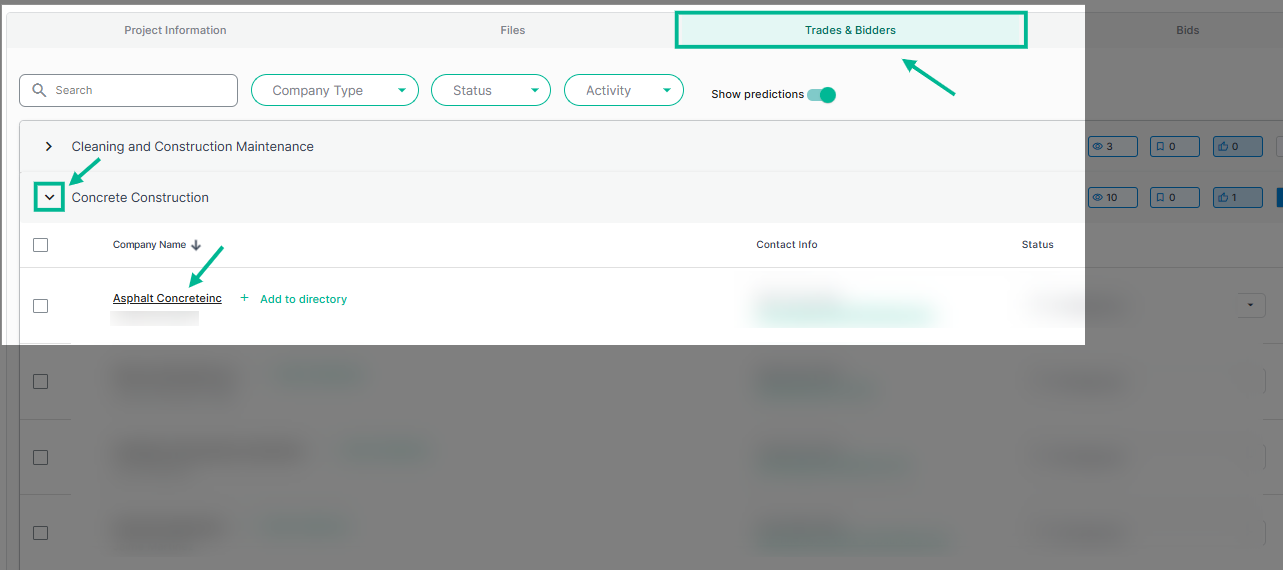
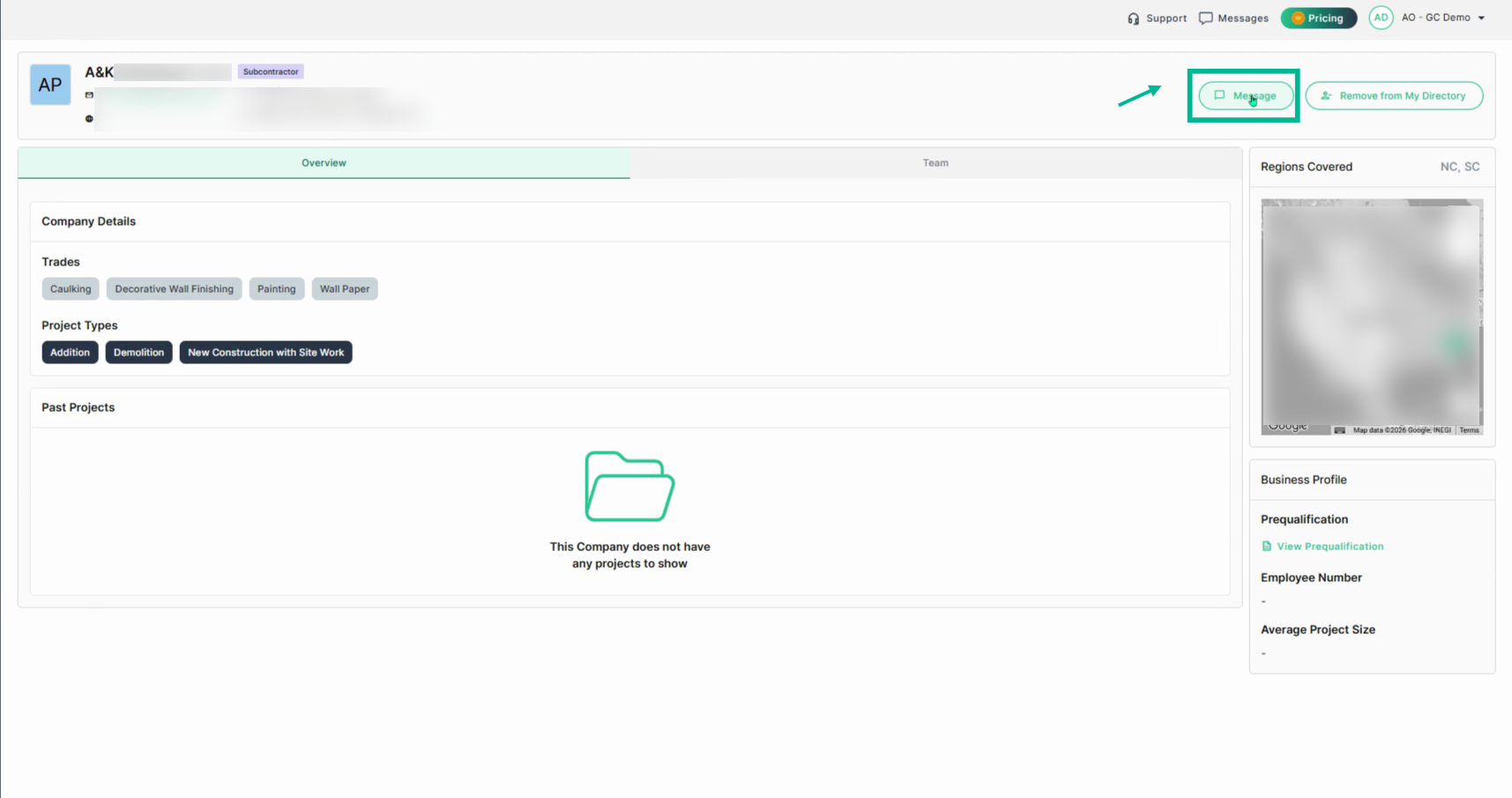
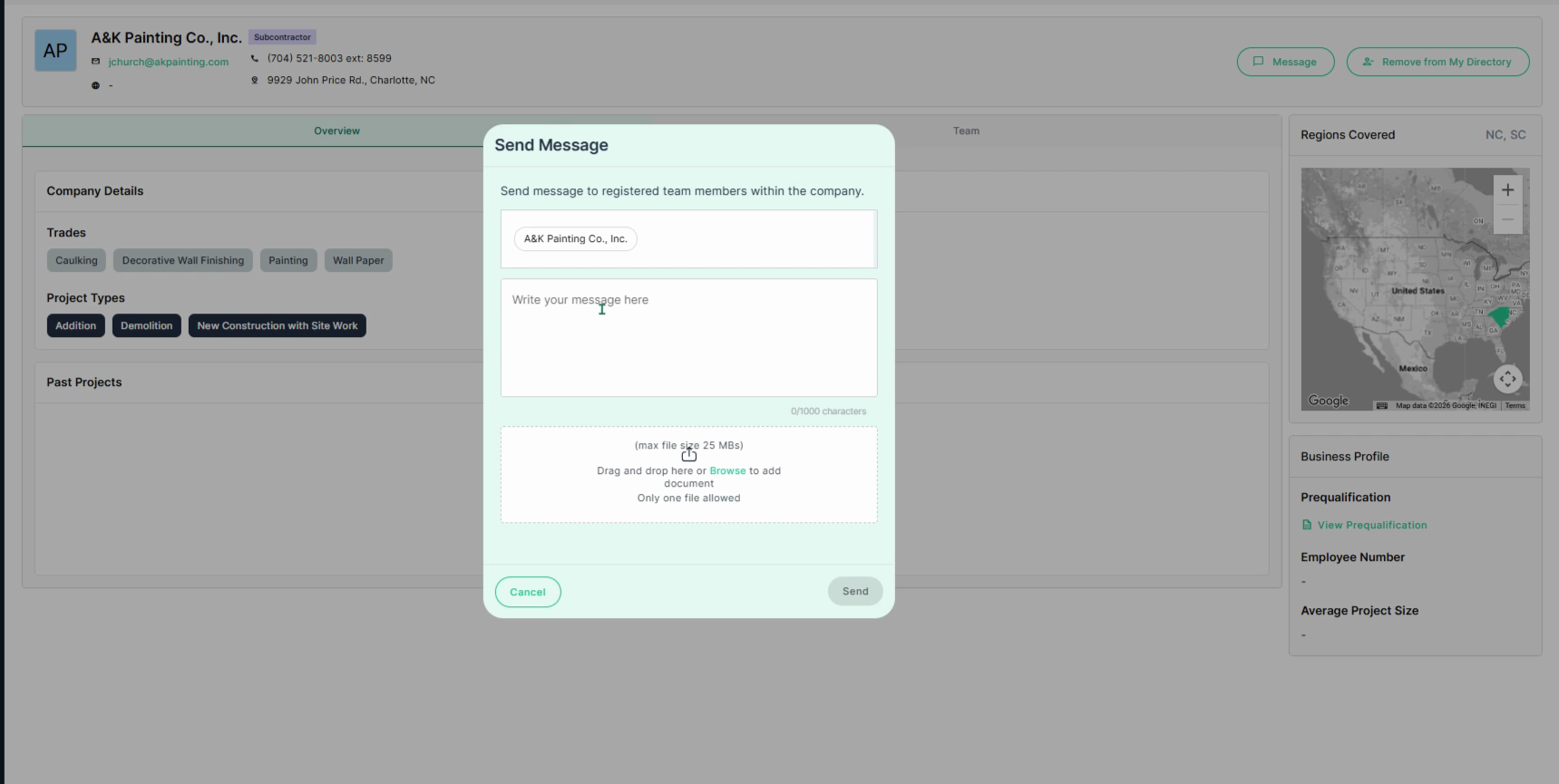
1. Click the **Trades & Bidders** tab, then expand the trade where the company is listed. Click the company name to open their profile page. In the upper-right corner, click **Message**, enter your note, and attach any supporting documents as needed. When finished, click **Send**.
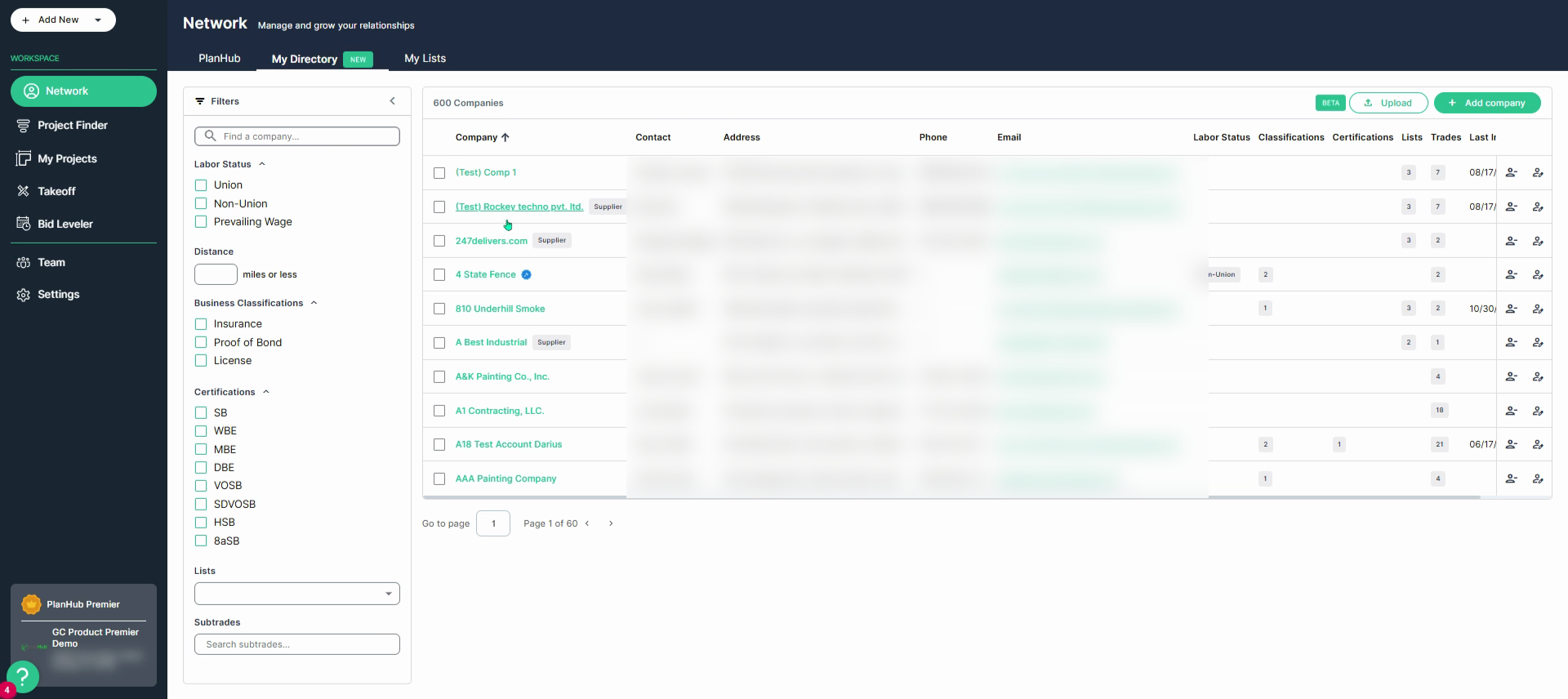
2. Use your in-network list to send a direct message. Navigate to **Network \> My Directory**, select the company name to open their profile, then click **Message**. Enter your note, attach any supporting documents as needed, and click **Send** when finished.
(1. Trades & Bidders page)
(2. My Directory page)
(1. & 2. Company Profile page view)
**Send Bulk Messages to Multiple Contacts for follow up in planHub**
Save time and improve communication by sending bulk emails to several contacts at once using Planhub. Here’s how to quickly reach out to multiple recipients from your tray.
Step 1: Select the trade row containing to expand the window.
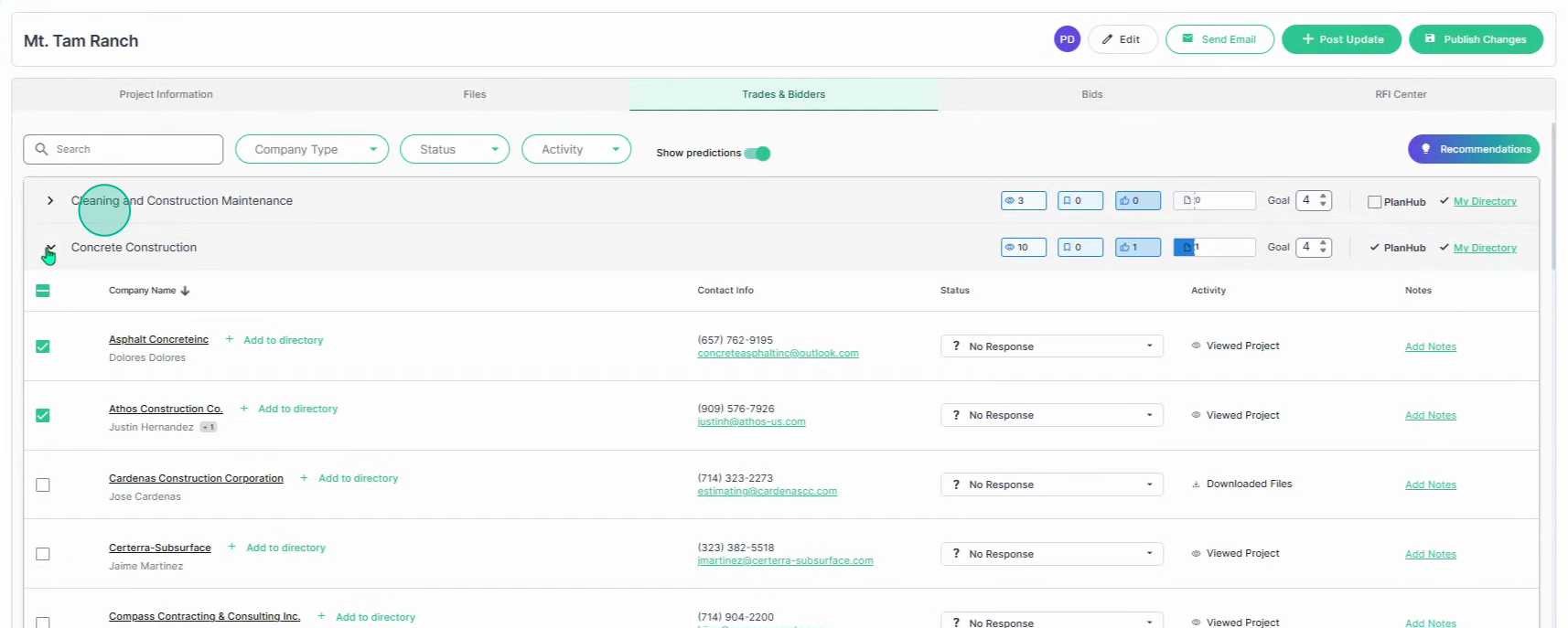
Step 2: Select multiple contacts from your list.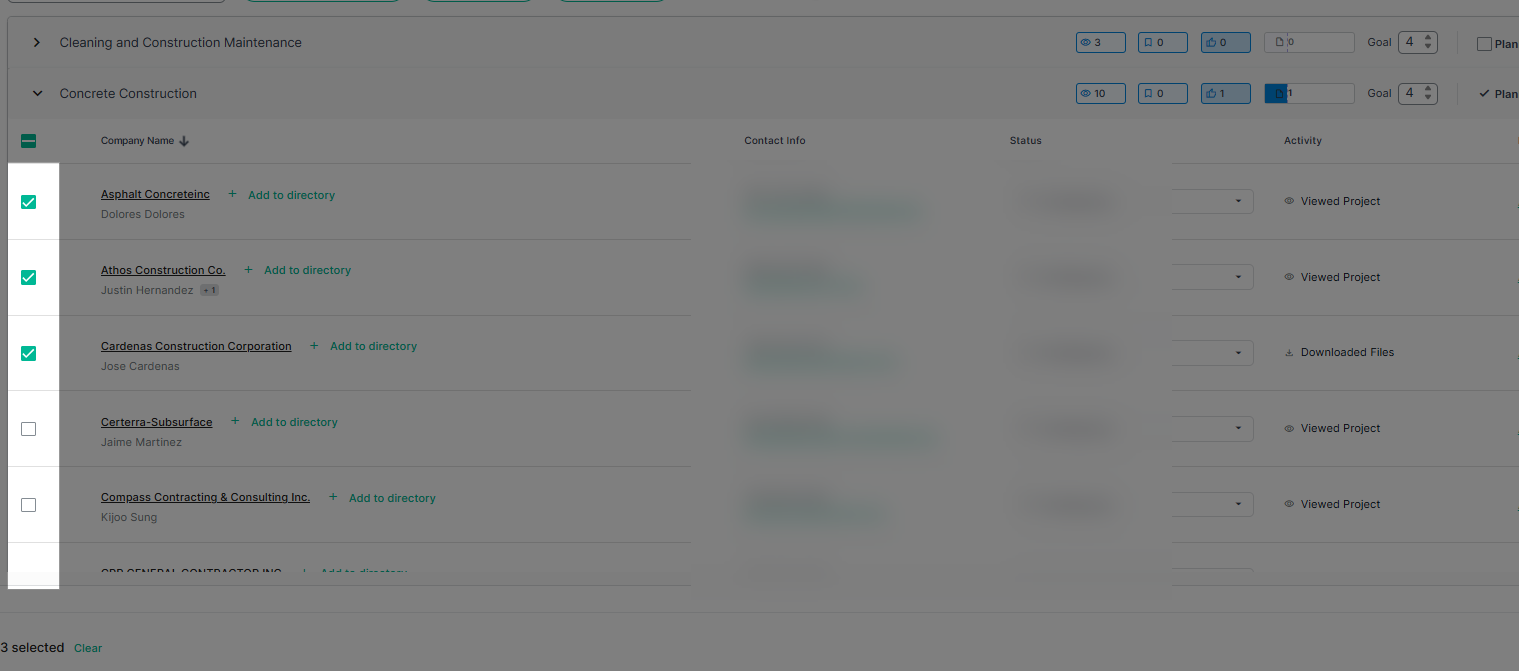
Step 3: Navigate to the upper right corner and click **Send Email**.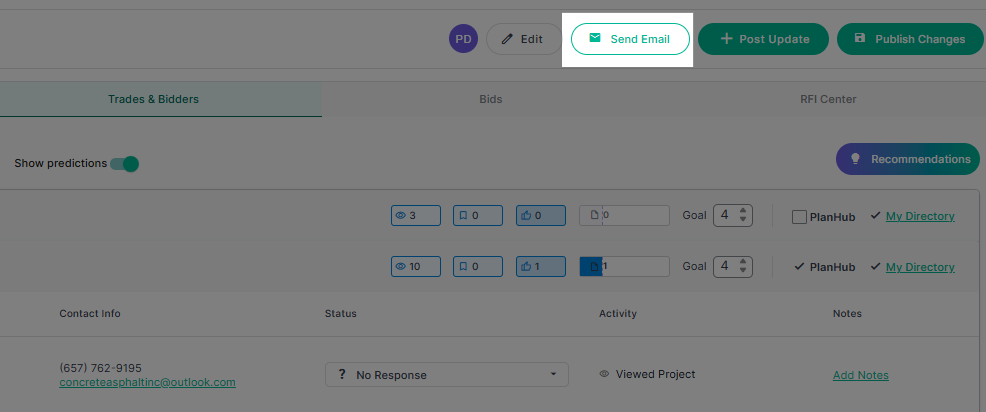
Step 4: Make sure your email is integrated with PlanHub before sending a bulk email. To learn more about Email Integration for General Contractors, view our Knowledge Base article: [Email Integration Overview](https://knowledgebase.planhub.com/knowledge/email-integration-overview?hsLang=en)
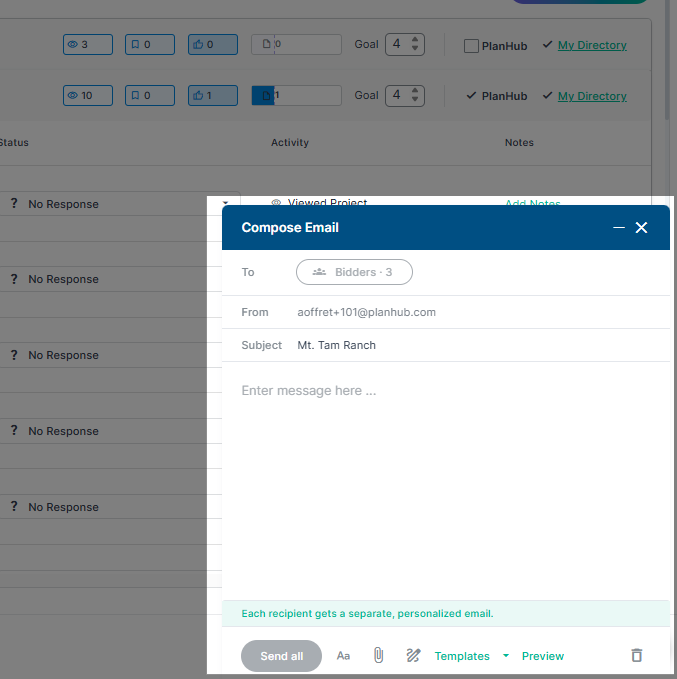
Step 5: Enter your message, then click **Send All**.
Bulk messaging streamlines your outreach process and helps you communicate efficiently with your contacts. Keep email integration active so you’re always ready to connect at scale.
Timely feedback and status updates keep everyone informed and engaged, resulting in a smoother, more successful bid process from start to finish. Use these tools to maintain accurate records and build lasting partnerships with your subcontractors and suppliers.
**Troubleshooting**
Contact us if you need assistance or to report an issue:
- PlanHub Contact Page: [https://planhub.com/contact/](https://planhub.com/contact/)
- Customer Facing Support Ticket Link: [https://knowledgebase.planhub.com/knowledge/kb-tickets/new](https://knowledgebase.planhub.com/knowledge/kb-tickets/new?hsLang=en)
- Customer Success Team: [CustomerSuccess@planhub.com](mailto:CustomerSuccess@planhub.com)
- [General Contractor](https://knowledgebase.planhub.com/knowledge/general-contractor?hsLang=en#main-content)
- [Overview](https://knowledgebase.planhub.com/knowledge/general-contractor?hsLang=en#overview)
- [Projects](https://knowledgebase.planhub.com/knowledge/general-contractor?hsLang=en#projects)
- [Networking](https://knowledgebase.planhub.com/knowledge/general-contractor?hsLang=en#networking)
- [Archived](https://knowledgebase.planhub.com/knowledge/general-contractor?hsLang=en#archived)
- [Subcontractors](https://knowledgebase.planhub.com/knowledge/subcontractors?hsLang=en#main-content)
- [Overview](https://knowledgebase.planhub.com/knowledge/subcontractors?hsLang=en#overview)
- [Projects](https://knowledgebase.planhub.com/knowledge/subcontractors?hsLang=en#projects)
- [Bid Board & Tracking](https://knowledgebase.planhub.com/knowledge/subcontractors?hsLang=en#bid-board-tracking)
- [Networking](https://knowledgebase.planhub.com/knowledge/subcontractors?hsLang=en#networking)
- [Takeoff & Estimation](https://knowledgebase.planhub.com/knowledge/subcontractors?hsLang=en#takeoff-estimation)
- [Manage Your Team](https://knowledgebase.planhub.com/knowledge/subcontractors?hsLang=en#manage-your-team)
- [Account & Settings](https://knowledgebase.planhub.com/knowledge/subcontractors?hsLang=en#account-settings)
- [Job Board](https://knowledgebase.planhub.com/knowledge/subcontractors?hsLang=en#job-board)
- [Request for Information](https://knowledgebase.planhub.com/knowledge/subcontractors?hsLang=en#request-for-information)
- [AI](https://knowledgebase.planhub.com/knowledge/subcontractors?hsLang=en#ai)
- [Supplier](https://knowledgebase.planhub.com/knowledge/supplier?hsLang=en#main-content)
- [Overview](https://knowledgebase.planhub.com/knowledge/supplier?hsLang=en#overview)
- [Projects and Leads](https://knowledgebase.planhub.com/knowledge/supplier?hsLang=en#projects-and-leads)
- [Bidding & Estimating](https://knowledgebase.planhub.com/knowledge/supplier?hsLang=en#bidding-estimating)
- [Networking](https://knowledgebase.planhub.com/knowledge/supplier?hsLang=en#networking)
- [Account & Settings](https://knowledgebase.planhub.com/knowledge/supplier?hsLang=en#account-settings)
- [Takeoff & Estimation](https://knowledgebase.planhub.com/knowledge/takeoff-estimation?hsLang=en#main-content)
- [Getting Started](https://knowledgebase.planhub.com/knowledge/takeoff-estimation?hsLang=en#getting-started)
- [Takeoff Tools & Measurements](https://knowledgebase.planhub.com/knowledge/takeoff-estimation?hsLang=en#takeoff-tools-measurements)
- [Trade-Specific Takeoffs](https://knowledgebase.planhub.com/knowledge/takeoff-estimation?hsLang=en#trade-specific-takeoffs)
- [Estimating](https://knowledgebase.planhub.com/knowledge/takeoff-estimation?hsLang=en#estimating)
- [Managing & Sharing Your Work](https://knowledgebase.planhub.com/knowledge/takeoff-estimation?hsLang=en#managing-sharing-your-work)
- [Account & Billing](https://knowledgebase.planhub.com/knowledge/account-billing?hsLang=en#main-content)
- [Account & Billing](https://knowledgebase.planhub.com/knowledge/account-billing?hsLang=en#account-billing)
- [Account Closure](https://knowledgebase.planhub.com/knowledge/account-billing?hsLang=en#account-closure)
- [Troubleshooting](https://knowledgebase.planhub.com/knowledge/troubleshooting?hsLang=en)
- [About PlanHub](https://knowledgebase.planhub.com/knowledge/about-planhub?hsLang=en)
- [New General Contractor Experience](https://knowledgebase.planhub.com/knowledge/new-general-contractor-experience?hsLang=en#main-content)
- [Overview](https://knowledgebase.planhub.com/knowledge/new-general-contractor-experience?hsLang=en#overview)
- [Projects](https://knowledgebase.planhub.com/knowledge/new-general-contractor-experience?hsLang=en#projects)
- [Networking](https://knowledgebase.planhub.com/knowledge/new-general-contractor-experience?hsLang=en#networking)
- [Takeoff & Estimation](https://knowledgebase.planhub.com/knowledge/new-general-contractor-experience?hsLang=en#takeoff-estimation)
- [Account & Settings](https://knowledgebase.planhub.com/knowledge/new-general-contractor-experience?hsLang=en#account-settings)
- [Manage Your Team](https://knowledgebase.planhub.com/knowledge/new-general-contractor-experience?hsLang=en#manage-your-team)
- [AI Tools](https://knowledgebase.planhub.com/knowledge/new-general-contractor-experience?hsLang=en#ai-tools)
- [Submit Feedback](https://knowledgebase.planhub.com/knowledge/submit-feedback?hsLang=en#main-content)
- [Feedback](https://knowledgebase.planhub.com/knowledge/submit-feedback?hsLang=en#feedback)
- [API](https://knowledgebase.planhub.com/knowledge/api?hsLang=en)
- [Construction Education](https://knowledgebase.planhub.com/knowledge/construction-education?hsLang=en#main-content)
- [Contractor Roles and Responsibilities](https://knowledgebase.planhub.com/knowledge/construction-education?hsLang=en#contractor-roles-and-responsibilities)
- [Have an Issue? Submit a Ticket](https://knowledgebase.planhub.com/knowledge/kb-tickets/new)
[](https://planhub.com/)
[Knowledge Base Home](https://knowledgebase.planhub.com/knowledge?hsLang=en)
[Submit a Ticket](https://knowledgebase.planhub.com/knowledge/kb-tickets/new?hsLang=en)
Copyright © 2026, ©2026 PlanHub, Inc. All rights reserved