![NEW_PlanHub_Logo_Navy.png]](https://knowledgebase.planhub.com/hs-fs/hubfs/Design/PH%20Logos/NEW%202024%20PH%20Logos/NEW_PlanHub_Logo_Navy.png?height=40&name=NEW_PlanHub_Logo_Navy.png)
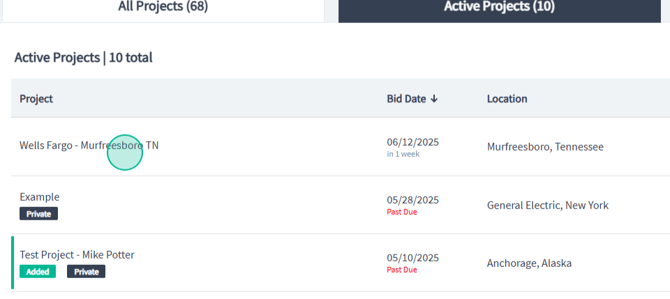
Step 1: Navigate to the Projects page and select the project you wish to monitor.
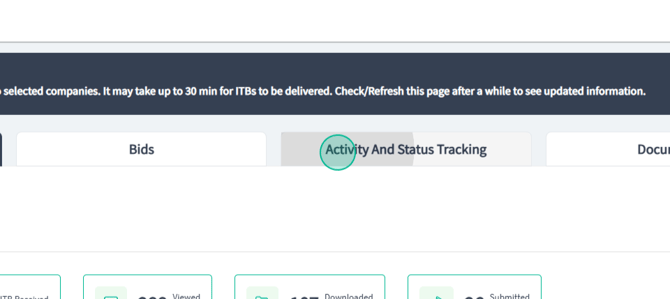
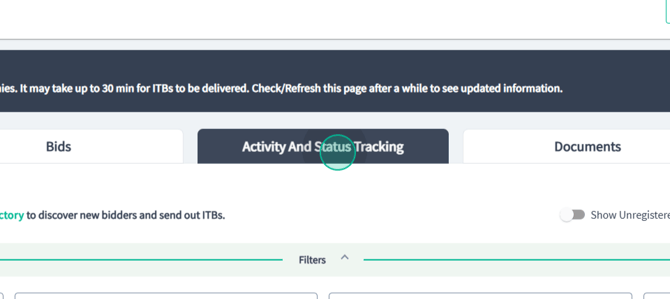
Step 2: On the Project Overview page, click on the Activity and Status Tracking tab.
Here, you'll find a list of subcontractors and suppliers who have shown activity on your project or responded to your invitations.
Step 3: Use the search bar to find a contact by name or email.

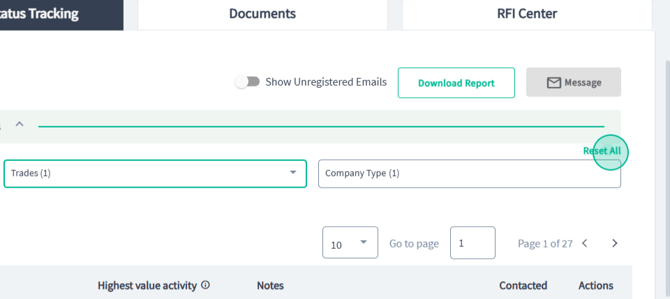
Step 4: Apply filters to see lists of contacts based on their activity type, bidding status, trades, or company type.

To clear your filters, click Reset.
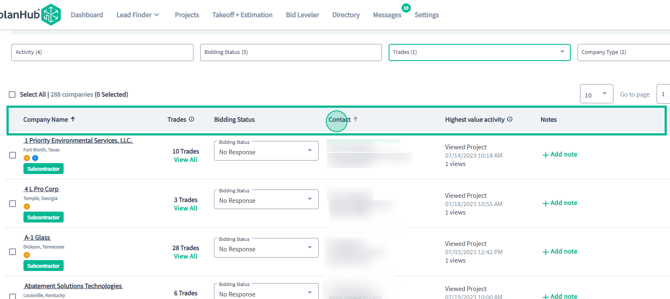
Step 5: After setting up your filters, the resulting list of contacts will appear below. Each contact will include the company name, list of trades, bidding status, contact details, highest value of activity, a section for notes, a connection level indicator, and actions.
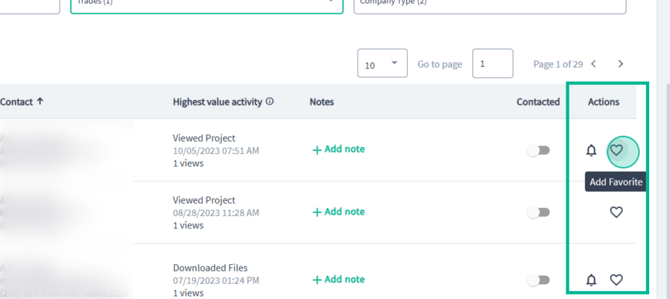
Step 6: Click on the heart icon to add a contact to your favorites.
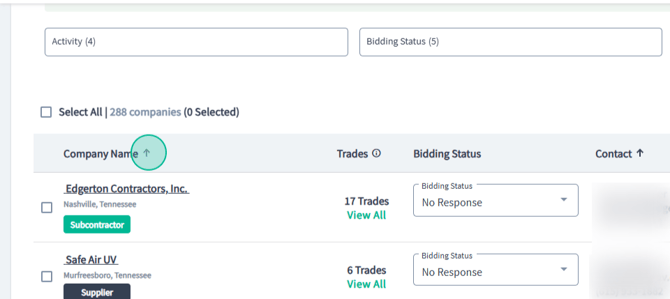
Step 7: Adjust the sorting order of your list by clicking the arrow next to a column title.
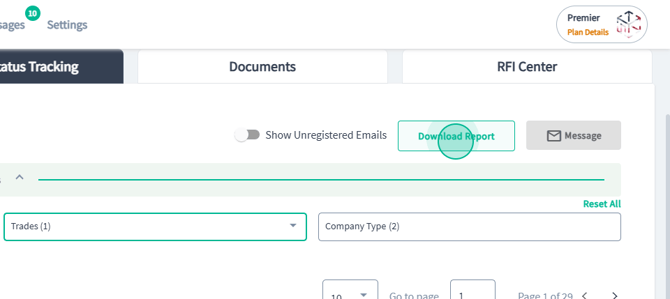
Step 8: Download the report by scrolling up and clicking on the download button.
Step 9: Send bulk messages by checking off contacts and clicking Send.
You'll receive responses in the Messages Center.

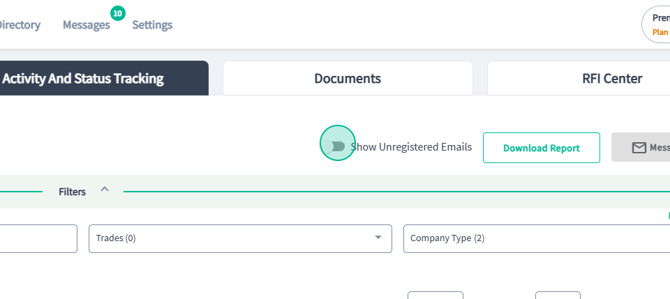
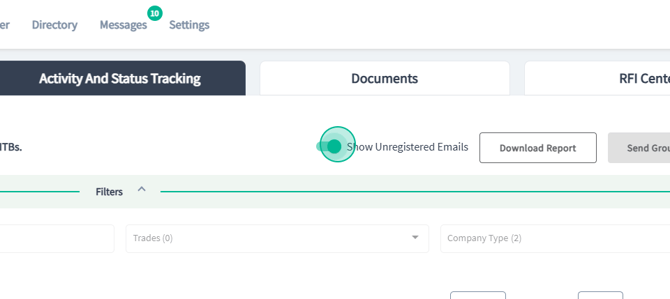
Step 10: To view unregistered contacts from your In Network list, click on the toggle for Show Unregistered emails.
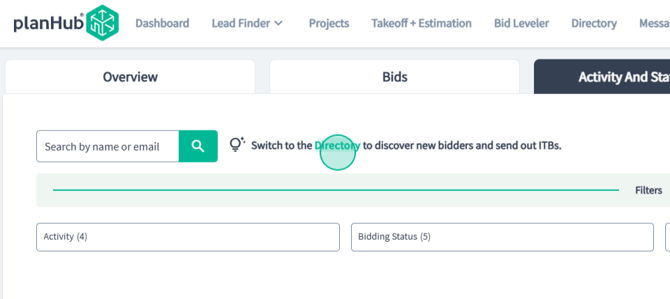
Step 11: Switch to the project's activity and status tracking in the directory to discover new bidders and send out more invitations to bid.
Step 12: To view contact lists in the directory view, select other projects.
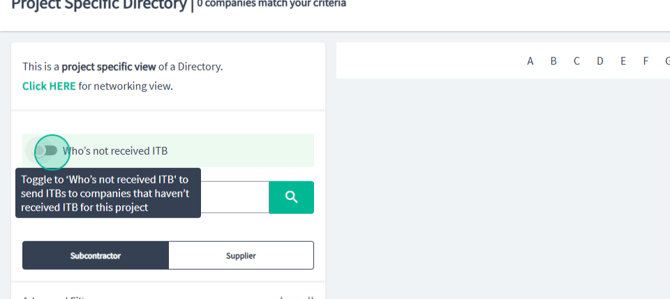
Step 13: To see who hasn't received an invitation to bid on this project, toggle who's not received ITB.
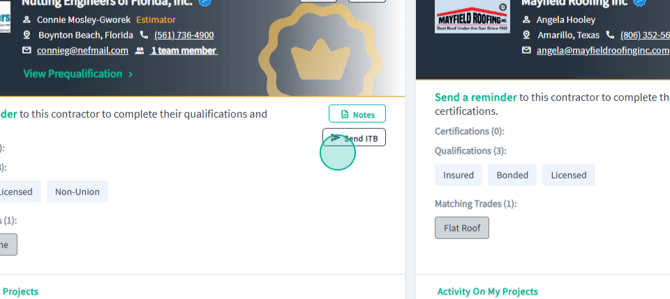
Step 14: To send an invitation to bid, click Send ITB.
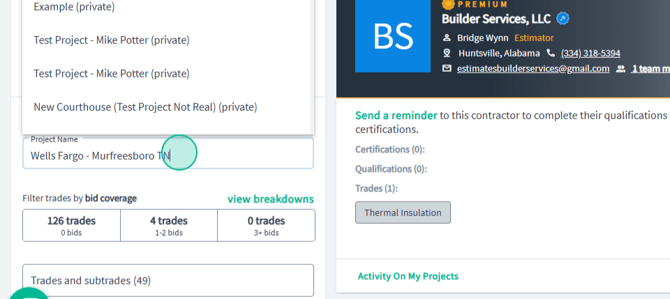
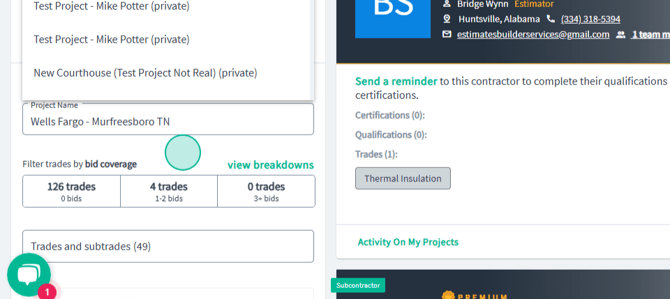
Step 15: Filter your trades by bid coverage for the contacts to understand what trades you may need more coverage of.
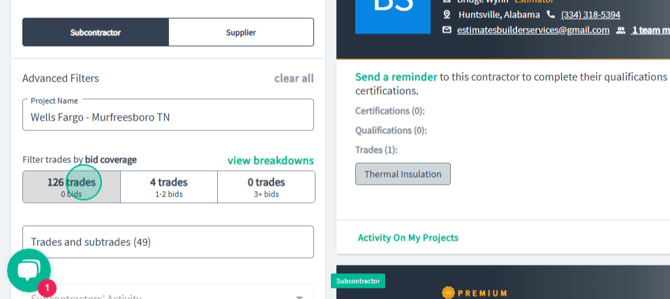
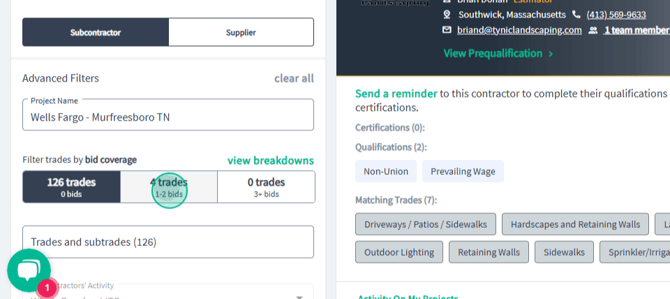
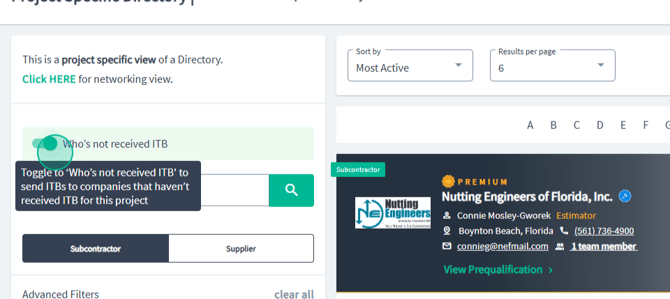
Step 16: To see who within the PlanHub network hasn't been invited to bid this project, click on who has not received ITB.
Step 17: To send these contacts an invitation to bid, click Send ITB on the company card.
PlanHub's activity and status tracking on each individual project allows you as a general contractor to quickly identify potential bidders, invite more subcontractors based on their trade type, and build new relationships with the subcontractors and suppliers you need for each job.
Troubleshooting
Contact us if you need assistance or to report an issue:
- PlanHub Contact Page: https://planhub.com/contact/
- Customer Facing Support Ticket Link: https://knowledgebase.planhub.com/knowledge/kb-tickets/new
- Customer Success Team: CustomerSuccess@planhub.com