---
title: How to Track Bidding Activity on your Posted Projects
description: Bid Activity, Bids, Submitted Bids, Bid Status, Project, Active Project
---
[Skip to content](https://knowledgebase.planhub.com/knowledge/general-contractors-how-to-view-bidding-activity-on-your-posted-projects#main-content)
English
Show submenu for translations
[Submit a Ticket](https://knowledgebase.planhub.com/knowledge/kb-tickets/new?hsLang=en)
![NEW\_PlanHub\_Logo\_Navy.png\]](https://knowledgebase.planhub.com/hs-fs/hubfs/Design/PH%20Logos/NEW%202024%20PH%20Logos/NEW_PlanHub_Logo_Navy.png?height=40&name=NEW_PlanHub_Logo_Navy.png)
- [Have an Issue? Submit a Ticket](https://knowledgebase.planhub.com/knowledge/kb-tickets/new)
Open main navigation
Close main navigation
- [Have an Issue? Submit a Ticket](https://knowledgebase.planhub.com/knowledge/kb-tickets/new)
- English
Show submenu for translations
- [Submit a Ticket](https://knowledgebase.planhub.com/knowledge/kb-tickets/new)
What can we help you with?
- There are no suggestions because the search field is empty.
1. [Knowledge Base](https://knowledgebase.planhub.com/knowledge?hsLang=en)
2. [New General Contractor Experience](https://knowledgebase.planhub.com/knowledge/new-general-contractor-experience?hsLang=en)
3. [Projects](https://knowledgebase.planhub.com/knowledge/new-general-contractor-experience?hsLang=en#projects)
# How to Track Bidding Activity on your Posted Projects
## Stay on top of your bidding process by tracking subcontractor and supplier activity in planHub. This guide walks you through viewing project activity, filtering for key insights, and reaching out to bidders to improve your bid coverage.
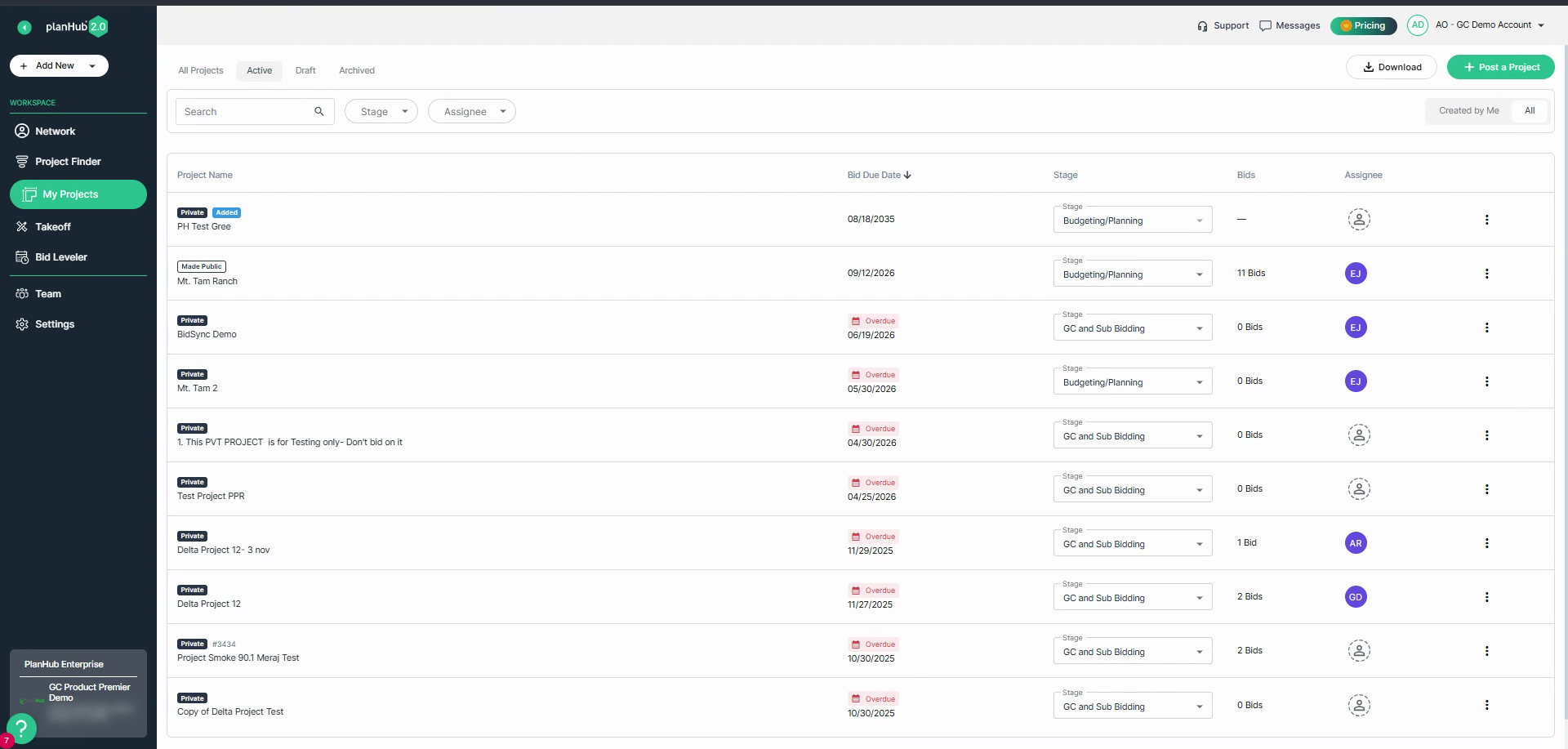
**Step 1:** Log into your general contractor planHub account.
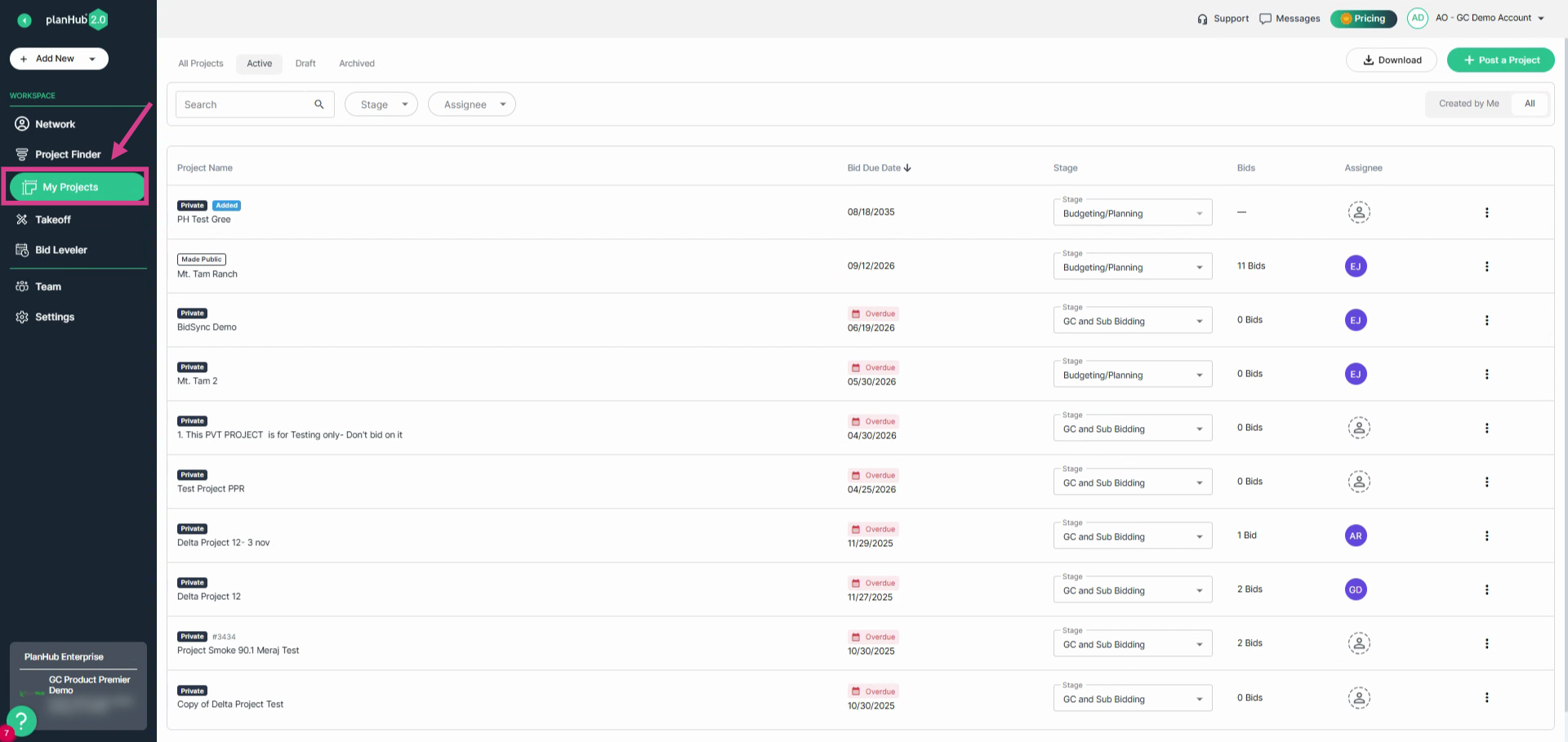
**Step 2:** From the main panel, select **My Projects**.
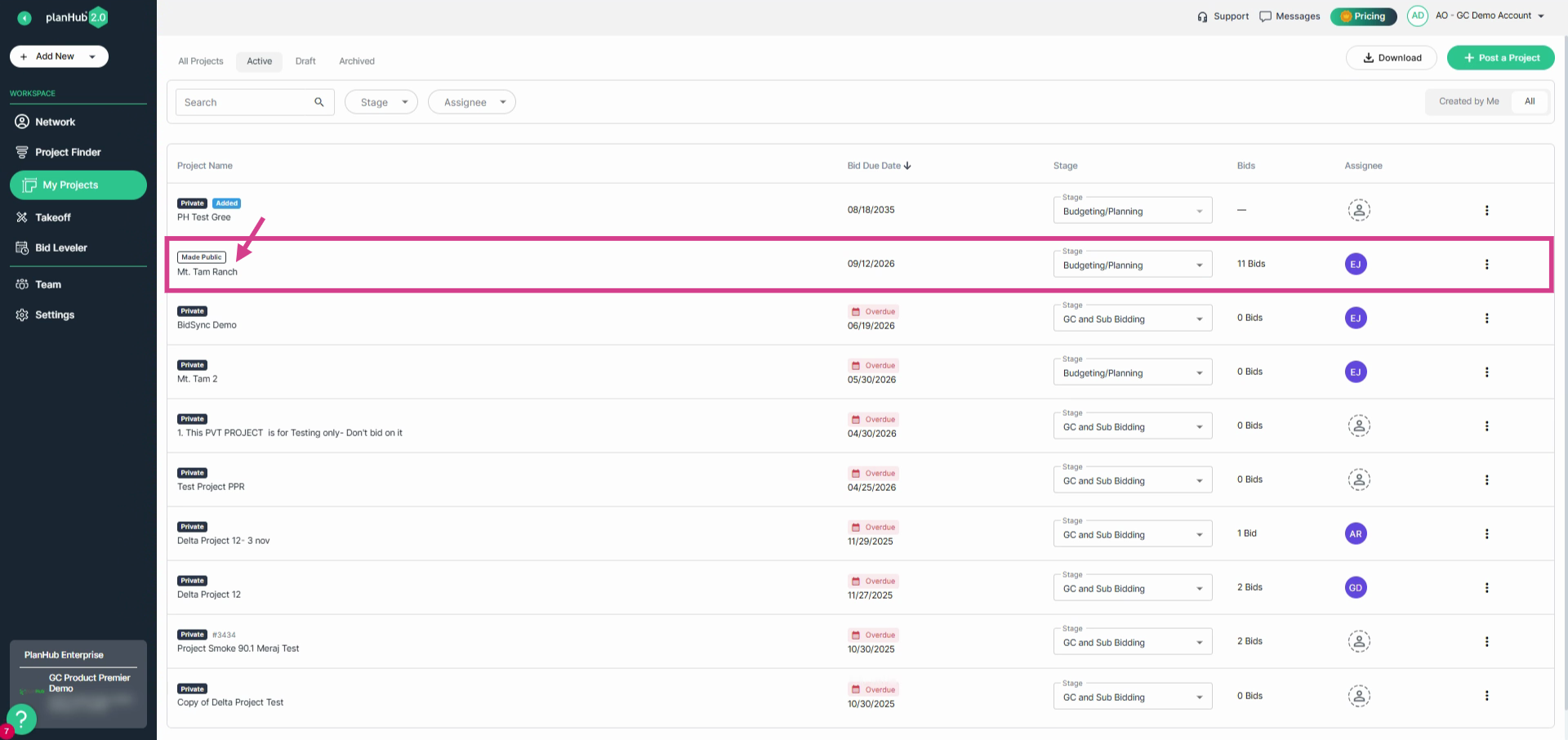
**Step 3:** Click on the project name you want to review.
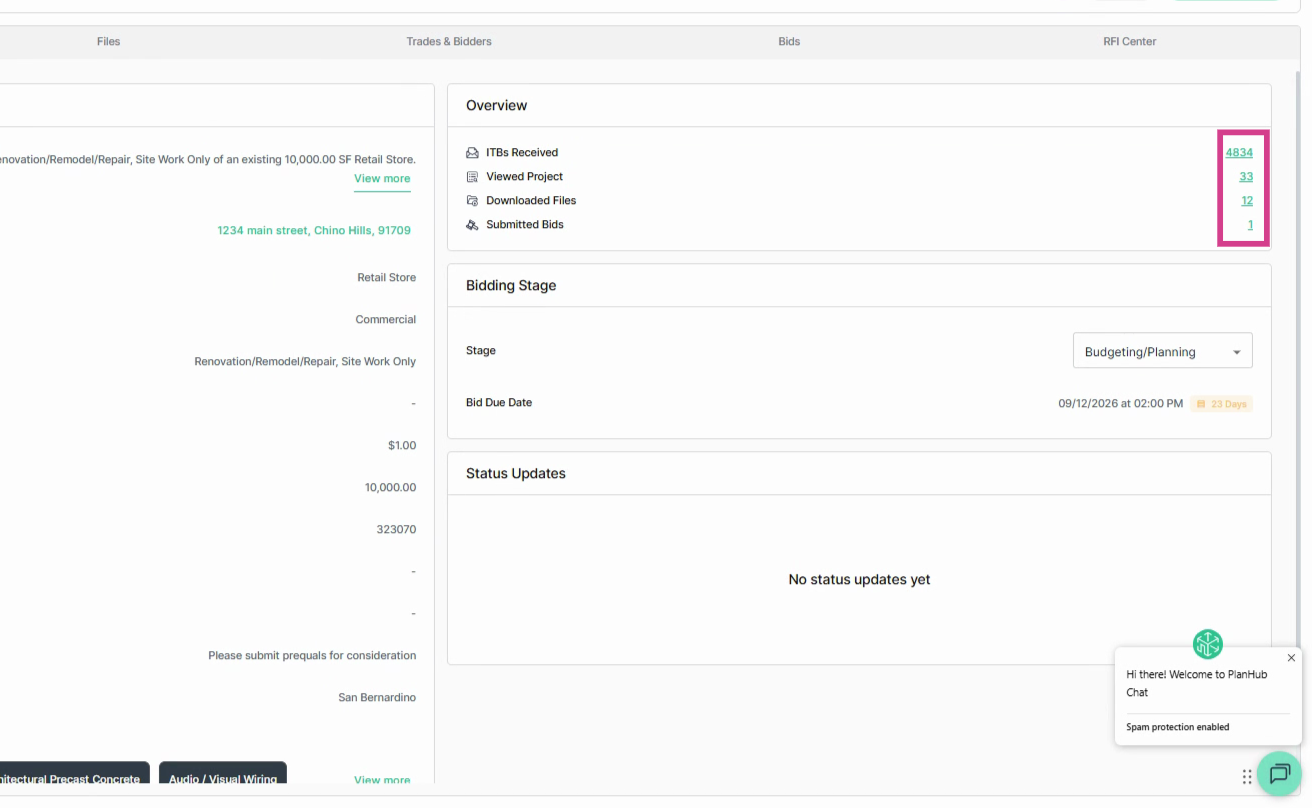
**Step 4:** On the project page, find the **Overview** section on the right. Here, you’ll see a quick look at activity on your project, including ITBs received, projects viewed, files downloaded, and bids submitted.
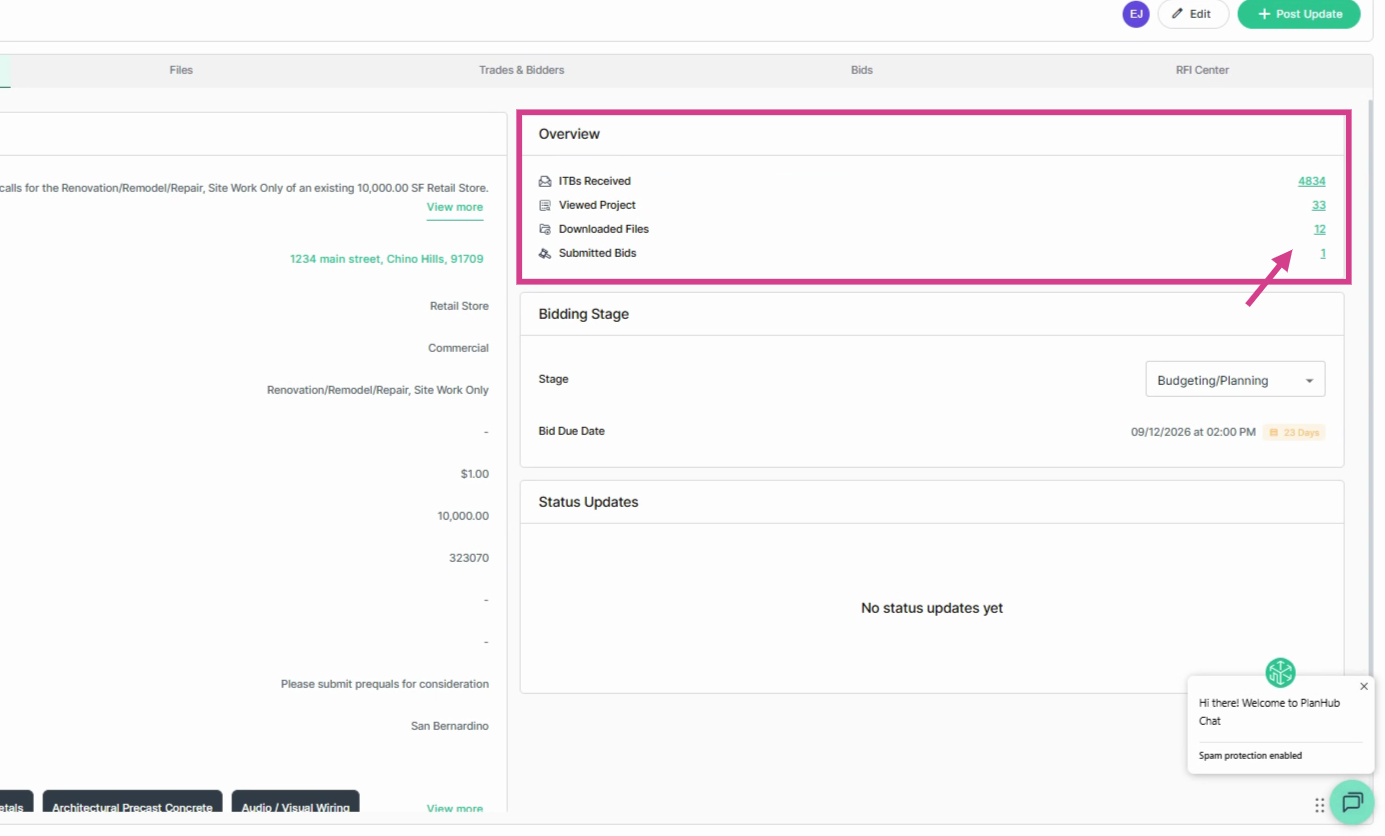
**Step 5:** Each activity count acts as a clickable link. Selecting any of the numbered activity links takes you directly to the **Trades & Bidders** page and filters your view by the option you selected in the Overview.
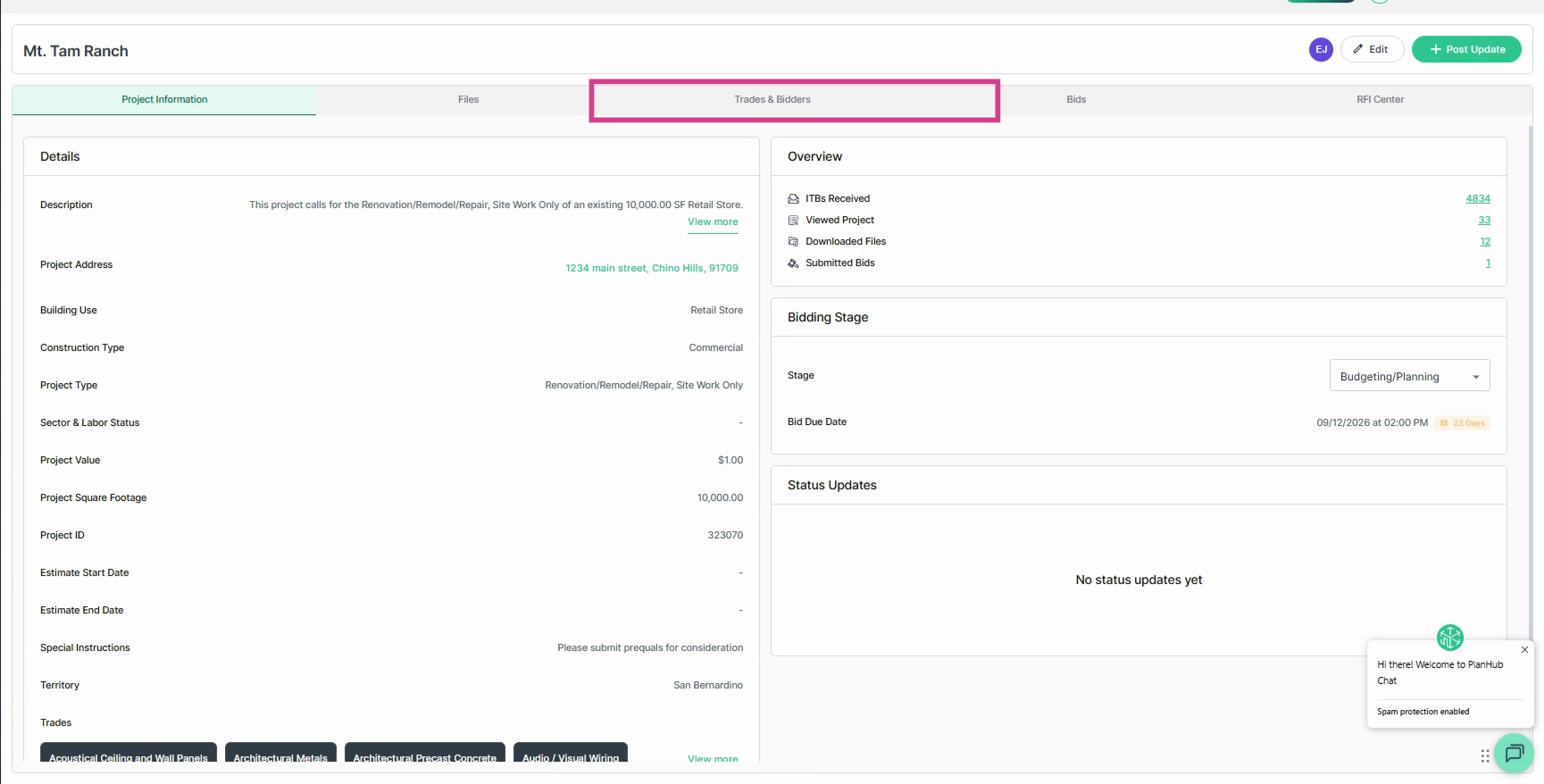
**Step 6:** Or, click on the **Trades & Bidders** tab in the top row.
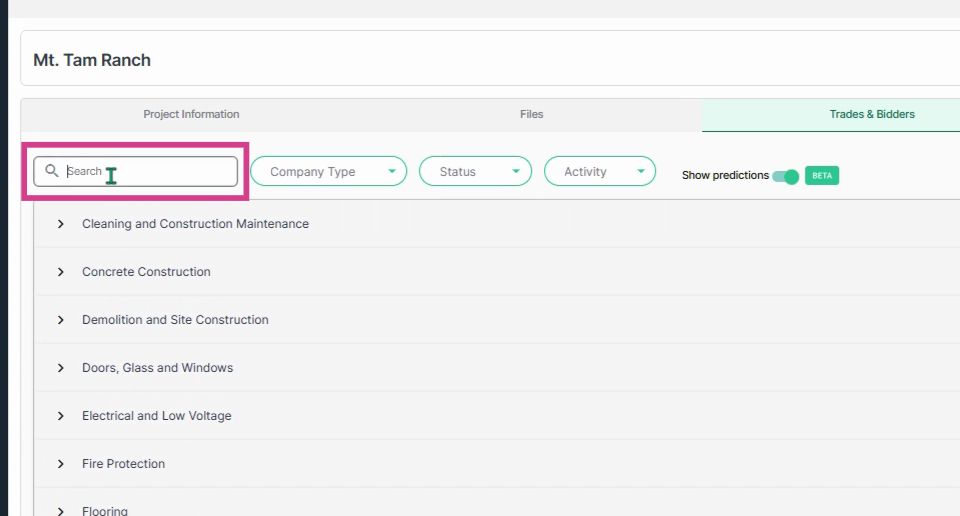
**Step 7:** Use the keyword search bar to refine bidders by trade or company name.
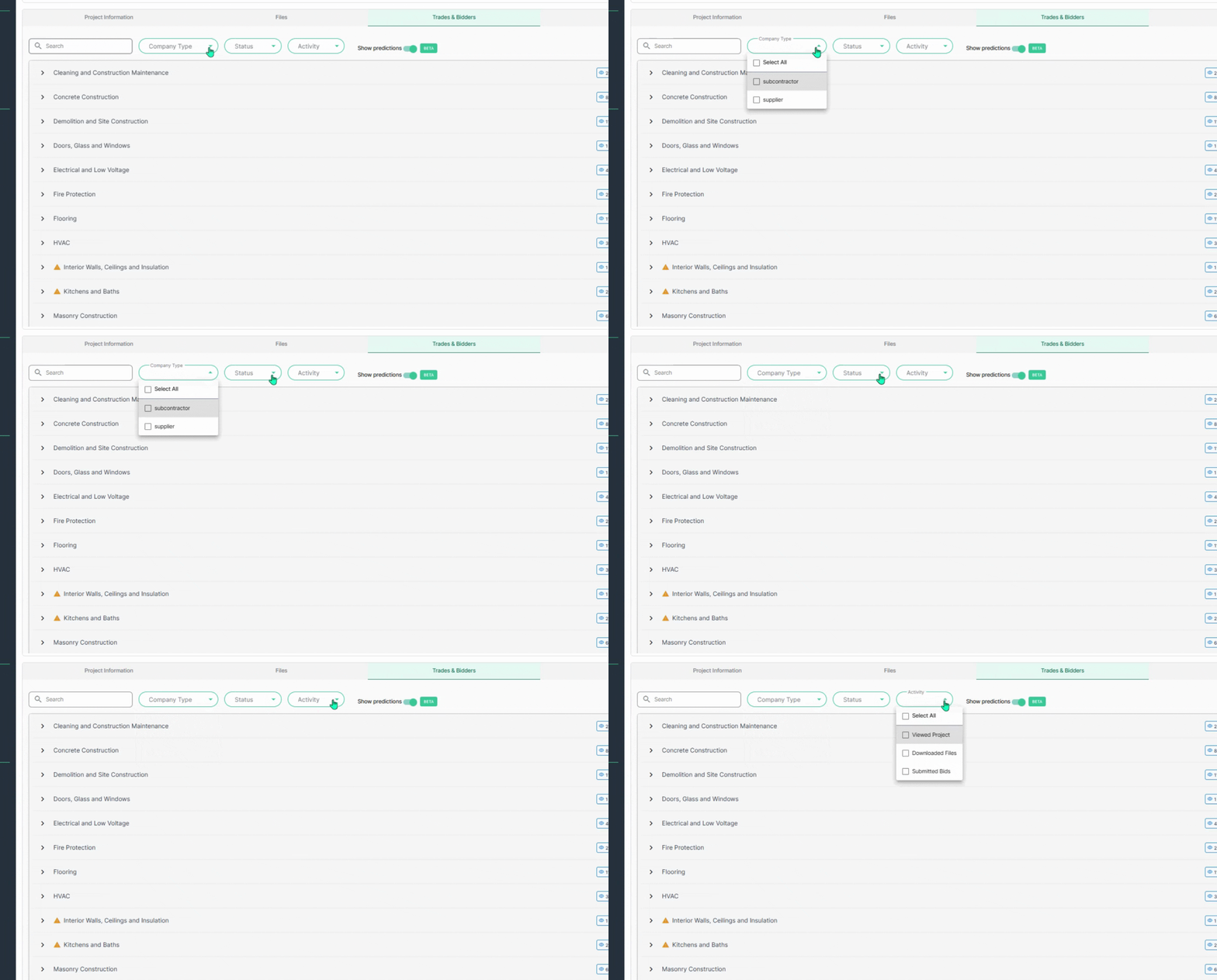
**Step 8:** Filter results further by company type or status. Then, review the Activity dropdown menu and make your selection.
**Step 9:** On the right side of each trade, check activity counters. These show:
- How many bidders have viewed your project
- Bidders who’ve saved your project (interested)
- Bidders who intend to bid
- Number of bids submitted 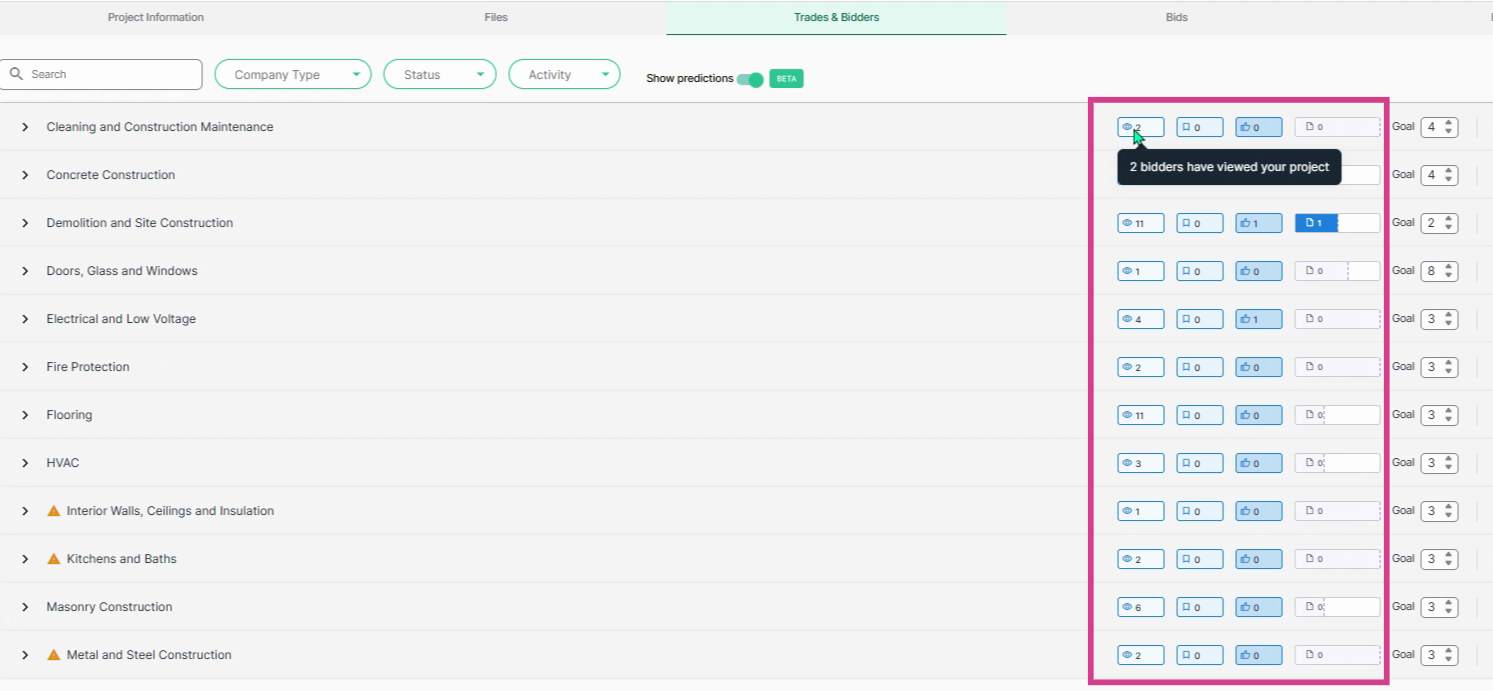
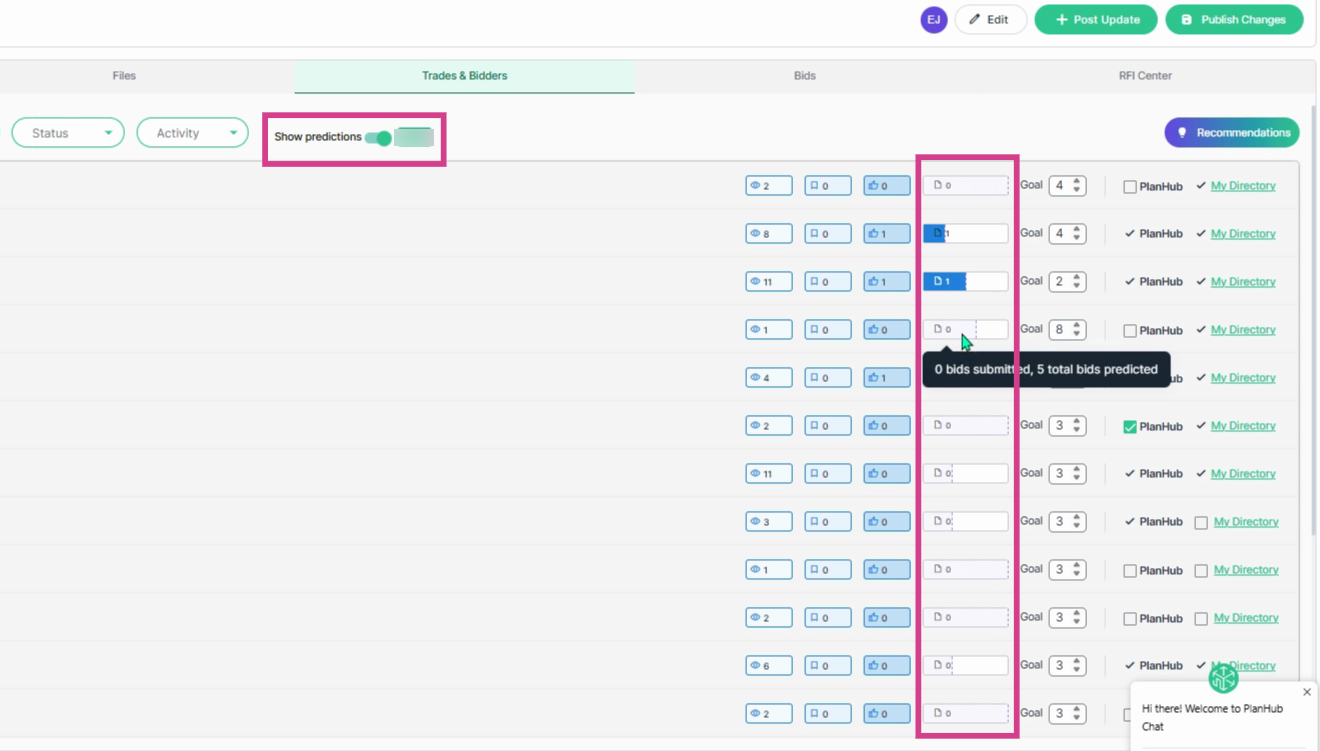
**Step 10:** Toggle **Show Predictions** on or off to compare actual bid counts to predicted bid counts. Hover over colored boxes for more details.
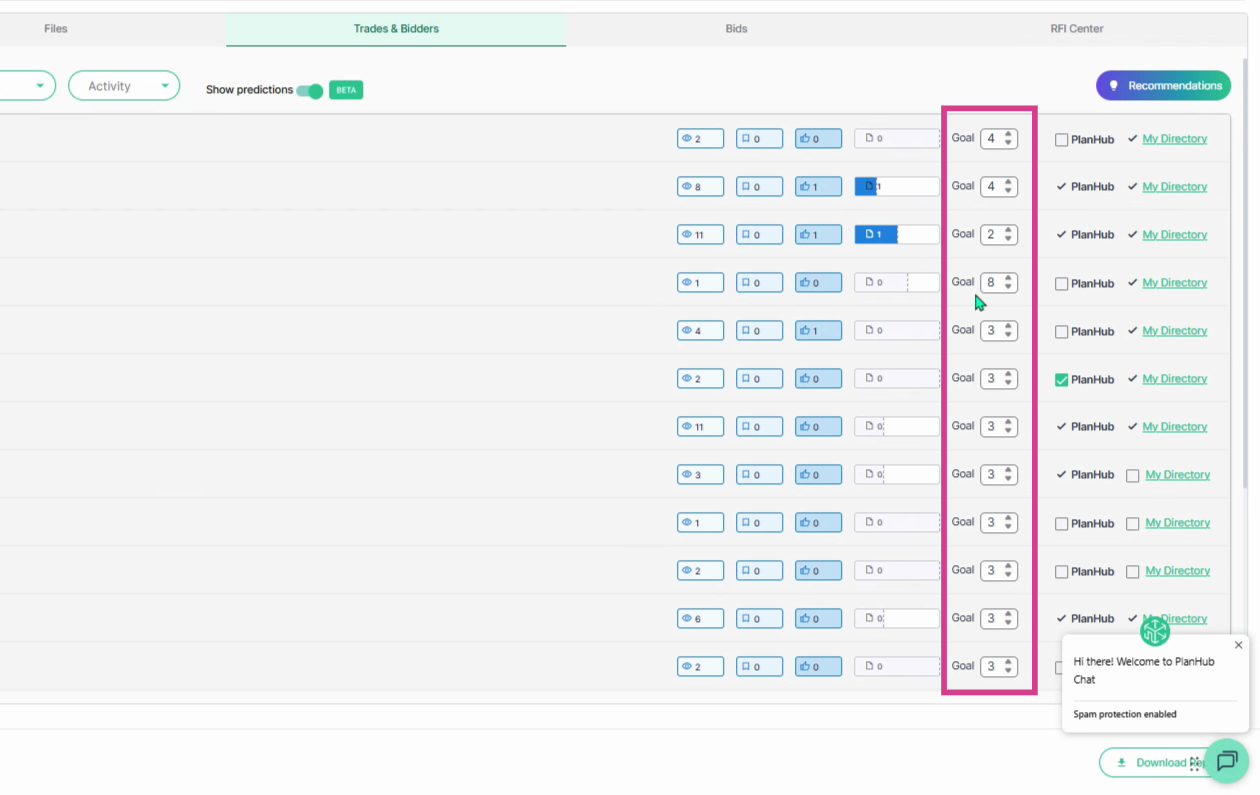
**Step 11:** Reference your bid goals on the right to track progress toward target coverage.
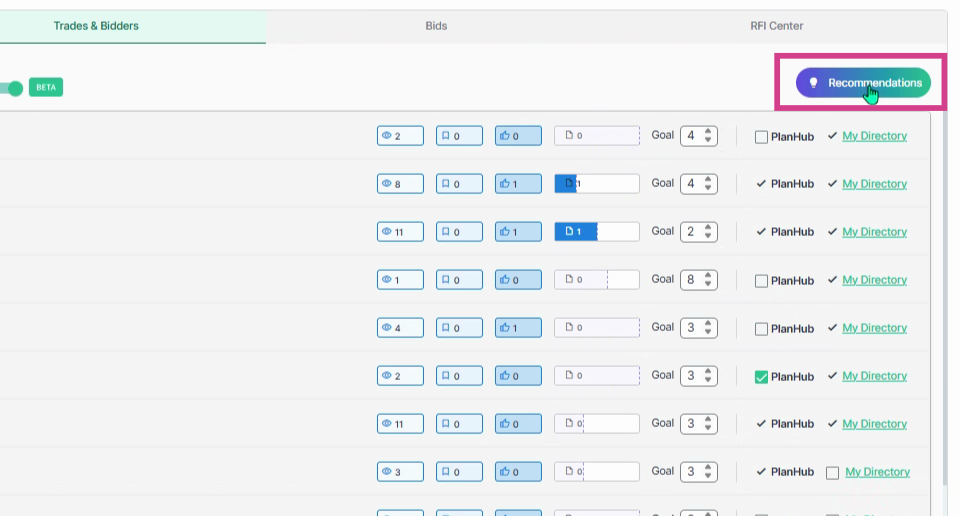
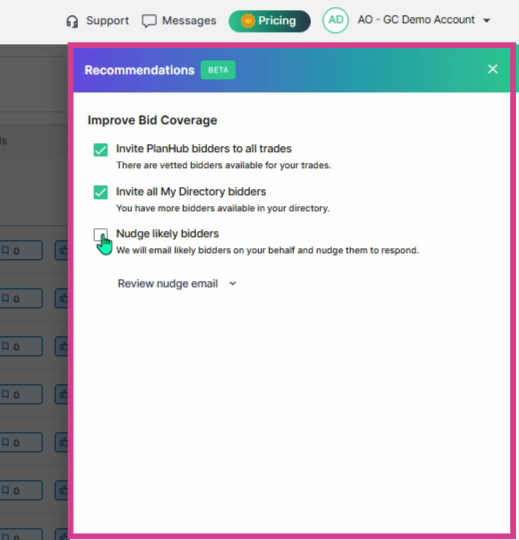
**Step 12:** Click the **Recommendations** button (top-right) to discover additional bidders to expand your bid coverage.
**Step 13:** View the available options based on your original selections during the posting process. Use the **Nudge Likely Bidders** option to have planHub send emails to target bidders on your behalf.
**Step 14:** Click the dropdown arrow to preview the email planHub will send. Then, choose **Apply Selected** to proceed or **Cancel** if you change your mind.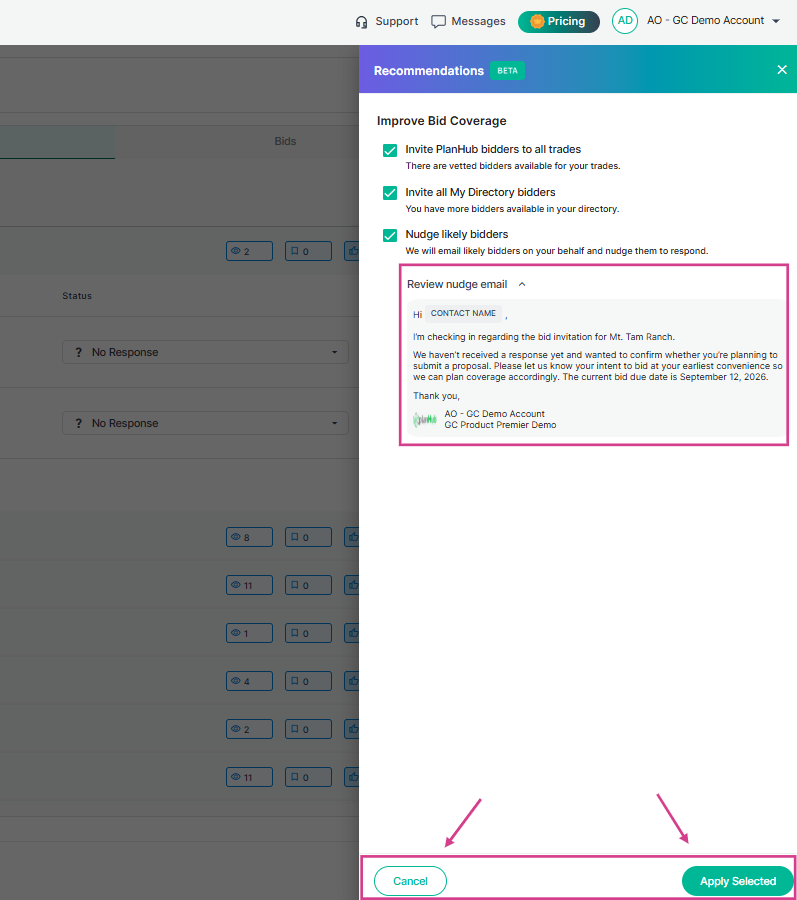
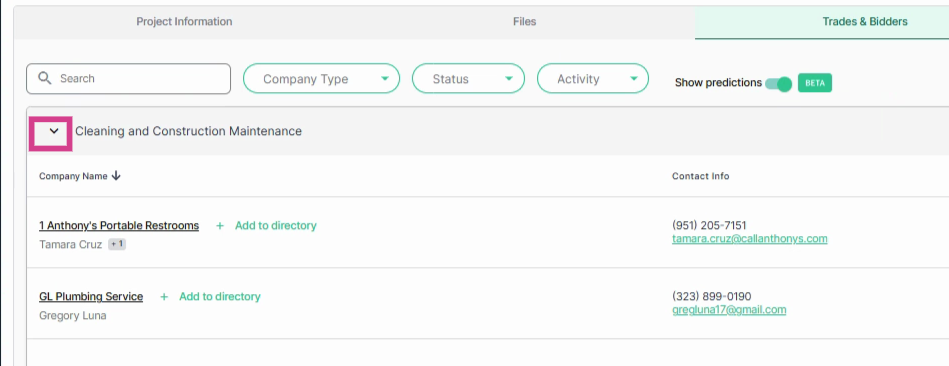
**Step 15:** For each trade, open the dropdown menu to see all companies bidding. Click any company name to view its profile.
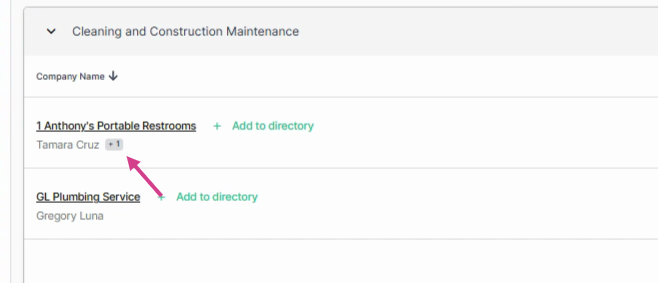
**Step 16:** If you see a number with plus-sign icon next to the contact name, click it to view additional contacts details.
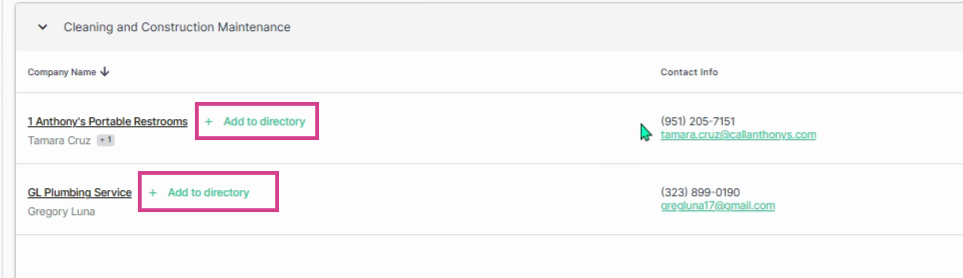
**Step 17:** You can select the option to add companies to your directory.
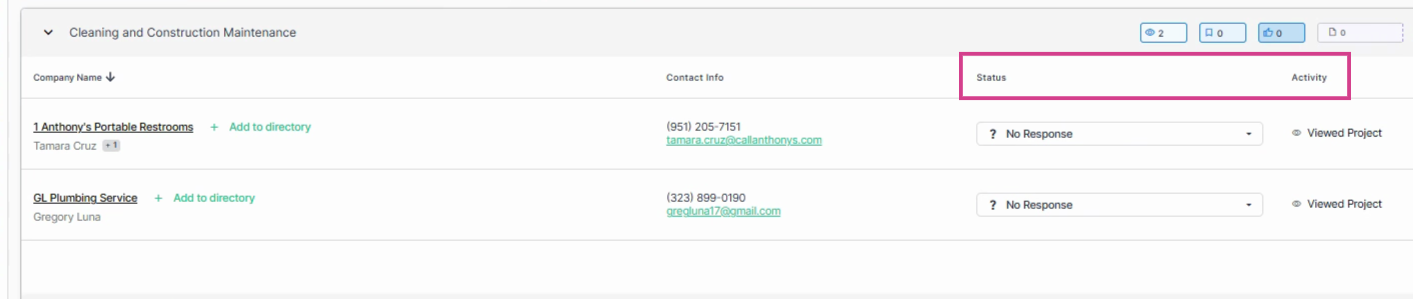
**Step 18:** View the **Status** (shows their bid status) and **Activity** (shows what actions they have taken) columns to monitor bidding status and activities.
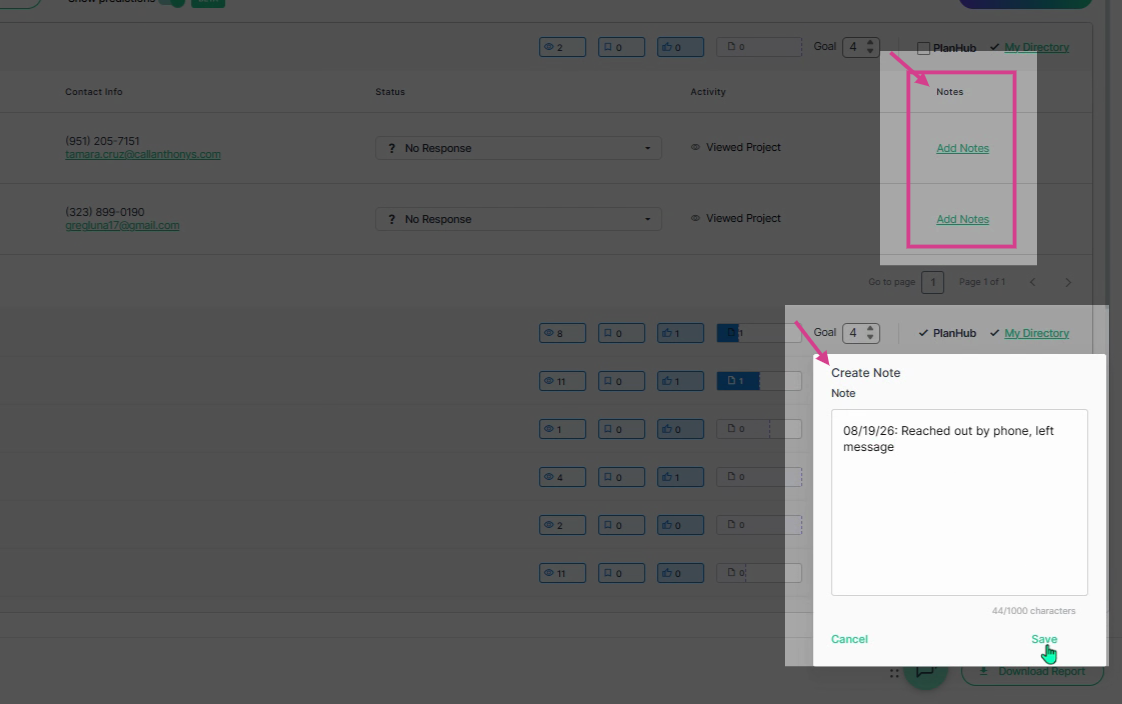
**Step 19:** Select the option to **Add Notes**. Enter your notes and click **Save**. Notes are private to your team members on your planHub account.
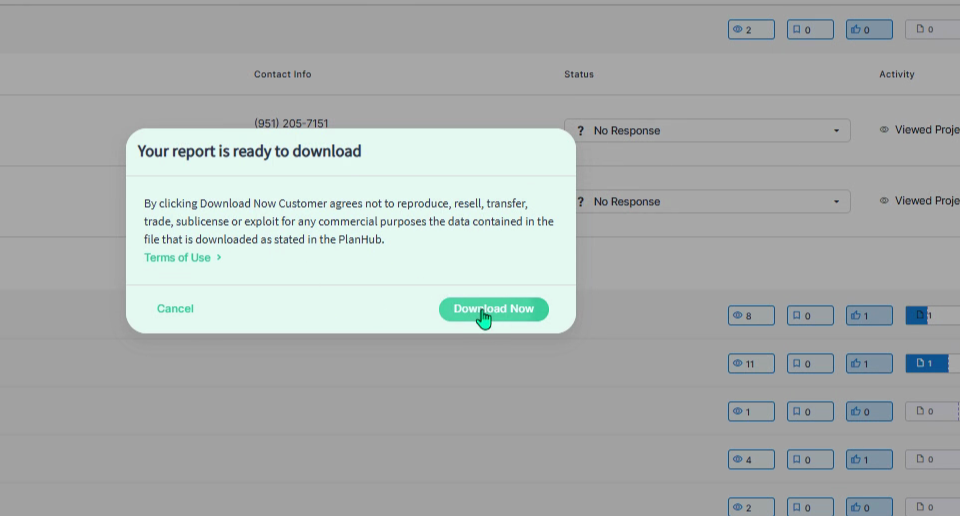
**Step 20:** In the bottom right corner, select **Download Report** to export bidder activity data as a CSV file or Excel spreadsheet.
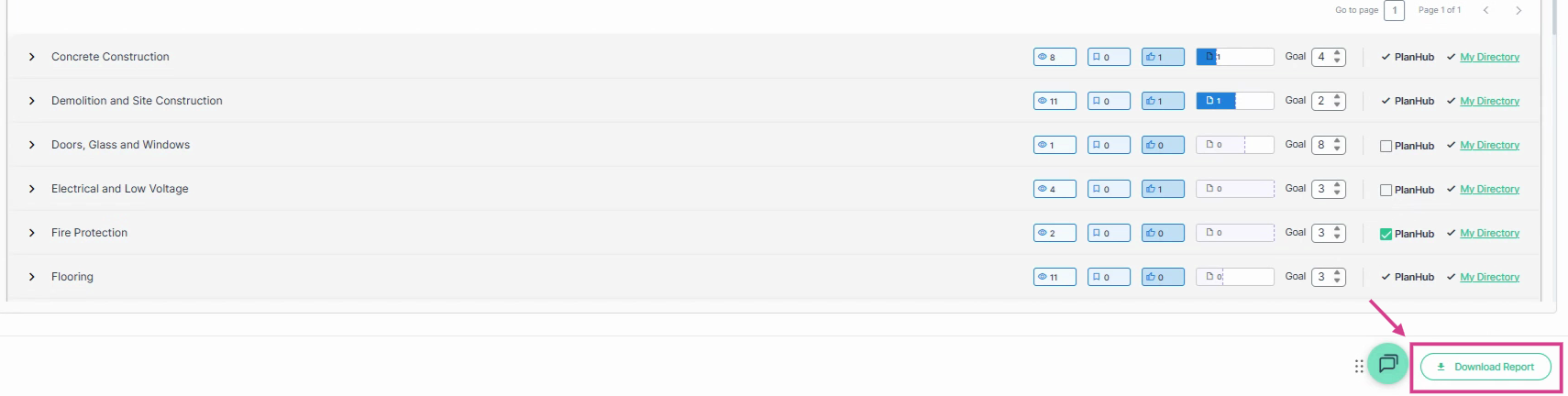
**Step 21:** Review **Terms of Use**, then click **Download Now**. The report includes contact info, company type, bidding status, and activity details.
With these tools, General Contractors can quickly identify active and potential bidders, improve bid coverage, streamline communication, and build stronger relationships with subcontractors.
### Troubleshooting
Contact us if you need assistance or to report an issue:
- PlanHub Contact Page: [https://planhub.com/contact/](https://planhub.com/contact/)
- Customer Facing Support Ticket Link: [https://knowledgebase.planhub.com/knowledge/kb-tickets/new](https://knowledgebase.planhub.com/knowledge/kb-tickets/new?hsLang=en)
- Customer Success Team: [CustomerSuccess@planhub.com](mailto:CustomerSuccess@planhub.com)
- [General Contractor](https://knowledgebase.planhub.com/knowledge/general-contractor?hsLang=en#main-content)
- [Overview](https://knowledgebase.planhub.com/knowledge/general-contractor?hsLang=en#overview)
- [Projects](https://knowledgebase.planhub.com/knowledge/general-contractor?hsLang=en#projects)
- [Networking](https://knowledgebase.planhub.com/knowledge/general-contractor?hsLang=en#networking)
- [Subcontractors](https://knowledgebase.planhub.com/knowledge/subcontractors?hsLang=en#main-content)
- [Overview](https://knowledgebase.planhub.com/knowledge/subcontractors?hsLang=en#overview)
- [Projects](https://knowledgebase.planhub.com/knowledge/subcontractors?hsLang=en#projects)
- [Bid Board & Tracking](https://knowledgebase.planhub.com/knowledge/subcontractors?hsLang=en#bid-board-tracking)
- [Networking](https://knowledgebase.planhub.com/knowledge/subcontractors?hsLang=en#networking)
- [Takeoff & Estimation](https://knowledgebase.planhub.com/knowledge/subcontractors?hsLang=en#takeoff-estimation)
- [Manage Your Team](https://knowledgebase.planhub.com/knowledge/subcontractors?hsLang=en#manage-your-team)
- [Account & Settings](https://knowledgebase.planhub.com/knowledge/subcontractors?hsLang=en#account-settings)
- [Job Board](https://knowledgebase.planhub.com/knowledge/subcontractors?hsLang=en#job-board)
- [Request for Information](https://knowledgebase.planhub.com/knowledge/subcontractors?hsLang=en#request-for-information)
- [Supplier](https://knowledgebase.planhub.com/knowledge/supplier?hsLang=en#main-content)
- [Overview](https://knowledgebase.planhub.com/knowledge/supplier?hsLang=en#overview)
- [Projects and Leads](https://knowledgebase.planhub.com/knowledge/supplier?hsLang=en#projects-and-leads)
- [Bidding & Estimating](https://knowledgebase.planhub.com/knowledge/supplier?hsLang=en#bidding-estimating)
- [Networking](https://knowledgebase.planhub.com/knowledge/supplier?hsLang=en#networking)
- [Account & Settings](https://knowledgebase.planhub.com/knowledge/supplier?hsLang=en#account-settings)
- [Takeoff & Estimation](https://knowledgebase.planhub.com/knowledge/takeoff-estimation?hsLang=en#main-content)
- [Getting Started](https://knowledgebase.planhub.com/knowledge/takeoff-estimation?hsLang=en#getting-started)
- [Takeoff Tools & Measurements](https://knowledgebase.planhub.com/knowledge/takeoff-estimation?hsLang=en#takeoff-tools-measurements)
- [Trade-Specific Takeoffs](https://knowledgebase.planhub.com/knowledge/takeoff-estimation?hsLang=en#trade-specific-takeoffs)
- [Estimating](https://knowledgebase.planhub.com/knowledge/takeoff-estimation?hsLang=en#estimating)
- [Managing & Sharing Your Work](https://knowledgebase.planhub.com/knowledge/takeoff-estimation?hsLang=en#managing-sharing-your-work)
- [Account & Billing](https://knowledgebase.planhub.com/knowledge/account-billing?hsLang=en#main-content)
- [Account & Billing](https://knowledgebase.planhub.com/knowledge/account-billing?hsLang=en#account-billing)
- [Account Closure](https://knowledgebase.planhub.com/knowledge/account-billing?hsLang=en#account-closure)
- [Troubleshooting](https://knowledgebase.planhub.com/knowledge/troubleshooting?hsLang=en)
- [About PlanHub](https://knowledgebase.planhub.com/knowledge/about-planhub?hsLang=en)
- [New General Contractor Experience](https://knowledgebase.planhub.com/knowledge/new-general-contractor-experience?hsLang=en#main-content)
- [Overview](https://knowledgebase.planhub.com/knowledge/new-general-contractor-experience?hsLang=en#overview)
- [Projects](https://knowledgebase.planhub.com/knowledge/new-general-contractor-experience?hsLang=en#projects)
- [Networking](https://knowledgebase.planhub.com/knowledge/new-general-contractor-experience?hsLang=en#networking)
- [Takeoff & Estimation](https://knowledgebase.planhub.com/knowledge/new-general-contractor-experience?hsLang=en#takeoff-estimation)
- [Account & Settings](https://knowledgebase.planhub.com/knowledge/new-general-contractor-experience?hsLang=en#account-settings)
- [Manage Your Team](https://knowledgebase.planhub.com/knowledge/new-general-contractor-experience?hsLang=en#manage-your-team)
- [Submit Feedback](https://knowledgebase.planhub.com/knowledge/submit-feedback?hsLang=en#main-content)
- [Feedback](https://knowledgebase.planhub.com/knowledge/submit-feedback?hsLang=en#feedback)
- [Have an Issue? Submit a Ticket](https://knowledgebase.planhub.com/knowledge/kb-tickets/new)
[](http://planhub.com)
[Knowledge Base Home](https://knowledgebase.planhub.com/knowledge?hsLang=en)
[Submit a Ticket](https://knowledgebase.planhub.com/knowledge/kb-tickets/new?hsLang=en)
Copyright © 2026, ©2026 PlanHub, Inc. All rights reserved