![NEW_PlanHub_Logo_Navy.png]](https://knowledgebase.planhub.com/hs-fs/hubfs/Design/PH%20Logos/NEW%202024%20PH%20Logos/NEW_PlanHub_Logo_Navy.png?height=40&name=NEW_PlanHub_Logo_Navy.png)
Prerequisites:
- Have a project posting in progress in planHub.
- Know what information you need from subcontractors before they bid.
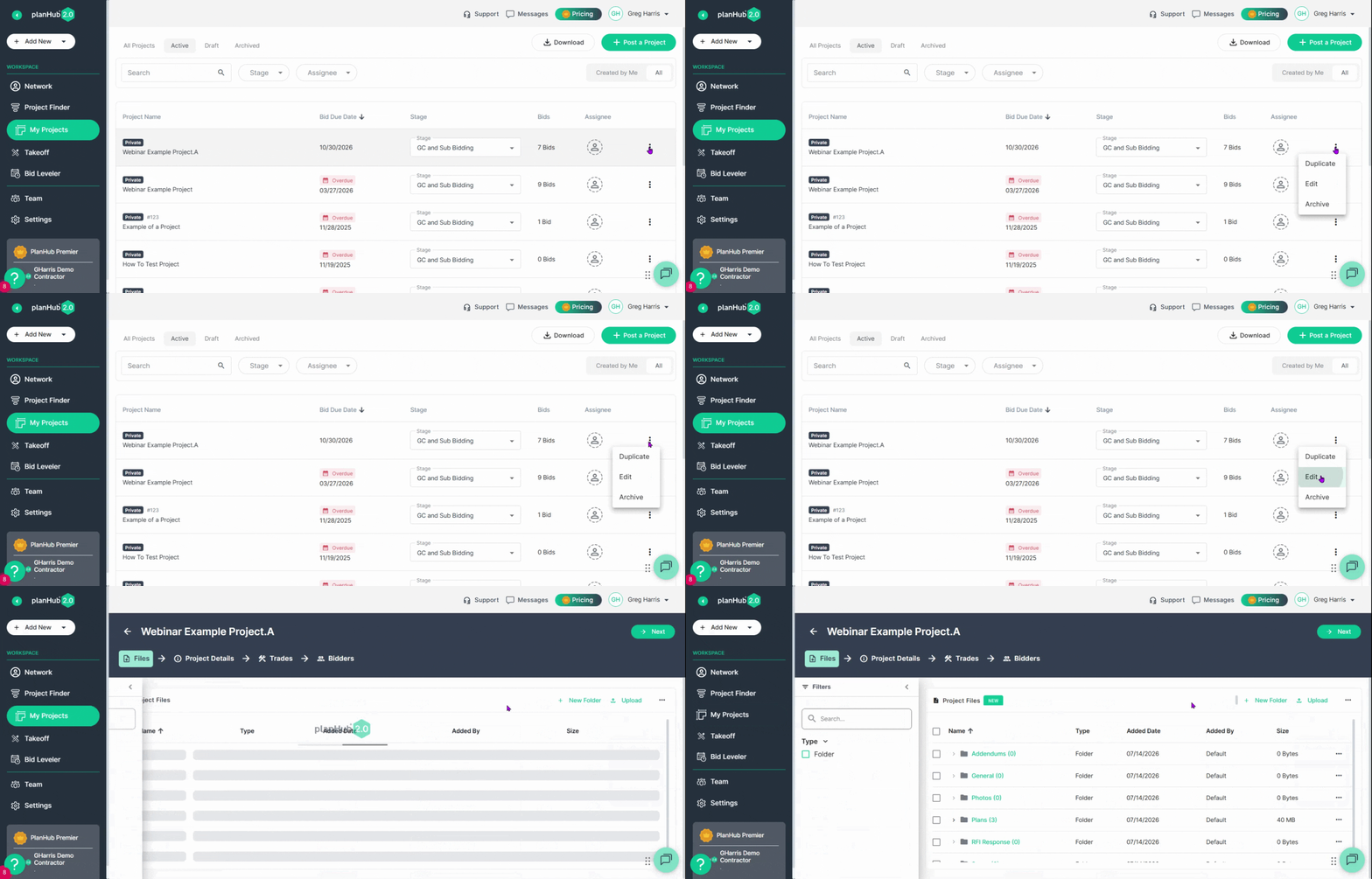
Begin posting your new project or edit an existing one through the main dashboard.
Step 1: On the My Projects page, click the three-dot action menu at the end of the row for the project you want to customize.
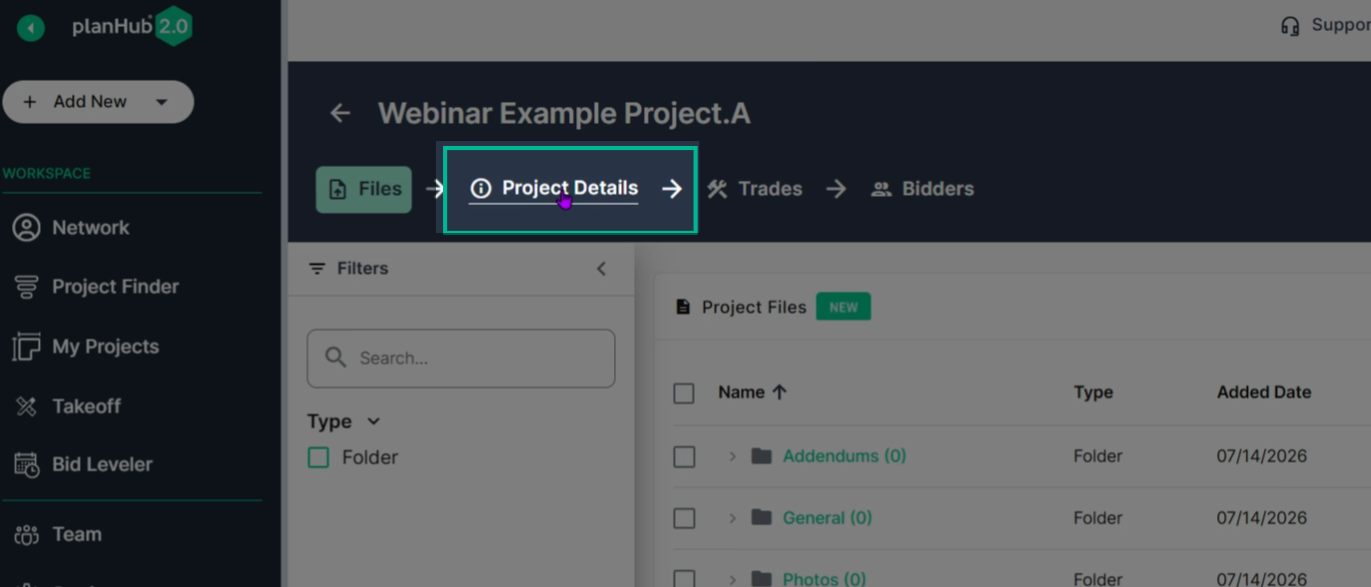
Step 2: Select the Project Details tab on the project page.
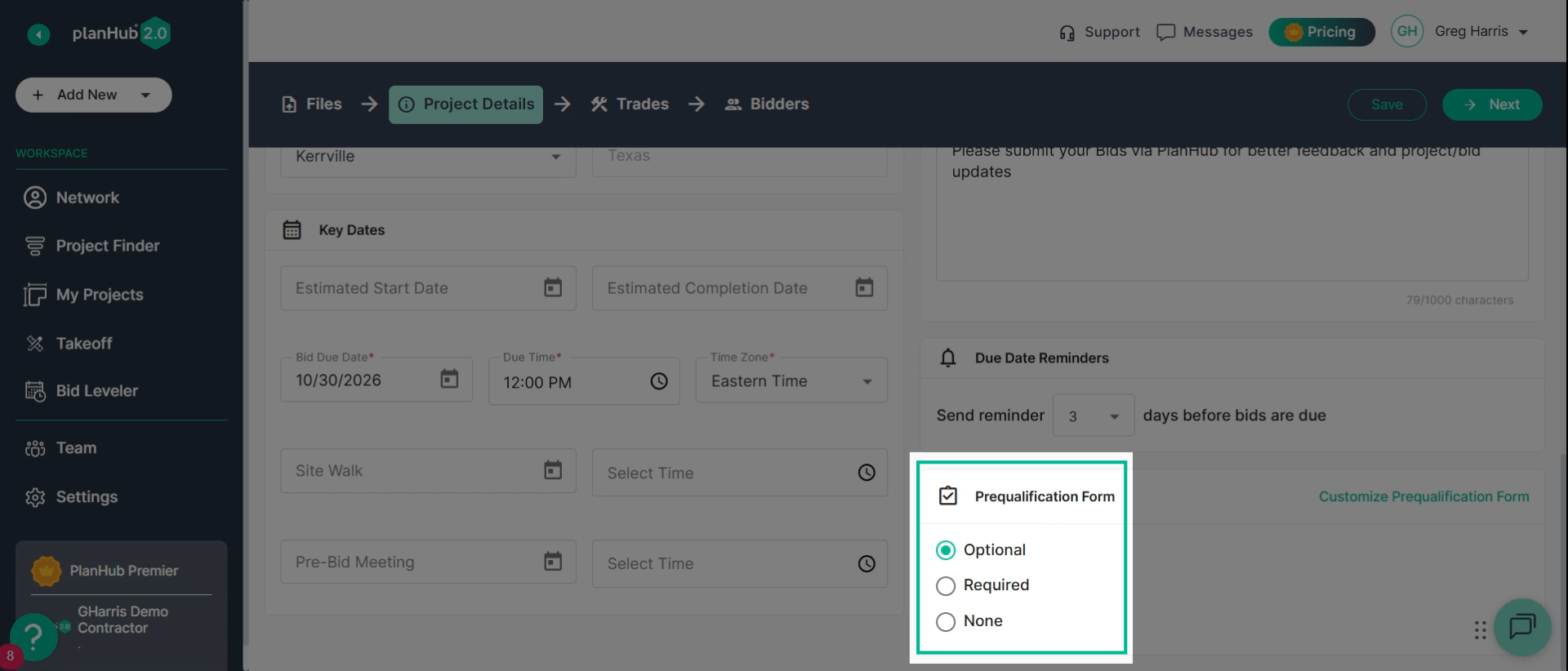
Step 3: Scroll down to the Prequalification Form section. Select Optional, Required, or None for your form settings.
- Optional - the form is available to Subcontractors but not required.
- None - the prequalification form is not being requested and is not required.
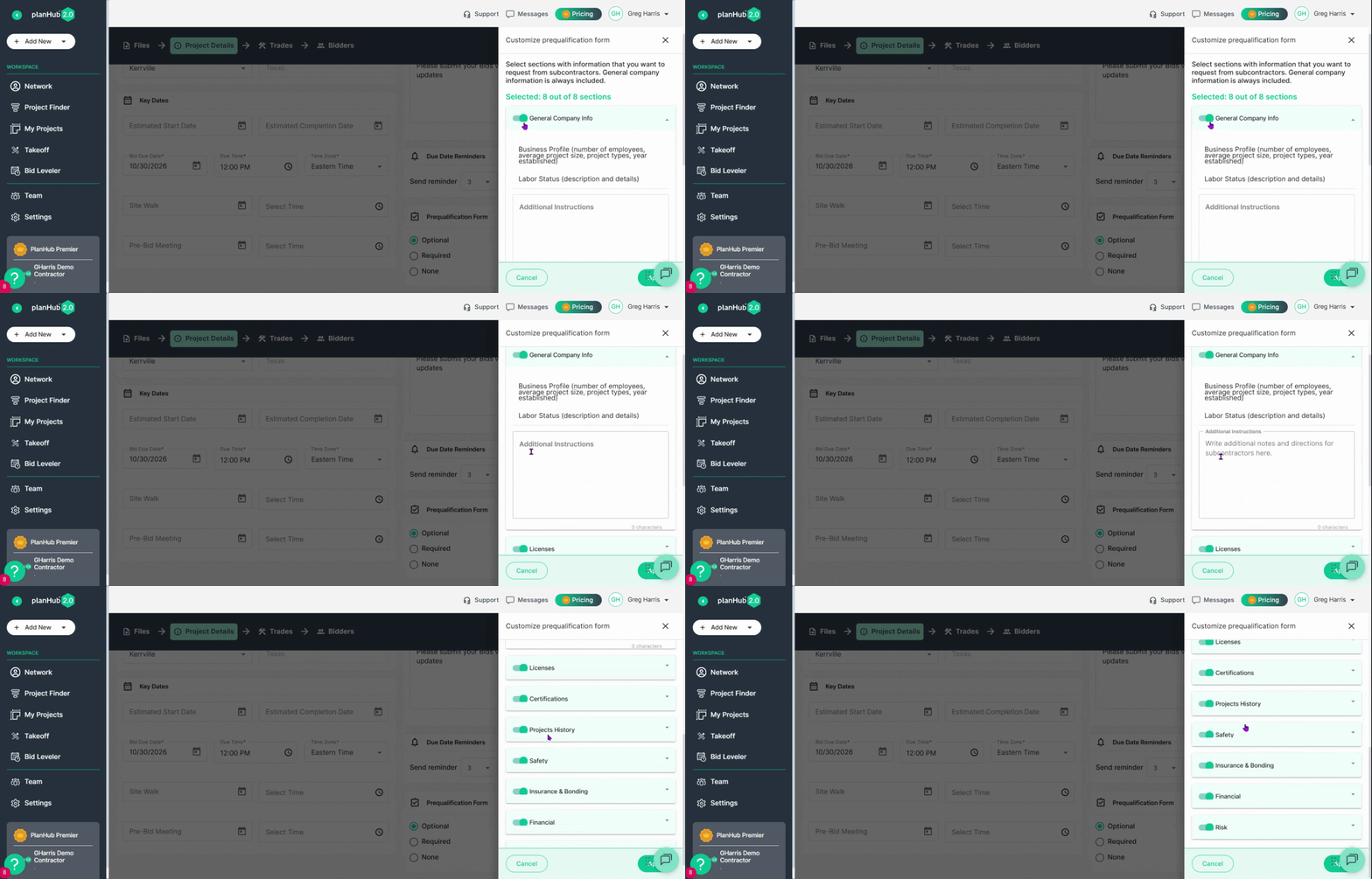
Step 4: Click Customize Prequalification Form on the right side. Then, view the options in the side window.
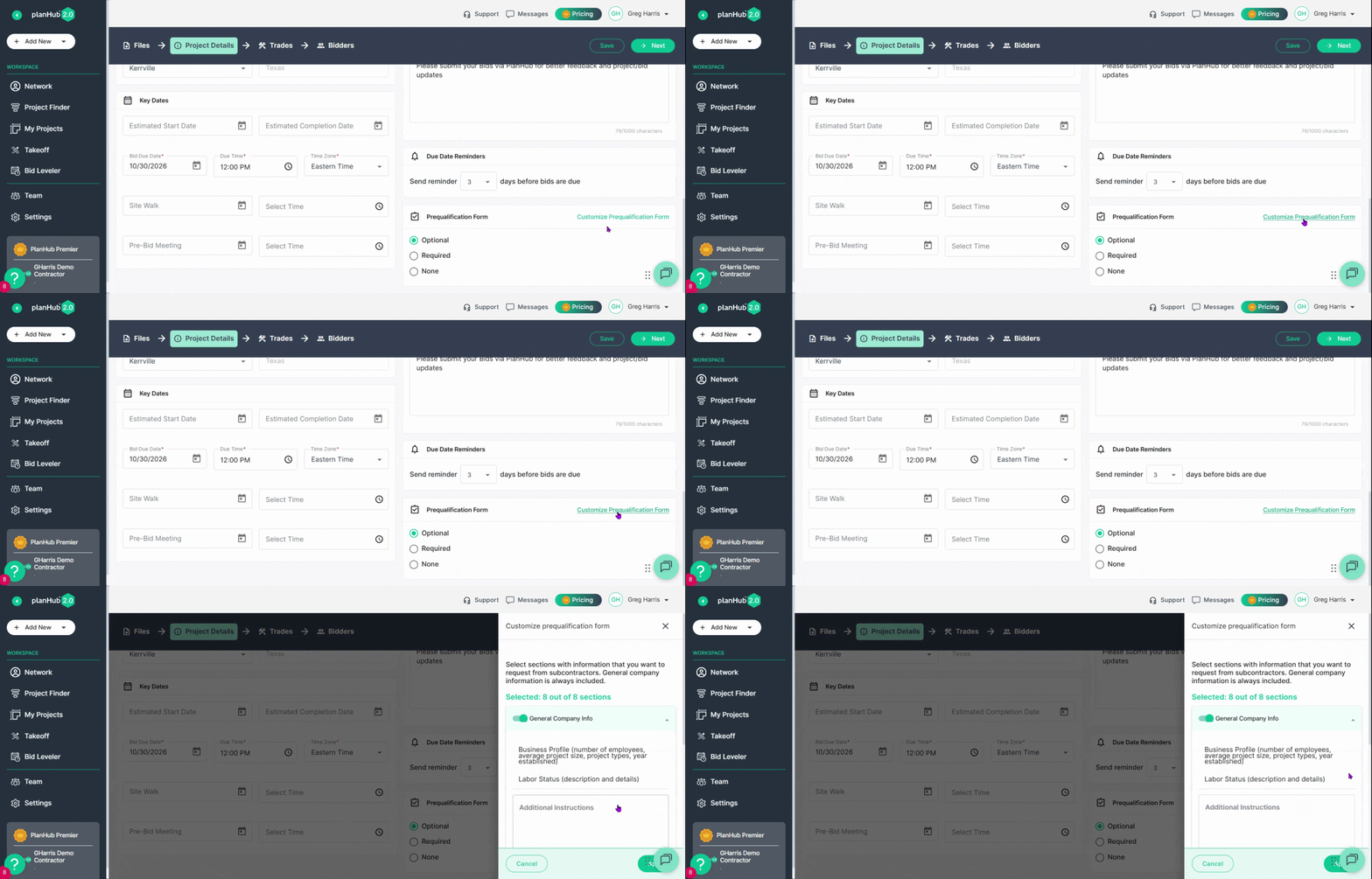
Step 5: There are eight sections toggled on. Toggle off any of the options you don’t need. Add additional instructions in the field provided to ensure subcontractors know what’s important.
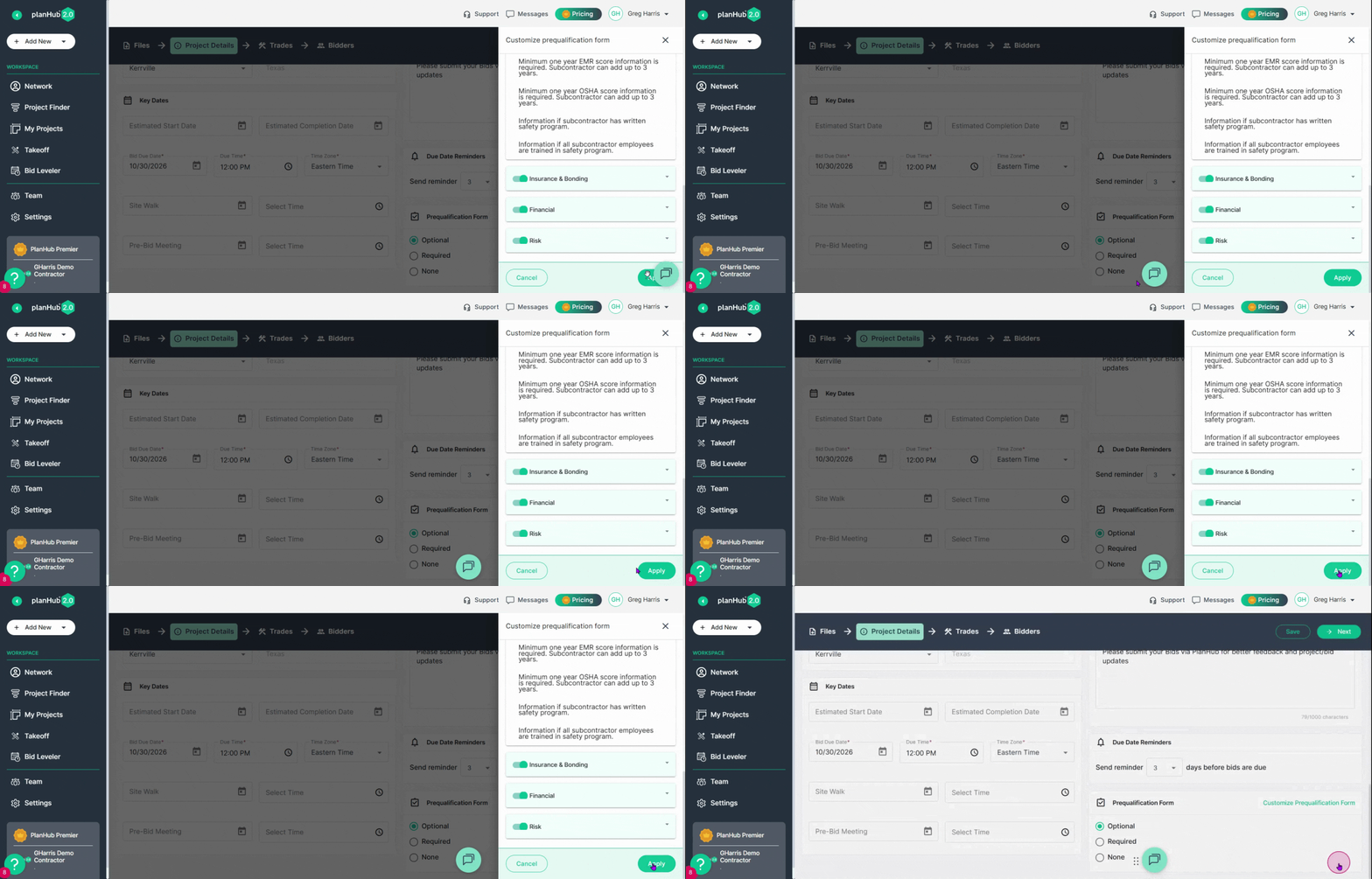
Step 6: Click Apply to save your changes, or Next if you are creating a new project.
Customizing prequalification forms in planHub ensures your projects attract the right subcontractors and set clear expectations from the start. This helps to build trusting relationships with Subcontractors.
Troubleshooting
Contact us if you need assistance or to report an issue:
- PlanHub Contact Page: https://planhub.com/contact/
- Customer Facing Support Ticket Link: https://knowledgebase.planhub.com/knowledge/kb-tickets/new"