![NEW_PlanHub_Logo_Navy.png]](https://knowledgebase.planhub.com/hs-fs/hubfs/Design/PH%20Logos/NEW%202024%20PH%20Logos/NEW_PlanHub_Logo_Navy.png?height=40&name=NEW_PlanHub_Logo_Navy.png)
Manage Projects with the Takeoff Page in PlanHub
Effortlessly keep track of every project in your Takeoff tool in PlanHub. This streamlined hub helps you organize, review, and act on your company’s projects in one place, saving you time and simplifying your workflow.
Accessing the Takeoff Page
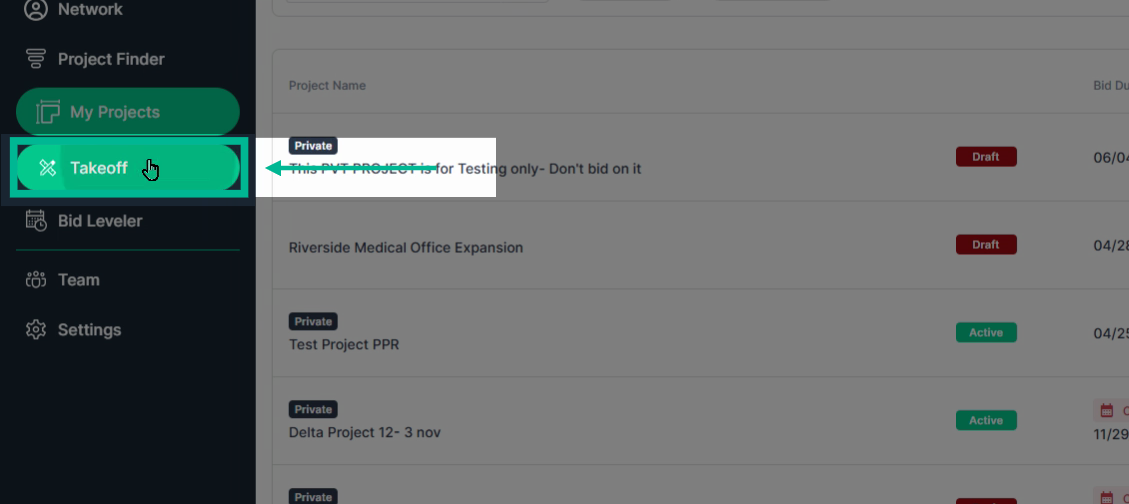
Step 1: Log in to your PlanHub account and go to the Takeoff page.
Viewing All Projects
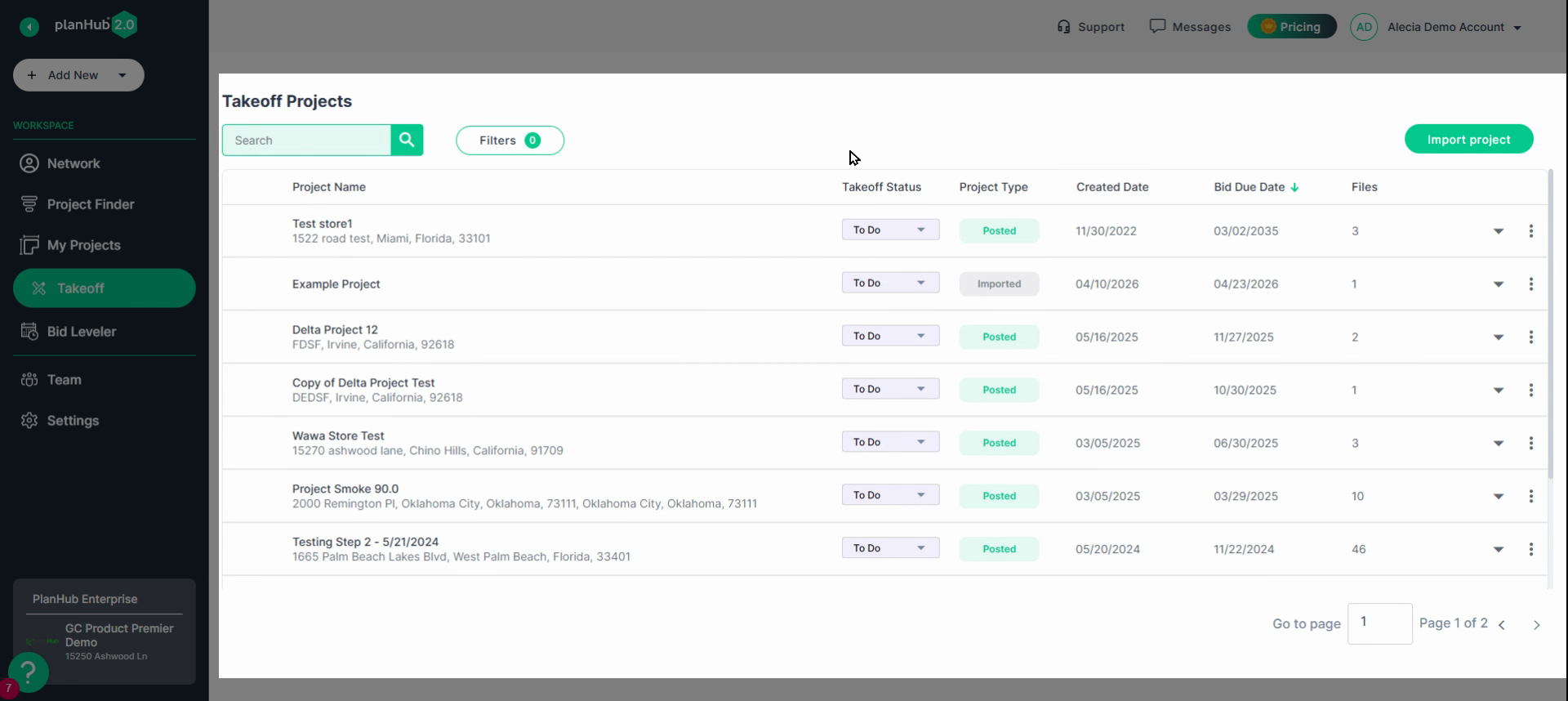
Step 2: On the Takeoff page, see a complete list of takeoff projects your team has added. All current projects are collected here, making them easy to scan and manage.
Using the Search Feature
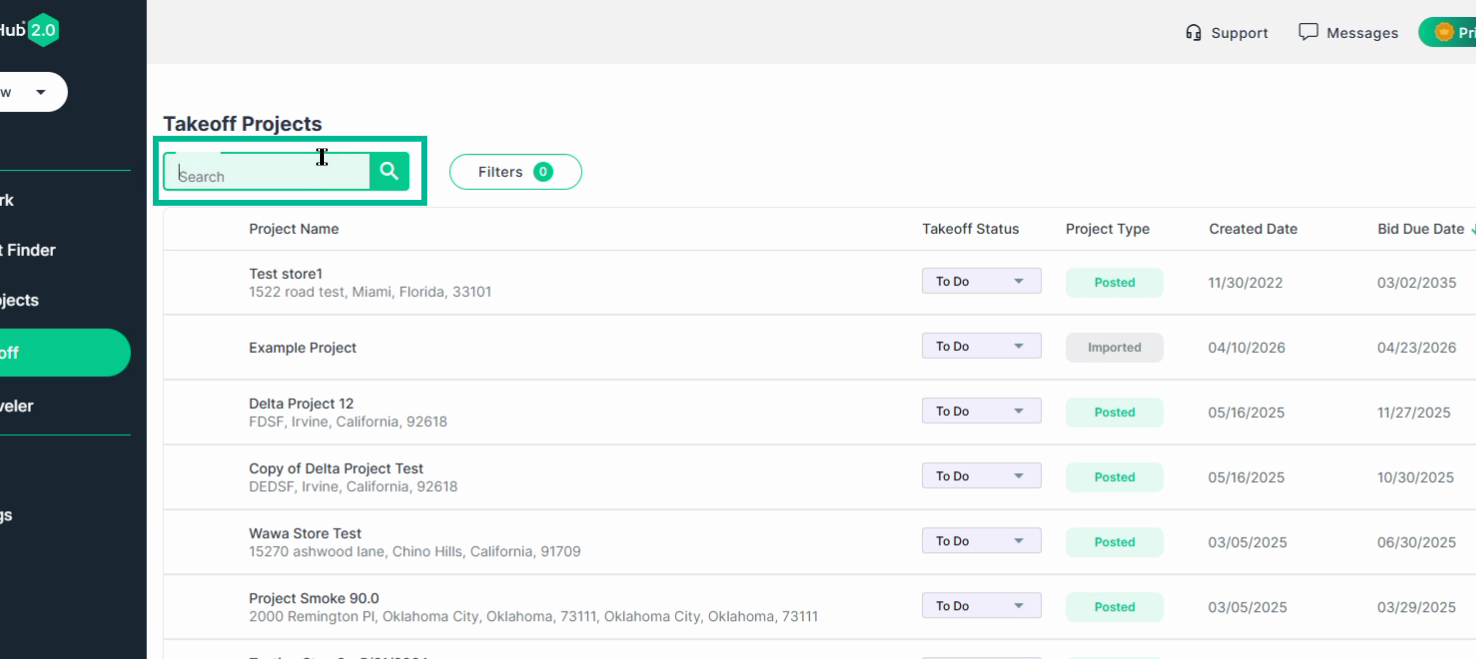
Step 3: Find specific projects fast with the Search bar at the top. Start typing a project name, and results will update instantly.
Filtering Projects
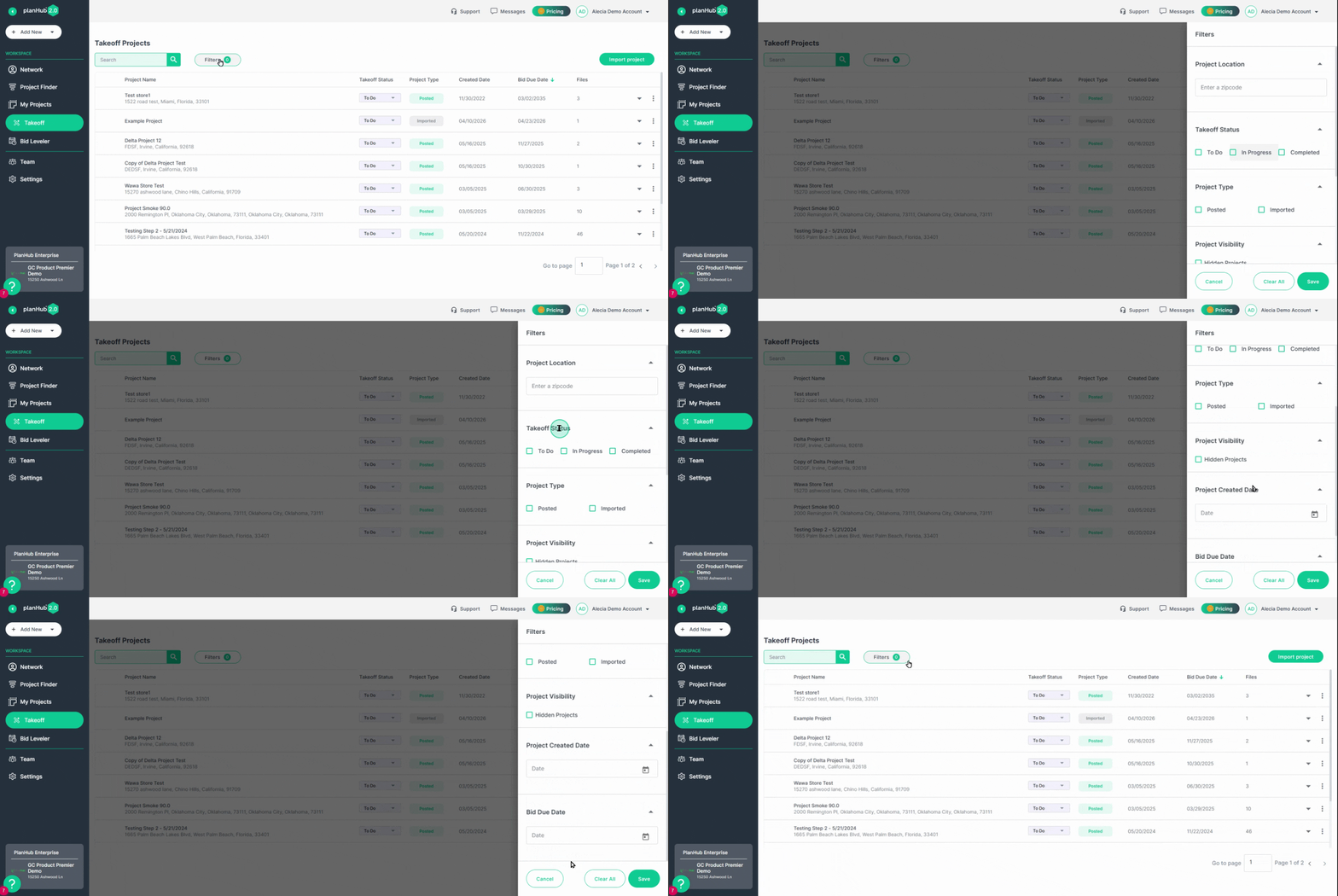
Step 4: Use filters to narrow down your project list. Filter by:
- Location
- Takeoff status
- Project type
- Project visibility
- Creation date
- Bid due date
Step 5: Once your filters are set, click Save to see projects matching your criteria.
Browsing and Managing Projects
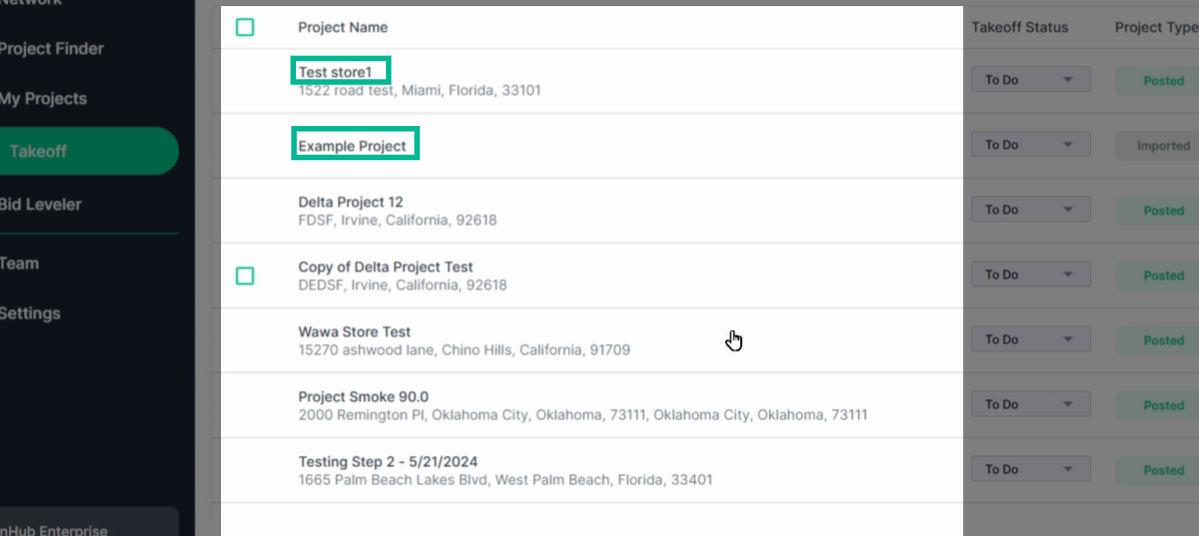
Step 6: View your filtered projects under the search area. Select any project name to open its takeoff.
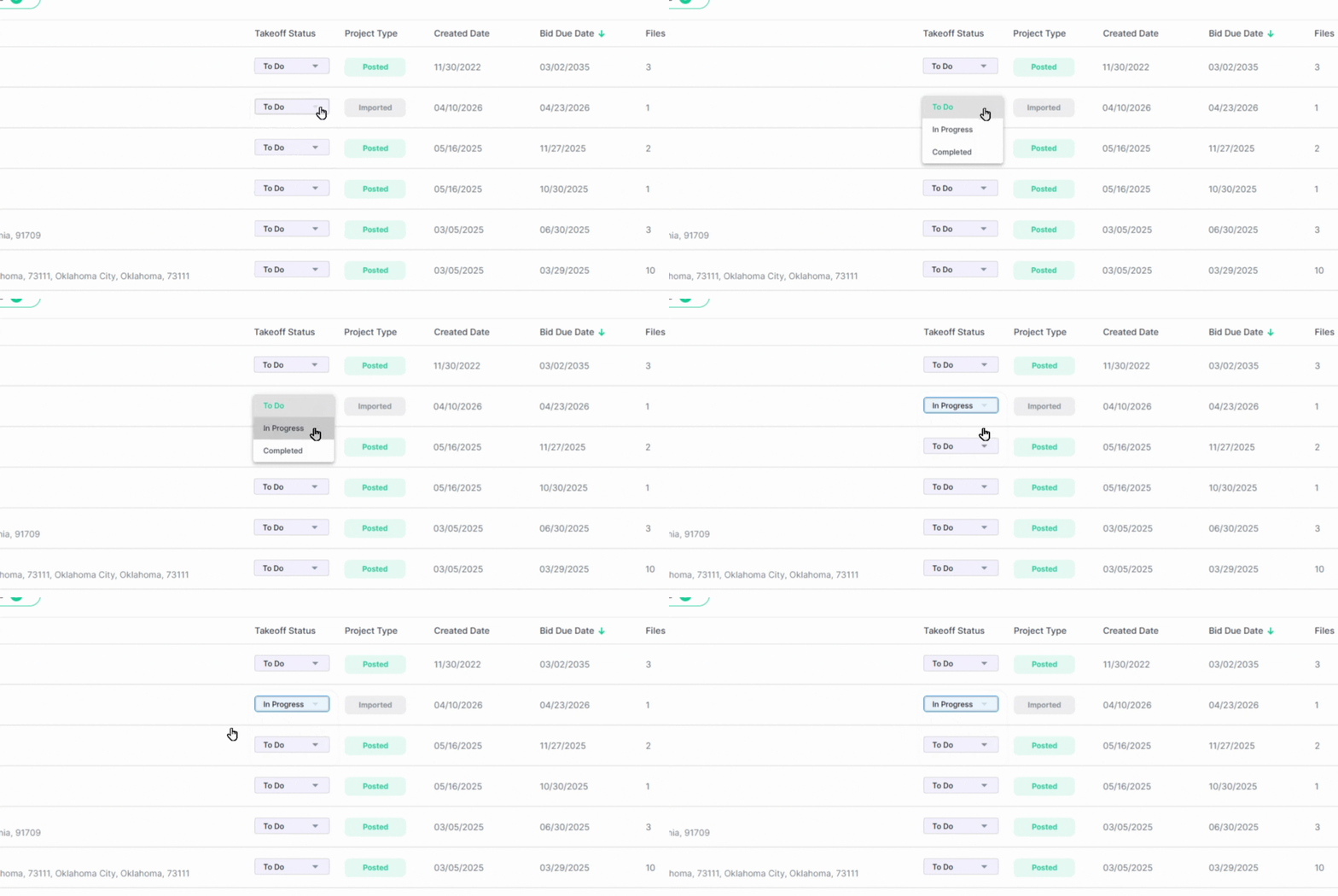
Step 7: To update a project’s status, click the Takeoff Status box and choose a new status from the dropdown list.
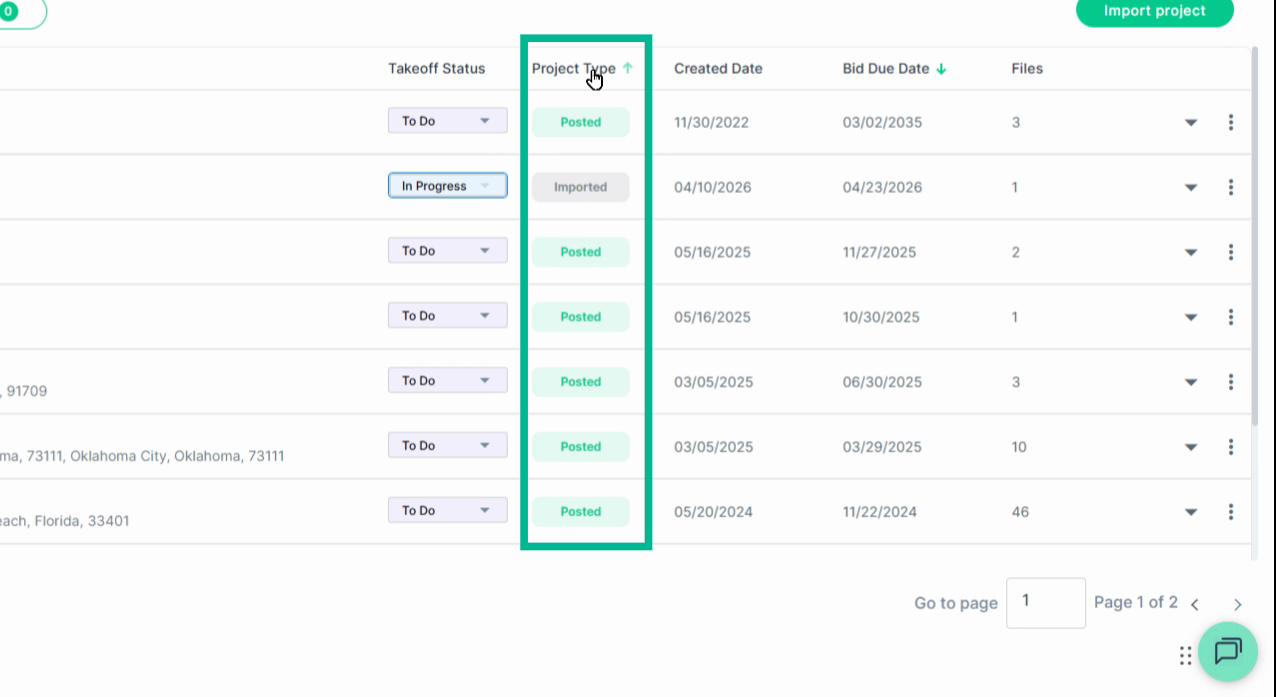
Step 8: Check the Project Type field to identify if a project is Posted (from a PlanHub posting) or Imported (added to Takeoff directly).
Project Files
Step 9: Expand project details by clicking the arrow next to a project. Only PDF files are usable in the Takeoff tool. Click a file name to push it into Takeoff for measurement and markup.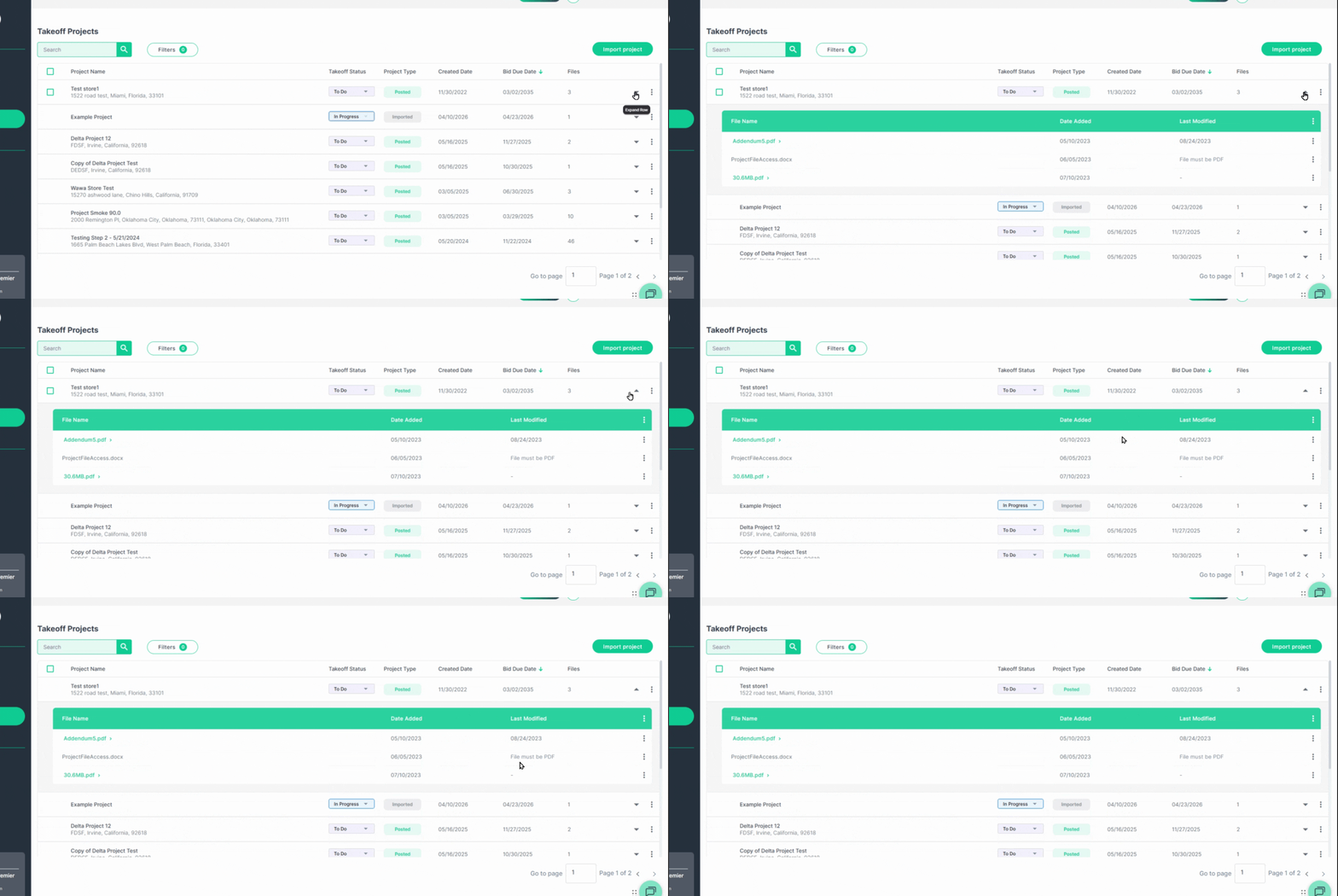
Project Actions and Sorting
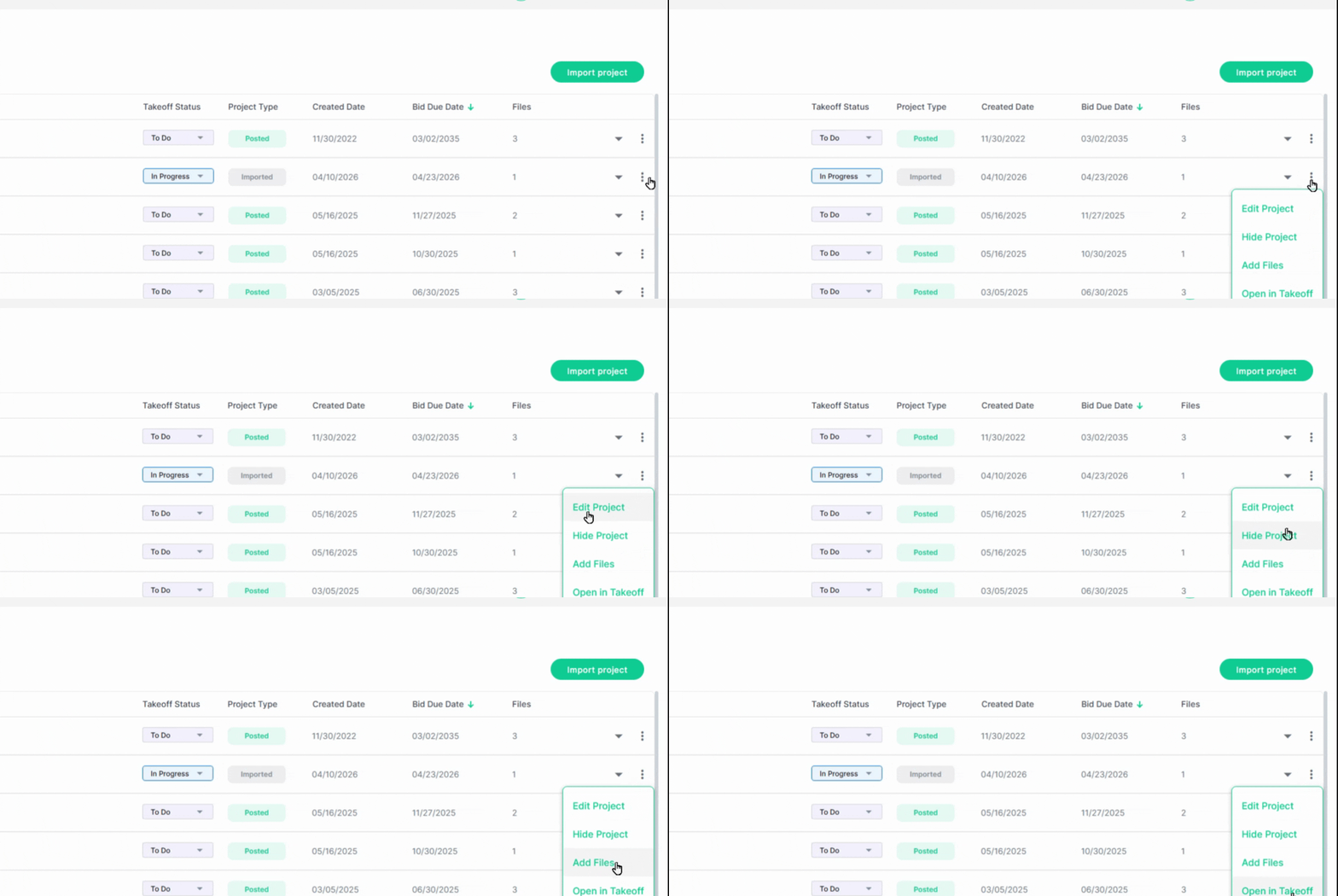
Step 10: Open the three-dot Actions menu next to a project for more options.
- Edit project details, hide projects from the list, add files to the takeoff, or open in Takeoff.
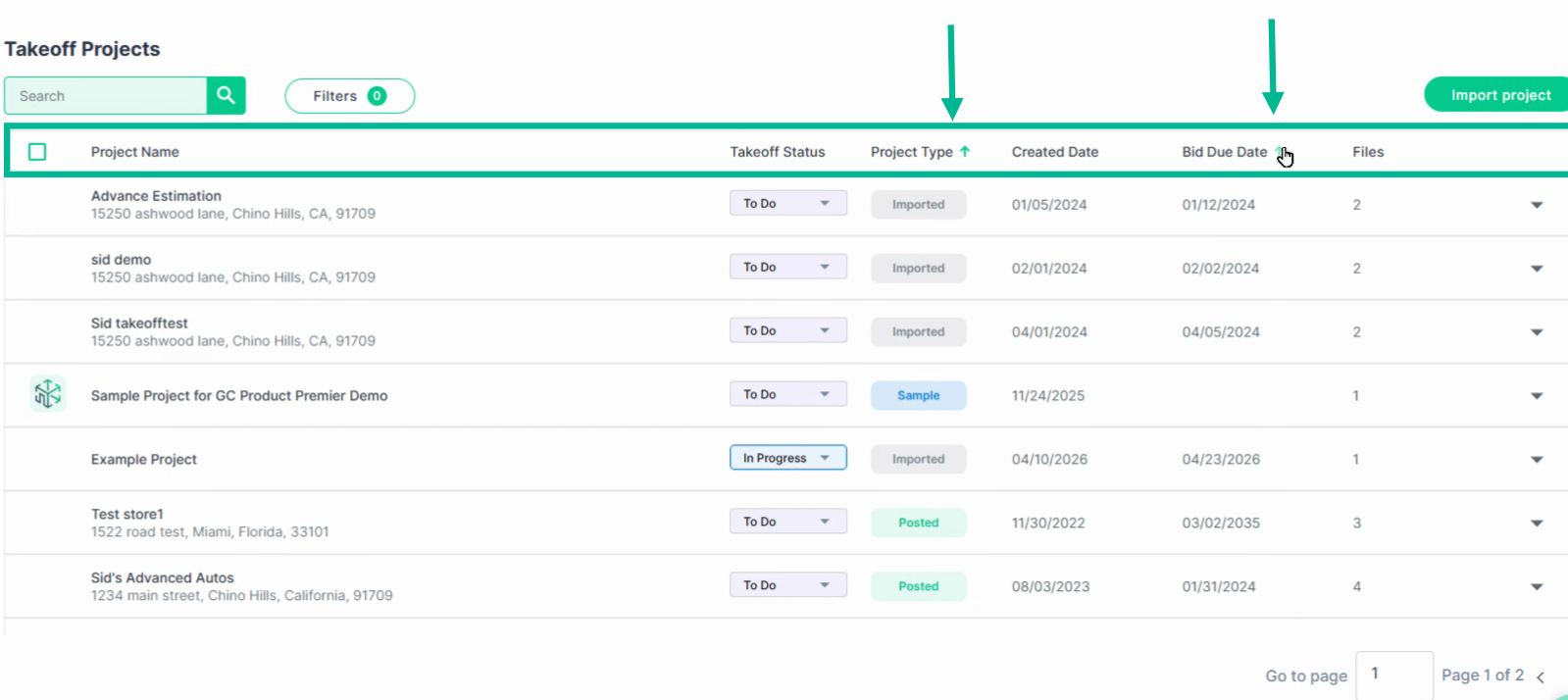
Step 11: Sort projects by clicking the arrow on any column header. Projects are sorted by Bid Due Date by default, so you can prioritize upcoming deadlines.
Conclusion
Everything managed in Takeoff is private to your company account, keeping your information secure. Use the search, filters, and actions to maintain an organized and up-to-date project list that’s always ready for your team.
Troubleshooting:
Trying to import a project and it just spins, doesn't work, or goes white.
- Please make sure you are only adding PDF files to Takeof.
- Important note: Zip files are not PDFs and will need to be extracted, and you will need to add the PDF drawing separately.
- The maximum file size for Takeoff imports is 300MB.
Contact us if you need assistance or to report an issue:
- PlanHub Contact Page: https://planhub.com/contact/
- Customer Facing Support Ticket Link: https://knowledgebase.planhub.com/knowledge/kb-tickets/new"