---
title: How To Review, Manage, and Update Projects
description: Projects, edit projects, add files, manage projects, send an update, project updates
---
[Skip to content](https://knowledgebase.planhub.com/knowledge/general-contractor-project-review-management-and-update-overview#main-content)
English
Show submenu for translations
[Submit a Ticket](https://knowledgebase.planhub.com/knowledge/kb-tickets/new?hsLang=en)
![NEW\_PlanHub\_Logo\_Navy.png\]](https://knowledgebase.planhub.com/hs-fs/hubfs/Design/PH%20Logos/NEW%202024%20PH%20Logos/NEW_PlanHub_Logo_Navy.png?height=40&name=NEW_PlanHub_Logo_Navy.png)
- [Have an Issue? Submit a Ticket](https://knowledgebase.planhub.com/knowledge/kb-tickets/new)
Open main navigation
Close main navigation
- [Have an Issue? Submit a Ticket](https://knowledgebase.planhub.com/knowledge/kb-tickets/new)
- English
Show submenu for translations
- [Submit a Ticket](https://knowledgebase.planhub.com/knowledge/kb-tickets/new)
What can we help you with?
- There are no suggestions because the search field is empty.
1. [Knowledge Base](https://knowledgebase.planhub.com/knowledge?hsLang=en)
2. [New General Contractor Experience](https://knowledgebase.planhub.com/knowledge/new-general-contractor-experience?hsLang=en)
3. [Projects](https://knowledgebase.planhub.com/knowledge/new-general-contractor-experience?hsLang=en#projects)
# How To Review, Manage, and Update Projects
## PlanHub's project overview gives you a quick look at tools to confidently manage your posted projects from start to finish. Follow these steps to access, update, and monitor every detail of your project’s workflow.
**Step 1:** Log into your **planHub General Contractor** account.
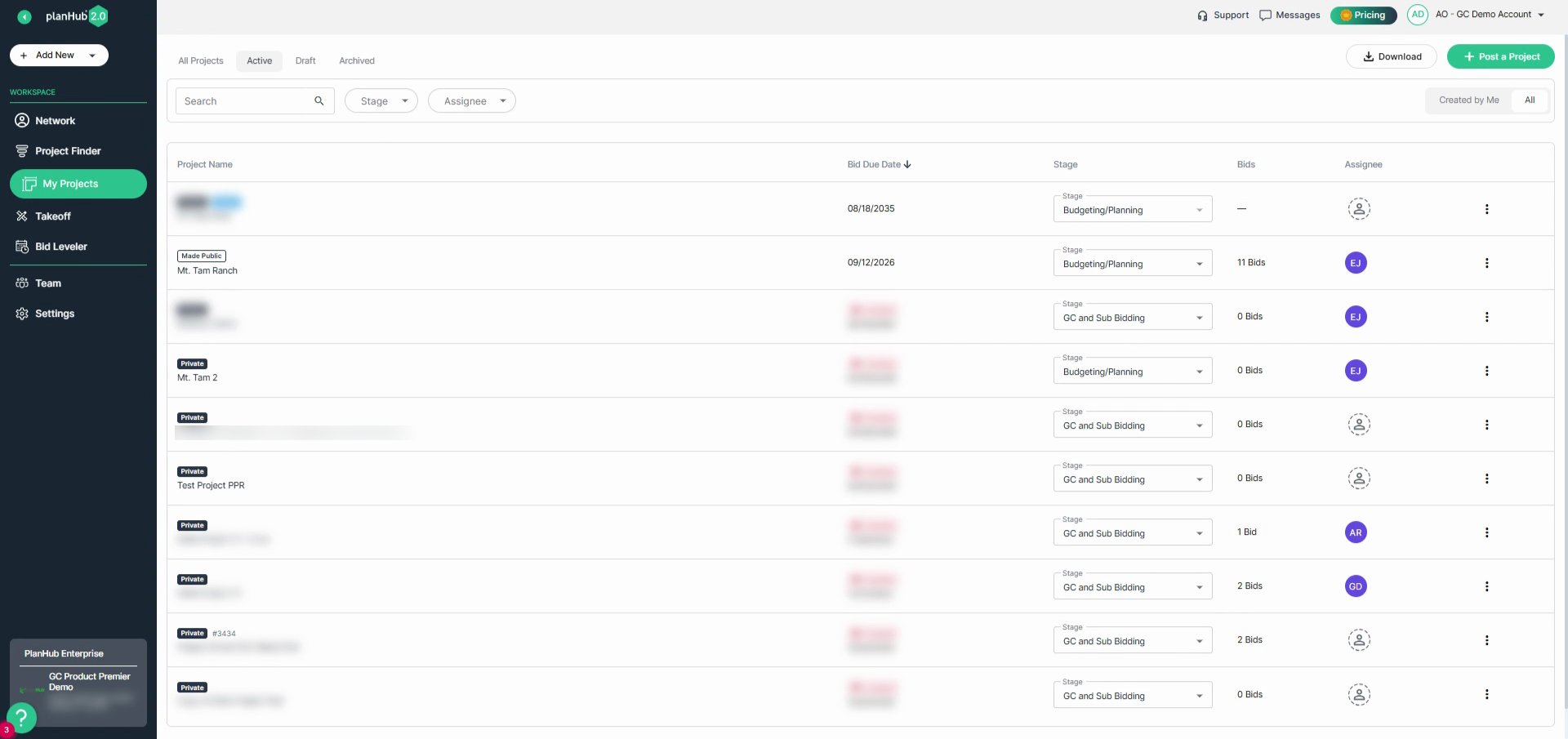
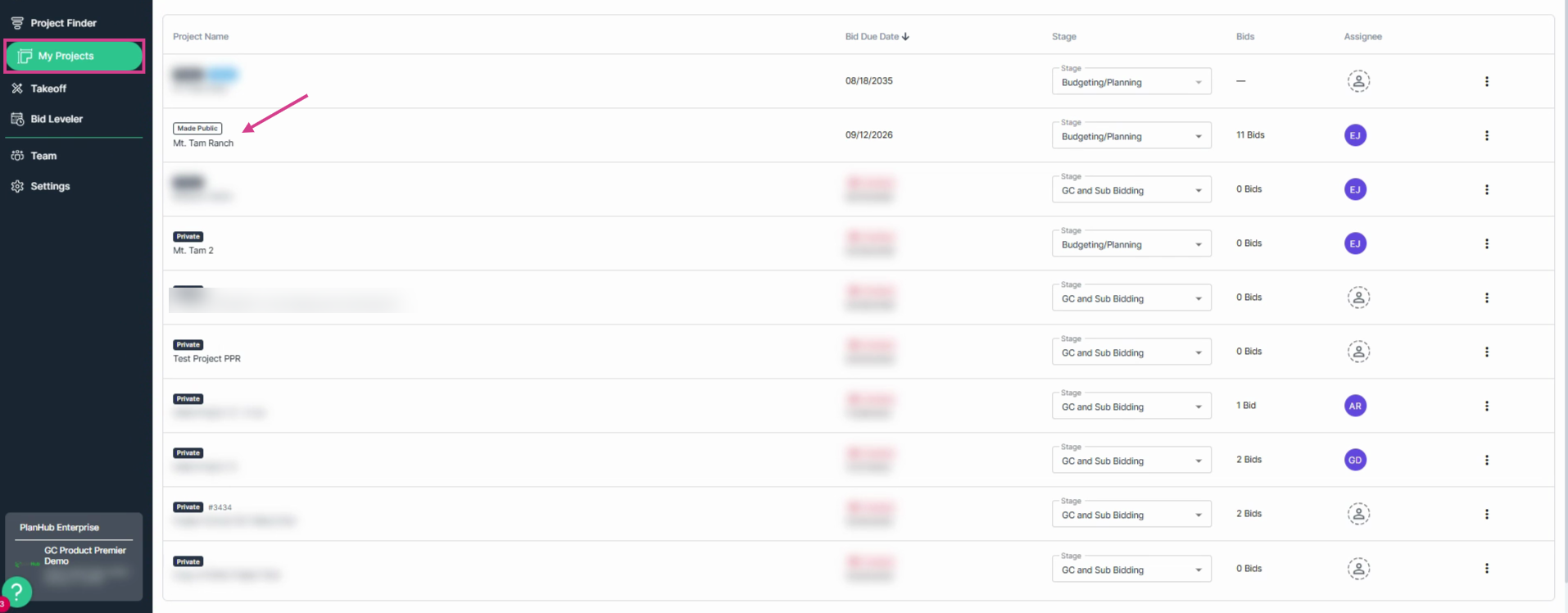
**Step 2:** From the **My Projects** page, click the project name to open the project page.
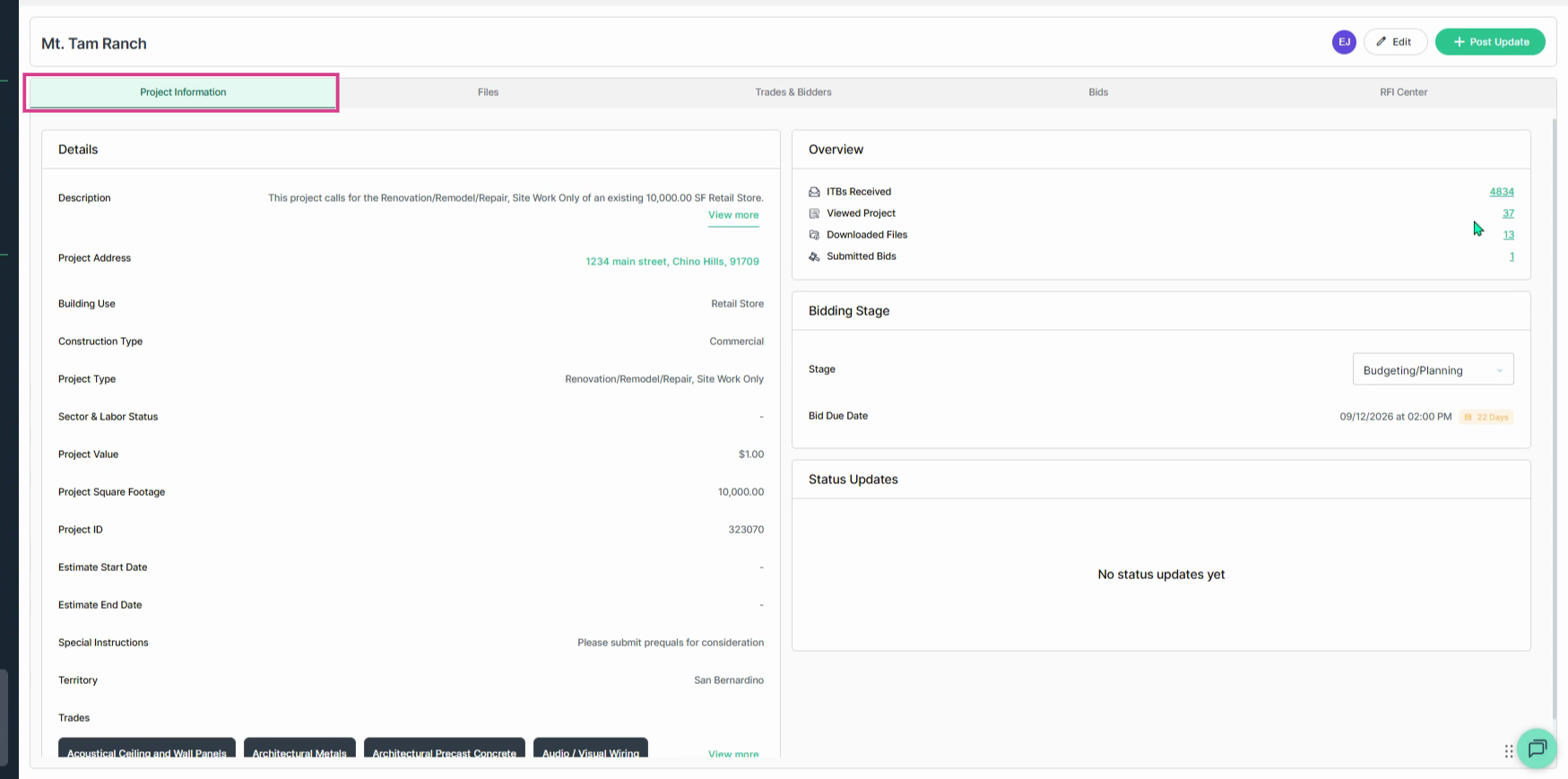
**Step 3:** Review the tabs in the top row: **Project Information**, **Files**, **Trades & Bidders**, **Bids**, and **RFI Center**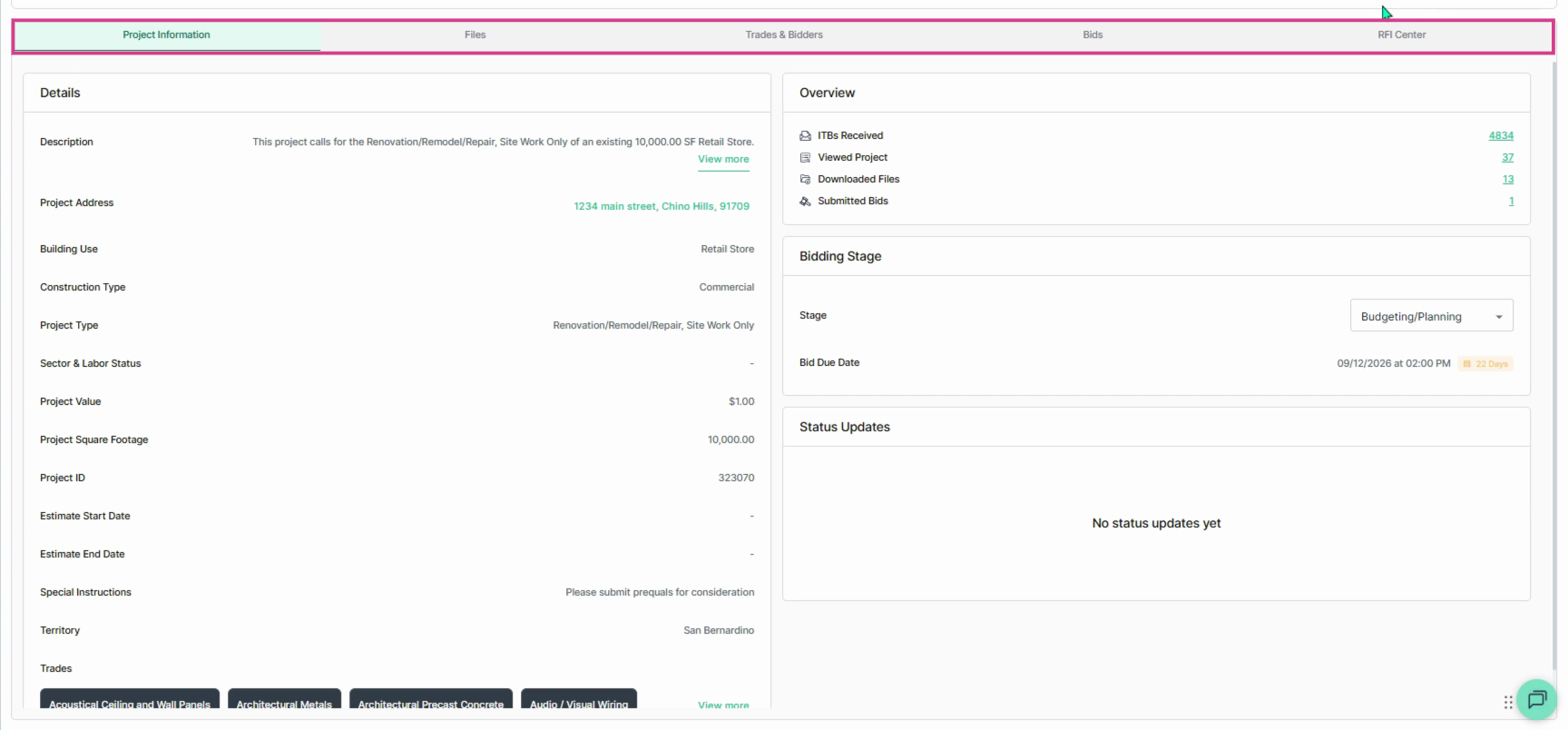
**Step 4:** To edit project details, click **Edit** in the upper right corner.
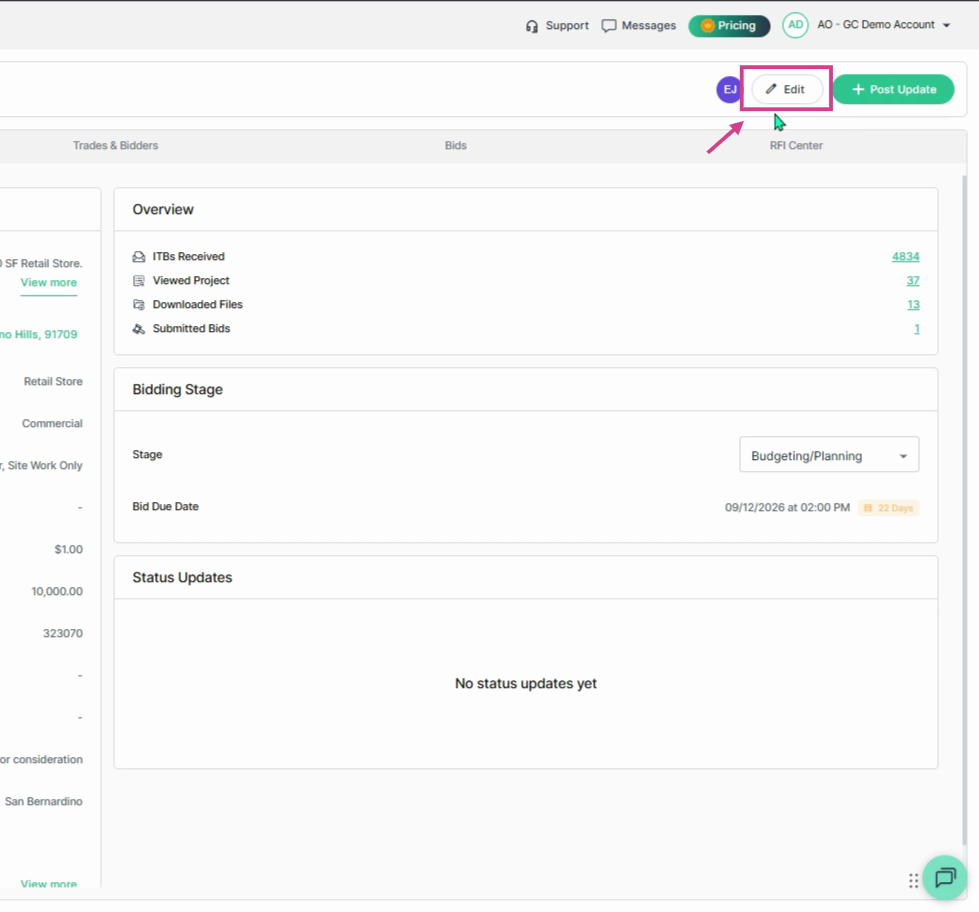
**Step 5:** To Post an Update for subcontractors and suppliers, click **Post Update** in the upper right corner.
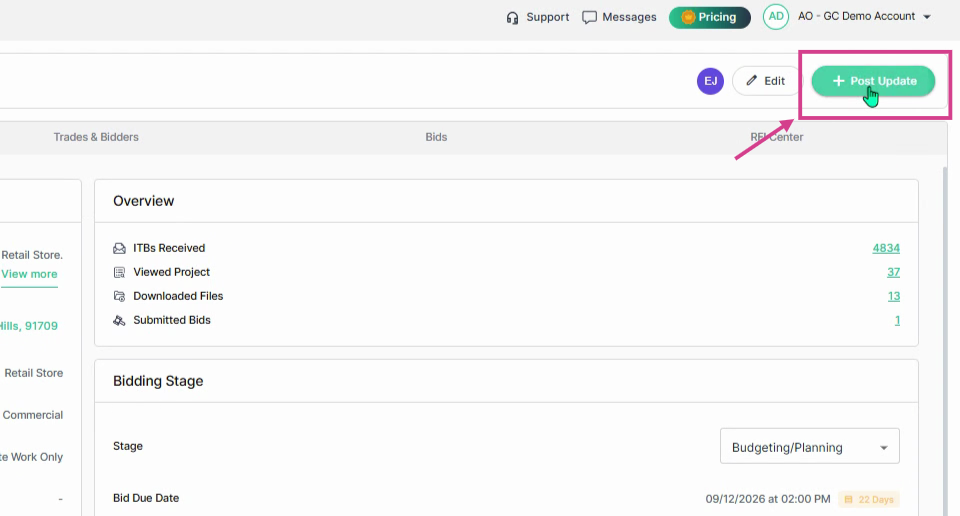
**Step 6:** Enter your message in the pop-up window.
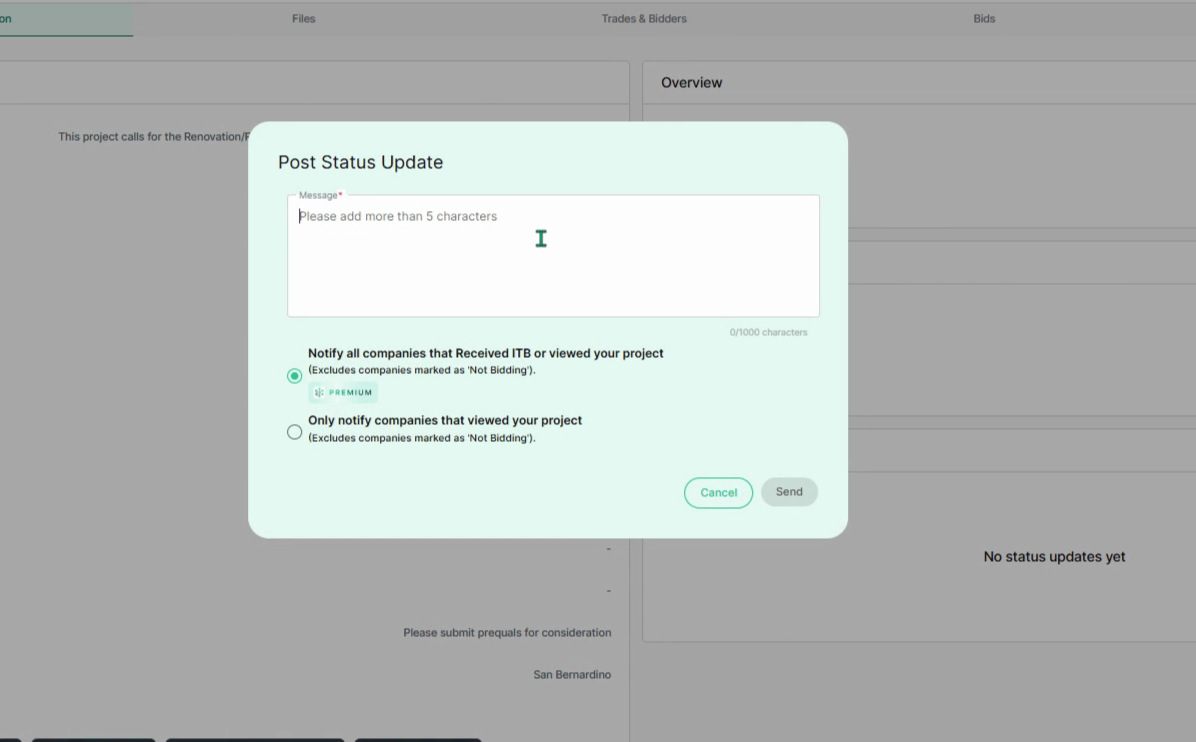
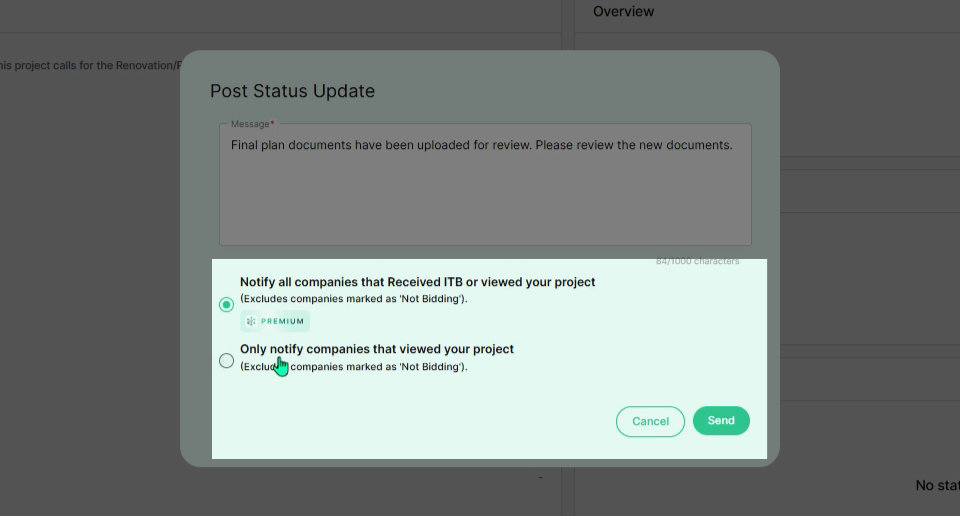
**Step 7:** Choose to notify all companies that received the ITB and those who have viewed your project. Or, notify only those companies that viewed your project. Companies that selected “Not Bidding” will not receive the update. Then click **Send** to distribute your update.
**Step 8:** View the **Project Information** tab for the project details, bidding stage, status updates and an overview of project activity.
**Step 9:** To manage project files, select the **Files** tab. Default folders are created automatically when you post a project. Add files or folders by clicking **Upload** or **New Folder** in the upper right corner.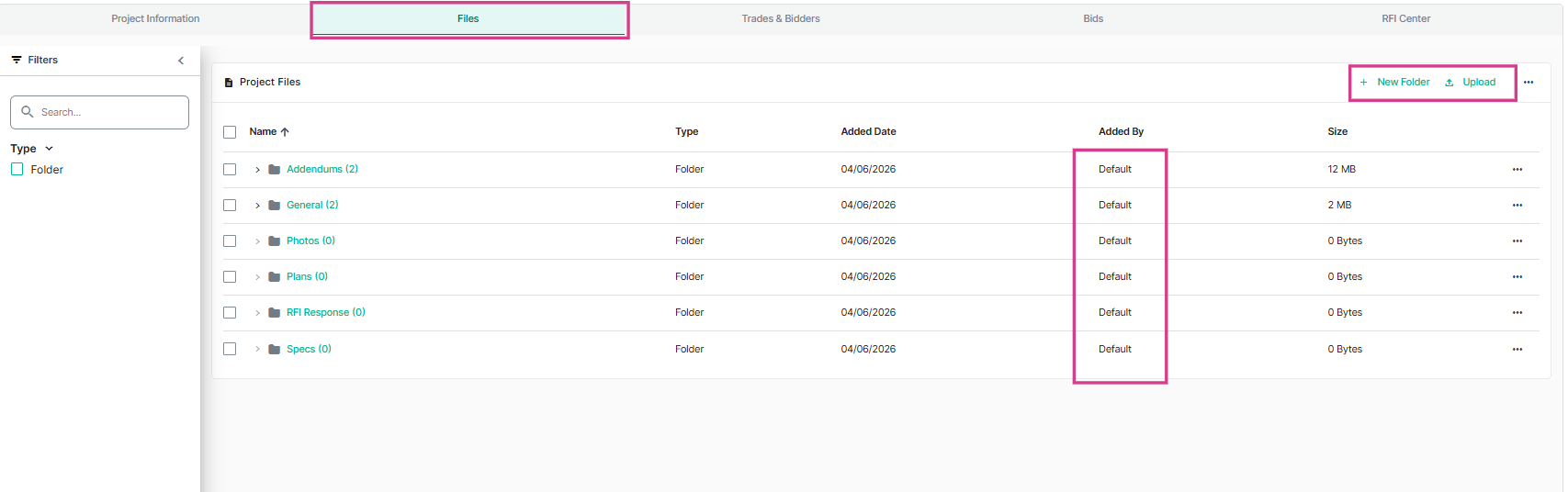
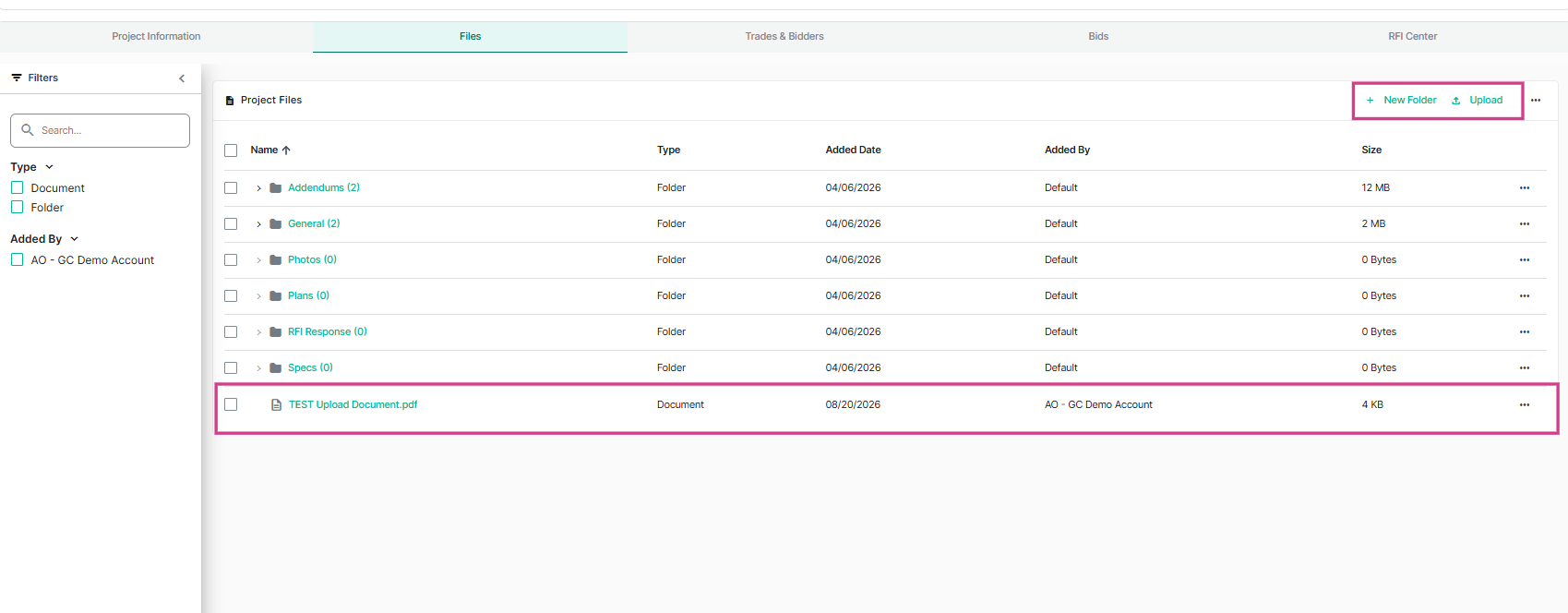
**Step 10:** Add new folders or files to the files page. Click on **New Folder** or **Upload** to add new folders and file documents.
**Step 11:** Select a folder to add files and subfolders. Next, add a file within a folder by clicking **Upload** or add a subfolder by clicking **New Folder**. 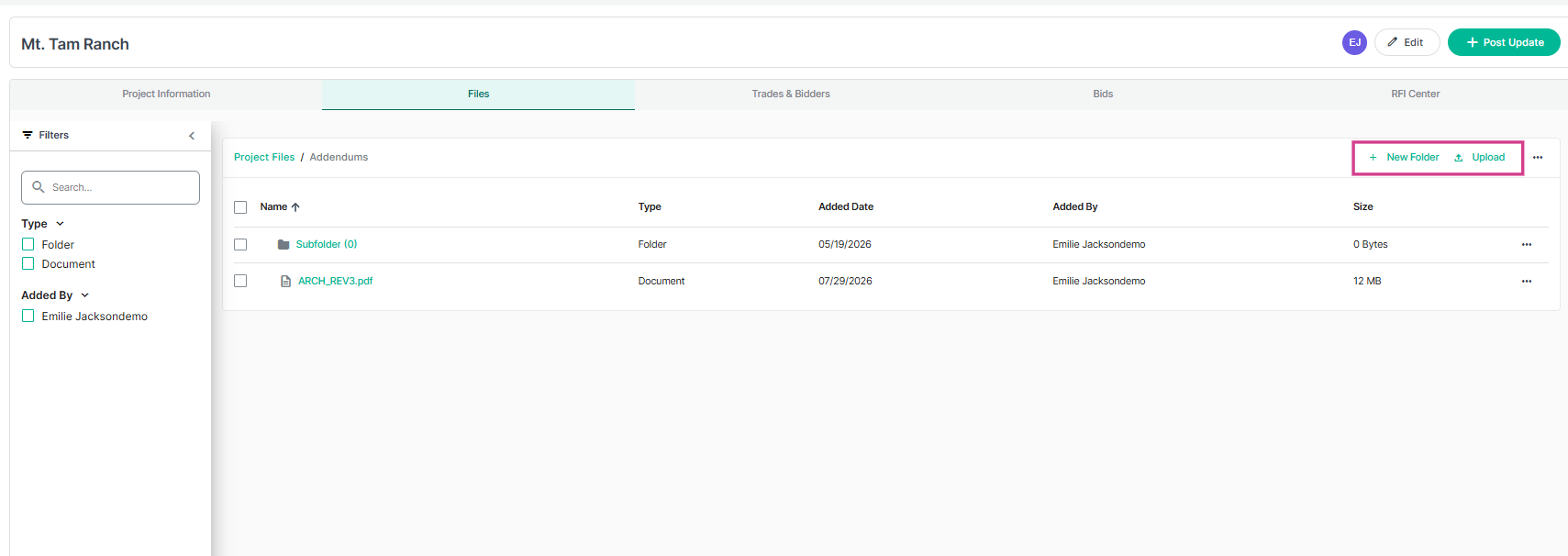
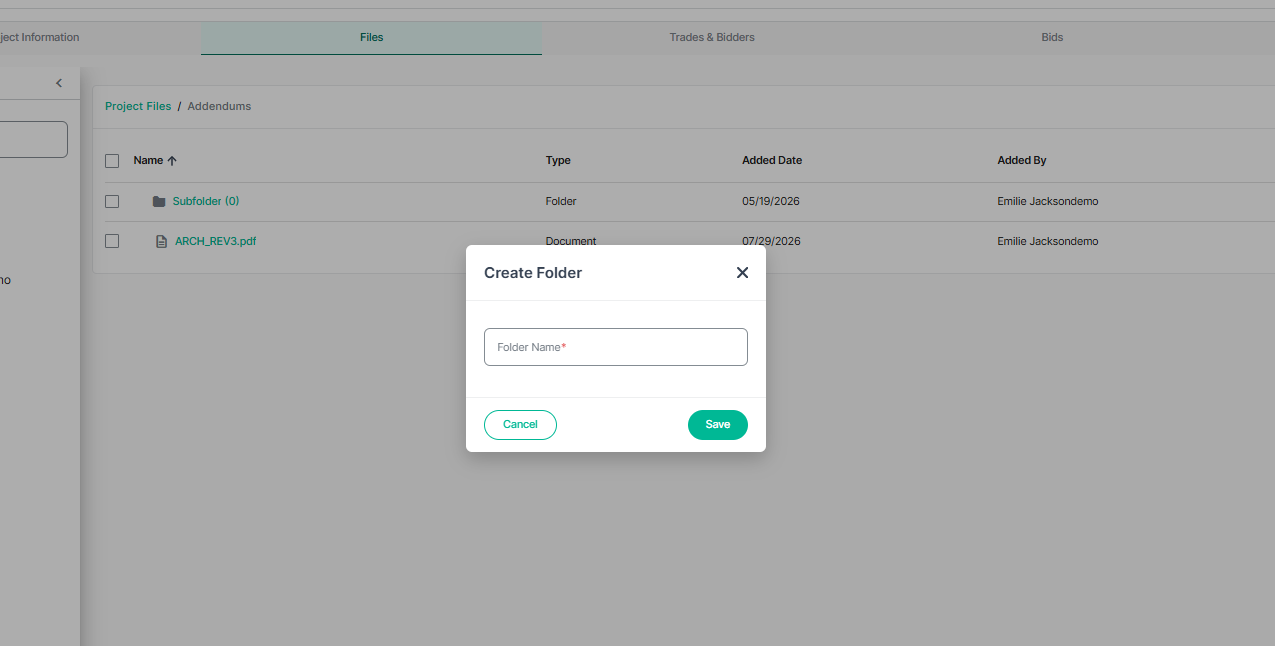
**Step 12:** In the pop up window, enter a name for the new folder then click **Save**.
**Step 13:** On the **files** page, use the three dots **action menu** at the end of each row to see available actions. Default folders can only be used for downloading files and cannot be moved, renamed, or deleted. Custom created folders and uploaded files can be moved, renamed or deleted.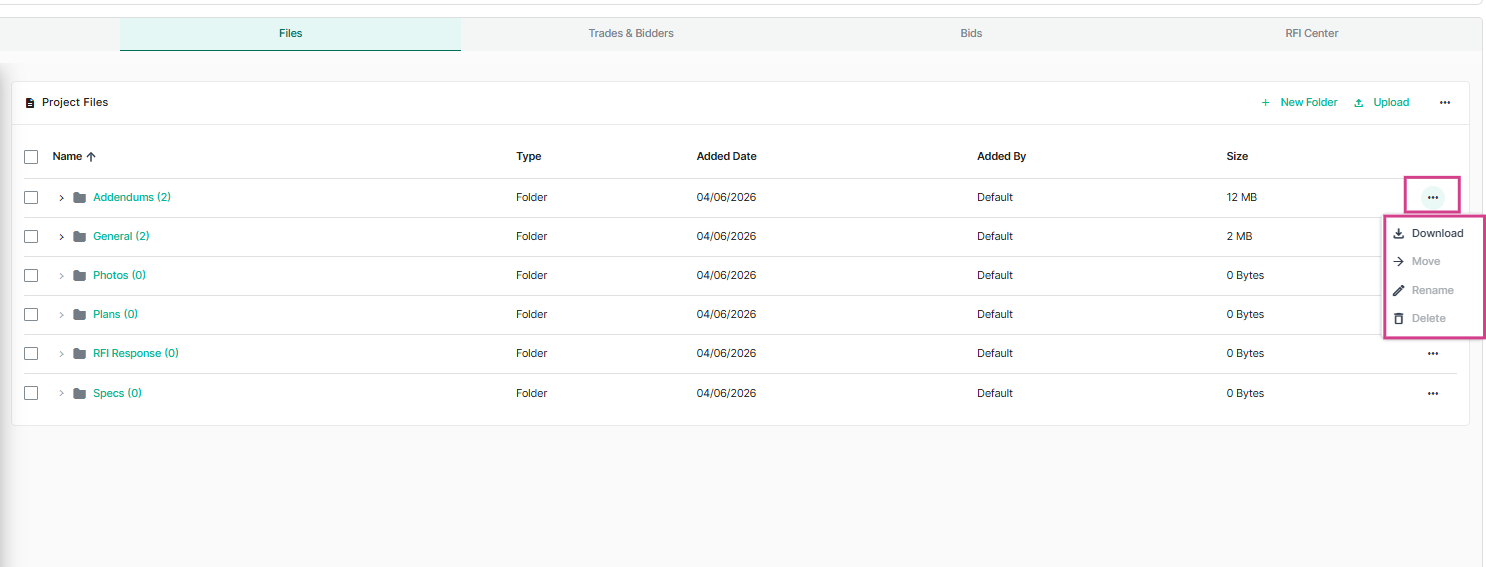
---
### Manage Trades & Bidders, Bids, and RFIs
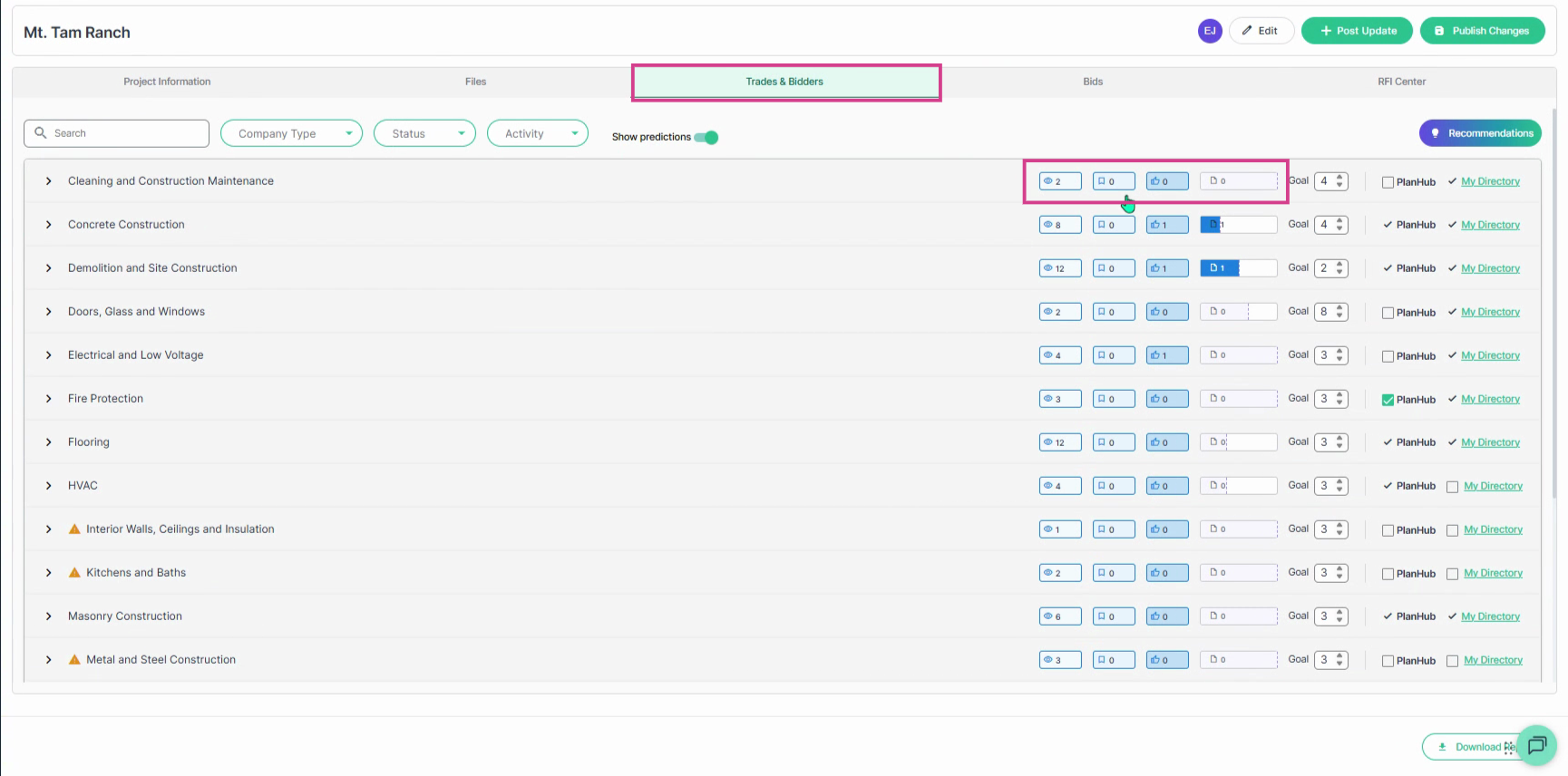
**Step 1:** Select the **Trades & Bidders** tab to monitor engagement as your bid due date approaches. Hover the mouse cursor over the **status fields** to view activity details for each trade. To learn more about how to monitor activity, view the Knowledge Base article: [General Contractors | How to view Bidding Activity on your Posted Projects](https://knowledgebase.planhub.com/knowledge/general-contractors-how-to-view-bidding-activity-on-your-posted-projects?hsLang=en)
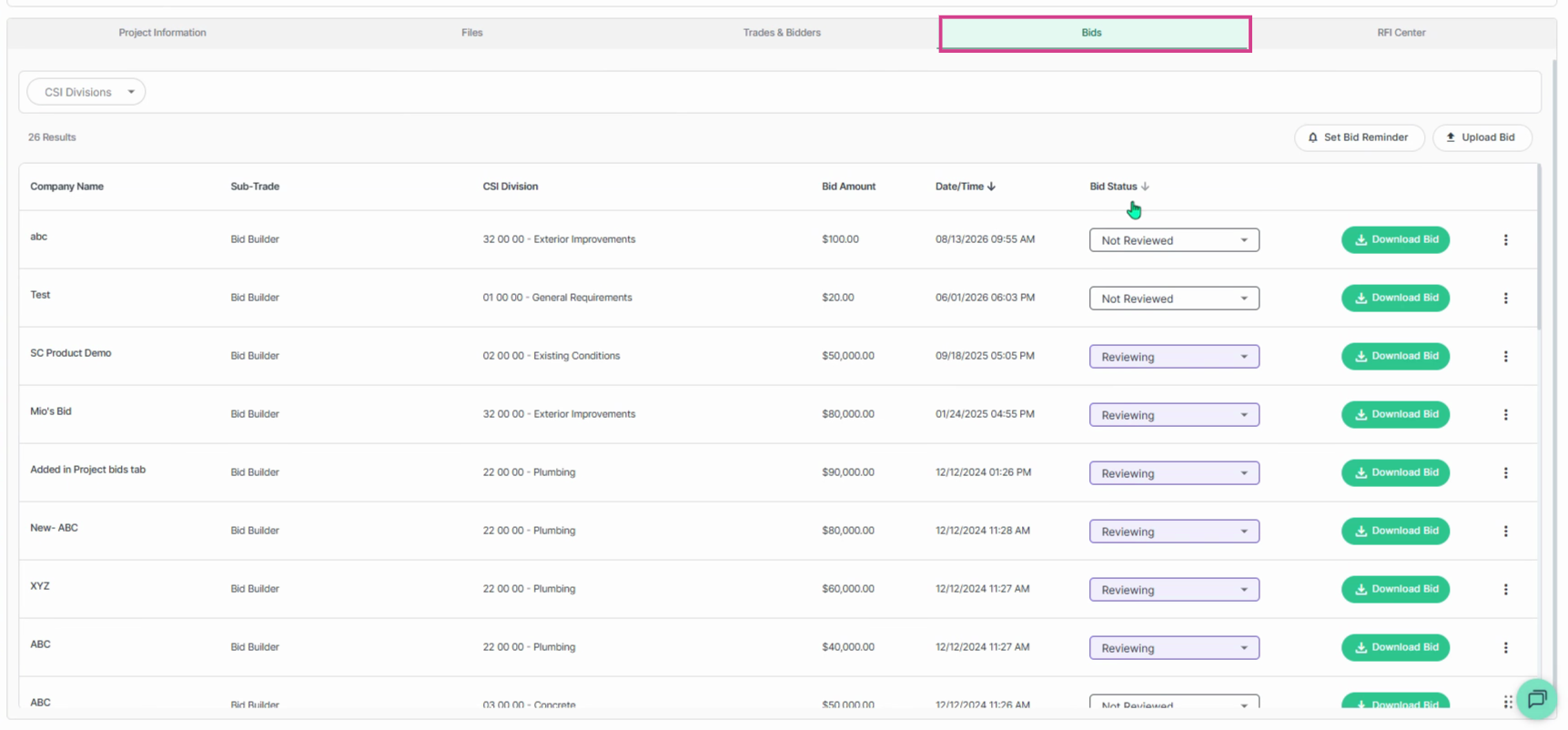
**Step 2:** Select the **Bids** tab to review all submitted bids. View company name, sub-trade, CSI division, bid amount, and date/time received. You can view and update the bid status and download bids received.
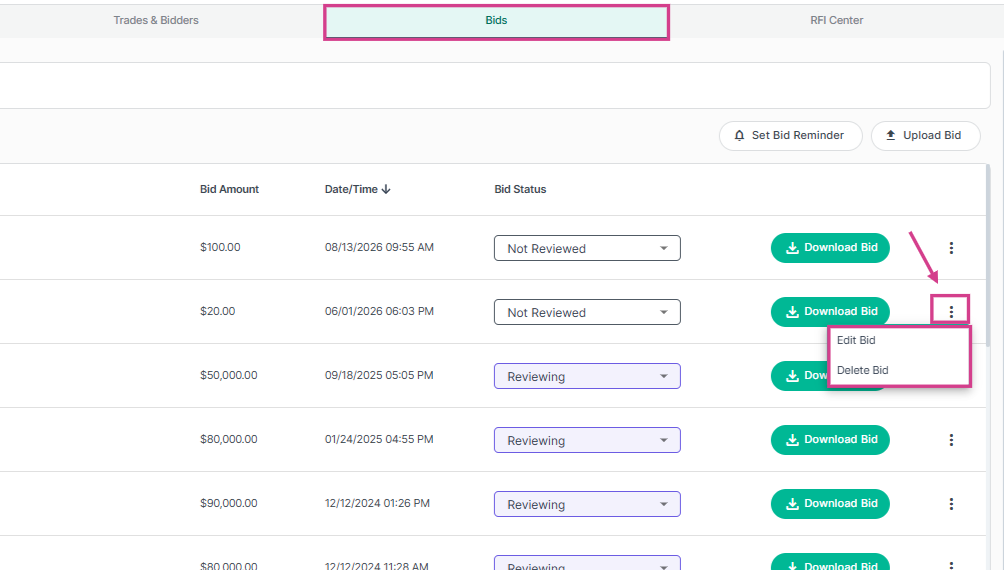
**Step 3:** You can edit or delete bids from the three dots **action menu**.
**Step 4:** You can **Provide Feedback** to subcontractors and suppliers. Clear, timely feedback strengthens collaboration, sets expectations, and encourages them to bid on your future projects and helps you achieve better coverage.
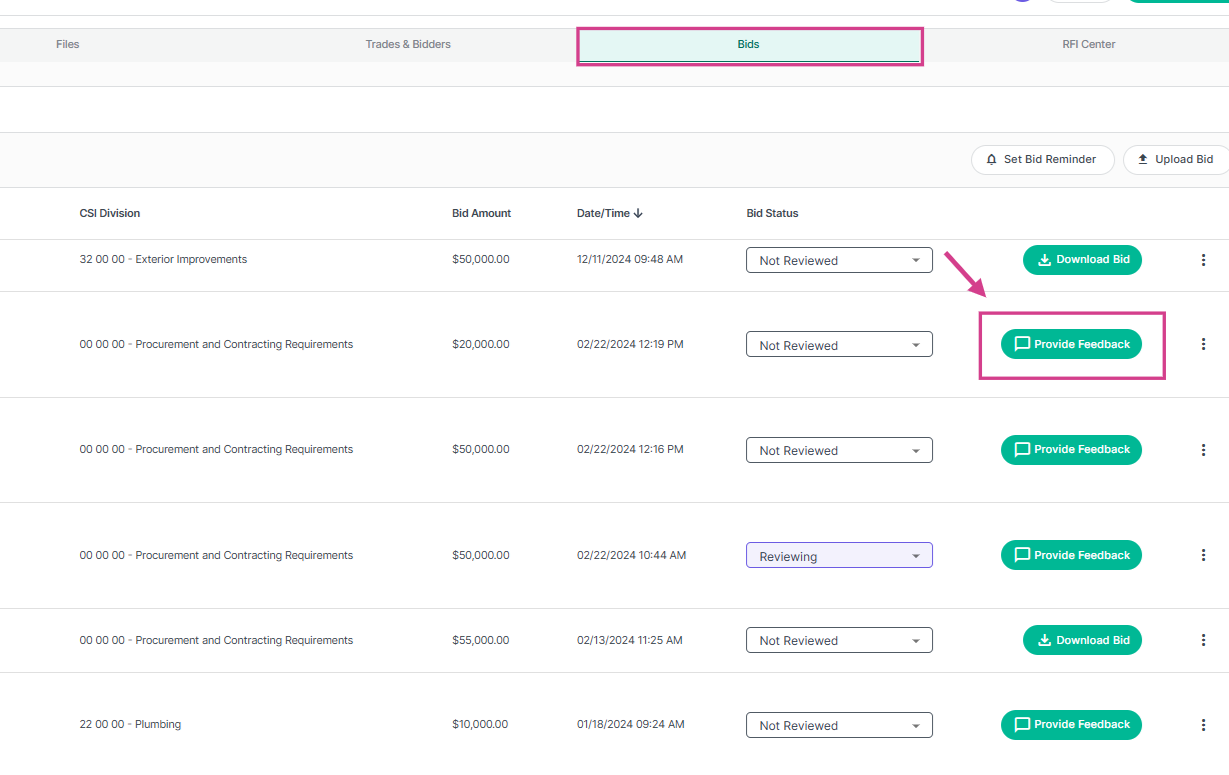
**Step 5:** At the top right side of the page, you can **Set** a **Bid Reminder** (Send email reminders to subs/suppliers before the due date) or **Upload bids** received outside of planHub.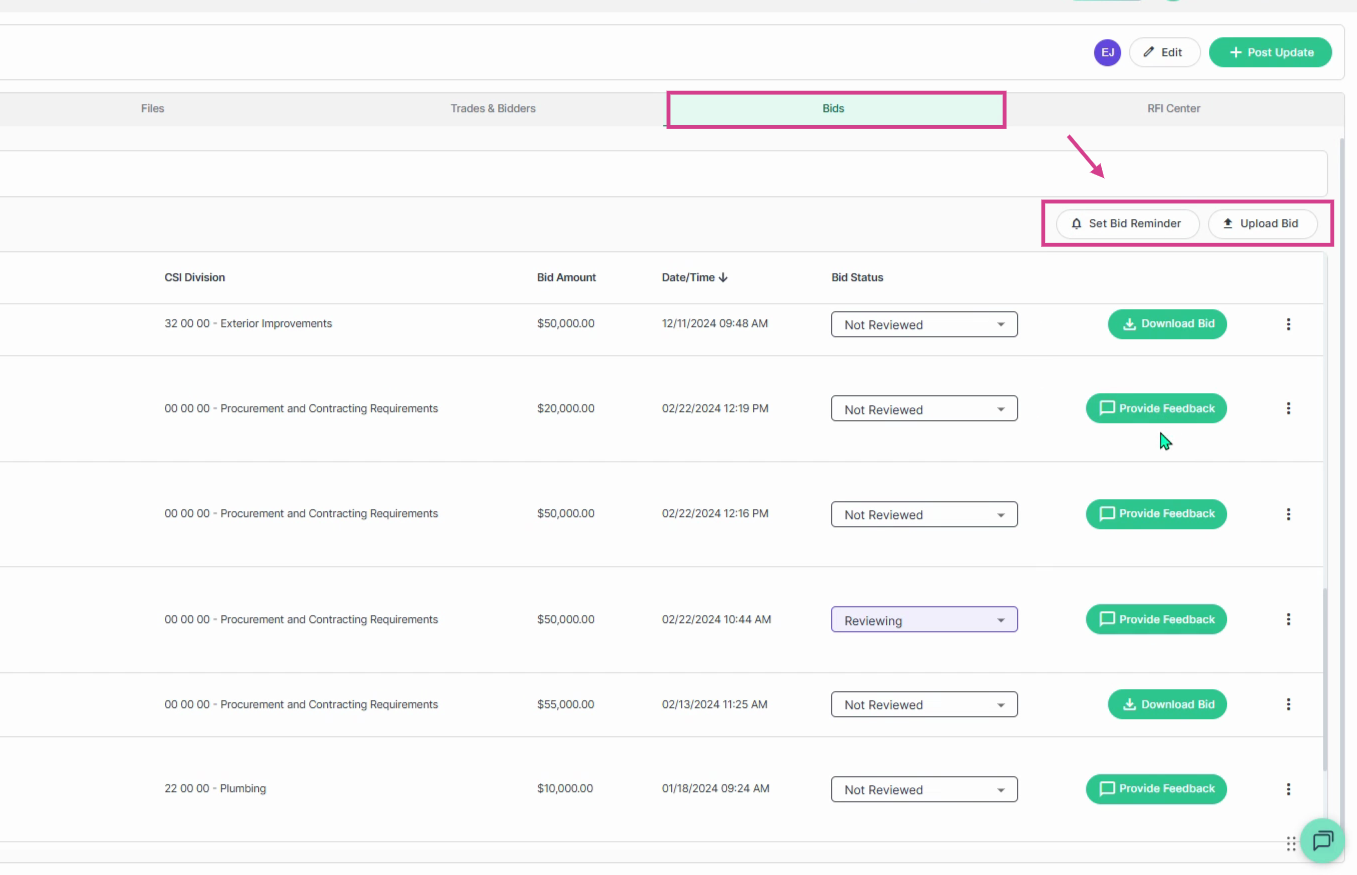
**Step 6:** Click on the **RFI Center** tab to manage questions from subcontractors and suppliers. You can review questions, download attachments, and reply directly from this page.
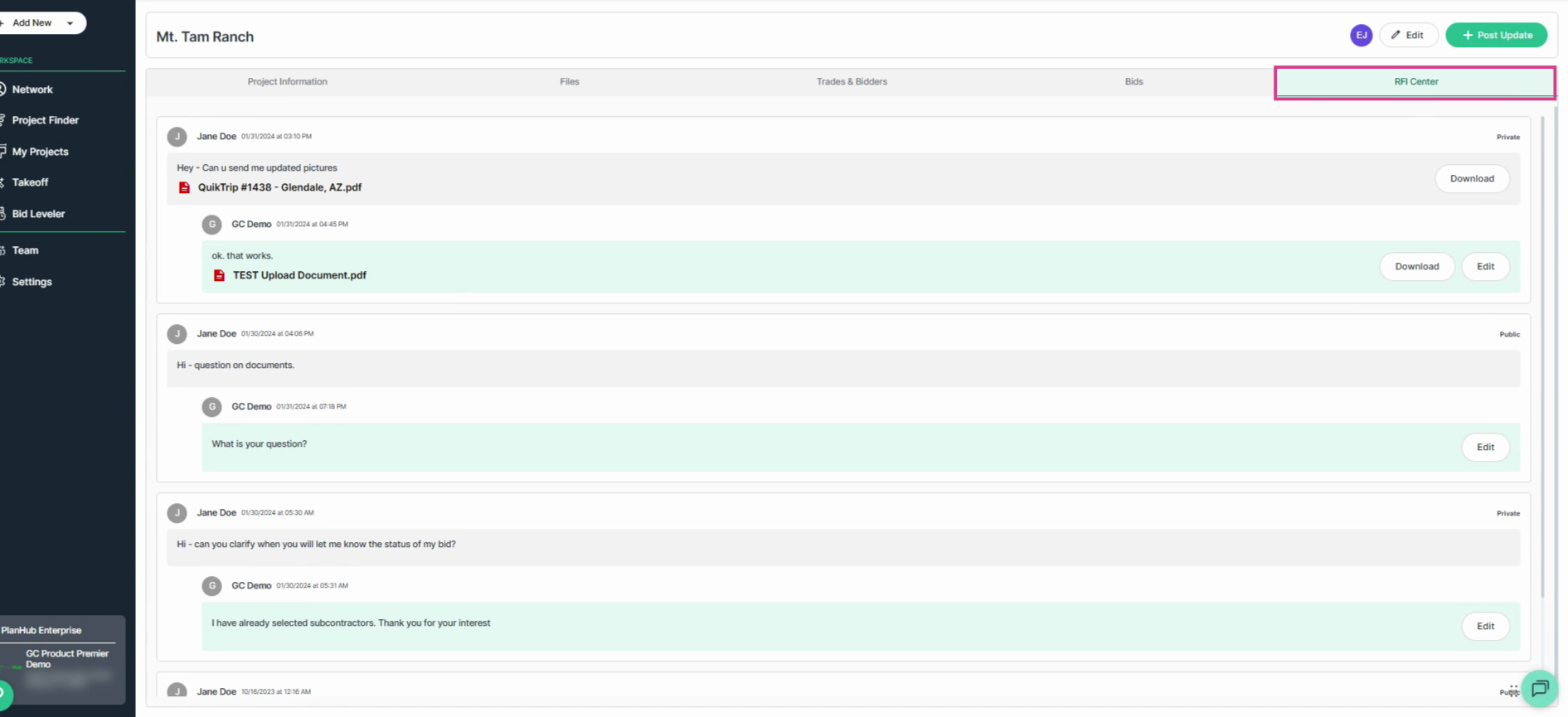
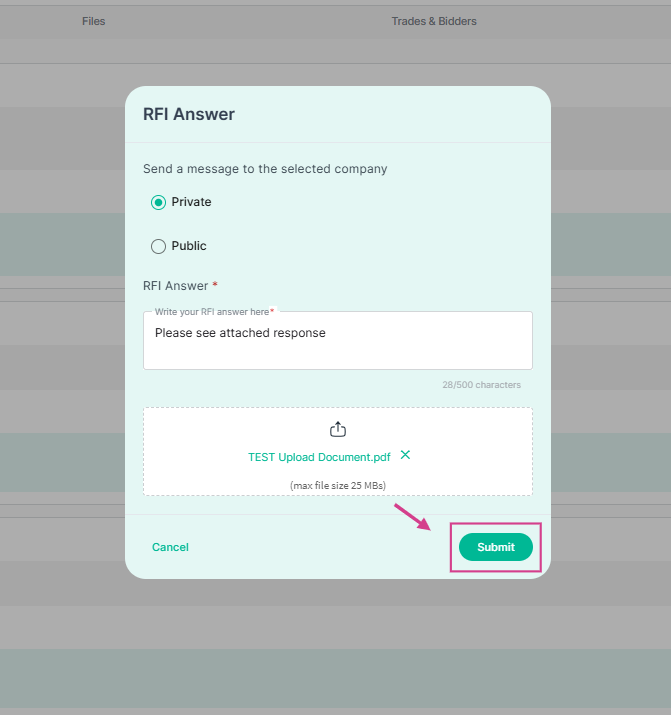
**Step 7:** Click **Reply** on a message to respond to an RFI and enter your answer in the pop-up window, upload any supporting documents, and choose to make your response **private** (just for the company requesting the information) or **public** (visible to all bidders if all bidders will also require this information).
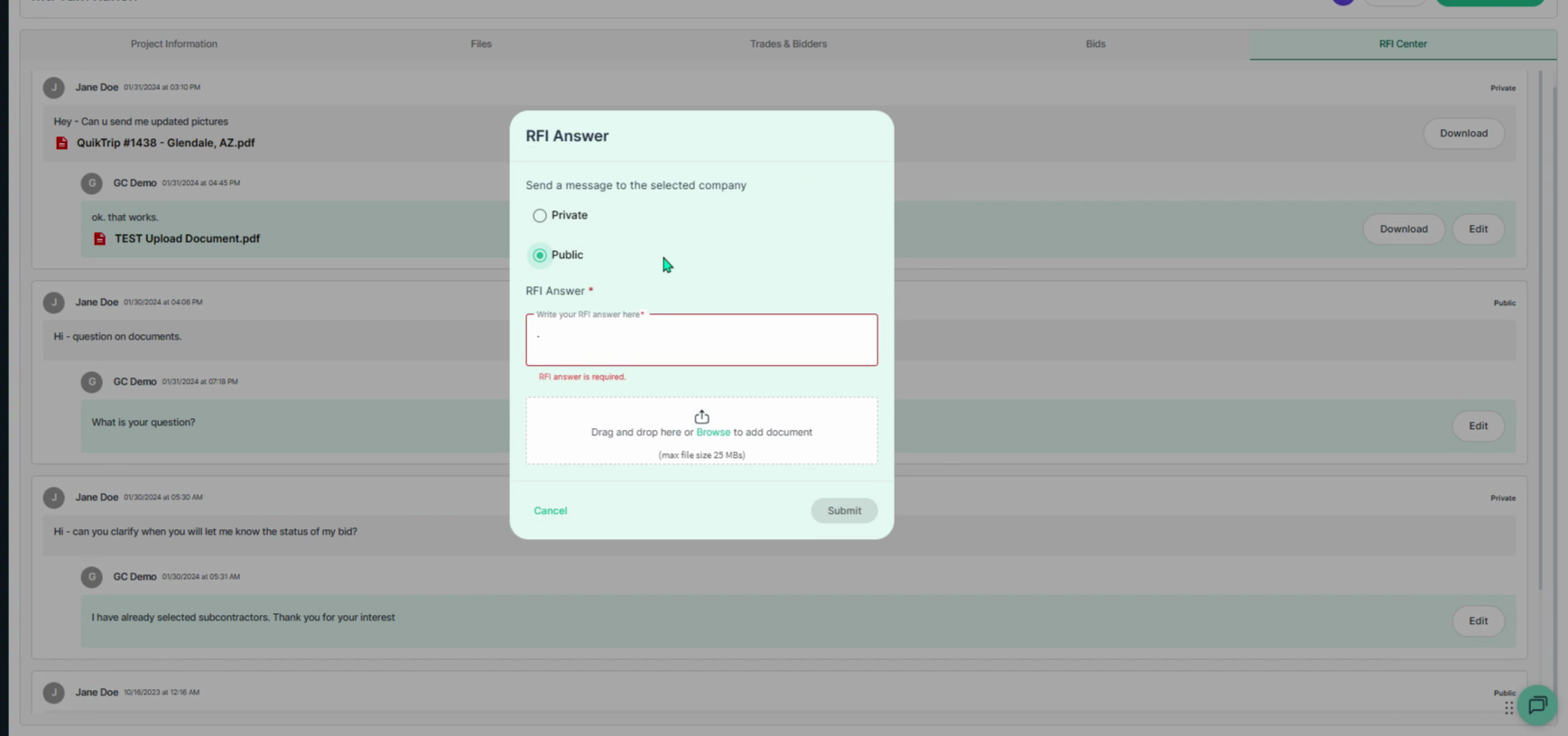
**Step 8:** Click **Submit** to send your response.
**Step 9:** View the full conversation and document exchange below each RFI.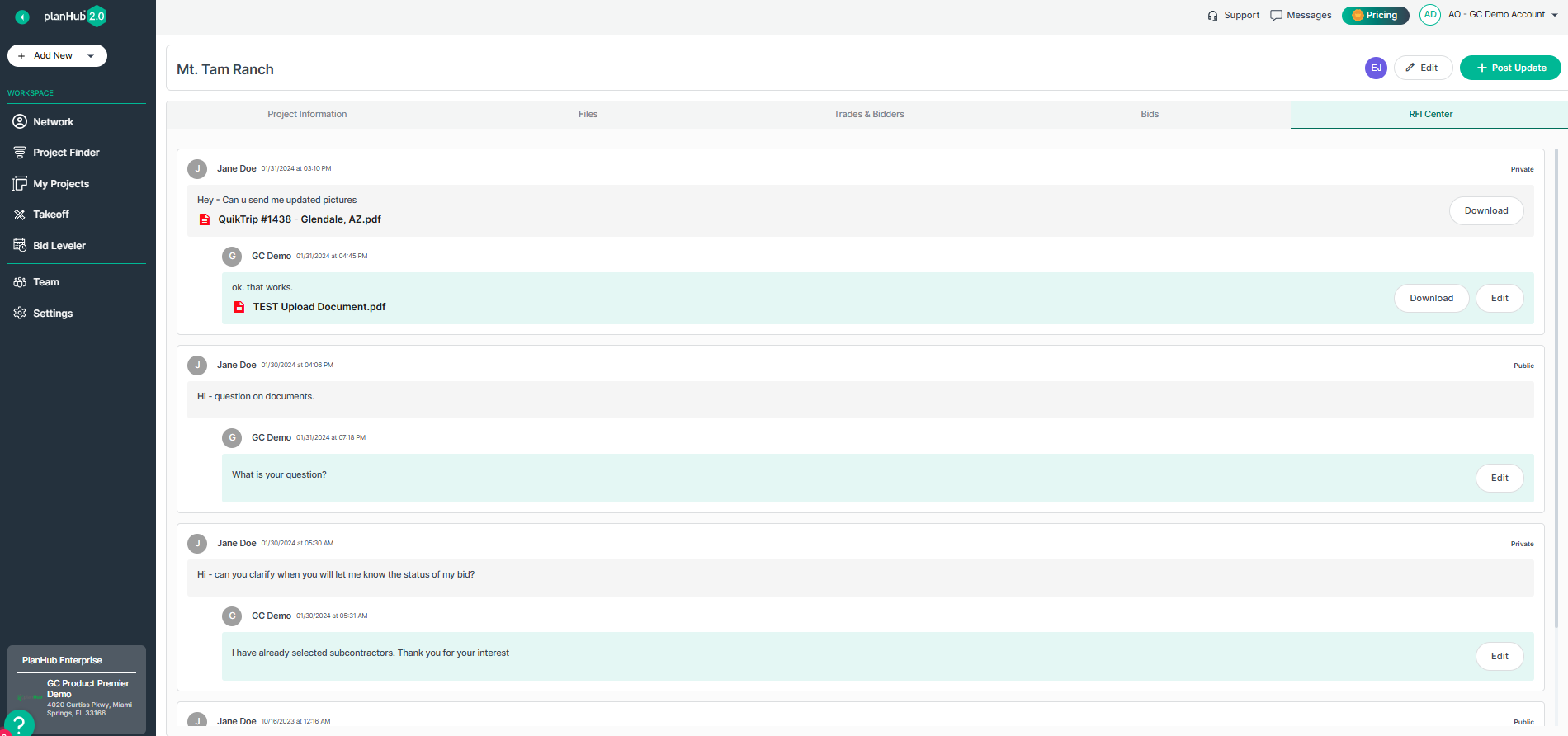
---
Managing projects in planHub gives you full visibility from posting projects, monitoring activity and final updates. Stay organized, responsive, and connected to help ensure a smooth project delivery.
### Troubleshooting
Contact us if you need assistance or to report an issue:
- PlanHub Contact Page: [https://planhub.com/contact/](https://planhub.com/contact/)
- Customer Facing Support Ticket Link: [https://knowledgebase.planhub.com/knowledge/kb-tickets/new](https://knowledgebase.planhub.com/knowledge/kb-tickets/new?hsLang=en)
- Customer Success Team: [CustomerSuccess@planhub.com](mailto:CustomerSuccess@planhub.com)
- [General Contractor](https://knowledgebase.planhub.com/knowledge/general-contractor?hsLang=en#main-content)
- [Overview](https://knowledgebase.planhub.com/knowledge/general-contractor?hsLang=en#overview)
- [Projects](https://knowledgebase.planhub.com/knowledge/general-contractor?hsLang=en#projects)
- [Networking](https://knowledgebase.planhub.com/knowledge/general-contractor?hsLang=en#networking)
- [Subcontractors](https://knowledgebase.planhub.com/knowledge/subcontractors?hsLang=en#main-content)
- [Overview](https://knowledgebase.planhub.com/knowledge/subcontractors?hsLang=en#overview)
- [Projects](https://knowledgebase.planhub.com/knowledge/subcontractors?hsLang=en#projects)
- [Bid Board & Tracking](https://knowledgebase.planhub.com/knowledge/subcontractors?hsLang=en#bid-board-tracking)
- [Networking](https://knowledgebase.planhub.com/knowledge/subcontractors?hsLang=en#networking)
- [Takeoff & Estimation](https://knowledgebase.planhub.com/knowledge/subcontractors?hsLang=en#takeoff-estimation)
- [Manage Your Team](https://knowledgebase.planhub.com/knowledge/subcontractors?hsLang=en#manage-your-team)
- [Account & Settings](https://knowledgebase.planhub.com/knowledge/subcontractors?hsLang=en#account-settings)
- [Job Board](https://knowledgebase.planhub.com/knowledge/subcontractors?hsLang=en#job-board)
- [Request for Information](https://knowledgebase.planhub.com/knowledge/subcontractors?hsLang=en#request-for-information)
- [Supplier](https://knowledgebase.planhub.com/knowledge/supplier?hsLang=en#main-content)
- [Overview](https://knowledgebase.planhub.com/knowledge/supplier?hsLang=en#overview)
- [Projects and Leads](https://knowledgebase.planhub.com/knowledge/supplier?hsLang=en#projects-and-leads)
- [Bidding & Estimating](https://knowledgebase.planhub.com/knowledge/supplier?hsLang=en#bidding-estimating)
- [Networking](https://knowledgebase.planhub.com/knowledge/supplier?hsLang=en#networking)
- [Account & Settings](https://knowledgebase.planhub.com/knowledge/supplier?hsLang=en#account-settings)
- [Takeoff & Estimation](https://knowledgebase.planhub.com/knowledge/takeoff-estimation?hsLang=en#main-content)
- [Getting Started](https://knowledgebase.planhub.com/knowledge/takeoff-estimation?hsLang=en#getting-started)
- [Takeoff Tools & Measurements](https://knowledgebase.planhub.com/knowledge/takeoff-estimation?hsLang=en#takeoff-tools-measurements)
- [Trade-Specific Takeoffs](https://knowledgebase.planhub.com/knowledge/takeoff-estimation?hsLang=en#trade-specific-takeoffs)
- [Estimating](https://knowledgebase.planhub.com/knowledge/takeoff-estimation?hsLang=en#estimating)
- [Managing & Sharing Your Work](https://knowledgebase.planhub.com/knowledge/takeoff-estimation?hsLang=en#managing-sharing-your-work)
- [Account & Billing](https://knowledgebase.planhub.com/knowledge/account-billing?hsLang=en#main-content)
- [Account & Billing](https://knowledgebase.planhub.com/knowledge/account-billing?hsLang=en#account-billing)
- [Account Closure](https://knowledgebase.planhub.com/knowledge/account-billing?hsLang=en#account-closure)
- [Troubleshooting](https://knowledgebase.planhub.com/knowledge/troubleshooting?hsLang=en)
- [About PlanHub](https://knowledgebase.planhub.com/knowledge/about-planhub?hsLang=en)
- [New General Contractor Experience](https://knowledgebase.planhub.com/knowledge/new-general-contractor-experience?hsLang=en#main-content)
- [Overview](https://knowledgebase.planhub.com/knowledge/new-general-contractor-experience?hsLang=en#overview)
- [Projects](https://knowledgebase.planhub.com/knowledge/new-general-contractor-experience?hsLang=en#projects)
- [Networking](https://knowledgebase.planhub.com/knowledge/new-general-contractor-experience?hsLang=en#networking)
- [Takeoff & Estimation](https://knowledgebase.planhub.com/knowledge/new-general-contractor-experience?hsLang=en#takeoff-estimation)
- [Account & Settings](https://knowledgebase.planhub.com/knowledge/new-general-contractor-experience?hsLang=en#account-settings)
- [Manage Your Team](https://knowledgebase.planhub.com/knowledge/new-general-contractor-experience?hsLang=en#manage-your-team)
- [Submit Feedback](https://knowledgebase.planhub.com/knowledge/submit-feedback?hsLang=en#main-content)
- [Feedback](https://knowledgebase.planhub.com/knowledge/submit-feedback?hsLang=en#feedback)
- [Have an Issue? Submit a Ticket](https://knowledgebase.planhub.com/knowledge/kb-tickets/new)
[](http://planhub.com)
[Knowledge Base Home](https://knowledgebase.planhub.com/knowledge?hsLang=en)
[Submit a Ticket](https://knowledgebase.planhub.com/knowledge/kb-tickets/new?hsLang=en)
Copyright © 2026, ©2026 PlanHub, Inc. All rights reserved