![NEW_PlanHub_Logo_Navy.png]](https://knowledgebase.planhub.com/hs-fs/hubfs/Design/PH%20Logos/NEW%202024%20PH%20Logos/NEW_PlanHub_Logo_Navy.png?height=40&name=NEW_PlanHub_Logo_Navy.png)
Step 1: Click Add New at the top of your dashboard.

Step 2: Choose Upload Connections from the dropdown.
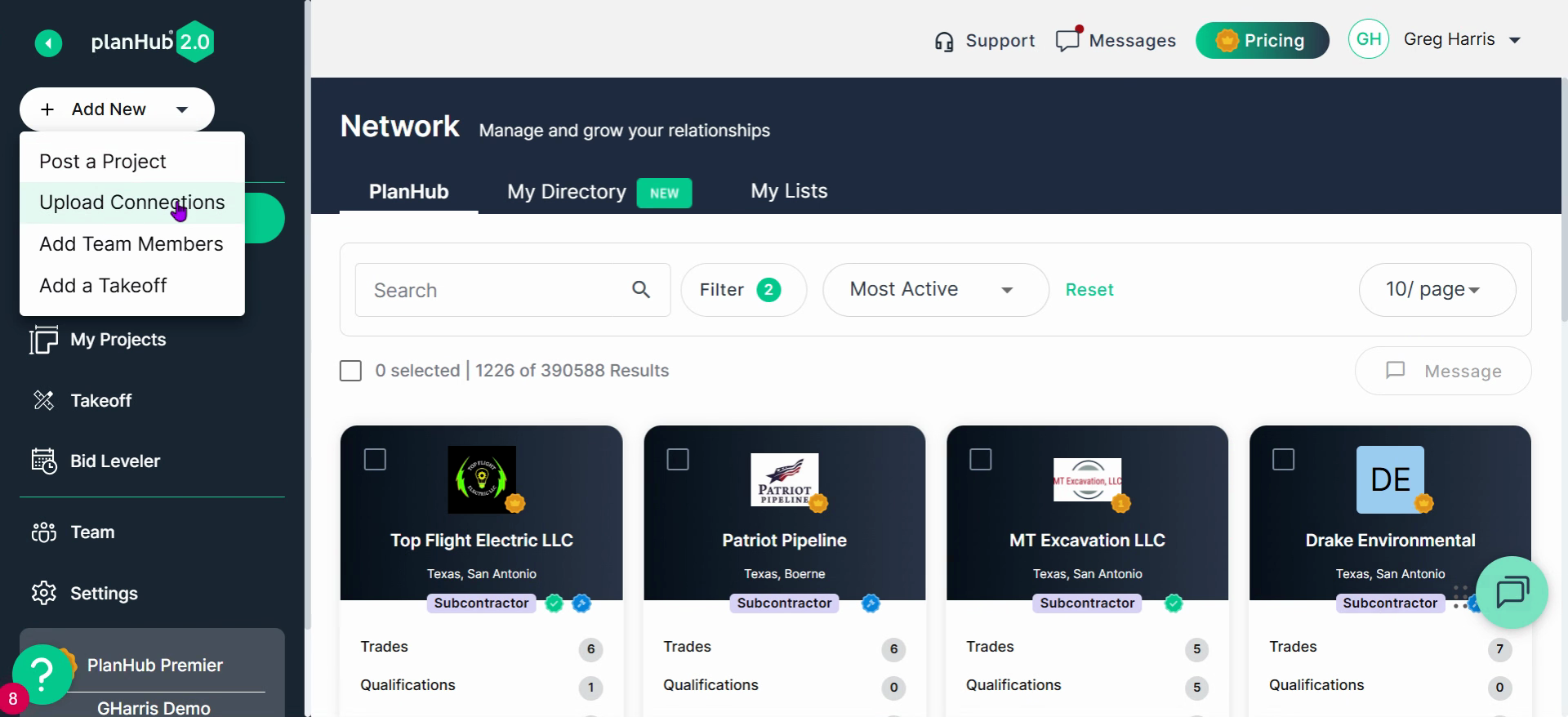
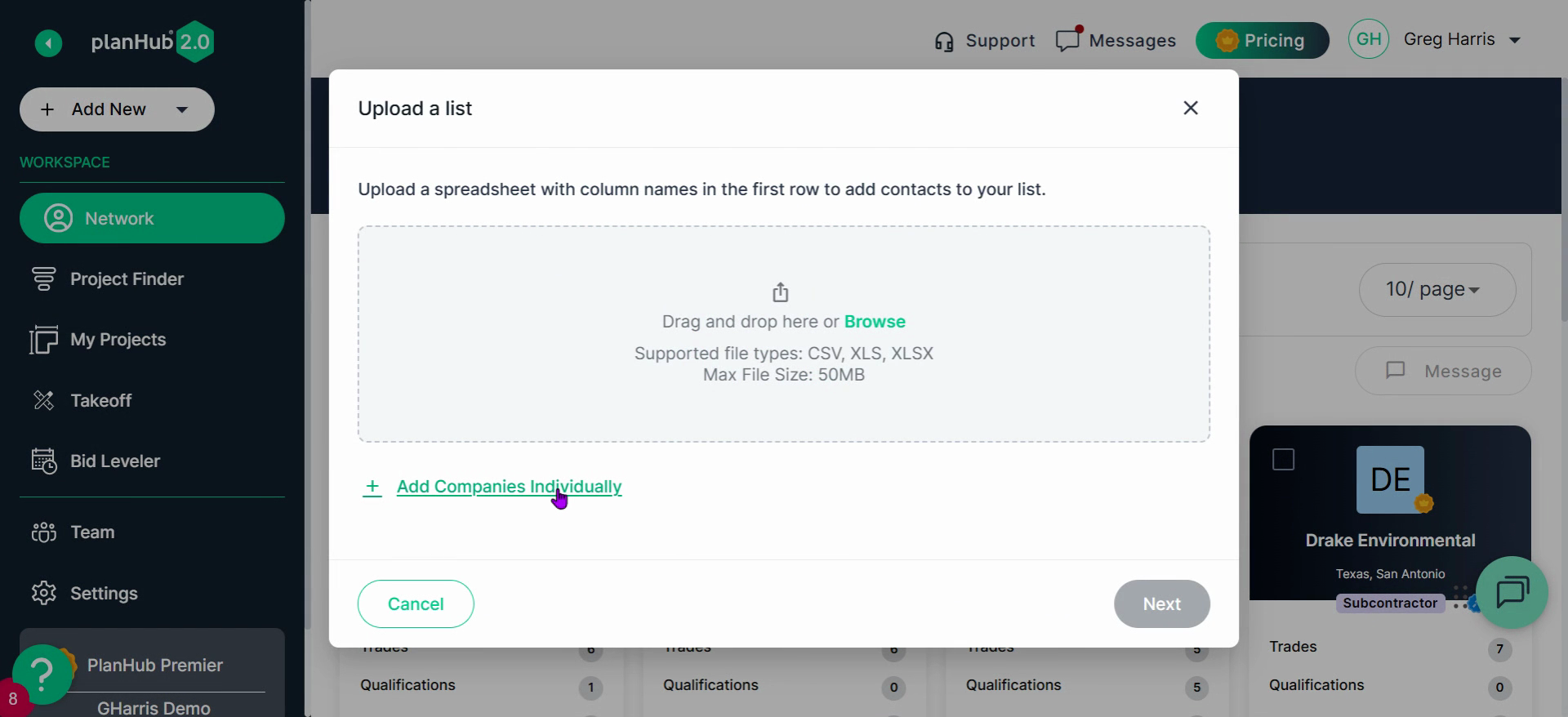
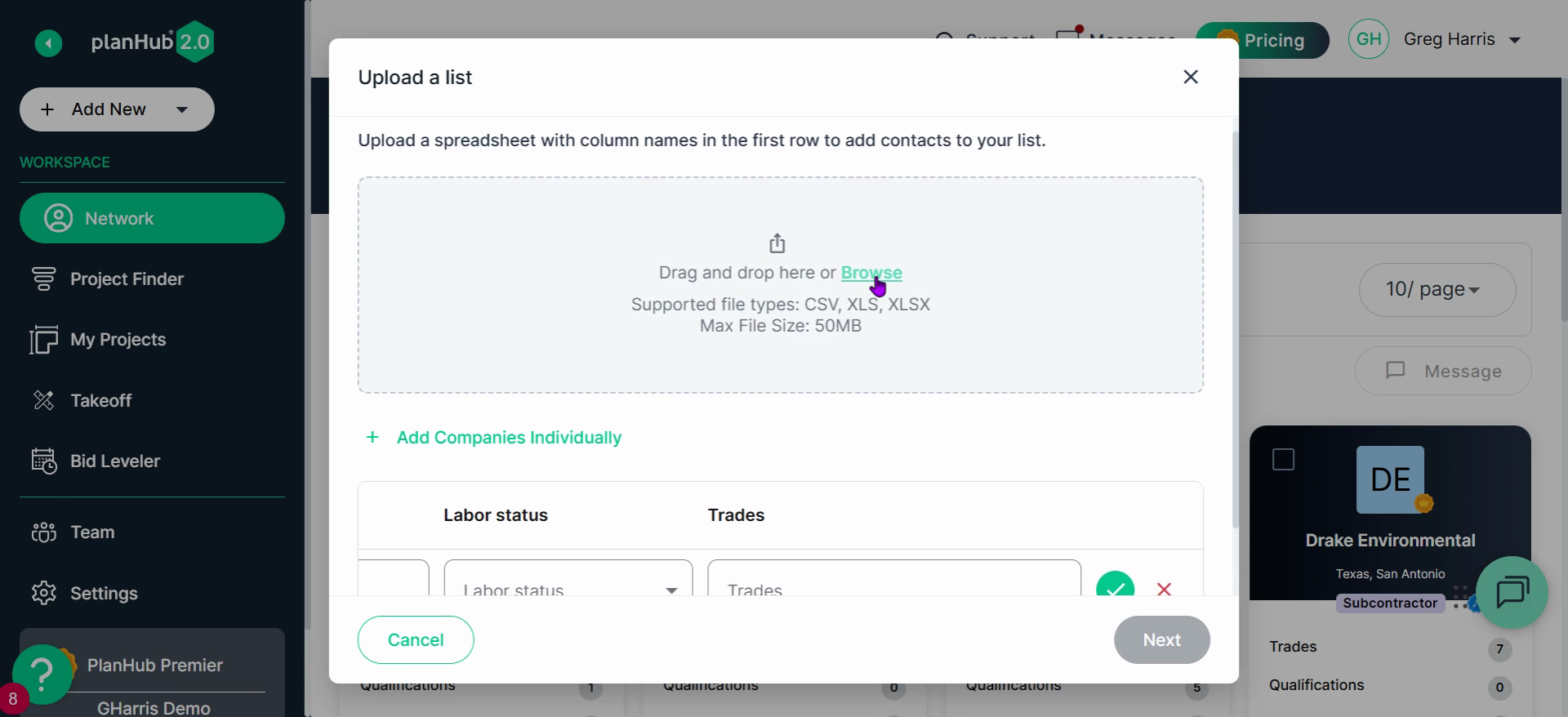
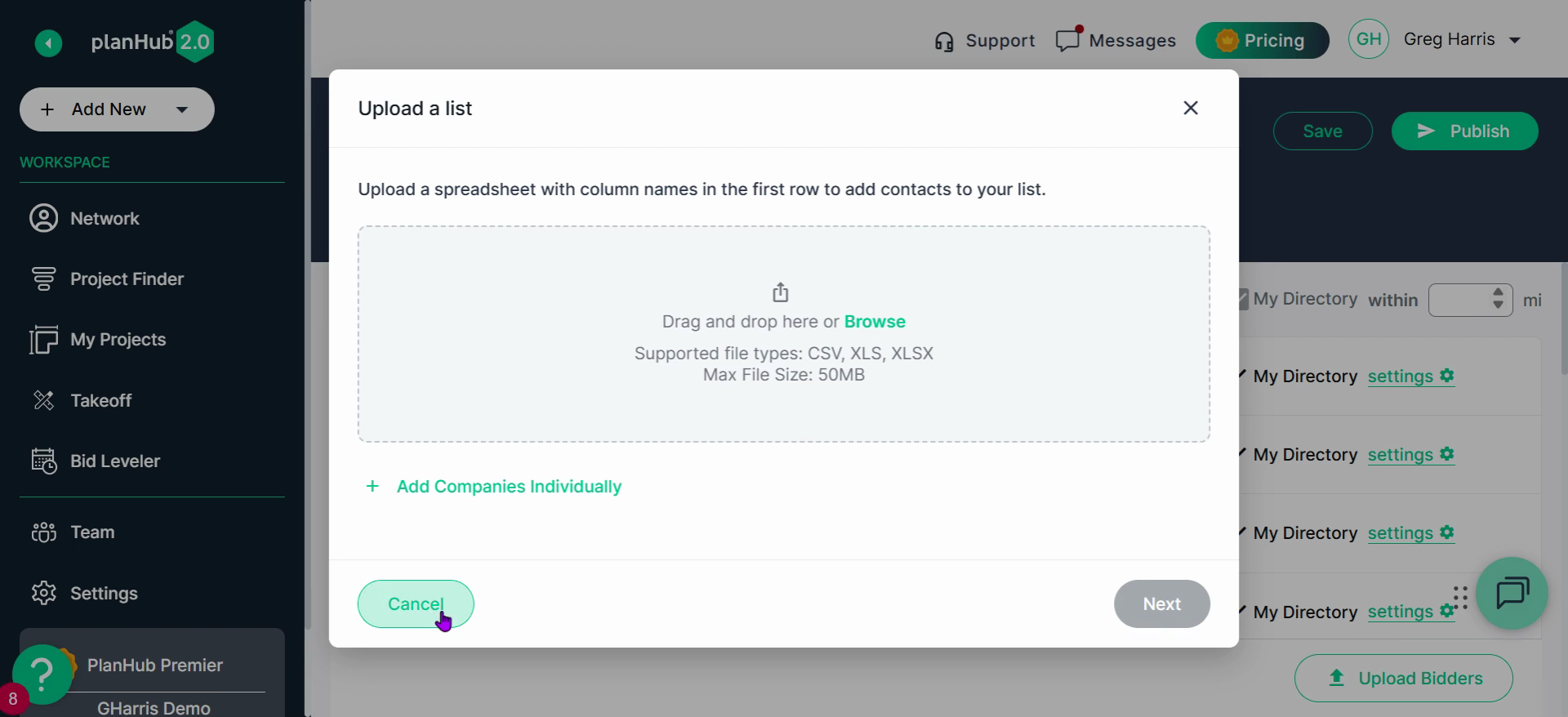
Step 3: When the upload window appears, decide if you want to add contacts individually or upload multiple contacts at once.
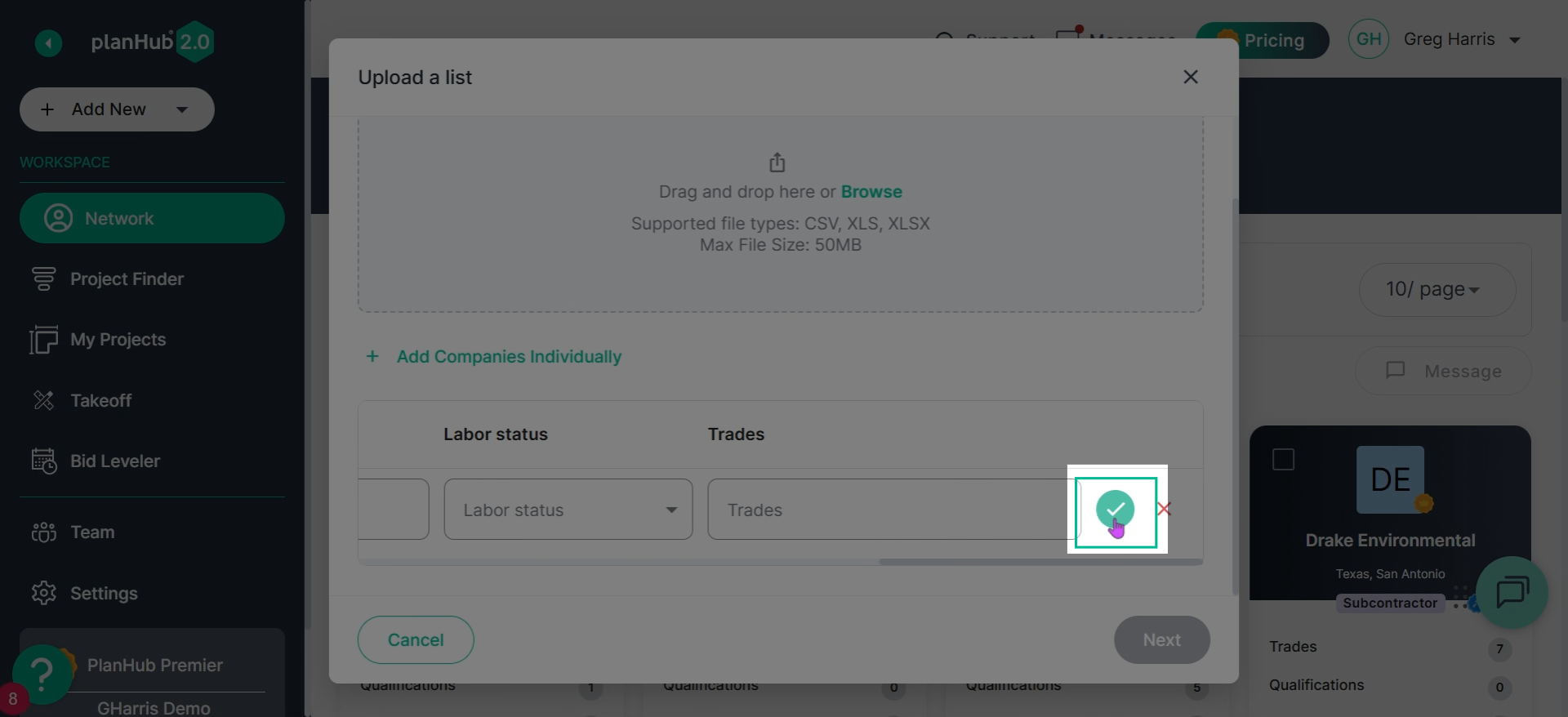
- For individual entries, click Add Companies and fill in all fields. Email is required.
Step 4: Click the green checkmark and then select Next when you're done.
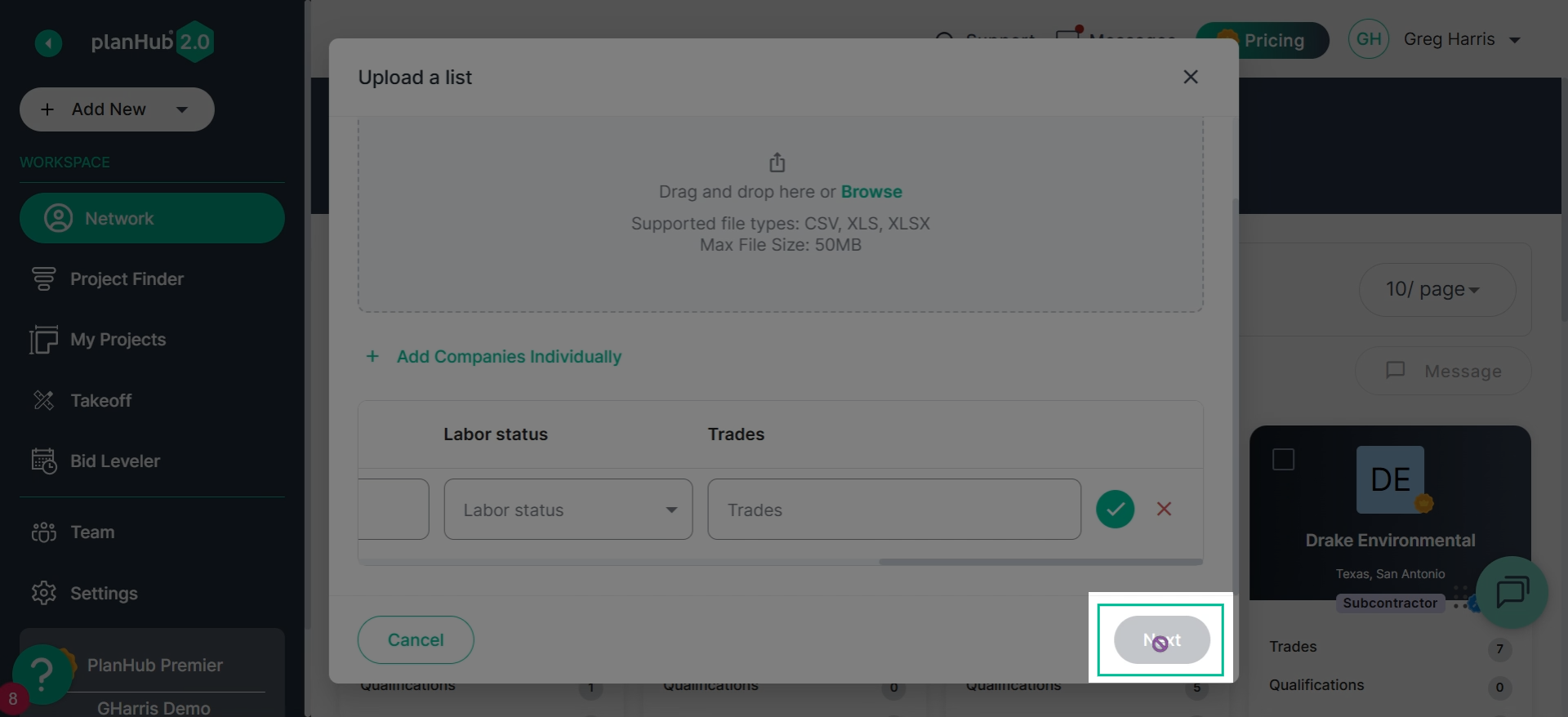
Step 5: To upload in bulk, drag and drop your file into the upload window or click Browse to select your file. Click Next after uploading.
You can also add companies and contacts in your Network tab directory.
Step 1: Go to Network.

Step 2: Open your Directory.
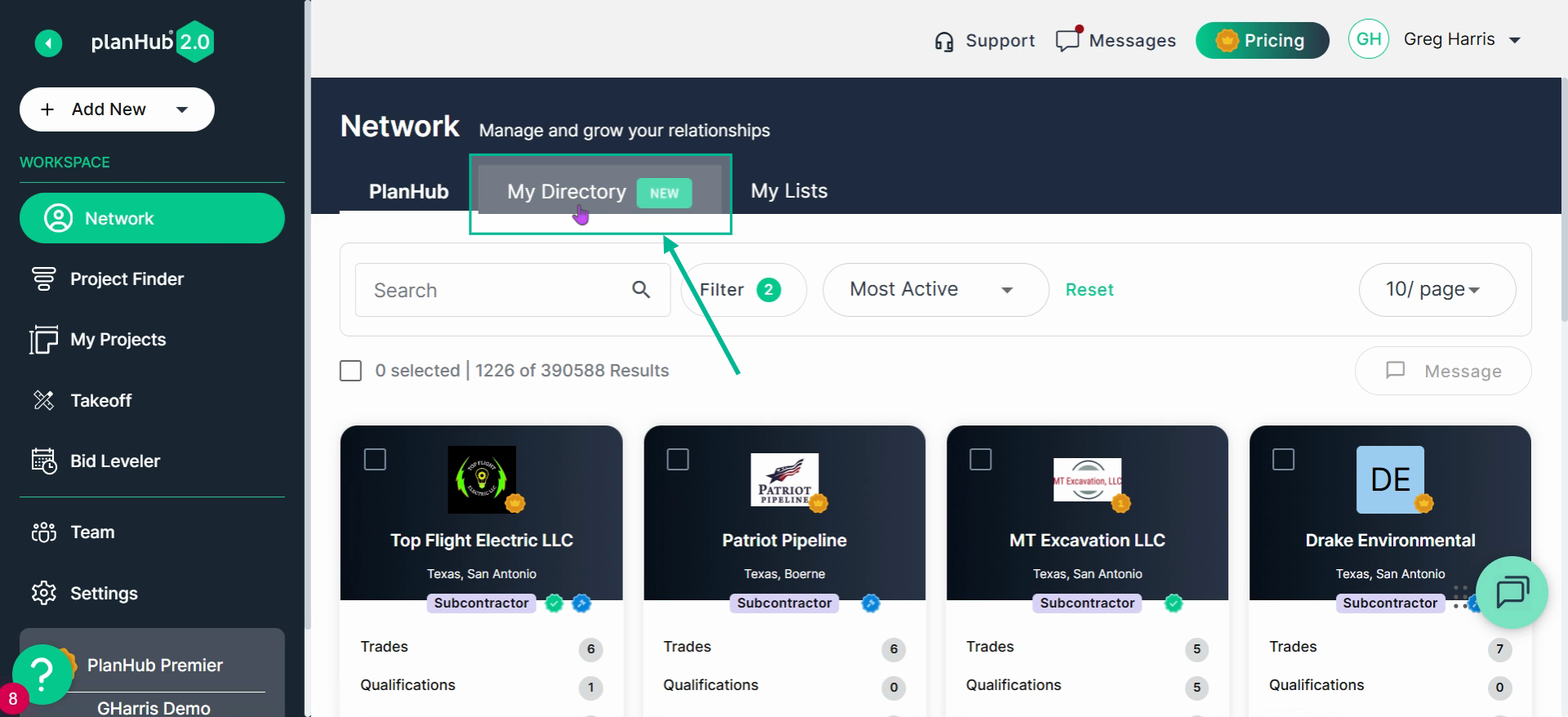
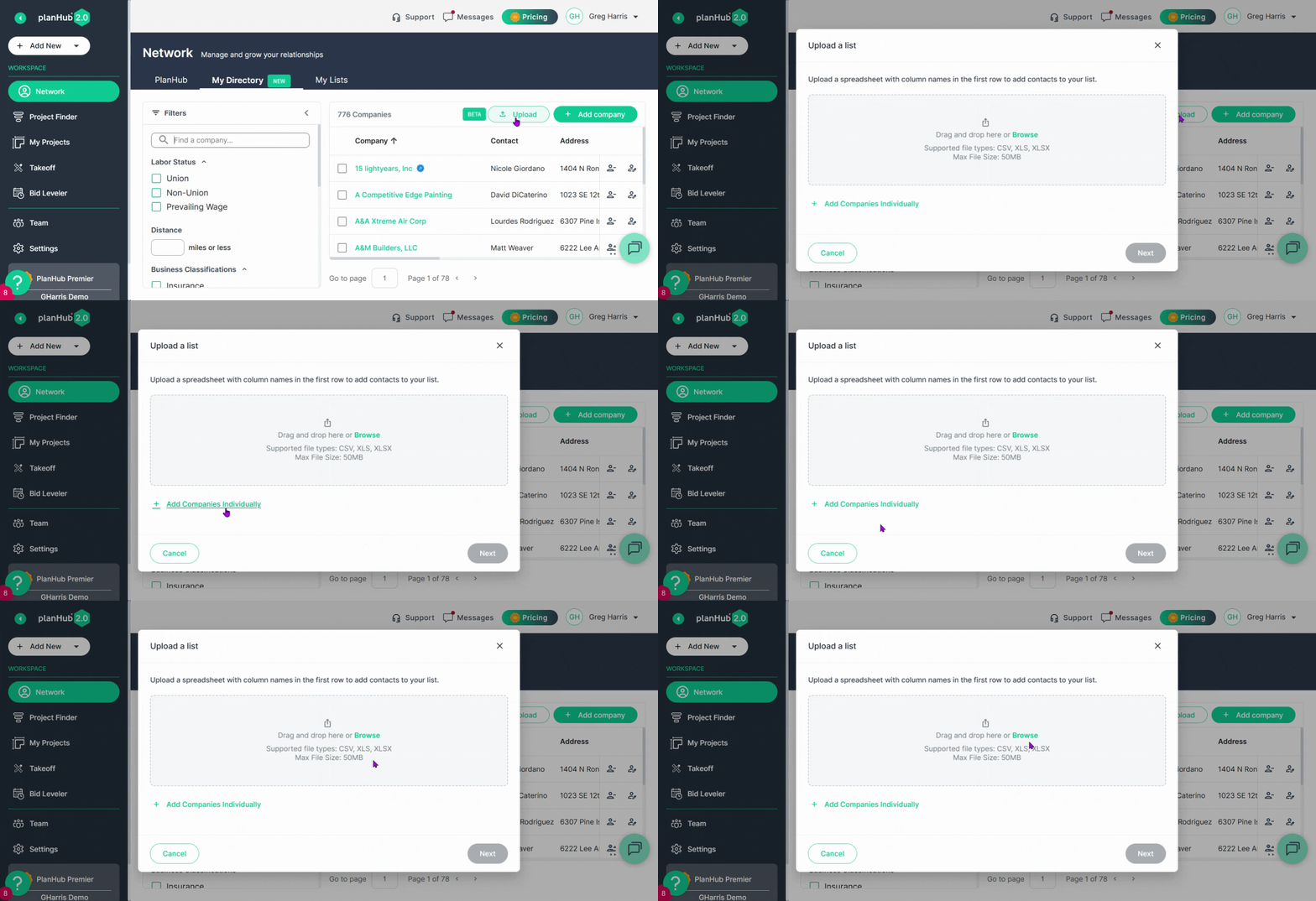
Step 3: Click Upload to bring up the same options as before. Add contacts individually, drag and drop a file, or browse for a bulk upload. Follow the same steps.
The third place is during step four of posting a project.
Step 1: Go to your project and start the posting process.
Step 2: In Step 4: Bidders, look for the Upload Bidders option at the bottom of the window.
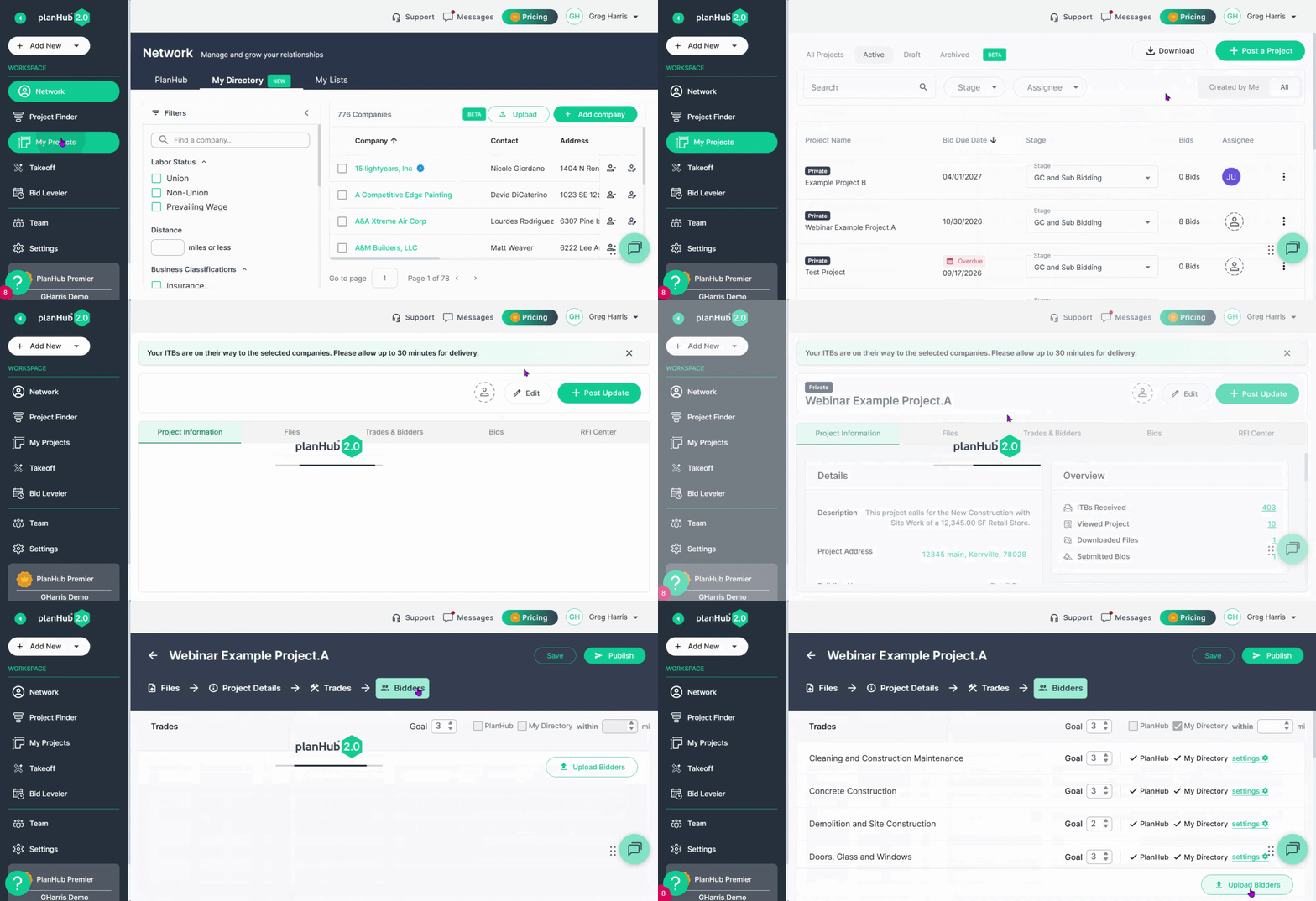
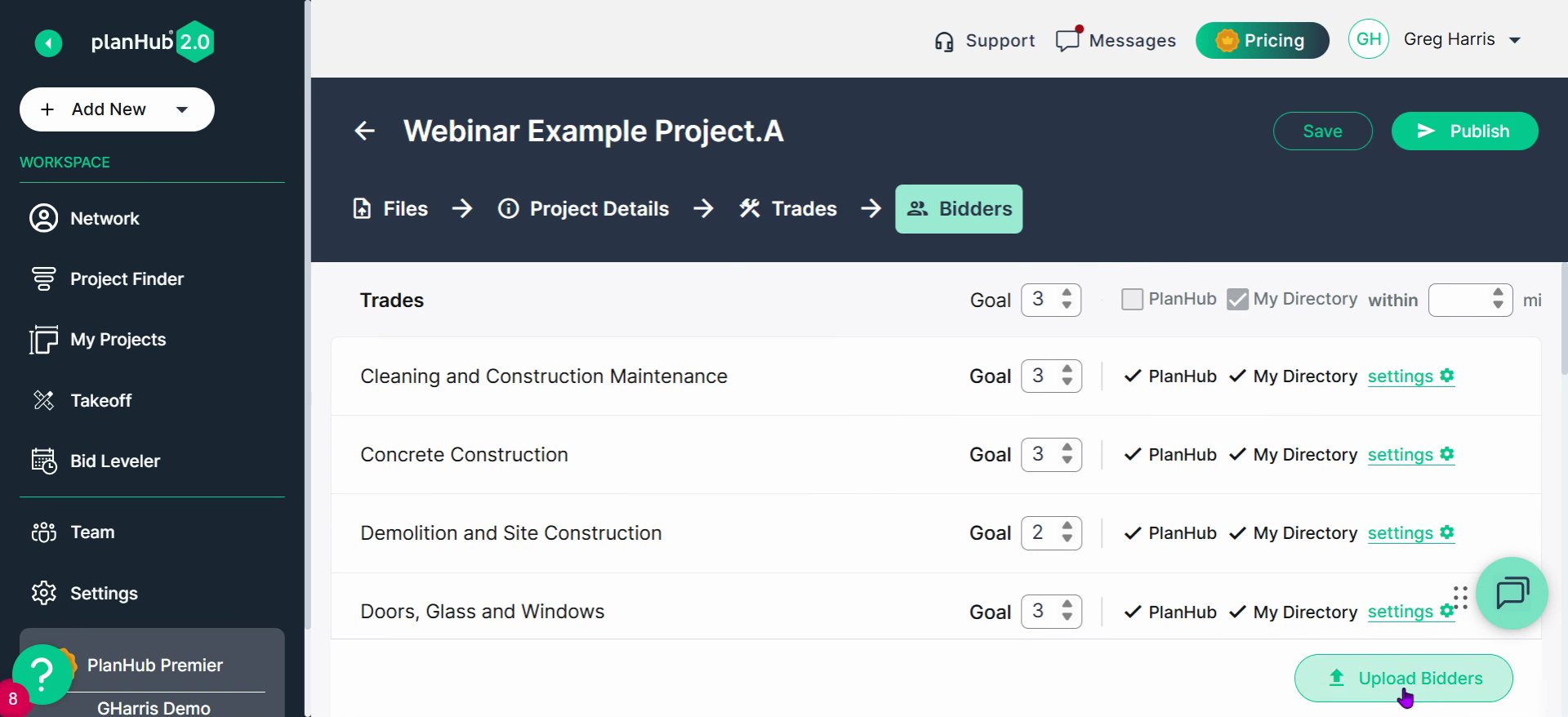
Step 3: Click Upload Bidders and you'll see the upload window. Again, add contacts individually or upload in bulk as shown previously.
Adding contacts and companies is quick and flexible. Enter details individually or upload in bulk from any of these three locations: Add New, your Network tab, or the project Bidders step. Don't forget—email is always required for each entry.
Troubleshooting
Contact us if you need assistance or to report an issue:
- PlanHub Contact Page: https://planhub.com/contact/
- Customer Facing Support Ticket Link: https://knowledgebase.planhub.com/knowledge/kb-tickets/new