![NEW_PlanHub_Logo_Navy.png]](https://knowledgebase.planhub.com/hs-fs/hubfs/Design/PH%20Logos/NEW%202024%20PH%20Logos/NEW_PlanHub_Logo_Navy.png?height=40&name=NEW_PlanHub_Logo_Navy.png)
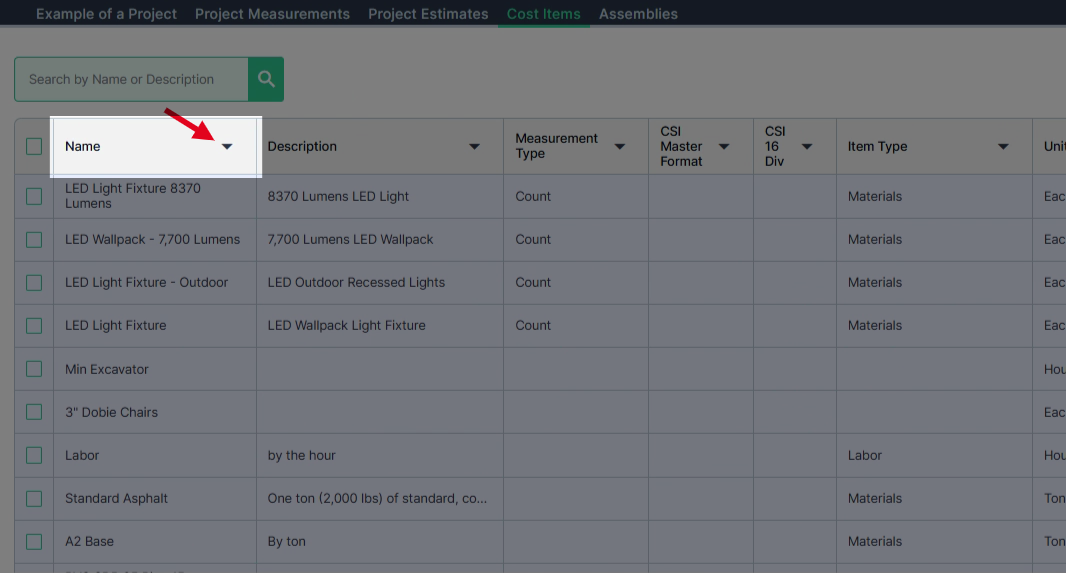
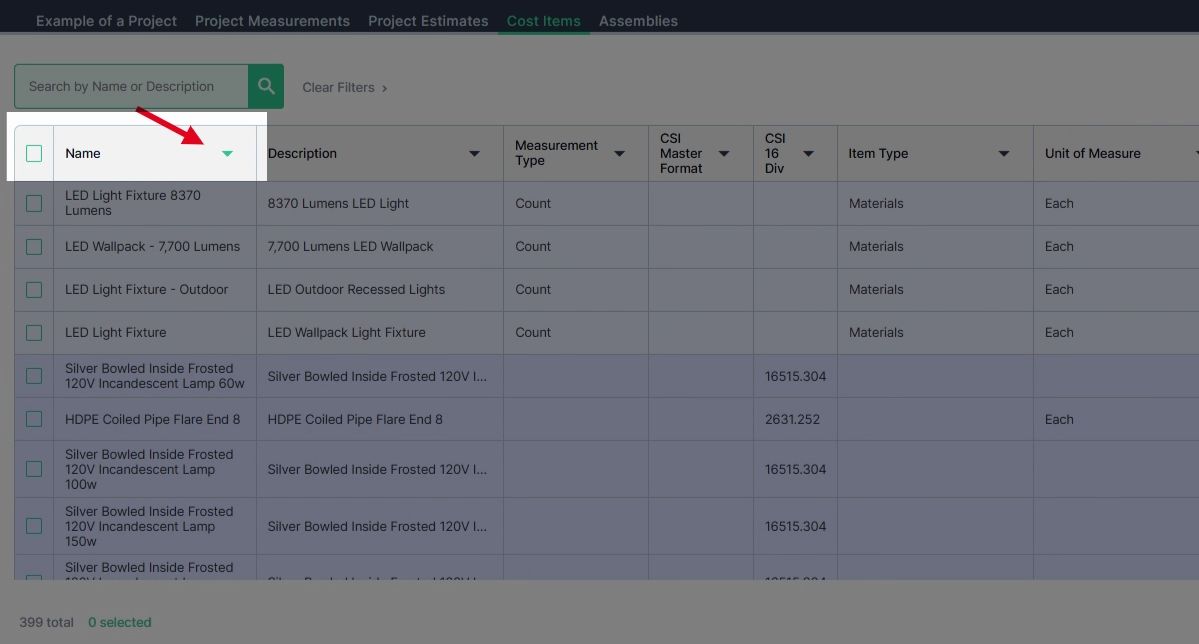
Step 1: Click the drop-down arrow next to the Name column header.
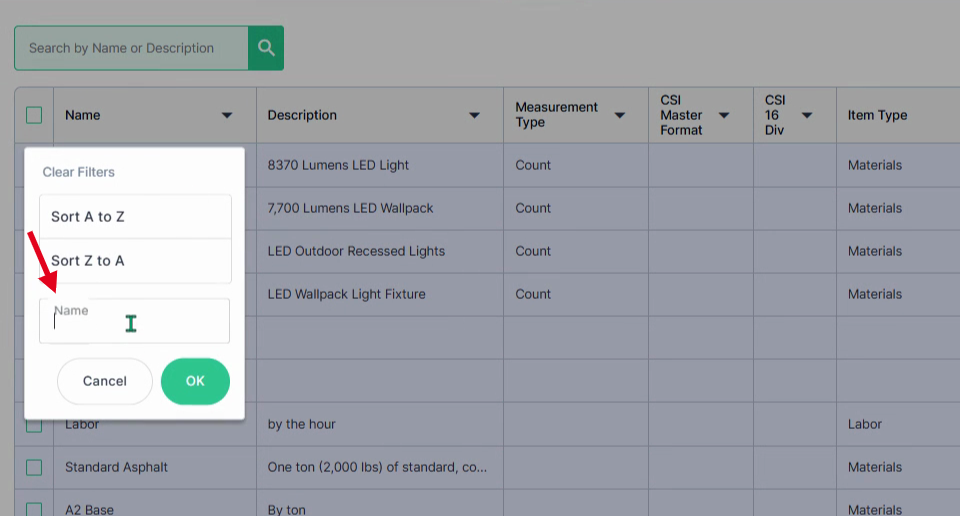
Step 2: Click into the Name field from the drop down menu.
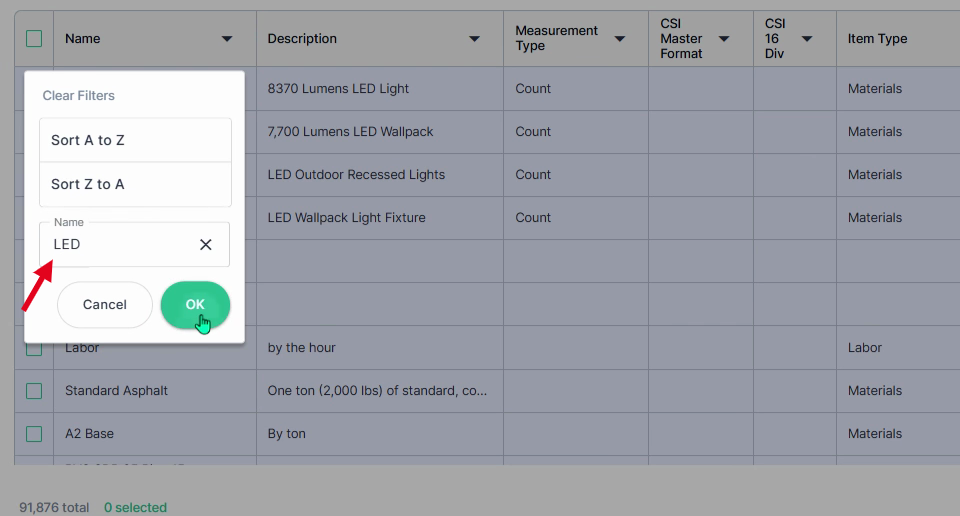
Step 3: Type in your keyword, for example: “LED” and then click OK.
Now, only cost items with “LED” in the name are visible.
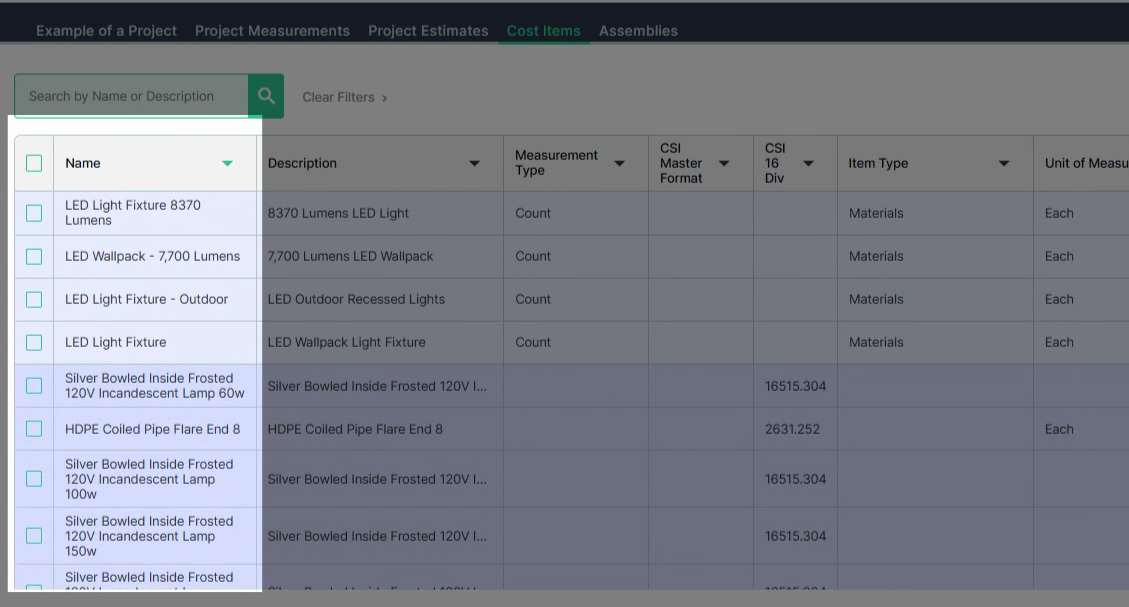
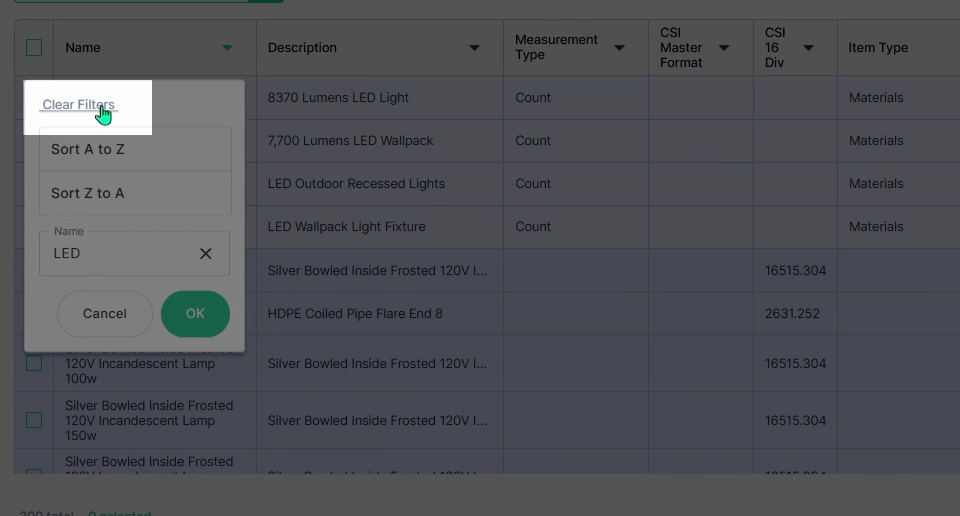
Step 4: To remove the filter, click the drop-down arrow next to the Name column header.
Step 5: Click on the Clear Filters option to clear the current filter.
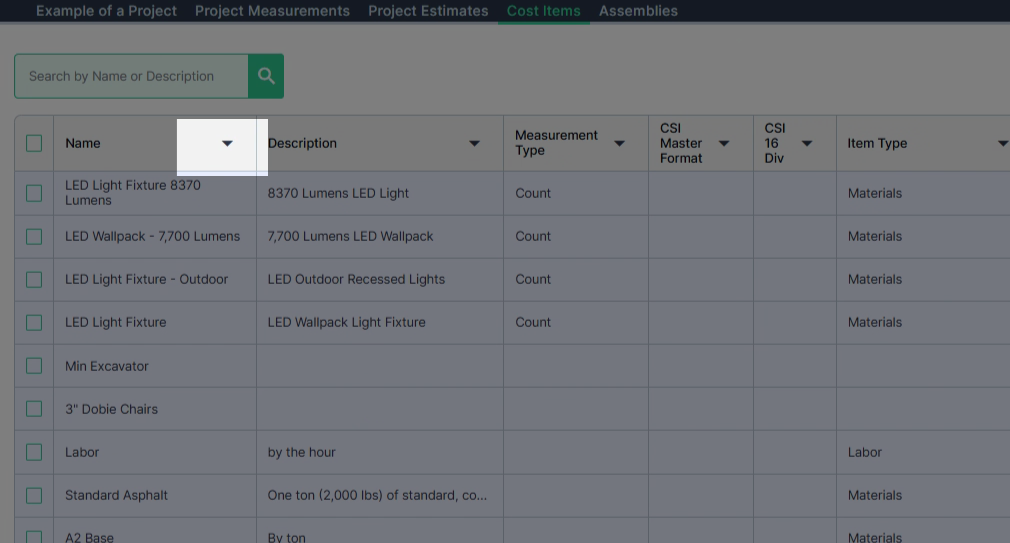
Step 6: To sort by a column, click the filter arrow next to the column name.
Step 7: Click on Sort A to Z and then click OK.
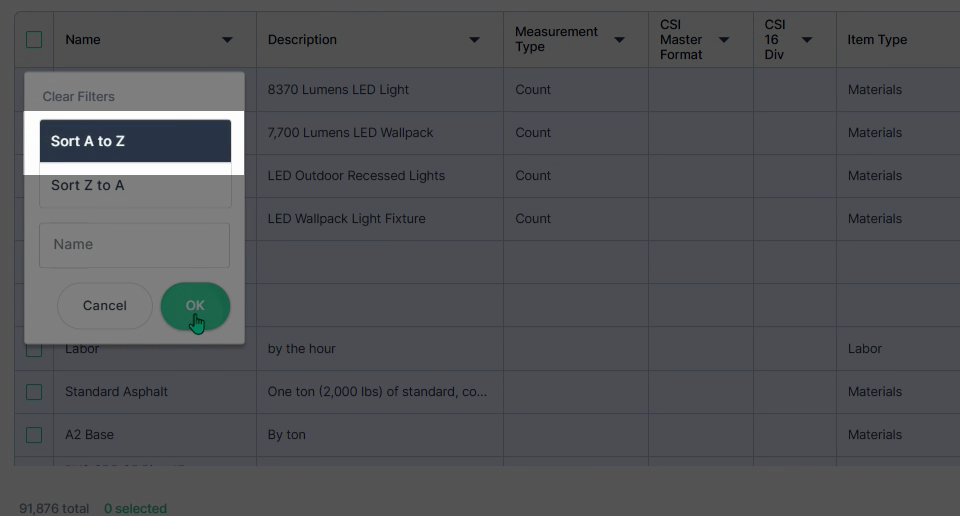
Step 8: View the cost items listed that are now sorted alphabetically by name.
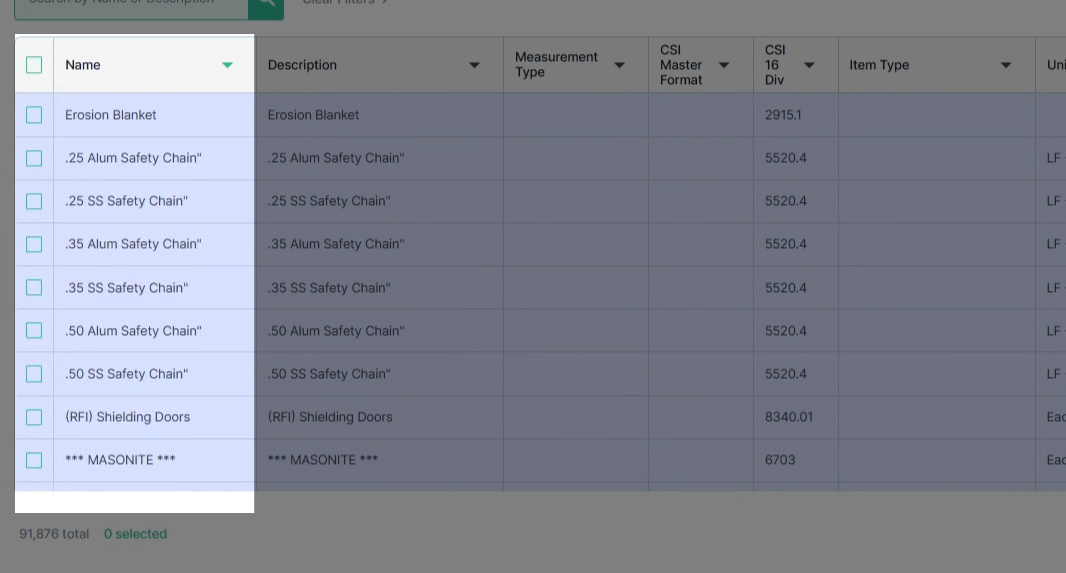
Searching for a Cost Item using the Keyword Search Bar
If you’re looking for a specific cost item by name or description, use the keyword search box.
Step 1: Click into the Search by name or description keyword search bar.
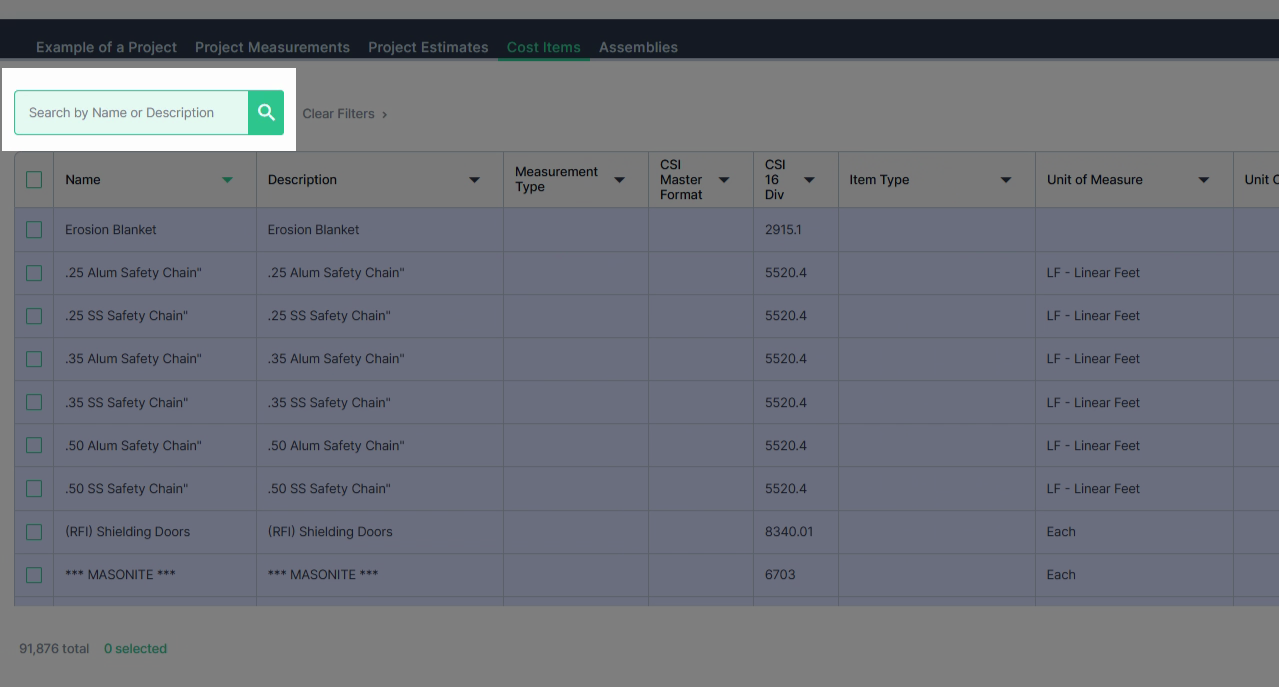
Step 2: Type in a keyword, for example: “LED”—and then press Enter on your keyboard or click on the Magnifying glass to search.
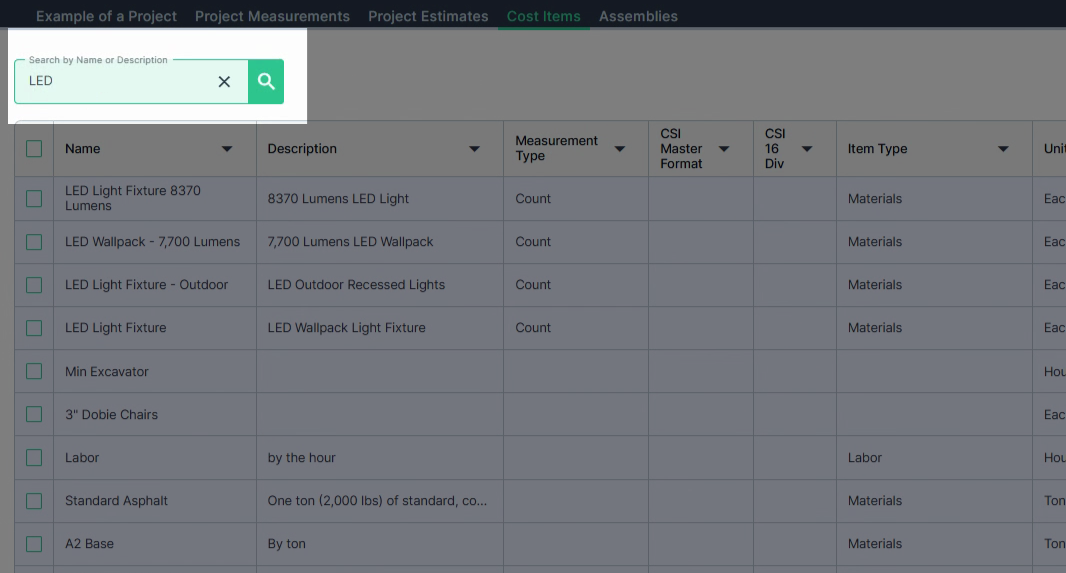
Step 3: View the cost items listed with your keyword in the name column.
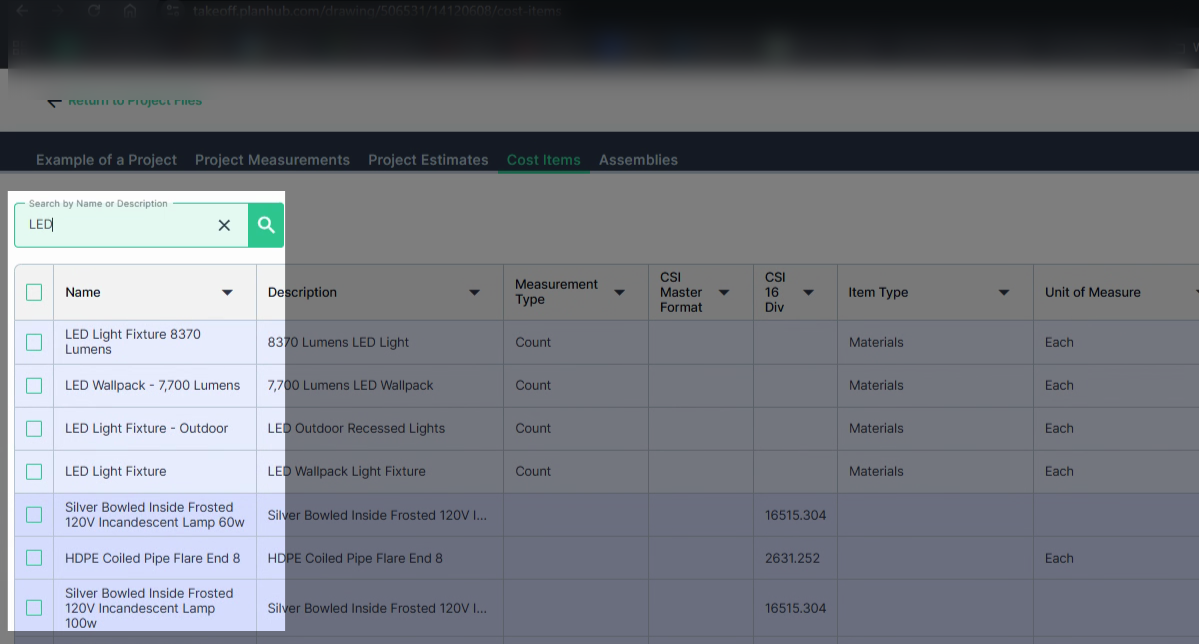
By using column filters, sorting options, and keyword search, you can streamline your workflow and focus on the most relevant cost data with ease.