![NEW_PlanHub_Logo_Navy.png]](https://knowledgebase.planhub.com/hs-fs/hubfs/Design/PH%20Logos/NEW%202024%20PH%20Logos/NEW_PlanHub_Logo_Navy.png?height=40&name=NEW_PlanHub_Logo_Navy.png)
Step 1: Draw dimension lines that can be used to define beginning and endpoints. Click Markup then Ruler from the Toolbar. Left click to begin then again to stop drawing a line.
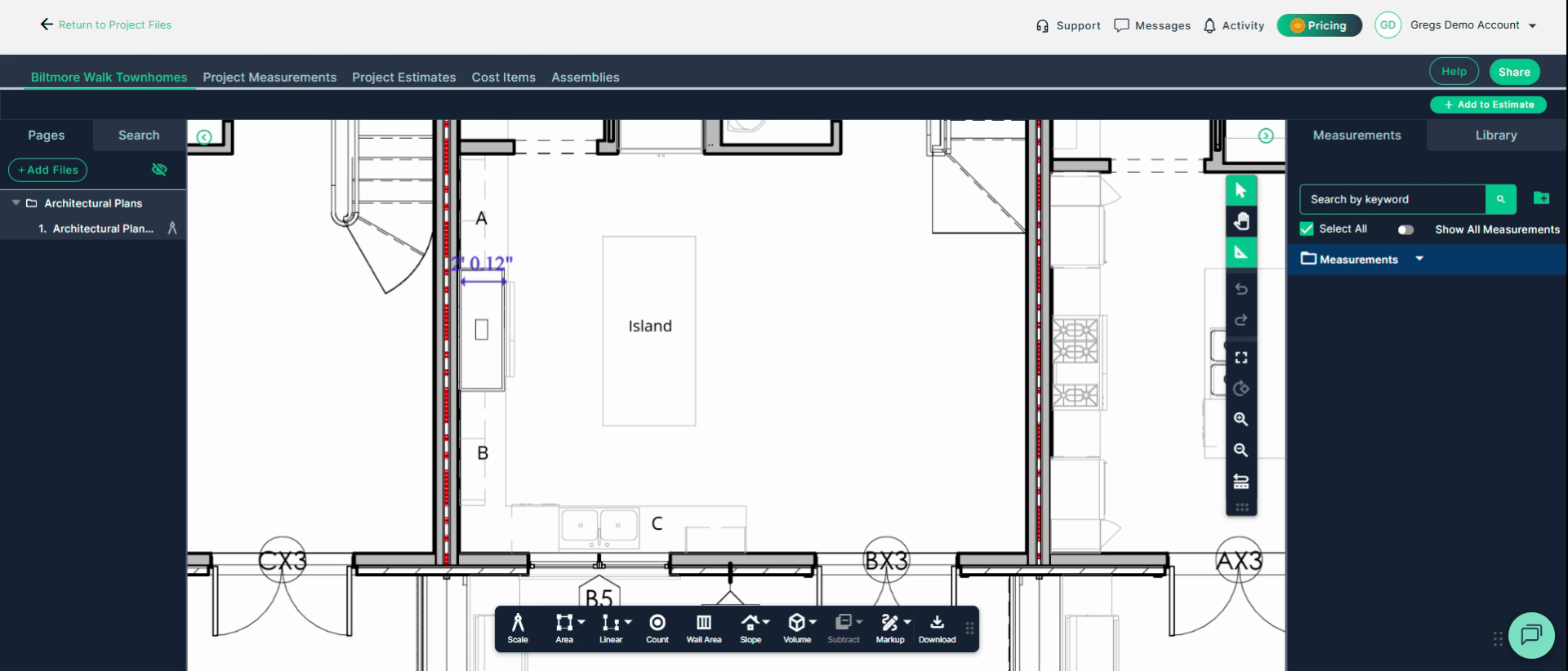
Step 2: Create a new folder to keep your cabinet and countertop measurements organized.
Click the Add Folder Button next to the Search bar.
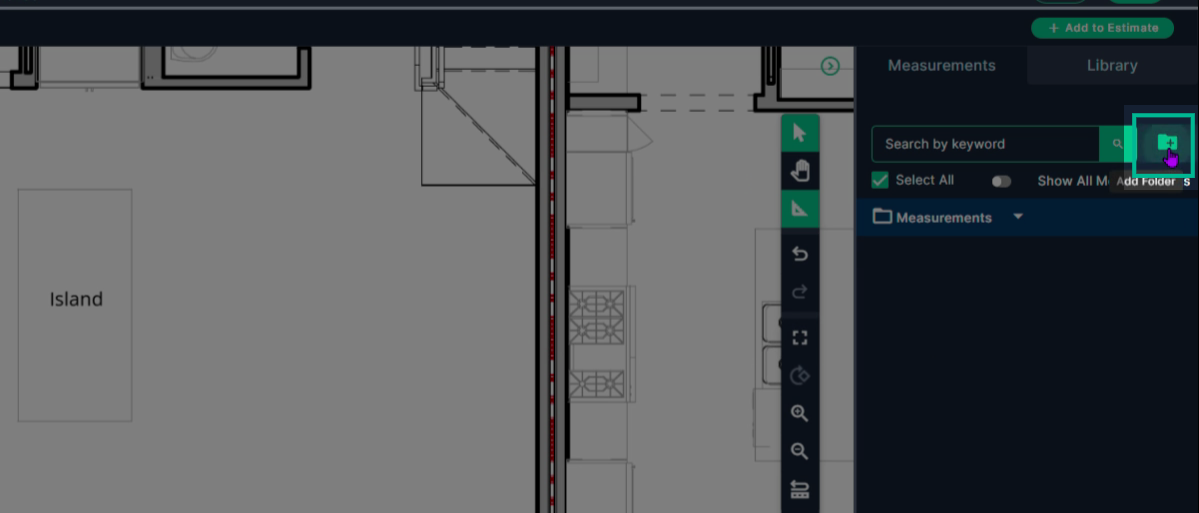
Right Click to rename the folder.
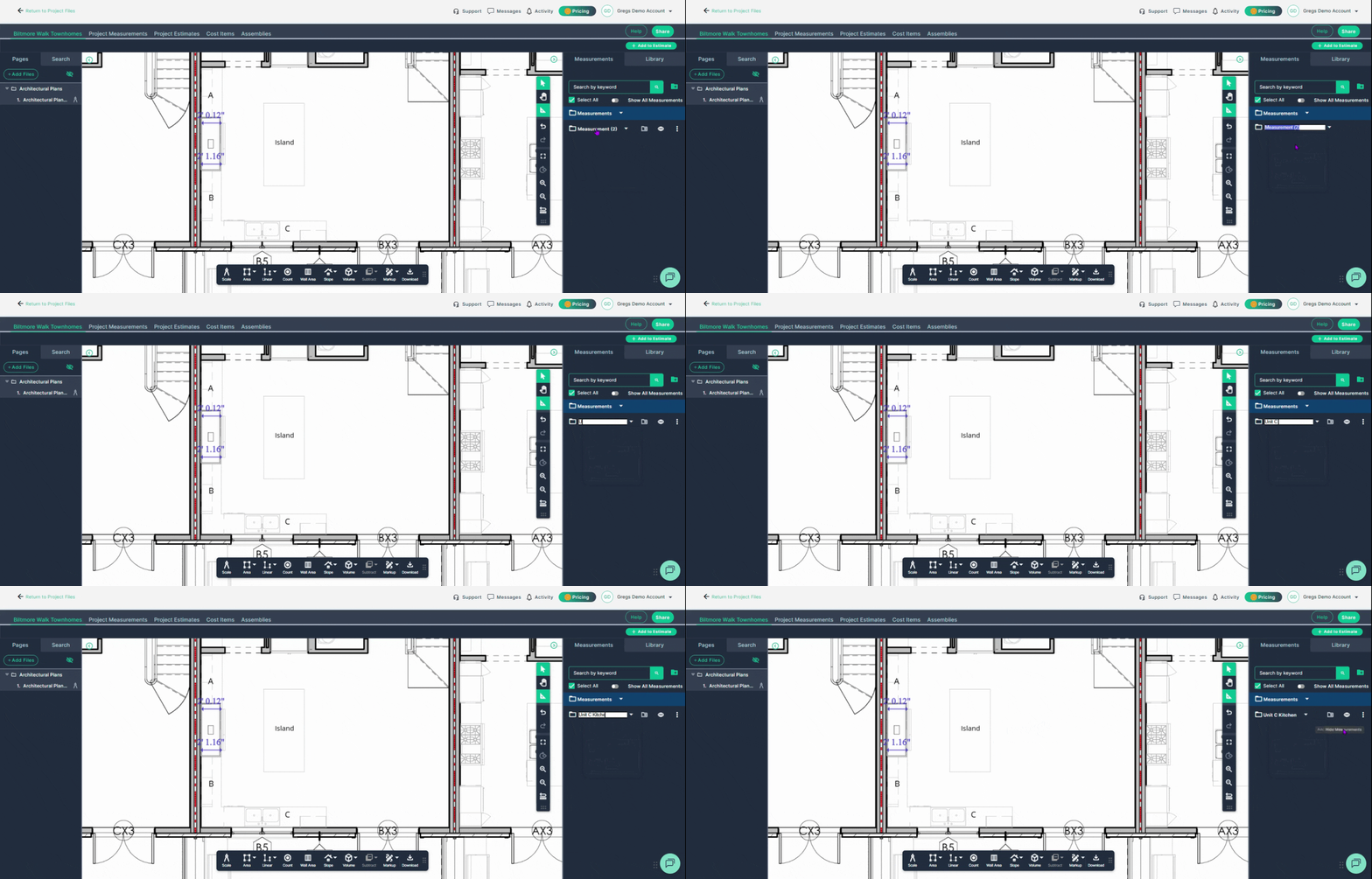
Step 3: Select your measurement folder, then click Linear to start a new measurement segment.
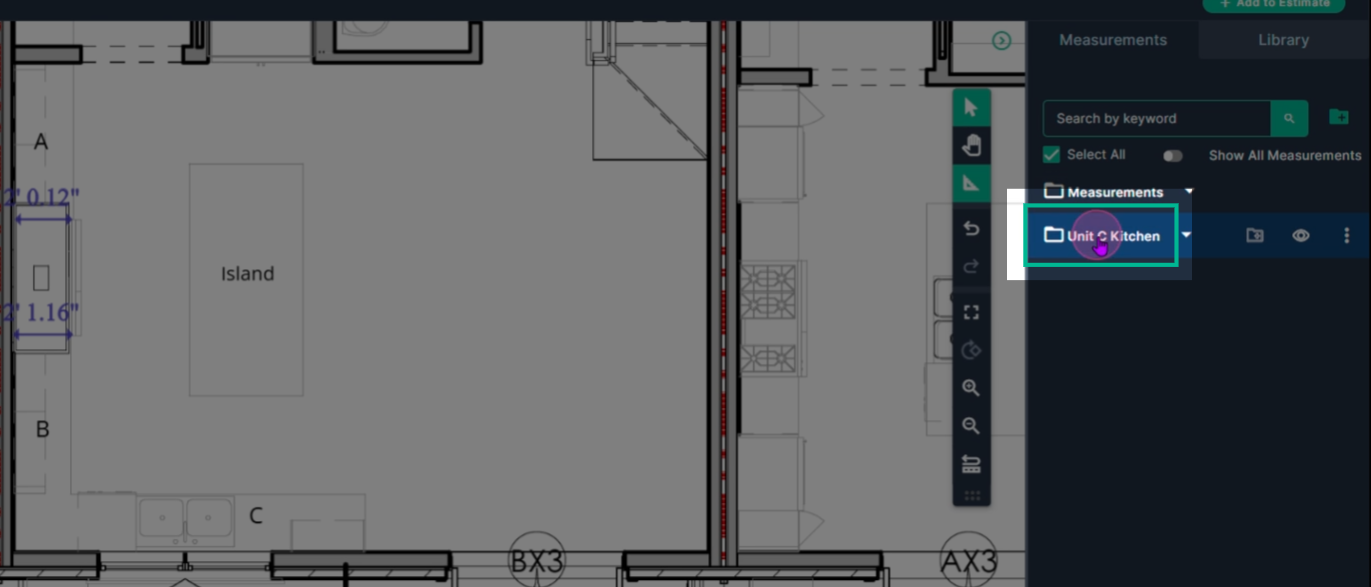
On the toolbar, click Linear then Segment.
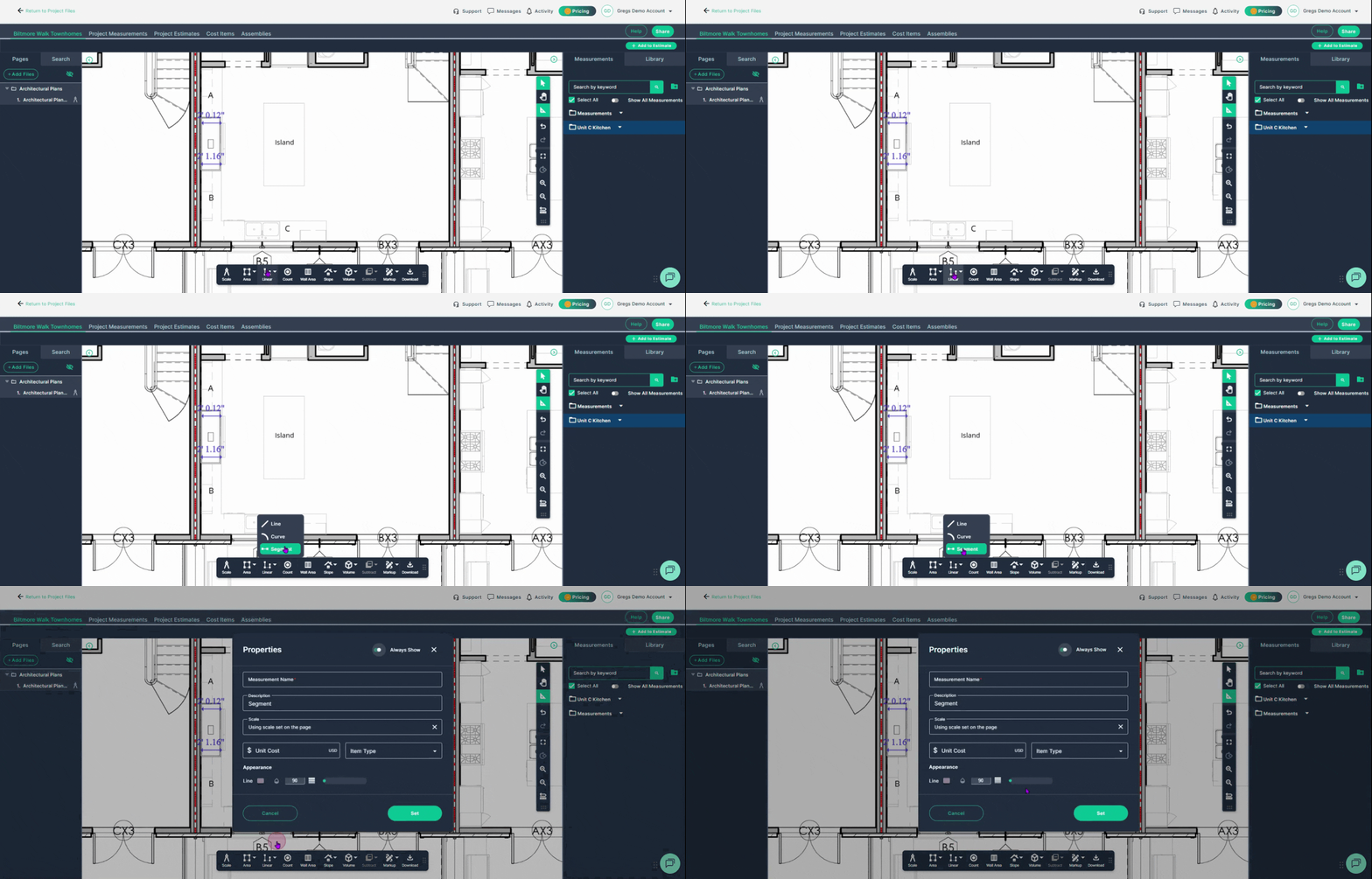
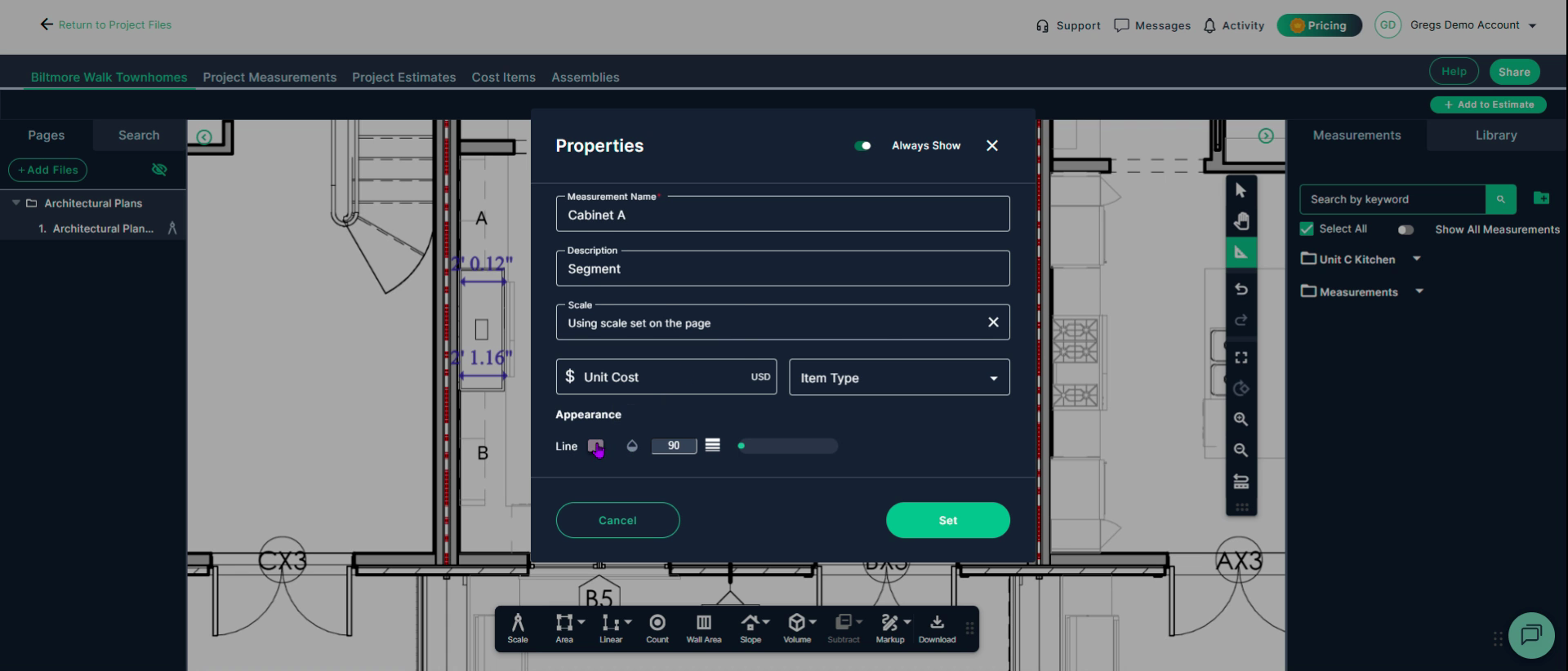
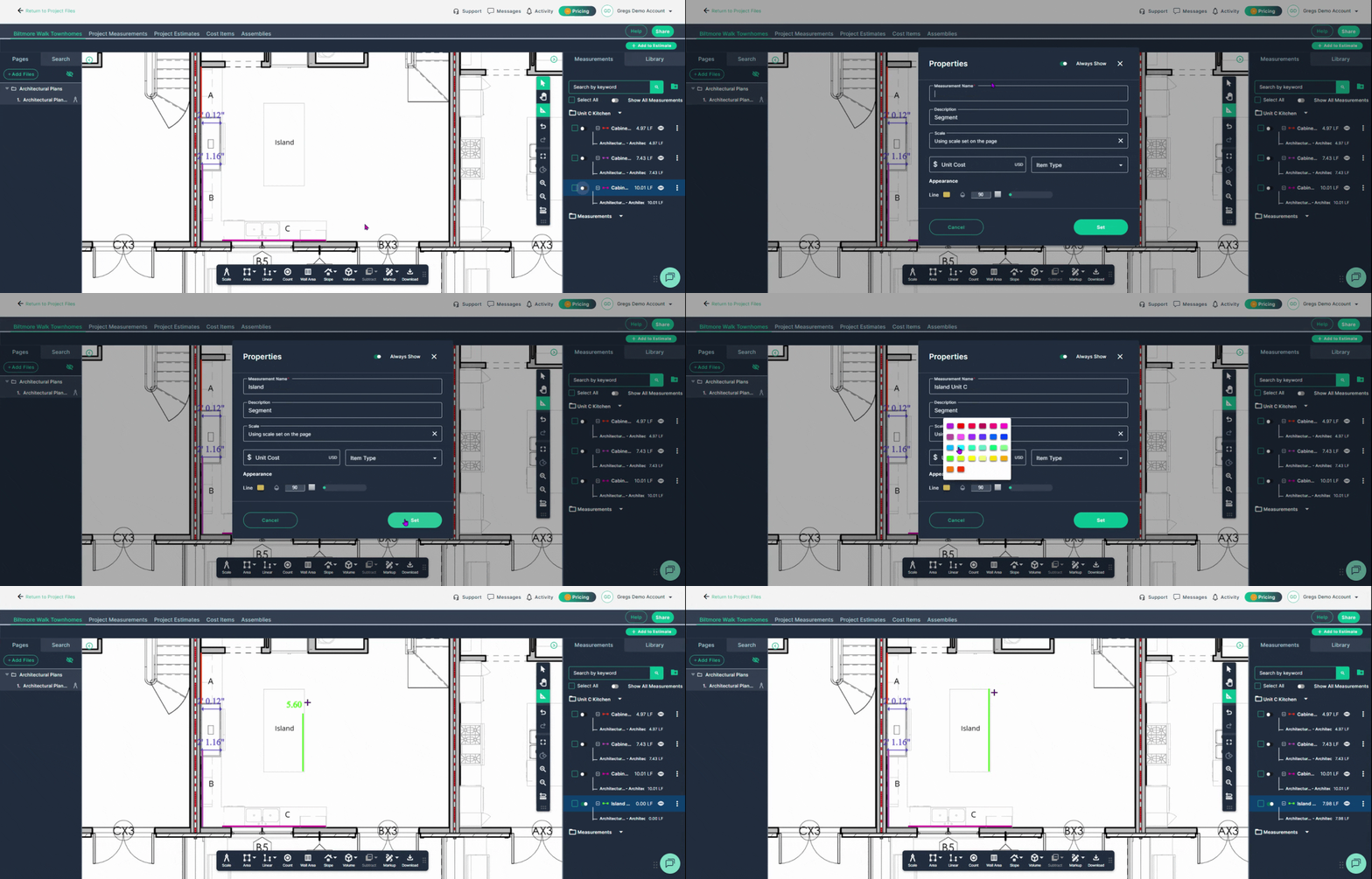
Step 4: Give the measurement a clear name—like Cabinet A—so you can easily identify it later in your results table.
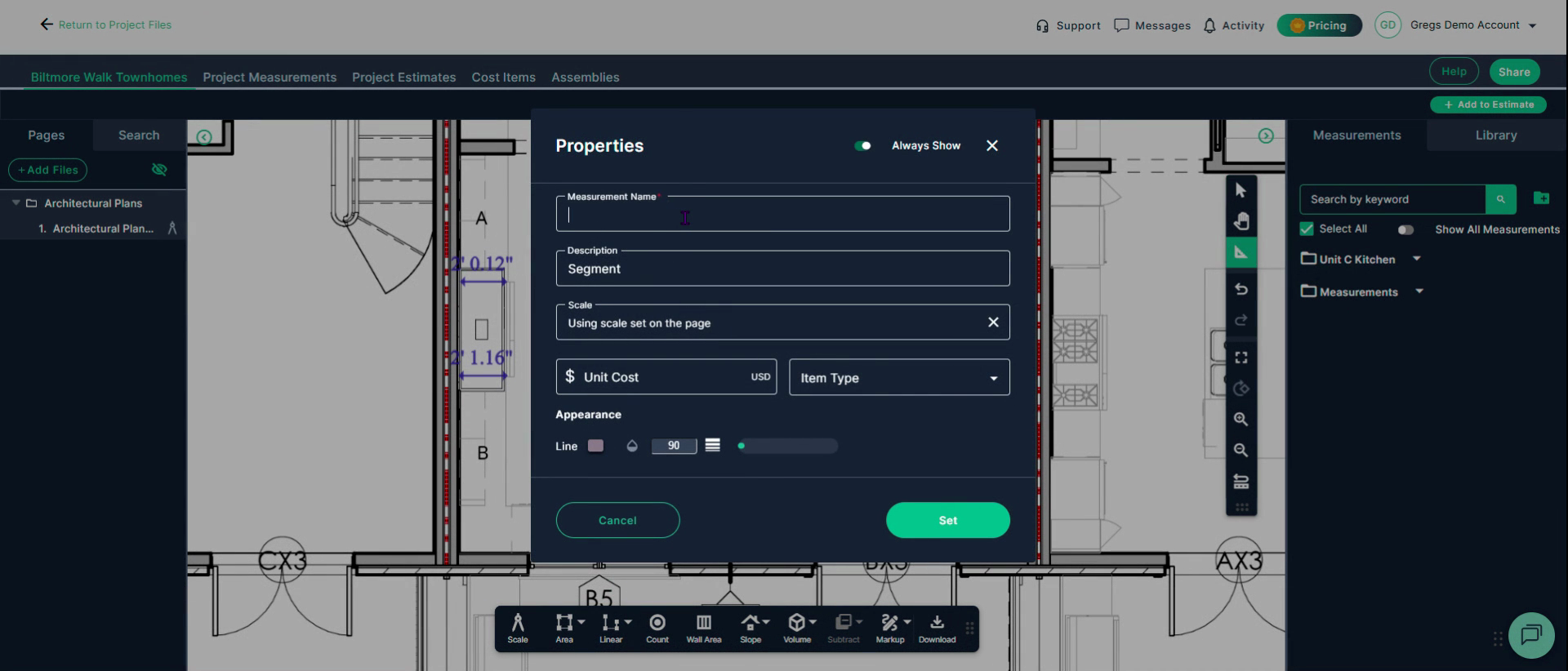
Set properties as needed (such as line color and thickness.)
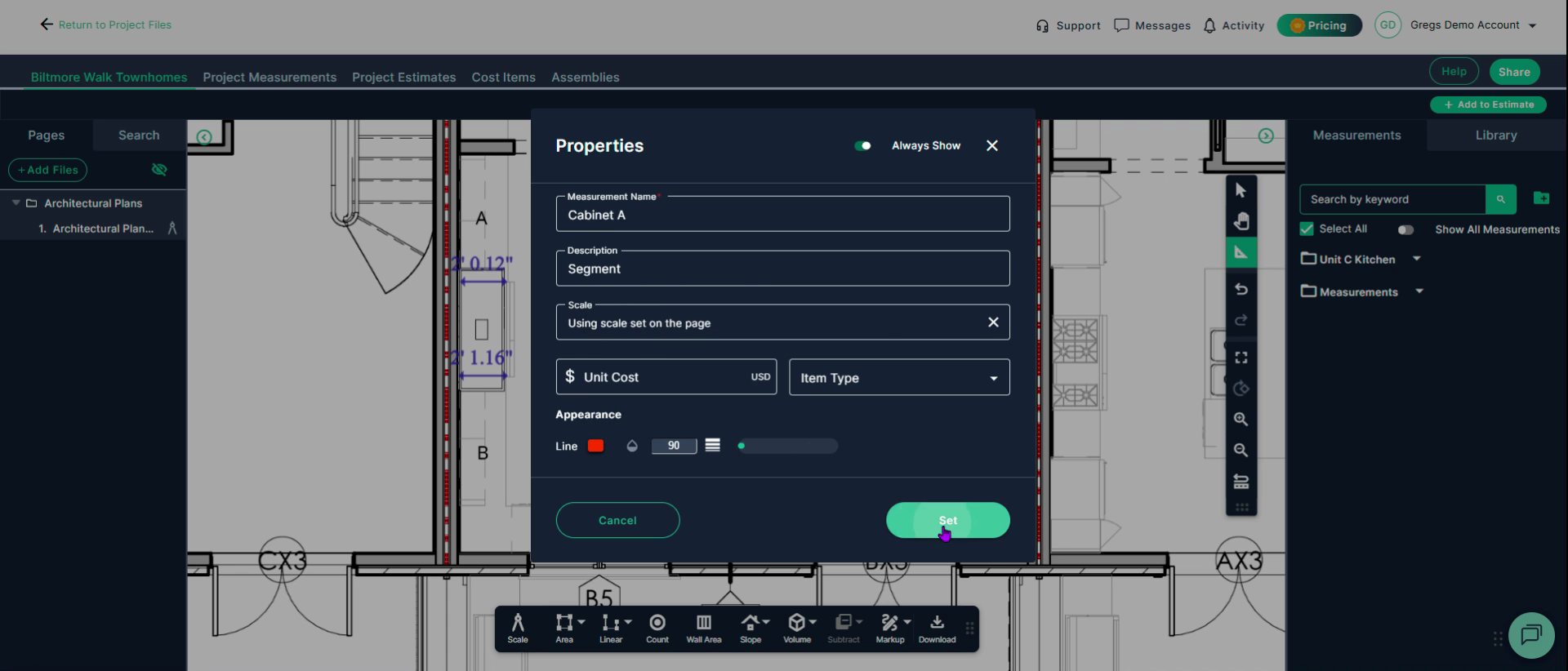
Click Set to confirm your measurement details.
Turn off the measurement segment using the Continue/Stop Measuring switch on the right side of the page when you’re done with a particular run.
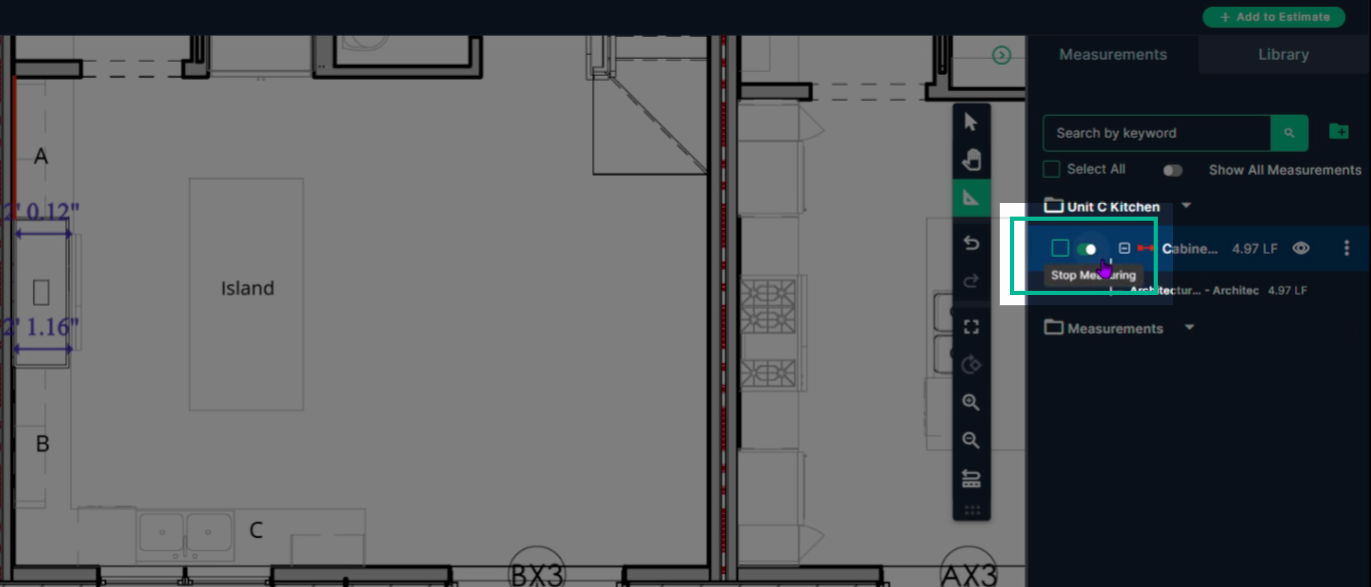
Step 5: Repeat the process for additional linear runs, such as Cabinet B, Cabinet C, or the island, keeping everything grouped neatly in your folder.
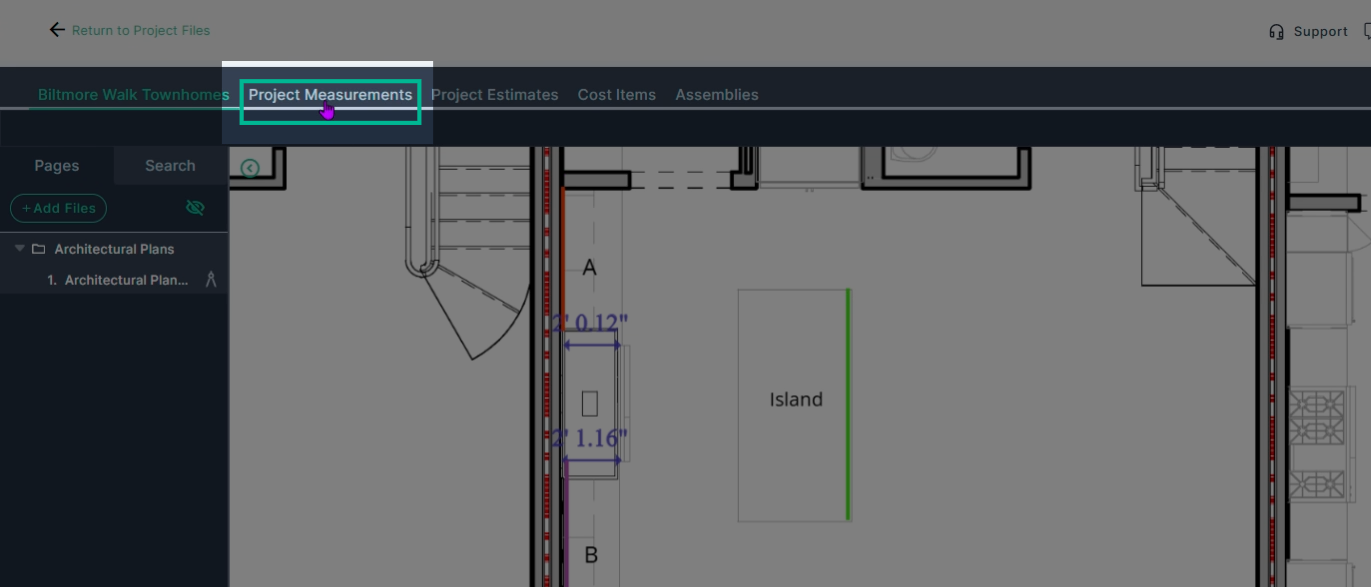
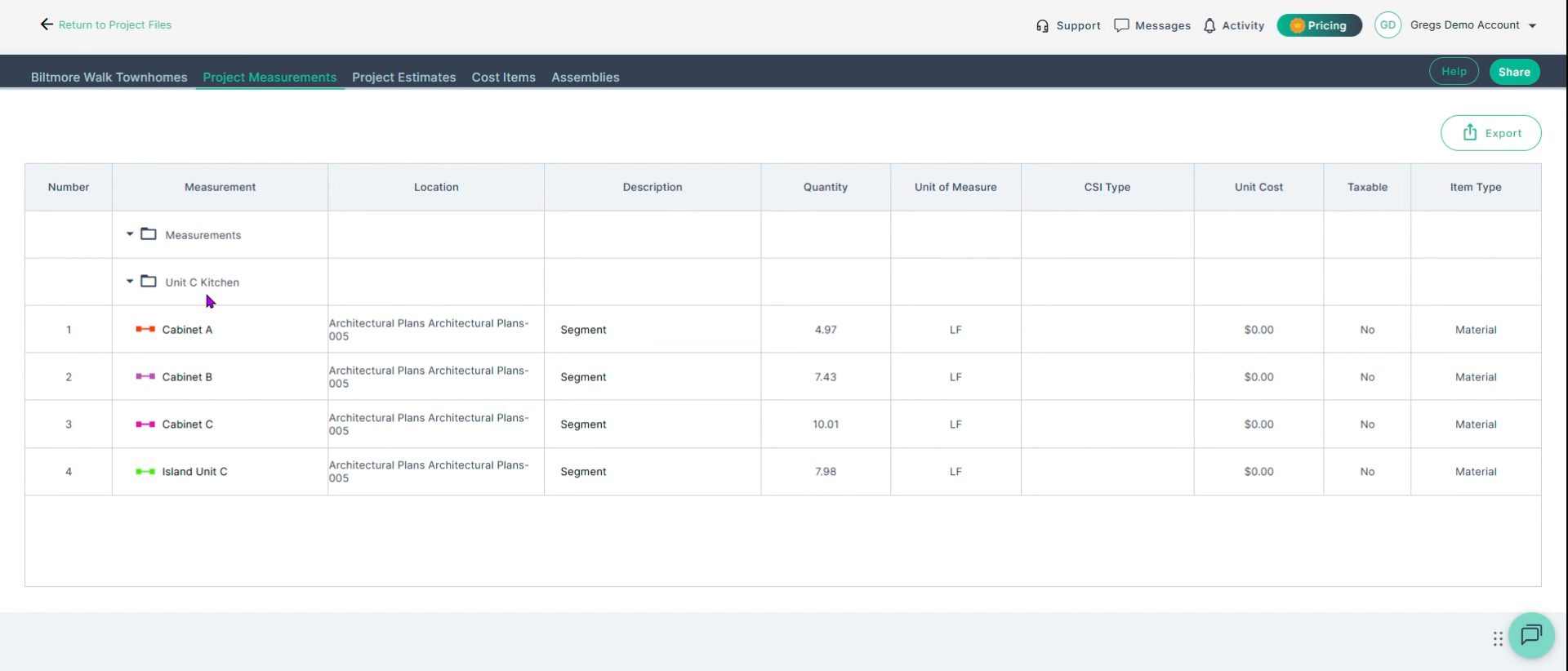
Step 6: Review your completed measurements on the right side of the page, then click the Project Measurements tab at the top of the window to see a table of all your takeoff results.
Measurements are sorted within the folder you created.
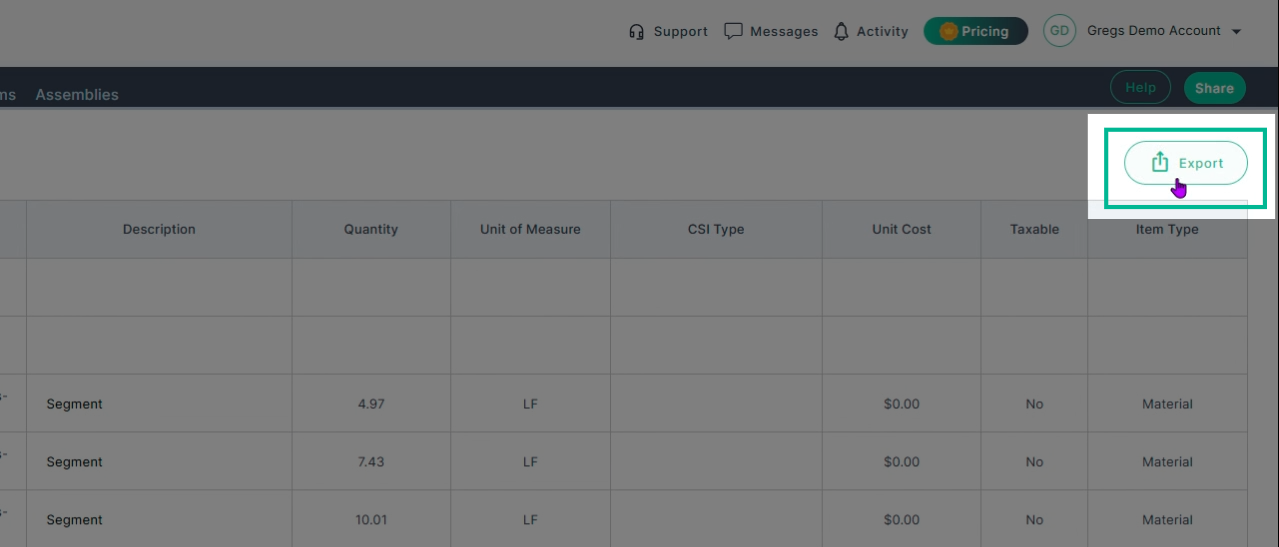
Step 7: Export your results. Click the Export button in the upper right-hand corner to download the takeoff results as a CSV file for easy sharing or import.
PlanHub’s Takeoff tool makes cabinet and countertop measurements quick, organized, and ready to share.
To recap: folders keep every measurement organized, linear segments measure point to point, names and properties identify each takeoff, and the project measurements table exports straight to CSV.
Troubleshooting
Contact us if you need assistance or to report an issue:
- PlanHub Contact Page: https://planhub.com/contact/
- Customer Facing Support Ticket Link: https://knowledgebase.planhub.com/knowledge/kb-tickets/new
- Schedule a Free 1-on-1 Takeoff Training: https://meetings.hubspot.com/zac-low/takeoff-and-estimation