![NEW_PlanHub_Logo_Navy.png]](https://knowledgebase.planhub.com/hs-fs/hubfs/Design/PH%20Logos/NEW%202024%20PH%20Logos/NEW_PlanHub_Logo_Navy.png?height=40&name=NEW_PlanHub_Logo_Navy.png)
Winning more jobs with PlanHub isn’t just about having the lowest price—it’s about presenting a clear, complete proposal that stands out. General contractors want bids that show you’ve done your homework and make decisions easy. PlanHub offers two tools for submitting your bid: Quick Bid and Bid Builder.
Quick Bid
Quick Bid lets you upload your own prepared bid documents, making it easy to use your company’s template and branding.
Step 1: Prepare your bid proposal documents and sign in to PlanHub.
Step 2: Go to the project you’re bidding on.
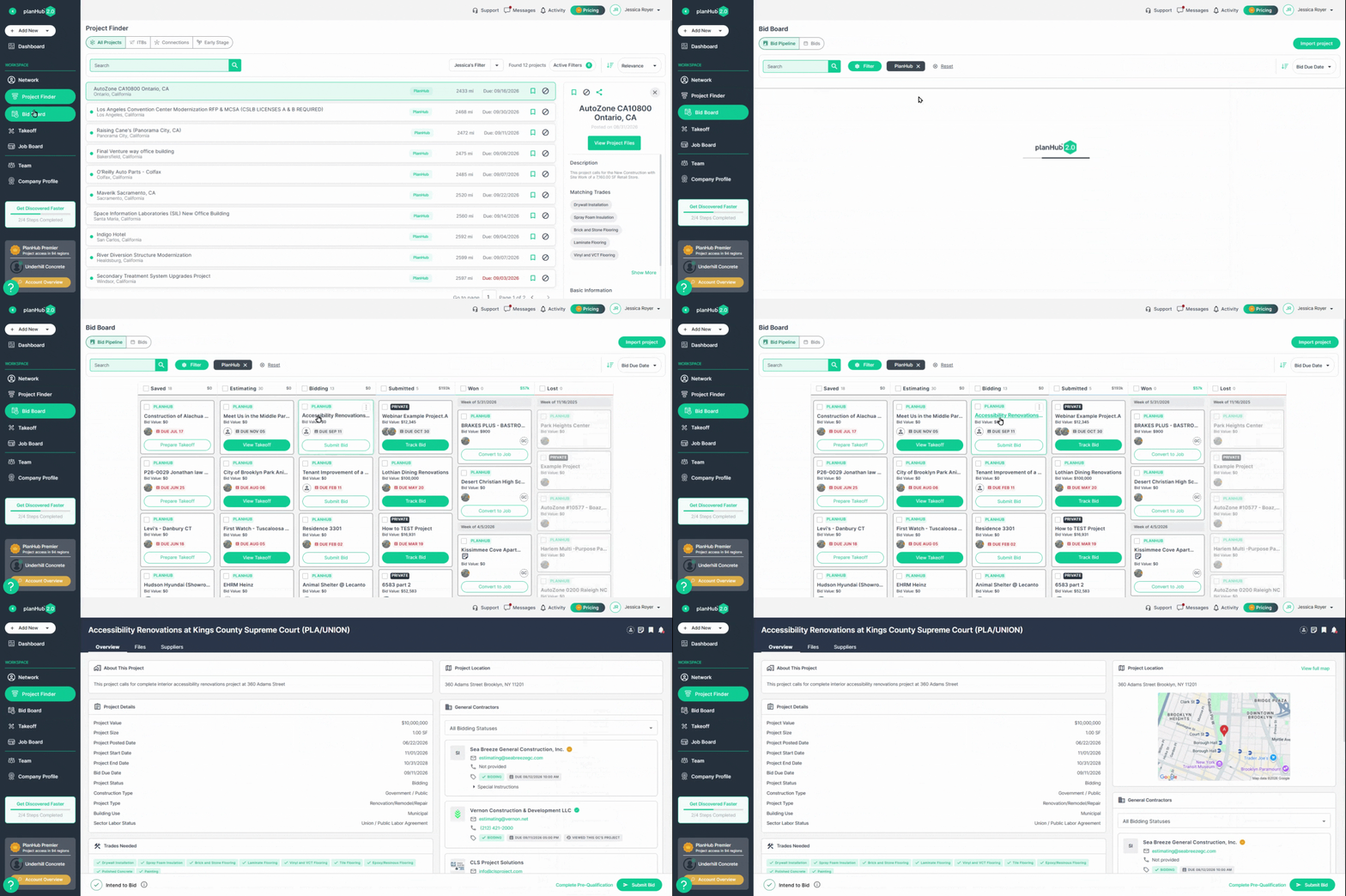
Step 3: On the Project Page, click the Submit Bid button at the bottom right.
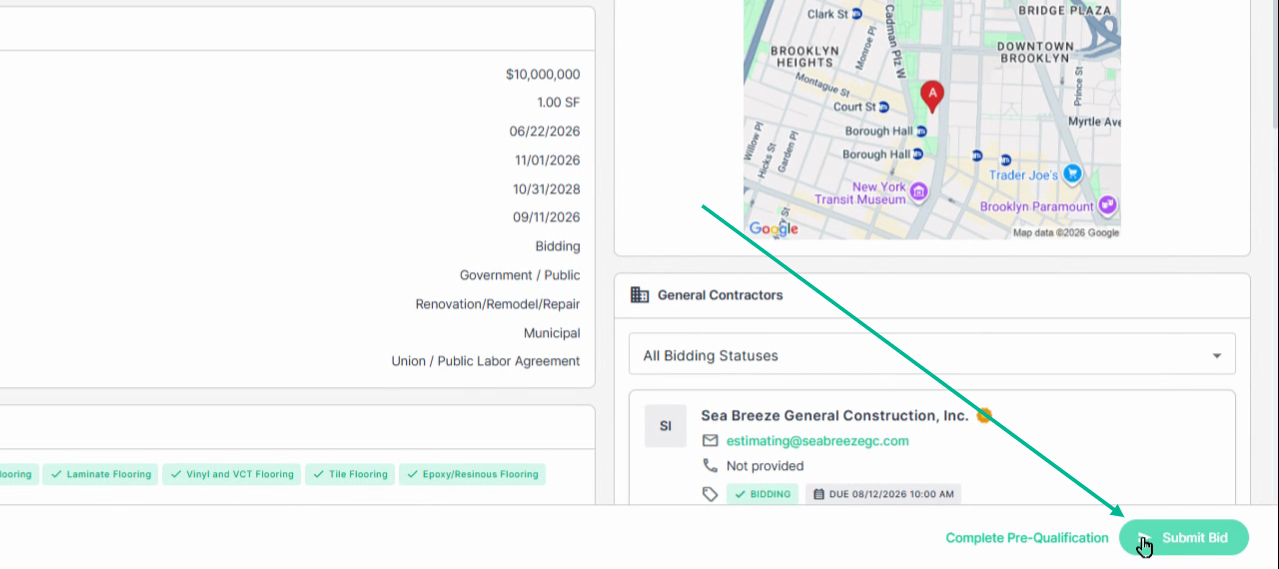
Step 4: In the pop-up, search and select your trade by typing in the Bid Trade field.
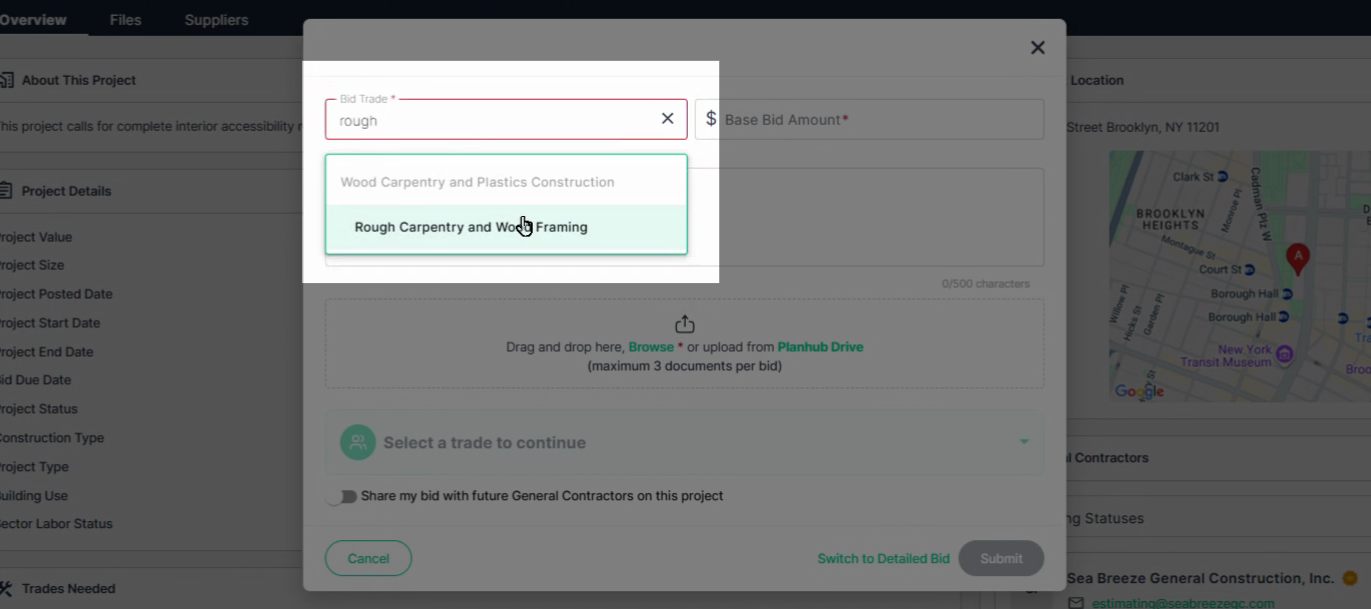
Step 5: Enter your total bid amount into the appropriate box.
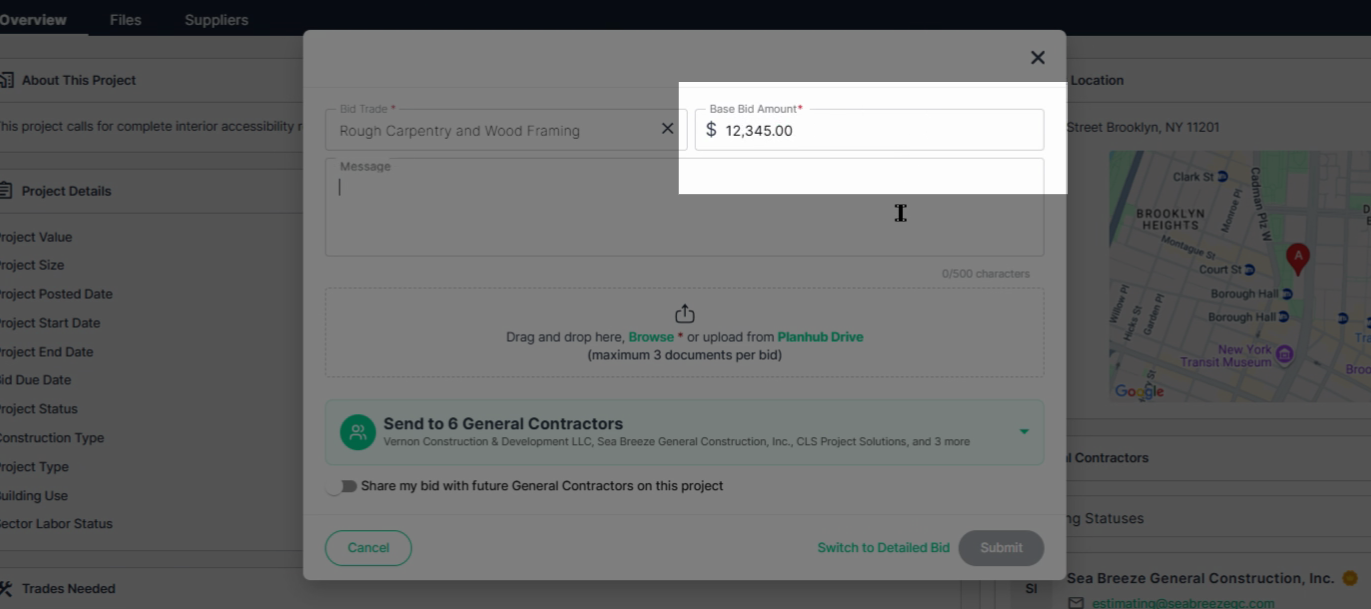
Step 6: Add a short, professional message to describe your bid or provide context.
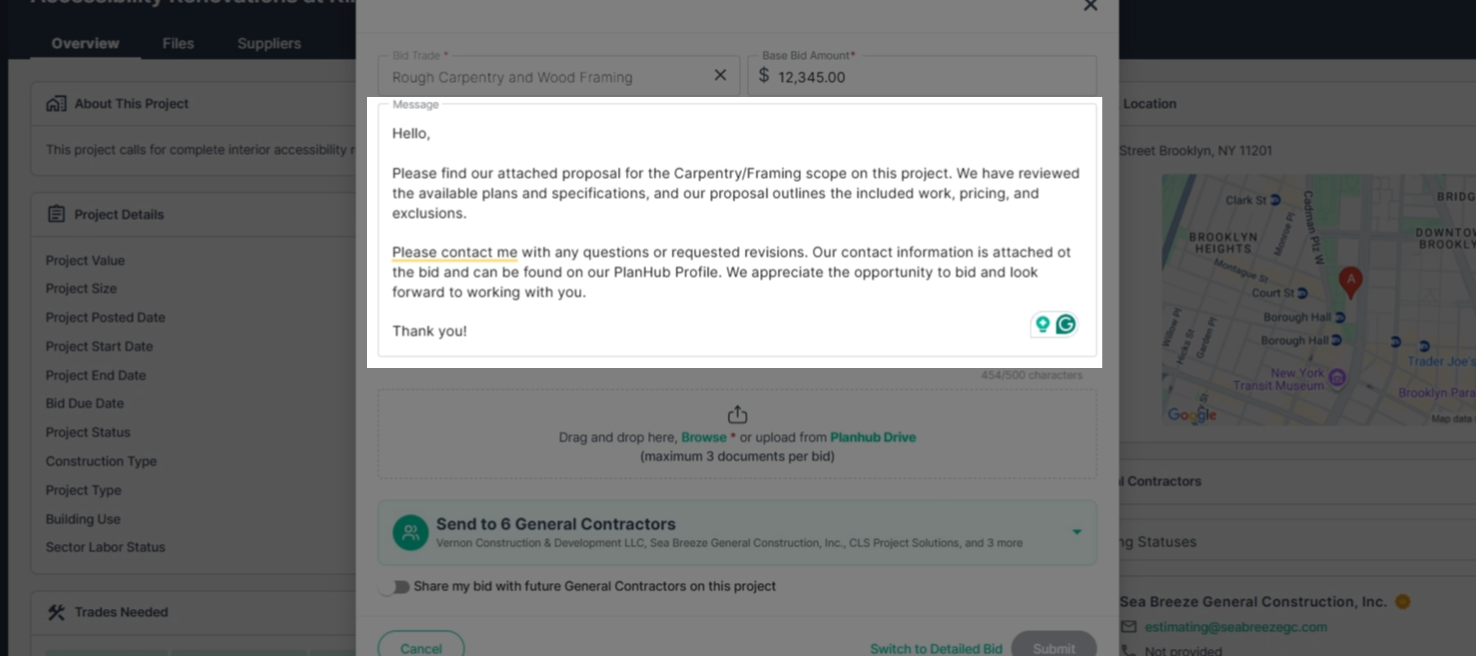
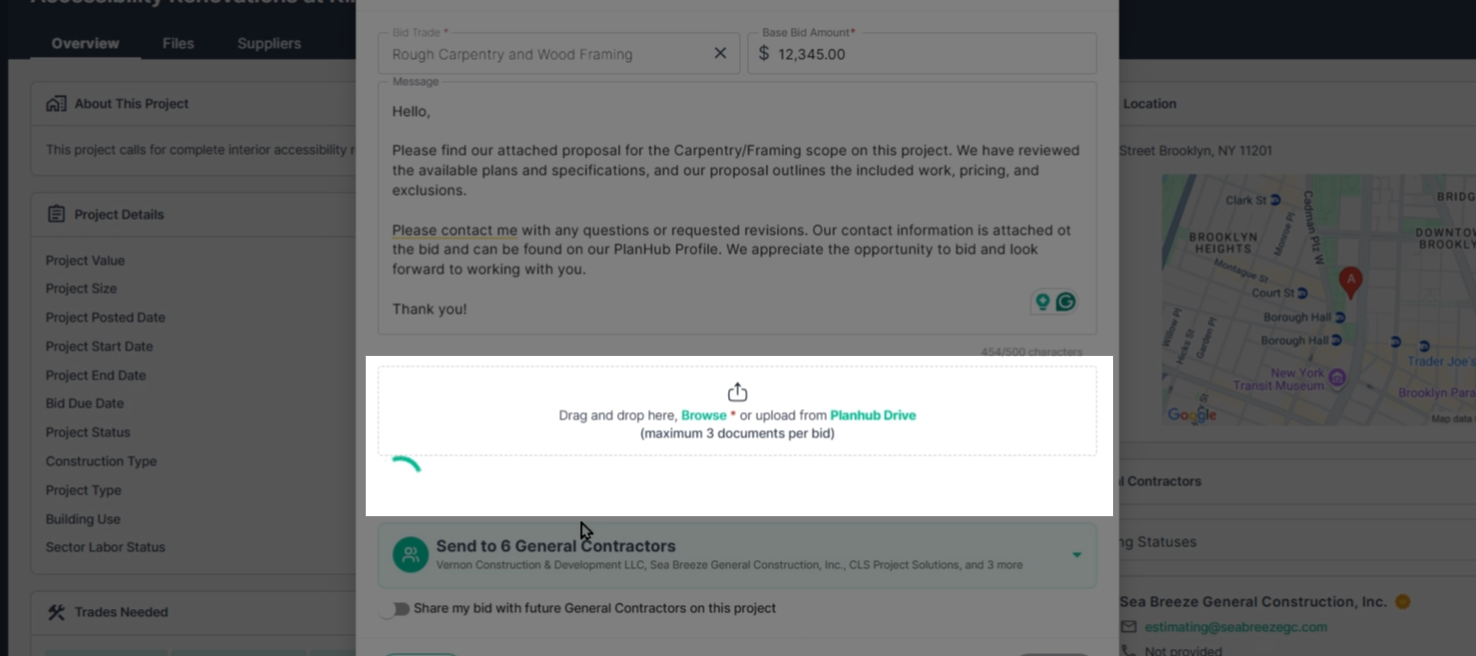
Step 7: Attach your detailed bid documents using the Attachments section.
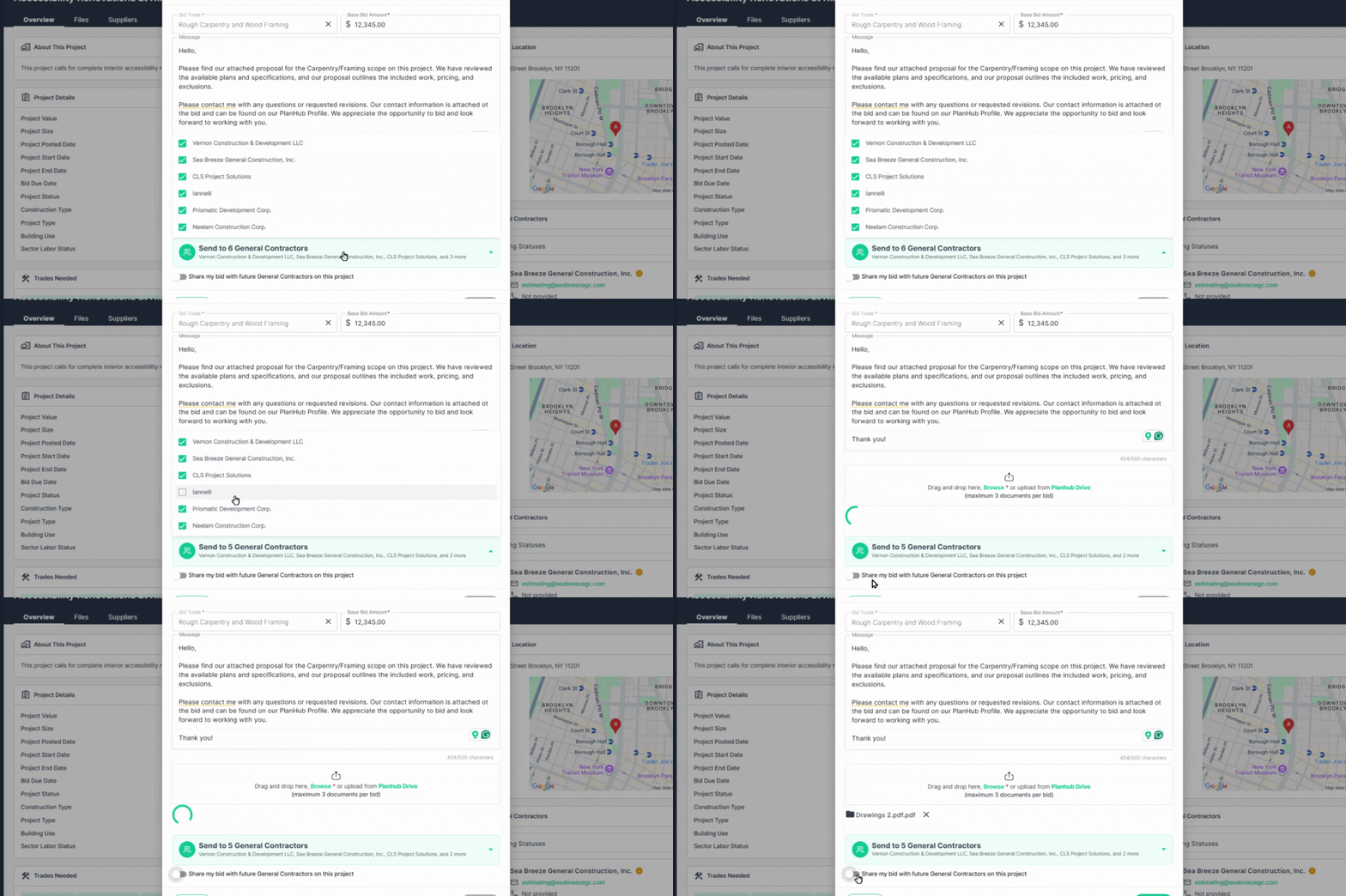
Step 8: Review the list of general contractors selected to receive your bid.
- By default, all are selected. Deselect any that shouldn’t receive this proposal.
- Use the toggle if you want your bid visible to future general contractors joining the project.
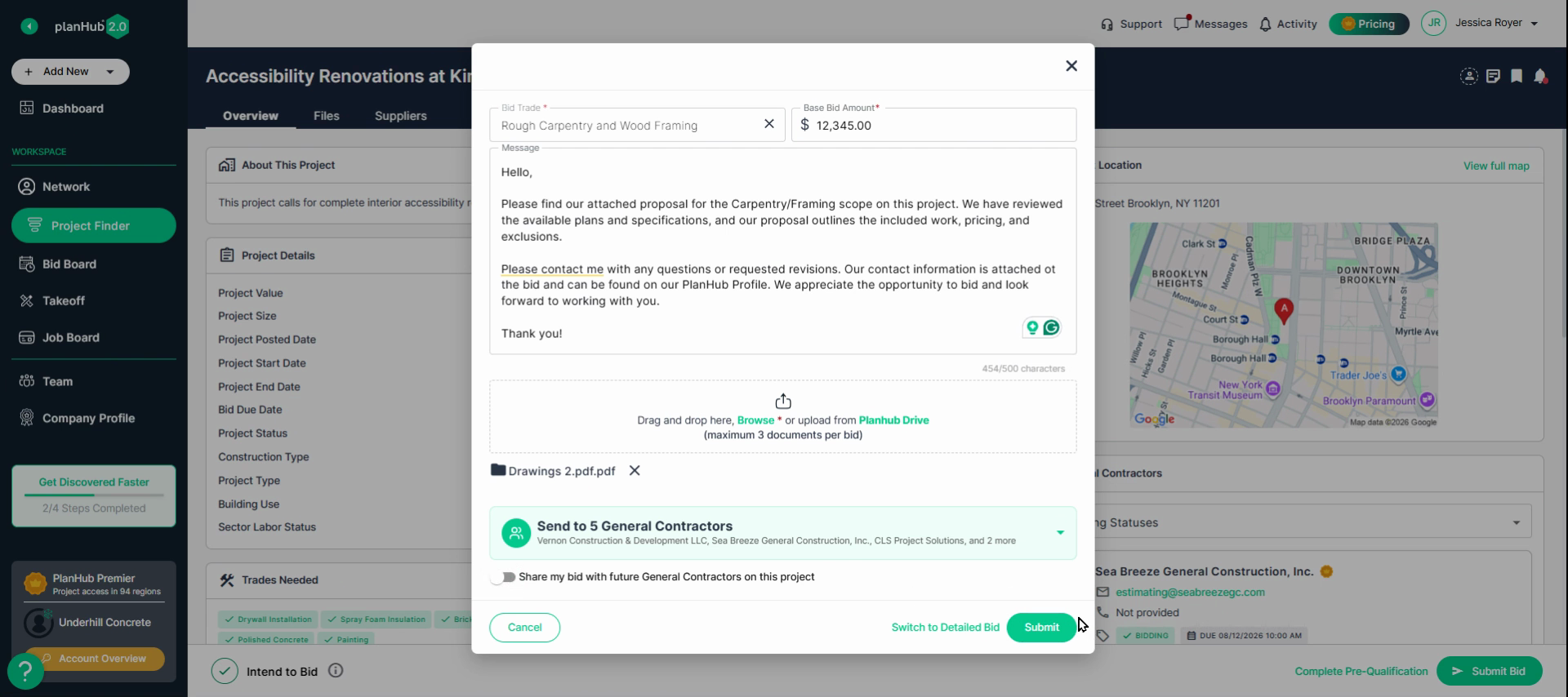
Step 9: Hit Submit to send your bid immediately.
Bid Builder
Bid Builder is for creating a detailed, line-by-line bid right in PlanHub—perfect when you need a breakdown or want to go beyond just uploading documents.
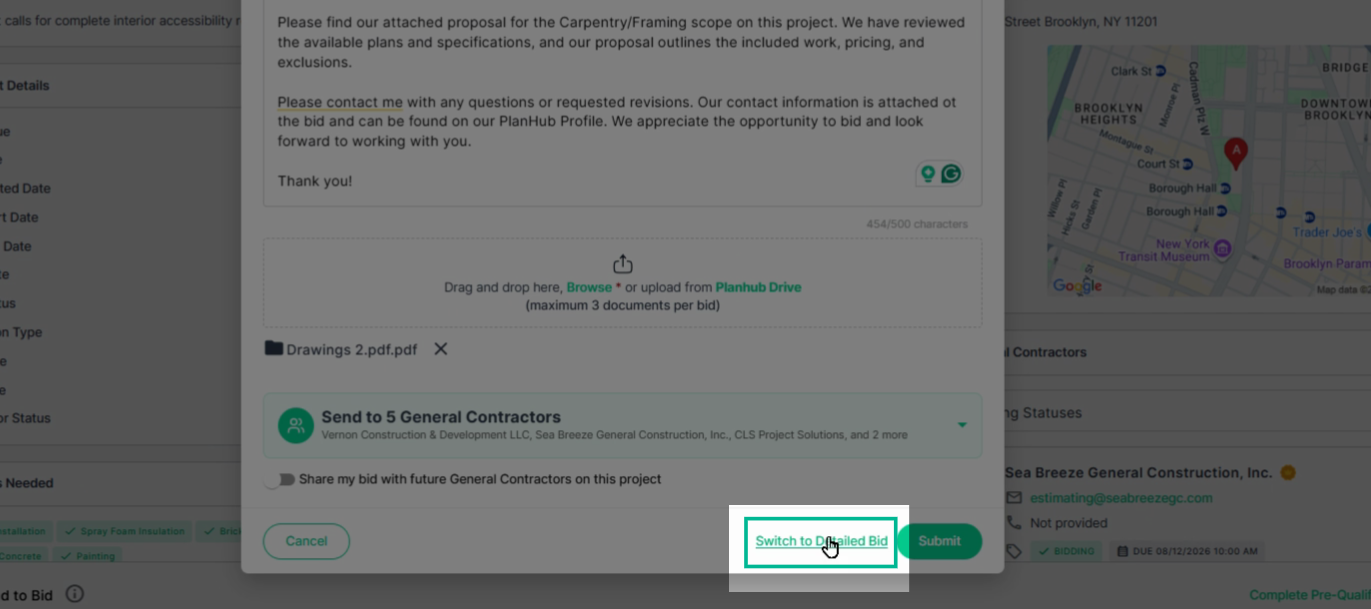
Step 1: In the Bid pop-up, click Switch to Detailed Bid to open the Bid Builder tool.
Step 2: In the search box, enter your trade and choose it from the list, then click Add.
- If you are bidding more than one trade, you can add more here.
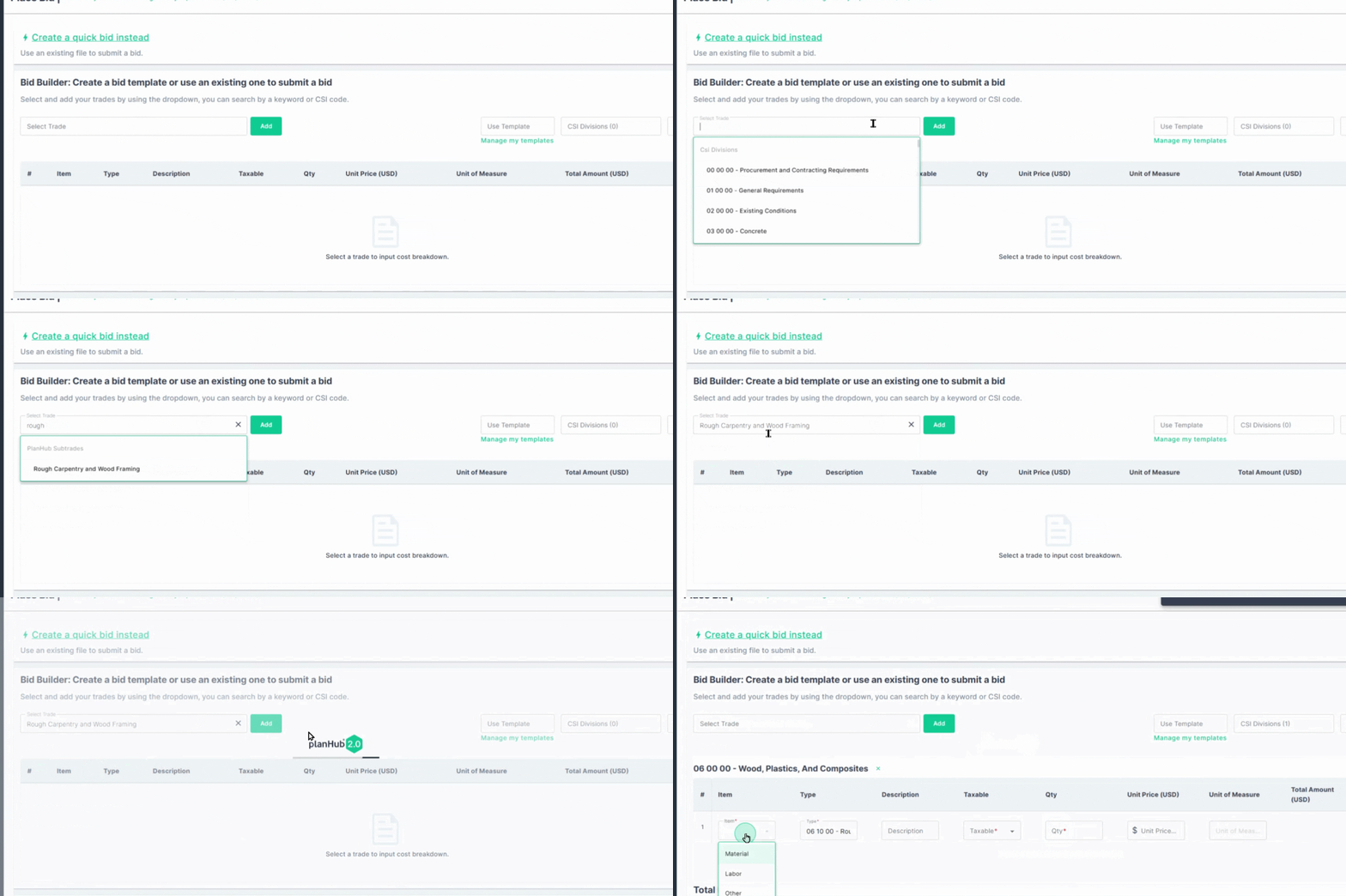
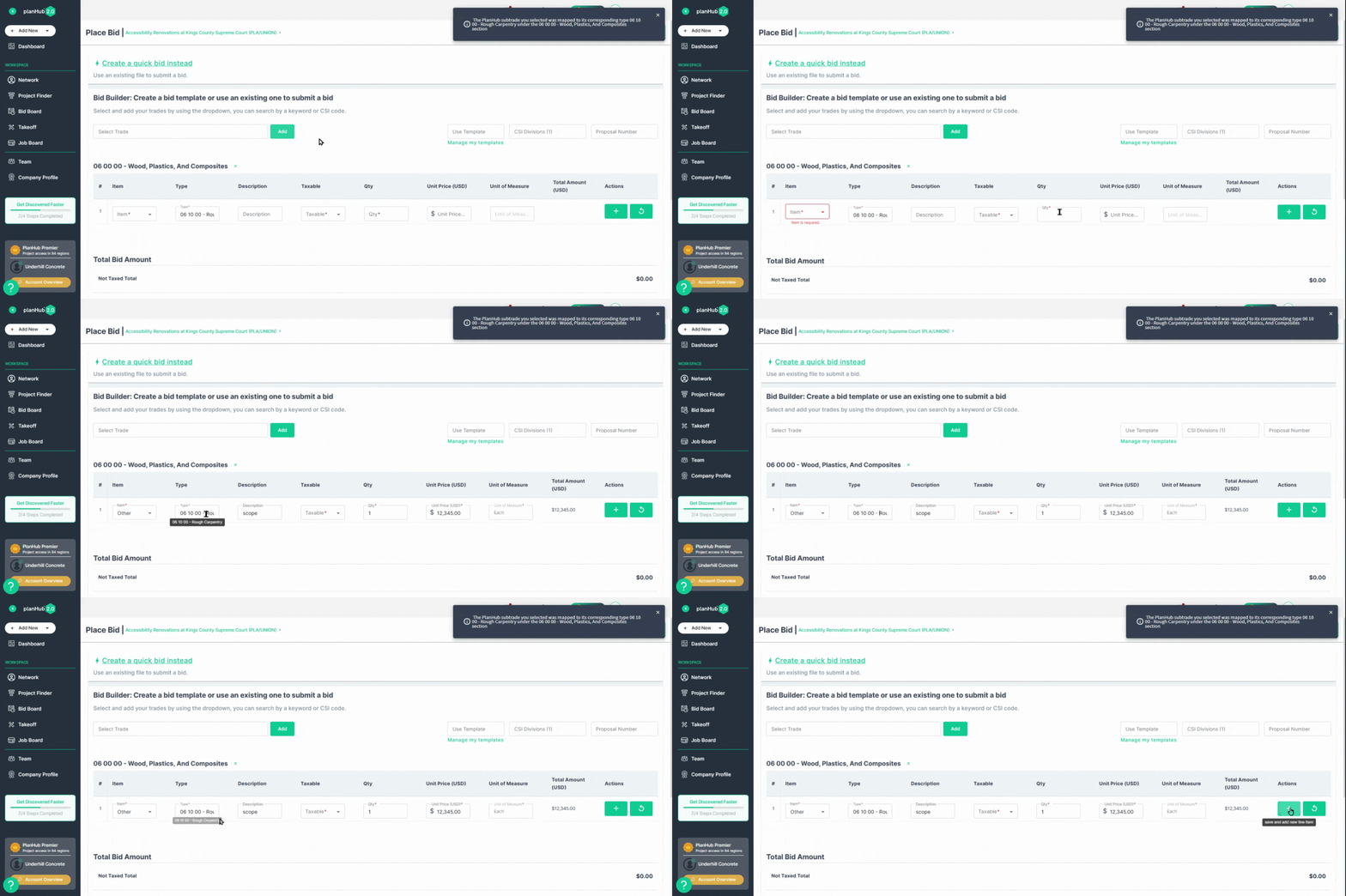
Step 3: Complete all required fields for your trade—like bid amounts, notes, and other key details.
- PlanHub will map your subtrade to the industry-standard trade code for clarity.
- Click the plus sign to add another line item if your proposal covers multiple trades or phases.
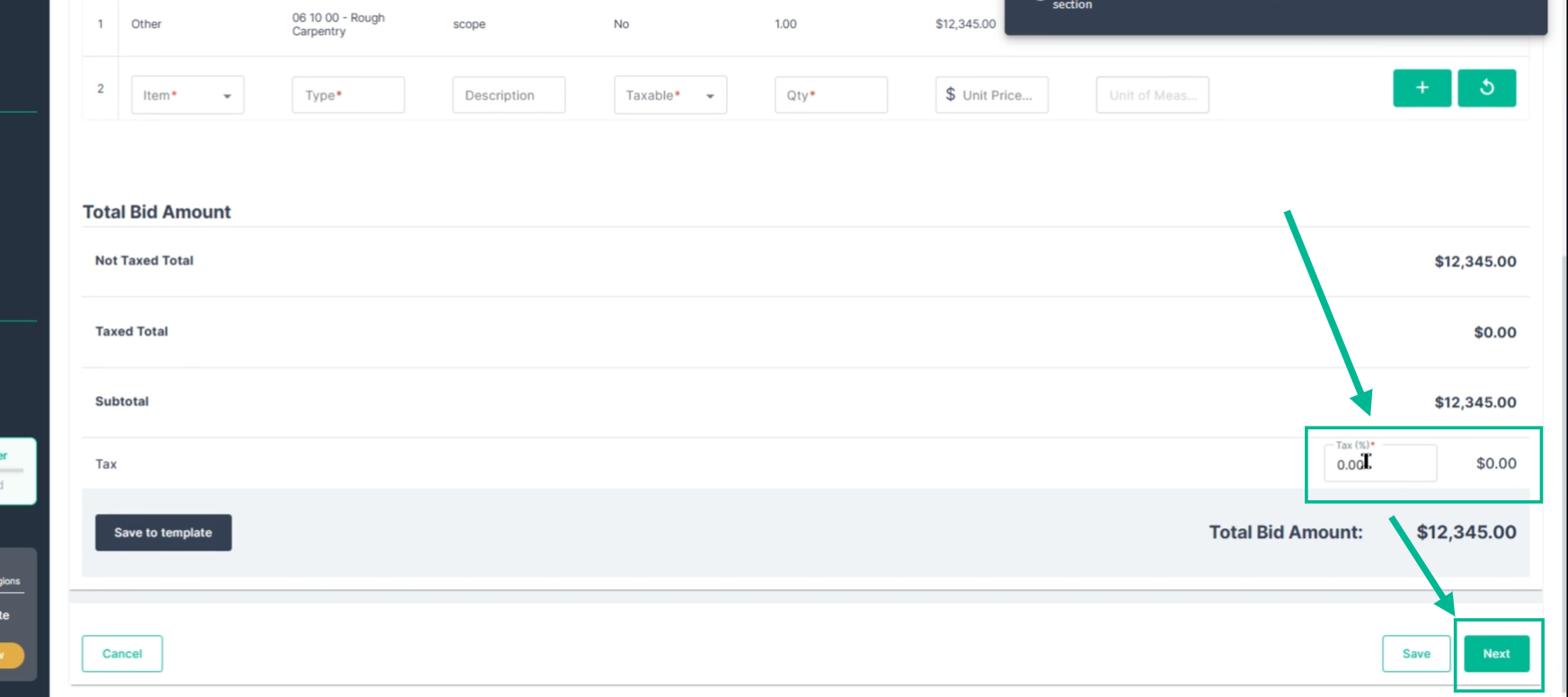
Step 4: After all line items are entered, apply taxes if needed and select Next to continue.
Step 5: Select the general contractors who should receive this bid. Uncheck any you want to exclude.
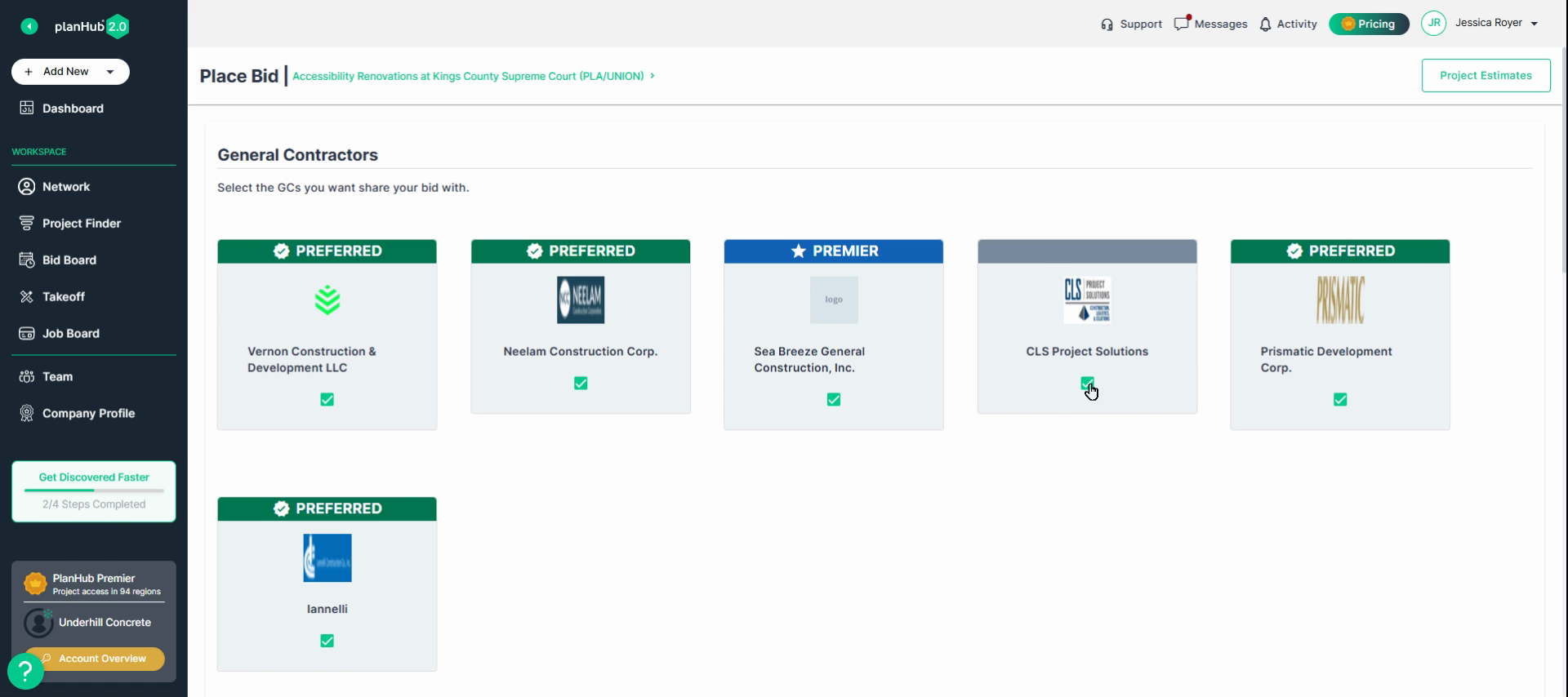
Step 8: Attach supporting documents—like qualifications, inclusions, exclusions, or your scope of work.
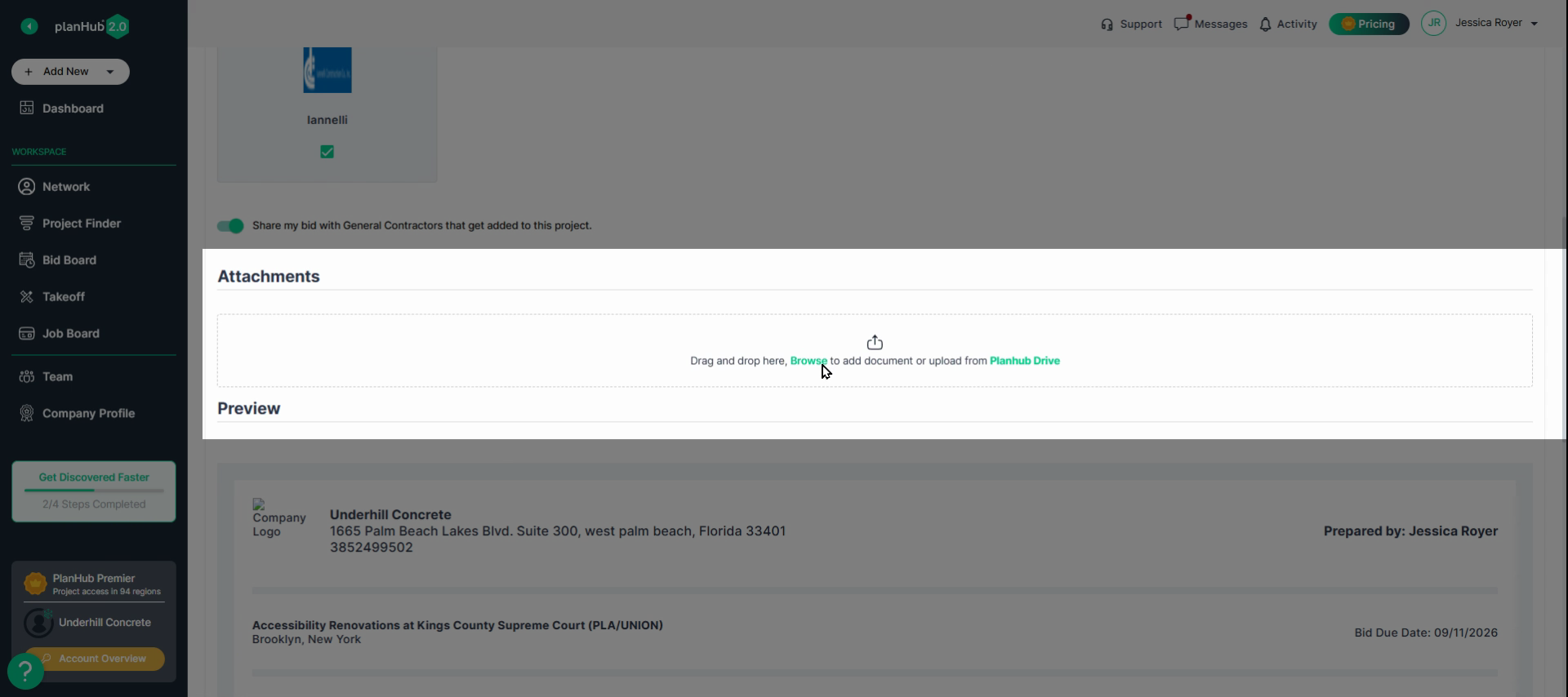
Step 9: Preview your detailed bid. When everything looks correct, click Submit to send it.

No matter which method you use, PlanHub makes sure your proposal is provided via email to each General Contractor.
Troubleshooting
Contact us if you need assistance or to report an issue:
- PlanHub Contact Page: https://planhub.com/contact/
- Customer Facing Support Ticket Link: https://knowledgebase.planhub.com/knowledge/kb-tickets/new
- Customer Success Team: CustomerSuccess@planhub.com