![NEW_PlanHub_Logo_Navy.png]](https://knowledgebase.planhub.com/hs-fs/hubfs/Design/PH%20Logos/NEW%202024%20PH%20Logos/NEW_PlanHub_Logo_Navy.png?height=40&name=NEW_PlanHub_Logo_Navy.png)
How to save measurements to a folder in the Takeoff Library
If you have purchased the Takeoff Add-On feature, you will have access to planHub's Takeoff tools! This guide shows you how to keep your Takeoff library organized by creating folders for different measurement types and easily sharing those measurements across your projects. Here’s how to set up folders, add measurements, and reuse them elsewhere.
Before beginning your measurements, be sure to set the scale on the page. To learn more about how to set the scale, view the Knowledge Base article: How to Set the Scale in PlanHub Takeoff
Step 1: Navigate to Takeoff, select a project and then select a sheet to begin.
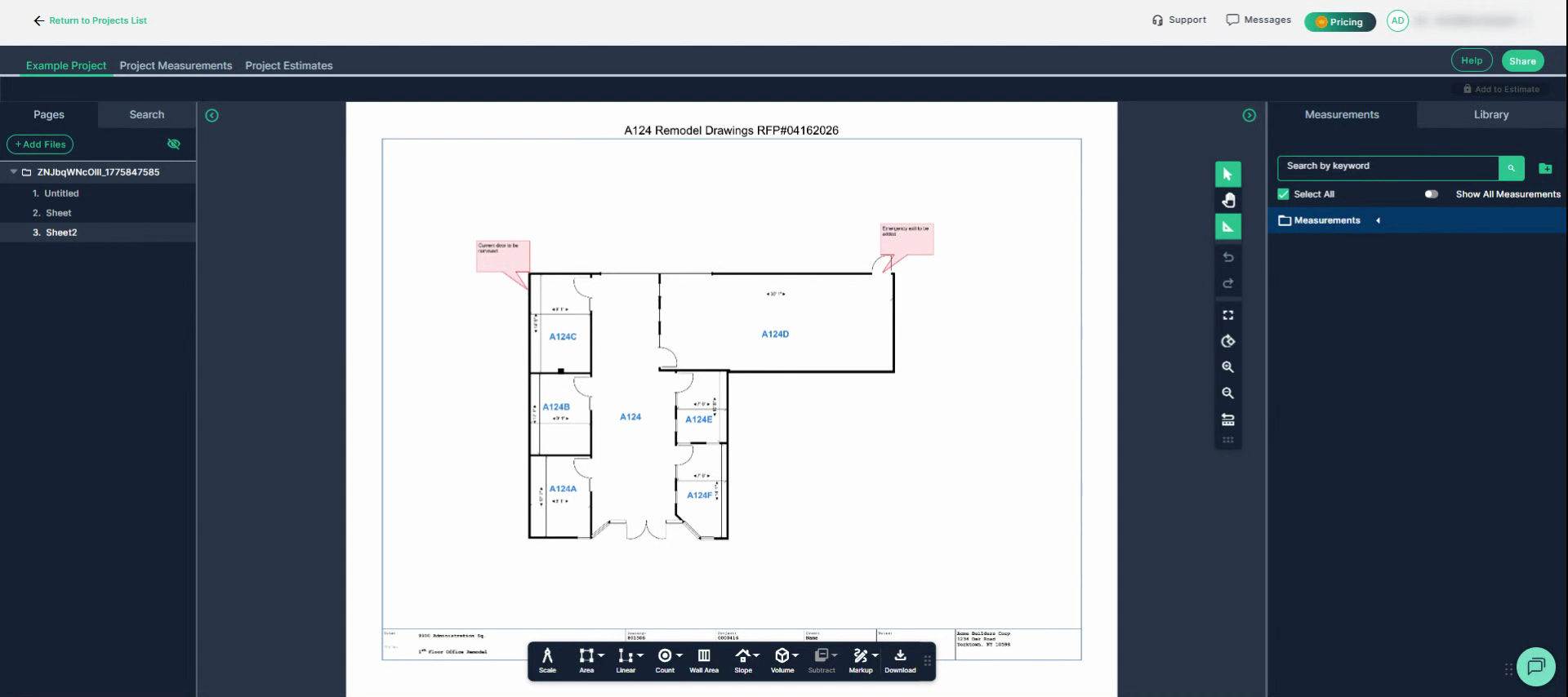
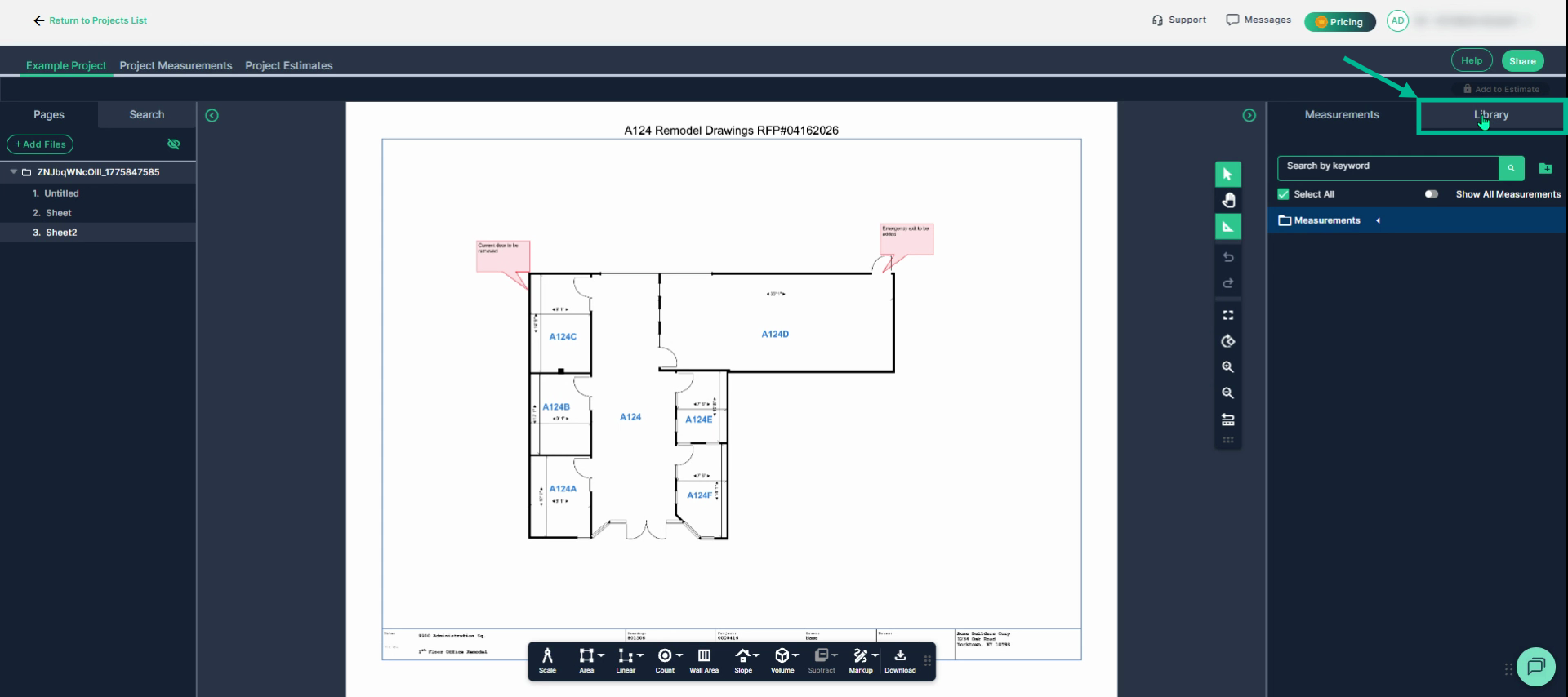
Step 2: Click the Library tab in the measurements panel on the right side.
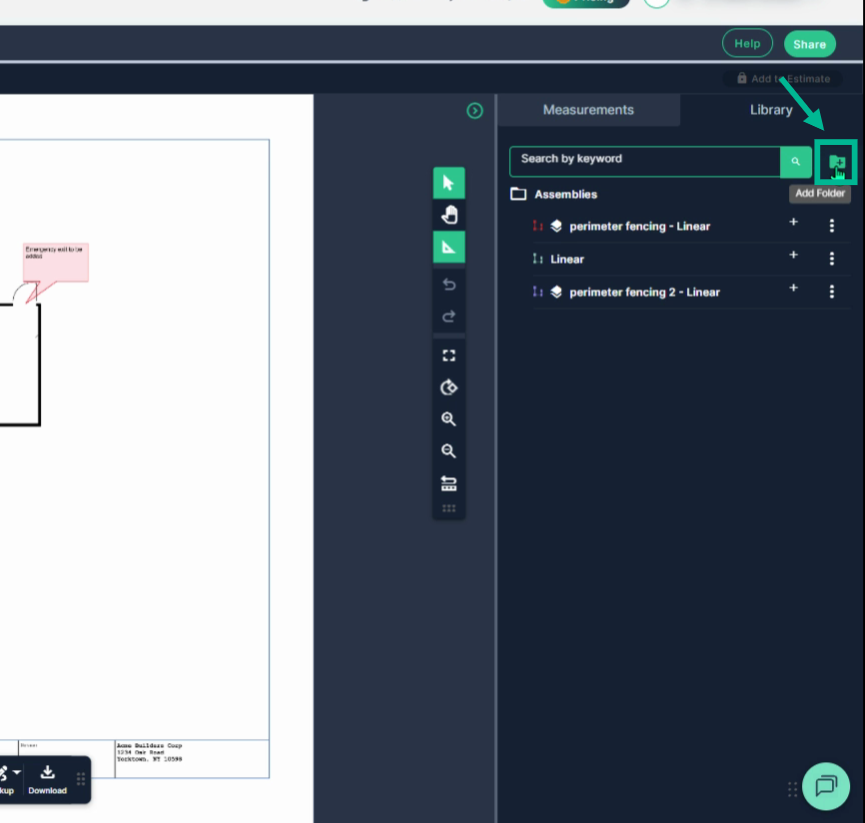
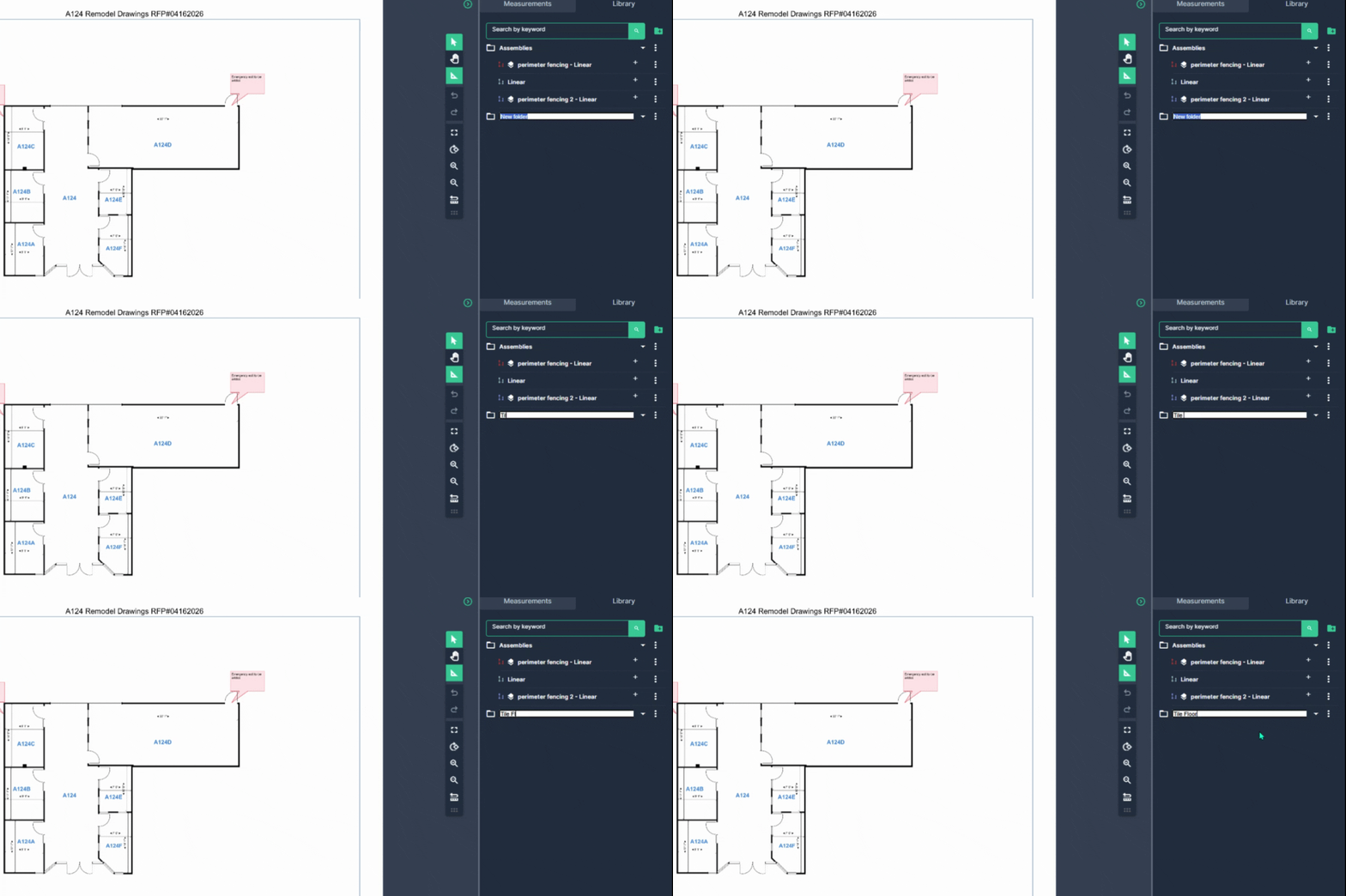
Step 3: Click the plus sign on the folder icon to create a new folder.
Step 4: Rename your new folder. Hover the cursor over the folder and right-click to select Rename Folder from the menu. Alternatively, click the three dots (action menu) on the far right side and choose Rename Folder from the dropdown menu.
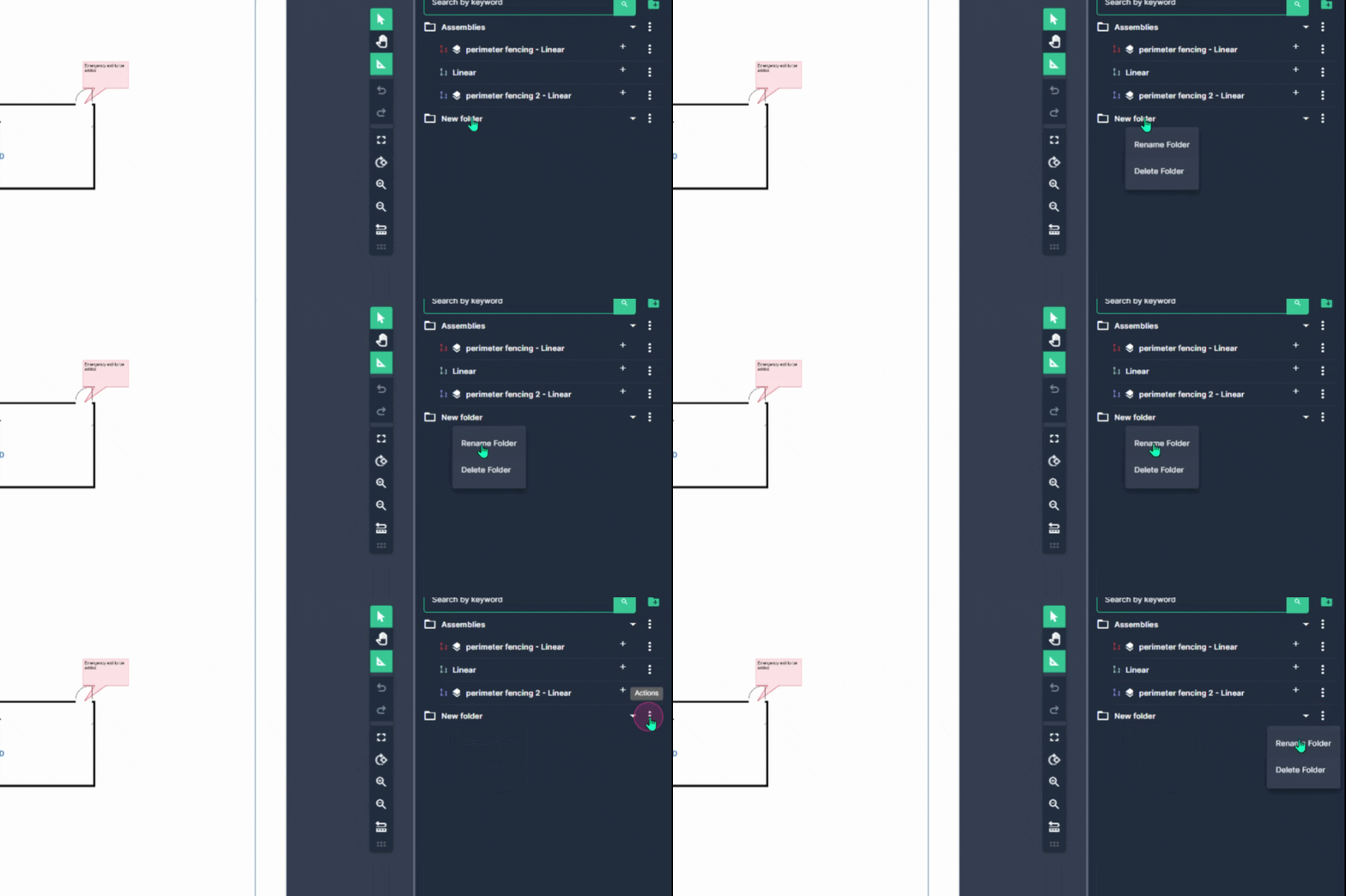
Step 5: Enter a name for the new folder in relation to the types of measurements you will be saving within that folder. (i.e. Asphalt)
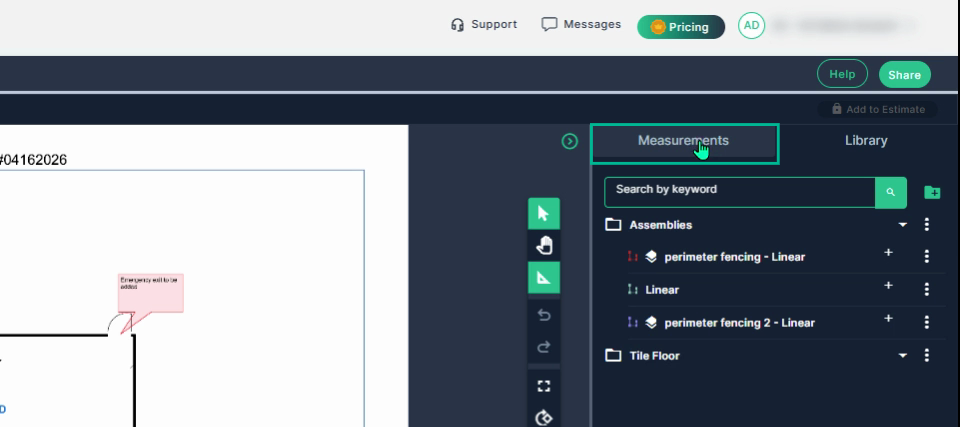
Step 6: Select the measurements tab.
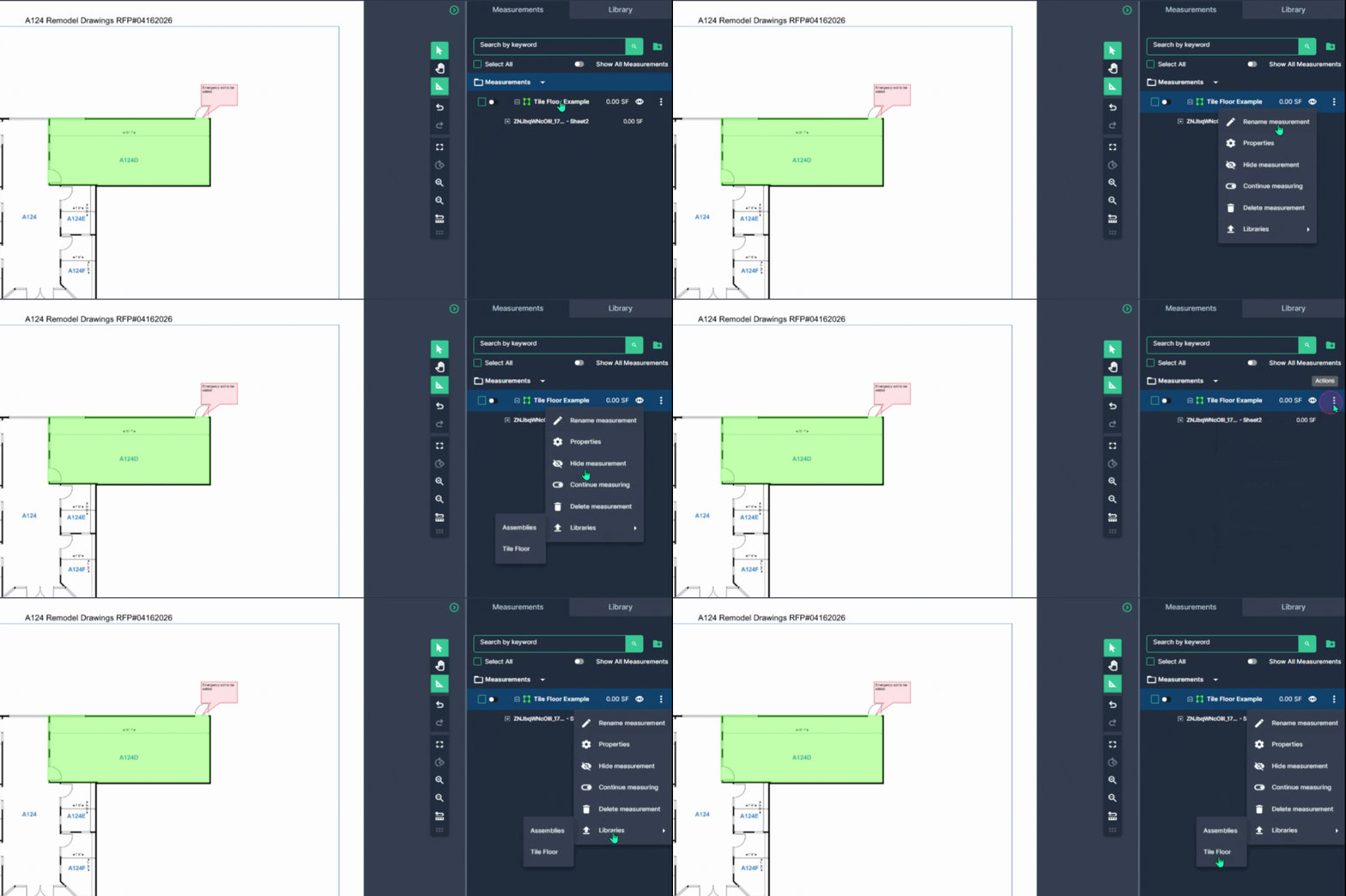
Step 7: After adding a measurement, hover the mouse cursor over the measurement, then right click the mouse button, then select "Libraries" and add your measurement to your new folder, or use the three dots menu on the right side and follow the same steps.
 Step 8: Confirm the measurement is now inside your folder in the library.
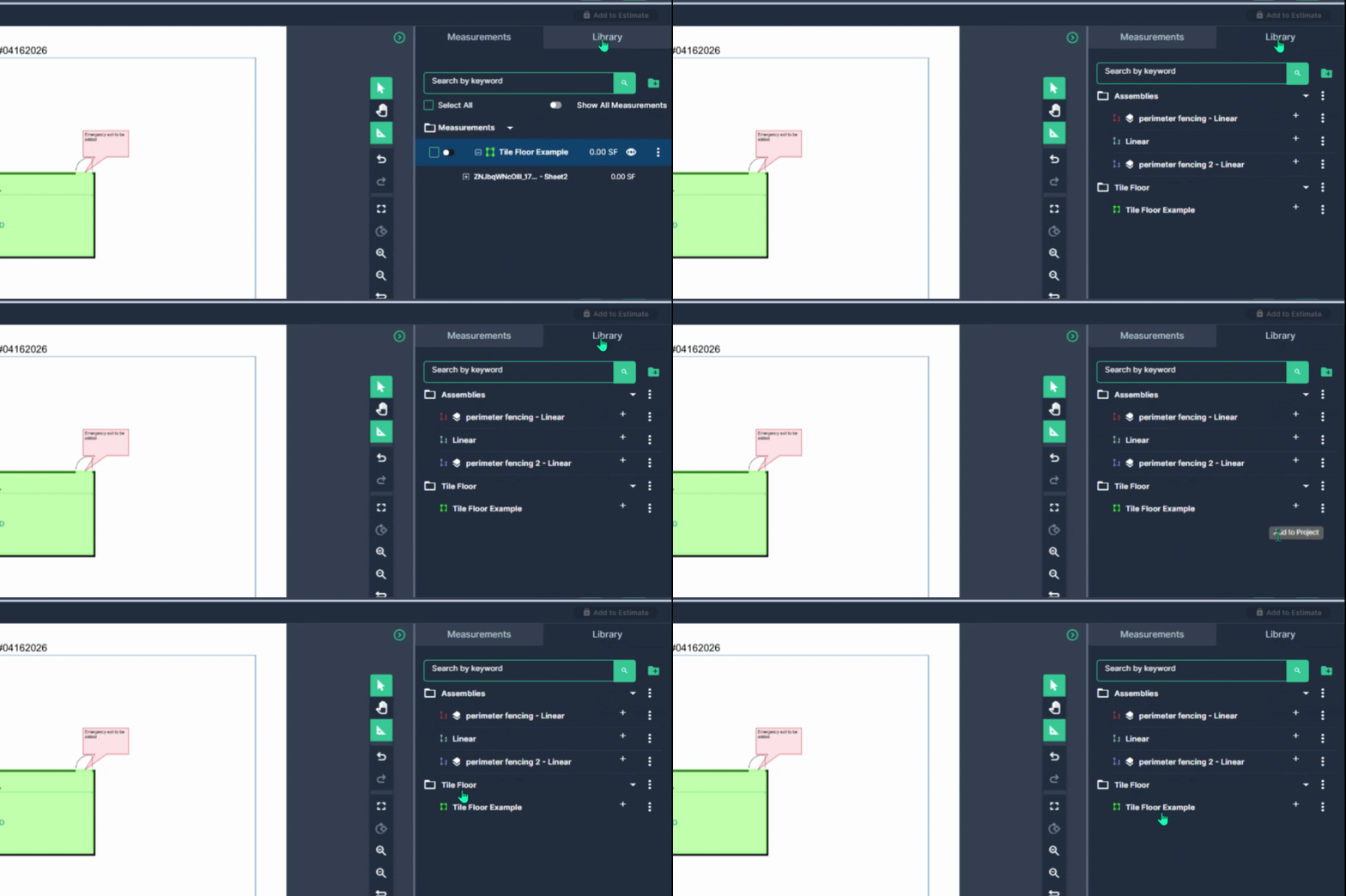
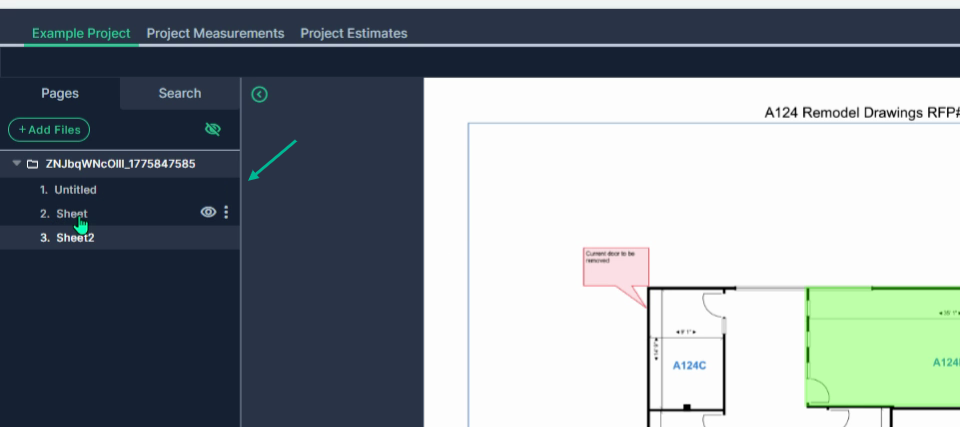
Step 9: To use this measurement on another plan sheet, select another sheet from the panel on the left side. If the panel is collapsed, click on the green left facing arrow with the circle around it to open and lock the panel in place. To learn more about the panels, view the Knowledge Base article titled: How to Enter Full Screen Mode in TakeOff
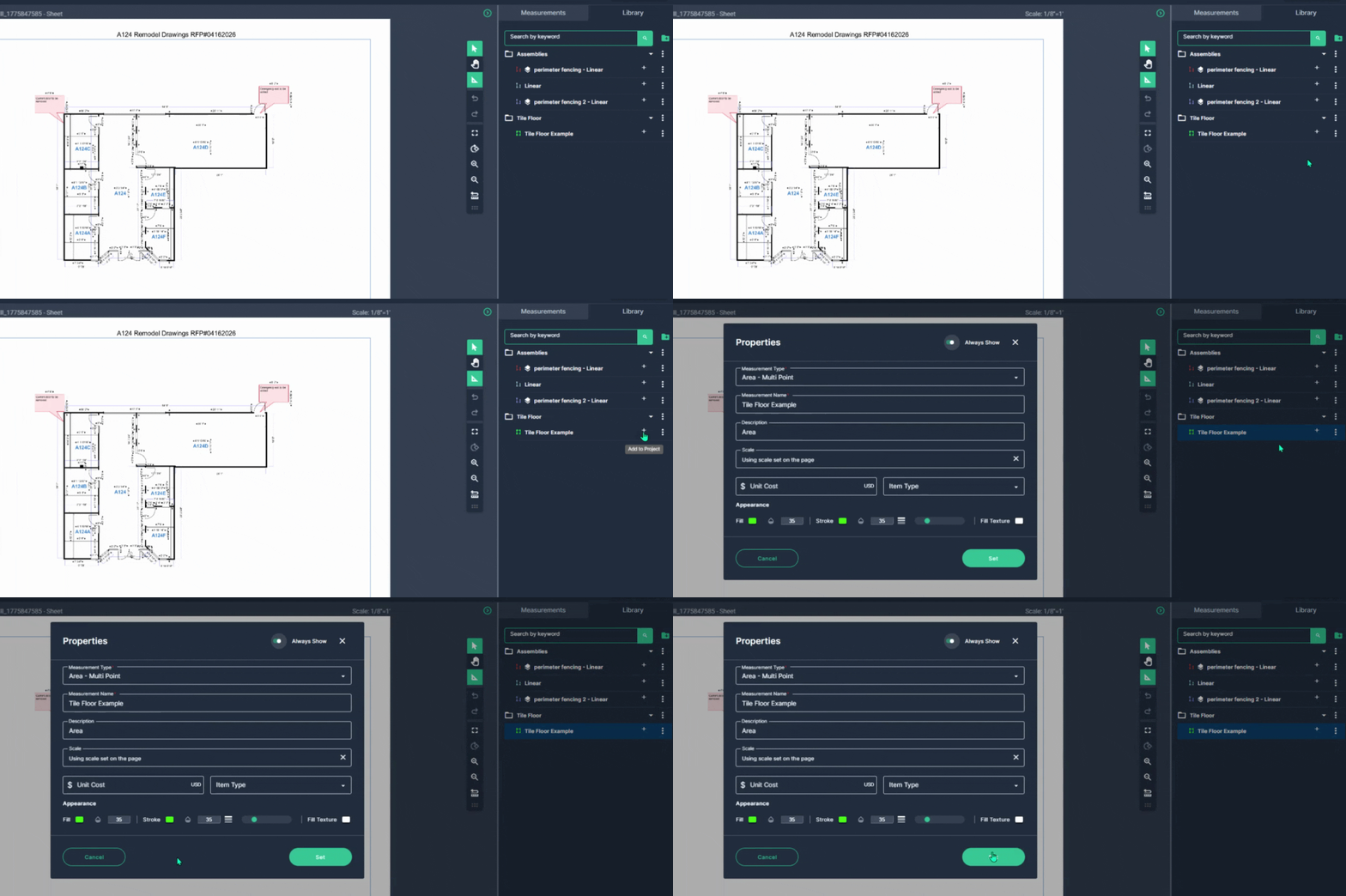
Step 10: Navigate to the Library tab, then click on the folder for the measurement you want to use. Select the plus sign to the right of the measurement to open the properties window. The preset information appears automatically.
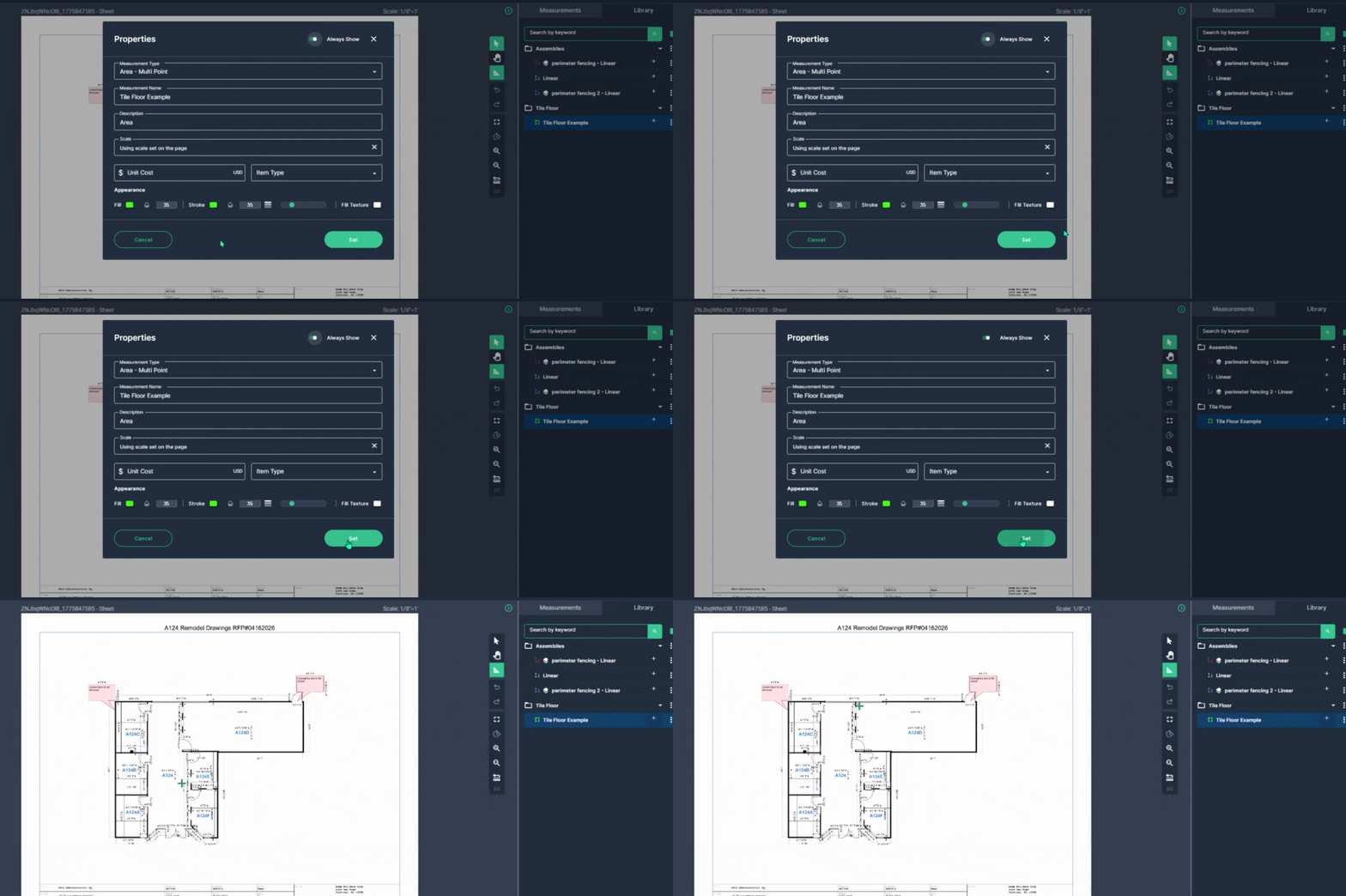
Step 11: Click Set to begin your measurement.
Add folders to your measurements panel for better organization.
Step 1: Click on the measurements tab, then click the folder icon with a plus sign to create a new folder.
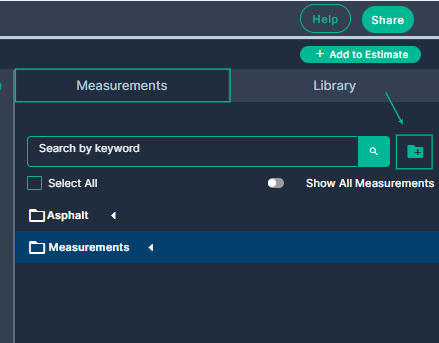
Step 2: Locate the new folder you created. Hover the cursor over the folder and right-click to or select the 3 dots action menu to rename the folder.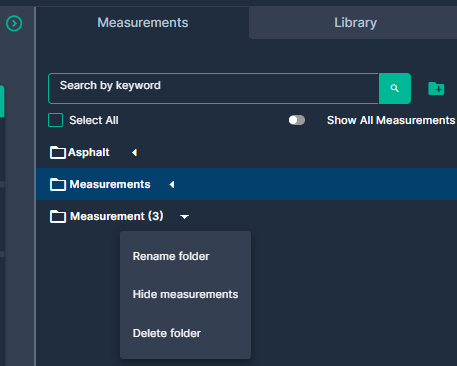
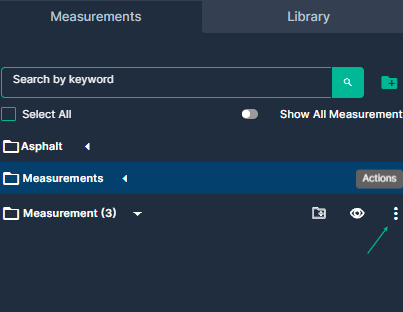
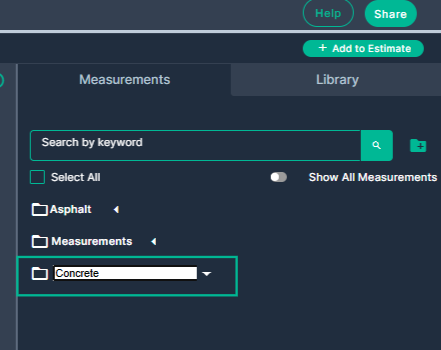
Step 3: Rename the folder to distinguish the measurement types you want to save in that folder. (i.e. Concrete)
Step 4: To add a measurement to your new folder, first, select the folder, then begin your measurement. 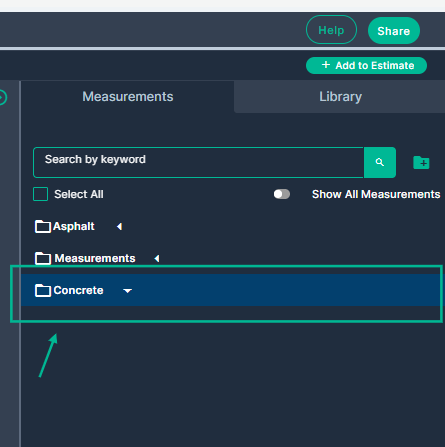
Step 5: Once the measurement is complete, view the measurement saved inside the new folder you created. 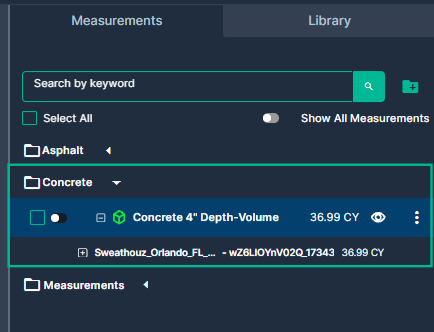
Measurements and folders saved in the Takeoff Library can be reused across all of your projects, helping you save time and maintain consistency.
Troubleshooting
Contact us if you need assistance or to report an issue:
- PlanHub Contact Page: https://planhub.com/contact/
- Customer Facing Support Ticket Link: https://knowledgebase.planhub.com/knowledge/kb-tickets/new
- Schedule a Free 1-on-1 Takeoff Training: https://meetings.hubspot.com/zac-low/takeoff-and-estimation