![NEW_PlanHub_Logo_Navy.png]](https://knowledgebase.planhub.com/hs-fs/hubfs/Design/PH%20Logos/NEW%202024%20PH%20Logos/NEW_PlanHub_Logo_Navy.png?height=40&name=NEW_PlanHub_Logo_Navy.png)
Pre-requisite: To access the Network Add-On feature, you will need to purchase the Network Add-On separately from your planHub subscription. Contact your Account Manager directly or you can reach out to our Customer Support Team. To learn how to contact customer support, view the Knowledge Base article: How to Contact PlanHub Customer Support
Step 1: Log into your planHub General Contractor account. Navigate to www.planhub.com then select "Login."
Step 2: Click the Network tab at the top of the workspace.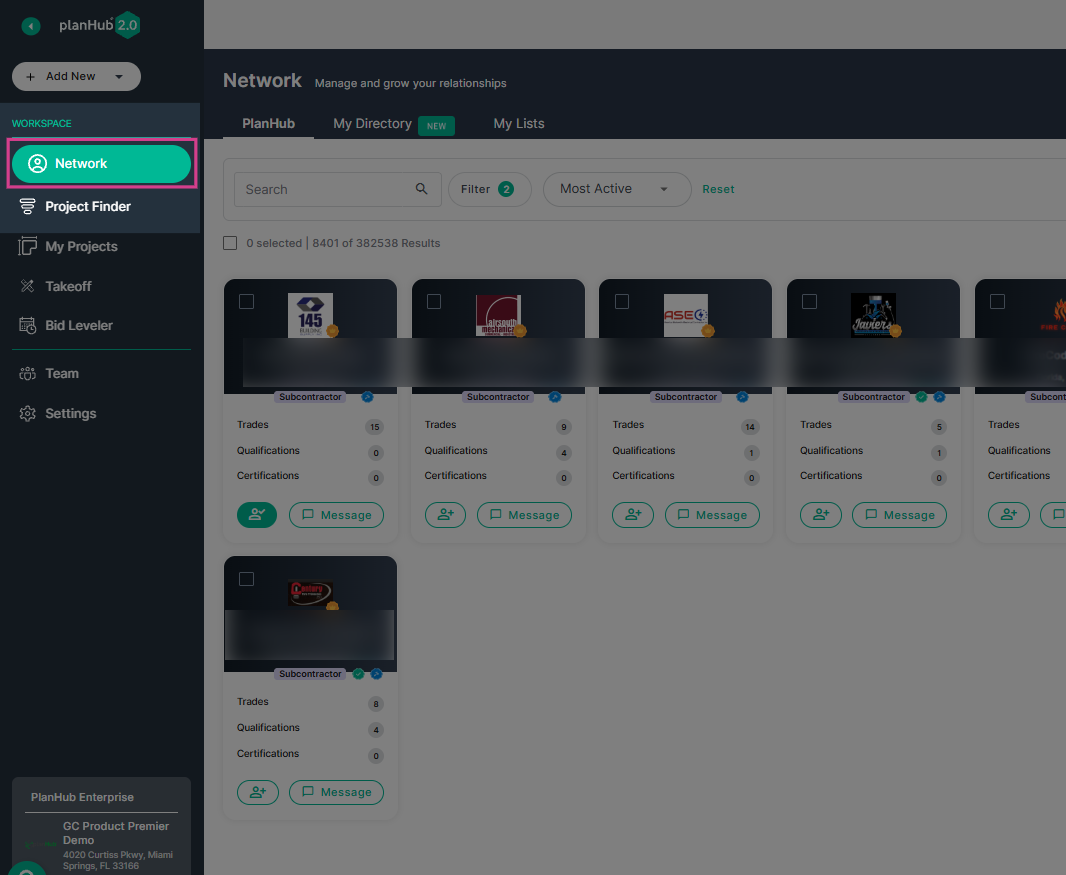
Step 3: At the top of the Network page, you’ll see three tabs. View the planHub tab to access all companies within the planHub Network based on your subscription. 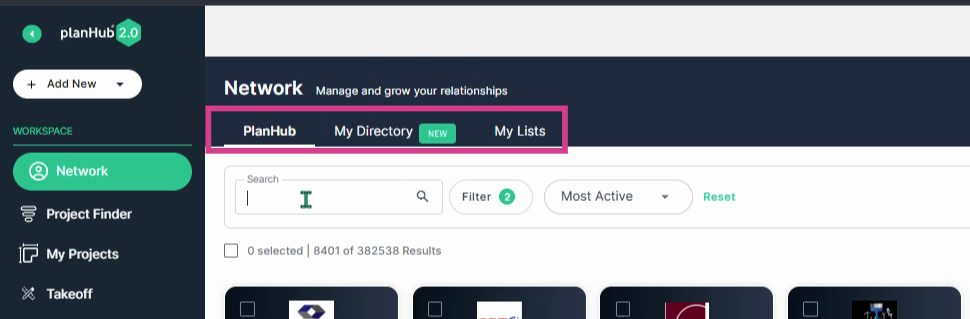
Step 4: Use the Keyword Search Bar to quickly find a subcontractor or supplier by name.
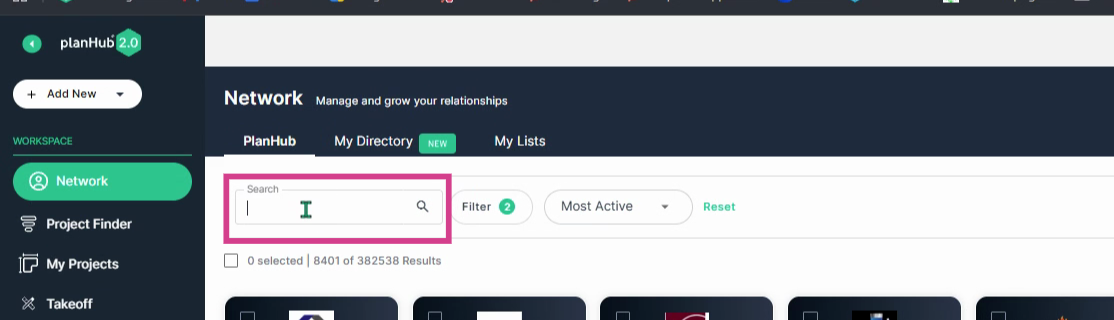
Step 5: Press Enter or click on the magnifying glass after typing a name to begin the search.
Step 6: Use Filters to narrow your search by company type—like Subcontractors or Suppliers.
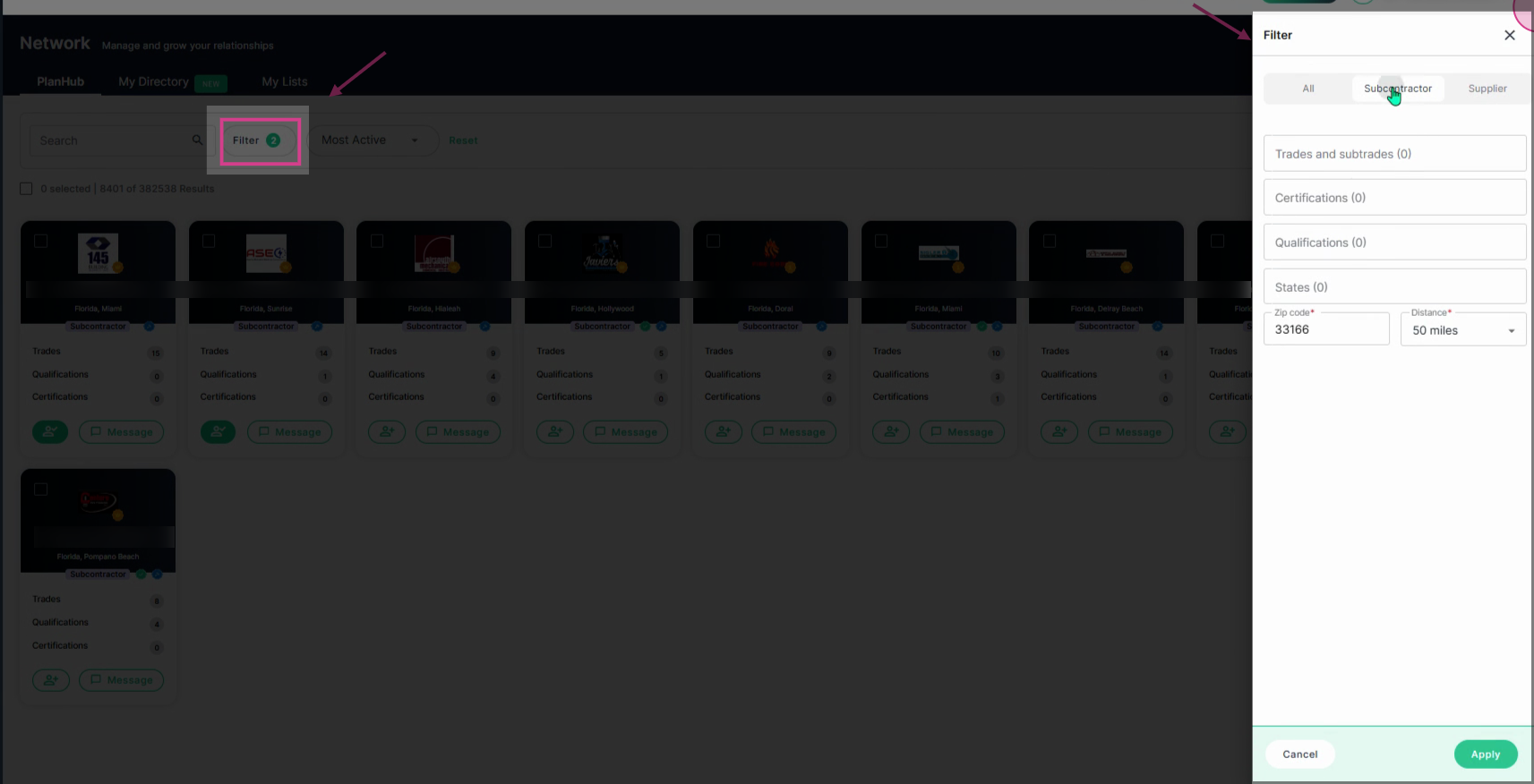
Step 7: Select specific Trades/Subtrades, Certifications, Qualifications, States, or ZIP code and mile radius. Click Apply to update the results.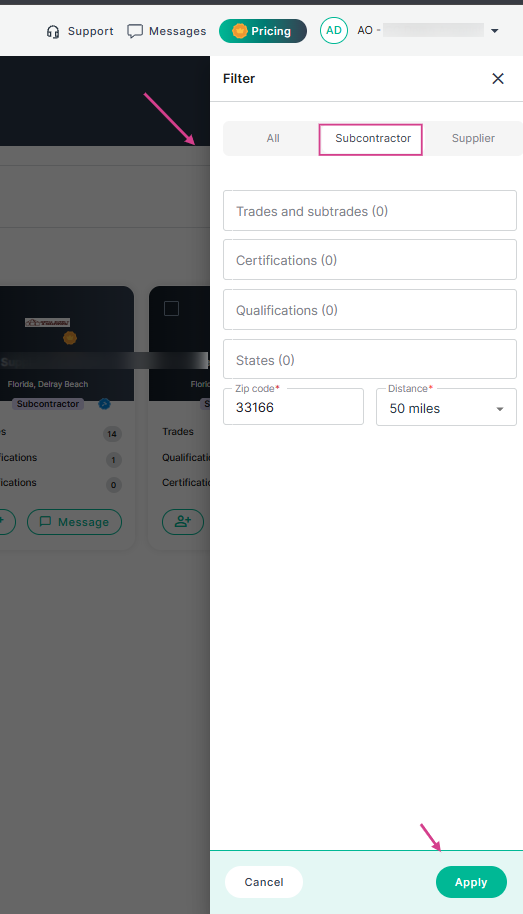
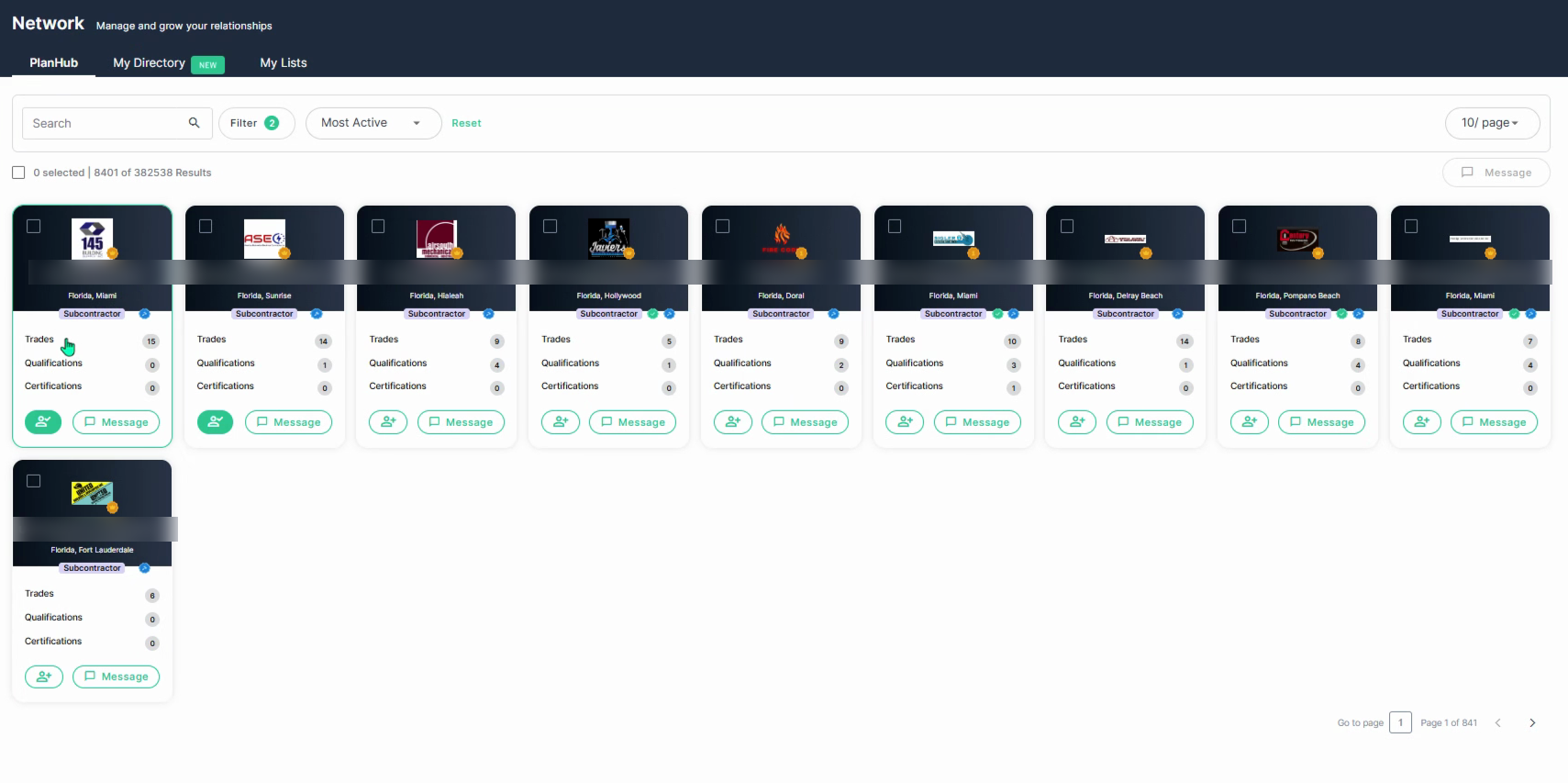
Step 8: Review the Subcontractor company cards to see key details: Company name, location, company type, trades, qualifications, and certifications.
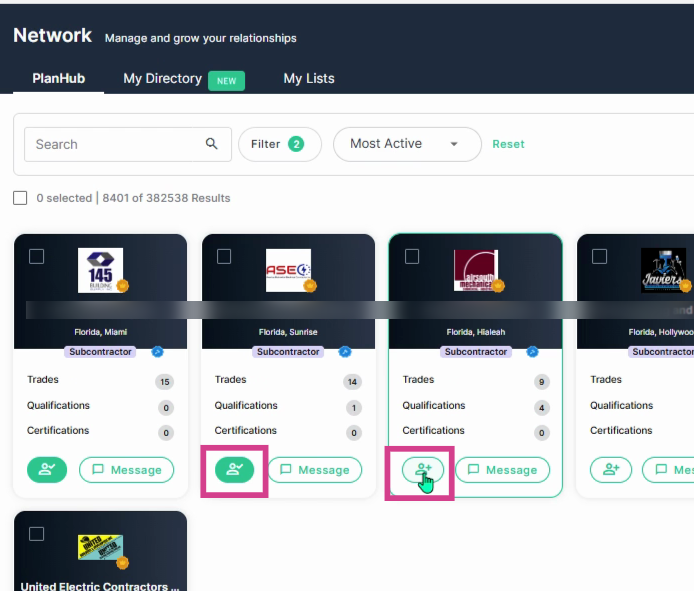
Step 9: A person/checkmark icon means the company is in your directory. Click the person with a plus sign to add them to your directory.
Step 10: Click the Message button on any company card to send an individual company message. Enter your message and upload documents if needed. Click Send when ready.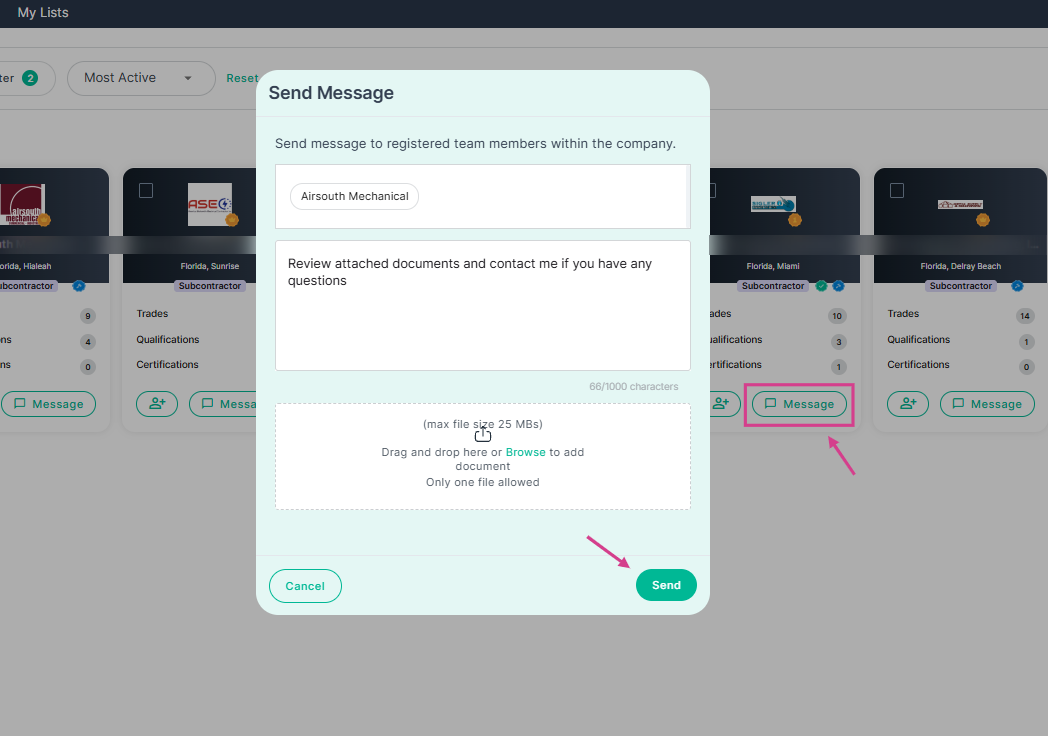
Step 11: Send messages to multiple subcontractors by checking the box at the upper left of each relevant company card, then click Message on the right side.
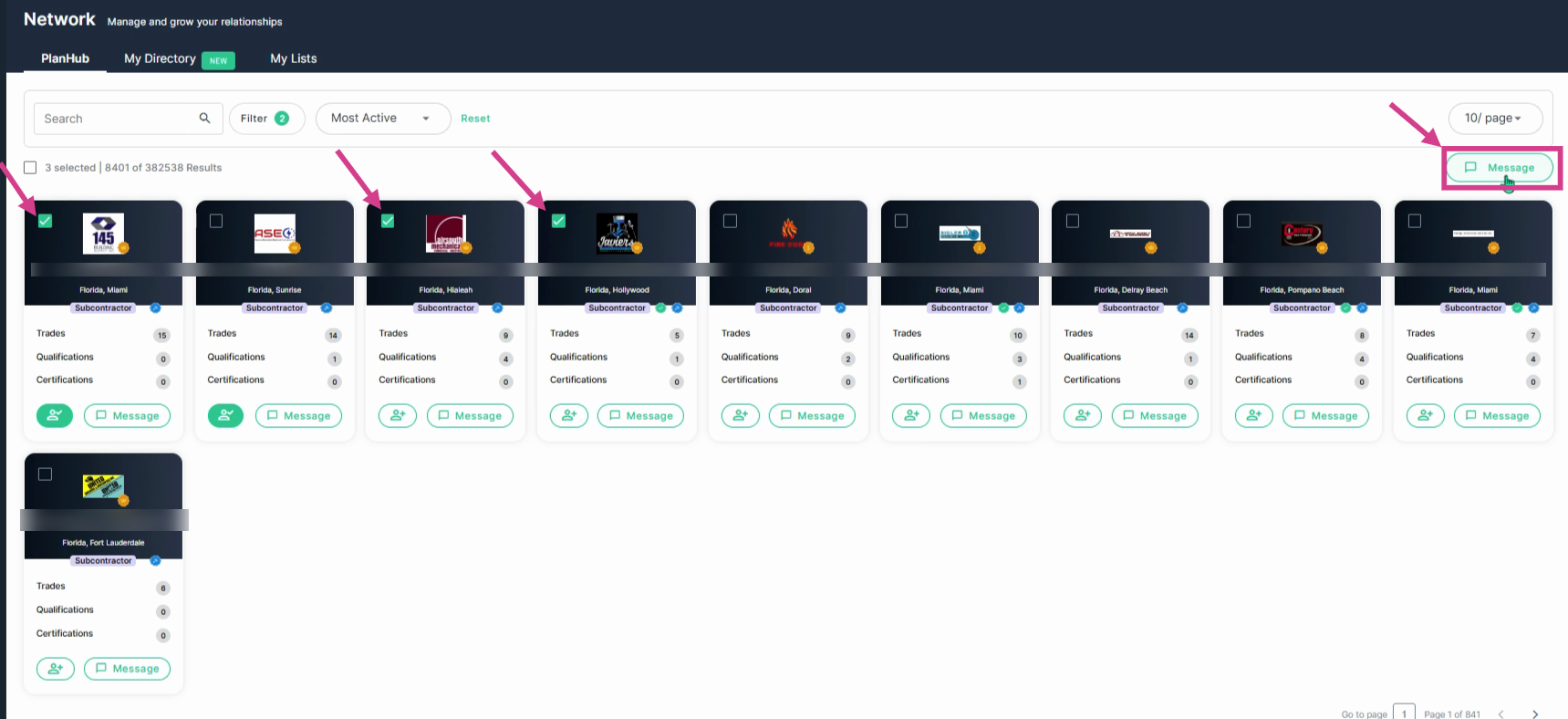
Step 12: In the pop up window, enter your message, upload documents, and click Send. Each company receives a separate message—they will not be able to see other recipients’ contact info who also received the message.
Understanding Badges on Subcontractor Company Cards
Recognize important company activity through badges:
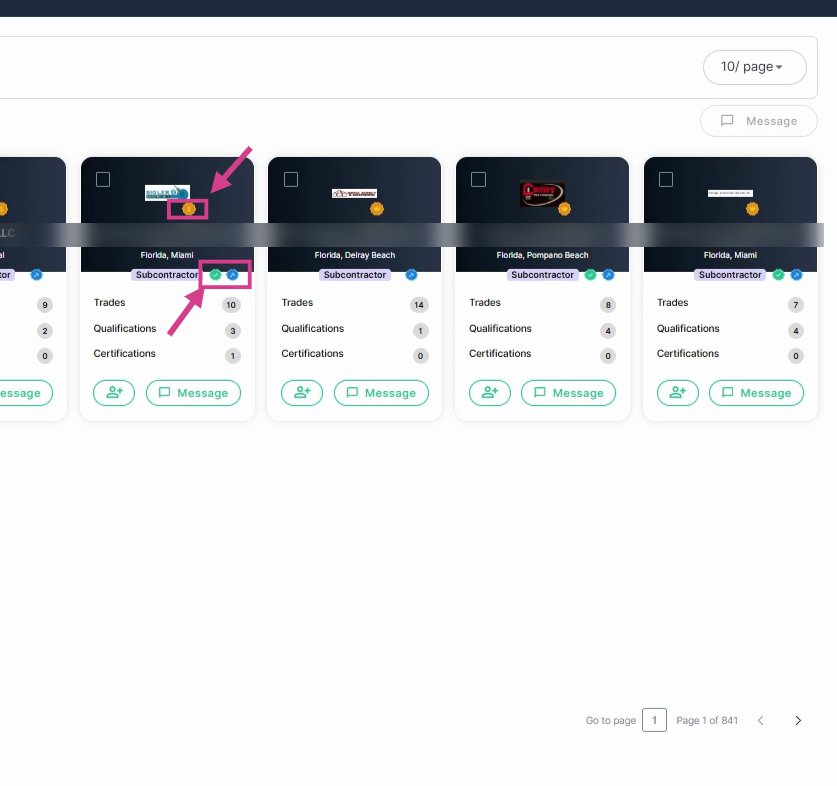
- Green check mark: Company filled out their pre-qualification form.
- Blue hammer: Company consistently submits two or more bids each month.
- Gold crown: Company uses premium tools in their planHub account.
Viewing Company Profiles
Step 1: Click a Company Name to open its profile. In the Header, view the contact info, address, website, and more. 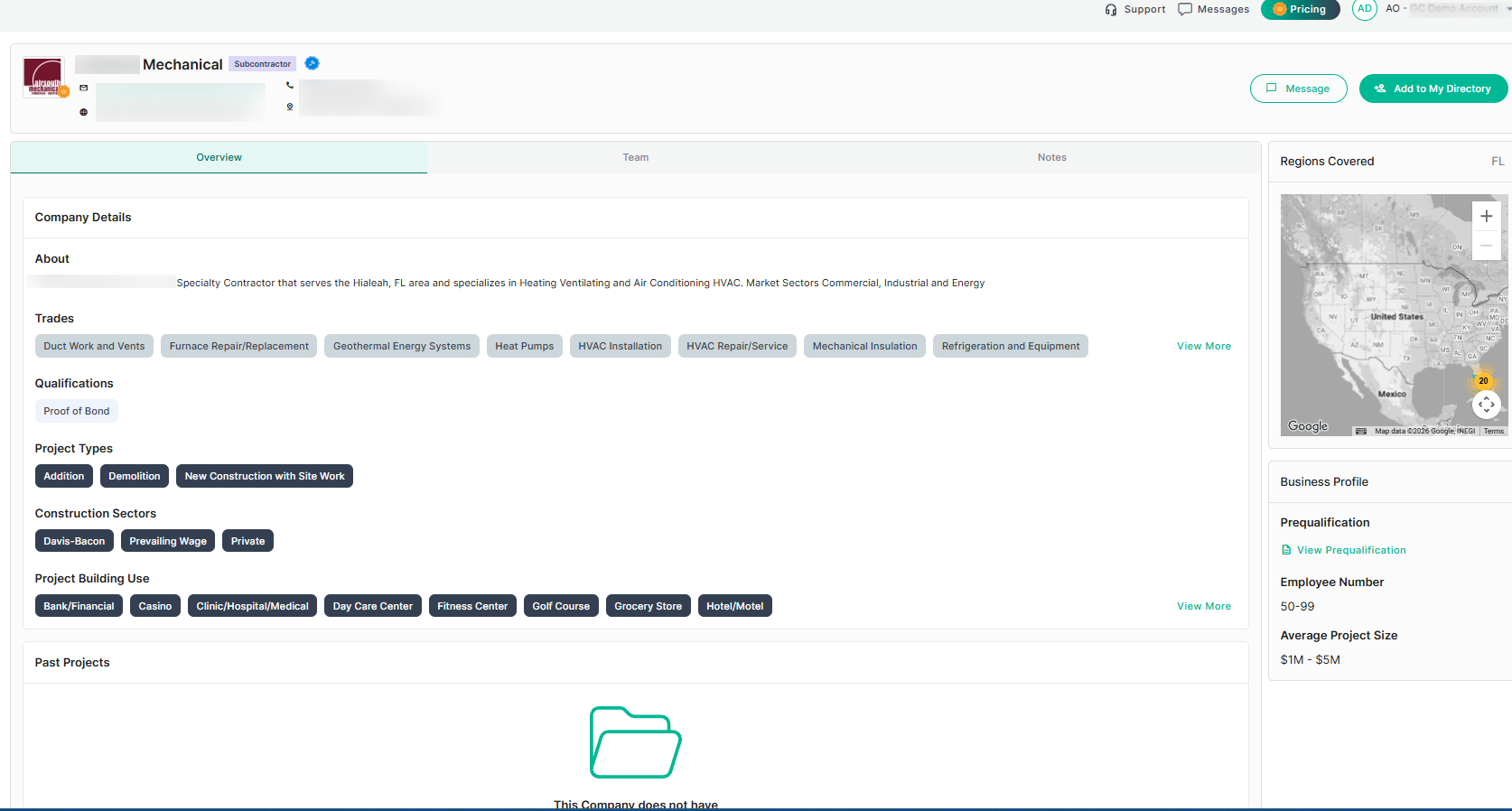
Step 2: Select the Overview tab to view company details.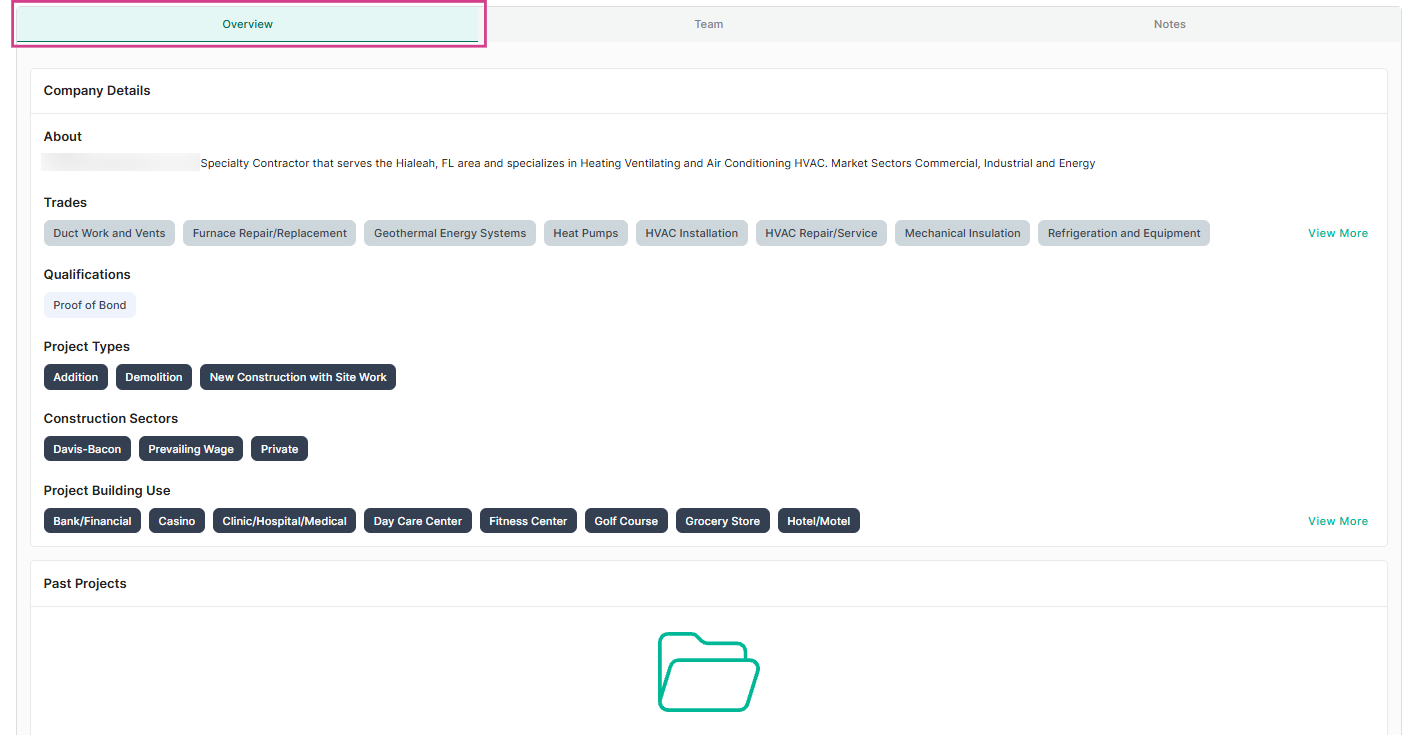
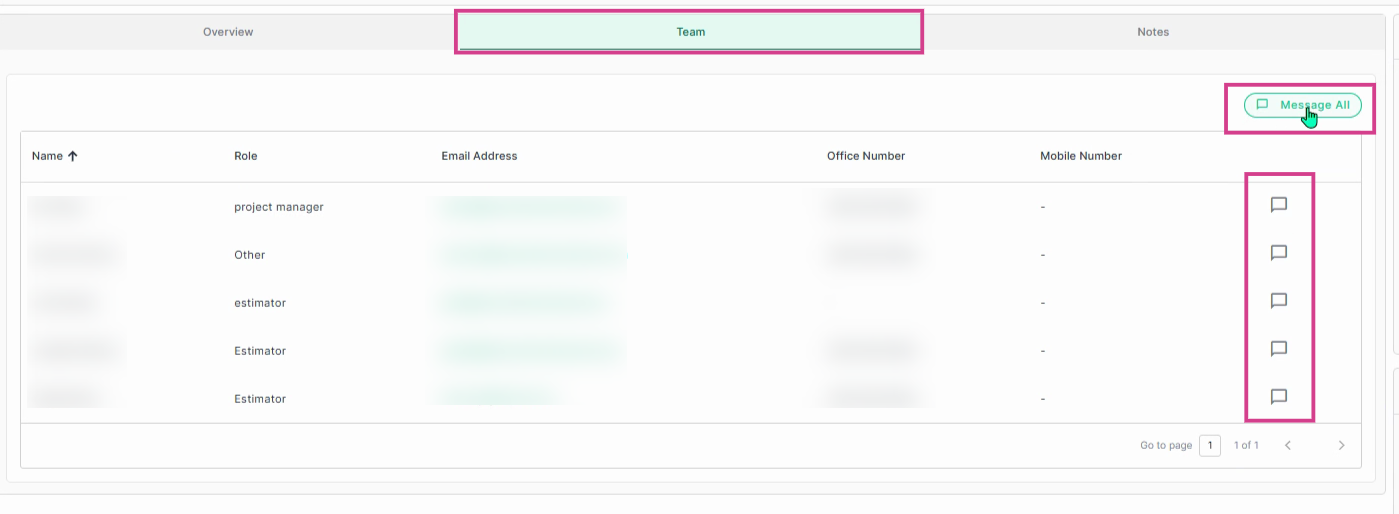
Step3: Select the Team tab to view a list of their company team members, their roles, email addresses, and phone numbers. Send messages to individual team members or choose Message All for group communication.
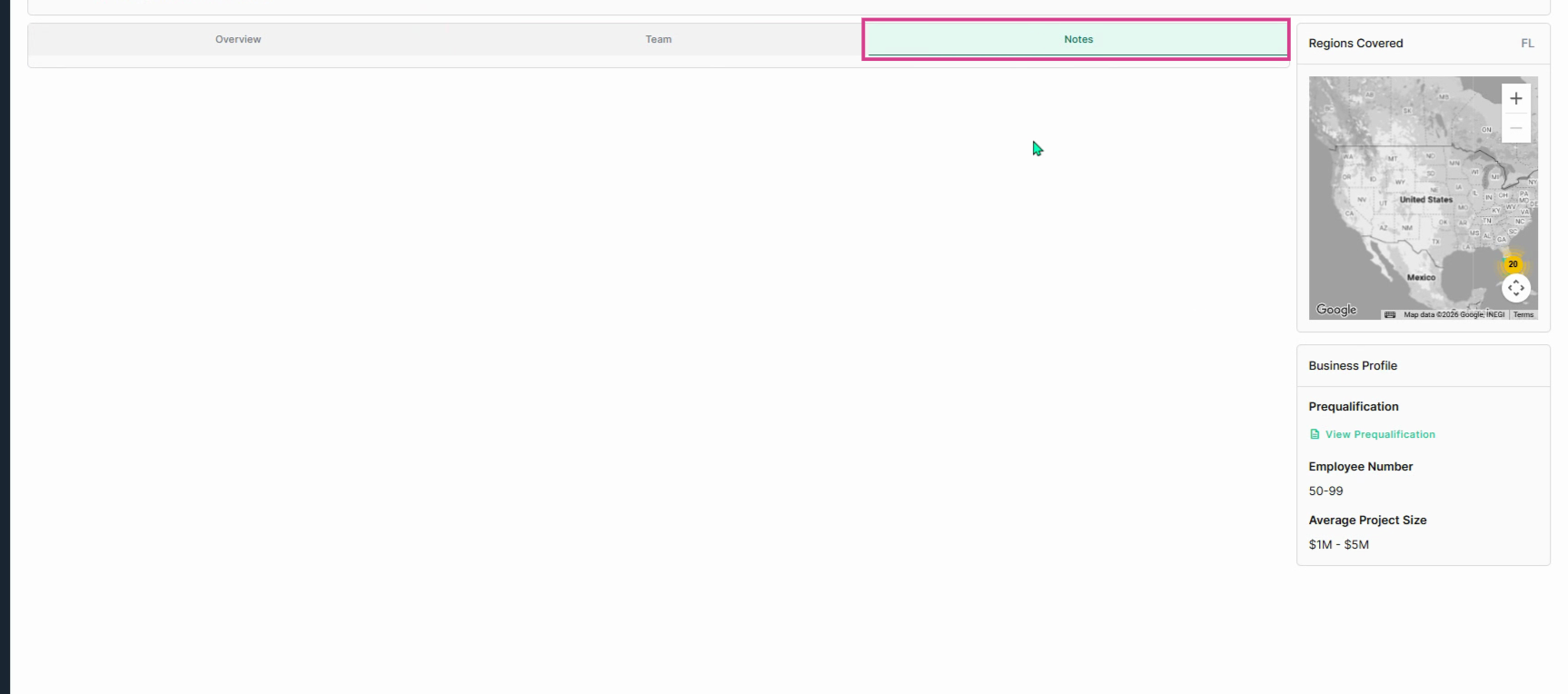
Step 4: Click the Notes tab to view private notes added by your team. Only you and your team can view the notes.
Step 5: Use options in the top right corner to send a message or add the company to your directory.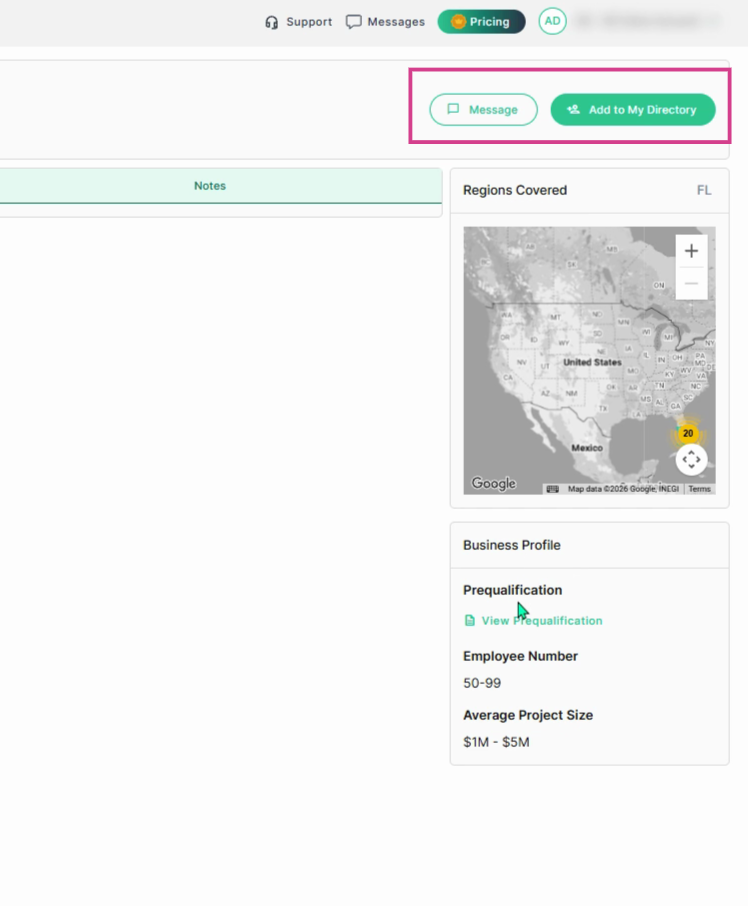
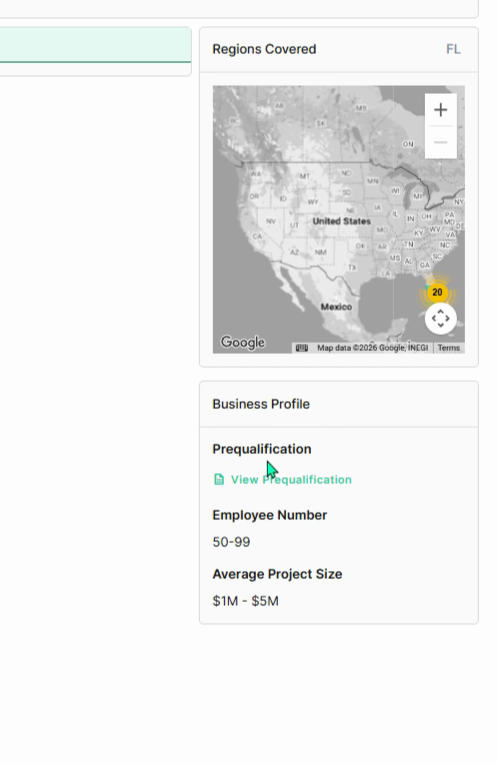
Step 6: View the regions this company serves and business profile details. View their pre-qualification form by selecting View Prequalification.
Finding and Connecting with Suppliers
Step 1: Click the Filter option, then select the Supplier tab.
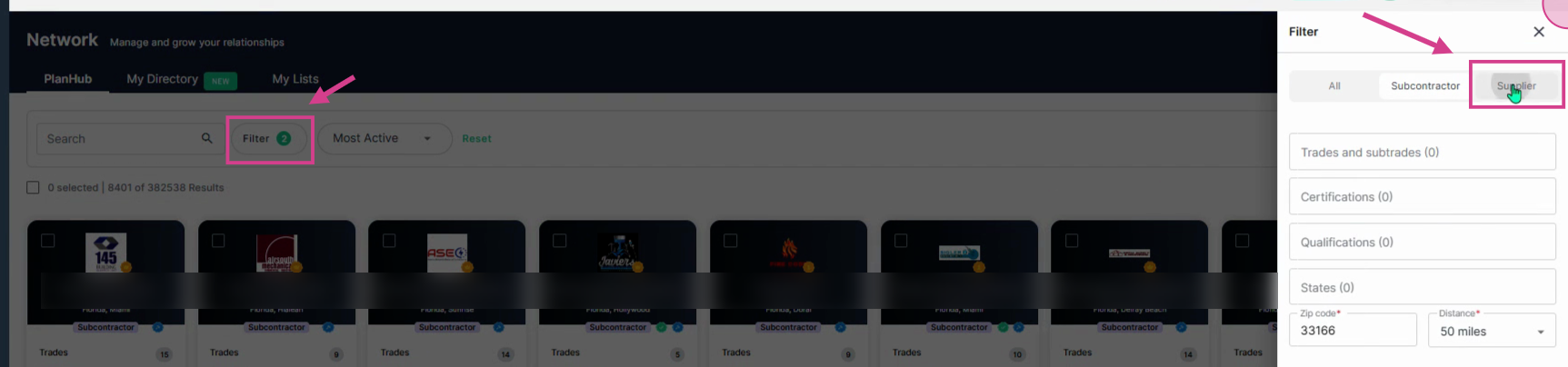
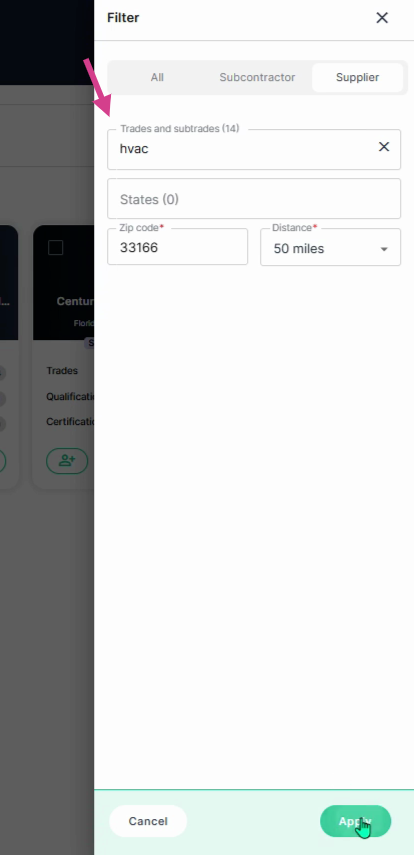
Step 2: Filter by trades and states or ZIP code and mileage distance, then click Apply.
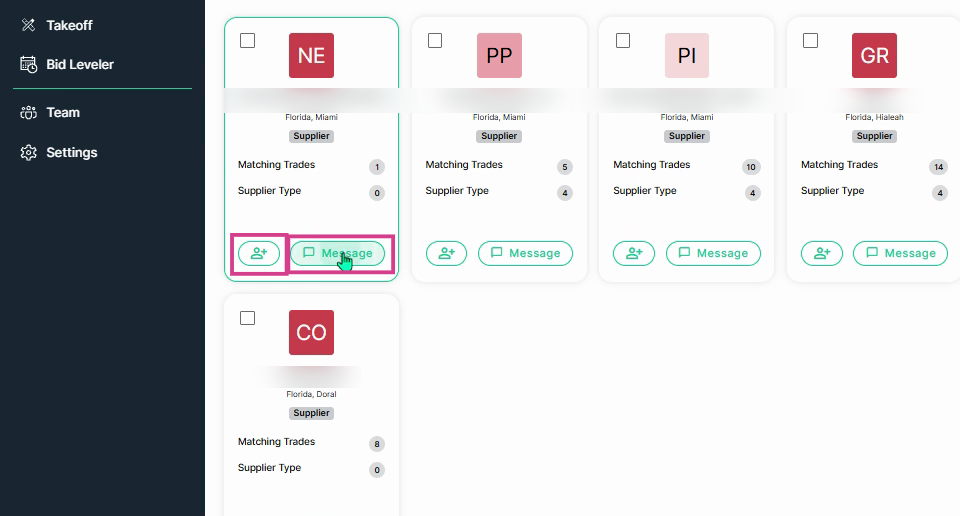
Step 3: Review supplier company card details, matching trades and supplier type. Add suppliers to your network by clicking on the person with a plus sign icon, or click the message bubble to contact the company directly.
Step 4: To message several suppliers at once, add a check mark to the boxes in the upper left corner of each card, then click the message button at the top right corner of the page.
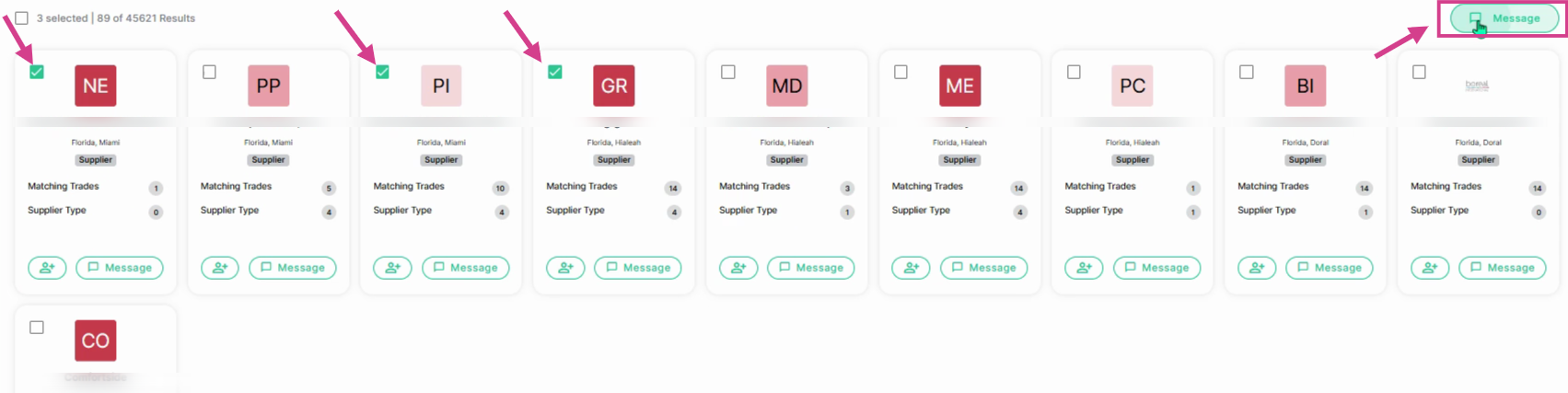
Step 5: In the pop up window, enter your message, upload documents, then click Send. Each recipient will receive their own message and will not see other suppliers contact information.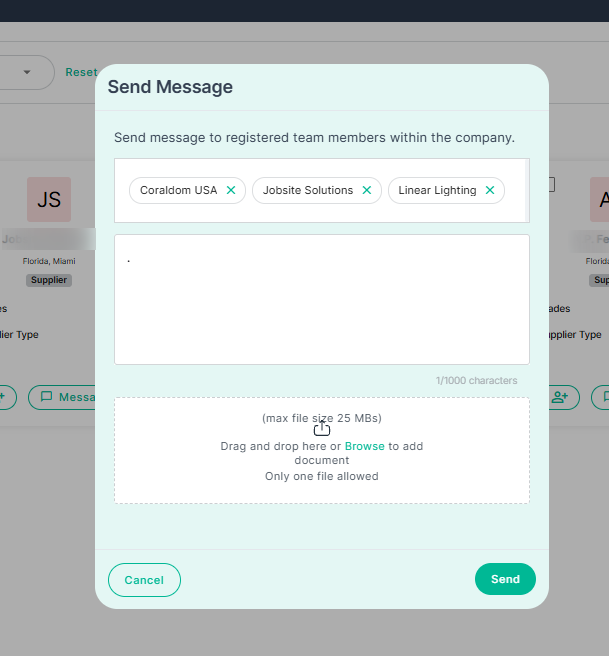
Step 6: Click on a Supplier's company name for a full company profile view. The header includes their contact info and location. Below is a brief overview and Team members listed on their planHub account. Click the notes tab to view notes that you and your team entered for this supplier. Only you and your team can view these notes.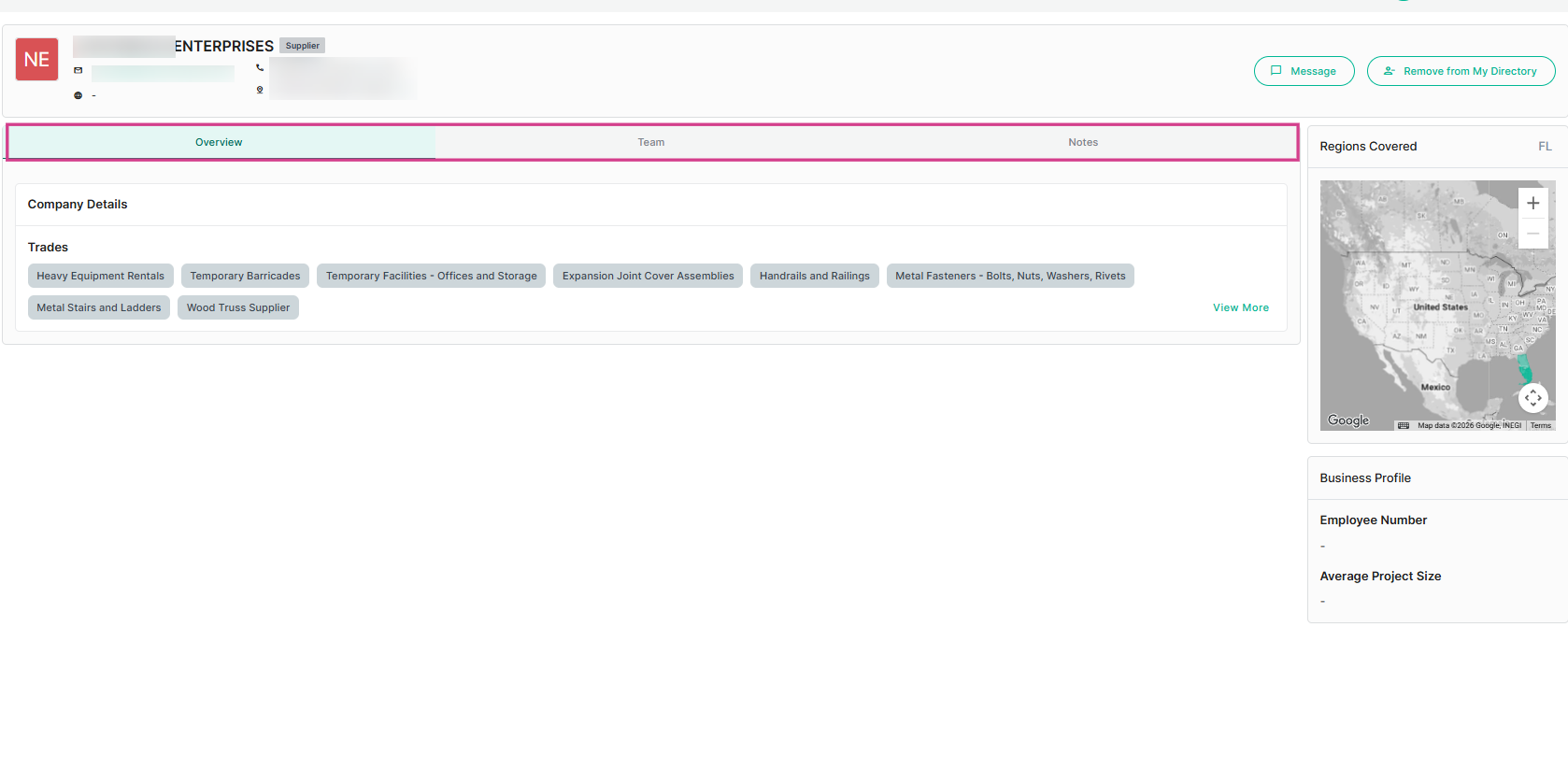
Organizing Your Directory
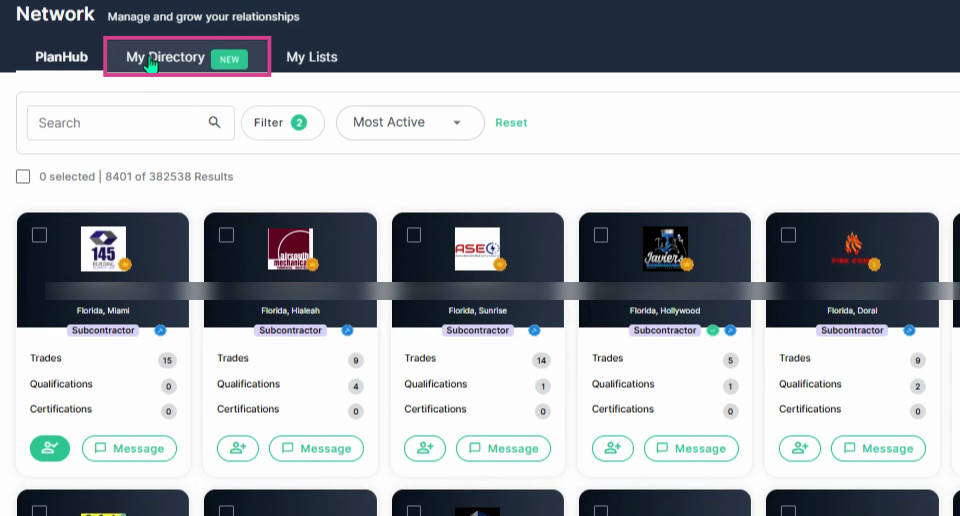
Step 1: Click the My Directory tab to access your saved connections.
Step 2: Use the filters panel to search and sort contacts by company name, labor status, distance, business classification, certifications, lists and subtrades.
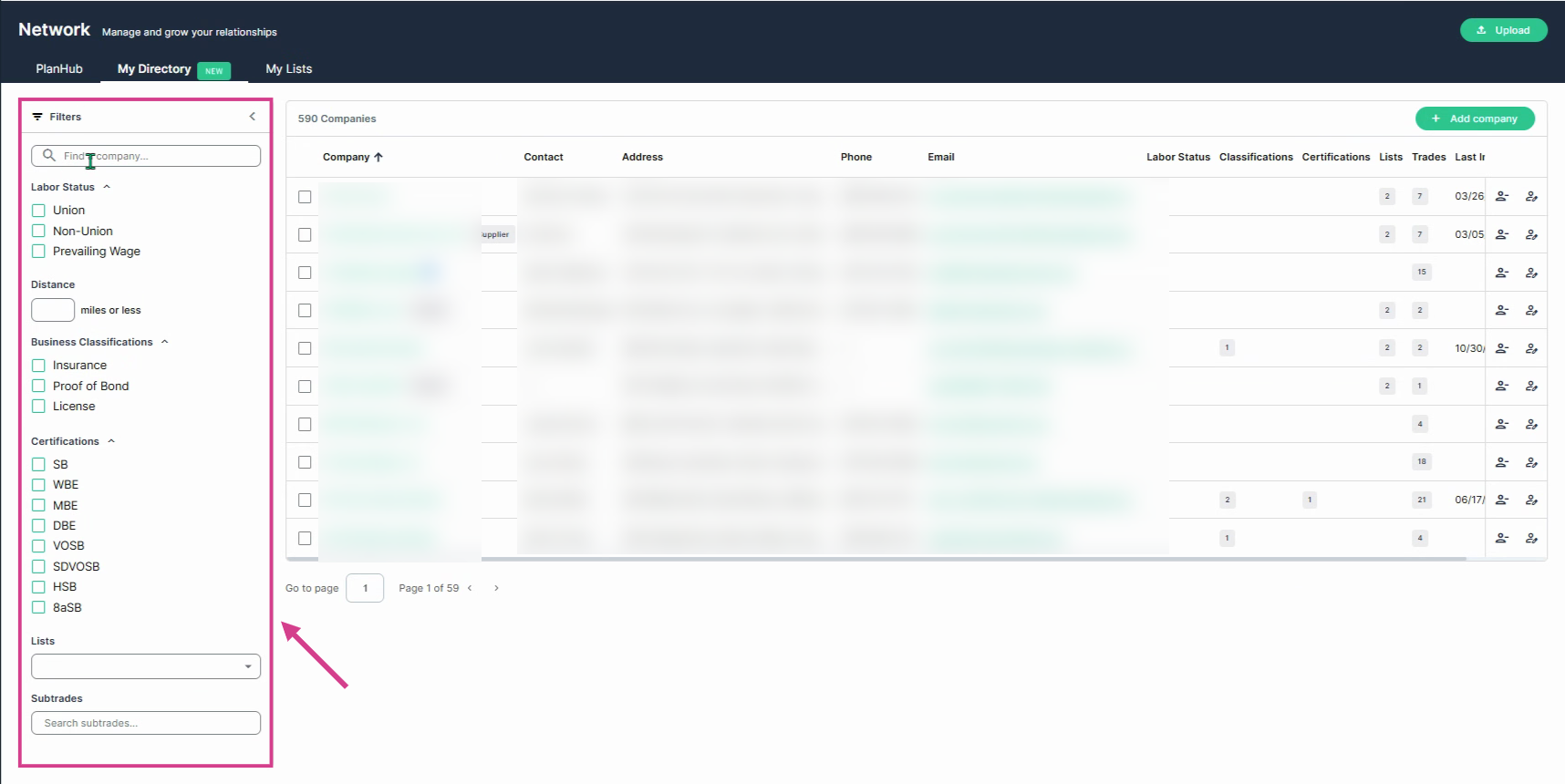
Step 3: Add and manage notes, remove or edit connections, or click Add Company (top right) to manually add new companies.
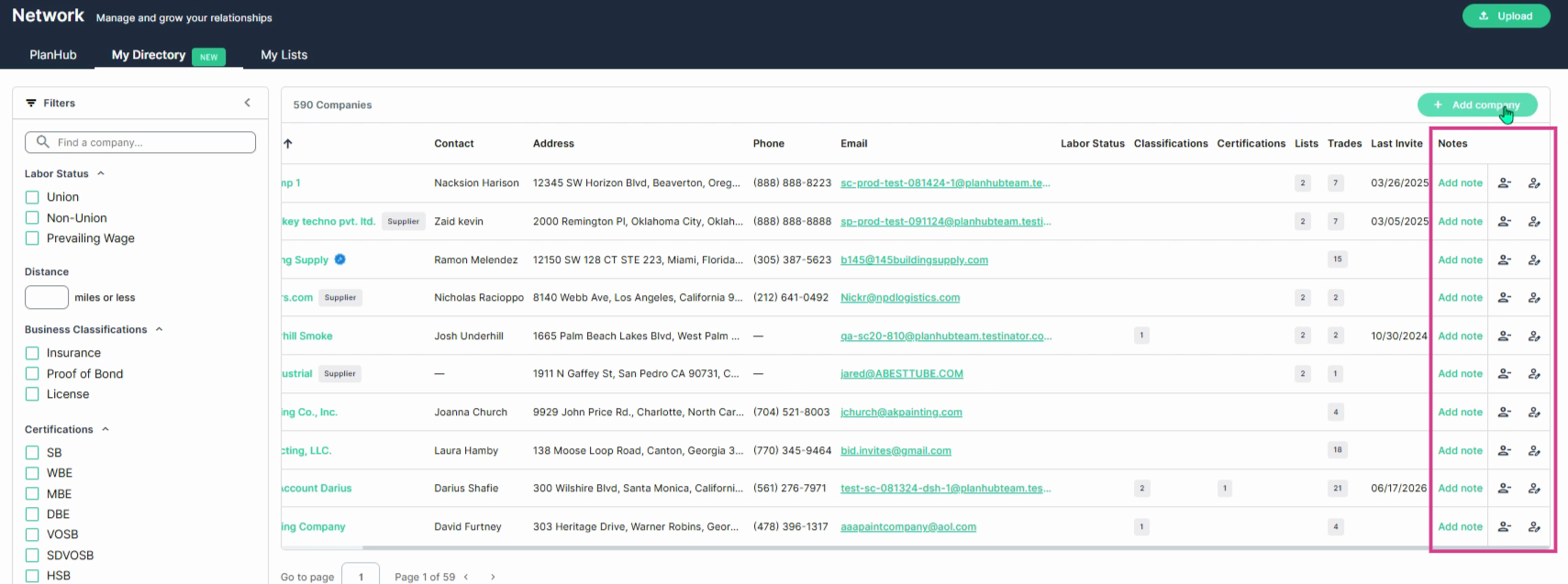
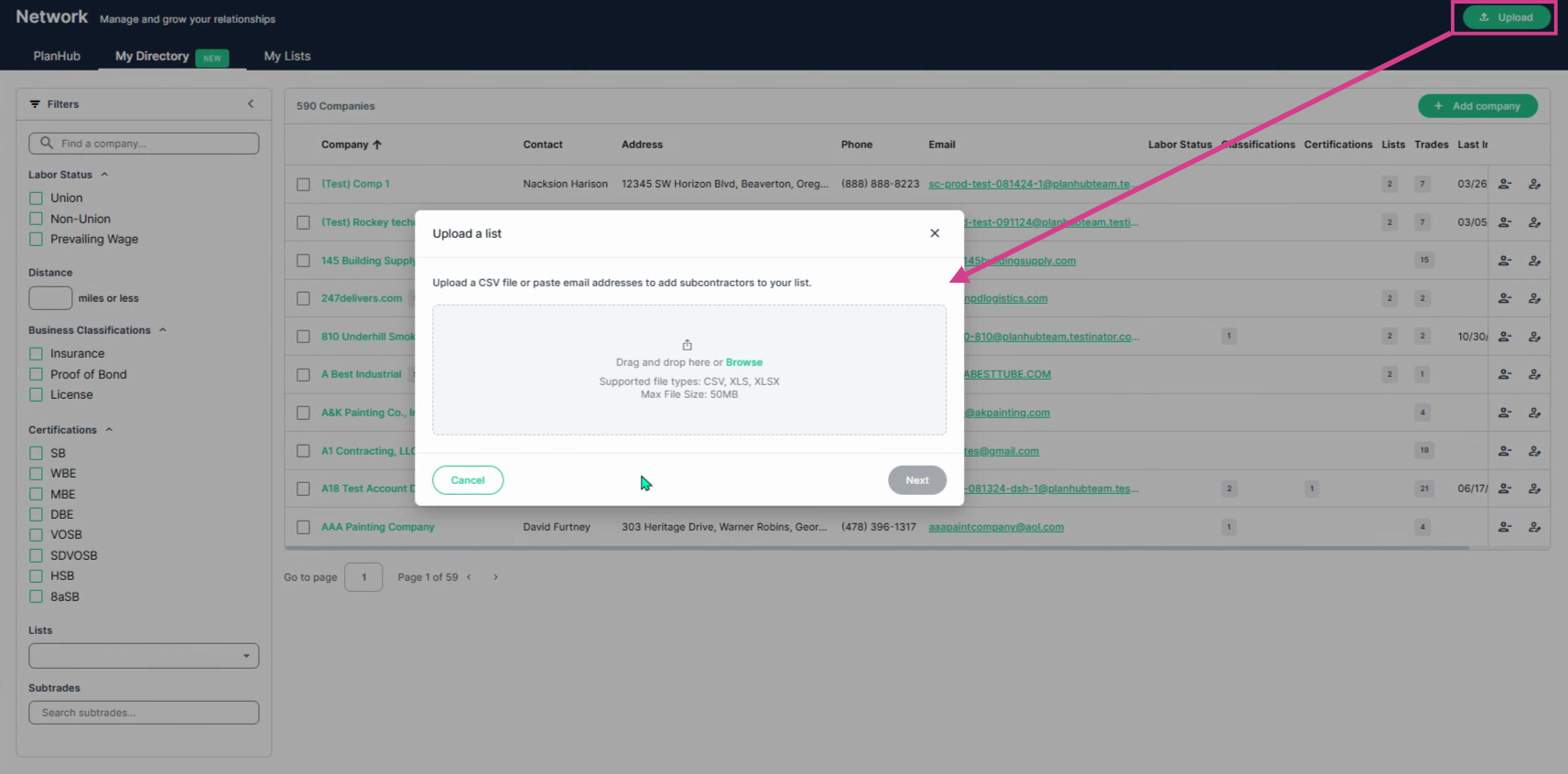
Step 4: Upload a contact list by clicking Upload and importing a CSV file or Excel spreadsheet.
Using and Managing Lists
Step 1: In the My Lists tab, manage and organize companies into custom lists. 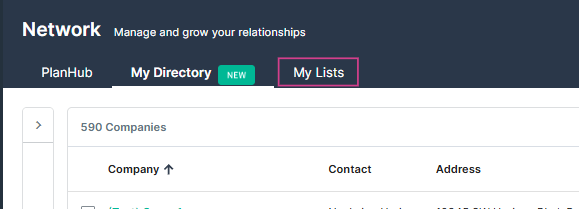
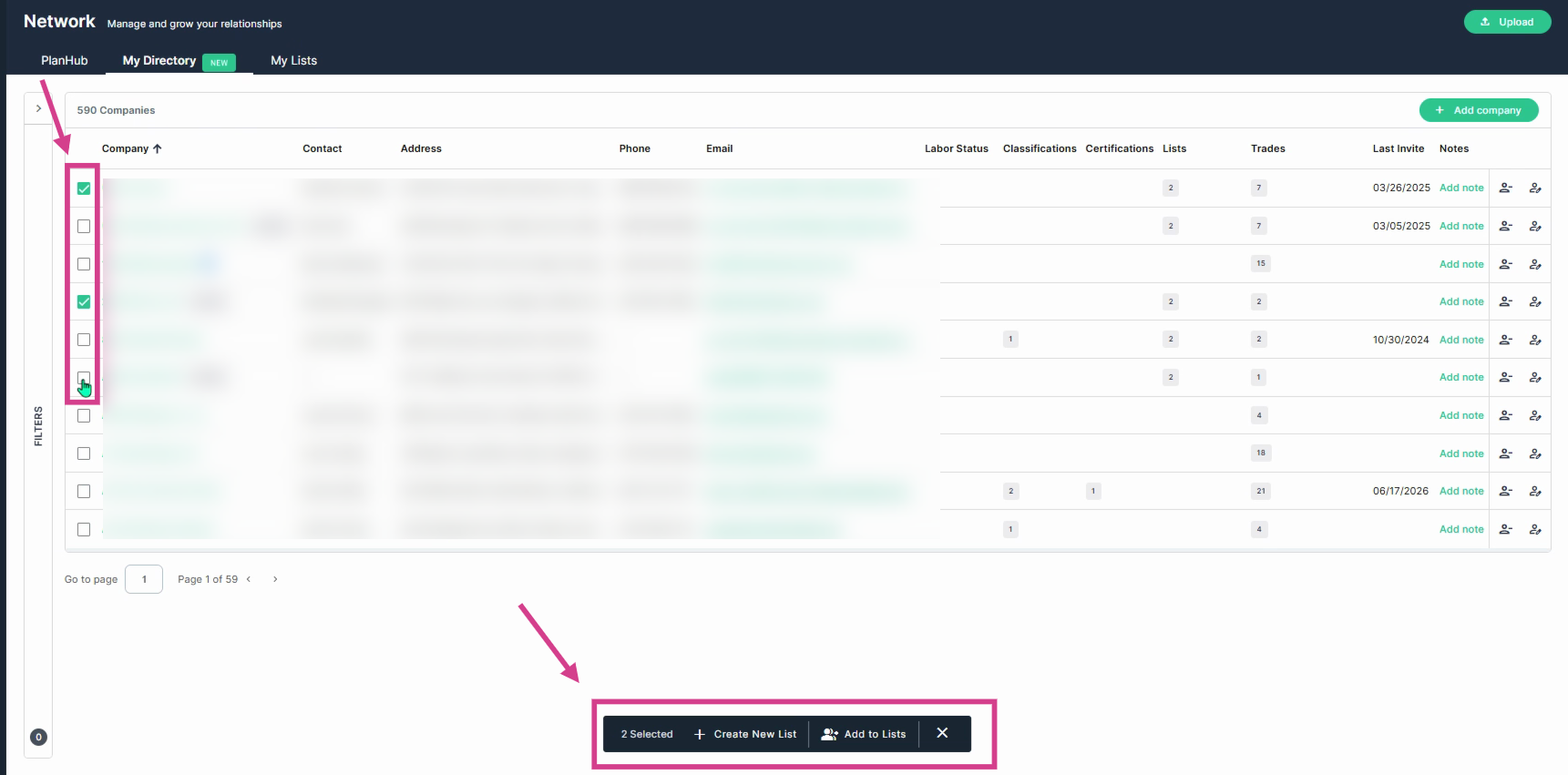
Step 2: To create a new list, check the boxes next to companies in your directory, scroll to the bottom, and select Create New List or add to an existing one.
Step 3: Click on a list to view and filter its members by name, labor status, distance, business classification, certifications, or subtrades.
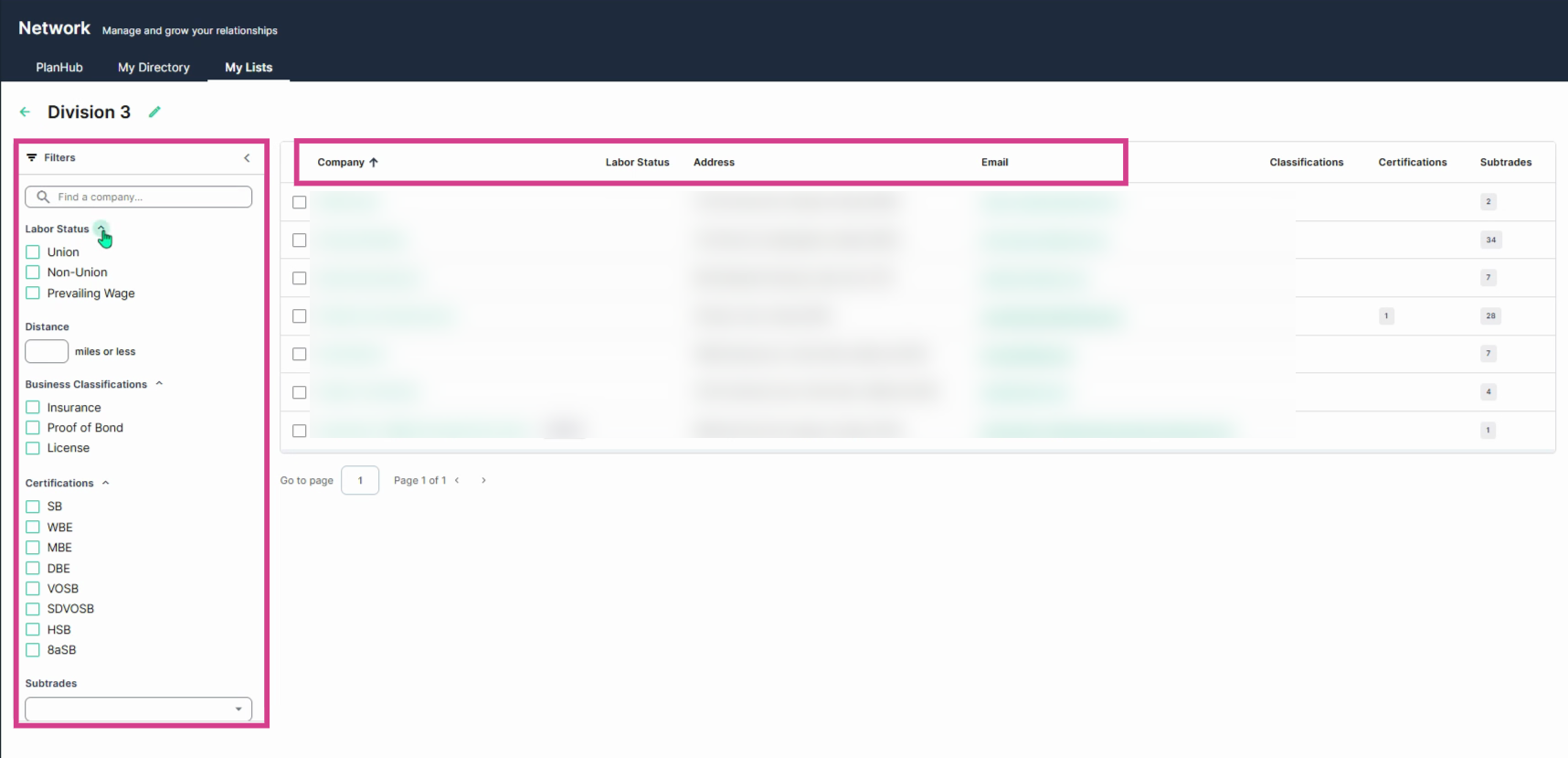
Step 4: Sort the company lists in order by using the headers names.
PlanHub’s Network page gives you powerful tools to discover, connect with, and organize construction partners making team and project management easier and more efficient. Use the filtering, messaging, and organizational options to keep your network growing and your projects moving forward.
Troubleshooting
Contact us if you need assistance or to report an issue:
- PlanHub Contact Page: https://planhub.com/contact/
- Customer Facing Support Ticket Link: https://knowledgebase.planhub.com/knowledge/kb-tickets/new
- Customer Success Team: CustomerSuccess@planhub.com